

Several windows
pgjumbo can have more than one window. FileNew Window opens another whole pgjumbo window, with its own Explorer and tabs, and any single tab can move to a small window of its own, for a second screen or to sit beside another tab. All of them belong to one running pgjumbo: a tab that moves keeps its session, and nothing reconnects or runs again.
Open another pgjumbo window
Section titled “Open another pgjumbo window”Choose FileNew Window, or press ⇧ ⌘ N (Ctrl+Shift+N on Windows and Linux). The new window is titled pgjumbo · Window 2 (then Window 3, and so on); the first one stays pgjumbo. It opens without the splash, with no tab open and the start page in the middle.
Each window is a whole pgjumbo window, as The pgjumbo window describes it.
| Each window has its own | All windows share |
|---|---|
| Explorer: what is selected and which rows are open | Your servers and their connections: a server connected in one window is connected in all, and disconnecting it disconnects it everywhere |
| Tabs, their order, the pinned ones and the two sides | Settings: a change applies at once in every window |
| Layout: which panes show, their widths, the Library or the Explorer on the left, the Inspector or the Assistant on the right | The Library, History and the knowledge base |
| Zoom, and the Query Tool’s text size | Updates: every window’s status bar says when a new version is out |
| The Assistant’s conversation | The menu bar, which acts on the window in front |
| Its place and size on the screen |
Every Query Tool tab keeps its own session with the server, whichever window it is in.
Move a tab to another window
Section titled “Move a tab to another window”Right-click the tab.
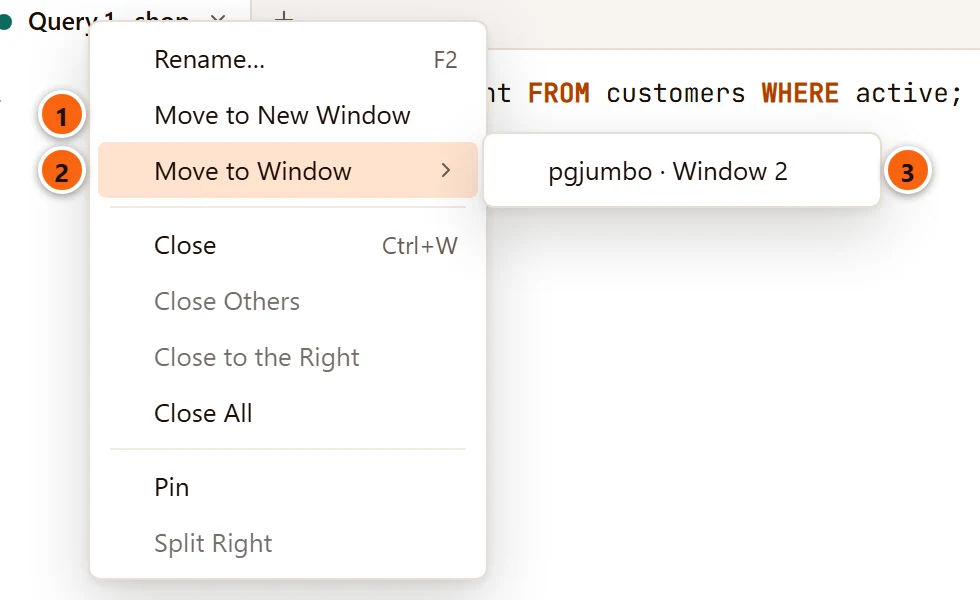
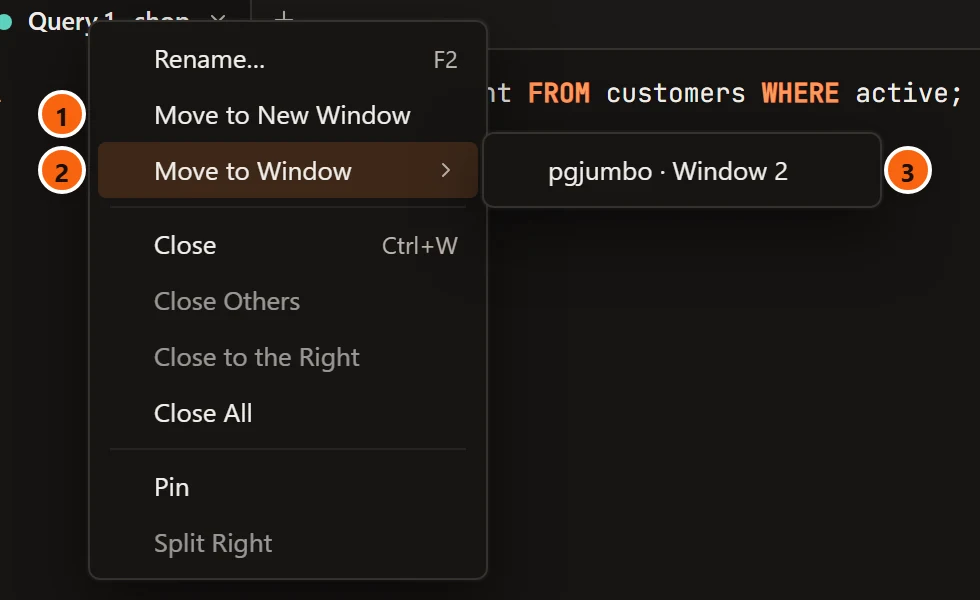
- 1 Move to New Window gives the tab a window of its own. See A tab in a window of its own.
- 2 Move to Window lists the other pgjumbo windows. It is in the menu only while there is another one.
- 3 Choose a window by its title. The tab leaves this window’s strip and comes to the front there, also when that window has no tab open yet.
You can drag the tab instead: drag it out of its strip and let go over the other window’s tab strip. An orange line shows where it lands. Esc while you drag puts the tab back.
The tab arrives with everything it holds: its session, its results, an open transaction, rows changed and not saved, text not saved. A tab that is running moves too, and its run goes on in the window it lands in. The other items of this menu are explained on Tabs.
Close a window
Section titled “Close a window”Choose FileClose Window, press ⇧ ⌘ W (Ctrl+Shift+W on Windows and Linux), or use the window’s own close button. What happens depends on whether it is the last pgjumbo window.
With other pgjumbo windows open, the window asks about its own tabs only, one at a time, as closing each tab would: a tab with SQL in no file offers to save it or move it to Drafts, a tab with an open transaction asks about it, and so on. Tabs that had moved from this window into windows of their own come back first, so they are asked about too. Cancel on any of these questions keeps the window open, with the tabs not yet closed. Once every tab has closed, the window closes; the other windows stay as they are. The window asks again each time you close it.
Closing the last pgjumbo window quits pgjumbo, so it asks what quitting asks: Save before quitting? lists the tabs not saved. Drafts, closing and quitting explains both questions.
Start pgjumbo again while it runs
Section titled “Start pgjumbo again while it runs”pgjumbo runs once. Starting it again while it runs, from the Dock, the Start menu, a desktop icon or a terminal, never starts a second copy. It does one of two things:
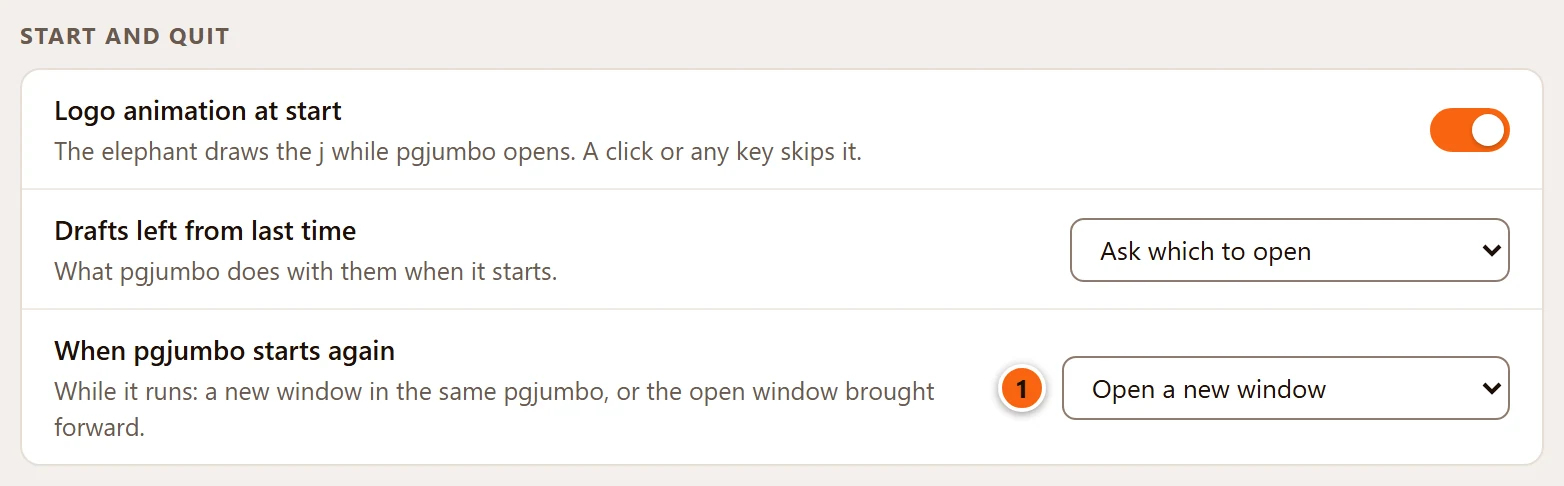
- 1 SettingsGeneralStart and quitWhen pgjumbo starts again chooses Open a new window, the default, which does what FileNew Window does, or Bring the open window forward, which opens nothing: the pgjumbo window you used last comes to the front, restored if it was minimised.
Windows after a restart
Section titled “Windows after a restart”When pgjumbo starts, the windows that were open when it last quit open again, each where it was, with its own layout and its own Query Tool tabs. Tabs come back waiting for their server: nothing connects or runs until you ask. Drafts left from last time are asked about first, and tabs other than Query Tool tabs (a table’s tab, a server’s tab, a report) are not reopened. What pgjumbo keeps between runs lists what a window remembers.
Each window’s Library lists, under Drafts, the drafts waiting in that window. A draft you open in one window leaves the other windows’ Drafts, FileOpen Draft and Open Quickly at once, and comes back there when that window moves it to Drafts again or closes. Drafts, closing and quitting explains drafts.
After pgjumbo closed unexpectedly, only the windows that were open at the last proper quit come back. The Query Tool tabs of any other window are not lost: they come back in the first window.
A tab is one tab wherever it goes. A window that opens never brings back, or asks about, a tab that is open in another window.
A tab in a window of its own
Section titled “A tab in a window of its own”Any tab can leave its pgjumbo window for a window that holds only that tab: a Query Tool, a table’s rows, psql, an object’s tab, a server’s tab, a report, a diagram, the guide. Put it on a second screen, or beside the window it came from.
Move the tab out
Section titled “Move the tab out”- Right-click the tab and choose Move to New Window (number 1 in the picture above).
- Or drag the tab past the edge of the pgjumbo window and let go. Its window opens where you let go, moved only as far as it takes to keep the whole window on that screen. Esc while you drag puts the tab back.
The tab moves with everything it holds: its session, its results, rows changed and not saved, text not saved, a knowledge file being edited. A tab that is running moves too and its run goes on; a Notifications tab keeps listening. Nothing reconnects and nothing runs again.
For a moment a Query Tool tab cannot move, and the two items are missing from its menu: after you pressed Run and before the run started, while an Explain or a save is on its way, and while it runs on several databases. Try again when that is over.
What the tab’s window has
Section titled “What the tab’s window has”The window is titled after the tab, such as Query 2 · shop, psql · shop or orders. It opens at 980 × 720 and can
be made as small as 520 × 360.
| It has | It does not have |
|---|---|
| The tab, alone in its strip | The Explorer and the Library |
| For a Query Tool, the toolbar’s query buttons, from Run to ··· | Connect, New query, Open Quickly… and the Assistant button |
| The status bar | The Inspector and the Assistant pane |
| The zoom and the Query Tool’s text size of the window the tab left, to start with | + for a new tab and the list of open tabs: a tab’s window holds one tab |
Right-click the tab in its window for a short menu:
| Item | What it does |
|---|---|
| Stop Watching | Ends the tab’s watch. Only on a tab that is watching a query (see Watch a query). |
| Move Back to pgjumbo | Gives the tab back to the pgjumbo window it came from, and closes this window. |
| Rename… | Renames a Query Tool tab, as F2 does. |
| Close | Closes the tab, and with it the window. See Close the tab for good. |
Menus and keys in a tab’s window
Section titled “Menus and keys in a tab’s window”On a Mac the menu bar at the top of the screen acts on the window in front, so with a tab’s window in front the items for its tab work and the others are greyed out. On Windows and Linux a tab’s window has no menu bar; the keys of the menu items still work there, such as Ctrl+Enter to run, Ctrl+S to save and Ctrl+W to close the tab. Menus lists every item with its keys.
Where what the tab opens shows
Section titled “Where what the tab opens shows”A tab’s window shows its one tab and nothing else, so whatever the tab opens besides itself opens in the pgjumbo window the tab came from, and that window comes to the front:
- Open in Query Tool on an object’s tab;
- Open on a row of an object’s Dependencies view;
- a double-click on a row of Object Details.
A single click on a row of Object Details shows that object in the Inspector of the window the tab came from, which stays where it is.
Bring the tab back
Section titled “Bring the tab back”Any of these gives the tab back to the pgjumbo window it came from, with its session and everything else as it was:
- Move Back to pgjumbo on the tab’s right-click menu;
- the window’s close button;
- FileClose Window, or ⇧ ⌘ W (Ctrl+Shift+W on Windows and Linux).
The tab comes back at the end of that window’s strip, in front. If the window it came from has closed meanwhile, it goes to another pgjumbo window. You can also drag the tab from its own window onto the tab strip of any pgjumbo window: it lands there, at the orange line.
Close the tab for good
Section titled “Close the tab for good”Closing the tab itself is different from closing its window. Close on its menu, the tab’s × or ⌘ W (Ctrl+W on Windows and Linux) closes the tab for good, and its window with it. It asks first, as closing that tab anywhere would (see Drafts, closing and quitting). Discard on that question throws the tab’s SQL away, here as anywhere: the next start does not offer it again.
Quitting, and the next start
Section titled “Quitting, and the next start”When pgjumbo quits, every tab’s window hands its tab back first, so the question before quitting covers those tabs too. A tab’s window is not reopened at the next start: a Query Tool tab that was in one comes back in the pgjumbo window, with that window’s other tabs.
When a server needs its password
Section titled “When a server needs its password”A tab’s window can connect a server again only when its password is saved. For a server that asks for its password each time, connect it from a pgjumbo window: it is then connected for the tab’s window too.