

Updates
pgjumbo tells you when a newer version is out on pgjumbo.com, and updates itself when you say so. It never downloads
or restarts without asking, and a restart asks about your unsaved work first, as quitting does. You do not download an
installer again, unless you installed pgjumbo from a .deb or .rpm package.
When pgjumbo looks
Section titled “When pgjumbo looks”pgjumbo asks pgjumbo.com for the latest version a few seconds after it starts, and at most once a day: a start within 20 hours of the last check asks nothing. It looks as it starts, not while it runs, so a pgjumbo you leave open for days looks again when you start it the next time, or when you ask.
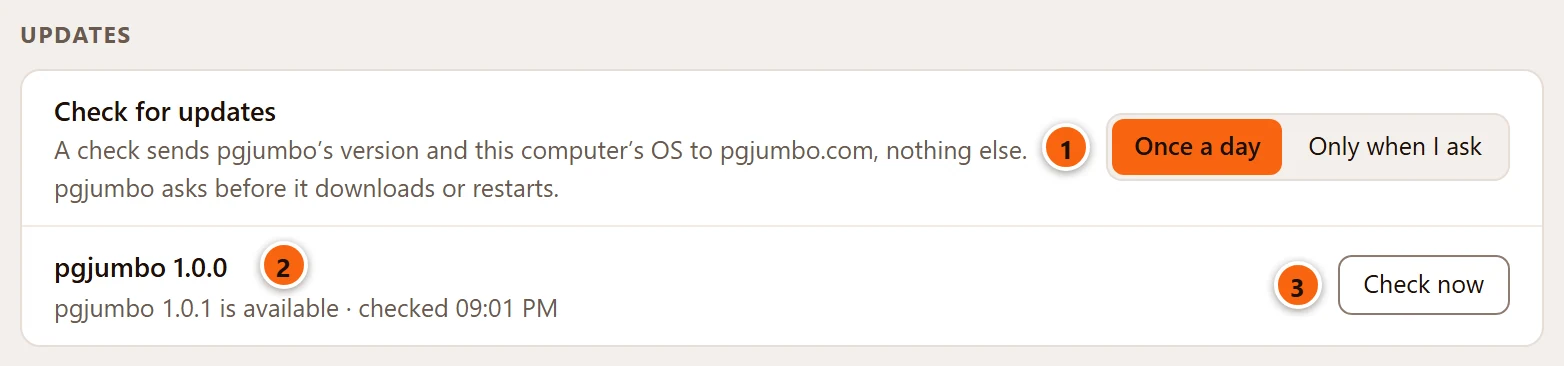
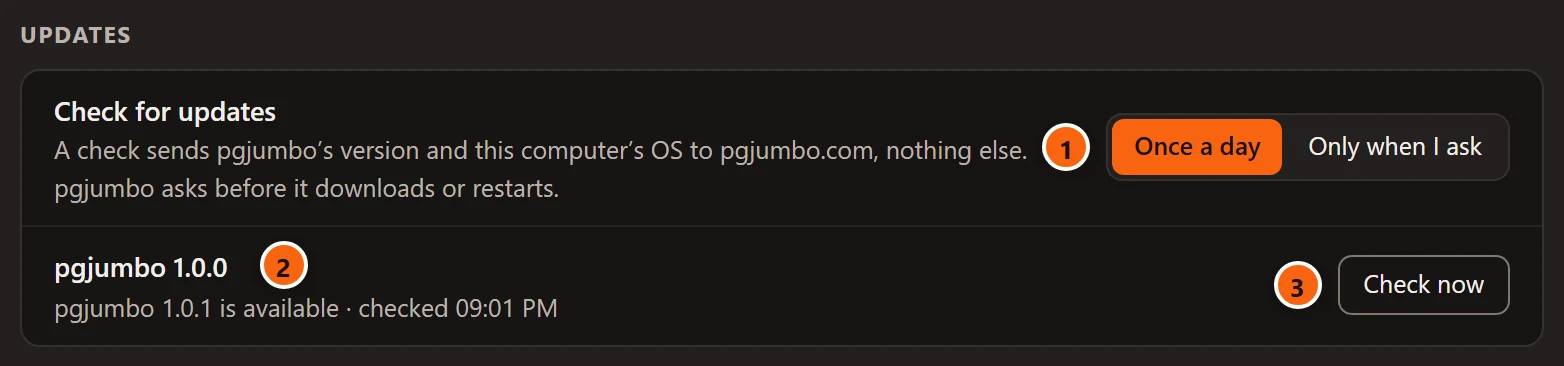
- 1 SettingsGeneralUpdatesCheck for updates chooses Once a day, the default, or Only when I ask. With Only when I ask, pgjumbo never contacts pgjumbo.com by itself.
- 2 The version you have, and under it what pgjumbo knows: see the table below.
- 3 Check now asks pgjumbo.com at once, as HelpCheck for Updates… does.
| The line under the version | When |
|---|---|
| Not checked yet | pgjumbo has never asked. |
| Last checked and a time | It asked on an earlier run. A time alone is today’s; an earlier day is written with its date, as your computer writes dates. |
| Checking pgjumbo.com… | A check is under way. Check now is greyed out meanwhile. |
| Up to date · checked and a time | pgjumbo.com has nothing newer. |
| pgjumbo 1.0.1 is available · checked and a time | A newer version was found and is not downloaded yet. |
| Downloading pgjumbo 1.0.1 · 10.8 of 15.6 MB | The download you asked for is running. |
| pgjumbo 1.0.1 is ready · Restart to update | It is downloaded and checked. |
| Installing pgjumbo 1.0.1… | You pressed Restart to update and the installer is at work. |
| pgjumbo.com couldn’t be reached · checked and a time | The check you asked for failed. |
Like every setting, the choice applies at once. Settings describes the rest of the sheet.
What a check sends
Section titled “What a check sends”A check sends pgjumbo’s version and your computer’s operating system, written as pgjumbo/1.0.0 (windows), and nothing
else: no servers, no queries, nothing that identifies your computer. As with any website, the host of pgjumbo.com keeps
standard access logs, IP addresses among them. Checking for a new version is the one thing pgjumbo does on the network
by itself; choose Only when I ask to stop it. HelpPrivacy… in pgjumbo, and
Privacy on pgjumbo.com, say the same in full.
When there is a new version
Section titled “When there is a new version”pgjumbo says so in up to five places, and none of them takes the keyboard or opens a dialog by itself.


- 1 The status bar’s last item says pgjumbo 1.0.1 is available, with an orange dot. Click it for the notice. It shows in every pgjumbo window, whatever is in front.
The first time pgjumbo finds a version, a small note says so above that item:
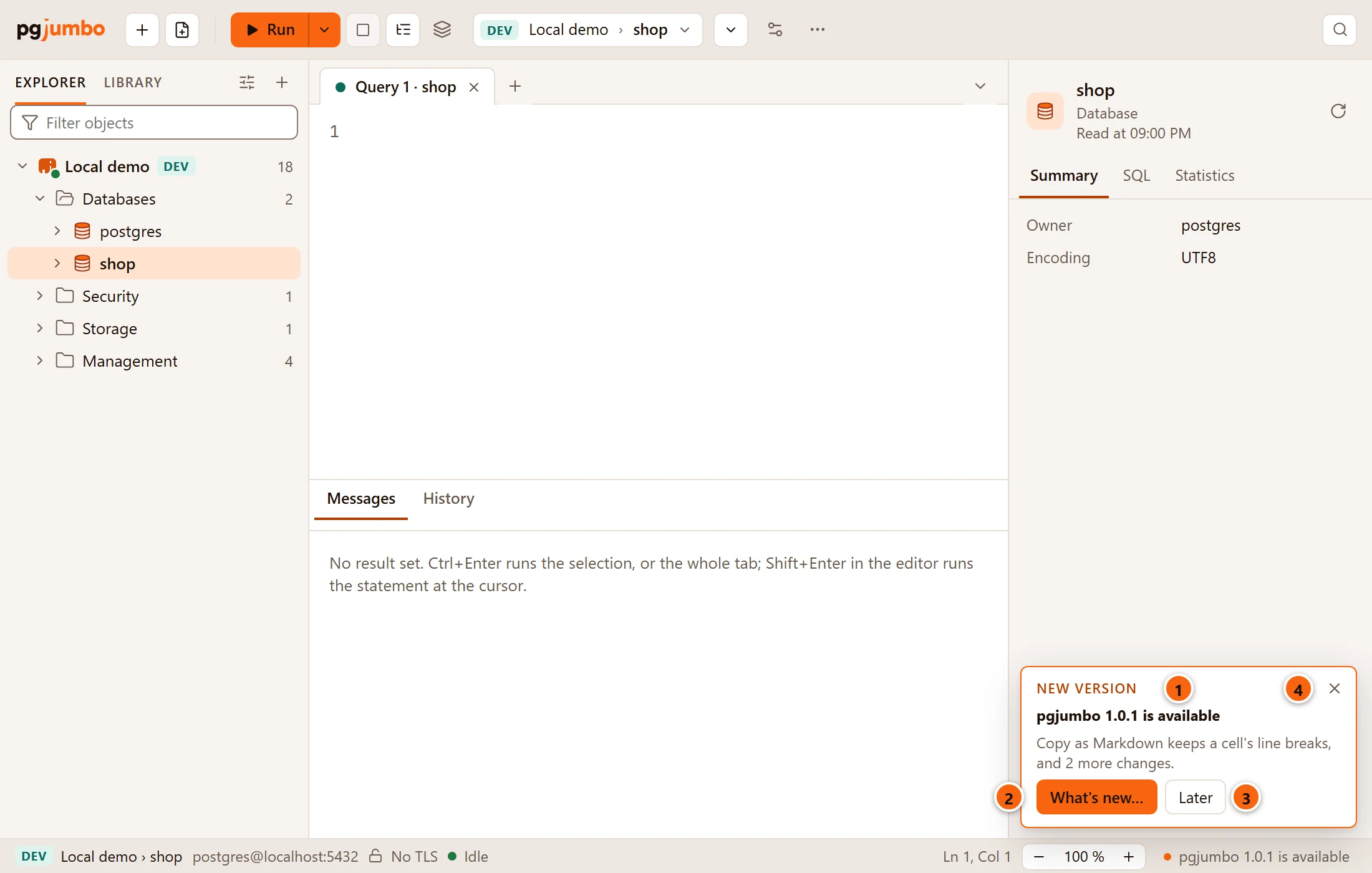
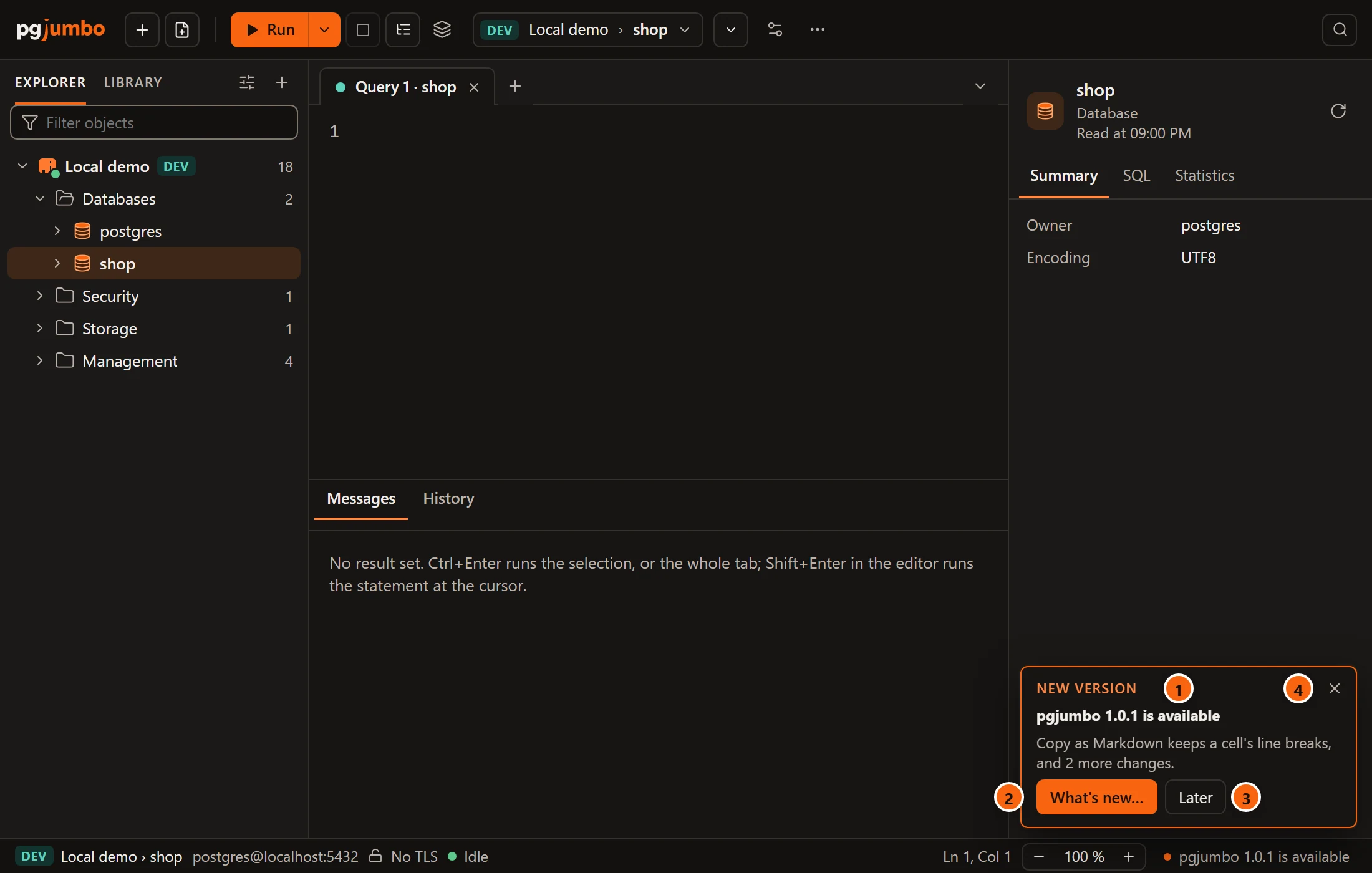
- 1 The note: New version, the version, then the first change and how many more there are. You can keep typing while it shows; it stays until you answer it.
- 2 What’s new… opens the notice.
- 3 Later closes the note.
- 4 × closes it too.
The note shows once for each version: answered in one window, it does not come back in another or after a restart. The status bar’s item stays.
The note needs a tab in front. With no tab open, the start page says it instead:
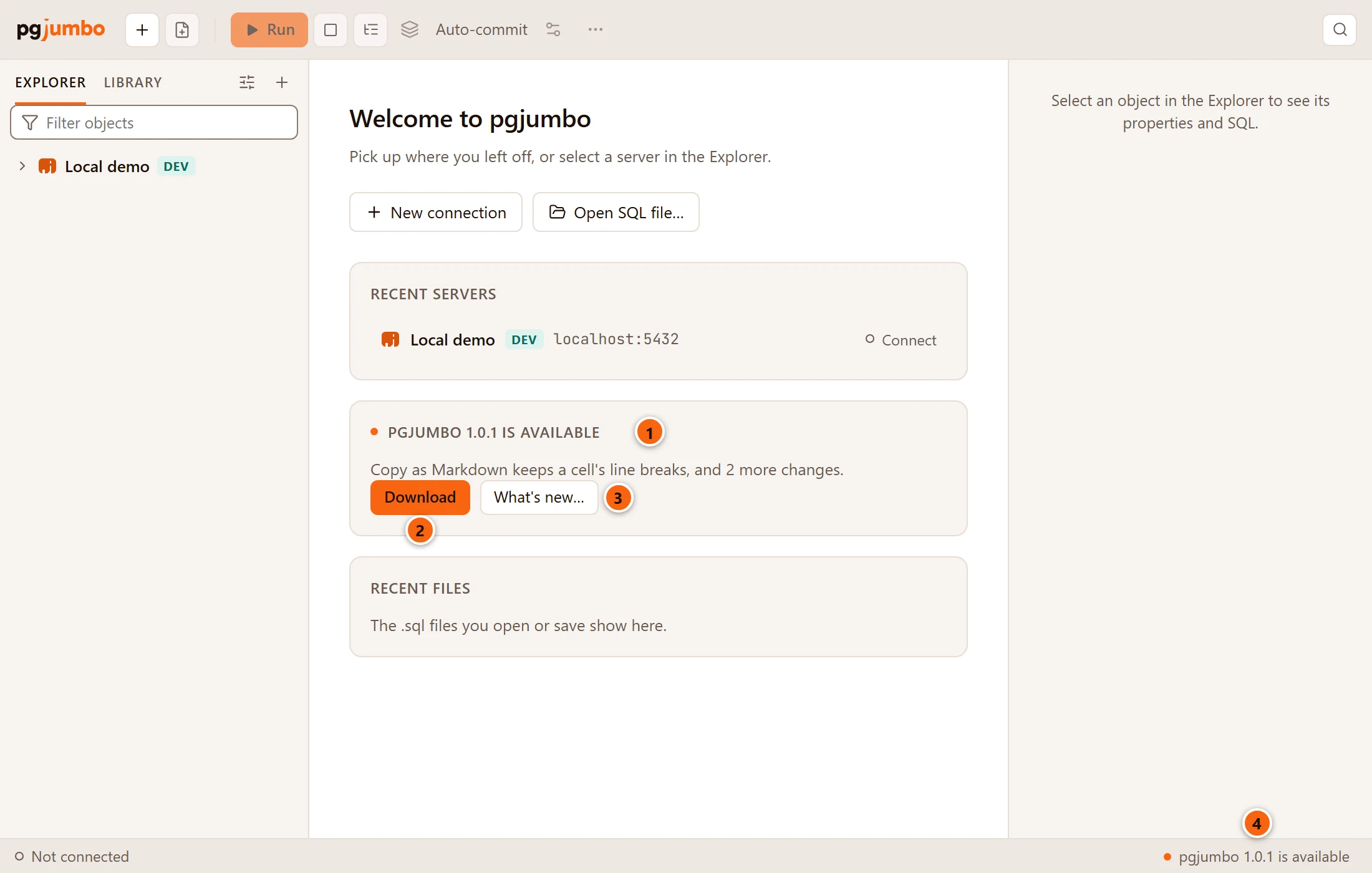
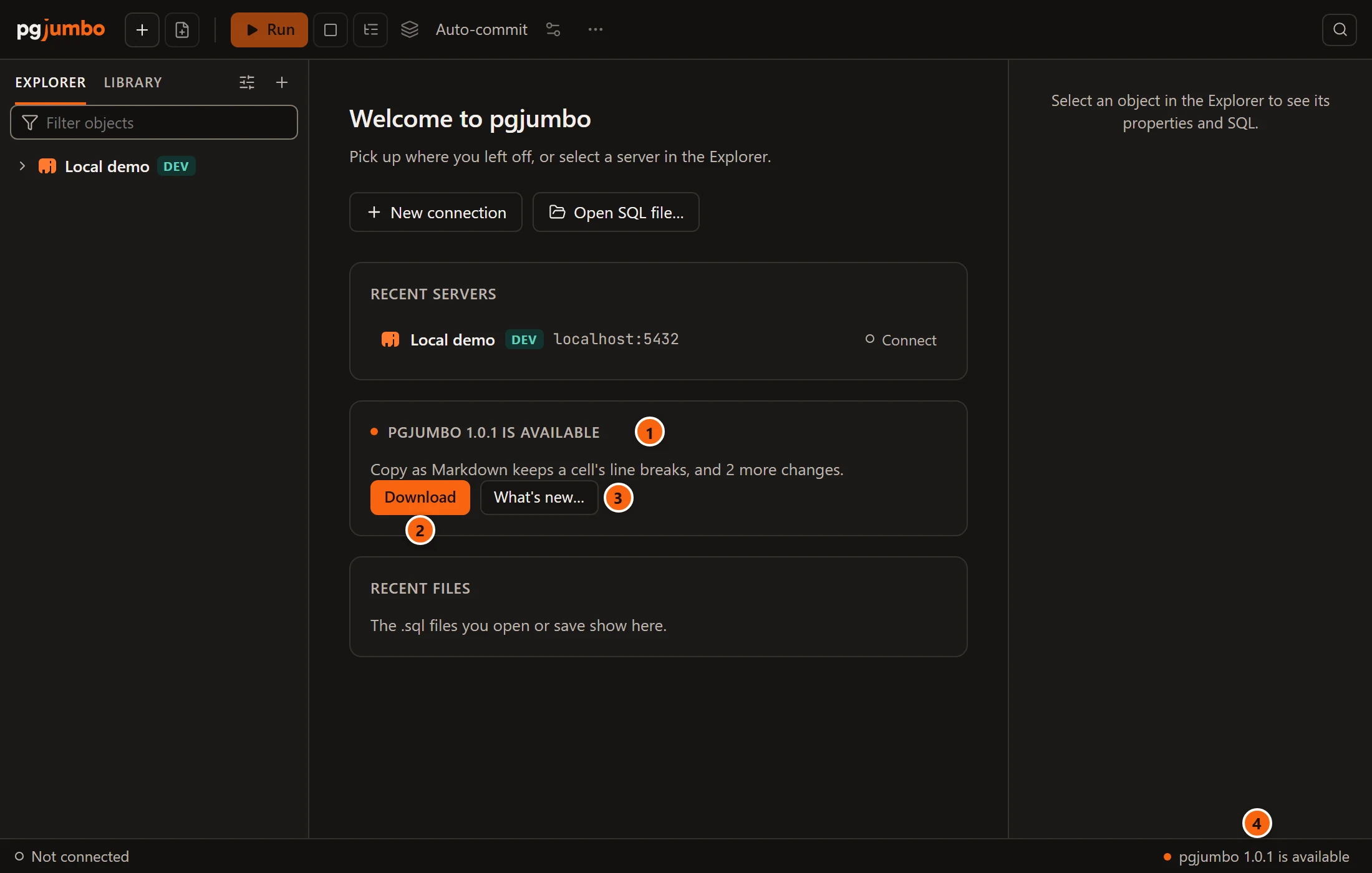
- 1 The card names the version and the first change. It is there for as long as the version is offered.
- 2 Download starts the download at once, without the notice.
- 3 What’s new… opens the notice.
- 4 The status bar’s item, as in every window.
The menus name it too. While a version is offered, HelpCheck for Updates… reads Update Available: pgjumbo 1.0.1… and opens the notice; it is the first item of the Help menu on Windows and Linux, and in the pgjumbo menu under About pgjumbo on a Mac. The fifth place is the row in Settings, above.
The notice
Section titled “The notice”The notice opens only when you ask for it: from the status bar’s item, the note, the start page or the menu.
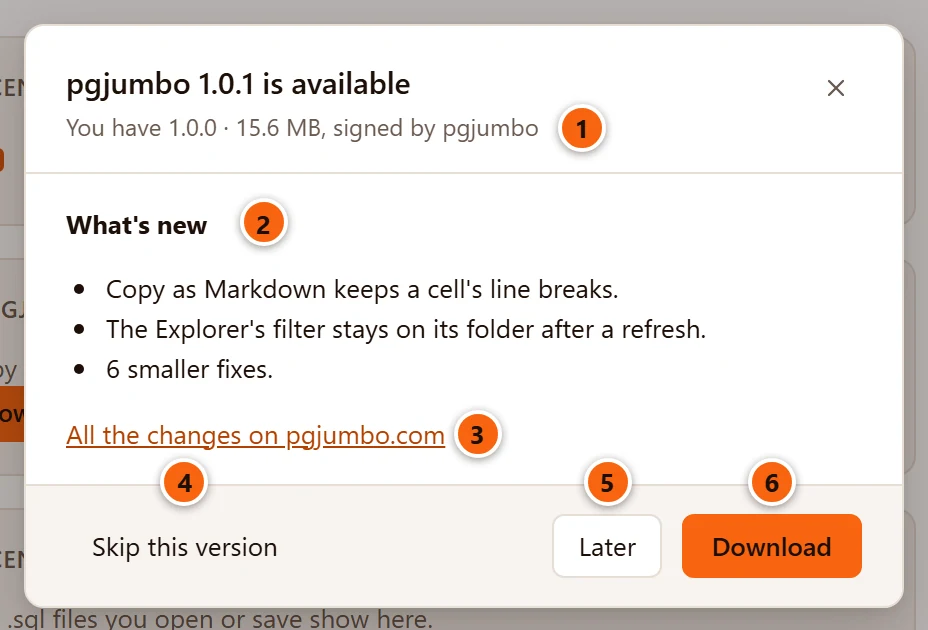
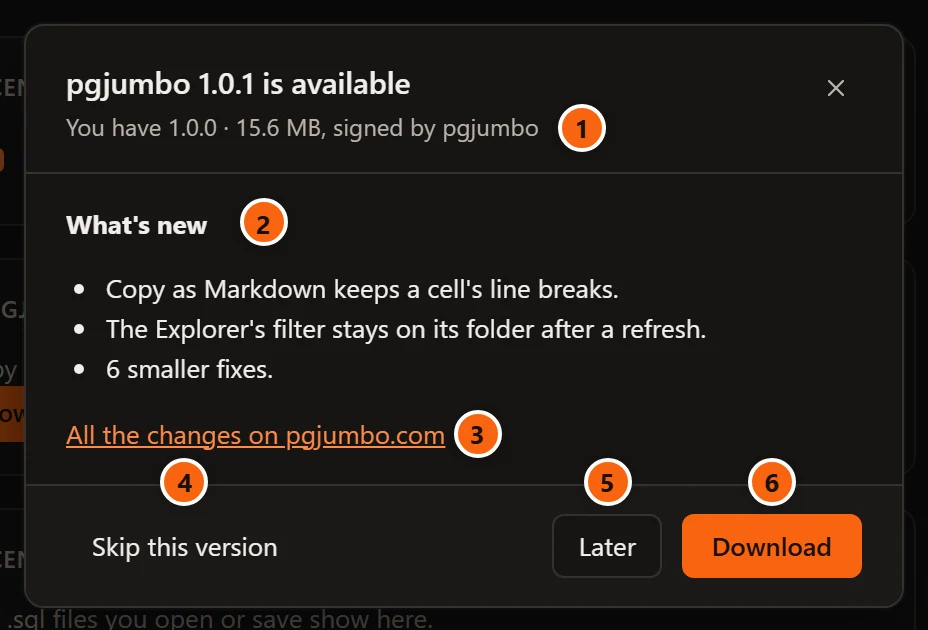
- 1 The version you have, the size of the download, and that it is signed by pgjumbo.
- 2 What’s new: the changes of the new version, as pgjumbo.com lists them.
- 3 All the changes on pgjumbo.com opens that version’s page in your browser. It shows when the version has such a page.
- 4 Skip this version: pgjumbo does not offer that version again by itself. Its item, note and card go. HelpCheck for Updates… still finds it, and a newer version is offered as usual.
- 5 Later closes the notice, as × and Esc do. The status bar’s item stays until you quit, and a later day’s check offers the version again.
- 6 Download closes the notice and downloads the new version in the background.
Download it
Section titled “Download it”Nothing is downloaded until you press Download, in the notice or on the start page.


- 1 The status bar shows how far the download is, with a bar when pgjumbo.com says how large it is. Keep working meanwhile.
- 2 Cancel stops the download. The version is offered again as before.
Open the notice during a download (the Help menu’s item does it) and it is titled Downloading pgjumbo 1.0.1, with the same progress line, Cancel Download and OK.
pgjumbo checks the download against its own signature, and against the version that signature was made for, before anything is installed. A file that fails the check is not kept: the notice says The download is not signed with pgjumbo’s key for this version, so pgjumbo did not keep it. When a download fails for this or any other reason, such as a lost connection, the status bar goes back to pgjumbo 1.0.1 is available; the notice then says why in red above What’s new, and Download tries again.
Restart to update
Section titled “Restart to update”

- 1 Once the download is checked, the status bar says pgjumbo 1.0.1 is ready.
- 2 Restart to update installs it and starts pgjumbo again. Nothing restarts until you press it.
The notice now reads pgjumbo 1.0.1 is ready, with You have 1.0.0 · downloaded, its signature checked, Later and Restart to update. The downloaded version waits for as long as pgjumbo runs. If you quit instead of restarting to update, the next check offers the version again and it is downloaded again.
The questions before the restart
Section titled “The questions before the restart”With nothing unsaved and nothing running, pgjumbo restarts at once. Otherwise it asks what quitting asks, under the title Restart pgjumbo to update to 1.0.1?
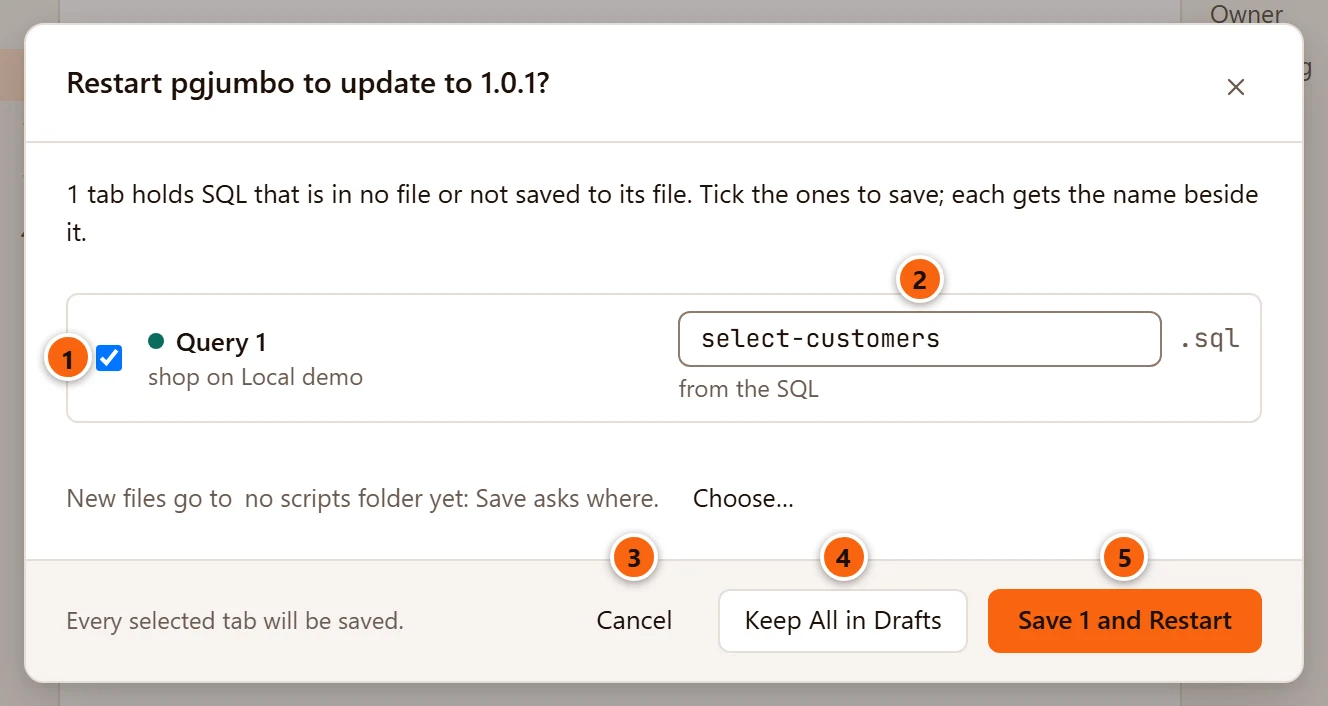
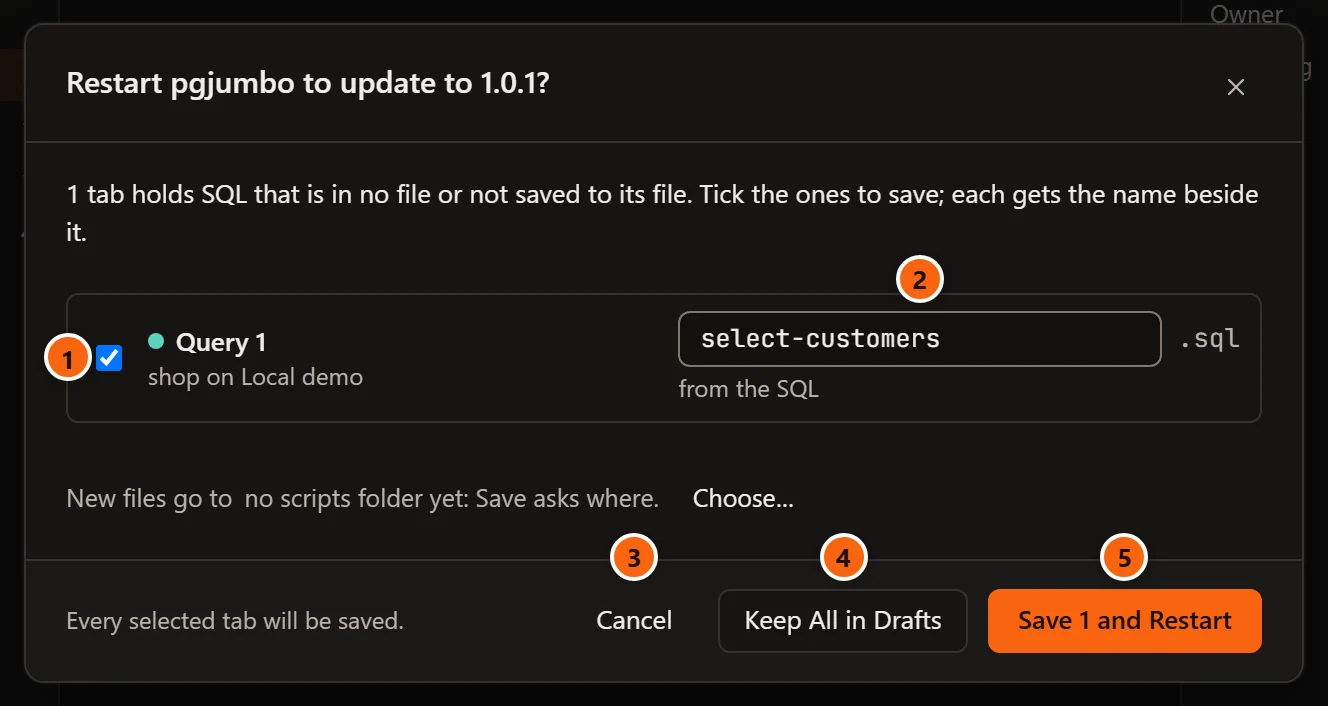
- 1 Each tab whose SQL is in no file, or not saved to its file, has a row. A ticked tab is saved; an unticked one is kept in Drafts.
- 2 The file name a new file gets. Type another if you like.
- 3 Cancel keeps everything as it was. pgjumbo stays open and Restart to update stays offered.
- 4 Keep All in Drafts saves no file: every listed tab goes to Drafts, and pgjumbo restarts.
- 5 Save 1 and Restart saves the ticked tabs, keeps the others in Drafts, and restarts.
The question has more parts when more is at stake:
| What pgjumbo found | What the question says | What you do |
|---|---|---|
| A tab with a question of its own, such as rows changed and not saved | That tab asks first, as it does when you close it. | Answer it; then the restart goes on. |
| A transaction still open | The tab is named in red: it has a transaction open, not committed. Restarting rolls it back. | Roll Back or Commit. The restart waits until each one is answered. |
| A query still running | The tab is still running. Restarting stops it. | Stop it, or let the restart stop it. |
| A job still running: a backup, a restore, Copy Database, maintenance or an import | The job and its name is still running. Restarting stops it. | Restart goes on and ends the job. Cancel keeps pgjumbo open and the job running. |
A running job is named even when nothing else is left to ask and no tab is open; the last button then says Restart. With several pgjumbo windows open, each asks about its own tabs in turn. Drafts, closing and quitting explains every part of this question, which is the one Save before quitting? asks, and Jobs explains running jobs.
After the restart
Section titled “After the restart”pgjumbo installs the new version and opens again as after a quit: its windows and Query Tool tabs come back, drafts stay drafts, and every server waits to be connected. Nothing you ran is run again. On Windows the installer shows a progress bar while it works. Until pgjumbo closes, the status bar says Installing pgjumbo 1.0.1…
If the installer fails, pgjumbo stays open, the notice opens and says why, and Restart to update can be tried again.
Your servers, passwords, history, drafts, settings and layout are not part of the app, so an update keeps them. Update to a newer version on the Install page says what an older pgjumbo does with data a newer one has used.
Ask now
Section titled “Ask now”HelpCheck for Updates… asks pgjumbo.com at once, whatever the setting says. On a Mac the item is in the pgjumbo menu, under About pgjumbo. It has no key. Check now in Settings opens the same dialog.
The dialog says Checking pgjumbo.com…, with Cancel, and then one of three things:
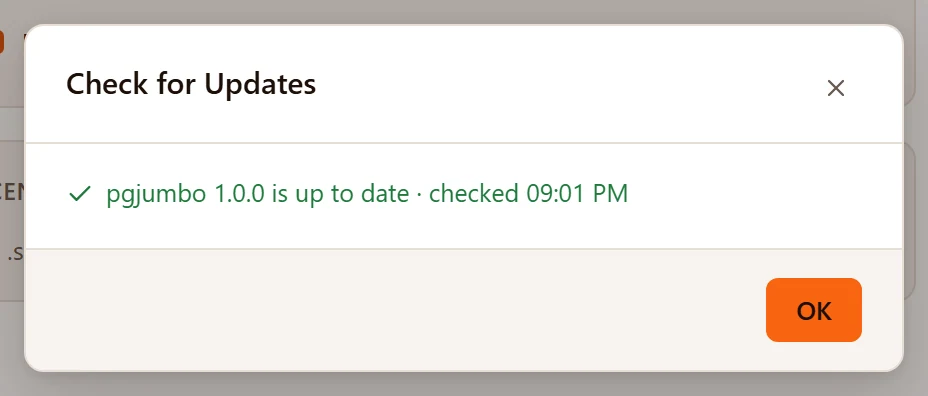
It says pgjumbo 1.0.0 is up to date and when it looked, with OK.
Or it found a newer version: the notice opens in its place. That goes for a version you skipped too.
Or pgjumbo.com could not be reached:
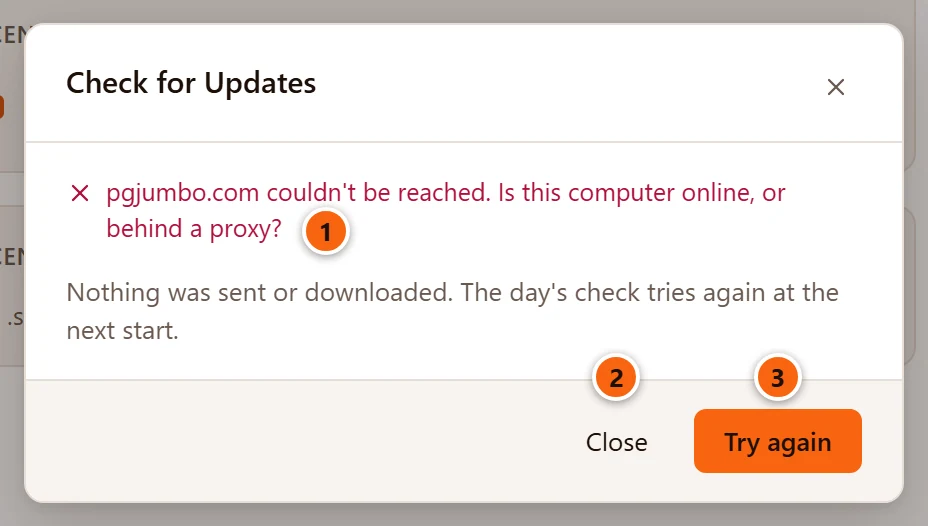
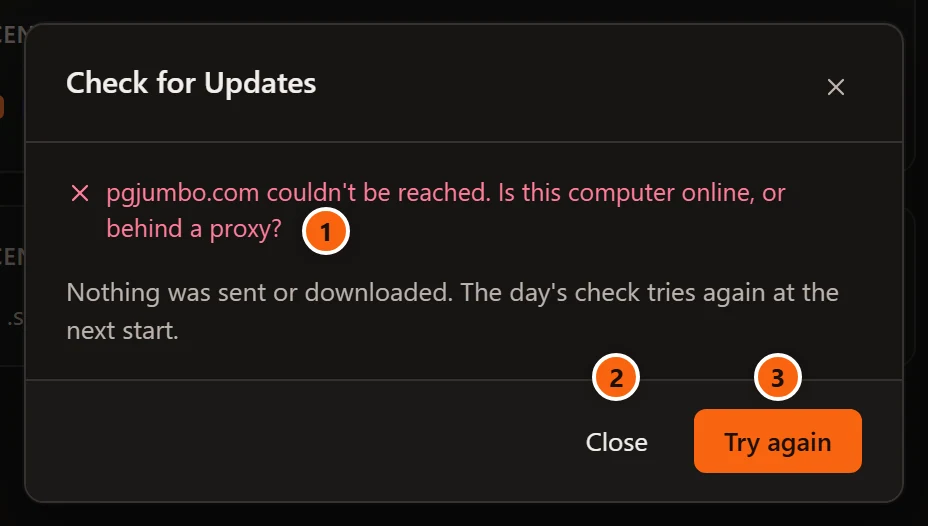
- 1 Why: here pgjumbo.com gave no answer. After ten seconds without one it says no answer within 10 s. The line below says that nothing was sent or downloaded.
- 2 Close leaves it there.
- 3 Try again asks once more.
Two more answers are possible when pgjumbo.com is reached but has nothing pgjumbo can use: pgjumbo.com did not say which version is the latest. and pgjumbo.com has no update for your system and processor.
A check pgjumbo makes by itself as it starts is silent when it fails: no dialog and no message. pgjumbo tries again at a later start.
Packages you update by hand
Section titled “Packages you update by hand”A pgjumbo installed from a .deb or .rpm package does not update itself. It still tells you about a new version, in
the same places. The notice is different:
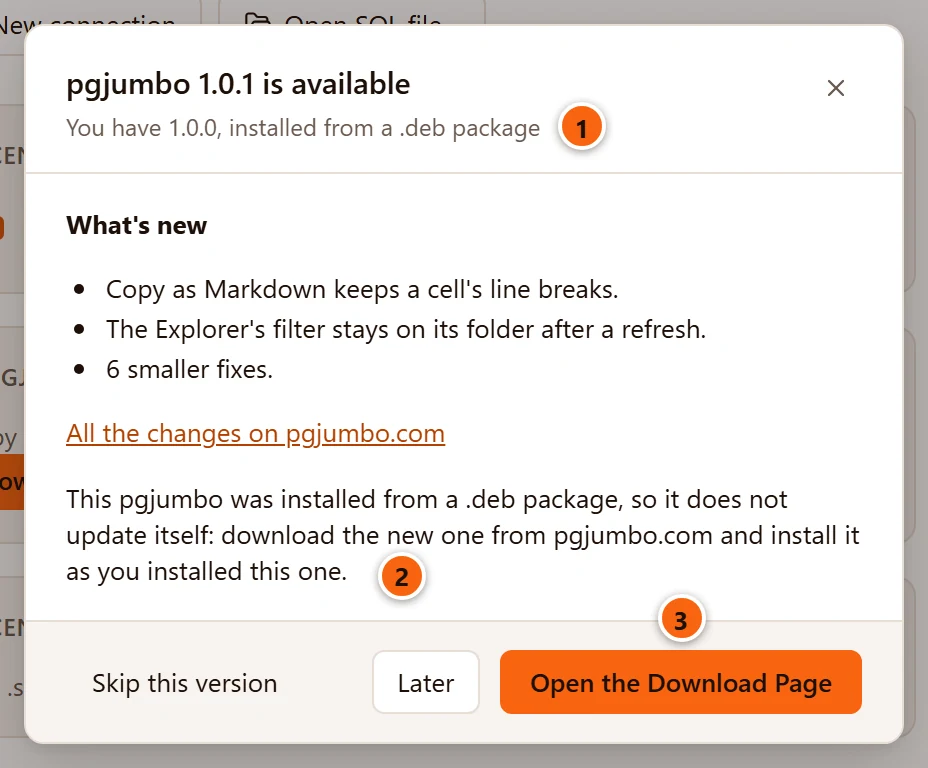
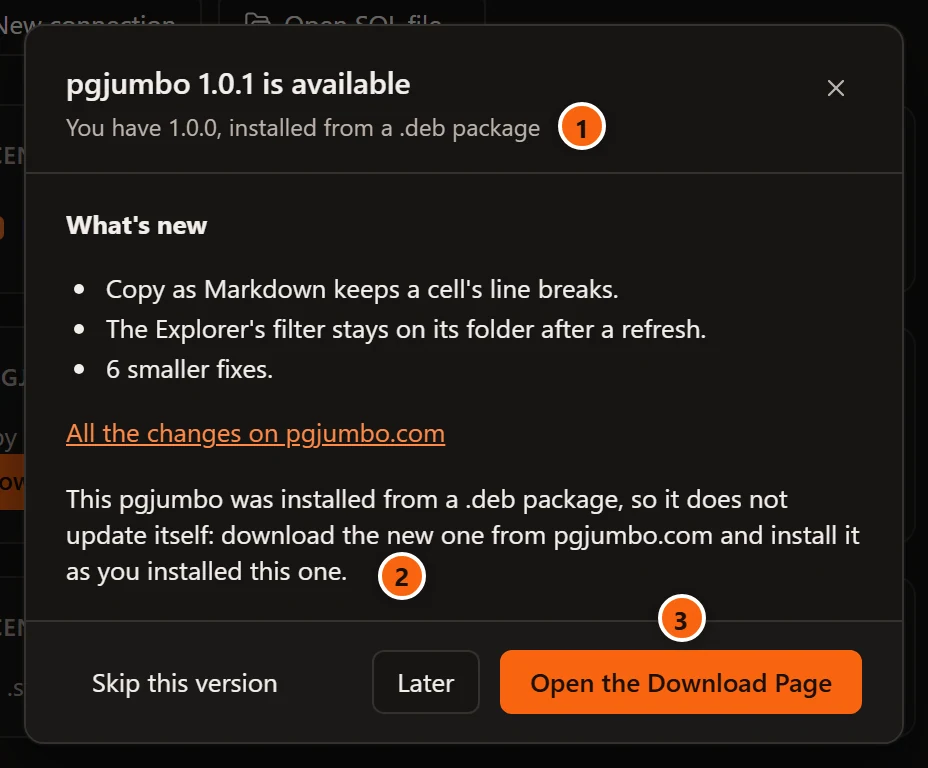
- 1 The notice says which kind of package this pgjumbo was installed from.
- 2 Why there is no Download button.
- 3 Open the Download Page opens pgjumbo.com/download in your browser. The start page’s Download button does the same here.
Download the new package there, quit pgjumbo, and install the package with the command you used the first time (see Download and install). It takes the place of the version you have.
The AppImage, the Mac’s app and both Windows installers update themselves: a pgjumbo set up with the Windows
Installer (.msi) is updated by the new .msi, one set up with the Installer (.exe) by the new .exe.