
pgjumbo user guide
pgjumbo is a desktop client for PostgreSQL on macOS, Windows and Linux. You connect it to your servers, browse what is in them, write and run SQL, change tables and other objects after reading what each change will do, and look after the servers themselves: activity, configuration, backups, maintenance and reports. What it keeps stays on your computer, and saved passwords stay in your system’s credential store.
Where to start
Section titled “Where to start”New to pgjumbo? Read these three pages in order:
- Install pgjumbo: download it, install it and open it for the first time.
- Your first connection: add a server, test it and connect.
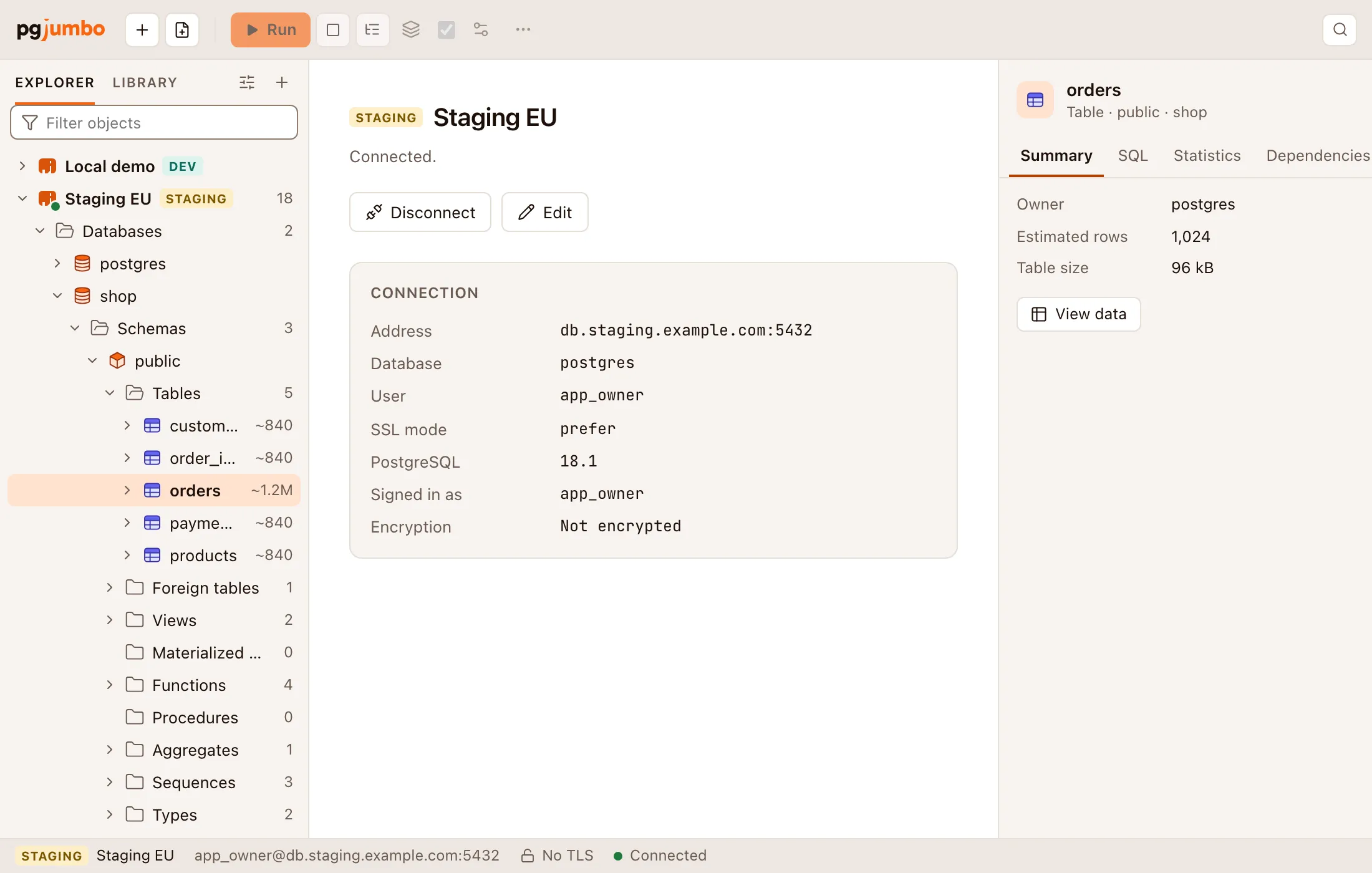
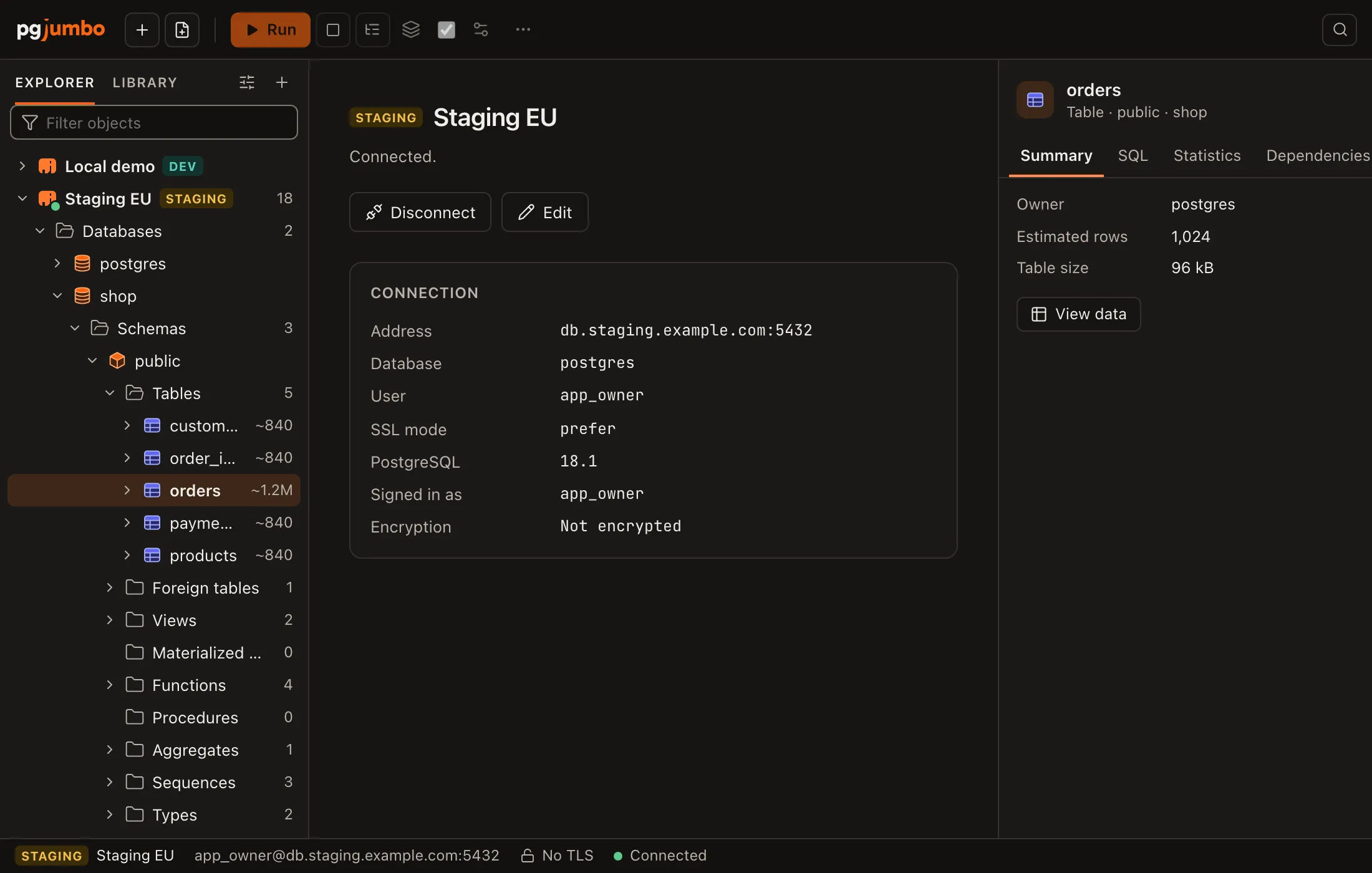
- The pgjumbo window: what each part of the window is for.
Then open a Query Tool and run some SQL, or open a table from the Explorer. Coming from pgAdmin, you can bring your servers over with Import Servers. To look up a menu item or a key, go to Menus or Keyboard shortcuts.
Get started
Section titled “Get started”- Install pgjumbo: download, install, the first start, updating and uninstalling on each system.
- Your first connection: the few fields a new server needs, Test connection, and a first look around.
- The pgjumbo window: the toolbar, the panes, the start page, the status bar, zoom, light and dark, and what is kept between runs.
- Connection settings: every field of the connection dialog, what a failed test means, and the password prompt.
- SSH tunnels: reach a database through an SSH server, with a password, a key or your SSH agent.
- Amazon RDS and Aurora: AWS IAM sign-in, the RDS certificate bundle and reader endpoints.
- Manage your servers: connect and disconnect, groups, order, colours and environments, deleting, and moving the server list between computers.
Explore
Section titled “Explore”- The Explorer: the tree of servers, databases and objects, the name filter, system objects, folder filters and the keyboard.
- Right-click menus: every item of the Explorer’s right-click menu for each kind of row.
- The Inspector: the selected object’s summary, CREATE script, statistics and dependencies.
- Object Details: a folder’s objects as a list, and acting on several ticked objects at once.
- Open Quickly: find any table, view, function or database by typing part of its name.
- Diagrams: a schema’s tables and foreign keys as an entity-relationship diagram.
Query Tool
Section titled “Query Tool”- The Query Tool: open one, run all or part of a script, follow it, stop it, and the Production confirmation.
- Writing SQL: suggestions, Quick Info, Go to Definition, syntax errors, Format SQL, find and replace.
- Results: the Data Output grid, results as text or on a map, copying, and the Messages tab.
- Explain a query: a statement’s plan as a table, a diagram, text or JSON.
- Transactions and sessions: each tab’s own connection, auto-commit, Commit and Rollback, session settings.
- Files, drafts and history:
.sqlfiles, tabs that come back after a restart, and the History tab. - Tabs: every kind of tab, the tab strip, pinned tabs, two tabs side by side and a tab in a window of its own.
- Run on several databases: one script on many databases, with their results together.
- The Library: templates with values to fill in, your snippets and a folder of scripts.
- PSQL Tool: PostgreSQL’s own
psqlin a tab, signed in to a database of a connected server.
- View data: a table’s or view’s rows in a tab, filtered, sorted and limited without SQL.
- Edit data: change, add and delete rows, read the statements, and save them together.
- Save results to a file: a result or a data tab’s rows as CSV or JSON.
- Import and export table data:
COPYa table to or from a file, and a CSV file into a new table.
Objects
Section titled “Objects”- Object tabs and review: what every object’s tab shares, Save, and the review of each statement before it runs.
- Tables: create a table, change its columns, constraints and indexes.
- Table settings and privileges: storage, autovacuum, row security, policies, replica identity and grants.
- Views and materialized views: their tabs, definitions and refreshes.
- Functions and procedures: their tabs, bodies and settings, and building a call.
- Sequences: numbers, the column a sequence fills, its type and its next value.
- Types, domains and other schema objects: enum labels, composite attributes and the rarer kinds.
- Schemas: create a schema, its privileges and default privileges.
- Databases: create a database and change its settings and privileges.
- Roles: create a role, its attributes, memberships and grants, what it can do and what it owns.
- Privileges: grant and revoke on one object or many, the Grant Wizard and default privileges.
- Extensions: install, update and move extensions.
- Tablespaces: what a tablespace holds, and moving objects out of it.
- Publications and subscriptions: logical replication, table by table.
- Foreign data: foreign-data wrappers, foreign servers, user mappings and foreign tables.
- Event triggers, languages and casts: their shared tab.
- Scripts: Script as, the Script menu, Generate Scripts and comparing two schemas.
- Drop, truncate and other quick actions: Drop, Truncate, Count rows and Reset statistics.
Run your servers
Section titled “Run your servers”- The server’s tab: a server’s overview,
pg_hba.confrules, replication, logs and connection. - Activity: what a server is doing now, blocking sessions, waits, and cancelling or ending a session.
- Server configuration: find a setting, change it with
ALTER SYSTEM, and reload. - Maintenance and jobs:
VACUUM,ANALYZE,REINDEXand the rest, and the Jobs panel. - Back up and restore:
pg_dump,pg_dumpall,pg_restoreand where pgjumbo finds them. - Copy a database: a database copied to this server or another.
- Reports: top queries, waits, replication, table sizes, index usage and more.
- Health check: checks on a database and its server, and scripts that fix what they find.
- Scheduled jobs: the jobs
pg_cronruns, their schedules and their runs. - Notifications: listen on
LISTEN/NOTIFYchannels and send notifications.
Assistant
Section titled “Assistant”The Assistant is off until you turn it on, and it works through your own Claude Code.
- Set up the Assistant: what it needs, its settings, and what it may read on each server.
- Ask the Assistant: the pane, conversations, the history and every Ask button.
- What the Assistant proposes: the cards it offers and where each change lands; nothing runs without you.
- SQL help in the editor: a change to your SQL shown as a diff, fixes and plan questions.
- Database guides: a written guide to how a database or a schema works.
- Knowledge base and notes: the folder of Markdown files each conversation starts from, your documents in it, and a whole conversation written up for it in one click.
- Map your environment: how your connected servers connect, drafted by the Assistant as the knowledge base’s map and a file per server, on one card to review.
Reference
Section titled “Reference”- Menus: every menu item on each system, its keys and what it does.
- Keyboard shortcuts: every key, by where it works.
- Settings: every setting, its default and what it changes.
- Troubleshooting: common problems, Copy Diagnostics and reporting a problem.
- Where pgjumbo keeps your data: folders, files and passwords on each system.