
Scheduled jobs
pg_cron is a PostgreSQL extension that runs SQL on a schedule, inside the server: a nightly VACUUM, a purge every
fifteen minutes, a monthly partition. The Scheduled jobs tab shows a server’s jobs with their schedules in words,
when each last ran and how that went, and when each runs next. From it you schedule new jobs, change them, pause and
resume them, and remove them.
pgjumbo makes its changes through pg_cron’s own functions, cron.schedule_in_database, cron.alter_job and
cron.unschedule, so pg_cron keeps working the way its documentation says. The one thing those functions cannot do,
rename a job, it does in pg_cron’s cron.job table.
Open the Scheduled jobs tab
Section titled “Open the Scheduled jobs tab”The server must be connected. Each server has one Scheduled jobs tab, named after it: Scheduled jobs · Local demo. Opening it again brings that tab to the front. There is no key for it.
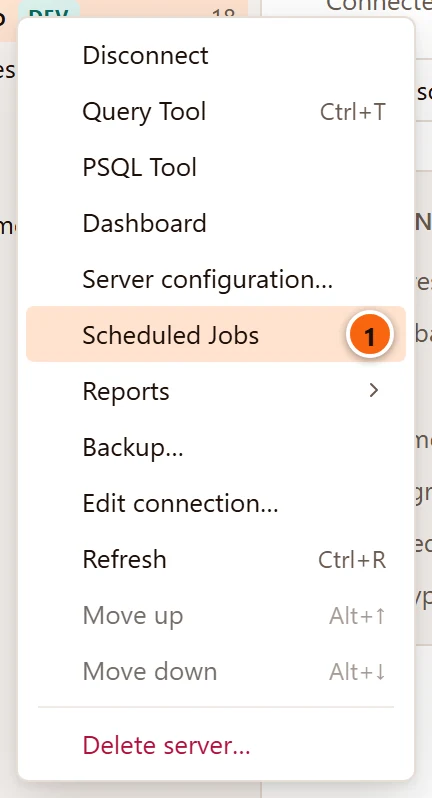
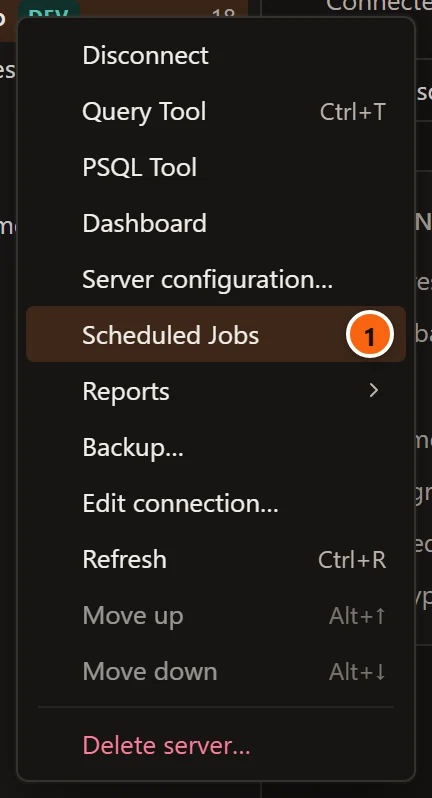
- 1 Right-click a connected server and choose Scheduled Jobs.
Or choose ToolsScheduled Jobs. It opens the jobs of the server of the row selected in the Explorer (the server itself or anything under it). When that server is not connected, or nothing is selected, it uses the server of the Query Tool, object or server tab in front. It is greyed out when neither is connected.
The tab reads pg_cron when it comes to the front, and says Reading pg_cron… meanwhile. An error from the server shows in place of the jobs. When the server is disconnected, the tab says Local demo is not connected.
When pg_cron is not ready
Section titled “When pg_cron is not ready”pg_cron must be loaded when the server starts and created as an extension in one database, the one the
cron.database_name setting names (postgres unless set otherwise). pg_cron keeps its jobs there; each job can run
in any database. Until both are done, the line under the tab’s title says
pg_cron runs jobs on a schedule inside PostgreSQL, and the tab says what is missing:
| What the tab says | What to do |
|---|---|
| pg_cron is not loaded on Local demo. Add pg_cron to shared_preload_libraries, set cron.database_name to the database that keeps the jobs, and restart the server. | Change the two settings and restart. Open Configuration opens the Configuration view of the server’s tab, where you can change them. When the server does not have the extension at all, the message adds The extension comes from the postgresql-NN-cron package, or your provider’s parameter group. |
| pg_cron is loaded and keeps its jobs in postgres, but the extension is not created there yet. | Click Install pg_cron. A dialog says CREATE EXTENSION pg_cron in postgres.; Install runs CREATE EXTENSION IF NOT EXISTS pg_cron once, on a connection of its own to that database, and the tab reads the jobs again. Cancel closes the dialog. Creating an extension takes the rights PostgreSQL asks for, usually a superuser; its error shows in the dialog. |
On Amazon RDS and Aurora, shared_preload_libraries and cron.database_name live in the parameter group; see
Amazon RDS and Aurora.
The list of jobs
Section titled “The list of jobs”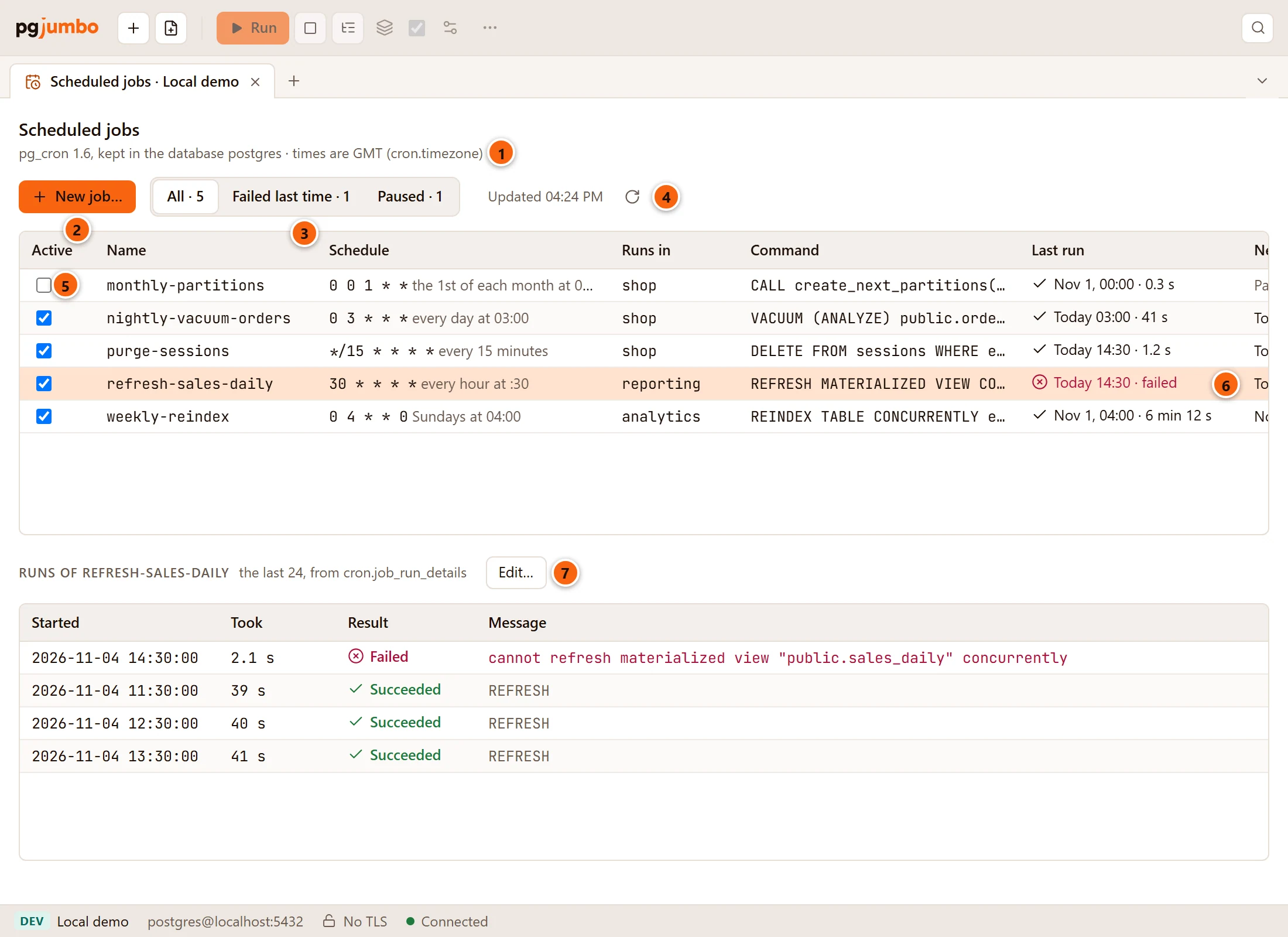
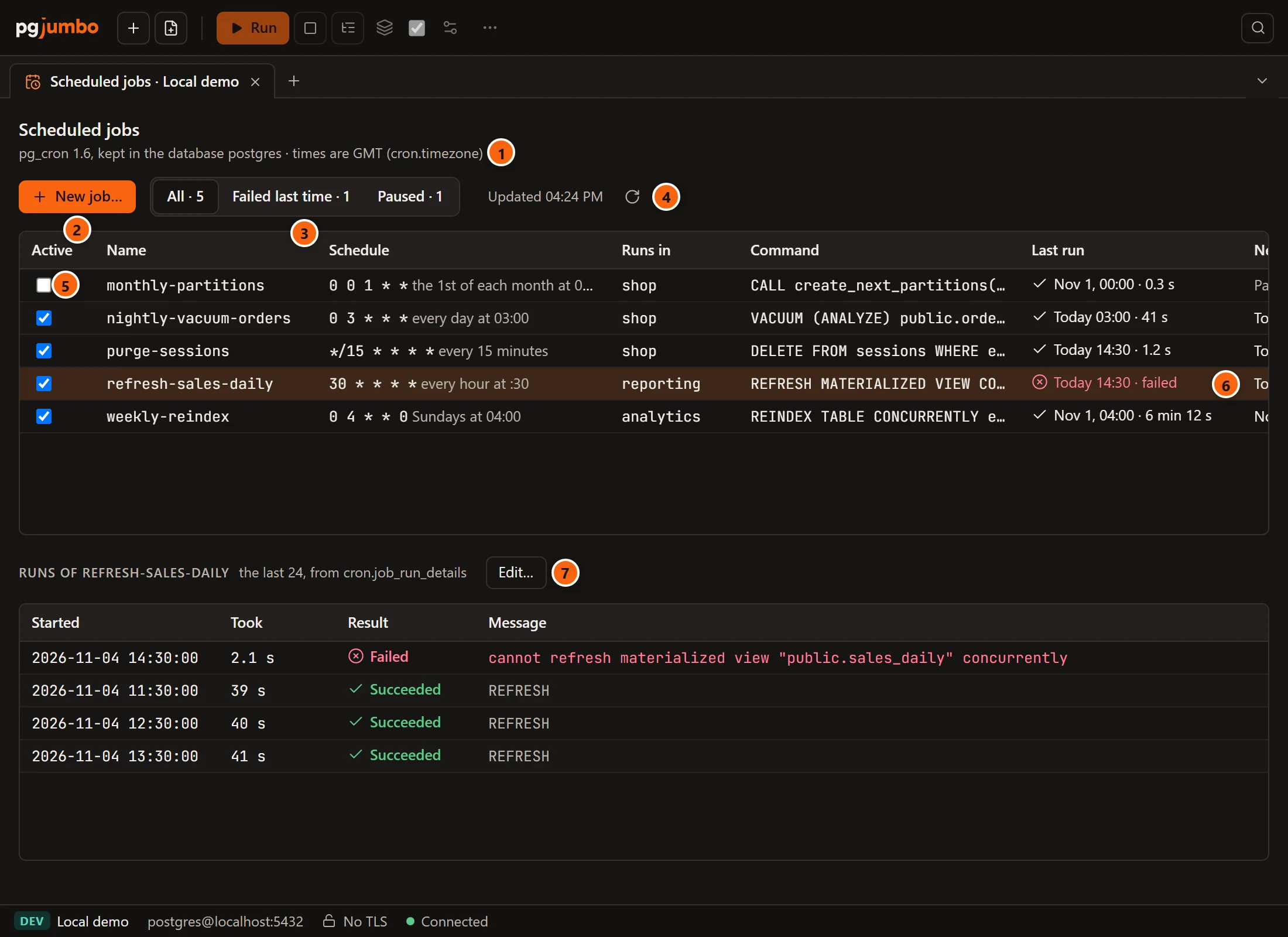
- 1 pg_cron’s version, the database it keeps its jobs in, and the time zone its schedules run in, from the
cron.timezonesetting (GMTunless set). Every time in the tab is in that time zone. - 2 New job… opens the job dialog; see Schedule a job.
- 3 Show All the jobs, those that Failed last time, or those Paused. Each button says how many. An empty filter says None.
- 4 Refresh reads the jobs again. Updated left of it says when they were last read.
- 5 Active: untick it to pause a job, tick it to resume one. See Pause and resume a job.
- 6 Last run: when the job last ran and how it went, here Today 14:30 · failed in red.
- 7 Click a job to see its runs below the list. Edit… opens it in the job dialog.
| Column | What it shows |
|---|---|
| Active | Whether pg_cron runs the job. |
| Name | The job’s name. A job scheduled without one shows job and its number, greyed. |
| Schedule | The schedule as pg_cron reads it, then in words: 0 3 * * * every day at 03:00. See Schedules in words. |
| Runs in | The database the command runs in. |
| Command | The SQL the job runs. Hover over it to read it in full. |
| Last run | Never before its first run; otherwise when it started (Today 03:00, Yesterday 23:00, Nov 1, 04:00) and how long it took (41 s, 6 min 12 s), with a tick. A failed run is red with a crossed circle and says failed; a run still going has a spinning icon and says running. |
| Next run | When pgjumbo works out the job runs next, such as Today 14:45 or Tomorrow 03:00. Paused for a paused job. Empty for a job that runs every few seconds, or that does not run within the next year. |
The table is wider than a small window: scroll it sideways to reach Next run. Jobs are listed by name, those without a name last. Double-click a job to open it in the job dialog. With no jobs yet, the list says No jobs yet: New job… schedules one.
A job’s runs
Section titled “A job’s runs”The list under the jobs, Runs of refresh-sales-daily, shows the job’s last 24 runs from cron.job_run_details,
the newest first.
| Column | What it shows |
|---|---|
| Started | When the run started, to the second. |
| Took | How long it took. |
| Result | Succeeded, Failed, or, while it is not done, Running, Starting, Sending or Connecting, as pg_cron records them. |
| Message | What the command returned, such as VACUUM or DELETE 12, or the error that stopped it, in red. Hover over it to read it in full. |
While pgjumbo reads them the list says Reading…, and a job that never ran says No runs yet. The runs follow the job you click; Edit… beside the list’s title opens that job in the job dialog.
The tab has no Run now, and pg_cron has no function that runs a job outside its schedule. To run a job’s command once, copy it from the job dialog into a Query Tool on the database it runs in.
Schedule a job
Section titled “Schedule a job”Click New job…. To change a job, click it and then Edit…, or double-click it. The dialog is the same: New job, or Edit job · and the job’s name. Under the title it names the server, the job’s number when you edit one, and the database pg_cron lives in: Local demo · job 4 · pg_cron in postgres.
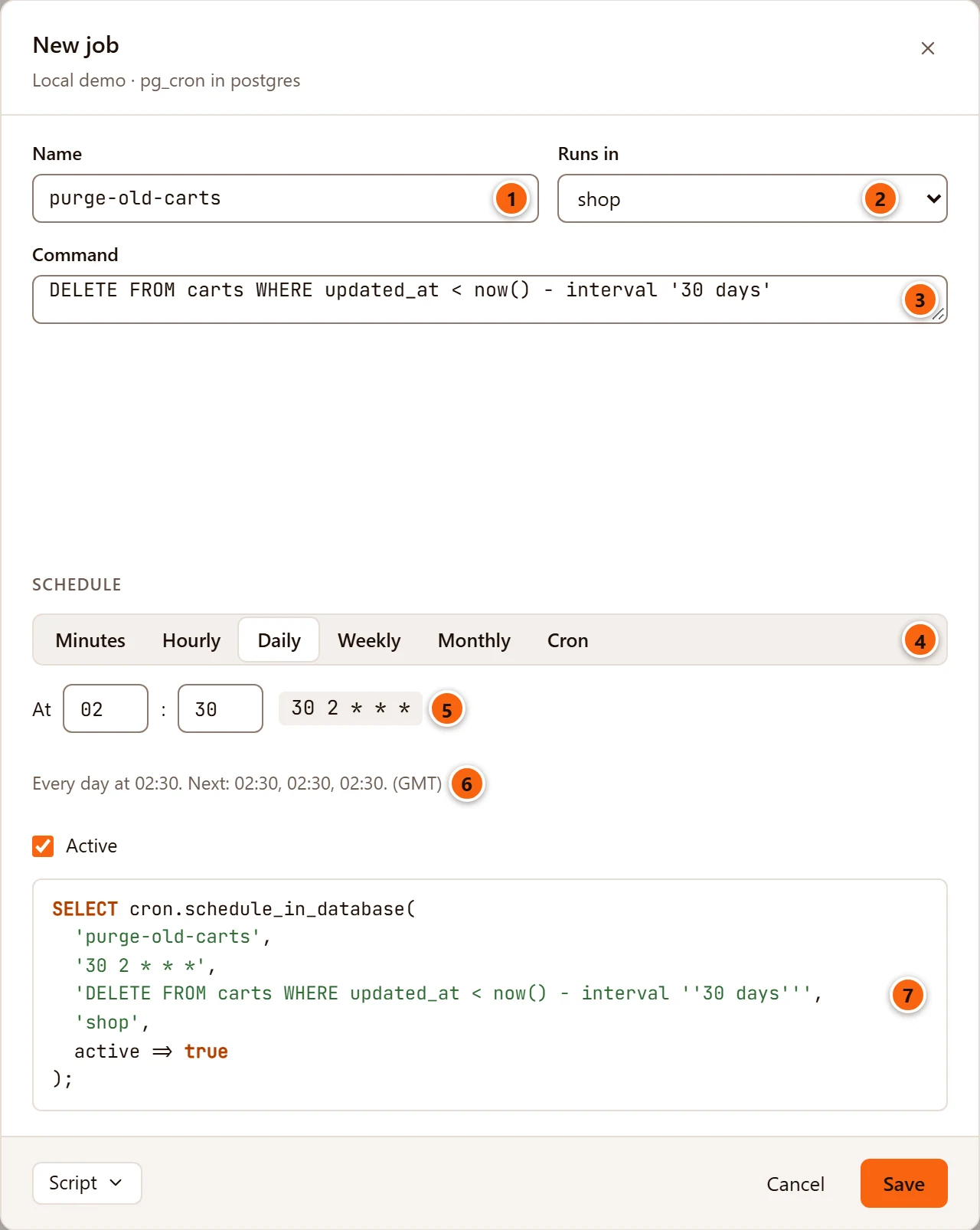
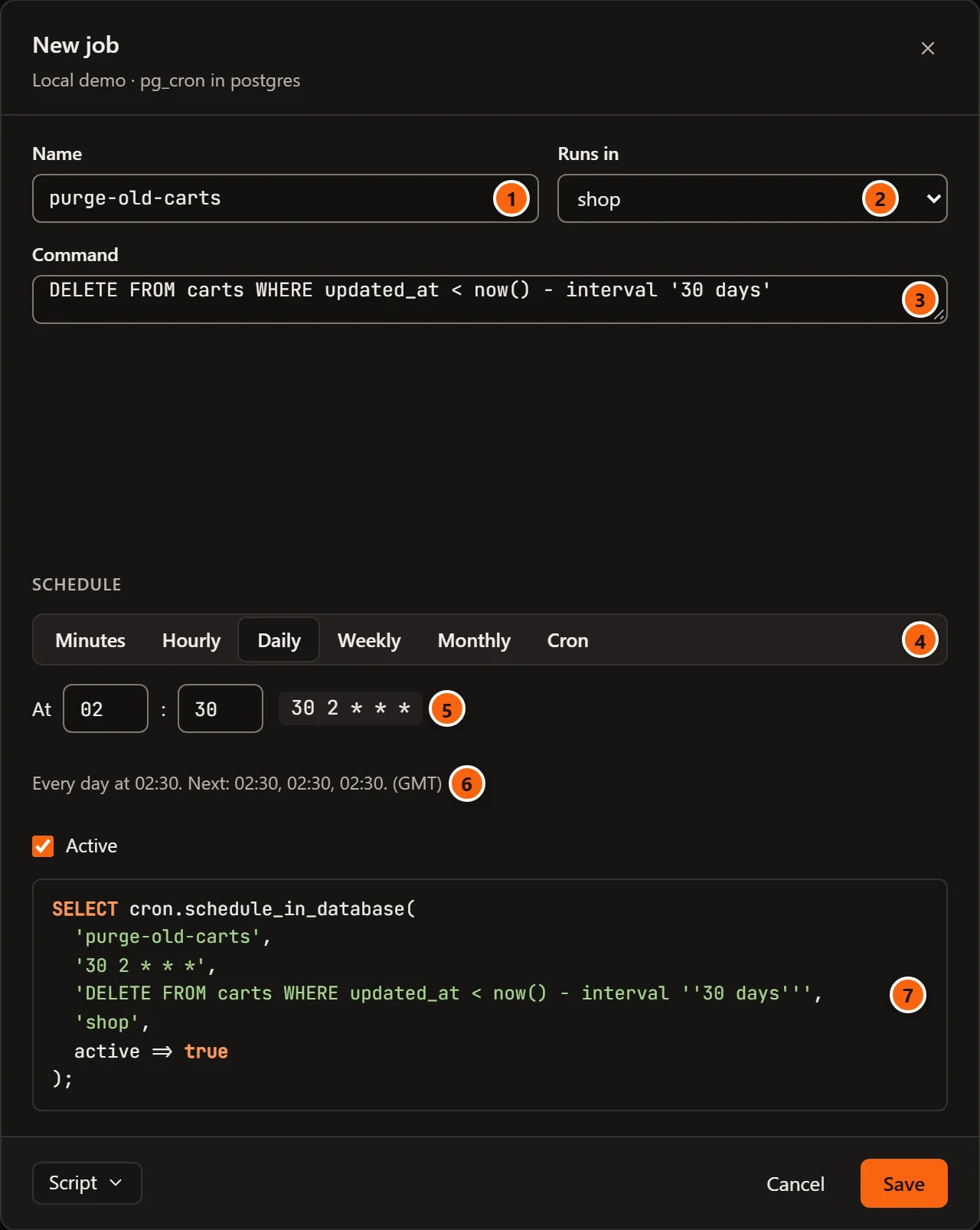
- 1 Name: what the job is called. pg_cron keeps one job per name for each role: a new job saved under a name your role already uses replaces that job instead of adding one.
- 2 Runs in: the database the command runs in. The list holds the databases you can connect to, templates left out. A new job starts on the first by name.
- 3 Command: the SQL to run, one statement or several.
- 4 Schedule: how often it runs. Each choice shows its own fields; see Build a schedule.
- 5 The schedule written as pg_cron takes it.
- 6 The schedule in words, then the times of its next three runs, then the time zone: Every day at 02:30. Next: 02:30, 02:30, 02:30. (GMT). When pg_cron would not read the schedule, the line says why, in red.
- 7 Generated SQL: the statement Save runs, with your values written in. It follows every change.
Active under the schedule decides whether pg_cron runs the job. A new job starts active; untick it to schedule a job that waits until you resume it.
The footer holds Script, which takes the generated SQL elsewhere instead of saving it: Open in Query Tool,
Copy or Save to file…, which offers the job’s name with .sql (see
The Script menu). Opening it in a Query Tool closes the dialog. The Query
Tool opens on the server’s maintenance database; if pg_cron lives in another database, switch the tab to that one
before you run it. Cancel, × and Esc close the dialog without saving.
Save is greyed out until the job has a name, a command and a schedule pg_cron reads, and, on a server that asks first, until pg_cron’s database is typed (see Pause and resume a job). It runs once, on a connection of its own to pg_cron’s database:
- A new job:
cron.schedule_in_database(name, schedule, command, database, active => …). pg_cron runs it as the role pgjumbo signs in with. - A job that exists:
cron.alter_jobwith the new schedule, command, database and active flag, thenUPDATE cron.job SET jobname = … WHERE jobid = …for the name, both in one transaction.
When PostgreSQL or pg_cron refuses, its error shows in red beside the buttons and the dialog stays open. On a server whose connection has Read-only sessions on, every connection pgjumbo opens is read-only, so PostgreSQL refuses each change with its read-only transaction error (see Connection settings).
Build a schedule
Section titled “Build a schedule”The Schedule buttons choose how often the job runs. The fields under them change with the choice:
| Choice | Fields | Writes |
|---|---|---|
| Minutes | Every … minutes, 1 to 59 | */15 * * * * |
| Hourly | At minute …, 0 to 59 | 30 * * * * |
| Daily | At hour : minute | 30 2 * * * |
| Weekly | The days, Sun to Sat, and At hour : minute | 30 2 * * 0 |
| Monthly | On day …, 1 to 31, and At hour : minute | 0 0 1 * * |
| Cron | The schedule as text, placeholder minute hour day month weekday | What you type |
A number outside its range is brought back into it as you type. A new job starts on Daily at 03:00, and Weekly starts with Mon ticked. Cron starts from the schedule the other choice wrote, so you can begin with Daily and refine the text. A job you edit opens on the choice that writes its schedule, or on Cron with its text when none does. Monthly on day 29, 30 or 31 skips the months that have no such day.
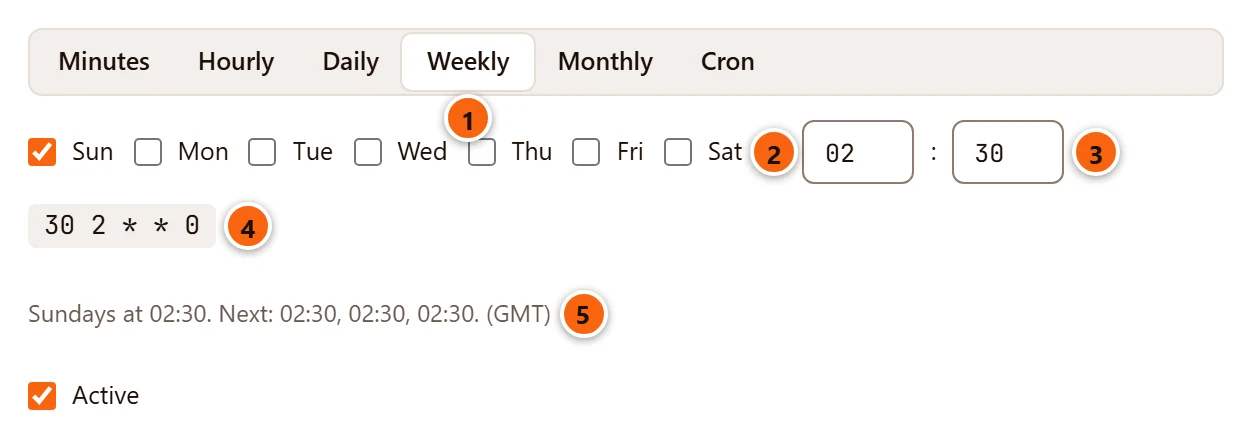
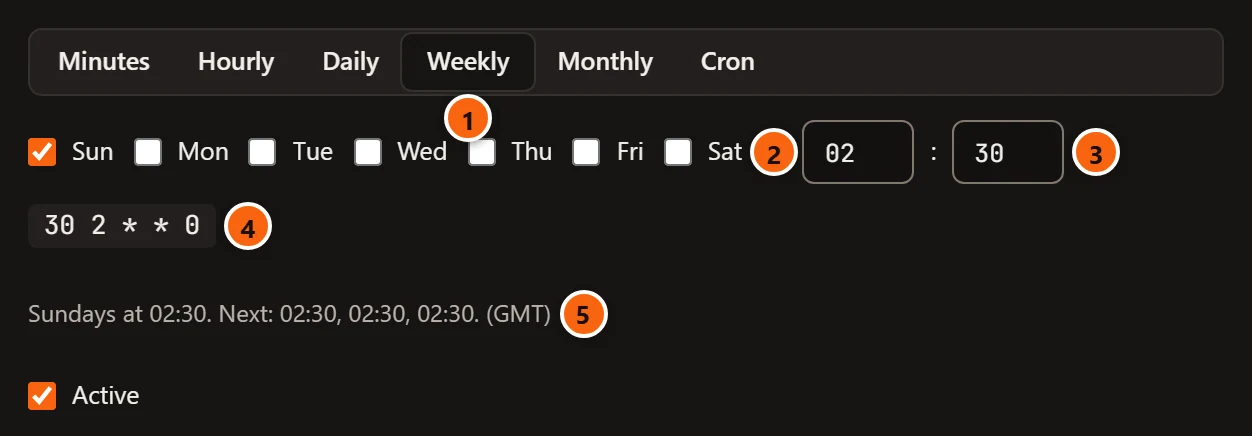
- 1 Weekly chosen.
- 2 Tick the days it runs. With no day ticked, it runs every day.
- 3 The hour and the minute.
- 4 The schedule as pg_cron takes it:
30 2 * * 0, 0 being Sunday. - 5 The words and the next runs.
Cron takes anything pg_cron reads, in five fields: minute, hour, day of the month, month and weekday. Each field
takes *, a number, a range (1-5), a step (*/15, 10-50/10) or a list of these (1,3,5). Months and weekdays
also take names (jan, mon), and 7 is Sunday as well as 0. $ as the day means the last day of the month. The
shortcuts @hourly, @daily, @midnight, @weekly, @monthly, @yearly and @annually work too, and so does
30 seconds, for a job that runs every 1 to 59 seconds. When the day of the month and the weekday are both given, the
job runs on either, as in cron.
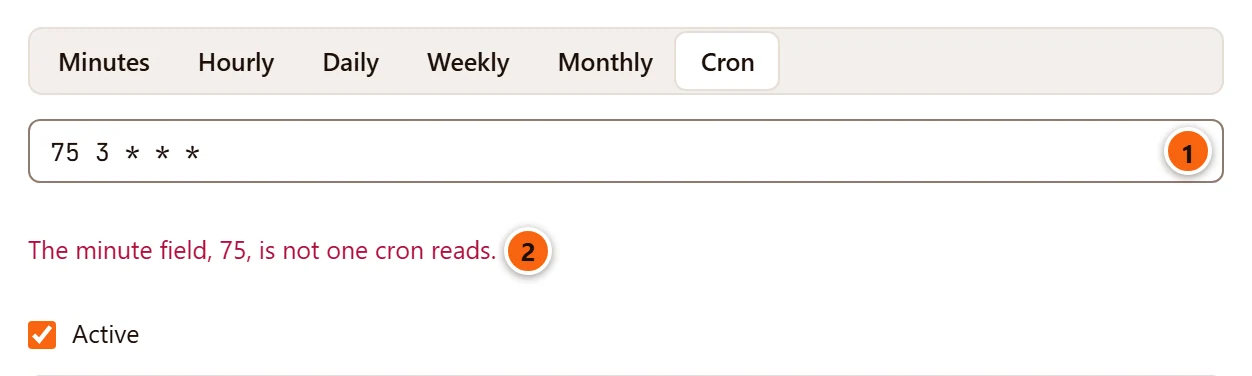
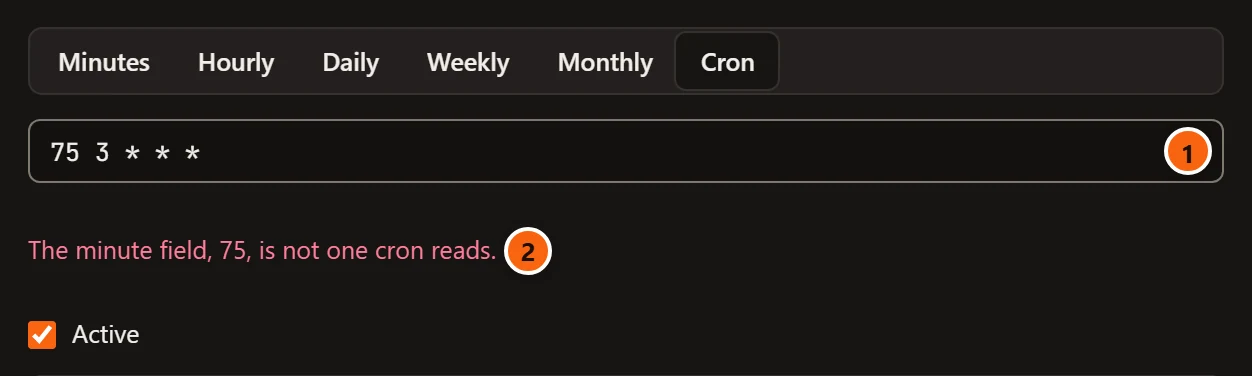
- 1 The schedule as text.
- 2 Why pg_cron would not read it. Save stays greyed out until it does.
The errors you can meet:
| Error | Why |
|---|---|
| A schedule has five fields: minute, hour, day of the month, month and weekday; or is N seconds. | Too few or too many fields. |
| The minute field, 75, is not one cron reads. (or the hour, day of the month, month or weekday field) | A value out of range, an unknown name, or a range that runs backwards. |
| Every N seconds takes 1 to 59. | A seconds schedule outside 1 to 59. |
Schedules in words
Section titled “Schedules in words”pgjumbo says a schedule in words in the list and in the dialog, and works out its next runs in the time zone of
cron.timezone, as pg_cron fires them:
| Schedule | In words |
|---|---|
* * * * * |
every minute |
*/15 * * * * |
every 15 minutes |
30 * * * * |
every hour at :30 |
0 3 * * *, @daily |
every day at 03:00, every day at 00:00 |
0 4 * * 0 |
Sundays at 04:00 |
0 8 * * 1-5 |
weekdays at 08:00 |
15 6 * * mon,thu |
Mondays, Thursdays at 06:15 |
0 0 1 * * |
the 1st of each month at 00:00 |
0 23 $ * * |
the last day of each month at 23:00 |
5 seconds, 1 second |
every 5 seconds, every second |
@hourly |
every hour at :00 |
Anything else, such as 0 0 1 1 * |
on the schedule 0 0 1 1 * |
Pause and resume a job
Section titled “Pause and resume a job”Untick Active in the list to pause a job, or tick it to resume one. pgjumbo saves the change at once with
cron.alter_job; a paused job’s Next run says Paused. You can also untick or tick Active in the job dialog
and click Save.
A job that has no name gets the name job and its number when you pause or resume it from the list.
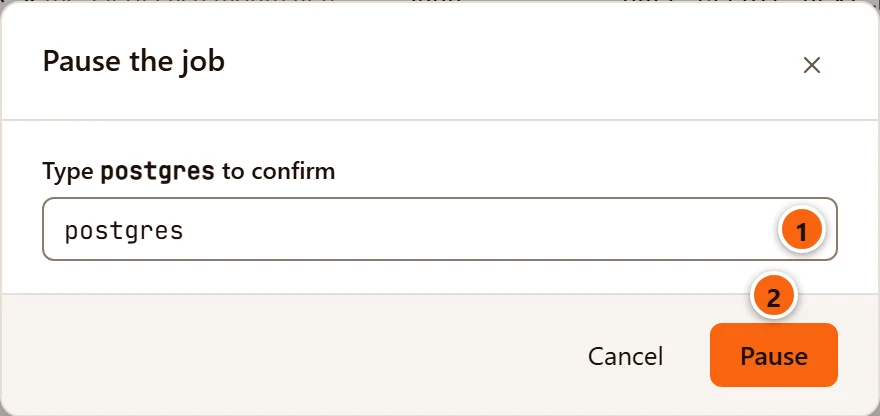
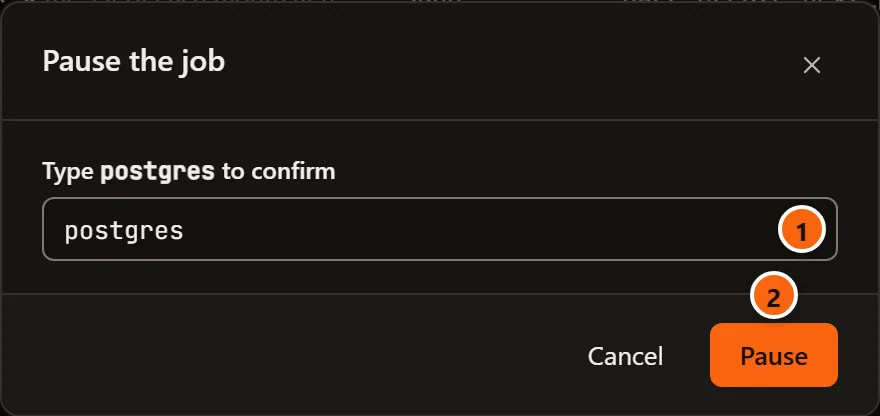
- 1 On a Production server, and on a Staging server when Settings has Staging servers ask before destructive statements too ticked, a dialog asks first: type the name of pg_cron’s database.
- 2 Pause (or Resume) saves the change.
The same servers ask for that name in the job dialog too, in Type postgres to confirm under the generated SQL, before Save or Unschedule works, and in the Install pg_cron dialog.
When a change fails from the list, the error shows above the jobs.
Remove a job
Section titled “Remove a job”Open the job in the dialog and click Unschedule… in the footer. The button becomes a red Unschedule button with the job’s name:


- 1 Unschedule purge-sessions runs
cron.unschedulewith the job’s number, once, on a connection of its own to pg_cron’s database. The dialog closes and the job goes from the list. For a job without a name the button says Unschedule it.
On a server that asks first, the red button stays greyed out until the name in Type postgres to confirm is typed.