
Schemas
You create a schema in a small dialog and change it in a tab of its own. The tab has five views: General, Privileges, Default privileges, Dependencies and SQL. Nothing you change there runs until you save it, and pgjumbo shows you every statement first.
Create a schema
Section titled “Create a schema”Right-click a database’s Schemas folder and choose Create schema…, or right-click the database itself and choose CreateSchema…. The server must be connected.
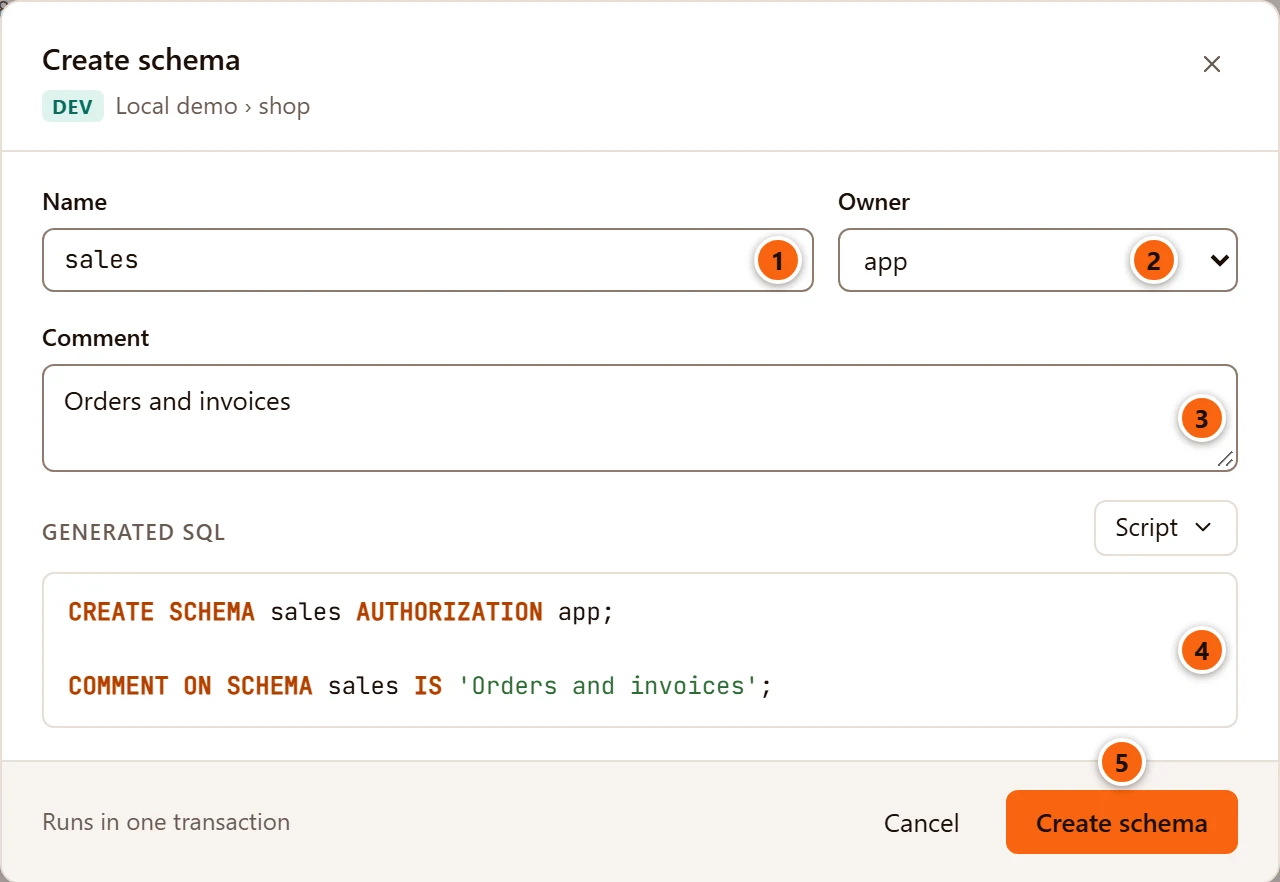
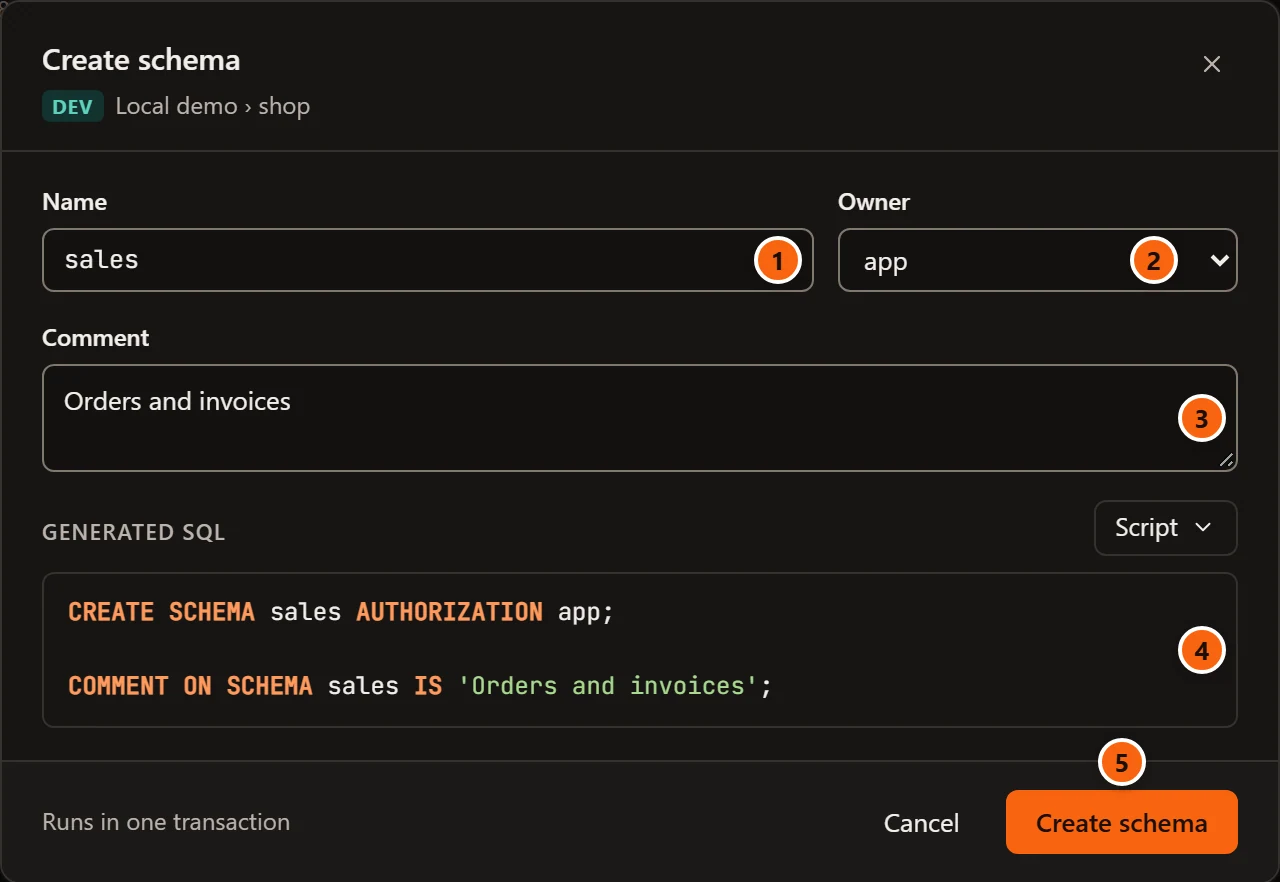
- 1 Name of the new schema. The server quotes it for pgjumbo, so a name with capitals or spaces comes out right.
- 2 Owner. It starts on the role you are connected as and lists every role except PostgreSQL’s predefined
pg_*roles. The schema is created withAUTHORIZATIONand the role you pick. - 3 Comment, optional. It becomes
COMMENT ON SCHEMA. - 4 Generated SQL: the script pgjumbo will run, updated as you type. Until the schema has a name it says “Name the schema to see its SQL.” If the server refuses something, the reason shows here in red. The Script menu above it has Open in Query Tool (which also closes the dialog), Copy and Save to file…; none of them runs the script (see Scripts).
- 5 Create schema runs the script in one transaction, on a connection of its own, as the footer says (“Runs in one transaction”). The dialog closes, a notice beside the row says “sales was created”, and the Explorer reads the database again. If the server refuses, the dialog stays open with its message at the bottom.
Privileges and default privileges are not in this dialog: set them in the schema’s tab once it exists. Creating a schema does not ask first, even on a Production server.
Open a schema in its tab
Section titled “Open a schema in its tab”A double-click or Enter on a schema opens or closes its row in the Explorer, as on a folder. To open its tab, do one of these:
- Right-click the schema and choose Properties….
- Select it and press ⌘ I (Alt+Enter on Windows and Linux).
- Double-click it in Object Details for the Schemas folder.
The tab opens on General. If the schema has a tab already, pgjumbo brings that tab forward, and Properties… switches it to General.
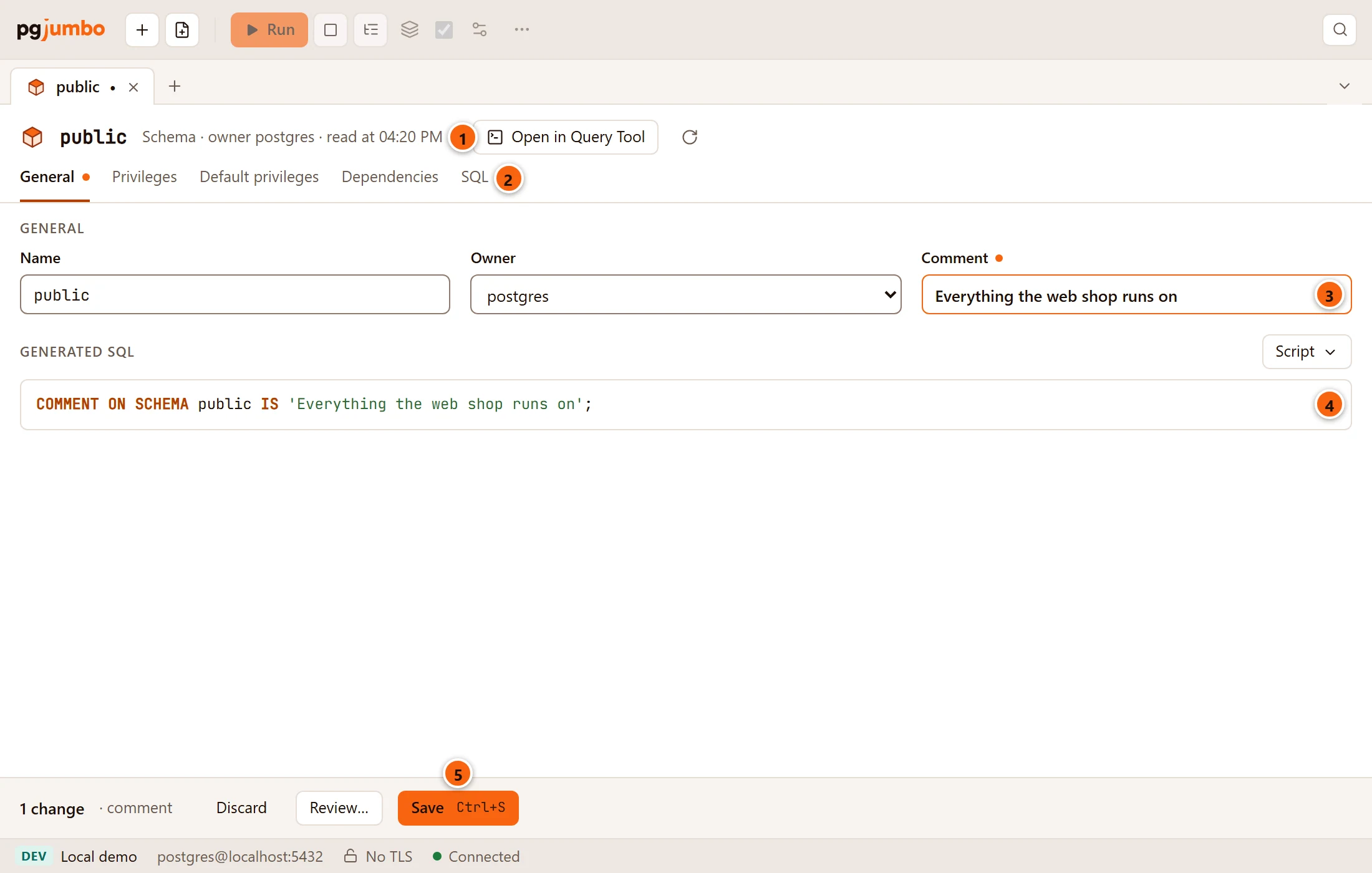
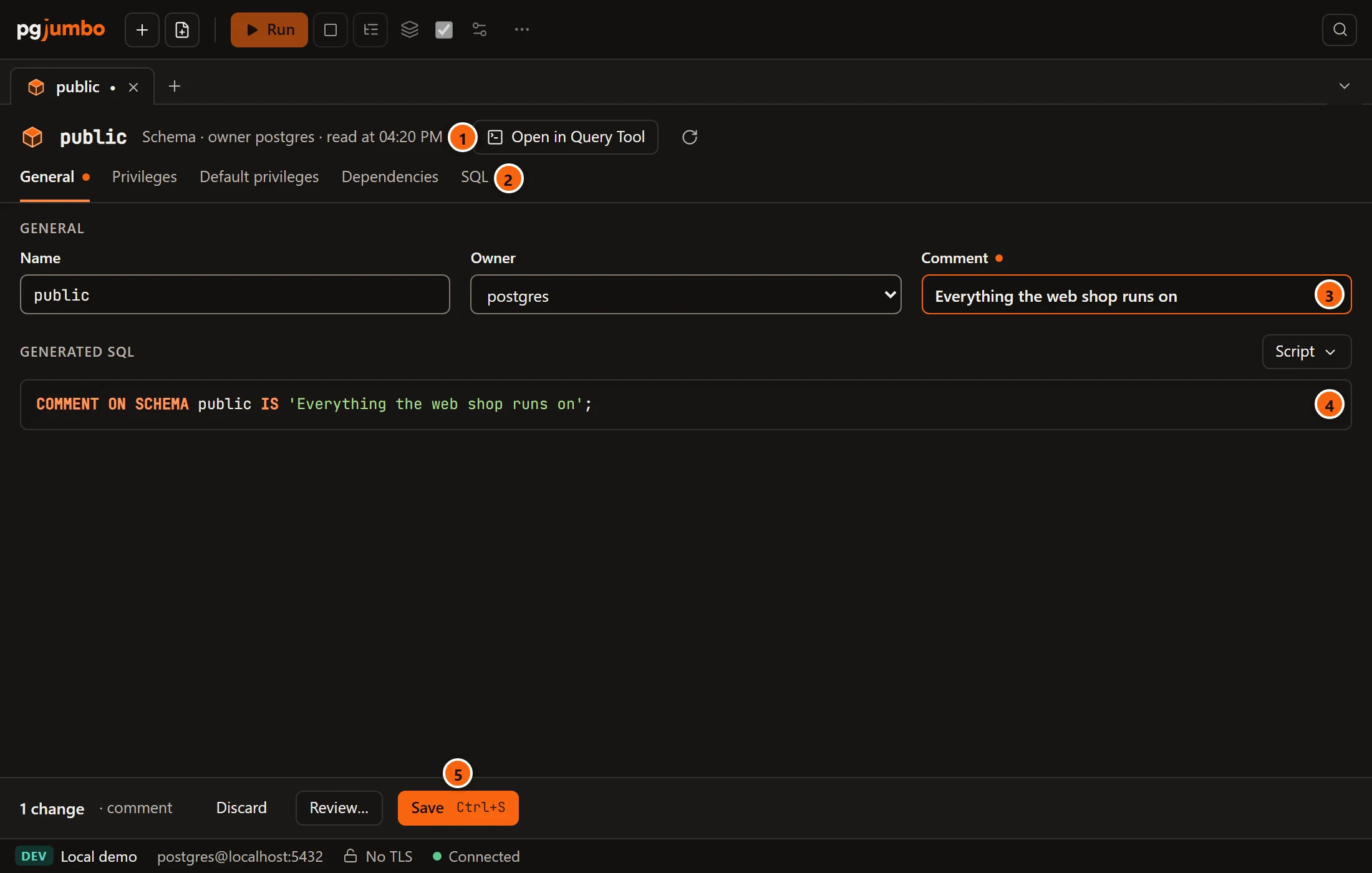
- 1 The header: the schema’s name, its owner, and when the tab read it from the server. Open in Query
Tool opens its
CREATEscript in a new Query Tool. The round arrow, Read again, reads the schema from the server again and drops every change you have not saved. - 2 The views. A dot after a view’s name means it holds a change you have not saved.
- 3 A field you changed gets a coloured border and a dot after its label.
- 4 Generated SQL appears under the view as soon as something changed: the statements Save will run, worked out against the schema as it is on the server now. Its Script menu opens, copies or saves them.
- 5 The pending bar counts your changes and names them (comment, privileges of 1 grantee, 1 rule for new objects). Discard goes back to the schema as it was read, Review… opens the review sheet, and Save (⌘ S (Ctrl+S on Windows and Linux)) runs the statements. After a save the bar says, for example, “Saved: 1 statement ran”.
Save, the review sheet, and what happens when someone changed the schema meanwhile work the same way for every object; see Object tabs and review.
The General view
Section titled “The General view”| Field | What it does |
|---|---|
| Name | Renames the schema with ALTER SCHEMA … RENAME TO. The objects in it move along; SQL elsewhere that names the old schema stops working. |
| Owner | Gives the schema to another role with ALTER SCHEMA … OWNER TO. The objects in the schema keep their own owners. |
| Comment | Sets the comment with COMMENT ON SCHEMA. An empty field removes it. |
Save runs the owner and the comment first, then the rename, then grant changes and default privileges on the new name. These statements change only the catalog and lock no table, so Save runs them straight away in one transaction. On a server that asks first (Production, and Staging when Settings say so), Save opens the review sheet instead, and you type the database’s name before anything runs.
The Privileges view
Section titled “The Privileges view”Who may use the schema (USAGE) and who may create objects in it (CREATE), grantee by grantee.
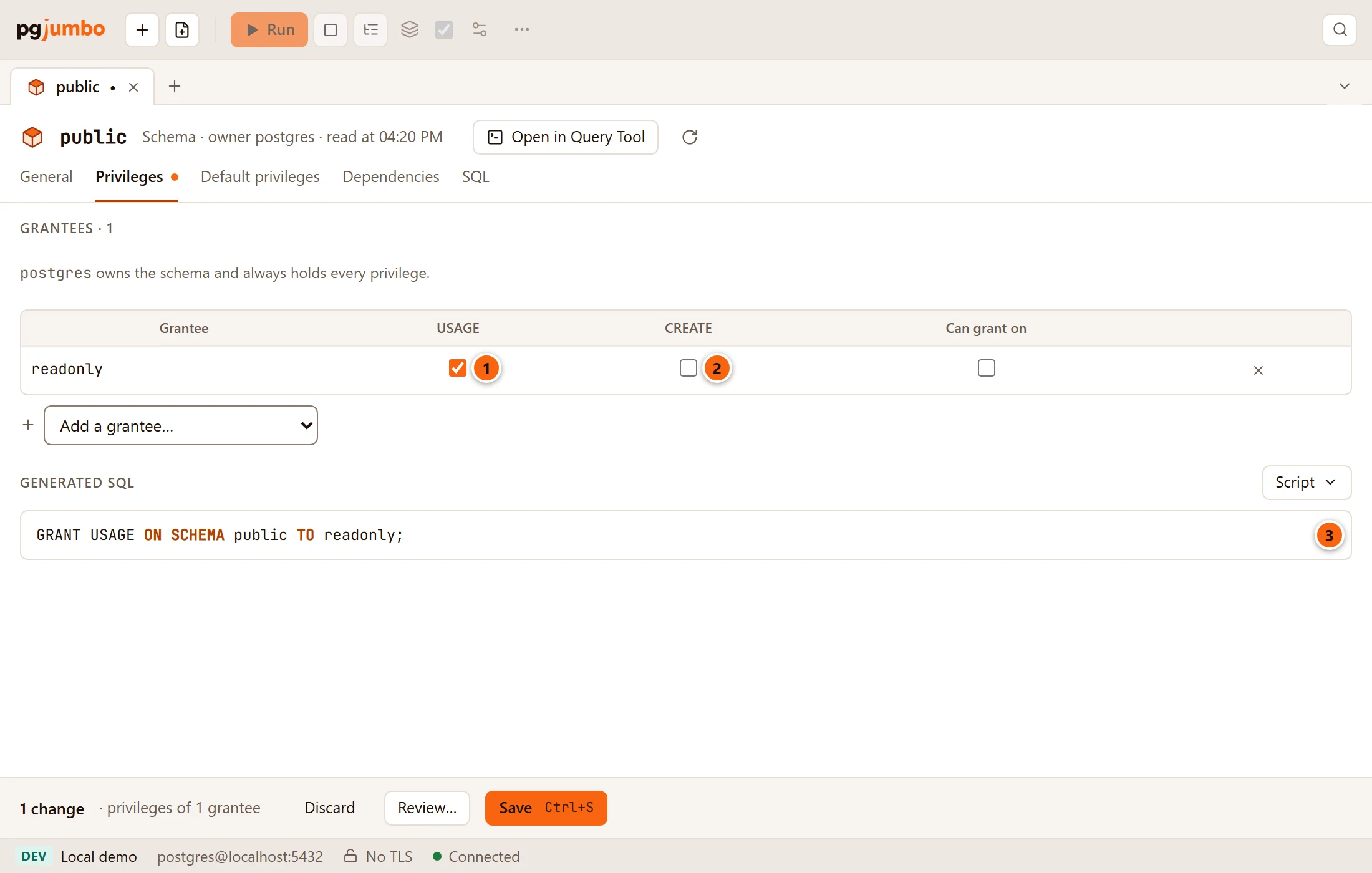
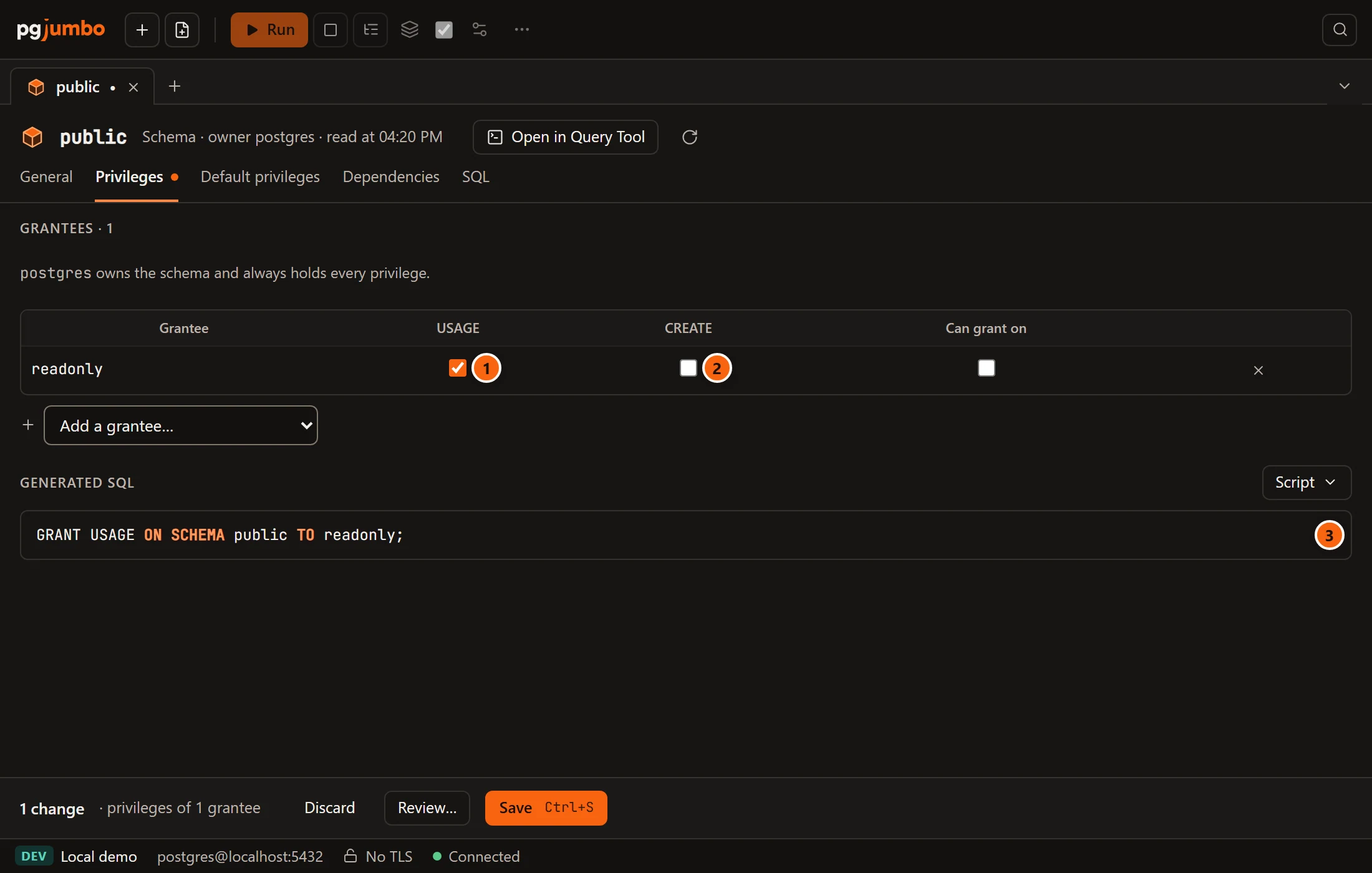
- 1 USAGE lets a role find objects in the schema. Without it, a role cannot read a table in the schema
even when it holds
SELECTon that table. - 2 CREATE lets a role create objects in the schema.
- 3 The
GRANTandREVOKEstatements Save will run.
The line above the grid names the owner, who always holds every privilege. Every control of the grid (adding a
grantee, PUBLIC, Can grant on, removing a row) is explained in
Privileges.
The Default privileges view
Section titled “The Default privileges view”Default privileges decide what objects get when someone creates them later. A rule here covers the objects one role
creates in this schema, for example “every table postgres creates in public can be read by readonly”.
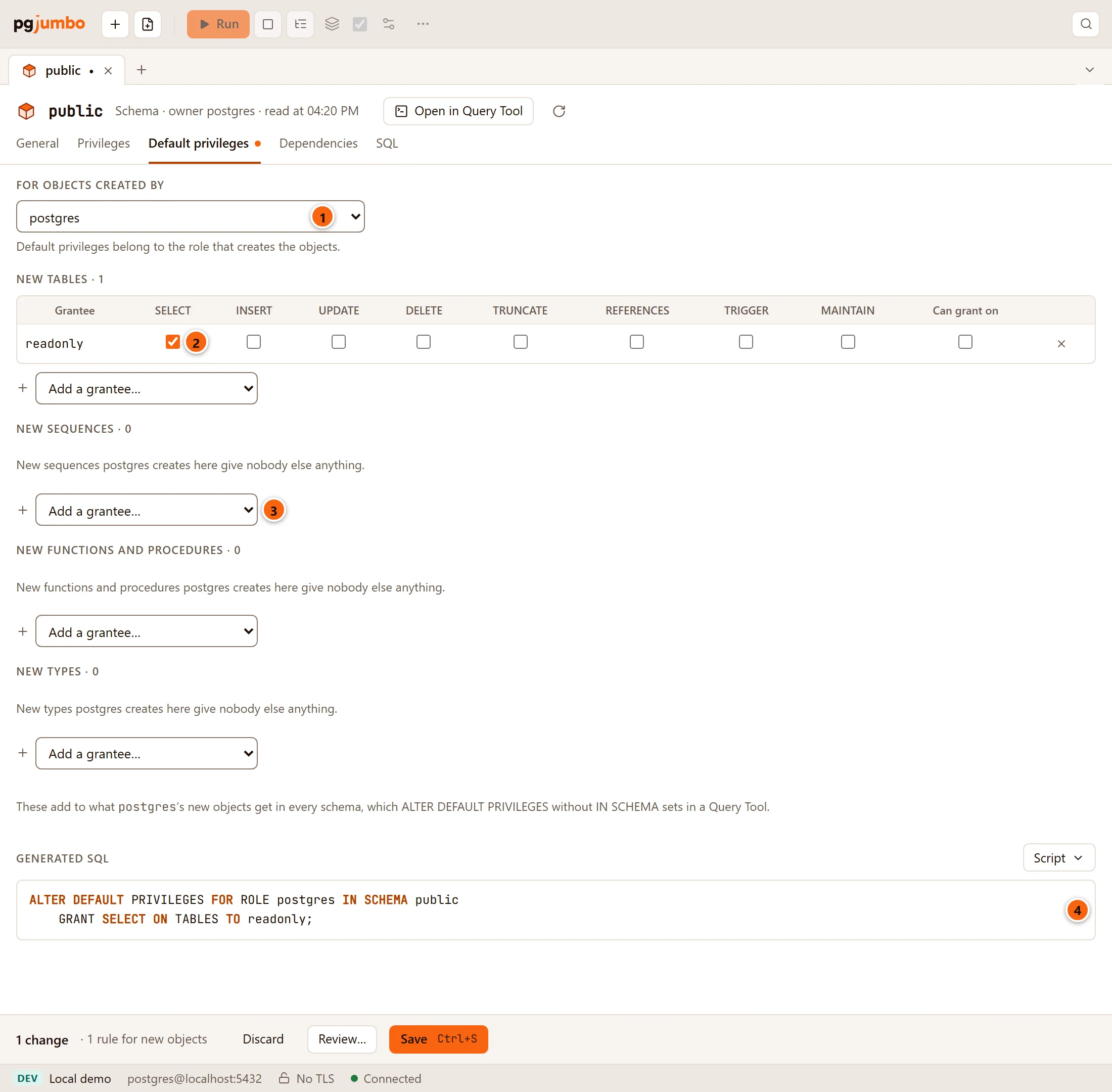
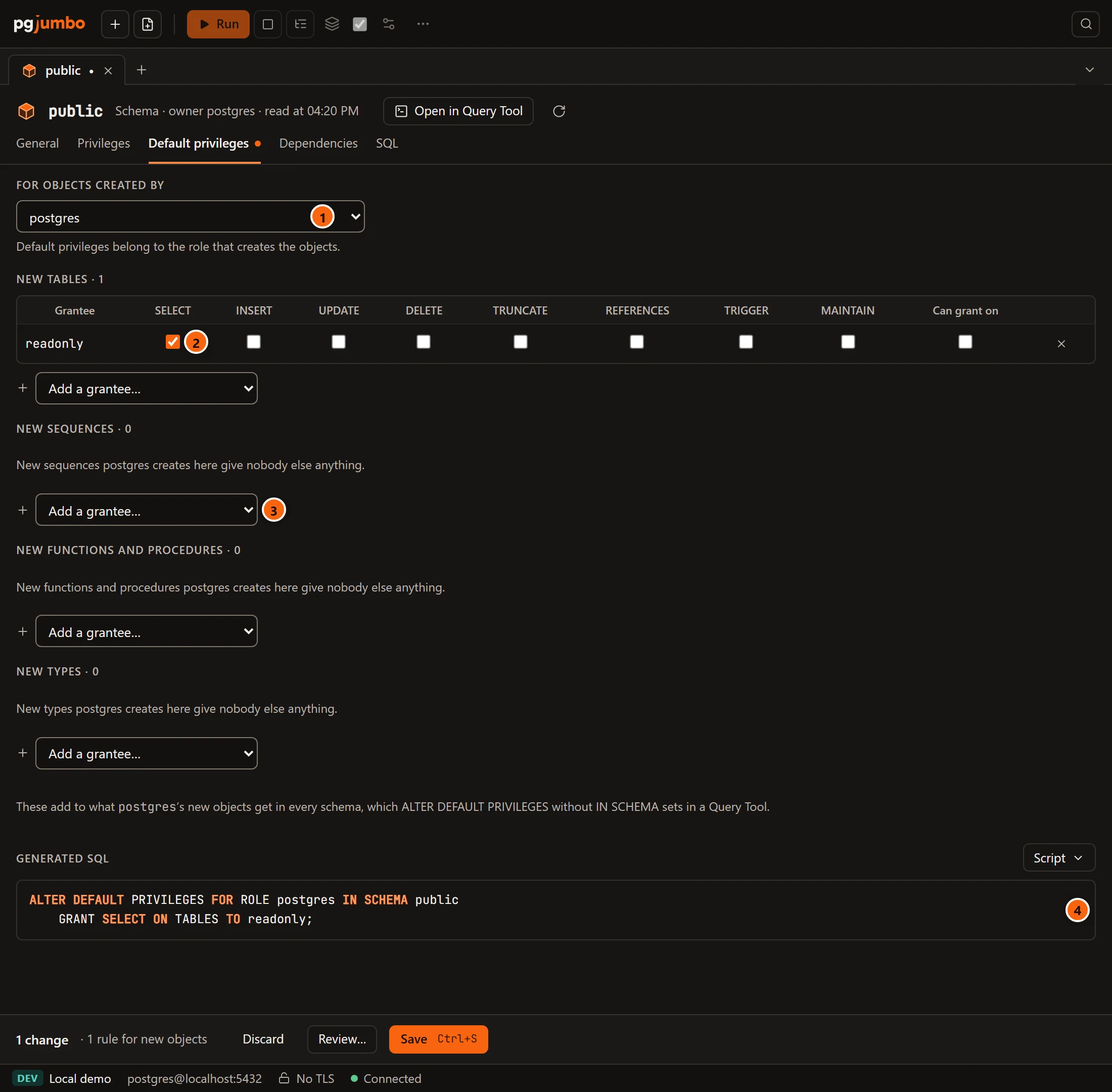
- 1 For objects created by: the role whose new objects the rules are for. It starts on a role that has rules here already, else the schema’s owner. PostgreSQL lets you set rules only for yourself or for a role you are a member of.
- 2 One grid per kind of object: New tables (tables, views and the other relations), New sequences, New functions and procedures and New types. Each heading counts its grantees. Each row is a grantee with the privileges new objects of that kind give it. A grid with no rows says so, for example “New sequences postgres creates here give nobody else anything.”
- 3 Add a grantee… starts a rule for another role or for
PUBLIC. Tick at least one privilege: a grantee with nothing ticked makes no rule. - 4 The statements, one for each rule that changes, such as
ALTER DEFAULT PRIVILEGES FOR ROLE postgres IN SCHEMA public GRANT SELECT ON TABLES TO readonly;, orREVOKEfor what you untick.
A schema’s rules add to what the same role’s new objects get everywhere in the database. They cannot take away something the database-wide rules give: that, and rules for every schema at once, belong to the database’s Default privileges view. Default privileges never touch objects that exist already; for those, use each object’s Privileges view or the Grant Wizard.
The Dependencies view
Section titled “The Dependencies view”Two lists: Depends on (what the schema needs) and Used by (what needs it), each with its count. Open beside an entry shows that object in the Inspector. An empty list says “Nothing besides its schema.” or “Nothing uses it.” The Inspector has the same lists; see The Inspector.
The SQL view
Section titled “The SQL view”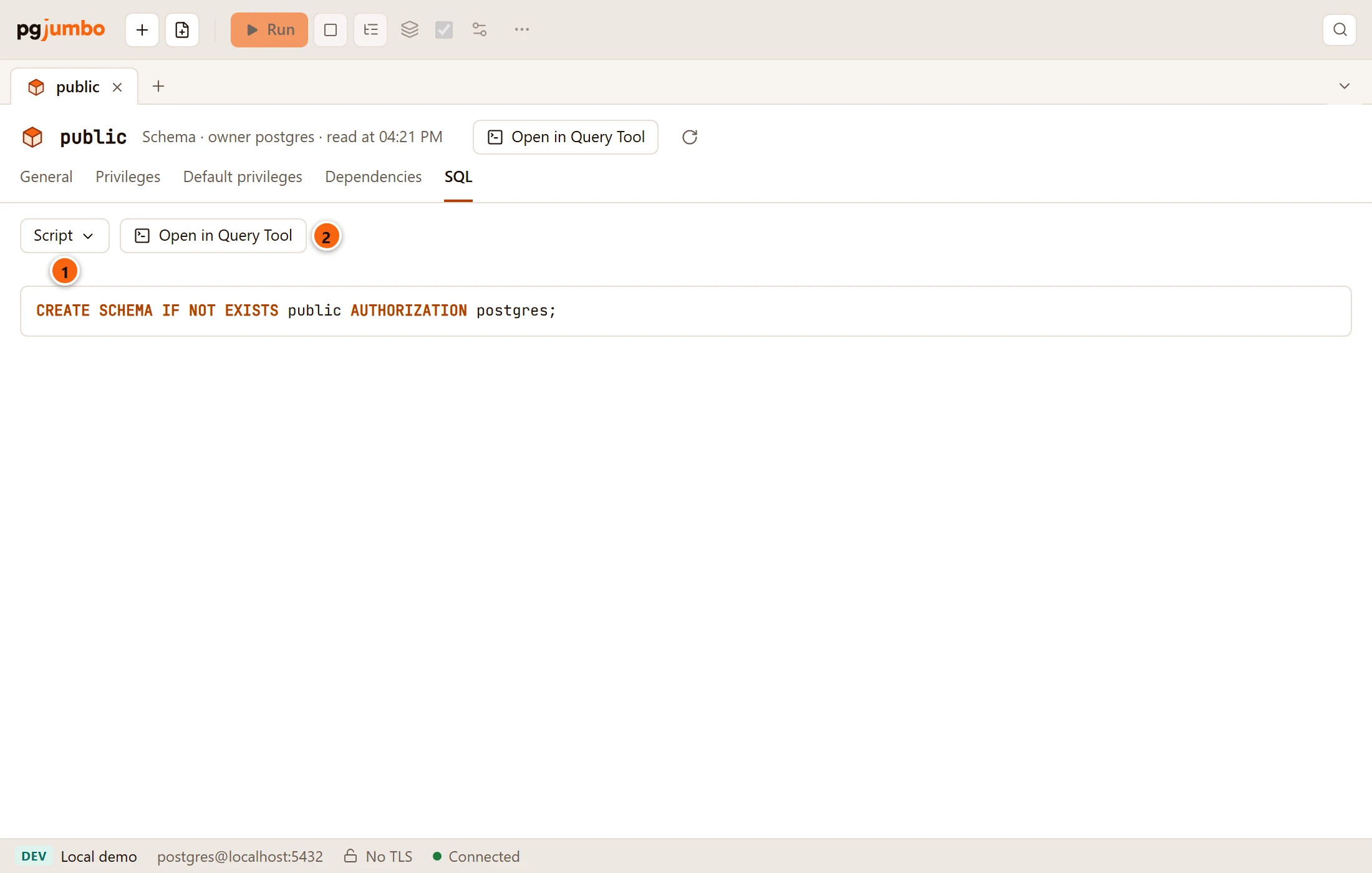
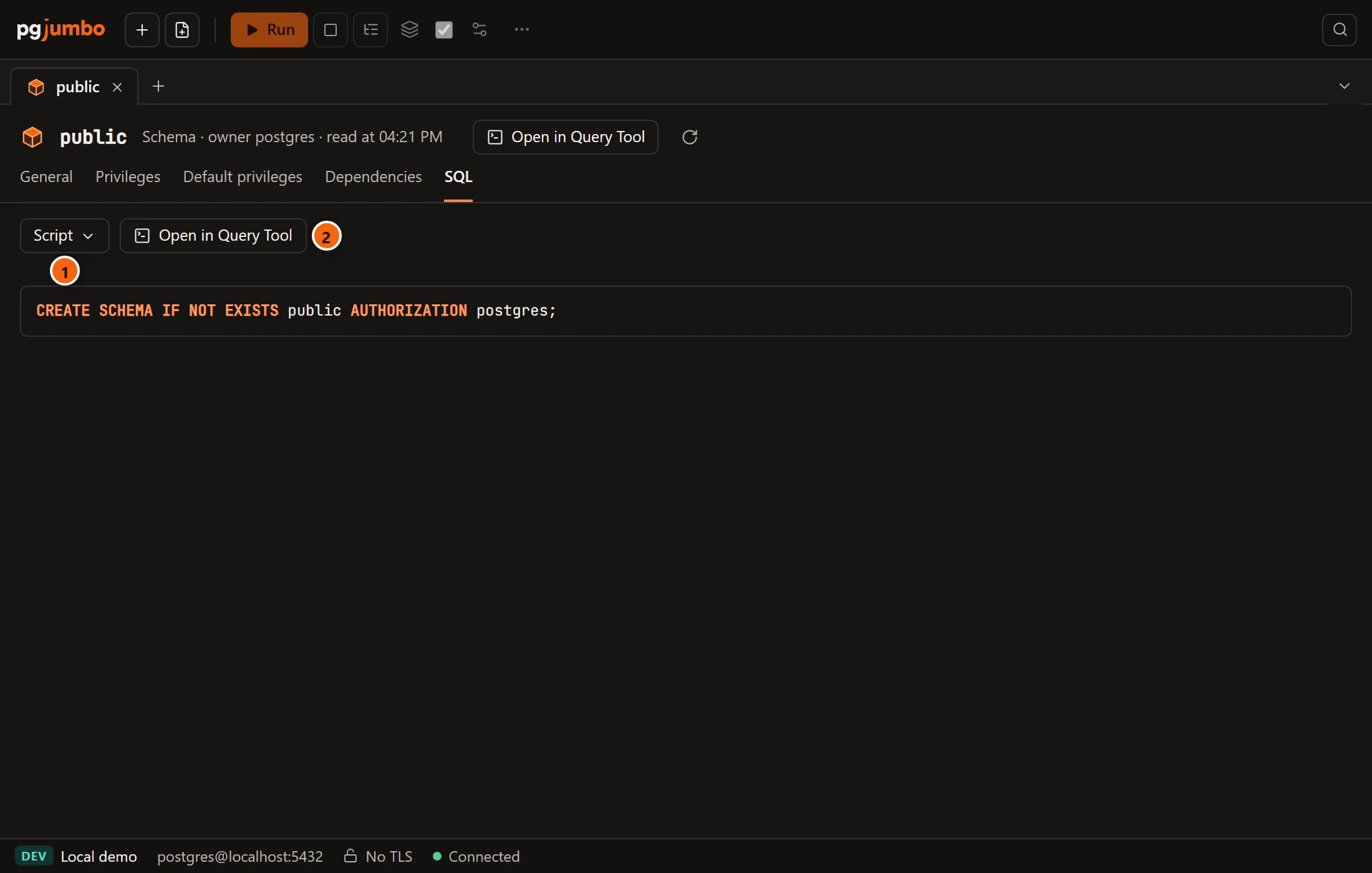
- 1 Script has Open in Query Tool, Copy and Save to file… for the script.
- 2 Open in Query Tool puts the script in a new Query Tool on the schema’s database.
This is the script the Inspector’s SQL tab shows: CREATE SCHEMA with the owner, the comment and the grants. It
shows the schema as saved, not your unsaved changes; those are under Generated SQL in the view you changed.
More you can do with a schema
Section titled “More you can do with a schema”The schema’s right-click menu has more: Drop… (see Drop, truncate and other quick actions), Script asCREATE, Create for the objects a schema holds, Compare Schema…, ERD (see Diagrams), Explain this schema while the Assistant is on, and under Tasks Maintenance…, Import File into New Table…, Backup…, Generate Scripts… and the Grant Wizard. Right-click menus lists them all.