
Set up the Assistant
The Assistant is Claude inside pgjumbo. It answers questions about what you have open and proposes changes that you review and run yourself. It works through Claude Code, Anthropic’s own program, which you install and sign in to yourself. pgjumbo has no Claude account of its own and never asks for, sees or keeps your Claude sign-in. The Assistant is off until you turn it on, and while it is off pgjumbo sends nothing anywhere.
This page covers turning it on and deciding what it may read. Ask the Assistant covers the pane and the conversation.
What you need
Section titled “What you need”- Claude Code 2.1.302 or later. pgjumbo checks the version and will not use an older one.
- Claude Code signed in. You sign in through Claude Code itself: in a terminal run
claude, then/login, or sign in inside VS Code or the Claude desktop app. Answers then come from your own Claude plan, within its limits.
If Claude Code is not on your computer yet, install it with its own installer, then run claude once and sign in:
| System | Where | Command |
|---|---|---|
| Windows | PowerShell | irm https://claude.ai/install.ps1 | iex |
| macOS | Terminal | curl -fsSL https://claude.ai/install.sh | bash |
| Linux | a terminal | curl -fsSL https://claude.ai/install.sh | bash |
You can skip the installer if you already use the Claude Code extension in VS Code, Cursor or Windsurf, or the Claude desktop app on a Mac: pgjumbo finds the copy of Claude Code that comes inside them.
Turn the Assistant on
Section titled “Turn the Assistant on”- Open Settings: ⌘ , (Ctrl+, on Windows and Linux), or pgjumboSettings… on macOS, FileSettings… on Windows and FilePreferences… on Linux.
- Scroll to the Assistant section, after Changing objects.
- Tick Use the Assistant. The line under the Claude Code field now says Claude Code is looked for when you save.
- Leave Claude Code empty so that pgjumbo finds the program, or choose it yourself.
- Click Save. The dialog closes and pgjumbo looks for Claude Code. Open Settings again to see what it found under the field, or open the Assistant pane (⌘ J (Ctrl+J on Windows and Linux)), which shows the same problem if there is one.
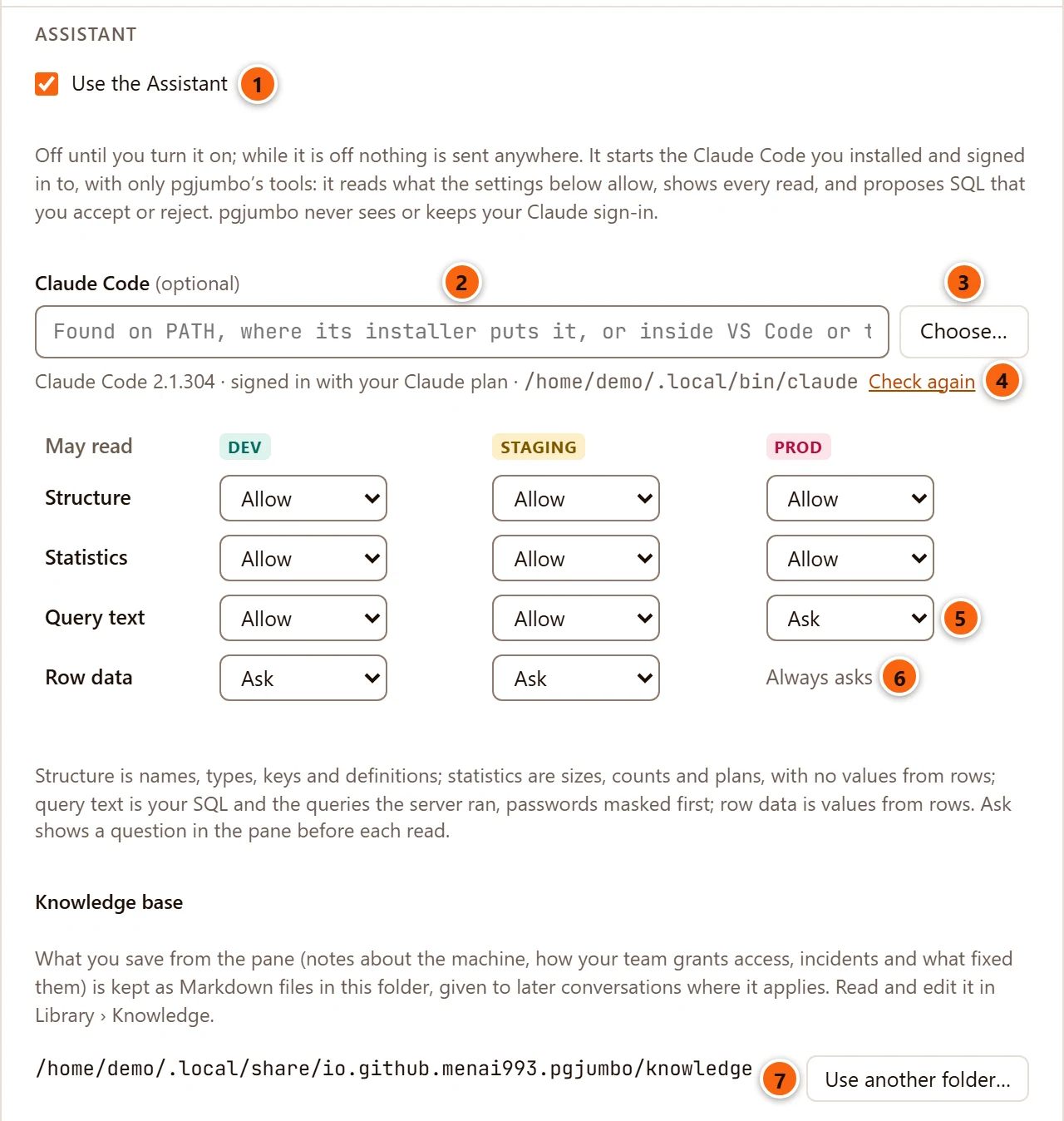
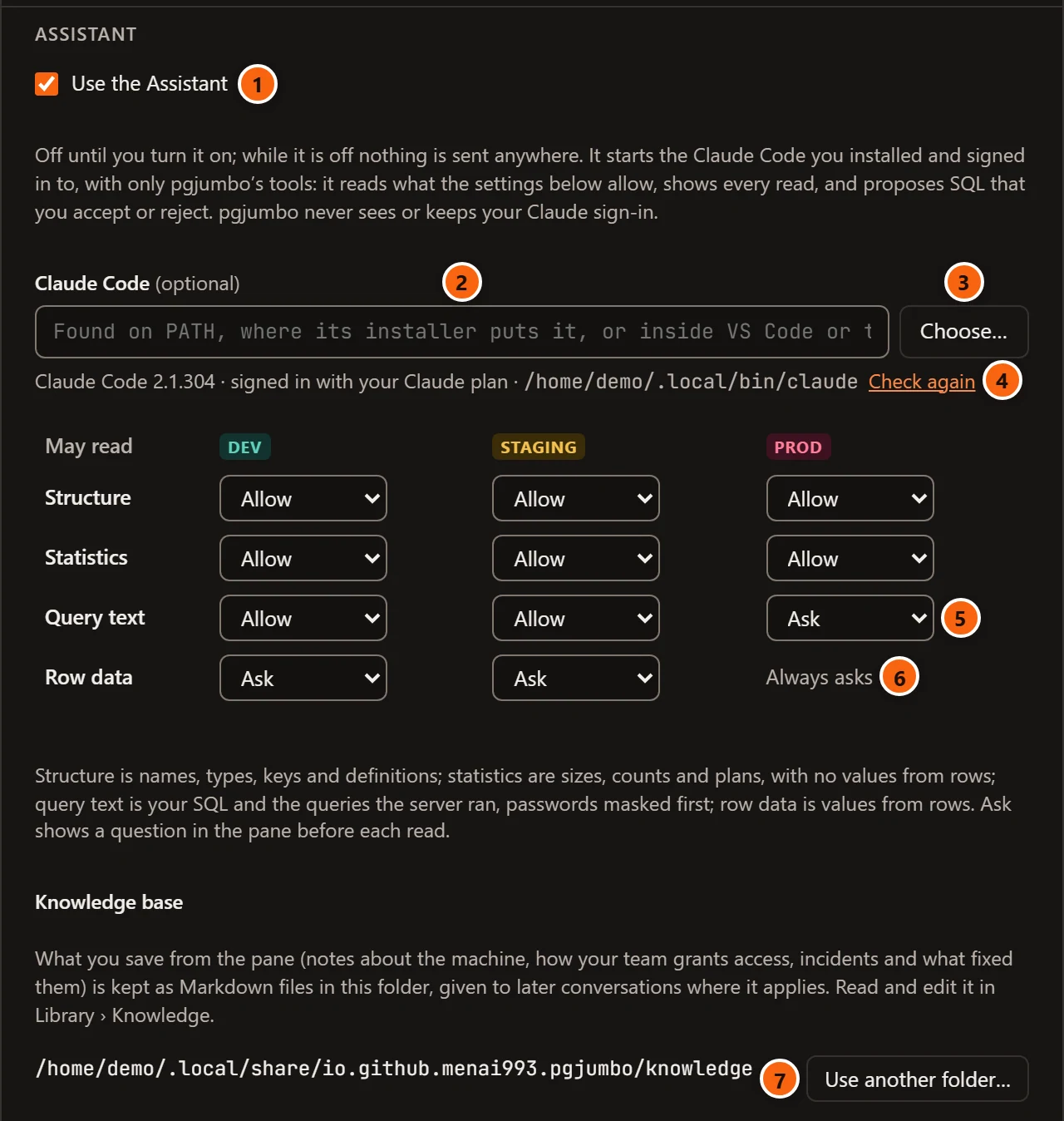
- 1 Use the Assistant turns the whole feature on or off.
- 2 Claude Code is the program to start. Left empty, pgjumbo looks for it (see How pgjumbo finds Claude Code).
- 3 Choose… opens a file dialog to pick the program.
- 4 The status line: the version found, how it is signed in and where the program is. Check again looks again, for example after you signed in.
- 5 What the Assistant may read, per environment tag and per kind of read. Here, query text on Production servers is set to Ask, the default.
- 6 Row data on Production always asks. You cannot change it.
- 7 Use another folder… moves the knowledge base to a folder you choose.
Every control of the section:
| Control | What it does |
|---|---|
| Use the Assistant | Off by default. When it is on, the toolbar gets an Assistant button, the right pane gets Inspector and Assistant tabs, and the Ask buttons appear around the app. When it is off, none of them show and nothing is sent. |
| Claude Code (optional) | The full path of the claude program. Empty, pgjumbo finds it. A path with a line break or another control character is refused when you save (The Claude Code program’s path has a character a path cannot have.); a path that names no file shows There is no program at … in the status line. |
| Choose… | A file dialog titled Claude Code Program. The file you pick fills the field. |
| Status line | What pgjumbo found, once the Assistant is on and saved. See What the status line says. |
| Check again | Looks for Claude Code again and asks it again whether it is signed in. |
| May read table | One row per kind of read, one column per environment tag, each set to Allow, Ask or Don’t allow. See Choose what it may read. |
| Knowledge base | The folder where the notes and files you save from the pane are kept, and Use another folder… to pick another one. A new folder takes effect as soon as you pick it, without Save. See Knowledge base and notes. |
The rest of the section takes effect when you click Save. Cancel or Esc keeps what was saved. Restore defaults at the bottom of the dialog fills in the default of every setting; once you save, the Assistant is off and the access table is back to its defaults. The rest of the dialog is described in Settings.
How pgjumbo finds Claude Code
Section titled “How pgjumbo finds Claude Code”With the Claude Code field empty, pgjumbo looks in these places in order and takes the first program it finds. It looks again each time it starts Claude Code, so it still finds the program after an update of VS Code or the Claude app moves it.
- Every folder on your
PATH, forclaude(on Windowsclaude.exe, thenclaude.cmd). .local/binand.claude/localin your home folder, where Claude Code’s installers put it.- On macOS,
/opt/homebrew/binand/usr/local/bin. - Inside the Claude Code extension of VS Code, VS Code Insiders, Cursor, Windsurf and VSCodium, newest version first.
- On macOS, inside the Claude desktop app, newest version first.
When pgjumbo is started from a desktop launcher, its PATH can be shorter than your terminal’s. If Claude Code works in
a terminal but pgjumbo does not find it, pick it with Choose…. Run which claude (macOS, Linux) or where claude
(Windows) in a terminal to see where it is.
What the status line says
Section titled “What the status line says”pgjumbo runs claude --version and claude auth status to fill the status line. Neither reaches Anthropic. pgjumbo
keeps only whether Claude Code is signed in and how, never the account it names.
| The status line says | What it means |
|---|---|
| Claude Code is looked for once the Assistant is on. | The Assistant is off. pgjumbo does not look for the program. |
| Claude Code is looked for when you save. | You ticked Use the Assistant and have not saved yet. |
| Looking for Claude Code… | It is looking. |
| Claude Code 2.1.304 · signed in with your Claude plan · path | Found and ready. The middle part says how it is signed in: signed in with your Claude plan, uses an API key (ANTHROPIC_API_KEY): usage is billed to that key, uses a long-lived token (CLAUDE_CODE_OAUTH_TOKEN), uses Amazon Bedrock, Google Vertex AI or another provider, or only signed in. |
| Save to check the new choice. | You changed the field or the tick; pgjumbo checks again after Save. |
| Claude Code was not found on this computer. Install it, then Check again, or choose the program. | Nothing in the places above. A box under the field shows the installer command for your system with a Copy button, says that the VS Code, Cursor and Claude app copies work too, and has its own Check again. |
| There is no program at path. | The path in the field names no file. |
| This Claude Code is too old for pgjumbo: update it to 2.1.302 or later (claude update). | Run claude update in a terminal, then click Check again. |
| path did not say its version: … | The program did not answer --version the way Claude Code does. It is probably not Claude Code. |
| Claude Code is not signed in. Sign in to it (in a terminal run claude, then /login; or in VS Code or the Claude app), then Check again. | Sign in through Claude Code, then click Check again. |
Choose what it may read
Section titled “Choose what it may read”The Assistant learns about your servers only through pgjumbo’s own tools, and each tool needs one of four kinds of read. You decide per environment tag (Dev, Staging, Production, set for each server in the connection dialog) whether each kind is allowed, asked about each time, or refused. Every server with the same tag follows the same column.
| Kind of read | What it covers | What the Assistant reads with it |
|---|---|---|
| Structure | Names, types, keys, indexes, definitions, comments and grants. | The tables, views, materialized views and functions of a database; an object’s CREATE script as the Inspector shows it; the roles, their attributes, memberships and grants; who can reach an object and through which role; what an INSERT, UPDATE or DELETE on a table sets off (defaults, triggers, constraints, cascades, publications); what changed since a database guide was written. Drafting a comment, a table or a definition also reads the catalog at this level, to check the names. |
| Statistics | Sizes, row counts and estimates, scans, dead rows, settings and plans, with no values from rows. | A table’s or index’s statistics; the plan of a statement from EXPLAIN (never EXPLAIN ANALYZE, so the statement does not run); the Reports and the Health check; the server’s settings; the pg_hba.conf rules as the server read them; a database’s map with sizes, for a guide; for Map my environment, every connected server’s version and role, databases, replication, slots, subscriptions, publications, foreign servers, extensions and the applications connected, each server by the column of its own tag. |
| Query text | Your SQL and the queries the server ran, with passwords masked first. | The tab you ask from: its SQL, the selection, the last error, the plan and the review before save; the server’s sessions with their queries; one session in detail; the top queries from pg_stat_statements. |
| Row data | Values from rows. | The newest lines of the server’s log, which can quote values from queries. |
Each cell is one of three choices:
- Allow: the read goes ahead and shows as a line in the conversation.
- Ask: the pane asks you first, each time (see below).
- Don’t allow: the read is refused, the line says so, and Claude carries on without it.
The defaults:
| May read | Dev | Staging | Production |
|---|---|---|---|
| Structure | Allow | Allow | Allow |
| Statistics | Allow | Allow | Allow |
| Query text | Allow | Allow | Ask |
| Row data | Ask | Ask | Always asks |
Row data on Production asks every time, whatever else you choose, and pgjumbo enforces this in its engine as well as in the dialog. The top of the pane sums up what applies to the tab in front, for example Reads structure, statistics and query text; asks before row data, with never … for the kinds you set to Don’t allow.
Reading the knowledge base needs no permission, because it belongs to you, not to a server. Those reads show as lines all the same.
When the Assistant asks
Section titled “When the Assistant asks”When a kind of read is set to Ask, the conversation stops at a yellow question before the read.
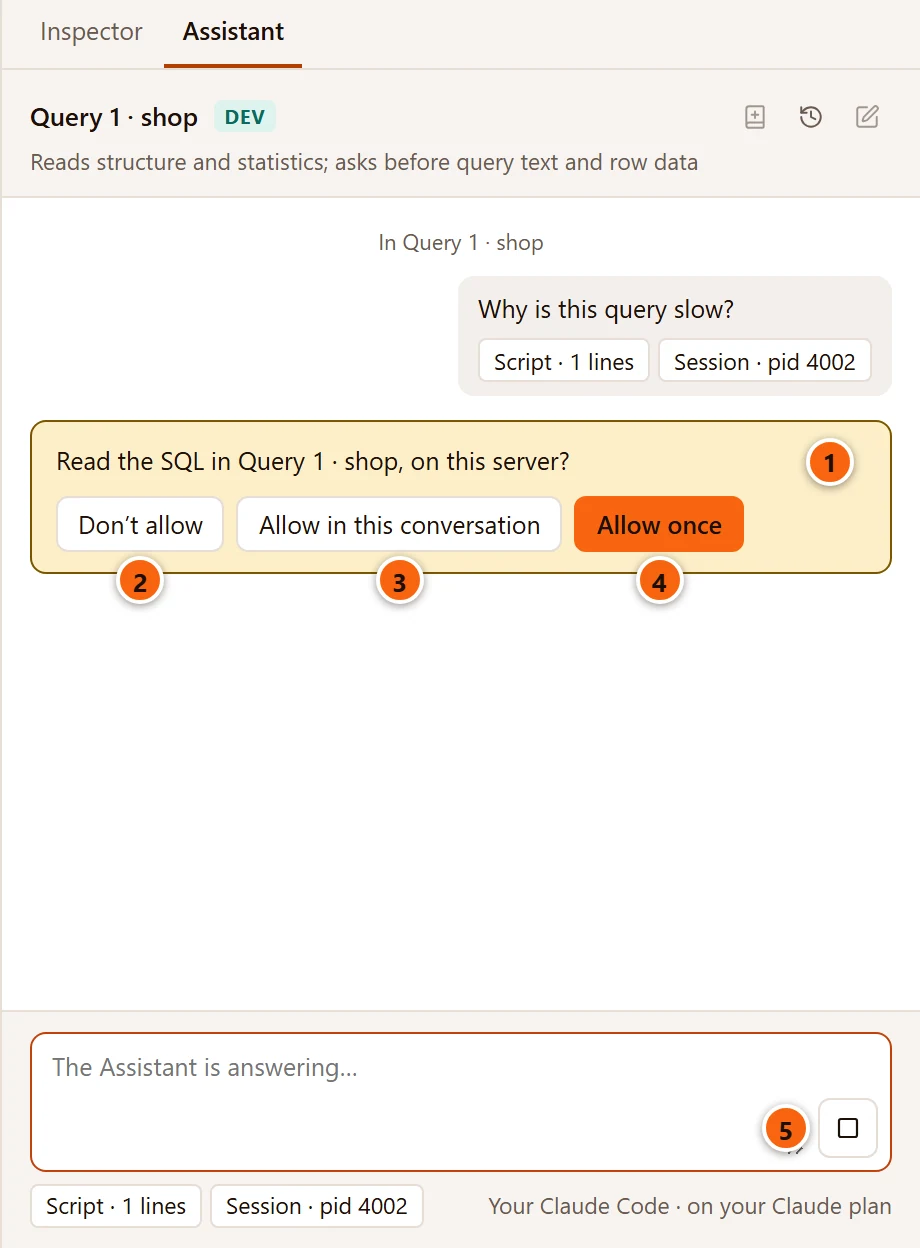
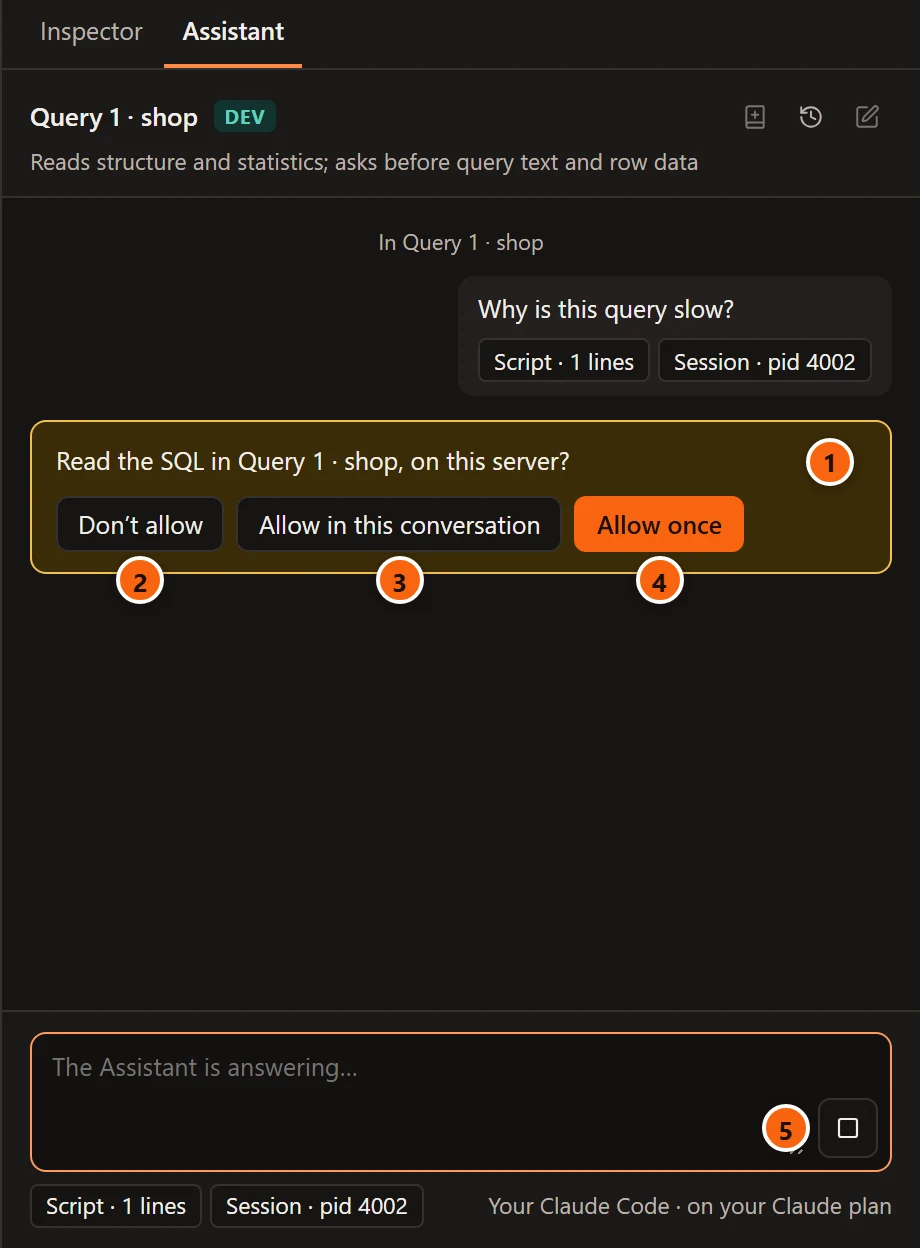
- 1 What it wants to read and on which server.
- 2 Don’t allow refuses this read.
- 3 Allow in this conversation allows this kind of read on this server until you start a new conversation. It is not offered for row data on Production.
- 4 Allow once allows this one read.
- 5 While the question waits, the answer is still running: Stop ends it.
Your answer replaces the buttons: Allowed once, Allowed in this conversation or Not allowed. A question left unanswered for ten minutes counts as Not allowed, and so does one still waiting when you click Stop or the turn ends. A conversation opened again from the history, or carried on after pgjumbo restarts, asks again.
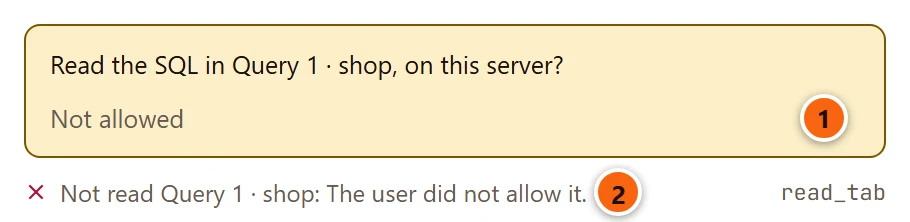
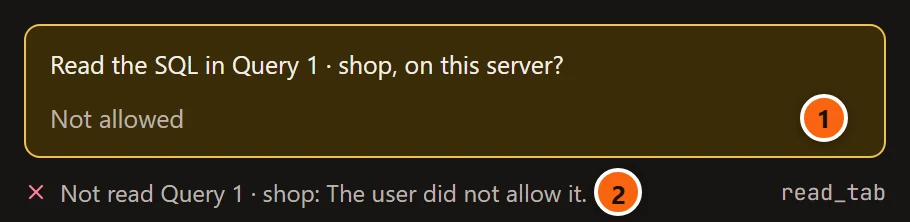
- 1 Your answer.
- 2 The read line says what was not read and why. A cell set to Don’t allow gives pgjumbo’s settings do not let the Assistant read … on … instead.
What Claude can and cannot do
Section titled “What Claude can and cannot do”pgjumbo starts Claude Code for each conversation in a mode that leaves it nothing but pgjumbo’s tools.
- Claude Code’s own tools are off: no shell, no files, no web, no other MCP servers. Your Claude Code settings files and their hooks are left out, and it runs in an empty folder of its own. It learns about your servers only through pgjumbo.
- It reads only what the access table allows, on the server and database of the tab you ask from, and every read shows as a line in the conversation. The one exception is Map my environment, which reads every connected server, each as the column of its own tag allows.
- It cannot change anything. No tool runs a statement that changes data or objects. Its reads go through a connection
of its own per server and database, opened read-only (
default_transaction_read_only = on) with a 15-second statement timeout, which shows inpg_stat_activityaspgjumbo/assistant. A few catalog reads use the connection the Explorer uses. It never touches a Query Tool’s session. - It proposes. SQL, settings, tables, indexes, comments, definitions, roles and knowledge base files come as cards; you accept a card and then review the change where it belongs. See What the Assistant proposes.
- It never sees a password. Passwords in SQL are masked before Claude reads it, you type a new role’s password yourself in the role’s tab, and connection strings and keys cannot be read through any tool. Map my environment gets only the host, port and database of a subscription’s connection string or a foreign server’s options, and never reads user mappings.
- What it reads is handed to Claude marked as data, not instructions: comments, definitions and log lines cannot steer it. Its answers are drawn in the pane as text, never as a web page.
What is sent and what is kept
Section titled “What is sent and what is kept”Nothing is sent while the Assistant is off. Once it is on, nothing is sent until you send a message or click an Ask button. Then Claude Code sends this to Anthropic, or to the provider it is signed in with:
- your message;
- where you are: the title of the tab in front, the server (with its environment tag) and database the tools read, the titles of up to 30 other open tabs, and what is selected in the Explorer;
- what each allowed read returns;
- from your knowledge base: its index, the list of its files and skills, and the instructions in its
CLAUDE.mdwhen Claude Code starts, and the files about a server and database the first time the conversation reaches them (see Knowledge base and notes); - after a restart or Stop, what was said earlier in the conversation, at most its last 24,000 characters.
What stays on your computer:
- The history: every conversation, with passwords masked, in pgjumbo’s own database. You can delete one or all of them (Ask the Assistant). A conversation in the history is sent again only if you carry it on.
- The knowledge base: only the files you save from a card, in the folder Settings › Assistant shows.
- Nothing in Claude Code itself. pgjumbo starts it so that it keeps no session of its own, in an empty folder that is removed when the conversation ends (a new conversation, another one opened from the history, or Clear all).
pgjumbo serves its tools to Claude Code on 127.0.0.1 only, with a token of their own for each conversation, kept in a
file only you can read. A request that comes from a web browser is refused.
Where these files live on each system is in Where pgjumbo keeps your data.
When the Assistant cannot start
Section titled “When the Assistant cannot start”The pane tells you what is missing.
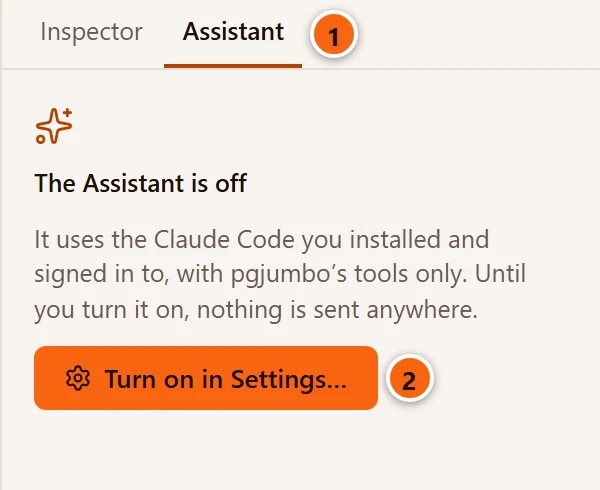
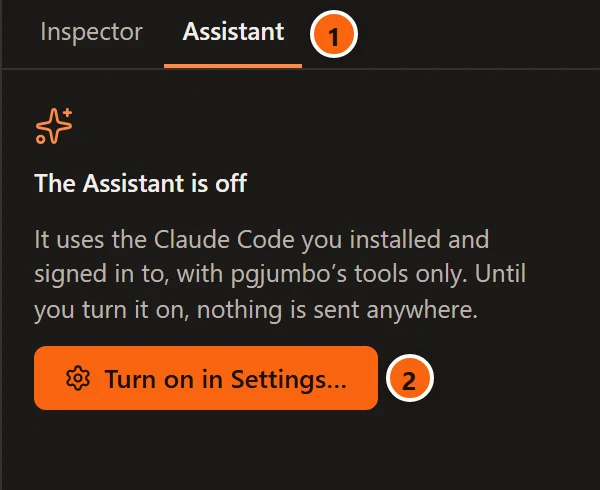
- 1 The Assistant tab of the right pane. ⌘ J (Ctrl+J on Windows and Linux) shows it even while the Assistant is off.
- 2 Turn on in Settings… opens Settings.
Once it is on, the pane says Looking for Claude Code… while it checks. When the program cannot be used, the pane says Claude Code cannot be used yet with the same message as the status line in Settings, a Check again button and a Settings… button.
During a conversation, problems show in the answer: a grey notice while Claude Code tries again by itself, a red line when the answer ends.
| The pane says | What to do |
|---|---|
| Claude Code is not signed in. Sign in in Claude Code (run claude, then /login), then ask again. | Sign in through Claude Code and send the message again. |
| Your plan’s limit was reached for now; Claude Code tries again. | Nothing: Claude Code waits and tries again. If it gives up, try later; the limits are your plan’s. |
| Claude is busy; Claude Code tries again. | Nothing: Claude Code tries again. |
| Claude Code’s sign-in failed; it tries again. | Nothing at first. If the answer then ends with the not-signed-in line, sign in again. |
| A request failed (…); Claude Code tries again. | Nothing: another kind of failed request that Claude Code retries. |
| Claude Code could not reach pgjumbo’s tools, so it cannot read this server. | Claude answers without reading anything. Start a new conversation; if it happens again, see Troubleshooting. |
| Claude Code was not found on this computer. See Settings › Assistant. | The program moved or was removed since Settings found it. Click Check again in Settings, or choose the program. |
| Could not start Claude Code (path): … | The program is there but would not start. Check that it runs from a terminal. |
| Claude Code stopped. | Claude Code ended, or you clicked Stop. The next message starts it again. When Claude Code said why it ended, the pane shows its words instead. |
| Claude Code stopped without an answer. | The turn ended with an error and no text. Ask again. |