
Map your environment
Map my environment asks the Assistant to write down how your servers connect: which servers there are and what
each is for, their databases, who streams from whom, publications and the subscriptions that read them, foreign servers,
and the applications that connect. It reads this from the servers you have connected, then offers it as files for your
knowledge base: environment/map.md, the map with a diagram, and a file per server.
Nothing is written until you save the card. Later conversations find the files there.
The Assistant must be on and Claude Code ready: see Set up the Assistant.
Ask for the map
Section titled “Ask for the map”-
Connect every server you want on the map. The Assistant reads only the servers that are connected when it asks.
-
Click Library at the top of the left pane, then Add… at the right of the label of the Knowledge section.
-
Choose Map my environment.
-
If the pane asks before it reads a server, answer it (see Access on each server).
-
Review the Knowledge card that ends the answer, and click Save to knowledge base.
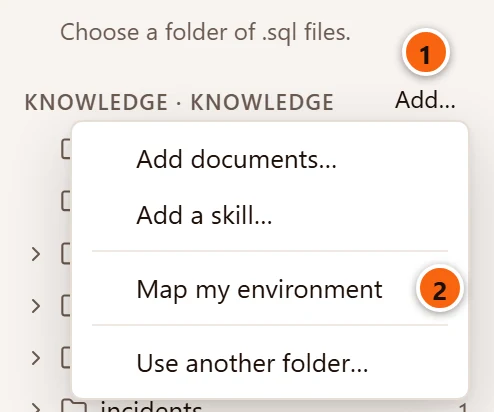
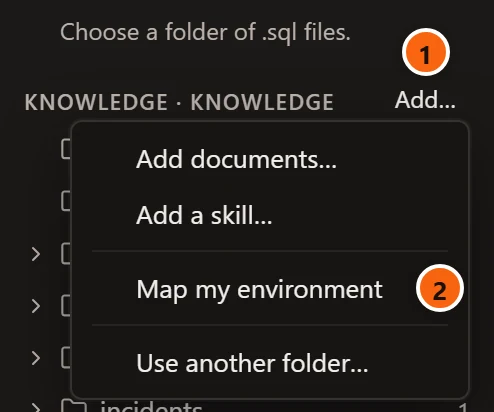
- 1 Add…, at the right of the Knowledge section’s label, opens the menu.
- 2 Map my environment. While the Assistant is off it is greyed, and its tooltip says “Turn the Assistant on in Settings to map your environment”.
Choosing it brings the right pane forward on Assistant, showing it if it was hidden, and sends the request in the window’s one conversation:
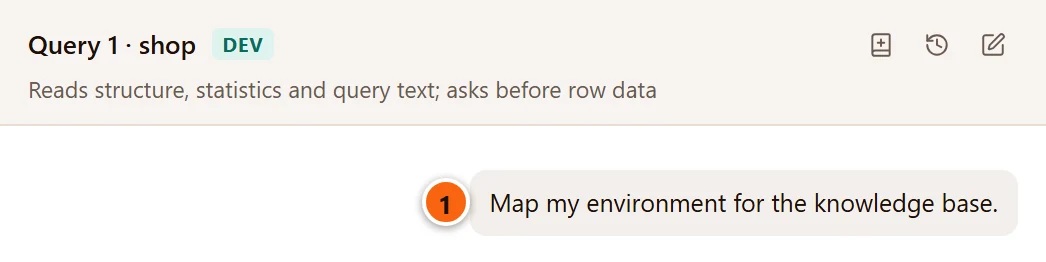
- 1 The conversation shows your request as Map my environment for the knowledge base. The Assistant is sent more than that: what to read and what each file should hold, as described below.
The request needs no particular tab in front: the map covers every connected server, whichever tab you are on. It goes into the conversation the pane shows, after what was said there; if the pane was listing the history, it goes back to that conversation. To keep the map in a conversation of its own, click New conversation at the top of the pane first; the history then lists that conversation as Map my environment for the knowledge base. While an answer is still being written, choosing Map my environment brings the pane forward but sends nothing; choose it again once the answer has ended.
What the Assistant reads
Section titled “What the Assistant reads”The answer shows one read for all the servers, Read every connected server, with the tool’s name
describe_environment at the right. The Assistant is also asked to read environment/map.md and the other files in
environment before it proposes anything, so that it starts from what they say; each shows as a read line with the
file’s path and knowledge_read. Reading the knowledge base needs no access level.
For each server that is connected, the Assistant gets its name, its environment tag and where pgjumbo connects to it (the host and port, or the service’s name), then:
| Fact | What it holds |
|---|---|
| Version and role | The PostgreSQL version, whether the server is a primary (takes writes) or a standby (read-only), and its cluster_name when it has one. |
| Databases | Every database that takes connections, templates left out: its owner, encoding and comment, and its size when you may connect to it. |
| What it streams from | On a standby: the host and port of the server it streams from, the replication slot it uses and the receiver’s status. |
| Replicas | The standbys streaming from it: their name, address, state, whether they are synchronous, and their replay lag. |
| Replication slots | Each slot’s name, whether it is physical or logical, a logical slot’s plugin and database, and whether it is in use. |
| Subscriptions | Each subscription’s name and database, whether it is enabled, the publications it reads, and the host, port and database it reads from. Where it reads from is read only when your role may read subscriptions’ connection strings; otherwise the Assistant is told it may not. |
| Publications, foreign servers and extensions | For up to 10 of the server’s databases: each publication (all tables, or how many tables), each foreign server with its wrapper and the host, port and database from its options, and each extension with its version (plpgsql left out). |
| Applications | Who is connected now: sessions counted by database, user, application name and client address, the 40 biggest groups. Connections whose application name starts with pgjumbo (yours, and other people’s pgjumbo) and the server’s own background processes are left out. A role without pg_read_all_stats sees only its own sessions. |
The databases read for publications, foreign servers and extensions are, in this order and up to 10: the database the conversation reads, when it is on that server; the databases pgjumbo already has open on that server, such as those you opened in the Explorer, in order of name; and the server’s maintenance database (the Database of its connection). The Assistant is told how many databases it left out. To have a database’s publications and foreign servers on the map, open it in the Explorer before you ask.
The Assistant is told to link servers by these addresses: a replica, an upstream server, a subscription or a foreign server whose address matches one of the connected servers is a connection between the two. A server that is not connected is not read, and is on the map only as far as the files already say.
The reads go through the Assistant’s own read-only connections, on the server’s maintenance database and on each database read, as for every other read: see What Claude can and cannot do. A server or database that cannot be read (its connection fails, a statement times out) is reported to the Assistant as not read, with the reason.
Access on each server
Section titled “Access on each server”Each server is read as its own environment tag allows, in the Statistics row of the access table in Settings › Assistant, whatever the tab in front is (see Choose what it may read):
| The server’s Statistics cell | What happens |
|---|---|
| Allow (the default on every tag) | The server is read. |
| Ask | The pane asks, server by server: Read statistics on Staging EU (every connected server)?, with Don’t allow, Allow in this conversation and Allow once (see When the Assistant asks). Allow in this conversation counts for that server’s statistics until you start a new conversation. |
| Don’t allow | The server is not read. The Assistant gets only its name, tag and address, with “pgjumbo’s settings do not let the Assistant read statistics on” and the server’s name. |
A server you answer Don’t allow for, or leave unanswered for ten minutes, is left out the same way, with “The user did not allow it.” The read line still says Read every connected server with a tick: which servers were left out, and why, is in what the Assistant is told, not on the line.
With no server connected there is nothing to read: the Assistant is told to have you connect the servers first. Connect them and choose Map my environment again.
What is never read
Section titled “What is never read”- Passwords. A subscription’s connection string and a foreign server’s options are cut to the host, port and database before Claude sees them; the rest, a password included, is dropped.
- User mappings, which hold the user names and passwords for foreign servers.
- Rows of your tables.
The card
Section titled “The card”The answer ends with one Knowledge card that holds every file.
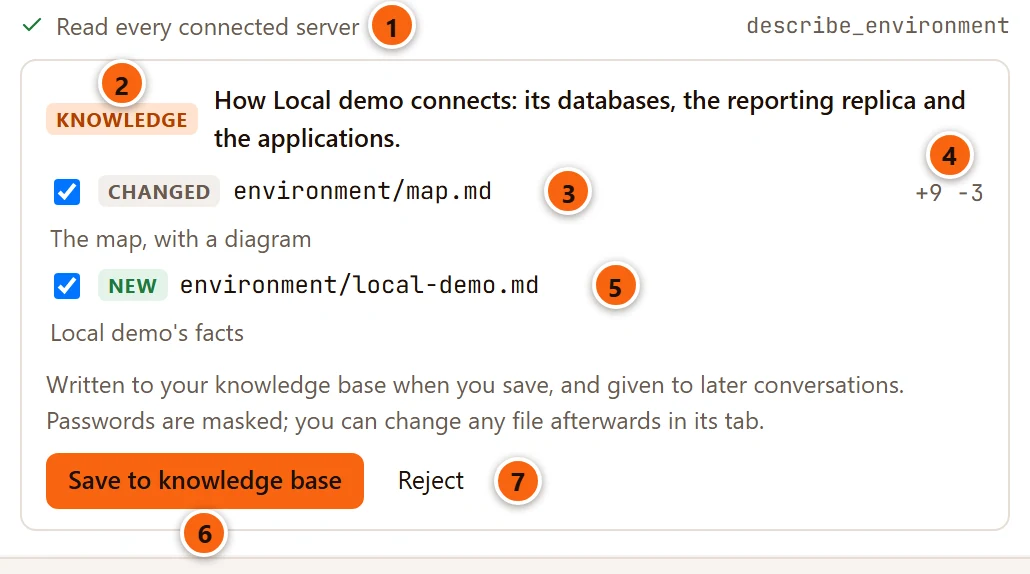
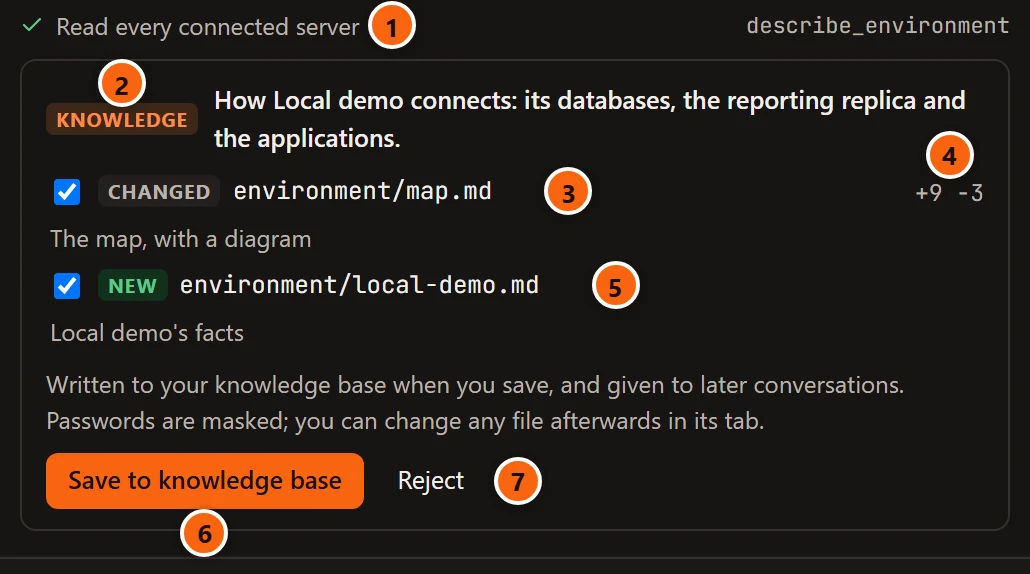
- 1 The one read of every connected server.
- 2 Knowledge, and what the card adds in a sentence.
- 3
environment/map.md. The knowledge base starts with this file, so the card shows it as Changed and says what changes in it under its path. - 4 How many lines it adds and removes.
- 5 A file per server, New the first time. A server’s file name is its name in lower case with
-: the server Local demo givesenvironment/local-demo.md. - 6 Save to knowledge base writes the ticked files. Untick a file to leave it out; the button then says, for example, Save 1 of 2.
- 7 Reject writes nothing.
What the Assistant is asked to put in each file:
| File | What goes in it |
|---|---|
environment/map.md |
How everything connects: each server and what it is for when the Assistant knows, its databases, who streams from whom, publications and the subscriptions that read them, foreign servers, and the applications that connect. Then a diagram of the servers, their main databases and the applications, with replication, subscriptions and foreign servers as arrows, written as a Mermaid flowchart. |
environment/<server>.md, one per server |
Its version and role, its databases, replication, extensions and applications. Its ## Notes section, where notes about the server go, is kept as it is. |
README.md |
A line for each new file, in the knowledge base’s index. |
The Assistant is asked to mark what it works out rather than reads, such as what a server is for, as inferred, and to
leave out passwords and rows. The card holds at most 12 files, and like every Knowledge card it never holds
CLAUDE.md, a skill, a document or a template. Passwords in the files are masked before the card shows them.
Click a path to see the file, or for a changed file the change, and click it again to hide it. A long file or change scrolls inside its box:
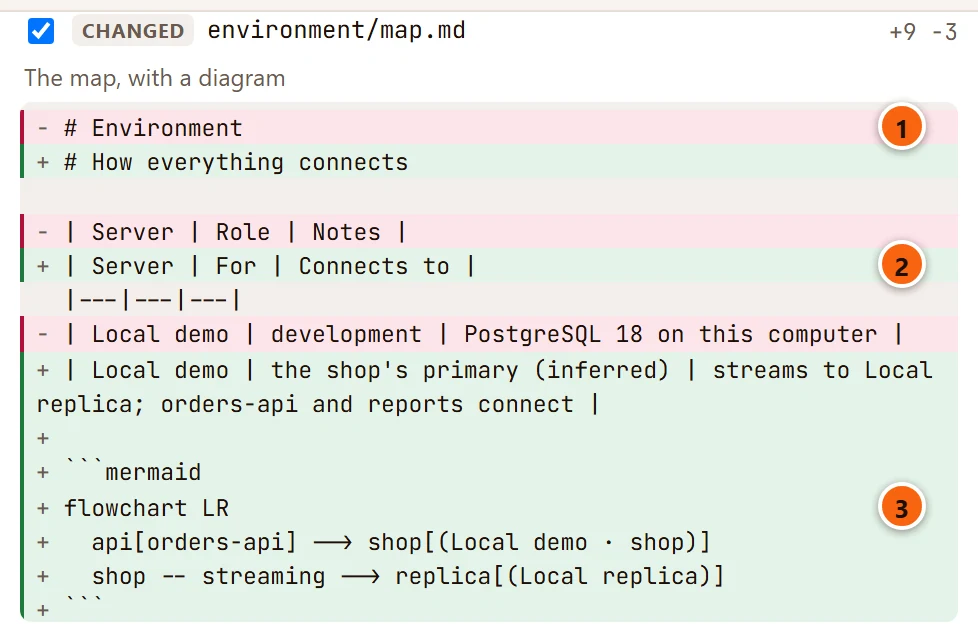
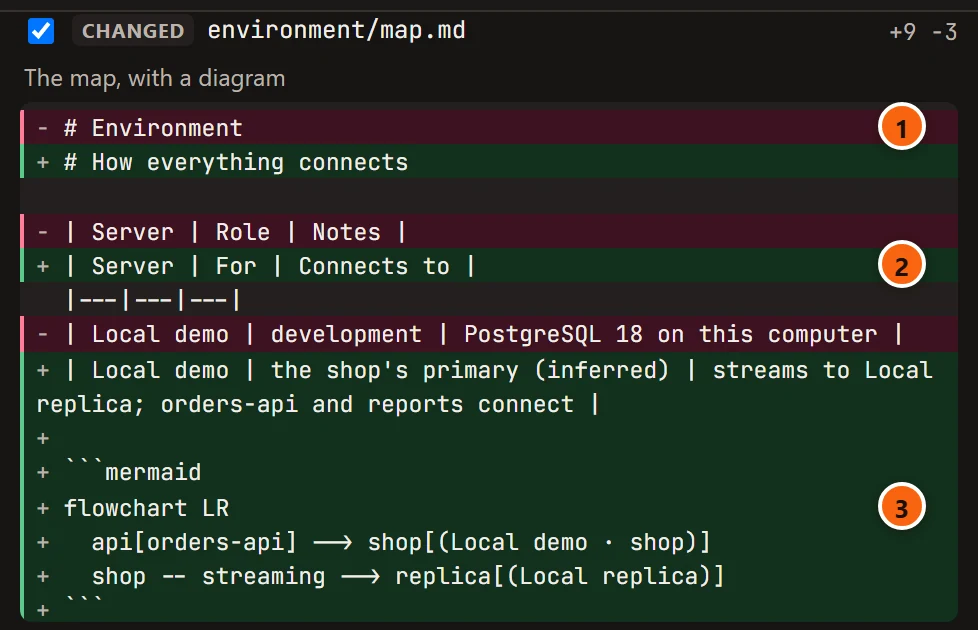
- 1 A removed line, in red with
−. - 2 An added line, in green with
+; here the map’s table of servers. - 3 The diagram, as the lines of a
mermaidcode block.
Ticking, the diff, saving and what happens when a file changed after the card came work as on every Knowledge card: see Knowledge cards.
After you save
Section titled “After you save”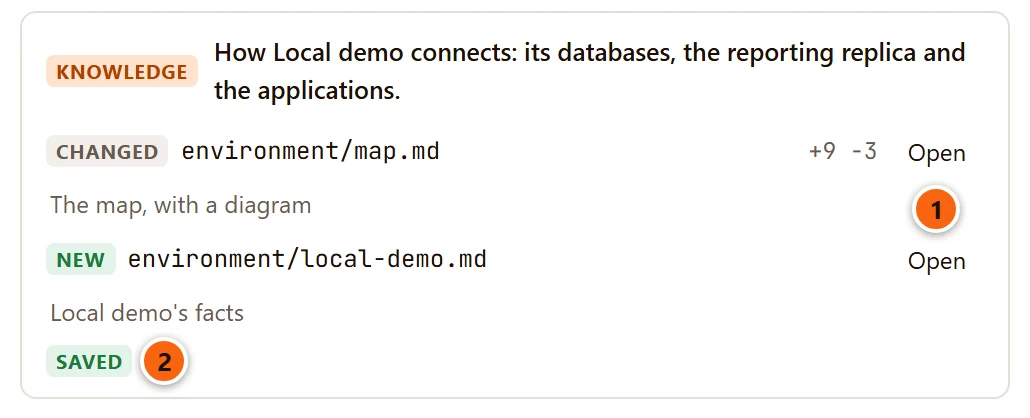

- 1 Open opens a saved file in its tab.
- 2 Saved: both files are written.
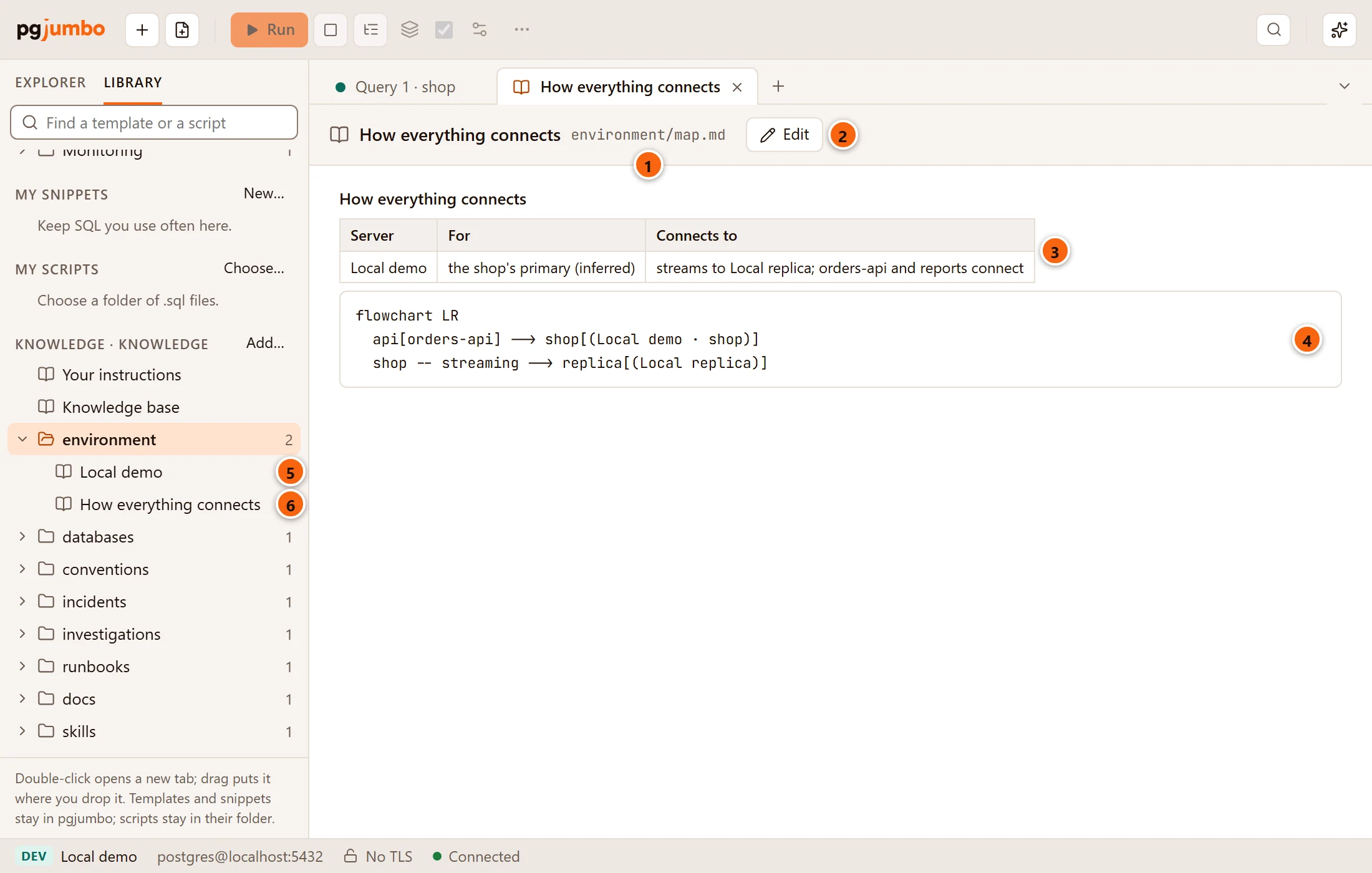
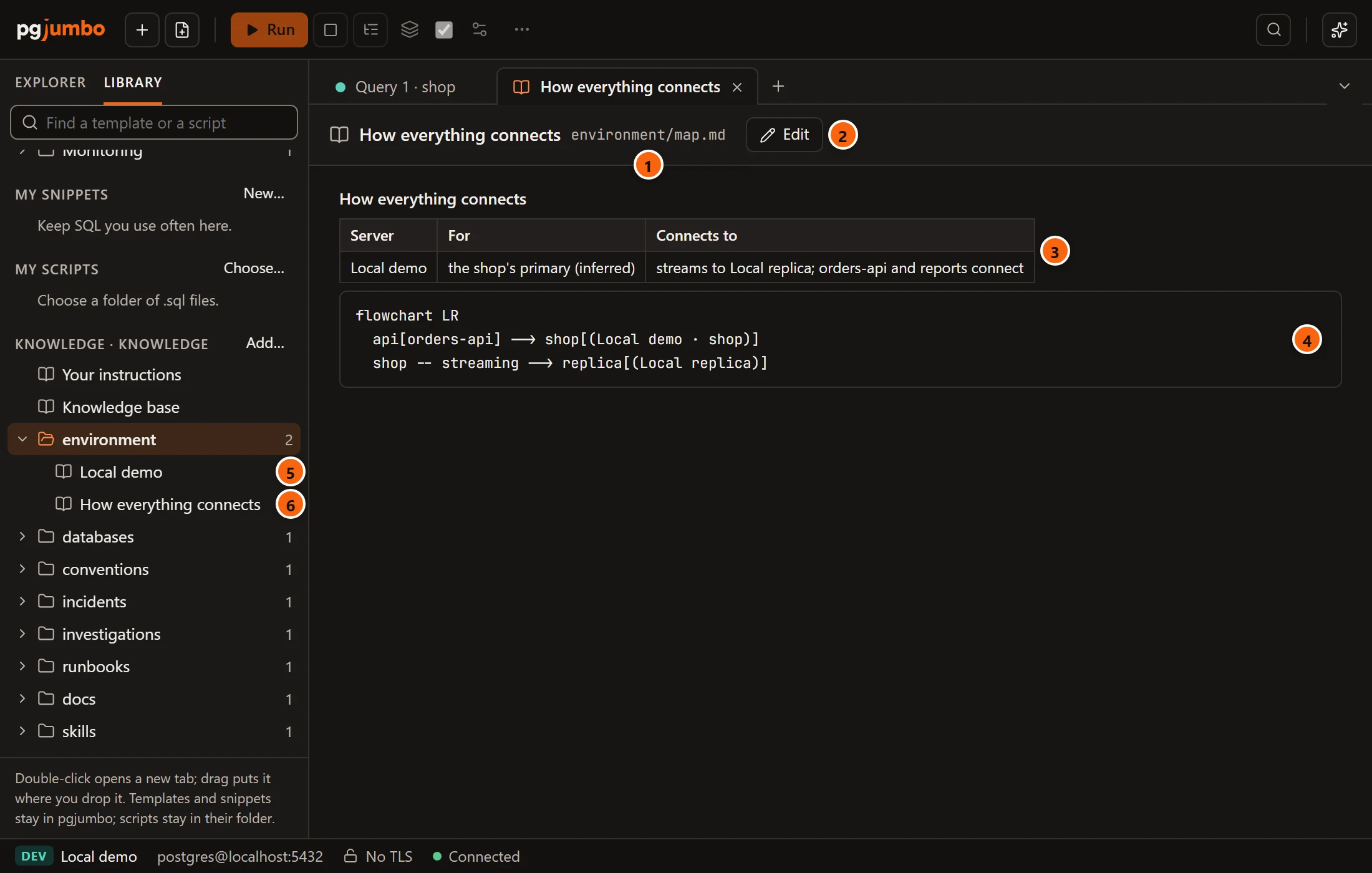
- 1 The map’s tab, named after its first heading, with its path in the knowledge base.
- 2 Edit changes the file by hand. See Read and edit a file.
- 3 The map’s text, as formatted Markdown.
- 4 The diagram. pgjumbo shows it as its text, in a code box; Markdown editors and viewers that draw Mermaid diagrams show it as a drawing.
- 5 The server’s file in the Library’s environment folder, titled by its first heading.
- 6 The map, in the same folder.
Every conversation starts with the list of the knowledge base’s files, the map among them, so the Assistant can read the map when a question is about how things connect. A server’s file is given to a conversation the first time that conversation reaches the server: see What each conversation is given.
Bring the map up to date
Section titled “Bring the map up to date”Choose Map my environment again when servers, replicas, subscriptions or applications change. The Assistant reads the files first and is asked to keep what they say and change only what the servers now show differently, so what you wrote yourself (what a server is for, a server’s notes) stays. A changed file then shows only its changes on the card. A file whose new text would be what it holds already is left off the card, and when no file would change, no card comes.
A server that is not connected this time is not read, and the Assistant is asked to keep what the files say about it. Connect it and map again to bring its lines up to date.
If you edit one of the files after the card came, saving the card writes nothing and says which file changed. Ask again, for example with Add…Map my environment once more, for a card that starts from the file as it is now.