
Keyboard shortcuts
On a Mac pgjumbo’s shortcuts use ⌘; on Windows and Linux the same shortcuts use Ctrl, with a few exceptions this page points out. The tables give both. No shortcut uses Ctrl and Alt together; see AltGr and other keyboards.
pgjumbo shows a command’s keys where it offers the command: beside each item of the menu bar, in right-click menus, and in the tooltips of the toolbar’s buttons.
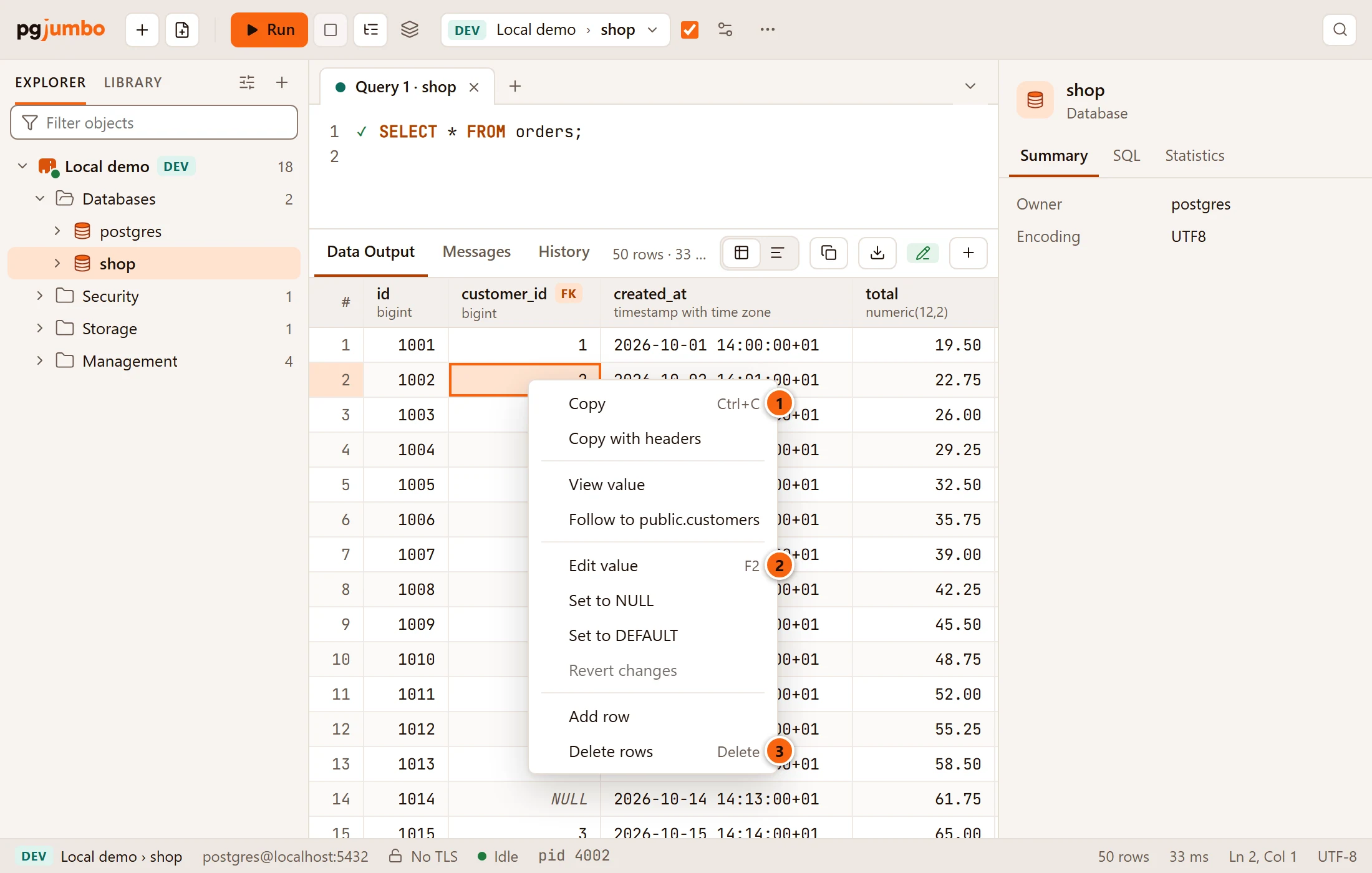

- 1 Copy, ⌘ C (Ctrl+C on Windows and Linux): copies the selected cells.
- 2 Edit value, F2: edits the cell, in a result you can change.
- 3 Delete rows, Delete: marks the selected rows to be deleted.
The menu bar’s shortcuts
Section titled “The menu bar’s shortcuts”These work wherever the keyboard is in the window, in the SQL editor too, with four exceptions:
- On a Mac, ⌘ I in the editor selects syntax instead (see Selections and cursors).
- While the Assistant’s change waits in the editor, ⌘ ↩︎ (Ctrl+Enter on Windows and Linux) there accepts it instead of running (see When the Assistant writes in the editor).
- A cell you are editing in the results grid keeps its keys; only ⌘ S (Ctrl+S on Windows and Linux) gets through.
- In a psql tab’s terminal, most keys go to
psql; see In the PSQL Tool’s terminal.
They do nothing while a dialog is open, and an item that is greyed out in its menu does nothing either. Menus says what each item does and when it is available.
File, View and Object
Section titled “File, View and Object”| Command | macOS | Windows and Linux |
|---|---|---|
| New Connection… | ⌘ N | Ctrl+N |
| New Query Tool | ⌘ T | Ctrl+T |
Open… a .sql file |
⌘ O | Ctrl+O |
| Save | ⌘ S | Ctrl+S |
| Save As… | ⇧ ⌘ S | Ctrl+Shift+S |
| Close Tab | ⌘ W | Ctrl+W |
| Close Window: the main window quits, a tab’s own window gives its tab back | ⇧ ⌘ W | Alt+F4, the system’s own key |
| Settings… (Preferences… on Linux) | ⌘ , | Ctrl+, |
| Quit | ⌘ Q | Ctrl+Q on Linux; Exit in File on Windows |
| Open Quickly… | ⇧ ⌘ O | Ctrl+P |
| Explorer: show or hide the left pane | ⌘ 0 | Ctrl+B |
| Object Details of the selected folder | ⇧ ⌘ D | Ctrl+Shift+D |
| Inspector: show or hide the right pane | ⌥ ⌘ 0 | Ctrl+Shift+B |
| Assistant: show or hide it in the right pane | ⌘ J | Ctrl+J |
| Zoom In | ⌘ = | Ctrl+= |
| Zoom Out | ⌘ - | Ctrl+- |
| Enter Full Screen (macOS only) | ⌃ ⌘ F | No such item |
| Refresh the selected row of the Explorer | ⌘ R | Ctrl+R |
| Properties of the selected object | ⌘ I | Alt+Enter |
Actual Size has no key. On a Mac, ⌘ H hides pgjumbo, ⌥ ⌘ H hides the other apps and ⌘ M minimises the window.
These act on the tab in front: a Query Tool, a data tab, or a table’s tab on its Data view.
| Command | macOS | Windows and Linux |
|---|---|---|
| Run: the selection, or the whole tab | ⌘ ↩︎ | Ctrl+Enter |
| Run Statement: the selection, or the statement at the cursor (in the editor) | ⇧ ↩︎ | Shift+Enter |
| Run Script: the whole tab | ⇧ ⌘ ↩︎, or F5 in the editor | Ctrl+Shift+Enter, or F5 in the editor |
| Explain | ⌘ E | F7 |
| Explain Analyze | ⌥ ⌘ E | Shift+F7 |
| Stop | ⌘ ., or ⇧ F5 in the editor | Ctrl+., or Shift+F5 in the editor |
| Format SQL | ⇧ ⌘ F | Ctrl+Shift+F |
| Fill in Template Values… | ⇧ ⌘ M | Ctrl+Shift+M |
| Go to Definition | F12 | F12 |
| Ask the Assistant… | ⌘ K | Ctrl+K |
Run on Several Databases…, Commit, Rollback, Auto-commit, Results as Text and Session Settings… have no keys; use the Query menu or the toolbar.
On a Mac keyboard the F keys may need fn, depending on how the keyboard is set up.
In the SQL editor
Section titled “In the SQL editor”The editor is the top half of a Query Tool. Writing SQL explains suggestions, find and replace and the rest; this is the full list of its keys.
Suggestions
Section titled “Suggestions”| What it does | macOS | Windows and Linux |
|---|---|---|
| Put in the highlighted suggestion | Tab | Tab |
| Move through the list | ↑ ↓, Page Up Page Down | ↑ ↓, Page Up Page Down |
| Close the list | Esc | Esc |
| Open the list without typing | ⌃ Space, ⌥ ` or ⌥ I | Ctrl+Space |
Enter always starts a new line, even while the list is open. With no list open, Tab indents and Shift+Tab outdents.
| What it does | macOS | Windows and Linux |
|---|---|---|
| Open the find and replace panel, with the keyboard in Find | ⌘ F or ⌥ ⌘ F | Ctrl+F or Ctrl+H |
| Next match | ⌘ G or F3 | Ctrl+G or F3 |
| Previous match | ⇧ ⌘ G or ⇧ F3 | Ctrl+Shift+G or Shift+F3 |
| In Find: next or previous match | ↩︎, ⇧ ↩︎ | Enter, Shift+Enter |
| In Replace: replace the next match | ↩︎ | Enter |
| Close the panel | Esc | Esc |
Selections and cursors
Section titled “Selections and cursors”| What it does | macOS | Windows and Linux |
|---|---|---|
| Add the next place the selected text occurs | ⌘ D | Ctrl+D |
| Select every place the selected text occurs | ⇧ ⌘ L | Ctrl+Shift+L |
| Add a cursor where you click | ⌘ and click | Ctrl and click |
| Select a rectangle | ⌥ and drag | Alt and drag |
| Select the line | ⌃ L | Alt+L |
| Select the bracketed or syntactic part around the selection, then the next one out | ⌘ I, which in the editor does this instead of Properties | Ctrl+I |
| Select everything | ⌘ A | Ctrl+A |
| Back to one cursor; closes a list or the find panel first | Esc | Esc |
Add Shift to any key that moves the cursor (below) to select as it moves. Some Linux desktops move the window when you drag with Alt; there, change that in the desktop’s settings to select a rectangle.
| What it does | macOS | Windows and Linux |
|---|---|---|
Comment or uncomment the selected lines with -- |
⌘ / | Ctrl+/ |
Put /* */ around the selection, or take it away |
⌃ ⇧ A | Shift+Alt+A |
| Move the line, or the selected lines, up or down | ⌥ ↑ ⌥ ↓ | Alt+↑ Alt+↓ |
| Copy the line, or the selected lines, above or below | ⇧ ⌥ ↑ ⇧ ⌥ ↓ | Shift+Alt+↑ Shift+Alt+↓ |
| Delete the line | ⇧ ⌘ K | Ctrl+Shift+K |
| Indent or outdent the selected lines | ⌘ ] ⌘ [ | Ctrl+] Ctrl+[ |
| Delete the word before or after the cursor | ⌥ ⌫ ⌥ ⌦ | Ctrl+Backspace Ctrl+Delete |
| Delete to the start or the end of the line | ⌘ ⌫ ⌘ ⌦ | No key |
| Undo, redo | ⌘ Z, ⇧ ⌘ Z | Ctrl+Z, Ctrl+Y (also Ctrl+Shift+Z on Linux) |
| Undo or redo the last change of selection only | ⌘ U, ⇧ ⌘ U | Ctrl+U, Alt+U |
| Make Tab move the keyboard out of the editor instead of indenting, or back | ⇧ ⌥ M | Ctrl+M |
Indents use spaces, as many as Tab width in Settings.
Move the cursor
Section titled “Move the cursor”| Where to | macOS | Windows and Linux |
|---|---|---|
| One word left or right | ⌥ ← ⌥ → | Ctrl+← Ctrl+→ |
| Over a whole word or bracketed group | ⌃ ← ⌃ → | Alt+← Alt+→ |
| Start or end of the line | ⌘ ← ⌘ →, Home End | Home End |
| Start or end of the tab’s text | ⌘ ↑ ⌘ ↓ | Ctrl+Home Ctrl+End |
| One screen up or down | ⌃ ↑ ⌃ ↓, Page Up Page Down | Page Up Page Down |
| The matching bracket | ⇧ ⌘ \ | Ctrl+Shift+\ |
On a Mac the editor also takes the Emacs-style keys of other Mac text fields: ⌃ A and ⌃ E (start and end of the line), ⌃ B ⌃ F ⌃ P ⌃ N (left, right, up, down), ⌃ D and ⌃ H (delete forward and back), ⌃ K (delete to the end of the line), ⌃ ⌥ H (delete the word before), ⌃ O (split the line), ⌃ T (swap two characters) and ⌃ V (one screen down). macOS keeps some ⌃ keys for itself, such as ⌃ ↑ for Mission Control, ⌃ ← ⌃ → to move between desktops and ⌃ Space to switch input sources, unless you change them in your Mac’s keyboard settings.
The editor has no key to go to a line by number, to add a cursor on the line above or below, or to re-indent a selection. The usual keys for those hold Ctrl and Alt together (⌥ ⌘ on a Mac), so pgjumbo leaves them out on every system (see AltGr and other keyboards).
When the Assistant writes in the editor
Section titled “When the Assistant writes in the editor”With the Assistant on, ⌘ K (Ctrl+K on Windows and Linux) opens a prompt in the editor. See SQL help in the editor.
| What it does | macOS | Windows and Linux |
|---|---|---|
| In the prompt: ask | ↩︎ | Enter |
| In the prompt: close it | Esc | Esc |
| Accept the proposed change | ⌘ ↩︎ | Ctrl+Enter |
| Reject the proposed change | Esc | Esc |
While a change waits for you, Run’s key in the editor accepts it instead of running.
In the results grid
Section titled “In the results grid”Click into the grid first, so it has the keyboard. See Results and Edit data.
| What it does | macOS | Windows and Linux |
|---|---|---|
| Move one cell | ↑ ↓ ← → | ↑ ↓ ← → |
| Move one screen of rows | Page Up Page Down | Page Up Page Down |
| First or last column of the row | Home End | Home End |
| First or last cell of the result | ⌘ Home ⌘ End | Ctrl+Home Ctrl+End |
| Select a block as you move | Shift with the keys above | Shift with the keys above |
| Select every cell | ⌘ A | Ctrl+A |
| Copy the selected cells, without column names | ⌘ C | Ctrl+C |
| See the whole value (a result you cannot edit) | ↩︎ or a double-click | Enter or a double-click |
| Close the value’s window | Esc | Esc |
In a result you can edit:
| What it does | macOS | Windows and Linux |
|---|---|---|
| Edit the selected value | F2, ↩︎ or a double-click | F2, Enter or a double-click |
| Start editing with what you type in place of the value | Any character, ⌥ characters too | Any character, AltGr characters too |
Switch a boolean between true and false |
Space | Space |
| Mark the selected rows to be deleted, or restore them | fn ⌫ (forward delete) | Delete |
| Paste values copied from a spreadsheet | ⌘ V | Ctrl+V |
| Save every change | ⌘ S | Ctrl+S |
While a cell’s editor is open:
| What it does | macOS | Windows and Linux |
|---|---|---|
| Keep the value and move down, or up | ↩︎, ⇧ ↩︎ | Enter, Shift+Enter |
| Keep the value and move right, or left | Tab, ⇧ Tab | Tab, Shift+Tab |
| Put the value back as it was | Esc | Esc |
| Keep the value in the larger editor (JSON, text with line breaks), where Enter starts a new line | ⌘ ↩︎ | Ctrl+Enter |
| Keep the value and save every change | ⌘ S | Ctrl+S |
Clicking outside the editor keeps the value too. In a data tab, a column heading’s sort button sorts by that column; Shift and click adds the column to the sort.
In the Explorer
Section titled “In the Explorer”Click a row, or move to the tree with Tab, to give it the keyboard. See The Explorer.
| What it does | macOS | Windows and Linux |
|---|---|---|
| Select the row above or below | ↑ ↓ | ↑ ↓ |
| Select the first or the last row | Home End | Home End |
| Open the row; on an open row, go to its first child | → | → |
| Close the row; on a closed row, go to the row it is in | ← | ← |
| Do what a double-click does: open the object’s tab, open a tool under Management, connect the server, open or close the row | ↩︎ | Enter |
| Properties | ⌘ I | Alt+Enter |
| Refresh the selected row | ⌘ R or F5 | Ctrl+R or F5 |
| Rename the selected server group | F2 | F2 |
| Move the selected server or group up or down | ⌥ ↑ ⌥ ↓ | Alt+↑ Alt+↓ |
| Open the selected row’s right-click menu | ⌃ and click the row | Shift+F10 or the menu key |
| In Filter objects: clear the filter | Esc | Esc |
| Close the notice beside a row (after Count rows, say) | Esc | Esc |
In a right-click menu, the arrow keys move through the items, Enter chooses one, → opens a submenu and Esc closes the menu.
In lists and panes
Section titled “In lists and panes”| Where | Keys |
|---|---|
| Object Details | ↑ ↓ choose a row, and the Inspector follows. Space ticks or unticks it. ⌘ A (Ctrl+A on Windows and Linux) ticks every object shown, or unticks them all when they are all ticked. Esc in Find in … clears it. A double-click shows a table’s or view’s rows, or opens the object in its tab or in the Inspector. |
| Open Quickly | Type part of a name. ↑ ↓ choose a result (past the last one they go round to the first), Enter opens it, Esc closes the window. |
| The Library | ↑ ↓ move, Home End go to the first or last item, → ← open or close a folder, Enter or a double-click opens the item, Delete or Backspace deletes a snippet (after asking). Esc in the search field clears it. |
| The History tab | ↑ ↓ select an entry, Page Up Page Down move ten at a time, Enter or a double-click opens it in the editor. |
| A table’s Columns view | ⌥ ↑ (Alt+↑ on Windows and Linux) ⌥ ↓ (Alt+↓ on Windows and Linux) on a new column’s grip move the column. |
| A server’s Configuration view | Once you clicked a setting, ↑ ↓ Home End move through the settings shown. |
| A knowledge file’s tab | ⌘ S (Ctrl+S on Windows and Linux) saves the file you are editing. |
| The Assistant pane | ⌘ ↩︎ (Ctrl+Enter on Windows and Linux) sends your message; Enter starts a new line. |
| The ERD | Tab moves to the next table and chooses it, Space chooses the table that has the keyboard, Enter opens it. The mouse wheel zooms. |
| The dividers between panes | Move to one with Tab, then ← → (↑ ↓ for the one between the editor and the results) move it 16 pixels a press; Home End make the pane as small or as large as it goes. |
In the PSQL Tool’s terminal
Section titled “In the PSQL Tool’s terminal”While a psql tab’s terminal has the keyboard, its keys belong to psql, as in any terminal: Ctrl+C
cancels a query, ↑ ↓ step through what you typed before, and on macOS and Linux
Ctrl+D on an empty line ends psql, Ctrl+R searches its history and Tab
completes names (the psql of PostgreSQL’s Windows installer has no such line editing). See
PSQL Tool.
| What it does | macOS | Windows and Linux |
|---|---|---|
| Copy the selected text | ⌘ C | Ctrl+C while text is selected, or Ctrl+Shift+C |
| Paste | ⌘ V | Ctrl+V or Ctrl+Shift+V |
| pgjumbo’s own shortcuts | Every ⌘ shortcut | Those with Ctrl+Shift, and Ctrl+,, Ctrl+= and Ctrl+- |
Keys that go to psql |
Every ⌃ key | Ctrl with a letter |
On Windows and Linux, then, Ctrl+W, Ctrl+T, Ctrl+R and the other
shortcuts of Ctrl and a letter do not reach pgjumbo while the terminal has the keyboard; click outside it first, or
close the tab with its ×. On Linux pgjumbo hands the menu bar’s Ctrl shortcuts with a letter to psql while the
terminal has the keyboard; Ctrl+Q still quits pgjumbo.
The tab strip
Section titled “The tab strip”| What it does | macOS | Windows and Linux |
|---|---|---|
| A new Query Tool | ⌘ T | Ctrl+T |
| Close the tab in front | ⌘ W | Ctrl+W |
| Close a tab’s own window and bring its tab back to the main window | ⇧ ⌘ W | Alt+F4 |
Move to New Window, Duplicate Tab, Pin and the other items of a tab’s right-click menu have no keys.
To bring a tab to the front, click it, or reach it with Tab and press Enter or Space. pgjumbo has no key that moves from tab to tab; the list of open tabs at the end of the strip shows them all. Over the strip, the mouse wheel scrolls it sideways. See Tabs.
In dialogs
Section titled “In dialogs”| What it does | Keys |
|---|---|
| Close the dialog without doing anything, like Cancel or the × | Esc |
| The dialog’s main button (Save, Connect, Copy…) from a text field | Enter |
| Move to the next or the previous control | Tab, Shift+Tab |
The keyboard stays in the dialog until it closes, and the menu bar’s shortcuts do nothing meanwhile. Dialogs that
confirm something risky, such as running a DROP on Production, put the keyboard on Cancel, so
Enter cancels there.
At startup
Section titled “At startup”Any key, or a click, skips the logo animation. To start without it, untick Play the logo animation at startup in Settings.
AltGr and other keyboards
Section titled “AltGr and other keyboards”No shortcut uses Ctrl and Alt together. On Windows and Linux, many keyboards (German, Polish, Bosnian, Croatian and
others) type [, ], {, }, @, \ and | with AltGr, which reaches programs as Ctrl+Alt. Those keys always type
their character in the editor, the fields and the grid. The editor’s own Ctrl+Alt keys are turned off for the same
reason.
A shortcut on a symbol works with or without Shift. Where = or - needs Shift, the zoom keys,
⌘ , (Ctrl+, on Windows and Linux) and ⌘ . (Ctrl+. on Windows and Linux) still work, and + works as
=.
On a Cyrillic, Greek or other non-Latin layout, a shortcut’s letter is the key where that letter sits on an English keyboard: ⌘ N (Ctrl+N on Windows and Linux) is the key where N would be.
The web view’s own reload and print keys do nothing in pgjumbo: F5, ⌘ F5 (Ctrl+F5 on Windows and Linux), ⇧ ⌘ R (Ctrl+Shift+R on Windows and Linux) and ⌘ P (Ctrl+P on Windows and Linux) never reload or print the window. F5 runs a script in the editor and refreshes in the Explorer, and Ctrl+P is Open Quickly… on Windows and Linux.
If a key still does nothing, see A key does nothing.