
Extensions
An extension is a package of types, functions, operators and other objects that CREATE EXTENSION installs into one
database. pgjumbo lists each database’s extensions in its Extensions folder, installs the ones the server offers,
and opens an installed extension in a tab of its own, where you update it, move it to another schema or see what
belongs to it.
Find a database’s extensions
Section titled “Find a database’s extensions”The Extensions folder sits right under each database in the Explorer, beside Schemas. Each row shows the
extension’s name and the version installed, such as hstore 1.4.
- Double-click an extension, or select it and press ↩︎ (Enter on Windows and Linux), to open it in its tab.
- Properties… on its right-click menu, ObjectProperties in the menu bar, or ⌘ I (Alt+Enter on Windows and Linux) opens the same tab.
- Script asCREATE (or DROP and CREATE) writes its script into a new Query Tool without running it, and Drop… removes it (see Drop an extension). The rest of the menu is described in Right-click menus.
Install an extension
Section titled “Install an extension”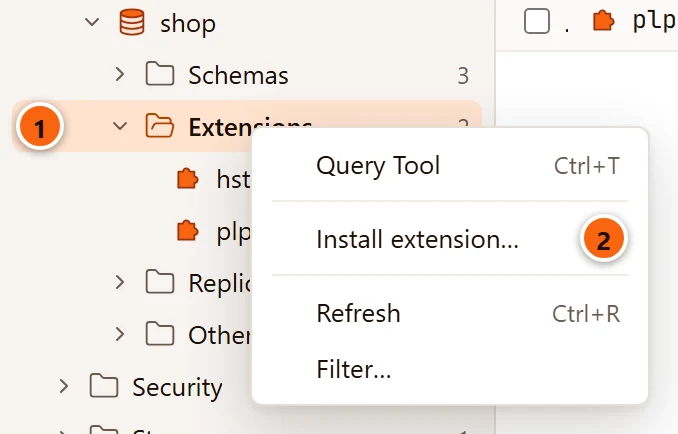
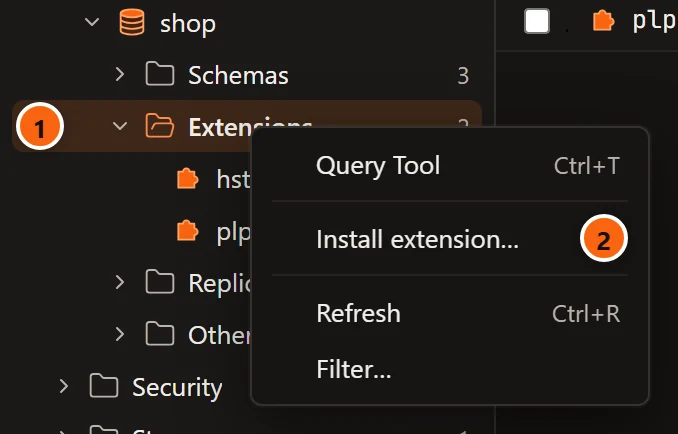
- 1 Right-click a database’s Extensions folder.
- 2 Choose Install extension….
The dialog says Reading what the server offers… until it has the list. If the server cannot be read, it shows PostgreSQL’s error and only Cancel.
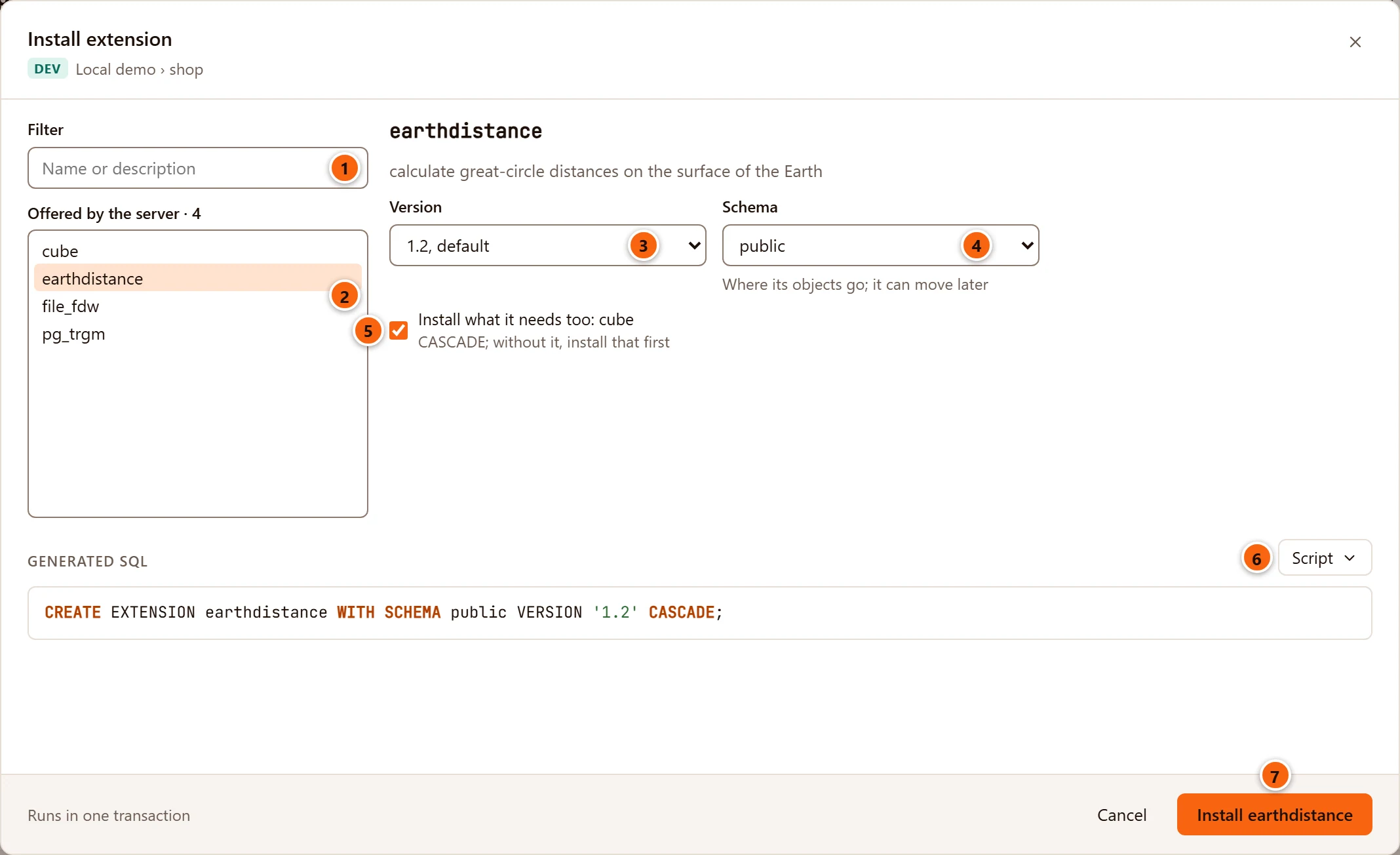
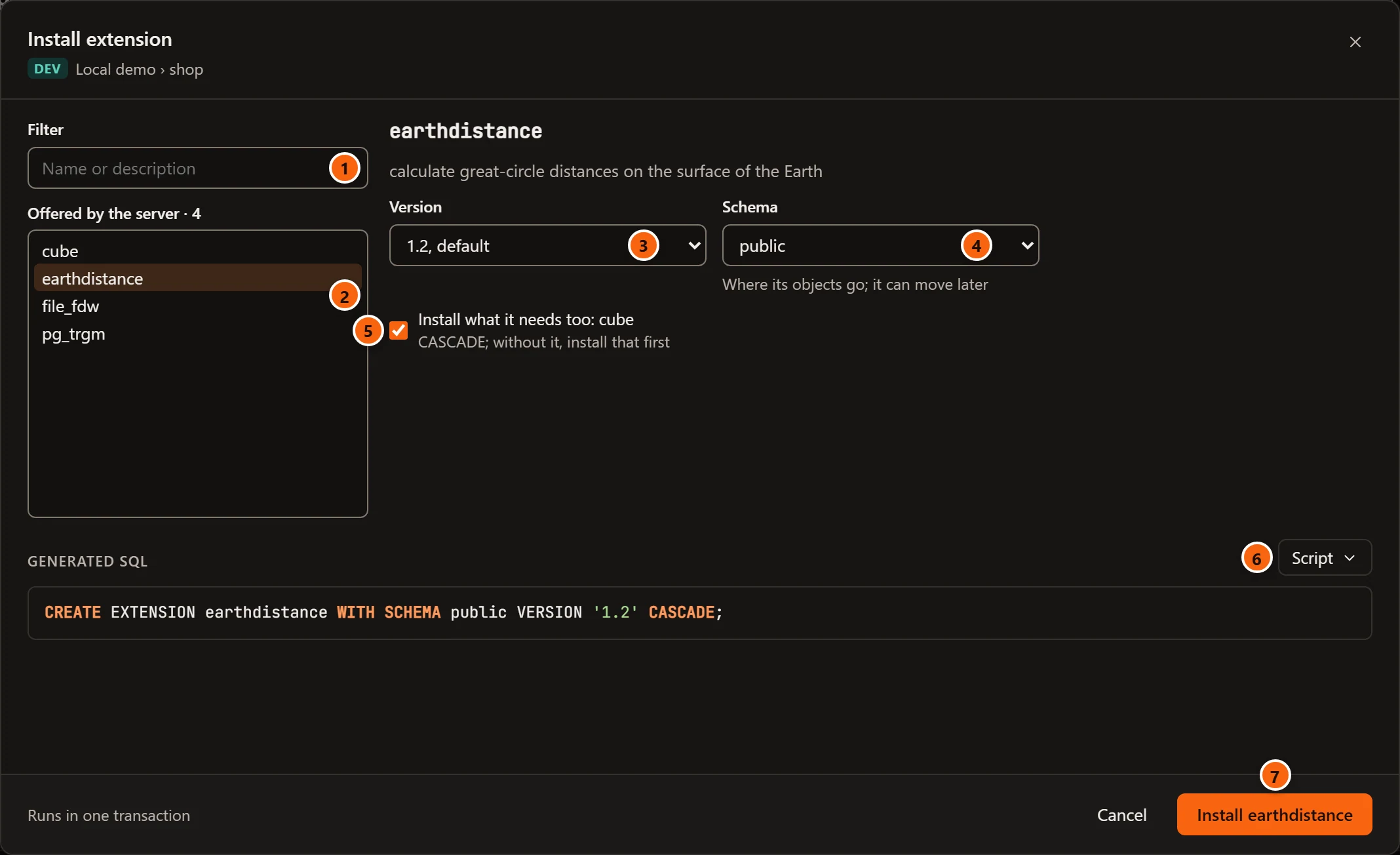
- 1 Filter narrows the list to extensions whose name or description contains what you type. When nothing matches, the dialog says Nothing offered matches followed by your words in quotes.
- 2 Offered by the server lists every extension the server has files for that this database has not installed yet, and how many there are. The first one is chosen when the dialog opens. Click another to see its name, its description (or No description.) and its choices on the right. When the database has them all, the dialog says This database has installed every extension the server offers.
- 3 Version lists the versions the extension’s files provide, oldest first. The one its control file installs by default reads default after its number, and it is chosen for you; with no default, the newest is.
- 4 Schema is where its objects go. The list holds the schemas you may create objects in (not
pg_catalogorinformation_schema);publicis chosen when you may create there, otherwise the first one. The helper reads Where its objects go; it can move later, or Where its objects go; it cannot move later for an extension that is not relocatable. When the extension’s control file names a schema itself, the field is locked and the helper says Its control file puts it there. - 5 Install what it needs too appears when the version you chose needs other extensions that this
database has not installed, and names them. It is ticked, which adds
CASCADEso that PostgreSQL installs them first. Untick it and you must install those yourself before this one. - 6 Generated SQL shows the statement pgjumbo will run, rebuilt each time you change a choice. Script opens it in a Query Tool (and closes the dialog), copies it or saves it to a file instead (see Scripts).
- 7 Install followed by the extension’s name runs the statement. The footer says Runs in one transaction; while it runs, the button reads Installing….
The statement always has this shape, with every name quoted by the server:
CREATE EXTENSION earthdistance WITH SCHEMA public VERSION '1.2' CASCADE;pgjumbo runs it once, on a connection of its own to that database, between BEGIN and COMMIT. If PostgreSQL
refuses it, its error appears in the footer and nothing is installed. When it works, the dialog closes, a notice beside
the folder says so (earthdistance was installed), and the folder lists it.
Cancel or Esc closes the dialog without installing anything.
Extensions only a superuser can install
Section titled “Extensions only a superuser can install”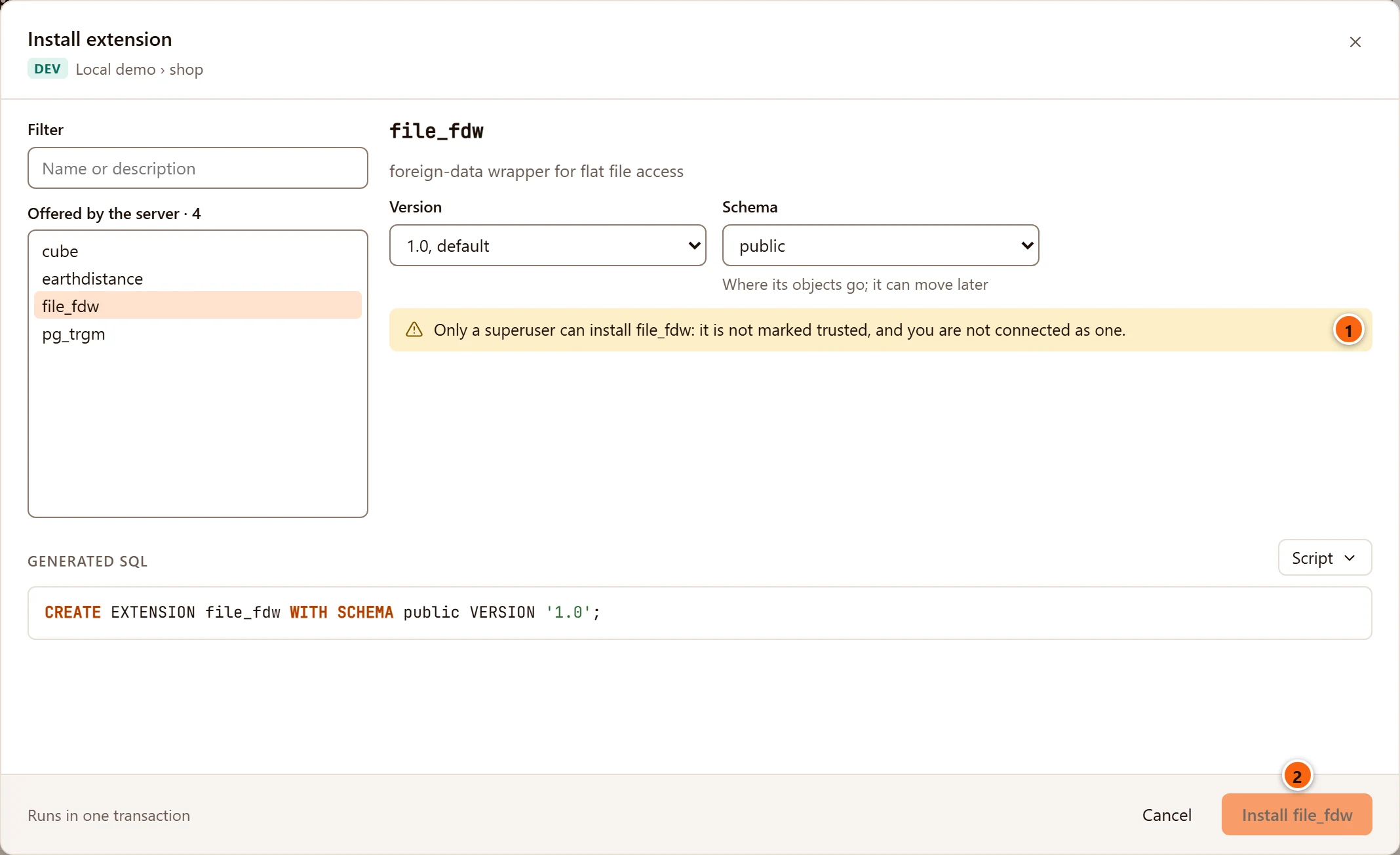
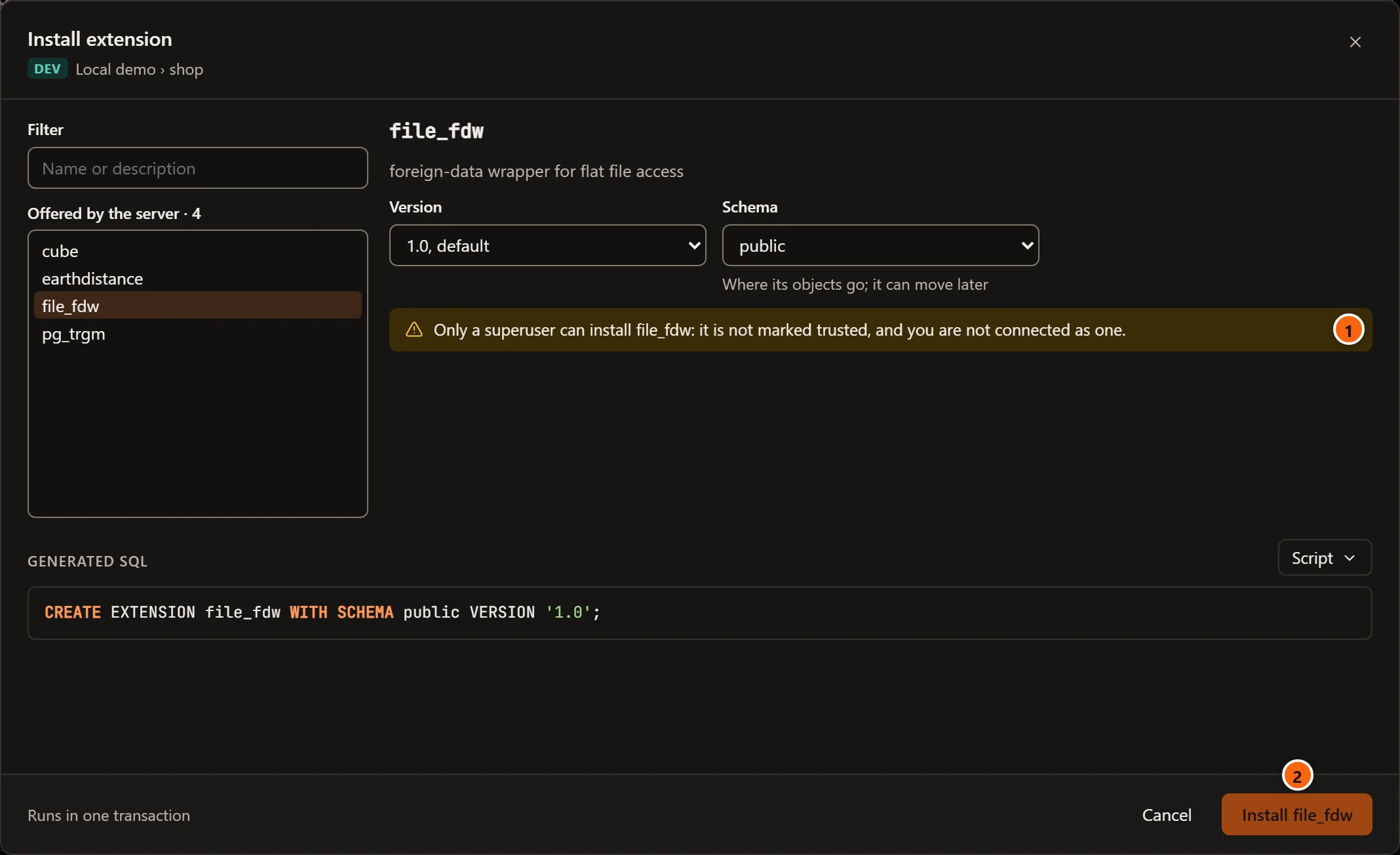
Some extensions are not marked trusted, and only a superuser may install them. When you choose one and the role you are connected as is not a superuser, the dialog says so 1 and the Install button stays disabled 2. Connect as a superuser, or ask someone who is, to install it.
From PostgreSQL 13, an extension marked trusted can be installed by any role that has CREATE on the database, even
though it would otherwise need a superuser. PostgreSQL 12 has no trusted extensions.
The extension’s tab
Section titled “The extension’s tab”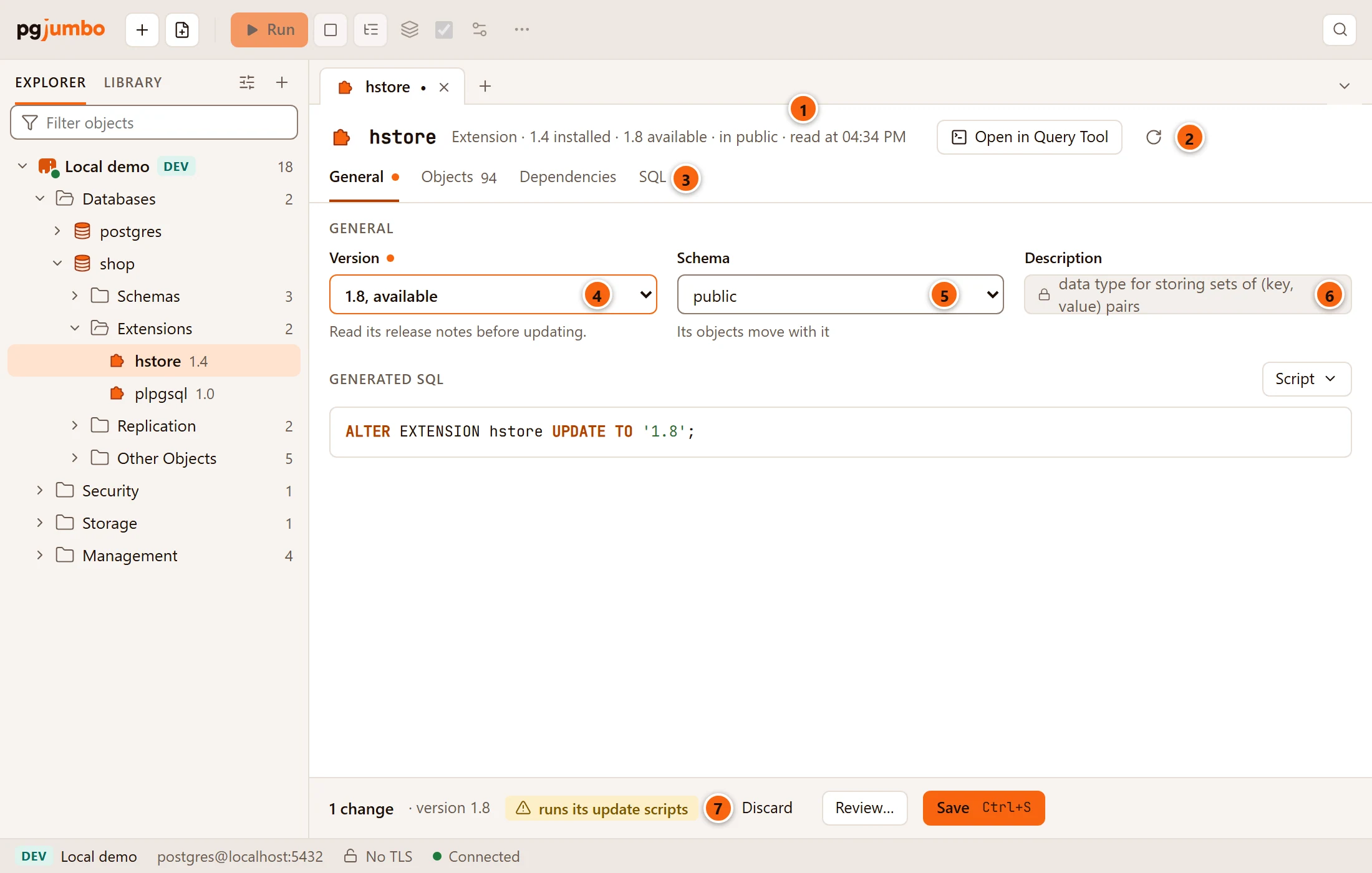
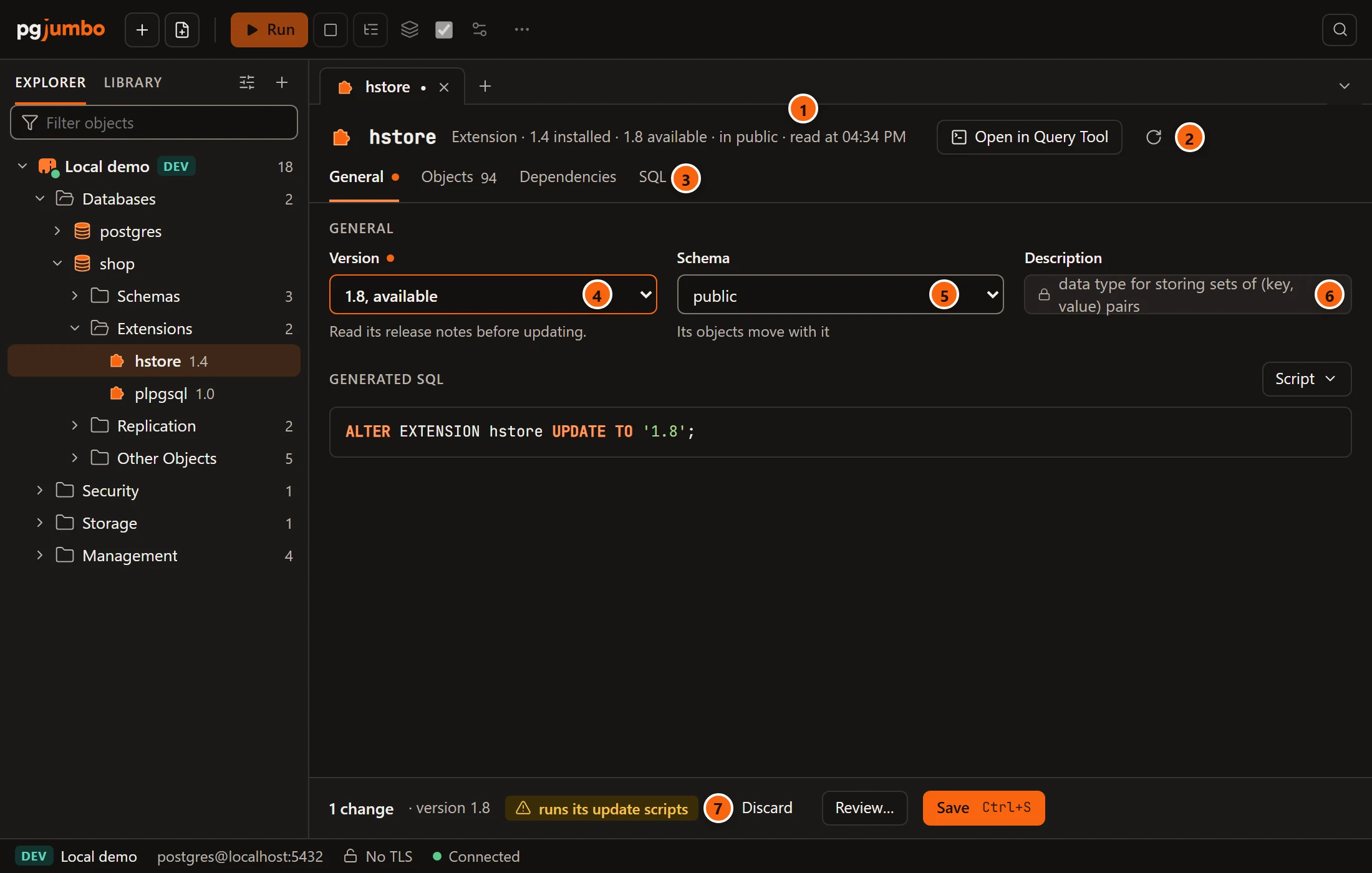
- 1 The header names the extension and says, after Extension, which version is installed, which newer version is available (when its update scripts reach one), which schema it is in, and when the tab read it.
- 2 Open in Query Tool puts its
CREATE EXTENSIONscript in a new Query Tool; the round arrow, Read again, reads the extension from the server once more. - 3 The views: General, Objects (with how many objects belong to it), Dependencies and SQL. A dot beside General says it holds a change you have not saved.
- 4 Version updates the extension (see below).
- 5 Schema moves a relocatable extension to another schema.
- 6 Description is the comment its control file gives, or a dash. It is locked, because PostgreSQL takes it from the extension’s files.
- 7 The pending bar lists what you changed. An update adds the warning runs its update scripts.
Generated SQL appears under the fields once you change something. A changed field gets a dot beside its label and a marked border. The tab has no name or owner field: PostgreSQL cannot rename an extension or give it to another owner.
Changes wait in the tab until you save them, as in every object tab: Discard drops them, Review… shows each statement with what it locks, and Save (⌘ S (Ctrl+S on Windows and Linux)) runs them. The pending bar, the review sheet and what happens when the extension changed on the server meanwhile are explained in Object tabs and review.
Update to a newer version
Section titled “Update to a newer version”The Version list starts with the version installed (marked installed), followed by every version that the extension’s own update scripts on the server reach from it, oldest first. One of them is marked available: the version its control file names as the default, when the scripts reach it, or else the newest they reach. The header names the same version. The helper under the list says Read its release notes before updating., or No update script goes further on this server. when no update script leads anywhere from the version installed. To see a newer version here, install the extension’s newer package on the database server first.
Choosing a version stages one statement, shown under Generated SQL:
ALTER EXTENSION hstore UPDATE TO '1.8';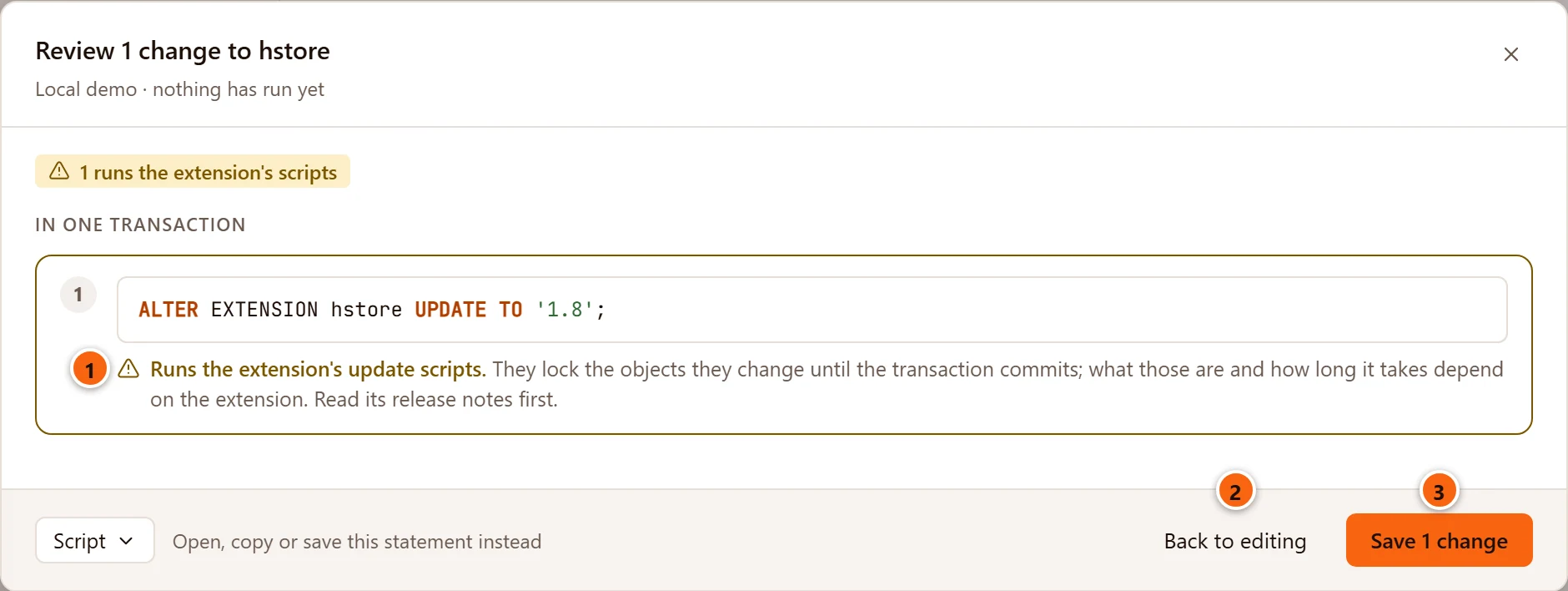
An update runs the extension’s own SQL scripts, which can change and lock any of its objects. So Save always opens the review sheet first:
- 1 Runs the extension’s update scripts. They lock the objects they change until the transaction commits; which objects, and for how long, depends on the extension.
- 2 Back to editing closes the sheet and keeps your change.
- 3 Save 1 change runs the update.
The engine refuses a version that no update script reaches from the one installed, with a message such as
hstore 1.4 has no update script that reaches 2.0. Choose a version from the list.
Move to another schema
Section titled “Move to another schema”A relocatable extension can move all its objects to another schema. Its Schema field lists the database’s own schemas (not the system ones), and the helper says Its objects move with it. Choosing one stages:
ALTER EXTENSION hstore SET SCHEMA reporting;A move only changes the catalog, so Save runs it at once, unless the server asks first (see Object tabs and review).
An extension that is not relocatable shows its schema locked, with the helper … cannot be moved to another schema
(its name in place of the dots). plpgsql is one of them: it lives in pg_catalog.
When you change both the version and the schema, the update runs first and the move second.
The Objects view
Section titled “The Objects view”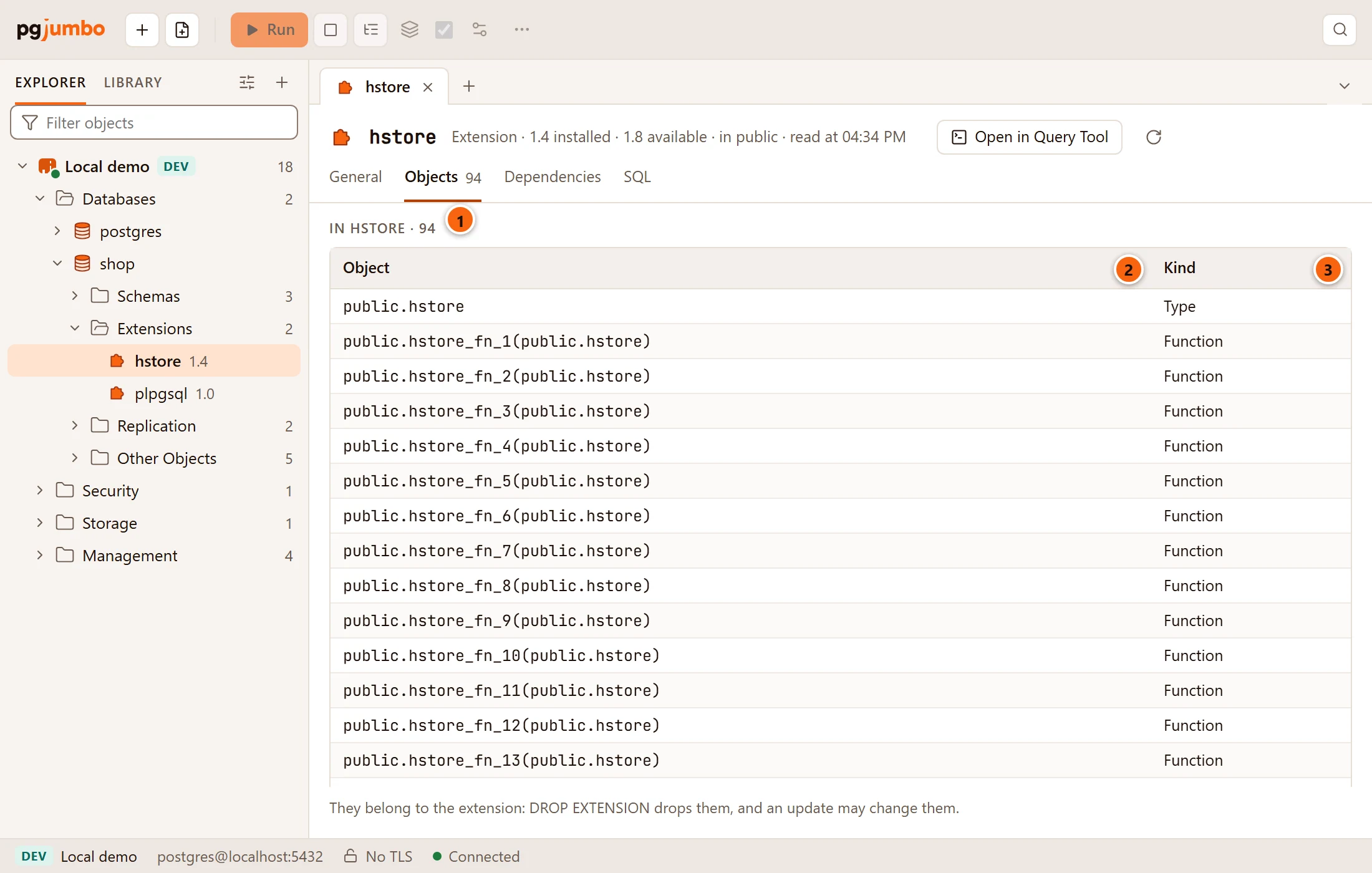
- 1 Objects lists everything that belongs to the extension. The number beside the view’s name, and the heading (In hstore · 94), say how many there are.
- 2 Object names each one as SQL writes it, with a function’s argument types.
- 3 Kind says what it is: Type, Function, Operator, Operator class, Cast and so on.
The list is sorted by kind, then by name. The note under it reminds you that these objects belong to the extension:
DROP EXTENSION drops them, and an update may change them. While it reads, the view says Reading its objects…;
an extension with no objects says Nothing belongs to it.
Dependencies and SQL
Section titled “Dependencies and SQL”Dependencies lists what the extension Depends on and what it is Used by; click an object there to open it.
SQL shows its script, with COMMENT ON EXTENSION after it when the extension has a description:
CREATE EXTENSION IF NOT EXISTS hstore WITH SCHEMA public VERSION '1.4';Both views work as they do in the Inspector; see The Inspector.
Drop an extension
Section titled “Drop an extension”Right-click the extension and choose Drop…. The dialog shows DROP EXTENSION with the extension’s name and what
depends on it; tick Also drop dependent objects (CASCADE) to drop those too. Dropping an extension also drops
every object in its Objects view. pgjumbo refuses to drop plpgsql
(plpgsql is built into PostgreSQL; pgjumbo does not drop it.).
Drop, truncate and other quick actions explains the dialog.