
Roles
In PostgreSQL, users and groups are both roles: a role that can log in is a user, and a role others are members of works as a group. In pgjumbo every role opens in a tab of its own with six views: General, Databases, Privileges, Owned objects, Sessions and SQL. Roles belong to the whole server, so pgjumbo reads and changes them on the server’s maintenance database.
Find a role
Section titled “Find a role”Roles are in the Explorer under the server, in SecurityLogin/Group Roles. A superuser has the tag
SU after its name, and a role that cannot log in says group. PostgreSQL’s predefined roles (pg_monitor,
pg_read_all_data and the others) are listed only while system objects are shown (see
The Explorer). Open a role’s tab in any of these ways:
- double-click it, or select it and press Enter;
- right-click it and choose Properties…;
- select it and press ⌘ I (Alt+Enter on Windows and Linux);
- double-click it in Object Details for the Login/Group Roles folder.
The tab comes forward if it is open already; a new one opens on General.
The General view
Section titled “The General view”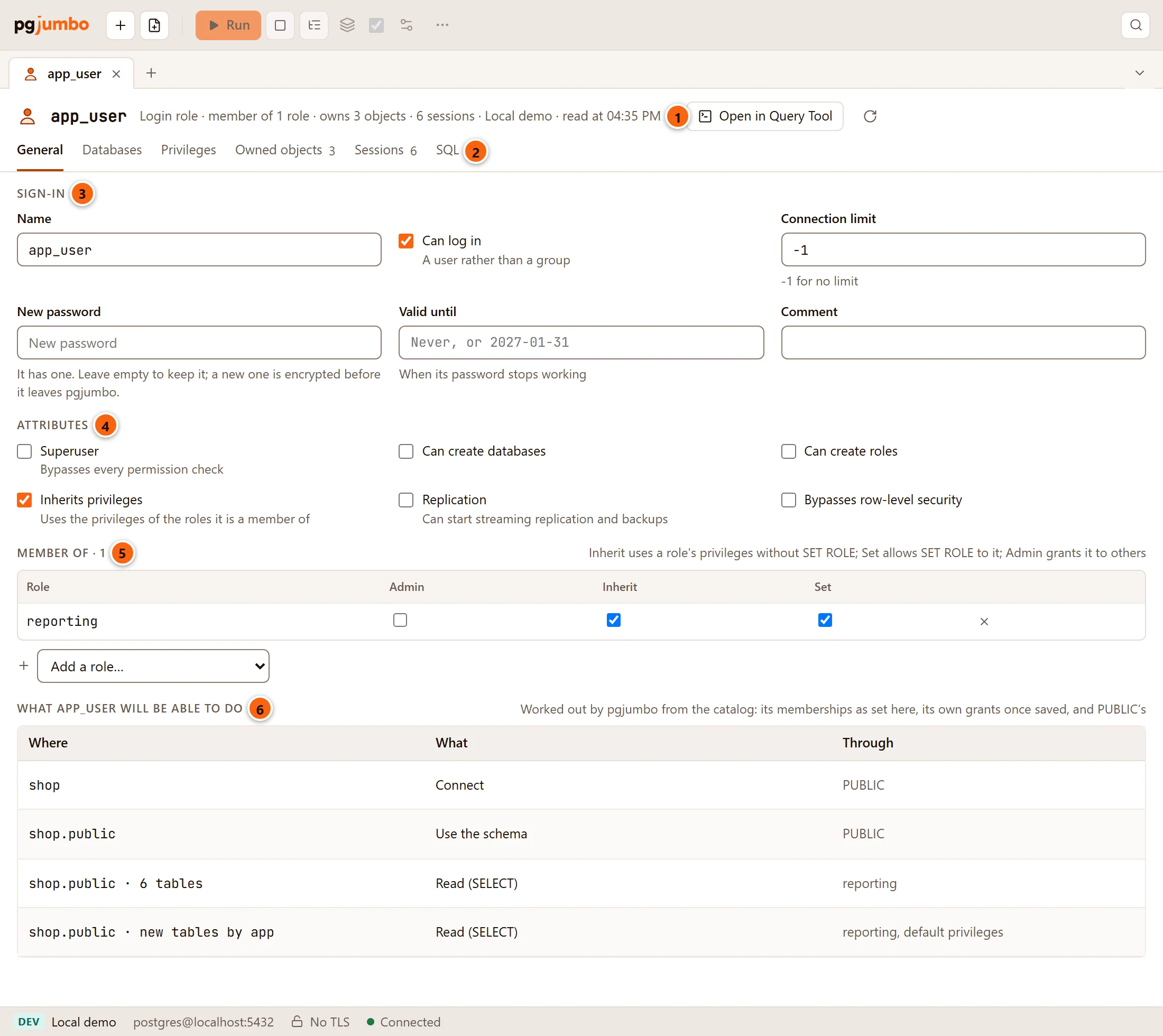
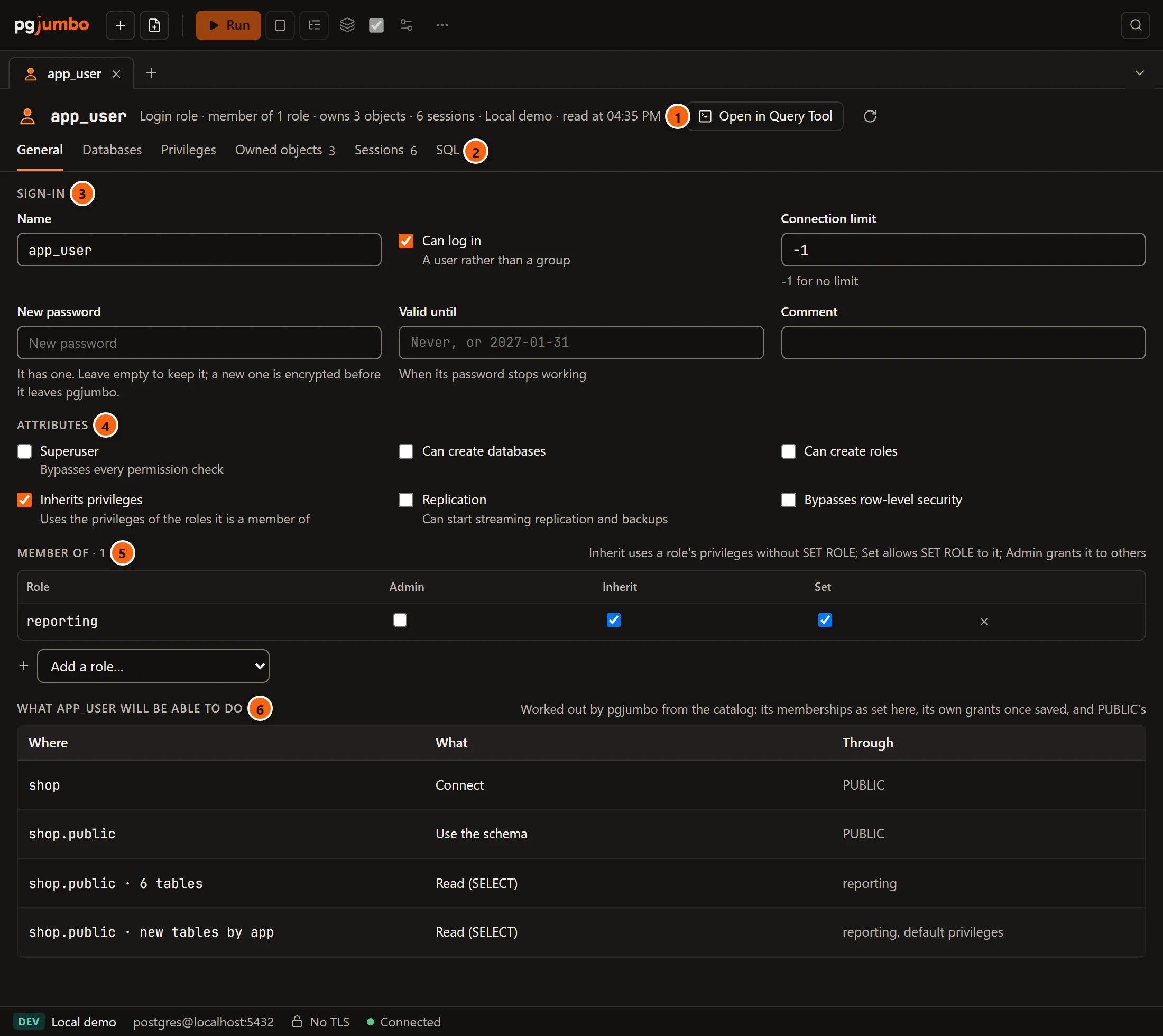
- 1 The header: Login role or Group role, how many roles it is a member of, how many objects it owns
in all databases, how many sessions it has now, the server, and when the tab read it. Open in Query Tool opens
its
CREATE ROLEscript in a new Query Tool. The round arrow, Read again, reads the role, what it owns and its sessions again, and drops every change you have not saved. - 2 The views. Owned objects and Sessions show their counts; a dot after a view’s name means it holds a change you have not saved.
- 3 Sign-in: the name, whether it can log in, its connection limit, a new password, when the password stops working, and a comment.
- 4 Attributes: what PostgreSQL lets the role do whatever it was granted.
- 5 Member of: the roles this role is a member of, with the options of each membership.
- 6 What app_user will be able to do: where the role can connect and what it can do there, worked out from the catalog.
A field or box you changed gets a dot after its label. When something changed, Generated SQL shows under the view and the pending bar shows at the bottom of the tab; see Save changes to a role.
Sign-in
Section titled “Sign-in”| Field | What it does |
|---|---|
| Name | Renames the role (ALTER ROLE … RENAME TO). |
| Can log in | LOGIN or NOLOGIN: a user rather than a group. |
| Connection limit | How many sessions the role may have at once (CONNECTION LIMIT). -1 means no limit, and an empty field counts as -1. A value below -1, or not a whole number, is refused: “The connection limit must be a whole number: -1 for no limit, 0 or more otherwise.” |
| New password | Sets a new password (Password on a role not created yet). Leave it empty to keep the one the role has. |
| Valid until | When the role’s password stops working (VALID UNTIL), as PostgreSQL reads a date and time: 2027-01-31 or 2027-01-31 18:00+01. Empty means never. Something PostgreSQL cannot read is refused with an example of what it can. Emptying the field on a role that had a date writes VALID UNTIL 'infinity', since PostgreSQL has no way back to none. |
| Comment | COMMENT ON ROLE; an empty field removes the comment. |
The line under the password field says what pgjumbo knows: “It has one. Leave empty to keep it; a new one is encrypted before it leaves pgjumbo.”, “It has none yet. …”, or “Only a superuser can see whether it has one. Leave empty to keep it.” when you are not connected as a superuser.
pgjumbo never reads a password back from the server. A password you type goes into the statement only when Save runs:
pgjumbo encrypts it first, as psql’s \password does, so the server and its logs never see it in clear. Everywhere it
shows a statement before that (Generated SQL, the review sheet, the SQL view of a new role) the password is the
comment /* encrypted by pgjumbo when it runs */. A script copied from there fails on purpose instead of setting a
wrong password.
Attributes
Section titled “Attributes”| Attribute | Keyword | What it lets the role do |
|---|---|---|
| Superuser | SUPERUSER |
Bypasses every permission check. |
| Can create databases | CREATEDB |
Create databases. |
| Can create roles | CREATEROLE |
Create, change and drop other roles. |
| Inherits privileges | INHERIT |
Use the privileges of the roles it is a member of without SET ROLE. On PostgreSQL 16 and later each membership has its own Inherit box, and this attribute is what new memberships start with. |
| Replication | REPLICATION |
Start streaming replication and backups. |
| Bypasses row-level security | BYPASSRLS |
Read and write rows that row security policies would hide. |
Save writes only the attributes you changed, as ALTER ROLE … WITH and the keywords (NOCREATEDB to take one away).
Member of
Section titled “Member of”The heading counts the memberships. Each row is a role this role is a member of. Roles whose names start with pg_
are PostgreSQL’s predefined roles and carry a Predefined tag.
| Column | What it does |
|---|---|
| Role | The role it is a member of. |
| Admin | It may grant this membership to other roles (WITH ADMIN OPTION). Unticking it revokes only the admin option. |
| Inherit | PostgreSQL 16 or later. It uses the role’s privileges without SET ROLE (INHERIT TRUE or FALSE). |
| Set | PostgreSQL 16 or later. It may SET ROLE to that role (SET TRUE or FALSE). |
| The cross | Removes the membership (REVOKE role FROM this_role). |
Add a role… lists every other role, the predefined ones last. A new membership starts with Admin off, Set
on and Inherit as the role’s Inherits privileges attribute, as PostgreSQL makes it. Save writes
GRANT role TO this_role, with only the options that differ from those. On a server before PostgreSQL 16 the table
has only the Admin column, the note beside the heading says “It uses the privileges of these roles; admin lets it
grant them to others”, and Inherits privileges decides for every membership.
What the role will be able to do
Section titled “What the role will be able to do”The table lists, for the role as the tab has it now, where it can connect and what it can do there. It changes as you edit: remove a membership and the rows that came through that role go.
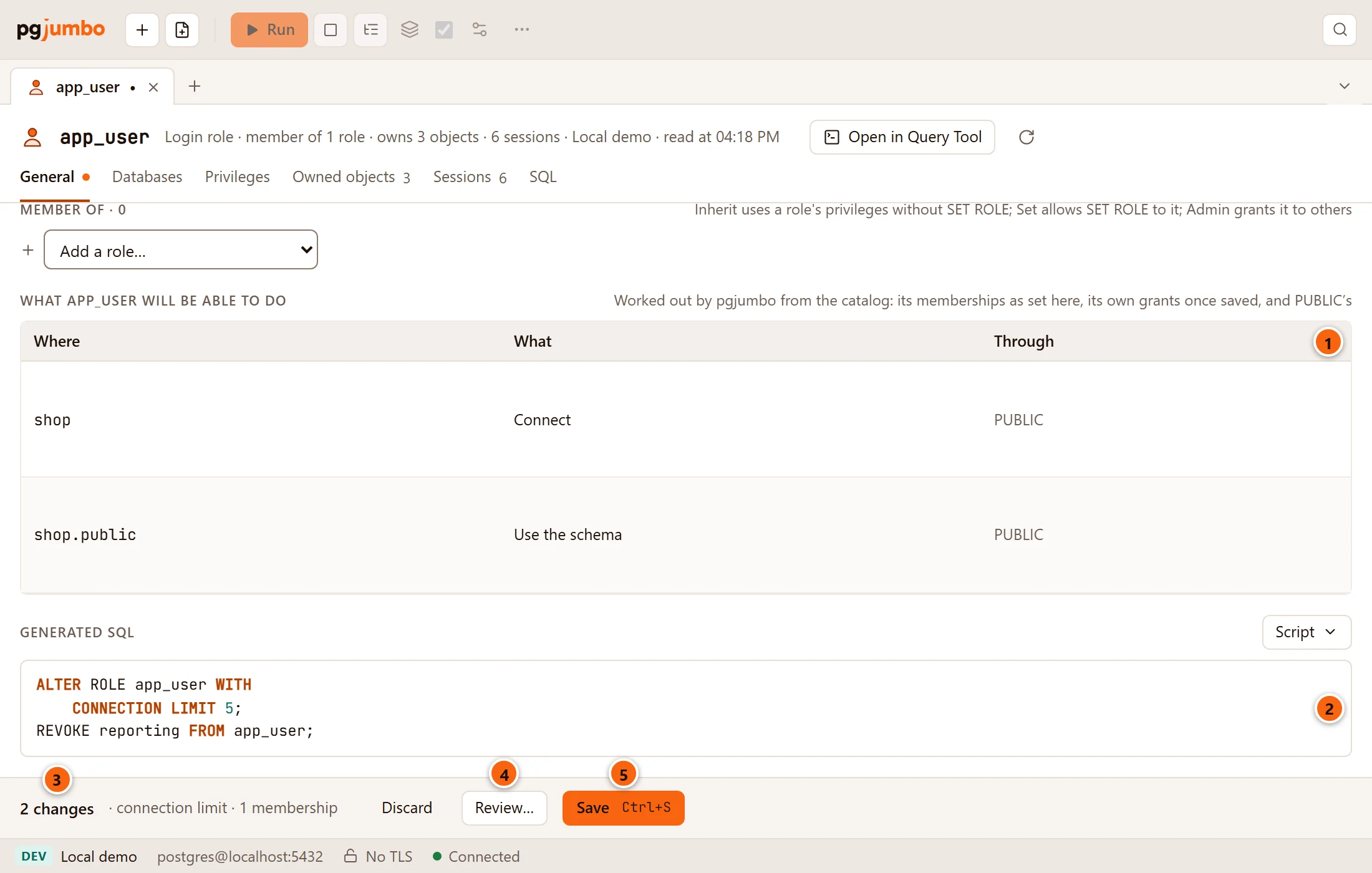
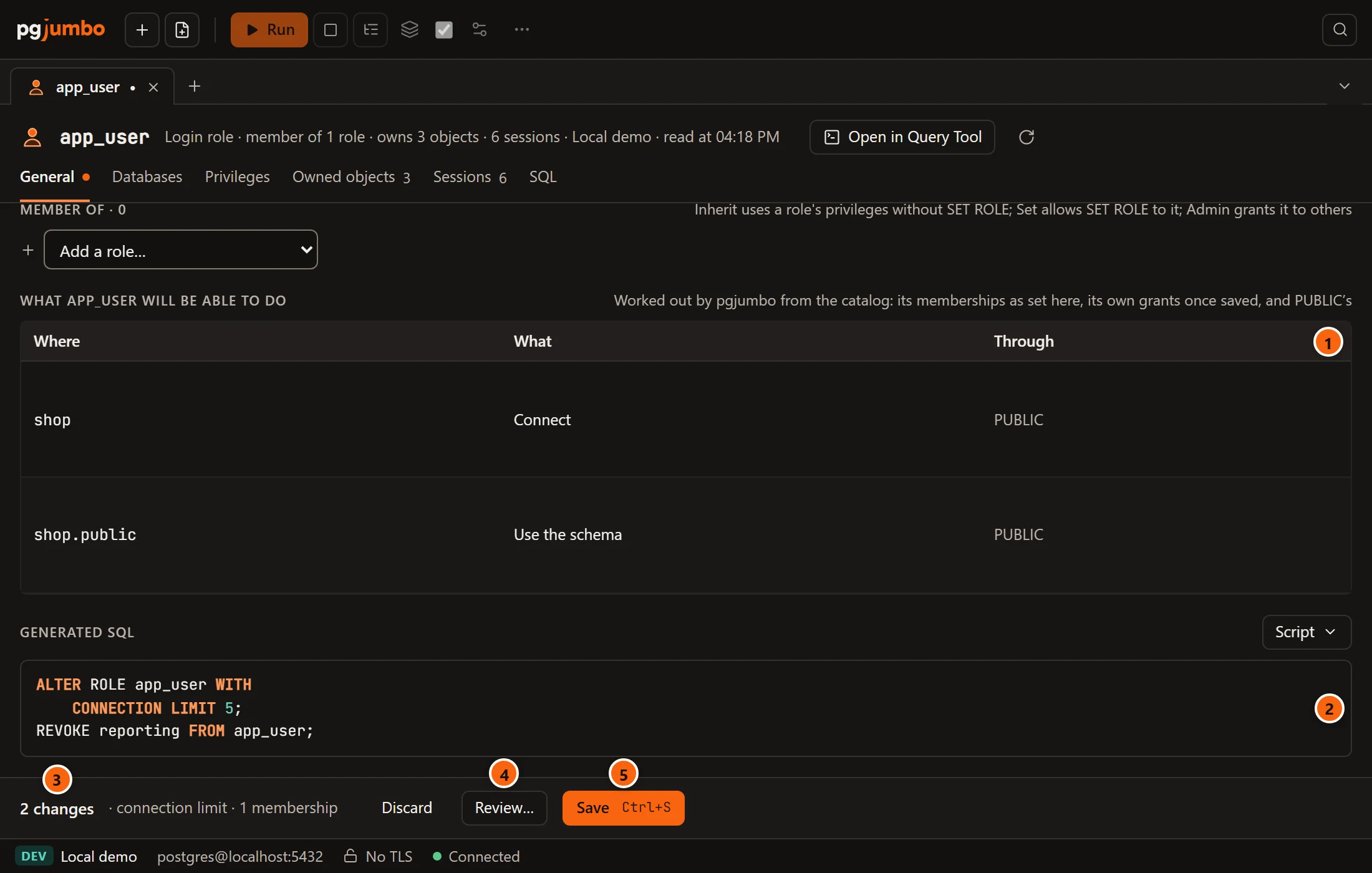
- 1 Where (a database, a schema, or a group of objects such as
shop.public · 6 tablesorshop.public · new tables by appfor default privileges), What and Through: the role itself, a role it inherits from, orPUBLIC. Rows from default privileges say so in Through. - 2 Generated SQL: here
ALTER ROLE app_user WITH CONNECTION LIMIT 5;andREVOKE reporting FROM app_user;. - 3 The pending bar counts the changes and names them: connection limit, 1 membership.
- 4 Review… opens the review sheet.
- 5 Save runs the statements.
What says it in words: Connect, Use the schema, Create in the schema, Use the schema and create in it, then Read, Write, Read and write, Run or Use followed by the privileges in brackets, such as Read (SELECT), and Everything (all privileges) when a table’s every privilege is there.
pgjumbo works the table out from the catalog: the role’s memberships as set in the tab (with their Inherit
options), the databases it may connect to (CONNECT ticked in Databases counts before you save), the grants the
role already holds, and PUBLIC’s. It looks at schemas, tables and the other relations, columns granted on their own,
sequences, functions, procedures, aggregates, types, domains, trusted languages, foreign-data wrappers, foreign
servers and default privileges. Grants from the Privileges view that you have not saved are not in it.
It reads at most 12 databases the role may connect to; the others still get their Connect row, and a line under the table says how many more were not read. A database that could not be read shows a row “Not read:” with the reason. For a superuser the table says “A superuser may do everything, whatever it was granted.”, and for a role that may connect nowhere, “Nothing: it may not connect to any database.”
Create a role
Section titled “Create a role”Right-click SecurityLogin/Group Roles and choose Create role…. A tab for the new role opens on General, named New role · Local demo in the tab strip, with only the views a role can have before it exists: General, Databases and SQL.
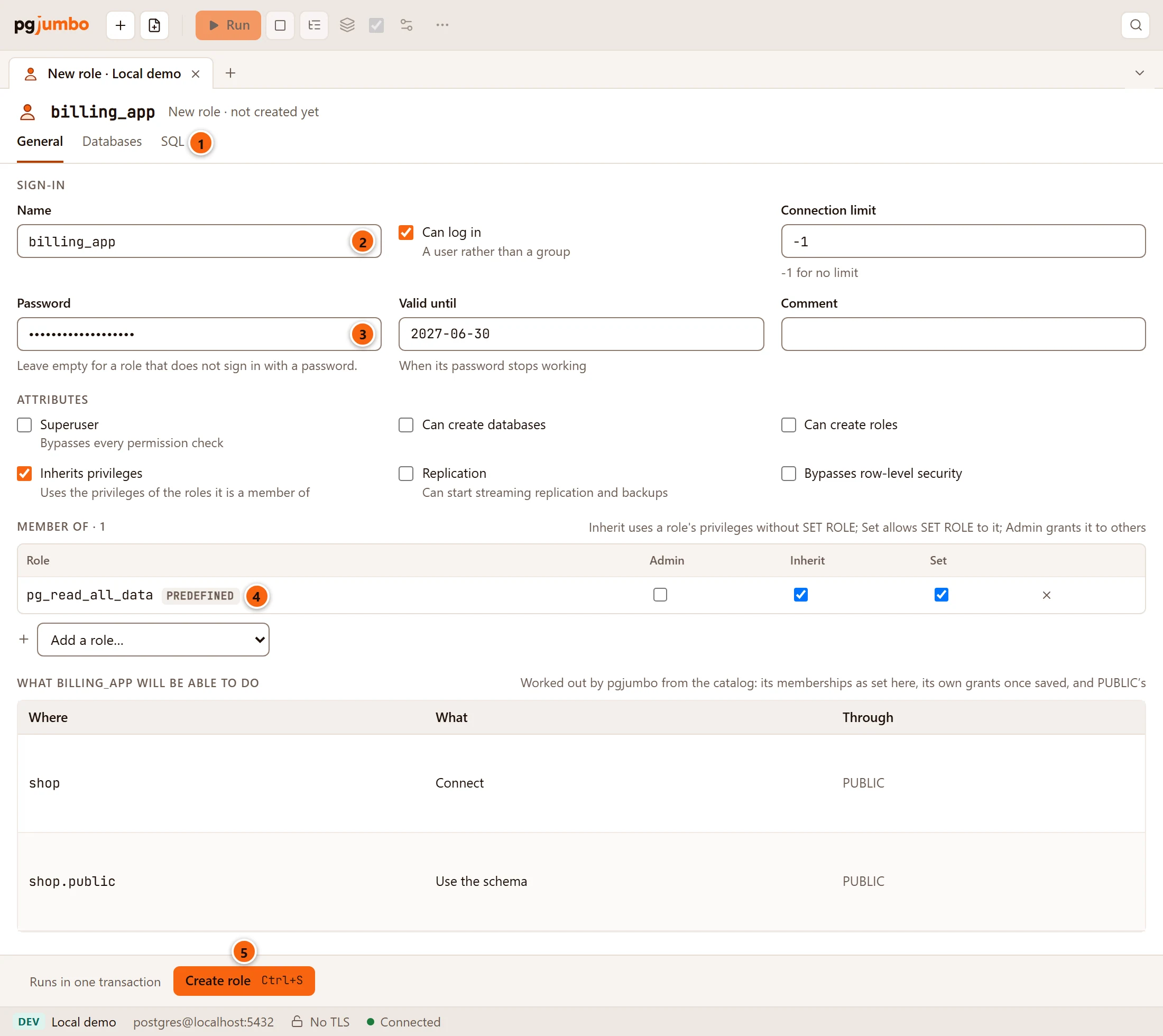
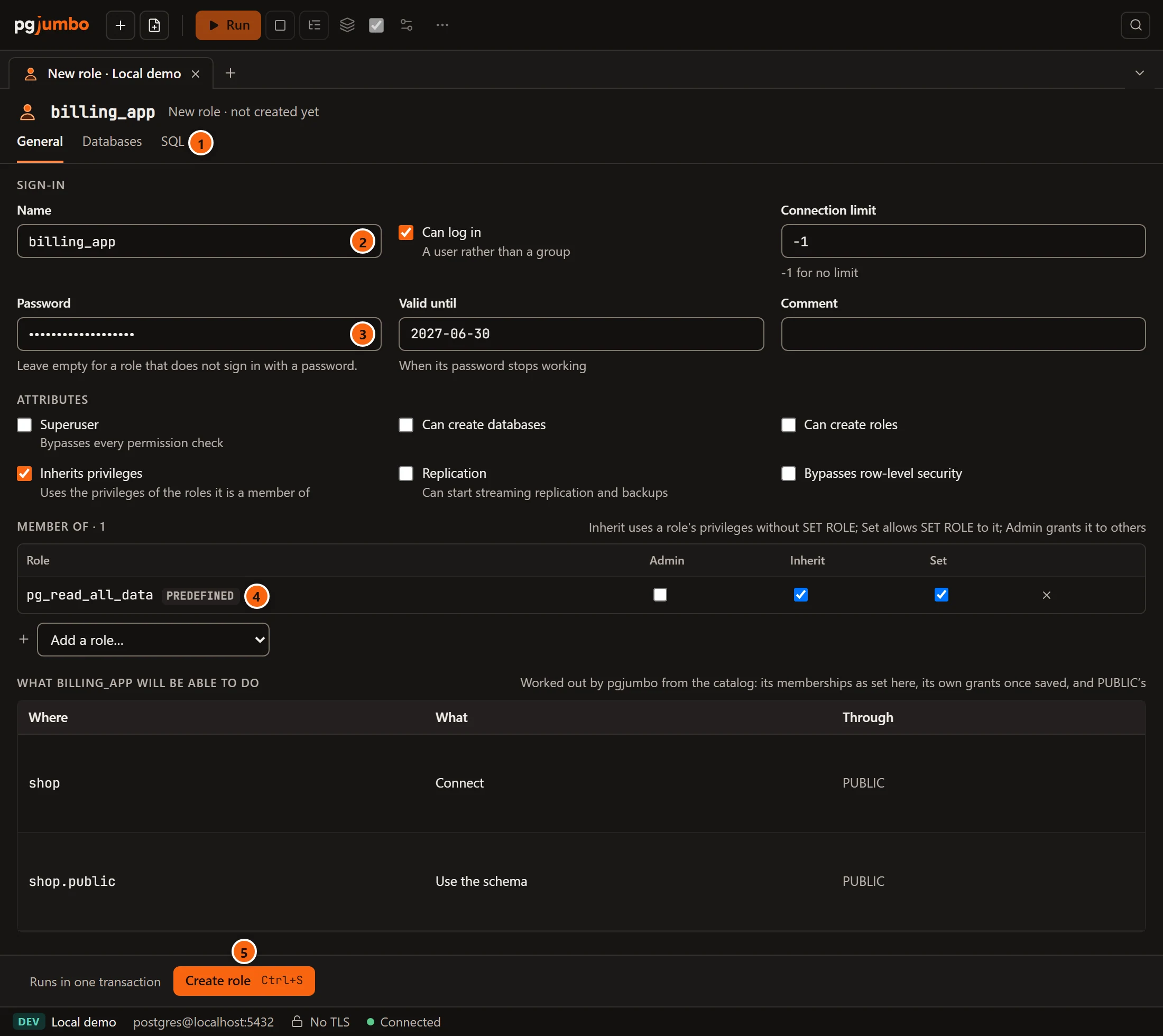
- 1 The views of a new role. SQL shows the script Create role will run, as the line at the bottom of General reminds you.
- 2 Name. Until it has one, the bar at the bottom says “Give the role a name under Sign-in.” and Create role is greyed out.
- 3 Password. Leave it empty for a role that does not sign in with a password.
- 4 A membership, here in the predefined role
pg_read_all_data. - 5 Create role (⌘ S (Ctrl+S on Windows and Linux)) runs the script; the bar says “Runs in one transaction”.
A new role starts as one that can log in and inherits privileges, with no other attribute, no connection limit, no password and no expiry. The header says “New role · not created yet”. Everything in General and Databases works as for an existing role.
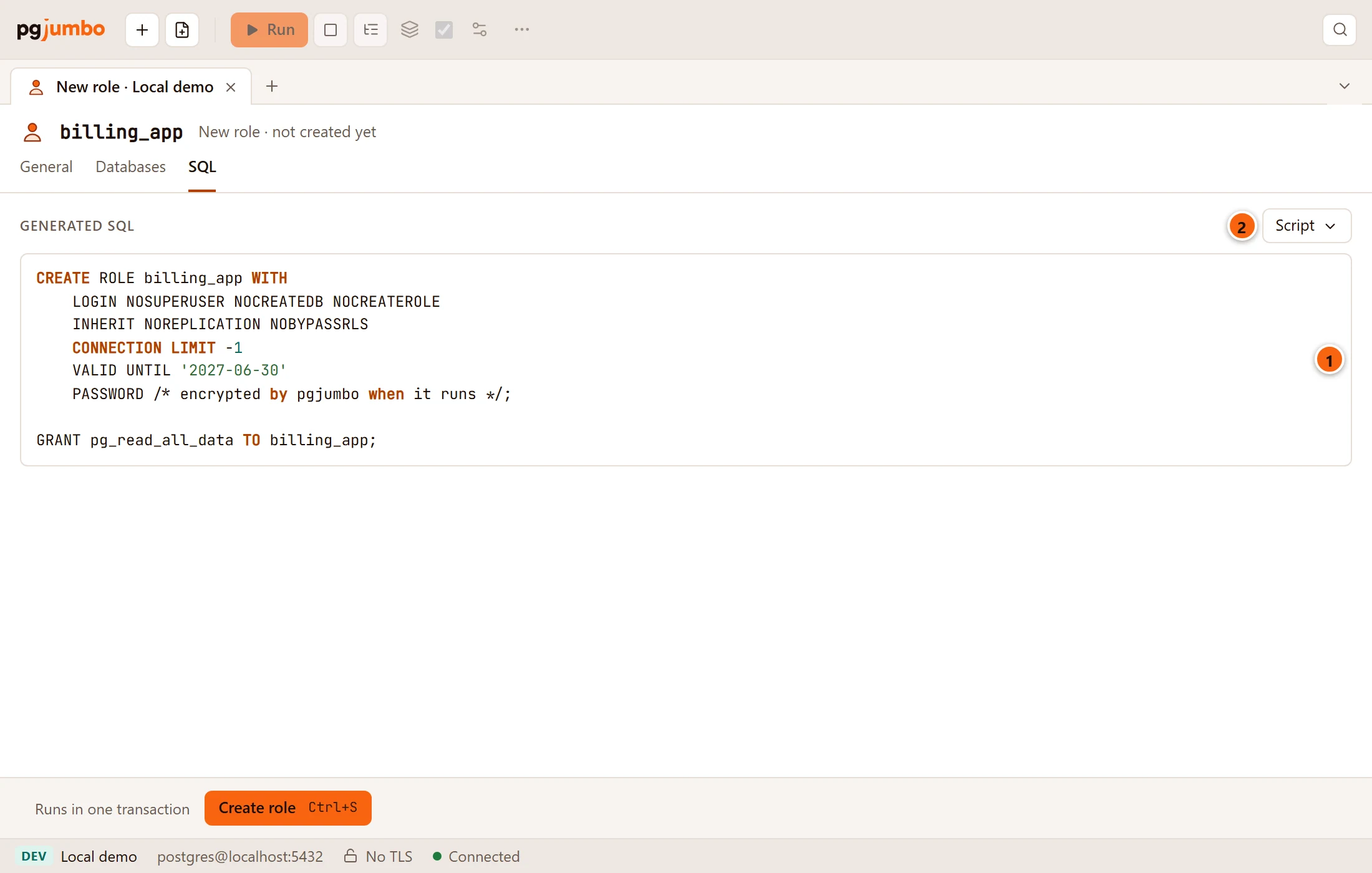
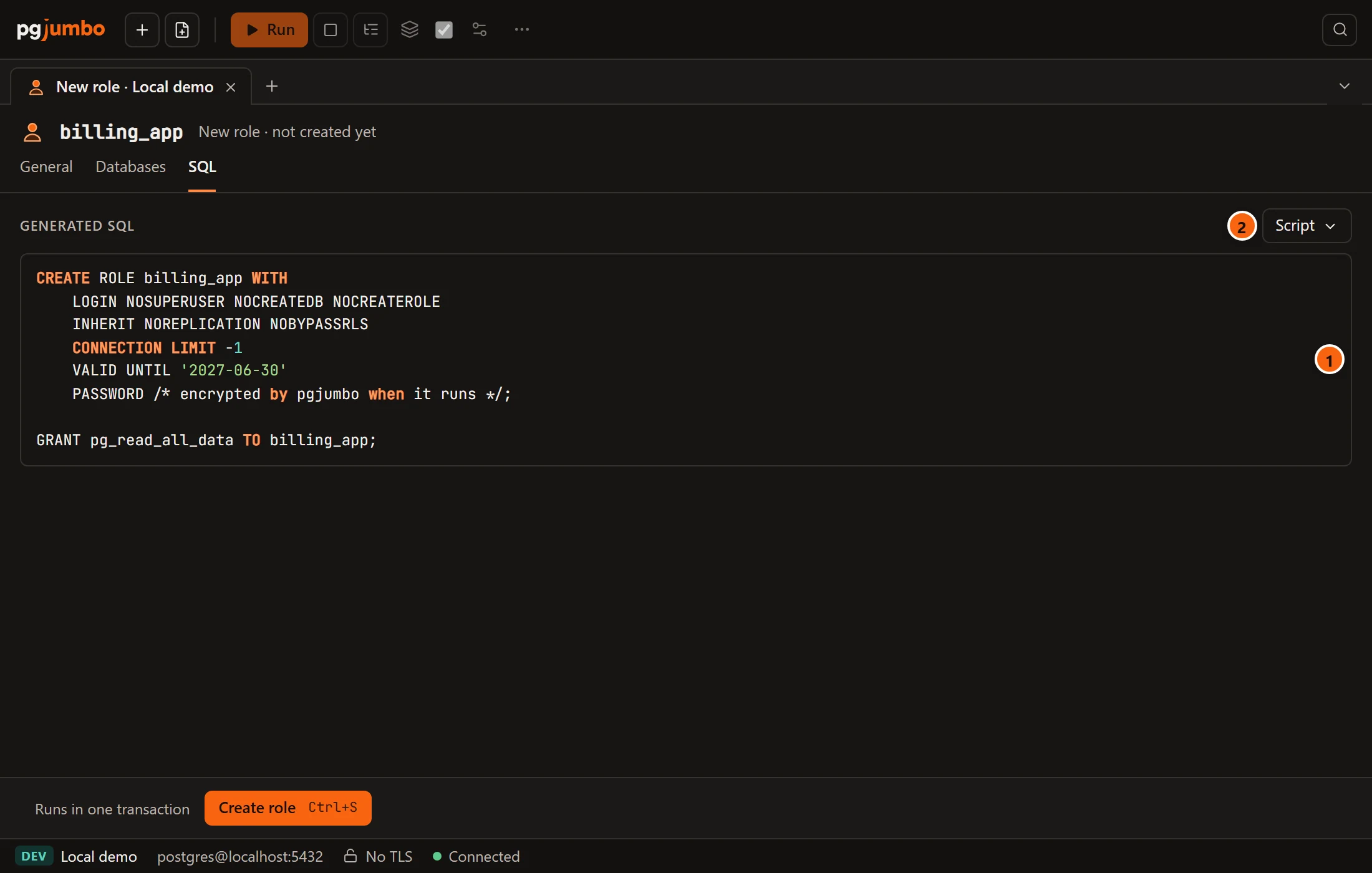
- 1 The script:
CREATE ROLEwith every attribute, then aGRANTfor each membership, the settings andCONNECTgrants from Databases, and the comment. The password is the placeholder comment. Until the role has a name the view says “Name the role on General to see its SQL.” - 2 Script has Open in Query Tool, Copy and Save to file…; none of them runs it.
Create role runs the script in one transaction on the maintenance database, on a connection of its own. If the server refuses (a role with that name exists, say), its message shows in the bar and nothing is created. When it worked, the bar says “billing_app was created”, the role appears under Login/Group Roles, and the tab becomes the new role’s tab with all six views. Closing a new role’s tab once it has a name, before creating it, asks first.
The Assistant can also fill in a new role’s tab for you from an access request; you read it, type the password and create it the same way.
The Databases view
Section titled “The Databases view”Where the role can connect, what it owns in each database, and the settings its sessions start with there.
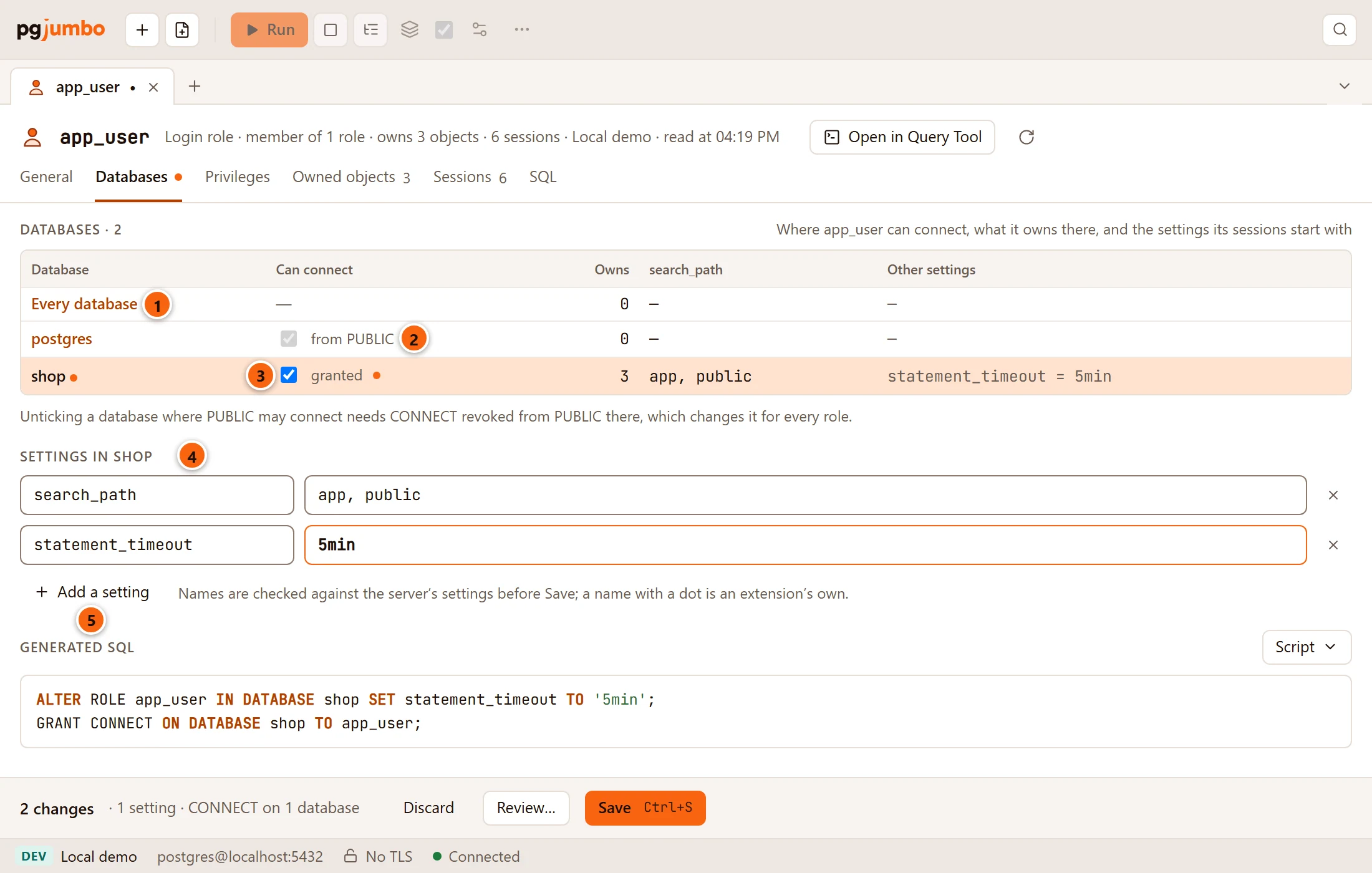
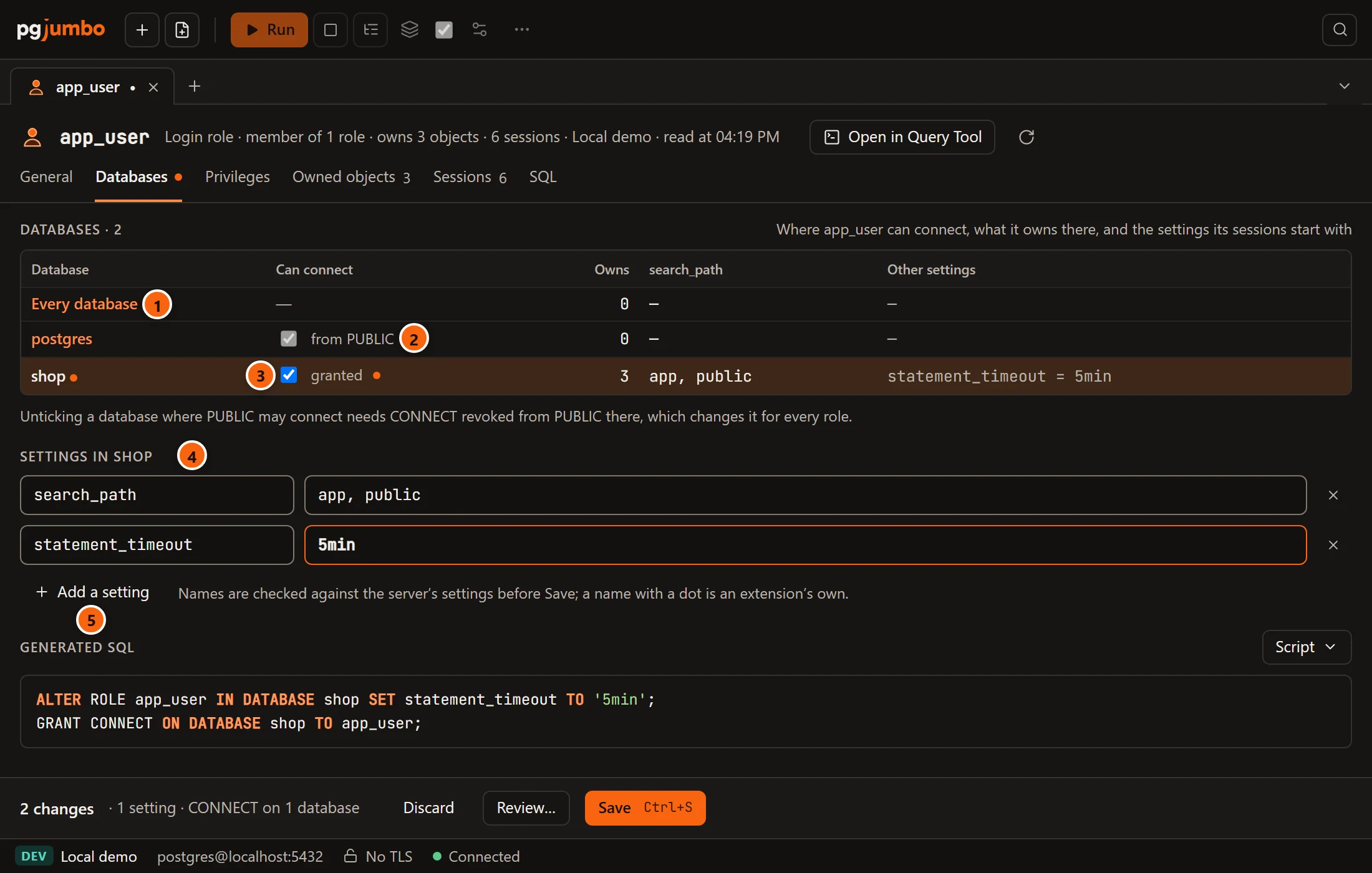
- 1 Every database: settings here apply wherever the role connects (
ALTER ROLE … SET). Click a database’s name to choose that row; the settings below follow it. - 2 from PUBLIC: everyone may connect to this database, so the box is ticked and cannot be unticked here. It is locked with owner too when the role owns the database.
- 3 Tick or untick to grant or revoke
CONNECTon that database to the role itself. granted shows while the role holdsCONNECTthere itself, and a dot marks a box you changed. - 4 Settings in shop: the settings for the chosen row (
ALTER ROLE … IN DATABASE shop SET). Each row is a name and a value; the cross removes it. With none, it says “None: its sessions start with the server’s and the database’s values.” - 5 Add a setting adds a row. While you type a name, pgjumbo offers
search_path,statement_timeout,lock_timeout,idle_in_transaction_session_timeout,work_mem,role,application_nameandtimezone.
| Column | What it shows |
|---|---|
| Database | Every database, then each database that accepts connections and is not a template. A dot after a name means its settings changed. |
| Can connect | Whether the role may connect, and why: owner, from PUBLIC or granted. |
| Owns | How many objects the role owns there; Every database counts the server’s objects it owns (databases, tablespaces). |
| search_path | Its search_path there, or a dash. |
| Other settings | Its other settings there, as name = value. |
To stop a role connecting to a database where PUBLIC may connect, CONNECT must be revoked from PUBLIC there,
which changes it for every role, as the line under the table says: do it in the database’s
Privileges view. Settings work as in a database’s
Settings view: pgjumbo checks each name against the server’s settings,
a name with a dot belongs to an extension, and a setting with no value, set twice or unknown is refused with the
reason. A search_path such as app, public is written one schema at a time ('app', 'public'), as pg_dump writes
it.
The Privileges view
Section titled “The Privileges view”What the role itself was granted on objects, one database at a time: the mirror of an object’s Privileges view.
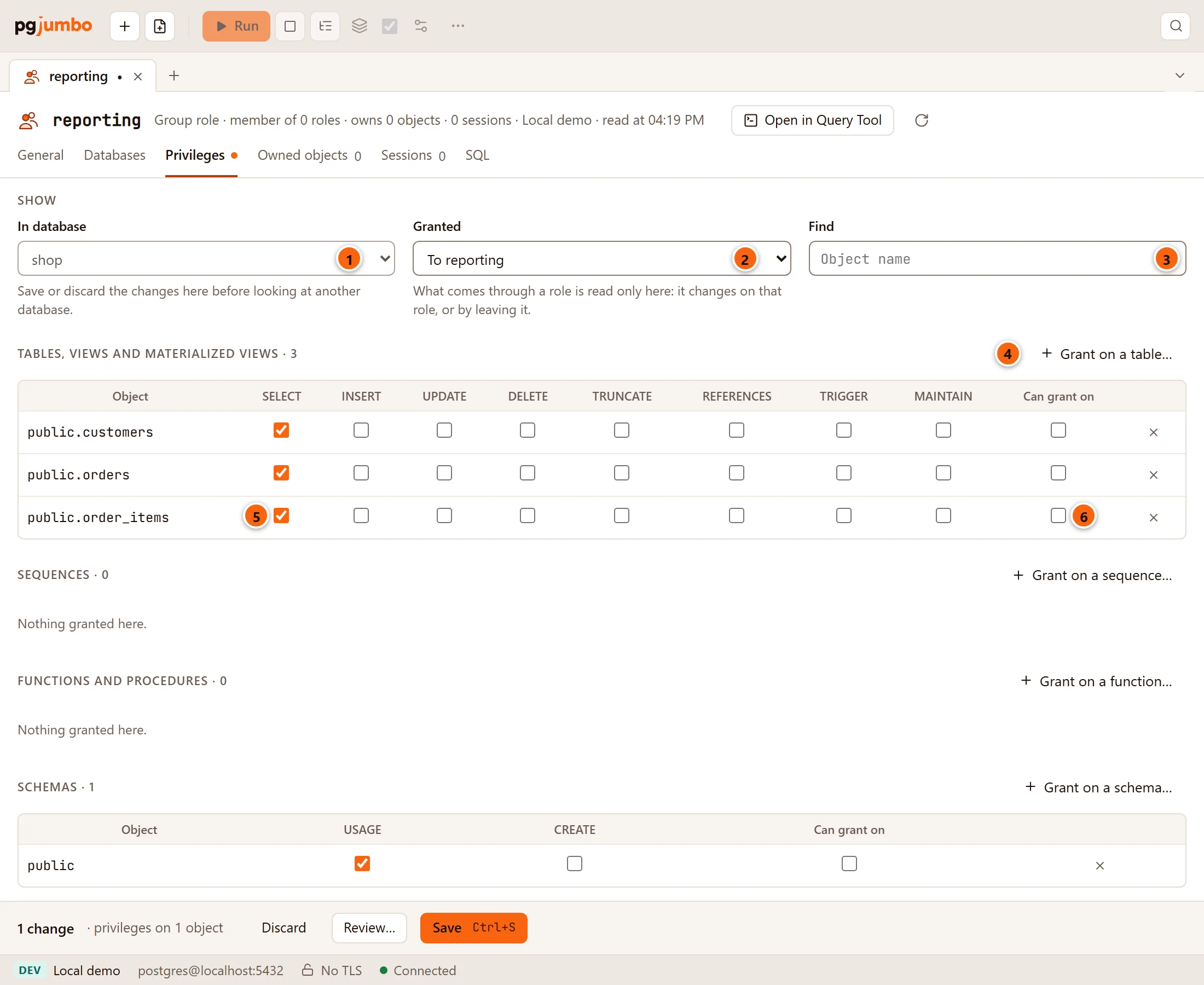
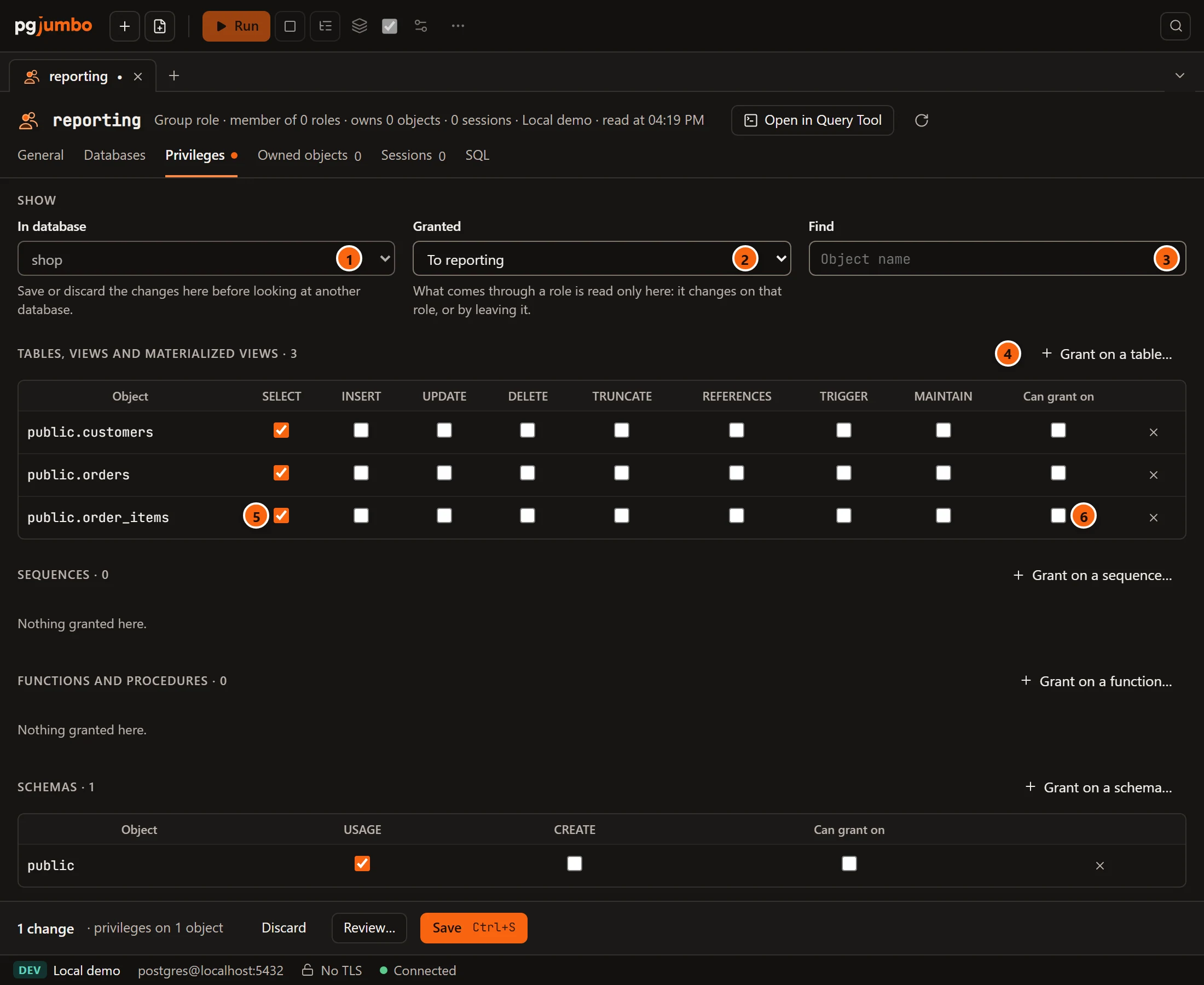
- 1 In database: grants live in the database whose objects they are on, so the view shows one database.
It starts on a database the role may connect to through its own
CONNECT, else the first one. While you have grant changes here it is locked, with “Save or discard the changes here before looking at another database.” - 2 Granted: To reporting shows only its own grants; To reporting, and through its roles and
PUBLIC adds, read only, what it gets from the roles it inherits from and from
PUBLIC. - 3 Find keeps only the objects whose name holds what you type.
- 4 Grant on a table… lists another table to grant on (see below).
- 5 One row per object, one box per privilege its kind has. A view, materialized view, foreign table, partitioned table, procedure, aggregate or domain says so after its name.
- 6 Can grant on: the role may grant these privileges to others (
WITH GRANT OPTION). The cross at the end of the row revokes everything on that object.
The view always has a section for Tables, views and materialized views, Sequences, Functions and
procedures, Schemas and Column privileges (SELECT, INSERT, UPDATE and REFERENCES on single
columns). Types and domains, Languages, Foreign servers, Foreign-data wrappers and Settings (SET
and ALTER SYSTEM on a setting, PostgreSQL 15 or later) show only when the role holds or inherits something there.
On the server comes last: Databases (CREATE and TEMPORARY) and Tablespaces, the same from every
database. Each section has its count and a Grant on … button; an empty one says “Nothing granted here.”
Grant on another kind of object… under the sections reaches types and domains, languages, foreign servers,
foreign-data wrappers and settings, with a Kind list in its dialog.
CONNECT on a database is not here but in the Databases view. What the role owns it may always do; that is in
Owned objects. The line at the bottom of the view says both.
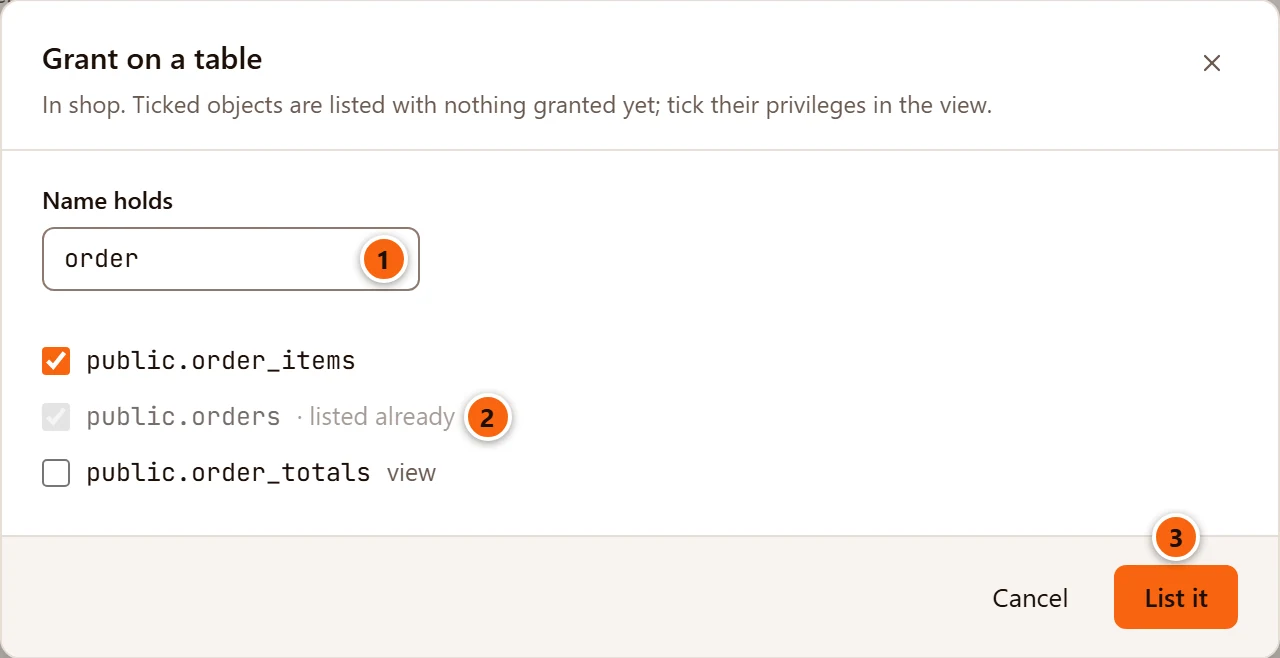
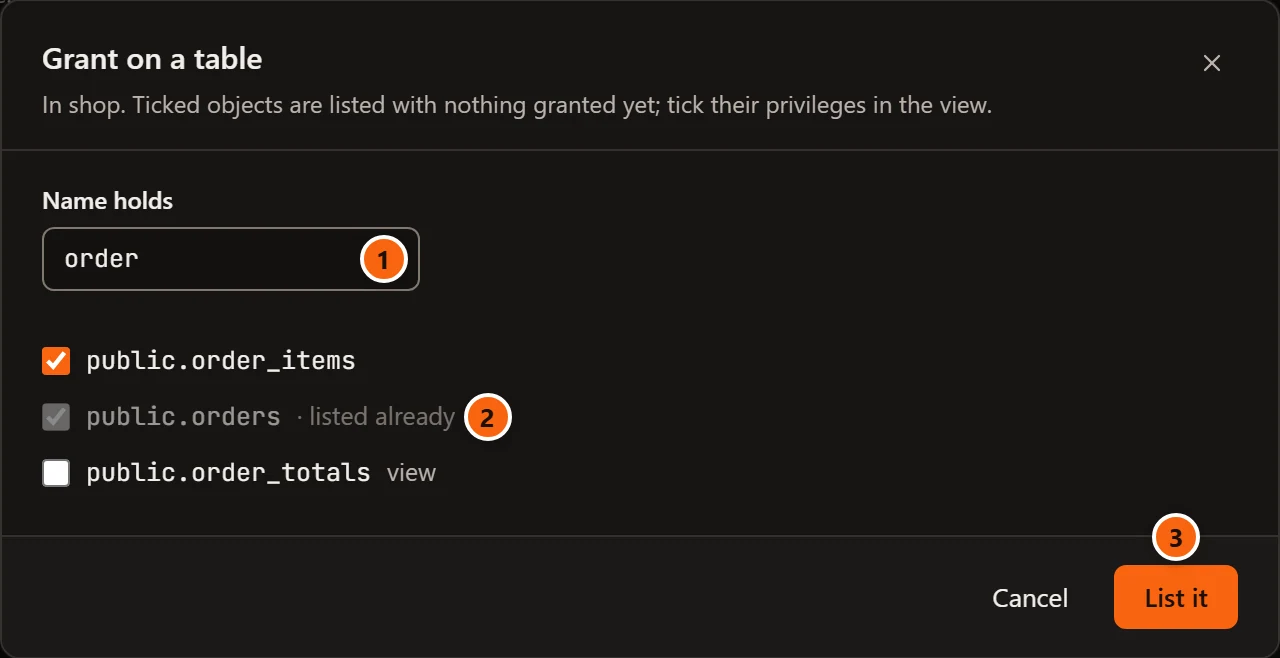
- 1 Name holds: type part of a name. The first 100 matches show, with “The first 100 shown: type more of the name.” under them when there are more; “Nothing here matches.” when there are none.
- 2 An object listed in the view already is greyed out and says listed already.
- 3 List it (List 2 objects when you tick more) adds the ticked objects to the view with nothing ticked. Tick their privileges there; an object with nothing ticked grants nothing.
Nothing here runs until you save the tab. On Save, the role’s own changes run first on the maintenance database; then pgjumbo checks the grants again and runs them in the database the view shows, on a connection to it, in one transaction.
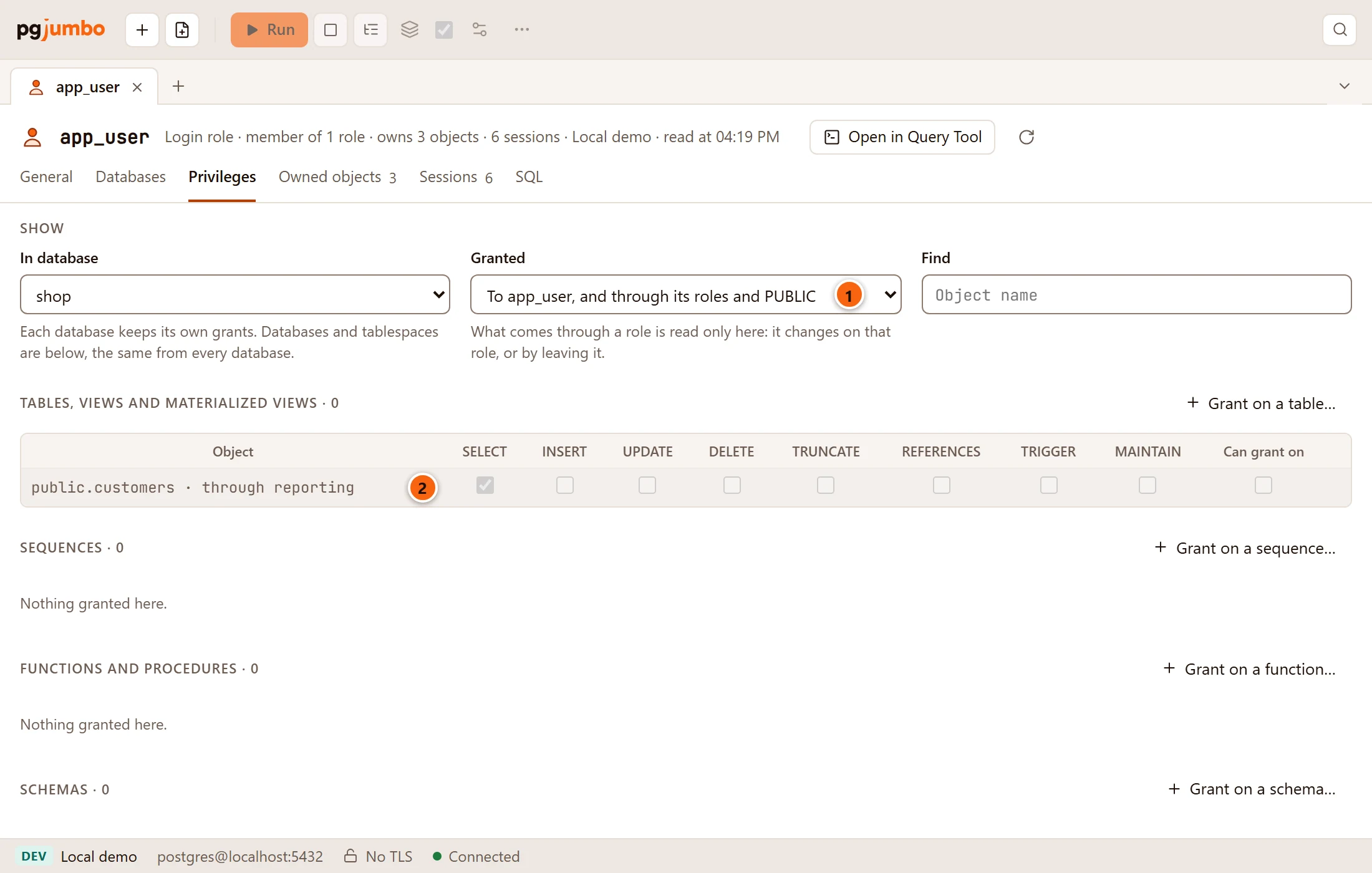
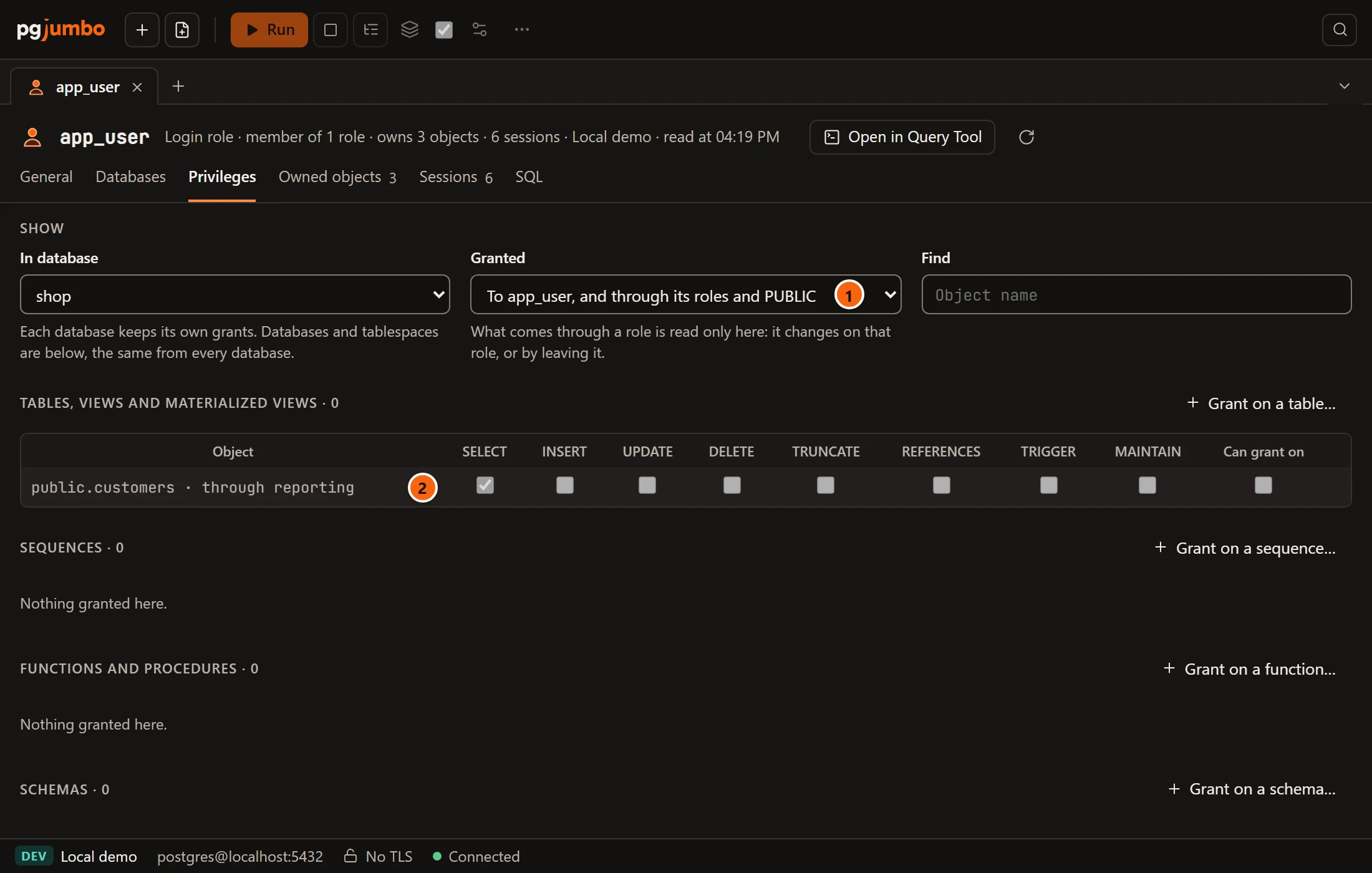
- 1 Granted set to include its roles and
PUBLIC. - 2 A greyed row:
public.customerswithSELECT, which app_user gets throughreporting. It cannot change here: it changes onreporting, or by leavingreportingin General.
The Owned objects view
Section titled “The Owned objects view”What the role owns in every database, and the two ways to clear it, which PostgreSQL requires before it drops a role.
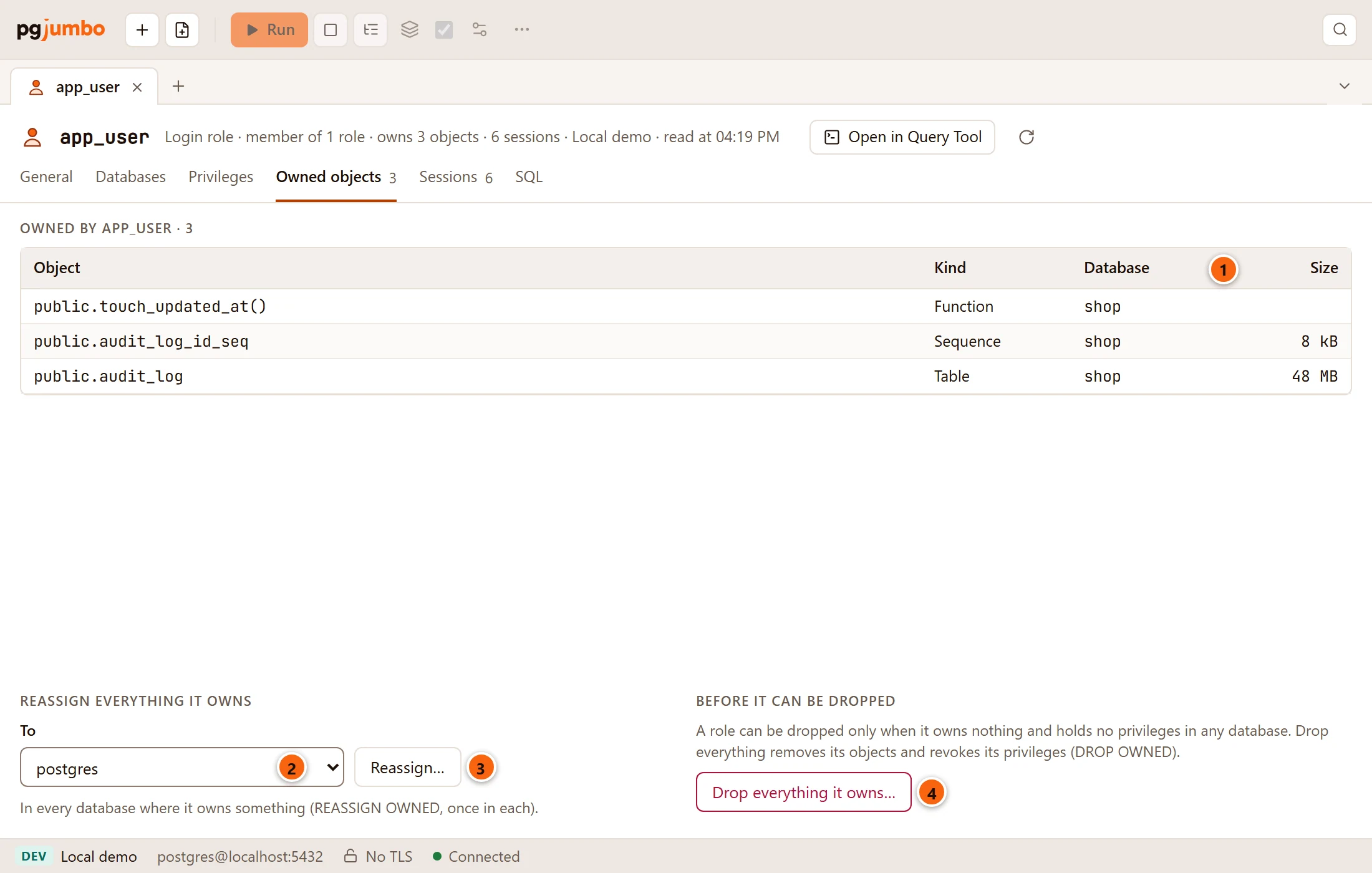
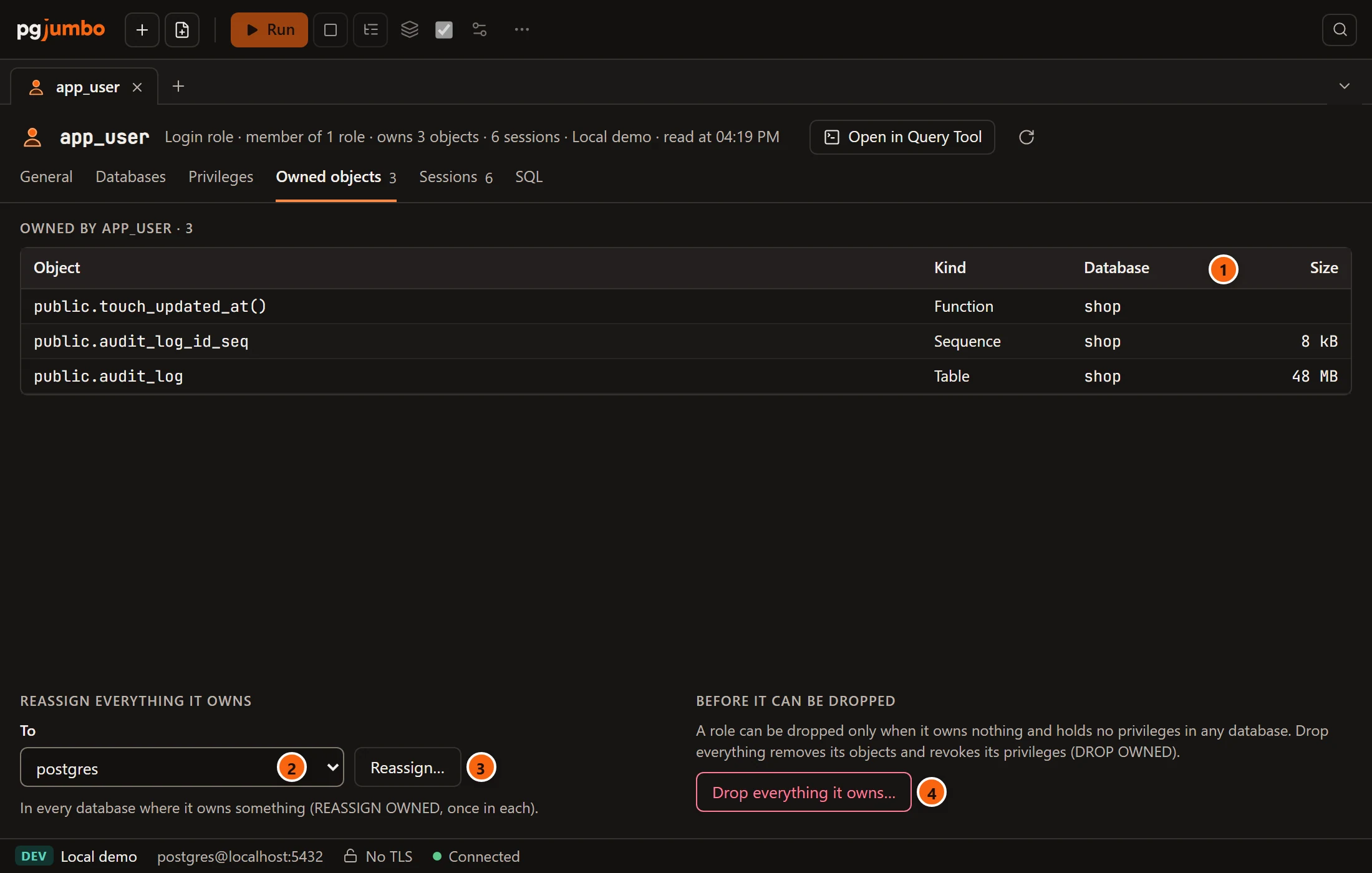
- 1 The list under Owned by app_user: Object, Kind, Database (“the server” for databases and tablespaces) and Size. pgjumbo names up to 500 objects per database; the heading says “Showing N of M” when there are more. A database that could not be read is named above the list with the reason.
- 2 To: the role that gets everything, chosen from every other role.
- 3 Reassign… opens the confirmation for
REASSIGN OWNED BY … TO …. It stays greyed out until a role is chosen and while the role owns nothing. It runs once in every database where the role owns something, the maintenance database first when it owns databases or tablespaces. - 4 Drop everything it owns… opens the confirmation for
DROP OWNED BY …, which drops the role’s objects and revokes its privileges in every database where it owns something or holds a privilege.
When the role owns nothing the list says “It owns nothing.”, or “It owns nothing, but it holds privileges or is named in policies.” when that is so; Drop everything it owns… stays available then, to revoke those privileges.
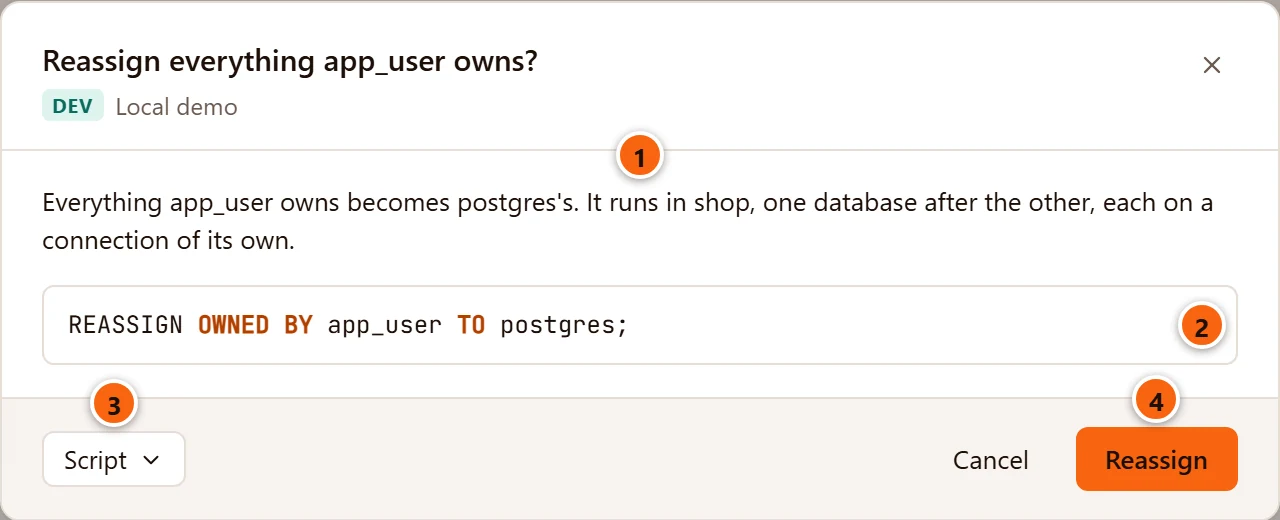
- 1 What happens and where: the databases it runs in, one after the other, each on a connection of its own.
- 2 The statement.
- 3 Script opens it in a Query Tool (and closes the confirmation), copies it or saves it, instead of running it.
- 4 Reassign runs it.
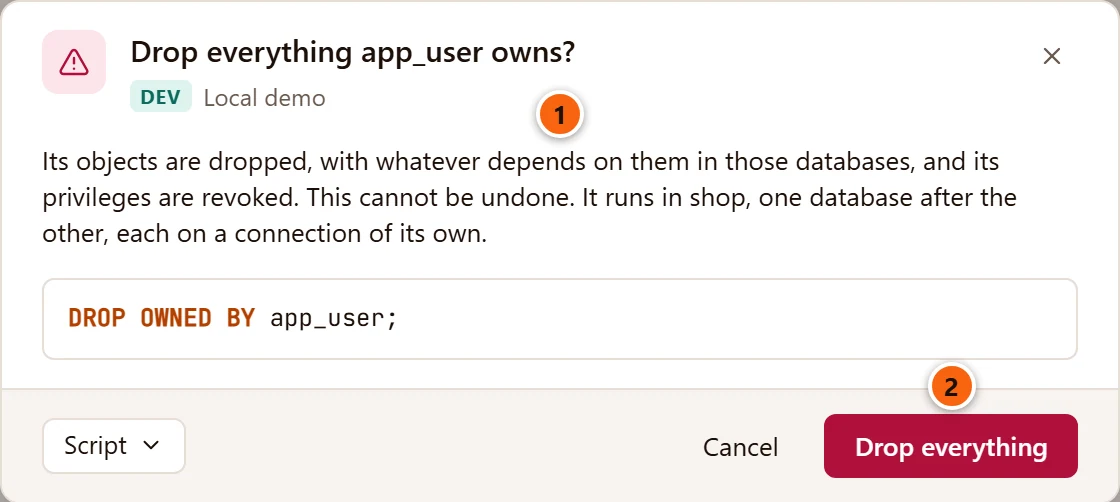
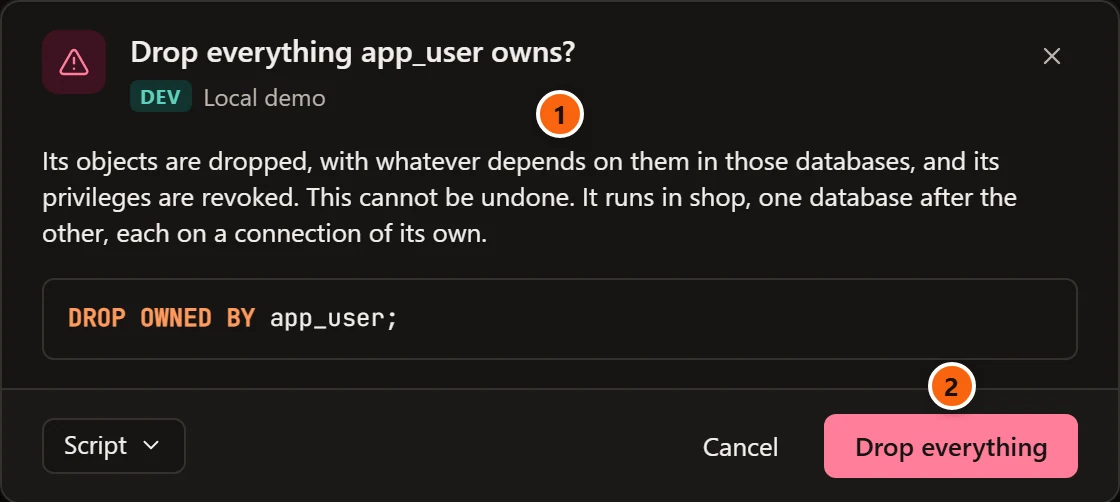
- 1 What
DROP OWNEDdoes. Objects that depend on the role’s objects in those databases go too. - 2 Drop everything runs it.
On a server that asks first, both confirmations have a field to type the maintenance database’s name, and the button stays greyed out until it matches. pgjumbo stops at the first database where the statement fails: the line under the view then says “Stopped in shop: …” and names the databases where it ran before. When it worked it says, for example, “Reassigned to postgres, in shop” or “Dropped everything app_user owned, in 2 databases”. The list, the Explorer and the Inspector read the owners again.
The Sessions view
Section titled “The Sessions view”The role’s sessions on the server now, read again every 5 seconds while the view is shown.
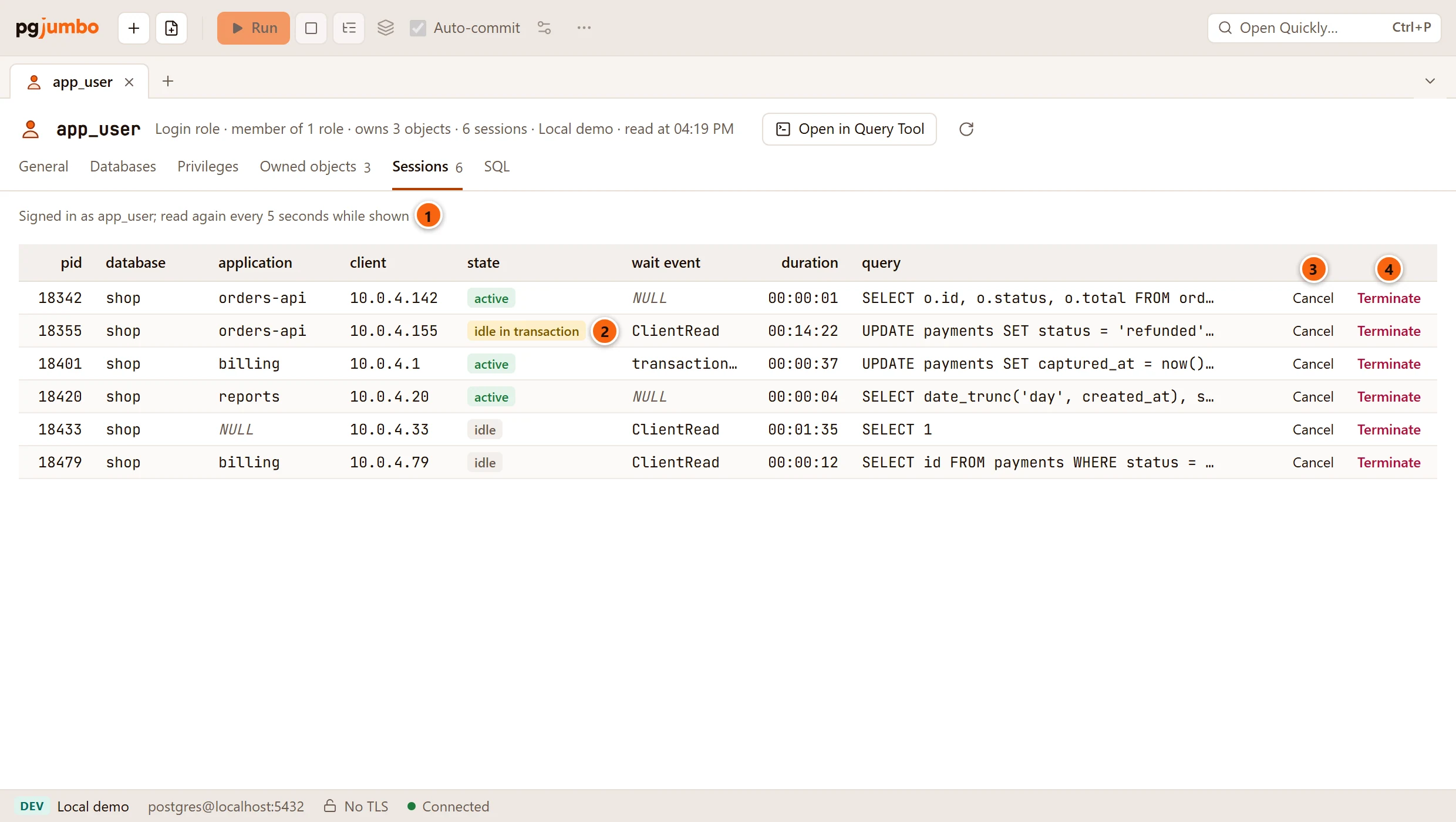
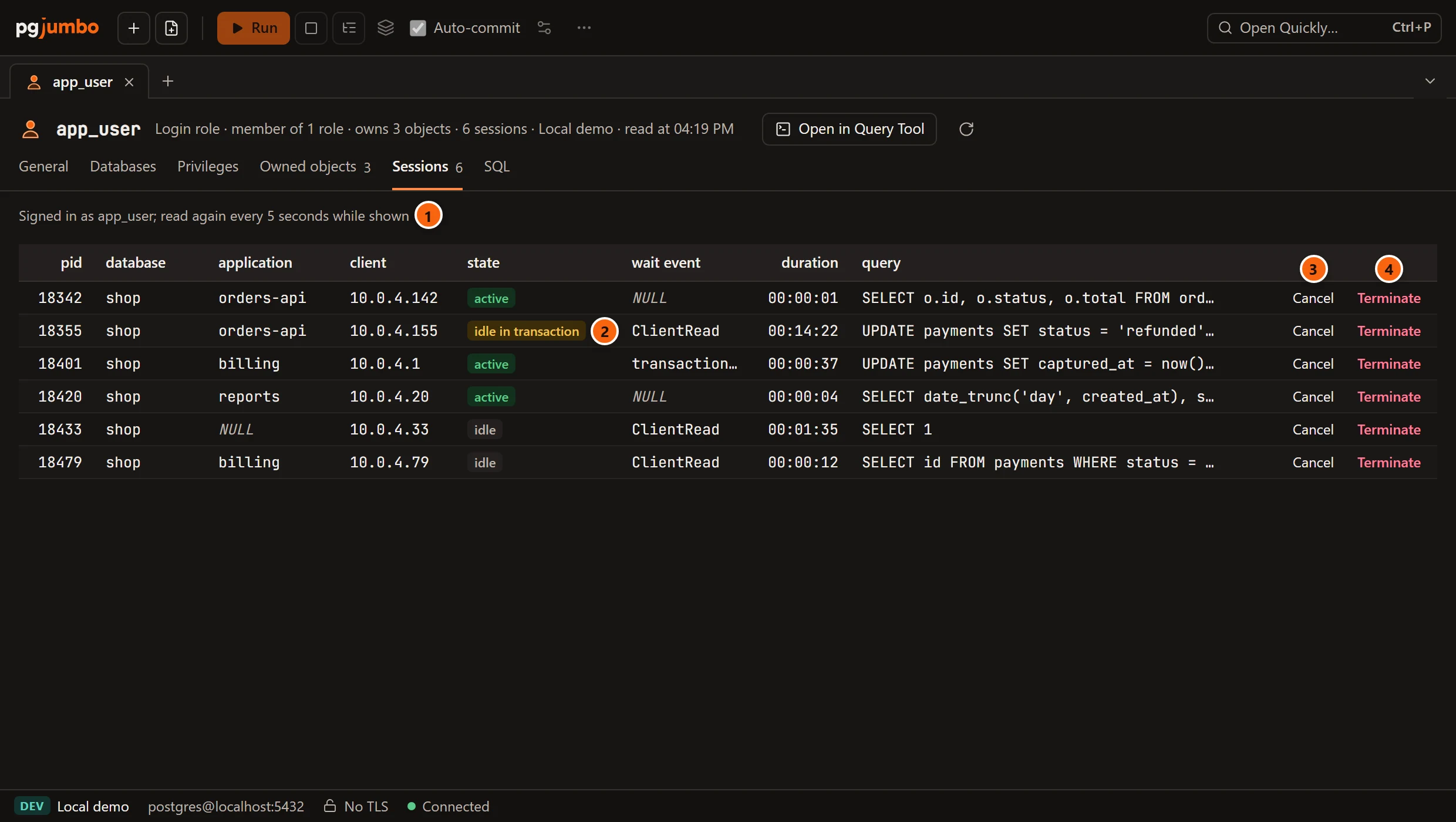
- 1 Whose sessions these are, and how often they are read.
- 2 state: active, idle, or idle in transaction, which stands out because it holds locks and keeps old rows from being cleaned up.
- 3 Cancel stops the session’s query (
pg_cancel_backend); the session stays connected. - 4 Terminate closes the session (
pg_terminate_backend); a transaction it has open rolls back.
The columns are pid, database, application, client, state, wait event, duration and query, as in the server’s Activity view. With no sessions the list says “No sessions”; with more than it shows, “Showing the first N of M sessions.” The session pgjumbo itself uses says this session, and its buttons are greyed out.
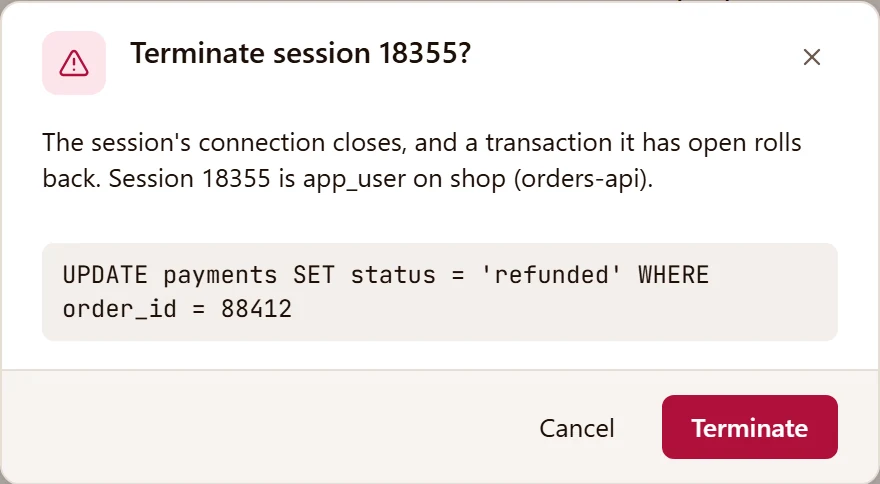
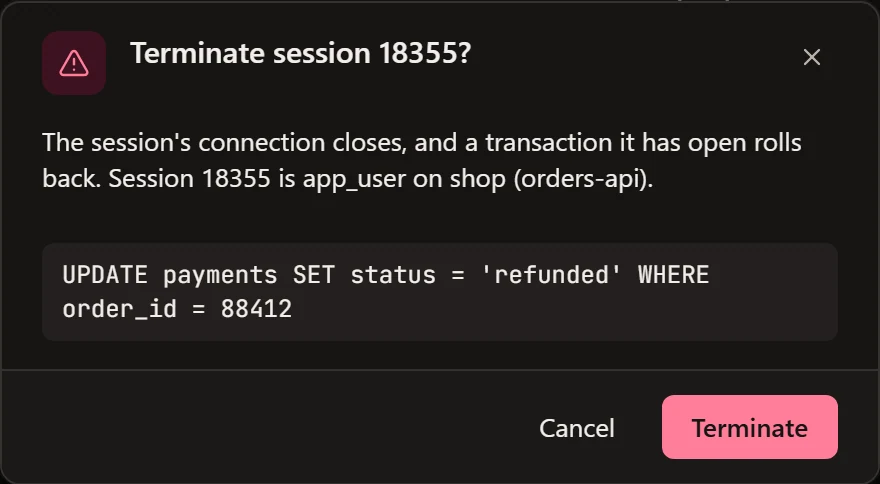
Both buttons ask first, with the session’s user, database, application and query. Cancel asks “Cancel the query of session N?” with Keep running and Cancel query; Terminate asks “Terminate session N?” with Cancel and Terminate. The signal is sent once, on a connection of its own, and only if the session still belongs to the role. The line at the top of the view then says “The query of session 18342 was cancelled.”, “Session 18355 was terminated.” or “Session 18355 had already ended.”
The SQL view
Section titled “The SQL view”The role’s CREATE ROLE script, as the Inspector’s SQL tab shows it, with the Script menu and Open in Query
Tool above it. It shows the role as saved; your unsaved changes are under Generated SQL in the view you changed.
Save changes to a role
Section titled “Save changes to a role”The pending bar under the views counts your changes and names them (name, connection limit, attributes, 1 membership, 2 settings, CONNECT on 1 database, privileges on 3 objects). Discard goes back to the role as it was read, Review… opens the review sheet, and Save (⌘ S (Ctrl+S on Windows and Linux)) runs everything.
Every statement on a role changes only the catalog and locks no table, so Save runs straight away, in one transaction
on the maintenance database: the attributes, limit and expiry, the memberships, the settings and CONNECT grants, the
comment, then the new name, then the new password, encrypted with the role’s final name. Grants from the
Privileges view run after that, in their database. The bar then says, for example, “Saved: 3 statements ran”. On a
server that asks first (Production, and Staging when Settings say so), Save opens
the review sheet instead and you type the maintenance database’s name.
Before anything runs, pgjumbo checks that the role is still as the tab read it. If someone changed it meanwhile, nothing runs: the bar says, for example, “app_user changed since it was read: its memberships changed. Nothing was run.” and offers Read again. The review sheet and these messages are explained in Object tabs and review.
Drop a role
Section titled “Drop a role”pgjumbo has no Drop… for a role. PostgreSQL drops a role only when it owns nothing and holds no privileges in any database:
- Open the role’s tab and go to Owned objects.
- Reassign what it owns to another role, or drop it with Drop everything it owns…. Drop everything also revokes its privileges.
- Open a Query Tool on the server (⌘ T (Ctrl+T on Windows and Linux) with the server selected).
- Run
DROP ROLEwith the role’s name.