
Where pgjumbo keeps your data
pgjumbo keeps everything on your computer. Almost all of it is in one SQLite file, app.db; a few files sit beside
it, and your passwords are in your system’s credential store, never in a file of pgjumbo’s. pgjumbo has no account and
no storage of its own anywhere else.
The folders on each system
Section titled “The folders on each system”Each folder is named after pgjumbo’s identifier, io.github.menai993.pgjumbo, written <id> below. The folders are
the same whichever installer you used, x64 or ARM64, and on a Mac with either processor.
| macOS | Windows | Linux | |
|---|---|---|---|
| Data folder | ~/Library/Application Support/<id>/ |
%LOCALAPPDATA%\<id>\ |
~/.local/share/<id>/ |
| Logs | ~/Library/Logs/<id>/ |
%LOCALAPPDATA%\<id>\logs\ |
~/.local/share/<id>/logs/ |
Window size and place (.window-state.json) |
~/Library/Application Support/<id>/ |
%APPDATA%\<id>\ |
~/.config/<id>/ |
| Saved passwords | the login Keychain | Windows Credential Manager | the Secret Service (GNOME Keyring, KWallet or another) |
On Windows, %LOCALAPPDATA% is C:\Users\<you>\AppData\Local and %APPDATA% is C:\Users\<you>\AppData\Roaming. On
Linux, $XDG_DATA_HOME and $XDG_CONFIG_HOME take the place of ~/.local/share and ~/.config when you set them.
pgjumbo makes the data folder and the log folder private: on macOS and Linux only your user can open them, and on Windows they sit in your own profile, which other ordinary users cannot open.
To see the exact folders on your computer, choose HelpCopy Diagnostics…: its Data folder and Log folder lines name them. HelpOpen Log Folder opens the log folder in your file manager.
What is in the data folder
Section titled “What is in the data folder”| File or folder | What it holds |
|---|---|
app.db, with app.db-wal and app.db-shm |
pgjumbo’s database, below. The two other files belong to it: copy or move all three together, and only while pgjumbo is closed. |
known_hosts |
The SSH host keys you trusted in pgjumbo, in OpenSSH’s format. pgjumbo also reads your own ~/.ssh/known_hosts, but never writes to it. See SSH tunnels. |
knowledge/ |
The Assistant’s knowledge base, unless you chose another folder. See The knowledge folder. |
assistant/ |
A working folder for each running Assistant conversation. pgjumbo removes a conversation’s folder when the conversation closes; nothing in it is needed after pgjumbo quits. |
logs/ |
The logs, on Windows and Linux. |
.window-state.json |
The window’s size and place, on macOS. |
The web view that draws the window keeps a cache of its own as well (on Windows, an EBWebView folder in the data
folder). None of your data is in it.
What app.db holds
Section titled “What app.db holds”| What | Details |
|---|---|
| Your servers and groups | Every connection setting of every server, never a password. Manage your servers |
| Query history | Each run’s SQL, with passwords in it masked, its database, when it ran, how long it took, how many rows, and whether it worked. The newest 10,000 runs per server are kept; a script larger than 1 MiB is not. A server’s history goes when you delete the server. Files, drafts and history |
| Drafts | Each open Query Tool tab’s SQL, cursor, server, database and file, saved half a second after every change, so the tabs come back after a quit or a crash. A tab’s draft goes when you close the tab. A tab holding more than 16 MiB of SQL is not kept as a draft: save it to a file. |
| Recent files | The paths of the last ten .sql files you opened or saved, for the start page. The files themselves stay where they are. |
| Settings | Everything in the Settings dialog. Settings |
| The layout | What the window keeps between runs: panes, widths, zoom, pinned tabs, recent servers and the rest. |
| The Library | Your snippets, and the path of the scripts folder you chose. The Library |
| The Assistant | Its conversations, as the pane showed them, with passwords masked; database guides; notes kept before the knowledge base, and the path of a knowledge folder you chose. Knowledge base and notes |
Some things are not kept at all: open connections, results in the grid, tabs other than Query Tool tabs, and the Jobs panel’s list of backups, restores and other jobs, which ends when pgjumbo quits.
app.db also records the version of its own layout. A newer pgjumbo brings it up to date on its first start; an older
one then refuses to open it and does not start. See Update to a newer
version.
Passwords and the credential store
Section titled “Passwords and the credential store”pgjumbo saves three kinds of secret, each only when you ask it to: a server’s password, an SSH password and an SSH key
passphrase. Each is a separate entry in your system’s credential store, under the service io.github.menai993.pgjumbo
and an account that says what it is:
| Secret | Account |
|---|---|
| A server’s password | server/<server id>/password |
| An SSH password | server/<server id>/ssh-password |
| An SSH key’s passphrase | server/<server id>/ssh-key-passphrase |
The server id is an internal identifier, not the server’s name.
| System | Where to see the entries |
|---|---|
| macOS | The Keychain Access app, login keychain: application passwords named io.github.menai993.pgjumbo, whose account is as above. When pgjumbo reads one that a different version saved, macOS asks your permission; choose Always Allow. After an update it asks once more for each saved password: see Install pgjumbo. |
| Windows | Control PanelCredential ManagerWindows Credentials, under Generic Credentials, named after the account and the service, such as server/<server id>/password.io.github.menai993.pgjumbo. |
| Linux | Your keyring’s default collection, usually Login, in an app such as Passwords and Keys (Seahorse) or KWallet. Each entry is labelled keyring:server/<server id>/password@io.github.menai993.pgjumbo. Without a running Secret Service pgjumbo cannot save passwords. The start page and the connection dialog say so, the dialog’s Save password in the system keyring checkbox is greyed out, and pgjumbo asks for the password each time you connect. |
Deleting a server in pgjumbo deletes its saved passwords too. A password never goes anywhere else: not into app.db,
not into the logs, not into an exported server list. For a backup, restore or database copy, pgjumbo hands the password
to pg_dump, pg_restore or psql in a temporary file only you can read, in your system’s temporary folder, and
deletes it when the program ends. A psql tab gets its password the same way: a temporary
file only your user can read, for that host, port and user alone, deleted when psql ends. It is never stored. AWS IAM
sign-in saves nothing: pgjumbo makes a new token for every connection.
pgjumbo writes one log file a day, pgjumbo.2026-11-04.log and so on, and keeps the last seven. Each line is a JSON
record of something pgjumbo did or ran into, such as starting or an error. Logs never hold passwords or values from
your rows; SQL text is written only at the debug level.
Start pgjumbo with the environment variable PGJUMBO_LOG=debug for more detail when you report a problem. Attach the
newest file along with HelpCopy Diagnostics…; see Troubleshooting.
The knowledge folder
Section titled “The knowledge folder”The Assistant’s knowledge base is a folder of Markdown files you can read, edit and keep under version control. By
default it is knowledge/ inside the data folder, made the first time pgjumbo needs it and filled from pgjumbo’s
templates. Its docs/ folder can also hold the PDF and Word documents you add, as they were, each with its text beside
it in a Markdown file of the same name plus .md (Backup policy.pdf and Backup policy.pdf.md).
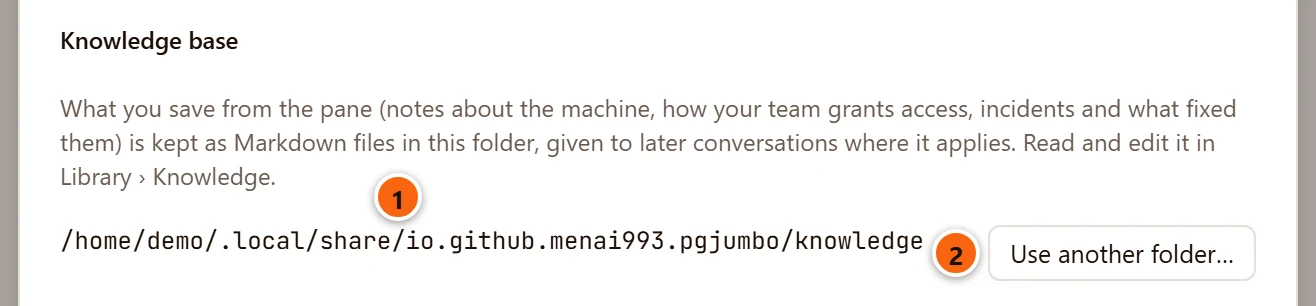
- 1 The folder in use. This one is the default on Linux.
- 2 Use another folder… shows your system’s folder dialog. pgjumbo adds the template files the chosen
folder lacks and never replaces a file you have. The change takes effect at once, without Save.
app.dbkeeps the new folder’s path; the files stay where you put them, and the old folder stays as it was.
This part of Settings is under Assistant. Knowledge base and notes explains what the Assistant reads and writes there.
Files you choose
Section titled “Files you choose”Exported results, backups, .sql files, exported server lists and guides go wherever you save them in your system’s
Save dialog. The Library’s scripts folder and a knowledge folder you chose stay where they are; app.db keeps only
their paths. pgjumbo opens or saves such files only once you have picked them in its own Open, Save or folder dialogs.
pgjumbo also reads a few files that belong to other programs, and never writes them:
| File | When pgjumbo reads it |
|---|---|
~/.ssh/known_hosts |
To check an SSH server’s host key, beside its own known_hosts. See SSH tunnels. |
| The SSH private key you name | To sign in to an SSH server with a key. |
~/.aws/credentials and ~/.aws/config (or the files AWS_SHARED_CREDENTIALS_FILE and AWS_CONFIG_FILE name) |
For AWS IAM sign-in. See Amazon RDS and Aurora. |
| PostgreSQL’s connection service file | For a server set up with a service name. See Connection settings. |
PostgreSQL’s password file, ~/.pgpass (%APPDATA%\postgresql\pgpass.conf on Windows) |
pgjumbo connects through libpq, the library psql uses, and libpq looks there for a password when a server has none saved in pgjumbo. |
| Certificate and key files | The ones you name in a server’s SSL settings. |
What moving from pgAtlas copied
Section titled “What moving from pgAtlas copied”pgjumbo was called pgAtlas until November 2026, with the identifier io.github.menai993.pgatlas. On pgjumbo’s first
start, if its data folder had no app.db yet, it copied from pgAtlas’s data folder:
app.dbwithapp.db-walandapp.db-shm, so your servers, history, drafts, settings, layout, snippets, notes, guides and Assistant conversations;known_hosts;- in the credential store, each server’s saved password, SSH password and SSH key passphrase, from entries under
io.github.menai993.pgatlasto entries underio.github.menai993.pgjumbo, unless pgjumbo already had one.
It did not copy the knowledge folder in its default place, the logs, the Assistant’s working folder, the web view’s cache or the window’s size and place. It deleted nothing.
pgAtlas’s copies are where pgAtlas left them:
| macOS | Windows | Linux | |
|---|---|---|---|
| Data folder | ~/Library/Application Support/io.github.menai993.pgatlas/ |
%LOCALAPPDATA%\io.github.menai993.pgatlas\ |
~/.local/share/io.github.menai993.pgatlas/ |
| Saved passwords | Keychain entries named io.github.menai993.pgatlas |
Generic credentials ending in .io.github.menai993.pgatlas |
Keyring entries labelled …@io.github.menai993.pgatlas |
Its logs and window file are in the matching places of the first table, under the old name. Once pgjumbo has your servers and connects to them, you can delete all of these. If you had a knowledge folder there, copy its files into pgjumbo’s first.
Start afresh
Section titled “Start afresh”To give pgjumbo a clean start, as on a new computer:
-
If you want your saved passwords gone as well, delete each server in pgjumbo first: deleting a server forgets its saved passwords. See Manage your servers.
-
Quit pgjumbo.
-
Move the data folder away, or delete it. It holds
app.db,known_hostsand, unless you chose another folder, the knowledge base: keep a copy of anything you want back. -
On Windows and Linux, delete
.window-state.jsonfrom the folder in the first table too, if you want the window to forget its size and place. On macOS it was in the data folder. -
If pgAtlas’s data folder is still there, move it away as well. Otherwise the next start finds no
app.dband copies pgAtlas’s again. -
Start pgjumbo. It makes a new, empty
app.dband opens as on its first start.
To reset only the settings, open Settings, click Restore defaults, then Save. The layout, your servers and the knowledge folder stay as they are.
To take your servers to another computer, use FileExport Servers… here and FileImport Servers… there; passwords are never in the file, so you type them once on the new computer. See Manage your servers.
Uninstalling pgjumbo removes the app only. The data folder, the logs and the saved passwords stay until you delete them as above.