
Manage your servers
Every server you add stays in the Explorer, at the top of the left pane, until you delete it. This page covers what you do with that list: connecting and disconnecting, groups and order, colours and tags, deleting, and taking the list to another computer. What is inside a connected server (databases, schemas, tables) is on The Explorer; every field of a server’s settings is on Connection settings.
The server list
Section titled “The server list”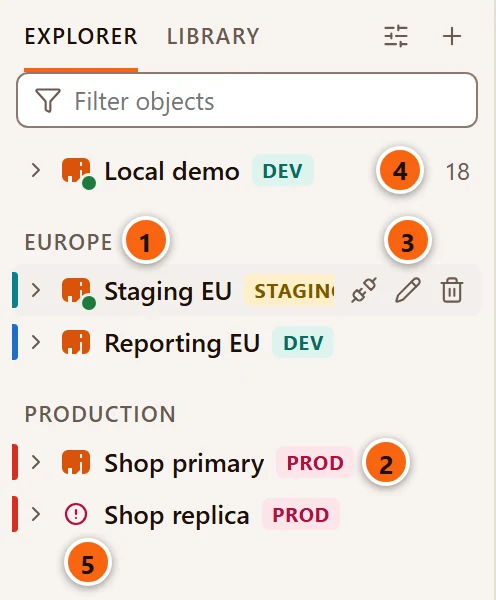
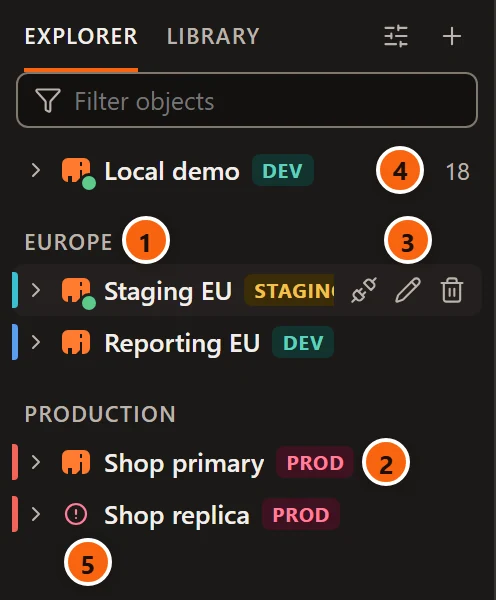
- 1 A group is a section label. Servers outside any group come first, then each group in its order. To close or open a group, click the arrow after its name (it shows when you point at the group, while the group is selected, and while it is closed), double-click the name, or select it and press Enter, ← or →. A closed group shows how many servers it holds. pgjumbo remembers which groups you closed, also after a restart.
- 2 The environment tag: Dev, Staging or Prod. The coloured stripe on the left edge of a row is the server’s colour.
- 3 Point at a server and three buttons appear: Connect (a plug) or Disconnect (an unplug), Edit (a pencil) and Delete (a bin). A group shows a bin only, which deletes the group.
- 4 A connected server shows its PostgreSQL major version at the right.
- 5 A red warning sign in place of the icon: the last connection failed. Point at it to read why.
The server’s icon says how it is connected:
| Icon | State |
|---|---|
| The elephant | Not connected. Its tooltip says Not connected. |
| A spinner | Connecting. Its tooltip says Connecting…, and its Connect commands are greyed out meanwhile. |
| The elephant with a green dot | Connected. Its tooltip says Connected and the PostgreSQL version. |
| A red warning sign | The last attempt failed, or the server went away. Its tooltip holds the error. |
The Filter objects box above the list also matches servers and groups by name; see The Explorer. With no servers at all, the Explorer says No servers yet and offers New connection.
Connect and disconnect
Section titled “Connect and disconnect”A server connects when you:
- double-click it, click its arrow, or select it and press → or Enter. These also open its row. On a row that is already open, a double-click, the arrow and Enter close it instead, and do not connect.
- point at it and click the plug button, or right-click it and choose Connect. These connect without opening it.
- click Connect on its page in the middle of the window, or a server under Recent servers on the start page (The pgjumbo window).
- click Connect in a place that needs the server: the server’s tab when it says the server is not connected, a Query Tool restored from your last session (Connect to … to run queries in this tab.), or the Assistant pane.
Connecting opens one connection to the server’s Database, for the Explorer and the Inspector. Opening another database in the Explorer adds a connection to that database. Each Query Tool, data tab and server activity view opens connections of its own. When the server asks for a password that is not saved, pgjumbo asks you for it; see When pgjumbo asks for the password.
A server disconnects when you:
- point at it and click the unplug button, or right-click it and choose Disconnect.
- click Disconnect on its page in the middle of the window, or in the header of its tab (The server’s tab).
Disconnecting closes every connection pgjumbo has to the server: the Explorer’s, every Query Tool’s, the server’s activity monitors and notification listeners, the Assistant’s, and its SSH tunnel. A query still running is cancelled. A password you typed without saving it is forgotten. The Query Tool tabs stay open with their SQL and say Disconnected from the server., with Reconnect; see Transactions and sessions.
Closing a server’s row (double-click, its arrow, Enter or ←) does not disconnect it.
When a server goes away
Section titled “When a server goes away”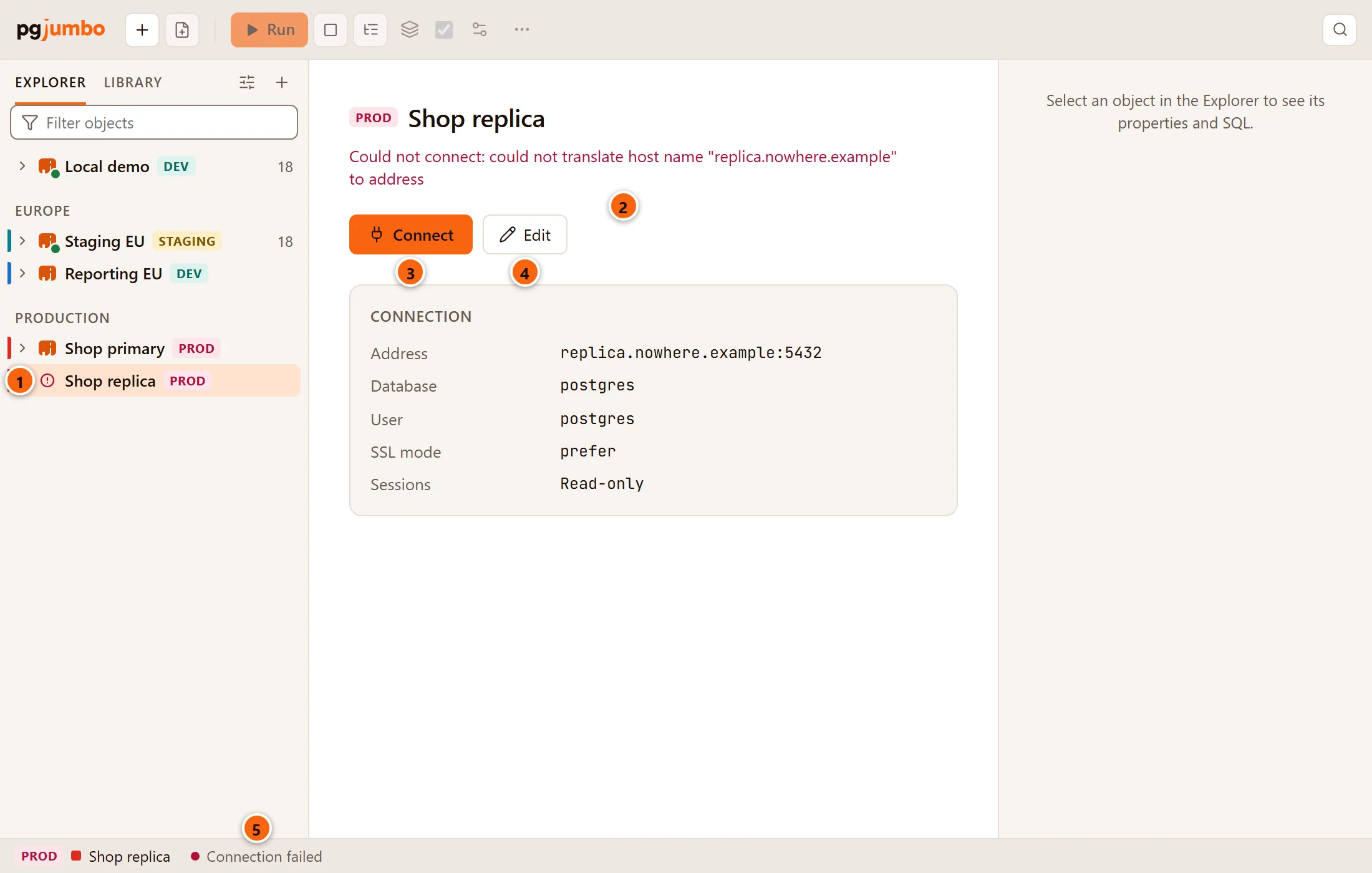
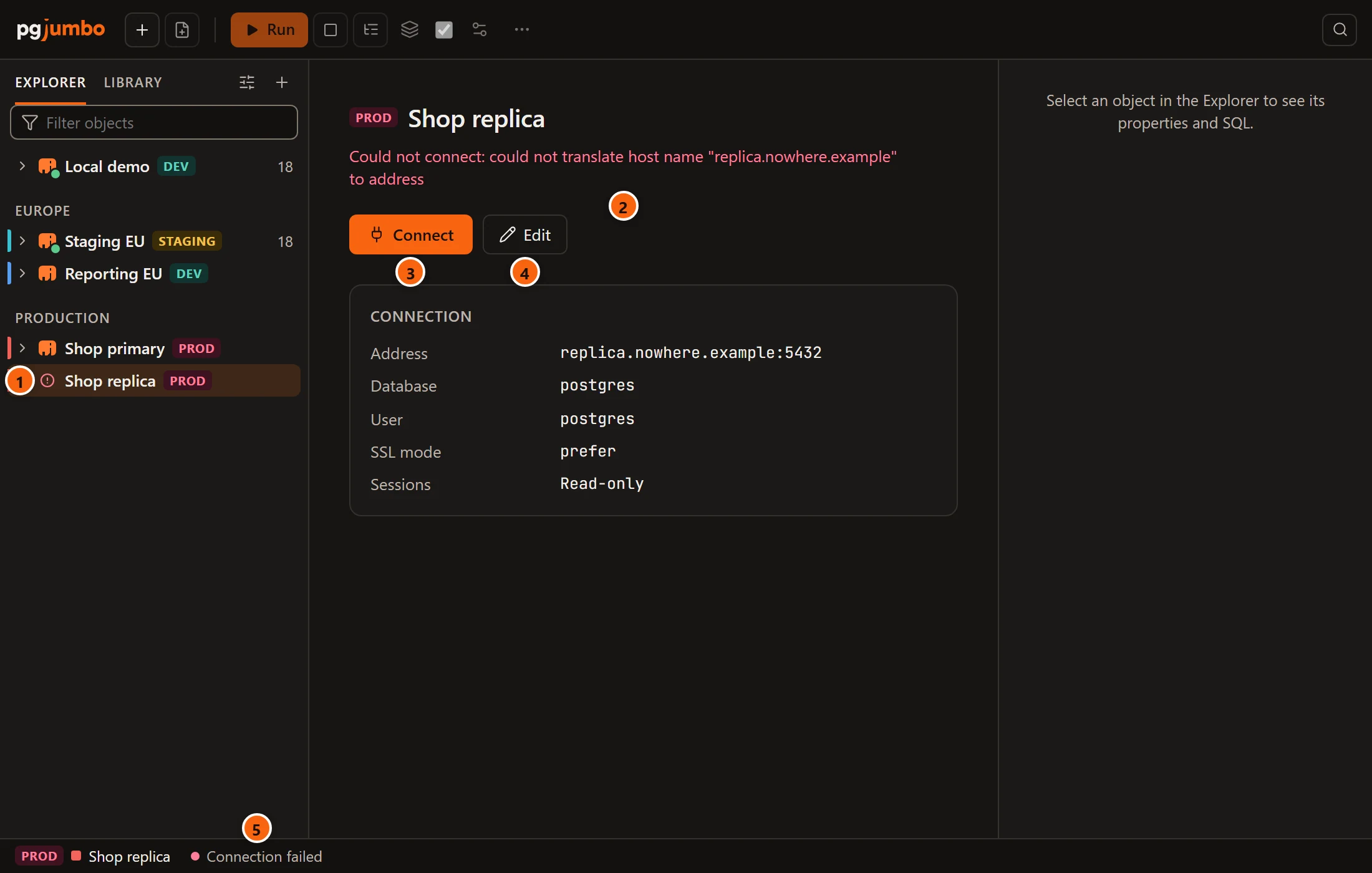
- 1 The server’s row has a red warning sign.
- 2 Its page in the middle of the window says Could not connect: and why.
- 3 Connect tries again.
- 4 Edit opens its settings, to correct a host, a port or a password.
- 5 The status bar says Connection failed; point at it for the error.
A connection attempt that fails looks like this. So does a server that went away while you were connected, for example one that restarted. When the Explorer’s connection to a database is lost, pgjumbo opens it again once and repeats the read it was doing: the Explorer only reads, so repeating is harmless. Only when that fails too does the server show the warning sign.
Once the server is back, click Connect on its page, the plug button on its row, or Connect on its right-click menu. (A double-click only connects while the server’s row is closed; on an open row it closes the row.) pgjumbo first tries the Explorer’s connection it still has, opening it again if it was lost. If that no longer works, pgjumbo drops the old connections and connects afresh, asking for the password if it was not saved. It never reconnects a Query Tool by itself: a Query Tool’s session may have held a transaction or session settings, so each tab offers Reconnect and waits for you.
A saved password that has become wrong also ends here, with password authentication failed: click Edit, type
the new password and save.
A server’s right-click menu
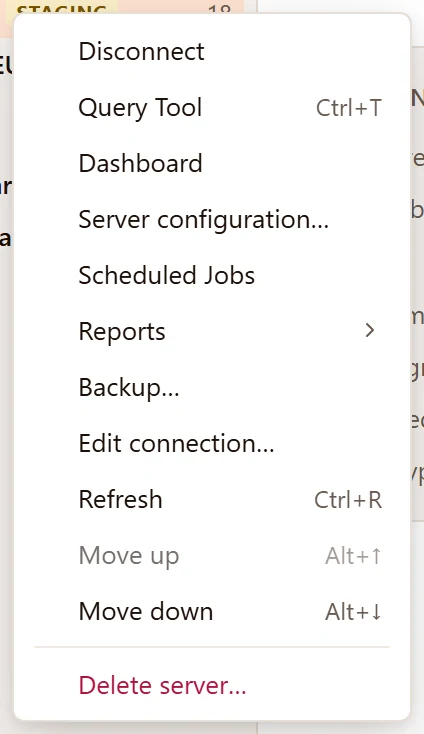
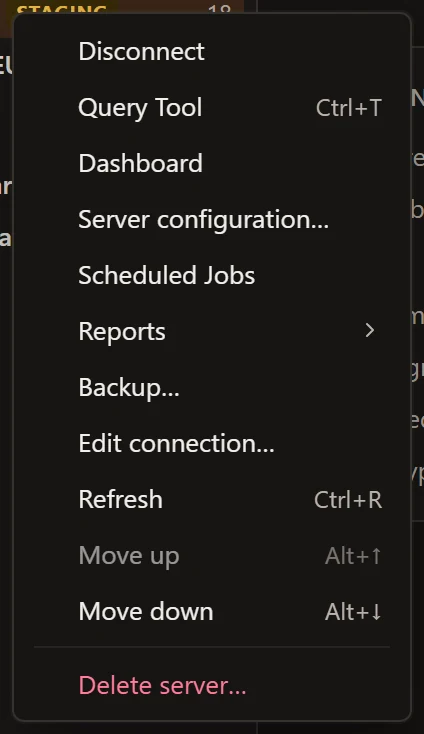
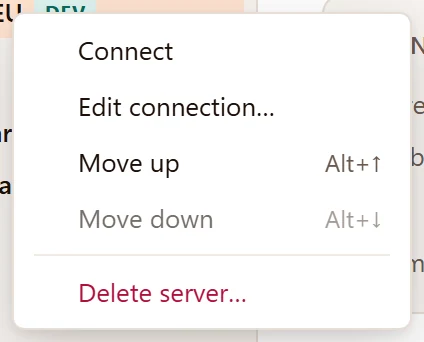
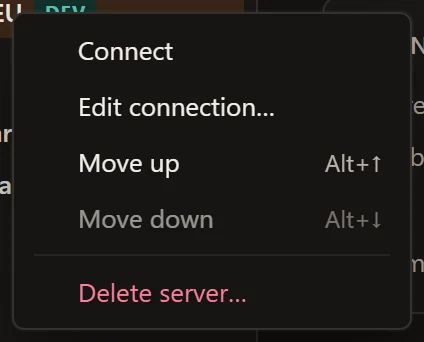
Section titled “A server’s right-click menu”The menu of a connected server, and of one that is not connected:
| Item | What it does |
|---|---|
| Connect / Disconnect | Connects or disconnects the server, as above. |
| Query Tool (⌘ T (Ctrl+T on Windows and Linux)) | A Query Tool on the server’s Database. Connected only. See The Query Tool. |
| Dashboard | The server’s tab on its Activity view. Connected only. See Activity. |
| Server configuration… | The server’s tab on its Configuration view. Connected only. See Server configuration. |
| Scheduled Jobs | The server’s pg_cron jobs in a tab. Connected only. See Scheduled jobs. |
| Reports ▸ | Top queries, Wait events, Replication and slots, Transaction ID age, Checkpoints and WAL. Connected only. See Reports. |
| Backup… | Backs up every database of the server, or only its roles and tablespaces, with pg_dumpall. Connected only. See Back up and restore. |
| Edit connection… | The server’s settings: the Edit connection dialog, or the Connection view of its tab when it is connected. See Change a saved server. |
| Refresh (⌘ R (Ctrl+R on Windows and Linux), or F5 in the Explorer) | Reads the server’s folders again. Connected only. |
| Move up (⌥ ↑ (Alt+↑ on Windows and Linux)) / Move down (⌥ ↓ (Alt+↓ on Windows and Linux)) | Moves the server one place among the servers of its group. Greyed out at the top and the bottom. |
| Delete server… | Asks, then deletes the server from pgjumbo. See Delete a server. |
Right-click menus lists the menus of everything inside a server.
Order servers and groups
Section titled “Order servers and groups”Servers and groups keep the order you give them; a new server goes to the end of its group, a new group after the others.
- To move a server or a group one place up or down, select it in the Explorer and press ⌥ ↑ (Alt+↑ on Windows and Linux) or ⌥ ↓ (Alt+↓ on Windows and Linux), or right-click it and choose Move up or Move down. The selection moves with it.
- A server moves among the servers of its own group. To move it into another group, or out of every group, change Group in its settings (Connection settings); it goes to the end of its new group.
- Servers outside any group always sit above the groups.
There is no dragging in the list.
Groups
Section titled “Groups”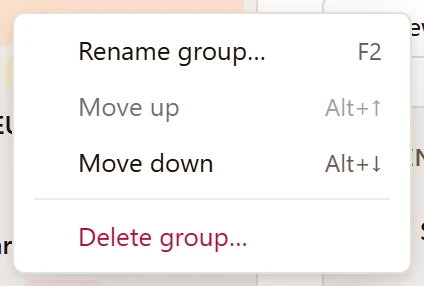
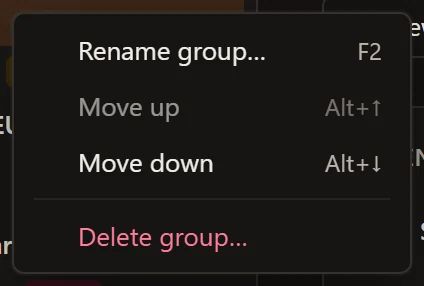
| Item | What it does |
|---|---|
| Rename group… (F2) | Opens Rename group with the group’s name. |
| Move up / Move down | Moves the group one place among the groups, as ⌥ ↑ (Alt+↑ on Windows and Linux) and ⌥ ↓ (Alt+↓ on Windows and Linux) do. |
| Delete group… | Asks, then deletes the group. |
Make a group
Section titled “Make a group”In a server’s settings, choose New group… under Group and type its name. The group is made when you save, with that server in it. Importing a server list also makes the groups its servers name (Import). A group stays, empty, when its last server leaves it.
Rename a group
Section titled “Rename a group”Choose Rename group… on the group’s menu, or select the group and press F2:
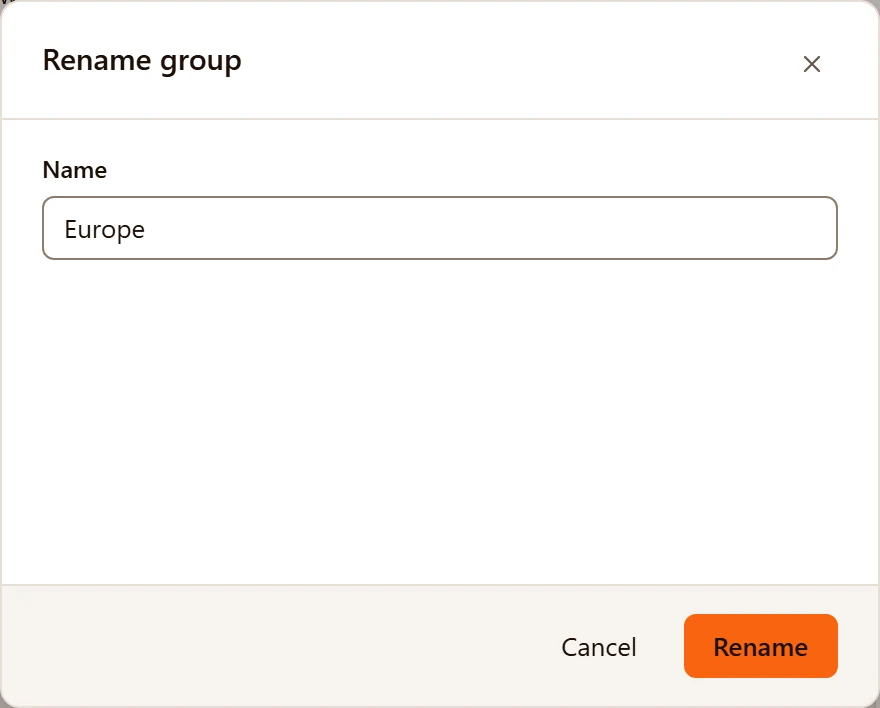

Change Name and click Rename. An empty name says Give the group a name. Two groups may have the same name, but an import puts servers into the first group of that name.
Delete a group
Section titled “Delete a group”Choose Delete group… on the group’s menu, or click the bin that appears when you point at it:
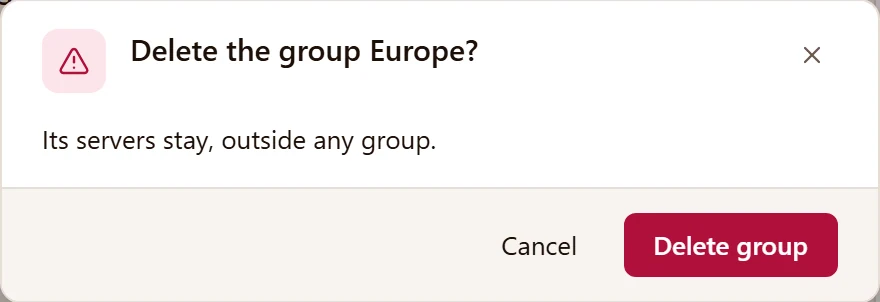
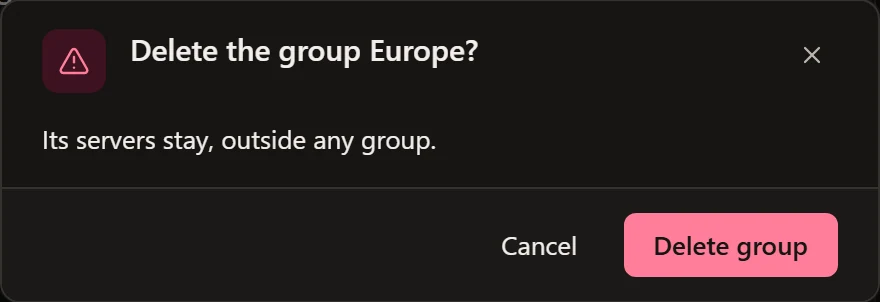
Delete group removes the group only. Its servers join the servers outside any group, above the groups; nothing else about them changes.
Colours and environment tags
Section titled “Colours and environment tags”A server’s colour and environment are set in its settings; see Name, group, environment and colour. They show:
- in the Explorer, as the stripe on the row’s left edge and the tag after the name;
- on the server’s page, the start page and in the Edit connection dialog’s subtitle, as the tag;
- in the status bar, as the tag and a small square of the colour before the server’s name;
- in the tab strip, where a query tab shows the environment’s colour as a dot and a Production server’s tabs, its server tab included, also show Prod.
Edit a server
Section titled “Edit a server”Click the pencil that appears when you point at a server, choose Edit connection… on its menu, or click Edit on its page. A server that is not connected opens the Edit connection dialog; a connected one opens the Connection view of its tab. Both are on Change a saved server.
pgjumbo has no command to copy a server. To add one like it, open New connection and fill it in. Or export the list, change the server’s name in the file and import it: the renamed server is added without a password, and the others are skipped as already in the list (see below).
Delete a server
Section titled “Delete a server”Click the bin that appears when you point at the server, or choose Delete server… on its menu.
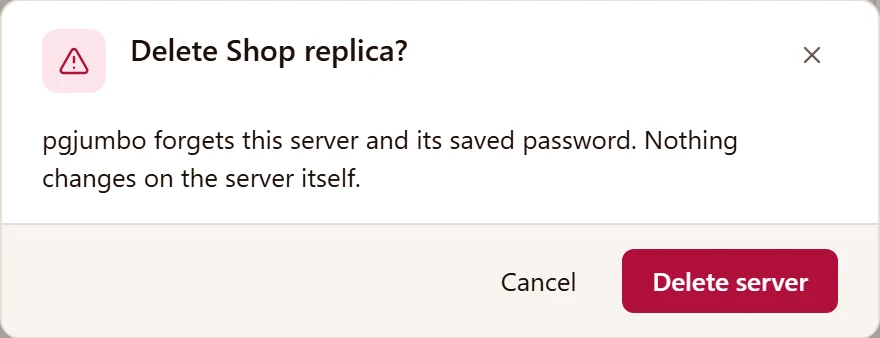
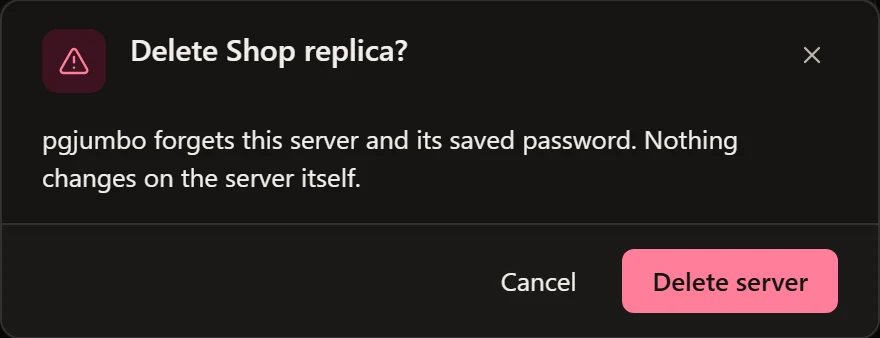
Delete server disconnects the server, removes it from the list, and deletes its saved password and SSH secret from the credential store. Its query history goes with it. Your drafts stay: a Query Tool restored later from one says This tab’s server was deleted. Its SQL is still here to copy. Nothing changes on the PostgreSQL server itself.
The Explorer’s options menu
Section titled “The Explorer’s options menu”The sliders button at the top of the Explorer, Explorer options, holds view options and the server list’s file commands.
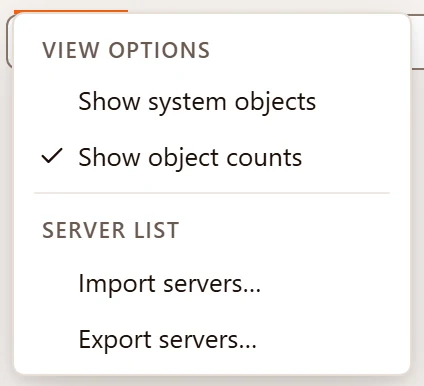
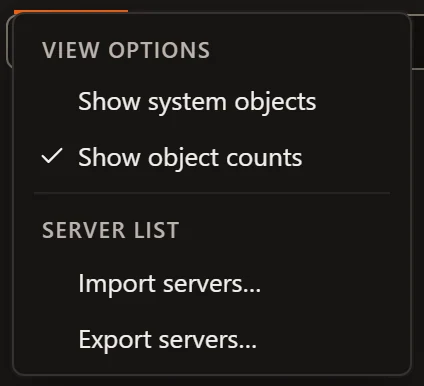
| Item | What it does |
|---|---|
| Show system objects | Shows PostgreSQL’s own schemas, databases and roles in the tree. The same as ViewSystem Objects. See The Explorer. |
| Show object counts | Shows how many objects each folder holds and the estimated rows of each table. Untick it for a quieter tree; a server’s version stays. |
| Import servers… | The same as FileImport Servers…. |
| Export servers… | The same as FileExport Servers…. |
pgjumbo remembers both view options between runs.
Move the server list to another computer
Section titled “Move the server list to another computer”Export
Section titled “Export”Choose FileExport Servers…, or Export servers… in the Explorer’s options menu. Your system’s
Save dialog, titled Export Servers, suggests pgjumbo-servers.json and shows JSON files; choose where to write
it. A message titled Servers exported then says how many servers were written. Cancelling the dialog writes
nothing; a file that cannot be written brings a message titled The servers could not be exported with the
reason.
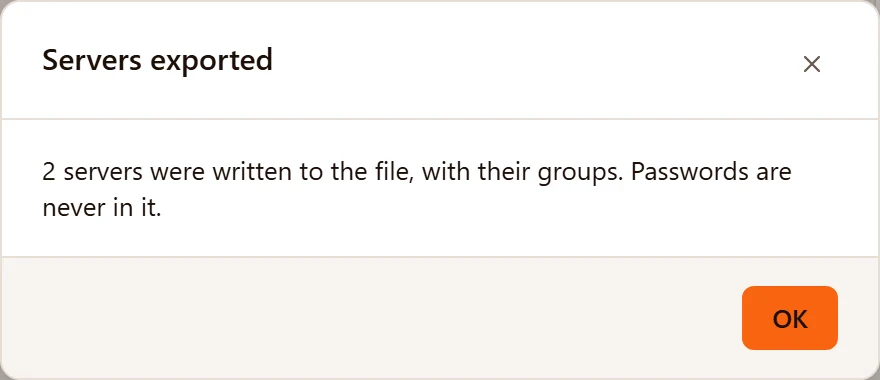
The file holds every server, with everything in its settings: name, group, colour, environment, host, port, database, user name, SSL mode, certificate paths, read-only sessions, service, SSH tunnel, AWS IAM region and profile, reader endpoint. It never holds a password, an SSH password or a key passphrase, so you can share it with your team. Certificate and key paths are written as they are: on another computer they must point at files that exist there.
It is JSON that you can read and edit:
{ "pgjumbo": 1, "groups": ["Europe"], "servers": [ { "name": "Staging EU", "group": "Europe", "color": "teal", "environment": "staging", "host": "staging.example.com", "port": 5432, "maintenanceDb": "postgres", "username": "app", "sslmode": "prefer", "sslRootCert": null, "sslCert": null, "sslKey": null, "sslCrl": null, "readOnly": false, "service": null } ]}A server with an SSH tunnel, AWS IAM sign-in or a reader endpoint also has ssh, awsIam or readerHost.
environment is dev, staging or prod; sslmode is libpq’s spelling; color is one of red, orange,
yellow, green, teal, blue, purple, pink, gray or null.
When you write a file by hand, it needs "pgjumbo": 1 and a servers list, and each server needs a name. The rest
has defaults: port 5432, database postgres, SSL mode prefer, environment dev, no group, and an empty host and
user name, which libpq reads as its own defaults (the local socket, or localhost on Windows, and your operating
system’s user name). The top-level groups list is not needed: an import makes groups from the servers’ group.
Import
Section titled “Import”Choose FileImport Servers…, or Import servers… in the Explorer’s options menu, and pick the
file. The Open dialog, titled Import Servers, shows .json files; its file-type menu also has All files.
Cancelling it changes nothing. pgjumbo reads its own files and pgAdmin’s servers.json, the file pgAdmin 4 exports
with its Import/Export Servers tool or with setup.py dump-servers, and tells you what it did:
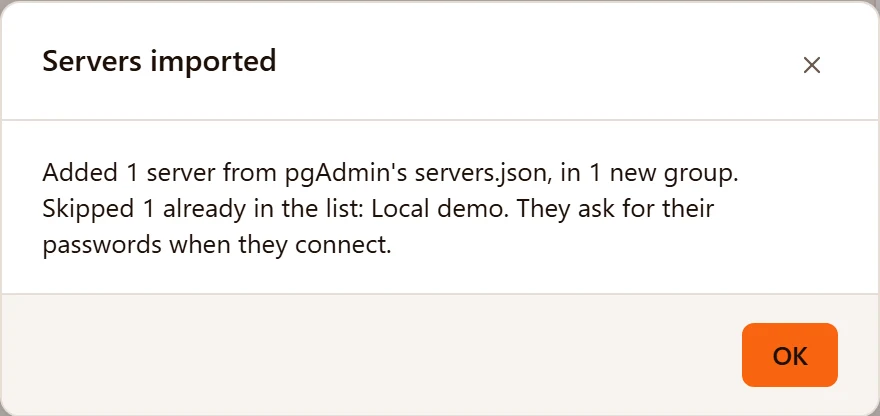
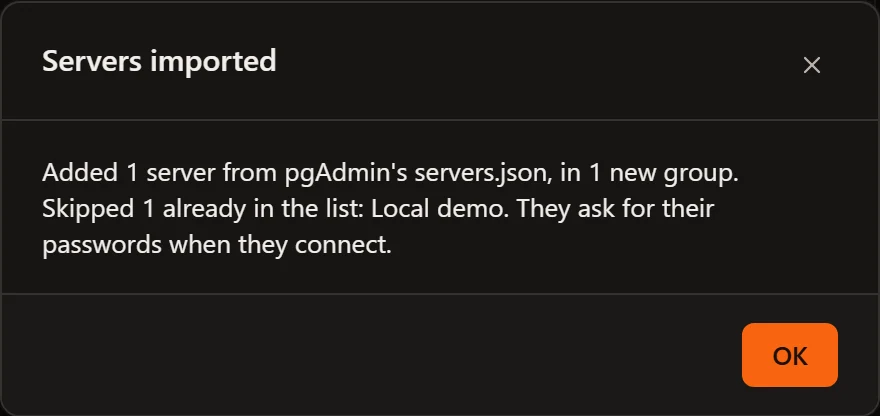
- Servers are added at the end of their groups. A group is found by name, or made when none has that name; groups that hold no server in the file are not made.
- A server already in your list is skipped and named: one with the same name, host, port, database, user name and service.
- No server comes with a password, and Save password is off for each. A server that needs a password asks for it the first time it connects, and you can save it then (When pgjumbo asks for the password).
What an import from pgAdmin brings over:
| pgAdmin | pgjumbo |
|---|---|
| Name, Group | Name, Group |
| Host name/address (or the address when the name is empty), Port | Host, Port |
| Maintenance database, Username | Database, Username |
| SSL mode, root certificate, client certificate and key, CRL | SSL mode and the certificate fields |
| Service | Service |
| SSH tunnel: host, port, username, identity file or password | SSH tunnel, signing in with Private key or Password |
Every imported pgAdmin server is Dev, has no colour and no read-only sessions: set those afterwards. Certificate and key paths inside pgAdmin’s own storage folder cannot be used from pgjumbo, so they are left out and the message says how many: choose those files again in Edit connection. A server with no name is skipped.
When the file cannot be read, a message titled The servers could not be imported says why:
| Message | Why |
|---|---|
| The file is not JSON: … | The file is not a JSON file, or it is damaged. |
| The file is neither a pgjumbo server list nor pgAdmin’s servers.json. | It is JSON, but has neither a pgjumbo key nor pgAdmin’s Servers. |
| The file is not a pgjumbo server list: … | It has a pgjumbo key, but its servers do not read as pgjumbo’s, for example a server without a name. |
| The file comes from a newer pgjumbo. Update pgjumbo to import it. | It was written by a later version of pgjumbo in a format this one does not know. |
| The file’s path, then cannot be read: and why | The file could not be opened, for example because you have no permission to read it. |
Moving from pgAtlas, the app pgjumbo was called before, needs no export: the first start copies the server list and saved passwords over. See Install pgjumbo.