
Save results to a file
Export writes a result to a CSV or JSON file on your computer: the rows pgjumbo holds, or, for CSV, every row the query returns, read again from the server. It works on any result in a Query Tool and on a data tab’s rows.
To copy rows to the clipboard instead, use Copy (see Results). To move a whole table to or
from a file with PostgreSQL’s COPY, use Import/Export Data….
Open the Export dialog
Section titled “Open the Export dialog”Show the result you want (its Data Output tab in front) and click Export above the grid, next to Copy. It is there whether the result shows as a grid, as text or on a map, and it is greyed out while the tab is running something.
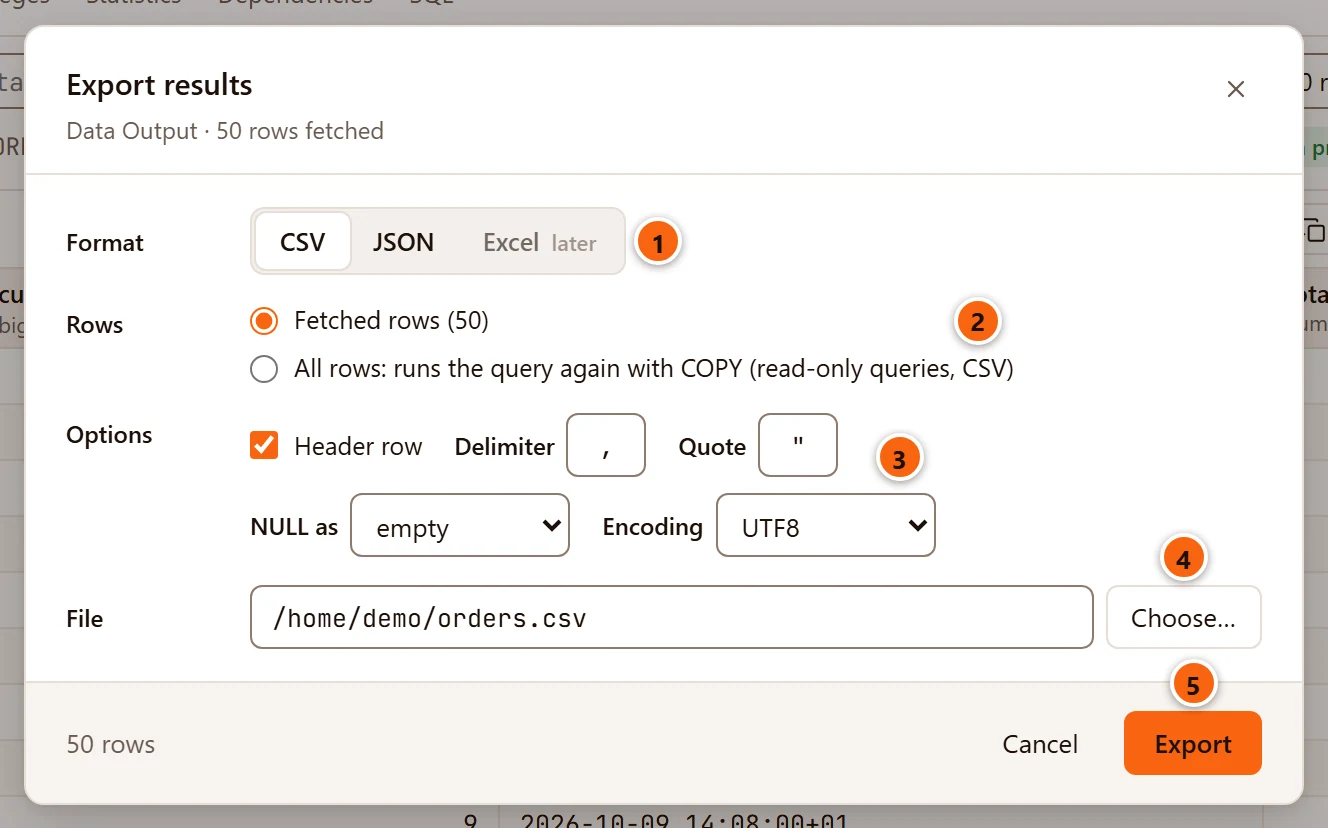
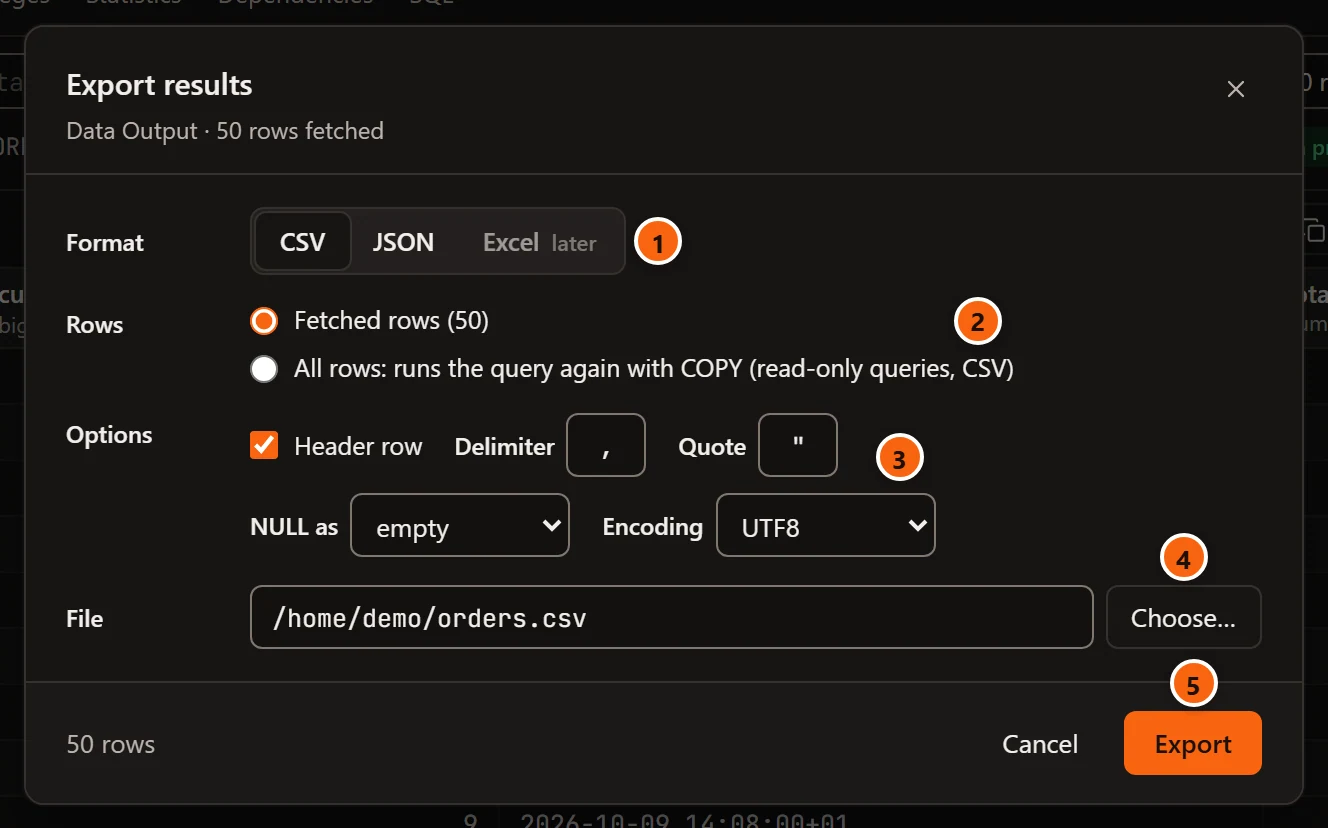
- 1 Format: CSV or JSON. Excel, marked later, is greyed out: pgjumbo cannot write Excel files yet.
- 2 Rows: the rows pgjumbo holds, or every row (see Fetched rows or all rows).
- 3 Options: how the CSV is written, and the file’s encoding. The table below lists them.
- 4 File and Choose…: where the file goes.
- 5 Export writes the file. On its left, the footer says what will be written: the number of rows, such
as
50 rows, orEvery row · runs the query again, read-onlywith All rows chosen.
The subtitle names the result and how many rows it holds, for example Data Output · 50 rows fetched, or
… 100,000 rows fetched of 1,200,000 when the result limits in Settings cut it short.
| Option | What it does |
|---|---|
| Header row | Writes the column names as the first line. CSV only; on by default. |
| Delimiter | Always a comma. The field shows it but cannot be changed. CSV only. |
| Quote | Always a double quote. Shown, not changeable. CSV only. |
| NULL as | What a NULL becomes in CSV: empty (nothing, the default), NULL (the word) or \N (as PostgreSQL’s COPY text format writes it). |
| Encoding | UTF8 (the default), LATIN1 or WIN1252. Applies to CSV and JSON. |
Choose where the file goes
Section titled “Choose where the file goes”Click Choose…. pgjumbo shows your system’s Save dialog, titled Export Results, with a name already filled in:
the table’s name in a data tab (orders.csv), or the database’s name in a Query Tool (shop-export.csv). The
dialog offers CSV files or JSON files, depending on the format, and All files.
You can also click Export straight away: when no file is chosen yet, the Save dialog opens first and the export starts as soon as you pick a file.
If you switch between CSV and JSON after choosing a file, the file is cleared when its extension no longer fits, so you choose again.
pgjumbo writes only to a file you picked in that dialog. It writes the file under a temporary name next to it and puts it in place once every row is written: a failed export leaves an existing file as it was.
Fetched rows or all rows
Section titled “Fetched rows or all rows”Fetched rows writes the rows pgjumbo holds for this result, straight from memory. Nothing runs on the server. These are the rows the grid can show, which the result limits in Settings cap at 100,000 rows or 200 MB by default. Rows you have added or changed and not saved are not in the file: it has the rows as they were read.
All rows: runs the query again with COPY (read-only queries, CSV) reads every row again from the server, however many there are, and writes them as they arrive:
- pgjumbo runs the result’s own statement again, wrapped in
COPY (…) TO STDOUT WITH (FORMAT csv, …), on the tab’s connection, inside aBEGIN READ ONLYtransaction. A statement that changes data cannot run there, so this is for queries that only read. - It is for CSV only. With JSON chosen, the choice is greyed out.
- The tab must not be in the middle of a transaction (with Auto-commit off). If it is, pgjumbo says
Finish this tab's transaction first: All rows runs the query again in a read-only transaction of its own. - Rows merged from several databases cannot be read again: the choice then says All rows: not for rows from several databases and is greyed out.
- The server runs the query as it is written. A data tab’s
SELECTkeeps its row limit, so with First 100 rows in the data bar, All rows still writes 100 rows. Choose All rows in the data bar’s row limit first.
While an All rows export runs, the footer says Exporting… and Cancel becomes Stop, which cancels the
COPY on the server; Esc does the same. Nothing is written in place of the file then.
What the file holds
Section titled “What the file holds”CSV follows the usual rules (RFC 4180): fields are separated by commas, and a field that holds a comma, a double
quote or a line break is put in double quotes, with its own quotes doubled. Values are written as PostgreSQL prints
them as text, the same as in the grid. With NULL as set to empty, an empty string is written as "", so a
reader can still tell it from NULL. With Fetched rows, pgjumbo writes the file itself and ends each line with a
carriage return and a line feed. With All rows, the file is what PostgreSQL’s COPY sends, and its lines end with
a line feed only.
JSON is an array with one object per row, each on its own line:
[ {"id": 1001, "customer_id": 1, "created_at": "2026-10-01 14:00:00+01", "total": 19.50}, {"id": 1005, "customer_id": null, "created_at": "2026-10-05 14:04:00+01", "total": 32.50}]- The keys are the column names. A name the result has twice gets a number: a second
idbecomesid_2. - Numbers and booleans are JSON numbers and booleans. A number that is
NaNorInfinitystays a string, as JSON has no such numbers. jsonandjsonbvalues are written as JSON, not as strings.- Everything else (text, dates, times,
uuid, arrays) is a string, andNULLisnull.
With JSON chosen, Header row, Delimiter, Quote and NULL as are greyed out: they do not apply.
Encodings
Section titled “Encodings”UTF8 holds every character. LATIN1 and WIN1252 hold only Western European ones. For Fetched rows, a character
the chosen encoding cannot hold is written as ?, and the message after the export counts them. For All rows, the
server converts the text itself, and PostgreSQL stops the export with an error at the first character it cannot
convert.
After the export
Section titled “After the export”The dialog closes and a message beside Data Output says what was written, for example
Exported 50 rows to orders.csv. When characters were replaced, it adds how many, such as
· 3 characters became ?.


- 1 The message stays a few seconds.
If the export fails, the dialog stays open and shows why at the bottom left. Cancel, the × or Esc closes the dialog without exporting.