
Tables
A table opens in a tab of its own, where you see its rows and change what it is made of. Your changes wait in the tab until you save them, and pgjumbo reviews them first: how that works for every object is in Object tabs and review. This page covers what is particular to tables: the Explorer’s folders under a table, the Data, Structure and Statistics views, the index dialog, and creating a table. The Settings, Privileges, Dependencies and SQL views are in Table settings and privileges.
Open a table
Section titled “Open a table”With the server connected, double-click a table in the Explorer, or select it and press Enter. Other ways in:
- Right-click it and choose Properties…, or press ⌘ I (Alt+Enter on Windows and Linux): the tab opens on Settings.
- Right-click it and choose View Data, then All rows, First 100 rows, Last 100 rows or Filtered rows…: the tab opens on Data, reading the rows that way. View data under the table’s summary in the Inspector opens it on Data too. See View data.
- Find it with Open Quickly, or double-click it in Object Details.
The tab opens on the view you used last for a table, Data the first time. A table that is open already comes to the front. Partitions and partitioned tables open the same way.
| View | What it shows | Where it is explained |
|---|---|---|
| Data | The table’s rows, which you can filter, sort and edit. | The Data view |
| Structure | Its columns, indexes and constraints, which you change in place. | The Structure view |
| Settings | Name, schema, owner, tablespace, persistence, comment, storage parameters, autovacuum, row security, replica identity and policies. | Table settings and privileges |
| Privileges | Who holds which privileges on it. | Table settings and privileges |
| Statistics | Its size, row counts, activity and maintenance. | The Statistics view |
| Dependencies | What it depends on and what uses it. | Table settings and privileges |
| SQL | The script that creates it. | Table settings and privileges |
A table in the Explorer
Section titled “A table in the Explorer”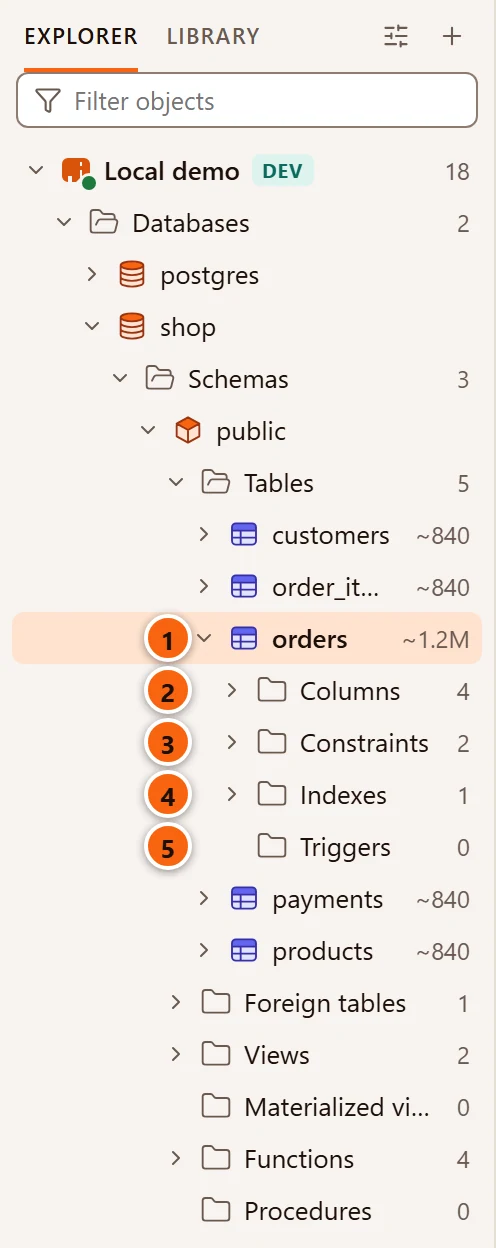
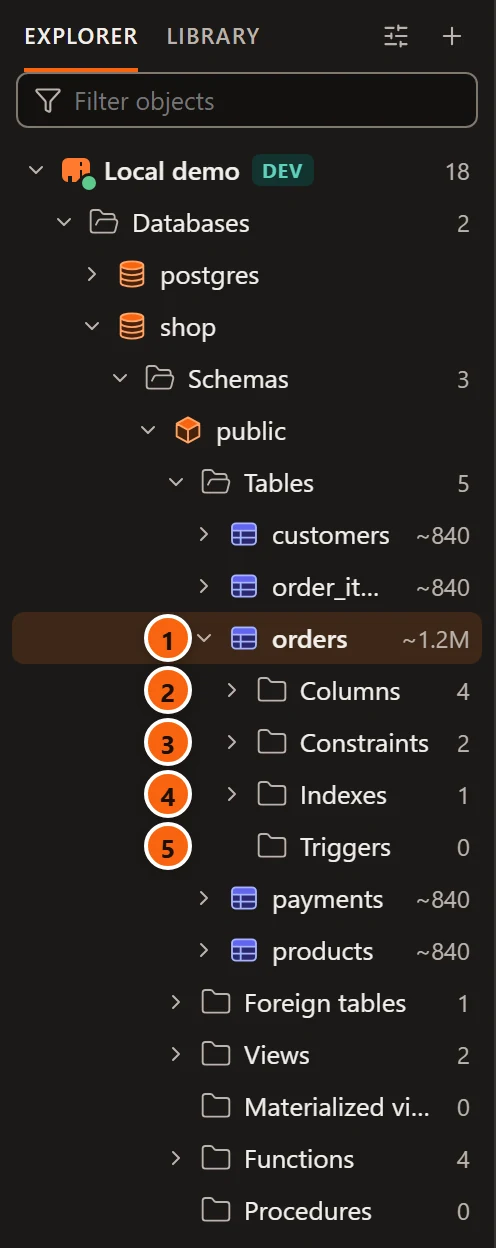
- 1 The table, with its estimated row count from the planner’s statistics:
~840,~1.2K,~1.2M. A table that was never analyzed shows no count. - 2 Columns: each column with its type, and PK on the primary key’s columns.
- 3 Constraints: each constraint, tagged PK, FK, UNIQUE, CHECK or EXCLUDE (TRIGGER for a constraint trigger).
- 4 Indexes, including those of the primary key and unique constraints, each with its method and tagged PK or UNIQUE when it is one.
- 5 Triggers.
Each folder shows how many it holds.
A partitioned table also has Partitions: each partition with its bounds (FOR VALUES FROM (…) TO (…)). A
partition is a table of its own, opens in its own tab, and may sit in another schema. Policies and Rules show
only when the table has some.
Select any of these to see it in the Inspector, with its script. Where you change each:
| Object | Change it in |
|---|---|
| Columns, constraints | The table’s Structure view. |
| Indexes | The Structure view, or the index dialog (right-click an index, Edit index…) for options the view does not show. See Edit an index. |
| Policies | The table’s Settings view. See Policies. |
| Triggers, rules | Not in the tab. Write CREATE TRIGGER or CREATE RULE in a Query Tool. Right-click one and choose Drop… to remove it. |
| Partitions | See Partitions. |
Every item of a table’s right-click menu (Query Tool, View Data, Script as, Properties…, Create index…, Tasks, Reports, Copy name, Refresh, Drop…) is listed in Right-click menus.
The Data view
Section titled “The Data view”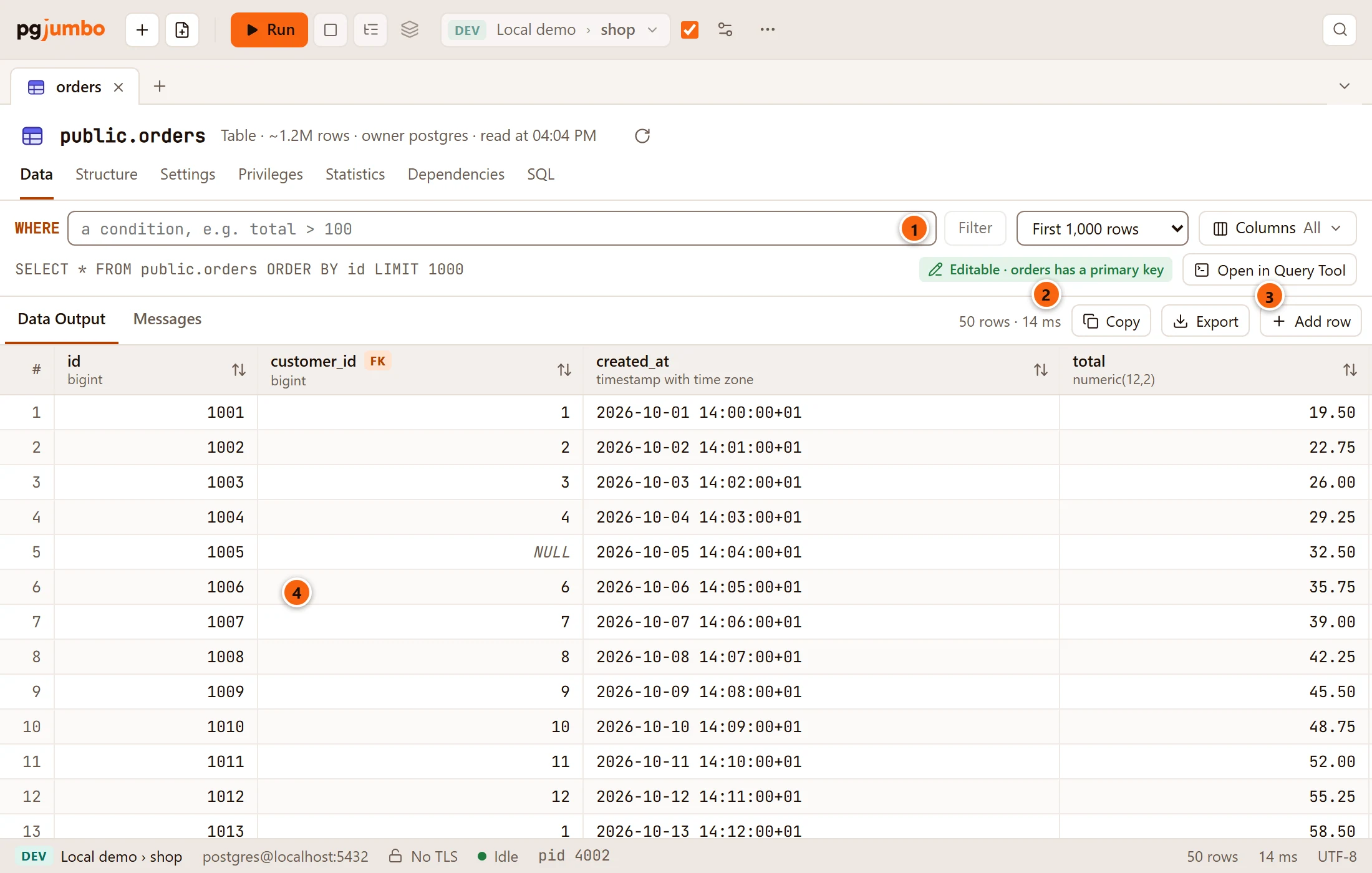
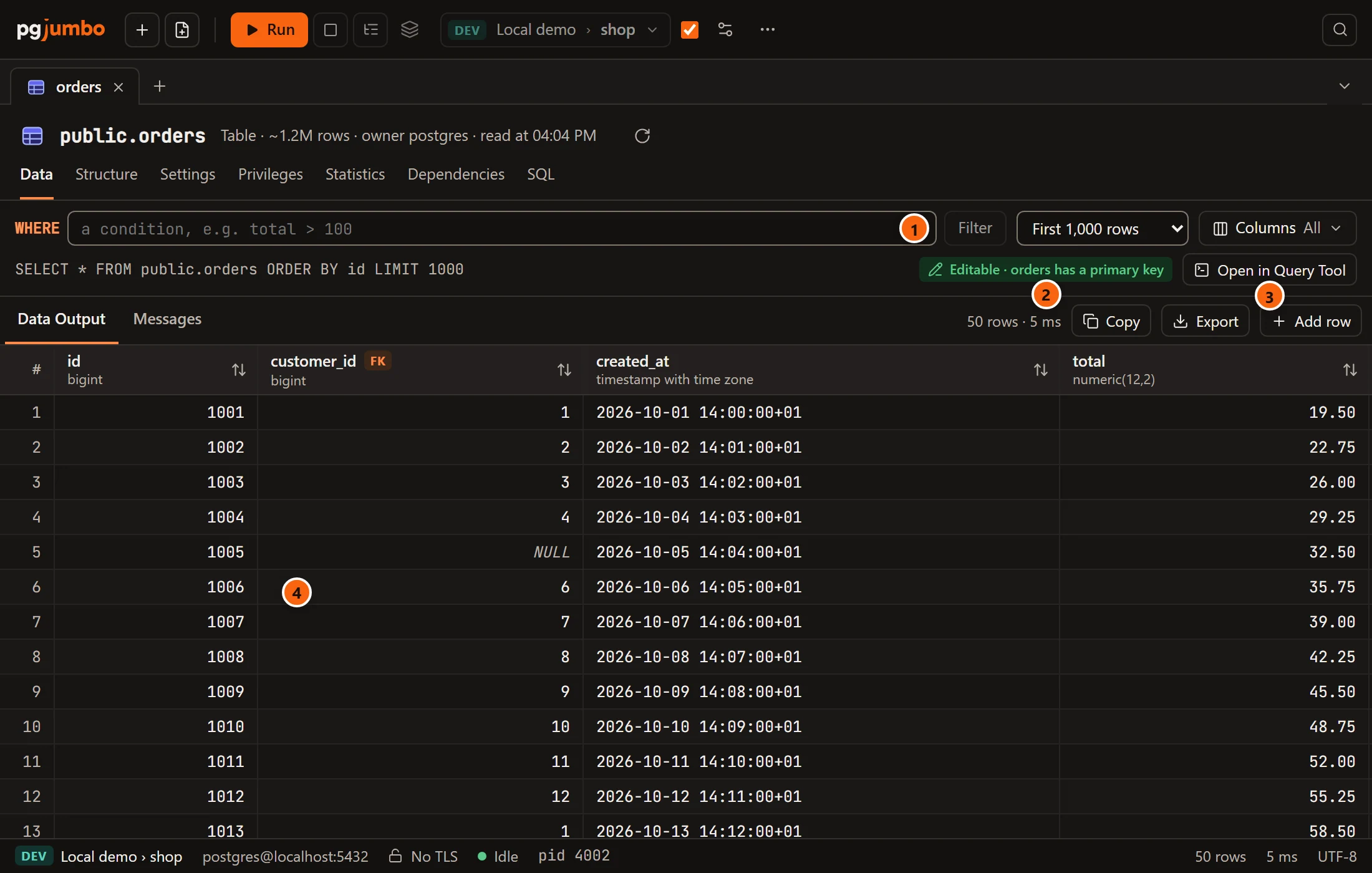
- 1 Narrow the rows with a condition, as you would write after
WHERE. - 2 Whether you can edit the rows here, and why: a table with a primary key can be edited.
- 3 Open in Query Tool opens the
SELECTin a new Query Tool. - 4 The rows, in a grid that works like the Query Tool’s results.
The rows are read on a session of their own, opened the first time you show Data (the view says Reading the rows… until then). If they cannot be read, the pending bar says The rows could not be shown: and why. While Data is in front, the Query menu’s items act on these rows, and ⌘ S (Ctrl+S on Windows and Linux) saves rows you staged in the grid. Every control of the view is in View data, and editing rows in Edit data.
The Structure view
Section titled “The Structure view”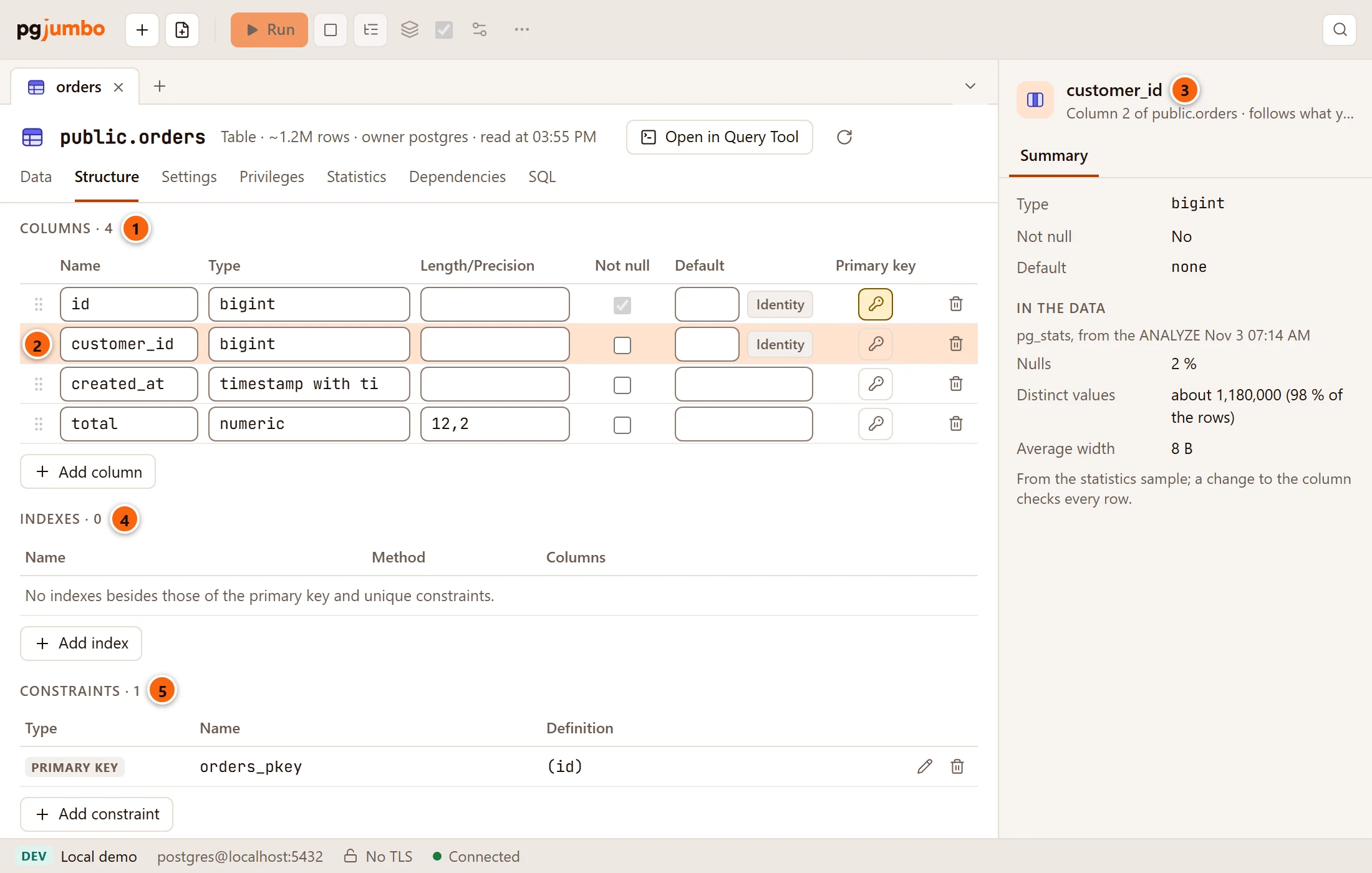
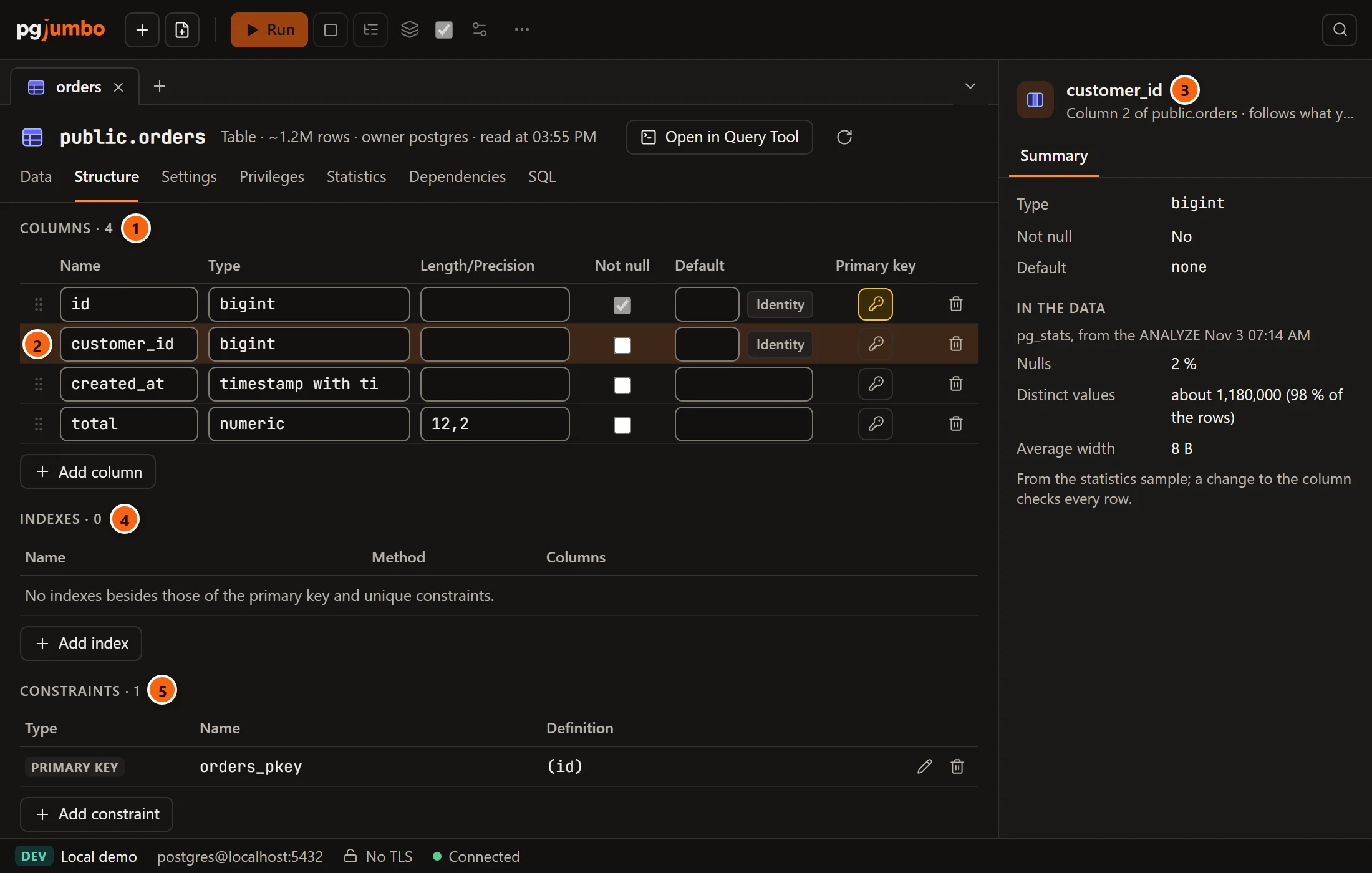
- 1 Columns and how many, one row per column. See Columns.
- 2 The column you clicked last, highlighted.
- 3 The Inspector follows that column while the tab is in front: its type, whether it is
NOT NULLand its default, each with what you staged (text → varchar), then In the data: its share of nulls, its distinct values, its average width and its most common values, frompg_stats. A column you added says it has no data until the table is saved. See The Inspector. - 4 Indexes, other than those of the primary key and unique constraints. See Indexes.
- 5 Constraints: the primary key, unique, check and foreign key constraints. See Constraints.
Under them, Generated SQL lists the statements Save would run, once you change something. A mistake shows there in
red instead, for example Pair each column of the foreign key with a column it references.,
Write the condition of the check constraint. or Choose the columns of the foreign key. Some things the
view cannot show: exclusion constraints, and indexes on expressions, partial indexes, indexes with INCLUDE columns or
with another access method. They are listed after Left as they are, as the tab cannot show them yet: and saving
leaves them alone. Constraints a partition inherits from its parent are not listed either.
Columns
Section titled “Columns”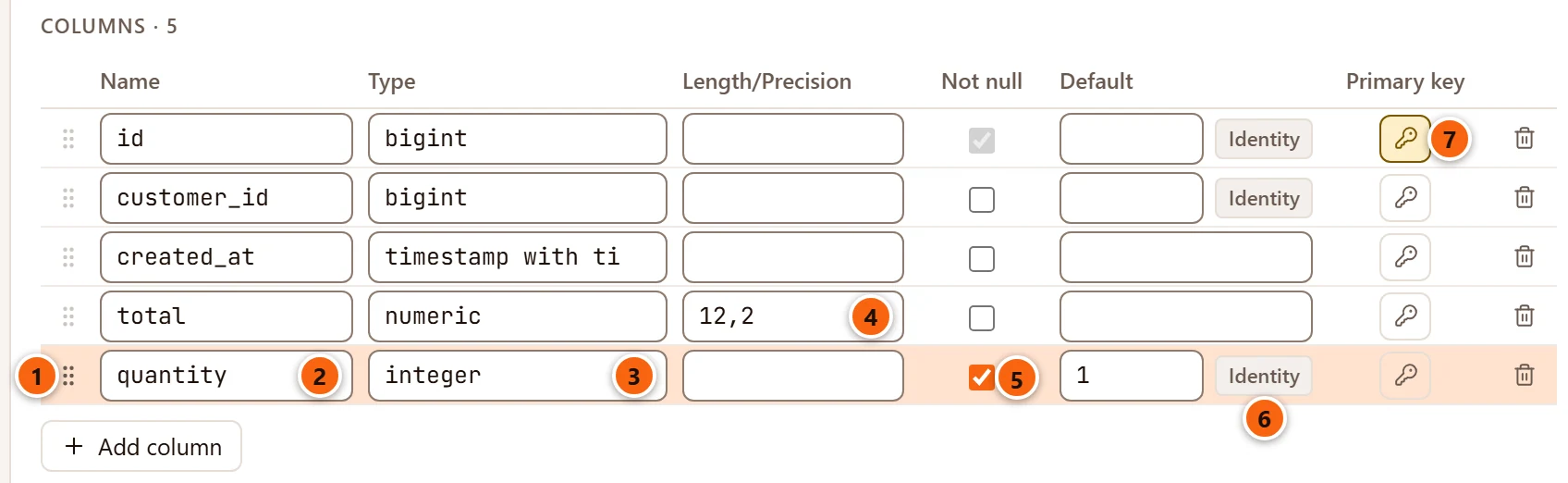
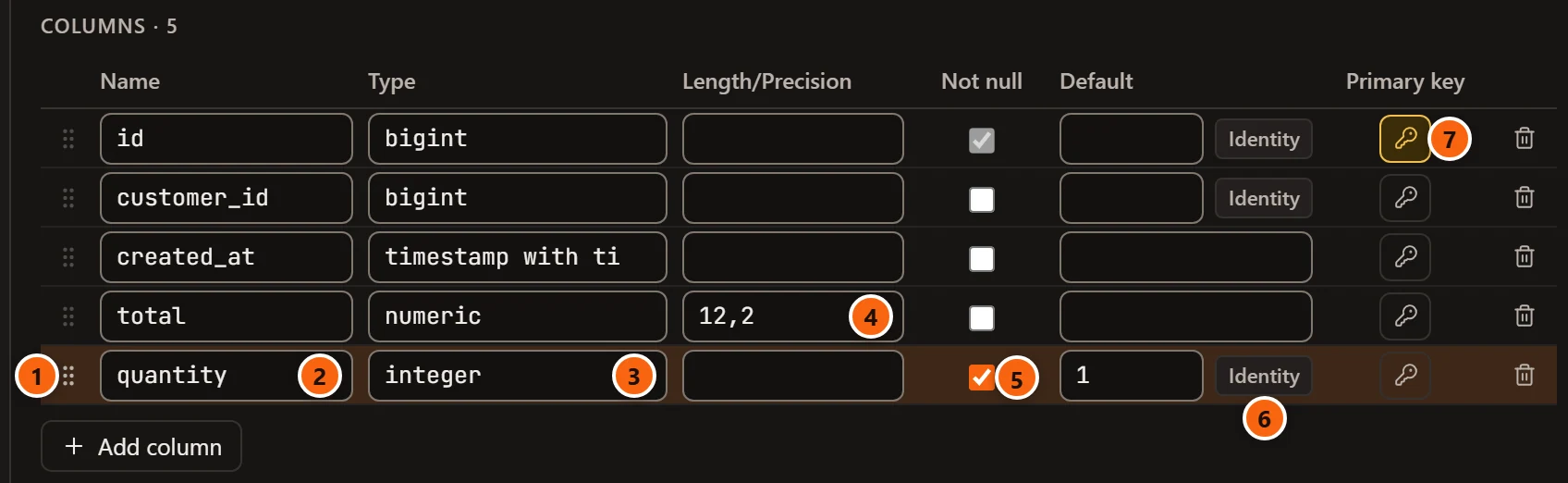
- 1 The grip. Drag it to move a new column, or focus it and press ⌥ ↑ (Alt+↑ on Windows and Linux) or ⌥ ↓ (Alt+↓ on Windows and Linux). Columns the table has already cannot move (PostgreSQL keeps a column where it is), and a column added to a table that exists always goes at its end.
- 2 Name. A new name follows the column into the constraints, indexes and partition key that list it.
- 3 Type, typed or picked from the suggestions: common types first (
bigint,integer,text,numeric,timestamptz,uuid,jsonband others), then the database’s own types. A type outsidepg_catalogand the table’s schema needs its schema, as inpublic.order_status. - 4 Length/Precision: what goes in the type’s brackets, such as
255for avarcharor12,2for anumeric. Leave it empty for none. - 5 Not null. It is ticked, and cannot be unticked, on a primary key or identity column.
- 6 Identity, beside Default on an integer column, makes the column number its rows itself
(
GENERATED ALWAYS AS IDENTITY). - 7 Primary key: press the key on each column of the primary key. A pressed key is filled. The primary key lists its columns in their order in the table.
| Control | What it does |
|---|---|
| Default | The column’s default, as an expression you write: 0, now(), 'new'. It must be one expression, with no semicolon. |
| Identity tag | Shown instead of the default on an identity column, with a choice of generated always or generated by default (whether an INSERT may give its own value). The × after it removes the identity values (DROP IDENTITY). |
| Generated tag | A generated column, followed by its expression. PostgreSQL computes its value; the tab shows it but does not change it. |
| Delete (bin) | Removes the column. It also comes out of the constraints, indexes and partition key that list it, and a unique constraint, foreign key or index left with no columns goes too. |
| Add column | Adds a text column at the end, called column_ and the next free number. |
Indexes
Section titled “Indexes”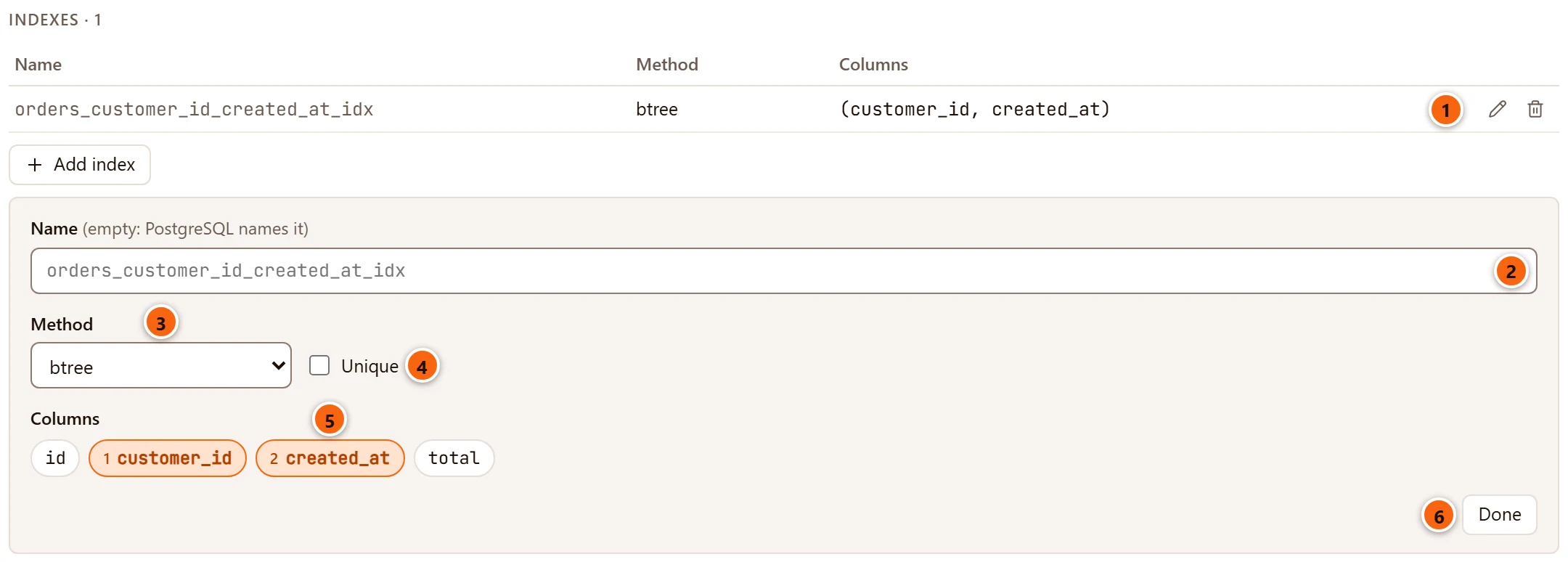
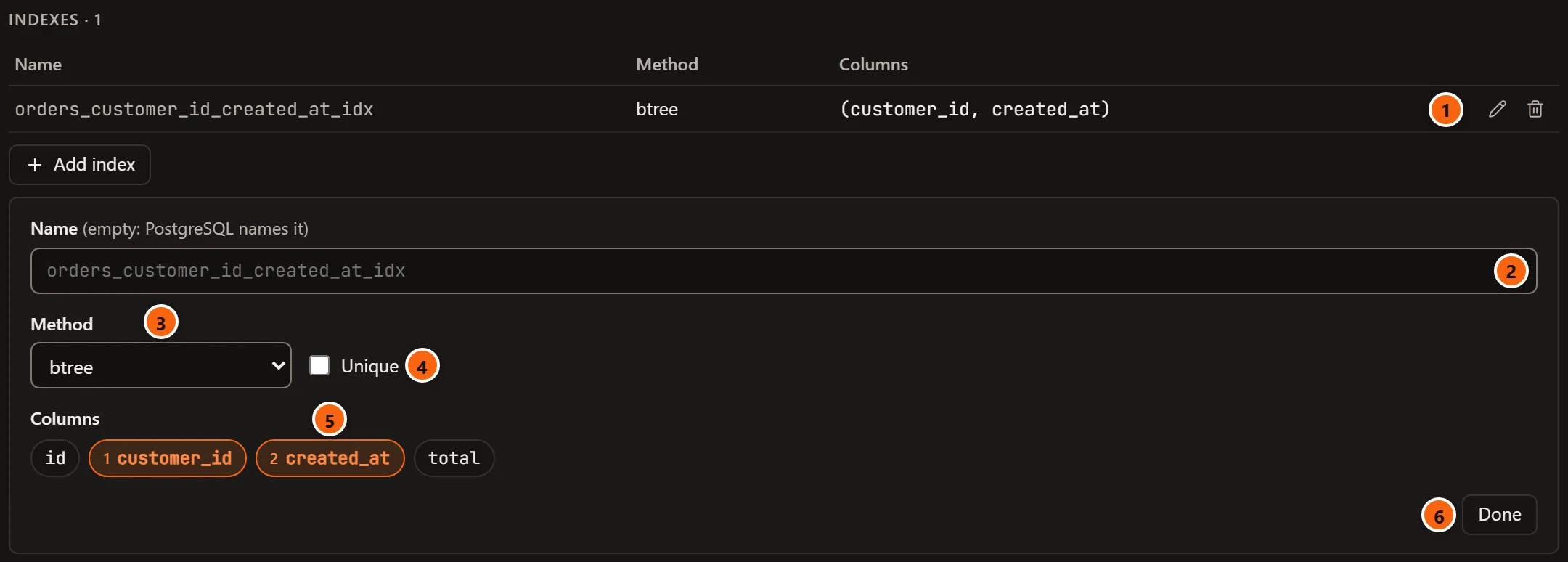
- 1 Each index in a row: its name, its method (btree · unique for a unique one) and its columns, with Edit (pencil) and Delete (bin). A name in grey is the one PostgreSQL will most likely give an index you left unnamed.
- 2 Name (empty: PostgreSQL names it). The likely name shows in grey.
- 3 Method:
btree,hash,gist,gin,brinorspgist. - 4 Unique.
- 5 Columns: click the columns in the order the index should list them. With more than one, each shows its place.
- 6 Done closes the editor. The index stays in the list.
Add index adds an index and opens its editor; with no index the list says
No indexes besides those of the primary key and unique constraints. Changing an index’s method, columns or
uniqueness drops it and creates it again; renaming it only renames it. The review offers to build a new index
CONCURRENTLY (see Safer ways). For key order, NULLS FIRST, INCLUDE
columns, a partial index or a tablespace, use the index dialog.
Constraints
Section titled “Constraints”The list shows the primary key first, from the columns you marked, then the unique, check and foreign key constraints, each with its type, its name and its definition, and Edit and Delete. A grey name is the one PostgreSQL will most likely give a constraint you left unnamed. With none, it says No constraints. Mark primary key columns on the Columns tab, or add one.
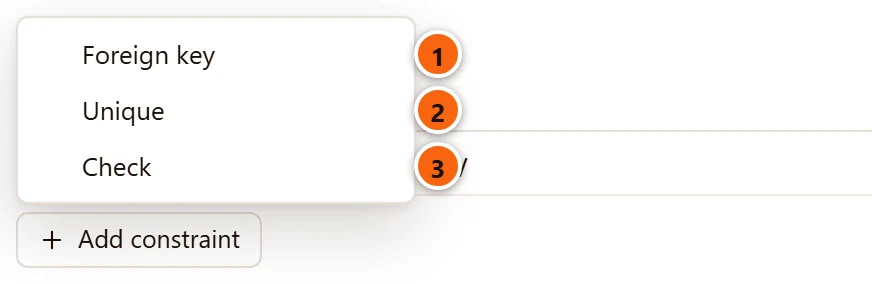
Add constraint offers:
- 1 Foreign key
- 2 Unique
- 3 Check
The new constraint opens in an editor under the list.
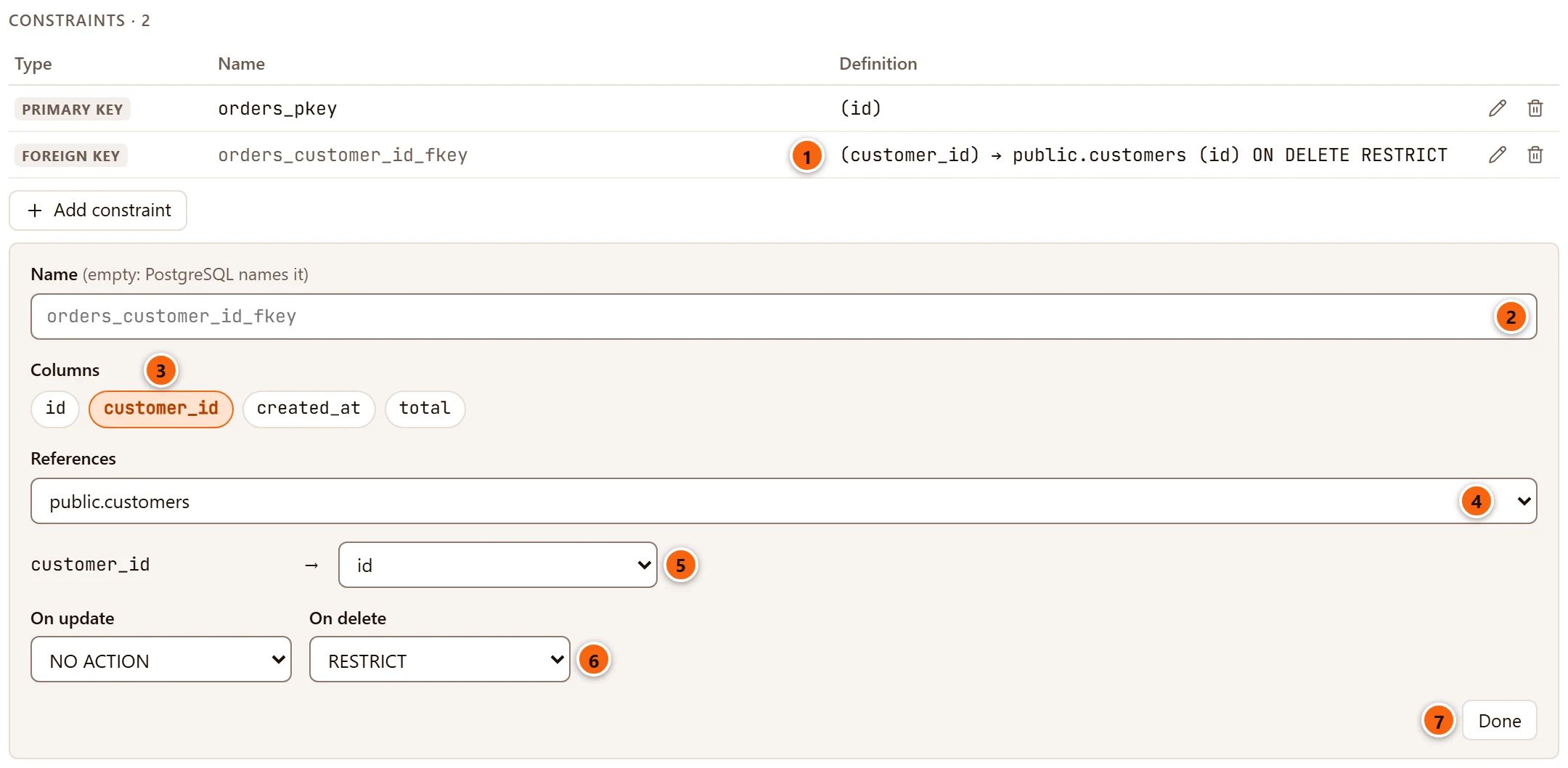
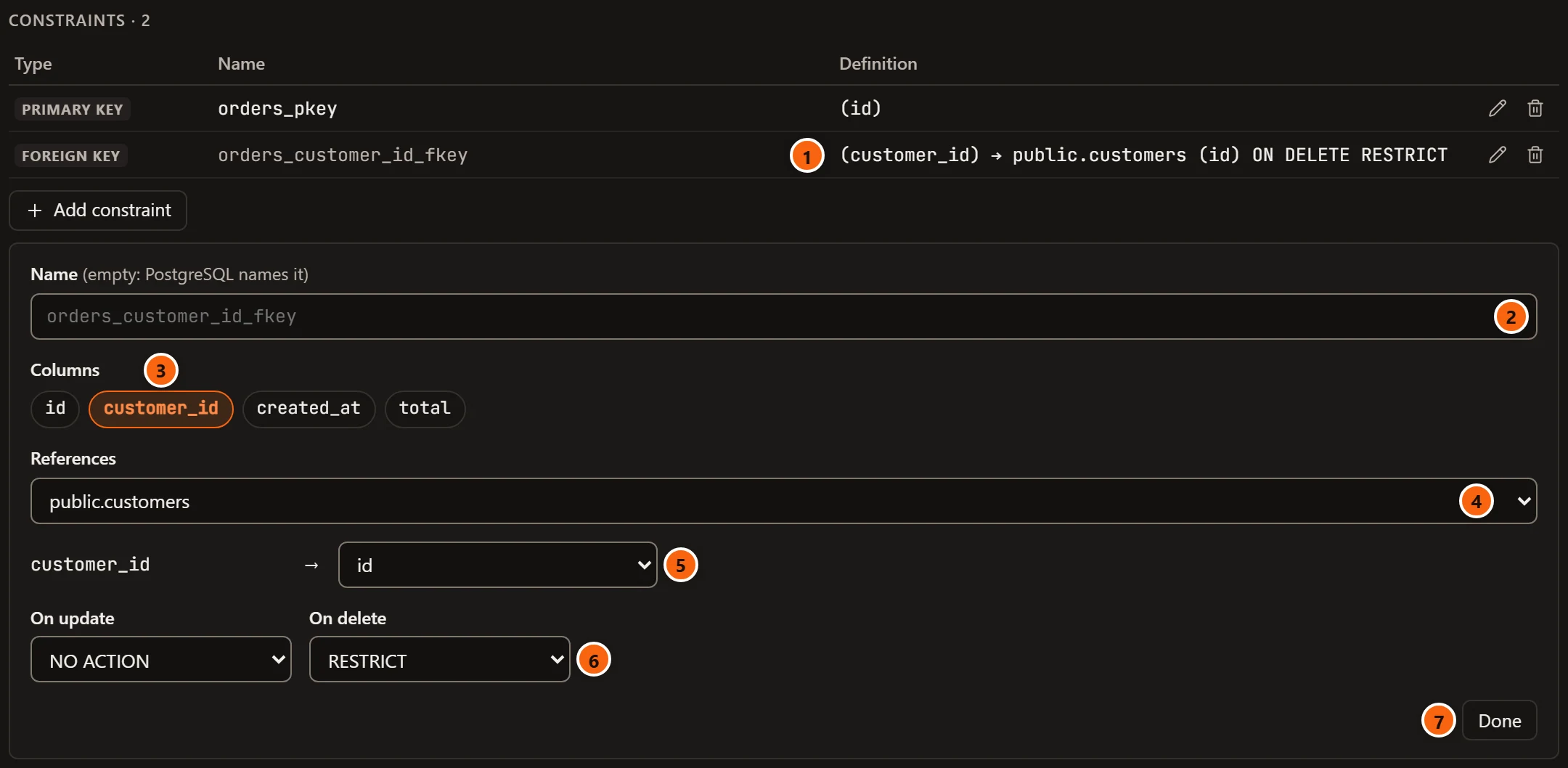
- 1 The new constraint in the list, with its definition as you build it.
- 2 Name (empty: PostgreSQL names it), with the likely name in grey.
- 3 Columns: the table’s columns that hold the reference, clicked in order.
- 4 References: the table it points to, from the database’s tables and partitioned tables (Choose a table… until you pick one).
- 5 For each of your columns, the column of that table it references (Choose… until you pick one).
- 6 On update and On delete:
NO ACTION,RESTRICT,CASCADE,SET NULLorSET DEFAULT. - 7 Done closes the editor.
A unique constraint’s editor has Name and Columns. A check constraint’s has Name and Condition, the
expression every row must satisfy, such as amount >= 0. The primary key’s Edit changes only its name (the editor
says Its columns are the ones marked on the Columns tab.), and its Delete unmarks them all.
Changing a constraint drops it and adds it again; renaming it only renames it. The review offers to add a new check or
foreign key NOT VALID and validate it after the commit, and ticks that for you on a large table (see
Safer ways).
Edit an index
Section titled “Edit an index”The index dialog has the options the Structure view leaves out. Open it by right-clicking an index in the Explorer and choosing Edit index…, or right-clicking a table, a partitioned table or its Indexes folder and choosing Create index…. Its title is Create index, or Edit index and the index’s name, with the server and database under it.
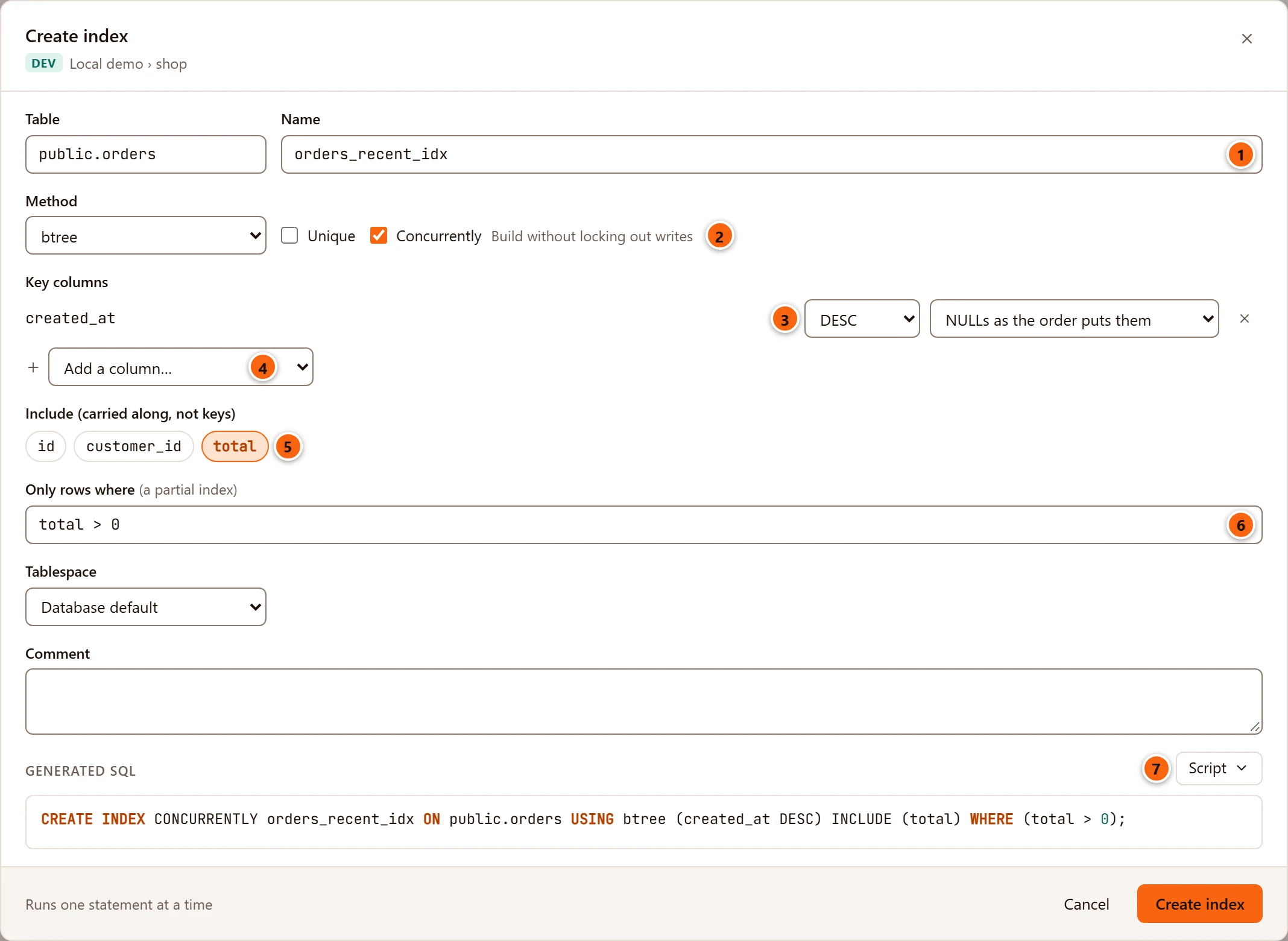
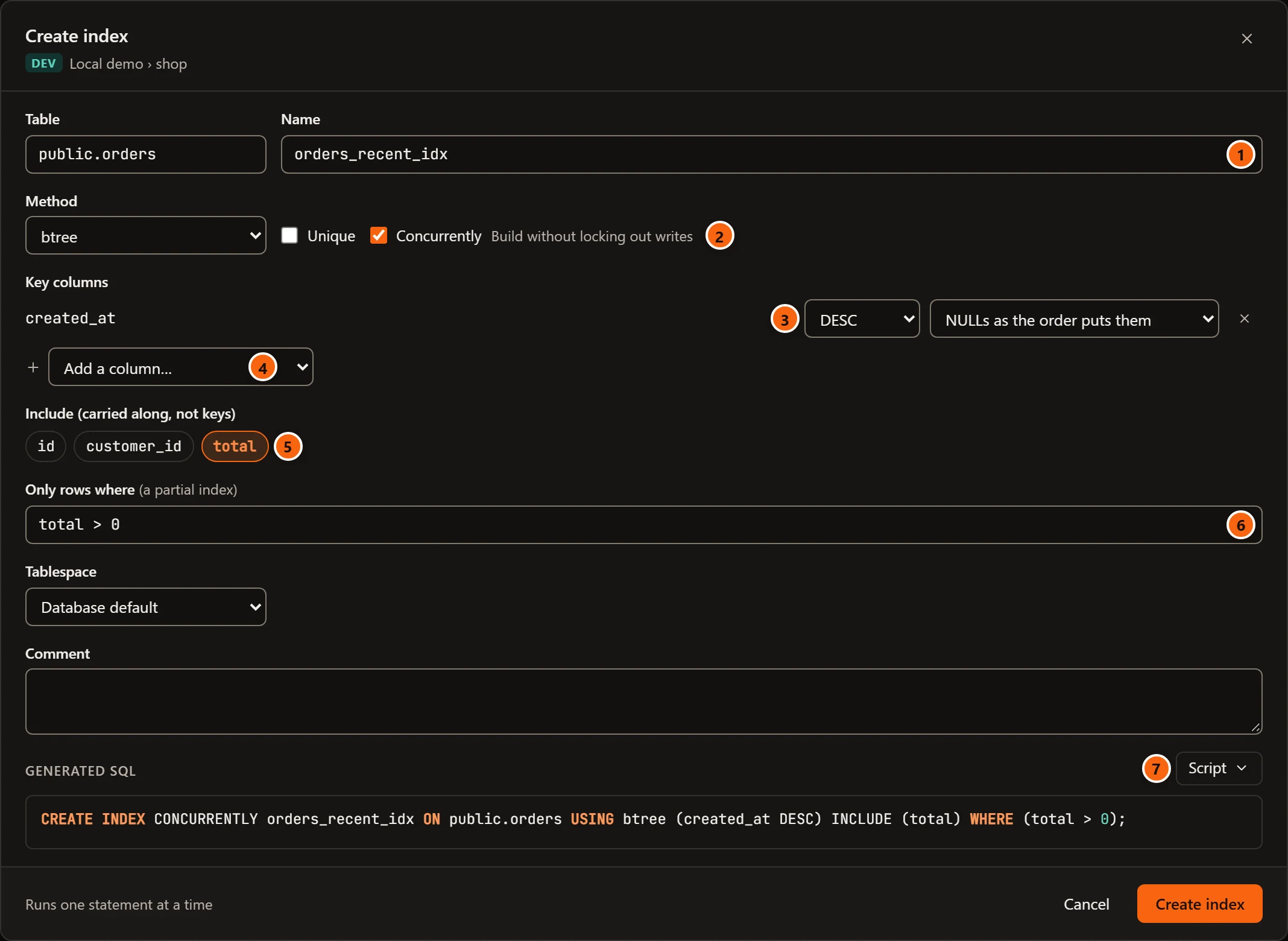
- 1 Name. Creating an index needs one; until you type it, the field shows in grey the name PostgreSQL would give it.
- 2 Concurrently (Build without locking out writes): only when you create an index. It runs
CREATE INDEX CONCURRENTLYon its own, and the dialog then says Runs one statement at a time instead of Runs in one transaction. - 3 Each key column has its order, ASC or DESC, and where its nulls go: NULLs as the order puts them, NULLS FIRST or NULLS LAST. The × removes it.
- 4 Add a column… adds a key column, in the order you add them.
- 5 Include (carried along, not keys): columns stored in the index without being keys (
INCLUDE). Only columns that are not keys are offered. - 6 Only rows where (a partial index): a condition, written as after
WHERE. - 7 Script on Generated SQL: open the statement in a Query Tool (which closes the dialog), copy it or save it, instead of running it here.
| Field | What it does |
|---|---|
| Table | The table the index is on. It cannot change. |
| Method | btree, hash, gist, gin, brin or spgist. |
| Unique | A unique index. |
| Key columns | The columns the index is built on, with their order and where their nulls go. |
| Tablespace | Where the index is stored: Database default or a tablespace. Changing it on an index that exists moves it. |
| Comment | The index’s comment. |
| Generated SQL | The statement as pgjumbo writes it, or why it cannot yet (Name the index to see its SQL., or Nothing has changed yet. when you edit one). |
Create index or Save runs the statement at once, on a connection of its own, without a review: in one transaction, or alone when you ticked Concurrently. Cancel closes the dialog and runs nothing. If the server refuses, its error shows at the bottom of the dialog and the dialog stays open.
When you edit an index and change its method, uniqueness, keys, included columns or condition, pgjumbo drops it and
creates it again in one transaction, without CONCURRENTLY. Dropping an index locks its table, so nothing reads or
writes the table until the new index is built. A new name, tablespace or comment is changed in place.
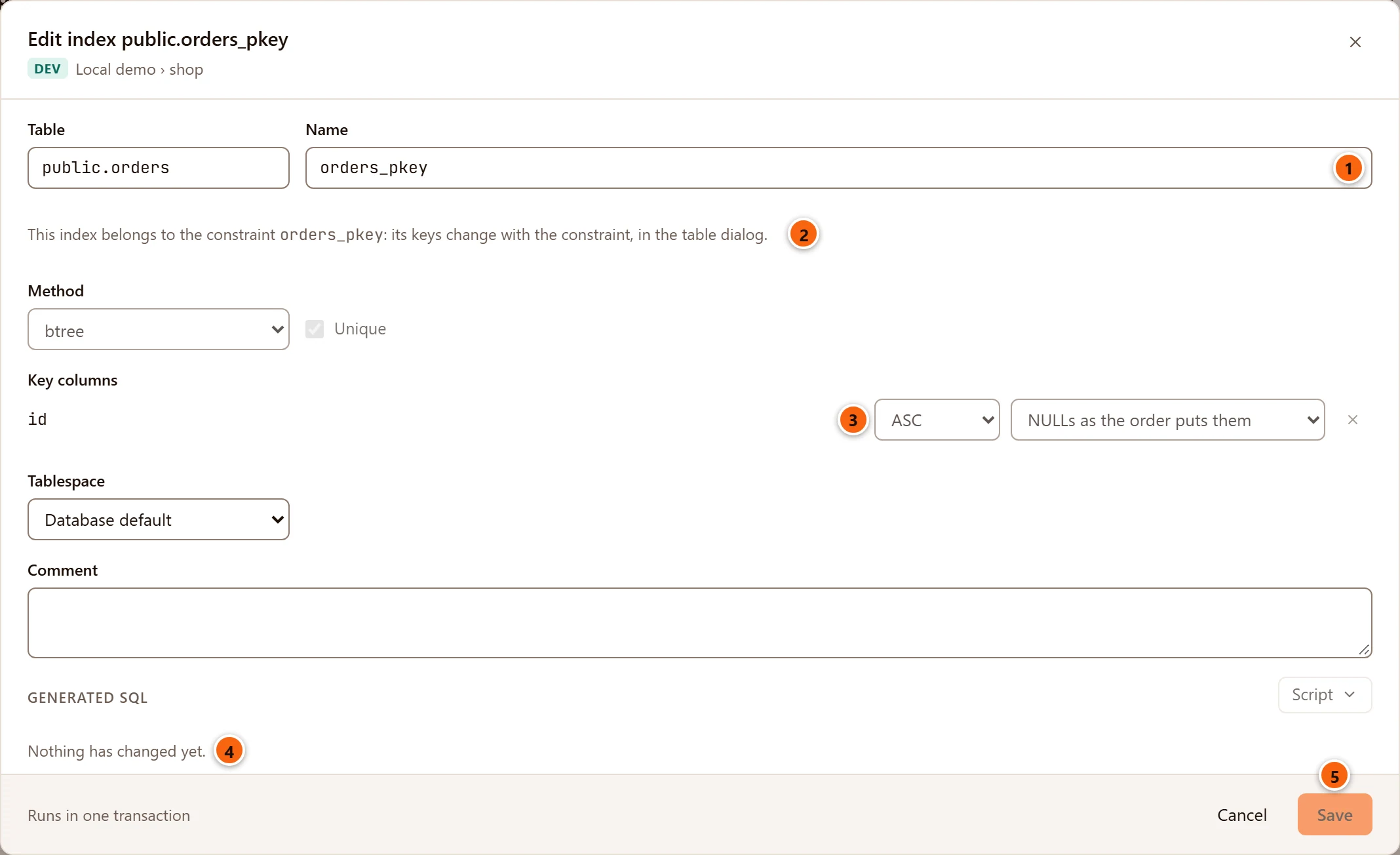
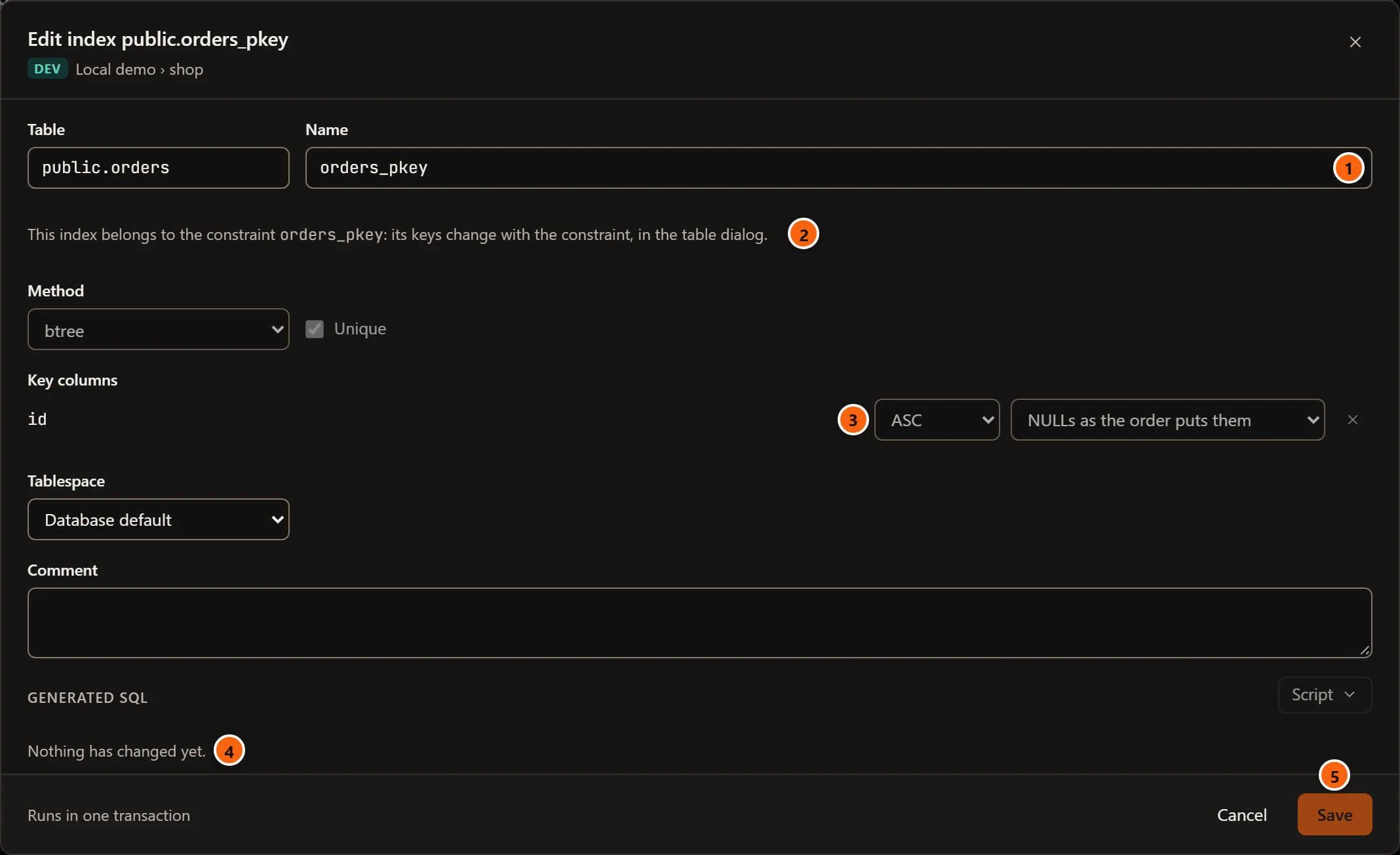
- 1 Name: a new name renames the index (
ALTER INDEX … RENAME TO). - 2 An index that belongs to a primary key or unique constraint keeps its keys: the dialog names the constraint and says its keys change with it. Change them on the table’s Structure view.
- 3 Its method, Unique and key columns are turned off, and Include and Only rows where are not shown. Its tablespace and comment can still change.
- 4 Nothing has changed yet. until you change a field.
- 5 Save stays off until something changed.
An index whose keys the dialog cannot show (on an expression, say) shows its Definition instead, with The dialog cannot show these keys, so only the name, tablespace and comment can change.
Create a table
Section titled “Create a table”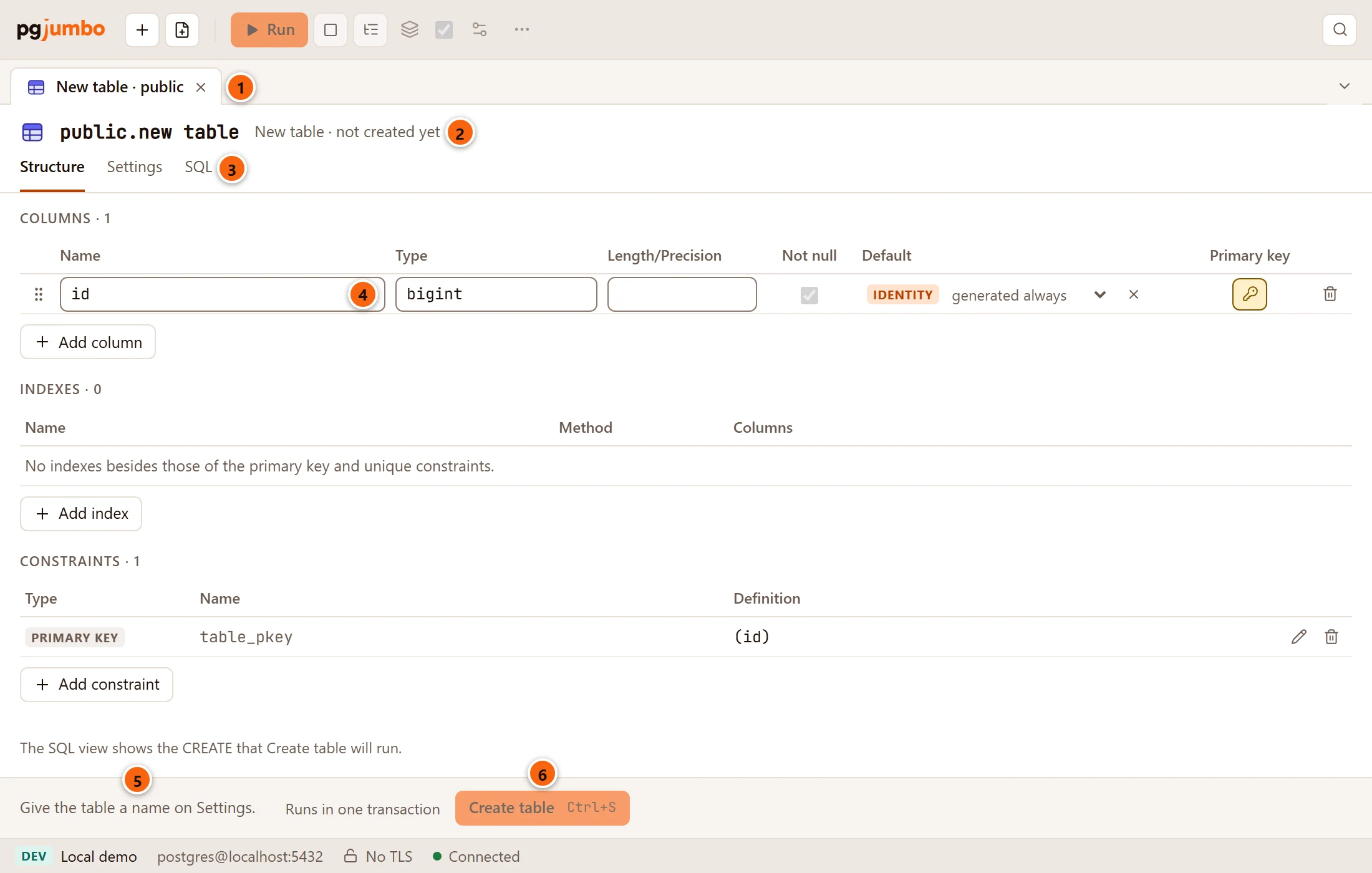
-
Right-click a schema’s Tables folder and choose Create table…. On a schema or a database it is under Create, as Table…; from a database the table goes in
publicwhen there is one. -
An empty tab opens on Structure, with one column:
id, abigintnumbered by identity values and the primary key. Add and change columns, indexes and constraints as for any table. -
On Settings, give the table a Name, and change its schema, owner, tablespace or other settings if you need to. See The Settings view.
-
On SQL, check the
CREATE TABLEscript pgjumbo will run. -
Click Create table, or press ⌘ S (Ctrl+S on Windows and Linux).
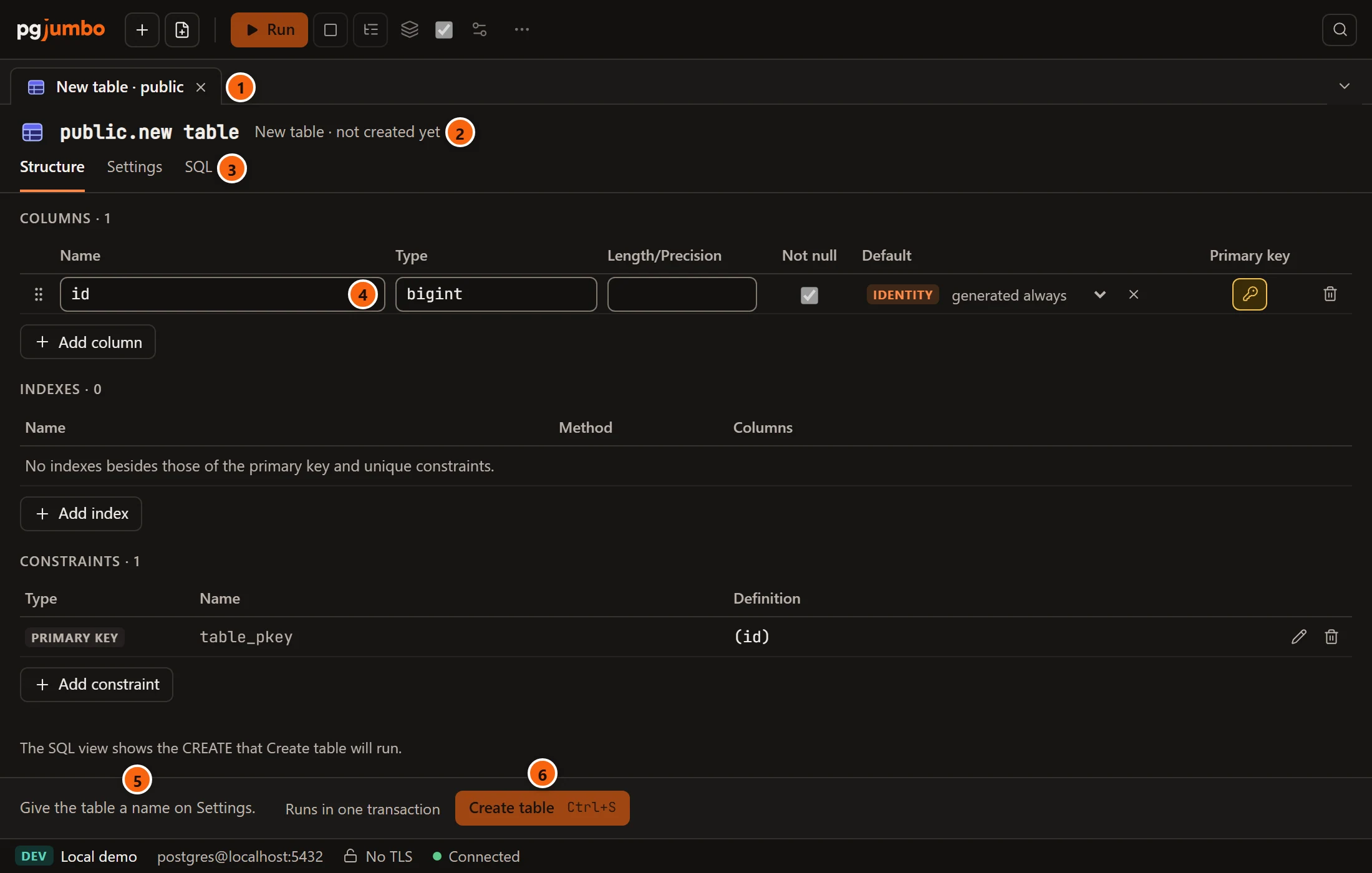
- 1 The tab is called New table · and its schema until the table exists.
- 2 The header says New table · not created yet.
- 3 A new table has three views: Structure, Settings and SQL.
- 4 The
idcolumn it starts with. - 5 Give the table a name on Settings. until it has one.
- 6 Create table runs the script in one transaction. It stays off until the table has a name.
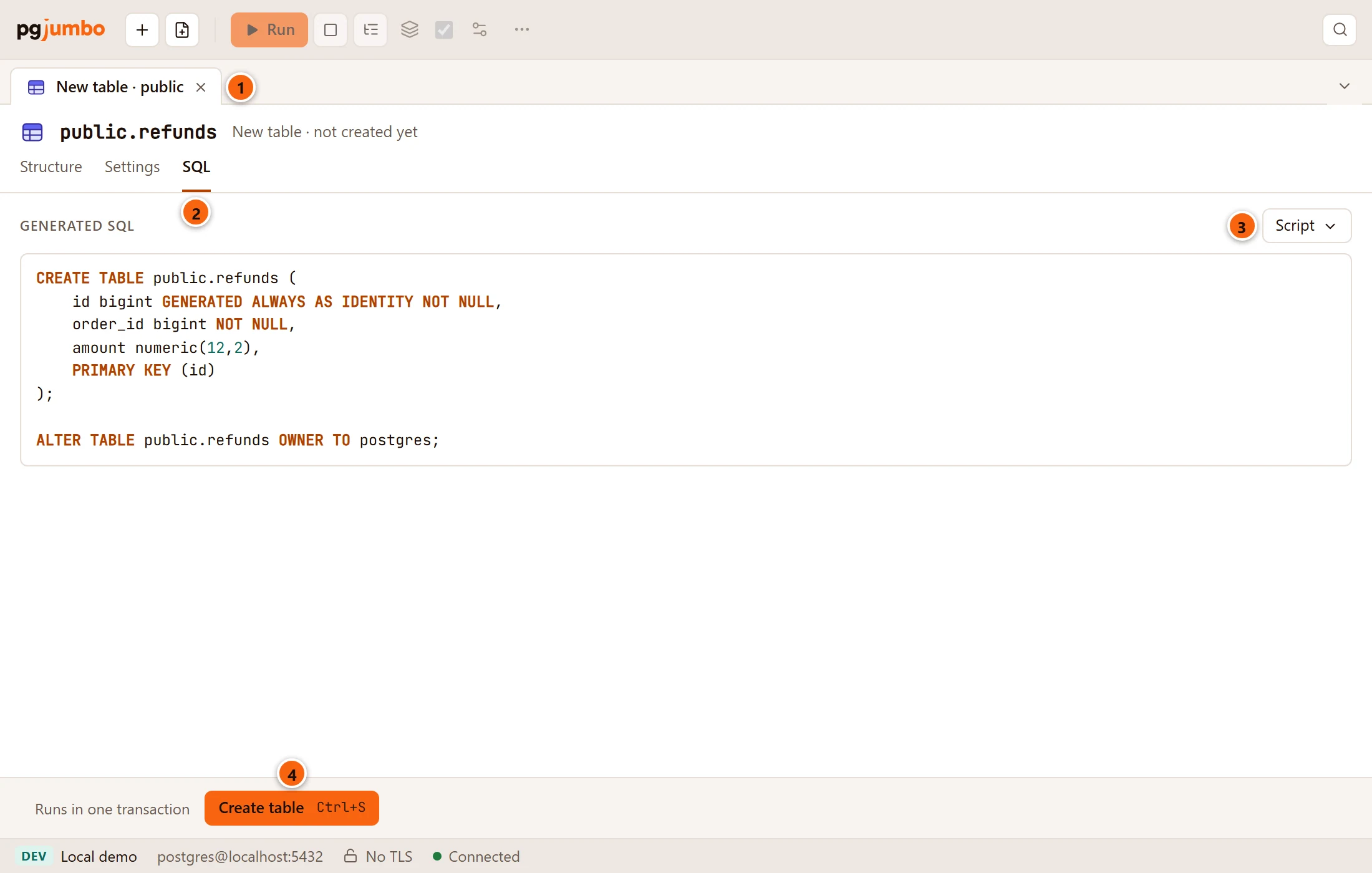
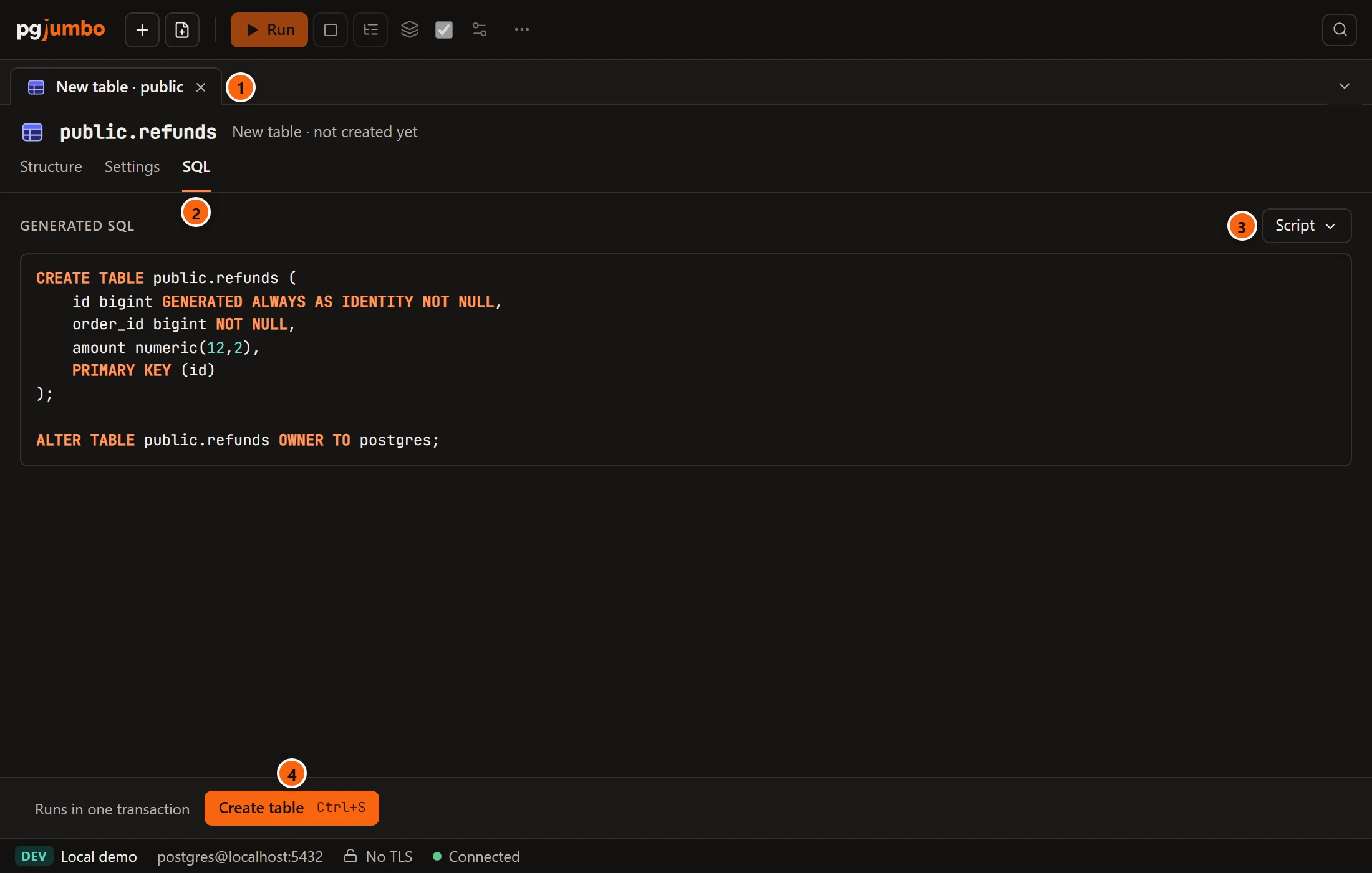
- 1 The tab of the new table.
- 2 The SQL view, with the script under Generated SQL. Until the table has a name it says Name the table on Settings to see its SQL.; a problem, such as a type that does not exist, shows in red instead.
- 3 Script: open the script in a Query Tool, copy it or save it, instead of creating the table here.
- 4 Create table.
The script is CREATE TABLE with the columns, the primary key and the constraints, then the owner, comments and
indexes, then the storage parameters, row security, policies and replica identity you set on Settings.
When it works, the tab becomes the table’s: it reads the table from the server, opens its other views, and says public.refunds was created in the bar. The table appears in the Explorer. When it fails, nothing was created, the server’s error shows in the bar, and the tab keeps everything you typed. Once the new table has a name, its tab asks before it closes: Create the new table?, with Cancel, Don’t Save and Back to the tab (see Close a tab with changes). Without a name it closes at once.
A partitioned table
Section titled “A partitioned table”

A new table’s Settings view has a Partitioning section:
- 1 Partitioned table makes it a partitioned table.
- 2 Partition by:
RANGE,LISTorHASH. - 3 Partition key: the columns, clicked in order.
Partitioning cannot change once the table is created. A primary key or unique constraint of a partitioned table must include the partition key, or PostgreSQL refuses to create it.
Partitions
Section titled “Partitions”A partitioned table’s tab is the same as any table’s, and its header says Partitioned table. Its partitions are in the Partitions folder under it in the Explorer, each opening in a tab of its own.
The tab does not add, attach or detach partitions. Write the statement in a Query Tool, or start from a template in the Library: Table partitioned by month, Add a monthly partition and Detach a partition without blocking.
The Statistics view
Section titled “The Statistics view”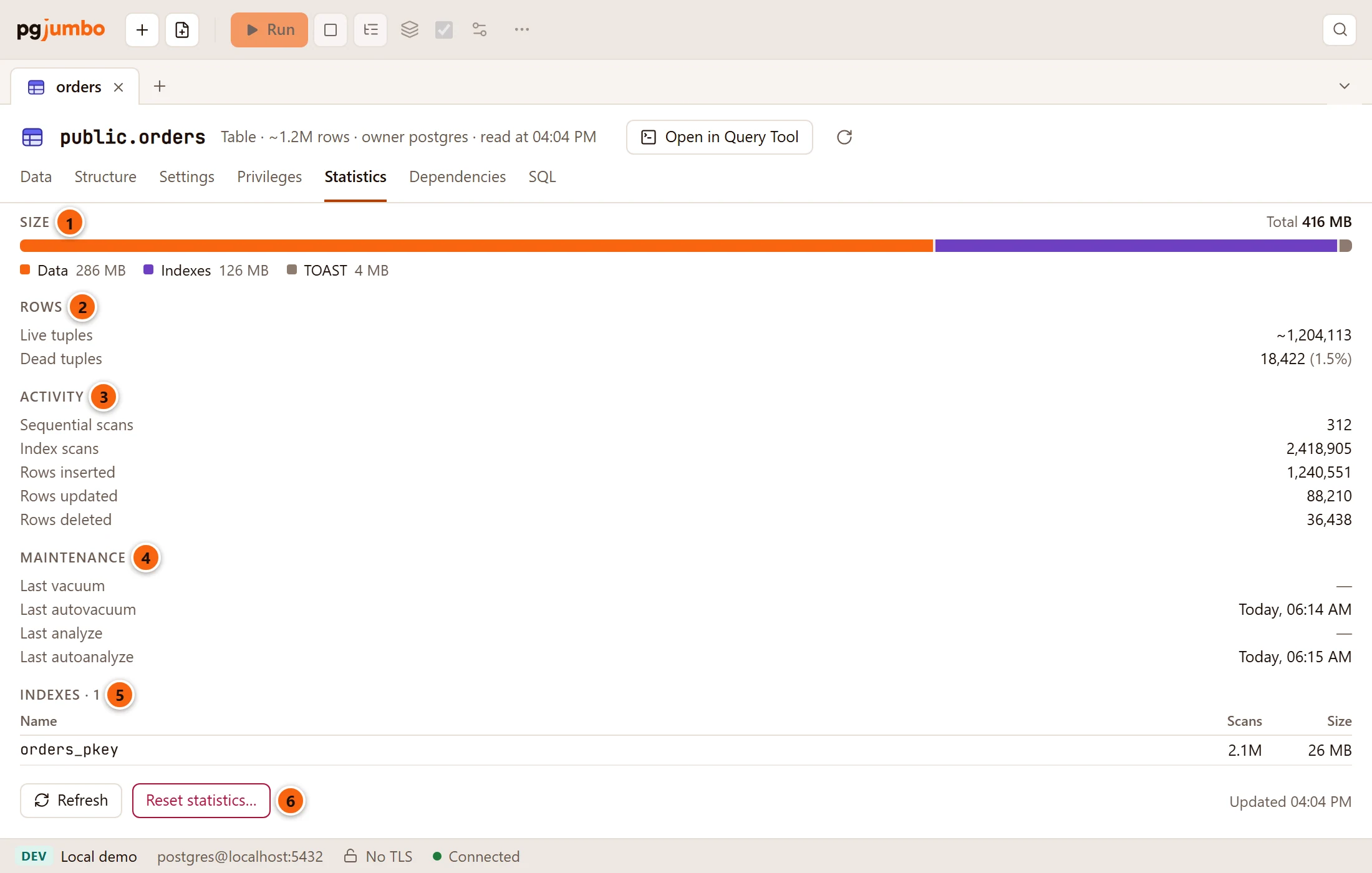
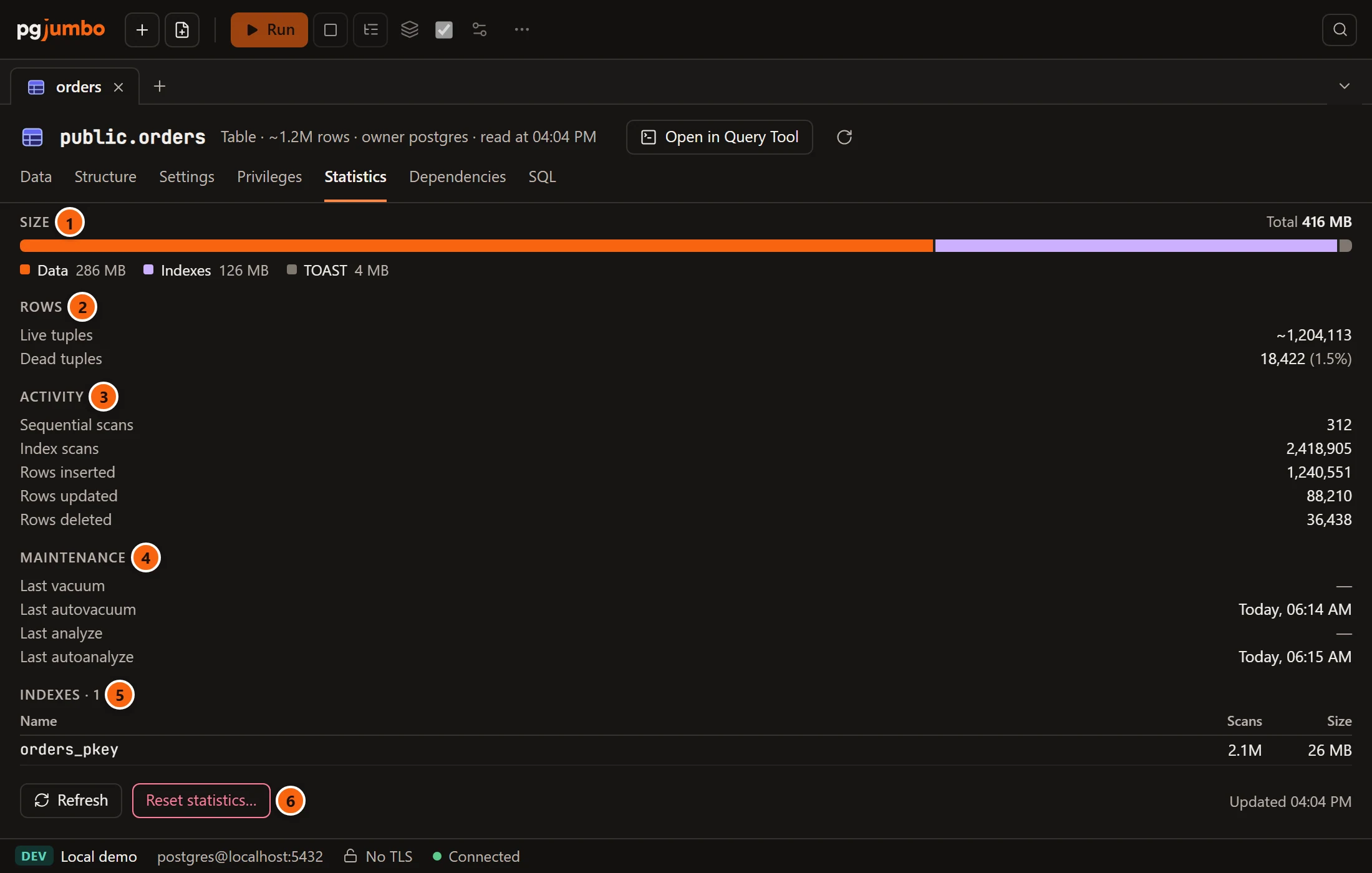
The numbers come from PostgreSQL’s statistics views (pg_stat_all_tables and the size functions).
- 1 Size: the total, and a bar split into Data, Indexes and TOAST. On a partitioned table the sizes add up its partitions, and a line says how many.
- 2 Rows: Live tuples (estimated) and Dead tuples, with their share.
- 3 Activity: Sequential scans, Index scans, Rows inserted, Rows updated and Rows deleted since the counts were last reset.
- 4 Maintenance: when the table was last vacuumed and analyzed, by hand and by autovacuum; a dash for never.
- 5 Indexes: each index with its scans and its size.
- 6 Reset statistics… asks first (below). A partitioned table, whose own counters are its partitions’, has no such button.
Refresh reads the numbers again, and Updated gives the time they were read. The Indexes section shows only when the table has indexes. To vacuum or analyze the table, right-click it and choose TasksMaintenance… (see Maintenance and jobs).
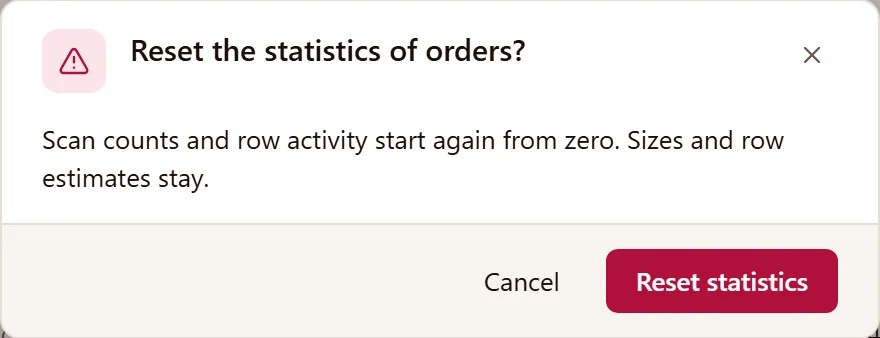
Reset statistics runs pg_stat_reset_single_table_counters on the table: scan counts and row activity start again
from zero, while sizes and row estimates stay. Cancel leaves them as they are. The same reset is on the table’s
right-click menu under TasksReset statistics.