
Install pgjumbo
pgjumbo is free. You download its installer from pgjumbo.com/download and install it like any other desktop app. The Download page shows the installer for your system first.
What you need
Section titled “What you need”| macOS | macOS 13 or later, on Apple silicon or Intel. One download covers both. |
| Windows | Windows 10 or 11, on an x64 processor (Intel or AMD) or an ARM64 processor (such as Snapdragon). Each has its own installers. pgjumbo uses Microsoft’s WebView2, which Windows 11 has; on Windows 10 the installer downloads and adds it if it is missing. |
| Linux | A desktop on an x64 or ARM64 processor, with WebKitGTK 4.1: Ubuntu 22.04 or later, Debian 12 or later, current Fedora, or another distribution with WebKitGTK 4.1. Each processor has its own packages. |
| PostgreSQL | Servers running PostgreSQL 14 to 18. Versions 12 and 13 work on a best-effort basis. |
Backup, restore and copying a database also use PostgreSQL’s own client programs; Back up and restore says where pgjumbo finds them. Everything else works without them.
Pick the file for your processor
Section titled “Pick the file for your processor”On a Mac there is nothing to pick: the disk image holds one app that runs on Apple silicon and on Intel Macs.
Windows and Linux have two sets of installers: one for x64 processors (Intel and AMD) and one for ARM64 processors. On the Download page each system lists its x64 files first, under x64, and its ARM64 files after them, under ARM64; the line under each file’s name starts with its processor. The box at the top of the page offers one file for your system: the ARM64 one when your browser says the computer has an ARM processor and the version has ARM64 files, the x64 one otherwise. Not every browser says, so check the processor before you download:
| System | How to tell |
|---|---|
| Windows | Open SettingsSystemAbout. Under Device specifications, System type ends in x64-based processor or ARM-based processor. |
| Linux | Run uname -m in a terminal. It prints x86_64 on x64 and aarch64 on ARM64. |
Each file’s name says its processor too. In this table <version> stands for the version number:
| File | x64 | ARM64 |
|---|---|---|
| Installer (.exe) for Windows | pgjumbo_<version>_x64-setup.exe |
pgjumbo_<version>_arm64-setup.exe |
| Windows Installer (.msi) | pgjumbo_<version>_x64_en-US.msi |
pgjumbo_<version>_arm64_en-US.msi |
| AppImage | pgjumbo_<version>_amd64.AppImage |
pgjumbo_<version>_aarch64.AppImage |
| Debian and Ubuntu (.deb) | pgjumbo_<version>_amd64.deb |
pgjumbo_<version>_arm64.deb |
| Fedora (.rpm) | pgjumbo-<version>-1.x86_64.rpm |
pgjumbo-<version>-1.aarch64.rpm |
The Mac’s disk image is pgjumbo_<version>_universal.dmg.
To see which one you installed, choose HelpCopy Diagnostics… in pgjumbo: its Platform line
ends in x86_64 after an x64 installer and aarch64 after an ARM64 one. On a Mac it names the processor the app runs
on. Copy Diagnostics shows the whole dialog.
Download and install
Section titled “Download and install”-
On pgjumbo.com/download, download the Disk image (.dmg).
-
Open the
.dmgand drag pgjumbo onto Applications. Then eject the disk image. -
Open pgjumbo from Applications or Launchpad.
-
The first time, macOS says it could not verify pgjumbo. Close that message, open System SettingsPrivacy & Security, and click Open Anyway beside the line about pgjumbo. Confirm with your password. macOS remembers the choice, so later starts open straight away.
Instead of step 4 you can run this once in Terminal, then open pgjumbo:
xattr -dr com.apple.quarantine /Applications/pgjumbo.app-
On pgjumbo.com/download, download the Installer (.exe) for your processor, under x64 or ARM64 (see Pick the file for your processor). It installs pgjumbo for your user only and needs no administrator rights.
The Windows Installer (.msi) installs pgjumbo for every user of the computer, so Windows asks for an administrator’s approval. Use it when you install for everyone or through a management tool. It comes for x64 and ARM64 too.
-
Run the file you downloaded. If Windows SmartScreen says “Windows protected your PC”, click More info, then Run anyway.
-
Start pgjumbo from the Start menu.
On pgjumbo.com/download, download the package for your distribution and your processor, under x64 or ARM64 (see Pick the file for your processor). Then install it from a terminal in the folder you saved it to.
Debian and Ubuntu (.deb). apt installs WebKitGTK and the other libraries pgjumbo needs:
sudo apt install ./pgjumbo_*_amd64.debOn ARM64 the file ends in _arm64.deb: sudo apt install ./pgjumbo_*_arm64.deb.
Fedora (.rpm):
sudo dnf install ./pgjumbo-*.x86_64.rpmOn ARM64 the file ends in .aarch64.rpm: sudo dnf install ./pgjumbo-*.aarch64.rpm.
AppImage, for any distribution. Nothing to install: make the file executable and run it. These commands work for
the x64 file (_amd64.AppImage) and the ARM64 one (_aarch64.AppImage):
chmod +x pgjumbo_*.AppImage./pgjumbo_*.AppImageThe .deb and .rpm add pgjumbo to your desktop’s app list.
If apt or dnf says the package is for another architecture, or the AppImage does not start, you have the file for the
other processor: download the one that matches uname -m.
Check a download
Section titled “Check a download”The Download page lists each file’s SHA-256 (click SHA-256 under a file to see it, and the copy button to copy it), and its SHA256SUMS.txt link lists them all. Compare it with the file you downloaded:
| System | Command |
|---|---|
| macOS | shasum -a 256 pgjumbo_*_universal.dmg |
| Windows (PowerShell) | Get-FileHash .\pgjumbo_*-setup.exe |
| Linux | sha256sum pgjumbo_*.AppImage |
For another file, put its name in the command, for example Get-FileHash .\pgjumbo_*_arm64_en-US.msi or
sha256sum pgjumbo_*_arm64.deb. The Download page shows each file’s name under its SHA-256.
If the two differ, the file was damaged or changed on the way: delete it and download it again.
Start pgjumbo for the first time
Section titled “Start pgjumbo for the first time”The window opens in the middle of the screen at 1280 × 800; it can be made no smaller than 960 × 600. From then on it opens where you left it: the same size and place, maximised or full screen if it was.
The splash
Section titled “The splash”

Each time pgjumbo starts, its elephant lands, opens its eye and draws the j of its name with its trunk, then steps aside for the name. The animation lasts about two seconds and covers the window while pgjumbo reads your server list; the splash goes once both are done. Click anywhere or press any key to skip it. If your system is set to reduce motion, the finished logo stands still for a second instead.
To start without it, turn it off in Settings:
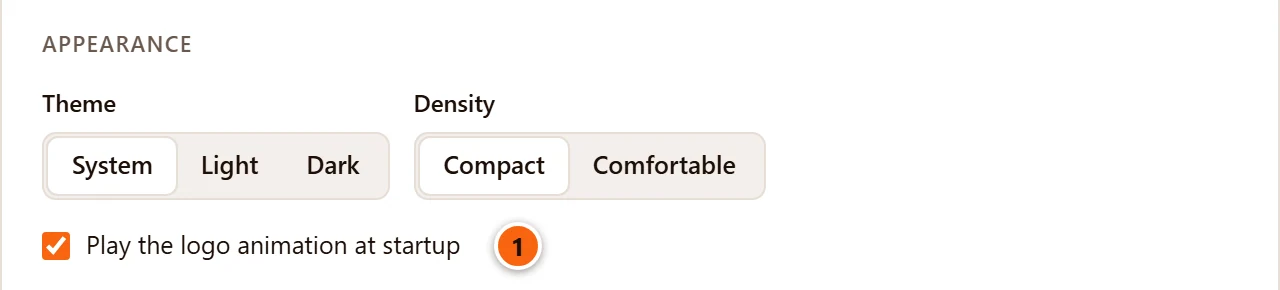
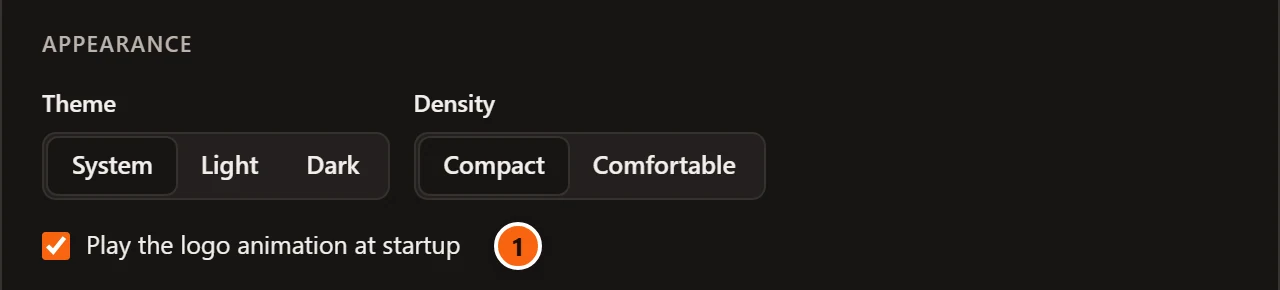
- 1 Untick Play the logo animation at startup and click Save. The next start opens straight on the window.
Settings opens with ⌘ , (Ctrl+, on Windows and Linux), or from pgjumboSettings… on a Mac, FileSettings… on Windows and FilePreferences… on Linux. Every other setting is on Settings.
The empty window
Section titled “The empty window”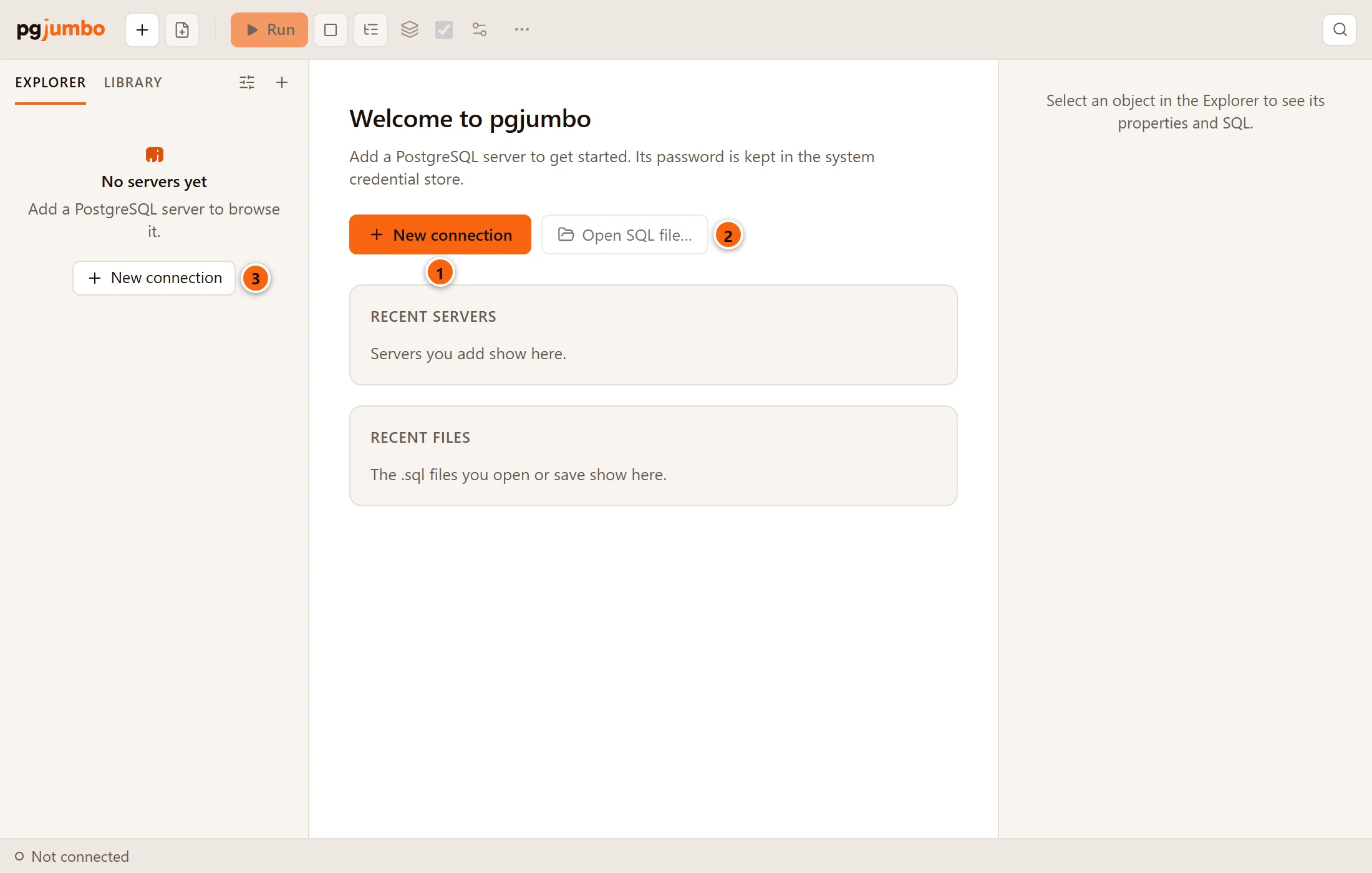
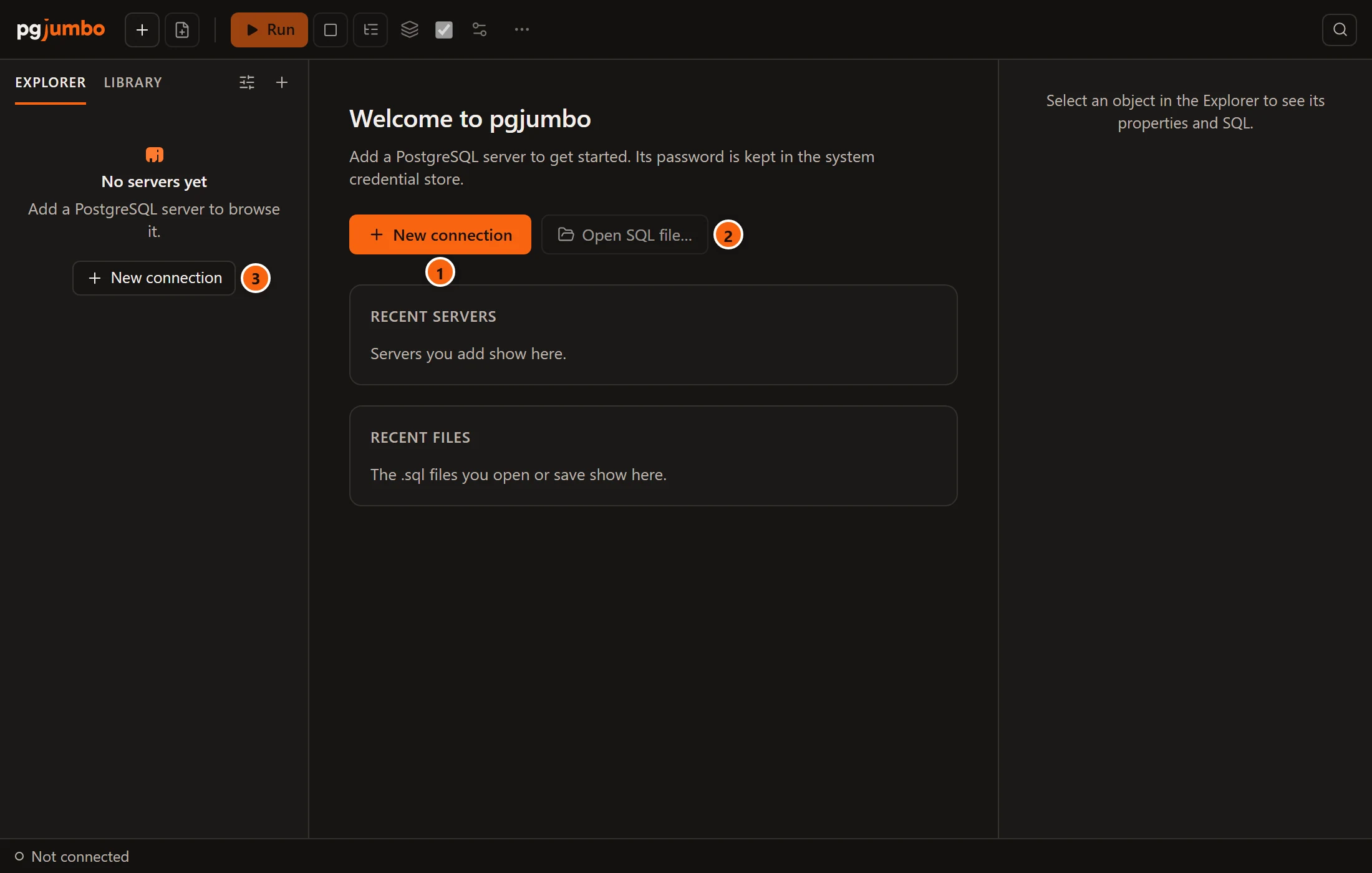
- 1 New connection opens the dialog where you add your first server. Your first connection takes you through it.
- 2 Open SQL file… stays greyed out until you have a server, because a file opens in a Query Tool on one.
- 3 The Explorer has its own New connection button while it has no servers.
The toolbar’s Connect, the + at the top of the Explorer and ⌘ N (Ctrl+N on Windows and Linux) open the same dialog. The pgjumbo window explains the rest of the window.
The line under Welcome to pgjumbo says where your passwords will be kept: the macOS Keychain, Windows Credential Manager or the system keyring on Linux. On a Linux desktop with no keyring service running, it says instead that pgjumbo could not reach the system keyring, so it asks for the password each time. If pgjumbo’s engine does not answer, the start page says The engine did not answer: and why.
One window at a time
Section titled “One window at a time”pgjumbo runs once. Starting it again while it runs, from the Dock, the Start menu or a terminal, brings the open window to the front, restored if it was minimised, instead of starting a second copy. Everything you open is a tab in that main window. A Query Tool or psql tab can also move to a window of its own, which belongs to the same running pgjumbo; see Move a tab to its own window.
Update to a newer version
Section titled “Update to a newer version”-
Quit pgjumbo.
-
Download the new version from pgjumbo.com/download: the same kind of file as before, for the same processor.
-
Install it the way you installed the first one. It takes the place of the old copy: on a Mac, drag it onto Applications and choose Replace; on Windows, run the new installer; on Linux, install the new
.debor.rpmwith the same command, or replace the AppImage file.
Your servers, passwords, history, drafts, settings and layout are not part of the app, so they stay. The first start of
a newer version brings its data up to date, after which an older version can no longer read it: it does not start, and
its log says app.db has schema version …, but this build only knows up to …. Install the newer version again, or
start afresh.
To see which version you have, choose HelpAbout pgjumbo (pgjumboAbout pgjumbo on
a Mac), or read the first line of HelpCopy Diagnostics…. That line ends with the system and the
processor, such as windows aarch64.
Uninstall pgjumbo
Section titled “Uninstall pgjumbo”| System | How |
|---|---|
| macOS | Quit pgjumbo and drag pgjumbo from Applications to the Trash. |
| Windows | SettingsAppsInstalled apps (Apps & features on Windows 10), then pgjumbo and Uninstall. |
| Linux | sudo apt remove pgjumbo or sudo dnf remove pgjumbo; for the AppImage, delete the file. |
Uninstalling leaves your data and saved passwords where they are, so a later install finds your servers again. Where pgjumbo keeps your data says where they are on each system and how to remove them.