
Tabs
The centre of the window holds tabs: Query Tools, tables’ rows, objects, a server’s tab, reports and more. They all share one strip. The tab in front is the one the toolbar, the status bar and the menus act on. With no tab open, the centre shows the objects of the folder selected in the Explorer, the selected server, or the start page when nothing is selected (see The pgjumbo window).
Kinds of tabs
Section titled “Kinds of tabs”

- 1 A query tab (a Query Tool):
Query 1 · shop, with a dot in the colour of the server’s environment. - 2 A data tab: a table’s rows,
customers · data, with a table icon. - 3 An object tab: one object,
orders, with the object’s icon. - 4 A server’s tab: the server’s name with the elephant icon.
- 5 An Object Details tab: a folder’s objects,
Tables · public. - 6 A reports tab:
Reports · Local demo. - 7 + opens a new query tab. See Open and arrange tabs.
Every kind, what its name says and where it comes from:
| Tab | Its name and marks | Opens from | One per | Explained on |
|---|---|---|---|---|
| Query tab | Query 1 · shop (the lowest number no open query tab has, then the database), or the file’s name for a .sql file. A dot in the environment’s colour, a PROD tag on a Production server, a • while its file has changes not saved. |
FileNew Query Tool (⌘ T (Ctrl+T on Windows and Linux)), +, Query Tool on a right-click, Open in Query Tool and the other buttons that open SQL, FileOpen… (into the tab in front when that tab is empty and has no file) | Each opens a new tab | The Query Tool |
| Data tab | customers · data, with a table icon, and a PROD tag on a Production server |
Follow to in a result, View Data on an object with no tab of its own (a foreign table) | Each opens a new tab | View data |
| psql tab | psql · shop, with a dot in the environment’s colour, a terminal icon, and a PROD tag on a Production server |
PSQL Tool on a connected server’s or a database’s right-click menu, ToolsPSQL Tool, Duplicate Tab on a psql tab | Each opens a new tab | PSQL Tool |
| Object tab | The object’s name and icon; New table · public, New function · public, New procedure · public or New role · Local demo until a new one is created; a • while it has changes not saved; a PROD tag on a Production server |
A double-click, Properties… or View Data on a table, view, function, role and most other objects; Create table…, Create function…, Create procedure… or Create role… for a new one | Object (opening it again brings its tab forward) | Object tabs and review |
| Server’s tab | The server’s name, with a PROD tag on a Production server | Dashboard, Server configuration… or Edit connection… on a connected server’s right-click menu, ToolsServer Activity, ToolsServer Configuration, the tools under Management | Server | The server’s tab |
| Object Details | Tables · public, with a list icon |
ViewObject Details (⇧ ⌘ D (Ctrl+Shift+D on Windows and Linux)) on a folder | Folder | Object Details |
| Reports | Reports · Local demo, with a chart icon |
ToolsReports and any report, ToolsHealth Check, Reports on a server’s, database’s or table’s right-click menu | Server | Reports |
| ERD | ERD · shop.public, with a diagram icon |
ERD on a database’s or schema’s right-click menu, ToolsERD | Schema | Diagrams |
| Schema diff | Schema diff · shop.public, with two arrows |
Compare Schema… on a schema’s right-click menu, ToolsSchema Diff… | Schema | Scripts |
| Database guide | Guide · shop or Guide · shop.public, with a book icon |
Explain this database or Explain this schema | Database or schema | Database guides |
| Knowledge file | The file’s title, with a book icon | The Library’s Knowledge section, and the links to a file in the Assistant pane and in a guide | File | Knowledge base and notes |
| Notifications | Notifications · shop, with a signal icon |
ToolsNotifications, Notifications on a database’s right-click menu | Database | Notifications |
| Scheduled jobs | Scheduled jobs · Local demo, with a calendar icon |
ToolsScheduled Jobs, Scheduled Jobs on a server’s right-click menu | Server | Scheduled jobs |
Hover over a tab to see where it points:
- A query tab: its file’s path (when it has one), then its database and server (
shop on Local demo), then its session’s process id and state, for exampleSession pid 4002 · Idle. - A data tab: its table (
public.customers), its database and server, and its session. - A psql tab: its database and server (
shop on Local demo). - An object tab: the object’s full name (
public.orders) and its database and server; a role or a database shows only the server. - An Object Details tab: the path to its folder (
Local demo › shop › public › Tables). A Notifications tab or an ERD tab: its server and database (Local demo › shop). A knowledge file’s tab: the file’s path in the knowledge base. - The other kinds repeat their name.
A table’s Data view is a data tab too, but it lives inside the table’s tab and has no tab of its own in the strip.
Open and arrange tabs
Section titled “Open and arrange tabs”- A new tab opens at the end of the strip and comes to the front. With two sides, it opens on the side in focus.
- Click a tab to bring it to the front. The status bar, the toolbar (Run, Explain, the database switch) and the menus follow the tab in front.
- + at the end of the strip opens a new query tab: on the database selected in the Explorer when its server is connected, or else on the database of the query or data tab in front. With neither, it does nothing.
- When the tabs do not fit, the strip scrolls sideways. Turn the mouse wheel over it; the strip has no scroll bar. The tab in front always scrolls into view.
- The order is the order you opened the tabs in. Tabs cannot be dragged; to keep one at the start, pin it.
- There is no key to move from tab to tab. Click a tab, or pick it from the list of open tabs.
Only query tabs come back after you quit and start pgjumbo again: their text, their order (pinned ones first and still pinned) and, when a query tab was in front, that tab in front. They wait for their server to be connected before they open a session (see Files, drafts and history). Data tabs and every other kind close with the window, and two sides become one again.
The tab’s right-click menu
Section titled “The tab’s right-click menu”Right-click a tab.
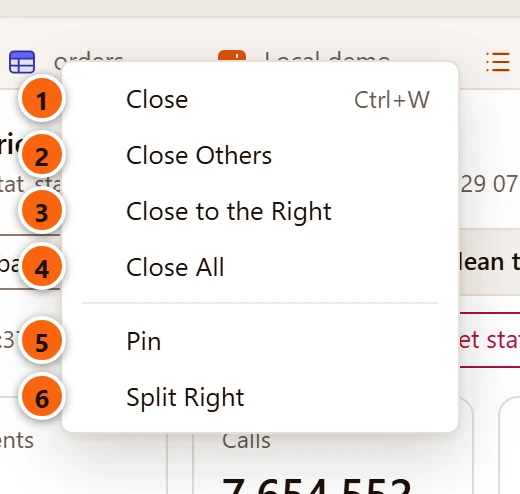
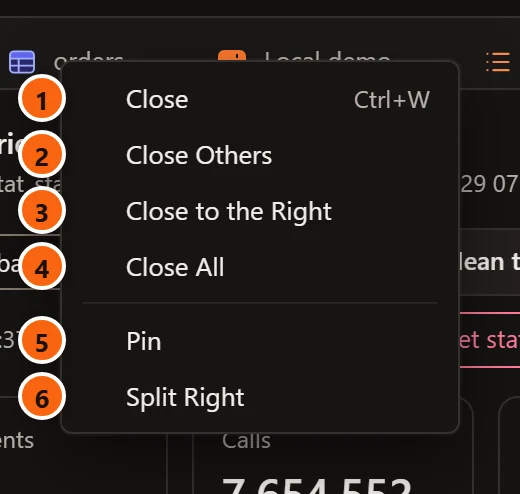
- 1 Close closes this tab, asking first if it holds unsaved work (see Close a tab). The menu shows its key, ⌘ W (Ctrl+W on Windows and Linux), which closes the tab in front.
- 2 Close Others closes the other tabs on the same side.
- 3 Close to the Right closes the tabs after this one on the same side.
- 4 Close All closes every tab on this side.
- 5 Pin pins the tab; on a pinned tab the item is Unpin.
- 6 Split Right opens a second side to the right and moves this tab there. With two sides, the item is Move to the Right or Move to the Left.
Close Others, Close to the Right and Close All never close a pinned tab, and they are greyed out when there is nothing for them to close. They close the tabs one at a time: a tab with unsaved work comes to the front and asks, and closing that question without dropping the work (Cancel, Save that fails, or Back to the tab) stops the rest. Split Right is greyed out while only one tab is open.
Two kinds of tab have more at the top of this menu, above Close:
- A Query Tool tab and a psql tab start with Move to New Window, which moves the tab to a window of its own (see Move a tab to its own window).
- A psql tab then has Duplicate Tab, which opens another
psqlon the same database in a new tab (see PSQL Tool).
Pin a tab
Section titled “Pin a tab”

- 1 A pinned tab moves to the start of its side, after the tabs pinned before it. A pin replaces its close button.
- 2 Click the pin to unpin the tab (“Pinned: click to unpin”). It moves to just after the last pinned tab.
A pinned tab still closes with Close in its menu or ⌘ W (Ctrl+W on Windows and Linux). Pinned query tabs are still pinned after a restart.
Two tabs side by side
Section titled “Two tabs side by side”Right-click a tab and choose Split Right. The centre splits in two, each side with its own strip and its own tab in front.
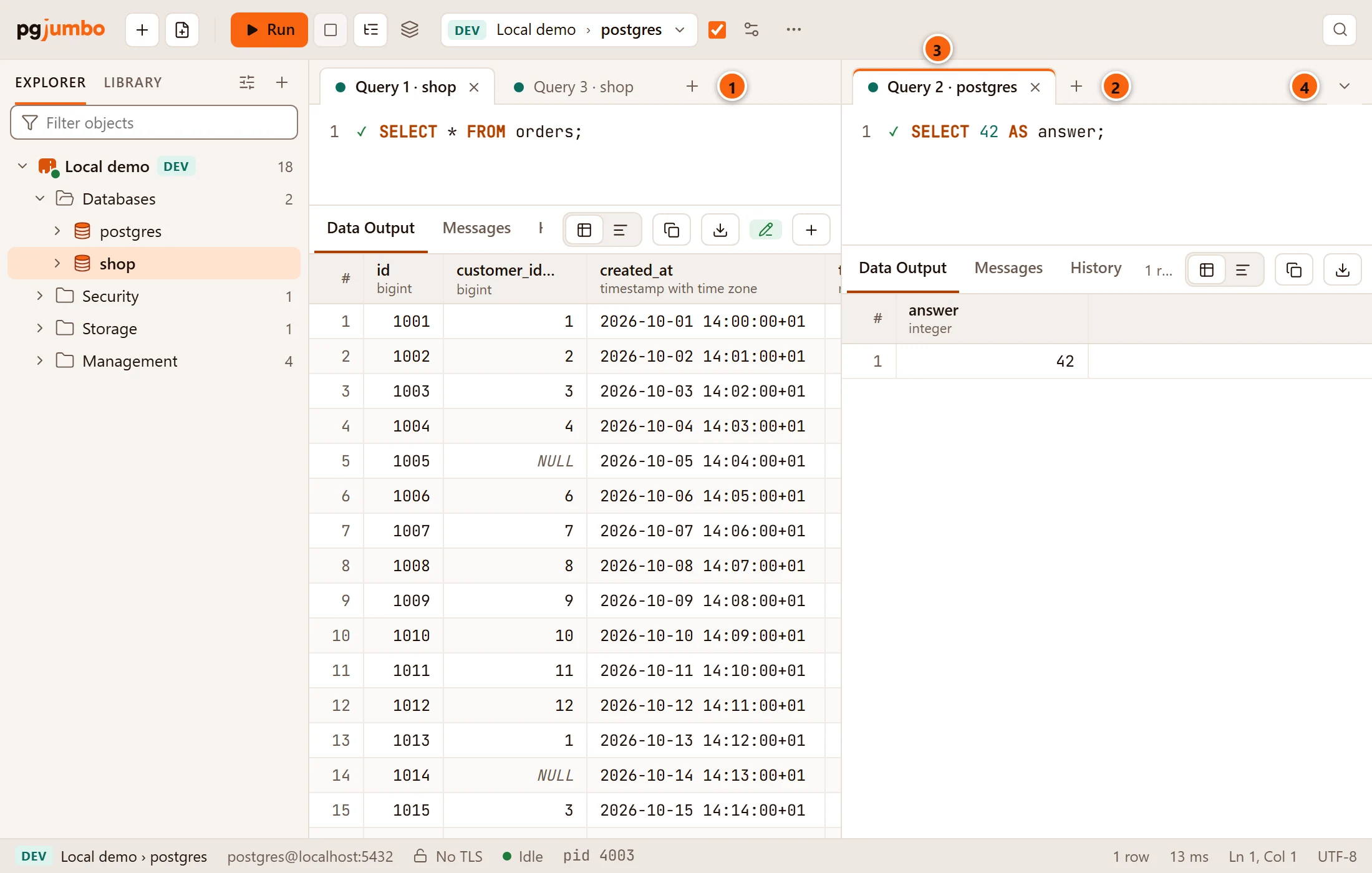
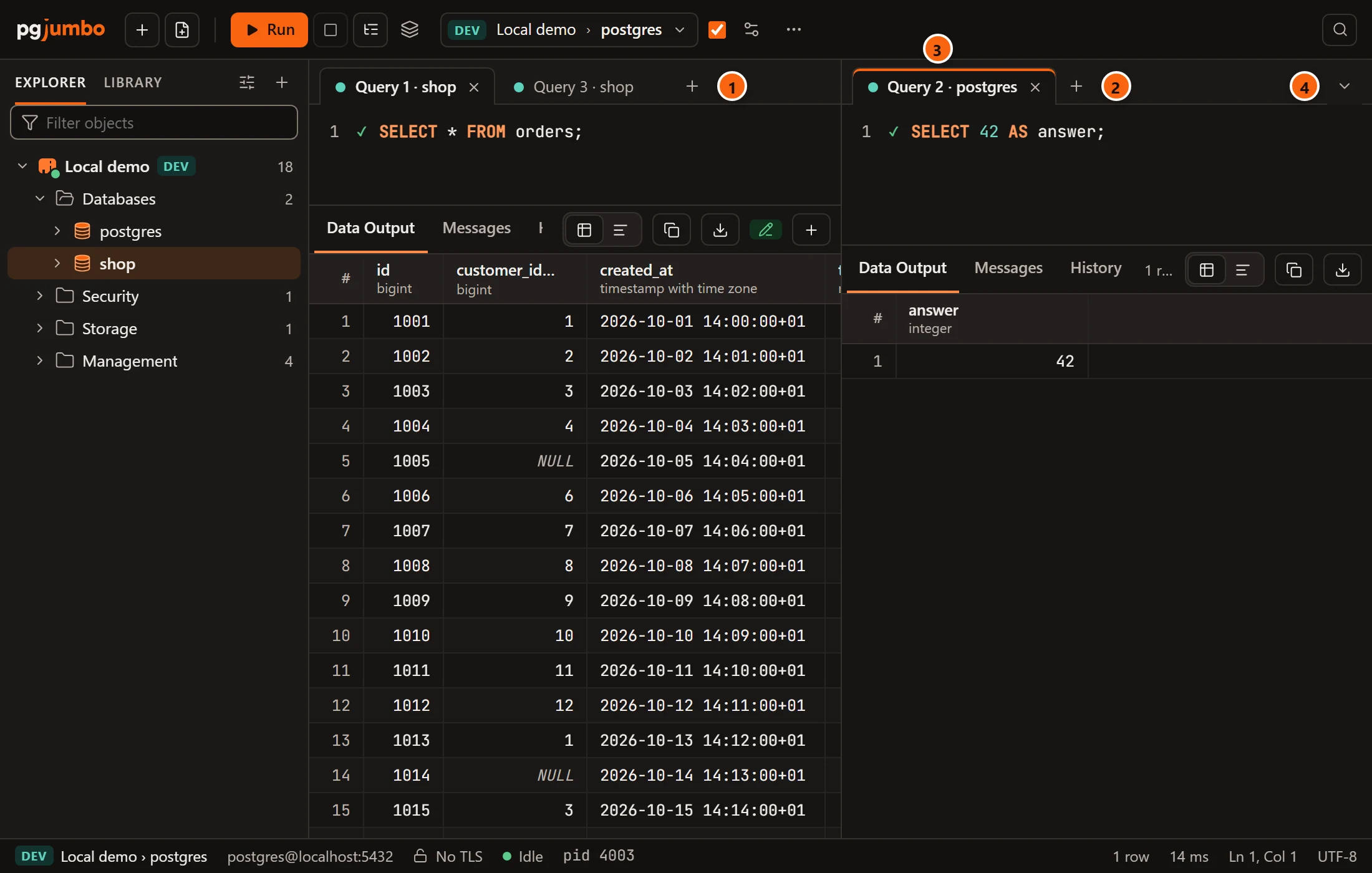
- 1 The left side’s tabs end with its own +.
- 2 The right side, here with one tab. Its + opens new tabs there.
- 3 The side you clicked into last is in focus: an accent line on top marks its tab in front. The toolbar, the
status bar, the menus and ⌘ W (Ctrl+W on Windows and Linux) act on that tab; here the toolbar shows
Local demo › postgres. - 4 The list of open tabs moves to the right side’s strip and lists the tabs of both sides.
To move a tab across, right-click it and choose Move to the Right or Move to the Left; it comes to the front on its new side. When a side’s last tab closes or moves away, that side closes and the other takes the whole centre.
Each side’s results pane is narrower, so the result bar may show its buttons as icons only, as on the left side in the picture (see Results).
Move a tab to its own window
Section titled “Move a tab to its own window”A Query Tool tab or a psql tab can leave the main window for a window of its own, for example to put it on a second screen. Right-click the tab and choose Move to New Window.
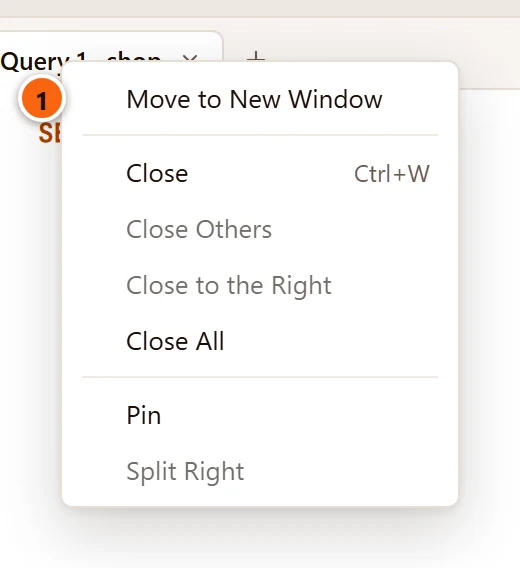
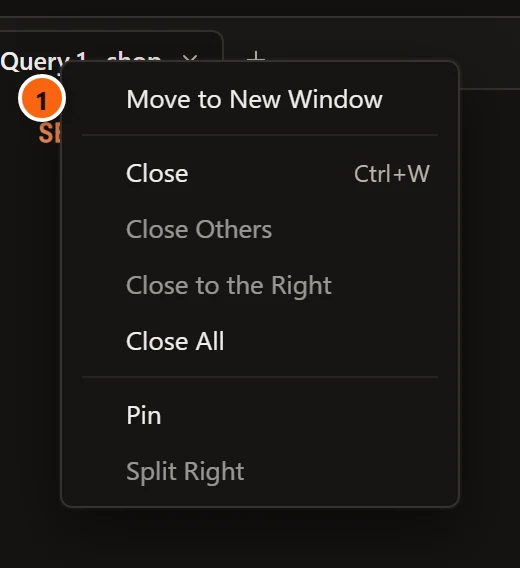
- 1 Move to New Window. It has no key and no menu bar item: the tab’s right-click menu is the only way.
The item is offered on:
- a Query Tool tab, unless it is running something or holds changes to rows that are not saved. Let the run end, or save or discard the rows, and the item comes back. It is also left out while the tab runs an Explain, waits for you to confirm a risky statement on Production, or shows the Run on Several Databases dialog;
- a psql tab, always: also while
psqlruns a command, and after it ended.
Data tabs, object tabs, the server’s tab and the other kinds stay in the main window.
What the new window has
Section titled “What the new window has”The window opens in front, titled after the tab (Query 2 · analytics, psql · shop), 980 × 720 pixels at first; it
can be made as small as 520 × 360. The tab leaves the main window’s strip and keeps everything it had: nothing
reconnects and nothing runs again.
- A Query Tool keeps its connection and session, an open transaction, its text, its cursor and its results. The window shows the Query Tool’s toolbar (Run, Stop, Explain, the database switch, Auto-commit and the rest), the tab itself and the status bar.
- A psql tab keeps its
psqlrunning, with everything it printed. The window shows the terminal and the status bar.
There is no Explorer, Inspector, Assistant or tab strip in a tab’s window.
On a Mac the menu bar acts on the window in front: with a tab’s window in front, the items for its tab work (the Query menu, Save, Save As… and Close Tab) and most others are greyed out. On Windows and Linux a tab’s window has no menu bar, but the keys of those items work in it, such as Ctrl+Enter to run and Ctrl+S to save.
A tab’s window reads Settings when it opens, so a change you make afterwards shows there only in a window opened later. If the tab’s server is disconnected and you connect it again from the tab’s window, that works only with a saved password; for a server whose password you type each time, connect it in the main window.
Bring the tab back
Section titled “Bring the tab back”Close the tab’s window: its close button, Alt+F4 on Windows and Linux, or
FileClose Window (⇧ ⌘ W) on a Mac. The tab comes back to the main window, at the end
of the strip (with two sides, of the side in focus) and in front, with its session as it was. A tab that was pinned
before it moved comes back unpinned. If another Query Tool took its number meanwhile, it comes back with the lowest
number free, such as Query 3 · shop.
Closing the tab inside its window is different: ⌘ W (Ctrl+W on Windows and Linux) there (or
FileClose Tab on a Mac) closes the tab for good, asking first as usual if it has unsaved work (see
Close a tab), and the window closes with it. In a psql tab’s window on Windows and Linux,
Ctrl+W goes to psql while the terminal has the keyboard: click outside the terminal first, or close
the window to bring the tab back and close it in the main window.
Closing the main window quits pgjumbo, tab windows and all. A Query Tool that was in a window of its own comes back at the next start in the main window, with the other Query Tool tabs; a psql tab does not come back. pgjumbo does not keep where a tab’s window was on the screen.
The list of open tabs
Section titled “The list of open tabs”The ⌄ button at the end of the strip lists every open tab.
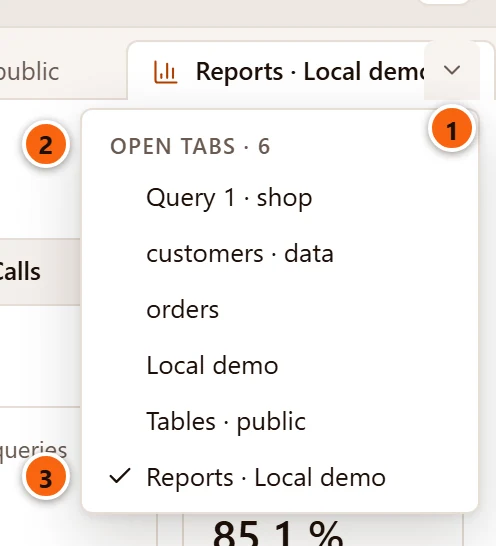
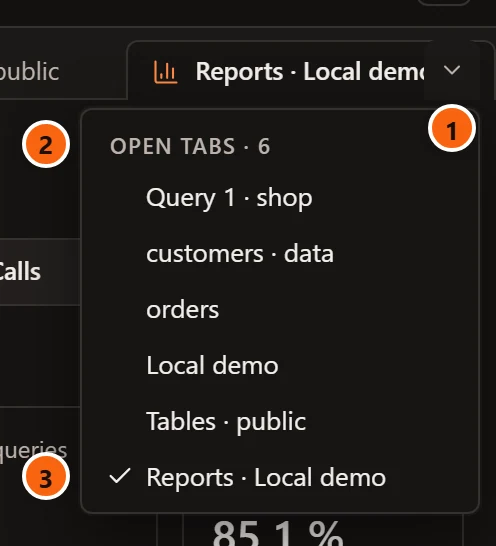
- 1 The Open tabs button.
- 2 The heading counts the tabs.
- 3 Every tab, in the order of the strip, with a check beside the tab in front. Choose one to bring it to the front.
Close a tab
Section titled “Close a tab”- Click the tab’s ×. It shows on the tab in front, and on any other tab under the pointer.
- Choose FileClose Tab, or press ⌘ W (Ctrl+W on Windows and Linux), to close the tab in front. On a Mac, ⇧ ⌘ W closes the window instead. Close Tab does nothing on the tab of a knowledge file, an ERD or a schema diff: close those with their × or their menu.
- Right-click a tab and choose Close, or one of the other close items.
When the tab in front closes, the tab next to it on the same side comes to the front (the one after it, or the one before it when it was the last). When the last tab closes, the centre goes back to the selected folder’s objects, the selected server, or the start page.
Closing a query tab or a data tab closes its connection to the server. Closing an object tab closes the connection of
its Data view, closing a Notifications tab stops listening, and closing a psql tab ends its psql at once,
without asking.
A query tab that is not saved to a file closes without asking, and its text goes with it. The queries you ran stay in the server’s History.
Tabs that ask first
Section titled “Tabs that ask first”Three kinds of tab ask before they close when they hold work not saved yet:
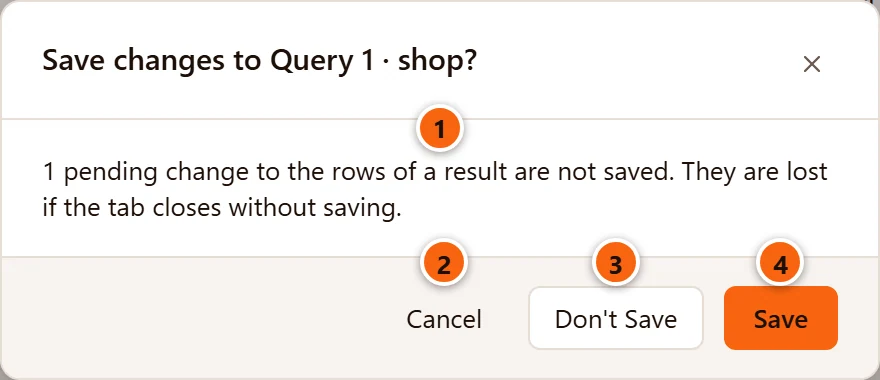
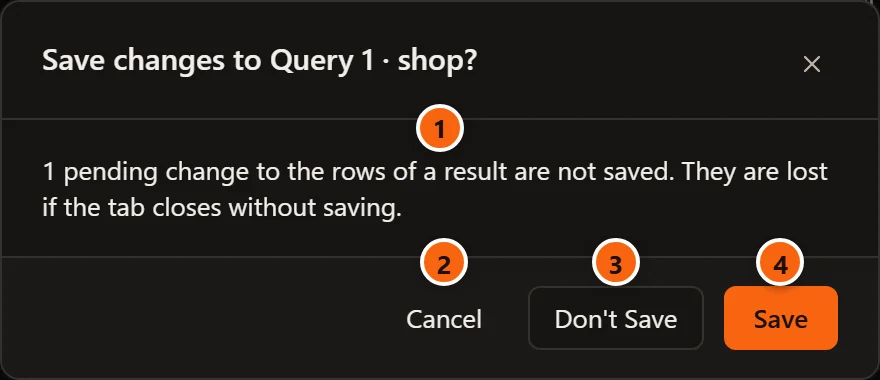
- 1 What would be lost: here a change to the rows of a result, staged and not saved. For a tab whose file is behind, it says “The tab has changes that are not in the file.”
- 2 Cancel (or Esc, or the ×) keeps the tab open.
- 3 Don’t Save drops the changes and closes the tab.
- 4 Save saves the rows (or, for a tab without staged rows, its file), then closes the tab. If the save fails, the tab stays open and says why.
| Tab | When it asks | The question | Its buttons |
|---|---|---|---|
| Query tab or data tab | It has changes to rows staged (see Edit data), or its .sql file has changes the file does not have |
“Save changes to Query 1 · shop?” (or the file’s or table’s name) | Cancel, Don’t Save, Save |
| Object tab | It has changes not saved, rows staged in its Data view, or it is a new object with a name that is not created yet | “Save changes to orders?”, or “Create the new table?” (function, procedure, role) | Cancel, Don’t Save, Back to the tab |
| Server’s tab | Its Configuration view has settings changed and not saved | “Save the settings of Local demo?” | Cancel, Don’t Save, Back to the tab |
Back to the tab keeps the tab open and brings it to the front: an object tab with changes to the object opens their review, so you can save them as usual (see Object tabs and review, which shows this question), and a server’s tab opens on Configuration (see Server configuration). A new object’s tab that has no name yet closes without asking.
Every other tab closes at once. A knowledge file’s tab closes even while you are editing the file, and the edit is lost: click Save in it first.
| Keys | What they do |
|---|---|
| ⌘ T (Ctrl+T on Windows and Linux) | A new query tab (FileNew Query Tool) |
| ⌘ W (Ctrl+W on Windows and Linux) | Close the tab in front (FileClose Tab) |
| ⇧ ⌘ W | On a Mac only: close the window (FileClose Window) |
All the other keys are on Keyboard shortcuts.