
Import and export table data
Import/Export Data… moves a whole table to or from a file with PostgreSQL’s COPY, the fastest way to load or
unload many rows. Import File into New Table… reads a CSV file, proposes a table for it, creates the table and
loads the file.
Both read and write files on your computer, not on the database server. pgjumbo streams the rows through its own
connection (COPY … FROM STDIN and COPY … TO STDOUT), so they work on any server you can connect to, Amazon RDS and
Aurora included, and need no superuser rights or pg_read_server_files. You need the usual privileges: SELECT to
export, INSERT to import.
To save the result of a query instead of a table, see Save results to a file.
Open Import/Export Data
Section titled “Open Import/Export Data”Right-click a table, partitioned table, partition, view, materialized view or foreign table in the Explorer and choose TasksImport/Export Data…. Or select it and choose ToolsImport/Export Data… in the menu bar; that item is greyed out until such an object of a connected server is selected. System objects do not offer it.
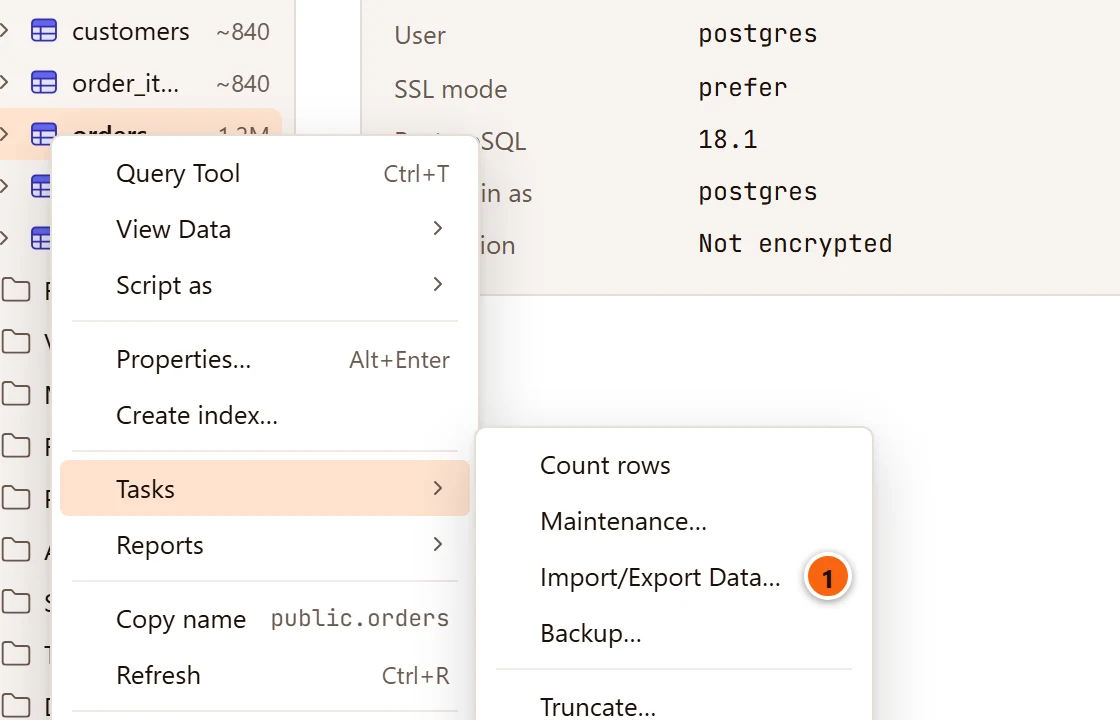
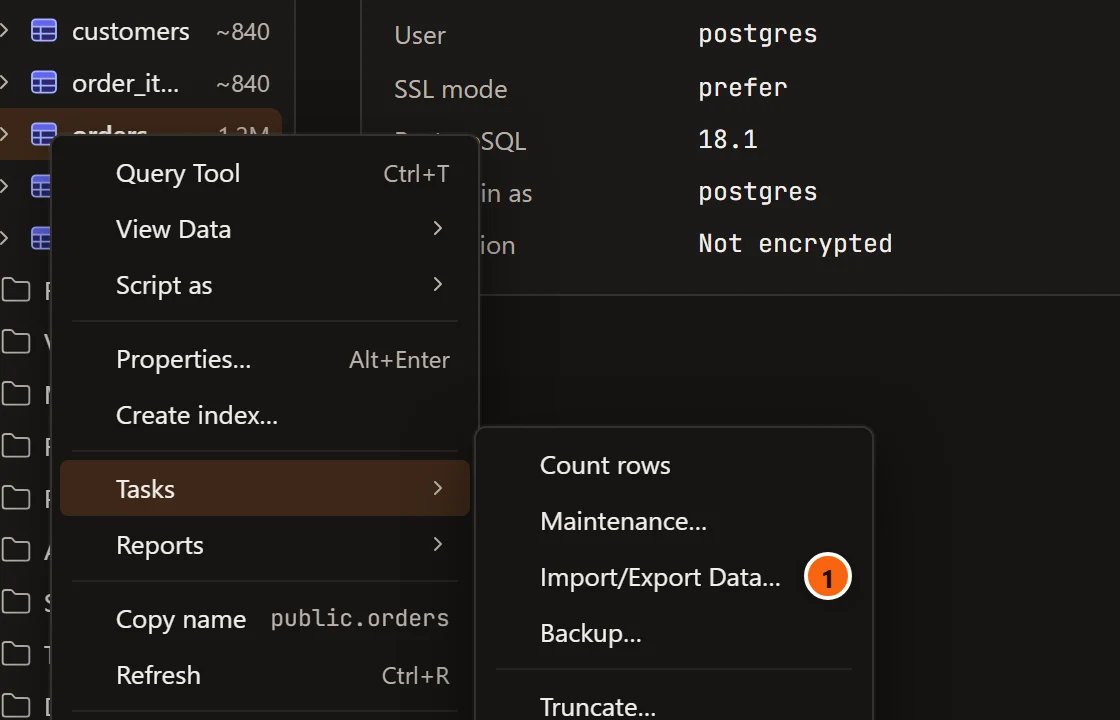
- 1 Import/Export Data… in the Tasks submenu. The other items are explained in Right-click menus.
The Import/Export Data dialog
Section titled “The Import/Export Data dialog”The dialog’s title names the object, and its subtitle the server and database. While pgjumbo reads the table’s
columns, it says Reading the columns…. The first line says what kind of object it is and its full name, such as
Table public.orders.
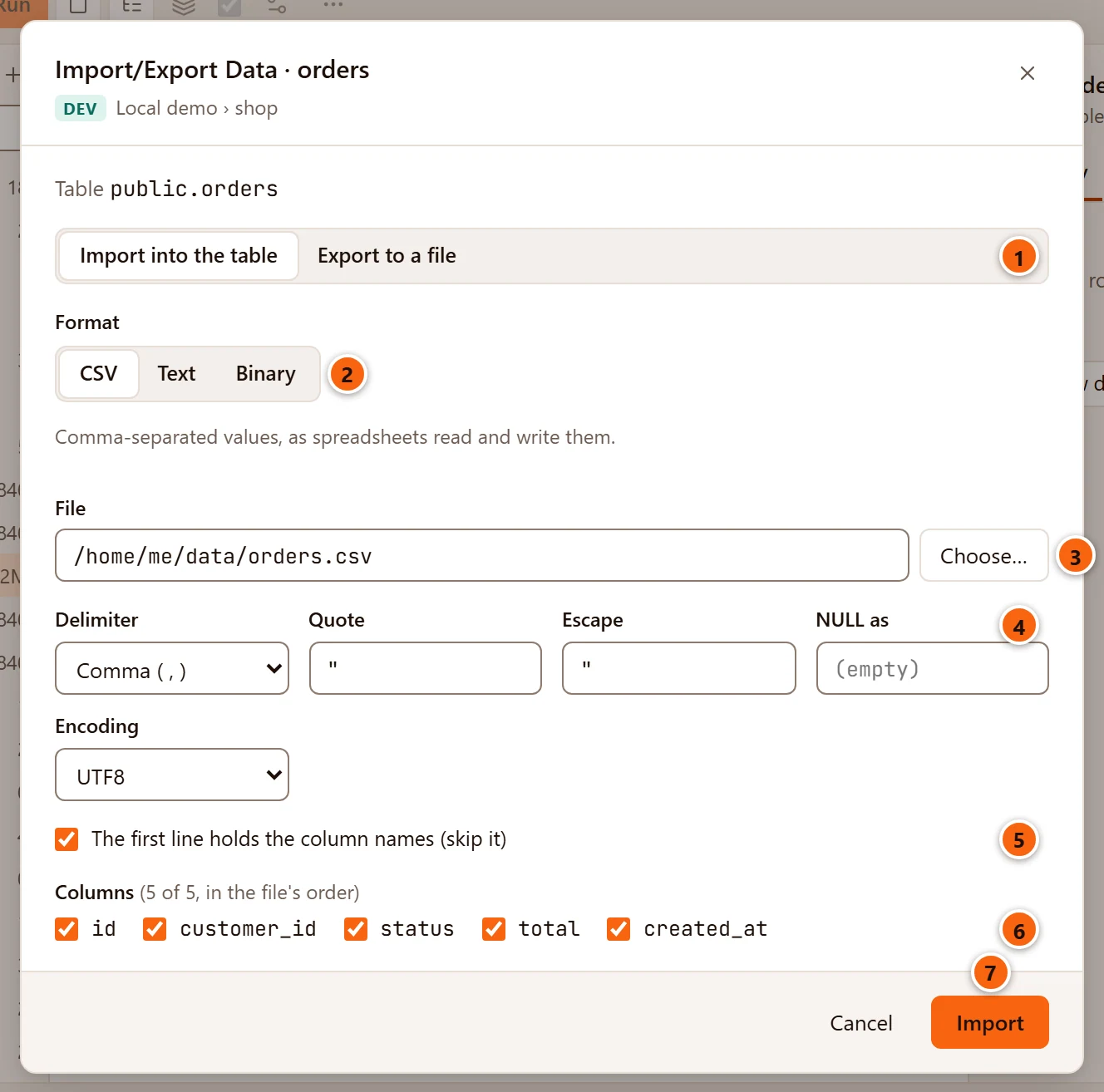
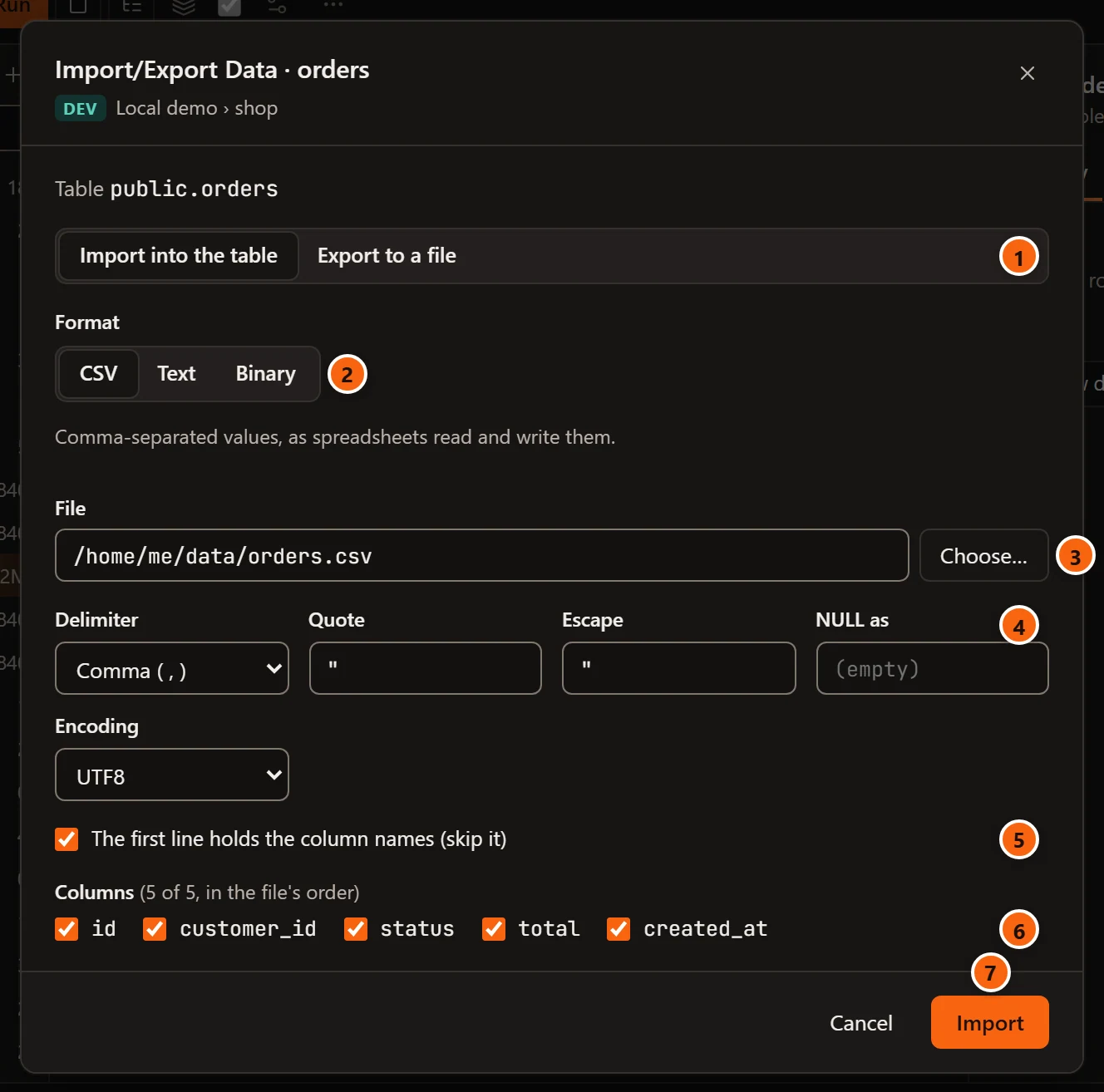
- 1 Import into the table or Export to a file. A table starts on import. Views and materialized
views can only be exported: the dialog starts on export, Import into the table is greyed out, and pointing at it
says, for example,
A view can only be exported. - 2 Format: CSV, Text or Binary. The line under it says what each is (see Formats).
- 3 File and Choose…: the file to read, or where to save. See Choose the file.
- 4 How the file is laid out: Delimiter, Quote, Escape, NULL as and Encoding. The table under Options says what each does and when it shows.
- 5 For CSV: The first line holds the column names (skip it) when importing, Write the column names first when exporting.
- 6 Columns: which columns the file has. See Columns.
- 7 Import (or Export) starts the copy. It stays greyed out until a file is chosen and at least one column is ticked.
Cancel closes the dialog without doing anything. When the copy cannot start (an option pgjumbo refuses, the server no longer connected), the reason shows at the bottom of the dialog.
Formats
Section titled “Formats”| Format | What it is | File name the Save dialog offers |
|---|---|---|
| CSV | Comma-separated values, as spreadsheets read and write them. | orders.csv |
| Text | PostgreSQL’s text format: one line per row, tab-separated, \N for NULL. |
orders.txt |
| Binary | PostgreSQL’s binary format, read back only by COPY. Fast and exact, but only for moving data between PostgreSQL databases. |
orders.bin |
Switching the format, or the direction, clears the chosen file, so you choose again with the right type.
Options
Section titled “Options”| Option | Formats | What it does |
|---|---|---|
| Delimiter | CSV, Text | What separates the fields: Comma ( , ), Semicolon ( ; ), Tab or Pipe ( | ). A comma for CSV and a tab for Text until you pick another. |
| Quote | CSV | The character around a field that holds the delimiter, a quote or a line break. One character; " by default. |
| Escape | CSV | The character before a quote inside a quoted field. One character; " by default, which means a quote is doubled. |
| NULL as | CSV, Text | What stands for NULL in the file. Empty for CSV and \N for Text, until you type something else. |
| Encoding | CSV, Text | The file’s character set. UTF8 by default; the list holds every encoding the server knows, such as LATIN1 or WIN1252. The server converts the text while copying. |
| The first line holds the column names (skip it) / Write the column names first | CSV | Ticked by default. On import, the first line is skipped; on export, the column names are written first. |
Binary has none of these.
pgjumbo checks the values before anything runs: the delimiter, quote and escape must be one character each and not a
line break, the delimiter and the quote must differ, and NULL as cannot hold a line break. The message explains
what to fix, for example The delimiter and the quote must differ.
Columns
Section titled “Columns”The Columns list shows every column of the table in its order, all ticked, with a count such as
(5 of 5, in the file's order).
- With every column ticked, the whole row goes to or from the file.
- Untick the columns the file does not have, or that you do not want exported. The file’s fields must then be the ticked columns, in the order they are listed.
- On import, columns left out get their default value, or
NULLwhen they have none.
Choose the file
Section titled “Choose the file”Choose… opens your system’s dialog: Import Data From to open a file, or Export Data To to save one, with
the table’s name and the format’s extension already filled in (orders.csv). The dialog shows files of the chosen
format (CSV files, Text files with .txt and .tsv, or COPY binary files) and All files.
The File field shows the path but cannot be typed in: pgjumbo reads and writes only files chosen in that dialog.
Until you choose one, it says Choose the file to read or Choose where to save it.
What runs
Section titled “What runs”pgjumbo asks the server to build the COPY statement, so every name and option is quoted correctly, then runs it as a
job on a connection of its own to the table’s database:
COPY public.orders FROM STDIN WITH (FORMAT csv, HEADER true, DELIMITER ',', QUOTE '"', ESCAPE '"', NULL '')Some columns unticked add a column list, COPY public.orders (id, total) …. A view or a materialized view is exported
through a query, COPY (SELECT * FROM public.monthly_revenue) TO STDOUT ….
- An import is one
COPY. If a row breaks a rule of the table (a duplicate key, aNOT NULLcolumn, a wrong type), the whole import stops and no row is added. The server’s message says where, such asCOPY orders, line 12, column total: …. - An export writes to a temporary file next to the one you chose and puts it in place only when every row is written. A failed or cancelled export leaves no half-written file.
- On a read-only connection, exports work, and PostgreSQL refuses an import:
cannot execute COPY FROM in a read-only transaction. - A partitioned table or a foreign table can be imported into. Exporting one runs
COPY … TOon it, which PostgreSQL 18 and earlier refuse for both, so the export fails with the server’s error, such ascannot copy from partitioned table "events". Export each partition, or runSELECT * FROMthe table in a Query Tool and use Export with All rows.
pgjumbo does not ask first before an import, on a Production server either.
Follow the job
Section titled “Follow the job”After you click Import or Export, the dialog follows the job.
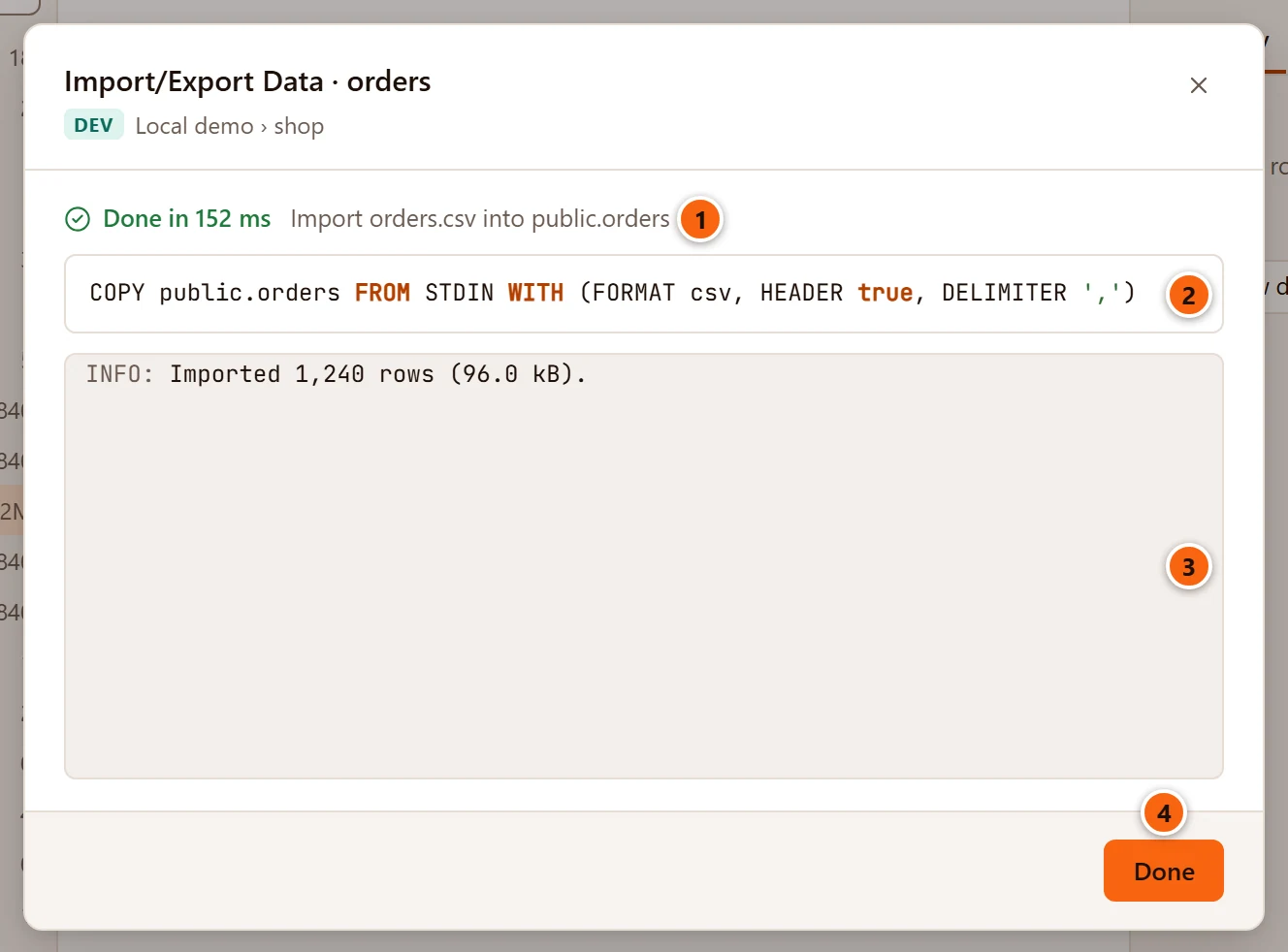
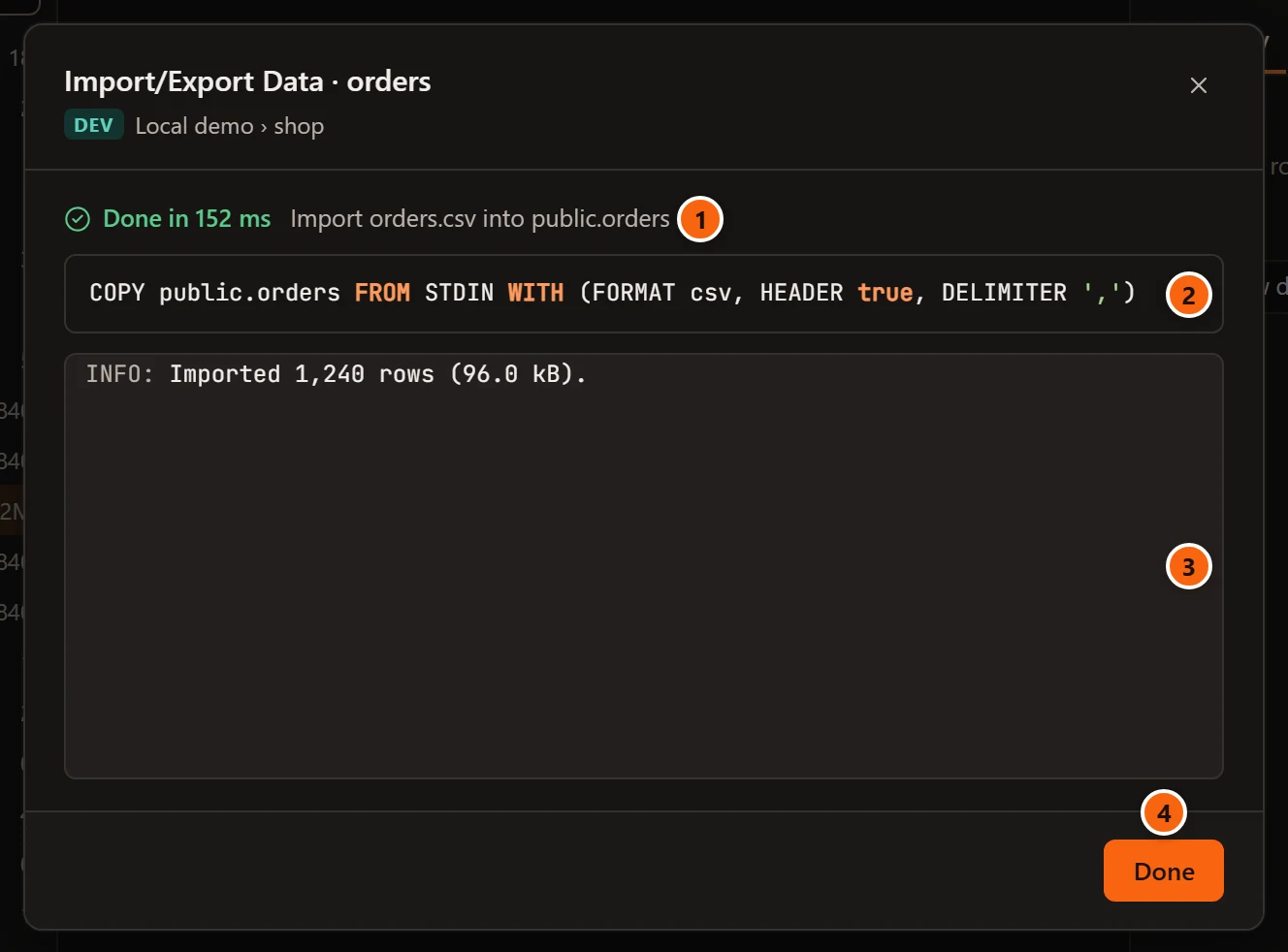
- 1 The job’s state and name: Running…, Done in a time, Failed after a time, or Cancelled,
then for example
Import orders.csv into public.ordersorExport public.orders to orders.csv. - 2 The statement that runs.
- 3 Messages, each after its severity (
INFO:). Every two seconds a long copy says how far it got, such asRead 4.2 MB of 96.0 MB…orWrote 4.2 MB…, and at the end how many rows it moved and the file’s size:Imported 1240 rows (96.0 kB).orExported 1240 rows (96.0 kB) to orders.csv.When the copy fails, the error shows above the messages, and the server’s message, with its detail and where in the file it stopped, is the last line. - 4 Done closes the dialog once the job has ended.
While the job runs, the footer has two buttons. Cancel job stops the copy on the server; an import then adds no row. Run in background closes the dialog and leaves the job running: it stays in Jobs, in the status bar, where you can follow it and cancel it later (see Maintenance and jobs). Closing the dialog never stops a job.
After an import, the table’s row count and size in the Inspector are read again.
Turn a CSV file into a new table
Section titled “Turn a CSV file into a new table”Right-click a schema, or its Tables folder, and choose TasksImport File into New Table…. pgjumbo reads the start of a CSV file, proposes a table for it, and on Import creates the table and loads the file.
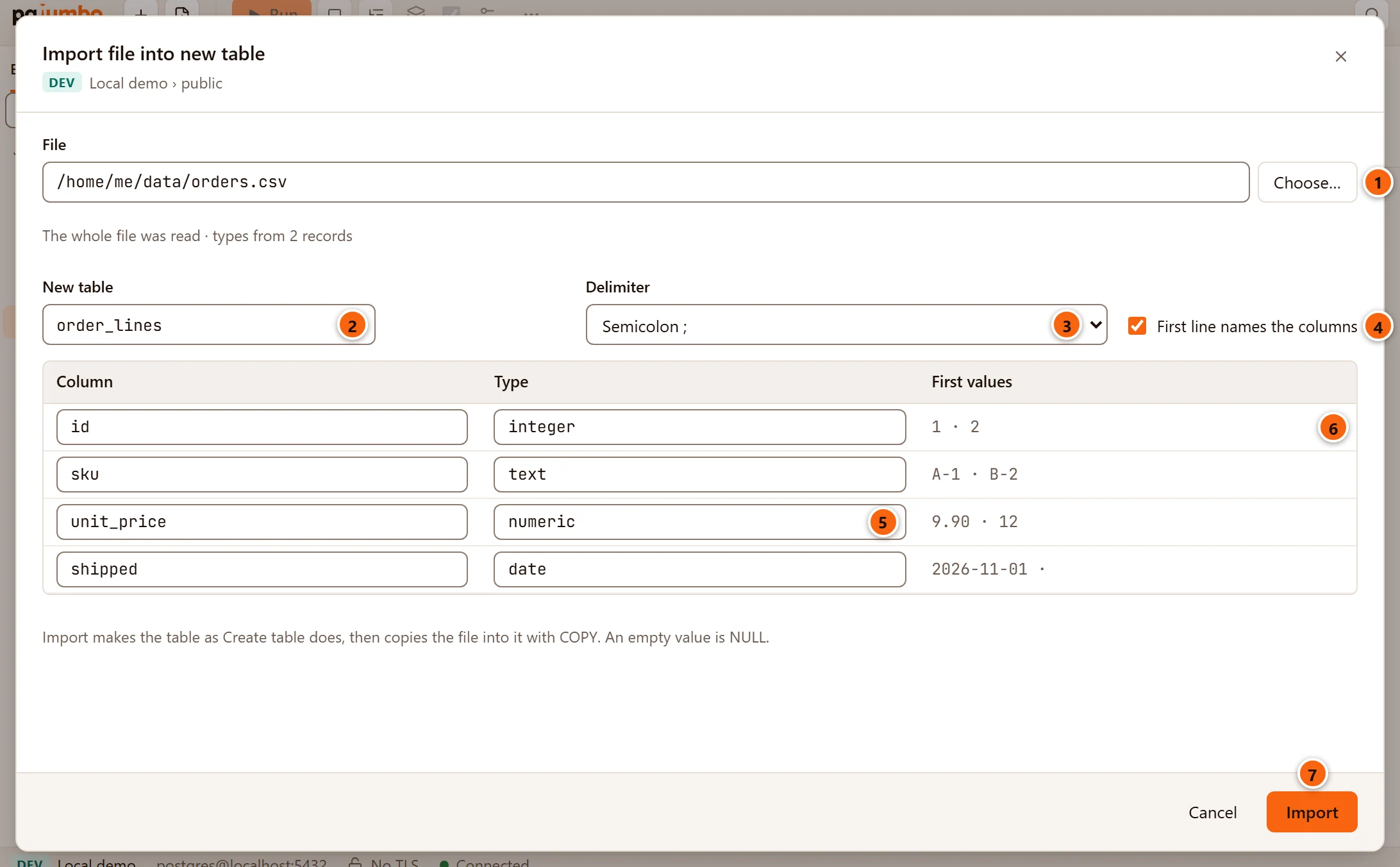
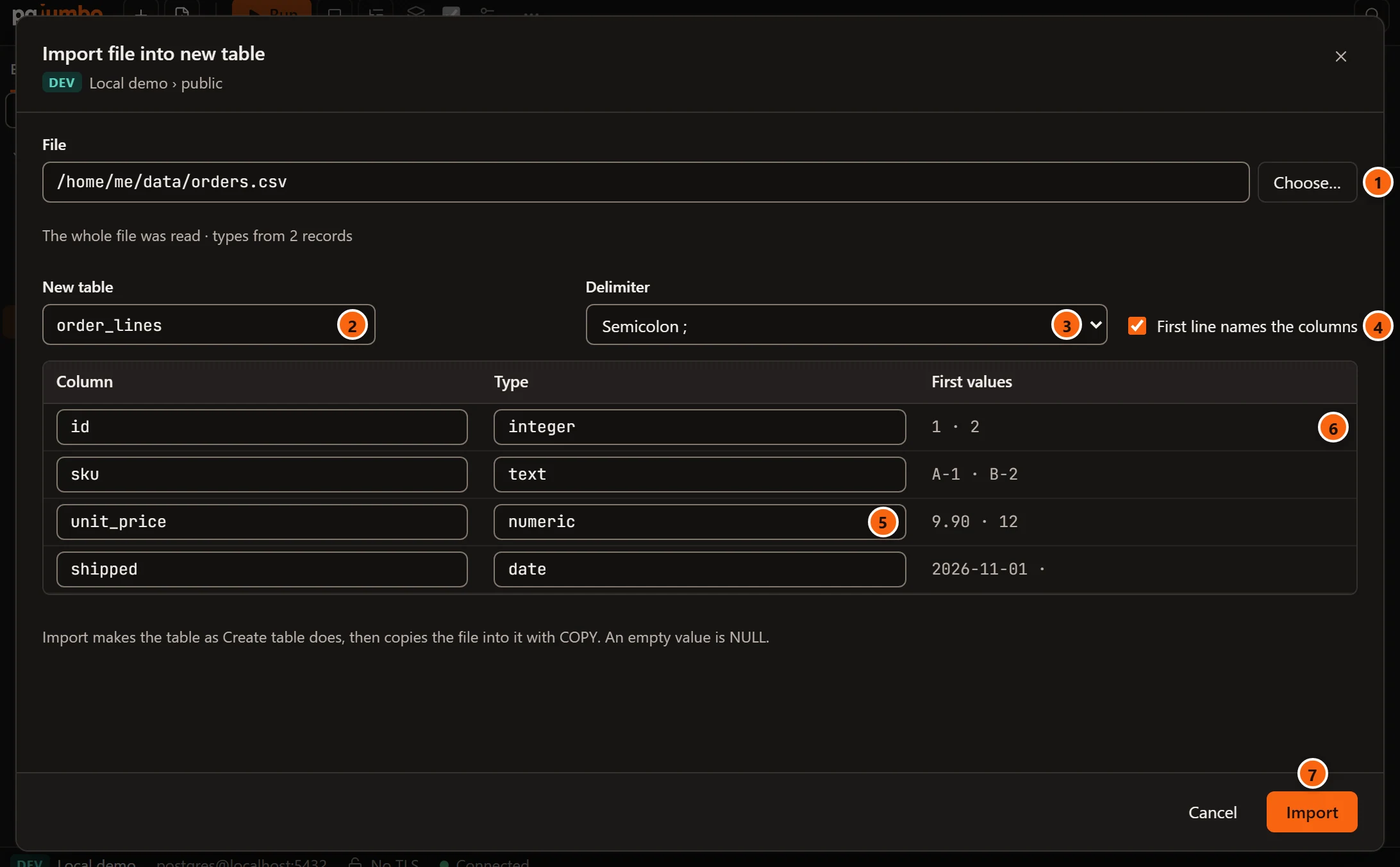
- 1 Click Choose… to pick the CSV file in your system’s Open dialog, titled Import Data From.
pgjumbo reads its first megabyte (the whole file when it is smaller) and looks at about the first 1,000 records. The
line under the field says which:
The whole file was read · types from 2 records, orThe file's first megabyte was read · types from 1,000 records. - 2 New table: the name, proposed from the file’s name.
Order Lines.csvbecomesorder_lines: lower case, anything butatoz, digits and_turned into_, and at_in front when it would start with a digit. Change it as you like (at most 63 characters). It stays when you change the delimiter or the first-line box, and a new file proposes a new name. - 3 Delimiter: Comma ,, Semicolon ;, Tab or Bar |. pgjumbo picks the one that splits the first lines into the same number of fields. Choosing another reads the file again and proposes the columns afresh, so names and types you changed go back to the proposal.
- 4 First line names the columns: ticked when the first line looks like column names. Changing it reads the file again and proposes new names and types, as the delimiter does.
- 5 Each column’s Column name and Type. Both can be changed; the type field suggests
text,integer,bigint,numeric,boolean,date,timestamp,timestamptz,uuidandjsonb, and takes any type the server knows. - 6 First values: the first three values of each column, to help you check the types.
- 7 Import creates the table and loads the file. It is greyed out until a file is read, the table has a name and every column has a name and a type.
When the file cannot be used, the reason shows at the bottom of the dialog, for example
The file holds no records. or the system’s reason when the file cannot be read. Cancel closes the dialog and
creates nothing.
How pgjumbo proposes the columns
Section titled “How pgjumbo proposes the columns”- Names come from the first line when it names the columns, else they are
column1,column2and so on. An empty name becomescolumnN, and a name that repeats (capitals or not) gets_2,_3. pgjumbo keeps names as you write them and quotes them where needed, so a name with capitals or spaces, such asUnit Price, must be written in double quotes in SQL later. Rename such columns here if you would rather not. - Types are the narrowest that fits every value of the column that pgjumbo looked at, tried in this order:
integer(whole numbers that fit in 32 bits),bigint,numeric,boolean(true,false,t,f,yes,no),date(2026-11-04),timestamptz(a date and time with a time zone, such as2026-11-04T14:03:09Z),timestamp, andtextfor anything else. Empty values count asNULLand fit any type; a column with only empty values istext.
pgjumbo only looks at the start of a large file, so a later value may not fit the proposed type: a 999999999999 far
down an integer column, say. Widen the type before you import when in doubt.
What Import does
Section titled “What Import does”-
pgjumbo creates the table in the schema, as Create table does, with only the columns you see: no primary key, no
NOT NULL, no defaults. The new table shows in the Explorer at once. -
It starts a job that loads the file with
COPY … FROM STDIN WITH (FORMAT csv, HEADER …, DELIMITER …), reading the file as UTF-8. An empty value becomesNULL. -
The dialog follows the job, as Import/Export Data does.
If the load fails (a value that does not fit its type, say), the table stays, empty, and the job says which line failed. Fix the type with the table’s tab, or drop the table and import again.