
Menus
pgjumbo uses your system’s own menu bar. On a Mac it is the menu bar at the top of the screen; on Windows and Linux it is the bar at the top of pgjumbo’s window. The items are the same on every system, with a few differences of place and name that this page points out. Right-click menus are on Right-click menus, and every key, in the menus or not, is on Keyboard shortcuts.
| macOS | Windows | Linux | |
|---|---|---|---|
| Menus | pgjumbo, File, Edit, View, Object, Query, Tools, Window, Help | File, Edit, View, Object, Query, Tools, Help | File, View, Object, Query, Tools, Help |
| Settings | pgjumboSettings… | FileSettings… | FilePreferences… |
| About | pgjumboAbout pgjumbo | HelpAbout pgjumbo | HelpAbout pgjumbo |
| Quit | pgjumboQuit pgjumbo | FileExit | FileQuit |
What the menus act on
Section titled “What the menus act on”Most items act on one of two things: the tab in front, or the row selected in the Explorer.
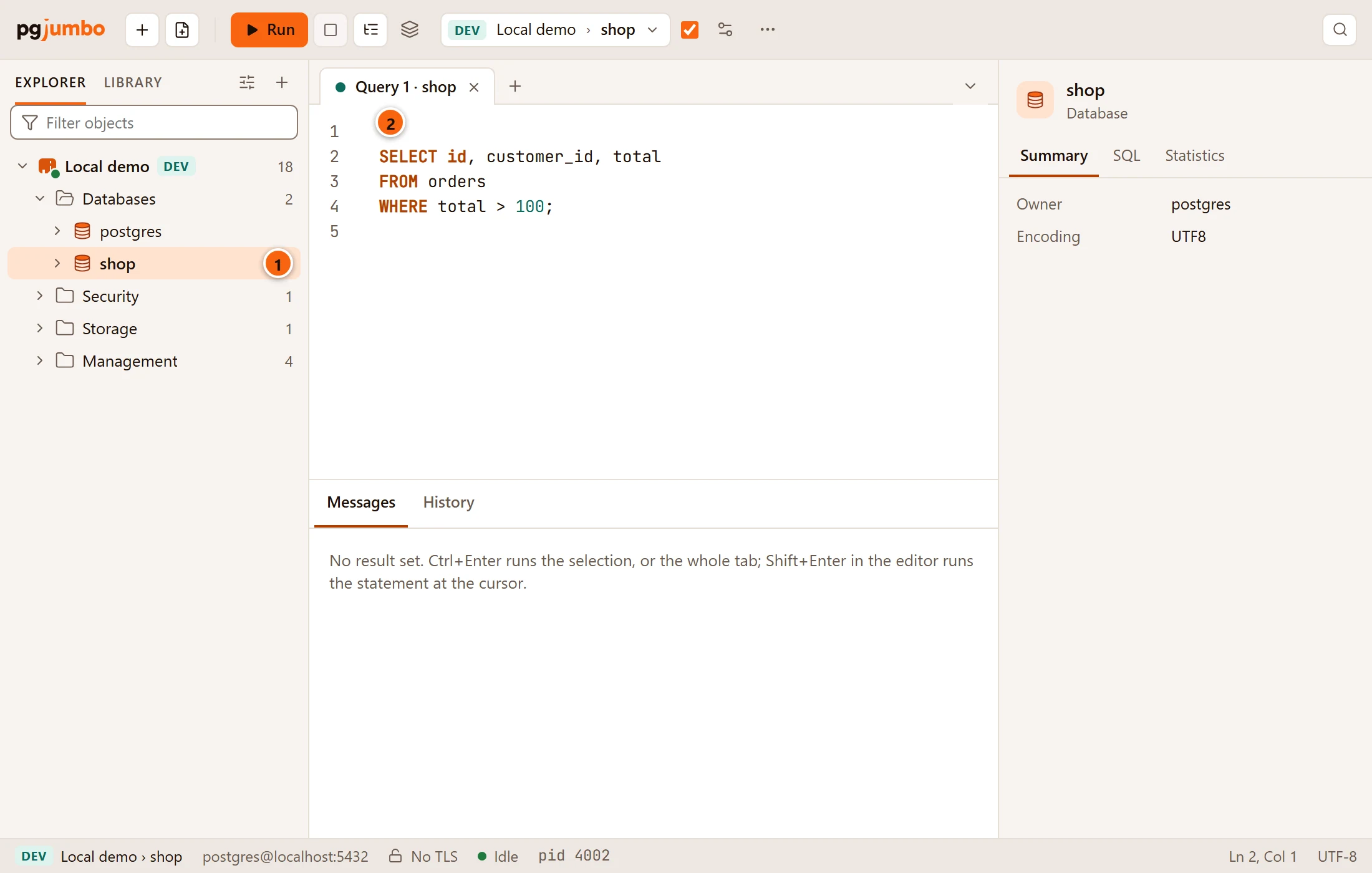
- 1 The row selected in the Explorer. Object, most of Tools, ViewObject Details and FileNew Query Tool act on it, and so does FileOpen… when no Query Tool is in front. ObjectProperties also acts on a row you chose in Object Details.
- 2 The tab in front. Query, FileSave, Save As…, Close Tab and ViewShow in Explorer act on it. On a table’s tab showing its Data view, the Query items act on those rows.
Server Activity, Server Configuration, Scheduled Jobs and the server reports in Tools use the server selected in the Explorer when it is connected, otherwise the server of the tab in front.
An item is greyed out while there is nothing for it to act on: Run with no Query Tool in front, Restore… with no database selected, anything that needs a server that is not connected. Explorer, Inspector, Assistant, System Objects, Auto-commit and Results as Text show a tick while they are on.
An item’s keys work wherever the keyboard is in the window, in the SQL editor too. A cell you are editing in the
results grid keeps its keys to itself, except ⌘ S (Ctrl+S on Windows and Linux). While a dialog is open, the items of
File, View, Object, Query and Tools and their keys do nothing until it closes; Edit and the
Help menu’s pgjumbo User Guide, Report an Issue…, pgjumbo Website and Open Log Folder keep working.
In a PSQL Tool tab’s terminal most keys go to psql instead: on
Windows and Linux the shortcuts of Ctrl and a letter (Ctrl+W, Ctrl+T,
Ctrl+R and the rest) go to psql, while those with Ctrl+Shift, Ctrl+,
and the zoom keys still reach the menus; on a Mac every ⌘ shortcut does.
With a tab in its own window
Section titled “With a tab in its own window”A Query Tool or a psql tab can move to a window of its own (see Move a tab to its own window). On a Mac the menu bar then acts on the window in front: with a tab’s window in front, the items for its tab (the Query menu, Save, Save As… and Close Tab) work and most others are greyed out. On Windows and Linux a tab’s window has no menu bar of its own, but the keys of those items work in it.
The pgjumbo menu (macOS)
Section titled “The pgjumbo menu (macOS)”Only on a Mac. On Windows and Linux, Settings… and the way to quit are in File, and About pgjumbo is in Help.
| Item | Keys | What it does |
|---|---|---|
| About pgjumbo | Shows pgjumbo’s version. | |
| Settings… | ⌘ , | Opens Settings. |
| Services | macOS’s services menu. | |
| Hide pgjumbo | ⌘ H | Hides pgjumbo’s window. |
| Hide Others | ⌥ ⌘ H | Hides the other apps’ windows. |
| Show All | Shows the windows of every app again. | |
| Quit pgjumbo | ⌘ Q | Closes every connection and quits. Query Tool tabs come back at the next start; see Your tabs come back. |
| Item | Keys | What it does |
|---|---|---|
| New Connection… | ⌘ N (Ctrl+N on Windows and Linux) | Opens the New connection dialog. See Connection settings. |
| New Query Tool | ⌘ T (Ctrl+T on Windows and Linux) | A new Query Tool tab on the database of the row selected in the Explorer, or on the server’s maintenance database when the server itself is selected. With no connected server selected, it opens on the database of the Query Tool or data tab in front. Greyed out when there is neither. See Open a Query Tool. |
| Import Servers… | Adds servers from a file you choose: one that pgjumbo exported, or pgAdmin’s servers.json. See Move the server list to another computer. |
|
| Export Servers… | Writes your servers and groups to a file, never their passwords. See the same section. | |
| Open… | ⌘ O (Ctrl+O on Windows and Linux) | Opens a .sql file you choose: into the Query Tool in front if it is new and empty, else in a new tab on the same database. With no Query Tool in front, the new tab opens on the Explorer’s selection. Greyed out when no Query Tool or data tab is in front and nothing is selected in the Explorer. See Open a .sql file. |
| Save | ⌘ S (Ctrl+S on Windows and Linux) | Saves what the tab in front holds; see What Save saves. |
| Save As… | ⇧ ⌘ S (Ctrl+Shift+S on Windows and Linux) | Saves a Query Tool’s SQL to a new .sql file. Only for a Query Tool. See Save a tab to a file. |
| Close Tab | ⌘ W (Ctrl+W on Windows and Linux) | Closes the tab in front. A tab with something not saved asks first. See Close a tab. |
| Close Window (macOS) | ⇧ ⌘ W | Closes the window in front. Closing pgjumbo’s main window quits pgjumbo; closing a tab’s own window brings its tab back to the main window (see Move a tab to its own window). On a Mac ⌘ W closes a tab, not the window. |
| Settings… (Windows), Preferences… (Linux) | Ctrl+, | Opens Settings. |
| Exit (Windows) | Quits pgjumbo. Alt+F4 closes the main window, which quits too; in a tab’s own window it brings the tab back to the main window. | |
| Quit (Linux) | Ctrl+Q | Quits pgjumbo. |
New Connection…, Import Servers…, Export Servers…, Open… and Settings… are greyed out while a dialog is open.
FileClose Tab closes a Query Tool, a data tab, a psql tab, an object’s tab, a server’s tab, Object Details and the reports, guide, notifications and scheduled jobs tabs. It is greyed out while an ERD, a schema diff or a knowledge file’s tab is in front: close those with the × on the tab.
What Save saves
Section titled “What Save saves”| Tab in front | FileSave |
|---|---|
| A Query Tool | Writes its SQL to its .sql file, asking where the first time. If you changed rows of its result and have not saved them, it saves those rows instead. |
| A data tab | Saves the rows you changed. Greyed out when nothing is changed. See Edit data. |
| An object’s tab | Saves your changes to the object, opening the review first when it should, or creates the new object. On a table’s Data view with changed rows, it saves the rows. See Object tabs and review. |
| A server’s tab on Configuration | Saves the settings you changed, with ALTER SYSTEM. See Server configuration. |
| A knowledge file’s tab | The item is greyed out, but ⌘ S (Ctrl+S on Windows and Linux) in the file’s text saves it. See Knowledge base and notes. |
Other tabs have nothing to save, and the item is greyed out.
Edit (macOS and Windows)
Section titled “Edit (macOS and Windows)”| Item | macOS | Windows |
|---|---|---|
| Undo | ⌘ Z | Ctrl+Z |
| Redo | ⇧ ⌘ Z | Ctrl+Y |
| Cut | ⌘ X | Ctrl+X |
| Copy | ⌘ C | Ctrl+C |
| Paste | ⌘ V | Ctrl+V |
| Select All | ⌘ A | Ctrl+A |
They act on whatever has the keyboard: a field, the SQL editor (with its own undo history) or the results grid, where Copy copies the selected cells and Paste pastes values into a result you can edit (see Results and Edit data). macOS may add items of its own at the end of this menu.
Linux has no Edit menu. The same keys work there in every field, the editor and the grid.
| Item | Keys | What it does |
|---|---|---|
| Open Quickly… | ⇧ ⌘ O (Ctrl+P on Windows and Linux) | Finds a table, view, function, schema or database by name in the connected servers. Greyed out until a server is connected. See Open Quickly. |
| Explorer | ⌘ 0 (Ctrl+B on Windows and Linux) | Shows or hides the left pane. See Show, hide and resize the panes. |
| Library | Shows the left pane on its Library tab. See The Library. | |
| Object Details | ⇧ ⌘ D (Ctrl+Shift+D on Windows and Linux) | Opens the objects of the folder selected in the Explorer in a tab of their own. Greyed out unless a folder of a connected server is selected. See Object Details. |
| Inspector | ⌥ ⌘ 0 (Ctrl+Shift+B on Windows and Linux) | Shows or hides the right pane. See The Inspector. |
| Assistant | ⌘ J (Ctrl+J on Windows and Linux) | Shows the Assistant in the right pane instead of the Inspector, or puts the pane back as it was (hidden again if it was hidden before). While the Assistant is off, the pane says The Assistant is off and offers Turn on in Settings…. See Ask the Assistant. |
| System Objects | Shows or hides the system schemas, catalogs and other built-in objects in the Explorer. See Show system objects and counts. | |
| Show in Explorer | Selects in the Explorer what the tab in front is about: an object’s tab’s object, a data tab’s table, or a Query Tool’s or server tab’s server. It opens the rows above it, clears the Explorer’s name filter, and shows the left pane on its Explorer tab if it was hidden. Greyed out when no tab is in front, or the tab in front is about none of these. See Show in Explorer. | |
| Zoom In | ⌘ = (Ctrl+= on Windows and Linux) | Makes everything in the window larger, up to 200 %. Greyed out at 200 %. |
| Zoom Out | ⌘ - (Ctrl+- on Windows and Linux) | Makes everything smaller, down to 67 %. Greyed out at 67 %. |
| Actual Size | Back to 100 %. Greyed out at 100 %. | |
| Enter Full Screen (macOS) | ⌃ ⌘ F | Fills the screen with pgjumbo’s window, or leaves full screen. |
The zoom steps are 67, 75, 80, 90, 100, 110, 125, 150, 175 and 200 %, and pgjumbo keeps the level between runs. The zoom keys also take + for =, with or without Shift, so they work on keyboards that put those keys elsewhere. Actual Size has no key, because ⌘ 0 is Explorer on a Mac. See Zoom.
Object
Section titled “Object”Both items act on the row selected in the Explorer; Properties also on a row you chose in Object Details.
| Item | Keys | What it does |
|---|---|---|
| Refresh | ⌘ R (Ctrl+R on Windows and Linux) | Reads what is under the selected row from the server again: a connected server, or any row that opens, such as a database, a schema, a folder or a table; also a row that failed to load. Greyed out on a row with nothing under it, and while the left pane is hidden. See Refresh the tree. |
| Properties | ⌘ I (Alt+Enter on Windows and Linux) | Opens the selected object in its tab (a table’s tab on its Settings view). An object without a tab of its own, such as a column or an index, shows in the Inspector’s Summary, and the Inspector appears if it was hidden. Greyed out on a server, a server group, a folder or a tool under Management, and while nothing is selected. |
⌘ R (Ctrl+R on Windows and Linux) never reloads pgjumbo’s window, even with nothing to refresh.
The Query items act on the tab in front: a Query Tool, a data tab, or a table’s tab on its Data view. The Query Tool’s toolbar has buttons for most of them; see The Query Tool.
| Item | Keys | Available | What it does |
|---|---|---|---|
| Run | ⌘ ↩︎ (Ctrl+Enter on Windows and Linux) | The tab has a connection and is not running | Runs the selection, or the whole tab. On a data tab it reads the rows again. See Run SQL. |
| Run Statement | ⇧ ↩︎ (Shift+Enter on Windows and Linux), in the editor only | A Query Tool with a connection, not running | Runs the selection, or the statement at the cursor. |
| Run Script | ⇧ ⌘ ↩︎ (Ctrl+Shift+Enter on Windows and Linux) | As Run | Runs the whole tab, whatever is selected. F5 in the editor does the same. |
| Run on Several Databases… | A Query Tool with a connection, not running | Runs the script, or the selection, on databases you choose. See Run on several databases. | |
| Explain | ⌘ E (F7 on Windows and Linux) | A Query Tool with a connection, not running | Shows the plan of the selection or the statement at the cursor. See Explain a query. |
| Explain Analyze | ⌥ ⌘ E (Shift+F7 on Windows and Linux) | As Explain | Runs that statement to time its plan, then rolls it back. |
| Stop | ⌘ . (Ctrl+. on Windows and Linux) | While the tab runs something | Cancels the running statement. Shift+F5 in the editor does the same. See Stop a query. |
| Format SQL | ⇧ ⌘ F (Ctrl+Shift+F on Windows and Linux) | A Query Tool | Lays out the selection, or the whole tab. Undo takes it back. See Format SQL. |
| Fill in Template Values… | ⇧ ⌘ M (Ctrl+Shift+M on Windows and Linux) | A Query Tool | Asks for every <name, type, default> placeholder in the tab and puts in your values. See Fill in a template’s values. |
| Commit | Auto-commit is off and a transaction is open | Commits the tab’s transaction. See Auto-commit. | |
| Rollback | Auto-commit is off and a transaction is open or failed | Rolls the transaction back. | |
| Auto-commit (ticked) | The tab has a connection and is not running | Turns auto-commit on or off for the tab. | |
| Results as Text (ticked) | A Query Tool | Shows results as text, as psql prints them, instead of the grid. See Show results as text. |
|
| Session Settings… | A Query Tool or data tab with a connection, not running | The search path, role, timeouts and work_mem of the tab’s session. See Session settings. |
|
| Go to Definition | F12 | A Query Tool | Finds the table or view under the cursor in the Explorer and shows it in the Inspector. F12 works anywhere in the window while a Query Tool is in front. See Go to Definition. |
| Ask the Assistant… | ⌘ K (Ctrl+K on Windows and Linux) | The Assistant is on; a Query Tool with a connection, not running | Asks the Assistant for SQL, or for a change to the selection, shown in the editor for you to accept. See SQL help in the editor. |
Run Statement has no key in the menu itself: ⇧ ↩︎ (Shift+Enter on Windows and Linux) runs a statement only while the editor has the keyboard, so Shift+Enter keeps breaking lines in every other field.
| Item | Acts on | What it opens |
|---|---|---|
| Server Activity | The selected server if connected, else the tab in front’s server | The server’s tab on Activity. See Activity. |
| Reports ▸ Top queries, Wait events, Replication and slots, Transaction ID age, Checkpoints and WAL | As Server Activity | The server’s reports tab on that report. See Reports. |
| Reports ▸ Disk usage by table, Index usage, Table health | The selected database, or the database of the selected table or partitioned table | The reports tab on that database’s report. |
| Health Check | The selected server (its maintenance database) or database | The health check in the reports tab. See Health check. |
| Server Configuration | As Server Activity | The server’s tab on Configuration. See Server configuration. |
| Notifications | The database of the selected row, or the selected server’s maintenance database | A notifications tab for LISTEN and NOTIFY. See Notifications. |
| Scheduled Jobs | As Server Activity | The server’s pg_cron jobs. See Scheduled jobs. |
| PSQL Tool | As Notifications: the database of the selected row, or the selected server’s maintenance database | A new tab with PostgreSQL’s own psql signed in to that database. See PSQL Tool. |
| Backup… | The selected server (all of it, with pg_dumpall), database, schema, table, partitioned table, view, materialized view or sequence |
The Backup dialog. See Back up and restore. |
| Restore… | The selected database | The Restore dialog. |
| Import/Export Data… | The selected table, partitioned table, view, materialized view or foreign table | The dialog that copies its rows to or from a file. See Import and export table data. |
| Maintenance… | The selected database, schema, table, partitioned table, materialized view or index | The Maintenance dialog: VACUUM, ANALYZE, REINDEX and the rest. See Maintenance and jobs. |
| Generate Scripts… | The selected database or schema | The dialog that writes a script of its objects. See Scripts. |
| ERD | The selected schema, or a selected database’s public schema (its first schema when it has no public) |
A diagram of the schema’s tables and foreign keys. See Diagrams. |
| Schema Diff… | The selected schema | A Schema diff tab that compares it with the schema of the same name in another database, on this server or another, and writes the script that makes that one match. See Compare two schemas. |
An item that acts on a selected row is greyed out until such a row is selected and its server is connected. System objects (the system schemas and catalogs shown with ViewSystem Objects) do not count, except for Notifications and PSQL Tool. Server Activity, the server reports, Server Configuration and Scheduled Jobs are greyed out only while neither the selected server nor the server of the tab in front is connected.
Window (macOS)
Section titled “Window (macOS)”| Item | Keys | What it does |
|---|---|---|
| Minimize | ⌘ M | Puts the window in the Dock. |
| Zoom | Makes the window as large as the screen allows, or back. | |
| Bring All to Front | Brings pgjumbo’s window in front of other apps. |
macOS lists the open window at the end of this menu, with its own window items.
| Item | What it does |
|---|---|
| pgjumbo User Guide | Opens this guide, at pgjumbo.com/guide, in your browser. |
| Report an Issue… | Opens the contact form on pgjumbo.com in your browser, with A bug chosen. See Report a problem. |
| pgjumbo Website | Opens pgjumbo.com in your browser, where new versions are downloaded. |
| Open Log Folder | Opens the folder of pgjumbo’s logs in your file manager. See Logs. |
| Copy Diagnostics… | Shows a report about this computer and pgjumbo, without server names or queries, to copy into a bug report. Greyed out while another dialog is open. See Copy Diagnostics. |
| About pgjumbo (Windows and Linux) | Shows pgjumbo’s version, licence and website. On a Mac it is in the pgjumbo menu. |
On a Mac, the Help menu also has macOS’s search field, which finds menu items by name.