
Connection settings
The connection dialog holds everything pgjumbo knows about a server. Most servers need only a host, a user and a password (Your first connection); this page covers every other field, what Test connection tells you, and how to change a server you saved. The SSH tunnel section has a page of its own, SSH tunnels, and so does AWS IAM sign-in, Amazon RDS and Aurora.
The same form appears in three places:
- New connection, for a new server: ⌘ N (Ctrl+N on Windows and Linux), FileNew Connection…, the + at the top of the Explorer, the toolbar’s Connect button, or New connection on the start page.
- Edit connection, for a saved server that is not connected: its pencil button in the Explorer, Edit connection… on its right-click menu, or Edit on its page.
- The Connection view of the server’s tab, for a server that is connected. The same three commands open it.
pgjumbo keeps these settings on your computer, in its own database. Passwords go to your system’s credential store instead; see Where pgjumbo keeps your data.
The dialog
Section titled “The dialog”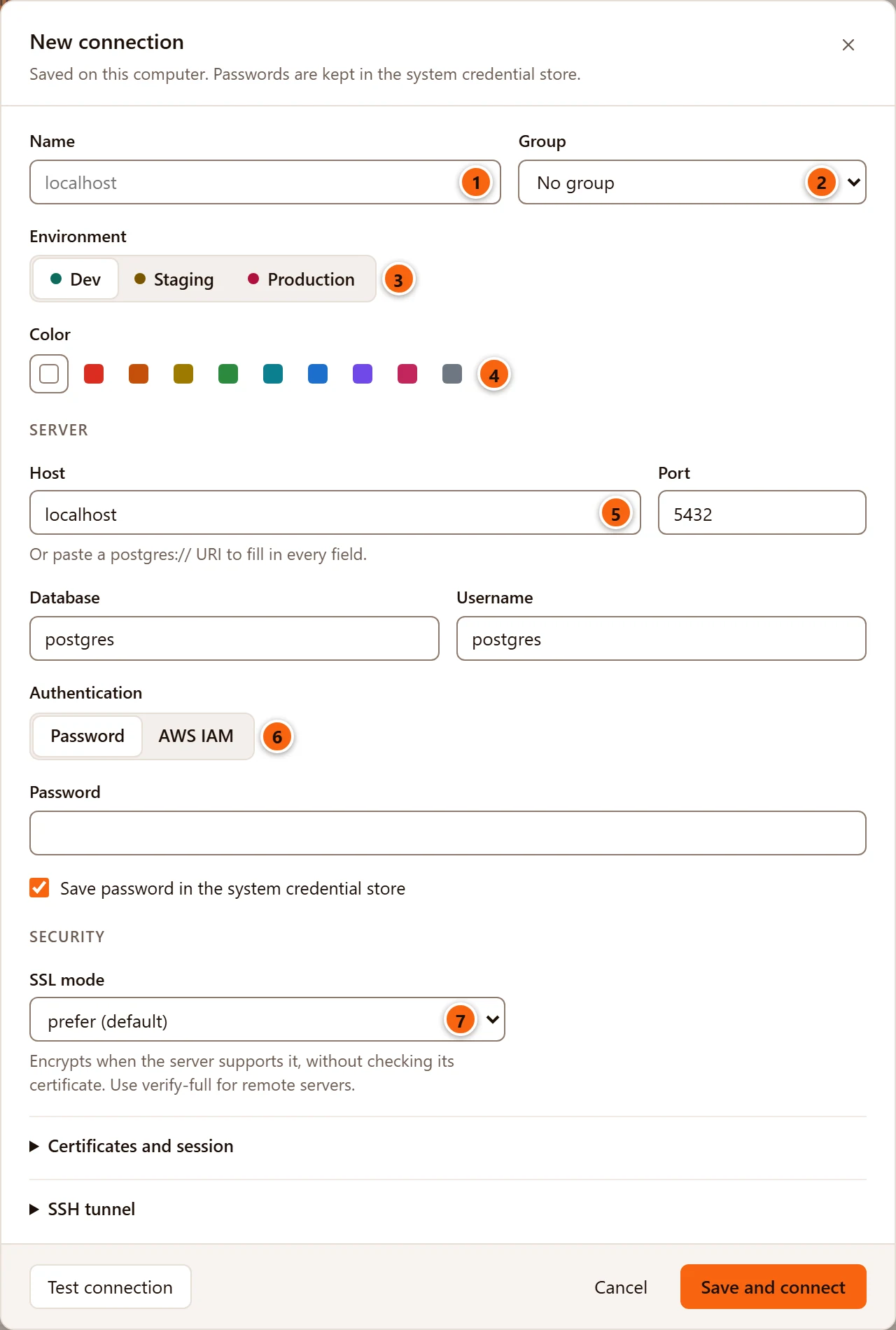
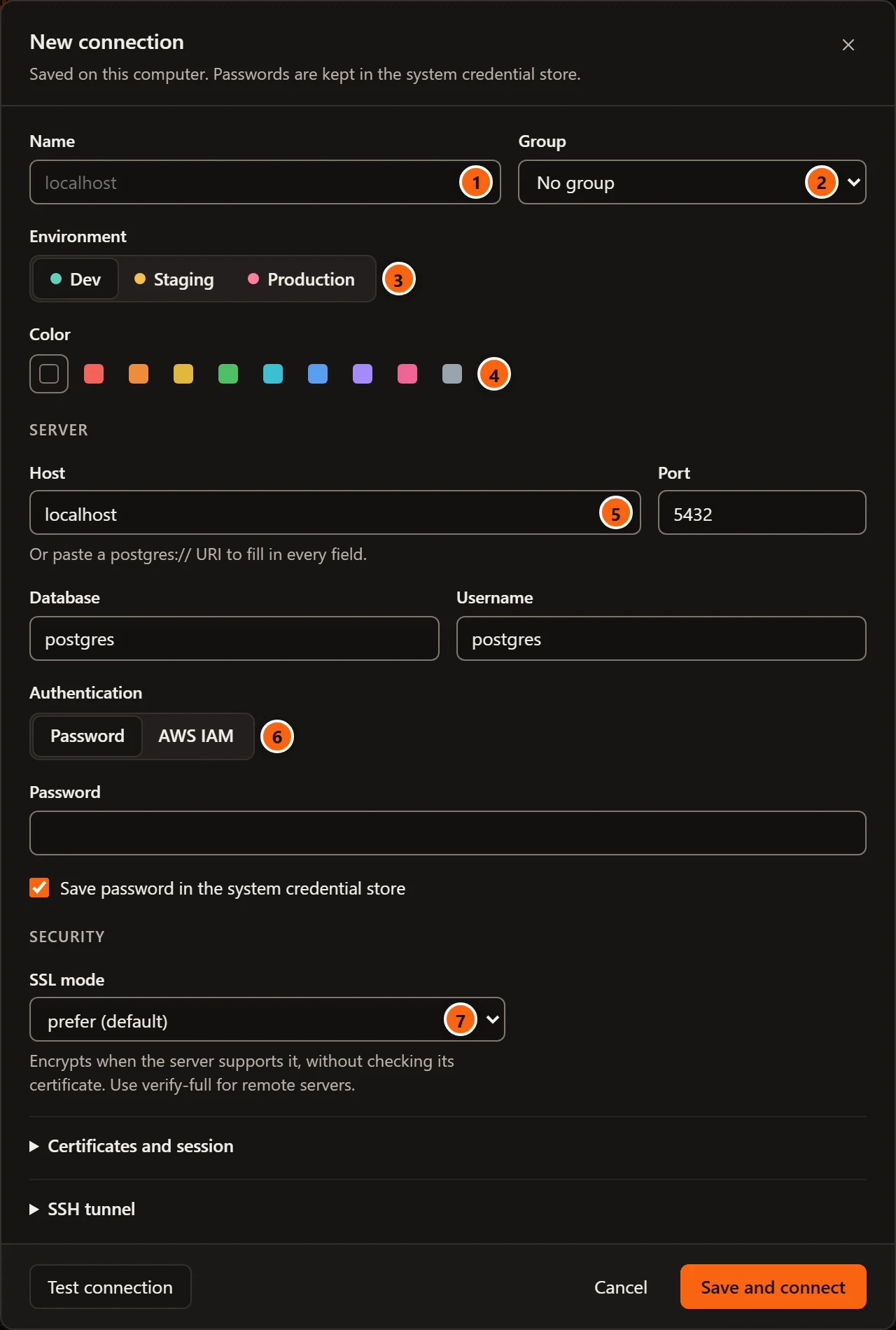
- 1 Name, what pgjumbo calls the server.
- 2 Group, the section of the Explorer the server sits in.
- 3 Environment, the server’s tag.
- 4 Color, a mark that tells similar servers apart.
- 5 Host, which also takes a pasted connection string.
- 6 Authentication, a password or AWS IAM.
- 7 SSL mode, whether the connection is encrypted and how much pgjumbo checks the server.
Every field, in the order of the dialog:
| Field | What it does |
|---|---|
| Name | The server’s name in the Explorer, the tabs and the status bar. Empty: pgjumbo uses the host (the box shows it in grey). At most 200 characters; spaces at either end are dropped. |
| Group | No group, one of your groups, or New group…, which adds a New group name field. The group is made when you save. |
| Environment | Dev, Staging or Production. See Environment. |
| Color | No color, or one of nine: Red, Orange, Yellow, Green, Teal, Blue, Purple, Pink, Gray (each square’s tooltip names it). |
| Host | A host name, an IP address, or the directory of a Unix-domain socket such as /var/run/postgresql. Paste a connection string here to fill in the dialog. Empty: libpq’s default, the local socket on macOS and Linux and localhost on Windows. |
| Port | The server’s port, 5432 by default. A number from 1 to 65535. |
| Database | The database pgjumbo connects to first, often called the maintenance database: postgres by default. The Explorer still lists every database. A Query Tool opened on the server itself starts here. |
| Username | The role to sign in as, postgres by default. Empty: your operating system’s user name, as psql does. |
| Authentication | Password, or AWS IAM for Amazon RDS and Aurora (Amazon RDS and Aurora). |
| Password | The role’s password. On a saved server whose password is saved, leave it empty to keep that password. |
| Save password in … | Keeps the password in your system’s credential store. See Sign in. |
| SSL mode | Whether the connection is encrypted, and what pgjumbo checks. See Encryption. |
| Certificates and session | Service, reader endpoint, certificate files and read-only sessions. See Certificates and session. |
| SSH tunnel | Reaching the database through an SSH server. See SSH tunnels. |
The subtitle under the title says where the settings go: Saved on this computer. Passwords are kept in and the name of your credential store. The footer has Test connection with its result, Cancel (or Esc, or the × at the top right) and Save and connect for a new server, Save for a saved one. Enter in a field does what that last button does.
Name, group, environment and colour
Section titled “Name, group, environment and colour”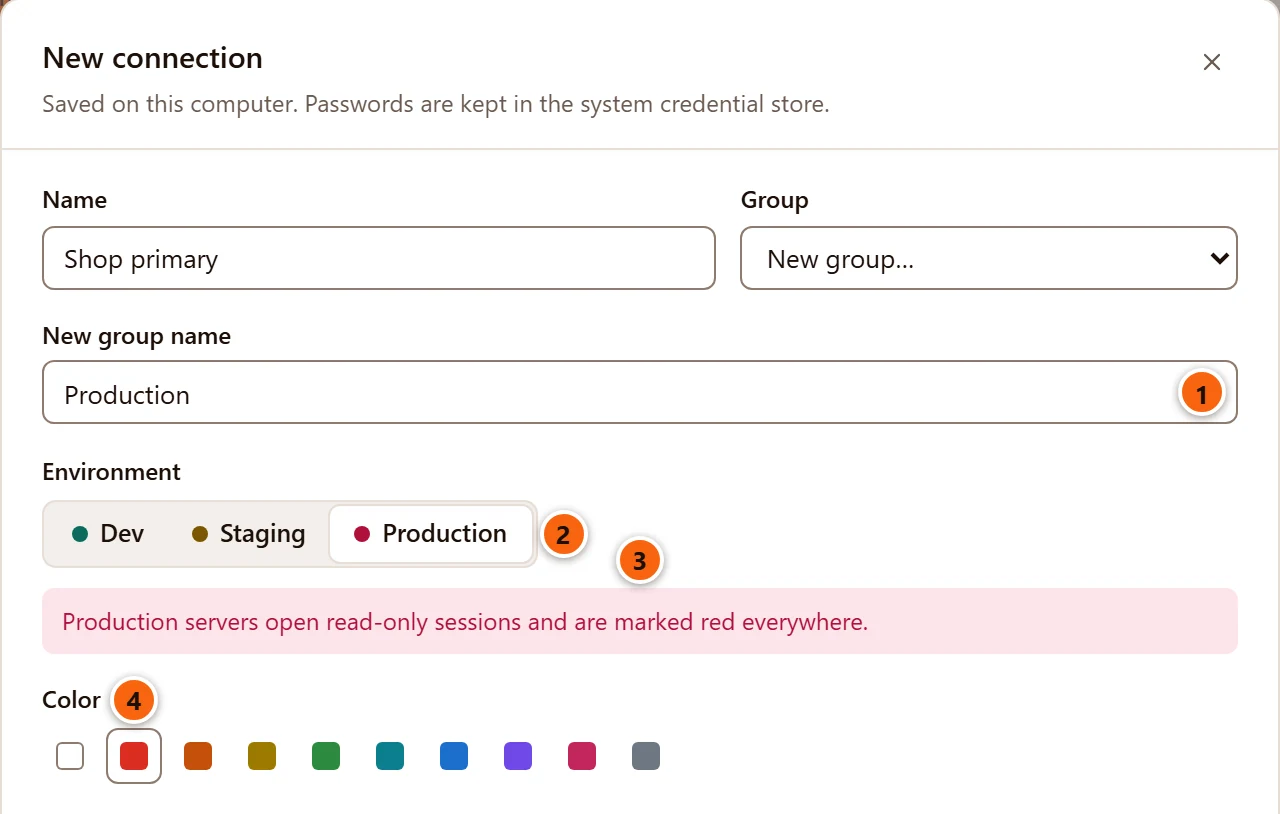
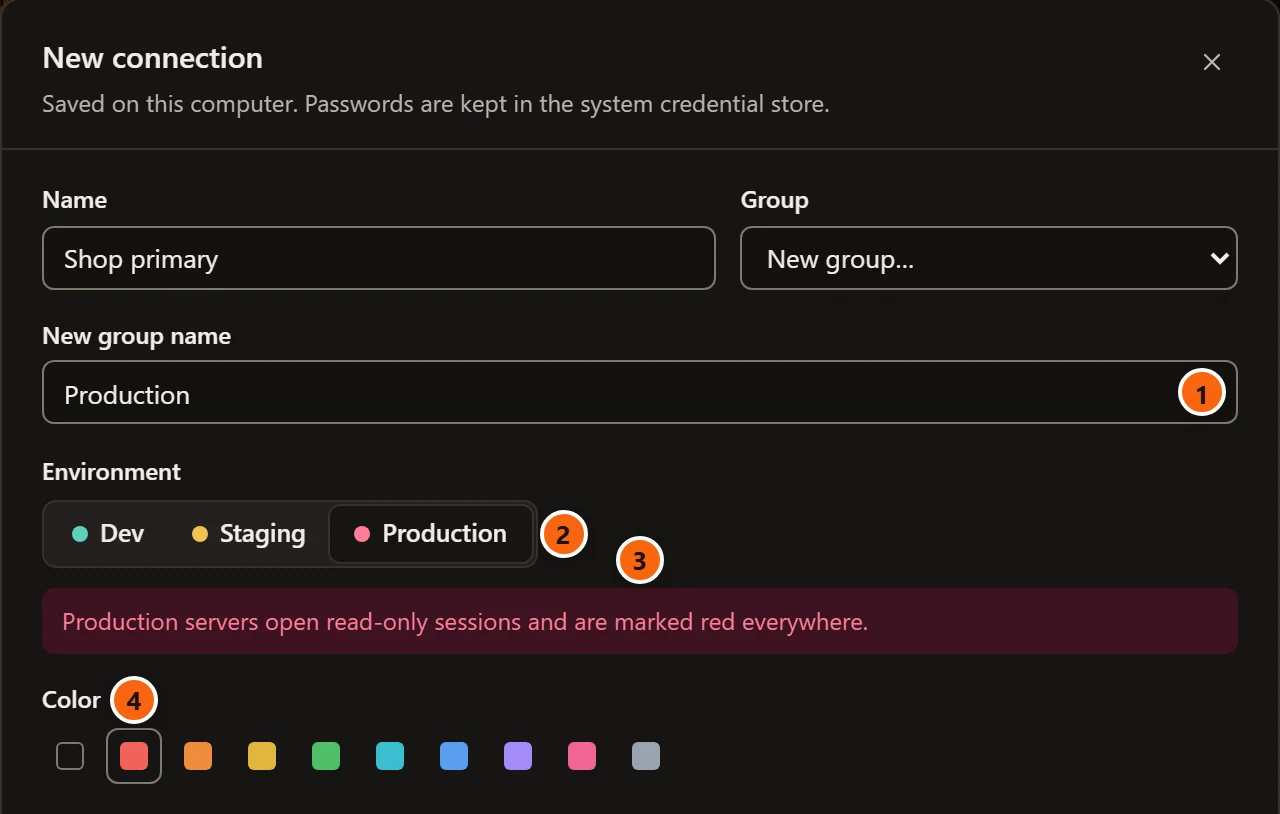
- 1 Choosing New group… adds New group name. Saving with it empty says Give the new group a name.
- 2 Production chosen.
- 3 The dialog reminds you what that does: Production servers open read-only sessions and are marked red everywhere.
- 4 A colour, here red. The square with a border is the chosen one; the first square is No color.
A group sorts servers in the Explorer, by team, customer or region for example. Groups are made here and renamed, reordered and deleted in the Explorer: see Manage your servers. A server that moves to another group goes to the end of it.
The colour shows as a stripe on the left edge of the server’s row in the Explorer and as a small square next to its name in the status bar.
Environment
Section titled “Environment”The environment is a tag: Dev, Staging or Prod next to the server’s name in the Explorer, on the start page, on the server’s page, in the Edit connection dialog’s subtitle, in the status bar, on the toolbar’s database button while a Query Tool is in front, and in the dialogs that run something on the server. A query tab shows the environment’s colour as a dot before its name. The environment also changes how careful pgjumbo is.
| Environment | What changes |
|---|---|
| Dev | Nothing: the tag only. |
| Staging | A yellow tag. With Staging servers ask before destructive statements too ticked in Settings, it asks first as Production does. |
| Production | A red tag, also on the server’s tabs in the tab strip. Choosing it ticks Read-only sessions; untick that box if you need to change things. A script that drops, truncates, or updates or deletes every row waits for you to confirm it (The Query Tool), and dropping or truncating from the Explorer asks you to type the database’s name first (Drop, truncate and other quick actions). |
Choosing another environment after Production unticks Read-only sessions again. What the Assistant may read also depends on the environment; see Set up the Assistant.
Where the server is
Section titled “Where the server is”Host, Port, Database and Username are libpq’s host, port, dbname and user, and they behave as
they do in psql. pgjumbo always asks for UTF-8 from the server and gives up on a connection that has not opened
after 10 seconds.
pgjumbo’s own connections show in pg_stat_activity with an application_name that starts with pgjumbo/:
pgjumbo/metadata for the Explorer and the Inspector, pgjumbo/query for a Query Tool or data tab, pgjumbo/test
for a connection test, pgjumbo/monitor for Activity, and others named after their task,
such as pgjumbo/objects for a drop or truncate from the Explorer. That is how you find them in Activity.
Paste a connection string
Section titled “Paste a connection string”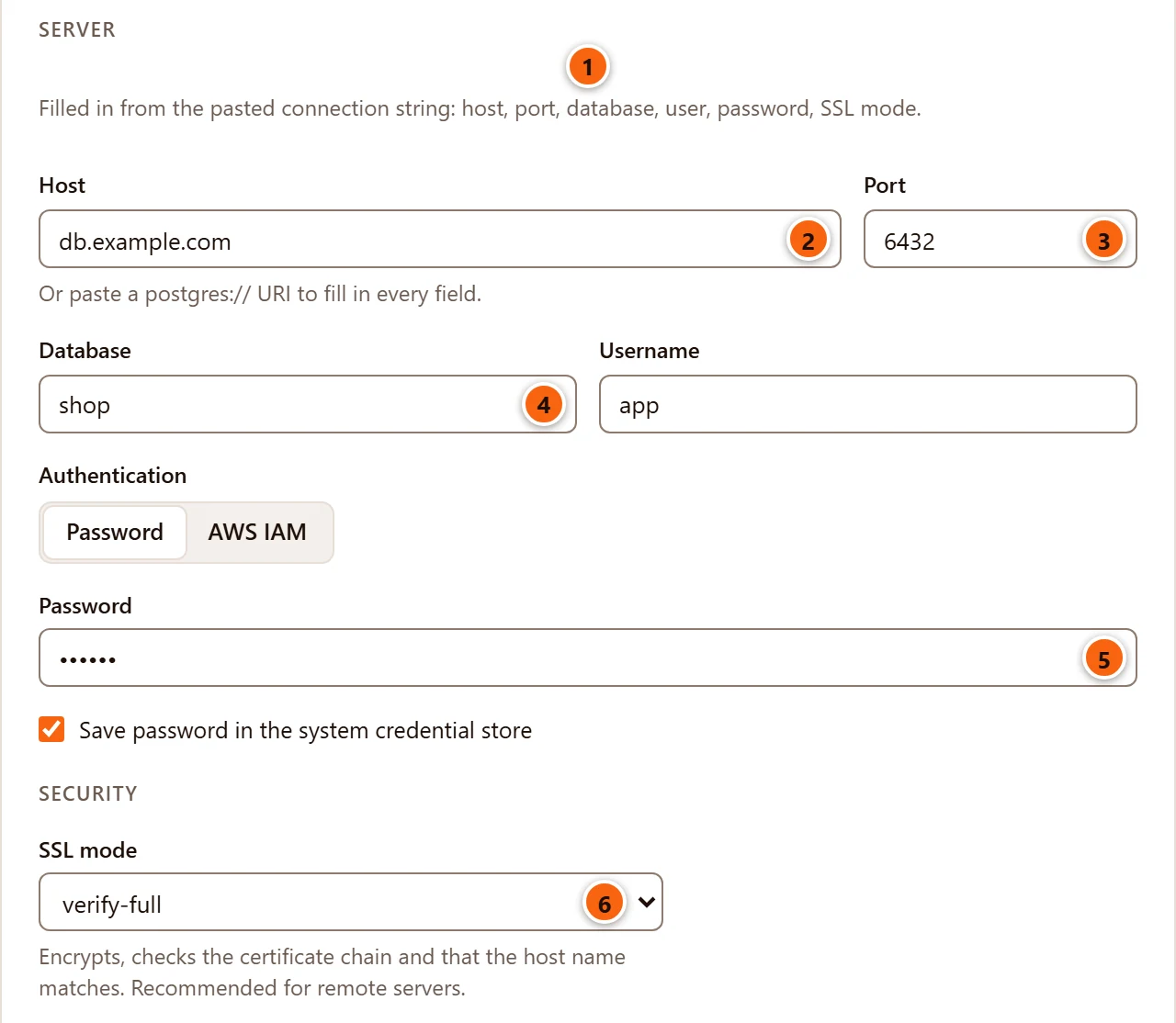
Paste a connection string into Host and pgjumbo spreads it over the dialog. Both of libpq’s forms work:
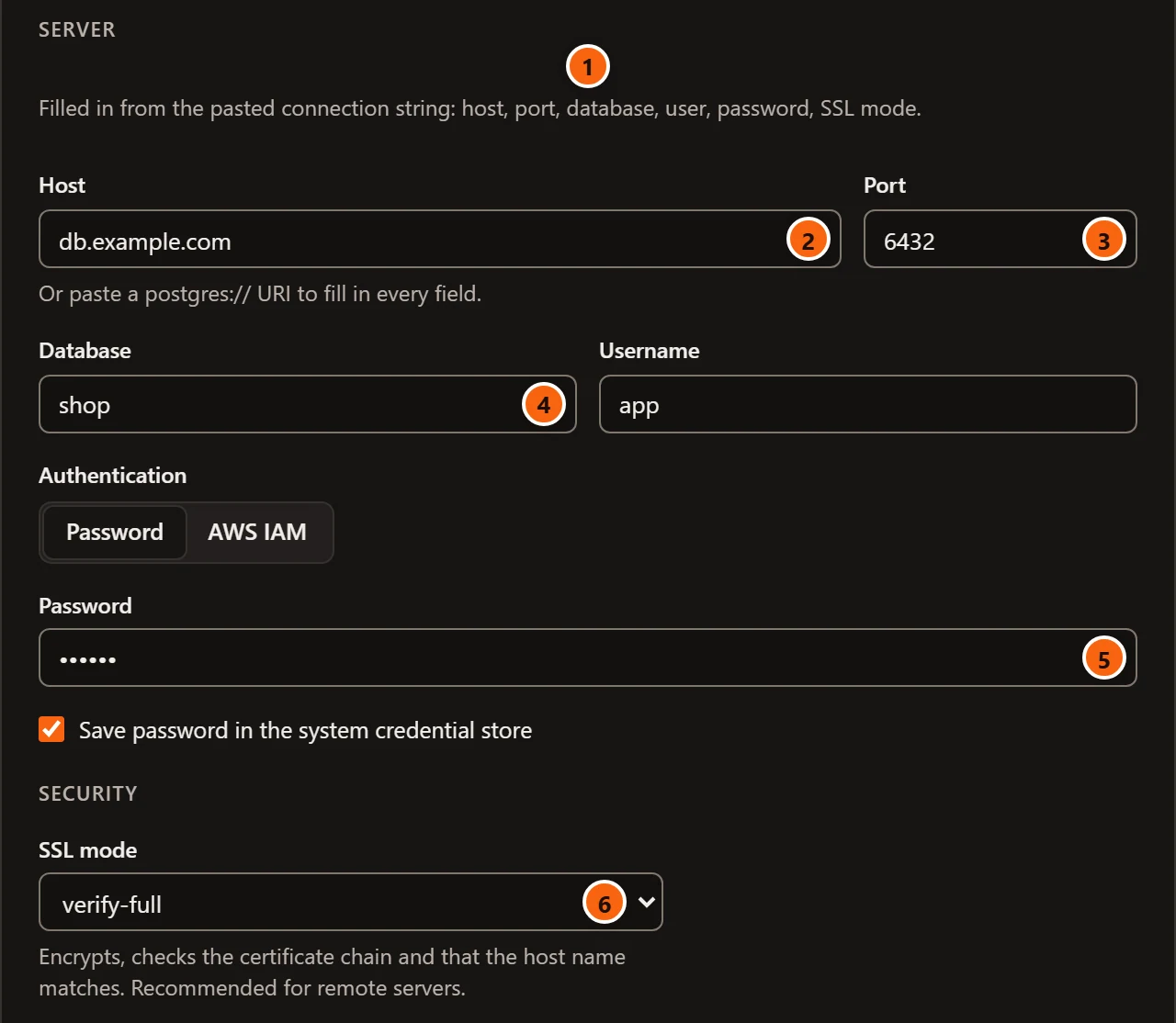
postgres://app:s3cret@db.example.com:6432/shop?sslmode=verify-fullhost=db.example.com port=6432 dbname=shop user=app sslmode=verify-full- 1 A note under Server says what was filled in.
- 2 Host gets the host. When the string names several hosts, only the first is kept and the note names the others, which are left out.
- 3 Port.
- 4 Database, from the URI’s path or
dbname. - 5 Password, when the string holds one. The dialog reads it itself and only fills the field, so it is saved like a password you type: in the credential store when Save password is ticked.
- 6 SSL mode, when the string has
sslmode.
user, sslrootcert, sslcert, sslkey, sslcrl and service fill their fields as well; the certificate files and
the service open Certificates and session. hostaddr stands in for the host when there is no host. Other
parameters, such as application_name or connect_timeout, are ignored. A key=value string that cannot be read (an
unclosed quote, say) shows That connection string could not be read. in red and changes nothing. Dropping a string
onto an empty Host works the same way as pasting it; typing one does not.
Sign in
Section titled “Sign in”Authentication is Password for an ordinary PostgreSQL role. AWS IAM replaces the password with a token
signed by your AWS credentials, and swaps the password fields for AWS region and AWS profile. Choosing it also
moves SSL mode to verify-full when it was disable, allow or prefer, and opens Certificates and
session. It is described on Amazon RDS and Aurora.
Save password in … names your system’s credential store: the macOS Keychain, Windows Credential Manager, or the system keyring on Linux (GNOME Keyring, KWallet or another Secret Service). What it does:
- Ticked (the default): the password goes into the credential store when you save, and every connection takes it from there. pgjumbo’s own files never hold it, and an exported server list never does either.
- Unticked: nothing is stored. A password typed in the dialog is used for the connection Save and connect makes, and kept in memory until you disconnect. On later connects, when the server asks for a password, pgjumbo asks you (below). Unticking it on a saved server and saving deletes the password already stored.
- Greyed out and unticked, with No credential store was found on this computer, so pgjumbo asks for the password when connecting. under it: on a Linux desktop without a Secret Service. pgjumbo then always asks, and the start page says so too.
A server that needs no password (trust, peer or certificate authentication in its pg_hba.conf) connects
without one: leave Password empty. Since pgjumbo connects through libpq, a password in your
password file (~/.pgpass, or
%APPDATA%\postgresql\pgpass.conf on Windows) is used when the dialog and the credential store have none.
Encryption
Section titled “Encryption”SSL mode is libpq’s sslmode. The help under the menu changes with the choice:
| SSL mode | What it does |
|---|---|
disable |
No encryption. Only for a server on this machine or a trusted network. |
allow |
Encrypts only if the server insists. Not recommended. |
prefer (default) |
Encrypts when the server supports it, without checking its certificate. |
require |
Always encrypts, but does not check the server’s certificate. |
verify-ca |
Encrypts and checks the certificate chain, but not the host name. |
verify-full |
Encrypts, checks the certificate chain and that the host name matches. Recommended for remote servers. |
verify-ca and verify-full check the server’s certificate against a certificate authority: give it as Root
certificate under Certificates and session. Without one, libpq looks for ~/.postgresql/root.crt
(%APPDATA%\postgresql\root.crt on Windows).
The server’s page and the status bar say whether a connection is encrypted, with the TLS version; a test says it too.
Certificates and session
Section titled “Certificates and session”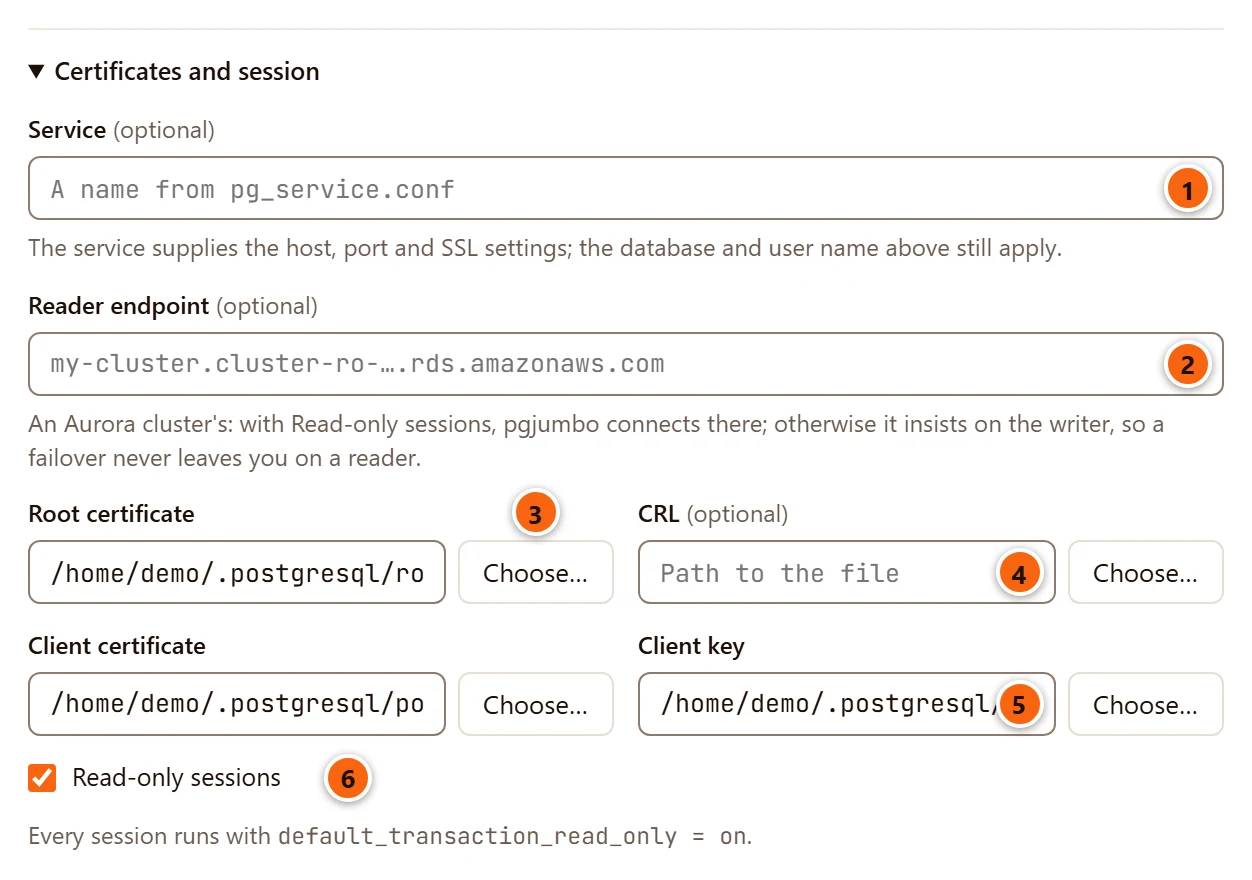
Click Certificates and session to open it. It opens by itself when one of its fields has a value.
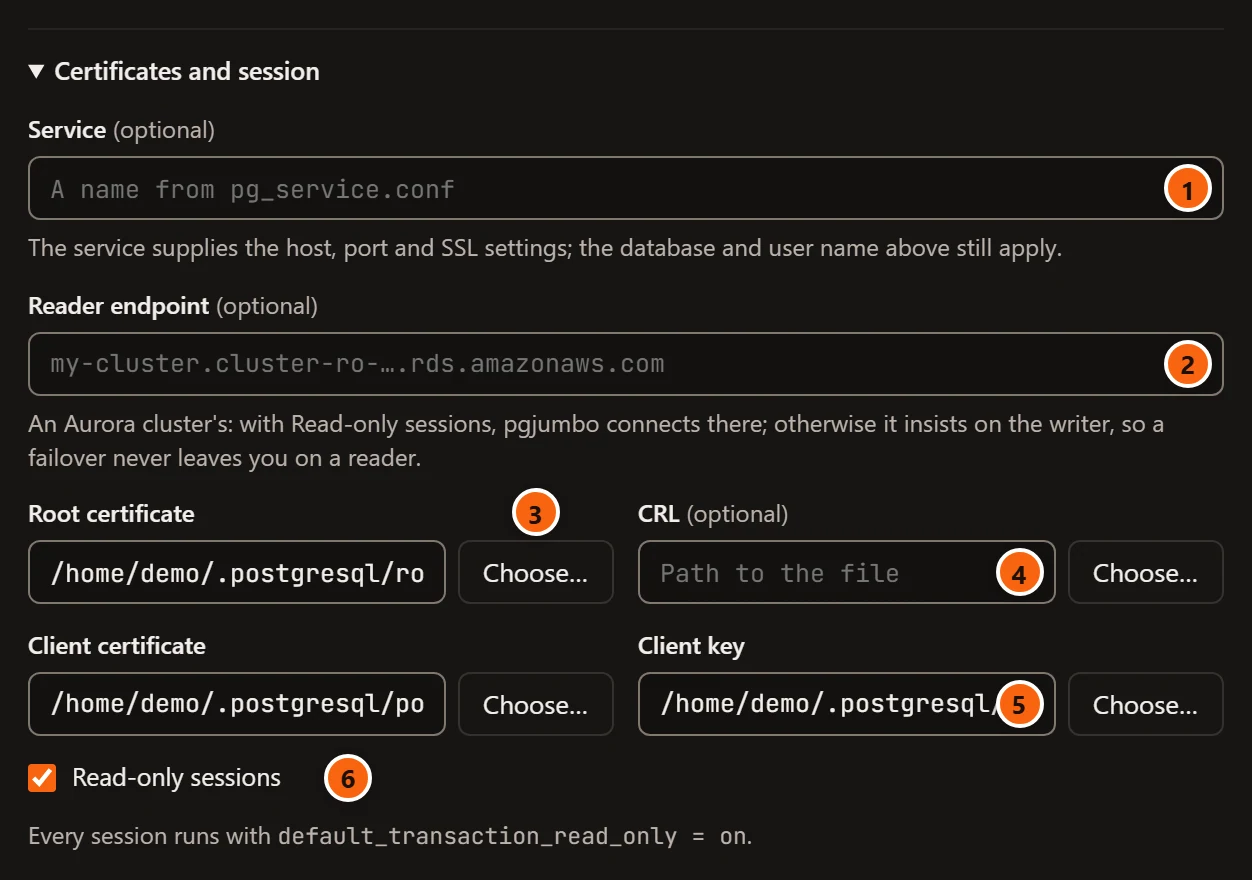
- 1 Service, a service name from
pg_service.conf. - 2 Reader endpoint, for an Aurora cluster.
- 3 Choose… shows your system’s Open dialog for the file next to it; you can also type or paste a path.
- 4 CRL, a certificate revocation list.
- 5 Client key, the key that goes with Client certificate.
- 6 Read-only sessions.
| Field | What it does |
|---|---|
| Service (optional) | A service of pg_service.conf. It supplies the host, port and SSL settings; see Use a service file. |
| Reader endpoint (optional) | An Aurora cluster’s reader endpoint. With Read-only sessions ticked, pgjumbo connects there; otherwise it insists on the writer, so a failover never leaves you on a reader. See Amazon RDS and Aurora. |
| Root certificate | The certificate authority that signed the server’s certificate (libpq’s sslrootcert). Choose… opens Choose the Root Certificate, which shows .crt, .pem and .cer files first; its file-type menu also has All files, as in every one of these dialogs. |
| CRL (optional) | A revocation list, for a certificate authority that revokes certificates (sslcrl). Choose… opens Choose the Revocation List (.crl and .pem files). |
| Client certificate | Your certificate, for a server that signs you in with one (sslcert). Choose… opens Choose the Client Certificate (.crt, .pem and .cer files). |
| Client key | The private key of that certificate (sslkey). Choose… opens Choose the Client Key (.key and .pem files). On macOS and Linux, libpq refuses a key file that other users can read: give it the permissions 0600. |
| Read-only sessions | Every session runs with default_transaction_read_only = on. See Read-only sessions. |
Use a service file
Section titled “Use a service file”A connection service file keeps connection settings under a name, for every libpq program to share. Type the name in Service:
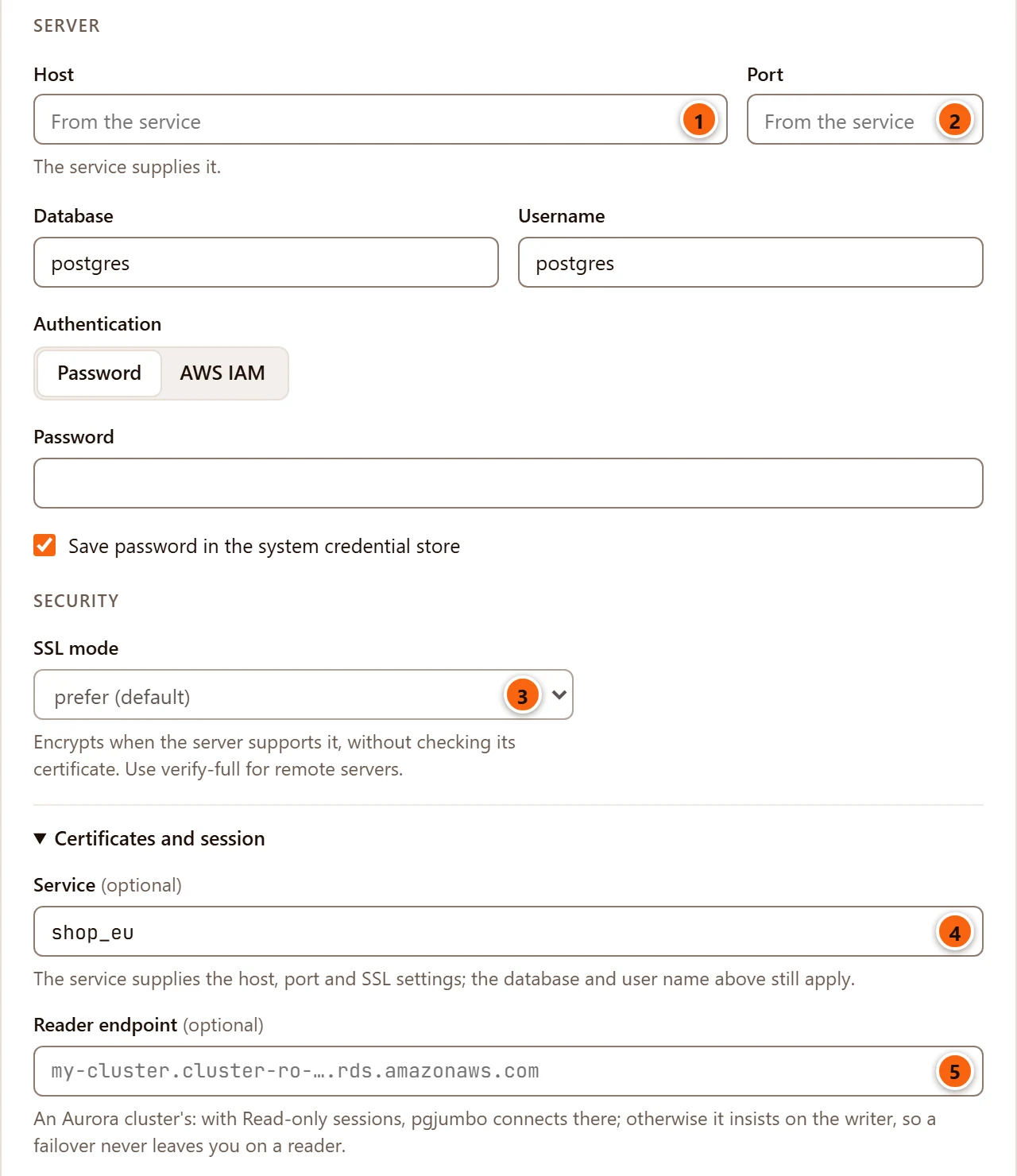
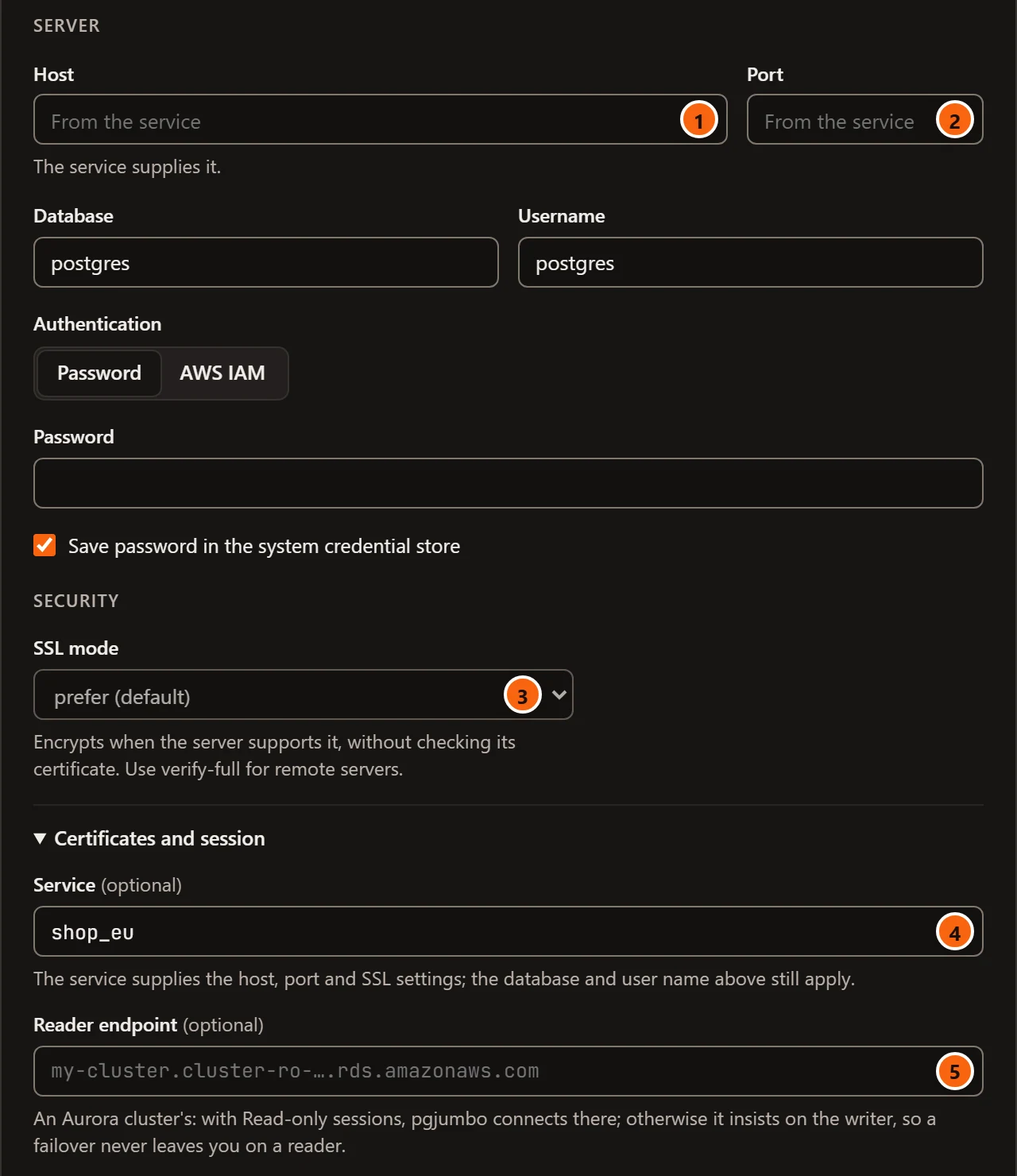
- 1 Host is greyed out and says From the service, with The service supplies it. under it.
- 2 Port is greyed out the same way.
- 3 SSL mode is greyed out. The certificate fields stay open to typing but are not used: the service’s settings apply.
- 4 Service, with the name from the file.
- 5 Reader endpoint is greyed out.
Database and Username still apply, and override what the service names. Empty Username to use the service’s user. A service cannot be combined with an SSH tunnel (Connect through an SSH server is greyed out, with Not with a pg_service.conf service.), a reader endpoint or AWS IAM sign-in. A server that already had one of those when you typed the service is refused on Test connection or Save with Use either a pg_service.conf service or an SSH tunnel, not both. (or a reader endpoint, or AWS IAM sign-in).
libpq finds the file as usual: the file the PGSERVICEFILE environment variable names, else ~/.pg_service.conf
(%APPDATA%\postgresql\.pg_service.conf on Windows), else pg_service.conf in the folder PGSYSCONFDIR names.
Read-only sessions
Section titled “Read-only sessions”With Read-only sessions ticked, every connection pgjumbo opens to the server starts with
default_transaction_read_only = on: the Explorer’s, every Query Tool’s, the client programs pgjumbo runs for
backups and restores, and the psql of a PSQL Tool tab. PostgreSQL then refuses any change with
ERROR: cannot execute INSERT in a read-only transaction (or UPDATE, CREATE TABLE and so on). Queries work as usual.
A few actions write to the server outside a transaction, so pgjumbo itself refuses them on a read-only server, with a
message that starts pgjumbo opens this server read-only and asks you to turn it off in the server’s connection
first. They are changing settings with ALTER SYSTEM in Server configuration,
dropping a replication slot or pausing or resuming replay in the server’s Replication
view, and resetting the statistics of Top queries.
The setting is sent as a startup option (-c default_transaction_read_only=on). A connection pooler that does not
accept startup options refuses such connections: untick Read-only sessions for a server behind one.
SSH tunnel
Section titled “SSH tunnel”SSH tunnel reaches a database through an SSH server, such as a bastion host: tick Connect through an SSH server, and Host and Port above become the database as the SSH server sees it. Every field is on SSH tunnels.
Test the connection
Section titled “Test the connection”Test connection opens one connection with the dialog’s settings as they are now, reads the server’s version and closes it again. It saves nothing and does not need the server to be saved. On a saved server it uses the saved password when Password is empty. While it runs, the footer says Connecting… and the button is greyed out; changing any field clears the result.
A good test says Connected · PostgreSQL 18.1 · TLSv1.3 · 42 ms: the server’s version, the TLS version (no TLS when the connection is not encrypted) and how long the test took.
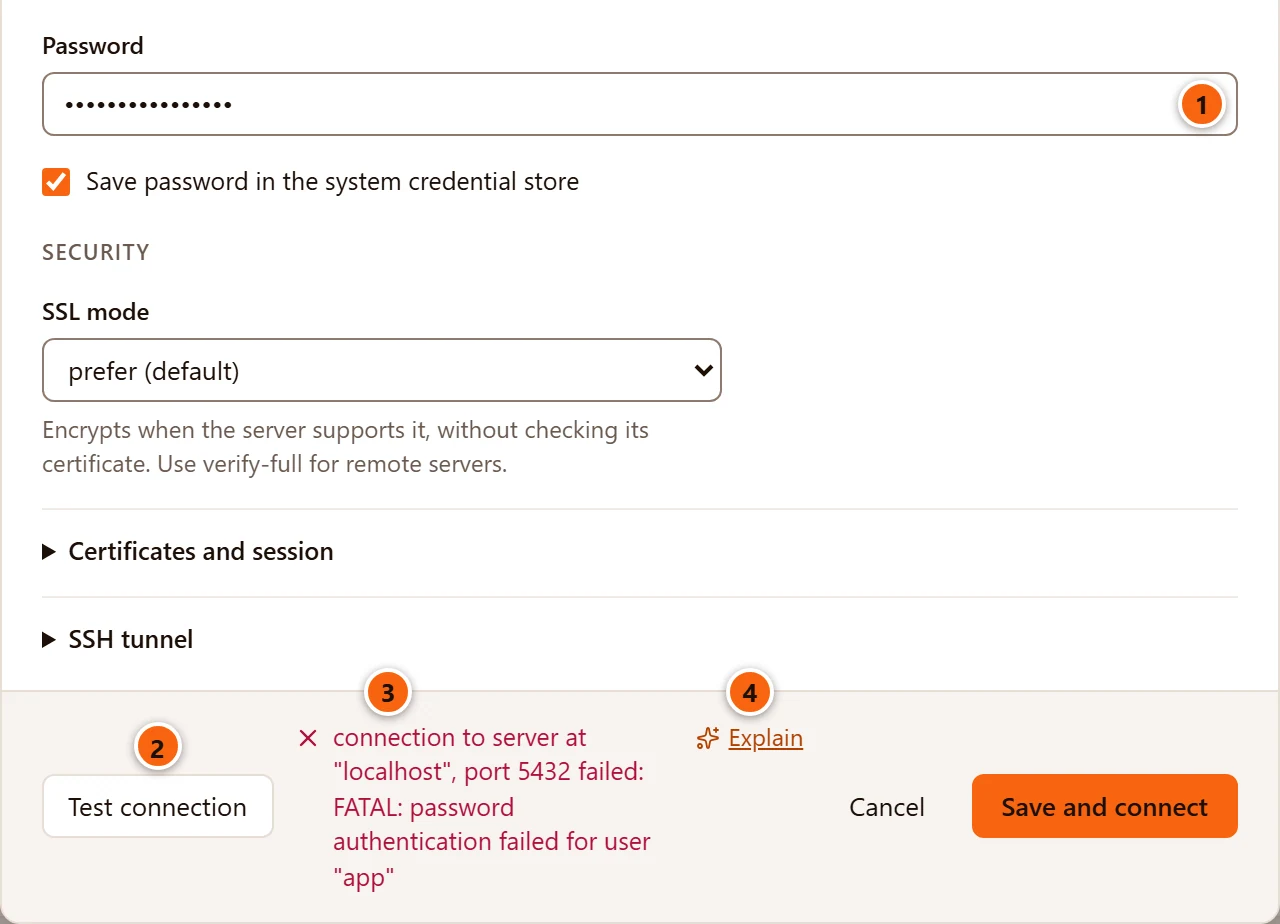
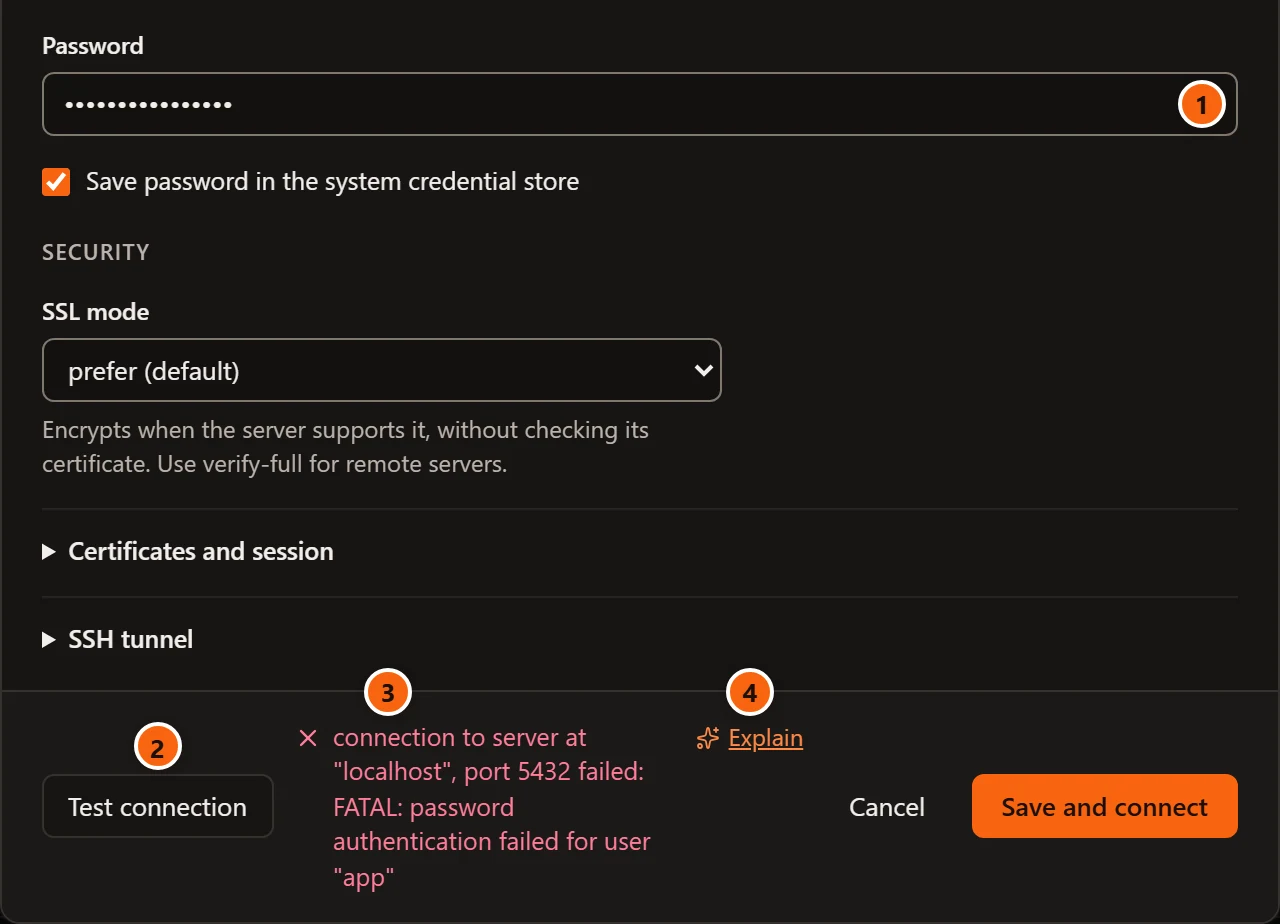
- 1 The password tried.
- 2 Test connection.
- 3 Why the test failed, as the server or libpq said it.
- 4 Explain, when the Assistant is on. See Explain a failed test.
What a failed test tells you
Section titled “What a failed test tells you”Some messages come from pgjumbo before anything is sent; the others come from libpq or from the server. Their exact words depend on the server’s version and language.
| The message says | What it means |
|---|---|
| The port must be a number between 1 and 65535. | Port is empty or not a port number. Nothing was tried. |
| Give the new group a name. | Group is New group… and New group name is empty. |
| Enter a maintenance database (usually postgres). | Database is empty. |
| The name is too long (200 characters at most). | Name has more than 200 characters. |
| Use either a pg_service.conf service or …, not both. | Service is filled in together with an SSH tunnel, a reader endpoint or AWS IAM sign-in. |
| The server asked for a password. Enter it and try again. | The server wants a password and none was typed (or saved, for a saved server). |
password authentication failed for user "app" |
The password, or the user name, is wrong. |
no pg_hba.conf entry for host "10.0.0.9", user "app", database "postgres" |
The server’s pg_hba.conf does not let this user in from your address to this database. Its administrator changes that; if the entry says hostssl, an SSL mode of require or stronger may be all it needs. |
role "app" does not exist or database "shop" does not exist |
Username or Database names something the server does not have. |
Connection refused |
The host answered, but nothing listens on that port: the server is down, the port is wrong, or the server’s listen_addresses does not include this network. |
could not translate host name "…" to address |
Host is not a name your computer can resolve. |
| Timed out after 10 s. Is the host reachable, and is the port right? | Nothing answered within 10 seconds: a firewall, a cloud security group or a wrong address. |
server does not support SSL, but SSL was required |
SSL mode is require or stronger, and the server has no TLS. |
certificate verify failed, or a missing root certificate file |
With verify-ca or verify-full, the server’s certificate could not be checked: give the right Root certificate. |
server certificate for "…" does not match host name "…" |
With verify-full, Host must be the name in the server’s certificate. |
The problems that need the server’s administrator (pg_hba.conf, listen_addresses, a firewall) cannot be fixed in
the dialog.
Explain a failed test
Section titled “Explain a failed test”When the Assistant is on (Use the Assistant in the Assistant section of Settings, see Set up the Assistant), a failed test gets an Explain link after its message. The checks the dialog makes before it tries anything (the port, the SSH port and the new group’s name) do not, and neither does an SSH host key waiting to be trusted. The link is in the server tab’s Connection view too.
Click Explain. pgjumbo first checks what it can without signing in: the addresses the host resolves to, whether the port answers, whether a PostgreSQL server there offers TLS (or an SSH server greets, for a tunnel), and for AWS IAM whether your AWS credentials are found and still valid. It then asks your Claude Code, with no tools and no way to connect, to explain the error from those checks and the dialog’s settings. A card opens under the fields:
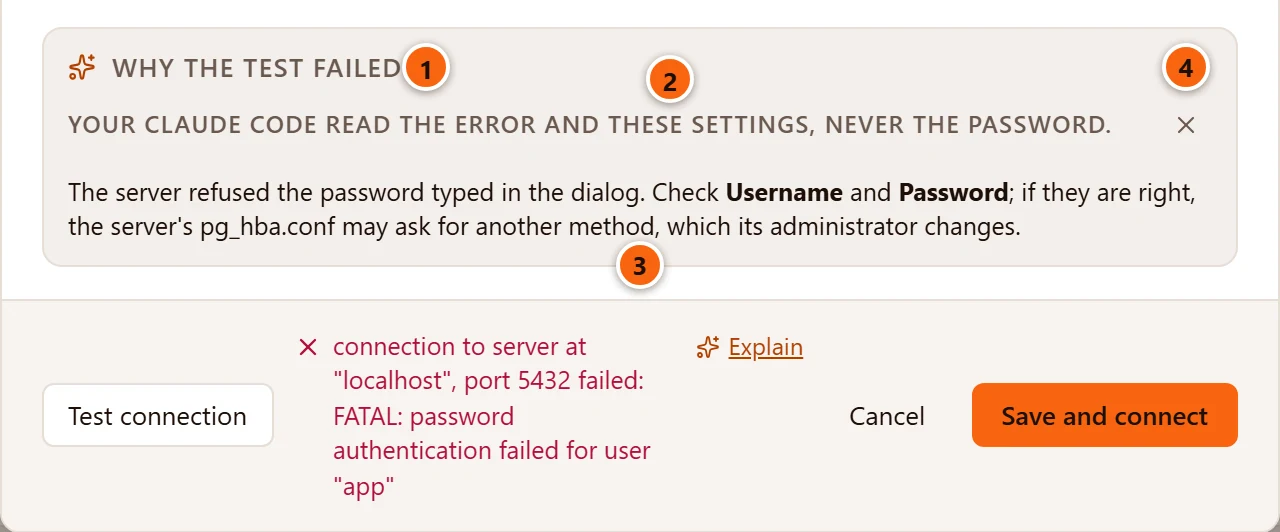
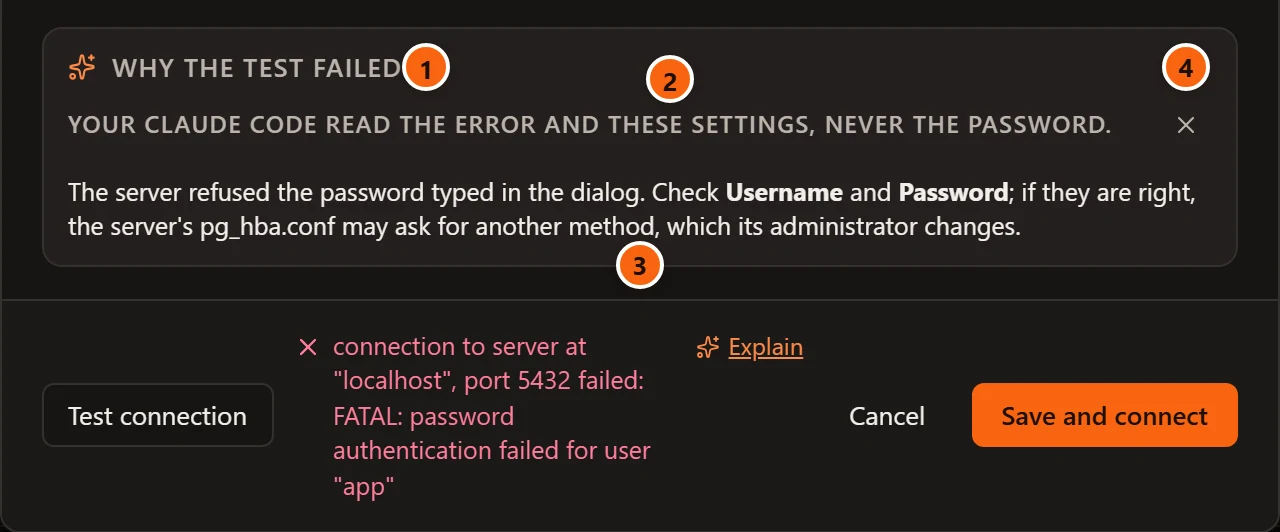
- 1 Why the test failed, the card’s title.
- 2 The note says what was sent: Your Claude Code read the error and these settings, never the password. Claude learns only whether a password was typed or saved.
- 3 The answer, written in as it comes. It names the dialog’s fields to change, or says what to ask the server’s administrator. Until the first words arrive, the card says Checking the host and port, then asking Claude….
- 4 The × puts the card away once the answer is finished. While it is still being written, a Stop button stands there instead.
Clicking Test connection again also removes the card; changing a field does not.
When pgjumbo asks for the password
Section titled “When pgjumbo asks for the password”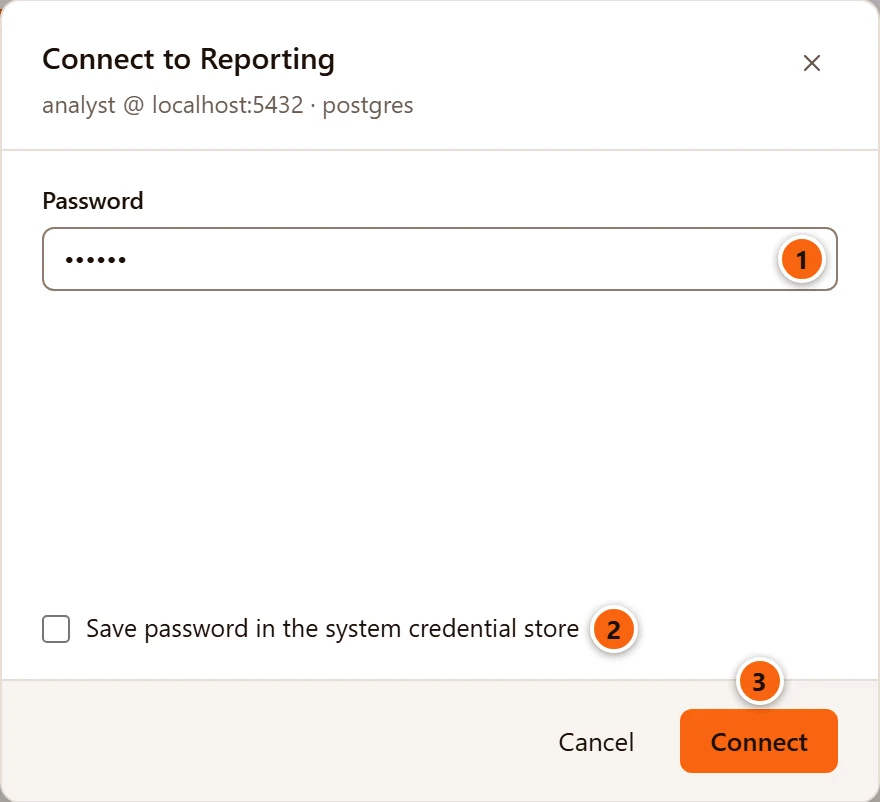
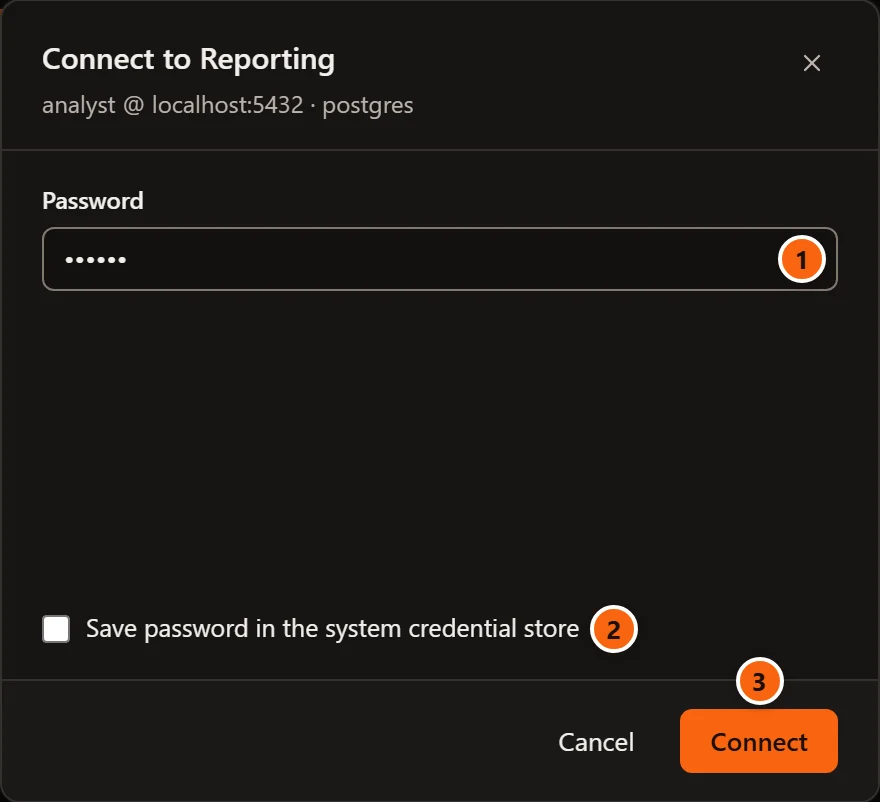
When you connect to a server whose password is not saved and the server asks for one, pgjumbo asks too. The dialog is titled Connect to and the server’s name, with the user (or your OS user name), address and database under it. This is also how a server imported from a file gets its password, since none comes with it.
- 1 Password. Connect with it empty says Enter the password.
- 2 Save password in …, unticked. Tick it to store the password and turn on Save password for the server, so pgjumbo does not ask again.
- 3 Connect. A wrong password keeps the dialog open with the server’s message, for another try. Cancel leaves the server disconnected.
A password you do not save is kept in memory until you disconnect, so the server’s other connections (another database in the Explorer, a Query Tool) do not ask again. The next connect asks again. Through an SSH tunnel the same dialog may ask for the SSH password first; see SSH tunnels.
A saved password that is wrong does not bring up this dialog: the server shows as failed with
password authentication failed. Type the new password in the server’s connection settings and save.
Change a saved server
Section titled “Change a saved server”How you change a server depends on whether it is connected. The changes never run anything on the server: they are pgjumbo’s own settings, used the next time it connects.
A server that is not connected opens the Edit connection dialog:
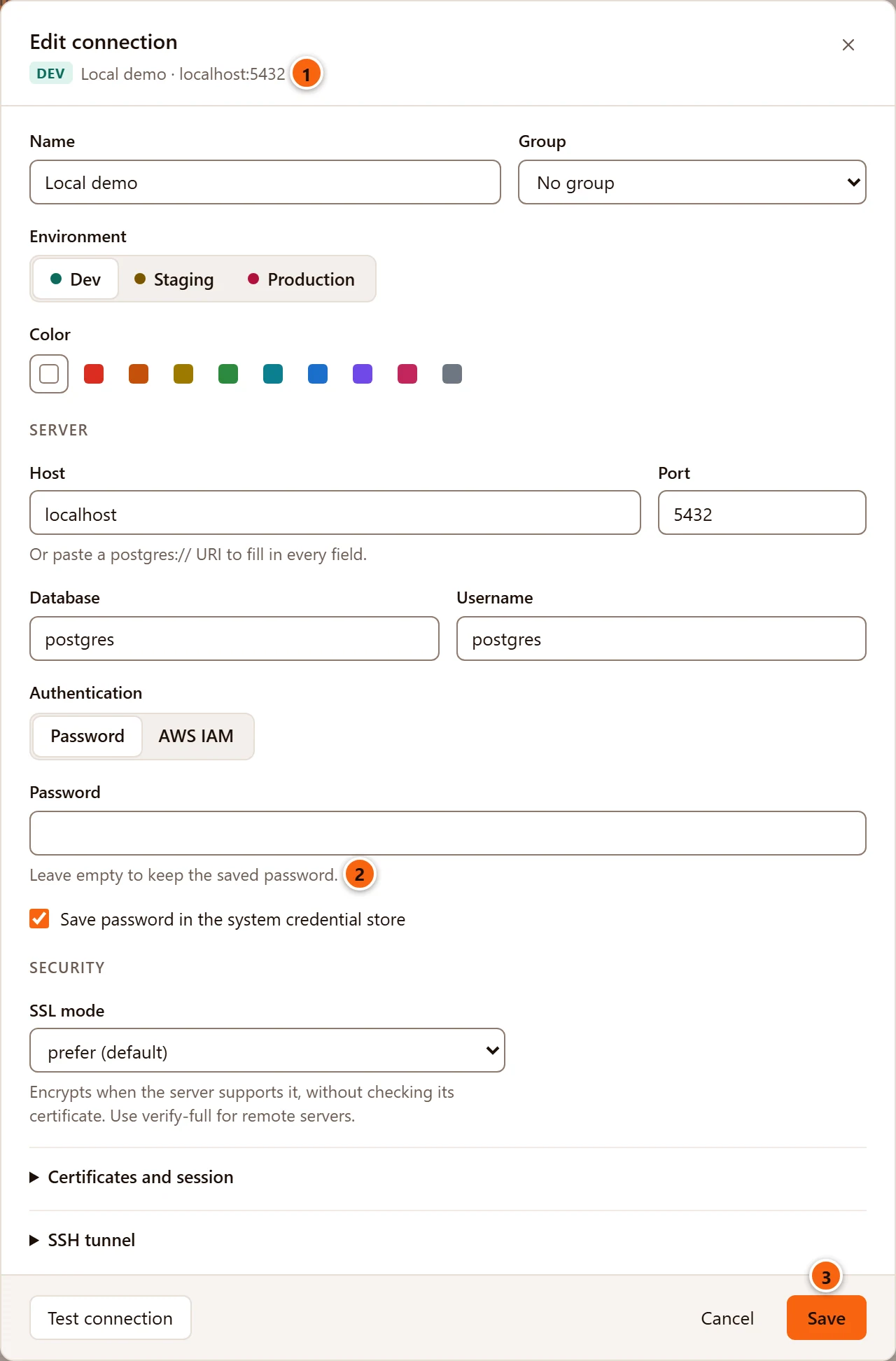
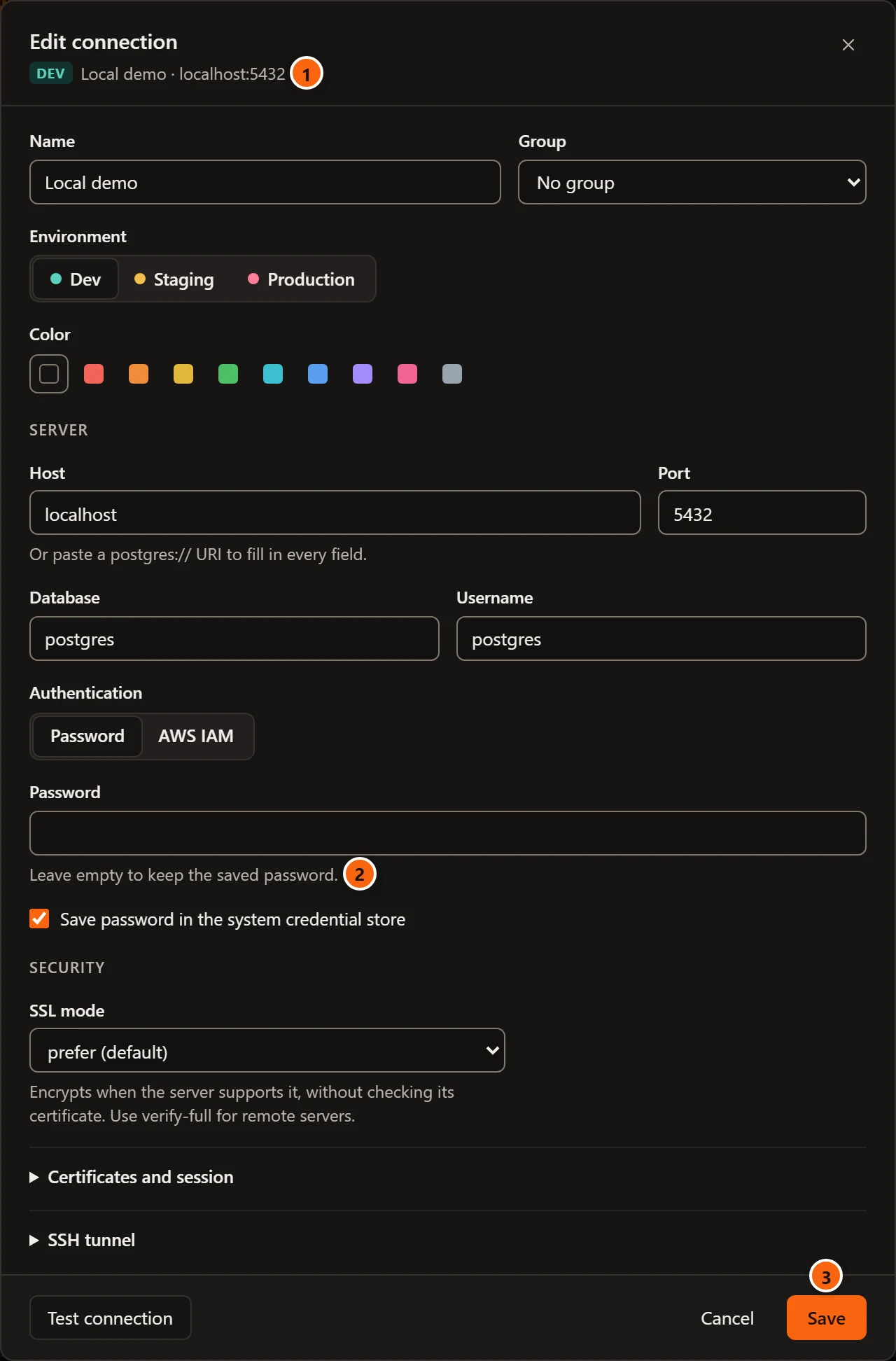
- 1 The subtitle shows the server’s tag, name and address as saved.
- 2 Password is empty. Leave it so to keep the saved password, or type a new one to replace it. The note Leave empty to keep the saved password. shows only when a password is saved.
- 3 Save keeps the changes and closes the dialog. It does not connect.
A server that is connected opens its server’s tab on the Connection view, the same form inside the tab:
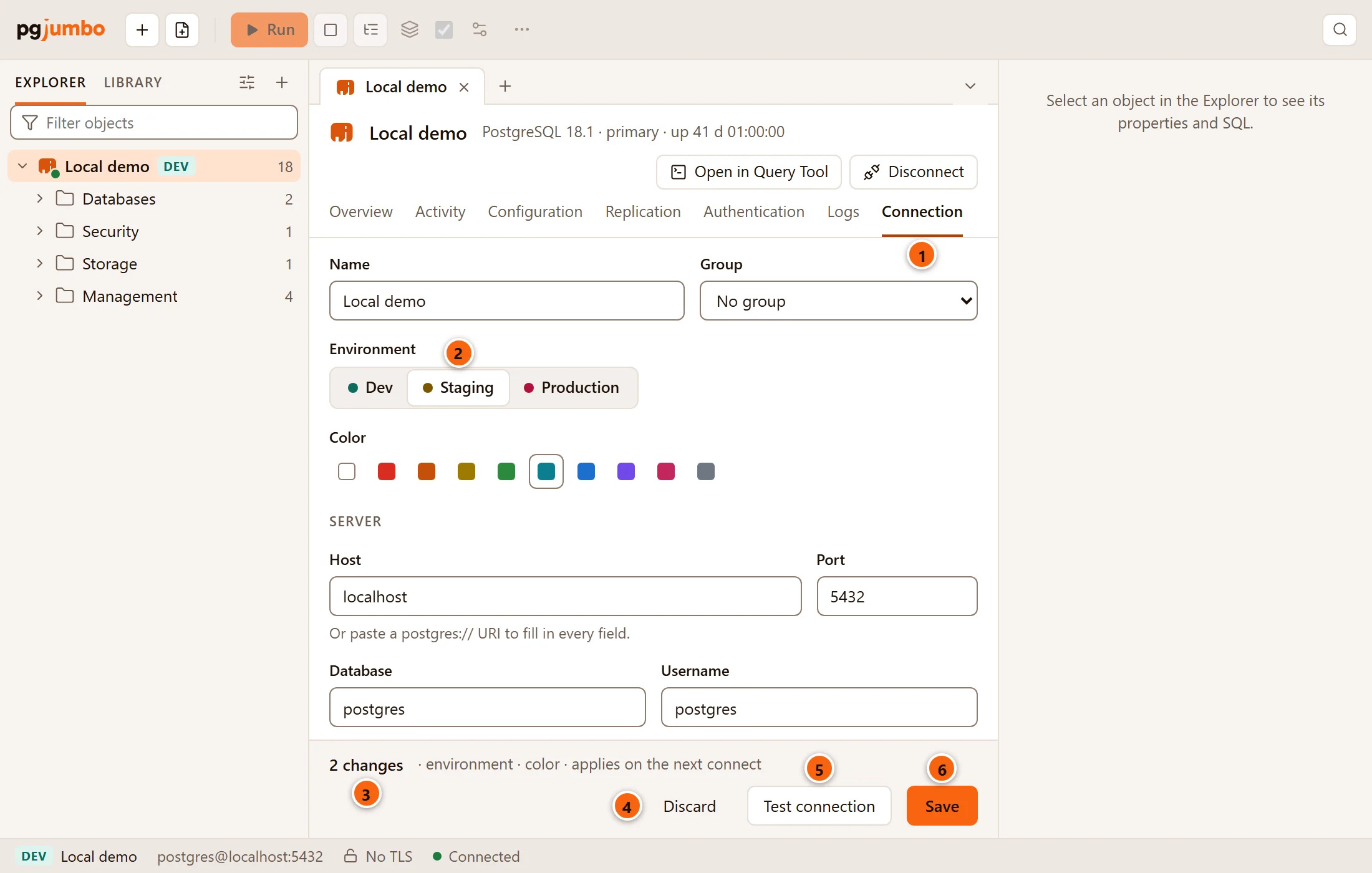
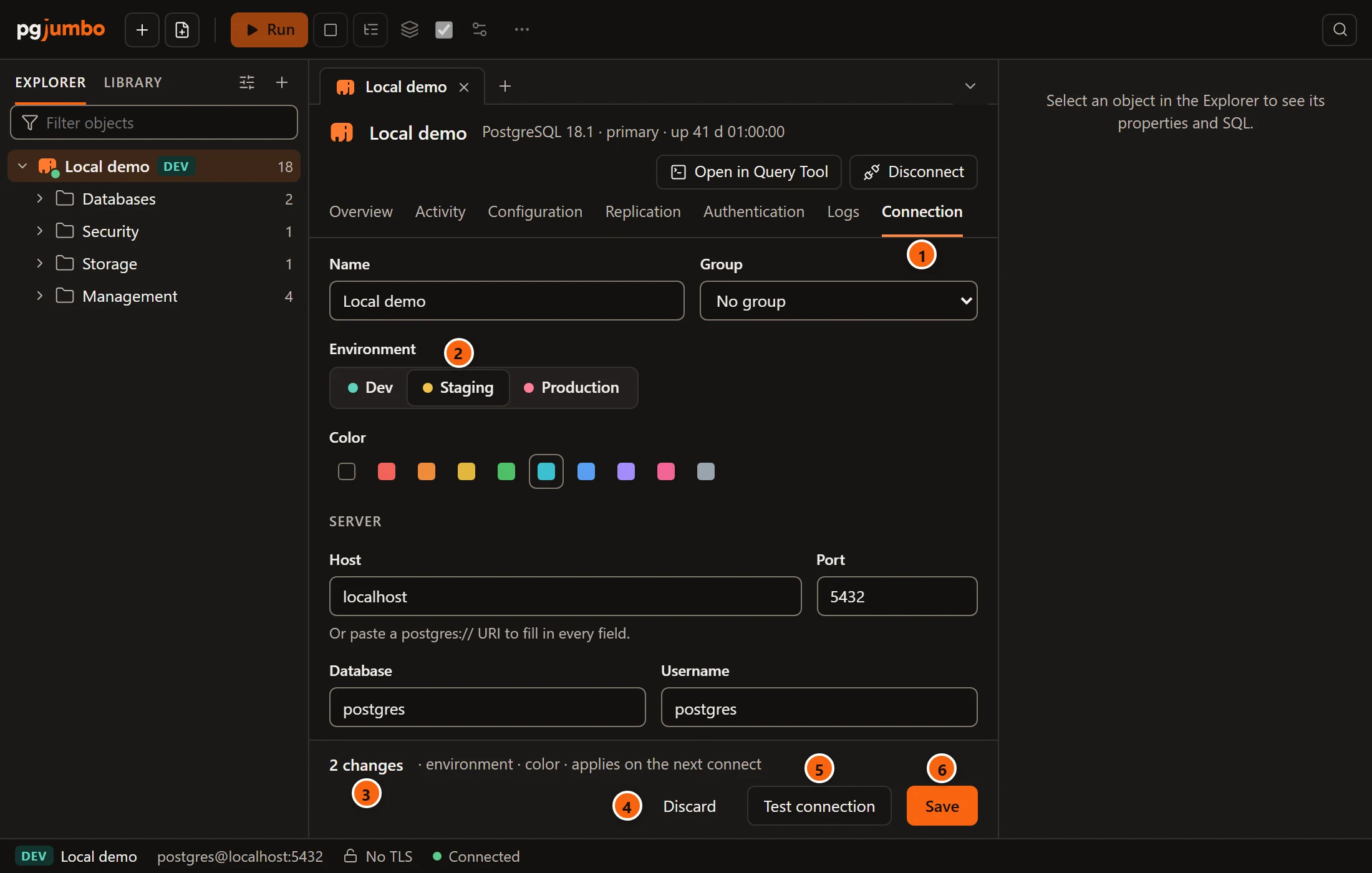
- 1 The Connection view, the last of the server’s tab. The tab’s other views and its header are on The server’s tab.
- 2 Change any field as in the dialog.
- 3 As soon as something differs from the saved server, a bar at the bottom counts the changes and names them, with applies on the next connect. A typed password counts as new password, a typed SSH secret as SSH secret.
- 4 Discard starts the form again from the server as saved.
- 5 Test connection tries the settings as they are in the form; the result, and Explain on a failure, show in the bar.
- 6 Save keeps them, or press Enter in a field. While it works the button says Saving…; then the bar says Saved. pgjumbo uses it the next time it connects to and the server’s name.
The bar, and with it Test connection, shows only once something has changed. The view keeps no draft: going to another view of the tab, or closing the tab, drops changes you have not saved. A note under the form repeats the rules: these are pgjumbo’s own settings, kept on this computer with the password in your credential store; Save runs nothing on the server; open Query Tools keep their sessions until each is connected again.
Saving does not reconnect anything. While the server stays connected, its connections, new Query Tools included, use the settings it connected with. Disconnect the server and connect it again to use the new ones; see Manage your servers. The name, group, colour and environment show at once, and the Production confirmations follow a new environment at once.