
Object Details
Object Details lists the objects of one Explorer folder, such as a schema’s Tables, as a table with the columns that matter for their kind: a table’s owner, rows, size and last vacuum, a function’s arguments and result. Use it to compare objects at a glance, find the biggest table, or tick several objects and act on them in one go.
Open Object Details
Section titled “Open Object Details”There are two ways, and both need the folder’s server to be connected.
- With no tab open, click a folder in the Explorer. Object Details fills the centre of the window, where the start page or the server’s panel would be, and changes as you click other folders. Select something that is not a folder and the centre shows the server’s panel again; open a tab and the tabs take the centre.
- In a tab of its own, select a folder in the Explorer and choose ViewObject Details or press ⇧ ⌘ D (Ctrl+Shift+D on Windows and Linux). The tab is named after the folder and the schema or database it is in, such as Tables · public; hovering over the name shows the whole path. Each folder has one such tab: choosing Object Details again brings it to the front. The menu item is greyed out unless a folder of a connected server is selected. Close the tab with its × or FileClose Tab (⌘ W (Ctrl+W on Windows and Linux)).
Any folder works: Tables, Views, Functions and the other folders of a schema, Schemas and Databases, Login/Group Roles, a table’s Columns or Indexes, and the groups Security, Storage, Management, Replication and Other Objects, whose rows are the folders inside them. The Explorer’s System Objects setting applies here too: ViewSystem Objects adds PostgreSQL’s own objects to the list.
The list
Section titled “The list”

- 1 Above the list: the server, database and schema, the folder’s name, and a summary such as
5 tables · 15 MB · as of 03:41 PM: how many objects, their total size when the list has a Size column, and when the list was read. - 2 Find in Tables narrows the list by name (see Search the list).
- 3 Columns chooses which columns show (see Choose the columns).
- 4 Click a column’s heading to sort by it (see Sort the list).
- 5 Tick objects to act on them together (see Tick objects).
- 6 With objects ticked, 2 ticked and the actions for them appear: Script as, Maintenance…, Privileges… and Drop… (see Act on the ticked objects).
- 7 The status bar says how many objects are ticked and, when the list has sizes, their total size.
The round arrow beside Columns, Read again, reads the list from the server again; it is greyed out while the list is being read. Refresh on the folder in the Explorer reads it again too, and so does pgjumbo after a drop from here, or when a maintenance job started from here finishes while its dialog is open.
The Inspector is hidden in this picture, so that every column shows; with it shown, scroll the list sideways. The line
under the list says what a double-click does and that Space ticks the chosen row. While the list is
read, the table says Reading…; an empty folder says so, such as No tables.; an error from the server shows in
red instead of the list.
The columns for each kind
Section titled “The columns for each kind”Only the rows on screen are drawn, so a folder of thousands of tables lists as quickly as a small one. Numbers line up on the right, and a dash means the server has no value. Hover over a cell to see its whole value as the server sent it, such as a long comment or the exact number of bytes.
| Folder | Columns after Name |
|---|---|
| Tables | Owner, Rows (the planner’s estimate, as in the Explorer: ~1.2M), Size (with indexes and TOAST), Indexes (how many), Dead rows (their share of the rows the statistics count), Last vacuum (by hand or by autovacuum, whichever is later), Comment |
| Views | Owner, Columns (how many), Comment |
| Materialized views | Owner, Rows, Size, Indexes, Populated, Comment |
| Functions | Owner, Arguments, Returns, Language, Comment |
| Procedures | Owner, Arguments, Language, Comment |
| Sequences | Owner, Type, Last value (a dash before the first nextval, or when your role may not read it), Comment |
| Types | Owner, Kind (enum, composite, domain, range, multirange, base or pseudo), Comment |
| Schemas | Owner, Tables (how many, partitions left out), Size (of its tables, partitions and materialized views, with their indexes), Comment |
| Databases | Owner, Size (only for databases your role may connect to), Encoding, Connections (sessions now), Comment |
| Login/Group Roles | Can log in, Superuser, Connection limit (a dash when there is none), Valid until, Member of (how many roles), Comment |
| Any other folder | Detail: what the Explorer shows beside each row, such as a column’s type or an index’s method |
Choose the columns
Section titled “Choose the columns”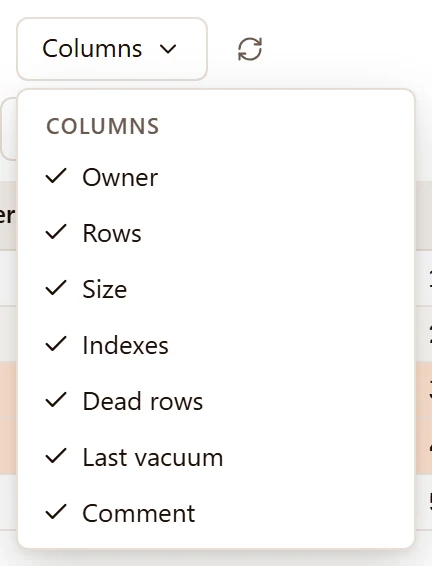

Click Columns and click a column’s name to hide it or show it again; the menu stays open so you can change several, and Esc or a click elsewhere closes it. Name and the tick boxes always show. pgjumbo remembers the hidden columns for each kind of folder, so hiding Comment in one schema’s Tables hides it in every Tables list, and keeps it hidden between runs.
Sort the list
Section titled “Sort the list”The list starts sorted by Name, A to Z, with an arrow beside the heading. Click any other heading to sort by that column, and click it again to reverse the order. Numbers and sizes sort as numbers and times as times. Objects without a value come last both ways, and objects with the same value stay in name order. Each list starts sorted by name again when it opens.
Search the list
Section titled “Search the list”Type in Find in … to keep only the objects whose name contains the text. Case does not matter. A % stands for
any text, as in LIKE, and then the whole name must match: ord% keeps the names that start with ord, %_log
those that end in _log. Unlike in LIKE, _ is a plain underscore. Esc in the field clears it.
When nothing is left, the list says Nothing matches "…".
Tick objects
Section titled “Tick objects”Ticking is separate from choosing a row. Clicking a row chooses it: the row is highlighted, the Inspector shows that object, and the keyboard moves to the list. Ticking marks objects to act on; ticked rows are highlighted too. Clicking a tick box ticks without choosing the row.
| To | Do this |
|---|---|
| Tick or untick one object | Click its tick box, or choose its row and press Space |
| Choose the row above or below | ↑ or ↓; with no row chosen yet, either chooses the first. The Inspector follows |
| Tick every object the list shows | The tick box in the heading, or ⌘ A (Ctrl+A on Windows and Linux) |
| Untick everything | The heading’s tick box or ⌘ A (Ctrl+A on Windows and Linux) again, once every object shown is ticked |
The keys work while the list has the keyboard: click a row first, or move there with Tab. While a tick box itself has the keyboard, Space ticks that box and the arrow keys do nothing.
Ticking every object shown follows the search: with ord typed, it ticks exactly the objects whose name contains
ord, and unticks any others. Objects you tick one by one stay ticked when a later search hides them, and the
actions include them. The count beside the actions and in the status bar always says how many are ticked in all.
The status bar shows the count, such as 2 ticked · 7 MB, while this Object Details is in view. Bring another tab to
the front and the count goes; the ticks stay in the list. Object Details in the centre starts afresh, without ticks,
each time you click another folder.
Act on the ticked objects
Section titled “Act on the ticked objects”The actions offered depend on what is ticked: each button appears only when every ticked object can take it. Objects
of PostgreSQL’s own (shown with System Objects) take only Script as, without DROP and CREATE, INSERT,
UPDATE or DELETE.
| Action | When it is offered | What it does |
|---|---|---|
| Script as | When the ticked objects share at least one script | A menu of the scripts every ticked object has. pgjumbo writes each object’s script and opens them all, one after the other, in one new Query Tool on the folder’s database. Nothing runs. |
| Maintenance… | One object that maintenance works on (a database, schema, table, partitioned table, materialized view or index), or several tables, partitioned tables and materialized views | The Maintenance dialog. For several, VACUUM or ANALYZE on all of them as one statement and one job. See Maintenance and jobs. |
| Privileges… | Objects that take GRANT: databases, schemas, tables, views, materialized views, sequences, types, functions, procedures, tablespaces, languages and foreign servers |
One role’s privileges given or taken away on every ticked object at once, in a dialog that shows the statement first. See Privileges. |
| Drop… | Objects you can drop from the Explorer | One DROP statement for all of them, so objects that depend only on each other go together. The dialog shows what else would go with them first. See Drop, truncate and other quick actions. |


For tables, Script as offers CREATE, DROP and CREATE, SELECT, INSERT, UPDATE and DELETE; for
functions and procedures it offers CREATE, DROP and CREATE and EXECUTE. While the scripts are written, the
button is greyed out. If a script cannot be written, its error shows in red under the buttons. What each script holds
is on Scripts.
After a drop, pgjumbo unticks everything and reads the list and the Explorer again.
Open an object from the list
Section titled “Open an object from the list”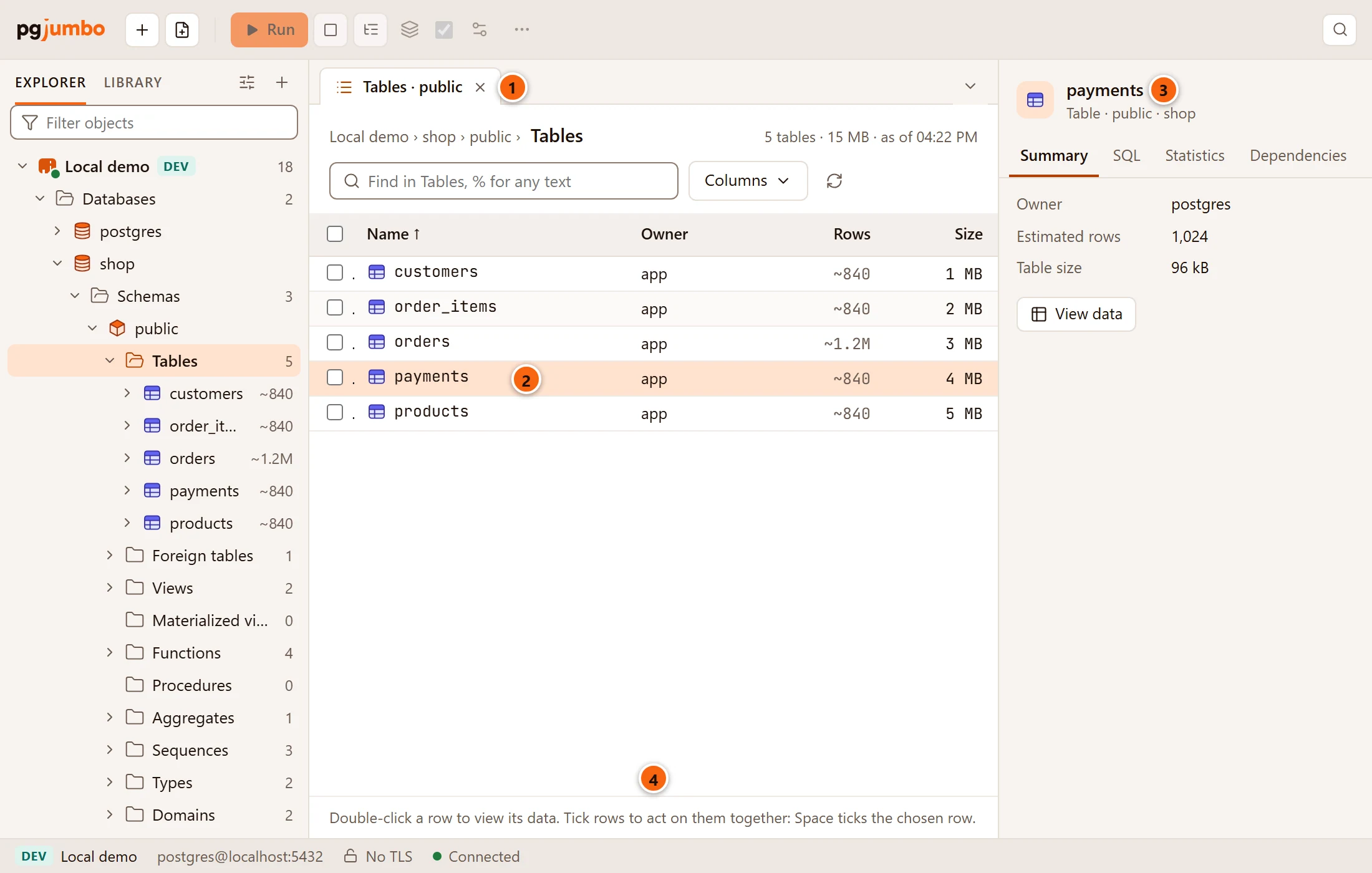

- 1 Object Details in a tab of its own, opened with ⇧ ⌘ D (Ctrl+Shift+D on Windows and Linux).
- 2 Click a row to choose it.
- 3 The Inspector shows the chosen object, until you select something else in the Explorer.
- 4 The line under the list says what a double-click does in this folder:
Double-click a row to view its data.where the list holds tables or views,Double-click a row to open it.elsewhere.
A double-click on a row opens the object:
| Object | A double-click |
|---|---|
| Table, partitioned table, view, materialized view | Opens its tab on the Data view: see View data |
| Foreign table | Opens its rows in a data tab |
| Any other object with a tab of its own (database, schema, sequence, type, function, procedure, role, extension, …) | Opens that tab: see Object tabs and review |
| An object without a tab (column, index, constraint, trigger, …), or a folder | Shows it in the Inspector |
A database and a schema open in their tab from here, while a double-click in the Explorer opens and closes their row.
Describe with the Assistant
Section titled “Describe with the Assistant”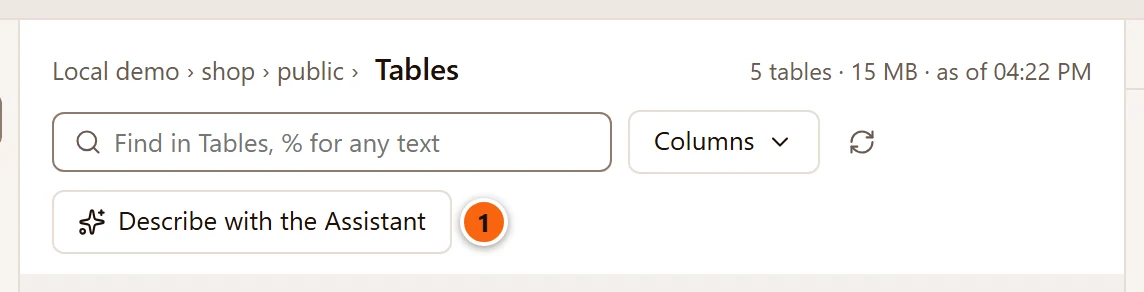

- 1 Describe with the Assistant, shown on a schema’s Tables list while the Assistant is turned on.
The button opens the list in a tab of its own (if it was in the centre), opens the Assistant pane and asks Claude to describe the schema as a data dictionary: what each table holds, its key, its important columns and how the tables join. Claude then offers comments, at most ten, for tables and columns that have none. Each comes as a card in the pane; staging one puts the comment in the table’s tab, where you review and save it. Nothing is written until you save. See Ask the Assistant and What the Assistant proposes.