
Diagrams
An ERD (entity-relationship diagram) draws one schema’s tables as cards, with a line for each foreign key between them. pgjumbo reads the schema and lays the diagram out for you; you can then move cards, zoom, open a table from it and save it as a PNG or SVG picture.
Open a diagram
Section titled “Open a diagram”The server must be connected.
- Right-click a database or a schema in the Explorer and choose ERD.
- Or select a database or a schema in the Explorer and choose ToolsERD. The menu item has no keys, and is greyed out unless a database or schema of a connected server is selected.
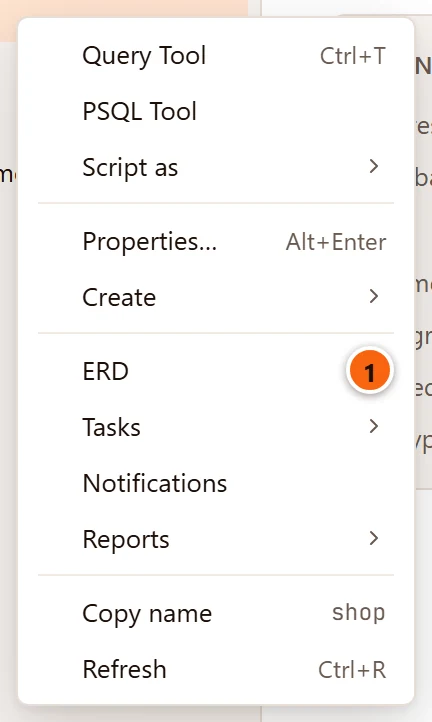
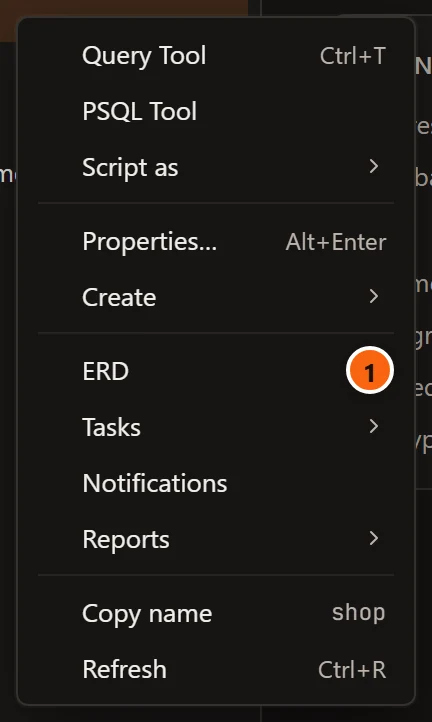
- 1 ERD on a database’s menu. A schema’s menu has it in the same group, after Compare Schema….
From a schema, the diagram shows that schema. From a database, it shows the database’s public schema, or, when
there is no public, the first of its schemas by name. PostgreSQL’s own schemas (pg_catalog, information_schema,
pg_toast and the temporary ones, which the Explorer lists with System Objects) have no ERD, and neither do
template databases.
The diagram opens in a tab of its own, named after the database and schema, such as ERD · shop.public; hovering over the name shows the server and database. Choosing ERD on a schema whose diagram is open brings its tab to the front; choosing it on a database again opens another tab. Close the tab and open it again to read the schema afresh.
Close the tab with the × on it or Close on its right-click menu; FileClose Tab and its keys do not close a diagram, and a diagram cannot move to a window of its own. With the Assistant on, it knows which database and schema the diagram in front shows.
The diagram tab
Section titled “The diagram tab”
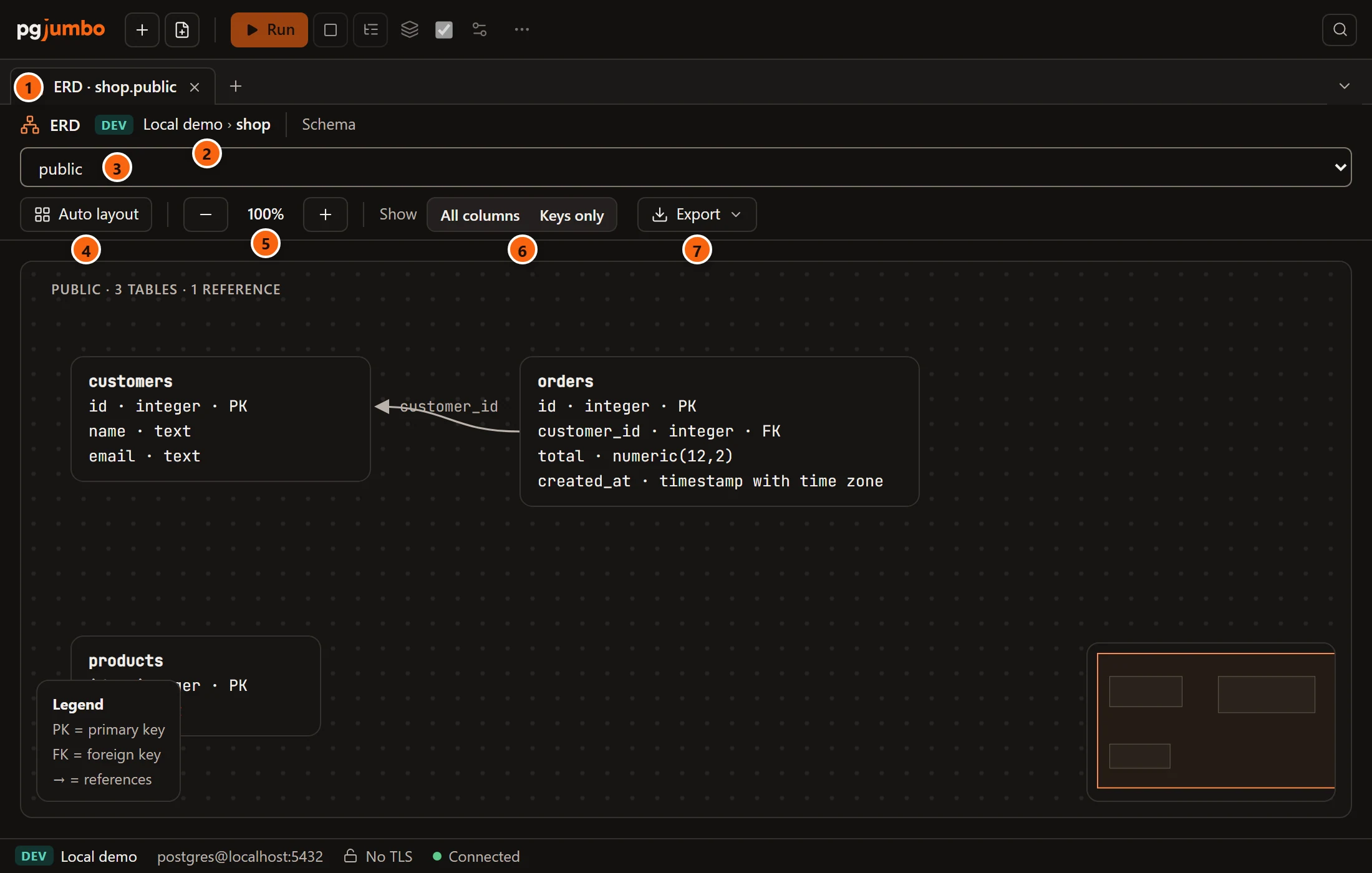
- 1 The tab, ERD · shop.public. (The Explorer and the Inspector are hidden here, to give the diagram the whole window; see The pgjumbo window.)
- 2 The server’s environment tag, the server and the database.
- 3 Schema: the database’s schemas, without
information_schemaand those whose names start withpg_. Choose another to draw it in the same tab; the tab’s name follows. - 4 Auto layout puts every card back where pgjumbo laid it out, after you have moved some.
- 5 The zoom: − and + zoom out and in one step (by a factor of 1.25), around the middle of the view, and the percentage between them says where you are. The diagram opens at 100%, or smaller when it does not fit.
- 6 Show: All columns draws every column of each table; Keys only draws only the columns of primary and foreign keys.
- 7 Export saves the diagram (see Export the diagram).
While pgjumbo reads the schema, the canvas says Reading the schema…, and the Schema picker, Auto layout and Export are greyed out. A schema without tables says This schema has no tables. An error from the server shows in red in the canvas.
What the diagram shows
Section titled “What the diagram shows”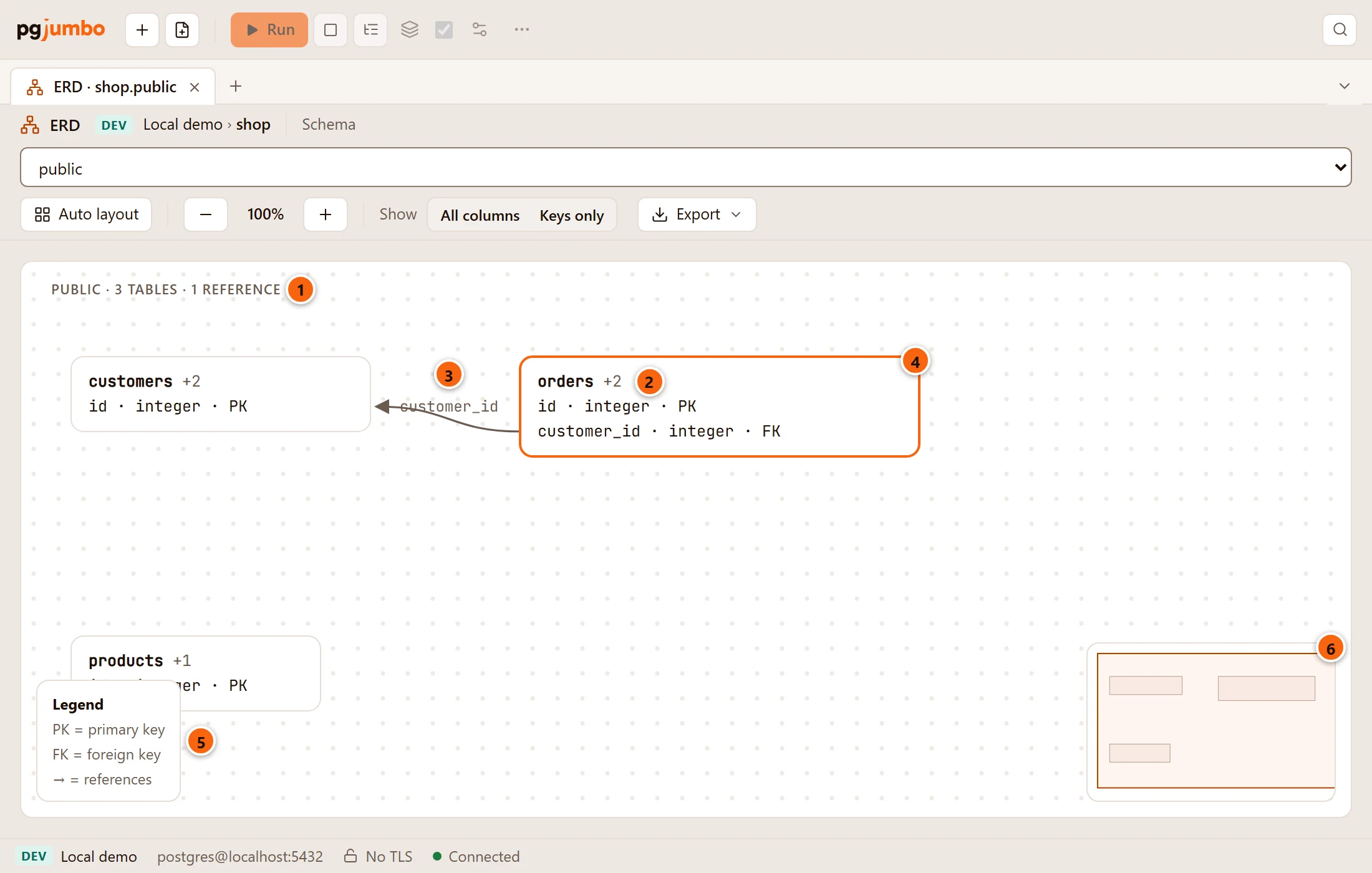
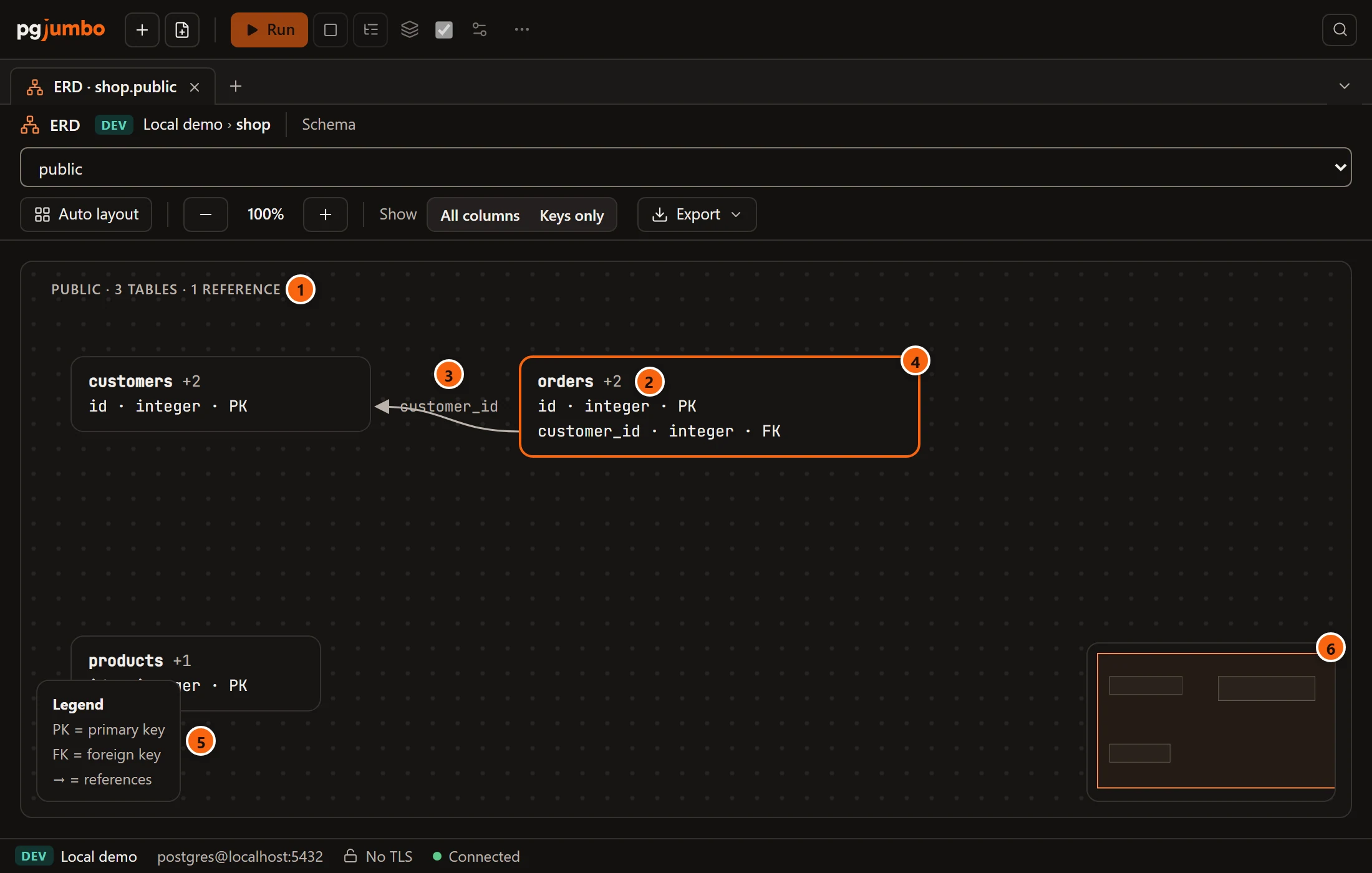
- 1 Above the cards: the schema, how many tables it has and how many foreign keys (
references) the diagram draws. A schema with more than 300 tables shows the first 300, by name, and saysthe first 300 shown. - 2 With Keys only,
+2after a table’s name says how many columns are left out. - 3 A foreign key is a line from the row of its (first) column to the row of the column it references, with an arrow at the referenced table. When that column is not drawn (with Keys only, a foreign key to a unique column that is not a key), the line ends at the table’s name. Its label names the foreign key’s columns.
- 4 The chosen table has an orange border.
- 5 The legend: PK is a primary key, FK a foreign key, and → means references.
- 6 The overview of the whole diagram, with a frame round the part on screen.
Each card is a table: its name, then one line per column with its name, its type as PostgreSQL writes it
(numeric(12,2), timestamp with time zone) and PK, FK or PK, FK. A name or line too long for its card ends
with ….
The diagram draws plain tables, partitioned tables and foreign tables, all alike. A partitioned table is one card; its
partitions are not drawn on their own. Each foreign key is drawn once, even on a partitioned table. A table of
another schema that a table here references is drawn as a small card with a dashed border, named
schema.table, without its columns.
pgjumbo lays the cards out so that a table stands to the left of the tables that reference it, layer by layer, with each layer ordered to cross fewer lines and split into columns of at most eight cards. Tables with no foreign key to or from another table sit in a grid below. A line between two cards stacked in the same column, or from a table to itself, loops out to the right.
Move around
Section titled “Move around”| To | Do this |
|---|---|
| Zoom in or out | + and −, or scroll over the canvas (the zoom follows the pointer); from 25% to 200% |
| Move the view | Drag an empty part of the canvas |
| Jump to a part of the diagram | Click that place in the overview at the bottom right; the view centres on it |
| Choose a table | Click its card; click an empty part of the canvas to choose none |
| Move a table | Drag its card |
| Open a table | Double-click its card |
| Go from table to table with the keys | Tab moves to the next card and chooses it; Space chooses the card that has the keyboard; Enter opens it |
Opening a table opens its own tab, the same as a double-click in the Explorer: see Tables.
This works for a card of another schema too. If the table has gone since the diagram was read, a red line above the
canvas says … is no longer in the database.
Cards you move stay where you put them while the tab is open, also while other tabs are in front, and Keys only keeps them there. Auto layout, another schema, or closing the tab puts the cards back where pgjumbo lays them out. pgjumbo does not keep the positions.
Export the diagram
Section titled “Export the diagram”

| Item | What it does |
|---|---|
| PNG image… | Saves the whole diagram as a PNG at twice its size, for sharp pictures in documents. |
| SVG image… | Saves the whole diagram as an SVG drawing, which stays sharp at any size and can be edited. |
| SQL script… | Opens the Generate Scripts dialog for the schema; the script it writes opens in a new Query Tool, and nothing runs. |
For a picture, pgjumbo shows the system’s Save dialog, titled Export ERD, with a file name such as
shop-public-erd.png. The picture holds every card as you placed it, the lines and the line above the cards, in the
colours of the theme the window has now (light or dark), whatever part of the diagram is on screen and whatever the
zoom. The legend, the overview and the chosen card’s border are left out. If saving fails, the reason shows in red
above the canvas.