
The Library
The Library keeps SQL you come back to. It holds templates that come with pgjumbo, snippets you save, the .sql files
of a folder you choose, and the Assistant’s knowledge base. It is the left pane’s second tab, beside the Explorer.
Open the Library
Section titled “Open the Library”Click Library at the top of the left pane, or choose ViewLibrary, which also shows the left pane when it is hidden. pgjumbo remembers which of the two tabs was showing the next time it starts. Showing and hiding the whole pane is explained in The pgjumbo window.

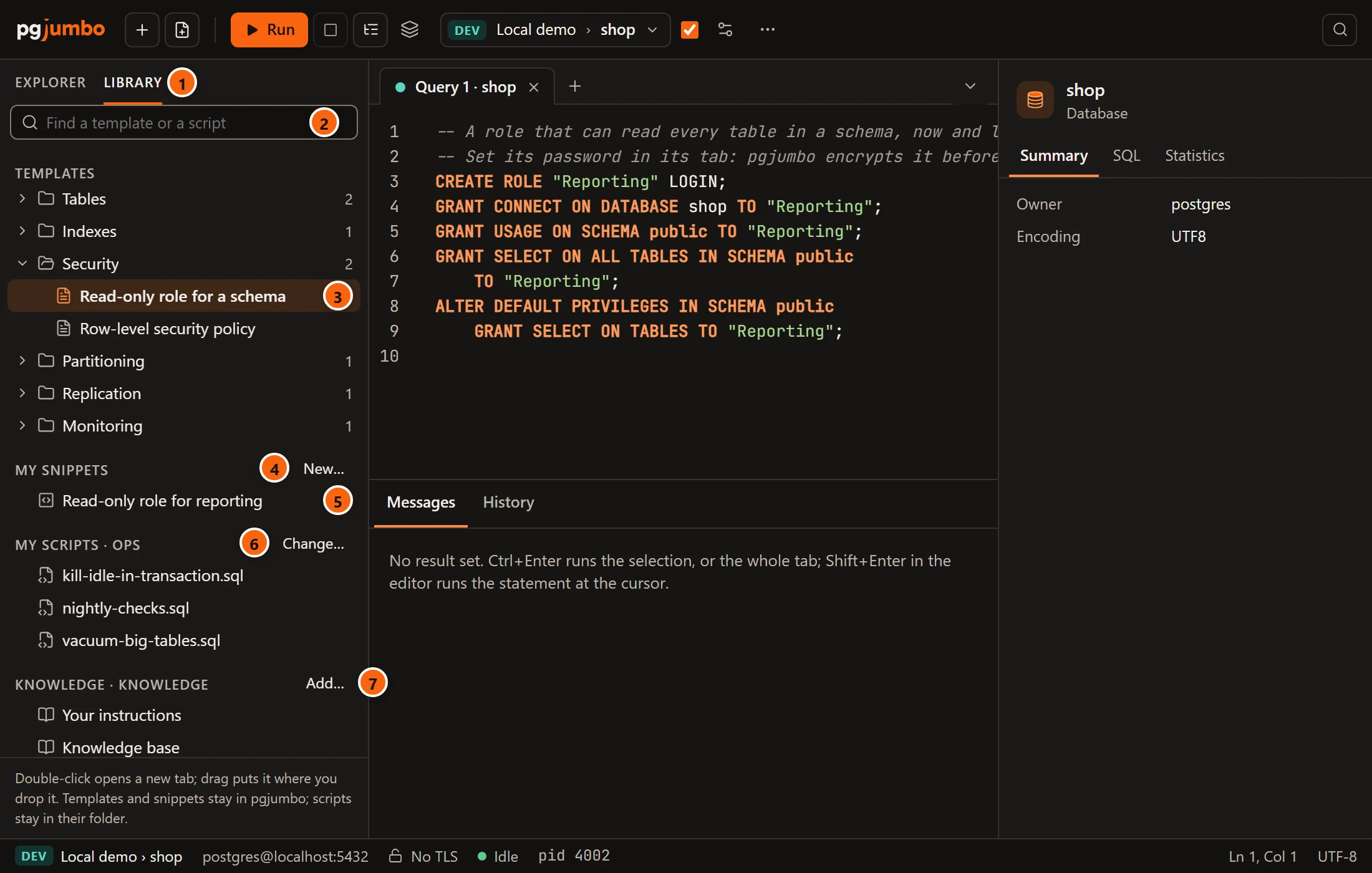
- 1 The Library tab.
- 2 Find a template or a script narrows every section to the names that contain what you type, in any case (a knowledge file also matches by its path). A template folder whose name matches shows all its templates. While you search, folders stand open and sections with nothing to show are left out; with no match at all, the pane says “Nothing matches” and your text. Esc empties the field.
- 3 A template, in its folder. Click a folder to open or close it; the number beside it counts its templates.
- 4 New… saves a new snippet.
- 5 A snippet of yours.
- 6 Choose… picks the folder of your scripts; once there is one, it says Change….
- 7 Add… adds to the knowledge base.
At the bottom, the pane reminds you: “Double-click opens a new tab; drag puts it where you drop it. Templates and snippets stay in pgjumbo; scripts stay in their folder.” If pgjumbo cannot read the Library, the pane says “The Library could not be read:” and the reason.
Open an item
Section titled “Open an item”| What you do | What happens |
|---|---|
| Double-click an item, or select it and press Enter | A template, snippet or script opens in a new Query Tool tab: a template then asks for its values, and a script opens as its file. A knowledge file opens in a tab of its own. |
| Right-click an item, Open in a new tab | The same. |
| Drag a template or a snippet into an editor | Its SQL goes where you drop it, in the tab you drop it on. A dragged template keeps its blanks: fill them in with ⇧ ⌘ M (Ctrl+Shift+M on Windows and Linux). Scripts and knowledge files cannot be dragged. |
| Hover over an item | A template or snippet shows its name and its first 12 lines; a script or knowledge file shows its path. |
A new Query Tool tab opens on the server and database of the Query Tool tab in front. With no Query Tool tab in front, it opens on what is selected in the Explorer (its database when the server is connected, otherwise the server’s maintenance database), and failing that on the server you connected to last, or the first in the Explorer, on its maintenance database. When that server is not connected, the tab waits for it with a Connect button (see Your tabs come back). With no server at all, a message titled No server to open it on says “Add a server first: a tab opens on one.” A script that cannot be read shows its reason in red at the top of the pane (see A folder of .sql files).
Keys in the Library
Section titled “Keys in the Library”| Key | What it does |
|---|---|
| ↑ ↓ | Moves to the item above or below; folders count as items. |
| Home End | Moves to the first or the last item. |
| → ← | Opens or closes the folder you are on. |
| Enter | Opens the item, or opens or closes the folder. |
| Delete or Backspace | On a snippet: asks to delete it. |
The right-click menu
Section titled “The right-click menu”

Every template, snippet, script and knowledge file has Open in a new tab. Snippets also have Edit… and Delete…. Folders and section headings have no menu.
Templates
Section titled “Templates”Templates are scripts for PostgreSQL’s own features, written with blanks for the names and values that differ each time. They come with pgjumbo and cannot be changed or deleted; to keep a changed one, open it and save it as a snippet or a file. Most begin with a comment that says what to watch out for, such as “Not in a transaction block” for an index built concurrently.
| Folder | Template | What it writes |
|---|---|---|
| Tables | Table with an identity key | CREATE TABLE with an id bigint GENERATED ALWAYS AS IDENTITY PRIMARY KEY, a name and a created_at. |
| Add a column with a default | ALTER TABLE … ADD COLUMN … text NOT NULL DEFAULT …. |
|
| Rename a column | ALTER TABLE … RENAME COLUMN … TO …. |
|
| Indexes | Index built without blocking writes | CREATE INDEX CONCURRENTLY. |
| Unique index | CREATE UNIQUE INDEX CONCURRENTLY. |
|
| Partial index | CREATE INDEX CONCURRENTLY … WHERE a condition. |
|
| Security | Read-only role for a schema | CREATE ROLE … LOGIN, then GRANT CONNECT, GRANT USAGE, GRANT SELECT ON ALL TABLES IN SCHEMA and ALTER DEFAULT PRIVILEGES for tables made later. |
| Row-level security policy | ENABLE ROW LEVEL SECURITY on a table and a CREATE POLICY … FOR SELECT USING (…). |
|
| Grant on every table in a schema | GRANT … ON ALL TABLES IN SCHEMA … TO …. |
|
| Default privileges for new tables | ALTER DEFAULT PRIVILEGES FOR ROLE … IN SCHEMA … GRANT … ON TABLES. |
|
| Partitioning | Table partitioned by month | CREATE TABLE … PARTITION BY RANGE on a timestamp, with a primary key that includes it. |
| Add a monthly partition | CREATE TABLE … PARTITION OF … FOR VALUES FROM (…) TO (…). |
|
| Detach a partition without blocking | ALTER TABLE … DETACH PARTITION … CONCURRENTLY (PostgreSQL 14 or later). |
|
| Replication | Publication for some tables | CREATE PUBLICATION … FOR TABLE …. |
| Subscription to a publication | CREATE SUBSCRIPTION … CONNECTION … PUBLICATION …. |
|
| Monitoring | Who blocks whom | A query on pg_stat_activity and pg_blocking_pids(). |
| Queries running longer than | Sessions whose query has run longer than a number of seconds. | |
| Largest tables | Tables, partitioned tables and materialized views by total size, the largest first, as many as you say. | |
| Indexes never scanned | Indexes with no scan since the statistics were last reset, by size. |
Fill in a template
Section titled “Fill in a template”A template’s blanks are written <name, type, default>, for example <role_name, name, reporting_ro>. Opening a
template from the Library asks for its values at once. In any Query Tool tab, including one where you dragged a
template or typed blanks yourself, choose QueryFill in Template Values…
(⇧ ⌘ M (Ctrl+Shift+M on Windows and Linux)). It is greyed out in a data tab. When the tab has no blanks, the
result bar says “Nothing to fill in: a template writes each value as
<name, type, default>.”
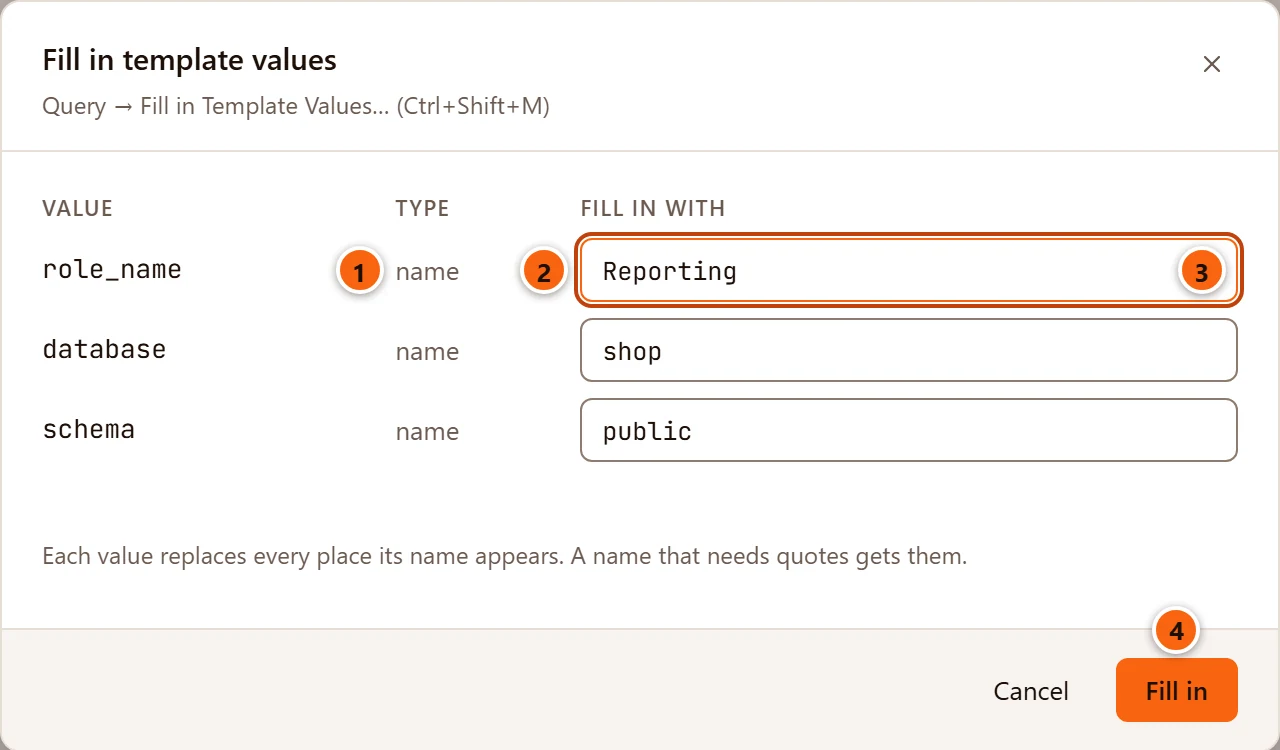
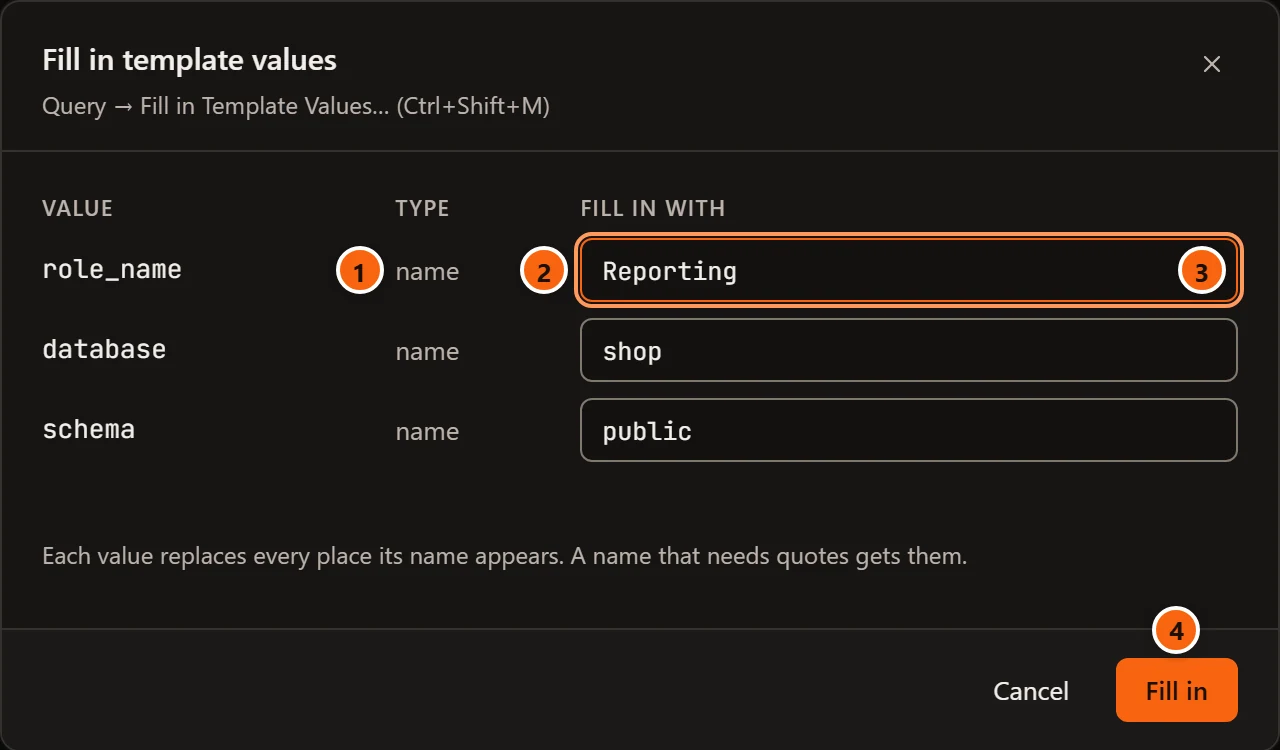
- 1 Value: the blank’s name. A name used several times is asked for once, and fills every place it appears.
- 2 Type: how your value is written into the SQL (see the table below; the
sqltype shows as SQL). - 3 Fill in with: starts with the blank’s default. Spaces at either end are dropped.
- 4 Fill in puts the filled-in SQL in place of the tab’s whole text. Nothing runs. Undo (⌘ Z (Ctrl+Z on Windows and Linux)) brings the blanks back. Cancel, the × or Esc leaves the tab as it was.
The dialog’s subtitle repeats the menu path and its keys. A value pgjumbo refuses shows its reason in red beside the buttons, and the dialog stays open.
| Type | What your value becomes |
|---|---|
name |
A name, quoted by the server when it needs quotes: orders stays orders, Reporting becomes "Reporting". It cannot be empty: “Fill in role_name.” |
text |
A string in single quotes, with quotes inside doubled: it's becomes 'it''s'. A value with a backslash is written as E'…', with the backslash doubled. |
number |
The number as you typed it. Only a plain decimal number is accepted (60, -12, 3.50); anything else is refused: “seconds is a number: abc is not one.” |
sql |
Your text as you typed it, such as a condition or a list of privileges. Any other type word works the same way. |
Names are quoted by the tab’s server, so the server must be connected: otherwise the dialog says “Not connected to this
server.” A blank sits on one line. Its name and type are single words of letters, digits and _ that do not start
with a digit, and the type may be written in any case. Everything after the second comma is the default, commas
included: <privileges, sql, SELECT, INSERT> offers SELECT, INSERT. A < that does not start a blank, as in a < b,
is left alone.
Your snippets
Section titled “Your snippets”My snippets keeps SQL you use often under a name of your choosing, in pgjumbo’s own database on your computer. They are listed by name; there are no folders inside My snippets. With none yet, the section says “Keep SQL you use often here.”
Click New… to save one. When text is selected in the Query Tool tab in front, the new snippet starts with it.
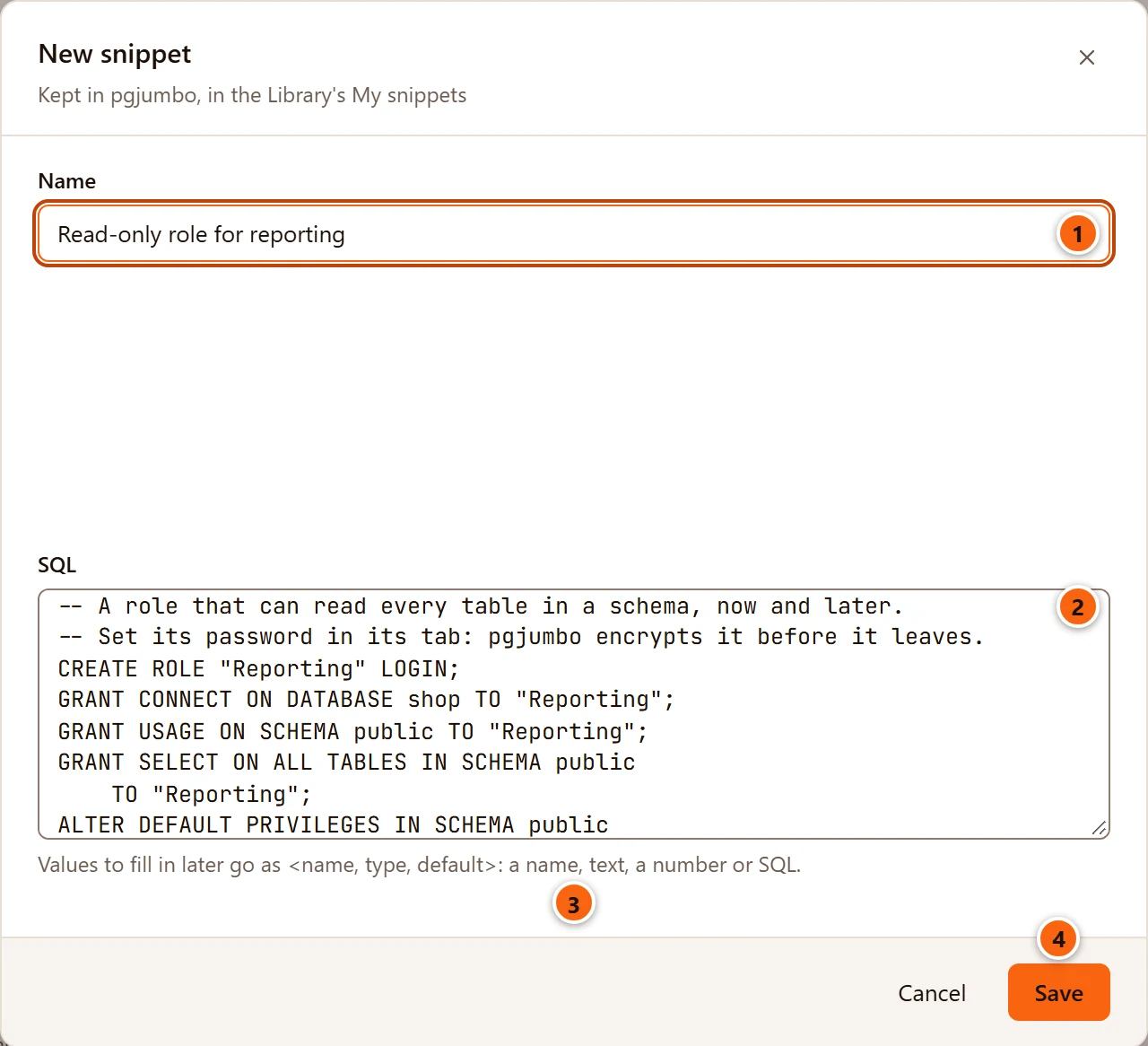

- 1 Name: up to 120 characters. Spaces at either end are dropped.
- 2 SQL: the snippet’s text, up to 256 KiB.
- 3 A snippet can have blanks of its own, written
<name, type, default>, to fill in after you open it. - 4 Save keeps the snippet. It is greyed out until both fields have text. If pgjumbo refuses the snippet, for example because its SQL is larger than 256 KiB, the reason shows in red beside the buttons.
To rename a snippet or change its SQL, right-click it and choose Edit…: the same dialog opens as Edit snippet. To delete it, right-click it and choose Delete…, or select it and press Delete or Backspace:
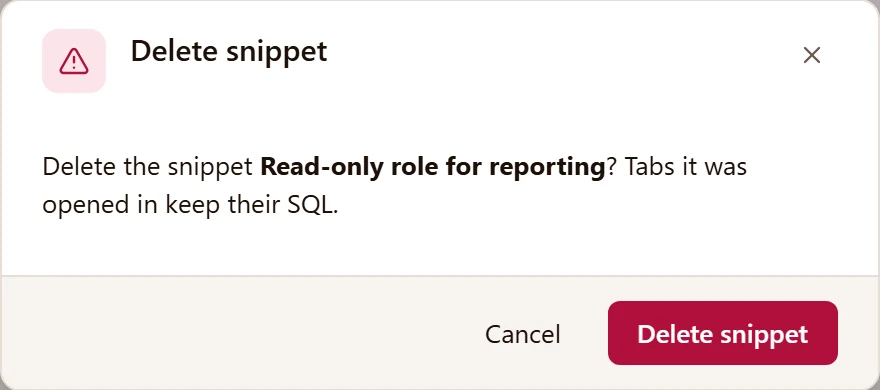
Delete snippet removes it for good; tabs you opened it in keep their SQL.
A folder of .sql files
Section titled “A folder of .sql files”My scripts shows the .sql files of a folder you choose, so scripts you keep in a project or a shared folder are
one double-click away. Click Choose…: your system’s Folder of Your Scripts dialog appears. The section is then
called My scripts · and the folder’s name, and lists the .sql files right inside the folder, by name; files in
its subfolders are not listed. Change… picks another folder. There is no way to go back to no folder.
| The section says | Why |
|---|---|
| Choose a folder of .sql files. | No folder is chosen yet. |
| No .sql files in this folder. | The folder has no .sql files directly inside it. |
| The scripts folder path cannot be read: reason (in red) | The folder was moved, deleted or is not readable. Choose it again with Change…. |
A script opens in a new tab as its file: the tab is named after it, ⌘ S (Ctrl+S on Windows and Linux) writes back to it,
and it joins the start page’s recent files (see Files, drafts and history).
pgjumbo opens only the .sql files right inside the folder you chose. The files stay where they are; pgjumbo does not
copy them. If a script cannot be opened, for example because it was deleted meanwhile, the reason shows in red at the top
of the pane.
Knowledge
Section titled “Knowledge”The last section, Knowledge · and the folder’s name, lists the files of the Assistant’s knowledge base:
files at its top first, then its folders (environment, databases, conventions, incidents,
investigations, runbooks, docs, skills, then any others), each with the number of files in it. A file
is listed by its first top-level # heading, or by its file name when it has none. Double-click a file to open it in a
tab of its own. What the knowledge base is for, and how the Assistant uses it, is in
Knowledge base and notes.
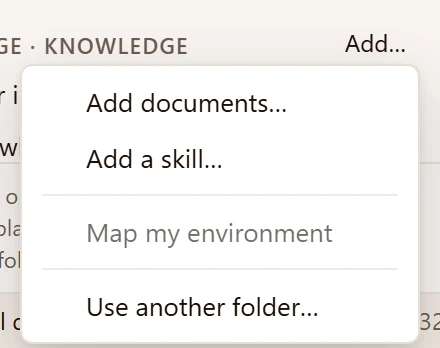

| Item of Add… | What it does |
|---|---|
| Add documents… | Shows the Add Documents to the Knowledge Base dialog and copies the files you pick into the knowledge base’s docs folder: Markdown, text and SQL files, and PDF and Word documents (.pdf, .docx, up to 50 MB each). A PDF or Word document is kept as it is, with its text beside it as a Markdown file, such as docs/<name>.pdf.md. |
| Add a skill… | Shows the Add a Skill’s Folder dialog and copies that folder, which holds a SKILL.md, into skills. |
| Map my environment | Brings the Assistant pane forward and asks the Assistant for environment/map.md and a file per connected server, offered together on one Knowledge card. While the Assistant is off it is greyed out, with the tooltip “Turn the Assistant on in Settings to map your environment”. See Map your environment. |
| Use another folder… | Shows the Folder of Your Knowledge Base dialog and makes the folder you pick the knowledge base. |
After an addition, a line at the top of the pane says what was added: “Added file to the knowledge base.”, “Added 3 documents to the knowledge base.” or “Added the skill name.” A failure shows its reason in the same place. Choosing any item clears that line first, Map my environment included.