
SSH tunnels
When a database sits in a private network that you can only reach through an SSH server (a bastion, or jump host),
pgjumbo opens the SSH tunnel itself. You do not run ssh -L in a terminal first: you name the SSH server in the
connection dialog, and every connection pgjumbo makes to that database goes through the tunnel.
Set up a tunnel
Section titled “Set up a tunnel”-
Open the connection dialog: Connect in the main toolbar, New connection in the Explorer’s header or on the start page, or FileNew Connection… (⌘ N (Ctrl+N on Windows and Linux)). For a saved server, right-click it and choose Edit connection…, or click the pencil that shows when you hover it. On a connected server, that opens the Connection view of its tab instead, with the same fields.
-
Fill in Host and Port as the SSH server sees the database: a private address such as
10.0.4.12, an internal name, orlocalhostwhen PostgreSQL runs on the SSH server itself. Database, Username and the database’s Password are the same as for any server (Connection settings). -
At the bottom of the dialog, open SSH tunnel and tick Connect through an SSH server.
-
Fill in the SSH server’s host, port and user, and choose how you sign in to it.
-
Click Test connection. The first time, pgjumbo shows the SSH server’s host key and asks you to trust it (see Trust the SSH server’s host key). Then click Save and connect.
The SSH tunnel section
Section titled “The SSH tunnel section”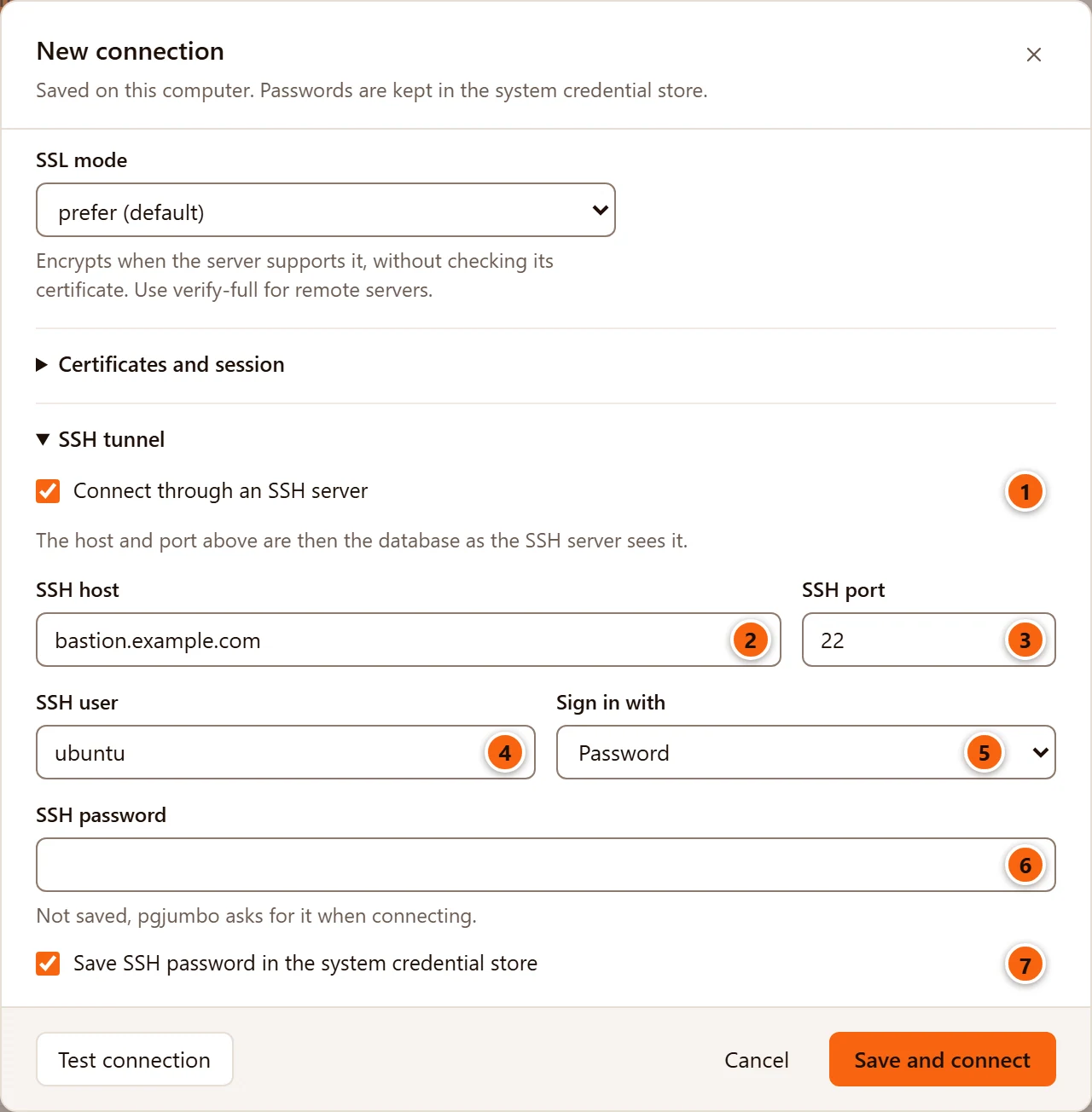
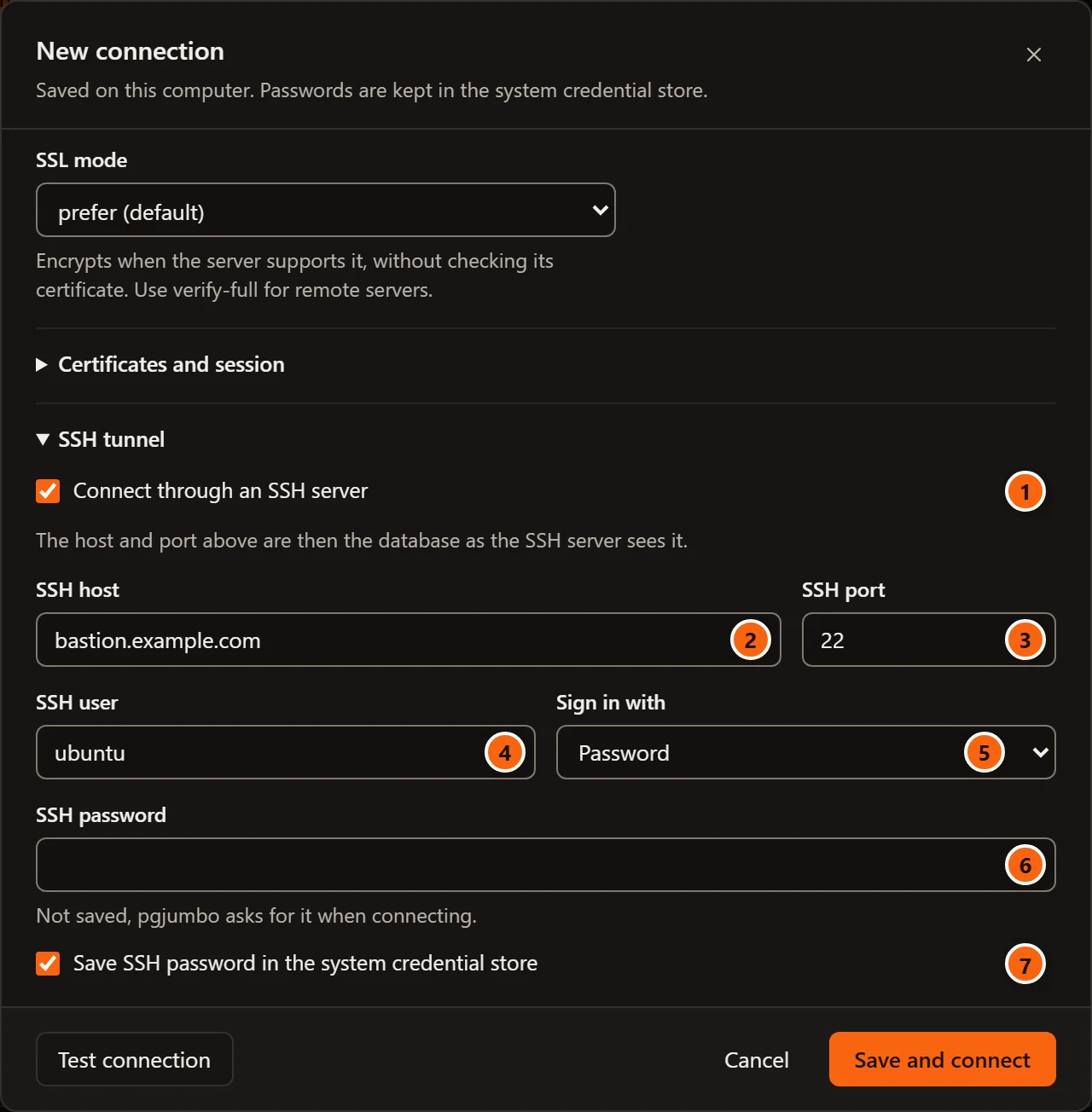
- 1 Connect through an SSH server turns the tunnel on. The line under it is a reminder: Host and Port higher up are now the database as seen from the SSH server. Untick it to connect directly again; while the dialog stays open, ticking it again brings back what you had typed. When you edit a server that has a tunnel, the SSH tunnel section is open already.
- 2 SSH host is the SSH server’s name or address, for example
bastion.example.com. - 3 SSH port is the SSH server’s port,
22unless your administrator moved it. It must be a number from 1 to 65535. - 4 SSH user is your user name on the SSH server, which is often not your database user.
- 5 Sign in with chooses how you sign in to the SSH server: Password, Private key or SSH agent. The fields below change with it, and a password or passphrase you had typed is cleared.
- 6 SSH password is your password on the SSH server. Leave it empty and pgjumbo asks for it when it connects. On a new server the hint under the field reads Not saved, pgjumbo asks for it when connecting. When you edit a server that keeps its SSH password, it reads Leave empty to keep the saved one., and an empty field keeps it.
- 7 Save SSH password in … keeps the password in your system’s credential store: the macOS Keychain, Windows Credential Manager, or the system keyring on Linux (the picture, taken in a browser, says “the system credential store”). It is ticked by default, and greyed out when the computer has no credential store.
A server that takes its connection from a pg_service.conf service cannot use a tunnel: with Service filled in,
the checkbox is greyed out and says Not with a pg_service.conf service.
Sign in with a private key
Section titled “Sign in with a private key”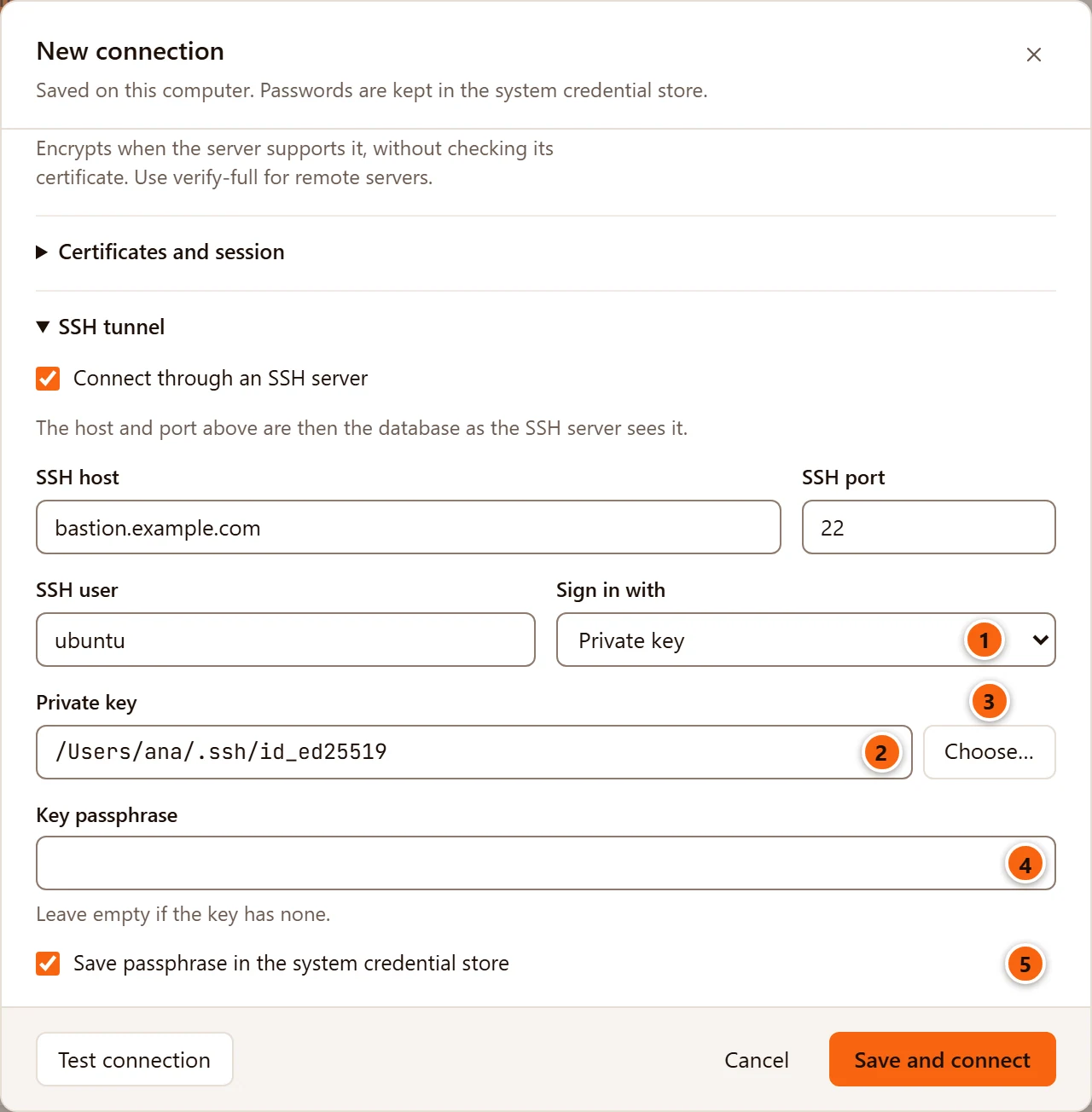
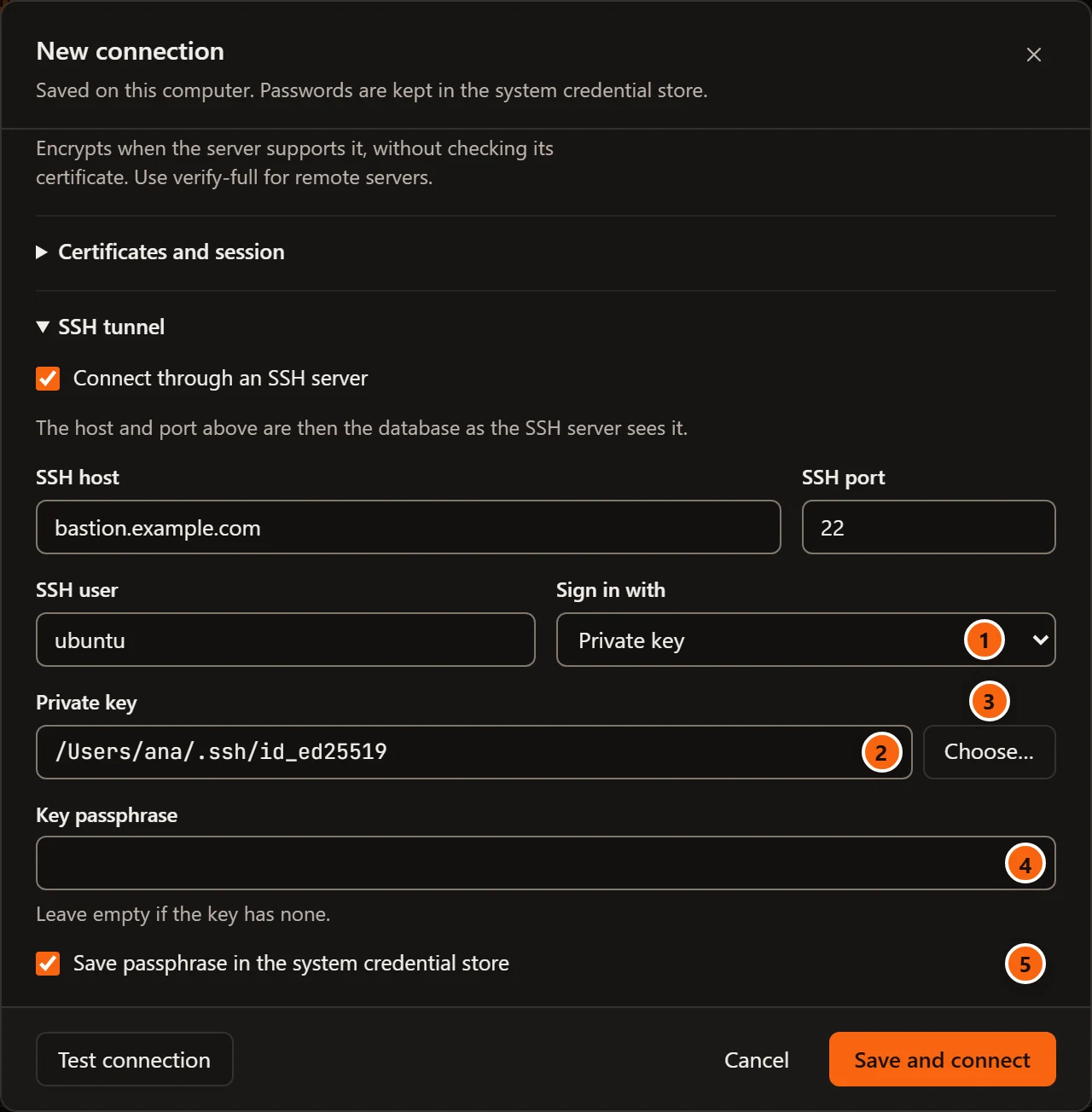
- 1 Choose Private key in Sign in with.
- 2 Private key is the path of your private key file, for example
/Users/ana/.ssh/id_ed25519. Type the full path: a~is not expanded. pgjumbo reads the file each time it opens the tunnel, so the file must stay where the path says. - 3 Choose… opens your system’s Open dialog, titled Choose the SSH Private Key, in your
~/.sshfolder when you have one. It lists every file first, because OpenSSH keys such asid_ed25519have no extension; the Keys filter shows.pem,.keyand.ppkfiles. - 4 Key passphrase is the key’s passphrase. The hint says Leave empty if the key has none. If the key has one and you leave it empty, pgjumbo asks for it when it connects. When you edit a server that keeps its passphrase, the hint reads Leave empty to keep the saved one.
- 5 Save passphrase in … keeps the passphrase in the credential store, like the SSH password.
pgjumbo reads OpenSSH keys (-----BEGIN OPENSSH PRIVATE KEY-----), PEM keys (PKCS#1 and PKCS#8, with or without a
passphrase) and PuTTY .ppk files. Give it the private key, not the .pub file next to it.
Sign in with the SSH agent
Section titled “Sign in with the SSH agent”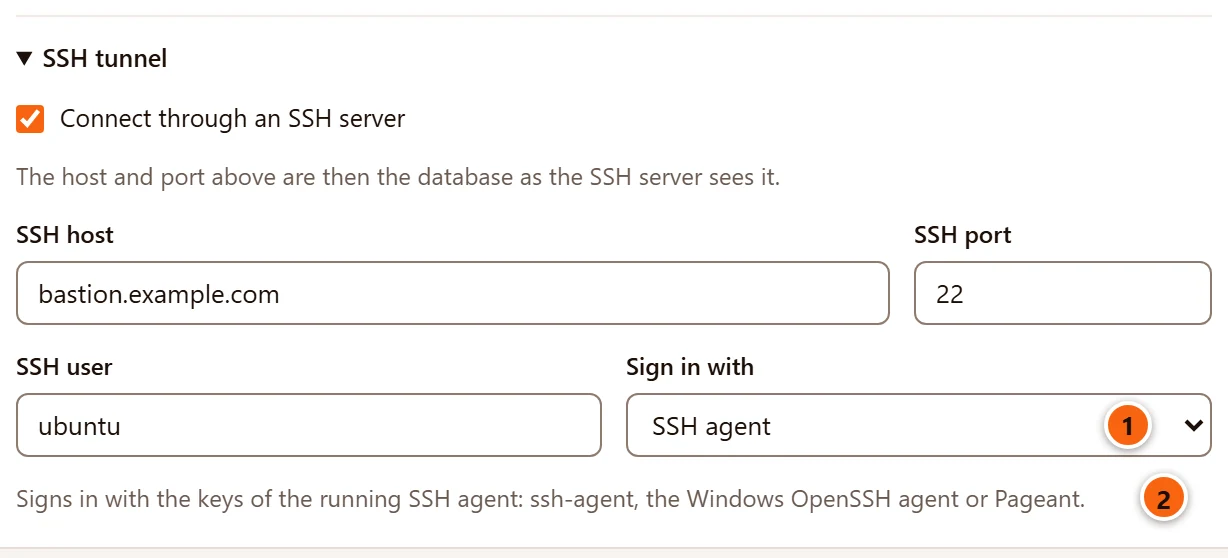
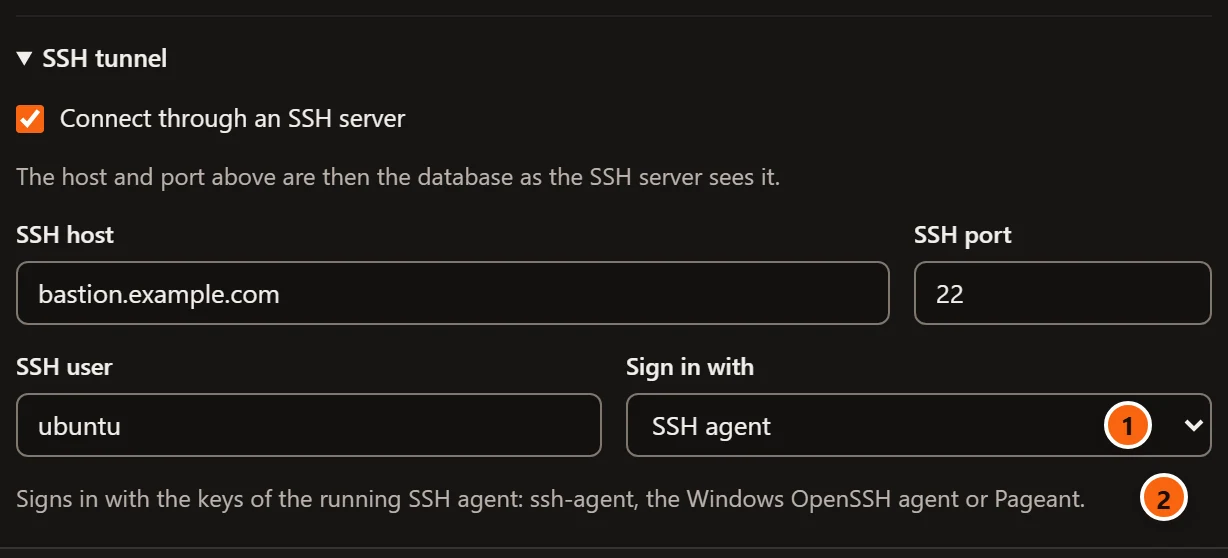
- 1 Choose SSH agent in Sign in with. There is no password field and no Save box.
- 2 The hint names the agents pgjumbo talks to. It asks the running agent for its keys and offers them to the SSH server one after another until one is accepted.
pgjumbo finds the agent through SSH_AUTH_SOCK on macOS and Linux. On Windows it uses the OpenSSH Authentication
Agent service, and Pageant when that service is not running. Load your key into the agent first, with ssh-add.
Where the SSH password and passphrase are kept
Section titled “Where the SSH password and passphrase are kept”- A ticked Save … box keeps the SSH password or the key’s passphrase in the credential store, never in pgjumbo’s own files and never in an exported server list. A secret typed in the dialog is saved when you click Save or Save and connect.
- With the box ticked but the field left empty, nothing is saved yet, and Save and connect stops with The SSH password for … is needed. When you then connect the server from the Explorer, the secret you type in the password prompt is saved as soon as the SSH sign-in works, before pgjumbo asks for the database’s password.
- Unticking the box and saving the server deletes the saved secret. So does choosing another Sign in with (a saved SSH password goes when you switch to a key), turning the tunnel off, or deleting the server.
- With the box unticked, a secret you type is used for that connection only. Once the tunnel is open it is no longer needed, and pgjumbo does not keep it.
- A saved SSH password that has become wrong (it was changed on the SSH server) is not asked for again: connecting fails with The SSH server … refused …’s sign-in. Open Edit connection…, type the new one and save. A saved passphrase that no longer opens the key is asked for again in the password prompt.
Trust the SSH server’s host key
Section titled “Trust the SSH server’s host key”The first time pgjumbo meets an SSH server, it does not connect. It shows the server’s host key fingerprint and waits
for you to trust it, as ssh does with “The authenticity of host … can’t be established”. Check the fingerprint
before you trust it: on the SSH server, ssh-keygen -lf /etc/ssh/ssh_host_ed25519_key.pub prints it, or ask the
server’s administrator.
In the connection dialog
Section titled “In the connection dialog”When Test connection or Save and connect meets a host key pgjumbo does not know, the SSH tunnel section opens and shows the key.
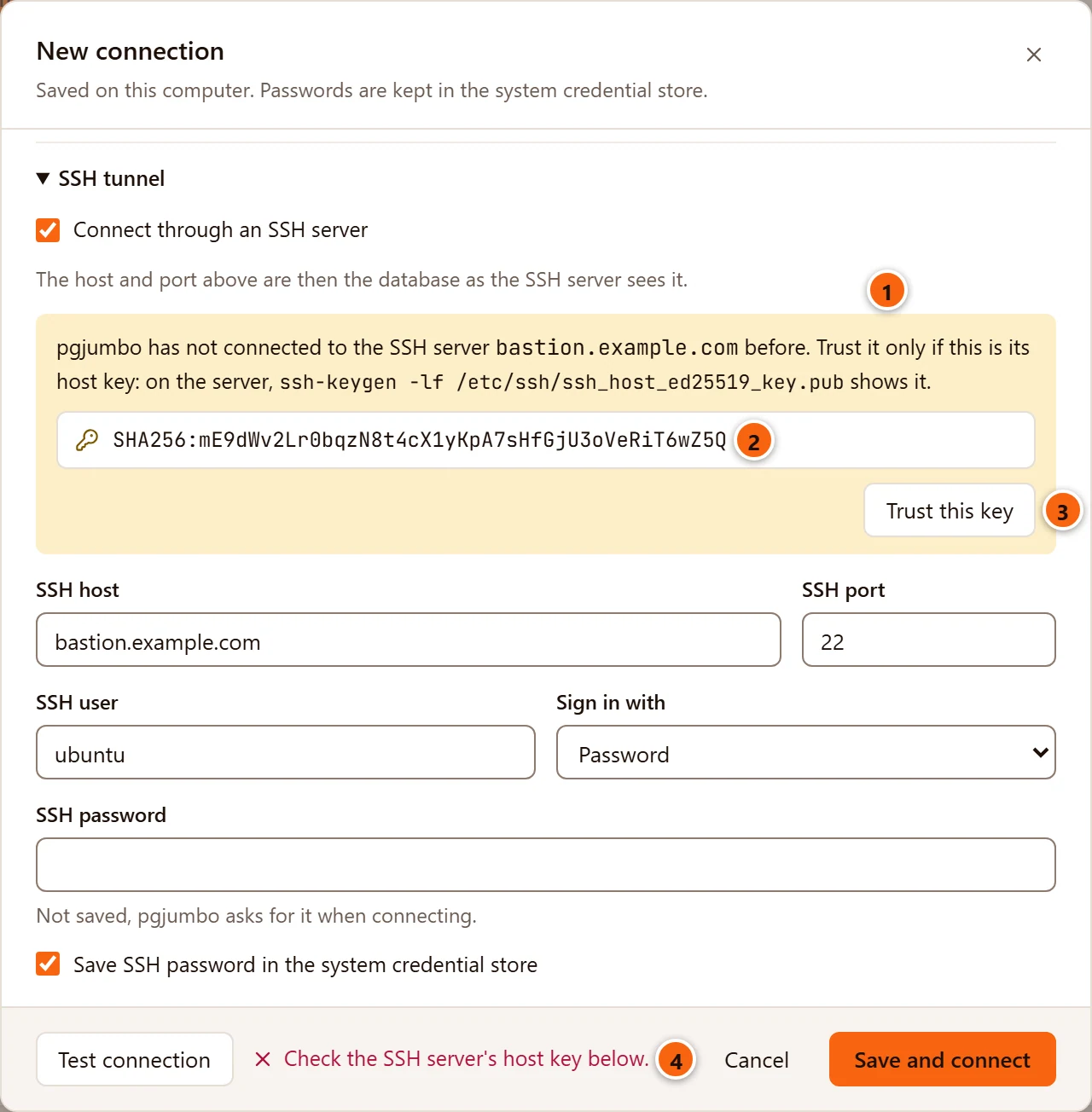
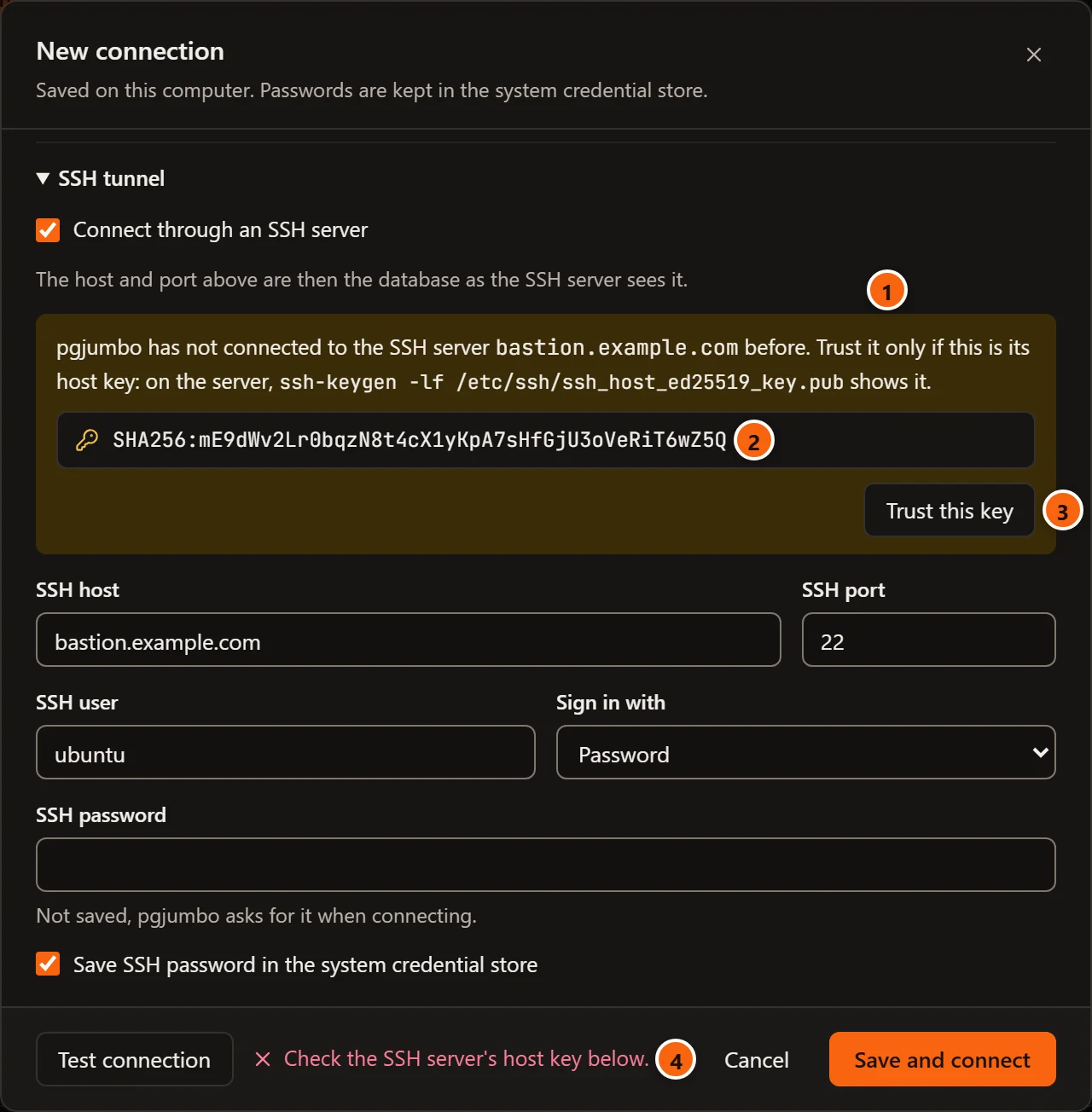
- 1 The notice names the SSH server and tells you how to see its key on the server.
- 2 The fingerprint of the key the server presented, as OpenSSH prints it (
SHA256:…). - 3 Trust this key adds the key to pgjumbo’s known hosts and runs the test, or the save and connect, again.
- 4 The footer says Check the SSH server’s host key below.
Changing the SSH host, port, user or sign-in hides the notice; the next test shows it again if the key is still unknown. With Save and connect, the server is already saved when the notice appears: trust the key and pgjumbo saves and connects again, or click Cancel and the server stays in the Explorer, not connected.
When you connect from the Explorer
Section titled “When you connect from the Explorer”When you connect a saved server (double-click it, click the plug that shows when you hover it, or right-click it and choose Connect) and its SSH server’s key is unknown, pgjumbo asks in a dialog of its own.
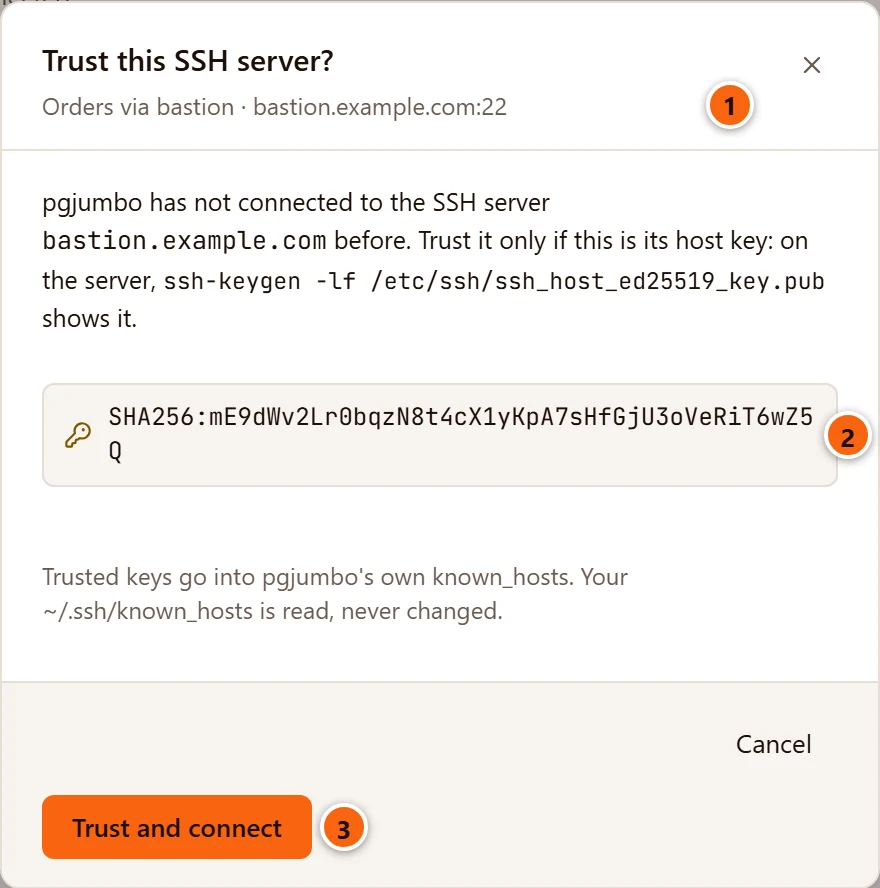
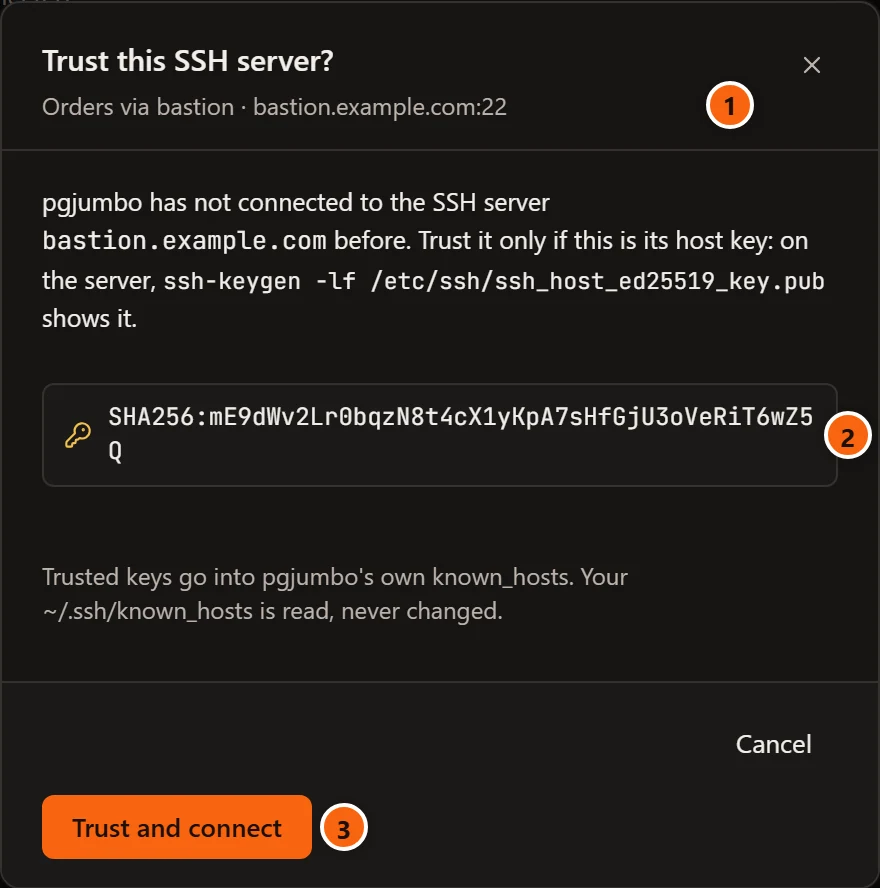
- 1 The server’s name in pgjumbo, then the SSH server’s host and port.
- 2 The host key’s fingerprint.
- 3 Trust and connect trusts the key and connects again. Cancel leaves the server disconnected.
The line above the buttons says where the key goes: Trusted keys go into pgjumbo’s own known_hosts. Your ~/.ssh/known_hosts is read, never changed.
If the key you confirm is no longer the one waiting (another attempt met a different SSH server in the meantime), pgjumbo says That host key is no longer waiting to be trusted. Connect again to see it.
Where trusted keys are kept
Section titled “Where trusted keys are kept”pgjumbo checks a host key against two files, in this order:
- your own
~/.ssh/known_hosts, which it reads and never changes; - its own
known_hostsin its data folder, where Trust this key and Trust and connect add the keys you trust.
| System | pgjumbo’s known_hosts |
|---|---|
| macOS | ~/Library/Application Support/io.github.menai993.pgjumbo/known_hosts |
| Windows | %LOCALAPPDATA%\io.github.menai993.pgjumbo\known_hosts |
| Linux | ~/.local/share/io.github.menai993.pgjumbo/known_hosts (under $XDG_DATA_HOME when you set it) |
A host you already reach with ssh from a terminal is known, so pgjumbo does not ask about it, as long as you type
the same name and port in SSH host and SSH port as the line in ~/.ssh/known_hosts has (an alias from
~/.ssh/config is not the same name). pgjumbo’s file uses OpenSSH’s format: one line per host, written [host]:port
for a port other than 22. See
Where pgjumbo keeps your data for the rest of the data folder.
When a host key changes
Section titled “When a host key changes”If an SSH server presents a key of the same type (Ed25519, RSA, ECDSA) as one either file holds for it, but a different key, pgjumbo refuses to connect:
The host key of bastion.example.com changed since it was last seen. That can mean someone is in between; pgjumbo does not connect. If the server was really set up again, remove its old key from known_hosts.
There is no button to accept the new key. Ask the server’s administrator whether the server was rebuilt. If it was, remove the old line from the file that holds it, then connect again and trust the new key:
ssh-keygen -R bastion.example.com # ~/.ssh/known_hostsssh-keygen -R bastion.example.com -f "<pgjumbo's known_hosts>" # pgjumbo's own filessh-keygen -R "[bastion.example.com]:2222" -f "<pgjumbo's known_hosts>" # a port other than 22A key of a type that neither file holds for the host counts as unknown, and pgjumbo asks you to trust it. An SSH server that presents an SSH certificate as its host key is refused: bastion.example.com presented an SSH certificate, which pgjumbo does not check yet.
Connect: the SSH password, then the database’s
Section titled “Connect: the SSH password, then the database’s”When you connect a saved server whose SSH password or passphrase is not saved, pgjumbo asks for it first. When the database then wants a password that is not saved either, the same dialog asks for that next.
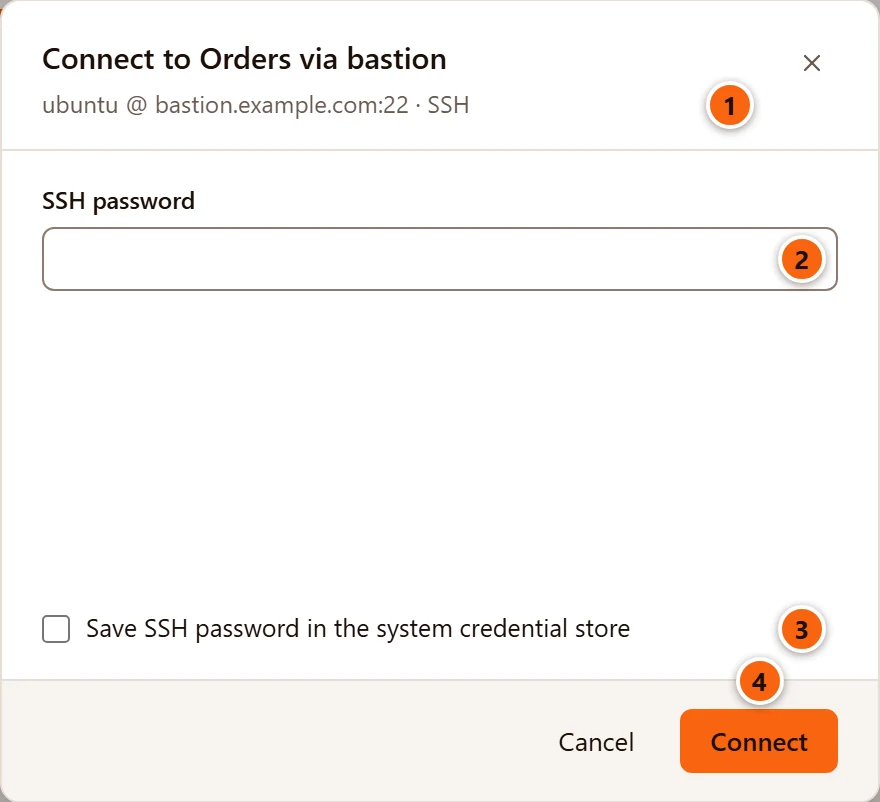
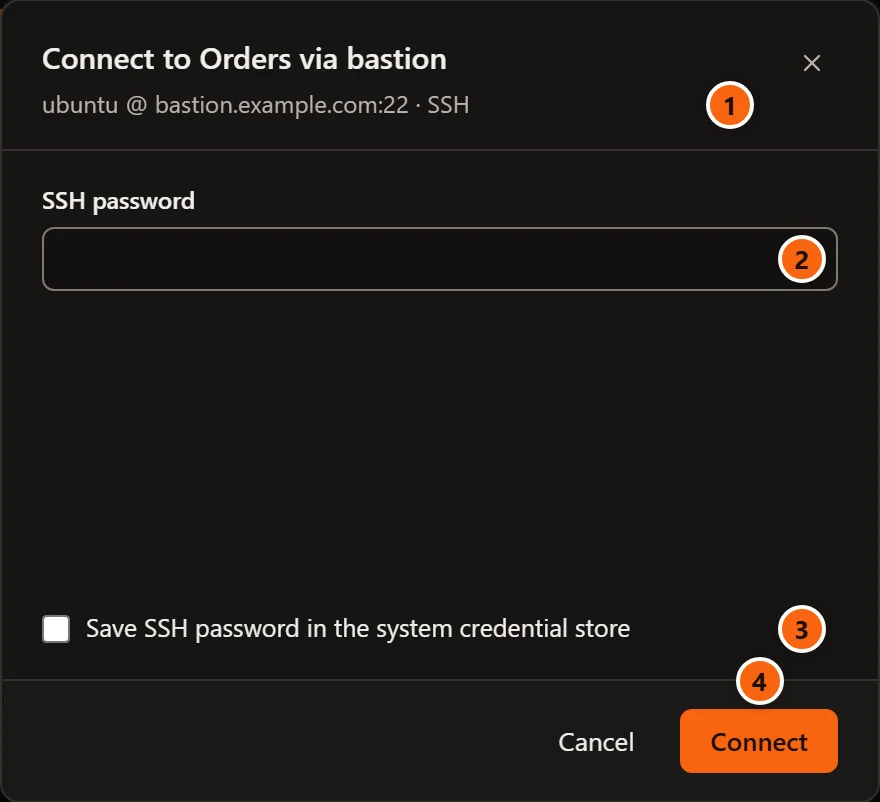
- 1 The line under the title says whose sign-in this is:
ubuntu @ bastion.example.com:22 · SSH. - 2 SSH password, or Key passphrase for a key; the key file’s path then shows under the field.
- 3 Save SSH password in … (or Save passphrase in …) starts unticked. Tick it to keep the secret in the credential store; pgjumbo saves it before it connects and ticks the matching box in the server’s settings.
- 4 Connect signs in to the SSH server. With the field empty, the dialog says Enter the SSH password. (or Enter the passphrase.). Cancel leaves the server disconnected.
A wrong password keeps the dialog open with the SSH server’s answer, such as The SSH server bastion.example.com refused ubuntu’s sign-in. A wrong passphrase says The passphrase for … is wrong. Enter it and try again.
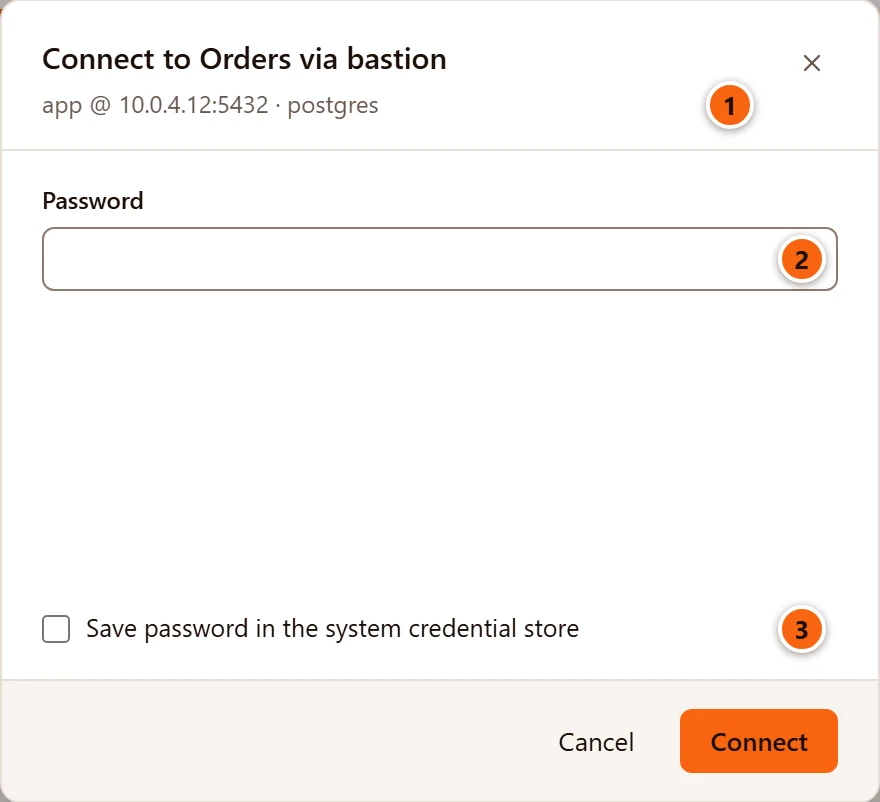
- 1 The line under the title now names the database user, the database’s host and port as the SSH server sees them, and the database.
- 2 Password is the database user’s password.
- 3 Save password in … (unticked at first) keeps it in the credential store, as the Save password box of the connection dialog does. Connect with the field empty says Enter the password.
pgjumbo holds the SSH password you typed in the first step until this connection is made, so you do not type it twice. A server whose SSH sign-in needs no secret (a key without a passphrase, the agent, or a saved secret) goes straight to the database’s password, or connects without a dialog.
How the tunnel works while you are connected
Section titled “How the tunnel works while you are connected”- One tunnel serves the whole server. pgjumbo signs in to the SSH server once, listens on a free port of
127.0.0.1on your computer, and sends every connection of that server through it: the Explorer’s, each Query Tool and data tab, the server tab’s Activity view, the requests that cancel a query, and the programs a backup, restore or database copy runs (pg_dump,pg_restore,psql). - TLS still checks the real host. pgjumbo gives libpq the database’s Host as the name and
127.0.0.1as the address, so SSL modeverify-fullchecks the certificate against the database’s host name, not against127.0.0.1. - The SSH server opens the connections to the database, so in
pg_stat_activitythey come from the SSH server’s address, withapplication_nameset topgjumbo/…as usual. - pgjumbo sends a keepalive to the SSH server every 30 seconds, so a firewall does not drop an idle tunnel. Reaching the SSH server and agreeing on keys may take 15 seconds at most.
- Test connection opens a tunnel for the test only and closes it afterwards. Without a secret typed in the dialog, a saved server’s test uses its saved SSH password or passphrase.
- Changing the tunnel of a connected server (from its tab’s Connection view, which Edit connection… opens) applies the next time it connects: disconnect and connect it to use the new settings.
Disconnect, and when the tunnel closes
Section titled “Disconnect, and when the tunnel closes”Disconnect (on the server’s right-click menu, its hover button in the Explorer, or its tab’s header) closes the server’s connections, the Query Tool and data tabs’ sessions among them (a query still running is cancelled), then the tunnel. A backup, restore or database copy that is still running keeps the tunnel open until its program ends, so disconnecting does not cut it off.
pgjumbo never reopens a tunnel behind your back. If the SSH connection drops (the bastion restarts, your laptop sleeps, the network changes):
- Query Tool and data tabs lose their connection and say so; they are not reconnected for you (Transactions and sessions).
- Anything that needs a new connection fails with The SSH connection to bastion.example.com closed. Disconnect the server and connect it again. When the Explorer or the Inspector is the one that fails, the server shows as failed in the Explorer, with that message.
- Connect the server again: click the plug that shows when you hover it, or choose Connect on its right-click menu. pgjumbo drops the old session, opens a new tunnel, and asks for the SSH password again if it is not saved.
When the tunnel fails
Section titled “When the tunnel fails”Test connection and Save and connect show these messages in the dialog’s footer. Connecting from the Explorer
marks the server as failed, with a warning icon in front of its name: hover the icon to read the message, or, with the
server selected, hover Connection failed in the status bar. In the Explorer the message starts with its kind, such
as SSH tunnel: or authentication failed:, and a timeout reads timed out after 15000 ms. A missing password or
passphrase and an unknown host key are not failures: pgjumbo asks for them instead, as above.
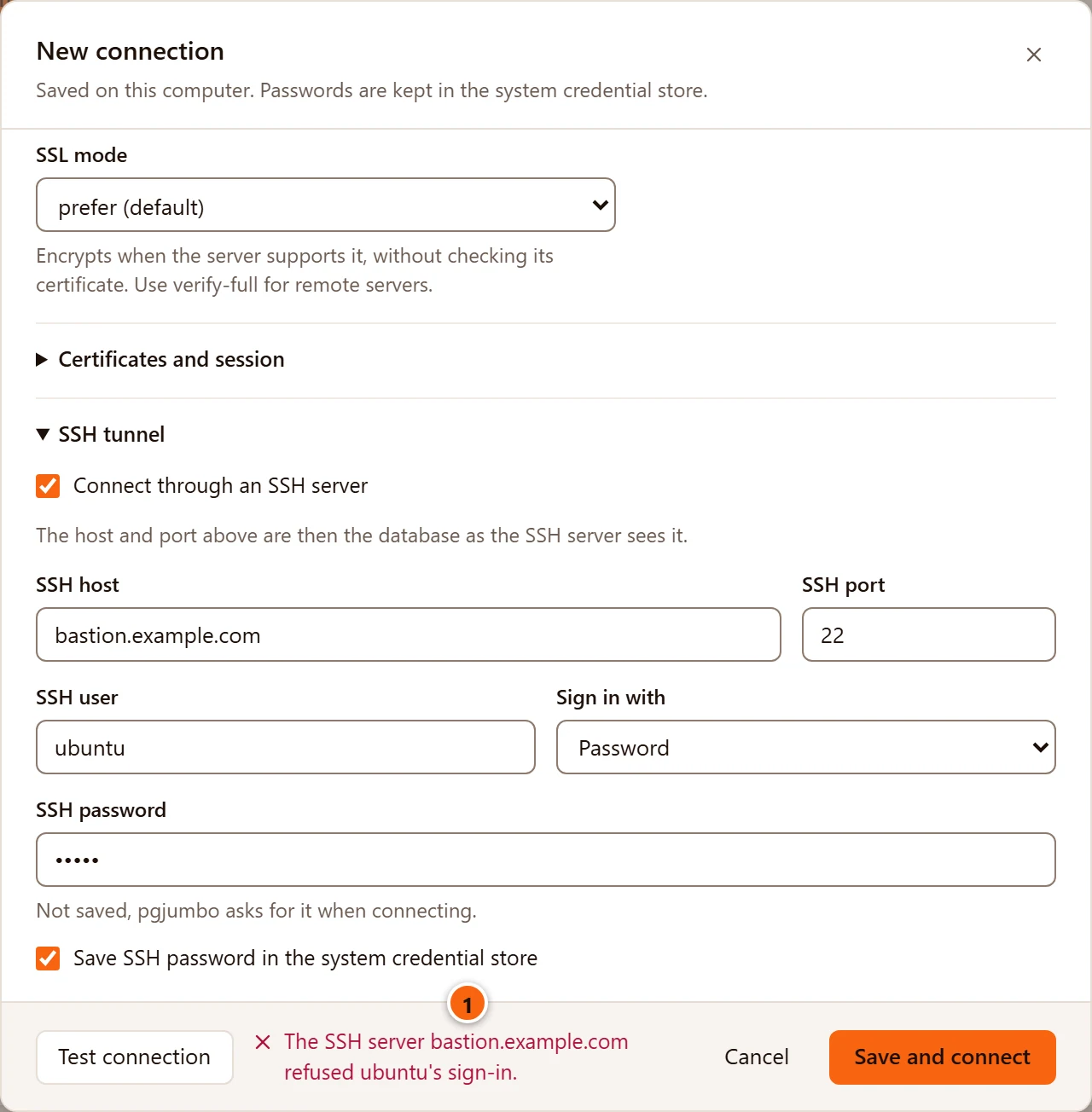
- 1 The message from the SSH sign-in, in the footer next to Test connection. Fix the field it names and click Test connection again.
| Message | What it means |
|---|---|
| Give the SSH server’s host. / Give the SSH user name. | A field of the SSH tunnel section is empty. |
| The SSH port must be a number between 1 and 65535. | Fix SSH port. |
| Could not reach the SSH server bastion.example.com:22: … | No SSH connection could be made there: check the name, the port, your VPN or the firewall. |
| Timed out after 15 s. Is the host reachable, and is the port right? | The SSH server did not finish its greeting within 15 seconds. |
| The SSH password for ubuntu@bastion.example.com is needed. Enter it and try again. | Type the SSH password in the dialog, or save it. |
| The SSH key’s passphrase for ubuntu@bastion.example.com is needed. Enter it and try again. | The key is encrypted: type its passphrase in Key passphrase, or save it. |
| The SSH server bastion.example.com refused ubuntu’s sign-in. | Wrong user, password or key, the key is not in the user’s authorized_keys, or none of the agent’s keys was accepted. |
| Choose the SSH private key file. | Sign in with is Private key but Private key is empty. |
| The SSH key … cannot be used: … | The file is missing, unreadable, or not a private key pgjumbo reads. |
| The passphrase for … is wrong. Enter it and try again. | The key is encrypted and the passphrase does not open it. |
| No SSH agent is running, or pgjumbo cannot reach it: … | Start the agent; on Windows, the OpenSSH Authentication Agent service or Pageant. |
| The SSH agent did not list its keys: … | The agent answered but would not give its keys. Restart it. |
| The SSH agent holds no keys. Add one with ssh-add. | The agent runs but has no key loaded. |
| SSH sign-in failed: … | The SSH conversation broke off during sign-in. |
| No local port for the tunnel: … | Your computer would not give pgjumbo a free port on 127.0.0.1. |
| Use either a pg_service.conf service or an SSH tunnel, not both. | Empty Service, or turn the tunnel off. |
The changed host key and SSH certificate messages are in When a host key changes.
If the SSH sign-in works but the database connection then fails at once, the SSH server may not allow port forwarding
(AllowTcpForwarding no in its sshd_config), or Host and Port may be wrong as seen from the SSH server. With
the Assistant on, Explain next to a failed test checks whether an SSH server answers at that address
(Connection settings).
What pgjumbo does not do
Section titled “What pgjumbo does not do”- It does not read
~/.ssh/config: host aliases,ProxyJump,IdentityFileand the other options there do not apply. Give the real host name, port, user and key in the dialog. A tunnel has one SSH hop. - It signs in with SSH’s password method only, so an SSH server that allows only keyboard-interactive sign-in (one-time codes, for example) refuses it.
- It does not check SSH certificates, as host keys or for your own sign-in.
An exported server list, and a pgAdmin servers.json you import, keep a server’s tunnel (SSH host, port, user and key
path) but never its secrets (Manage your servers). For Amazon RDS and Aurora in a private
network, a tunnel and AWS IAM sign-in work together (Amazon RDS and Aurora).