
The Explorer
The Explorer is the tree on the left of the window. It lists your saved servers and, once a server is connected, its databases, schemas and every object in them. Click a row to see the object in the Inspector, double-click it to open it, and right-click it for everything else you can do with it (see Right-click menus).
The left pane has two tabs: Explorer, described here, and Library (see The Library). To hide or show the whole pane, choose ViewExplorer or press ⌘ 0 (Ctrl+B on Windows and Linux). Drag its right edge to make it wider or narrower.
Read the tree
Section titled “Read the tree”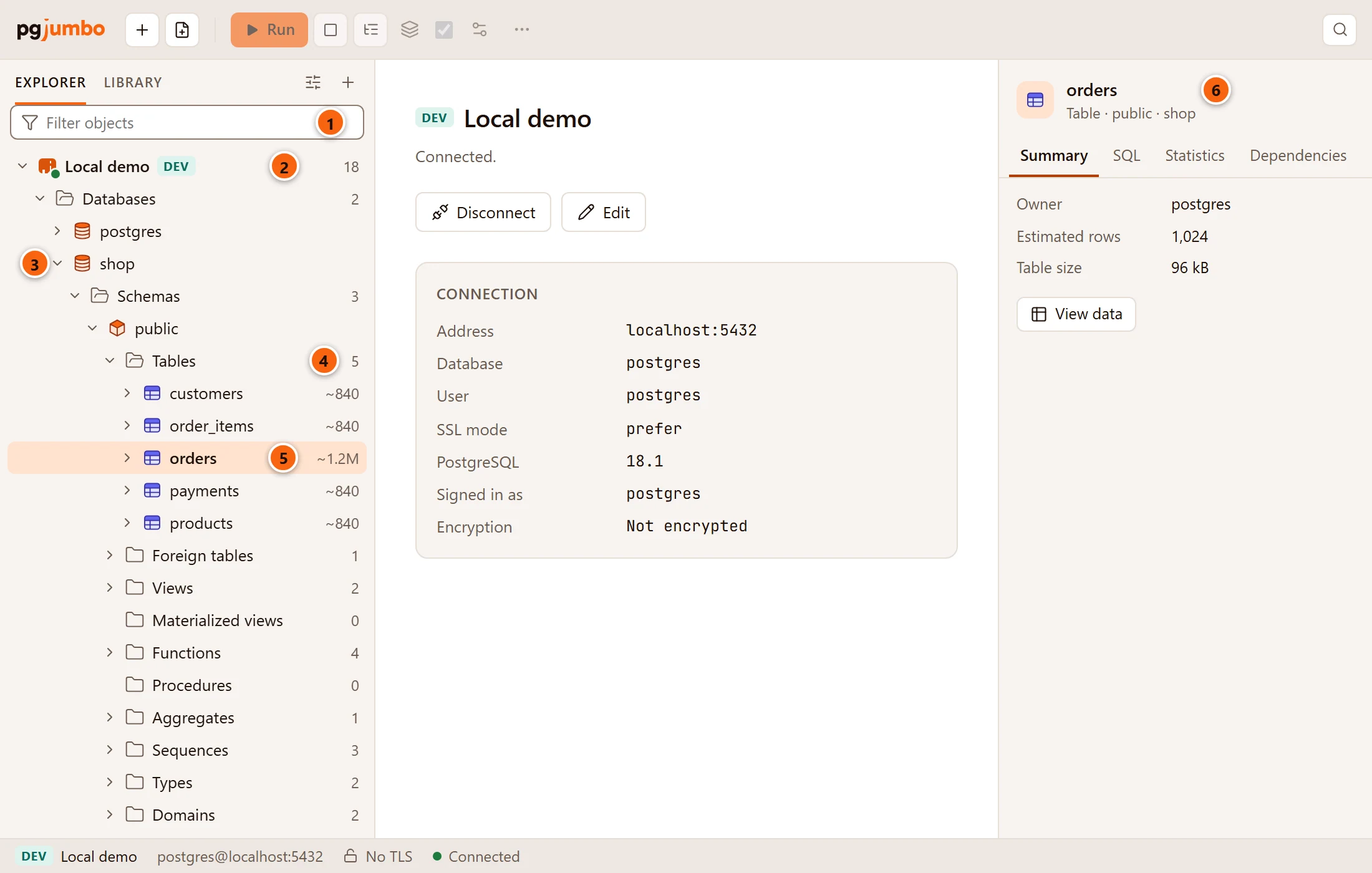
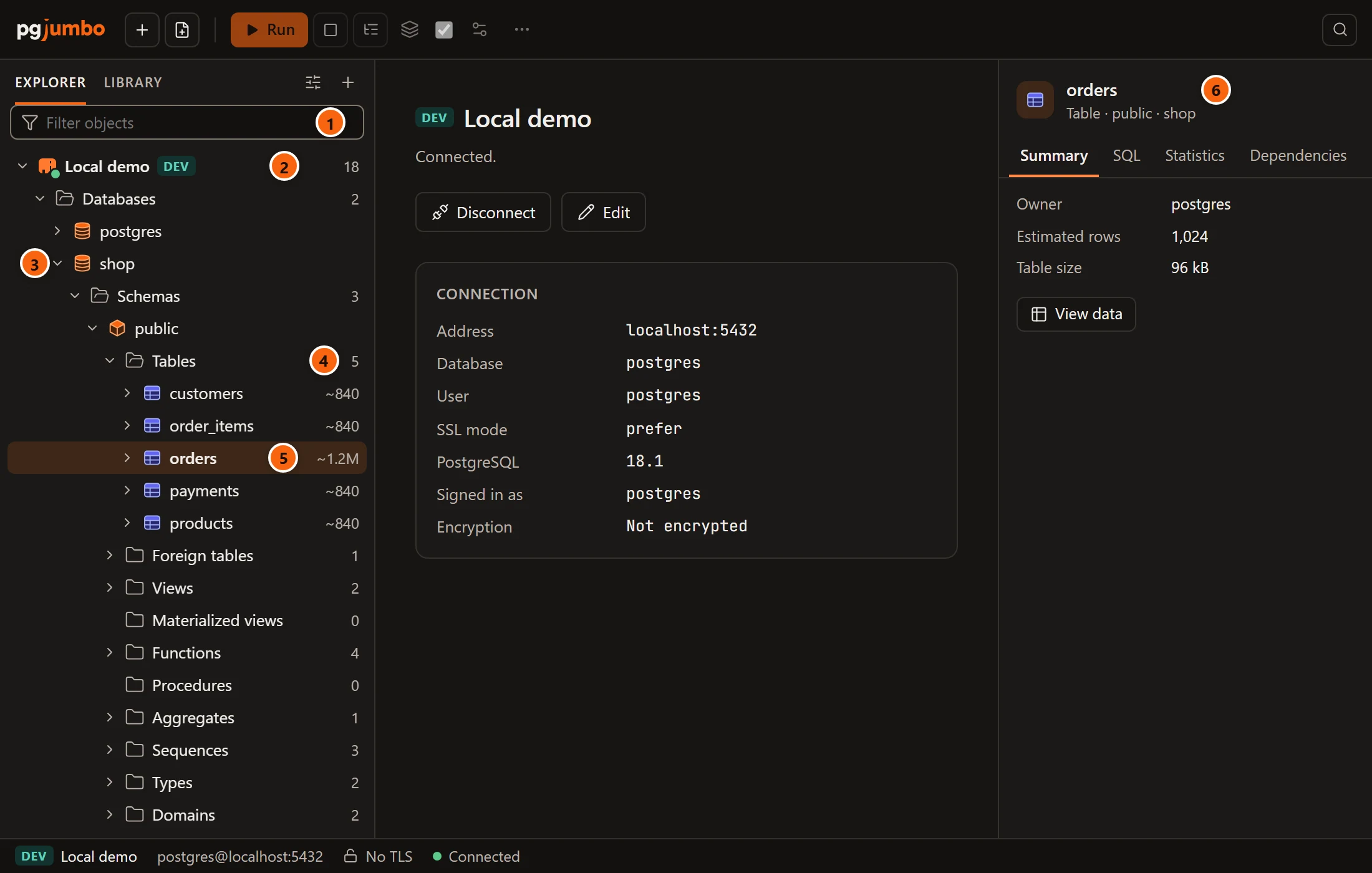
- 1 Filter objects narrows the tree to rows whose name contains what you type. See Filter by name.
- 2 A server row. From left to right: the colour you gave the server (a thin bar, when it has one), its
connection icon, its name, its environment tag (DEV, STAGING or PROD) and, once connected, the major
version of PostgreSQL (
18here). - 3 The arrow opens or closes a row. A row without an arrow has nothing to open: a folder with nothing in it, a database you may not connect to, or an object such as a column, a sequence or a function.
- 4 The number after a folder is how many objects it holds.
- 5 The number after a table is how many rows PostgreSQL thinks it has (
~840,~1.2M). Hover over the number for the full figure. - 6 The row you select shows in the Inspector. See The Inspector.
A folder has a folder icon, drawn open while the folder is open. Every kind of object has an icon of its own, and the tools under Management have theirs.
The server’s icon
Section titled “The server’s icon”The elephant before a server’s name tells you whether it is connected. Hover over it for the same words.
| Icon | Meaning |
|---|---|
| Elephant with a green dot | Connected. The tooltip names the version, such as Connected · PostgreSQL 18.1. |
| Spinning circle | Connecting… |
| Warning sign | The last attempt failed. The tooltip gives the reason PostgreSQL or the network gave. |
| Plain elephant | Not connected |
Numbers, tags and grey text
Section titled “Numbers, tags and grey text”| What you see | What it means |
|---|---|
| A number after a folder | How many objects the folder holds. A folder with a filter shows how many pass it, such as 2 of 5. |
~840, ~3.4K, ~1.2M after a table |
The planner’s row estimate (reltuples) as of the table’s last VACUUM or ANALYZE. The tooltip gives the full number: About 1,204,113 rows, as of the last ANALYZE. A table that was never vacuumed or analyzed shows no number, and partitions never show one. On PostgreSQL 12 and 13, an empty table shows none either. For an exact count, right-click the table and choose TasksCount rows. |
| PK, FK, UNIQUE, CHECK, EXCLUDE, TRIGGER on a constraint | The kind of constraint. Primary keys and foreign keys also have icons of their own. |
| PK on a column | The column is part of the primary key. A key icon marks it too. |
| PK or UNIQUE on an index | The primary key’s index, or a unique index. |
| TEMPLATE | A template database. |
| SU | A superuser role. |
| RESTRICTIVE | A row security policy that narrows the others instead of adding to them. |
| A name in grey | A system object, shown only when you ask for them. See Show system objects and counts. |
| (filtered) after a folder | The folder has a filter of its own. See Filter a folder. |
Many rows carry a word or two in grey after their name:
| Row | Grey text |
|---|---|
| Column | Its type, and · not null when it cannot be null (left out for primary-key columns). |
| Function | What it returns. The name includes the arguments, such as month_start(d date). |
| Procedure | Nothing. The name includes the arguments. |
| Aggregate | What it returns. The name includes the argument types, such as median(numeric), or (*) when it takes none. |
| Index | Its access method, such as btree or gin. |
| Trigger, subscription | disabled when it is disabled. |
| Type | composite, enum, range or base. |
| Domain | The type it is based on. |
| Collation | Its provider: icu, libc, builtin or default. |
| Operator | What it returns. The name shows the operand types, such as = (email, email), with NONE on the empty side of a prefix operator. |
| Text search configuration or dictionary | The parser, or the template, it uses. |
| Foreign table | The foreign server its rows come from. |
| Partition | Its bound, such as FOR VALUES FROM ('2026-01-01') TO ('2026-02-01'). |
| Policy | The command it covers: select, insert, update, delete or all. |
| Rule | Its event, followed by · instead and · disabled when they apply. |
| Role | group for a role that cannot log in. Login roles and group roles also have different icons. |
| Extension | Its installed version. |
| Foreign server | Its foreign-data wrapper. |
| Event trigger | The event it fires on, and · disabled when it is disabled. |
| Cast | implicit or assignment when it is not explicit only. A cast’s name is source → target. |
| Language | untrusted for an untrusted procedural language. |
| Publication | all tables for a publication of every table. |
How a server is laid out
Section titled “How a server is laid out”A connected server holds four rows: Databases, and three groups that gather the server-wide objects by purpose. Each database holds its schemas, its extensions and two groups of its own.
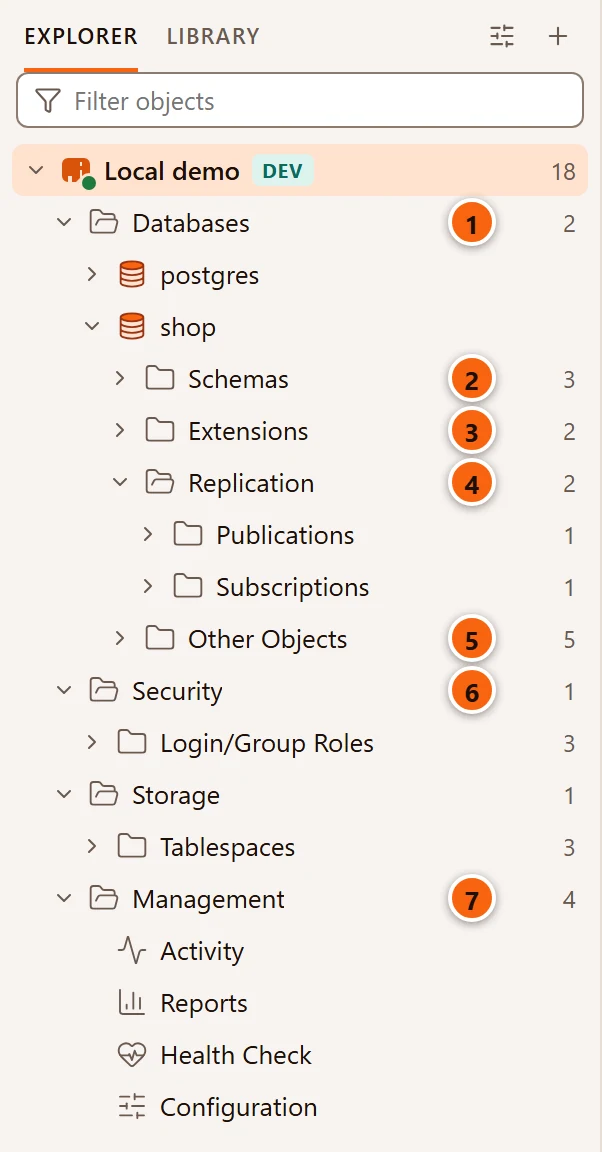
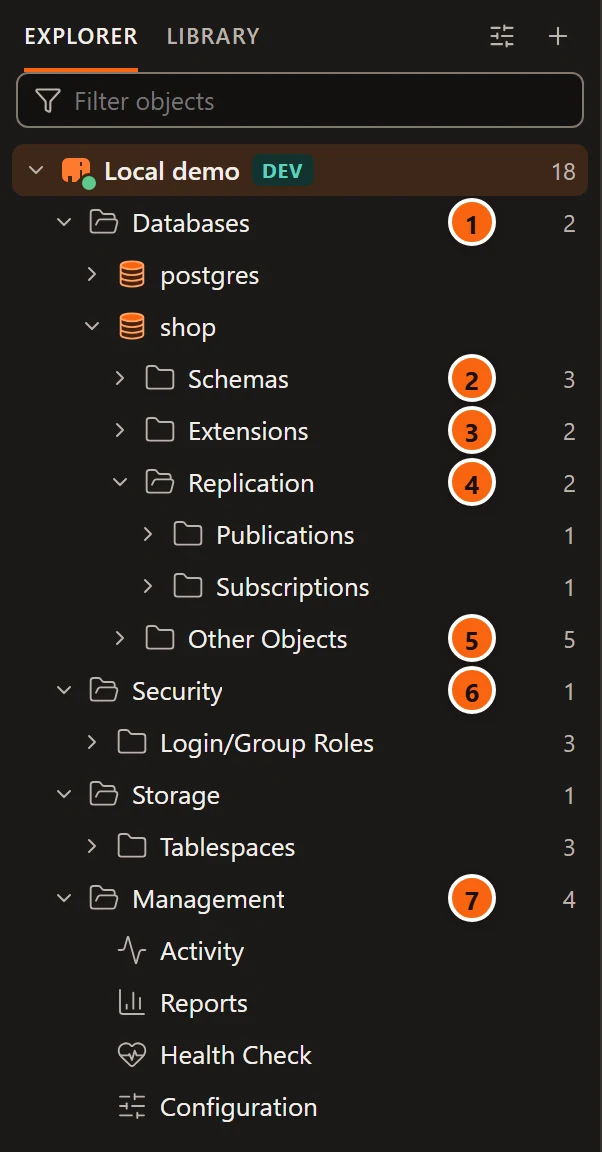
- 1 Databases: every database on the server, by name. Template databases show only with system objects.
- 2 Schemas: the schemas of this database.
- 3 Extensions: the extensions installed in this database, each with its version.
- 4 Replication: Publications and Subscriptions. Only the subscriptions of this database are listed.
- 5 Other Objects: Casts, Event Triggers, Foreign Data Wrappers, Foreign Servers and Languages.
- 6 Security holds Login/Group Roles. Storage, below it, holds Tablespaces.
- 7 Management holds the server’s tools rather than objects: Activity, Reports, Health Check and Configuration. Double-click one to open it (see What a double-click or Enter does).
A group counts the folders in it, not the objects: Other Objects shows 5 for its five folders, and
Management shows 4 for its four tools.
Inside a schema
Section titled “Inside a schema”A schema’s folders come in this order: Tables, Foreign tables, Views, Materialized views, Functions, Procedures, Aggregates, Sequences, Types, Domains, Collations, Operators, Text search configurations, Text search dictionaries, Text search parsers and Text search templates.
Tables, Views, Materialized views, Functions, Procedures, Sequences and Types are always
there, with 0 when empty. The others show only in a schema that has at least one such object, so an ordinary schema
stays short.
- Tables lists ordinary and partitioned tables, but not partitions: each partition is under its parent’s Partitions folder.
- Types lists composite, enum, range and base types. Array types and the row types of tables are left out, and domains have their own folder.
- Functions lists ordinary and window functions, without the ones PostgreSQL makes for another object (such as a range type’s constructors). Aggregates and procedures have their own folders.
- Collations lists only the collations the database’s encoding can use.
Inside a table
Section titled “Inside a table”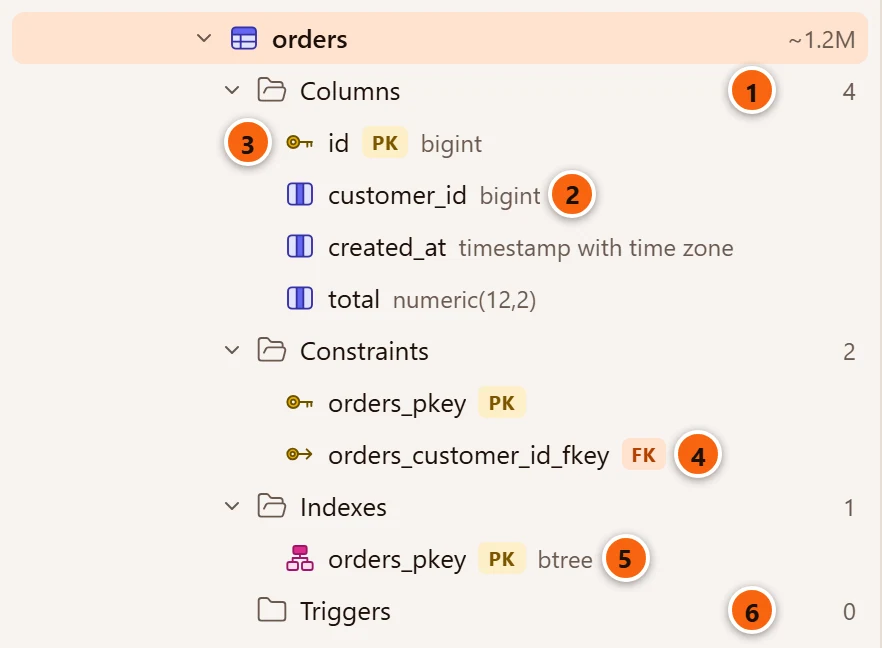
- 1 Columns, in the table’s own order.
- 2 Each column’s type, as PostgreSQL writes it.
- 3 A key icon and PK mark the primary key’s columns.
- 4 Each constraint is tagged with its kind; FK is a foreign key.
- 5 Each index shows its access method, and PK or UNIQUE.
- 6 A folder with
0has no arrow.
Which folders a relation has depends on its kind:
| Kind | Folders |
|---|---|
| Table | Columns, Constraints, Indexes, Triggers, Policies, Rules |
| Partitioned table | Columns, Constraints, Indexes, Triggers, Partitions, Policies, Rules |
| View | Columns, Rules |
| Materialized view | Columns, Indexes |
| Foreign table | Columns, Constraints, Triggers, Policies |
Policies (row security policies) and Rules show only when there is at least one. Triggers leaves out the
internal triggers PostgreSQL uses for foreign keys, Rules leaves out the _RETURN rule that makes a view, and
Constraints leaves out the NOT NULL constraints PostgreSQL 18 records (the column’s · not null shows them). A
partition has a partition icon instead of a table icon, and a partition that is itself partitioned has its own
Partitions folder.
Open and close rows
Section titled “Open and close rows”Click the arrow before a row, or select it and press →, to open it; ← closes it. A double-click opens and closes servers, groups, folders, databases and schemas too, but opens most objects in a tab of their own (see the table below). pgjumbo reads a folder from the server the first time you open it.
- Opening a server that is not connected connects it. If no password is saved, pgjumbo asks for one (see Connection settings). While it connects, and while a folder loads, the row below says Loading….
- If a folder cannot be read (no privilege on a schema, say), a row with a warning sign shows PostgreSQL’s message in its place. Double-click it, press Enter on it, or right-click it and choose Retry.
- A server group (its name in capitals above its servers) opens and closes the same way. A closed group shows how many servers it hides, and stays closed the next time you start pgjumbo. Every other row starts closed.
What a double-click or Enter does
Section titled “What a double-click or Enter does”| Row | Double-click or Enter |
|---|---|
| Server group, server, folder, database, schema | Opens or closes it. A database or a schema opens in its own tab from Properties… instead. |
| Table, partitioned table, partition | Opens it in its tab, on the view you used last for a table (Data the first time). Use the arrow or → to see its folders. See Tables. |
| View, materialized view | Opens it in its tab on Data. Use the arrow to see its folders. See Views and materialized views. |
| Function, procedure, sequence, type | Opens it in its tab on General. See Functions and procedures, Sequences and Types, domains and other schema objects. |
| Role, tablespace | Opens it in its tab: a role on General, a tablespace on Contents. See Roles and Tablespaces. |
| Extension, publication, subscription | Opens it in its tab: an extension on General, a publication on Tables, a subscription on Status. See Extensions and Publications and subscriptions. |
| Event trigger, language, cast, foreign-data wrapper, foreign server | Opens it in its tab on General. See Event triggers, languages and casts and Foreign data. |
| Foreign table | Opens or closes it. |
| Column, constraint, index, trigger, policy, rule, domain, collation, aggregate, operator, text search object | Nothing: select it to see it in the Inspector. |
| Activity or Configuration under Management | Opens the server’s tab on that view. See Activity and Server configuration. |
| Reports under Management | Opens the server’s reports on Top queries. See Reports. |
| Health Check under Management | Opens the health check of the server’s maintenance database. See Health check. |
| A row that could not load | Tries again. |
When the object’s tab is open already, pgjumbo brings it to the front instead of opening a second one.
Select a row
Section titled “Select a row”Click a row, or move to it with the arrow keys. What changes:
- The Inspector shows the selected object: its summary, its script, and its statistics and dependencies where it has them. See The Inspector.
- With no tab open, the middle of the window follows the selection. A folder shows its objects as a list (see Object Details); a server or an object shows its server’s summary, with Disconnect and Edit, or Connect when the server is not connected; a server group shows the start page.
- New query in the toolbar, and ⌘ T (Ctrl+T on Windows and Linux), open a Query Tool on the selected row’s database (a server-level row uses the server’s maintenance database).
- Menu items such as ToolsMaintenance… and ToolsBackup… act on the selected row. See Menus.
- When the Assistant is turned on, each message you send it tells Claude which row is selected in the Explorer. See Ask the Assistant.
Use the buttons on a row
Section titled “Use the buttons on a row”Hover over a server or a server group and buttons appear at the right end of its row.
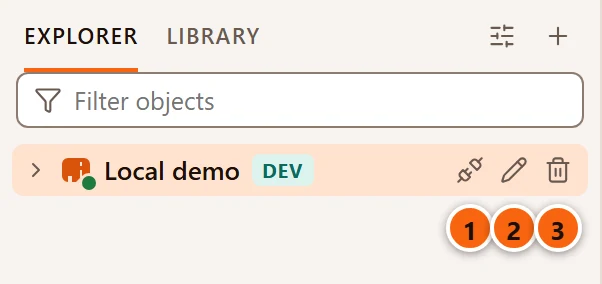
- 1 Disconnect disconnects pgjumbo from the server. On a server that is not connected the button is Connect instead (greyed out while it connects).
- 2 Edit opens the connection’s settings: the Edit connection dialog, or the Connection view of the server’s tab when the server is connected. See Connection settings.
- 3 Delete removes the server from pgjumbo, after asking. Nothing changes on the server itself.
A server group’s row has one button, Delete group. Groups, ordering and deleting are explained in Manage your servers. The same actions are in each row’s right-click menu, for the keyboard.
Filter by name
Section titled “Filter by name”Type in Filter objects, above the tree, to keep only the rows whose name contains the text, in any case.
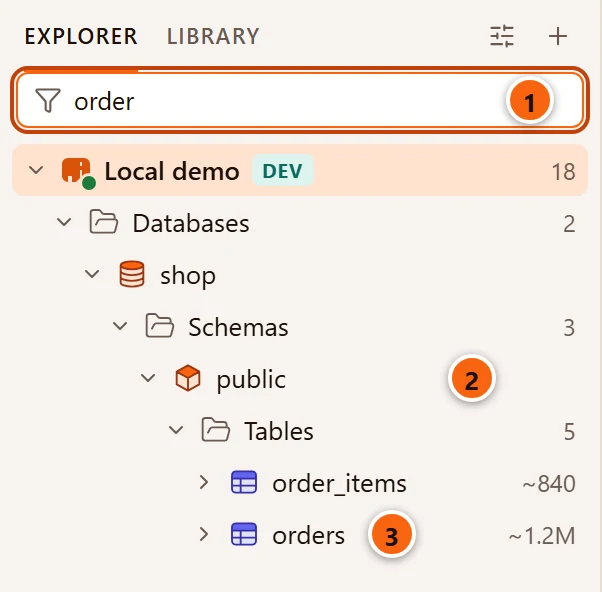
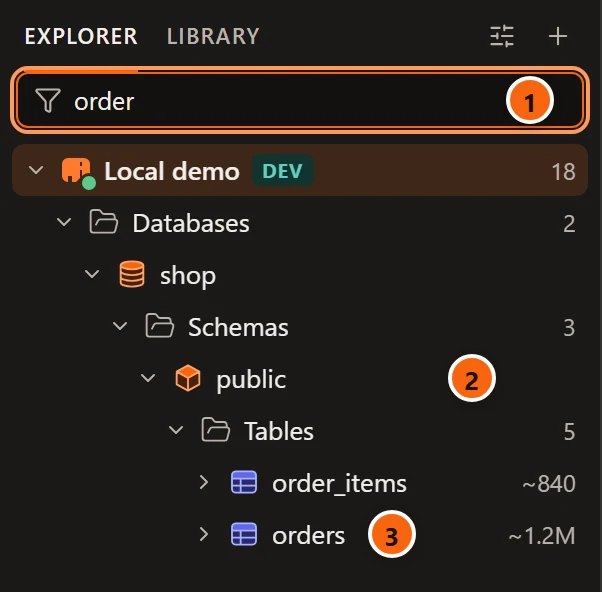
- 1 The text to look for.
- 2 The rows above each match stay, so you can see where it is.
- 3 The matches.
The filter looks only through rows you have opened: it does not open folders or ask the server for more. To find an object anywhere in a database, use Open Quickly (⇧ ⌘ O (Ctrl+P on Windows and Linux)). Server and group names match too, and so do the argument lists in function names. While a filter is on, closed server groups show their servers, and Loading… and error rows are hidden.
When nothing matches, the tree says Nothing matches “…”. Press Esc in the box, or delete the text, to see the whole tree again. The filter is not kept when pgjumbo closes.
Filter a folder
Section titled “Filter a folder”A folder with many objects can show only some of them: right-click it and choose Filter….
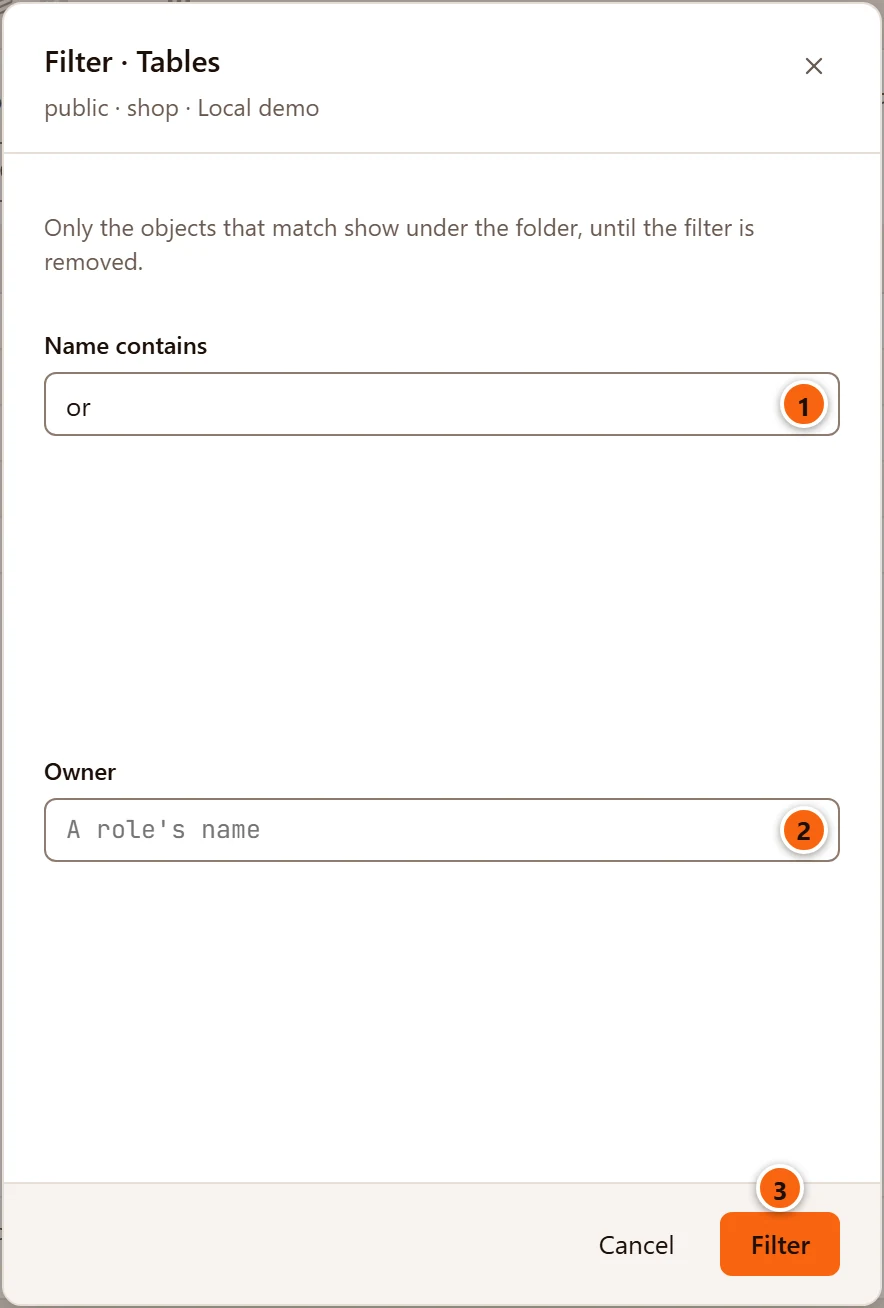
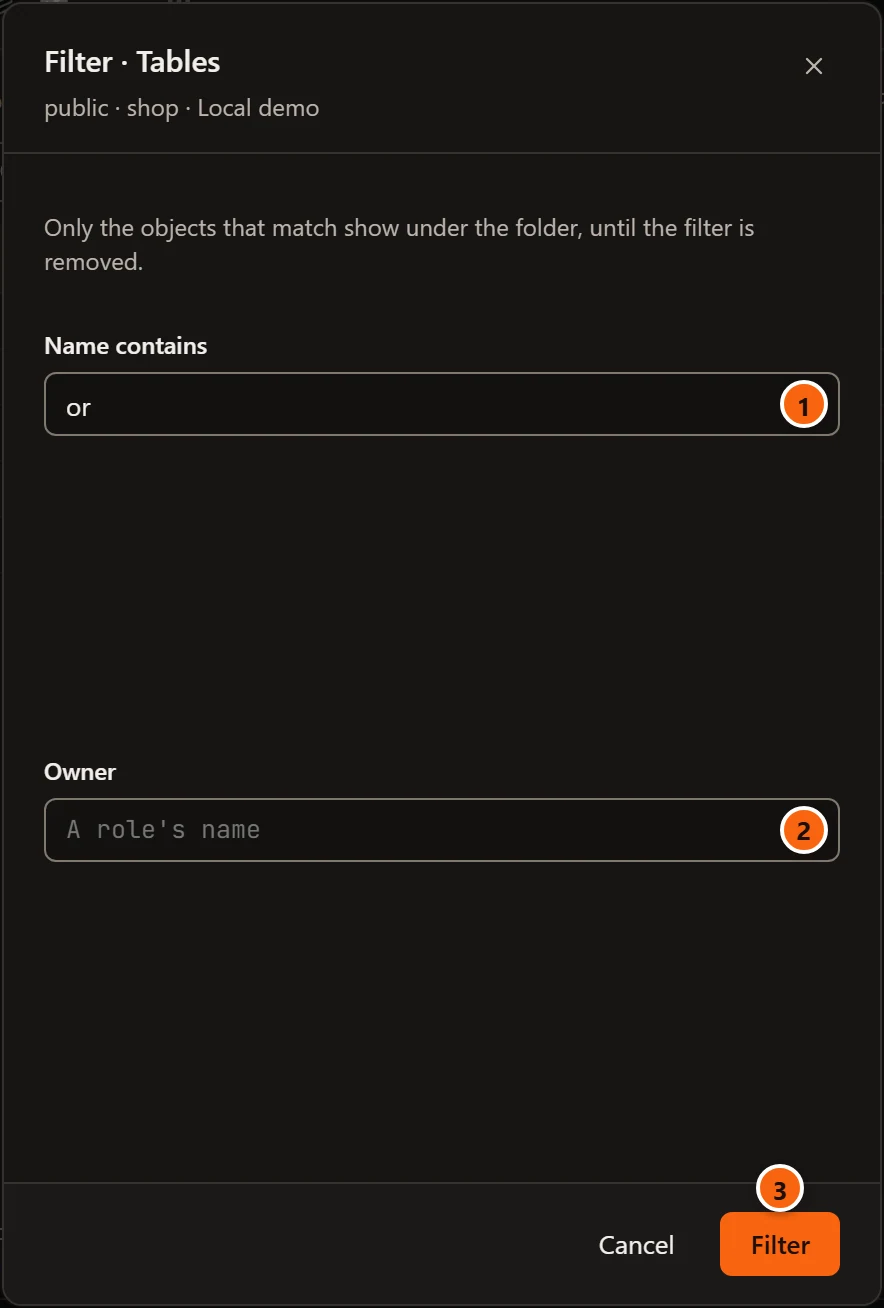
The dialog’s title names the folder, and the line under it says where the folder is (public · shop · Local demo).
- 1 Name contains: text the object’s name has in it, in any case.
- 2 Owner: the role that owns the object, typed exactly as the role is named. The field suggests the
server’s roles, without the predefined
pg_ones. - 3 Filter applies it. It is greyed out until one of the fields has something in it.
Cancel closes the dialog without a change. When the folder has a filter already, the dialog opens with it filled in and adds a Remove filter button; clearing both fields and clicking Filter also removes it.
pgjumbo reads the folder again and keeps the objects that pass both fields. The folder opens and says it is filtered:
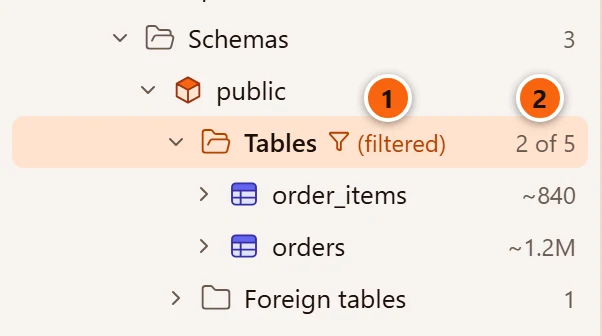
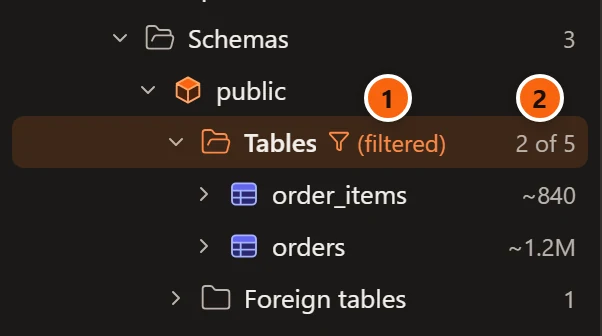
- 1 (filtered) after the folder’s name. Hover over it to see the filter, such as Filtered: name has “or”, or Filtered: name has “or” · owner app with an owner.
- 2 How many objects pass, out of how many the folder holds.
To show the whole folder again, right-click it and choose Remove filter. A filter lasts until you remove it or close pgjumbo; Refresh keeps it.
You can filter every folder of objects, but not the groups (Security, Storage, Management, Replication, Other Objects). The Owner field is left out where the objects have no owner of their own: Columns, Constraints, Indexes, Triggers, Policies, Rules, Login/Group Roles, Casts, Text search parsers and Text search templates.
Show system objects and counts
Section titled “Show system objects and counts”PostgreSQL’s own objects are hidden at first. The Explorer options button (the sliders, at the top of the pane) holds the switches for them and for the numbers.
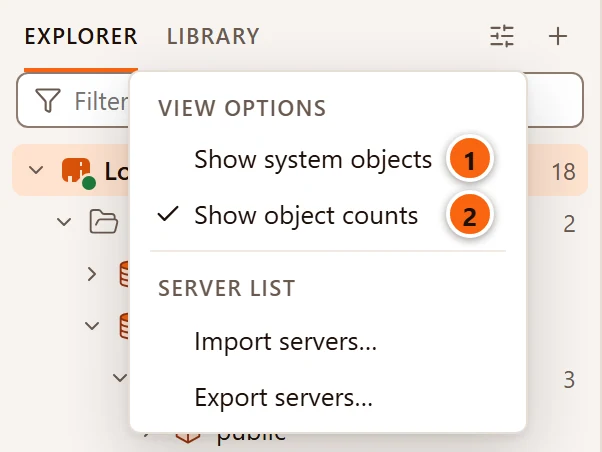
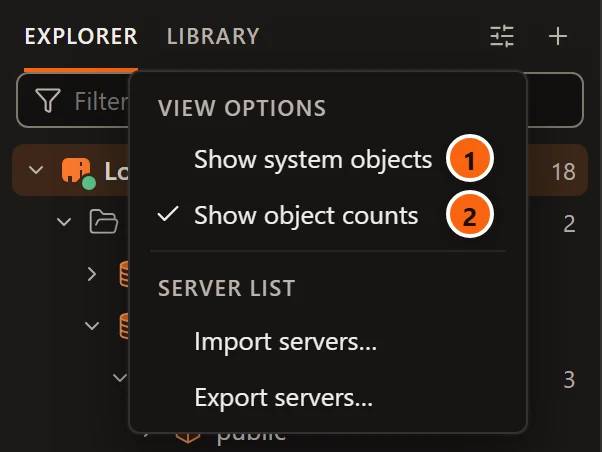
- 1 Show system objects adds PostgreSQL’s own objects to the tree. ViewSystem Objects in the menu bar does the same.
- 2 Show object counts shows the folders’ numbers and the tables’ row estimates. Turn it off for a quieter tree; a connected server still shows its version.
Import servers… and Export servers… are explained in Manage your servers. The New connection button (+) beside Explorer options adds a server: see Your first connection.
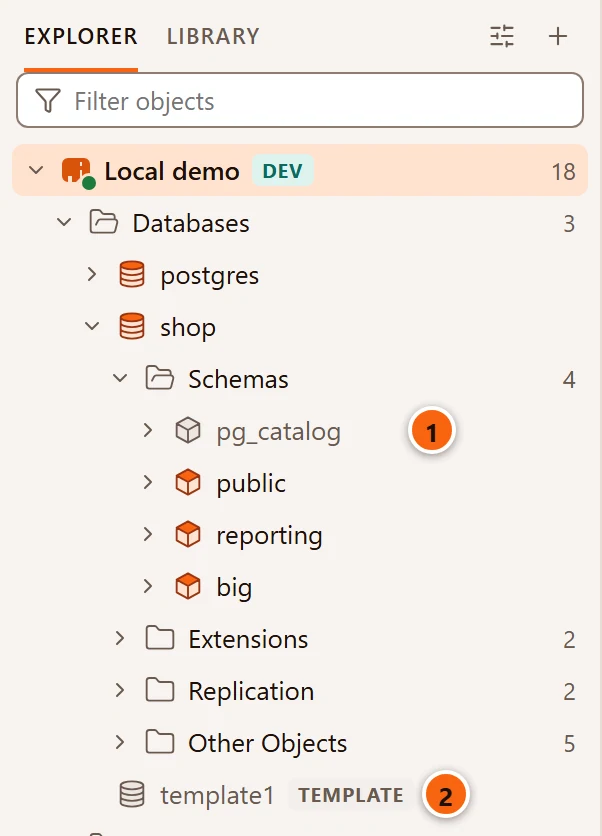
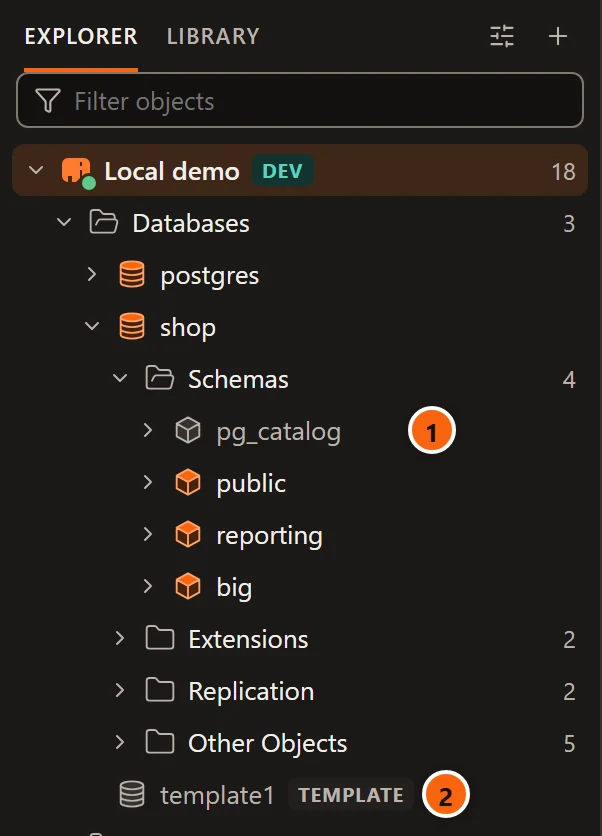
- 1 A system object is drawn in grey, here the
pg_catalogschema. - 2 Template databases carry a TEMPLATE tag.
These are system objects: template databases; the pg_catalog, information_schema, pg_toast… and pg_temp_…
schemas; the predefined roles whose names start with pg_; and the casts and languages (internal, c, sql)
built into PostgreSQL. Folder counts include them only while they are shown. Only those rows count: the tables and
functions inside pg_catalog are listed like any others. A system object’s right-click menu leaves out what would
change, copy or drop it (see What changes a menu).
Both switches are kept between runs, and so is the pane’s width.
Refresh the tree
Section titled “Refresh the tree”pgjumbo reads each folder once, when you first open it. When objects change outside the Explorer (in a Query Tool, or from another client), refresh the row that holds them:
- right-click the row and choose Refresh;
- choose ObjectRefresh, or press ⌘ R (Ctrl+R on Windows and Linux) anywhere in the window while the Explorer pane is shown;
- or press F5 while the tree has the keyboard.
Refresh reads the row’s children again, and those of every open row below it. It also reloads the row’s
Object Details list, and the Inspector for the row and every object below it.
Refresh is offered on a connected server and on any row with an arrow; a folder showing 0 has no arrow, so
refresh the row above it.
Changes made from the Explorer’s own menus need no refresh. After Drop…, a Create dialog, Edit index…, Install extension…, Restore…, Copy Database… or Import File into New Table…, pgjumbo reads again the database the object is in (the whole server after Create database…), and after a drop it selects the folder the object was in. Truncate…, Reset statistics and grants only reload the Inspector.
Copy a name
Section titled “Copy a name”Right-click an object and choose Copy name. The menu shows, in grey, the text it puts on the clipboard: the name as SQL needs it, in double quotes where PostgreSQL needs them.
| Object | What Copy name copies |
|---|---|
| Table, partition, view, materialized view, foreign table, sequence, type, index, function, procedure, domain, collation, aggregate, text search object | The schema-qualified name, such as public.orders. A function’s name comes without its arguments. |
| Operator | OPERATOR(schema.op), as an expression needs it. |
| Column, constraint, trigger, policy, rule | The name on its own. |
| Database, schema, role, tablespace, extension, and the other objects under Replication and Other Objects | The name. |
Folders, casts and the tools under Management have no Copy name.
Show in Explorer
Section titled “Show in Explorer”ViewShow in Explorer finds the object of the tab in front in the tree:
- an object’s tab shows its object;
- a data tab shows its table or view;
- a Query Tool or a server’s tab shows its server.
The item is greyed out for other tabs, such as reports or a diagram. pgjumbo shows the Explorer if it was hidden or on the Library tab, clears Filter objects, opens every row above the object (a closed server group too), selects it and scrolls it into the middle of the tree. The tree then has the keyboard. A partition is the exception: pgjumbo opens its schema’s Tables folder, but the partition itself sits under its parent’s Partitions folder, so open that yourself.
Open Quickly and Go to Definition (F12, see Writing SQL) find objects in the tree the same way.
Use the keyboard
Section titled “Use the keyboard”Click a row, or tab to the tree, to give it the keyboard.
| Keys | What they do |
|---|---|
| ↑ ↓ | Select the row above or below. |
| Home End | Select the first or the last row. |
| → | Open the selected row; on an open row, select the row below it. |
| ← | Close the selected row; on a closed row, select the row it is in. |
| Enter | Do what a double-click does (see the table above). |
| ⌘ I (Alt+Enter on Windows and Linux) | Properties…: open the object in its tab, or show it in the Inspector. |
| F5, or ⌘ R (Ctrl+R on Windows and Linux) | Refresh the selected row. |
| ⌘ T (Ctrl+T on Windows and Linux) | Open a Query Tool on the selected row’s database. |
| F2 | Rename the selected server group. |
| ⌥ ↑ (Alt+↑ on Windows and Linux) ⌥ ↓ (Alt+↓ on Windows and Linux) | Move the selected server or server group up or down among its neighbours. |
| Shift+F10 or the menu key | Open the selected row’s right-click menu (Windows and Linux). |
| Esc | In Filter objects: clear the filter. |
When the tree is empty
Section titled “When the tree is empty”With no server saved, the Explorer says No servers yet and Add a PostgreSQL server to browse it., with a New connection button, and Filter objects is not shown. See Your first connection. If pgjumbo cannot read its own list of servers, the pane shows The server list could not be loaded: and the reason; see Troubleshooting.