
Knowledge base and notes
The knowledge base is what the Assistant knows about your environment beyond what PostgreSQL records: how your servers connect, what each database is for, your team’s conventions, past incidents and how they were fixed. It is a folder of plain Markdown files on your computer, which you can read, edit, share and keep under version control. The Assistant reads its index at the start of every conversation and searches the rest when it needs to. It proposes additions as cards in the pane, and nothing is written until you save them. Two buttons ask for such a card in one step: Write up for the knowledge base at the top of the pane turns a whole conversation into one card (see Write up a conversation), and Map my environment in the Library drafts how your servers connect from the servers themselves (see Map your environment).
You can browse and edit the knowledge base whether the Assistant is on or not. What the Assistant is and how to turn it on is in Set up the Assistant.
The folder
Section titled “The folder”By default the knowledge base is the knowledge folder in pgjumbo’s data folder (see
Where pgjumbo keeps your data for each system). pgjumbo makes
it the first time it needs it and fills it from its templates. It checks for the template files each time it lists the
folder, so a template file you delete comes back; empty it instead.
To use another folder, for example a folder your team shares, open Settings, Assistant, and look under Knowledge base:
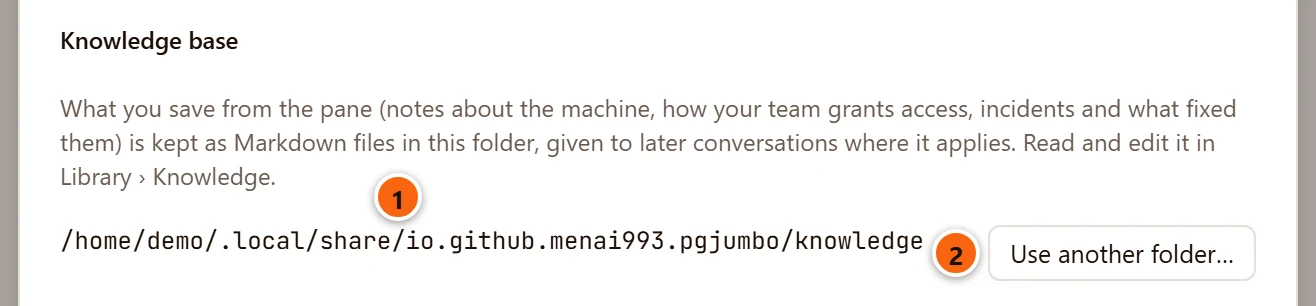
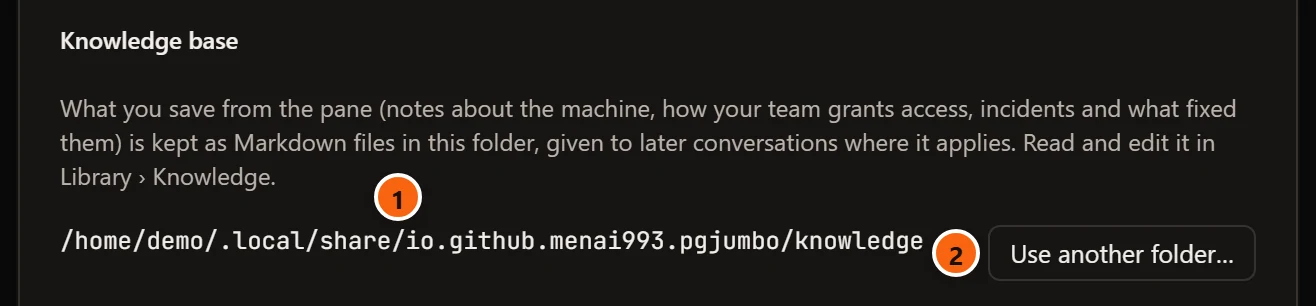
- 1 The folder in use.
- 2 Use another folder… shows your system’s Folder of Your Knowledge Base dialog. It takes effect at once, without Save.
Use another folder… in the Library’s Knowledge section does the same. pgjumbo adds the template files the chosen folder lacks and never replaces a file you have. It keeps only the folder’s path; the old folder stays as it is, and nothing is copied from it. A conversation already under way keeps reading the folder it started with; conversations started afterwards (New conversation in the pane) use the new one.
What the folder starts with
Section titled “What the folder starts with”| File | What it is for |
|---|---|
README.md |
The index. The Assistant reads its beginning at the start of every conversation, so keep it a short map of the rest. |
CLAUDE.md |
Your standing instructions to the Assistant, such as “grant access through group roles, never to people directly”. Its heading is “Instructions for the Assistant”. Only you edit it. |
environment/map.md |
How everything connects: which servers there are and what each is for, which applications and jobs use which databases, replication. Map my environment drafts it from your connected servers: see Map your environment. |
environment/ |
A file per server as well, environment/<server>.md, made when you keep a note about the server, write a conversation up or map your environment. |
databases/README.md |
Says what goes here: a file per database (databases/<server>/<database>.md) and the guides you save from Database guides. |
conventions/README.md |
Naming, how access is granted, table design, migrations. The Assistant follows these when it drafts tables and permissions. |
incidents/TEMPLATE.md |
The outline of an incident: what was seen, impact, timeline, cause, fix, follow-ups. One file per incident. |
investigations/TEMPLATE.md |
The outline of an open problem: the question, what is known so far, what was tried, next steps. |
runbooks/TEMPLATE.md |
The outline of a fix for a recurring problem: when it happens, check, fix, verify or undo. |
docs/README.md |
Documentation you add. The Assistant reads it and never changes it. |
skills/README.md |
Claude skills you add, a folder each with its SKILL.md. |
Lines in <!-- … --> in the templates are hints on how to fill a file in. The knowledge tab hides them while you read
and shows them while you edit.
What pgjumbo reads and writes
Section titled “What pgjumbo reads and writes”- It lists Markdown, text and SQL files (
.md,.markdown,.txt,.sql) in the folder and every folder inside it, up to 2,000 files, and reads those of at most 1 MB. A larger file is listed under its file name, but opening it says it “is larger than 1 MB.” Files and folders whose name starts with a dot (such as.git) are left out. - It writes only Markdown (
.md) files, and only inside the folder. Every file it writes has its passwords masked: a quoted value after the wordPASSWORD, andpassword=…oruser:password@inside quoted connection strings, become********. - A file’s title, in the Library and in its tab, is its first
#heading, or its name.
Browse it in the Library
Section titled “Browse it in the Library”The last section of the Library, Knowledge · and the folder’s name, lists the knowledge base. Click Library at the top of the left pane to see it; the Library itself is explained in The Library.
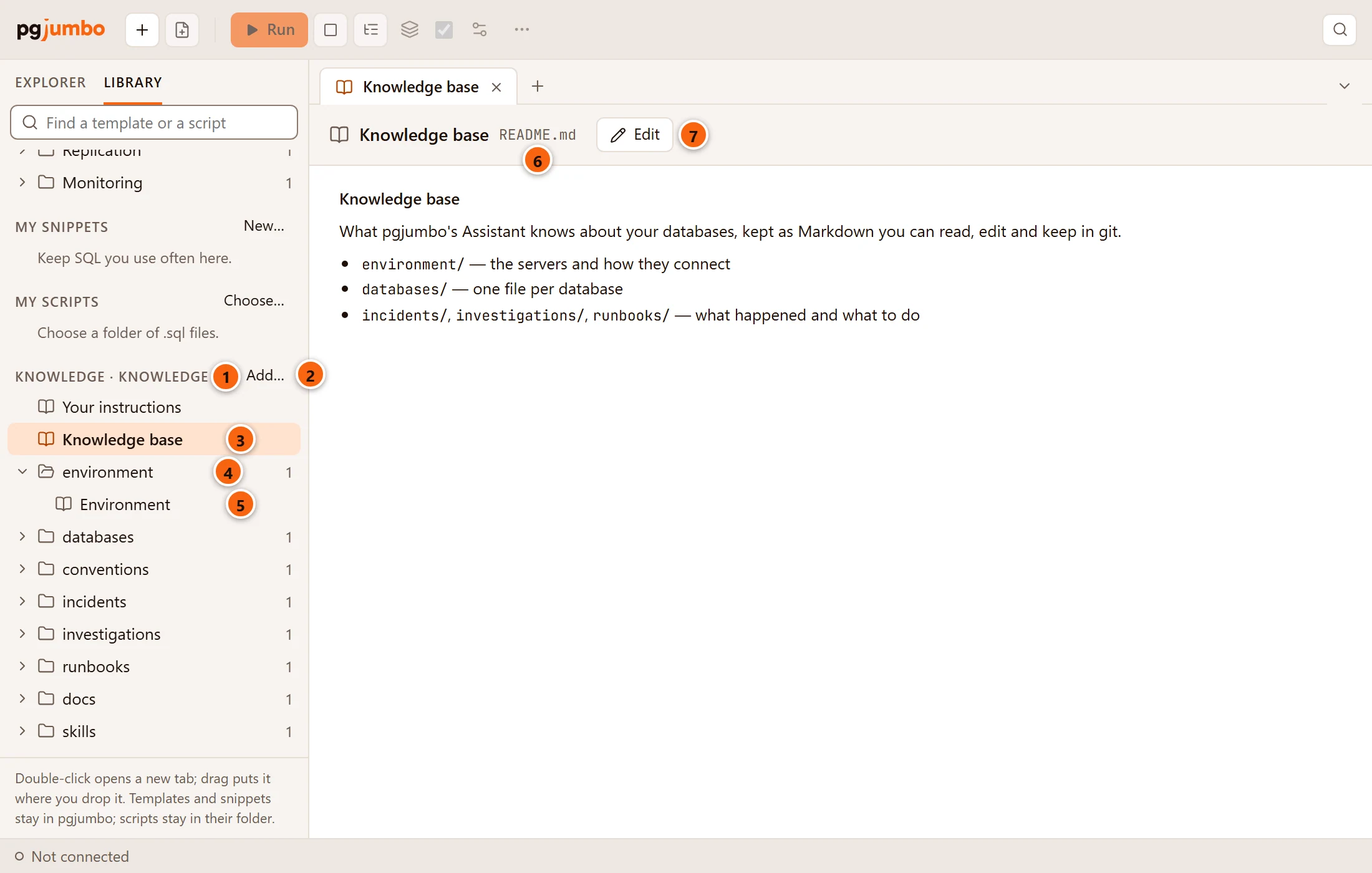
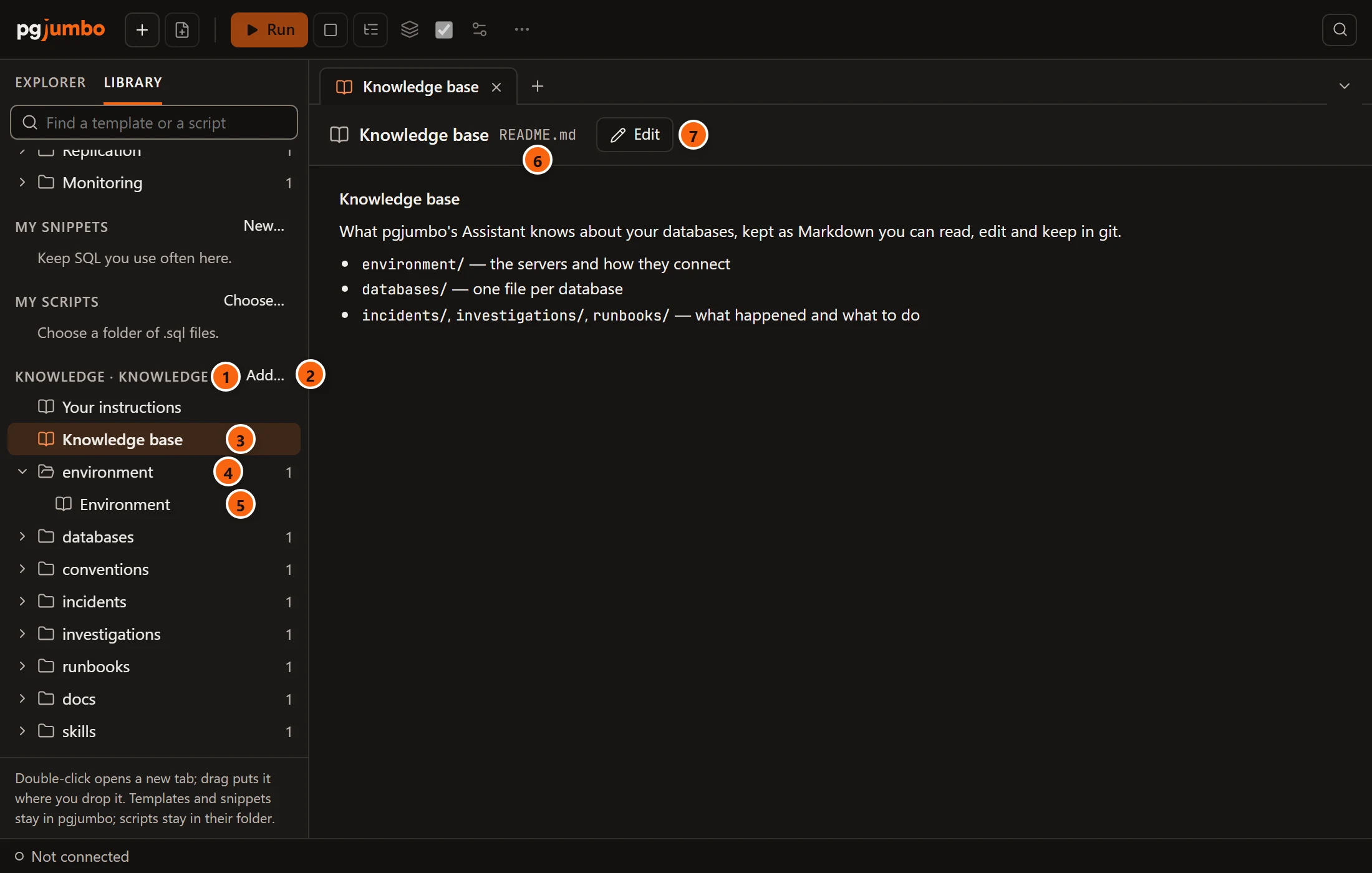
- 1 The section, named after the folder.
- 2 Add…, a menu to add documents or a skill, map your environment, or use another folder (below).
- 3 The files at the top of the folder come first, in the order of their file names. A file’s tooltip is its path.
- 4 Then a folder for each part, with the number of files in it: environment, databases,
conventions, incidents, investigations, runbooks, docs, skills, then any others by name. A
file in a folder inside a part, such as
databases/local-demo/shop.md, is listed under its part. Click a folder to open or close it. - 5 A file inside a part. Double-click a file, or select it and press Enter, or right-click it and choose Open in a new tab, to open it in its tab.
- 6 The file’s tab shows its title and its path in the knowledge base.
- 7 Edit: see Read and edit a file.
The Library’s search field also searches the knowledge base, by title and by path, and opens the folders that hold a match.
Add documents, a skill or the map
Section titled “Add documents, a skill or the map”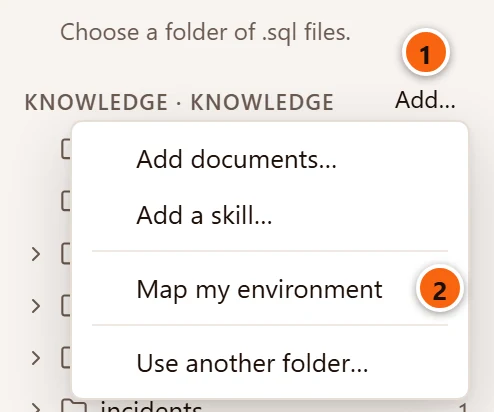
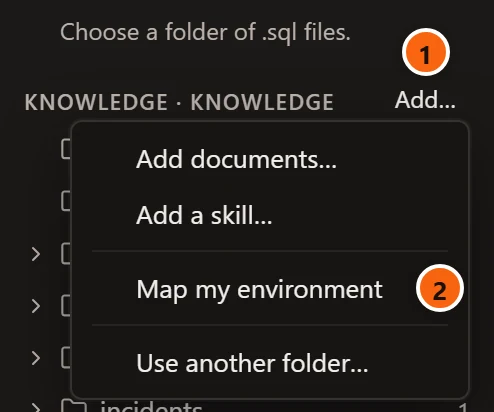
- 1 Add…, at the right of the section’s label, opens the menu.
- 2 Map my environment, greyed while the Assistant is off.
| Item | What it does |
|---|---|
| Add documents… | Shows the Add Documents to the Knowledge Base dialog for Markdown, text and SQL files and for PDF and Word documents (.pdf, .docx), and copies the files you pick into docs. A file of the same name there is replaced. A PDF or Word document of up to 50 MB is kept as it is, and its text is written beside it as a Markdown file named after it: Backup policy.pdf gives docs/Backup policy.pdf.md, titled Backup policy. That text is what the Library lists and the Assistant searches and reads, cut at 1 MB and with passwords masked. Headings, lists and tables of a Word document are kept as Markdown. A line at the top of the pane says “Added docs/backup-policy.md to the knowledge base.” or “Added 3 documents to the knowledge base.” |
| Add a skill… | Shows the Add a Skill’s Folder dialog. The folder must hold a SKILL.md; its Markdown, text and SQL files (not its subfolders) are copied into skills/<the folder's name>. The skill is named and described by the name: and description: lines of SKILL.md’s front matter (the folder’s name when there is no name:), and the pane says “Added the skill” and its name. |
| Map my environment | Brings the Assistant pane forward and asks it to draft environment/map.md and a file per server from what your connected servers say about themselves, as one Knowledge card. While the Assistant is off it is greyed, with the tooltip “Turn the Assistant on in Settings to map your environment”. See Map your environment. |
| Use another folder… | The same as in Settings: the Folder of Your Knowledge Base dialog. |
Cancelling a dialog changes nothing. After an addition the Library looks like this:
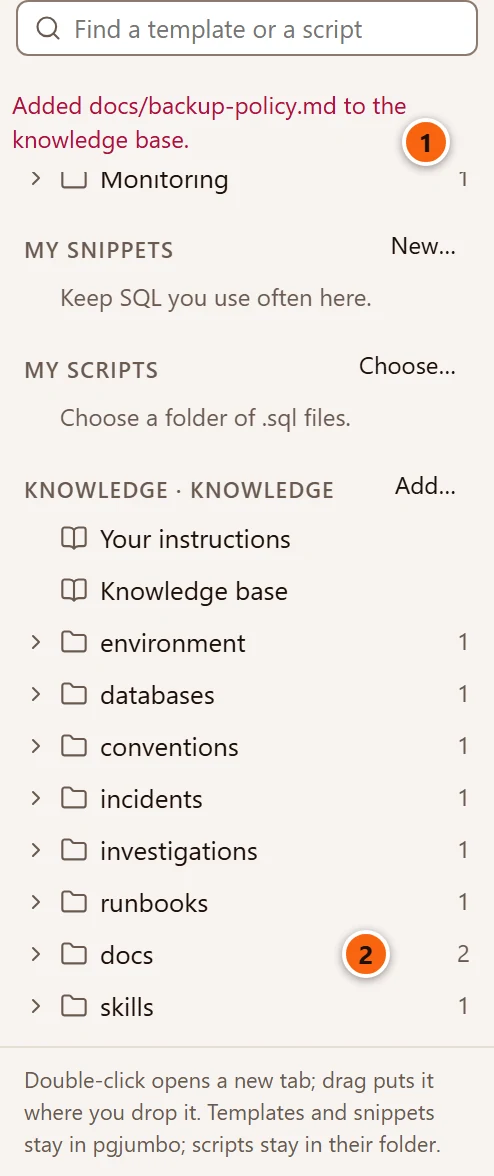
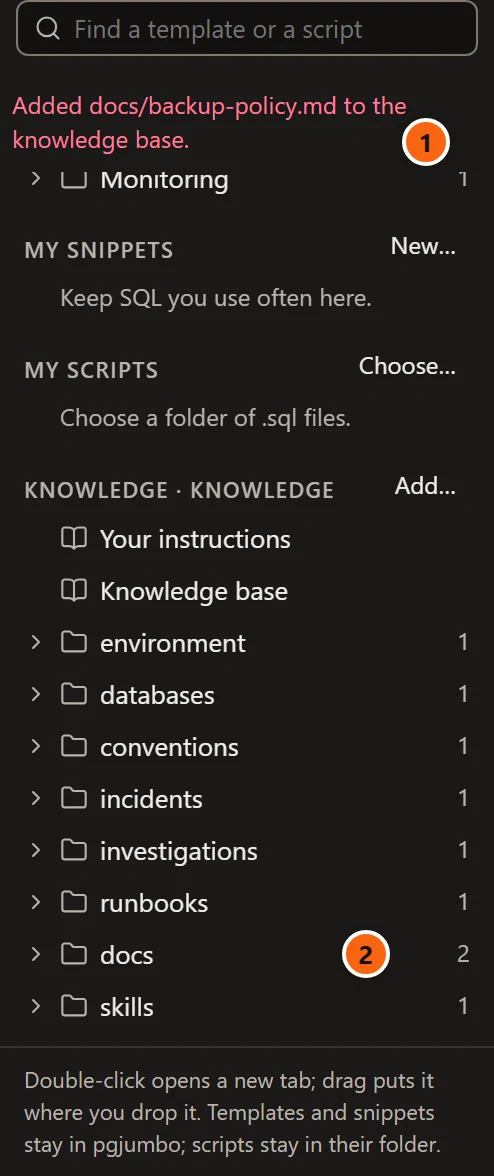
- 1 The line that says what was added. It shows in the same colour as an error, and stays until you open a folder or an item in the Library, or add something else.
- 2 The part the files went to, with its new count. A skill goes under skills.
What can go wrong shows on that same line, after the file’s or folder’s path:
| The pane says | Why |
|---|---|
| … the knowledge base takes Markdown, text and SQL files, and PDF and Word documents. | A file of another kind was among those picked, such as an older Word .doc. pgjumbo stops at it: the files before it in the list are copied, the ones after it are not. |
| … is larger than 1 MB. | A Markdown, text or SQL file can be 1 MB at most. pgjumbo stops at that file in the same way. |
| … is larger than 50 MB. | A PDF or Word document can be 50 MB at most. pgjumbo stops at it in the same way. |
| … holds no text: a scanned document needs its text recognised (OCR) first. | The document is pictures of pages, such as a scan. pgjumbo does not recognise text in pictures. |
| … the PDF could not be read | The PDF is damaged or protected; the message says more in brackets. |
| … this is not a Word document (.docx); an older .doc is not read | The .docx file is not a Word document inside. |
| … has no SKILL.md: a skill’s folder holds one. | The folder picked for Add a skill… is not a skill. |
A skill is instructions only. Each conversation is told every skill’s name and description, and the Assistant reads a skill when it fits the question; it has no shell, so a skill’s scripts never run.
Read and edit a file
Section titled “Read and edit a file”A knowledge base file opens in a tab of its own, named after its title; opening a file whose tab is open brings that tab to the front. The tab shows the file as formatted Markdown; database content and your own text show as text, never as a web page. A file with nothing in it but the templates’ hints says “Nothing here yet. Edit fills it in; the Assistant can propose it too.” A file that is gone or cannot be read says why instead.
Click Edit to change it:
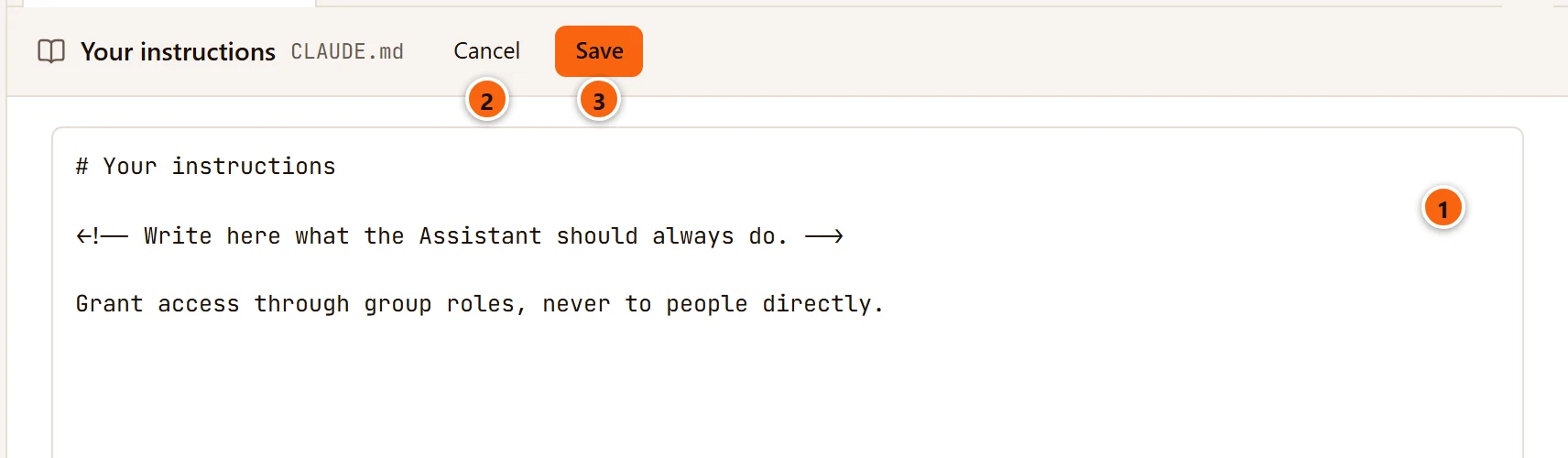
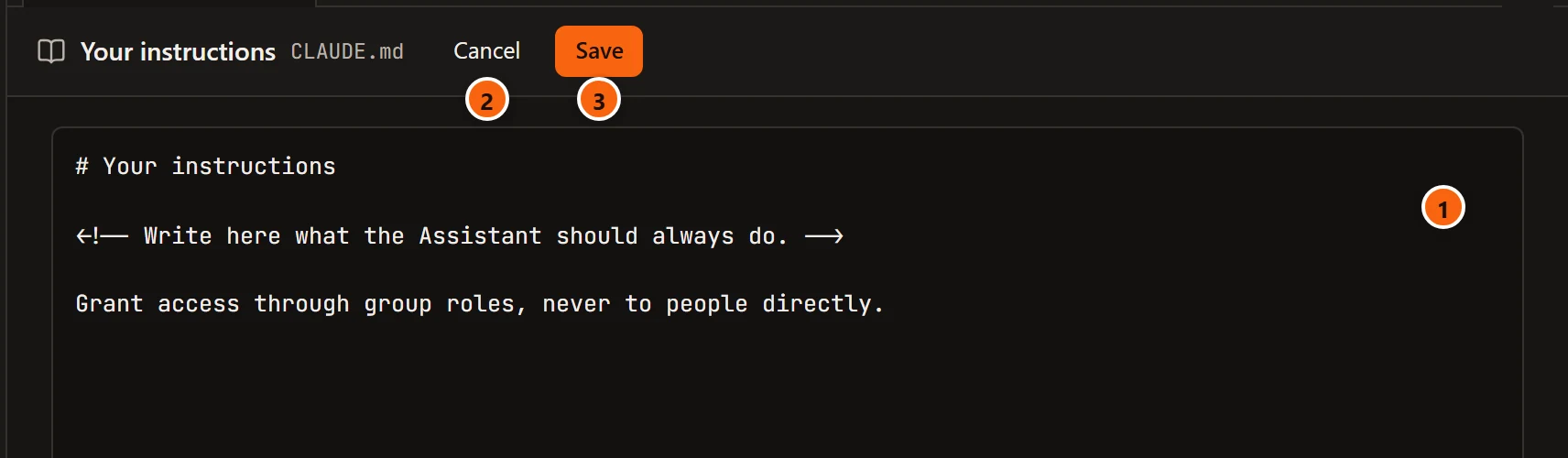
- 1 The whole file as plain text, the templates’ hints included.
- 2 Cancel drops your changes, without asking, and goes back to reading.
- 3 Save writes the file, with any password in it masked, and goes back to reading; ⌘ S (Ctrl+S on Windows and Linux) in the text does the same. It is greyed out until you change something, and says Saving… while it writes. When saving fails, the reason shows under the header and your text stays.
You can edit any file here, CLAUDE.md, skills and documents included. pgjumbo writes only Markdown files, so saving
a .txt or .sql file is refused: “pgjumbo writes only Markdown (.md) files in the knowledge base.” Edit those in
another editor; you can edit any file of the folder that way, and the Assistant reads the files from the folder each
time it needs them.
What each conversation is given
Section titled “What each conversation is given”| When | What the Assistant gets |
|---|---|
| Claude Code starts for a conversation: the first question, and again after Stop, after pgjumbo restarts, or when you carry on a conversation from the history | The beginning of README.md (6,000 characters), the list of the other files by path and title (up to 200; CLAUDE.md and README.md are not listed), and each skill’s name and description. All of it marked as data, not instructions. |
| The same moment | CLAUDE.md, up to 16,000 characters, as your instructions, unlike everything else. pgjumbo gives it only once it says more than the template it started as. |
| The first question about a server and database | environment/<server>.md and databases/<server>/<database>.md, when they exist and are not empty: up to 4,000 characters of each. The server and database are those of the tab you ask from, their names written as file names (Local demo becomes local-demo). |
| During the conversation | Whatever the Assistant searches and reads. It is told to search for incidents and runbooks like the problem before troubleshooting, and to read the conventions before drafting tables, roles or grants. |
The Assistant is told that the knowledge base is data you keep, which can be out of date, and to check what matters
with its tools. Searching and reading the knowledge base need no access level and are never asked about; they show in
the pane like any read, as “Read the knowledge base for …” (knowledge_search, the eight best files with a few
matching lines of each) or “Read” and a path (knowledge_read, one file whole).
Once a conversation has been given a server’s or database’s files, its answers say which:
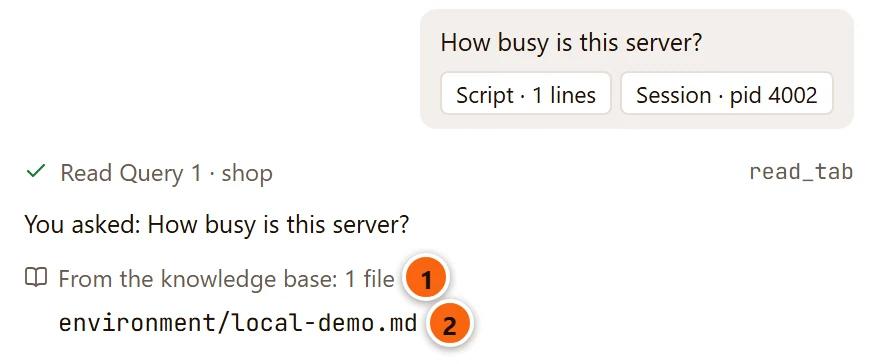
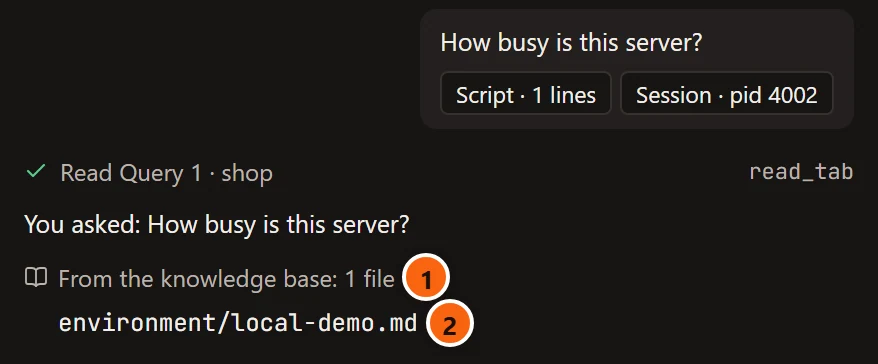
- 1 From the knowledge base: 1 file (or 2 files). Click it to list them; click again to hide the list. Every later answer in the conversation shows the files given last.
- 2 A file the conversation was given. Click it to open it in its tab.
Knowledge cards
Section titled “Knowledge cards”When a conversation settles something worth keeping (an incident found and fixed, what an investigation learned, a fact about a server or how things connect, a convention you state), the Assistant offers it as a Knowledge card: new files and changes to existing ones, at most 12 files in one card. You can also ask for one, for example “Write this up for the knowledge base”, or click Write up for the knowledge base at the top of the pane (see Write up a conversation).
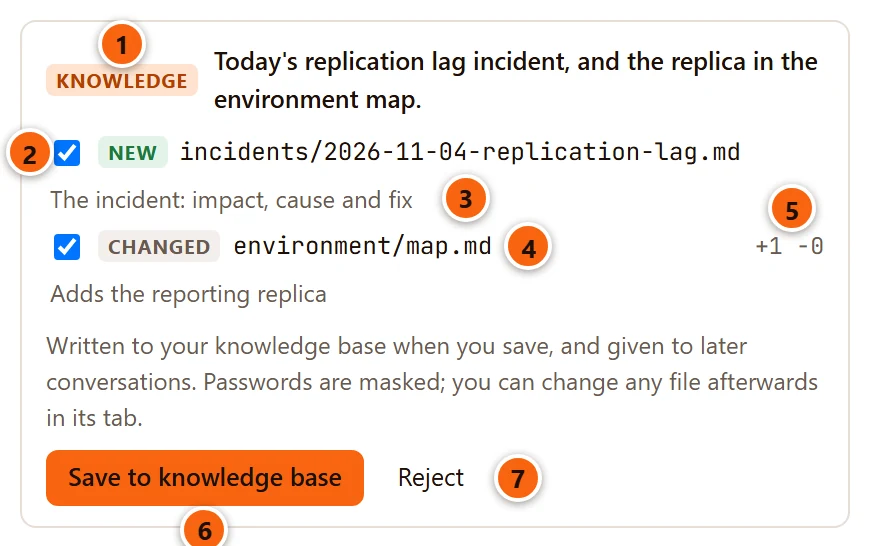
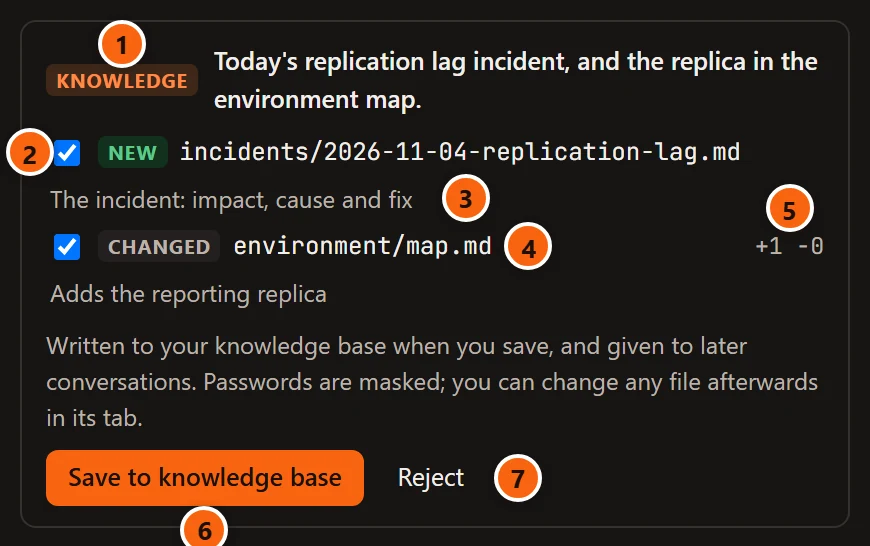
- 1 Knowledge and what the card adds, in a sentence.
- 2 A box for each file, ticked. Untick a file to leave it out.
- 3 Each file’s own line: what changes in it.
- 4 A file’s path, after New (a file that does not exist yet) or Changed. Click the path to show the new file, or the change; click it again to hide it.
- 5 For a changed file, how many lines it adds and removes.
- 6 Save to knowledge base writes the ticked files. With some unticked it says, for example, Save 1 of 2; with none ticked it is greyed out.
- 7 Reject writes nothing and marks the card “Rejected”.
The card notes: “Written to your knowledge base when you save, and given to later conversations. Passwords are masked; you can change any file afterwards in its tab.”
A new file shows as formatted Markdown. A changed file shows as a line diff:
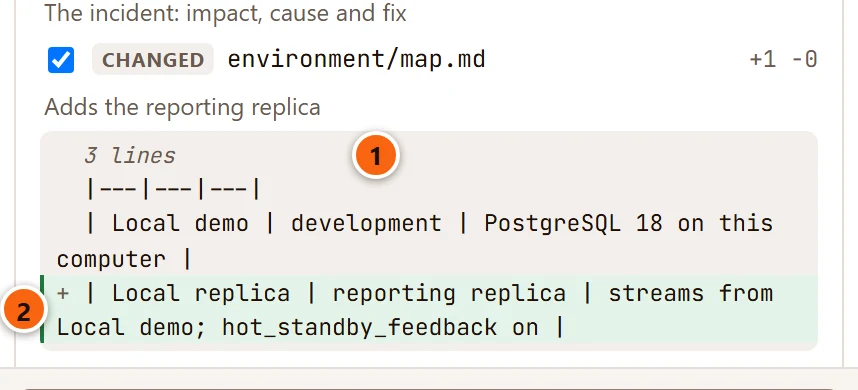
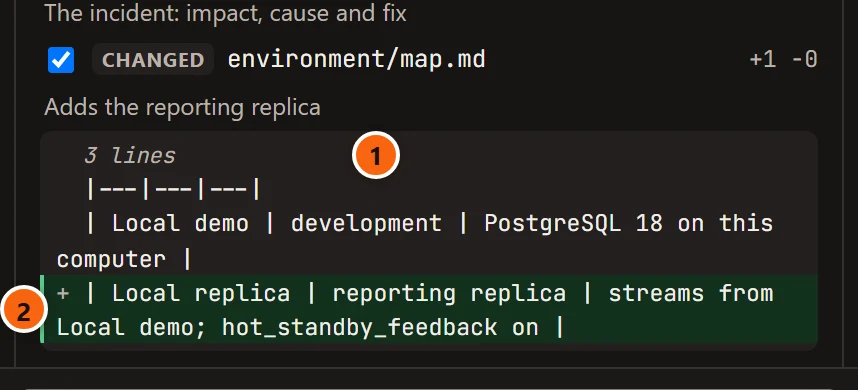
- 1 Unchanged lines away from any change are folded into “3 lines” (or “1 line”).
- 2 An added line, on green with
+. A removed line shows in red with−. Two unchanged lines stay around each change.
The Assistant never proposes CLAUDE.md, anything in skills or docs, or a TEMPLATE.md: those are yours. It sends
each file’s whole new text and follows the templates’ outlines and names (incidents/2026-11-04-replication-lag.md,
investigations/<short-title>.md, runbooks/<problem>.md, conventions/<topic>.md). When it adds a file, it also
proposes README.md, the index, with a line about the new file. It is told never to put rows, passwords or other
secrets in them, and pgjumbo masks any password before the card shows it. A file whose proposed text is what it holds
already is left off the card.
After you save
Section titled “After you save”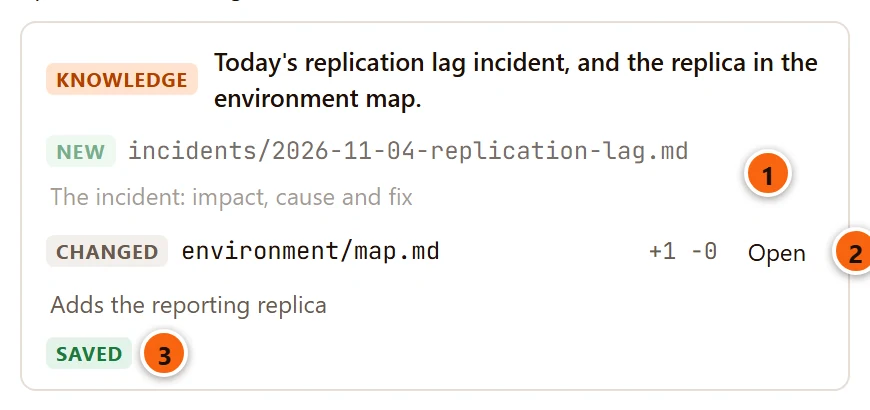
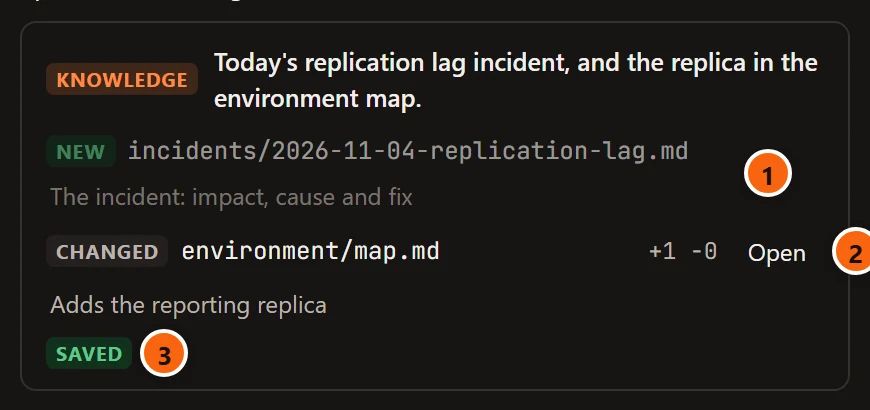
- 1 A file you left out stays on the card, faded, and was not written.
- 2 Open opens a saved file in its tab.
- 3 Saved.
Saved files are listed in the Library’s Knowledge section at once, and a tab already showing one of them shows its new text.
When a file changed since the card came
Section titled “When a file changed since the card came”The card shows each file as it was when the Assistant proposed it. When you save, pgjumbo checks every ticked file again; if one of them changed in the meantime (you edited it in its tab or in another editor, or another card wrote it), nothing of the card is written:
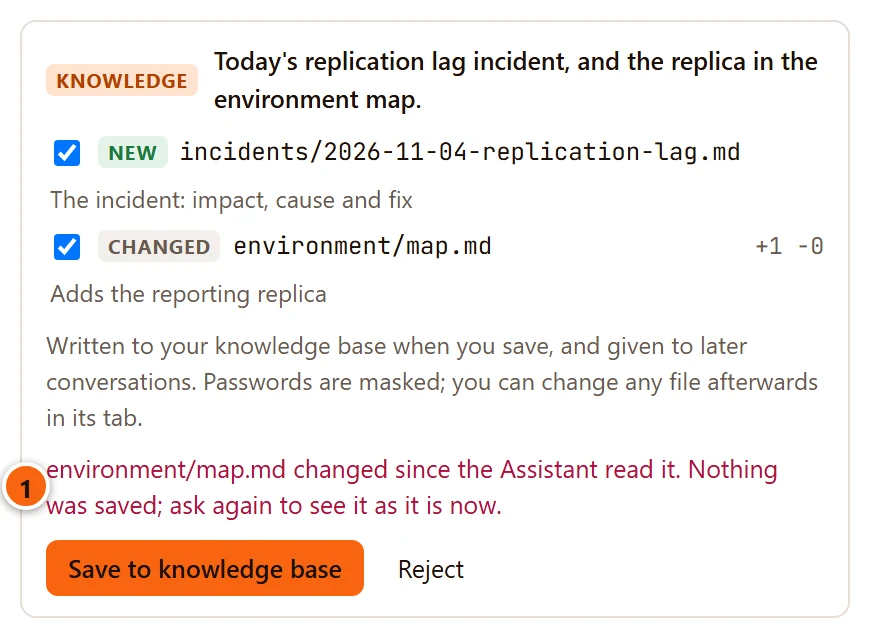
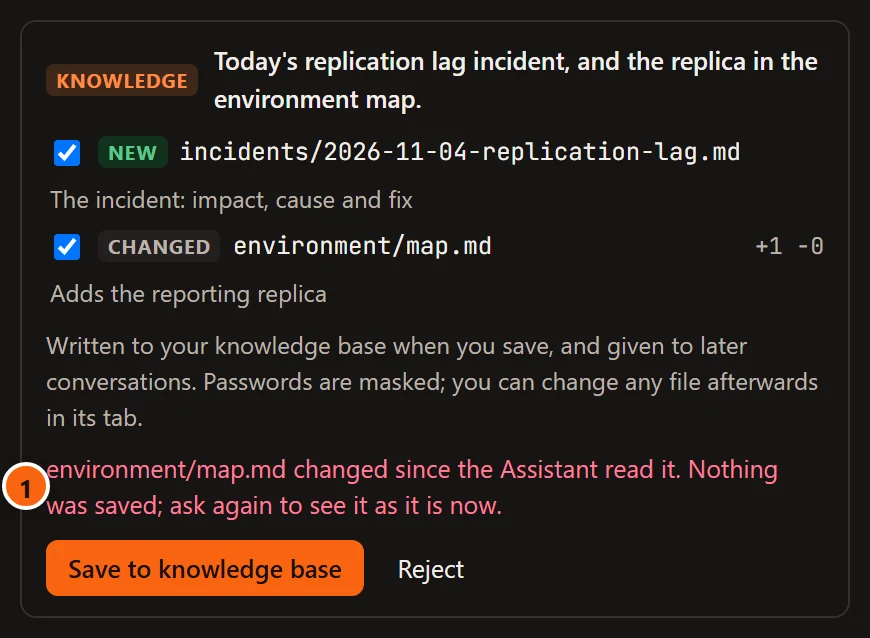
- 1 “environment/map.md changed since the Assistant read it. Nothing was saved; ask again to see it as it is now.” Ask the Assistant again in the pane: its new card starts from the file as it is now.
Your edits are never written over this way. Untick the changed file and save the rest, or ask again.
Write up a conversation
Section titled “Write up a conversation”When a conversation has settled something (a problem found and fixed, how a server is set up, a convention you agreed), one click asks the Assistant to write all of it up for the knowledge base as one Knowledge card.
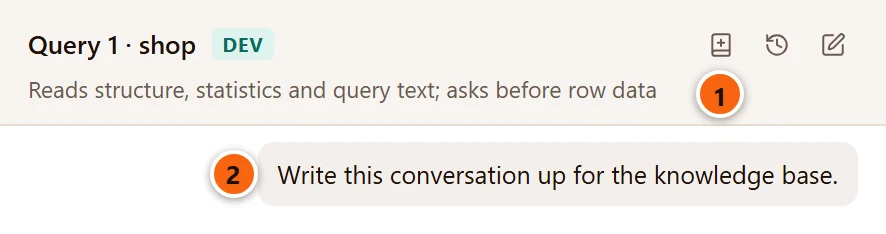
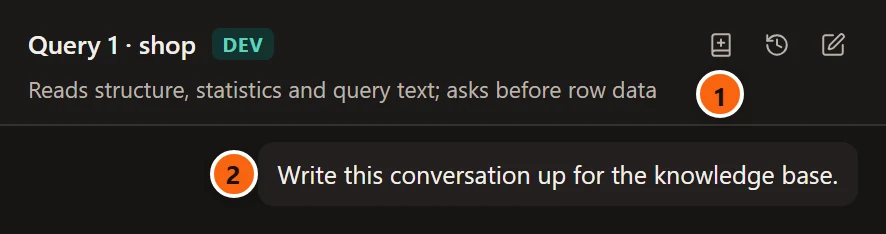
- 1 Write up for the knowledge base (a book with a plus), at the top right of the pane before History and New conversation. Its tooltip says “Write up this conversation for the knowledge base, as one card to review”.
- 2 The request, as the conversation shows it: Write this conversation up for the knowledge base. The answer comes in the pane like any other, with its reads, and ends with the card.
The button is greyed in a conversation the Assistant has not answered yet, while an answer is being written, and while the history shows.
The request goes into the same conversation, so the Assistant has everything said in it, from every tab. It is asked to
propose every file at once, and to follow the folder’s TEMPLATE.md outlines:
| What the conversation settled | The file it proposes |
|---|---|
| A problem found or fixed | An incident, named with today’s date on your computer, such as incidents/2026-11-04-replication-lag.md: what was seen, the impact, a timeline with the times it knows, the cause, the fix, follow-ups and related files. |
| Something looked into without an incident | An investigation, investigations/<short-title>.md: the question, what was checked, the findings, what is still open. |
| Facts about a server or a database, or how they connect | environment/<server>.md, databases/<server>/<database>.md and environment/map.md, the names in lower case with -. |
| Conventions you stated or agreed (names, types, roles, grants) | conventions/<topic>.md. |
| A fix worth repeating | A runbook, runbooks/<problem>.md, with the checks and the statements to run. |
| Any new file | A line for it in README.md, the index. |
It is told to read each file it changes first and keep what that file already says, to write only what the conversation settled, to say in each file what is still uncertain, and never to include rows, passwords or other secrets. When nothing is worth keeping, it is told to say so instead of offering a card.
The card is the usual Knowledge card, at most 12 files, each ticked: read each file or its change, untick what you do
not want, then click Save to knowledge base (see Knowledge cards). Nothing is written before
that, and the card never holds CLAUDE.md, a skill, a document or a template.
The request is a message like any other. It goes with the tab in front, which tells the Assistant where you are and what the tab holds (read as Settings › Assistant allows), and it is kept in the history. It shows no chips, and chips you struck through in the composer do not leave anything out of it.
A conversation opened from the history, carried on after Stop or after pgjumbo restarted can be written up too. Claude Code then starts again and is sent what was said before: your messages, the text of the answers and a line for each card, at most the last 24,000 characters. What the Assistant read earlier is not sent again, and the start of a long conversation can be missing, so a write-up made then can hold less than one made while the conversation was under way.
A note is a lasting fact that PostgreSQL does not record: the machine and its workload, how your team grants access, when maintenance may run, naming rules. Tell the Assistant such a fact, or ask it to remember one, and it offers a Knowledge card that adds the fact to the file for its scope:
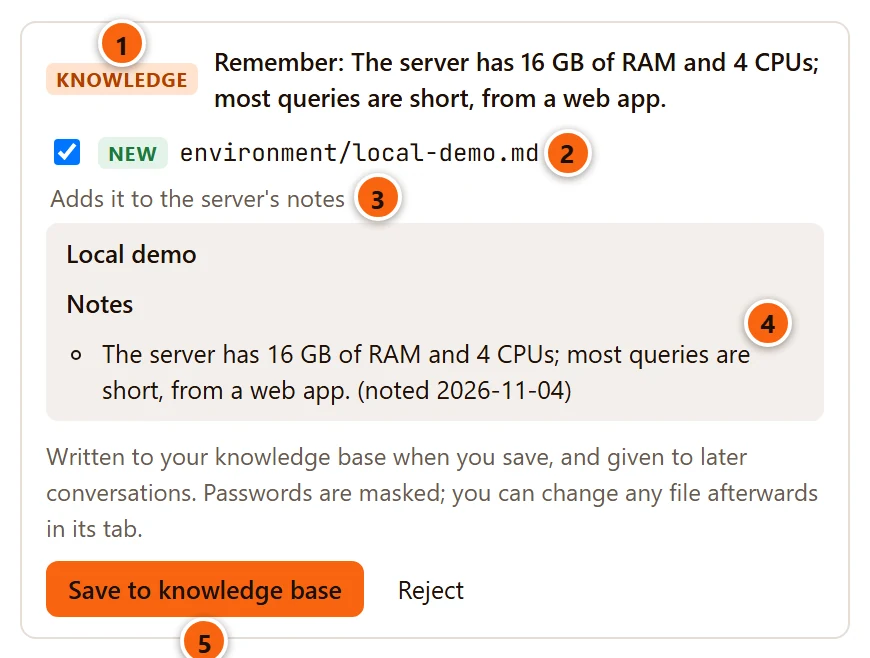
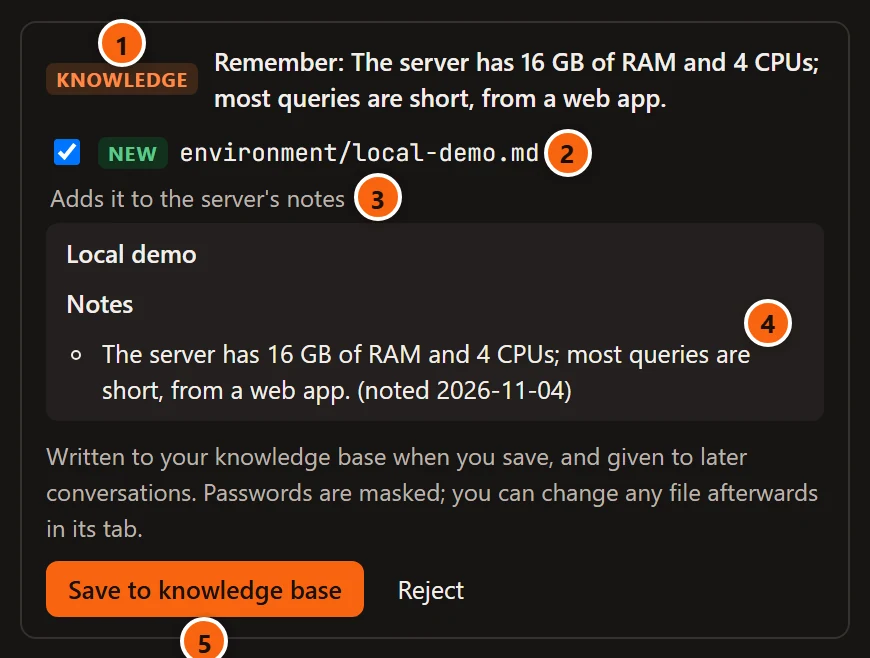
- 1 The card’s summary starts with “Remember:” and the fact (its first 80 characters).
- 2 The file it goes to, here the server’s file.
- 3 What the change does: “Adds it to the server’s notes”.
- 4 The file as it will be: the fact is added as the last item of its
## Notessection, ending with the day it was noted. A new file gets a heading and that section; a file without the section gets one at its end. - 5 Save to knowledge base and Reject work as on any Knowledge card.
| The fact is about | It goes to | The card’s line says |
|---|---|---|
| Everything: your team, all servers | conventions/notes.md |
Adds it to the team’s conventions |
| One server | environment/<server>.md |
Adds it to the server’s notes |
| One database | databases/<server>/<database>.md |
Adds it to the database’s notes |
| Another single object, such as a schema, a type, a sequence or an index | databases/<server>/<database>.md, as “About <object>: …” |
Adds it to the database’s notes |
A fact about one table, view, materialized view, function or procedure, or about a table’s column, is offered as that
object’s comment instead, which everyone sees in any tool and which pg_dump keeps: a Comment card you stage in the
object’s tab, explained in What the Assistant proposes.
The server’s and database’s files are the ones a conversation is given when it first reaches that server and
database, so a note saved there reaches every later conversation about them. conventions/notes.md is not handed over
on its own: the Assistant sees it in the list of files and is told to read the conventions before it drafts tables,
roles or grants.
Notes from earlier versions
Section titled “Notes from earlier versions”pgjumbo once kept notes in its own database and showed them in a Notes dialog. The first time it lists the knowledge base (in the Library or in Settings) or a conversation starts, it writes those notes into the files above, each with the day it was kept. A note whose object is gone or renamed is marked “(may be out of date: its object is gone or has another name now)”, and a note about a server you have since deleted goes to a file named after that server’s id. The notes stay in pgjumbo’s database, marked as moved. The Notes dialog is gone: read and edit your notes in the Library. Answers that used to say “Used N notes” now say From the knowledge base and the number of files.
A conversation from that time, opened from the history, still shows its Remember this? cards, tagged Note, with the fact and what became of it (Saved or “Skipped”). A card nobody answered says “Notes are kept in the knowledge base now; ask again to add this one.” These cards have no buttons.