
Your first connection
pgjumbo keeps a list of the PostgreSQL servers you use. You add a server once; after that a double-click connects to it. This page takes you from an empty window to a table of your database, with as few fields as possible. Every other field of the dialog is on Connection settings.
You need the server’s address (a host name or an IP address), its port (usually 5432), a user name and that user’s
password.
Open the New connection dialog
Section titled “Open the New connection dialog”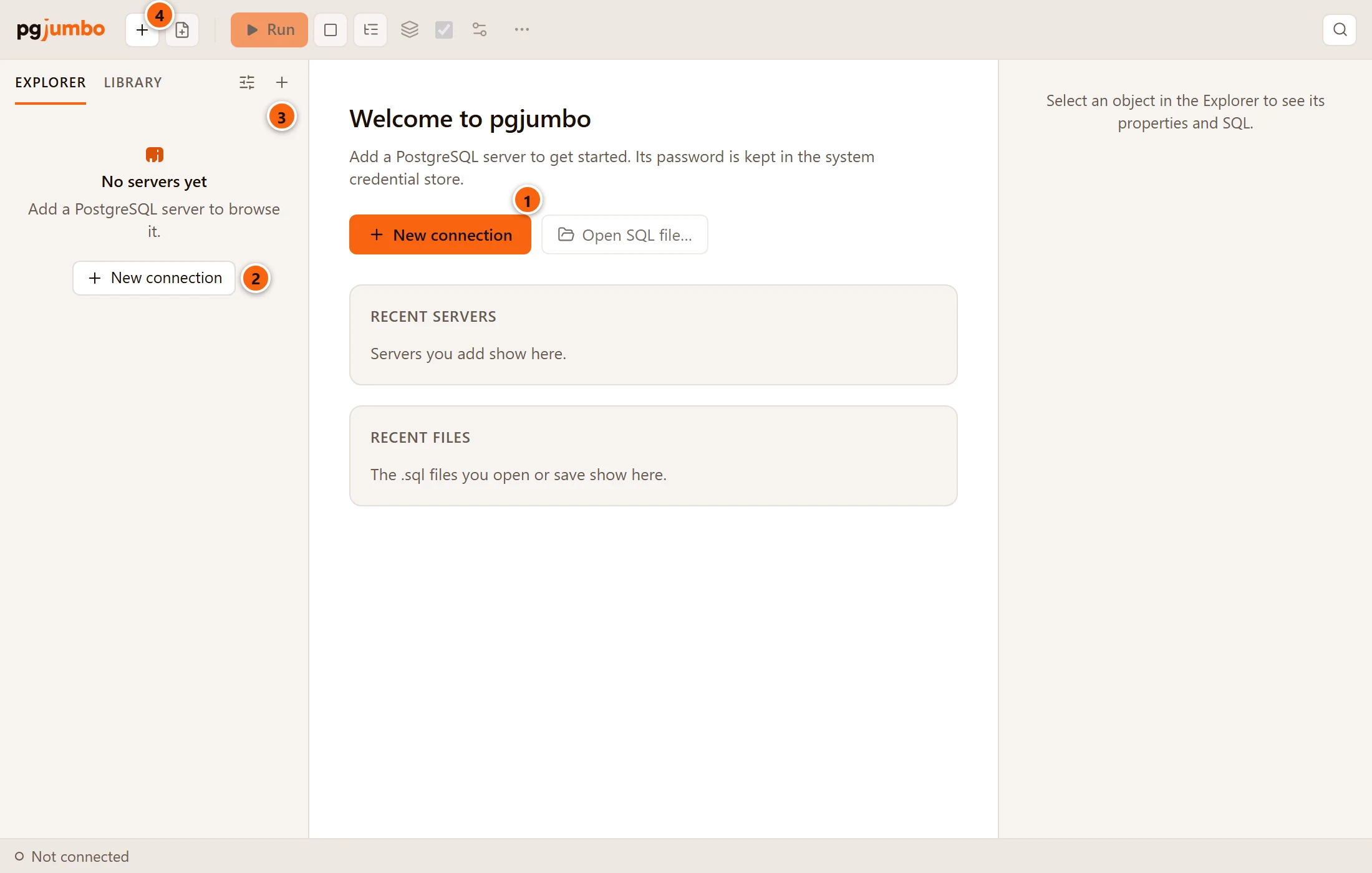
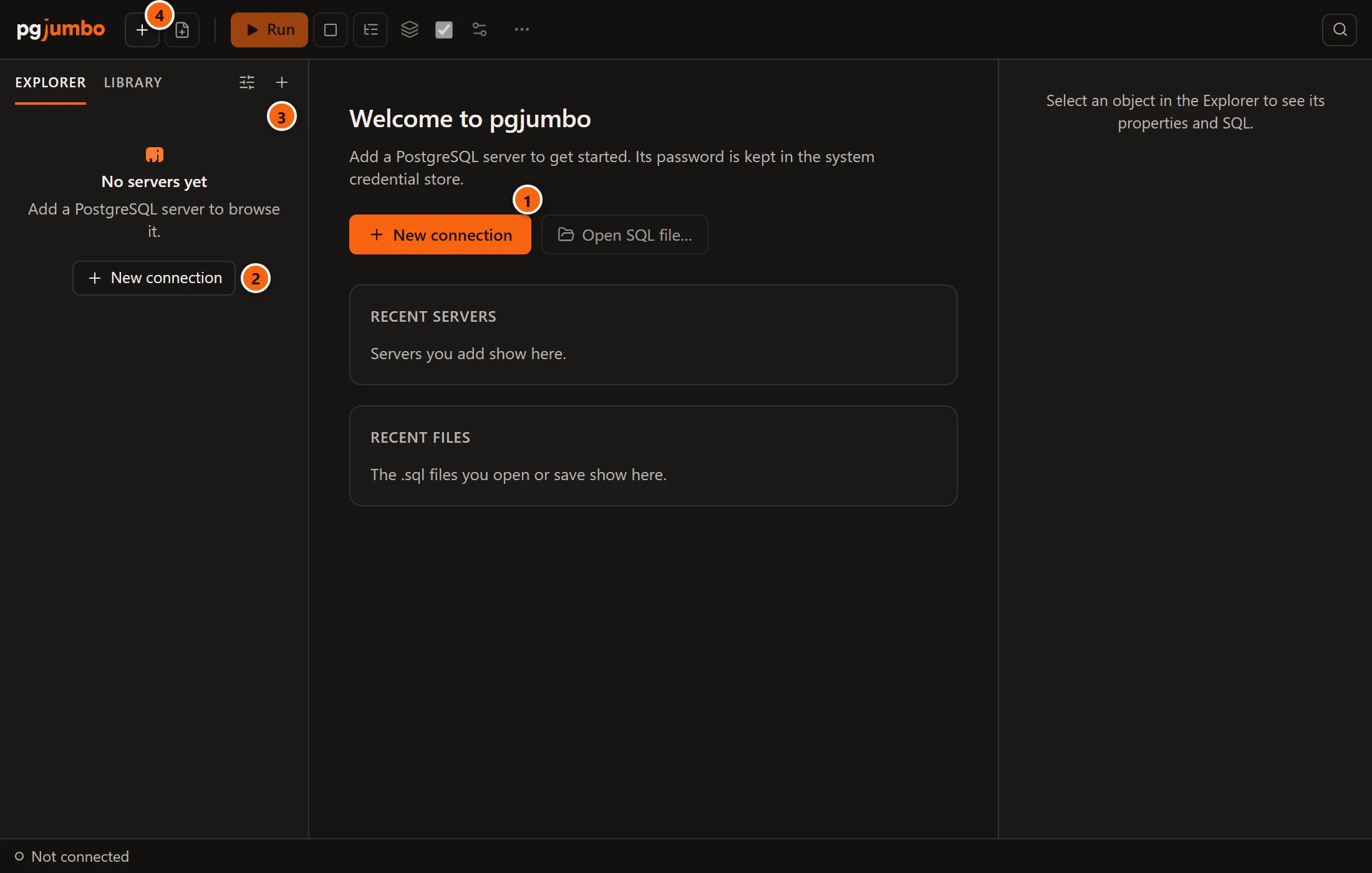
On the first start nothing is saved yet. Each of these opens the same dialog:
- 1 New connection on the start page.
- 2 New connection in the Explorer, while it has no servers.
- 3 The + at the top of the Explorer. Its tooltip says New connection, and it stays there once you have servers.
- 4 The Connect button at the left end of the main toolbar. In a window narrower than about 1,460 pixels it shows only its +; its tooltip says Connect to a new server.
From the keyboard, press ⌘ N (Ctrl+N on Windows and Linux), or choose FileNew Connection….
Fill in the server’s details
Section titled “Fill in the server’s details”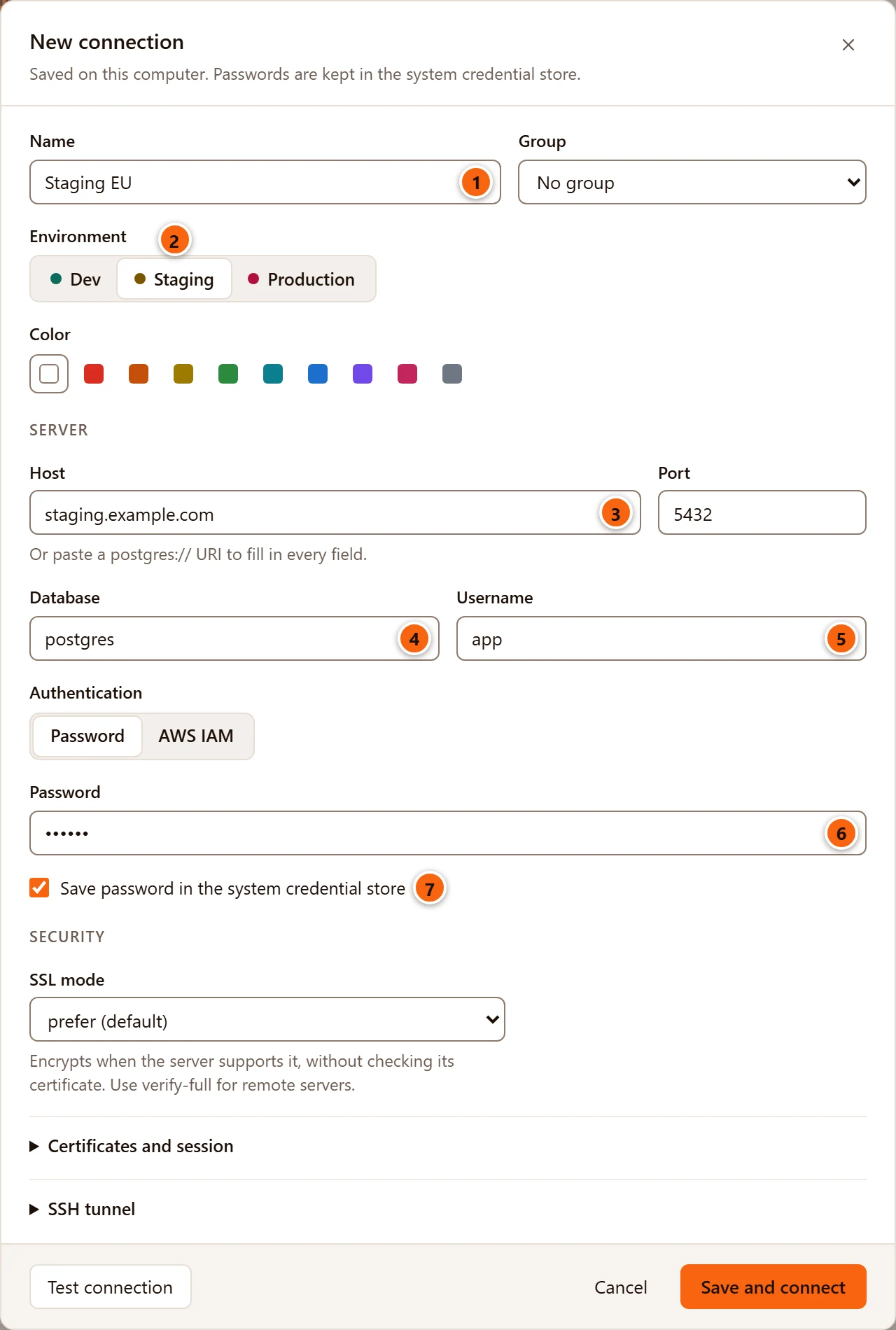
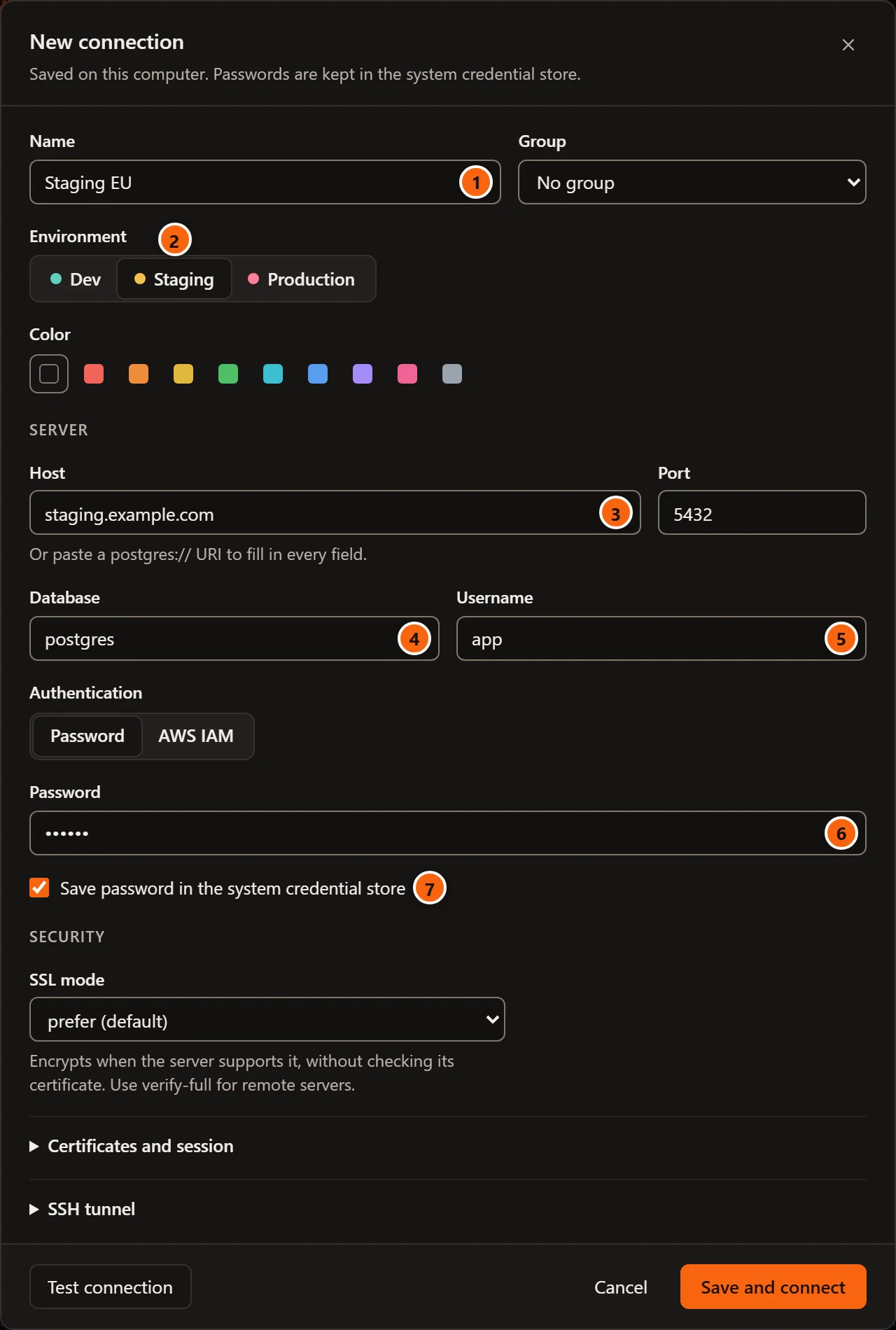
- 1 Name is what pgjumbo calls the server in the Explorer, the tabs and the status bar. Leave it empty and pgjumbo names the server after its host.
- 2 Environment says what kind of server this is: Dev, Staging or Production. pgjumbo shows it as a tag next to the server’s name. A Production server opens read-only sessions unless you untick that, and asks before a script drops, truncates, or updates or deletes every row.
- 3 Host and Port say where the server is. If someone gave you a connection string such as
postgres://app@db.example.com:5432/shop, paste it into Host: pgjumbo fills in every field it names. - 4 Database is the database pgjumbo connects to first. Leave it at
postgresif you are not sure; the Explorer still lists every database on the server. - 5 Username is the PostgreSQL role you sign in as.
- 6 Password is that role’s password.
- 7 Leave Save password ticked to keep the password in your system’s credential store: the macOS Keychain, Windows Credential Manager, or the keyring of your Linux desktop. The label names the one your system has. pgjumbo never writes a password into its own files.
Group and Color are optional: they help you sort and tell apart many servers. The rest of the dialog (SSL mode, certificates, a service file, read-only sessions, the SSH tunnel) can wait until a server needs it.
Test, then save
Section titled “Test, then save”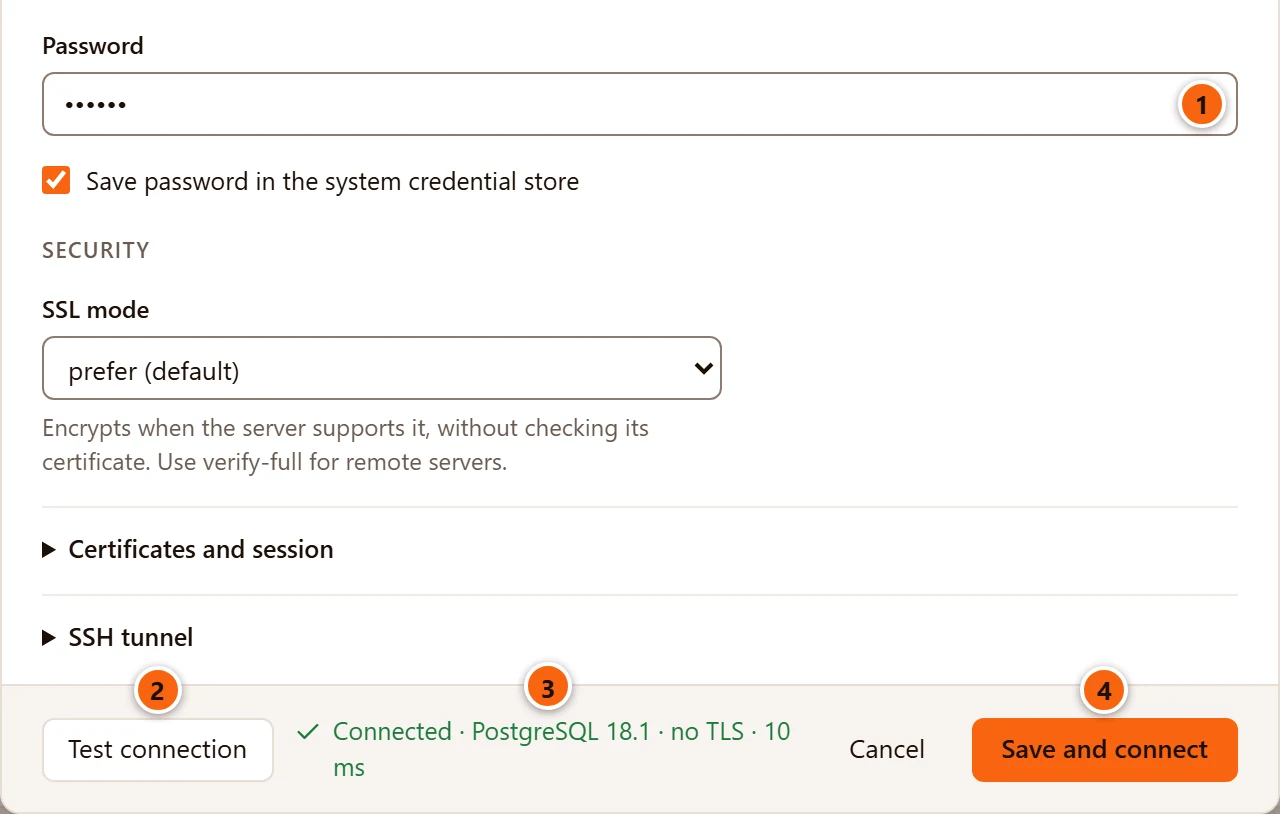
-
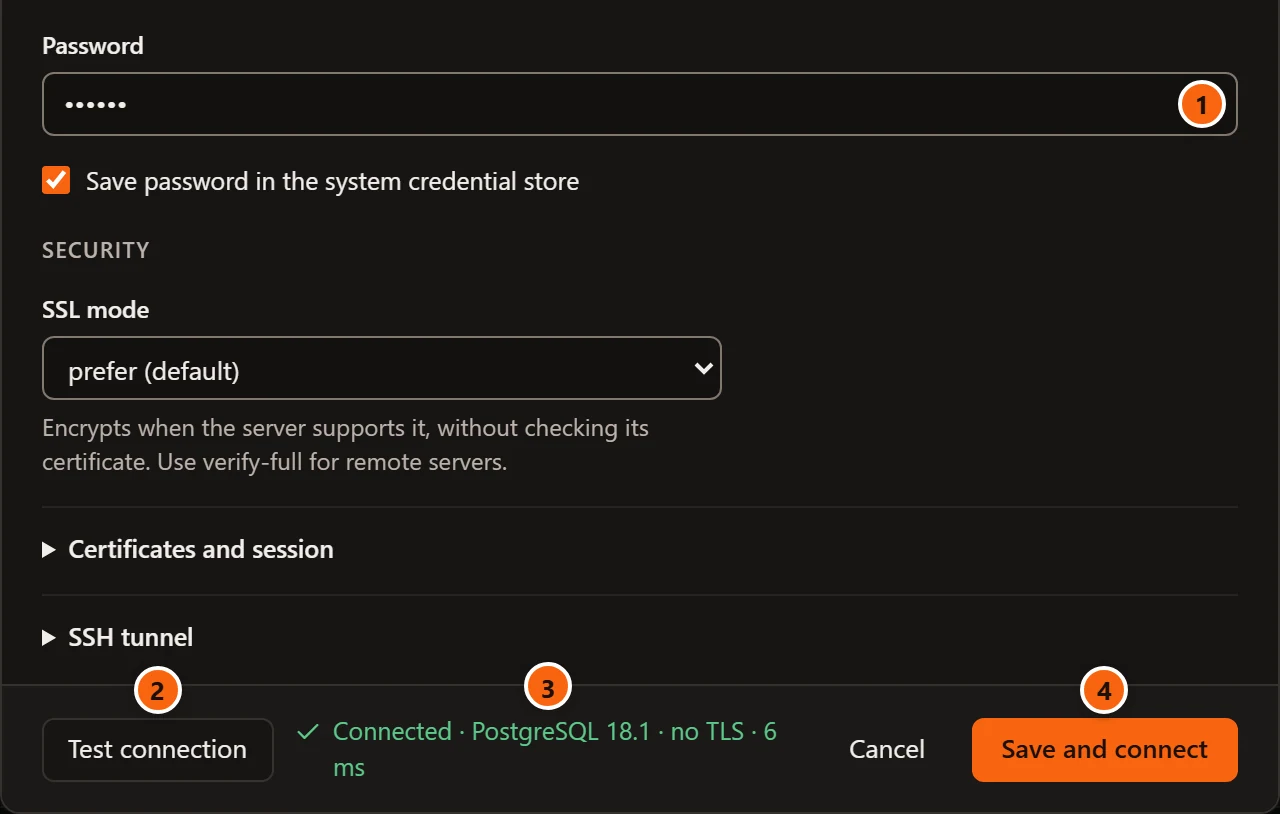
1 Type the password, if you have not yet.
-
2 Click Test connection. pgjumbo opens a connection with what the dialog says, reads the server’s version and closes the connection again. Nothing is saved yet.
-
3 The result shows next to the button: Connected, the PostgreSQL version, the TLS version (or no TLS when the connection is not encrypted) and how long it took. When the test fails, the message says why, for example a wrong password or a host that does not answer. Connection settings lists the usual messages and what to change.
-
4 Click Save and connect, or press Enter in any field. pgjumbo saves the server, puts the password in the credential store when Save password is ticked, connects, and selects the new server in the Explorer.
If the connection fails at that last step, the dialog stays open with the message. The server is saved already: correct the field and click Save and connect again, or click Cancel to keep the server as it is without connecting.
Find your way around
Section titled “Find your way around”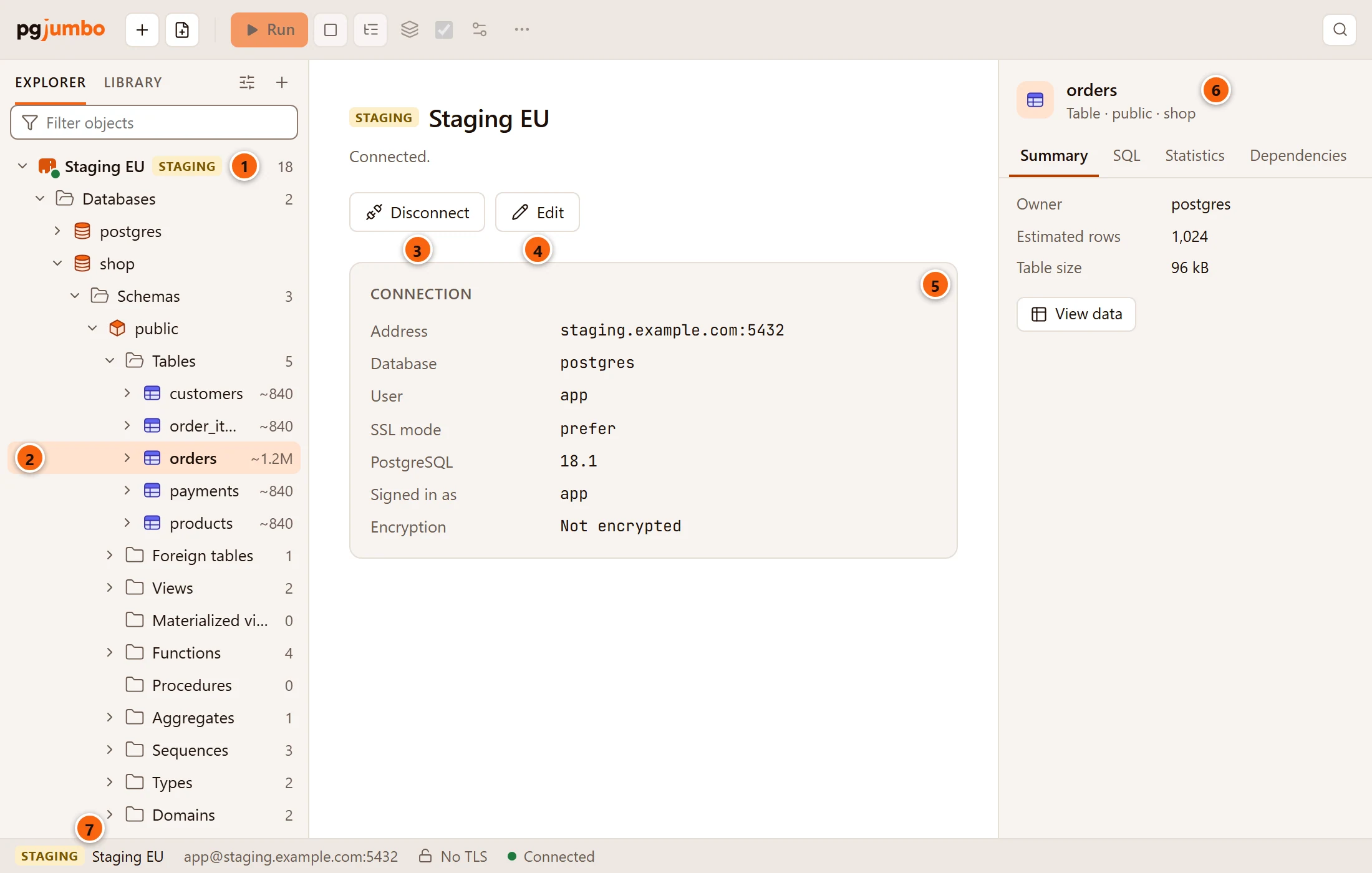
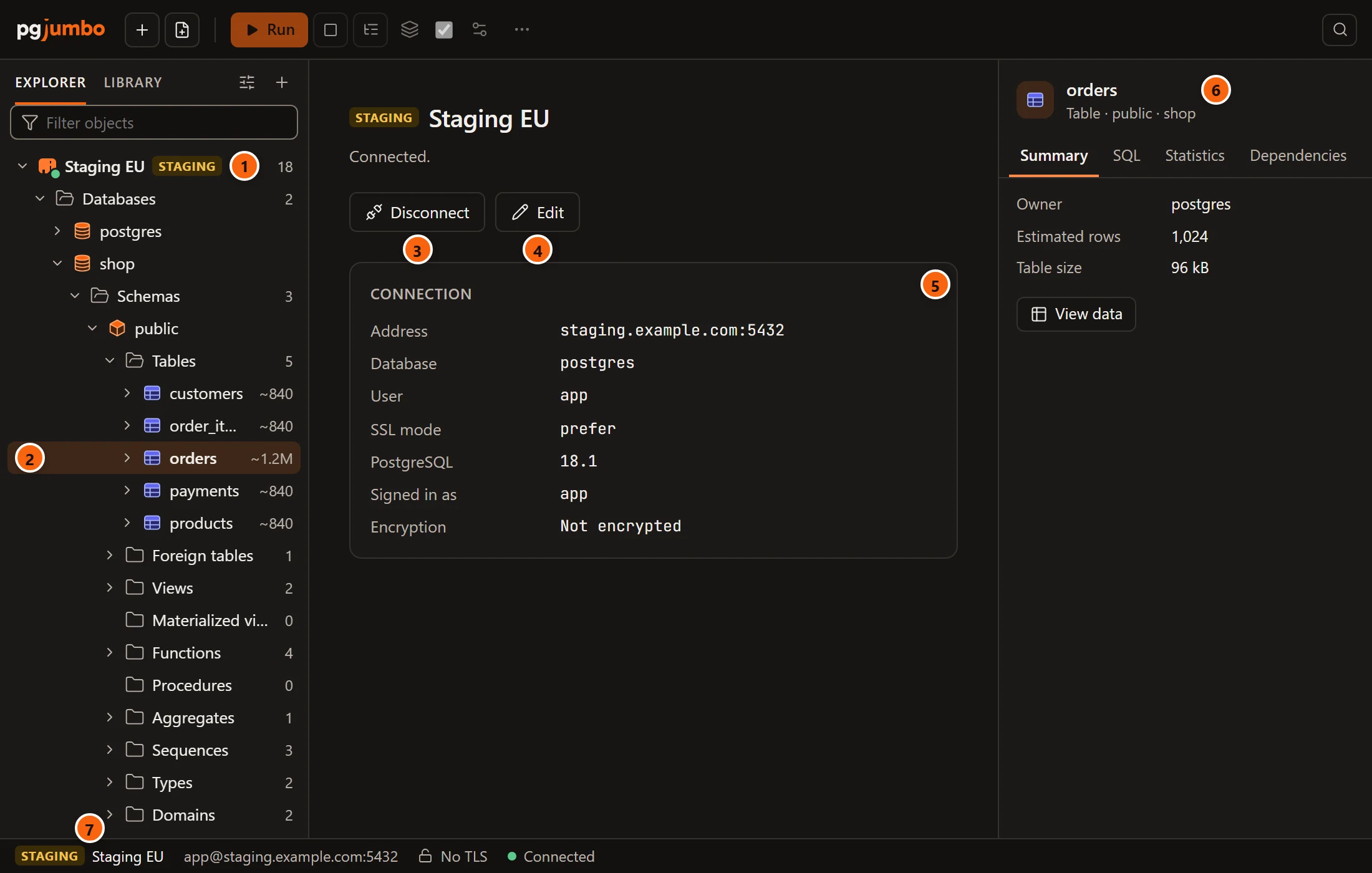
- 1 The server is in the Explorer. A green dot on its icon and its major PostgreSQL version at the right say it is connected. Open it with its arrow, a double-click, → or Enter: below it are Databases, then the groups Security, Storage and Management. Open a database, then Schemas, a schema and Tables the same way. The Explorer explains the whole tree.
- 2 Click an object, here the table
orders, to select it. Right-click it for everything you can do with it (Right-click menus); a double-click opens a table in a tab of its own. - 3 With no tab open, the middle of the window shows the server of the selected row: its tag and name, a line that says Connected., Connecting…, Not connected. or Could not connect: and why, then buttons. Disconnect closes the server’s connections; on a server that is not connected the button is Connect.
- 4 Edit opens the server’s connection settings: the Edit connection dialog, or on a connected server the Connection view of the server’s tab. See Change a saved server.
- 5 Connection lists the server’s Address, the Database pgjumbo connects to first, the User and the SSL mode from its settings. Once connected it adds the full PostgreSQL version, the role you are Signed in as and the Encryption in use (the TLS version and cipher, or Not encrypted). A server with read-only sessions also shows Sessions: Read-only.
- 6 The Inspector on the right describes the object you selected: a summary, its SQL, statistics and dependencies. See The Inspector.
- 7 The status bar names the server of the tab in front, or else the server selected in the Explorer. It shows the environment tag, the server’s colour as a small square, the name, and once connected the user and address, the TLS version (such as TLS 1.3) or No TLS, and the state: Connected, Connecting…, Connection failed or Not connected.
A tab you open, a Query Tool for example, takes the middle of the window. When the last tab closes, the middle shows the selected server again, the objects of a folder when a folder is selected, or the start page when nothing is. The pgjumbo window is a tour of every part of the window.
Disconnect and connect again
Section titled “Disconnect and connect again”To disconnect, click Disconnect on the server’s page, point at the server in the Explorer and click the unplug button that appears, or right-click the server and choose Disconnect. Query Tool tabs stay open with their SQL, but lose their sessions. To connect again, use the same places, which then say Connect, or open the server’s row. Manage your servers lists every way and what each one closes.
- Run your first query in the Query Tool.
- Connection settings for encryption, certificates, service files and read-only sessions.
- SSH tunnels for a database you reach through a bastion host.