
Databases
You create a database in a dialog and change it in a tab of its own, with six views: General, Settings, Privileges, Default privileges, Statistics and SQL. A database belongs to the whole server, so pgjumbo creates and changes it from the server’s maintenance database (the database the connection was set up with).
Create a database
Section titled “Create a database”Right-click the server’s Databases folder and choose Create database…. The server must be connected.
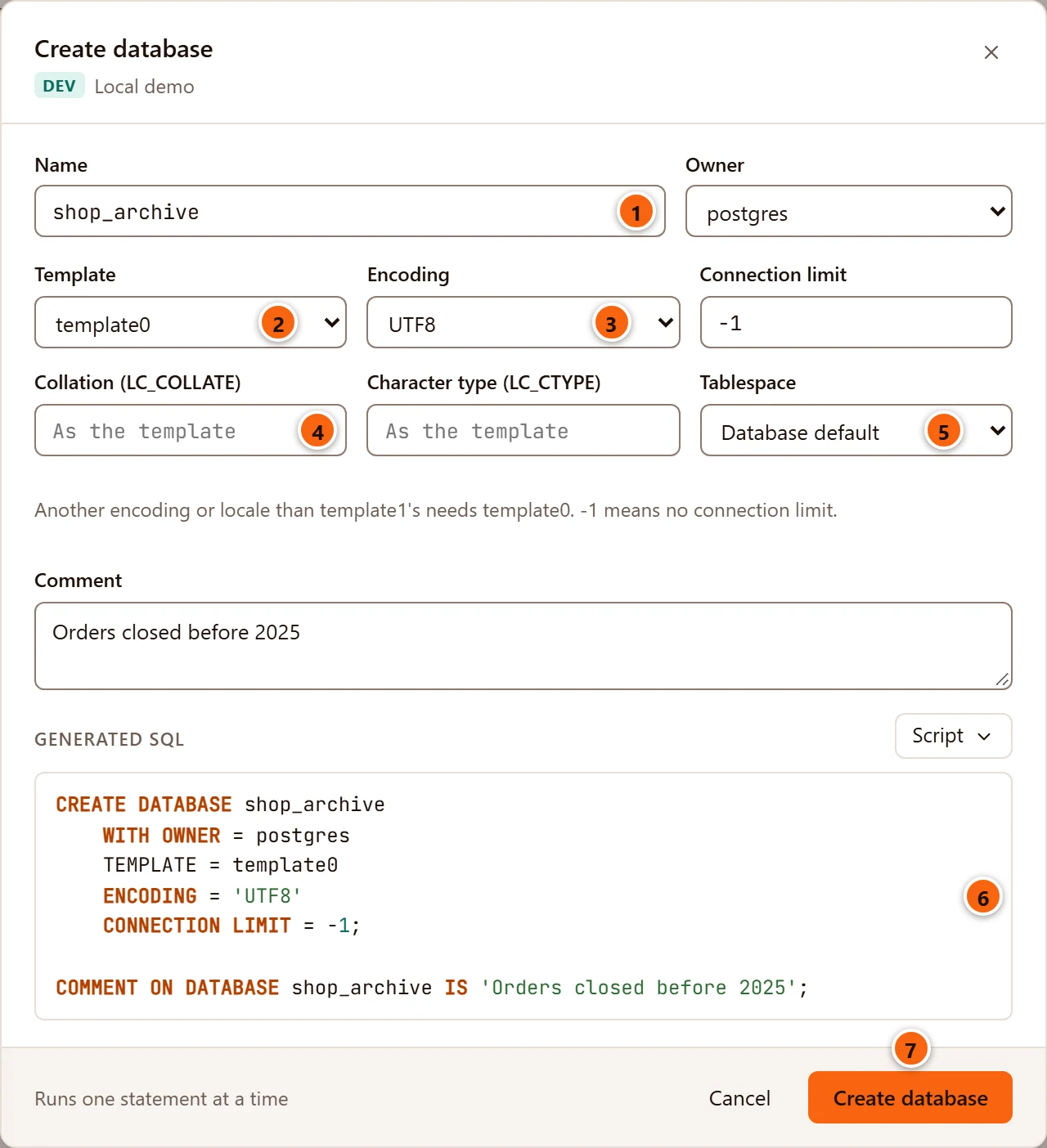
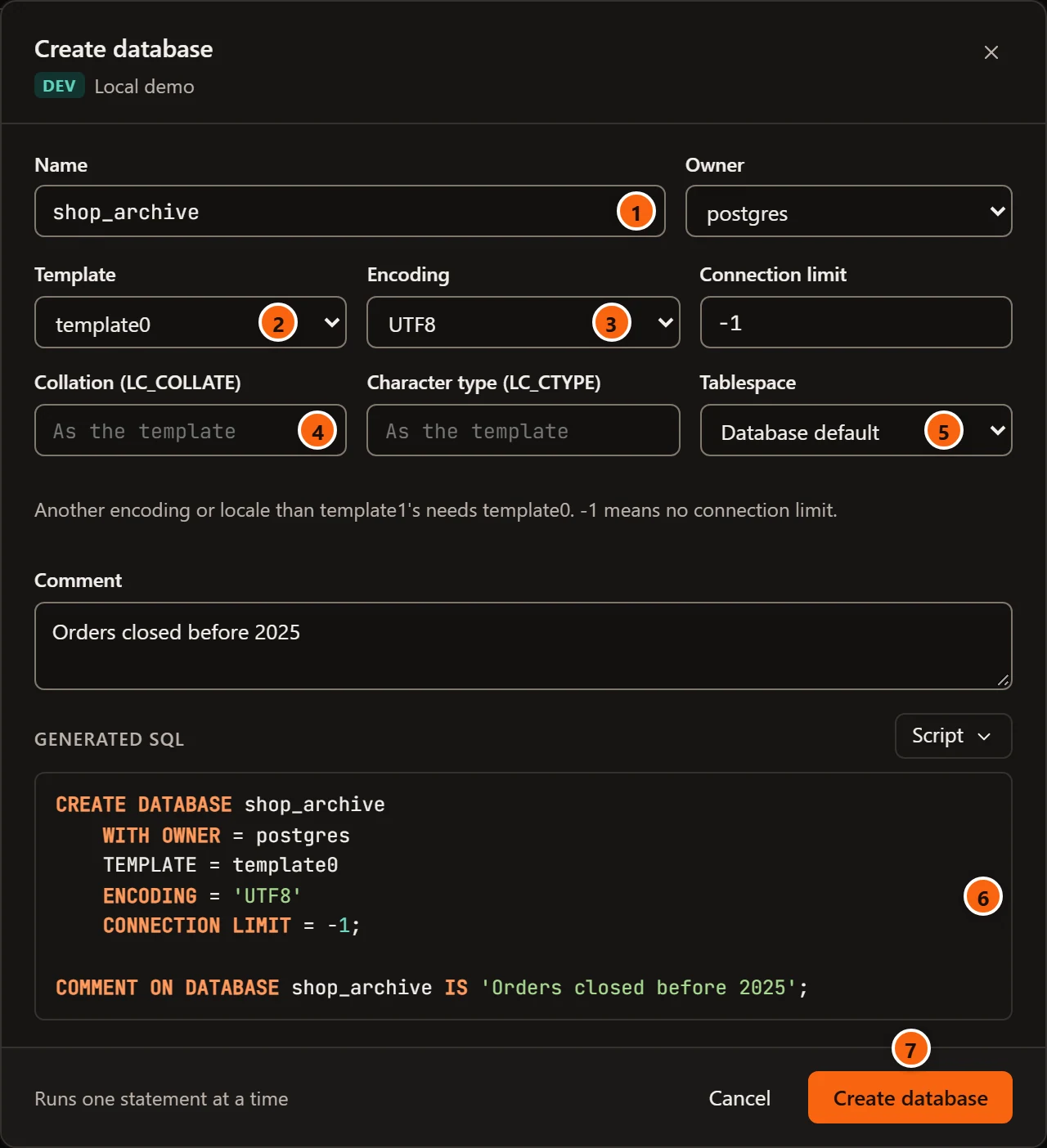
- 1 Name of the new database. The server quotes it for pgjumbo.
- 2 Template: the database the new one is copied from.
- 3 Encoding of the new database.
- 4 Collation (LC_COLLATE) and, beside it, Character type (LC_CTYPE): the locale it sorts and classifies text with. Left empty, they read “As the template”.
- 5 Tablespace where its files go.
- 6 Generated SQL: the
CREATE DATABASEstatement, thenCOMMENT ON DATABASEwhen you gave a comment. It follows what you type; a value the server refuses shows its reason here in red. The Script menu above it has Open in Query Tool (which also closes the dialog), Copy and Save to file… (see Scripts). - 7 Create database runs the statements.
| Field | What it does |
|---|---|
| Name | The database’s name. Create database stays greyed out until there is one. |
| Owner | The role that owns it (OWNER). It starts on the role you are connected as; the list holds every role except PostgreSQL’s predefined pg_* roles. |
| Template | TEMPLATE. template1 (PostgreSQL’s default) is first, then the server’s template databases, then every other database that accepts connections. |
| Encoding | ENCODING. As the template leaves it out; the others are UTF8, LATIN1, WIN1252 and SQL_ASCII. |
| Connection limit | CONNECTION LIMIT. -1, the default, means no limit. |
| Collation (LC_COLLATE) | LC_COLLATE, typed as the server names the locale (C.UTF-8, en_US.UTF-8). Empty leaves it as the template’s. |
| Character type (LC_CTYPE) | LC_CTYPE, the same way. |
| Tablespace | TABLESPACE. Database default leaves it out, so the template’s tablespace is used. |
| Comment | COMMENT ON DATABASE, run after the database exists. |
The hint under the fields is PostgreSQL’s rule: an encoding or locale other than template1’s needs template0 as the template.
CREATE DATABASE cannot run inside a transaction, so the footer says Runs one statement at a time: pgjumbo runs
CREATE DATABASE, then the comment, each once, on a connection of its own. If the comment fails, the database is
already there. When it worked, the dialog closes, a notice beside the row says “shop_archive was created” and the
Explorer lists the new database. If the server refuses, the dialog stays open with its message at the bottom.
Accepts connections, Can be copied as a template, the settings, the privileges and the default privileges are not in this dialog: set them in the database’s tab once it exists. Creating a database does not ask first, even on a Production server.
What a double-click does
Section titled “What a double-click does”A double-click or Enter on a database in the Explorer opens or closes its row, so you can reach what it holds. It does not open the database’s tab. To open the tab:
- Right-click the database and choose Properties….
- Select it and press ⌘ I (Alt+Enter on Windows and Linux).
- Double-click it in Object Details for the Databases folder.
The tab opens on General, or comes forward if it is open already.
The General view
Section titled “The General view”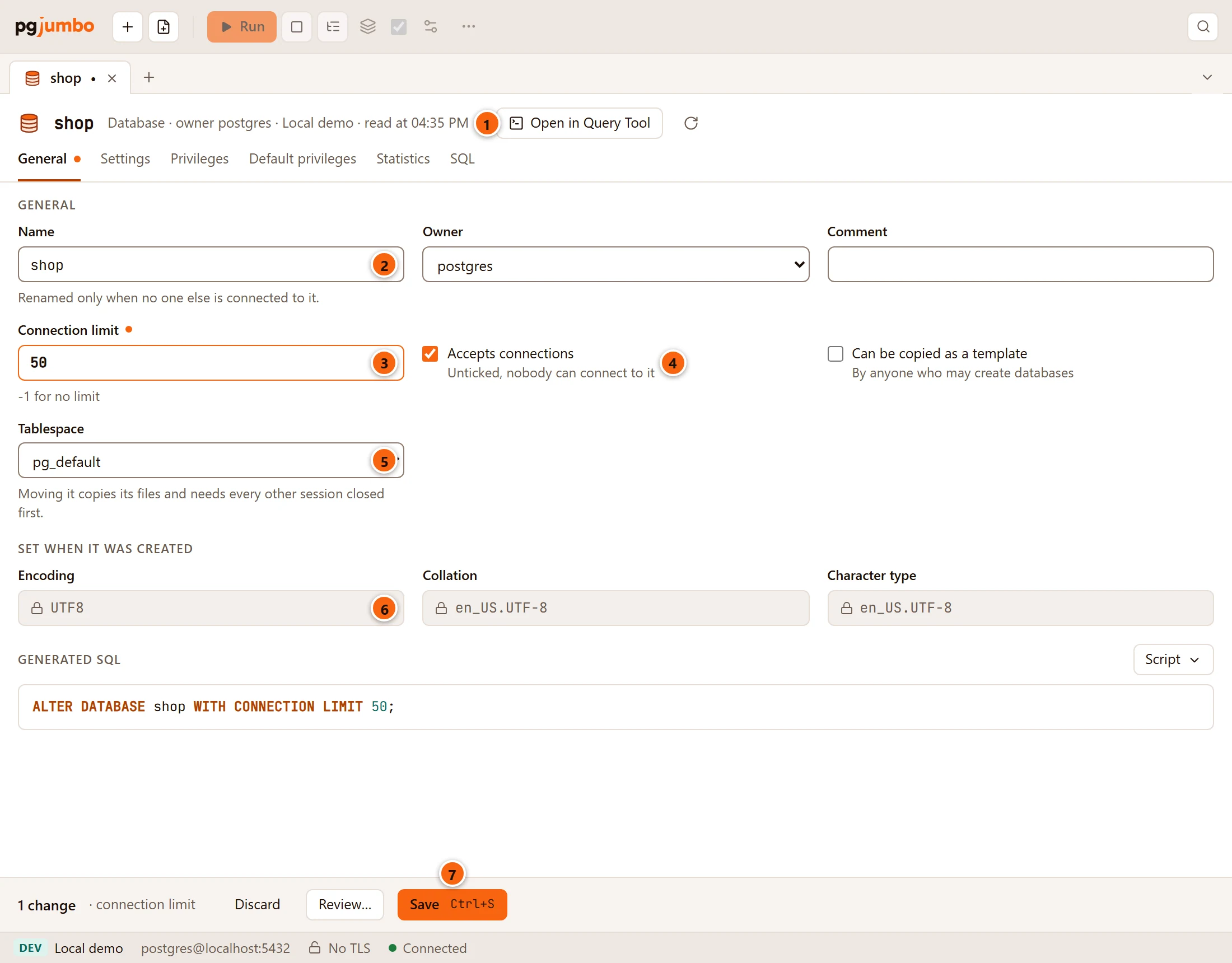
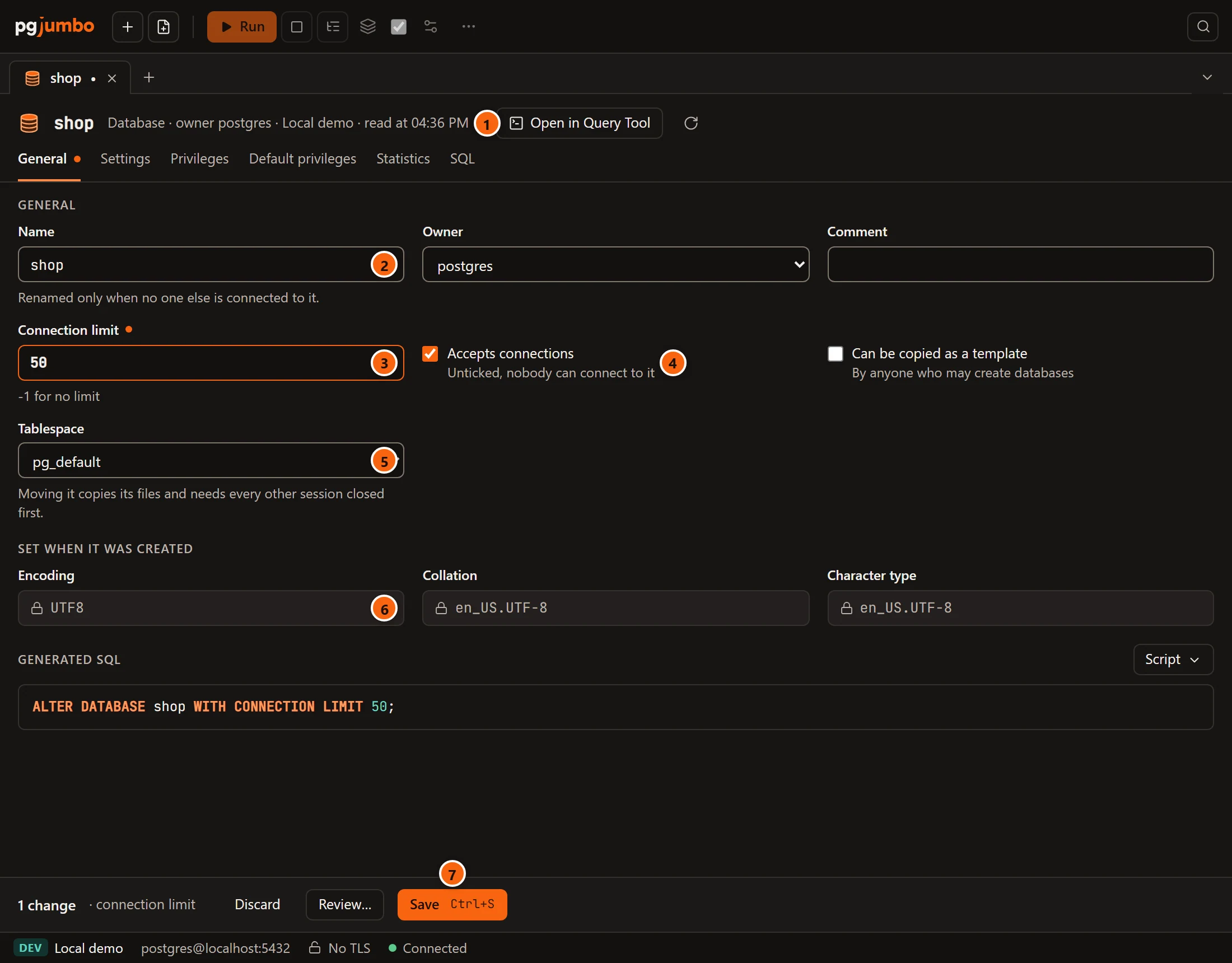
- 1 The header says what the database is: Database, its owner, template when it can be copied by
anyone who may create databases, accepts no connections when nobody can connect, the server, and when the tab
read it. Open in Query Tool opens its
CREATEscript in a new Query Tool; the round arrow, Read again, reads the database again and drops what you have not saved. - 2 Name. See Rename a database.
- 3 Connection limit. A field you changed gets a coloured border and a dot after its label.
- 4 Accepts connections and, beside it, Can be copied as a template.
- 5 Tablespace. See Move a database to another tablespace.
- 6 Set when it was created: Encoding, Collation and Character type, each with a lock. PostgreSQL cannot change them on an existing database.
- 7 The pending bar names the changes (connection limit, 1 setting, privileges of 2 grantees, 1 rule for new objects) and has Discard, Review… and Save (⌘ S (Ctrl+S on Windows and Linux)). The statements Save runs are under Generated SQL above it, with a Script menu.
| Field | Statement on Save |
|---|---|
| Name | ALTER DATABASE … RENAME TO. Grant changes in the same save run after it, on the new name. |
| Owner | ALTER DATABASE … OWNER TO. The list holds every role except PostgreSQL’s predefined pg_* roles. |
| Comment | COMMENT ON DATABASE; an empty field removes the comment. |
| Connection limit | ALTER DATABASE … WITH CONNECTION LIMIT. -1 means no limit. |
| Accepts connections | ALTER DATABASE … WITH ALLOW_CONNECTIONS true or false. Unticked, nobody can connect to it, pgjumbo included, and its default privileges can no longer be read. |
| Can be copied as a template | ALTER DATABASE … WITH IS_TEMPLATE true or false. Ticked, any role that may create databases can use it as a template. |
| Tablespace | ALTER DATABASE … SET TABLESPACE. |
Rename a database
Section titled “Rename a database”PostgreSQL renames a database only when nobody else is connected to it, as the hint under Name says. Every connection counts, including the Query Tool and data tabs you have open on it in pgjumbo. Before it saves, pgjumbo closes the connection it uses itself to read the database’s objects, and afterwards it finds the database under its new name: the Explorer, the tab and new Query Tools follow it.
Move a database to another tablespace
Section titled “Move a database to another tablespace”Pick another Tablespace. Moving copies every file of the database, needs every other session closed (as the hint
under the field says), and holds an ACCESS EXCLUSIVE lock on the database while it runs. PostgreSQL will not run it
inside a transaction, so Save always opens the review sheet for it, and the move runs last, after the other
changes have committed. See Object tabs and review for the sheet.
Every other change in the database’s tab touches only the catalog, so Save runs it straight away. On a server that asks first (Production, and Staging when Settings say so), Save opens the review sheet, where you type the database’s name before anything runs.
The Settings view
Section titled “The Settings view”Settings that every new session in this database starts with, whatever role signs in (ALTER DATABASE … SET).
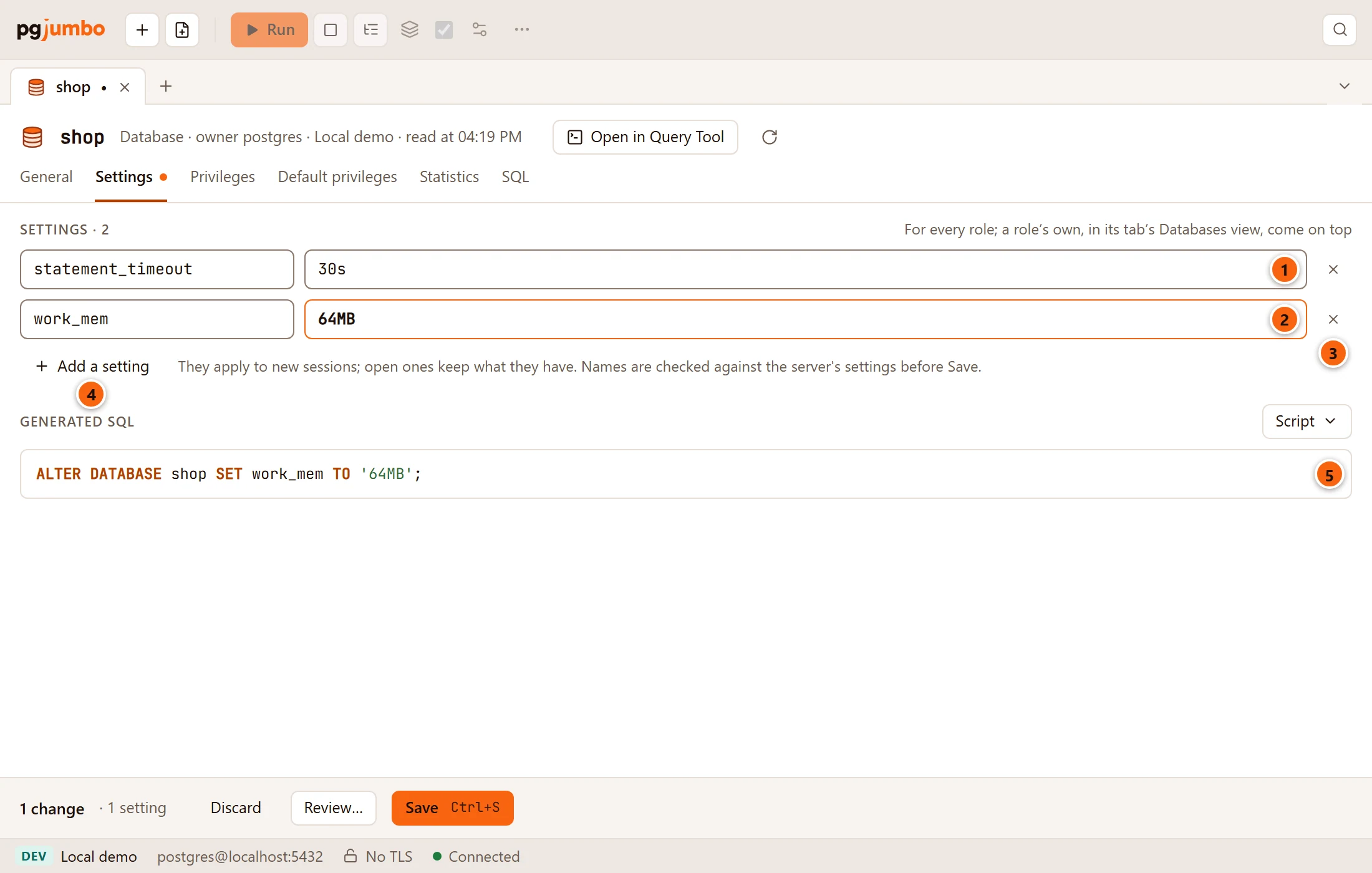
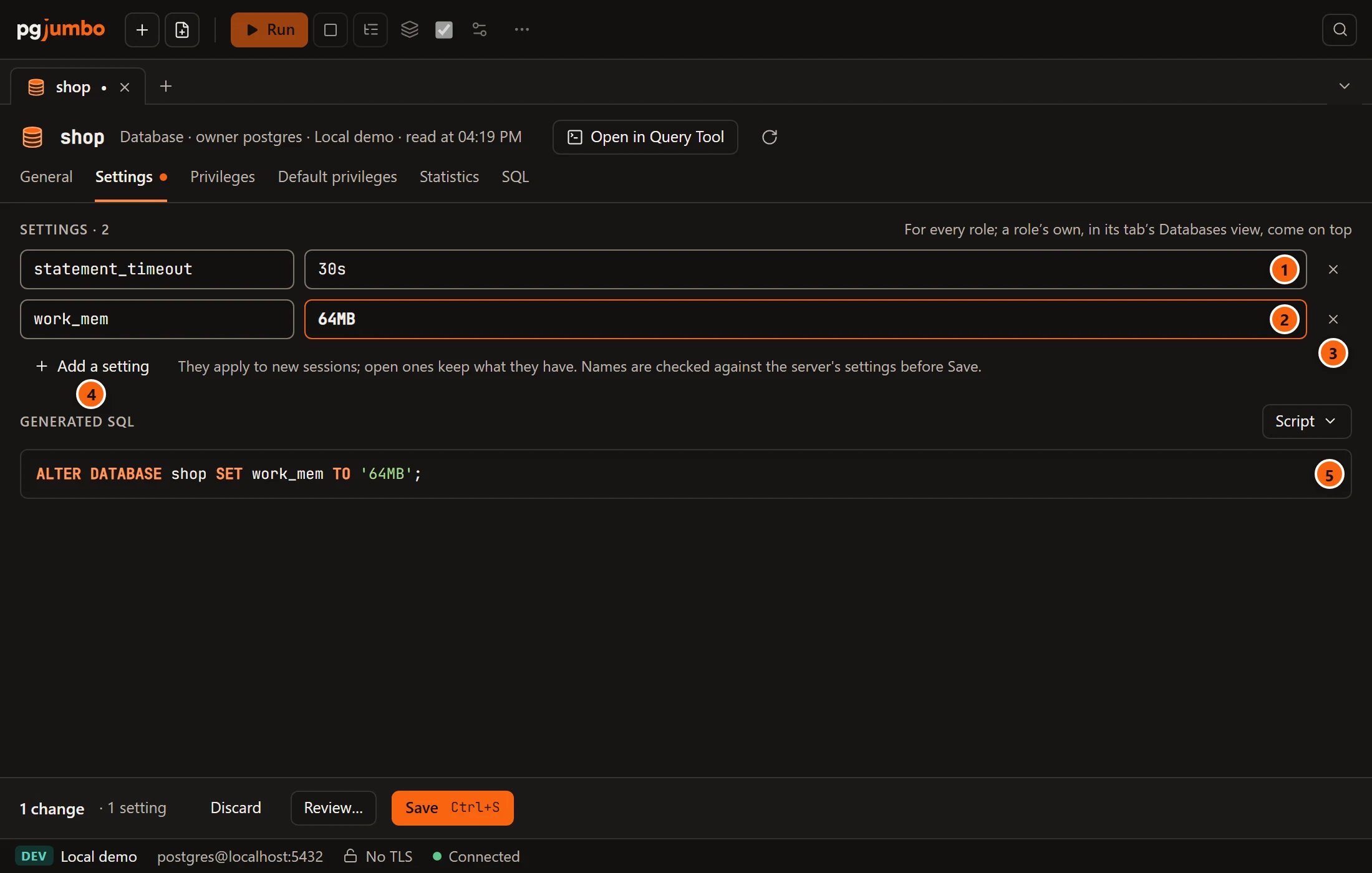
- 1 A setting the database has: its name on the left, its value on the right. A value you changed gets a coloured border.
- 2 A new setting. While you type the name, pgjumbo offers common ones (
statement_timeout,lock_timeout,idle_in_transaction_session_timeout,work_mem,search_path,timezone,default_transaction_isolation). - 3 The cross removes a setting; Save then runs
ALTER DATABASE … RESET. - 4 Add a setting adds an empty row.
- 5 The statements Save will run.
The heading counts the settings. With none, the view says “None: its sessions start with the server’s values.” The note on the right of the heading is PostgreSQL’s order: a role’s own settings, set in the role’s Databases view, come on top of the database’s. New settings apply to new sessions; sessions already open keep what they have.
pgjumbo checks each name against the server’s own list of settings, in lower case as PostgreSQL folds it. A name with
a dot, such as pg_stat_statements.track, belongs to an extension and is let through. A setting with no name (“A
setting for shop has no name.”), with no value (“Give work_mem a value for shop, or remove it.”), set twice (“work_mem
is set twice for shop.”) or unknown to the server (“work_meme is not a setting this server knows.”) shows its reason in
red under Generated SQL, and Save refuses it.
The Privileges view
Section titled “The Privileges view”Who may connect to the database (CONNECT), create schemas in it (CREATE) and make temporary tables in it
(TEMPORARY). PostgreSQL gives CONNECT and TEMPORARY to PUBLIC on every new database, which is why PUBLIC
usually has a row here.
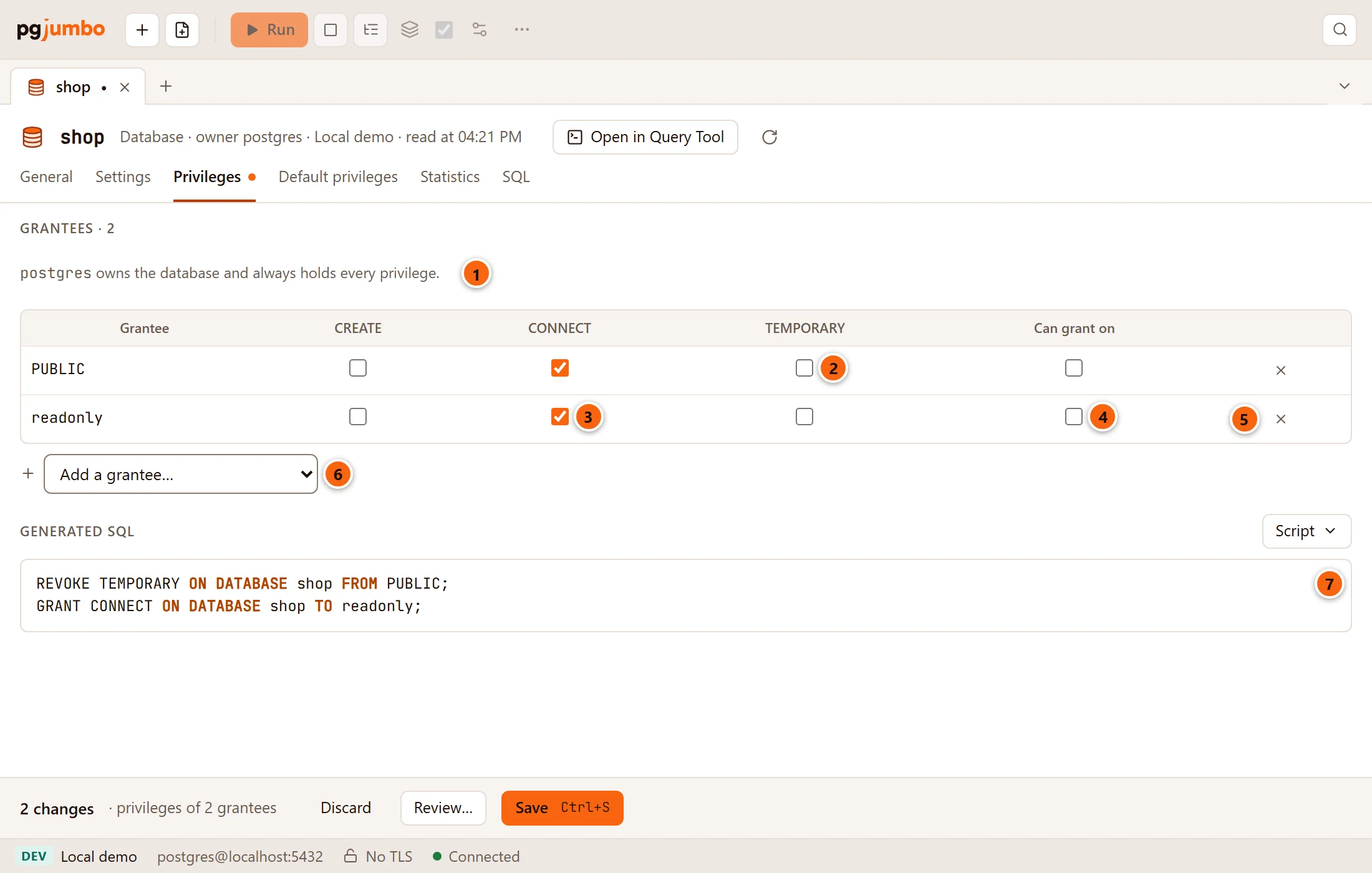
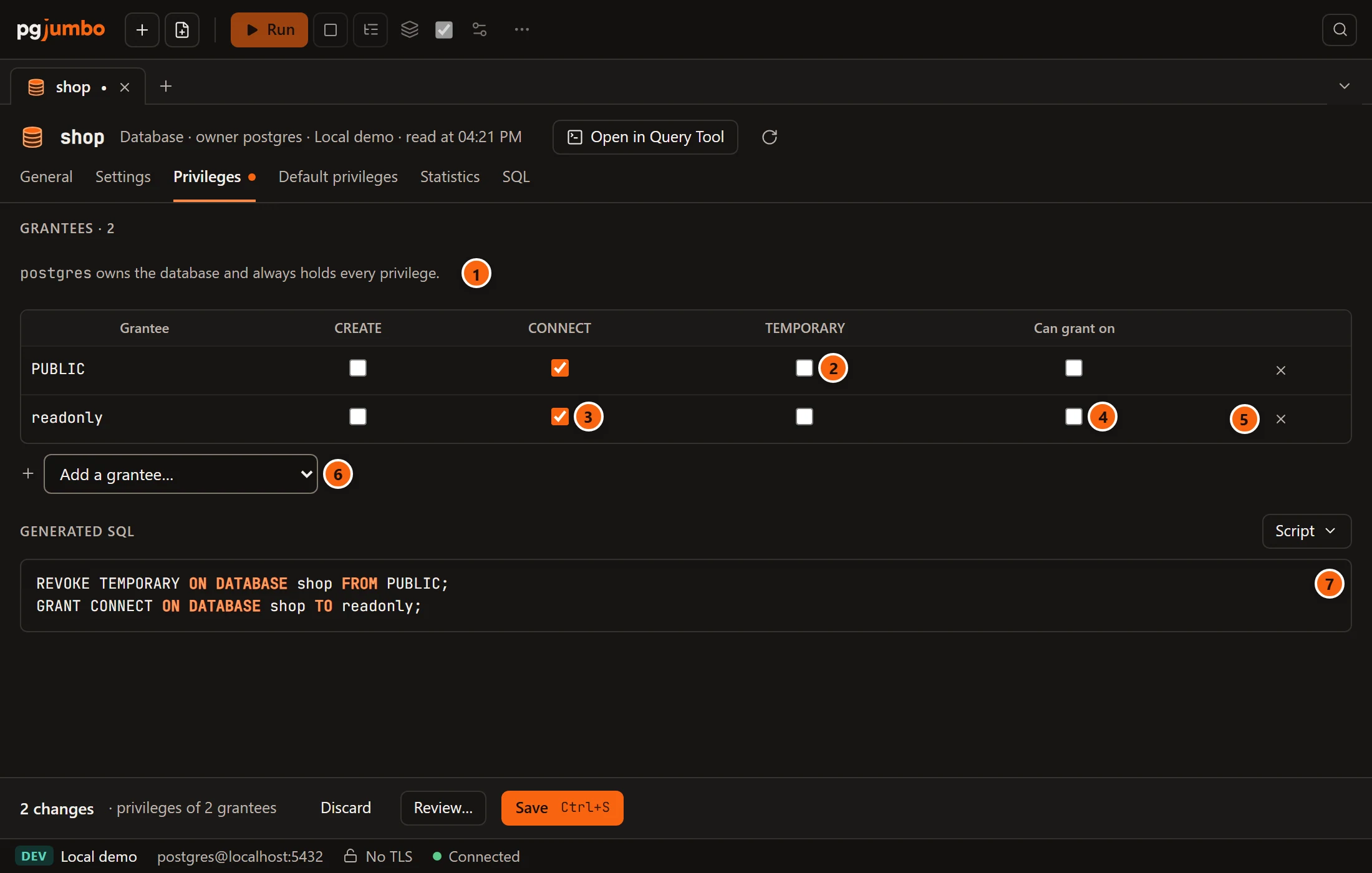
- 1 The owner, who always holds every privilege.
- 2
TEMPORARYunticked forPUBLIC: Save revokes it. - 3 A grantee added with Add a grantee…, with
CONNECTticked. - 4 Can grant on: the grantee may grant its privileges to others.
- 5 The cross removes a grantee and revokes what it held.
- 6 Add a grantee… adds
PUBLICor a role. - 7 The statements Save will run.
The grid works the same on every object; see
Privileges. A role can also be given CONNECT from its
own tab, in the Databases view.
The Default privileges view
Section titled “The Default privileges view”What new objects anywhere in this database give to other roles, for objects one role creates
(ALTER DEFAULT PRIVILEGES without IN SCHEMA). pgjumbo reads and changes these rules on a connection to the database
itself, because PostgreSQL keeps them there.
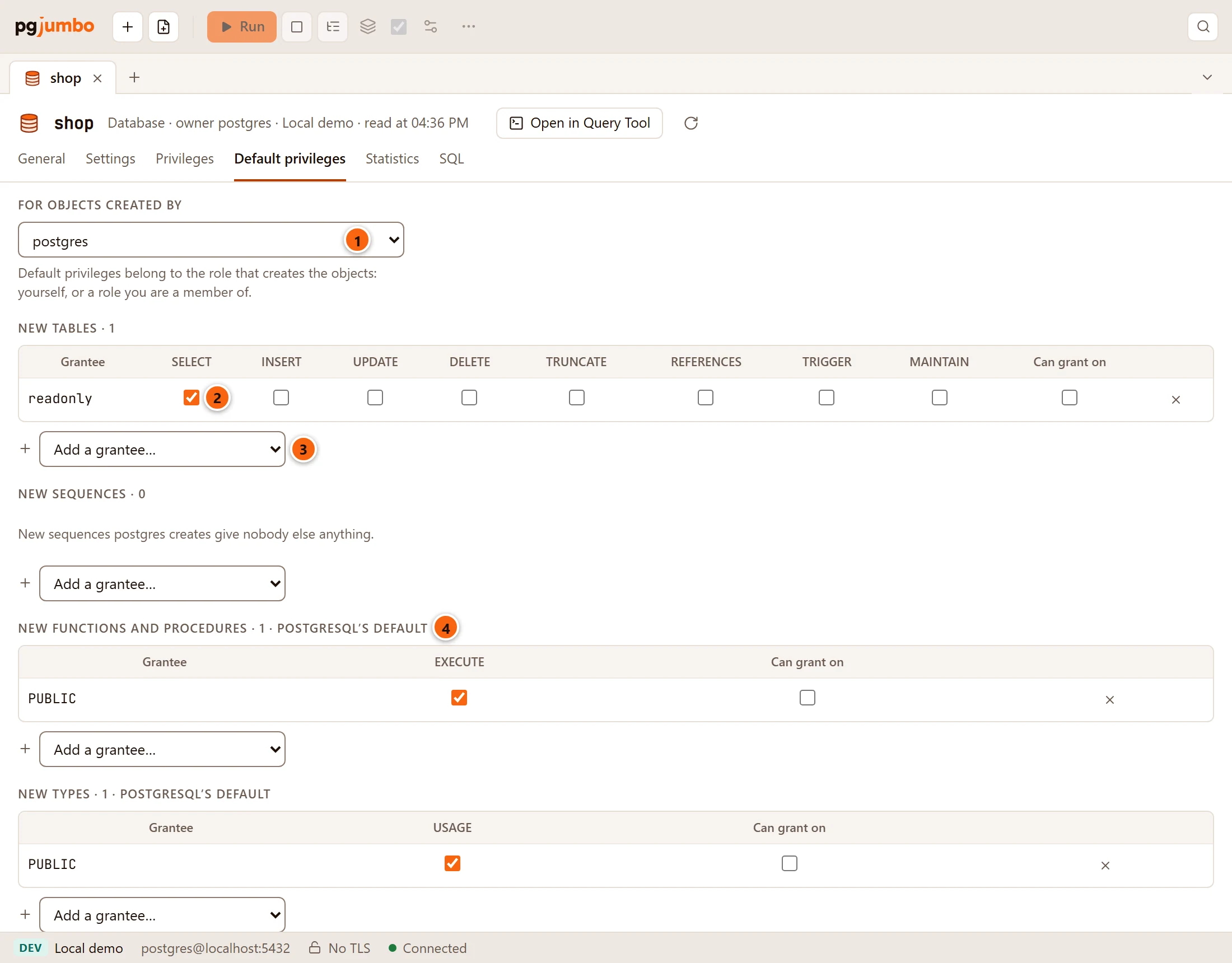
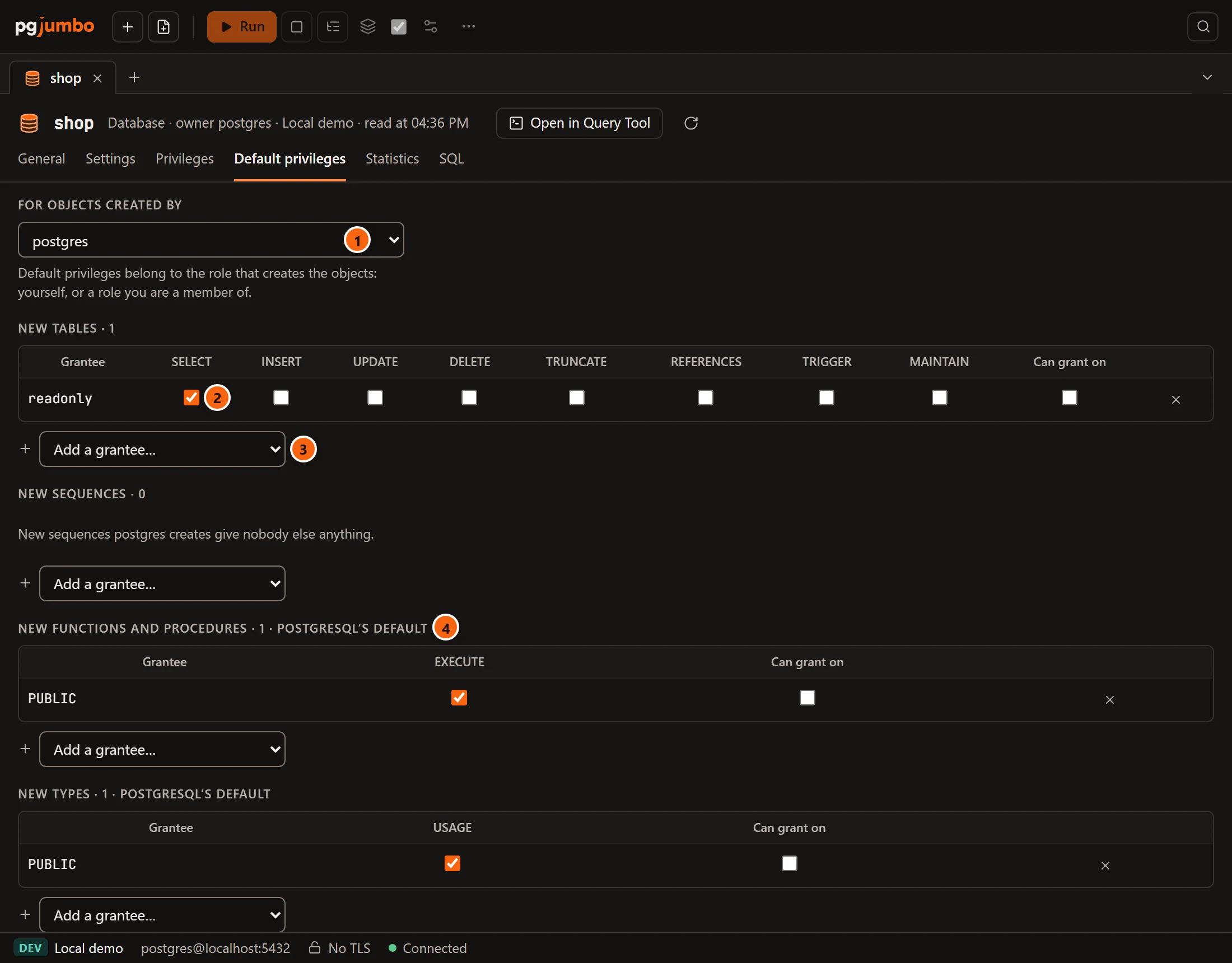
- 1 For objects created by: the role whose new objects the rules cover: yourself, or a role you are a member of, as PostgreSQL requires. It starts on a role that has rules already, else the database’s owner.
- 2 A rule: new tables
postgrescreates givereadonlytheSELECTprivilege. - 3 Add a grantee… adds a role or
PUBLICto a kind. A grantee shows with nothing ticked until you tick a privilege; with nothing ticked it makes no rule. - 4 PostgreSQL’s default marks a kind this role has no rule for. New functions and procedures give
PUBLICEXECUTE, and new types givePUBLICUSAGE, unless a rule here says otherwise. Untick them to take that default away; this view is the only place that can.
There is a grid for New tables, New sequences, New functions and procedures, New types, New schemas and, on PostgreSQL 18 or later, New large objects, each with its count of grantees. An empty grid says, for example, “New sequences postgres creates give nobody else anything.” Rules for new schemas exist only here, not in a schema’s tab.
Below the grids, Set in a schema lists, for the same role, the rules its schemas add (Schema, Objects, Grantee, Privileges, with “(can grant)” after a privilege that carries the grant option), or says “No schema here adds rules for what postgres creates.” Those rules are changed in each schema’s tab; a schema can add to what the database gives but never take it away.
When the database does not accept connections, the view says “shop accepts no connections, so its default privileges cannot be read. Let it accept connections in General first.” On Save, the default privileges are checked and run in the database after everything else in the tab has committed. If they fail then, the rest stays saved, and the pending bar says “Statement N failed after the others were saved:” with the server’s reason.
The Statistics view
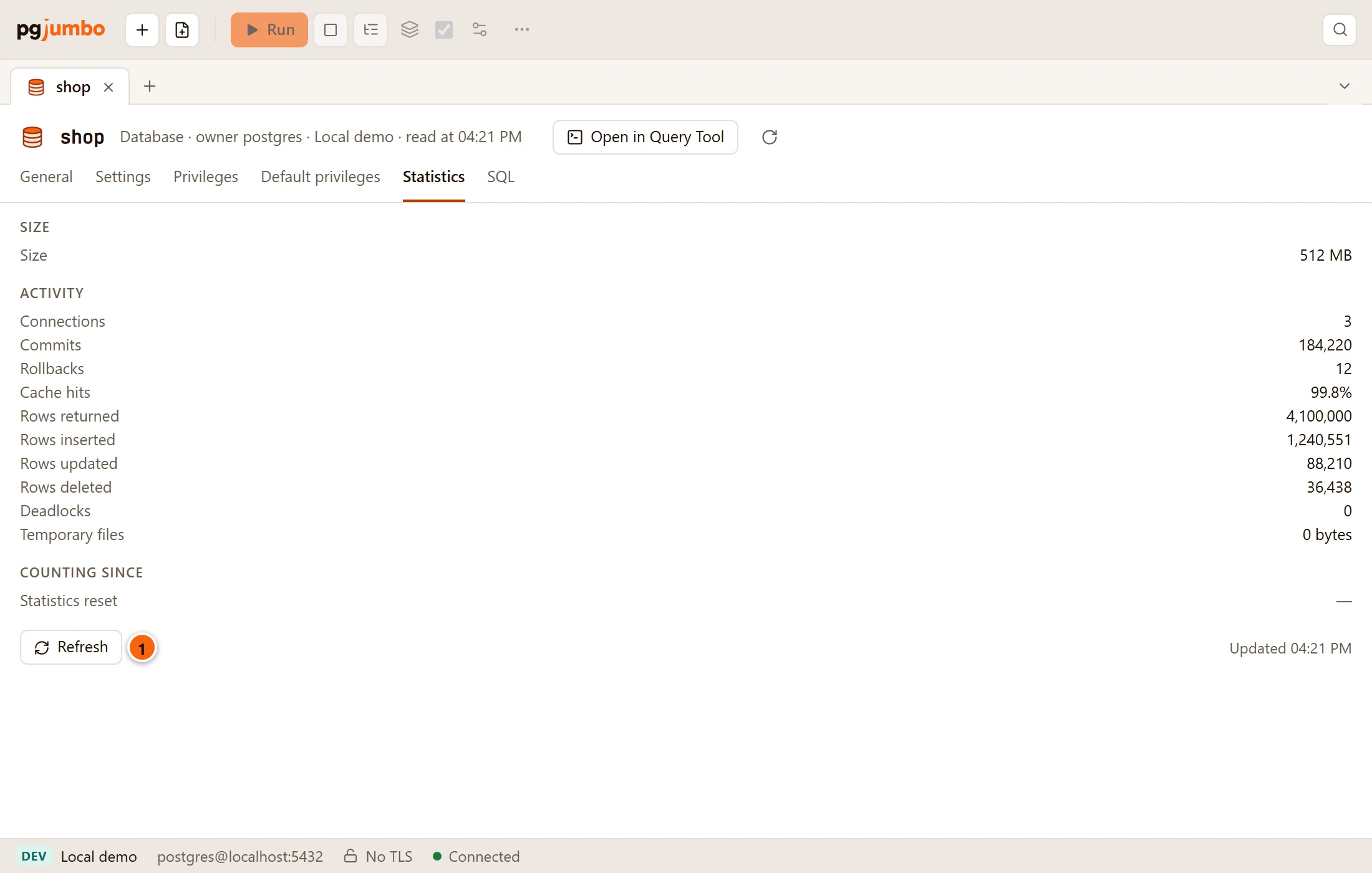
Section titled “The Statistics view”The database’s size and activity, from pg_stat_database.
| Row | What it counts |
|---|---|
| Size | The database’s size on disk. |
| Connections | Sessions connected to it now. |
| Commits, Rollbacks | Transactions committed and rolled back. |
| Cache hits | The share of block reads found in shared buffers. |
| Rows returned, Rows inserted, Rows updated, Rows deleted | Rows read and written by queries. |
| Deadlocks | Deadlocks detected. |
| Temporary files | Data written to temporary files by queries. |
| Statistics reset | Under Counting since: when these counters last started from zero; a dash when they never were. |
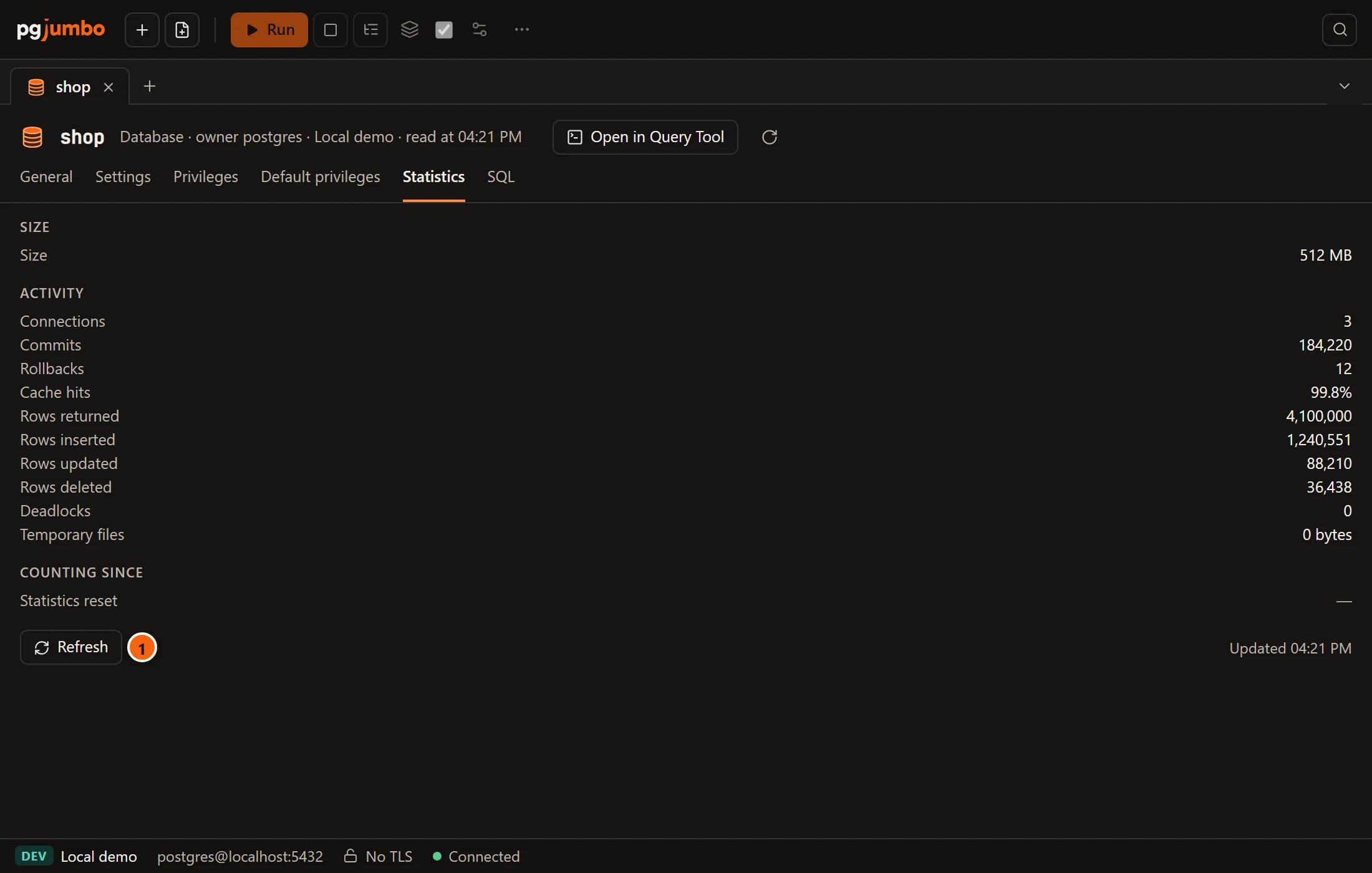
- 1 Refresh reads the counters again; “Updated” on the right says when they were read.
The counters run from the last reset. There is no reset here for a whole database.
The SQL view
Section titled “The SQL view”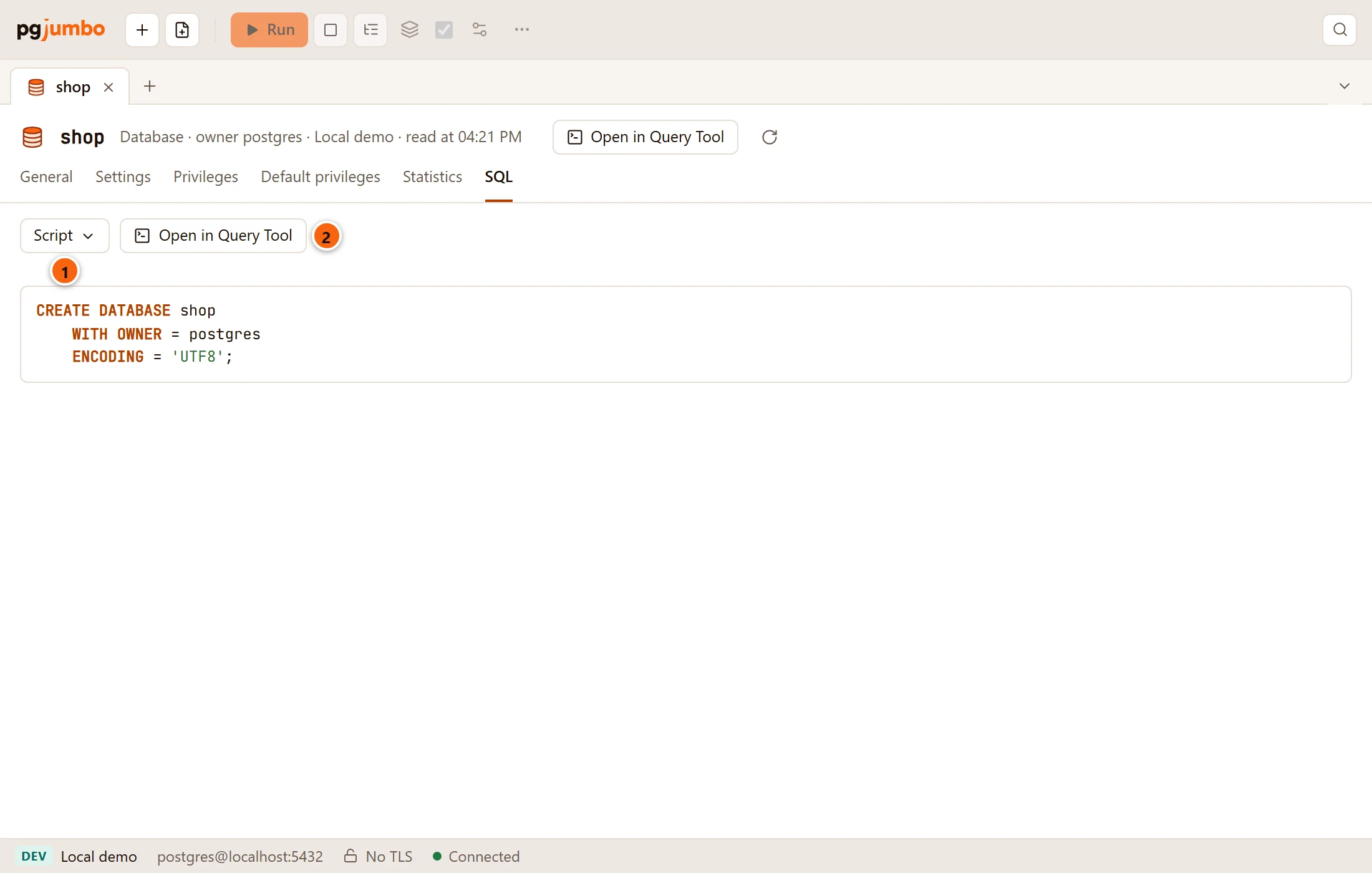
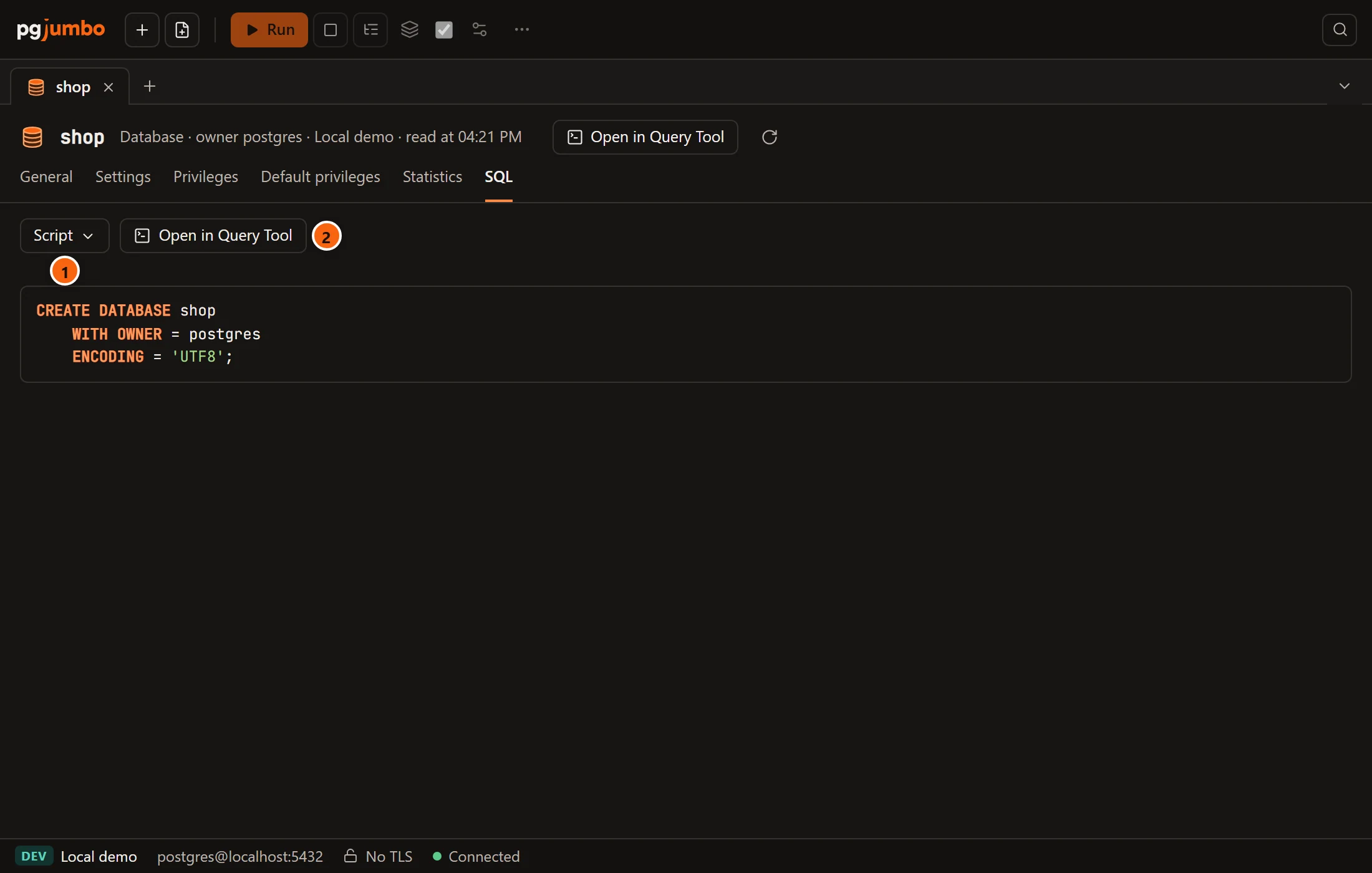
- 1 Script has Open in Query Tool, Copy and Save to file… for the script.
- 2 Open in Query Tool puts it in a new Query Tool.
The script is the one the Inspector’s SQL tab shows, for the database as saved. Your unsaved changes are under Generated SQL in the view you changed.
What you do elsewhere
Section titled “What you do elsewhere”pgjumbo has no Drop… for a database: run DROP DATABASE in a Query Tool. The
database’s right-click menu has Create for the objects a database holds, ERD (see
Diagrams), Backup…, Restore… and Copy Database… under Tasks (see
Back up and restore and Copy a database), the
Grant Wizard, Reports, Notifications and more; see
Right-click menus.