
Settings
Settings holds what pgjumbo does the same way in every tab: how it looks, the SQL editor, how many rows a result keeps, which servers ask before a destructive statement, how long a change to an object waits for its lock, the Assistant and where the PostgreSQL client programs are. Settings are kept in pgjumbo’s own database on this computer and apply to every server. What belongs to one server, such as its SSL mode or read-only sessions, is in its connection settings.
Open Settings
Section titled “Open Settings”| System | Menu | Keys |
|---|---|---|
| macOS | pgjumboSettings… | ⌘ , |
| Windows | FileSettings… | Ctrl+, |
| Linux | FilePreferences… | Ctrl+, |
The dialog is called Settings on every system. Turn on in Settings… and Settings… in the Assistant pane open it too. The menu item and its keys do nothing while another dialog is open.
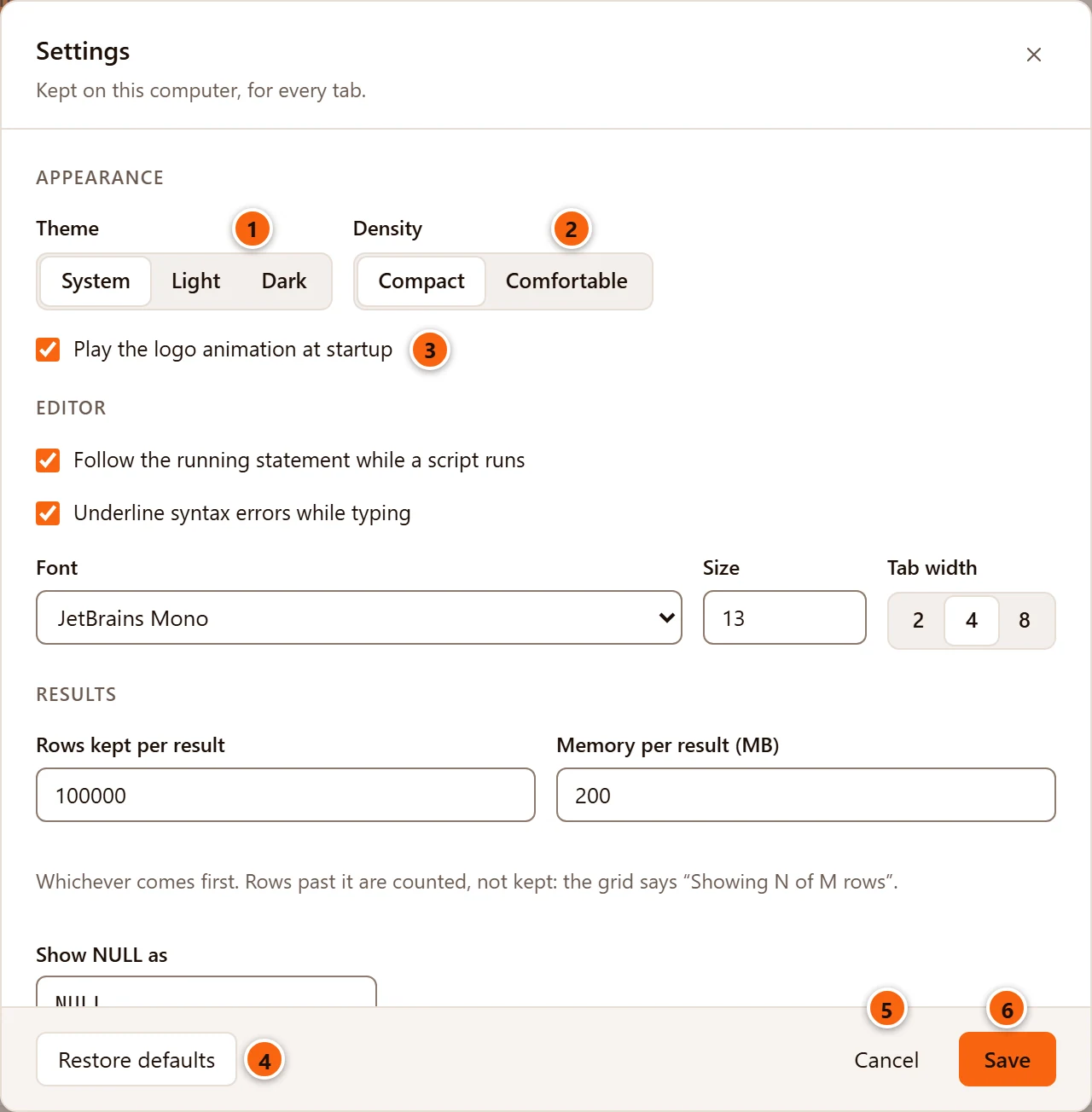
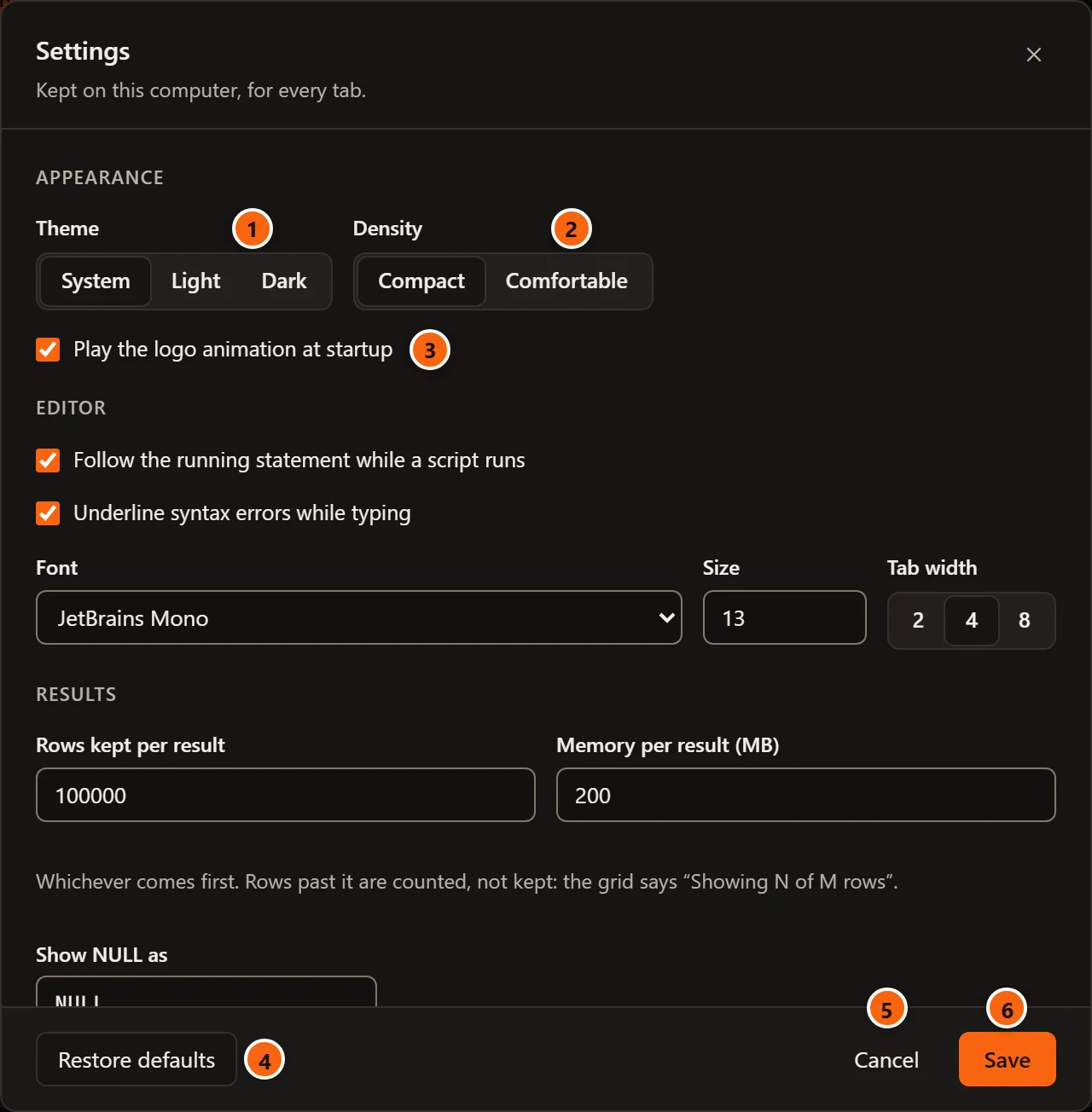
- 1 Theme: System, Light or Dark. See Appearance.
- 2 Density: Compact or Comfortable.
- 3 Play the logo animation at startup.
- 4 Restore defaults puts every field of the dialog back to its default. Nothing is saved until you click Save, so Cancel still keeps what you had.
- 5 Cancel closes the dialog and keeps the settings as they were. The × in the corner and Esc do the same.
- 6 Save checks every value and applies them all at once. Enter in a text field saves too.
The dialog scrolls. Its sections are Appearance, Editor, Results, Safety, Changing objects, Assistant and Backup and restore, in that order.
When a value is refused
Section titled “When a value is refused”pgjumbo’s engine checks every value when you click Save. If one is out of range, nothing is saved, the dialog stays open and its footer says what is allowed:
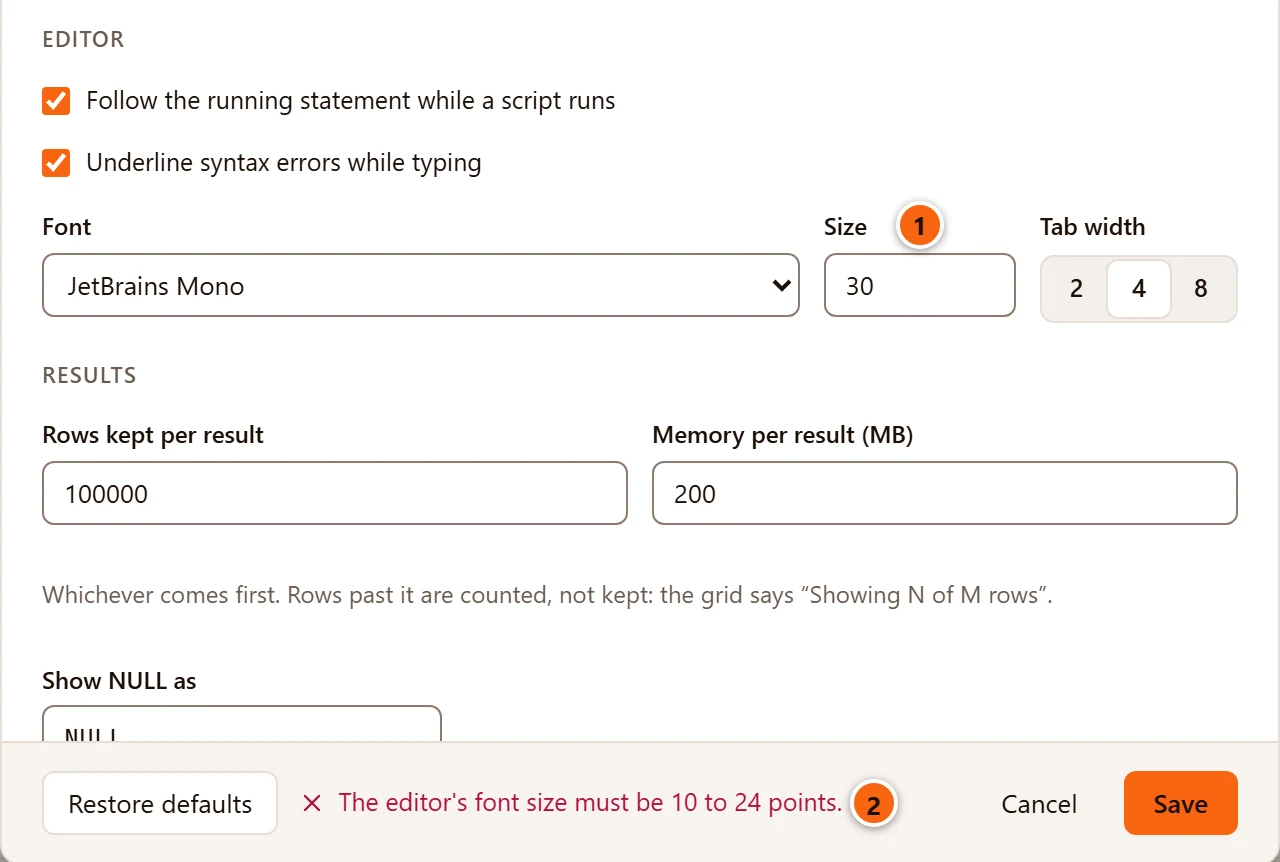
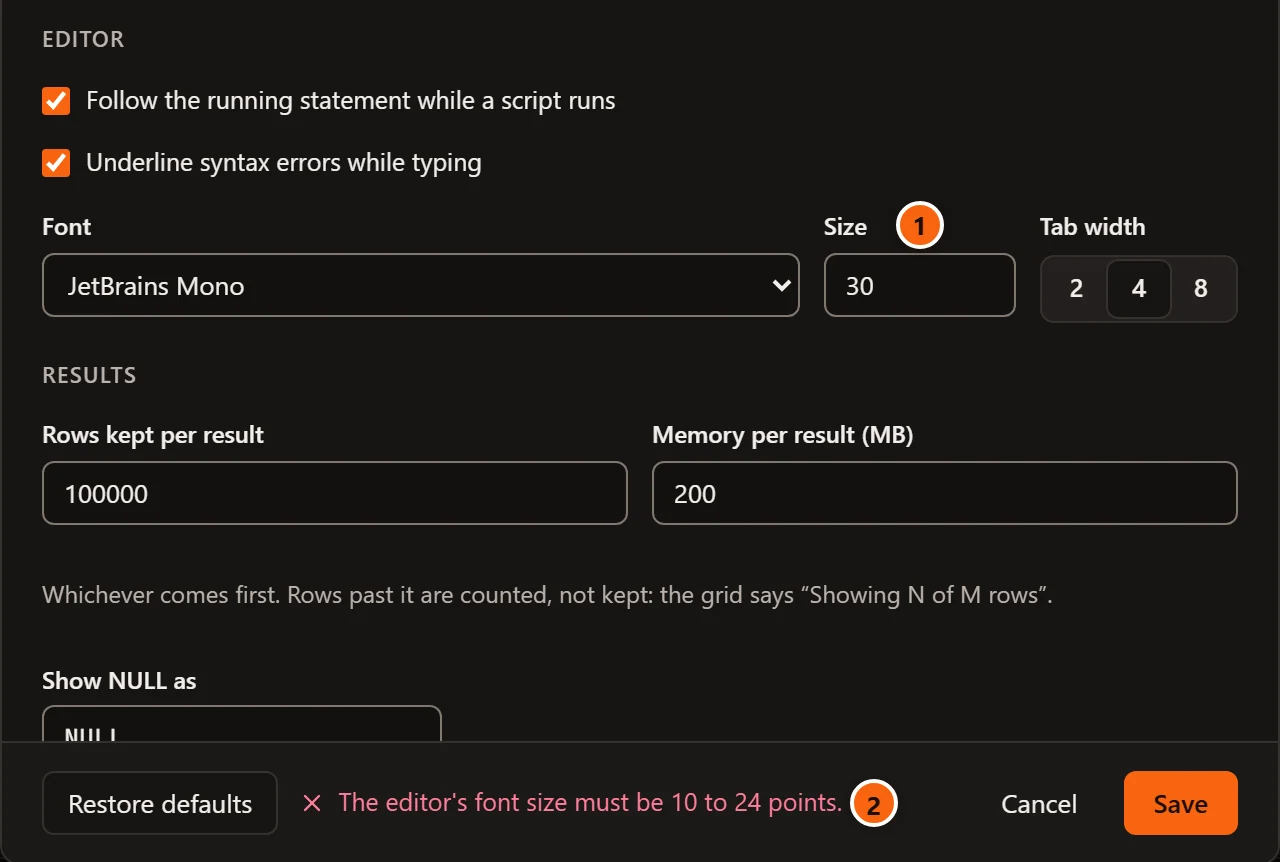
- 1 The value that is out of range, here a font size of
30. - 2 The message. Correct the value and click Save again.
| Message | Field |
|---|---|
| The editor’s font size must be 10 to 24 points. | Size |
| Keep between 1000 and 10000000 rows per result. | Rows kept per result |
| Keep between 16 and 4096 MB per result. | Memory per result (MB) |
| Show NULL as 1 to 16 characters. | Show NULL as is empty |
| Show NULL without line breaks or tabs. | Show NULL as holds a pasted tab or line break |
| A tile server’s address starts with https:// and holds {z}, {x} and {y}, … | Map tiles under geometry |
| Wait for a lock 1 to 300 seconds. | Wait for a lock at most (seconds) |
| Choose the safer way above 0 to 1000000 MB. | Choose the safer way above (MB) |
| … is not a folder. | PostgreSQL client programs names a folder that does not exist |
| The Claude Code program’s path has a character a path cannot have. | Claude Code |
A number field left empty counts as 0, which is refused with the range, except Choose the safer way above (MB),
which goes back to its default of 100. Spaces around Show NULL as, the folder, the program and the tile address are
taken off when you save.
Every setting and its default
Section titled “Every setting and its default”| Setting | Section | Default | Values |
|---|---|---|---|
| Theme | Appearance | System | System, Light, Dark |
| Density | Appearance | Compact | Compact, Comfortable |
| Play the logo animation at startup | Appearance | On | On, off |
| Follow the running statement while a script runs | Editor | On | On, off |
| Underline syntax errors while typing | Editor | On | On, off |
| Font | Editor | JetBrains Mono | JetBrains Mono, System monospace |
| Size | Editor | 13 | 10 to 24 |
| Tab width | Editor | 4 | 2, 4, 8 |
| Rows kept per result | Results | 100,000 | 1,000 to 10,000,000 |
| Memory per result (MB) | Results | 200 | 16 to 4,096 |
| Show NULL as | Results | NULL |
1 to 16 characters |
| Map tiles under geometry | Results | Empty: no tiles | An https:// address with {z}, {x} and {y} |
| Staging servers ask before destructive statements too | Safety | Off | On, off |
| Notify when a query ends | Safety | After 10 seconds | Never, After 5 seconds, After 10 seconds, After 30 seconds, After a minute, After 5 minutes |
| Wait for a lock at most (seconds) | Changing objects | 5 | 1 to 300 |
| Choose the safer way above (MB) | Changing objects | 100 | 0 to 1,000,000 |
| Use the Assistant | Assistant | Off | On, off |
| Claude Code | Assistant | Empty: pgjumbo finds it | The path of a claude program |
| What the Assistant May read | Assistant | See Assistant | Allow, Ask, Don’t allow |
| PostgreSQL client programs | Backup and restore | Empty: pgjumbo finds them | A folder |
Appearance
Section titled “Appearance”The first picture on this page shows this section.
| Setting | What it changes |
|---|---|
| Theme | System follows your system’s light or dark mode and switches when it does. Light and Dark keep pgjumbo in one of them whatever the system does. The window’s title bar follows the choice too. See Light and dark. |
| Density | How tall rows are in the Explorer, the Library, the results grid and the other long lists. Compact makes Explorer and Library rows 26 pixels and grid rows 28; Comfortable makes them 30 and 32. |
| Play the logo animation at startup | While pgjumbo starts, the elephant lands, opens its eye and draws the j of its name with its trunk, in about two seconds. When your system asks for reduced motion, the finished logo shows for a second without moving. A click or any key skips it; untick this to start straight on the window. It takes effect at the next start. See Install pgjumbo. |
Editor
Section titled “Editor”These change the SQL editor of every Query Tool tab, including tabs already open. Font and Size also apply to the terminal of every psql tab.
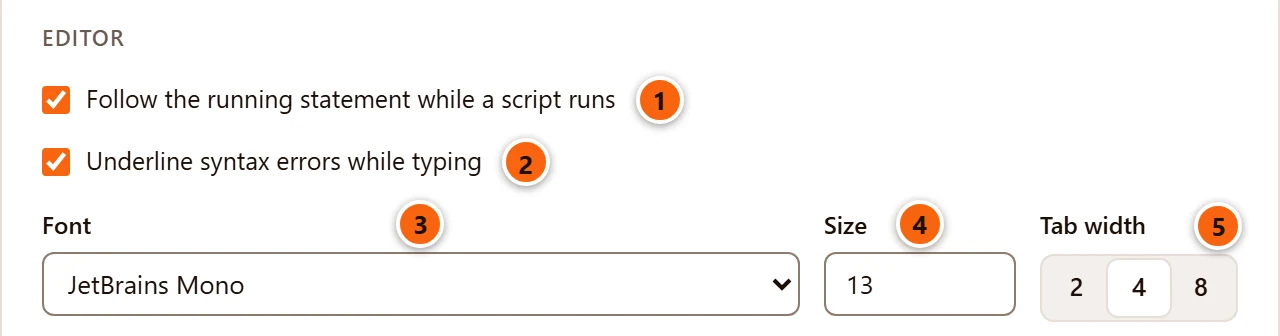
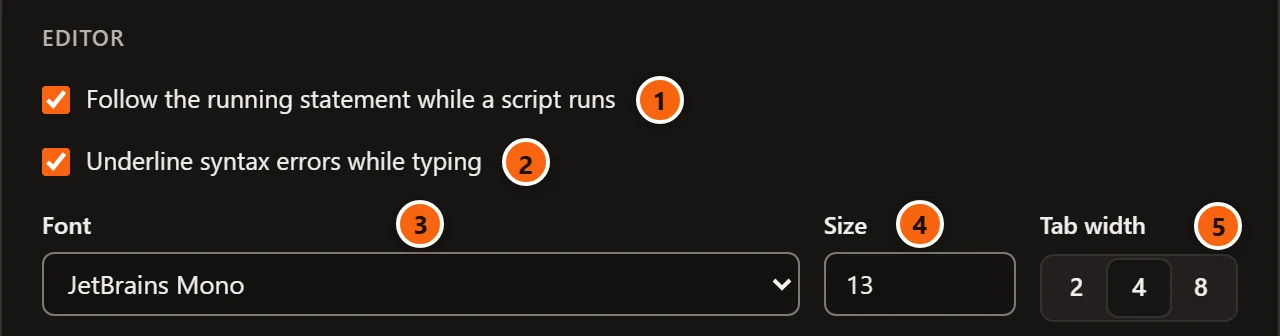
- 1 Follow the running statement while a script runs: while a script of several statements runs, the editor scrolls to the statement that is running, so you can watch it go down the script. Untick it to keep the editor where you leave it; the marks beside each statement show either way. See Follow a running script.
- 2 Underline syntax errors while typing: PostgreSQL’s own parser reads each statement as you type, and pgjumbo underlines what it cannot read, with the parser’s message when you point at it. Untick it and nothing is checked until you run. See Syntax errors as you type.
- 3 Font: JetBrains Mono, which comes with pgjumbo and looks the same on every system, or System monospace, your system’s own fixed-width font (SF Mono on a Mac, Consolas on Windows, DejaVu Sans Mono on many Linux systems). The editor and the terminal of a psql tab use it; the results grid keeps its own font.
- 4 Size: the editor’s text size, from 10 to 24. The lines grow with it.
- 5 Tab width: how wide a tab character is, in columns, and how many spaces one indent puts in. Tab (with no suggestion showing) and ⌘ ] (Ctrl+] on Windows and Linux) indent with spaces.
Results
Section titled “Results”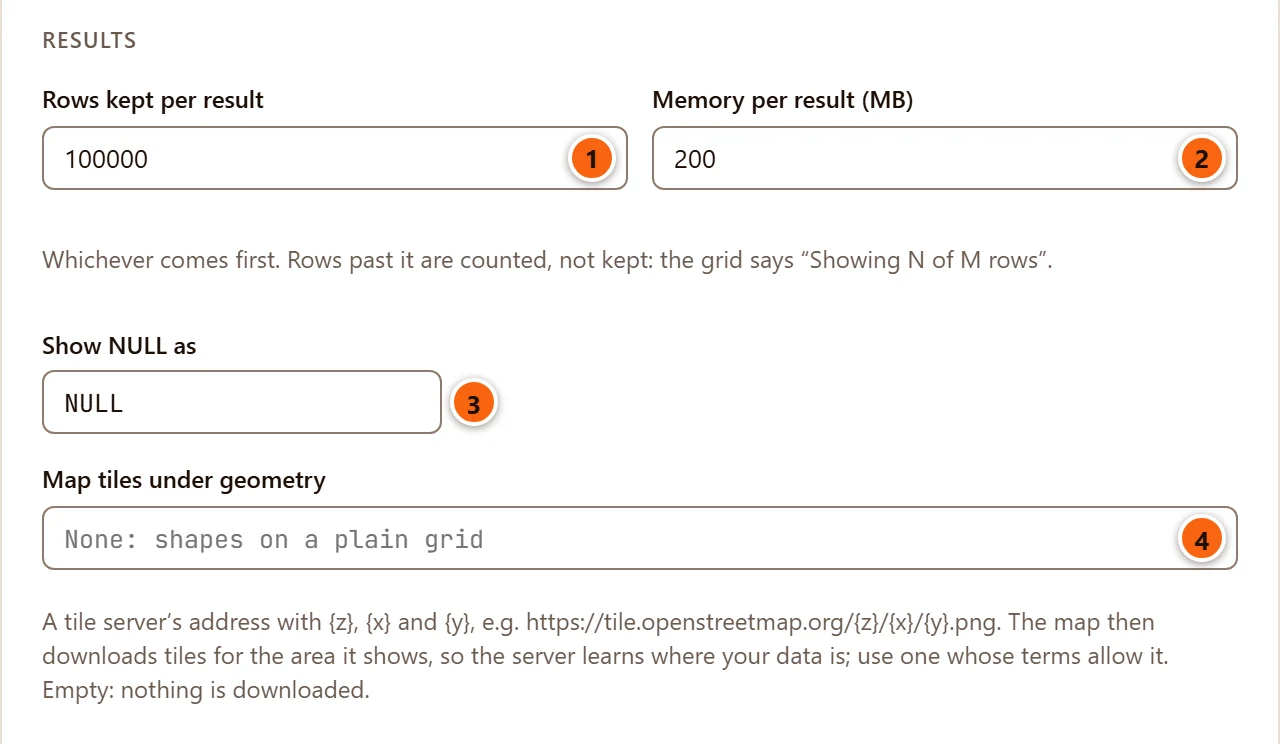
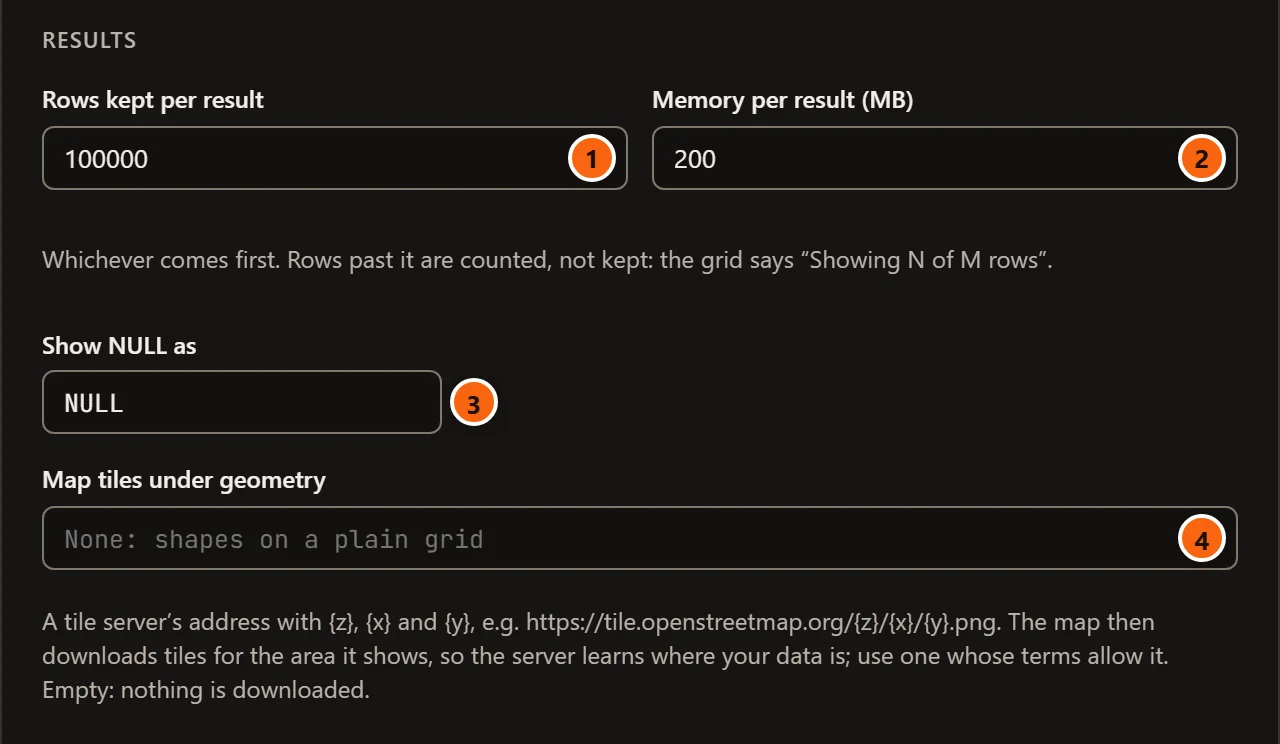
- 1 Rows kept per result: the most rows pgjumbo keeps of one result.
- 2 Memory per result (MB): the most memory one result’s rows may take in pgjumbo. A result stops keeping
rows at whichever limit it reaches first. Rows past it are still counted, and the result bar says, for example,
Showing 100,000 of 250,000 rows. A new limit applies from the next run; results already in a tab keep what they have. See Row limits. - 3 Show NULL as: the text the grid and the cell viewer show for a
NULL, in a dimmer style than real values. Up to 16 characters, without tabs or line breaks;∅or(null)work as well asNULL. Copying cells still gives an empty field for aNULL. - 4 Map tiles under geometry: a tile server’s address for the Map view of geometry results, such as
https://tile.openstreetmap.org/{z}/{x}/{y}.png. Empty, the default, draws the shapes on a plain grid and downloads nothing. With an address, the map asks that server for the tiles of the area it shows, so the server learns where your data is. See Map tiles.
Safety
Section titled “Safety”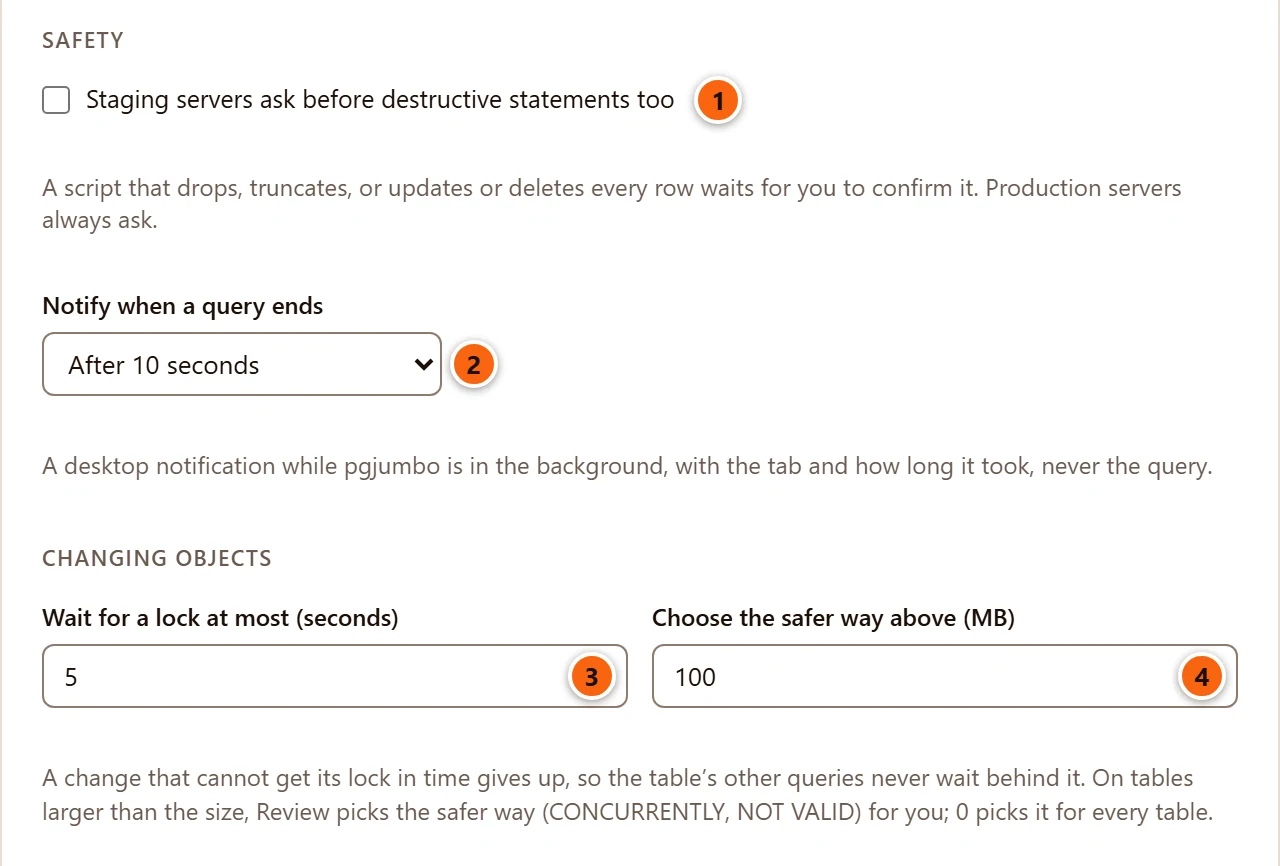
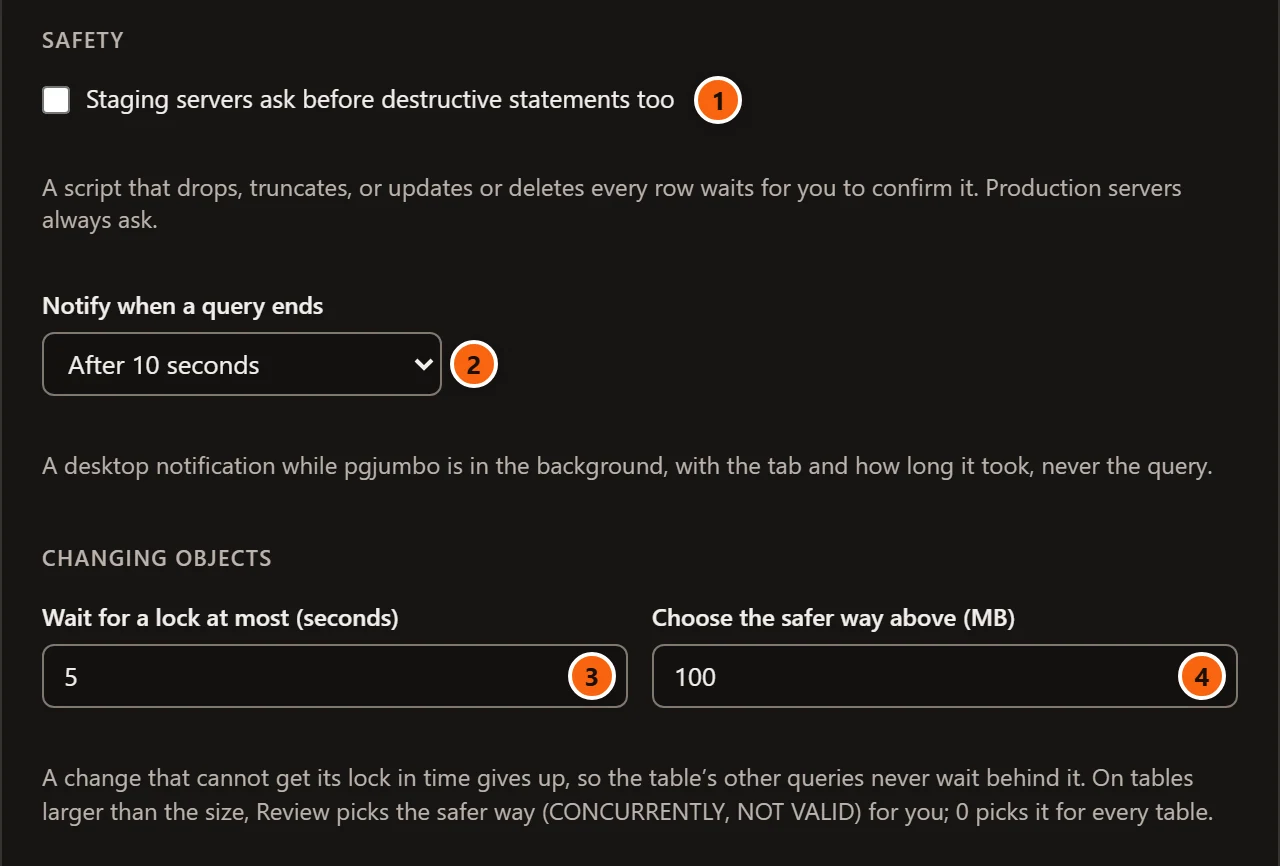
- 1 Staging servers ask before destructive statements too. A server tagged Production always asks
first. Tick this and a server tagged Staging asks in the same places; a Dev server never does. Asking first
means:
- a script with a
DROP, aTRUNCATE, or anUPDATEorDELETEwithout aWHEREwaits for Run anyway before anything is sent, and so does Explain Analyze of such a statement (see Destructive statements on Production); - Drop…, Truncate… and the other changes that ask you to type a name before they run, such as a restore, maintenance, dropping a replication slot or a change to the server’s configuration (see Drop, truncate and other quick actions);
- the review of a change in an object’s tab wants the database’s name typed before Save (see On a server that asks first).
- a script with a
- 2 Notify when a query ends: a run that takes at least this long shows a desktop notification when it ends, if pgjumbo’s window is not the one in front. It says Query finished or Query failed, the tab, how long the run took and how many rows came back, never the SQL. Never turns it off. See When a long query ends.
Changing objects
Section titled “Changing objects”The same picture shows this section under Safety.
- 3 Wait for a lock at most (seconds): when you save a change to an object from its tab, each statement
waits at most this long for its lock. A statement that cannot get its lock in time gives up and nothing is changed,
so the table’s other queries never queue behind a waiting
ALTER. The review sheet can change it for one save. See Wait for a lock. - 4 Choose the safer way above (MB): on a table at least this large, the review sheet picks the way that
blocks less (such as building an index
CONCURRENTLY, or adding a constraintNOT VALIDand validating it after the commit) for each change that has one. You can still untick each one.0picks the safer way on every table. See Safer ways.
Assistant
Section titled “Assistant”The Assistant is off until you tick Use the Assistant; while it is off pgjumbo sends nothing anywhere. Set up the Assistant explains each control here in full.
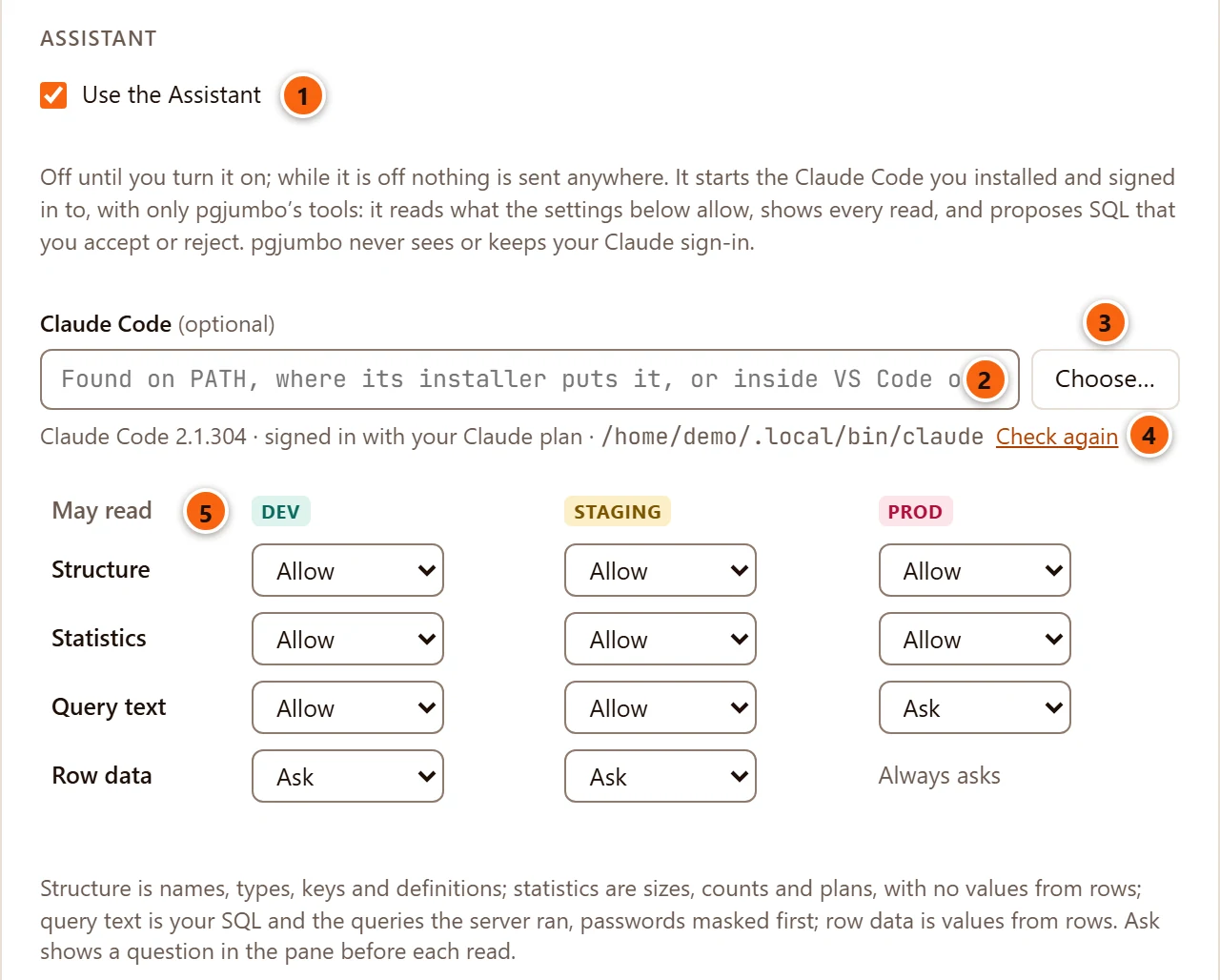
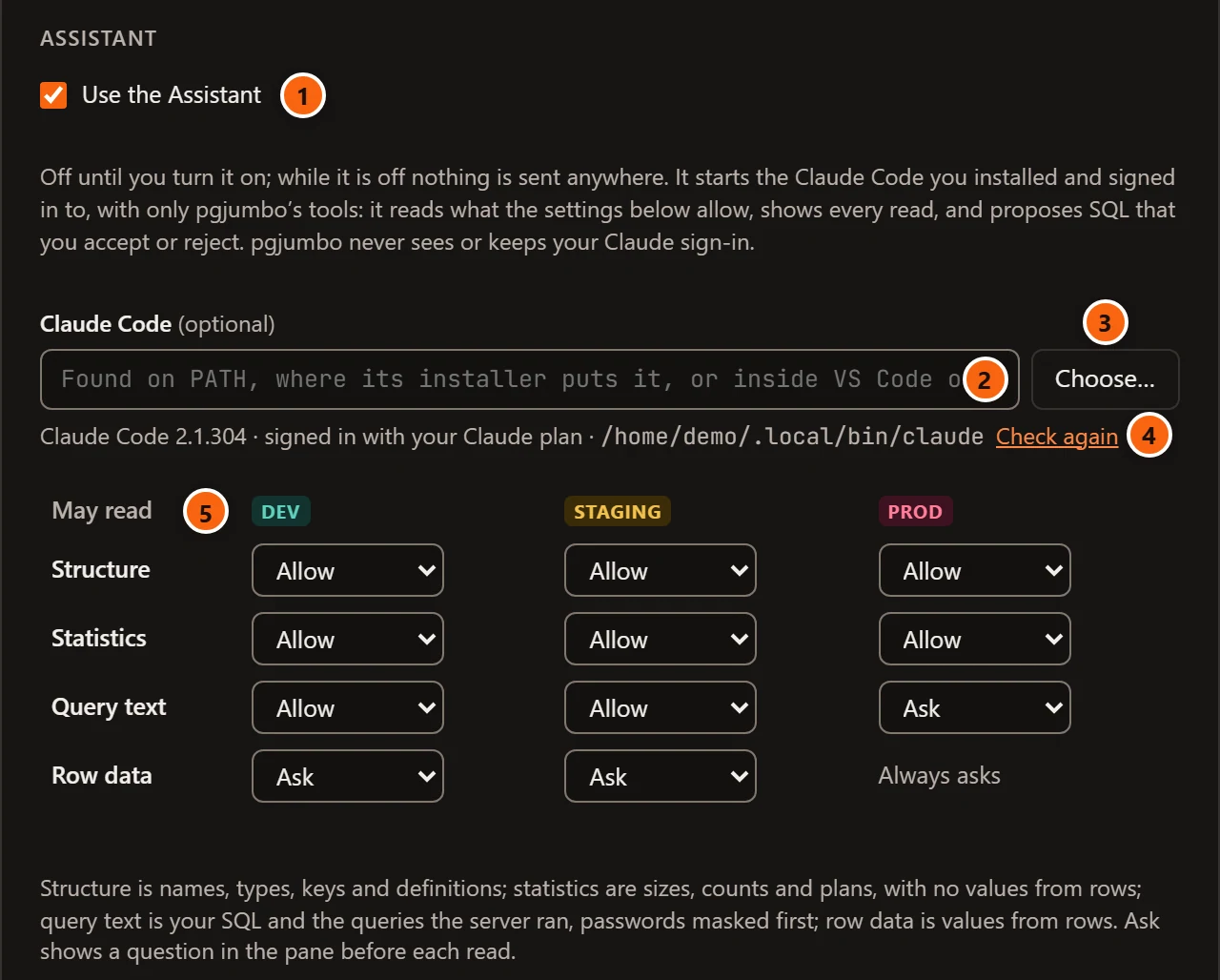
- 1 Use the Assistant: turns the Assistant on, with the Claude Code you installed and signed in to.
- 2 Claude Code: the
claudeprogram to use. Empty, the default, lets pgjumbo find it: on yourPATH, where Claude Code’s installers put it, inside the Claude Code extension of VS Code, Cursor and similar editors, and on a Mac inside the Claude desktop app. - 3 Choose… picks the program in your system’s file dialog.
- 4 The Claude Code pgjumbo found, its version, how it is signed in and where the program is. Check again looks once more, for example after you installed it or signed in. When something is wrong, the line gives the problem instead (see The Assistant cannot find or use Claude Code).
- 5 May read: what the Assistant may read on servers of each environment tag. For each kind of read, choose Allow, Ask (the pane asks you before each read) or Don’t allow.
| May read | Dev | Staging | Prod |
|---|---|---|---|
| Structure: names, types, keys and definitions | Allow | Allow | Allow |
| Statistics: sizes, counts and plans, no values from rows | Allow | Allow | Allow |
| Query text: your SQL and the queries the server ran, passwords masked | Allow | Allow | Ask |
| Row data: values from rows | Ask | Ask | Always asks, which you cannot change |
The line under the Claude Code field reads differently before Claude Code has been looked for:
| The line says | When |
|---|---|
| Claude Code is looked for once the Assistant is on. | The Assistant is off. |
| Claude Code is looked for when you save. | You ticked Use the Assistant and have not saved yet. |
| Looking for Claude Code… | pgjumbo is running claude to read its version and sign-in. |
| Save to check the new choice., after the version | You changed the field and have not saved yet. |
When pgjumbo finds no Claude Code at all, a box under the line shows the command that installs it on your system, with Copy, and a second Check again.
At the end of the section, below the May read table and its help text, Knowledge base names the folder of Markdown files where the Assistant keeps what you approve. Use another folder… changes it as soon as you pick a folder, without Save; see The knowledge folder.
Backup and restore
Section titled “Backup and restore”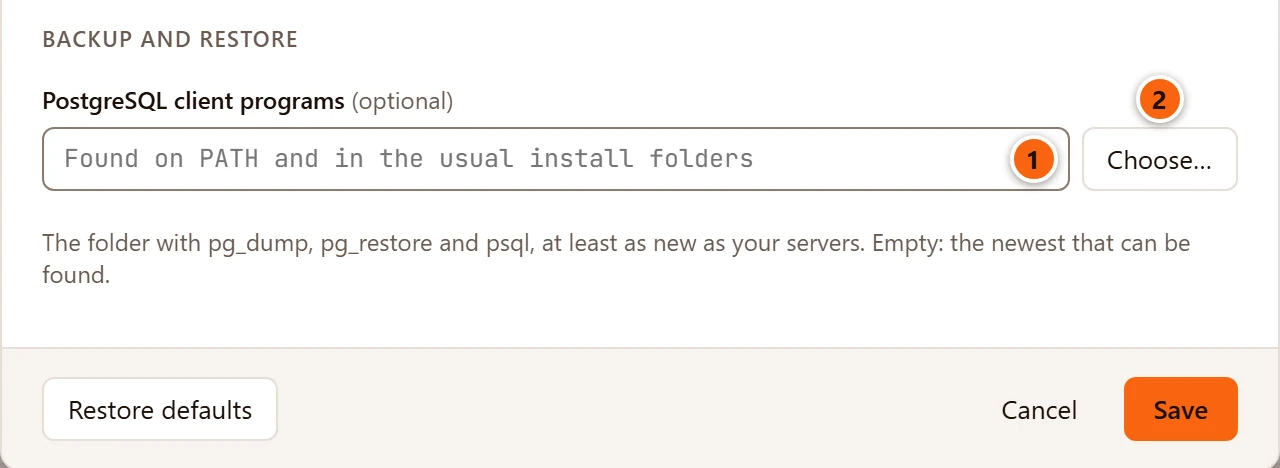
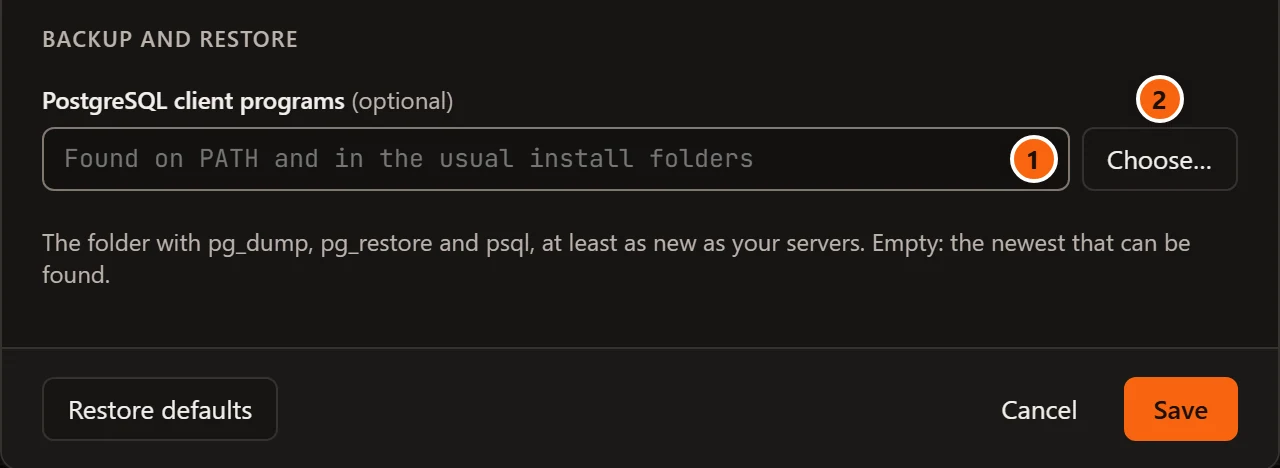
- 1 PostgreSQL client programs: the folder that holds
pg_dump,pg_dumpall,pg_restoreandpsql, which backups, restores and database copies run. The PSQL Tool takes itspsqlfrom the same folder. Empty, the default, makes pgjumbo look on yourPATHand in the usual install folders of your system and take the newest version it finds. With a folder, pgjumbo looks only there. The programs must be at least as new as the server:pg_dumprefuses a newer server. - 2 Choose… picks the folder in your system’s folder dialog.
Where pgjumbo looks, and what to do when it finds nothing, is in Troubleshooting.
When a change takes effect
Section titled “When a change takes effect”Save applies everything at once. Most settings show straight away: the theme, the density, the editor’s font, size,
tab width and syntax underlining in open tabs, the text for NULL in open grids, and the map tiles. Some wait until
they are next used:
| Setting | Takes effect |
|---|---|
| Play the logo animation at startup | At the next start |
| Rows kept per result, Memory per result (MB) | At the next run in each tab |
| Notify when a query ends | When the next run ends |
| Wait for a lock at most (seconds), Choose the safer way above (MB) | At the next review of a change |
| Staging servers ask before destructive statements too | At the next run or change on a Staging server |
| PostgreSQL client programs | At the next backup, restore or copy, or the next psql a psql tab starts |
| Use the Assistant, Claude Code | pgjumbo looks for Claude Code when you save |
HelpCopy Diagnostics… lists the settings that matter in a bug report (theme, density, editor, result limits, whether Staging asks first, the splash and whether a client programs folder is set). See Copy Diagnostics.
To go back to the defaults, click Restore defaults, then Save.