
PSQL Tool
The PSQL Tool runs PostgreSQL’s own psql in a tab, signed in to a database of a server you have connected in
pgjumbo. It is the real psql in a terminal: backslash commands such as \d, \x and \watch, line editing, its
history and its pager work as they do anywhere else. Use it for what psql does best, or for a script written for
psql; for SQL with a results grid, use the Query Tool.
pgjumbo does not include psql. It uses the one installed on your computer with PostgreSQL’s client programs, the
same programs it uses to back up and restore (see Where psql comes from).
Open the PSQL Tool
Section titled “Open the PSQL Tool”The server must be connected first.
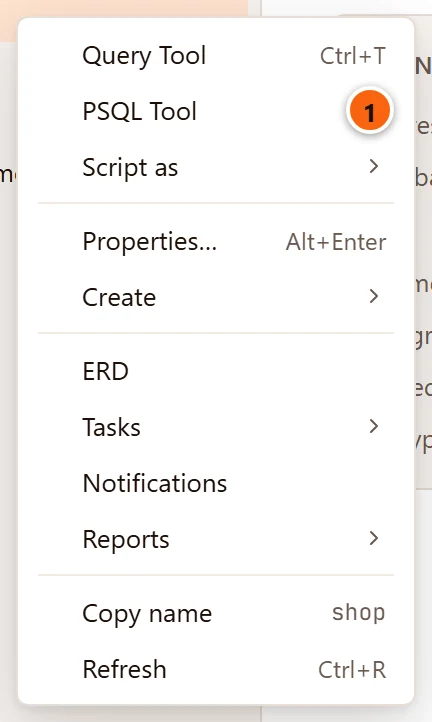
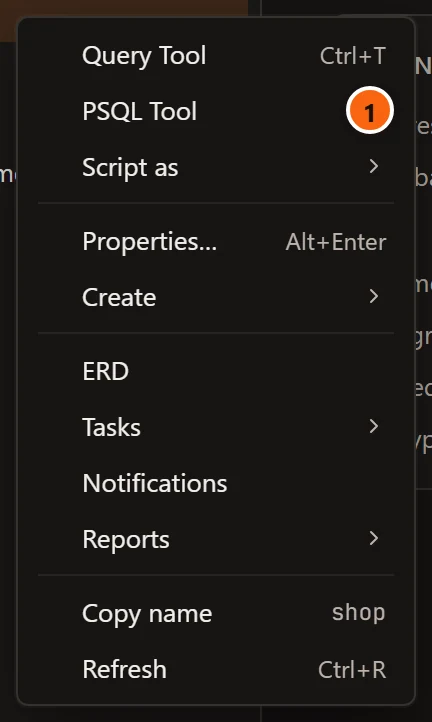
- 1 Right-click a database in the Explorer and choose PSQL Tool.
psqlopens on that database.
There are three more ways in:
| Where | What it opens |
|---|---|
| PSQL Tool on a connected server’s right-click menu, after Query Tool | psql on the server’s maintenance database, the one its connection settings name. |
| ToolsPSQL Tool in the menu bar | psql on the database of the row selected in the Explorer: a database, or anything inside one. On the server’s row, or on a row that belongs to the whole server such as Databases, a role or a tablespace, the maintenance database. Greyed out until a row of a connected server is selected. |
| Duplicate Tab on a psql tab’s right-click menu | Another psql on the same database, in a new tab. |
None of them has keys, and the toolbar has no button for it. A template database’s menu has no PSQL Tool. Each
way opens a new tab with a psql of its own: choosing PSQL Tool again opens a second tab, it does not bring the
first one forward. If pgjumbo cannot tell which database to open, a message titled psql could not be opened says
why.
The psql tab
Section titled “The psql tab”
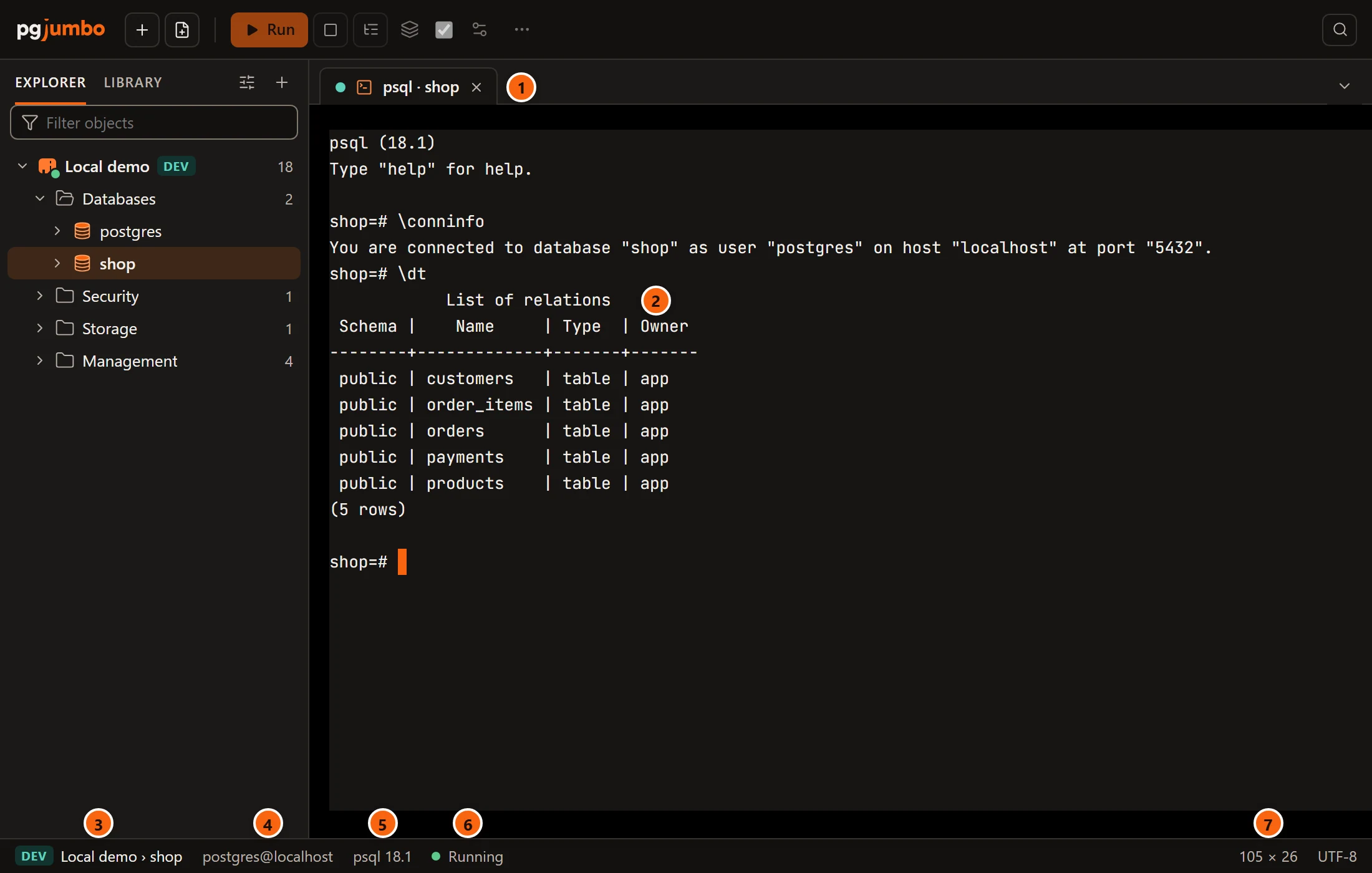
- 1 The tab,
psql · shop: a dot in the colour of the server’s environment, a terminal icon and the database’s name, with a PROD tag on a Production server. Hover over it to see the database and the server (shop on Local demo). - 2 The terminal, where
psqlruns. Type as you would in any terminal; the tab gives the terminal the keyboard when it comes to the front. - 3 The status bar: the environment tag, the server and the database.
- 4 Who
psqlsigns in as and where:postgres@localhost,… via SSHthrough the server’s SSH tunnel, orserviceand its name for a server that uses a service. - 5 The version of
psqlpgjumbo found, such as psql 18.1. - 6 The state: Starting… while
psqlstarts, Running, then Ended. - 7 The terminal’s size in characters, columns × rows, and UTF-8, the encoding
psqlwrites in.
The terminal uses the editor’s font and font size from Settings, and the colours
of the theme, light or dark. It keeps the last 10,000 lines; turn the mouse wheel over it to scroll back. psql
starts in your home folder, so \i, \o and \copy with a relative path read and write there. It also reads your
psqlrc file and keeps its own history file, as it does in any terminal.
The terminal fills the tab. When the tab changes size (you resize the window or a pane, split the centre, or change the
zoom or the font size), pgjumbo tells psql the new size, so its pager and its wrapped lines fit. The size stays
between 20 and 1,000 columns and 4 and 500 rows.
If the Assistant is on, it knows which server and database a psql tab is on. It never sees what psql printed.
How psql signs in
Section titled “How psql signs in”psql connects to the server the way pgjumbo’s own connection does: the same host and port (the reader host on a
read-only server that has one, the writer on a server with a reader host that is not read-only), user, SSL mode and
certificate files, the service when the server uses one, and the server’s SSH tunnel when it has one. Your own PG…
environment variables, such as PGHOST or PGUSER, are left out, so psql always reaches the server the tab names.
It gives up after 15 seconds if the server does not answer.
- Passwords never appear on a command line or in the terminal. When pgjumbo has the server’s password (saved, or typed
when you connected), it writes it to a temporary password file that only your user can read, for this server’s host,
port and user alone, and deletes the file when
psqlends. A\cto another host or as another user is never sent it:psqlasks you for that password in the terminal. For a server that uses a service, which names its own host and port, the file names only the user. - With AWS IAM sign-in, pgjumbo signs a new token when
psqlstarts. The token is good for 15 minutes, so a\cafter that asks for a password. - A server with no password (trust, peer or a client certificate) gets no password file.
- On a server marked read-only,
psql’s transactions are read-only by default too, as pgjumbo’s own are. See Connection settings.
In the server’s Activity, the session shows with the application name pgjumbo/psql.
Keys in the terminal
Section titled “Keys in the terminal”While the terminal has the keyboard, its keys belong to psql, as they do in a terminal: Ctrl+C cancels
the running query or clears the line, ↑ and ↓ step through what you typed before, and on
macOS and Linux Ctrl+D on an empty line ends psql, Ctrl+R searches the history and
Tab completes names. Those last keys come with the line editing psql was built with; the psql of
PostgreSQL’s Windows installer has none, so on Windows end psql with \q.
What you type while the status bar says Starting… waits, and goes to psql once it runs. A few keys stay
pgjumbo’s:
| What | macOS | Windows and Linux |
|---|---|---|
| Copy the selected text | ⌘ C | Ctrl+C while text is selected, or Ctrl+Shift+C |
| Paste | ⌘ V | Ctrl+V or Ctrl+Shift+V |
| pgjumbo’s shortcuts | Every ⌘ shortcut, such as ⌘ W to close the tab | Those with Ctrl+Shift, such as Ctrl+Shift+B for the Inspector, and Ctrl+, (Settings), Ctrl+= and Ctrl+- (zoom) |
Go to psql |
Every ⌃ key | Ctrl with a letter |
On Windows and Linux that means Ctrl+W, Ctrl+T, Ctrl+R and the other
shortcuts of Ctrl and a letter go to psql instead of pgjumbo: Ctrl+W does not close the tab. Close
it with its ×, its right-click menu or FileClose Tab, or click outside the terminal first.
Without a selection, Ctrl+C interrupts psql as usual.
On Linux, the menu bar sees a key before the window does. While the terminal has the keyboard, pgjumbo lends the
menu’s Ctrl shortcuts with a letter (Ctrl+N, Ctrl+T, Ctrl+O,
Ctrl+S, Ctrl+W, Ctrl+R, Ctrl+B, Ctrl+J,
Ctrl+K and Ctrl+P) to psql, and takes them back when you click elsewhere.
Ctrl+Q still quits pgjumbo.
Drag over the text to select it; a double-click selects a word. The terminal has no right-click menu of its own; on a Mac, a right-click selects the word under the pointer.
Where psql comes from
Section titled “Where psql comes from”pgjumbo looks for psql each time it starts one (a new psql tab, Duplicate Tab or Start again), in the same
places as for backups: the folder named under PostgreSQL client programs in
Settings when you set one, and only there; otherwise every folder on
your PATH, then the folders PostgreSQL’s installers use. Of several, it takes the
newest major version. Back up and restore
lists those folders for each system.
Any version of psql is used. One older than the server says so itself when it starts, and some of its \d
commands may not know the server’s newest features; install a newer client to get them.
On Windows, psql may start with a warning about the console’s code page, as it does in any console window. pgjumbo
switches the console to UTF-8 before psql starts and has psql write UTF-8, so accented and other non-English
characters come out right all the same.
When psql ends
Section titled “When psql ends”psql ends when you type \q, press Ctrl+D on an empty line (macOS and Linux), or it cannot connect,
and when its server is disconnected in pgjumbo. The terminal keeps what it printed, and a bar below it says what
happened.


- 1 What happened (see the table below).
- 2 Start again starts a new
psqlin the same tab, on the same database, below what the old one printed. It is a new session: whatever the old one had set, and its open transaction, are gone. - 3 The status bar says Ended.
| The bar says | When |
|---|---|
| psql ended. | You ended it, with \q or Ctrl+D. |
| psql ended: it could not connect (its message is above). | psql could not sign in or reach the server. Its own error is the last thing in the terminal. |
| psql ended with exit code and a number | psql stopped for another reason; the number is its exit code, and its own message, if it wrote one, is the last thing in the terminal. |
| psql ended: the server was disconnected. | The server is not connected in pgjumbo. Disconnecting a server ends every psql of that server, and the bar says this whenever the server is disconnected, whatever ended psql. |
| psql was not found on PATH or in the usual install folders. Install PostgreSQL’s client programs, or choose their folder in Settings. | pgjumbo found no psql. With a folder set in Settings, it says in and the folder instead of on PATH or in the usual install folders. Install the client programs or set the folder, then click Start again. |
| Another message | pgjumbo could not start psql, for example because the terminal or the password file could not be made; the message says why. |
While the server is not connected, the bar offers no Start again:


- 1 Why
psqlended. - 2 Connect the server again (see Manage your servers); the bar then offers Start again.
pgjumbo never starts psql again by itself. What you type after psql has ended goes nowhere.
Close the tab
Section titled “Close the tab”Click the tab’s ×, right-click it and choose Close, or choose FileClose Tab
(⌘ W (Ctrl+W on Windows and Linux); on Windows and Linux the key closes the tab only while the terminal does not have
the keyboard). psql ends at once, without asking, and the server rolls back a transaction that was still open. A psql
tab does not come back when you start pgjumbo again; Query Tool tabs do.
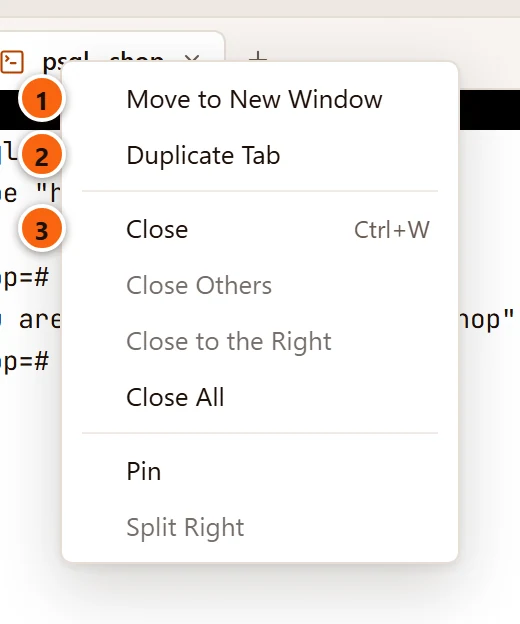

- 1 Move to New Window moves the tab, with
psqlstill running and what it printed, to a window of its own; a tab whosepsqlhas ended moves too, with its Start again. See Move a tab to its own window. - 2 Duplicate Tab opens another
psqlon the same database. - 3 Close and the other items work as on any tab; see Tabs.