
Views and materialized views
A view or a materialized view opens in a tab of its own, like a table. The tab shows its rows, its name and owner, its query and options, and its CREATE script. You change it there, and nothing runs until you save. pgjumbo works out whether a new query can replace the view in place or whether the view has to be dropped and made again, and shows you the statements first.
Create a view or a materialized view
Section titled “Create a view or a materialized view”Right-click the Views folder of a schema and choose Create view…, or the Materialized views folder and choose Create materialized view…. On a schema or a database, the same items are in the Create submenu.
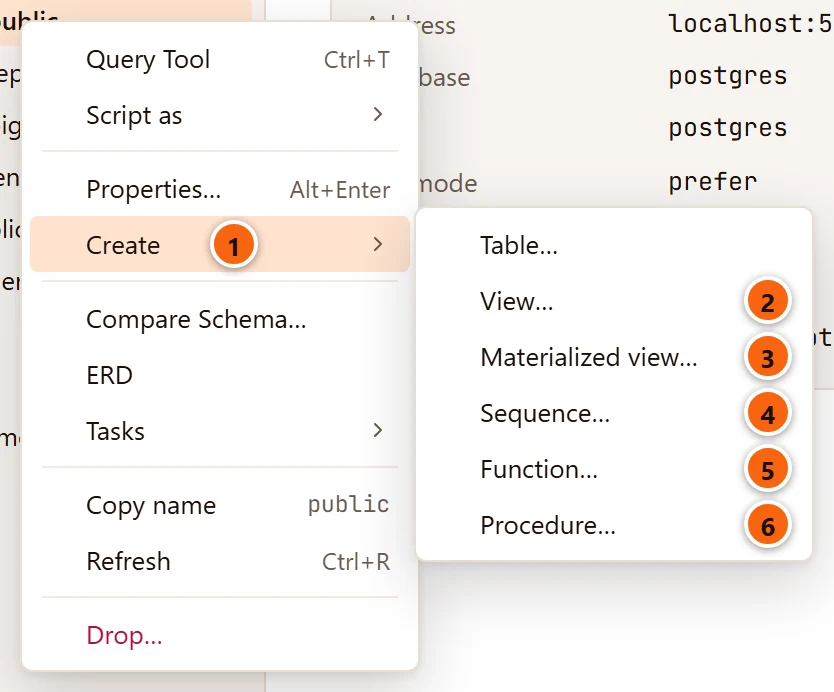
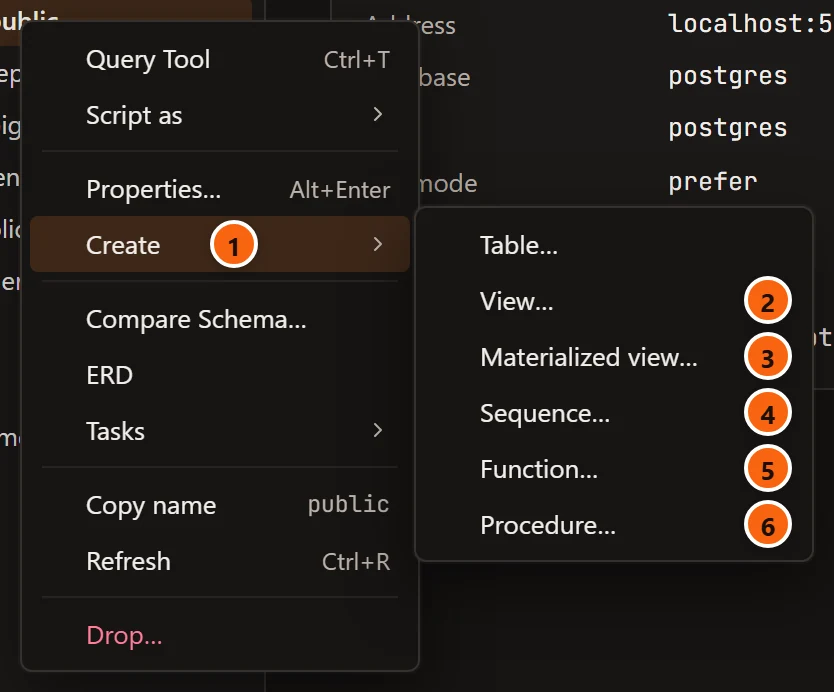
- 1 Create opens the submenu of what a schema can hold. On a database the submenu starts with Schema….
- 2 View… opens the Create view dialog.
- 3 Materialized view… opens the same dialog for a materialized view.
- 4 Sequence… is explained in Sequences.
- 5 Function… and 6 Procedure… open an empty function tab, explained in Functions and procedures.
Table…, at the top, opens an empty table tab; see Tables.
The dialog needs a connected server. Its subtitle names the server and the database the view goes into, with the server’s environment tag.
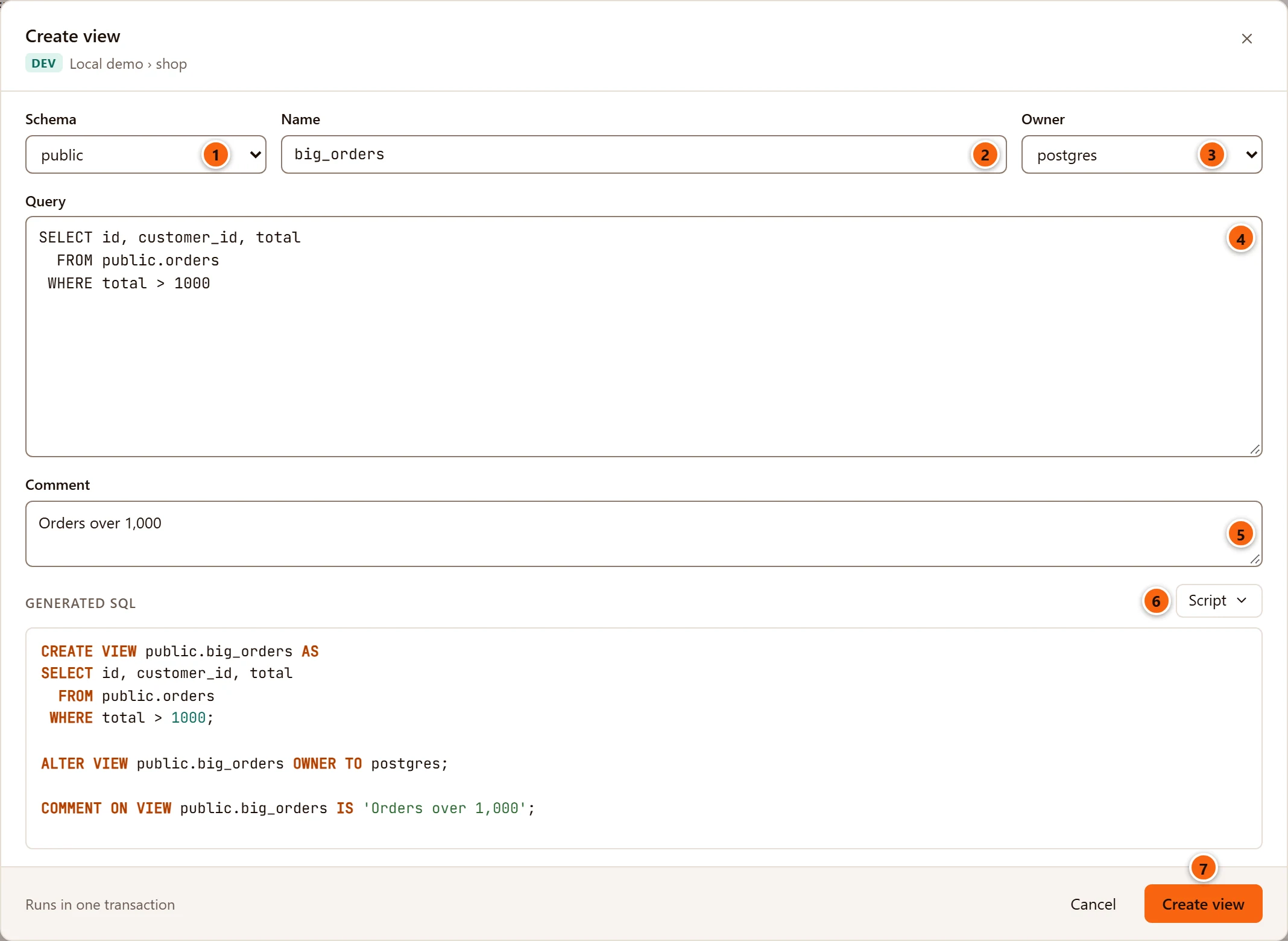
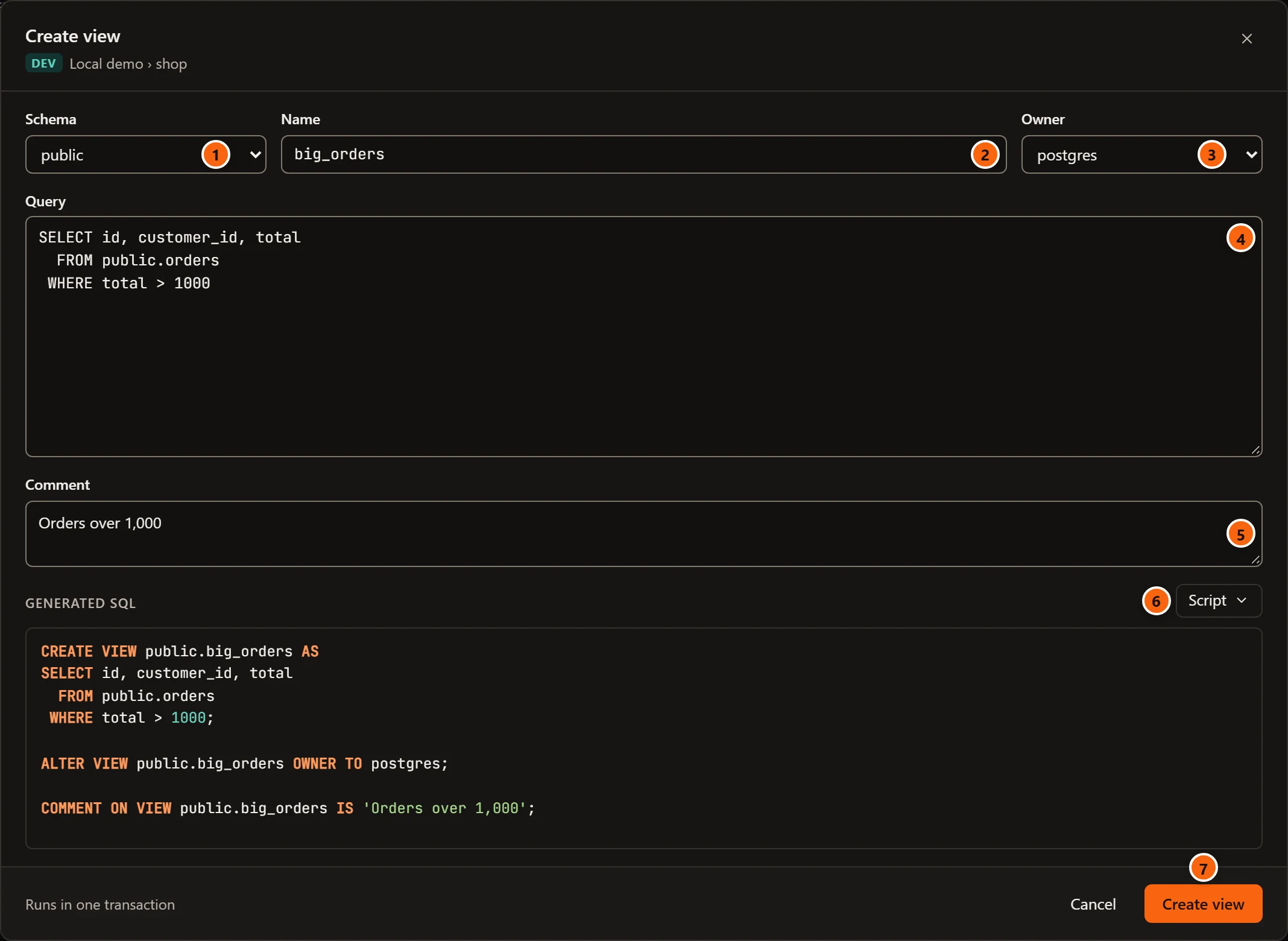
- 1 Schema: where the view goes. It starts on the schema you right-clicked, or
public. - 2 Name: the view’s name, as you want it. pgjumbo has the server quote it, so any name works.
- 3 Owner: the role that will own it. It starts on the role you are connected as.
- 4 Query: the view’s
SELECT, one statement. A semicolon at the end is dropped. - 5 Comment: written with
COMMENT ON VIEW; leave it empty for none. - 6 Script opens a menu with Open in Query Tool, Copy and Save to file…, for the statements shown under Generated SQL. Nothing runs from there. Open in Query Tool also closes the dialog.
- 7 Create view runs the statements.
Generated SQL shows the statements as you type: CREATE VIEW, then ALTER VIEW … OWNER TO and COMMENT ON VIEW.
Until the view has a name it says “Name the view to see its SQL.” A mistake pgjumbo can see on its own shows in red in
its place: “Write the view’s query.” or “The view’s query must be one statement.”
For a materialized view the dialog is called Create materialized view and has two more fields under the query:
| Field | What it does |
|---|---|
| Tablespace | Where its rows are stored. Database default leaves it to the database. |
| Fill it now (WITH DATA) | Ticked, the query runs now and fills it (WITH DATA). Unticked, it is created empty (WITH NO DATA) and cannot be queried until you refresh it. |
Create view (or Create materialized view) runs everything in one transaction (“Runs in one transaction”, the footer says), on a connection of its own. PostgreSQL checks the query at that moment: if it refuses it, its message shows in red at the bottom of the dialog and nothing is created. When it works, the dialog closes, a notice beside the row you right-clicked says “schema.name was created”, and the Explorer shows the new view. Cancel closes the dialog without running anything.
Open a view in its tab
Section titled “Open a view in its tab”- Double-click a view or a materialized view in the Explorer, or select it and press Enter. The tab opens on Data.
- Right-click it and choose View DataAll rows, First 100 rows, Last 100 rows or Filtered rows…. The tab opens on Data, starting as you chose.
- Right-click it and choose Properties…, or select it and press ⌘ I (Alt+Enter on Windows and Linux). The tab opens on General.
- Find it with Open Quickly, or double-click it in Object Details.
If the tab is already open, it comes to the front. Every way needs the server to be connected.
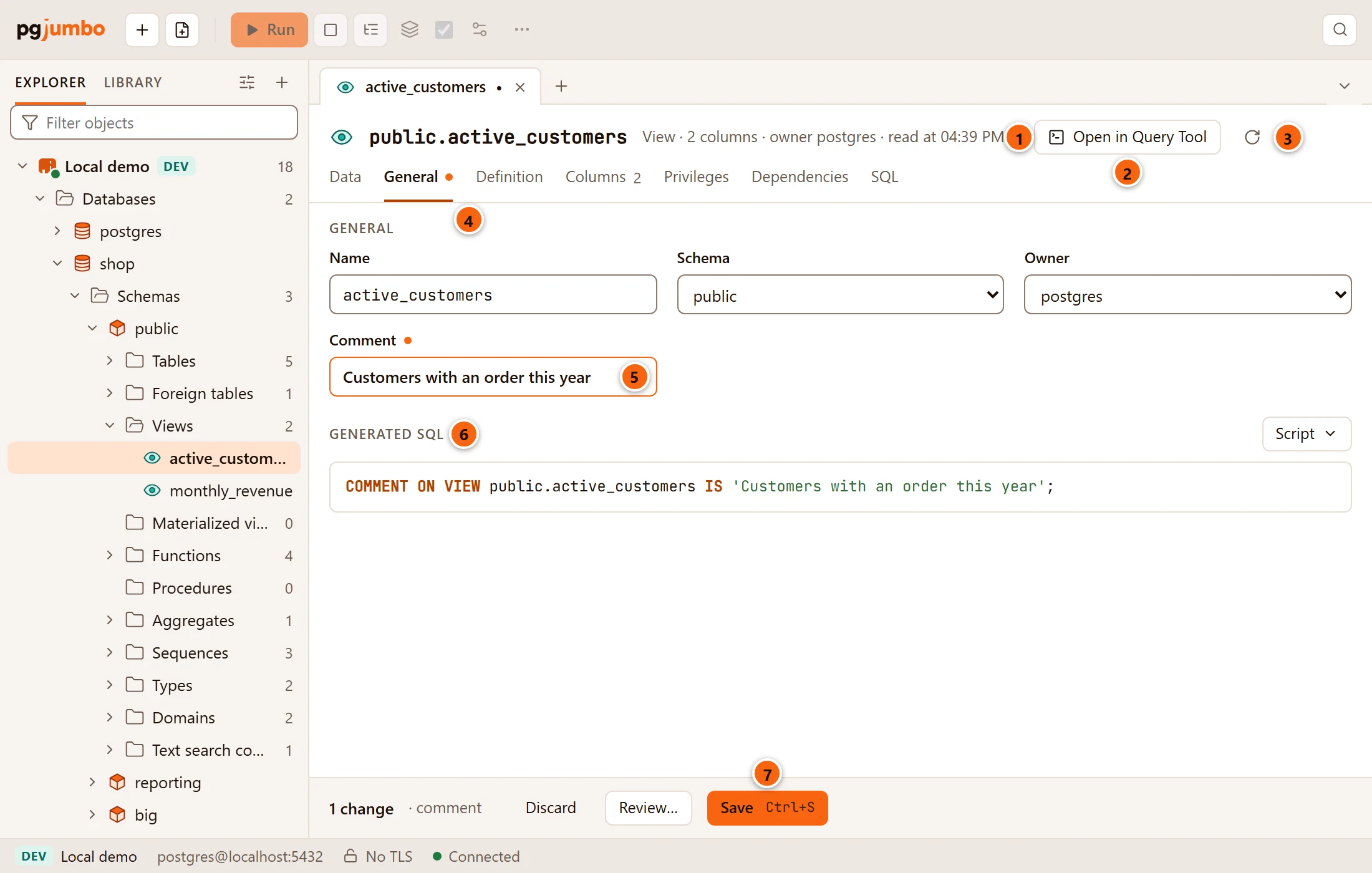
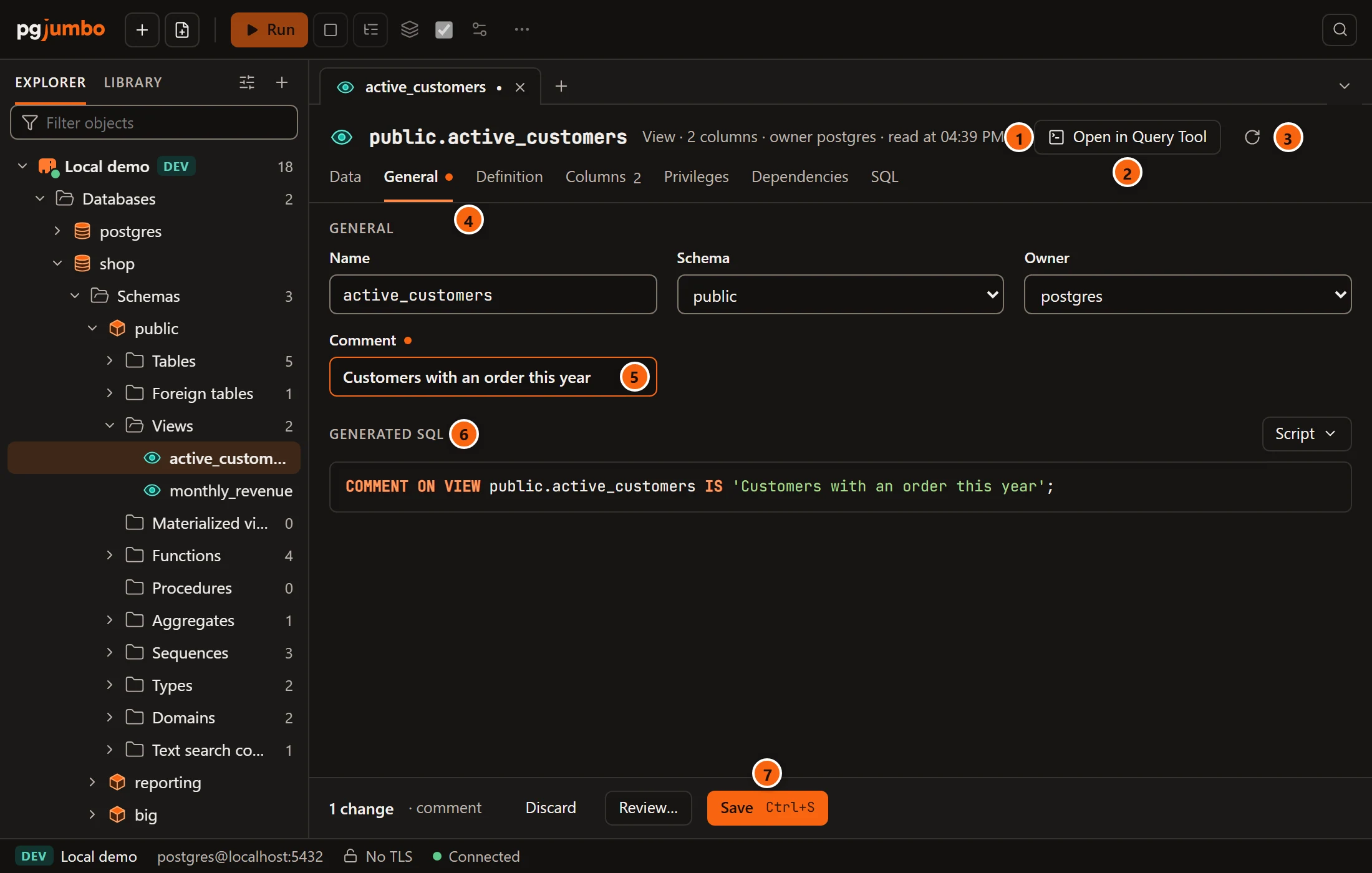
- 1 The view’s name, then what it is: View, how many columns it has, its owner and when the tab read it.
- 2 Open in Query Tool opens the view’s CREATE script in a new Query Tool on its database. Nothing runs. The button is not there on Data, where the data bar has its own.
- 3 Read again reads the view from the server again. It drops any change you have not saved.
- 4 The tab’s views. A dot after a name means you changed something there. Columns shows how many columns the view has.
- 5 A field you changed has a coloured border and a dot after its label.
- 6 Generated SQL appears once you change something and shows the statements Save will run. Its Script menu can open, copy or save them.
- 7 The pending bar counts your changes and offers Discard, Review… and Save (⌘ S (Ctrl+S on Windows and Linux)). See Save your changes.
A view’s tab has these views: Data, General, Definition, Columns, Privileges, Dependencies and SQL. A materialized view’s tab is described further down.
The Data view
Section titled “The Data view”Data shows the view’s rows in a data tab of its own, on a session of its own: the filter, the sort, the row limit and the grid work as in View data. A view’s rows are read only here, because a view is not a table; to change rows, open the table they come from.
The General view
Section titled “The General view”| Field | What it does |
|---|---|
| Name | Renames the view (ALTER VIEW … RENAME TO). |
| Schema | Moves it to another schema of the database (ALTER VIEW … SET SCHEMA). |
| Owner | Gives it to another role (ALTER VIEW … OWNER TO). |
| Comment | Sets or clears its comment (COMMENT ON VIEW). |
After a rename or a move, the tab follows the view under its new name.
Change the query: the Definition view
Section titled “Change the query: the Definition view”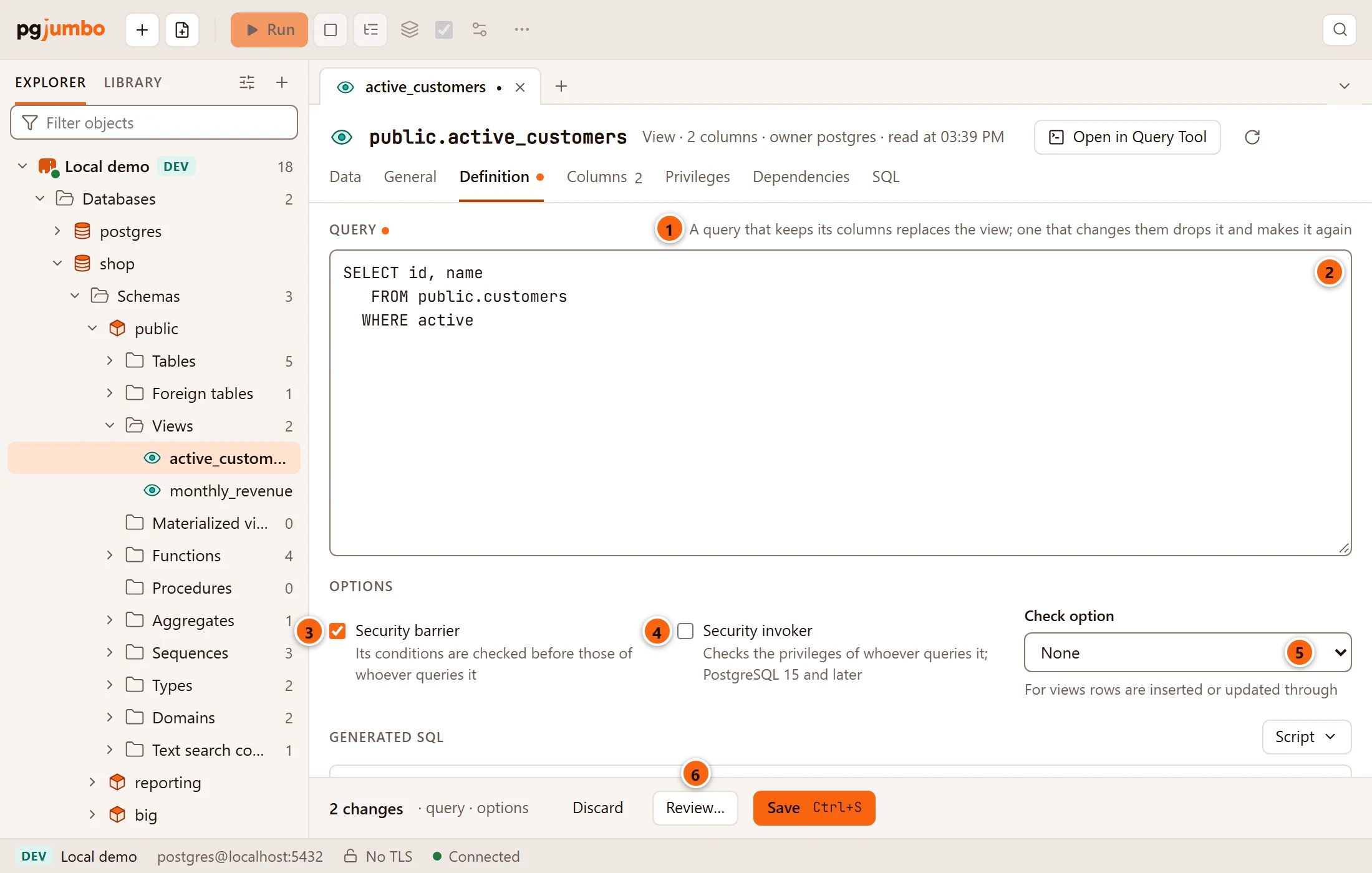
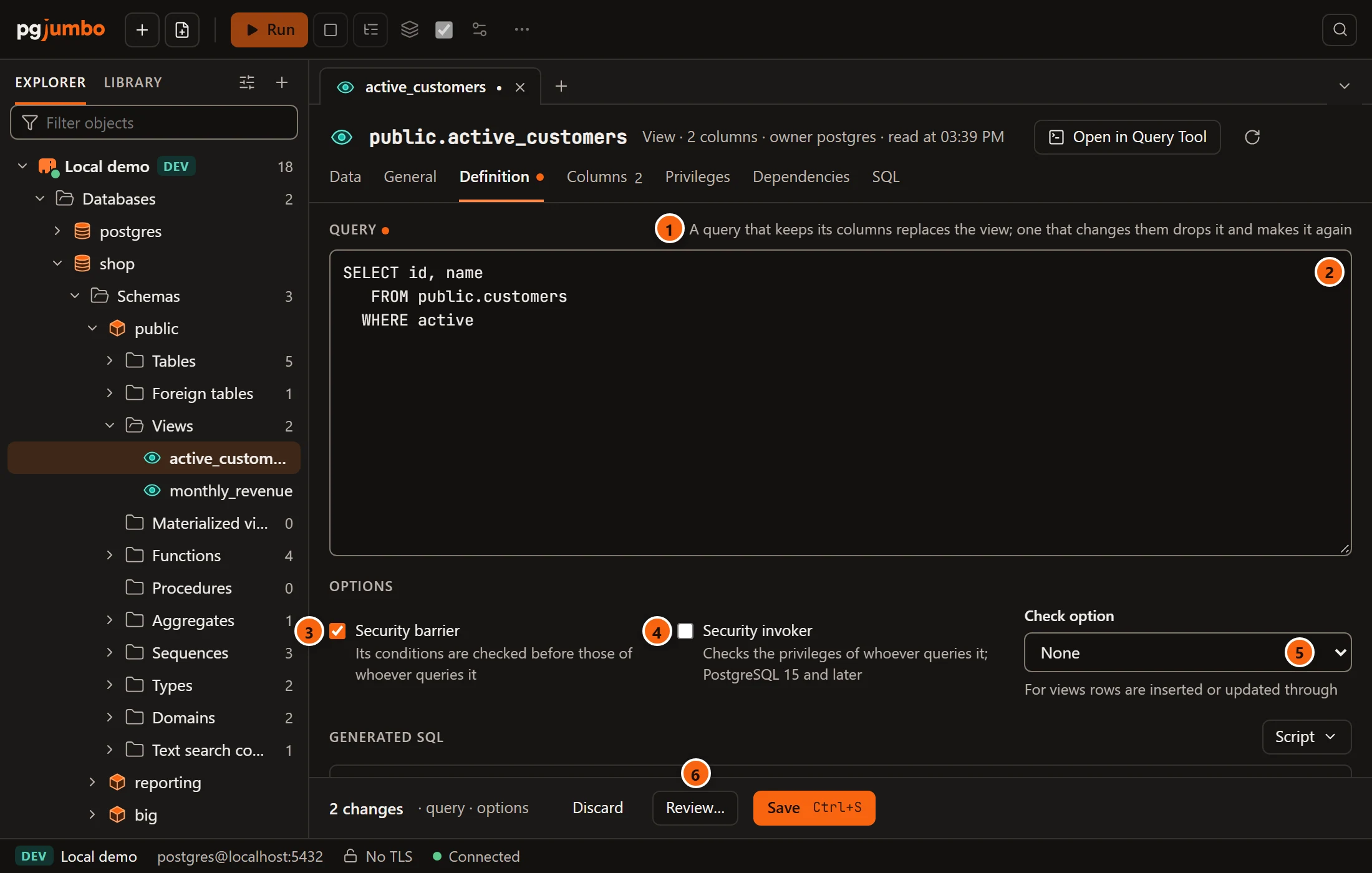
- 1 The rule pgjumbo follows, written above the query: a query that keeps the view’s columns replaces it; one that changes them drops it and makes it again.
- 2 Query: the view’s
SELECT, as PostgreSQL prints it. Edit it here. A dot after Query means it changed. - 3 Security barrier: the view’s own conditions are checked before those of whoever queries it
(
security_barrier). - 4 Security invoker: queries through the view use the privileges of whoever runs them, not the view
owner’s (
security_invoker). PostgreSQL 15 and later; on an older server pgjumbo refuses to turn it on. - 5 Check option: for a view that rows are inserted or updated through. None, Local (a row must stay visible through this view) or Cascaded (and through the views it is built on).
- 6 Review… shows what Save will do, statement by statement.
Below the options, Generated SQL shows the statements. The options are set with ALTER VIEW … SET (…) and cleared
with ALTER VIEW … RESET (…).
Replace or drop and make again
Section titled “Replace or drop and make again”When the query changes, pgjumbo first tries it as a temporary view, in a transaction it rolls back at once. Nothing is left behind, and a query PostgreSQL refuses shows its error under Generated SQL before anything runs. The temporary view tells pgjumbo which columns the new query has:
- If the view’s columns stay as they are (same names, same types, in the same order, with new ones only at the end),
the statement is
CREATE OR REPLACE VIEW. - If they change, PostgreSQL cannot replace the view. The statements become
DROP VIEWandCREATE VIEW, followed by what the new view needs to be like the old one: its owner, its comment, its options and its privileges. - If other views use the view, PostgreSQL will not drop it, and neither will pgjumbo. Generated SQL says which views use it and asks you to change them together in a Query Tool.
A view made again is a new object to PostgreSQL. The tab follows it, and the Explorer shows it again after the save.
The Columns view
Section titled “The Columns view”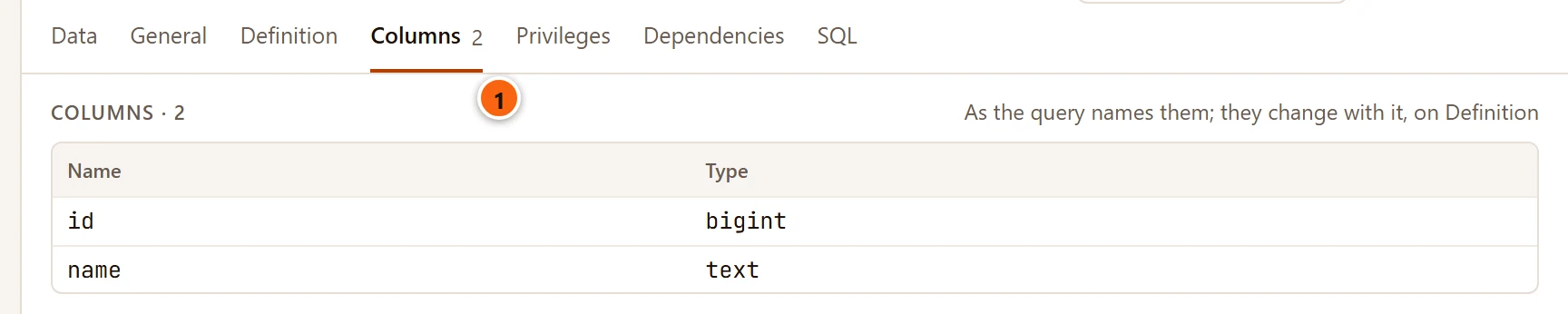
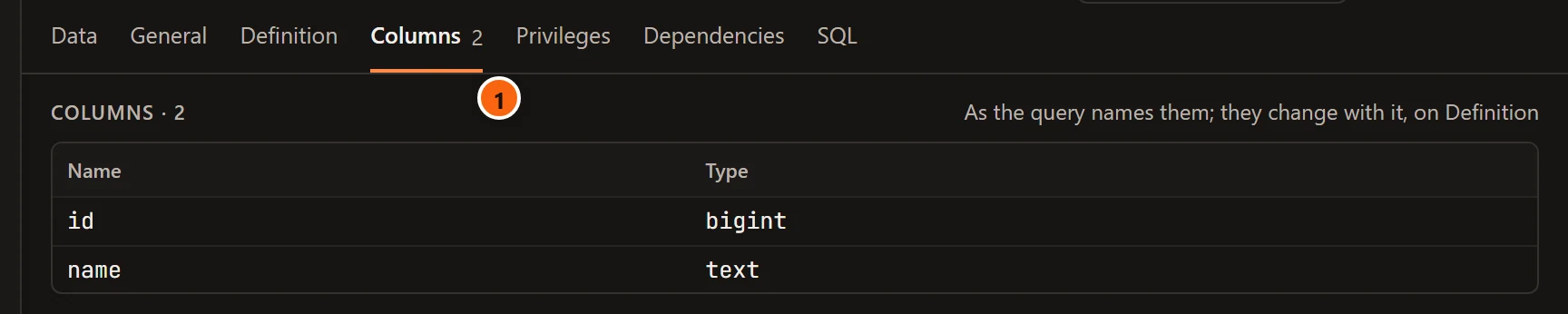
- 1 Columns shows how many columns the view has. The table lists each column’s Name and Type, as the query names them. You cannot edit them here: they change with the query, on Definition.
Privileges, Dependencies and SQL
Section titled “Privileges, Dependencies and SQL”- Privileges shows who holds which privileges on the view and lets you grant and revoke them. The grid is explained in Privileges.
- Dependencies lists what the view depends on and what uses it. Open on a row shows that object in the Inspector, as in The Inspector.
- SQL shows the view’s CREATE script, with Open in Query Tool and the Script menu.
Save your changes
Section titled “Save your changes”The pending bar at the bottom of the tab counts what you changed, for example “2 changes · query · options”.
- Discard puts the tab back as it was read.
- Review… opens the review sheet: each statement, the lock it takes and what it does. See Object tabs and review.
- Save (⌘ S (Ctrl+S on Windows and Linux)) runs the statements in one transaction, on a connection of its own.
Every statement that changes a view takes an ACCESS EXCLUSIVE lock on it, so it waits for queries that are reading
the view. It only changes the catalog, which takes a moment once the lock is held, so Save runs without opening the
review sheet. It waits for each lock at most as long as Wait for a lock at most (seconds) in
Settings; if it cannot get the lock in time, nothing is saved. COMMENT takes no lock, and
GRANT and REVOKE take only an ACCESS SHARE lock on PostgreSQL 18 and none before.
If someone changed the view since the tab read it, nothing runs. The pending bar says what changed and offers Read again.
Materialized views
Section titled “Materialized views”A materialized view’s tab works like a view’s, with these views: Data, General, Definition, Indexes, Refresh, Privileges, Statistics and SQL.
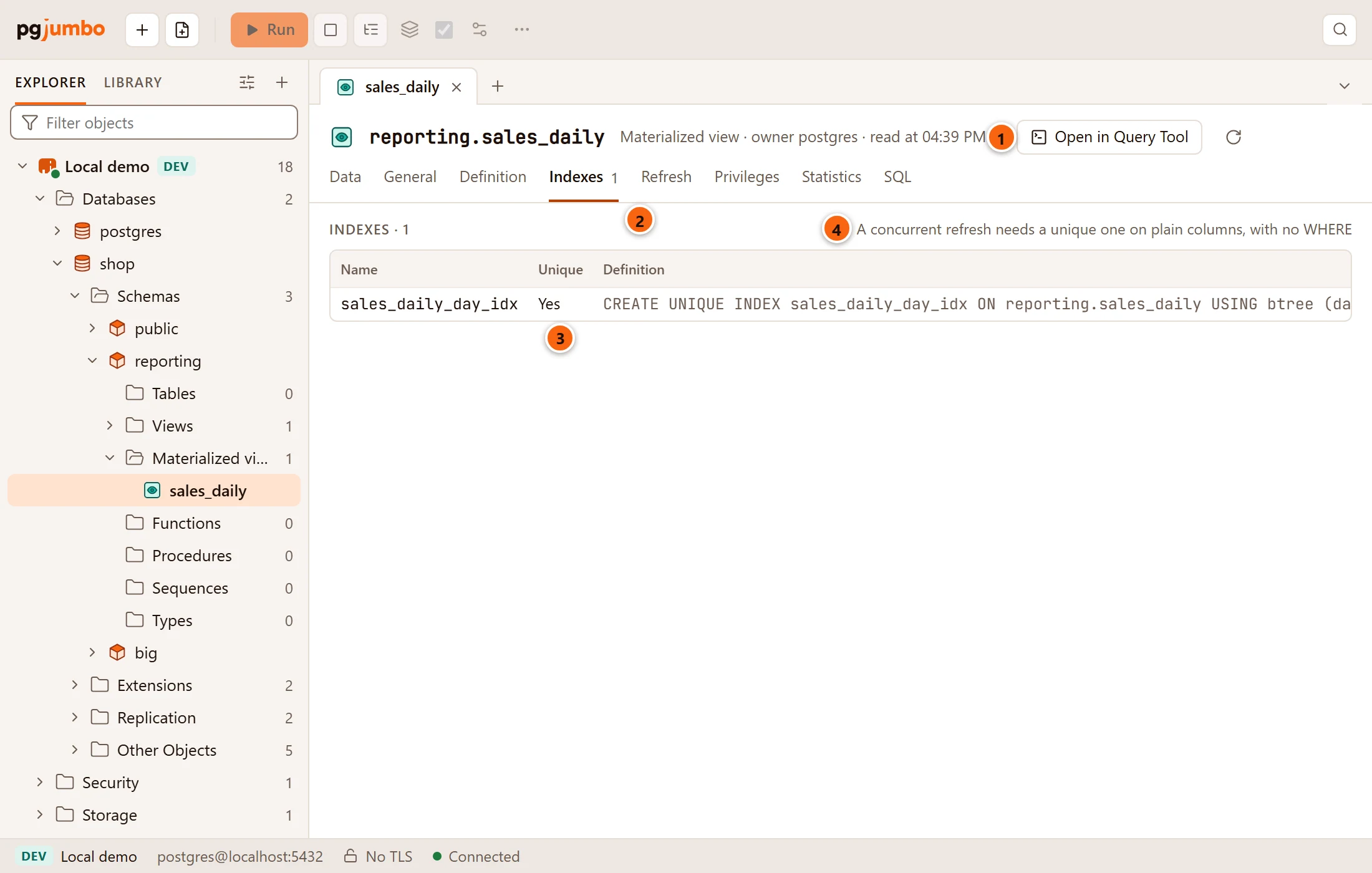
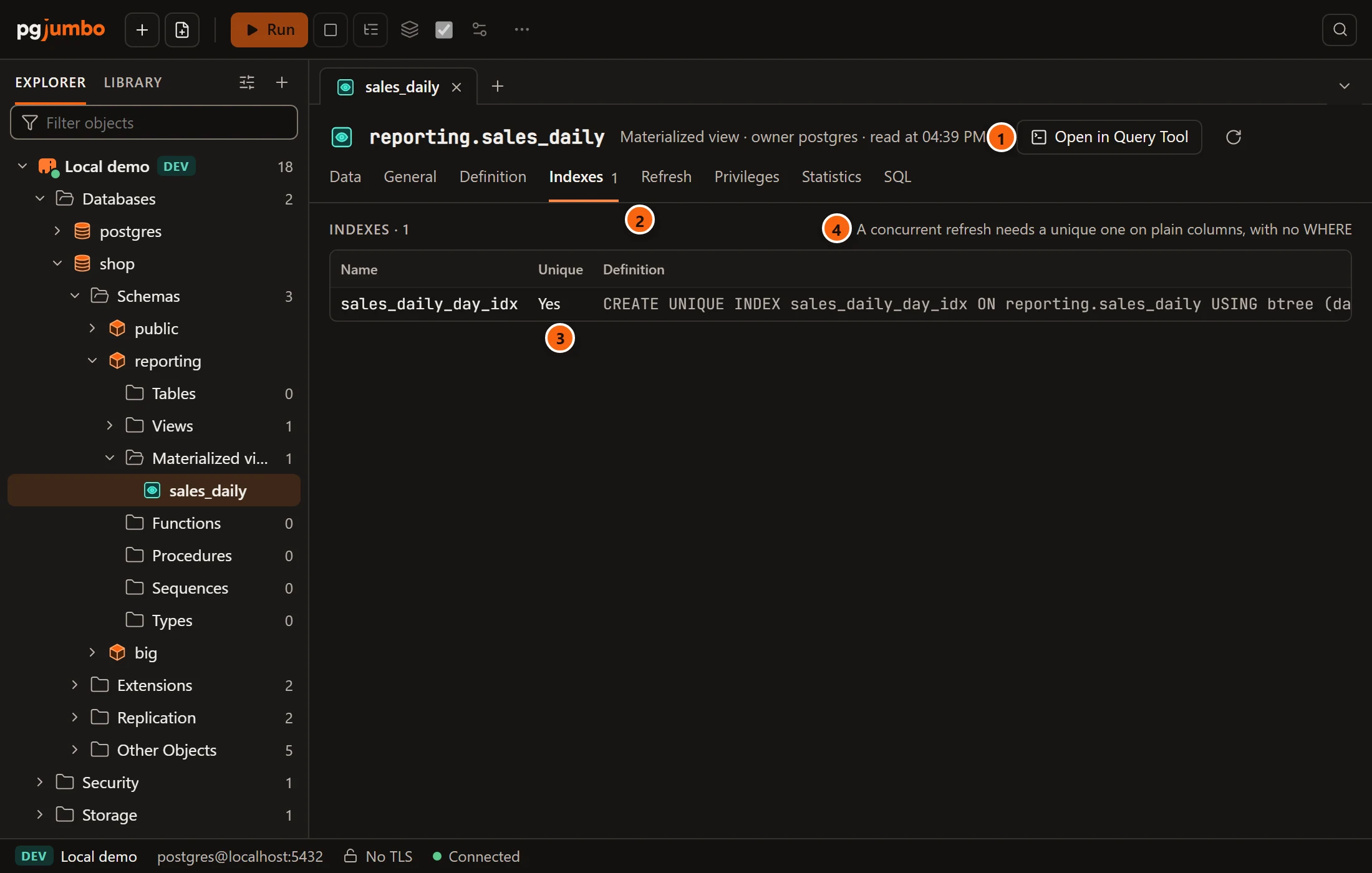
- 1 Materialized view, its owner and when the tab read it. “holds no data” is added while it has no rows,
for example after a
CREATE … WITH NO DATAthat was never refreshed. - 2 Indexes shows how many indexes it has.
- 3 Each index’s Name, whether it is Unique (Yes or a dash), and its Definition. With none, the view says “It has none.”
- 4 A concurrent refresh needs a unique index on plain columns, with no
WHERE.
You cannot change indexes on this view. To add one, open the materialized view’s row in the Explorer with the arrow, right-click its Indexes folder and choose Create index…; the index dialog is explained in Tables.
General
Section titled “General”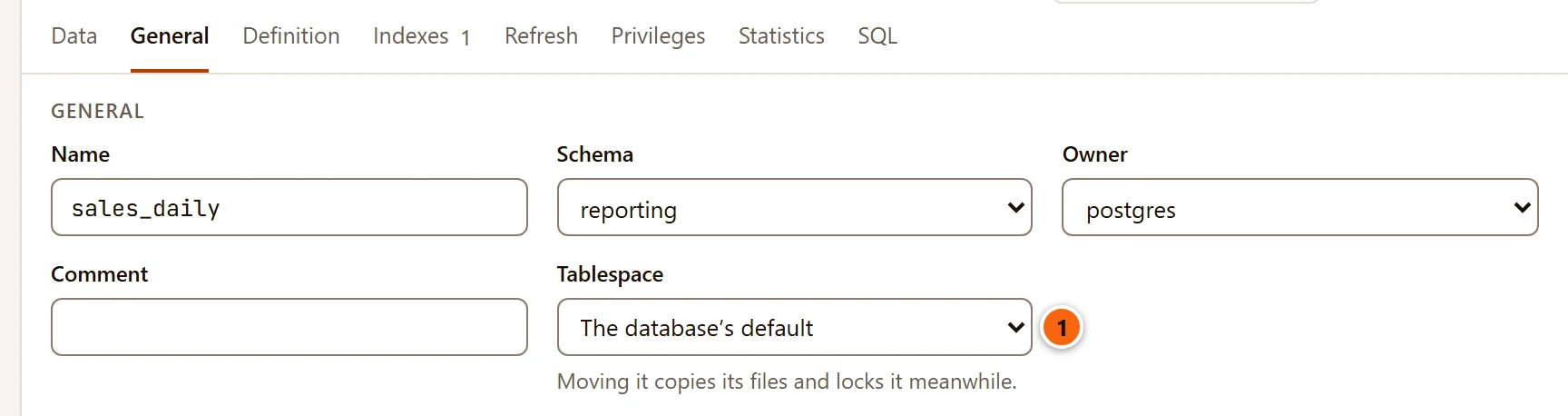
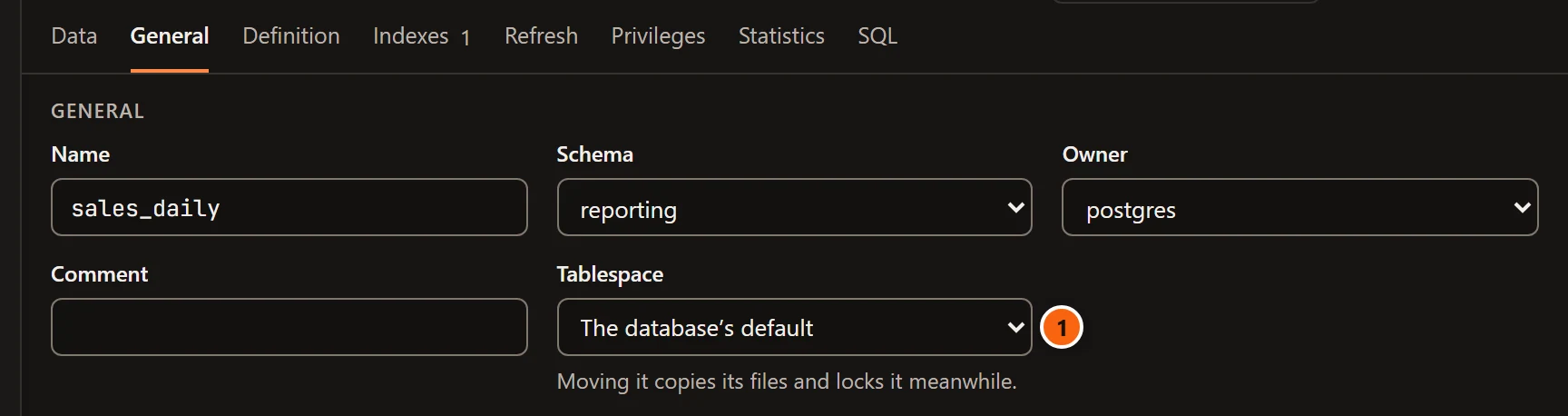
General has the same Name, Schema, Owner and Comment as a view’s, and one more field:
- 1 Tablespace: where its rows are stored. Choosing The database’s default moves it to
pg_default. Moving it copies its files under anACCESS EXCLUSIVElock, so nobody can read it meanwhile; Save opens the review sheet for it.
Definition
Section titled “Definition”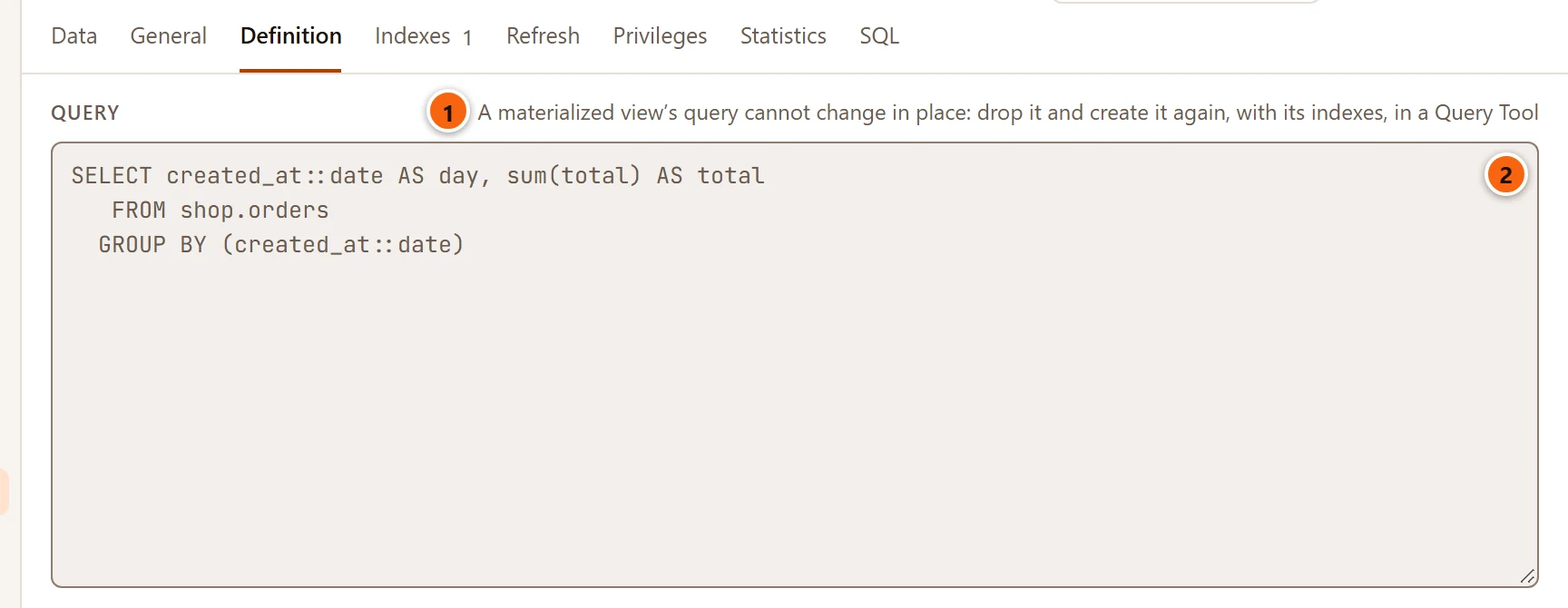
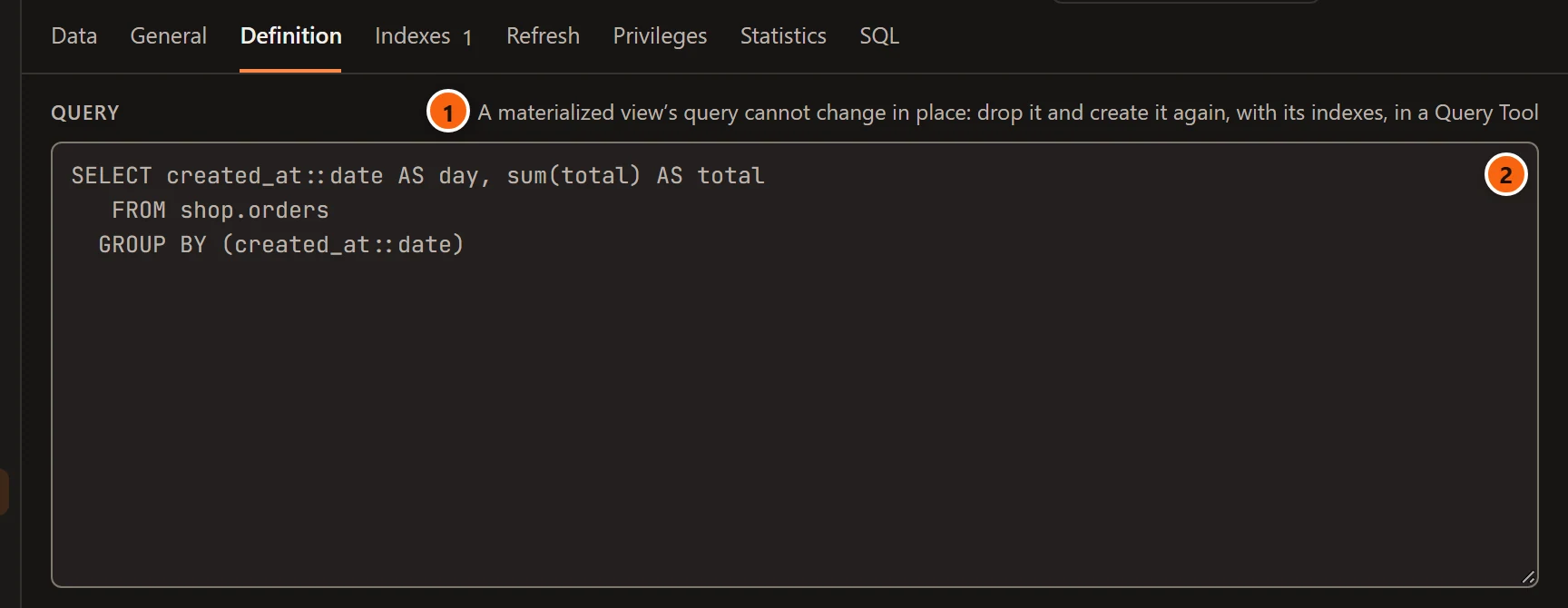
- 1 The note: PostgreSQL cannot change a materialized view’s query in place.
- 2 Query: the query, as PostgreSQL prints it. You can select and copy it, not edit it.
To change the query, drop the materialized view and create it again in a Query Tool, with its indexes. Right-click it and choose Script asDROP and CREATE for a starting point.
Refresh
Section titled “Refresh”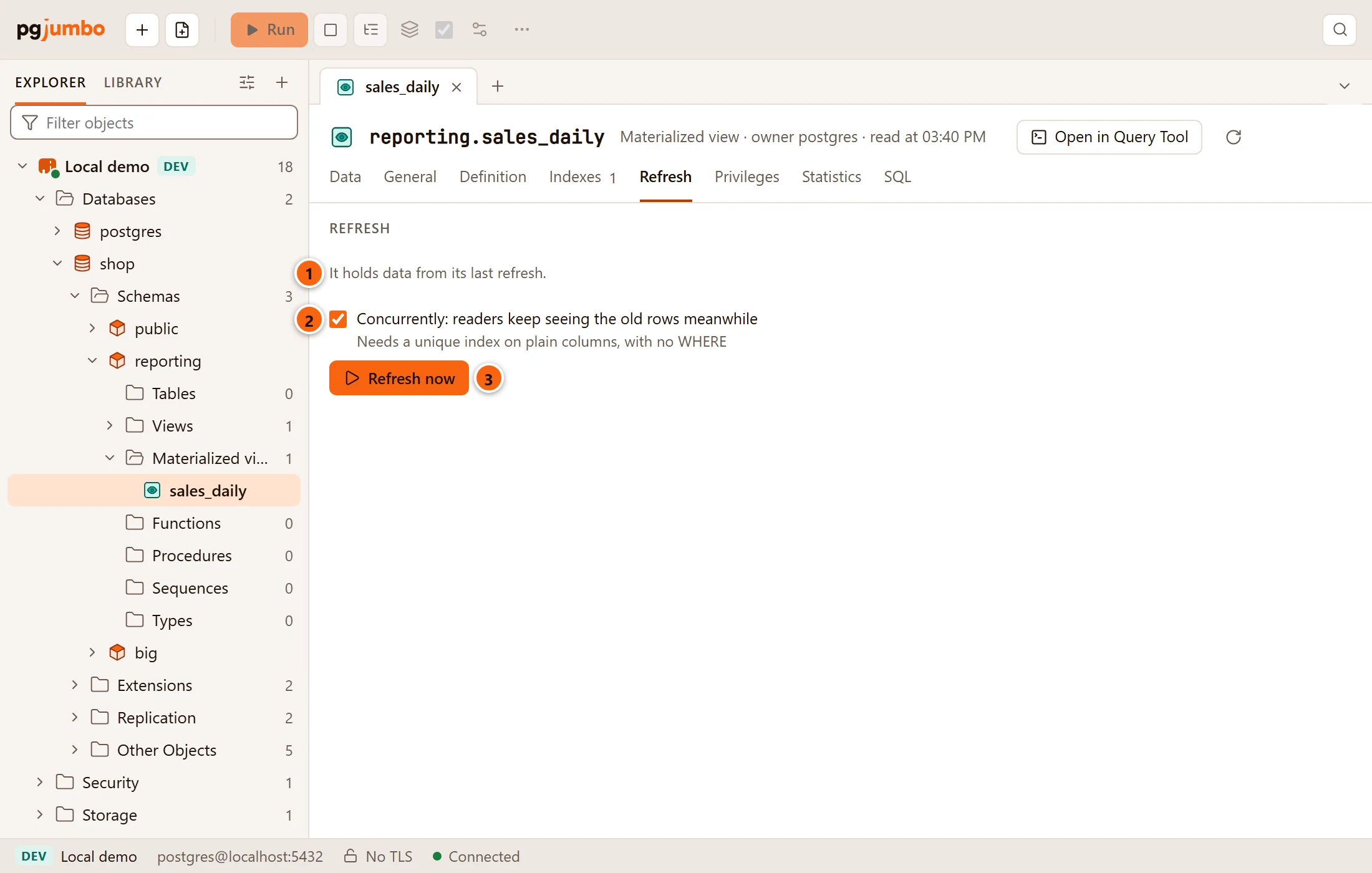
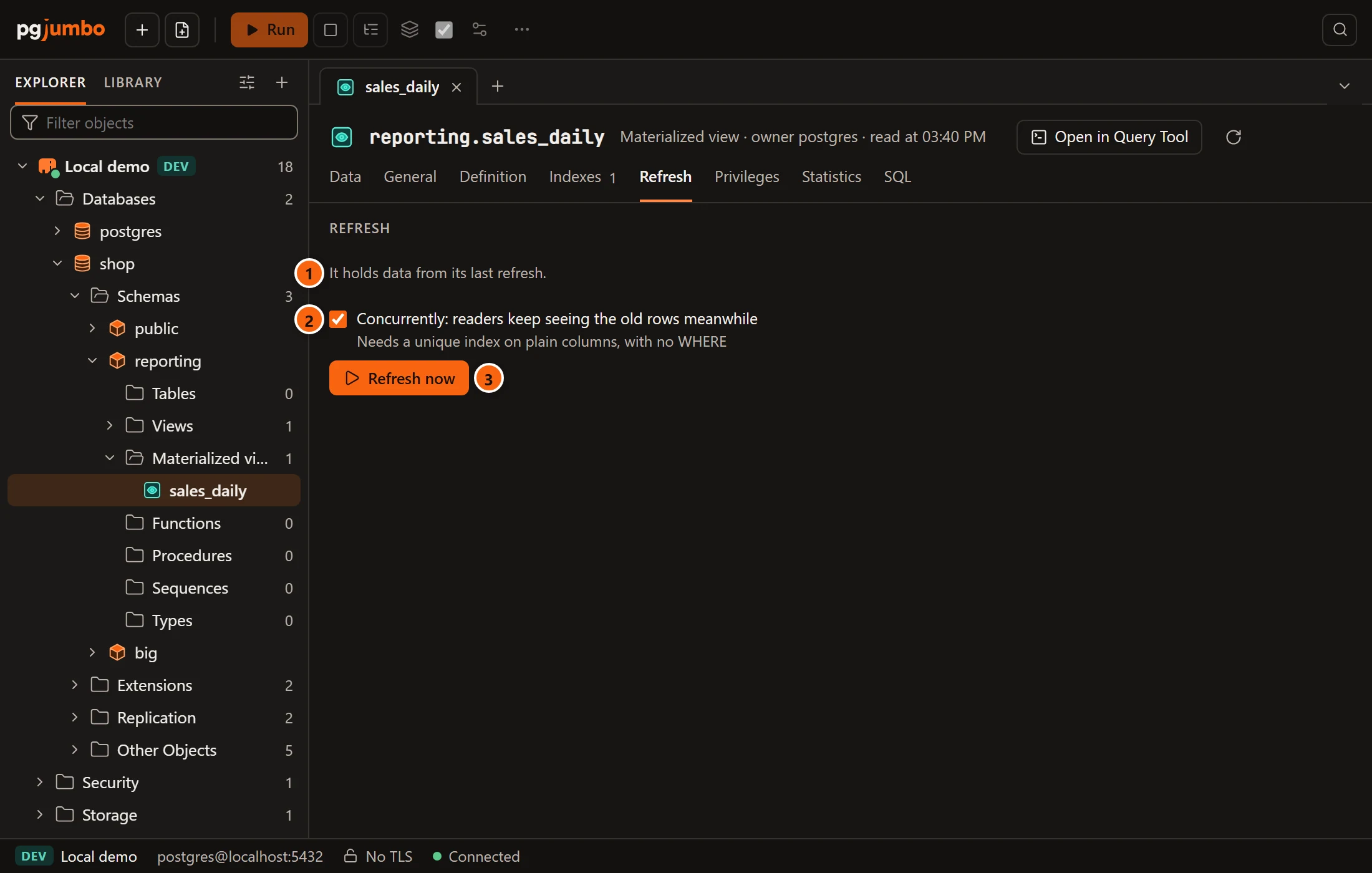
- 1 Whether it holds rows: “It holds data from its last refresh.” or “It holds no data yet: querying it fails until it is refreshed.”
- 2 Concurrently: readers keep seeing the old rows while it runs (
REFRESH MATERIALIZED VIEW CONCURRENTLY). It starts ticked when a concurrent refresh is possible: the materialized view has a unique, valid index on plain columns with noWHERE, and already holds rows. Otherwise it is unticked and greyed out. - 3 Refresh now starts the refresh.
When a concurrent refresh is not possible, a warning says why: the materialized view has no such index, or it holds no data yet. Then the refresh locks its readers out while it runs.
A refresh that is not concurrent locks readers out. On a server that asks first (Production, or Staging when Settings say so), a field “Type database to confirm” appears as soon as Concurrently is unticked, and Refresh now stays disabled until you type the database’s name.
The refresh runs as a job: a line says “REFRESH MATERIALIZED VIEW schema.name started: the Jobs panel, from the status bar, follows it.” The Jobs panel shows its progress and its output and lets you cancel it; see Maintenance and jobs. If the job cannot start, the reason shows in red under the button.
Statistics
Section titled “Statistics”Statistics shows its size (data, indexes and TOAST), its live and dead rows, its scans and row activity, its last vacuum and analyze and its indexes, with Refresh and Reset statistics…, as for a table. See The Inspector.
More from the right-click menu
Section titled “More from the right-click menu”| Item | Views | Materialized views | Where it is explained |
|---|---|---|---|
| Query Tool | yes | yes | The Query Tool |
| View Data ▸ | yes | yes | View data |
| Script as ▸ | CREATE, DROP and CREATE, SELECT, INSERT, UPDATE, DELETE | CREATE, DROP and CREATE, SELECT | Scripts |
| Properties… | yes | yes | Opens the tab on General (above) |
| TasksCount rows | yes | yes | Drop, truncate and other quick actions |
| TasksMaintenance… | no | yes | Maintenance and jobs |
| TasksImport/Export Data… | yes | yes | Import and export table data |
| TasksBackup… | yes | yes | Back up and restore |
| TasksReset statistics | no | yes | Drop, truncate and other quick actions |
| Copy name | yes | yes | Copies its schema-qualified name, shown beside the item. |
| Refresh | yes | yes | Reads its folders in the Explorer again: Columns (and Rules when it has some) for a view, Columns and Indexes for a materialized view. See The Explorer. |
| Drop… | yes | yes | Drop, truncate and other quick actions |
The full menu of every kind of row is in Right-click menus.