
Edit data
You can change a table’s rows in the grid, without writing UPDATE, INSERT or DELETE. Nothing reaches the server
while you work: every change waits in the tab until you click Save. pgjumbo then writes the statements, finds each
row by its primary key and runs them in one transaction, so either all of your changes are saved or none.
This works in a data tab and in the results of your own query in a Query Tool.
When rows can be edited
Section titled “When rows can be edited”A data tab says it in the data bar. Editable · orders has a primary key means you can change the rows. Read-only means you cannot; point at the tag to read why. In a Query Tool, an editable result has an Editable · public.orders tag beside Copy and Export; a result that cannot be edited has no tag, and a double-click opens the cell viewer instead.


- 1 Here the
idcolumn is hidden with Columns. - 2 So the
SELECTno longer reads the primary key. - 3 The tag says Read-only. Pointing at it shows the reason:
Show the primary key (id) to edit the rows.
pgjumbo lets you edit a result when all of these hold. The right-hand column is the reason pgjumbo gives when one does not; only a data tab shows it, on its Read-only tag.
| Rule | What you see when it fails |
|---|---|
Every column comes straight from a table. One computed column, such as total * 2, makes the whole result read-only. |
doubled is not a column of a table, so the rows cannot be edited. |
| All the columns come from the same table. | The columns come from more than one table, so the rows cannot be edited. |
| That table is an ordinary or partitioned table: not a view, a materialized view or a foreign table. | public.active_customers is not a table, so its rows cannot be edited here. |
| The table has a primary key. | public.events has no primary key, so its rows cannot be told apart. |
| Every column of the primary key is in the result. | Show the primary key (id) to edit the rows. |
The query joins nothing. pgjumbo asks the server for the plan with a plain EXPLAIN, which runs nothing, and refuses a plan with a join, a self-join included. A subquery such as IN (SELECT …) often becomes a join in the plan, and counts. |
The query joins tables, so a row of its result may not be one row of a table. |
| The rows come from one database, not from Run on several databases. | These rows come from several databases, so they cannot be edited here. |
Two more reasons are rare: The table is gone. Show the rows again. when it was dropped after the rows were read,
and The query could not be checked: followed by the server’s error when the EXPLAIN itself fails.
Within an editable result, some columns still take no value:
- Generated columns and
GENERATED ALWAYS AS IDENTITYcolumns cannot be written at all. - A column you lack the
UPDATEprivilege on cannot be changed, and one you lackINSERTon cannot be set in a new row. WithoutINSERTon the table there is no Add row; withoutDELETE, pgjumbo saysYou may not delete rows of this table.when you try. - A column the result shows twice is edited through its first place only.
When you try, a short message beside Data Output says why, for example total cannot be changed.,
A new row cannot set id. or This row is to be deleted. Restore it to edit it.
Change values, add and delete rows
Section titled “Change values, add and delete rows”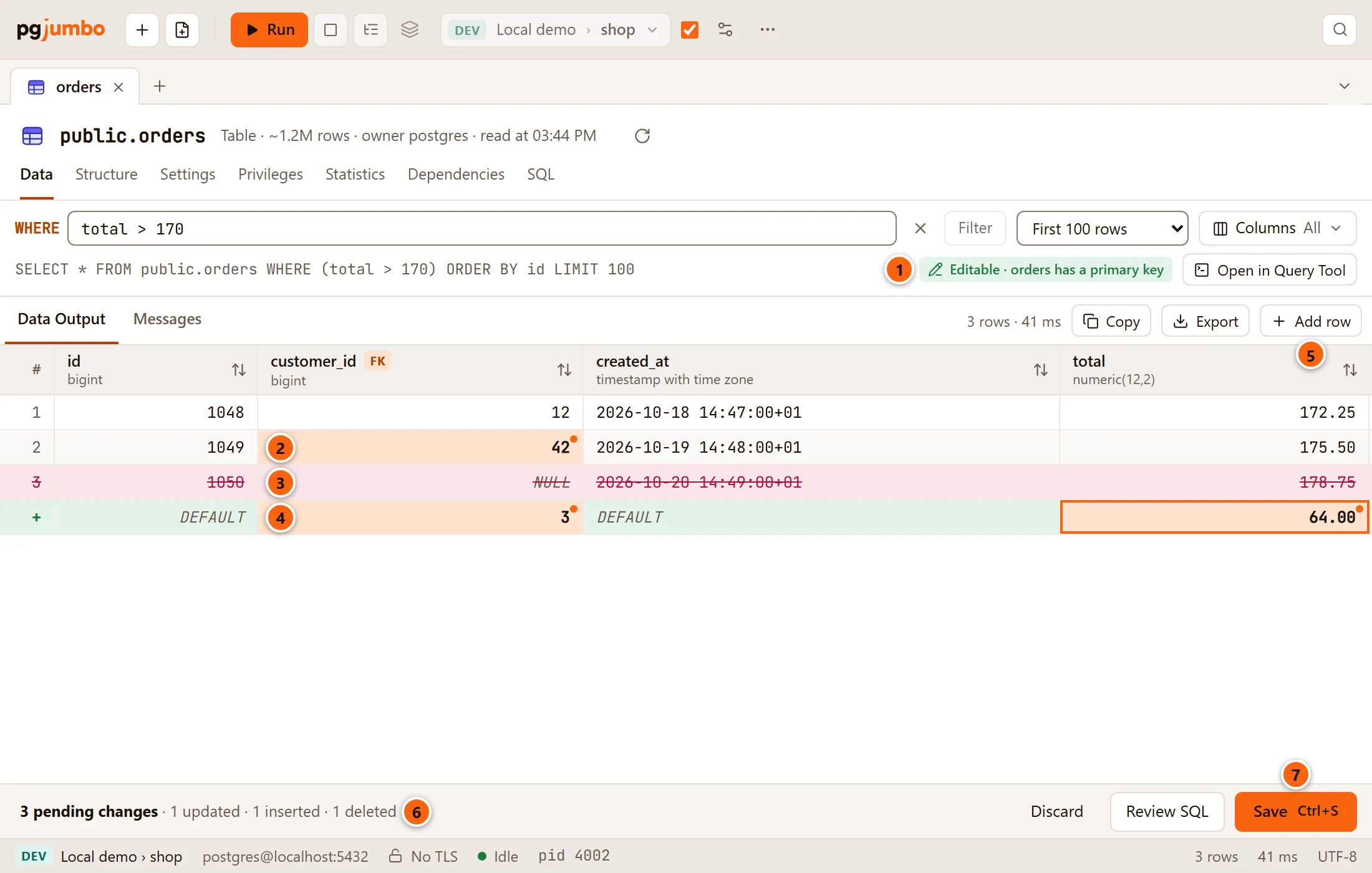
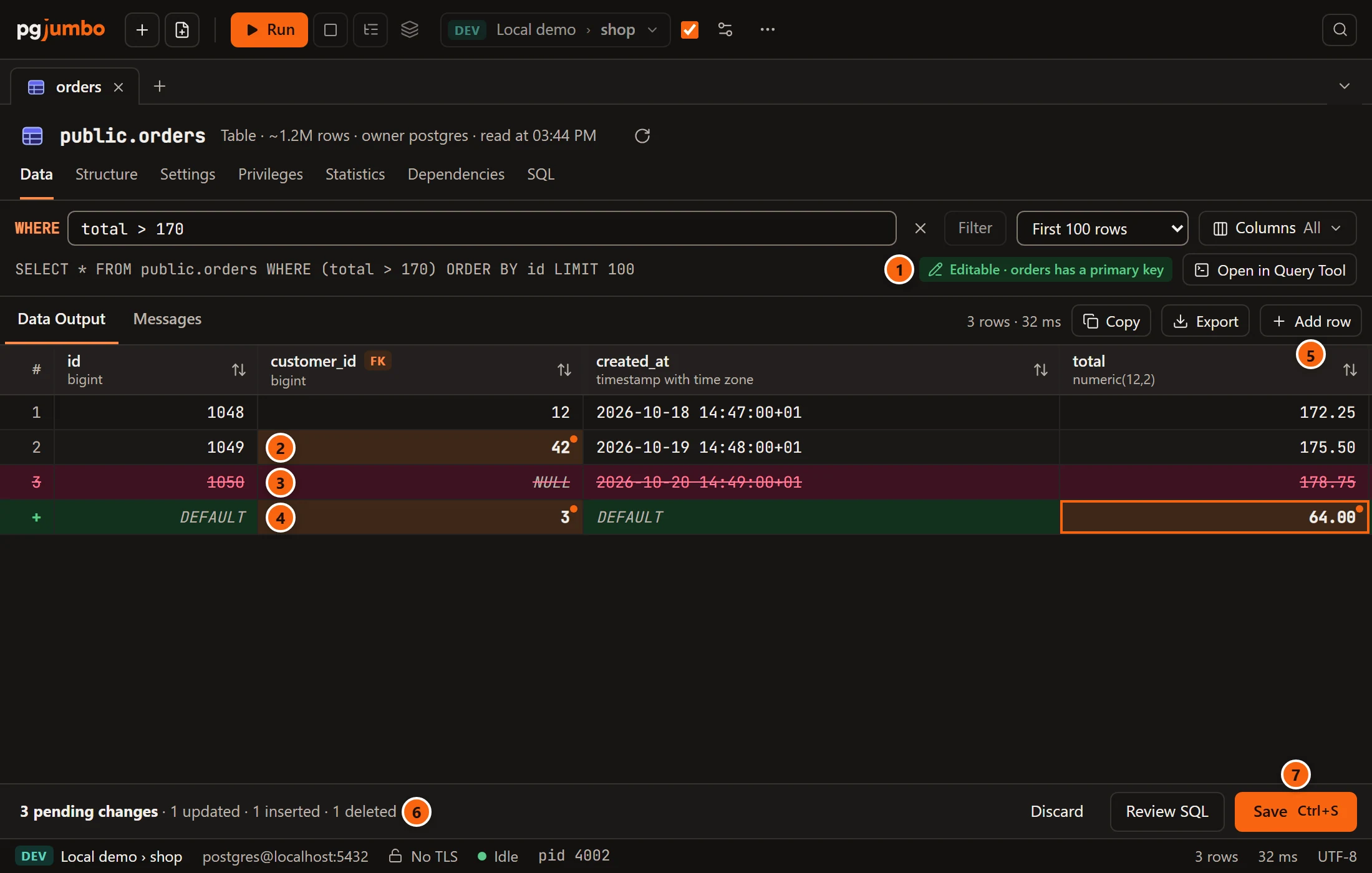
- 1 The tag says the rows can be changed.
- 2 Double-click a value, or select it and press F2 or Enter, change it and press Enter. You can also start typing on a selected cell: what you type replaces the value. A changed value has a coloured background and a dot in its corner.
- 3 To delete rows, select them (or any cell in them) and press fn ⌫ (Delete on Windows and Linux), or right-click and choose Delete rows. They are struck through until you save. Do the same again to bring them back: the menu item then says Restore rows.
- 4 A new row has a + in place of its number. Columns you leave alone say DEFAULT: the table fills
them in when you save, from the column’s default, identity or sequence, or with
NULLwhen it has none. - 5 Add row adds an empty row at the end; the grid’s right-click menu has it too. pgjumbo selects the new row’s first column that has no default, so you can type straight away.
- 6 The pending bar counts your changes:
3 pending changes · 1 updated · 1 inserted · 1 deleted. It stays under the results whichever result tab is in front, Messages included. - 7 Save, or ⌘ S (Ctrl+S on Windows and Linux) (FileSave), runs them.
Typing the value the row had before takes the change back, and so does NULL in the editor on a value that was
NULL. On a new row, an empty value leaves the column to its default. In an existing row, clearing the value stores
an empty string; use NULL for NULL.
The grid’s keys while editing
Section titled “The grid’s keys while editing”| Key | What it does |
|---|---|
| F2, Enter or a double-click | Edits the selected value. |
| Any character | Starts editing with that character in place of the value. Characters typed with AltGr or ⌥ count too. |
Space on a boolean |
Switches true and false without opening the editor. |
| fn ⌫ (Delete on Windows and Linux) | Marks the selected rows to be deleted, or restores them. On a Mac, use the forward-delete key: fn with ⌫ on a laptop. |
| ⌘ V (Ctrl+V on Windows and Linux) | Pastes values copied from a spreadsheet (see Paste many values). |
In the editor:
| Key | What it does |
|---|---|
| Enter | Keeps the value and moves down. ⇧ ↩︎ (Shift+Enter on Windows and Linux) moves up. |
| Tab | Keeps the value and moves right. ⇧ Tab (Shift+Tab on Windows and Linux) moves left. |
| Esc | Puts the value back as it was. |
| ⌘ ↩︎ (Ctrl+Enter on Windows and Linux) | Keeps the value in the larger editor, where Enter starts a new line. |
| ⌘ S (Ctrl+S on Windows and Linux) | Keeps the value and saves every change. |
| Clicking elsewhere | Keeps the value. |
Cell editors
Section titled “Cell editors”The editor fits the column’s type. A domain gets the editor of the type it is based on. Whatever editor you use, the
value goes to the server as text and PostgreSQL reads it as the column’s type, so you type values the way psql
would show them.
| Column type | The editor |
|---|---|
smallint, integer, bigint, numeric, real, double precision and other numbers |
A text field, aligned right. |
boolean |
A list: true, false, and NULL when the column allows it. Space on the cell switches the value without the list. |
| An enum type | A list of its labels in their order, and NULL when the column allows it. Typing a letter on the cell opens the list on the first label that starts with it. |
date |
A date picker, Now (today) and NULL. A value the picker cannot show, such as infinity, is edited as text. |
timestamp, timestamptz, time, timetz |
A text field, Now and NULL. Now fills in your computer’s date and time (only the time for time and timetz), with its UTC offset for the types with a time zone, for example 2026-11-04 14:05:09+01:00. |
json, jsonb |
The larger editor, with the value indented, Format and NULL. |
Text, and every other type (uuid, interval, arrays, bytea, inet and so on) |
A text field. A value that holds line breaks opens in the larger editor. Write arrays as {1,2,3} and bytea as \x…. |
NULL appears only on columns that allow NULL. A value larger than 1 MB cannot be edited in the grid: pgjumbo says
This value is too large to edit here.
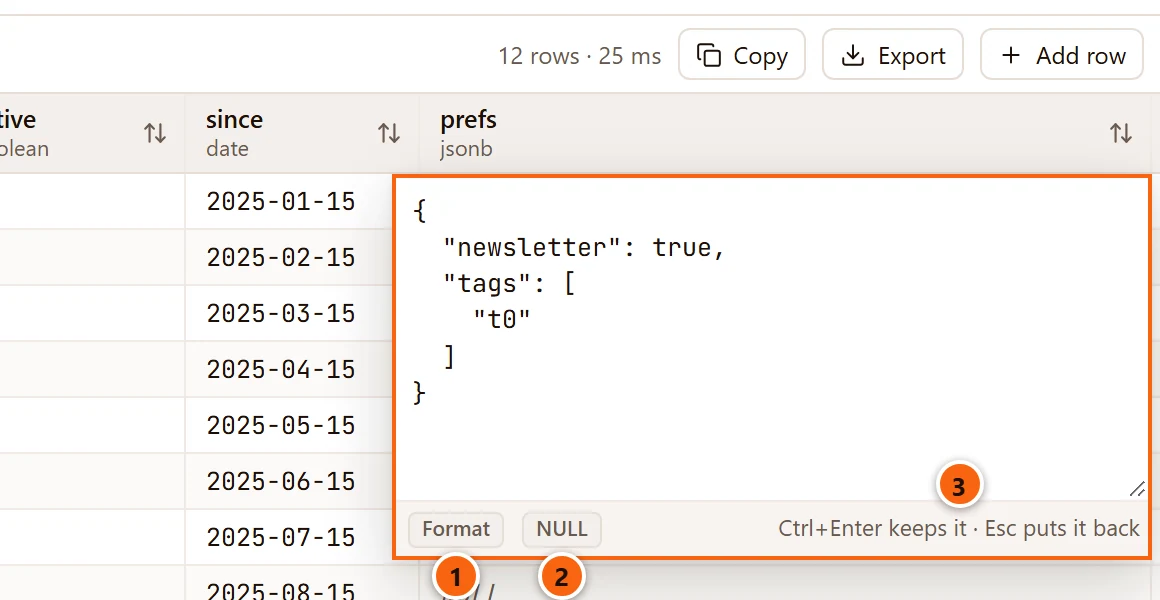
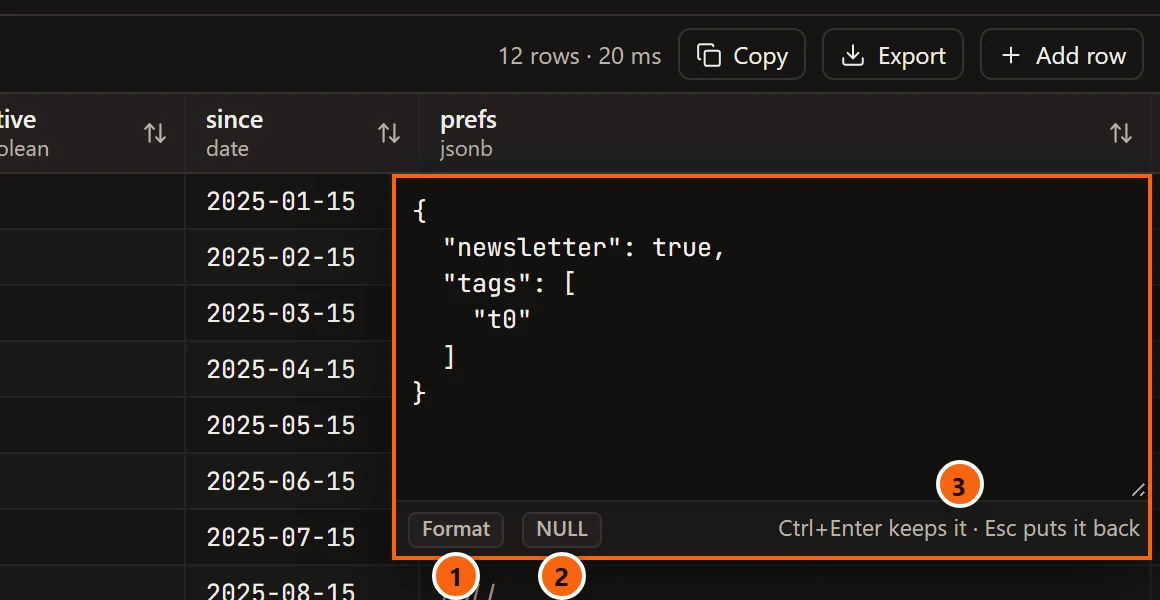
- 1 Format indents the JSON. It keeps every digit of every number and the order of the keys.
- 2 NULL sets the value to
NULL. - 3 The keys that keep the value or put it back. The value must be valid JSON before it is kept: otherwise
the editor stays open and says
Not valid JSON:and why.
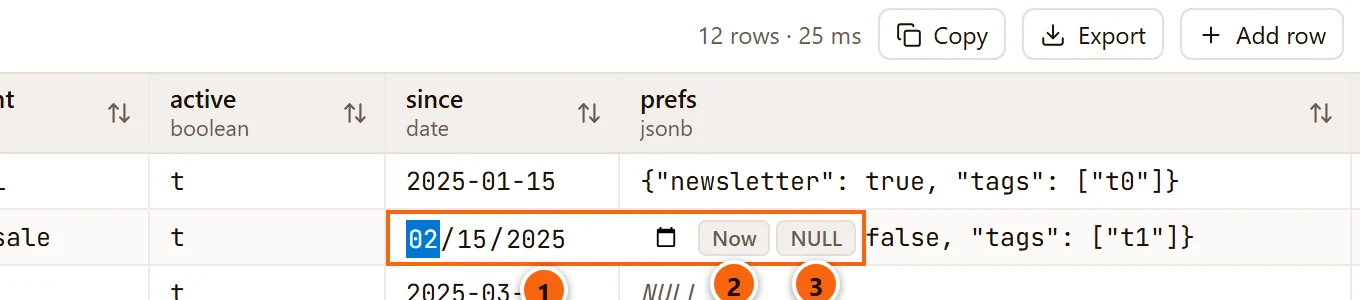
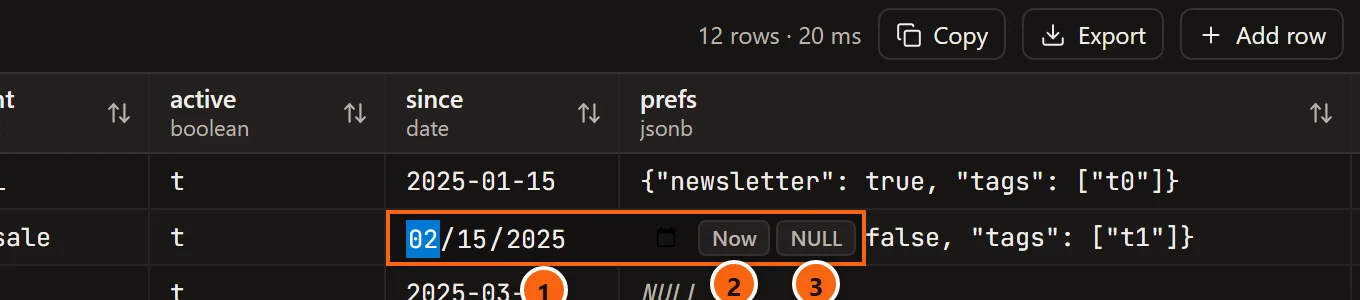
- 1 The date picker. It shows the date the way your system writes dates; pgjumbo sends it as
YYYY-MM-DD. - 2 Now puts in today’s date.
- 3 NULL sets the value to
NULL.
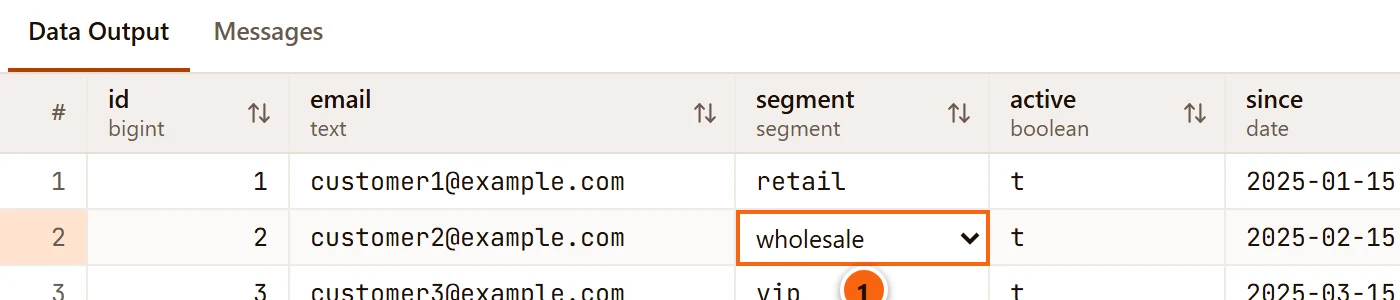
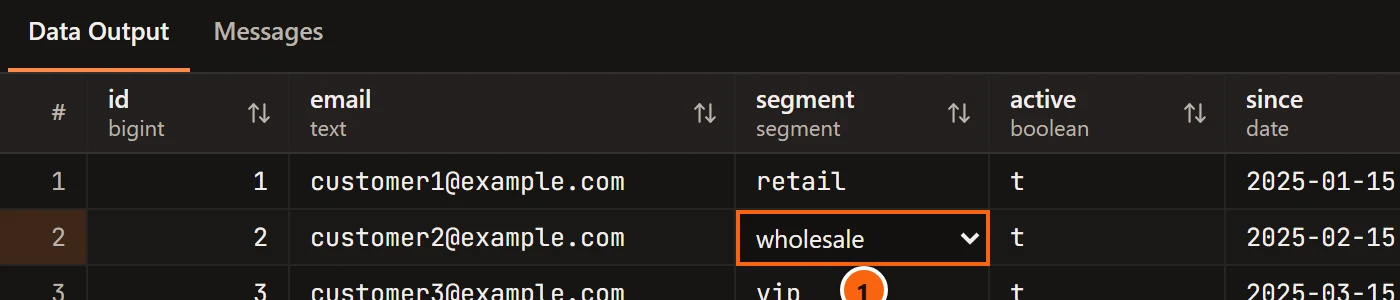
- 1 An enum column’s list.
NULLis the last choice when the column allows it.
Set values to NULL or DEFAULT, or take changes back
Section titled “Set values to NULL or DEFAULT, or take changes back”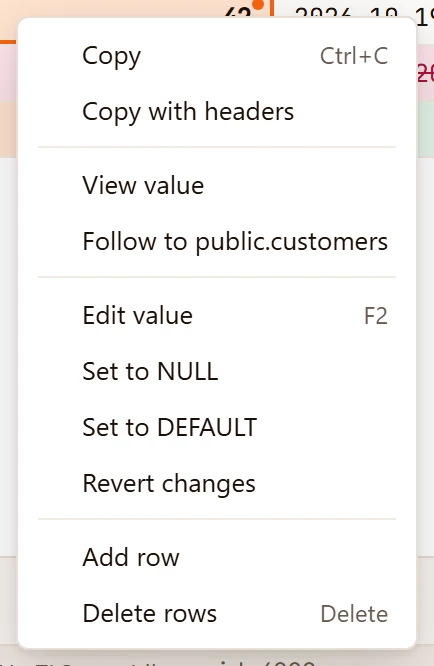
Right-click a cell, or a selection of cells, for these items. Selecting is explained in Results.
| Item | What it does |
|---|---|
| Copy, Copy with headers | Copies the selected values as the server has them, without your unsaved changes and without new rows. See Results. |
| View value | Opens the cell viewer, for reading a long value whole. Greyed out on a new row. |
| Follow to … | Opens the row a foreign key points to (see View data). |
| Edit value (F2) | Opens the editor on the selected value. |
| Set to NULL | Sets every selected value to NULL. |
| Set to DEFAULT | Sets every selected value to the column’s default. In an existing row this works only on columns that have a default or are identity columns. In a new row it takes back what you typed. |
| Revert changes | Takes back your changes in the selected cells. Greyed out when the selection has none. |
| Add row | Adds a new row at the end. Only there when you may add rows. |
| Delete rows / Restore rows (fn ⌫ (Delete on Windows and Linux)) | Marks the selected rows to be deleted, or brings them back. A new row among them is removed at once. |
Cells that cannot take a value are skipped, and pgjumbo says how many, for example 2 cells cannot take that. One
action works on at most 100,000 cells: select fewer if pgjumbo says Select fewer cells for this.
Paste many values
Section titled “Paste many values”Copy cells from a spreadsheet, or from a pgjumbo grid, select the cell where the top left value should go, and press ⌘ V (Ctrl+V on Windows and Linux).
- Rows that are already there take the values in the columns you can change. Rows marked for deletion are skipped.
- Values below the last row become new rows, as long as you may add rows to the table.
- An empty field is
NULLin an existing row and DEFAULT in a new one. - Values past the last column are left out, and one paste covers at most 10,000 rows.
pgjumbo says what happened, for example Pasted 12 values; 2 could not go in.
Copy rows into new ones
Section titled “Copy rows into new ones”pgjumbo has no Duplicate command, but copying and pasting does the job:
-
Click the number of the first row to copy, and ⇧ (Shift on Windows and Linux)-click the last one.
-
Press ⌘ C (Ctrl+C on Windows and Linux).
-
Click Add row, then click the new row’s first cell.
-
Press ⌘ V (Ctrl+V on Windows and Linux). The first copied row fills the new row; the others become new rows below it.
-
If the primary key was pasted too, select those key cells, right-click and choose Set to DEFAULT, so the table hands out new keys. An identity column that is
GENERATED ALWAYSis skipped by the paste anyway.
Review the statements
Section titled “Review the statements”Click Review SQL in the pending bar to read the statements Save would run. They take the place of the rows; click Back to rows to return.
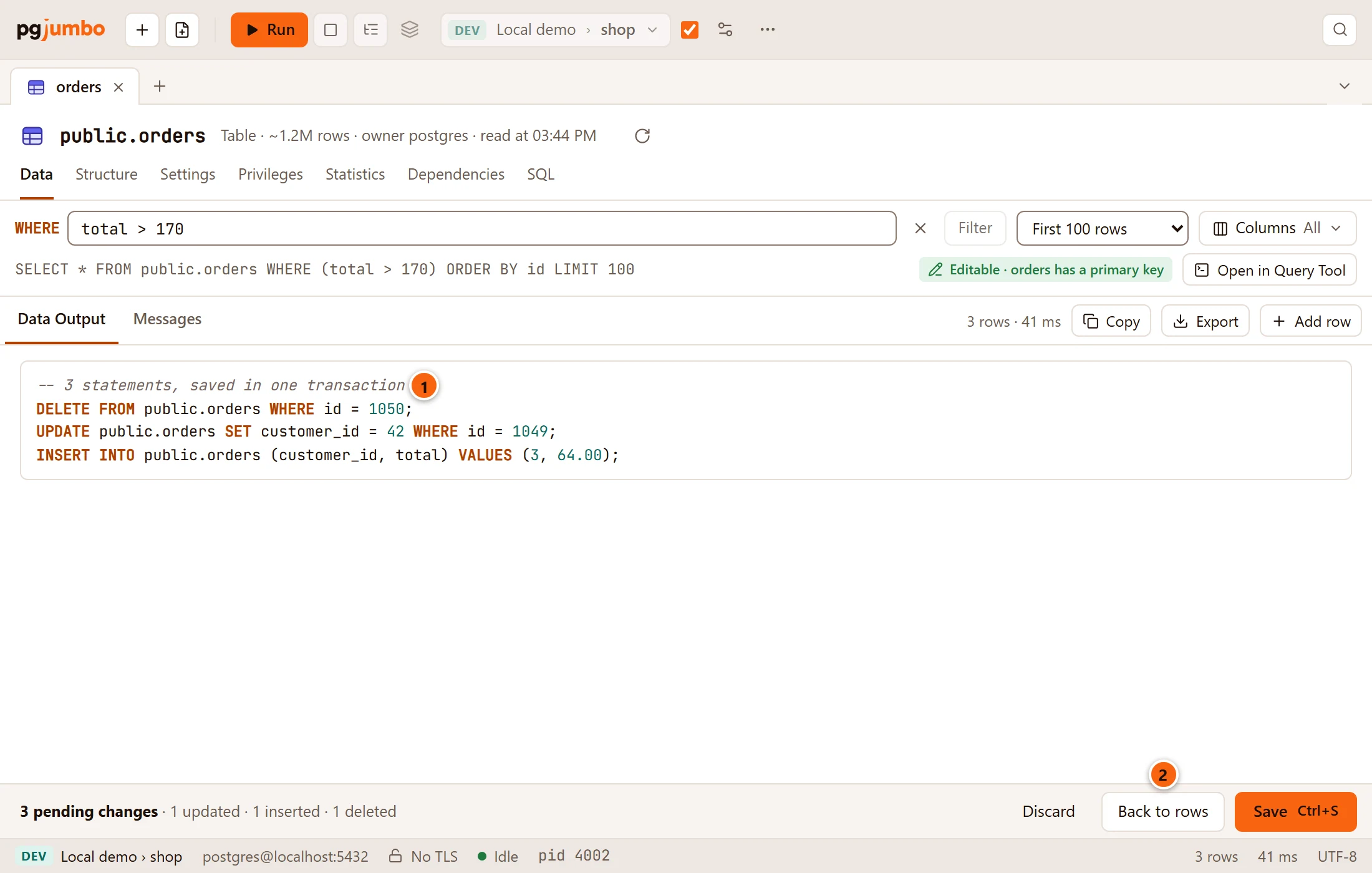
- 1 How many statements there are and how they are saved:
saved in one transaction, or, with Auto-commit off,saved in the tab's transaction, which Commit then keeps. - 2 Back to rows shows the grid again.
The statements come in the order they run: deletes first, then updates, then inserts, so a key freed by a delete can
be used again by a new row. Each UPDATE and DELETE names its row by the primary key, WHERE id = 1049. An
UPDATE sets only the columns you changed, and an INSERT lists only the columns you gave a value; a new row with
none becomes INSERT INTO … DEFAULT VALUES.
When it really runs, each value goes to the server as a bind parameter. The review writes the values in so you can
read them: numbers in a number column and true or false in a boolean column as they are, NULL and DEFAULT as
keywords, everything else in quotes.
Click Save in the pending bar, or press ⌘ S (Ctrl+S on Windows and Linux). The button says Saving… while the statements run.
- With Auto-commit on (the usual case), pgjumbo runs the statements between
BEGINandCOMMIT. A message beside Data Output says what was saved, such asSaved: 1 updated · 1 inserted · 1 deleted, and a data tab reads its rows again so you see them as they are now. - With Auto-commit off, the statements go into the tab’s transaction, which pgjumbo begins if none is open. The
message ends with
in the open transaction. Commit to keep it.: nothing is final until you click Commit. If the tab’s transaction has already failed, pgjumbo refuses to save:This tab's transaction failed. Roll it back before saving.See Transactions and sessions.
When the tab already has a transaction open, pgjumbo saves inside a savepoint. A save the server refuses then takes back only its own statements; what the transaction did before stays.


- 1 What was saved. The message stays a few seconds; the rows below are already read again.
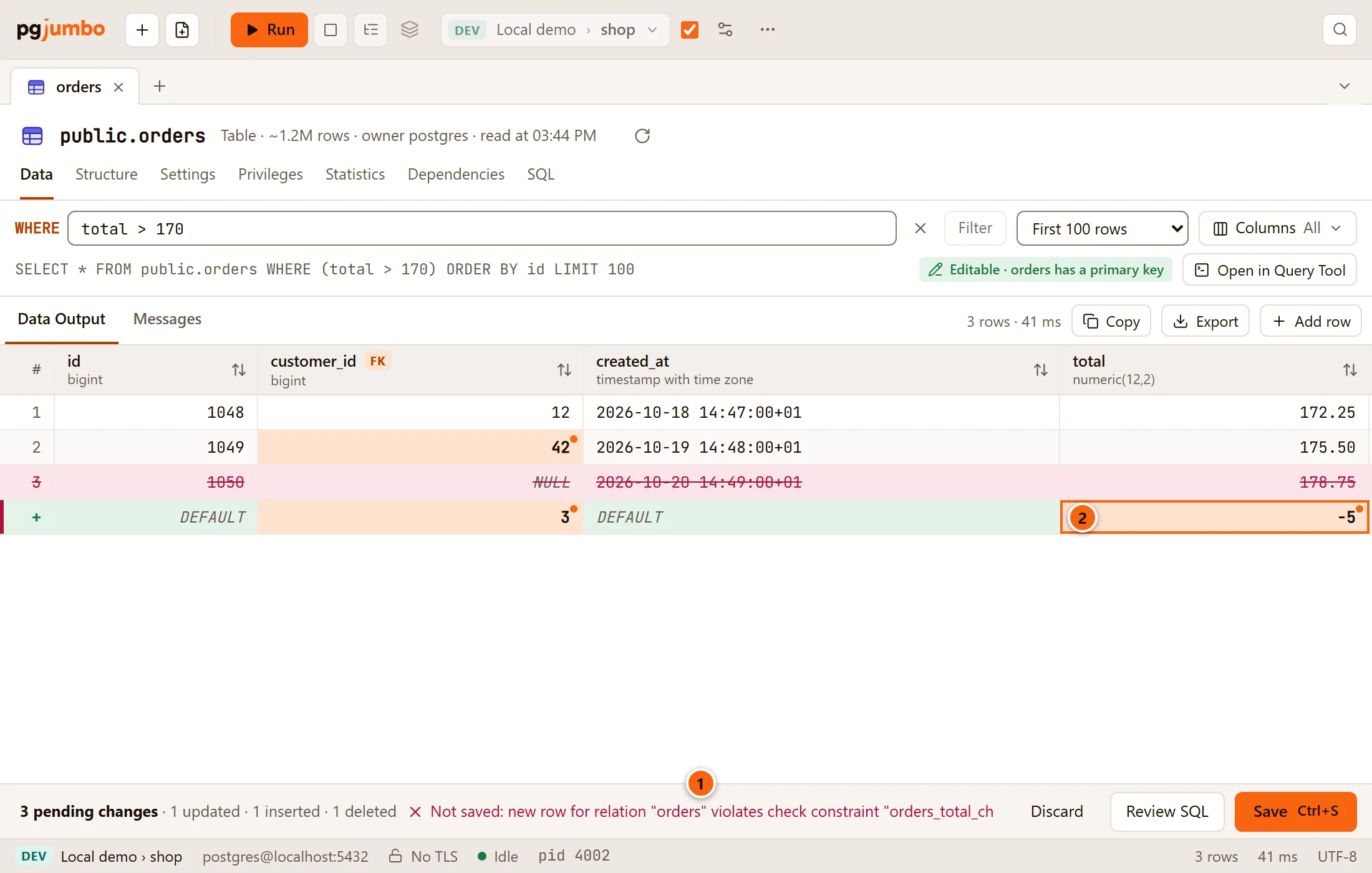
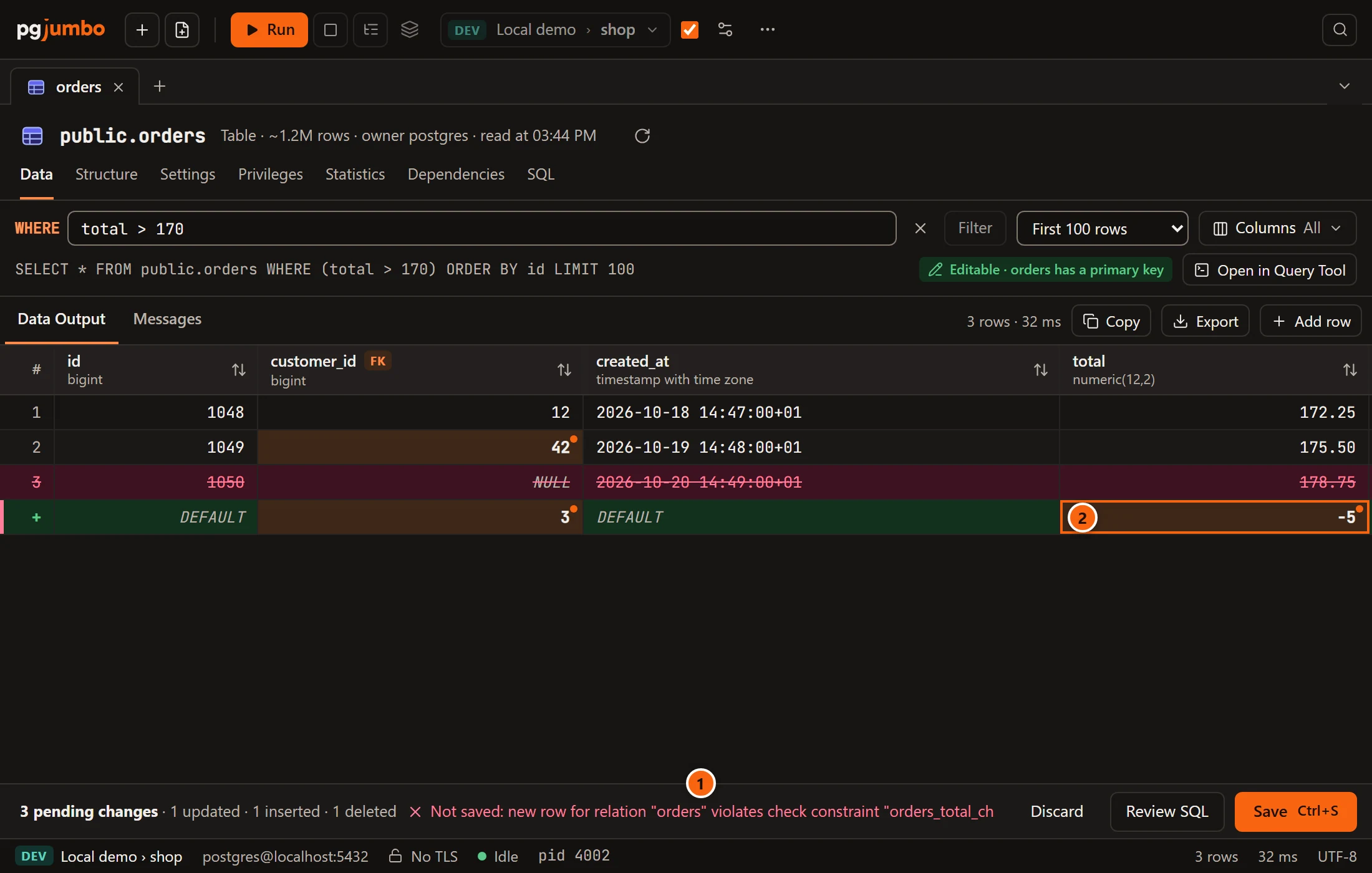
- 1 When the server refuses a statement, nothing is saved. The pending bar says Not saved: and the server’s message, with its detail when there is one. Pointing at it shows the detail, or the whole message when there is no detail.
- 2 The row the server refused is marked with a red edge, selected and scrolled into view. Your changes are all still there: fix the value and save again. The message goes as soon as you change something.
Two other reasons stop a save:
This row is no longer in the table as it was read: it was deleted, or its key changed. Show the rows again.EachUPDATEandDELETEmust touch exactly one row; if someone deleted the row or changed its key since you read it, the save stops.- A deferred constraint checked at
COMMITfails. Then no row is marked, as the failure belongs to the whole transaction.
Discard your changes
Section titled “Discard your changes”Discard in the pending bar drops every change at once, without asking. To take back only some of them, select those cells and choose Revert changes from the right-click menu.
When pgjumbo asks first
Section titled “When pgjumbo asks first”Anything that would read the rows again asks before it drops your changes: in a data tab a new filter, a sort, a row limit, other columns, Run or another View Data choice; in a Query Tool, running anything in the tab again.
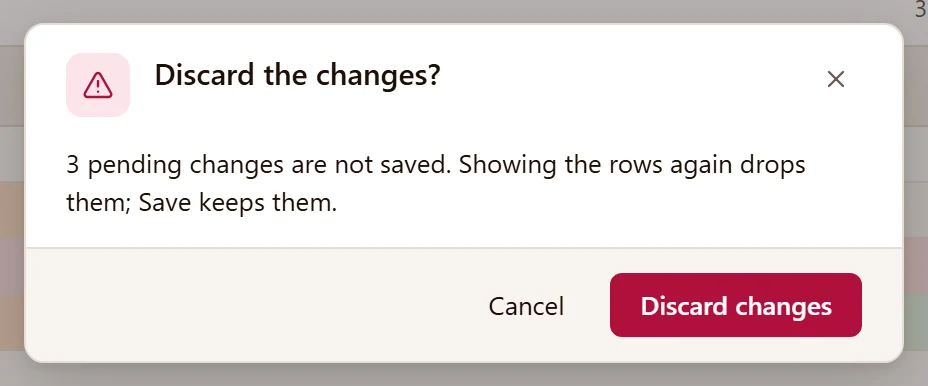
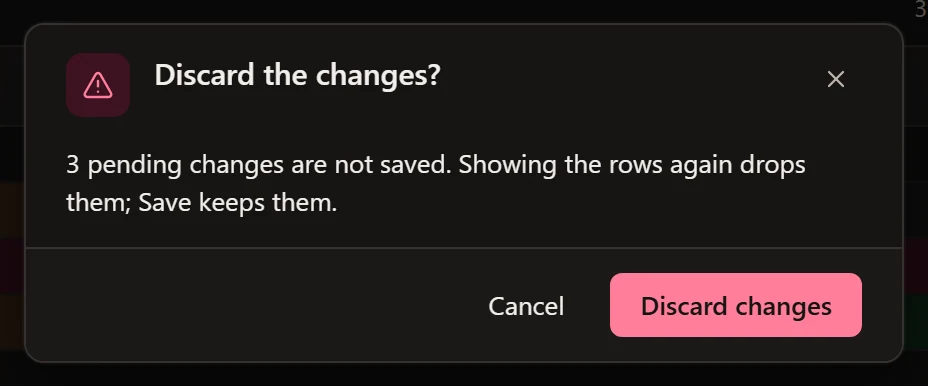
- Cancel keeps your changes and the rows on screen; what you asked for does not happen.
- Discard changes drops them and goes ahead.
In a Query Tool the dialog says Running drops them instead.
View Data ▸ Filtered rows… on a table with changes does not ask: your rows stay on screen and the WHERE field waits for a condition, which then asks as any filter does.
Close a tab with changes
Section titled “Close a tab with changes”Closing a tab with changes, with its ×, ⌘ W (Ctrl+W on Windows and Linux) or Close Others and the like in the tab strip’s menu, asks what to do. When you close several tabs at once, Cancel keeps this tab and stops closing the rest.


For a table’s own tab (the one with Data, Structure and the other views), the buttons are:
- Cancel leaves the tab open.
- Don’t Save closes the tab and drops the changes.
- Back to the tab brings the tab forward so you can review and save.
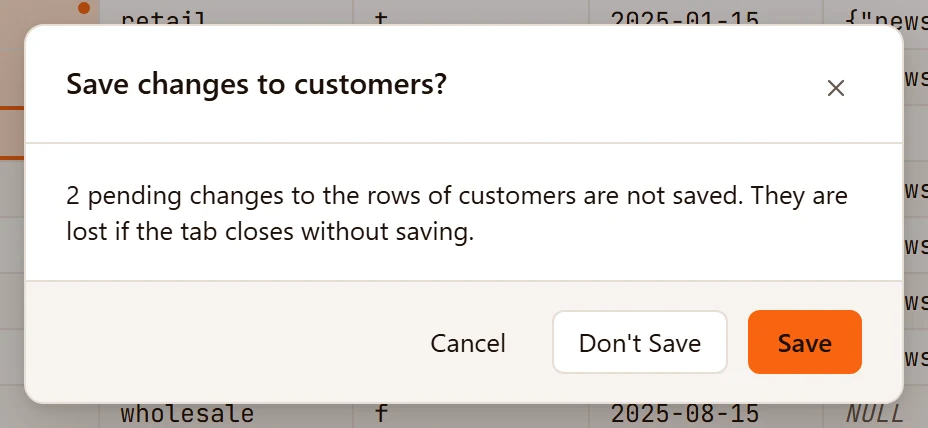
For a data tab in the strip, or a Query Tool, the last button is Save instead: it saves the changes and closes the tab if the save worked. If the server refuses the save, the tab stays open with its changes and the reason.
Unsaved changes are not drafts. Quitting pgjumbo does not ask about them, and they are lost.
Edit your own query’s results
Section titled “Edit your own query’s results”The same editing works on the result of a query you ran in a Query Tool, as long as the result follows the rules above.
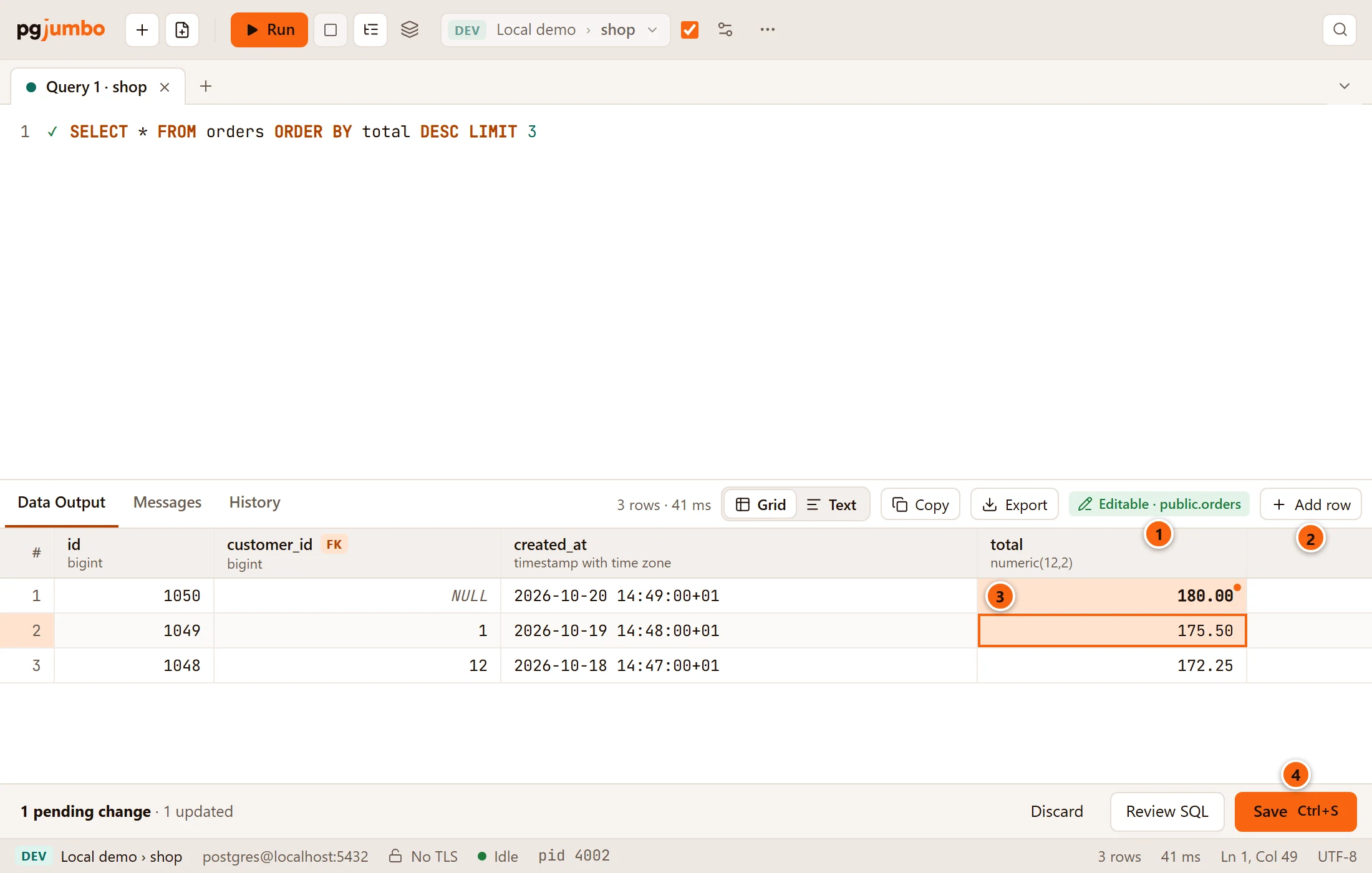
- 1 Editable · public.orders: you can change these rows.
- 2 Add row adds a new row to that table.
- 3 Values change as in a data tab.
- 4 Save runs the statements.
A Query Tool tab can hold several results. Only one of them takes changes at a time: the others lose their tag and
Add row, and trying to edit one says, for example, Save or discard the changes to Data Output 1 first.
After a save, pgjumbo does not run your query again by itself: it could be slow, or change data.
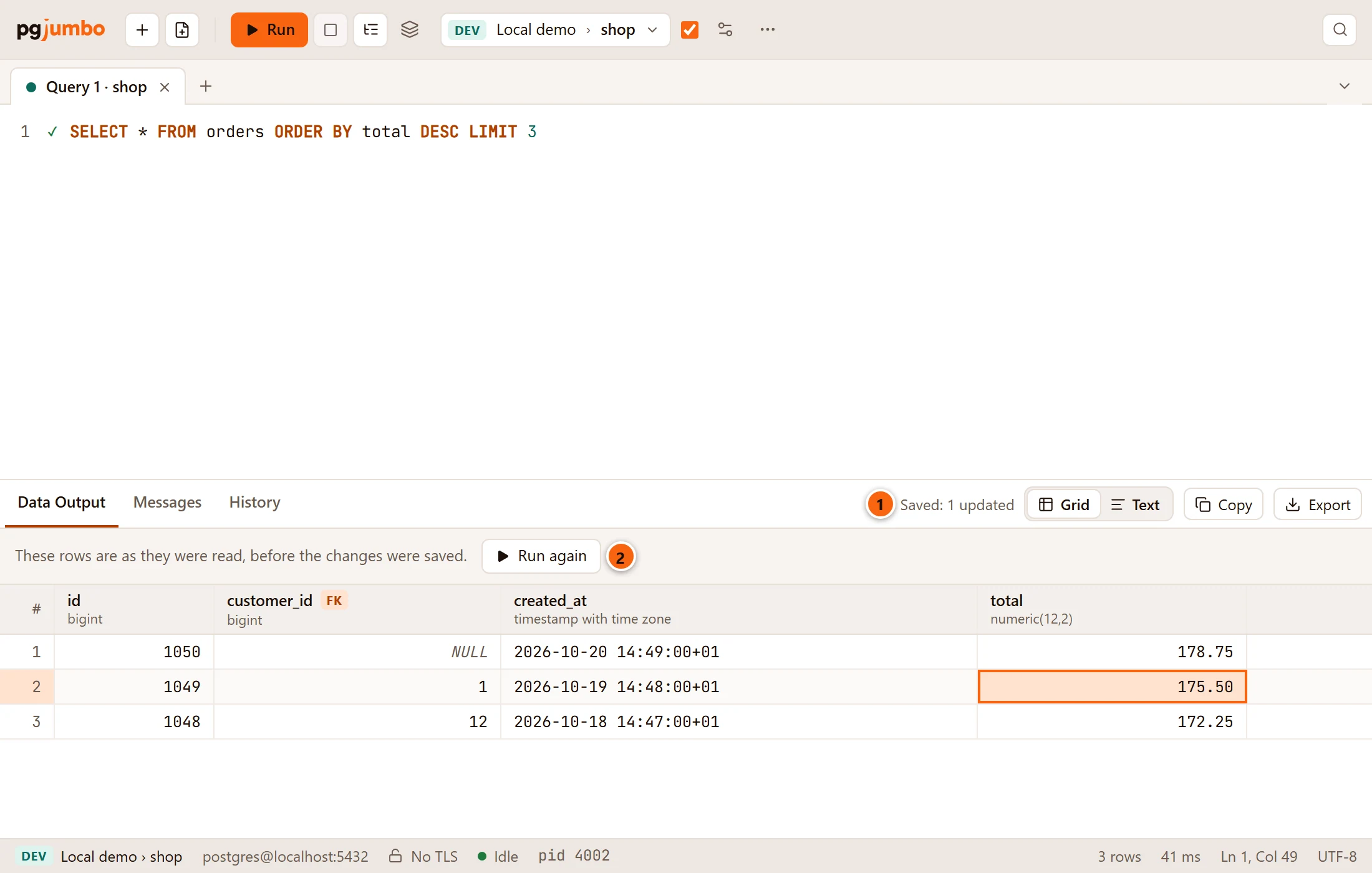
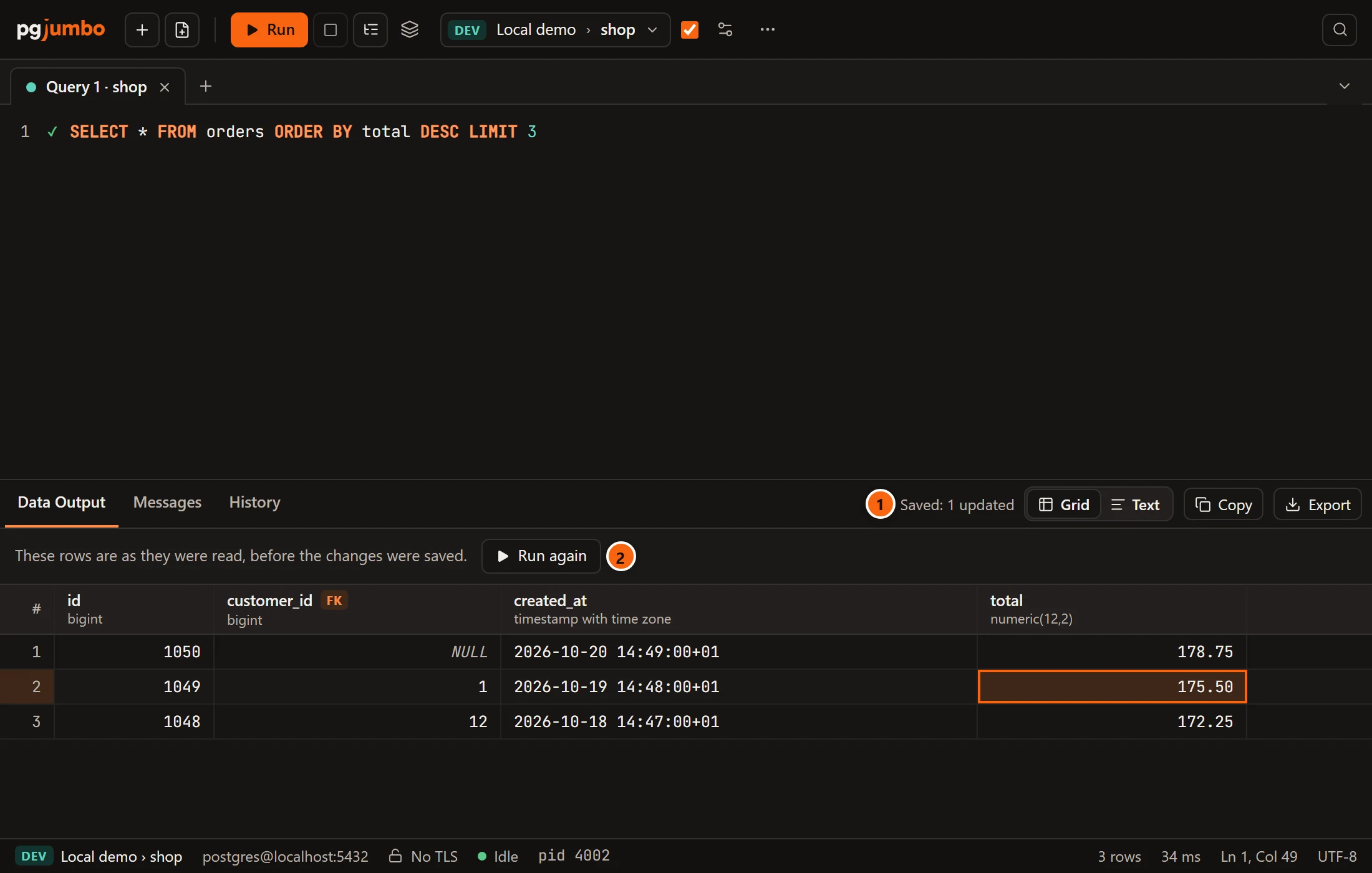
- 1 What was saved.
- 2 The banner says the rows on screen are as they were read, before your changes. They take no more
changes; trying says
These rows were saved since they were read. Run the query again to change them.Run again runs the statement that returned these rows (only that one, not the whole tab) so you see the rows as they are now.