
Writing SQL
The top half of a Query Tool tab is a SQL editor that knows PostgreSQL: it colours keywords, strings, numbers and comments, suggests names from the tab’s database, describes a table when you hover its name, and underlines what PostgreSQL’s parser cannot read before you run anything.
Suggestions as you type
Section titled “Suggestions as you type”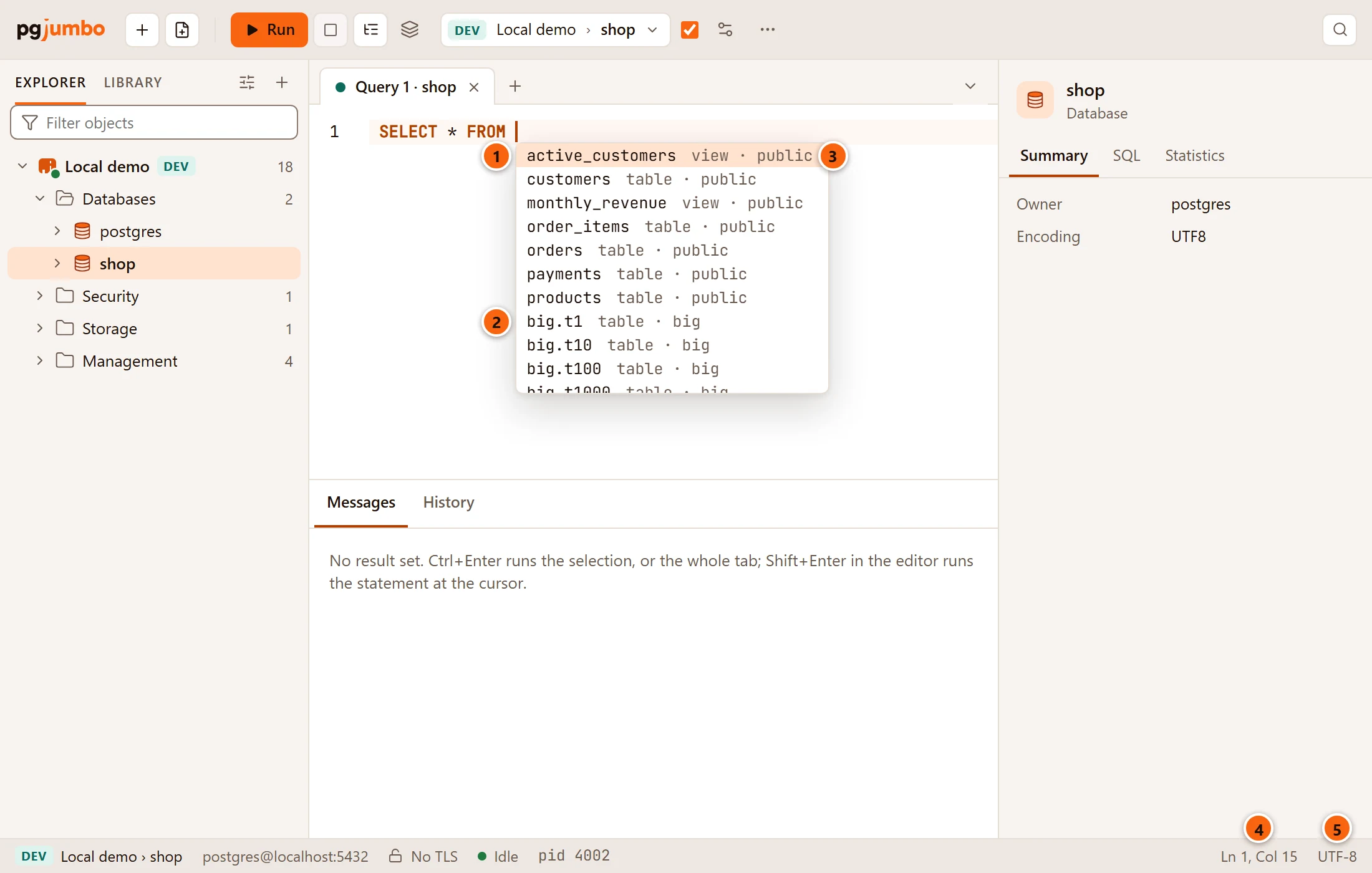
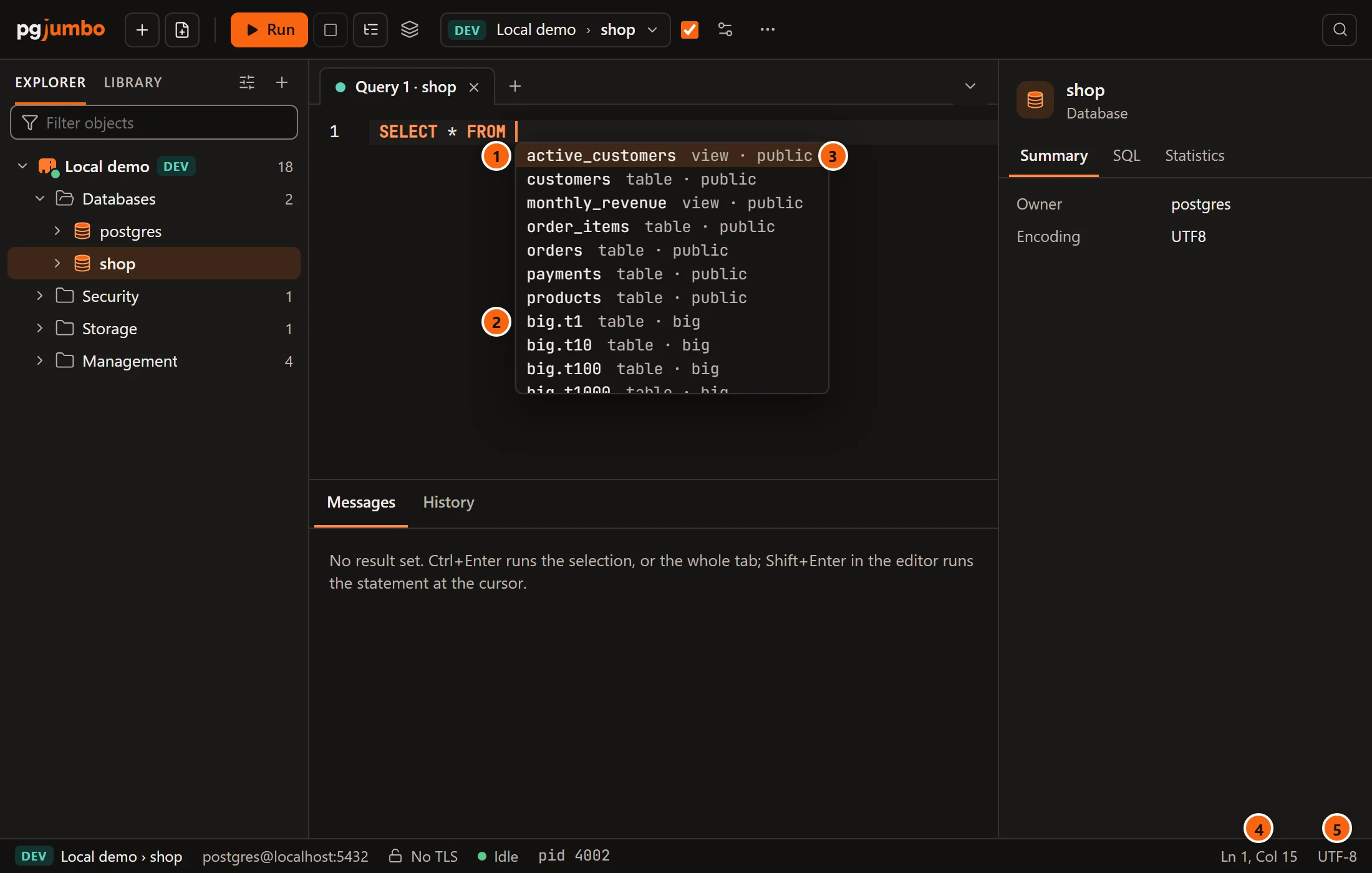
- 1 The highlighted suggestion. Tab puts it in.
- 2 A table in a schema that is not on the search path comes with its schema, here
big.t1. - 3 What each suggestion is: a table, partitioned table, view, materialized view or foreign table and its
schema; a column’s type and table;
functionand its schema;schema. - 4 The cursor’s line and column. See Cursor position and encoding.
- 5 The encoding pgjumbo talks to the server in.
| Key | What it does |
|---|---|
| Tab | Puts in the highlighted suggestion. If the list is still loading, Tab waits up to half a second and takes the first one. With no list open, Tab indents the line (or the selected lines) and Shift+Tab outdents it. |
| Enter | Always starts a new line, even while the list is open. It never takes a suggestion. |
| ↑ ↓, Page Up Page Down | Move through the list. |
| Esc | Closes the list. |
| ⌃ Space (Ctrl+Space on Windows and Linux) | Opens the list where the cursor is, without typing. On macOS ⌥ ` and ⌥ I do it too. |
What is suggested where
Section titled “What is suggested where”| Where the cursor is | What the list offers |
|---|---|
After FROM, JOIN, UPDATE, INTO or TABLE and a space |
Tables, partitioned tables, views, materialized views and foreign tables, then schemas, before you type a letter. |
After a schema’s name and a dot, such as big. |
That schema’s tables, views and functions. |
After a table’s name or alias and a dot, such as o. |
That table’s columns, with their types. The table must be named after FROM, JOIN, UPDATE or INTO in the same statement. |
| Anywhere else, once you type a letter | The columns of the tables the statement names (up to six of them) first, then tables and views, functions on the search path, schemas, and SQL keywords in capitals. |
The list narrows as you type, and tables on the search path come before the others. Here “the statement” is the text between the semicolons around the cursor; a blank line does not end it.
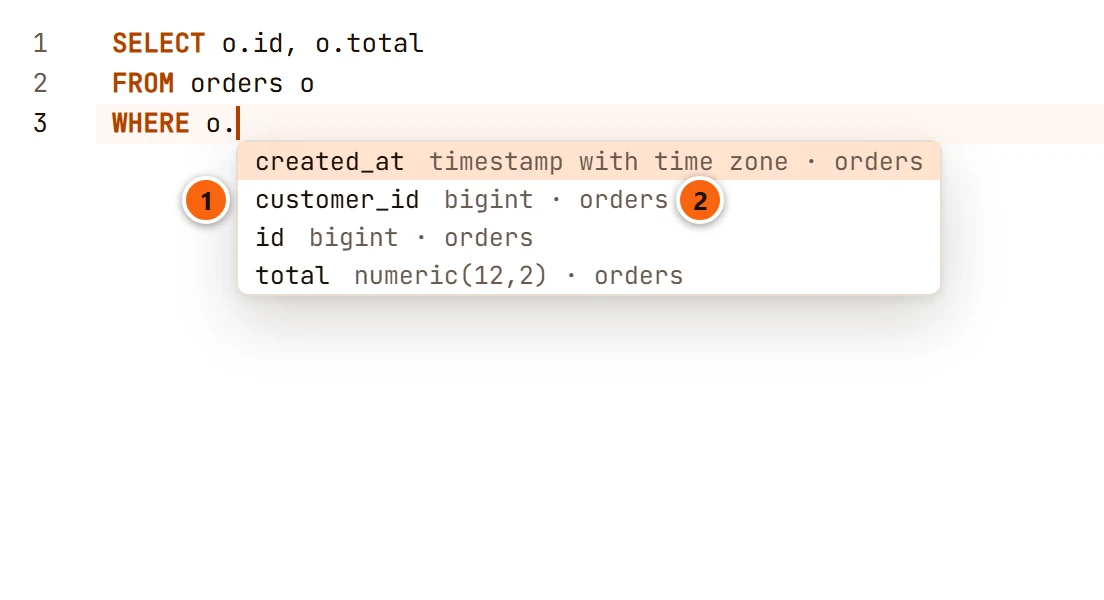
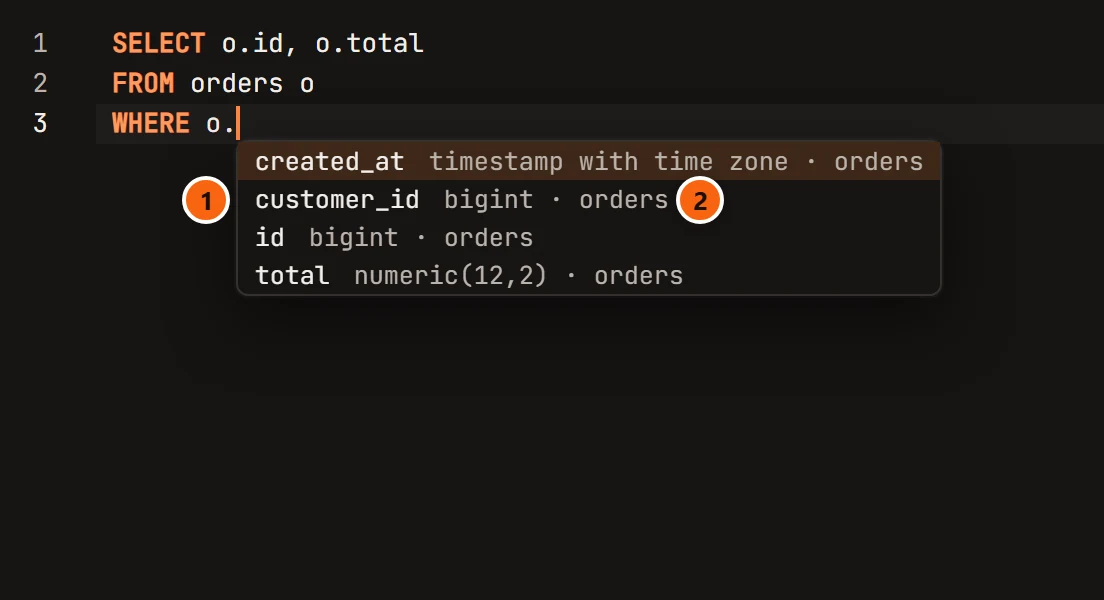
- 1 After
o.the list offers the columns oforders, the table the statement callso. - 2 Each column’s type, as PostgreSQL writes it, and its table.
A name is put in the way PostgreSQL needs it: a name with capitals, spaces or a reserved word gets double quotes. A table in a schema on the search path comes by its name alone, any other with its schema in front.
Where the names come from:
- pgjumbo reads the database’s names on the server’s own connection, not on the tab’s, and keeps them for up to five minutes. A table you created a moment ago in the Query Tool may take that long to appear. A change you make from the Explorer (a drop, say) refreshes them at once.
- The search path is the default one for your role in that database. A search path you set in the tab with
Session settings or
SETdoes not change the suggestions. - The tables, views and functions of
pg_catalogandinformation_schemaare not suggested, so neither are the system catalogs or PostgreSQL’s built-in functions; the two schemas’ own names are. Partitions, procedures, aggregates and the functions of extensions are left out too. Other schemas whose names start withpg_are not offered. - While the tab’s server is not connected, only SQL keywords are suggested.
Quick Info
Section titled “Quick Info”Rest the pointer on a table’s or view’s name for a moment to see what it is.
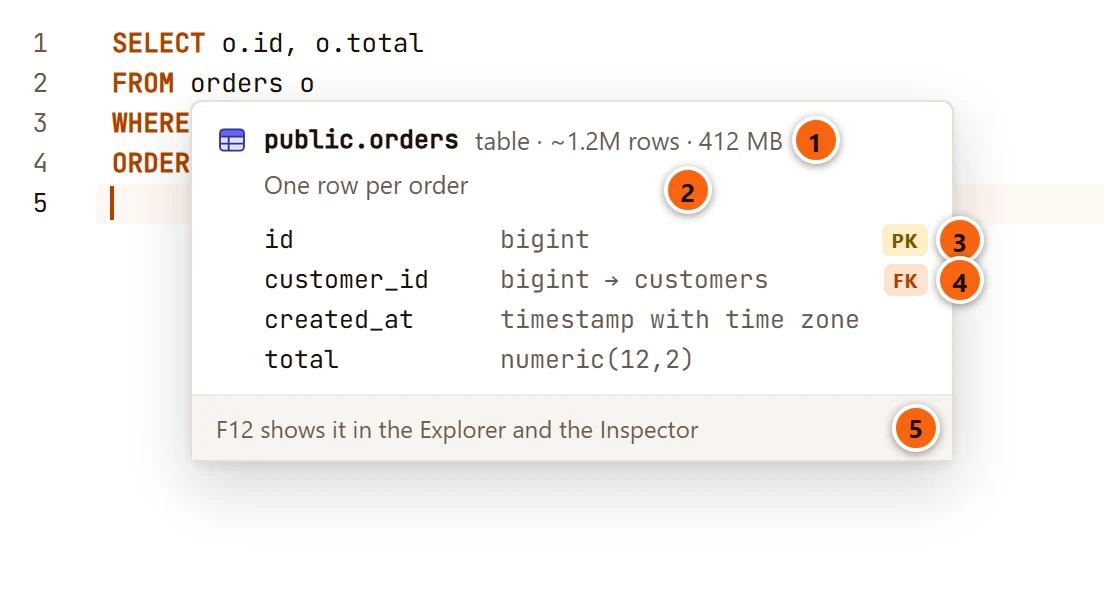
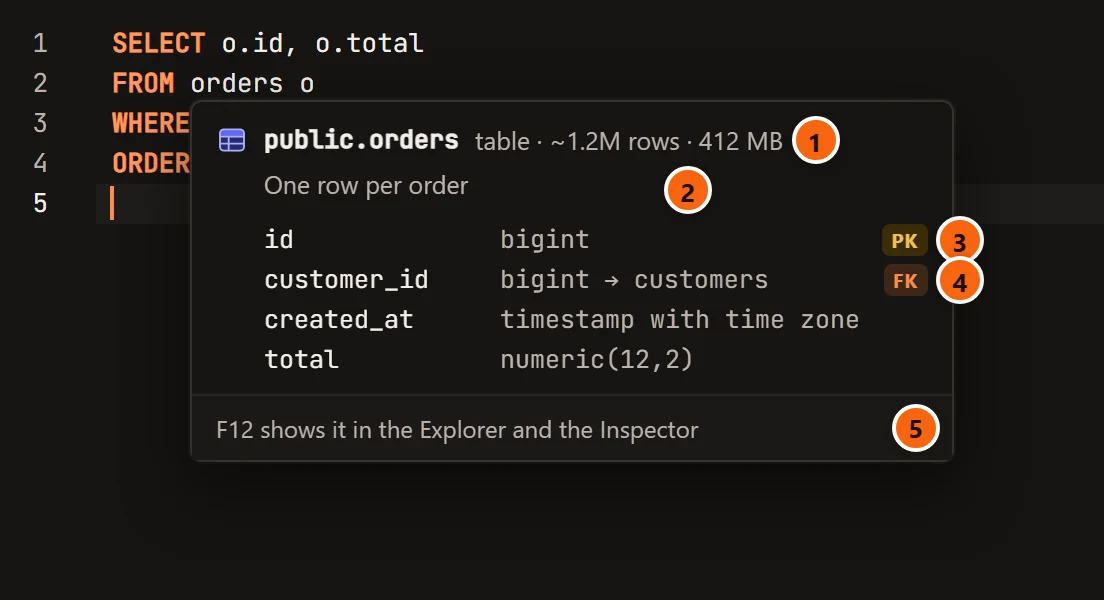
- 1 The name with its schema, its kind, the planner’s estimate of its rows (with
~) and its size on disk. - 2 Its comment, when it has one.
- 3 PK marks the columns of the primary key.
- 4 FK marks a column with a foreign key of its own, and its type is followed by the table it refers to.
- 5 F12 goes to it. See Go to Definition.
Quick Info works on a name the statement reads FROM, JOINs, UPDATEs or inserts INTO, on a name written with
its schema, and on an alias of one, for tables, partitioned tables, views, materialized views and foreign tables. It
shows nothing on a column, a function, a keyword or a system catalog. The card lists the first 30 columns and then
says and 12 more columns.
The size is the table’s whole size on disk, with its indexes and TOAST; for a partitioned table, its partitions added
up. A view and a foreign table have no row estimate or size. On PostgreSQL 14 and later a table that has never been
analysed has no row estimate; older servers show ~0 rows for it. The card is read again after half a minute, so it
follows a table that grows. A foreign table gets a card without the F12 line: Go to Definition does not reach foreign
tables.
Go to Definition
Section titled “Go to Definition”Put the cursor on a table’s or view’s name, or on an alias of one, and press F12 or choose QueryGo to Definition. pgjumbo shows the Explorer and the Inspector if they are hidden, opens the rows above the table in the Explorer, selects it (the keyboard focus moves to the Explorer), and shows it in the Inspector. See The Inspector. On anything else F12 does nothing.
Syntax errors as you type
Section titled “Syntax errors as you type”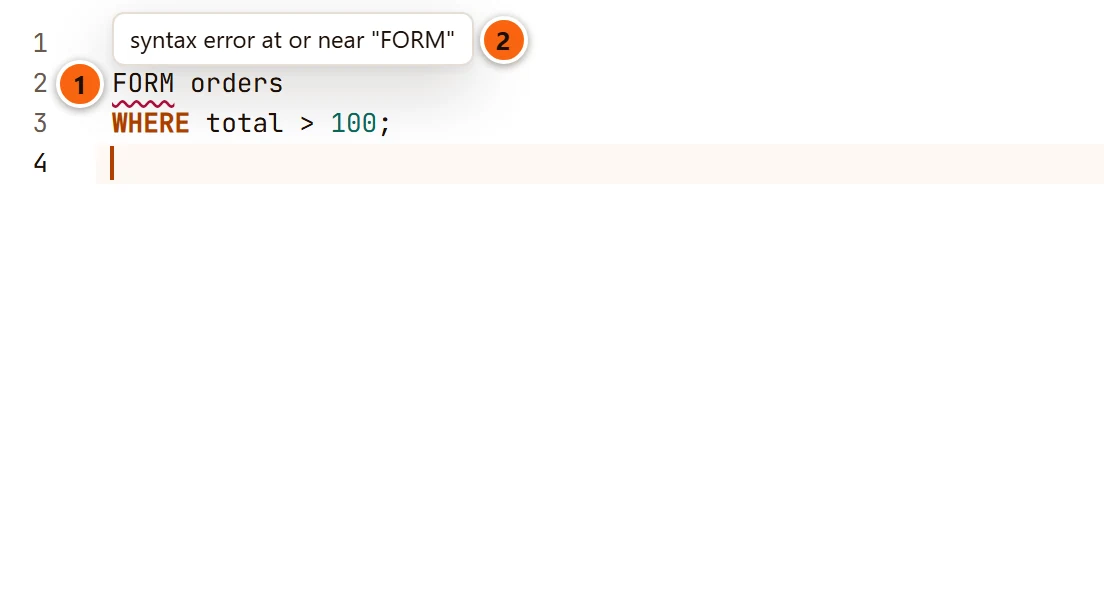
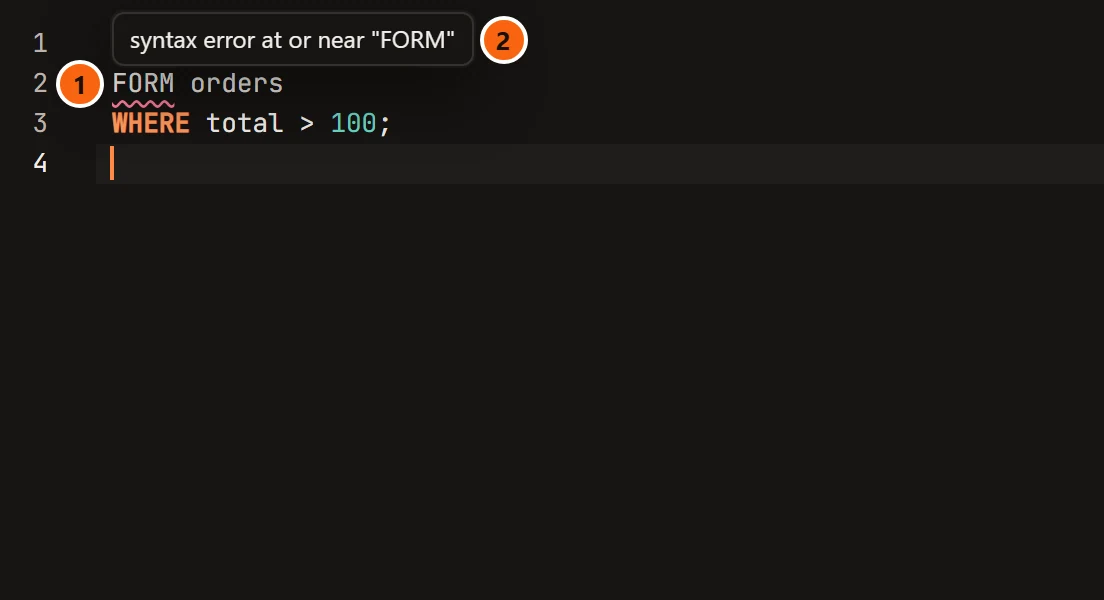
- 1 What PostgreSQL’s parser cannot read is underlined: the word, the quote left open or the character where it stopped.
- 2 Rest the pointer on the underline to read PostgreSQL’s message.
About half a second after you stop typing, pgjumbo reads each statement of the tab with PostgreSQL’s own parser, which is built into pgjumbo. Nothing goes to the server, so it works before the tab is connected.
- It checks grammar only. A table or column name that does not exist is not underlined: the server says so when the statement runs.
- The parser is the one of PostgreSQL 18. A statement that an older server does not understand is not underlined.
- Each statement gets at most one mark, where the parser stopped; fix it and the next problem in that statement, if any, shows at the next check.
- A psql meta-command such as
\dis left alone. A tab of more than 1 MB of text is not checked, and at most 100 marks show. - Editing the underlined text removes its mark until the next check.
Turn it off with Underline syntax errors while typing in SettingsEditor. It is on by default. The red underline that appears after a run is a different one: it shows where the server found an error; see When a statement fails.
Format SQL
Section titled “Format SQL”Press ⇧ ⌘ F (Ctrl+Shift+F on Windows and Linux), or choose QueryFormat SQL or Format SQL in the toolbar’s More menu. pgjumbo lays out the selection, or the whole tab when nothing is selected:
- clauses on lines of their own, indented by two spaces;
- keywords in the case you typed them;
- one blank line between statements;
- strings, dollar-quoted bodies, casts and comments as they were.
The change is one step: ⌘ Z (Ctrl+Z on Windows and Linux) undoes it. Nothing runs, and the tab does not need to be
connected. When the formatter cannot read the SQL, Could not format: and its reason show beside the result tabs, and
the text stays as it was. If you go on typing while it works, it leaves your text alone.
Find and replace
Section titled “Find and replace”Press ⌘ F (Ctrl+F on Windows and Linux) to open the find panel at the bottom of the editor. ⌥ ⌘ F (Ctrl+H on Windows and Linux) opens the same panel, which always has the replace field.
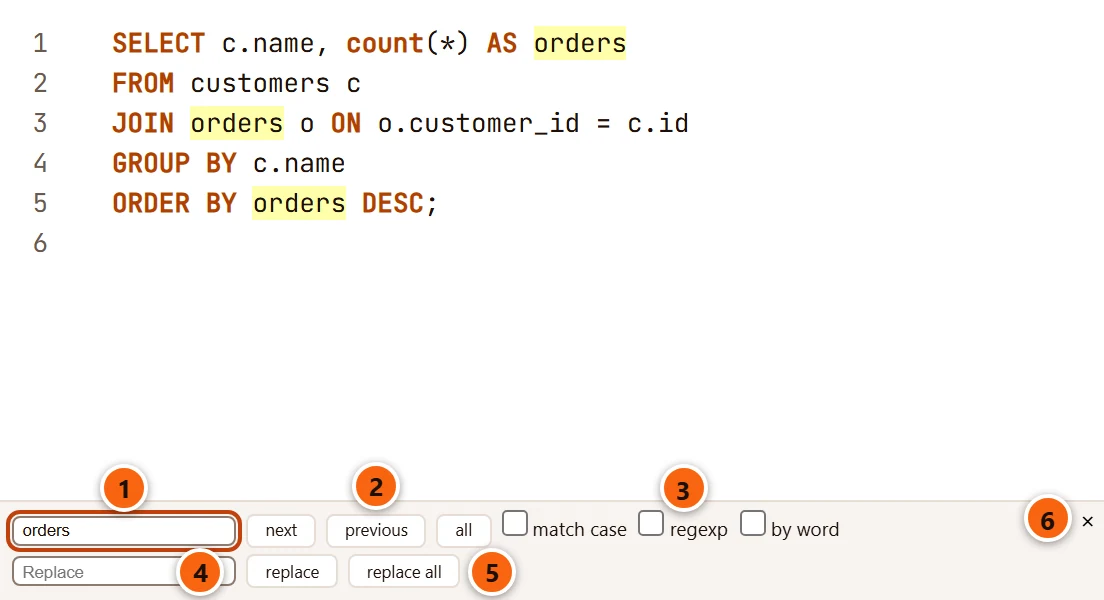
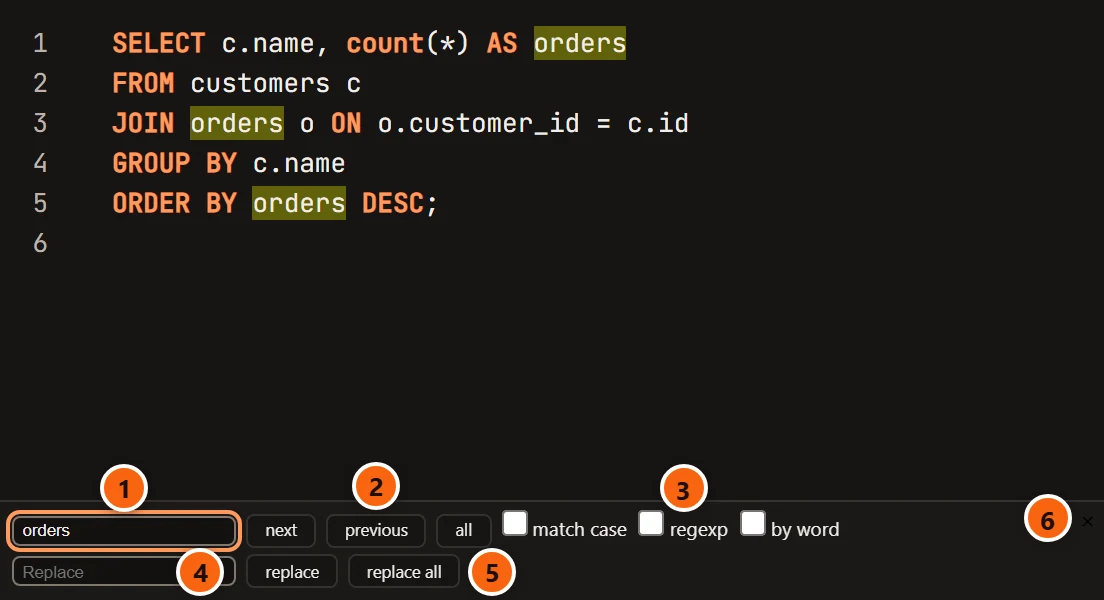
- 1 Find: what to look for. Every match in the tab is highlighted. Enter goes to the next one, Shift+Enter to the one before.
- 2 next and previous go to the next or the last match; all selects every match, each with a cursor of its own, so you can change them all at once.
- 3 match case tells capitals from small letters; regexp reads the text as a JavaScript regular expression; by word finds whole words only.
- 4 Replace: the text to put in. Enter in this field replaces the next match.
- 5 replace replaces the next match; replace all replaces every match.
- 6 Closes the panel, as Esc does.
F3 or ⌘ G (Ctrl+G on Windows and Linux) goes to the next match, and Shift+F3 or ⇧ ⌘ G (Ctrl+Shift+G on Windows and Linux) to the one before, with the panel open or closed.
When you select a word, the other places it occurs are outlined. When the cursor stands next to a bracket, the bracket that matches it is highlighted.
Comments, cursors and other keys
Section titled “Comments, cursors and other keys”| What it does | macOS | Windows and Linux |
|---|---|---|
Comments or uncomments the selected lines with -- |
⌘ / | Ctrl+/ |
Puts /* */ around the selection, or takes it away |
⌃ ⇧ A | Shift+Alt+A |
| Adds a cursor where you click | ⌘ and click | Ctrl and click |
| Selects a rectangle | ⌥ and drag | Alt and drag |
| Adds the next place the selected text occurs to the selection | ⌘ D | Ctrl+D |
| Selects every place the selected text occurs | ⇧ ⌘ L | Ctrl+Shift+L |
| Goes back to one cursor; closes a list or the find panel | Esc | Esc |
| Moves the line, or the selected lines, up or down | ⌥ ↑ ⌥ ↓ | Alt+↑ Alt+↓ |
| Copies the line, or the selected lines, above or below | ⇧ ⌥ ↑ ⇧ ⌥ ↓ | Shift+Alt+↑ Shift+Alt+↓ |
| Deletes the line | ⇧ ⌘ K | Ctrl+Shift+K |
| Selects the line | ⌃ L | Alt+L |
| Indents or outdents the selected lines | ⌘ ] ⌘ [ | Ctrl+] Ctrl+[ |
| Jumps to the matching bracket | ⇧ ⌘ \ | Ctrl+Shift+\ |
| Moves over a whole word, string or bracketed group, as the SQL is built | ⌃ ← ⌃ → | Alt+← Alt+→ |
| Moves one word left or right | ⌥ ← ⌥ → | Ctrl+← Ctrl+→ |
| Moves to the start or end of the line | ⌘ ← ⌘ → | Home End |
| Moves to the start or end of the text | ⌘ ↑ ⌘ ↓ | Ctrl+Home Ctrl+End |
| Deletes the word before or after the cursor | ⌥ ⌫ ⌥ ⌦ | Ctrl+Backspace Ctrl+Delete |
| Undoes and redoes | ⌘ Z, ⇧ ⌘ Z | Ctrl+Z, Ctrl+Y (also Ctrl+Shift+Z on Linux) |
| Undoes and redoes the last change of selection | ⌘ U, ⇧ ⌘ U | Ctrl+U, Alt+U |
| Selects everything | ⌘ A | Ctrl+A |
| Makes Tab move the focus out of the editor instead of indenting, or back | ⇧ ⌥ M | Ctrl+M |
Add Shift to any of the moves to select as you go.
No key of the editor uses Ctrl and Alt together, because many keyboards type [, ], {, } and @ with AltGr,
which arrives as Ctrl+Alt. So there is no key to add a cursor on the line above or below (click with
⌘ (Ctrl on Windows and Linux) or drag with ⌥ (Alt on Windows and Linux) instead), and no key to go to a line number.
These keys in the editor reach the Query Tool:
| Keys | What they do |
|---|---|
| ⌘ ↩︎ (Ctrl+Enter on Windows and Linux) | Run: the selection, or the whole tab. While a change from the Assistant waits in the editor, it accepts the change instead. |
| ⇧ ↩︎ (Shift+Enter on Windows and Linux) | Run Statement: the selection, or the statement at the cursor. It does not start a new line. |
| ⇧ ⌘ ↩︎ (Ctrl+Shift+Enter on Windows and Linux), F5 | Run Script: the whole tab. |
| ⌘ . (Ctrl+. on Windows and Linux), Shift+F5 | Stop. |
| ⌘ E (F7 on Windows and Linux), ⌥ ⌘ E (Shift+F7 on Windows and Linux) | Explain and Explain Analyze. See Explain a query. |
| F12 | Go to Definition. |
| ⇧ ⌘ F (Ctrl+Shift+F on Windows and Linux) | Format SQL. |
| ⇧ ⌘ M (Ctrl+Shift+M on Windows and Linux) | Fill in a template’s values. |
| ⌘ K (Ctrl+K on Windows and Linux) | Asks the Assistant for a change, shown in the editor, while the Assistant is on. See SQL help in the editor. |
The Query Tool explains what each way of running takes. Keyboard shortcuts lists every key of the app.
Fill in a template’s values
Section titled “Fill in a template’s values”A template writes each value it needs as <name, type, default>, for example <table, name, orders>. Press
⇧ ⌘ M (Ctrl+Shift+M on Windows and Linux) or choose QueryFill in Template Values… to fill them
all in at once. The Fill in template values dialog has a row for each value: Value (its name), Type
(name, text, number or SQL) and Fill in with, which starts with the default. Fill in replaces
every place each value appears in the tab; ⌘ Z (Ctrl+Z on Windows and Linux) takes it back.
A name gets double quotes when it needs them, which the tab’s server works out, so the server must be connected. A
text becomes a quoted string, a number must be one, and SQL goes in as you typed it. When the tab has no
value to fill in, Nothing to fill in: a template writes each value as <name, type, default>. shows beside the result
tabs for a few seconds. A template you open from the Library asks for its values at once.
The Library has templates ready to use and explains the dialog in full.
The editor’s look
Section titled “The editor’s look”SettingsEditor sets the editor’s Font (JetBrains Mono, which comes with pgjumbo and is the default, or System monospace), its Size (10 to 24, 13 by default) and the Tab width (2, 4 or 8 spaces, 4 by default, which is also what one indent inserts). Open editors follow as soon as you save the settings. See Settings.
Keywords, strings, numbers, comments and function names each have their own colour. The line under the cursor is highlighted while the editor has the focus and no text is selected.
Cursor position and encoding
Section titled “Cursor position and encoding”The status bar shows where the cursor is in the tab in front, as Ln 3, Col 14, and UTF-8. pgjumbo always talks to
the server in UTF-8, whatever the database’s own encoding; the server converts. Reading and saving .sql files in
other encodings is in Files, drafts and history.