
View data
A data tab shows the rows of one table, partition, view, materialized view or foreign table. You choose a filter, a
sort, the columns and how many rows; pgjumbo writes the SELECT, runs it on the server and shows the result in the
same grid as the Query Tool. When the table has a primary key you can also change its rows there: see
Edit data.
Open a table’s rows
Section titled “Open a table’s rows”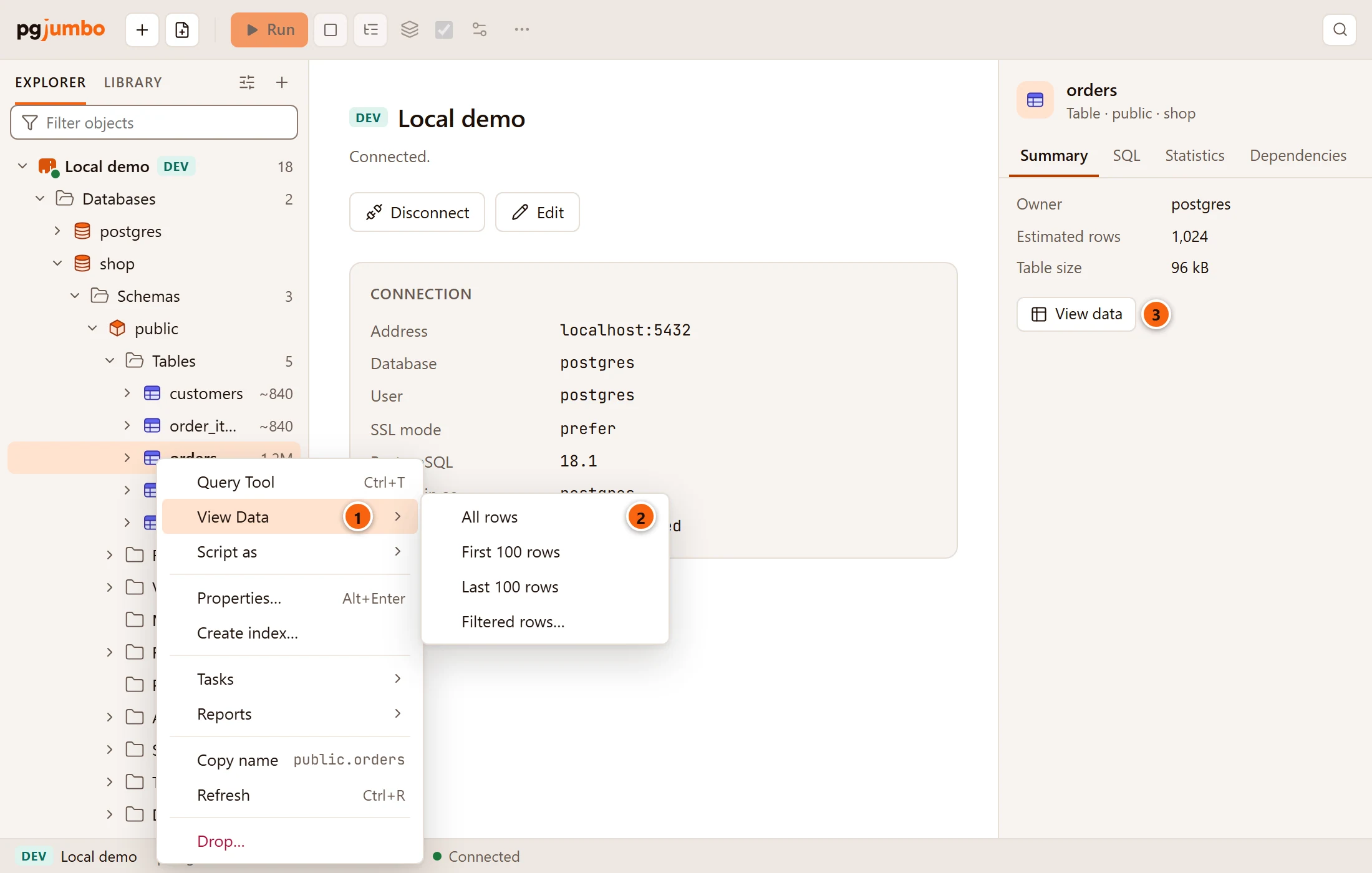
- 1 Right-click a table, partition, view, materialized view or foreign table in the Explorer and point to View Data.
- 2 Choose how many rows to start with. The table below says what each item does.
- 3 Or select the object in the Explorer and click View data under the properties in the Inspector’s Summary. It starts with the first 1,000 rows.
| View Data item | What it shows |
|---|---|
| All rows | Every row, as far as the result limits in Settings allow (see Row counts and limits). |
| First 100 rows | The first 100 rows, in primary-key order. |
| Last 100 rows | The 100 rows with the highest primary key, sorted by the key from highest to lowest. A view, or a table without a primary key, has no key to sort by, so you get the first 100 rows the server returns. |
| Filtered rows… | Nothing yet: the tab waits for a condition (see Start with a filter). |
Where the rows open depends on the kind of object:
- A table, a partitioned table or a partition opens in its own tab, on the Data view. A double-click on the table, or Enter with it selected, opens the same tab on the view you used last for tables, which is Data until you pick another one. If the tab opened on another view, click Data in its header: the first time, it reads the first 1,000 rows. The tab’s other views are explained in Tables.
- A view or a materialized view also opens in its own tab on Data, and a double-click opens it there. See Views and materialized views.
- A foreign table opens in a data tab of its own in the tab strip, named after the table with
· dataadded, such asinvoices · data. Each View Data choice opens a new one.
In Object Details, a double-click on a table, view or materialized view opens it on Data too.
If the object’s tab is already open, View Data brings it forward on Data. When its Data view has been shown before, a choice from the View Data submenu reads the rows again that way; otherwise Data starts with the first 1,000 rows.
If the rows cannot be read (the table was dropped meanwhile, say), a message titled The data could not be shown says why; in an object tab, a notice under its header says The rows could not be shown and the reason.
Each data tab has its own connection to the database, as a Query Tool tab does, so a slow query in one tab never holds up another. The tab’s process id shows in the status bar.
The data bar
Section titled “The data bar”The data bar sits where a Query Tool has its editor. It holds everything that decides which rows you see.
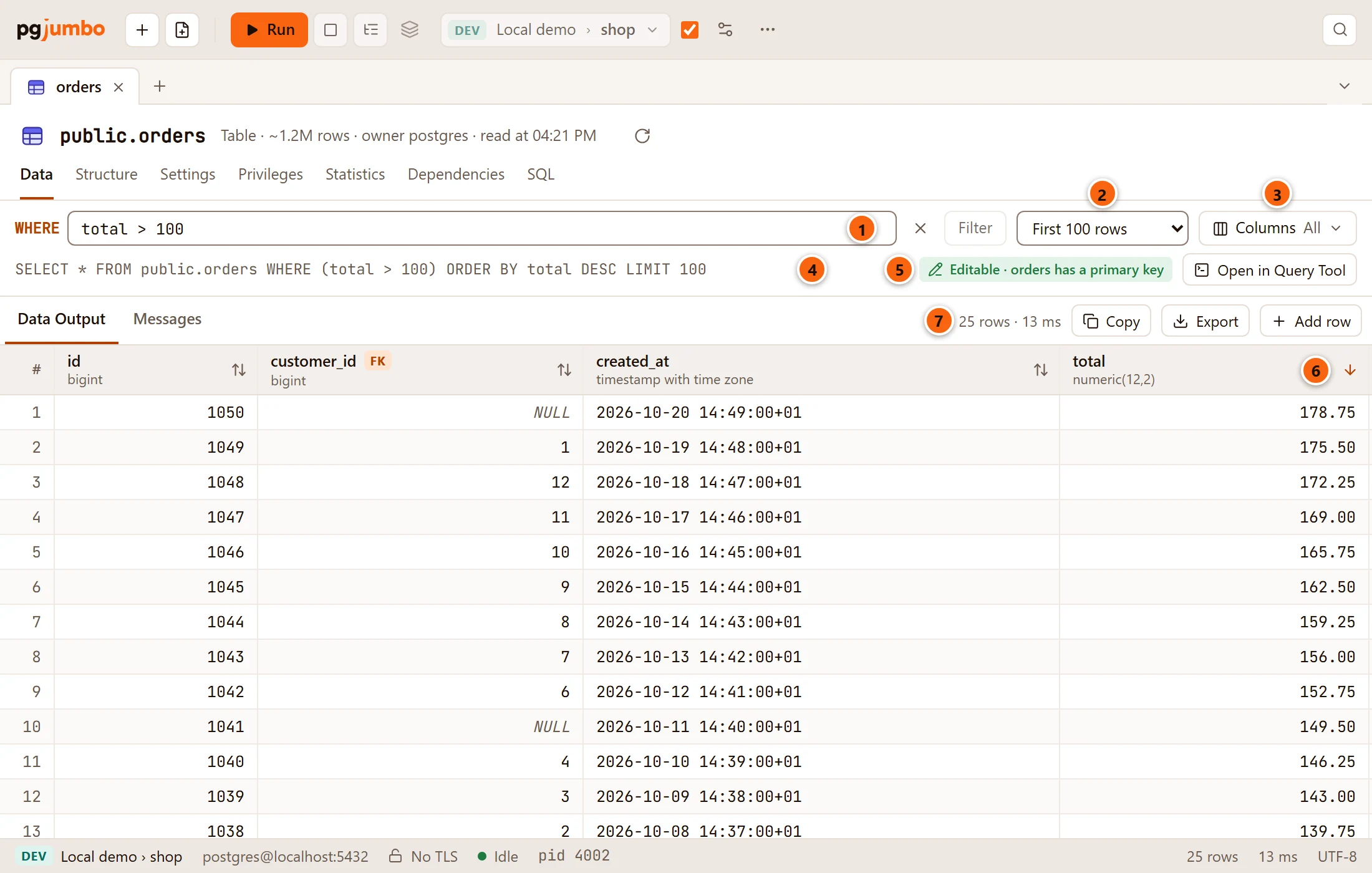
- 1 WHERE: a condition, written as you would write it after
WHEREin SQL, such astotal > 100orstatus = 'paid' AND created_at > now() - interval '7 days'. Press Enter or click Filter to apply it. Filter stays greyed out until the text differs from the filter in use. The × between the field and Filter clears the field and, when a filter was in use, shows every row again. - 2 Rows to fetch: First 100 rows, First 1,000 rows, First 10,000 rows, First 100,000 rows or All rows. Picking one reads the rows again straight away.
- 3 Columns: which columns to show. The button says All, or how many of them show, such as
3/4. See Choose columns. - 4 The
SELECTpgjumbo built from your choices. Point at it to read all of it when it is cut off. Open in Query Tool, at the right end of this line, opens a new Query Tool on the same database with thisSELECTin its editor, ready for you to take further. Nothing runs until you run it there. - 5 Whether you can change these rows. Editable · orders has a primary key means you can; Read-only means you cannot, and pointing at the tag says why. Edit data explains both. The tag shows once the rows are read.
- 6 The sort button in each column heading (see Sort).
- 7 How many rows came back and how long the query took (see Row counts and limits).
Every change in the bar is a new query on the server. While rows are loading, the filter, the row limit and Columns are greyed out; click Stop in the toolbar, or press ⌘ . (Ctrl+. on Windows and Linux), to cancel a slow one.
What the filter accepts
Section titled “What the filter accepts”The filter is your own SQL, so anything a WHERE clause takes works: functions, subqueries, IN (…), ILIKE, a
-- comment. It runs with your role on the tab’s connection, as if you had typed it in a Query Tool. pgjumbo adds one
rule: it must stay one condition. A semicolon outside a quoted string, or a ) that closes the condition early so that
more SQL follows, is refused before anything runs.


- 1 The refusal shows under the bar. The rows on screen stay as they were.
A condition the server rejects, such as a misspelt column, runs and fails like any query: the error is in the Messages tab beside Data Output.
Click the arrows at the right of a column heading to sort by that column. Each click moves on: lowest first, then
highest first, then not sorted. Hold ⇧ (Shift on Windows and Linux) while you click to add the column to the sort
instead of replacing it; each sorted heading then shows its place in the sort, 1, 2 and so on.
The server sorts, so the order covers the whole table, not only the rows on screen. Without a sort, a table’s rows come in primary-key order, which keeps them in the same order every time. A view, or a table without a primary key, has no such order.
Choose columns
Section titled “Choose columns”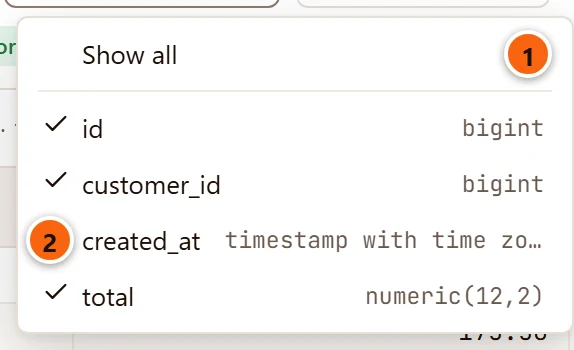
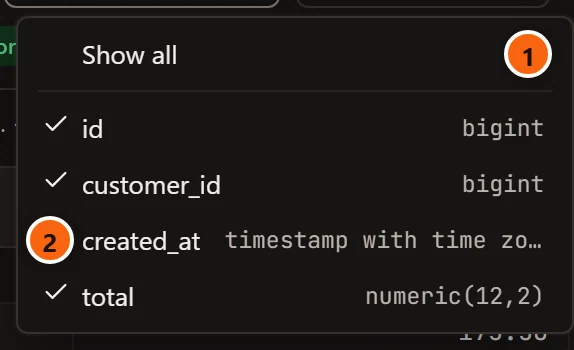
- 1 Show all ticks every column again. It is greyed out while every column is ticked.
- 2 Untick a column to leave it out. Each column shows its type on the right.
The rows are read once, when the menu closes, not after every tick. The last ticked column cannot be unticked. Columns keep the table’s order, whatever order you tick them in.
Start with a filter
Section titled “Start with a filter”Filtered rows… opens the tab without reading anything. Use it on a table with millions of rows.
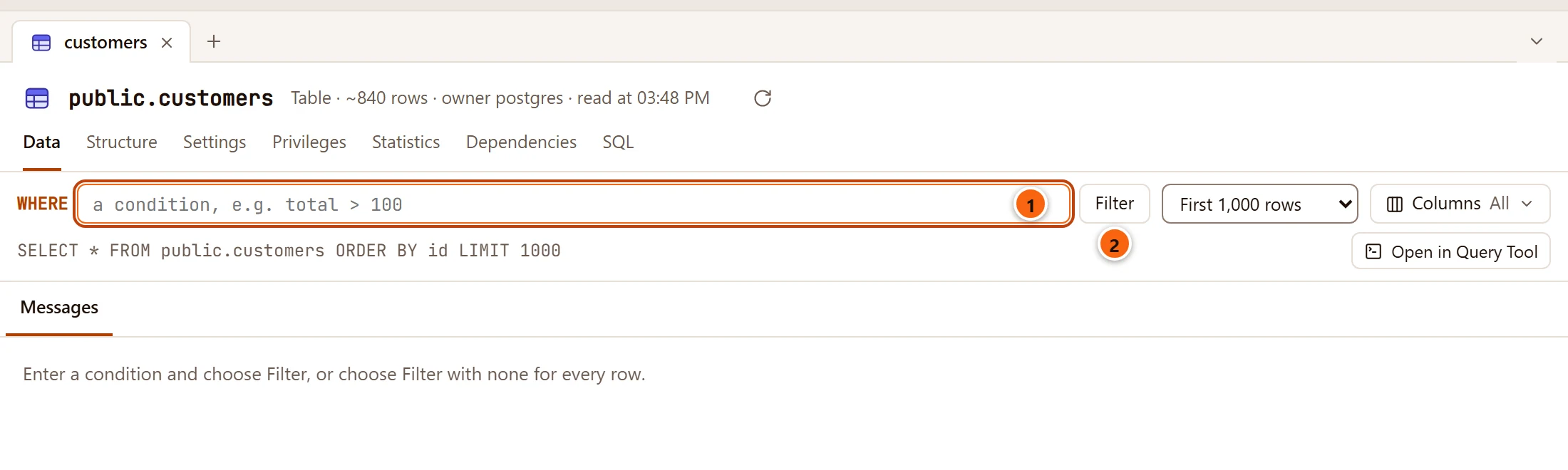
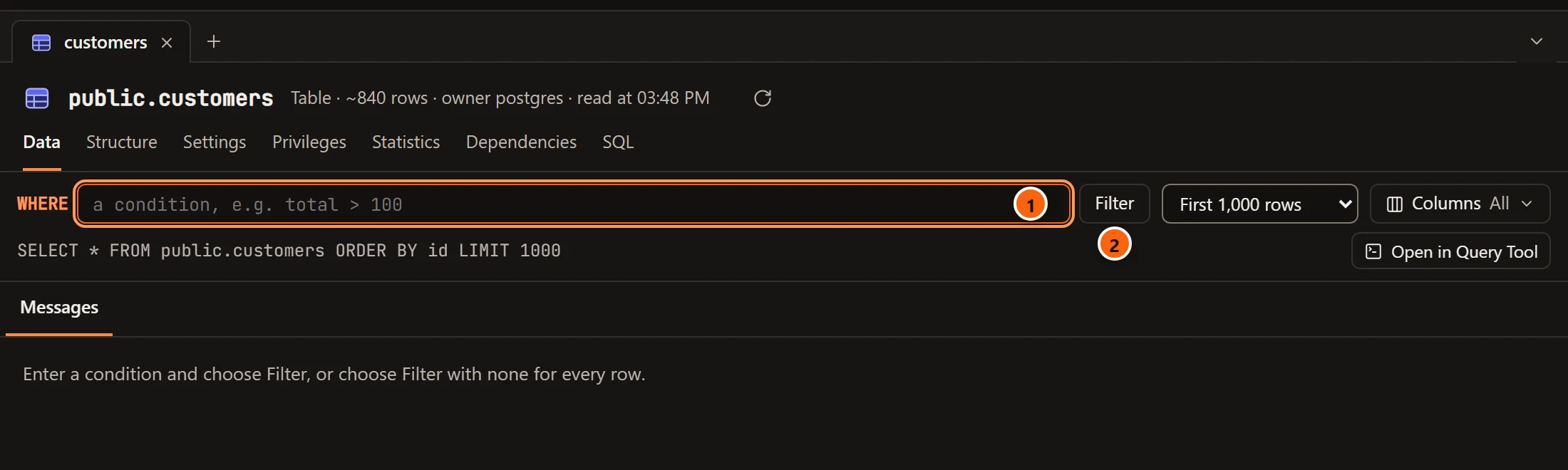
- 1 The WHERE field has the focus. Type a condition.
- 2 Click Filter or press Enter. Clicking it with the field empty reads the rows with no filter.
The row limit is First 1,000 rows until you pick another. Picking a row limit, a sort or other columns first also reads the rows, with no filter.
Row counts and limits
Section titled “Row counts and limits”Beside Data Output, the tab says how many rows it holds and how long the query took, such as 25 rows · 17 ms.
The status bar at the bottom of the window repeats both.
pgjumbo keeps at most 100,000 rows or 200 MB per result, whichever comes first. Both limits are under Results in
Settings (Rows kept per result and Memory per result (MB)). With All rows on
a bigger table, the server still sends every row: pgjumbo counts the rest without keeping them, and the note says, for
example, Showing 100,000 of 1,200,000 rows. Use a filter, or Import/Export Data…,
when you need all of a large table.
Show the rows again
Section titled “Show the rows again”The rows on screen are what the server had when they were read. To read them again with the same filter, sort, columns and limit, click Run in the toolbar, press ⌘ ↩︎ (Ctrl+Enter on Windows and Linux), or choose QueryRun. Run Script (⇧ ⌘ ↩︎ (Ctrl+Shift+Enter on Windows and Linux)) does the same in a data tab. The Run button’s tooltip says Show the table’s rows again.
Some of the Query Tool’s controls do nothing in a data tab and are greyed out: Explain, Run on several databases, and in the ··· menu Run Statement, Explain Analyze, Format SQL and Run on Several Databases…. The database picker is greyed out too; its tooltip says A data tab stays on its table’s database. Auto-commit, Commit, Rollback and Session settings work as in a Query Tool; see Transactions and sessions.
If you have changed rows and not saved them, anything that reads the rows again (Run, a filter, a sort, a row limit, other columns, another View Data choice) asks first. Edit data shows that question.
Follow a foreign key
Section titled “Follow a foreign key”When a column of the result is a foreign key, its heading has an FK tag. Pointing at the tag names the table it references. From any row you can open the row it points to.
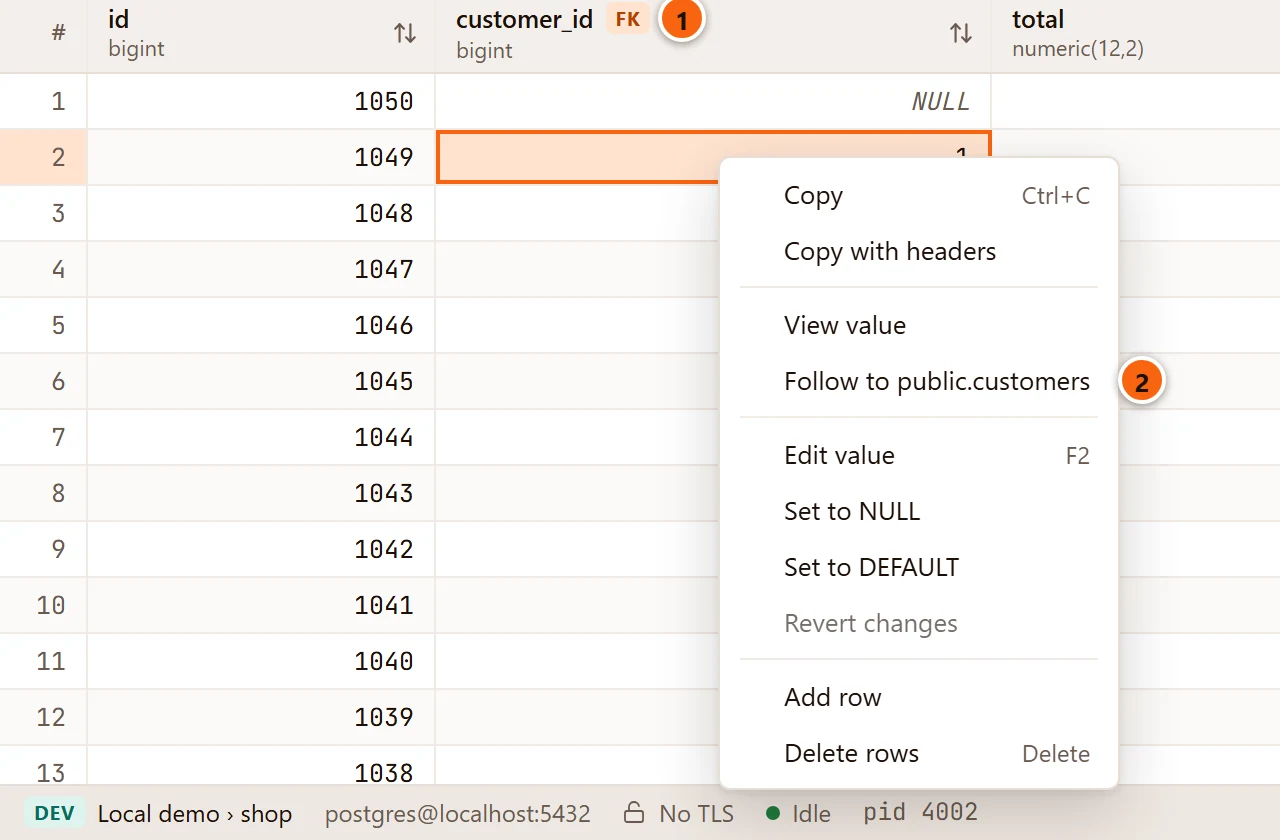
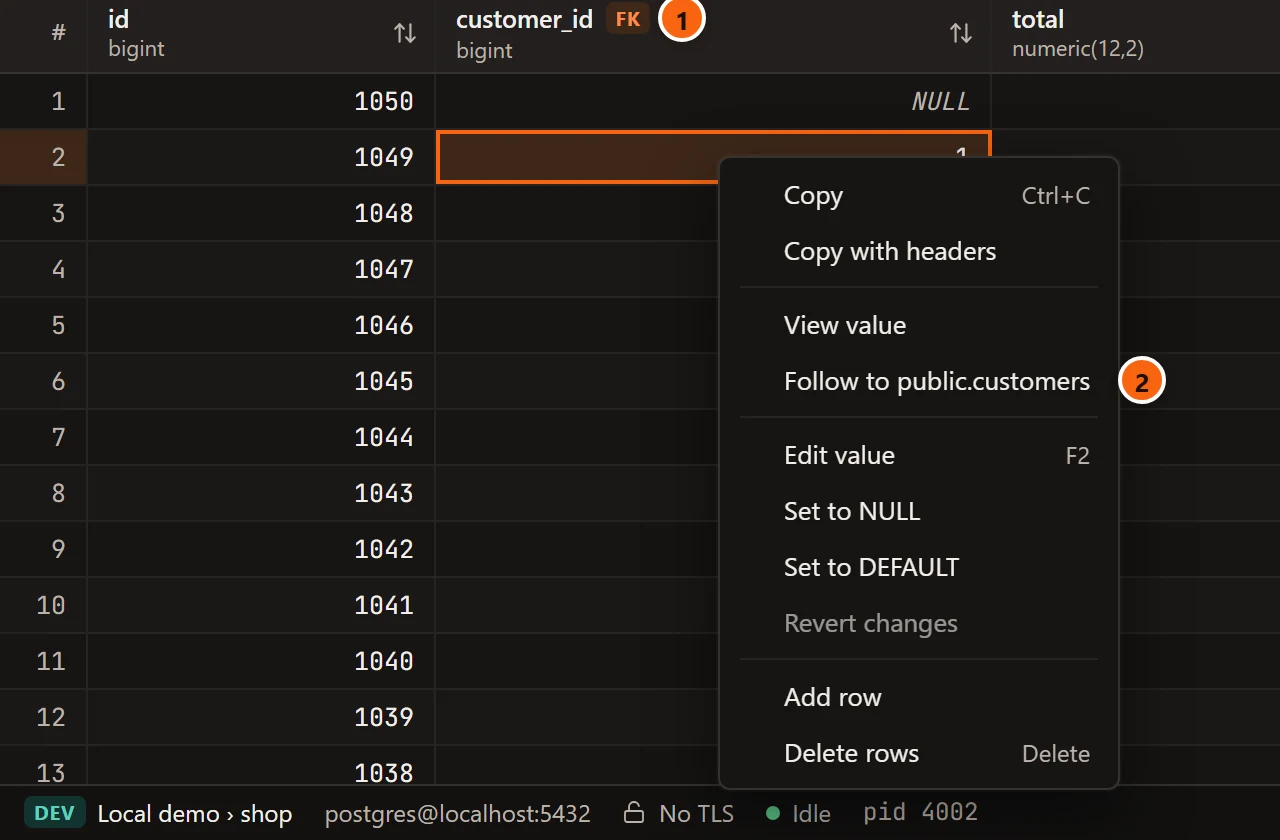
- 1 The FK tag:
customer_idreferences another table. - 2 Right-click a value in the row you want and choose Follow to public.customers. A column that belongs to several foreign keys has one item for each.


- 1 A new data tab opens on the referenced table, at the end of the tab strip and in front. It is a data tab of its own, even for a table that otherwise opens in its own object tab.
- 2 Its filter is already written from the values in your row, such as
id = '1'. Change or clear it as you like: from here it is an ordinary data tab, with the first 1,000 rows as its limit.
Following works the same way from Query Tool results (see Results). It needs every column of
the foreign key in the result, so a result that shows only part of a two-column key has no FK tag. It is not
offered on rows you have added and not saved yet, nor on rows merged from several databases. When the row’s key is
NULL, no tab opens and a short message beside Data Output says so, for example
This row's customer_id is NULL: it references no row of public.customers.
Close a data tab
Section titled “Close a data tab”Click the × on the tab, press ⌘ W (Ctrl+W on Windows and Linux), or choose FileClose Tab. A table’s or view’s Data view closes with its object tab. If you have changed rows and not saved them, pgjumbo asks first; see Edit data.
Data tabs, unlike Query Tool drafts, are not kept when pgjumbo quits. The tab strip’s own menu (close others, pin, move to the other side) is explained in Tabs.
The grid itself
Section titled “The grid itself”Selecting cells, Copy and Copy with headers, the cell viewer for long values, and the Copy and Export buttons above the grid work as in a Query Tool. They are explained in Results and Save results to a file. A data tab shows its rows in the grid only: it has no Grid, Text or Map switch, and no History or Explain tab.