
SQL help in the editor
The Assistant can write and fix SQL where you work on it. In a Query Tool tab, ⌘ K (Ctrl+K on Windows and Linux) asks for a change in a sentence and shows the answer as a diff in the editor. A failed statement, a slow plan and a function’s definition each have a button that asks the Assistant about them. Nothing it writes ever runs: you accept a change into the editor, then run it yourself.
Everything on this page needs the Assistant turned on (Settings › Assistant, Use the Assistant); until then its buttons are hidden and its menu item is greyed out. Set up the Assistant explains what it needs and what it may read on each server. Every question asked here joins the window’s one conversation, which you follow in the Assistant pane (Ask the Assistant). One answer is written at a time: while the Assistant is still answering, the buttons on this page only bring the pane forward and ask nothing, so ask again when it is done.
Ask for a change with ⌘K
Section titled “Ask for a change with ⌘K”Select the SQL you want changed, or put the cursor where new SQL should go, and press ⌘ K (Ctrl+K on Windows and Linux), or choose QueryAsk the Assistant…. The item is greyed out unless the tab in front is a Query Tool tab (not a data tab) whose connection is open, nothing is running in it, and the Assistant is on. The keys work even when the focus is outside the editor, as long as that tab is in front and no dialog is open.
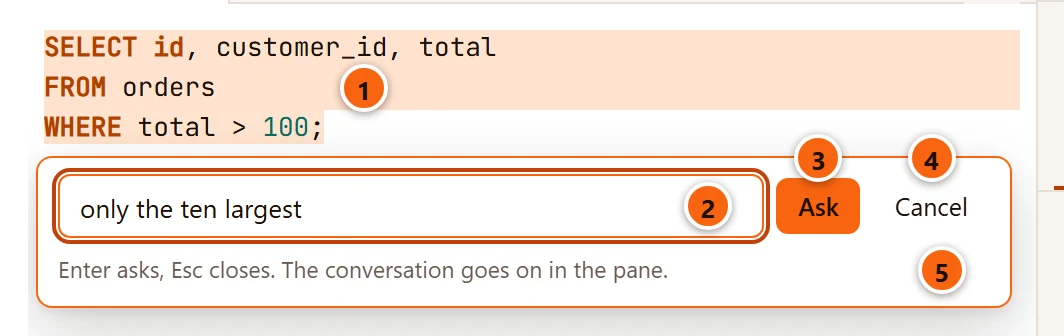
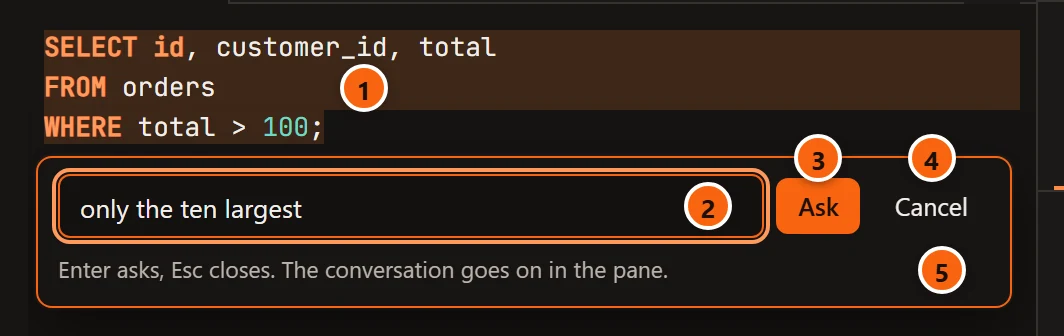
- 1 The selection the prompt is about. With nothing selected, the Assistant writes new SQL instead.
- 2 The field: say what to change or write, in your own words. It hints “Change the selection, e.g. add the customer’s name” when text is selected and “Describe the SQL to write” when not.
- 3 Ask (or Enter) sends it. With the field empty it sends nothing.
- 4 Cancel (or Esc) closes the prompt and leaves the editor as it was.
- 5 A line that says what the keys do. The prompt’s notes, below, show here too.
The prompt card sits under the last line of the selection, or under the cursor’s line.
When you ask, the field is greyed out, Ask and Cancel give way to Stop, and the line says “The Assistant is writing the change…”. Stop ends the Assistant’s answer. The Assistant pane is not brought forward, but the question shows in it as “Change the selection: …” or “Write at the cursor: …”, with the reads the Assistant makes to answer it. It sees the tab as any message from the tab does: the script, the selection the prompt was opened on, the last error, the plan and the session. What it may read depends on the server’s access settings.
The prompt can come back with a note instead of a change, your question still in the field:
| The note says | Why |
|---|---|
| The Assistant is still answering in the pane; ask again when it is done. | A question asked in the pane is still being answered. One answer runs at a time. |
| No change came back; the answer is in the pane. | The Assistant answered in words only, for example to ask you something. Read the pane and answer there, or ask differently. |
| Claude Code stopped. | You clicked Stop, or Claude Code ended. Any other failure shows its own message here, the same one the pane shows under the answer. |
Press Esc in the editor to close the prompt while it waits; the answer still arrives, as a card in the pane.
Review the change
Section titled “Review the change”The first SQL the Assistant proposes in its answer goes straight into the editor as a diff. You decide there.
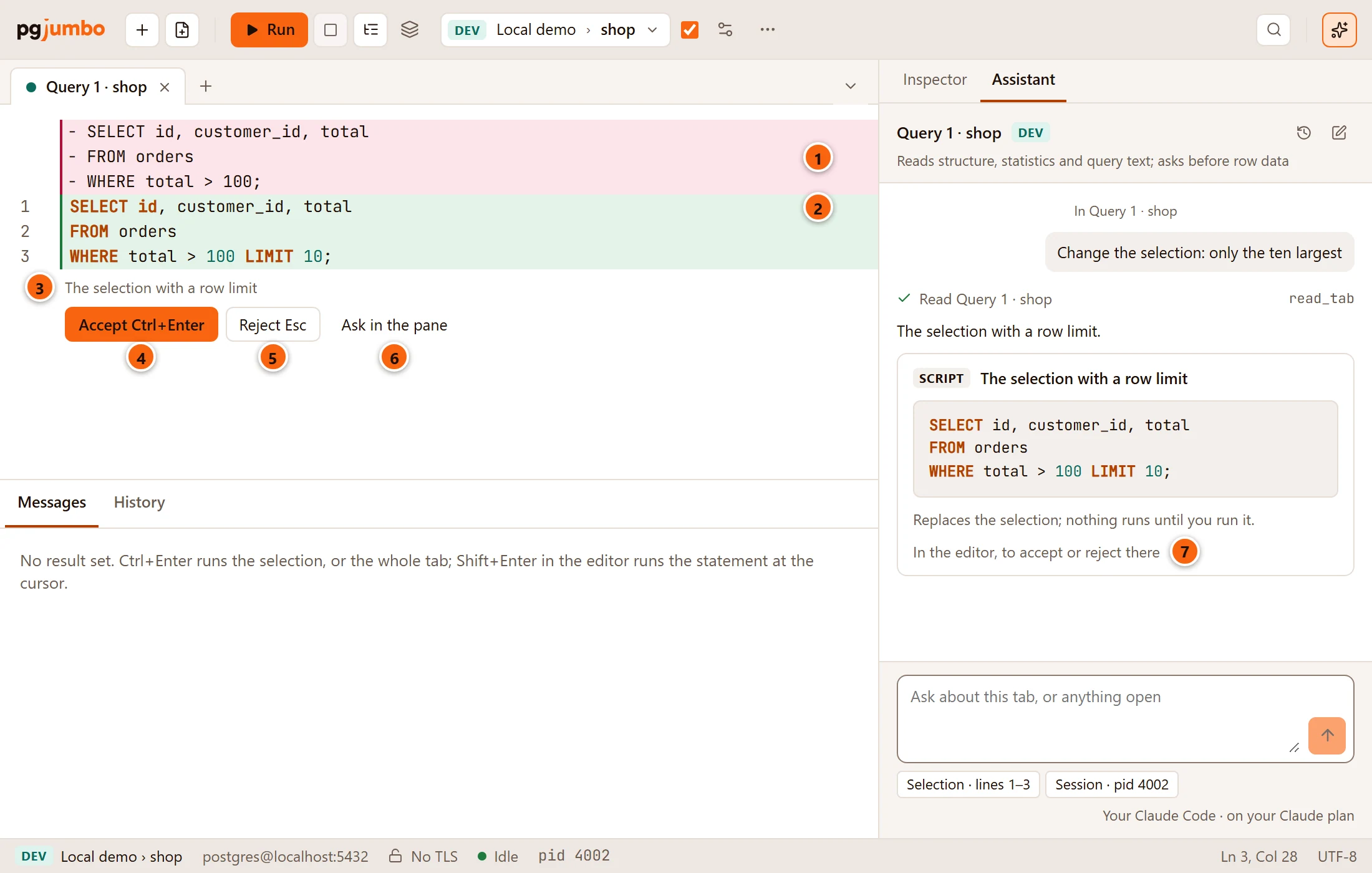
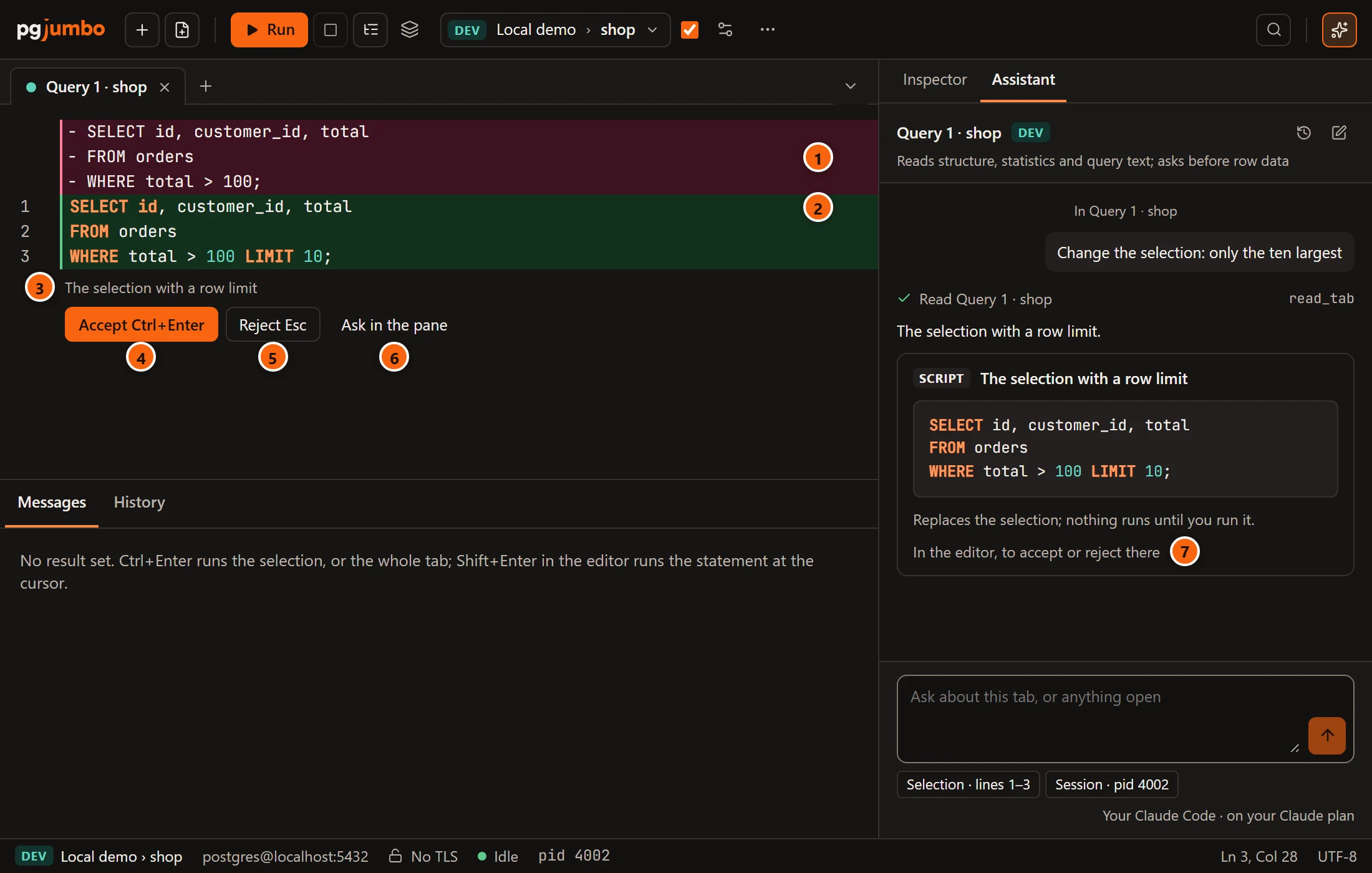
- 1 What the change takes out, in red, each line marked
−. A change that only adds lines has none. - 2 What it puts in, on green. These lines are in the editor already, so you can read them in place.
- 3 The Assistant’s one-line summary of the change.
- 4 Accept (⌘ ↩︎ (Ctrl+Enter on Windows and Linux)) keeps the change and selects it. While a change waits for review, Run in the toolbar, Run, Run Statement and Run Script in the Query menu, and their keys accept it instead of running anything. Run again to run it.
- 5 Reject (Esc) puts back exactly what was there and closes the review.
- 6 Ask in the pane shows the Assistant pane, to ask a follow-up question or read the whole answer. The change stays under review.
- 7 The same SQL as a card in the pane. While it is under review the card says “In the editor, to accept or reject there”. After Accept it shows In the editor; after Reject, “Rejected”.
Where the change goes depends on what the Assistant proposes:
| The Assistant proposes | It goes |
|---|---|
| A replacement for the selection | In place of the text the prompt was opened on, even if you selected something else since. When the prompt was opened with nothing selected, it goes in as SQL to insert. |
| SQL to insert | On a new line after the line the prompt was opened under, or on that line when it is empty. |
| A new text for the whole script | In place of the whole editor. |
Undo does not see a change under review: the editor’s undo history skips it. Accept adds it to the history as one step, so ⌘ Z (Ctrl+Z on Windows and Linux) takes the whole change back afterwards. Reject adds nothing to it. While a change waits, ⌘ K (Ctrl+K on Windows and Linux) does nothing; accept or reject it first.
Only the first proposal of an answer goes into the editor. Any others stay in the pane as Script cards, whose Accept in editor puts the SQL in place of what is selected when you click it (or of the whole text, or after the cursor’s line, as the card says). So does a proposal that arrives after you closed the prompt with Esc. See What the Assistant proposes.
Fix a failed statement
Section titled “Fix a failed statement”When a statement fails, its entry in the Messages tab has Fix with the Assistant under the error. It shows while the Assistant is on, in a Query Tool tab (not a data tab), once the run has ended. It is not offered after Run on Several Databases…. Results and Messages are explained in Results.
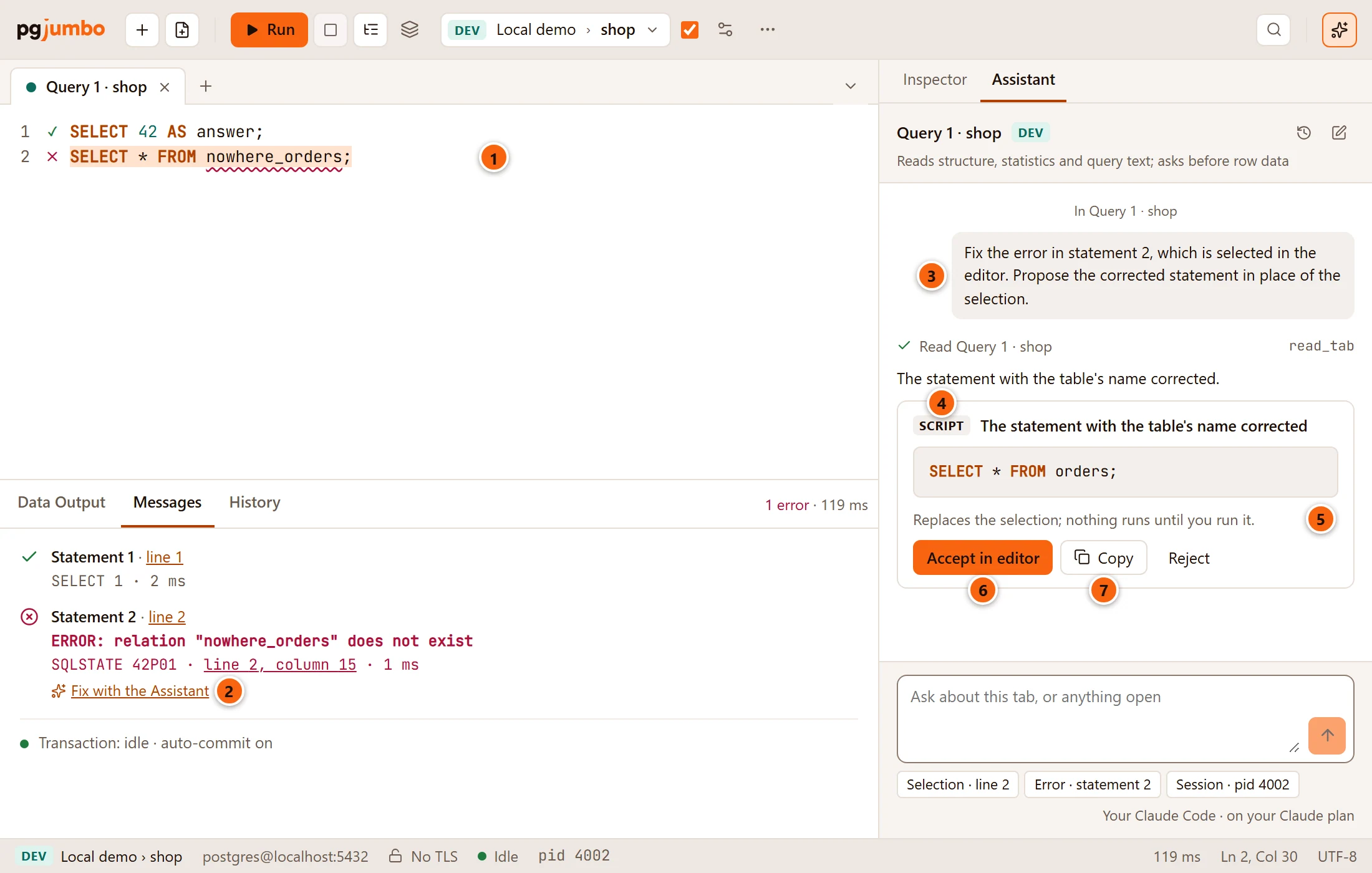
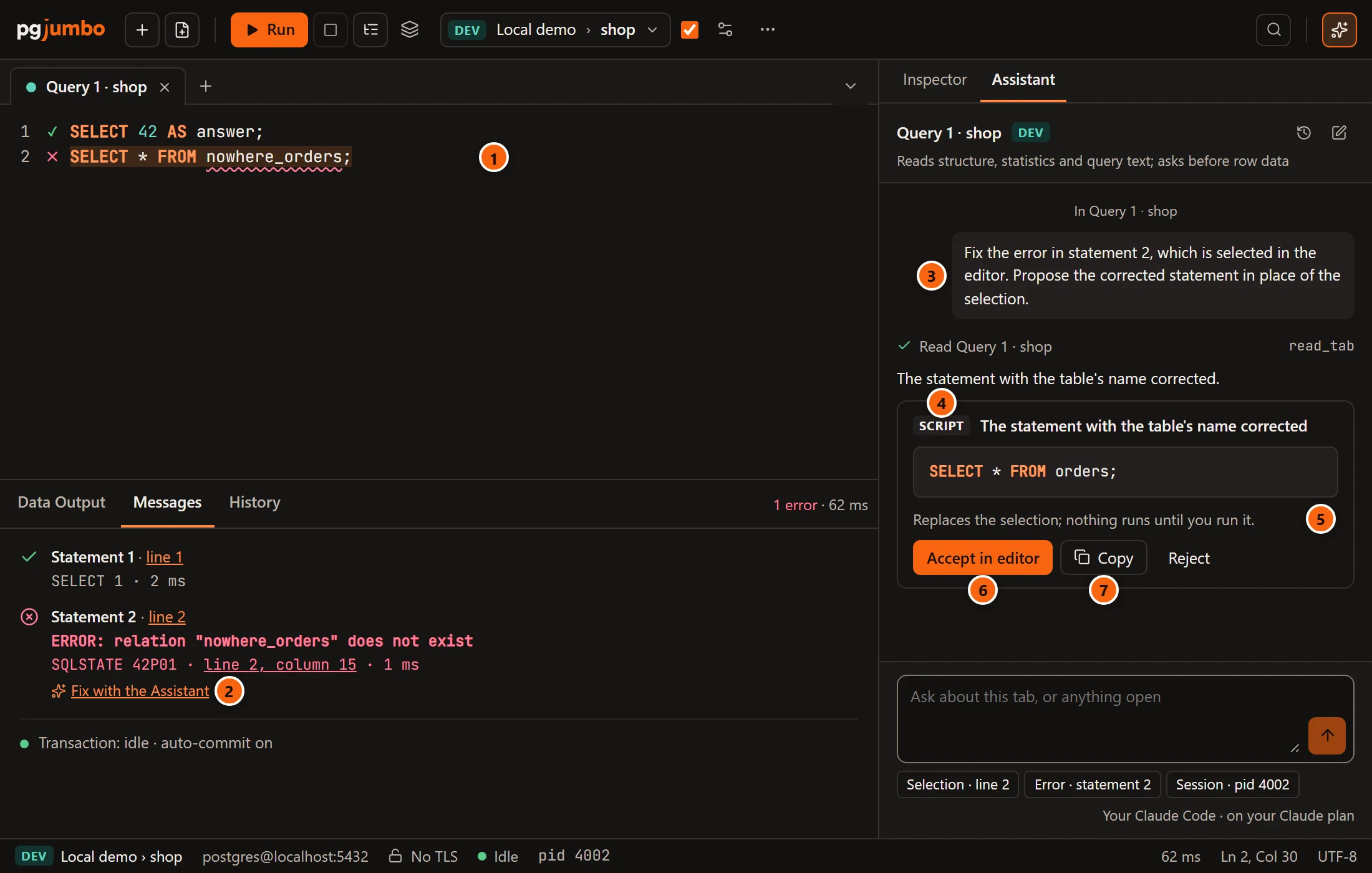
- 1 pgjumbo selects the statement that failed, with its semicolon, so the fix can take its place. It does so only while the editor still holds the text that ran; if you changed the script since, nothing is selected.
- 2 Fix with the Assistant shows the Assistant pane and asks.
- 3 The question: “Fix the error in statement 2, which is selected in the editor. Propose the corrected statement in place of the selection.” Without a selection it asks only for the corrected statement. The error goes with it: its SQLSTATE, message, detail, hint and statement number.
- 4 The answer’s Script card, with the corrected SQL and a one-line summary.
- 5 Where Accept in editor puts it: “Replaces the selection” here; “Goes in at the cursor” or “Replaces the editor’s text” for other proposals.
- 6 Accept in editor puts the SQL in place of what is selected in the editor when you click it, selects it, and the card then says In the editor. With nothing selected, the SQL goes on new lines after the cursor’s line. It is an ordinary edit, so Undo takes it back.
- 7 Copy copies the SQL and then says Copied. Reject, beside it, marks the card “Rejected”.
The fix comes as a card in the pane, not as a diff in the editor. Run the tab again to try it.
Ask why a query is slow
Section titled “Ask why a query is slow”After Explain or Explain Analyze, the bar of the Explain tab has Ask about this plan (a sparkles button; its label hides when the bar is narrow). It shows while a plan is on screen and the Assistant is on. Explain a query covers the plan itself.
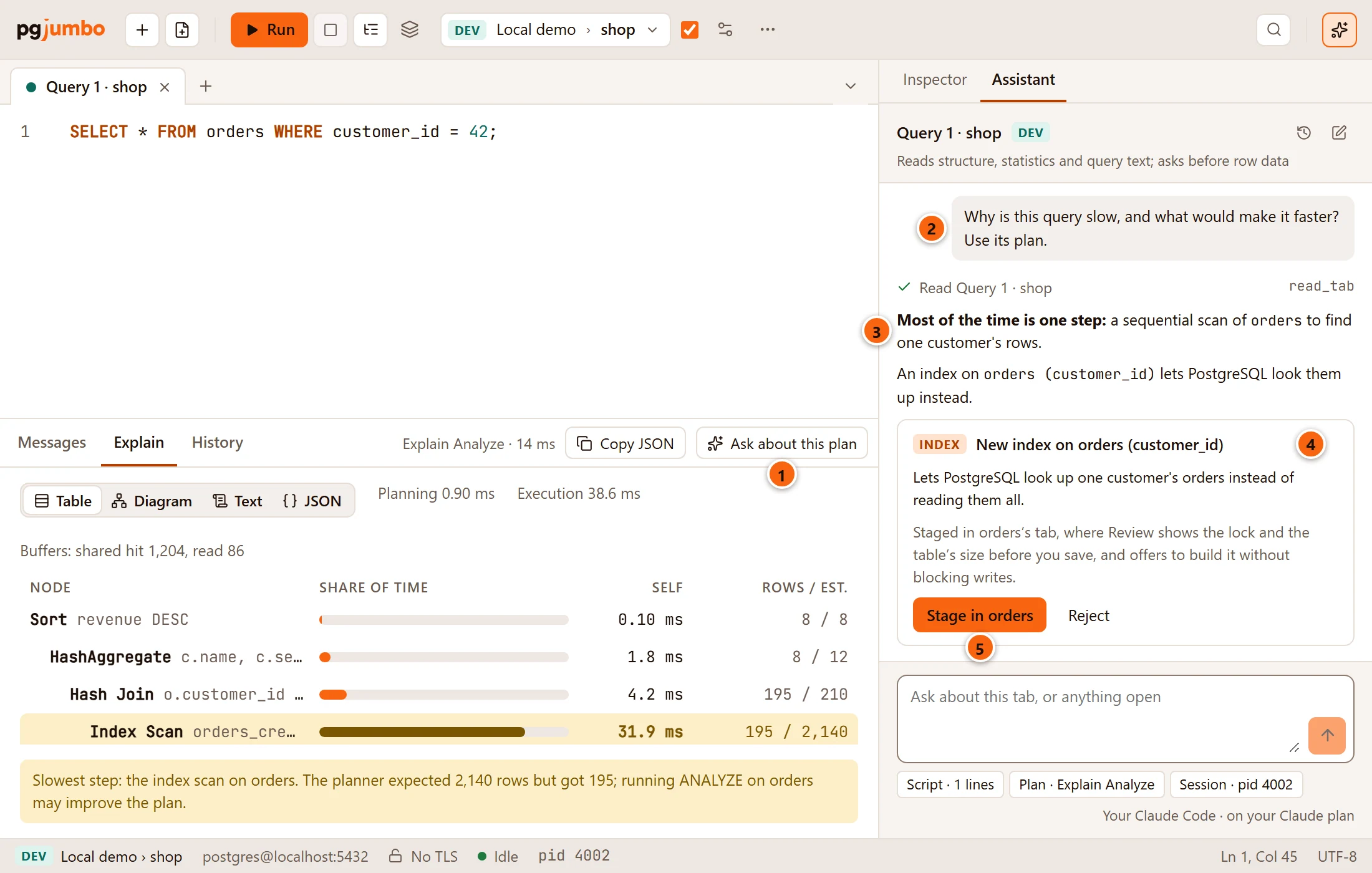
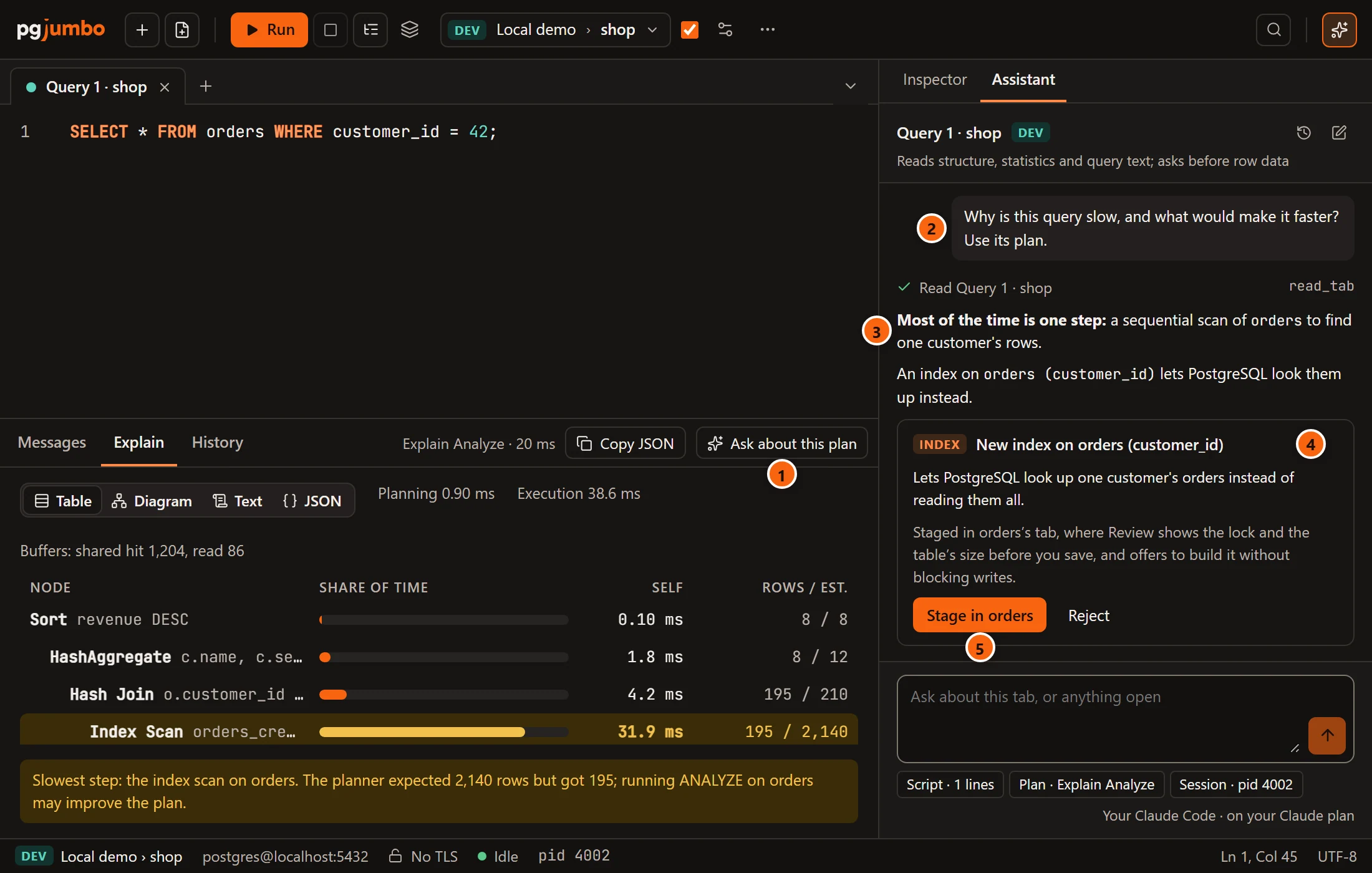
- 1 Ask about this plan shows the Assistant pane and asks.
- 2 The question: “Why is this query slow, and what would make it faster? Use its plan.” The plan goes with it as text: the statement, then each step with its actual and estimated rows, its own time and its share of the total time, then the planning and execution times. After a plain Explain, each step has its estimated rows, its own cost and its share of the cost instead.
- 3 The answer: what takes the time, and what to do about it.
- 4 An index it suggests comes as an Index card, never as
CREATE INDEXSQL. - 5 Stage in orders opens the table’s tab on Structure with the index added. Its Review shows the lock the index takes and the table’s size before anything runs, and offers to build it without blocking writes. See What the Assistant proposes and Object tabs and review.
A change to the query itself comes as a Script card, as in Fix a failed statement.
Have a function reviewed
Section titled “Have a function reviewed”A function’s or procedure’s tab has Review with the Assistant on its Definition view, beside the Body heading, once the routine exists (not on a new one) and while the Assistant is on. Functions and procedures explains the tab.
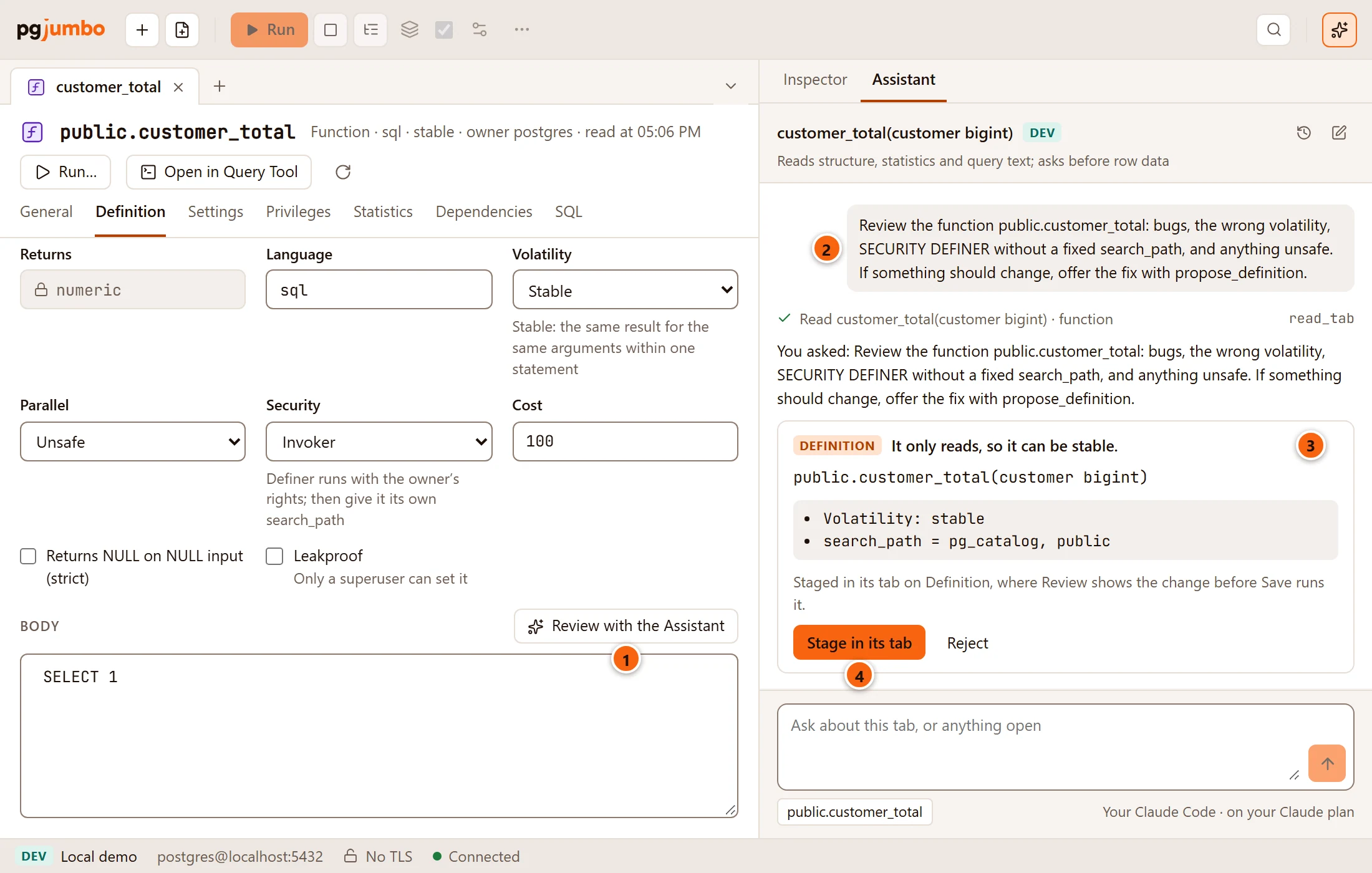
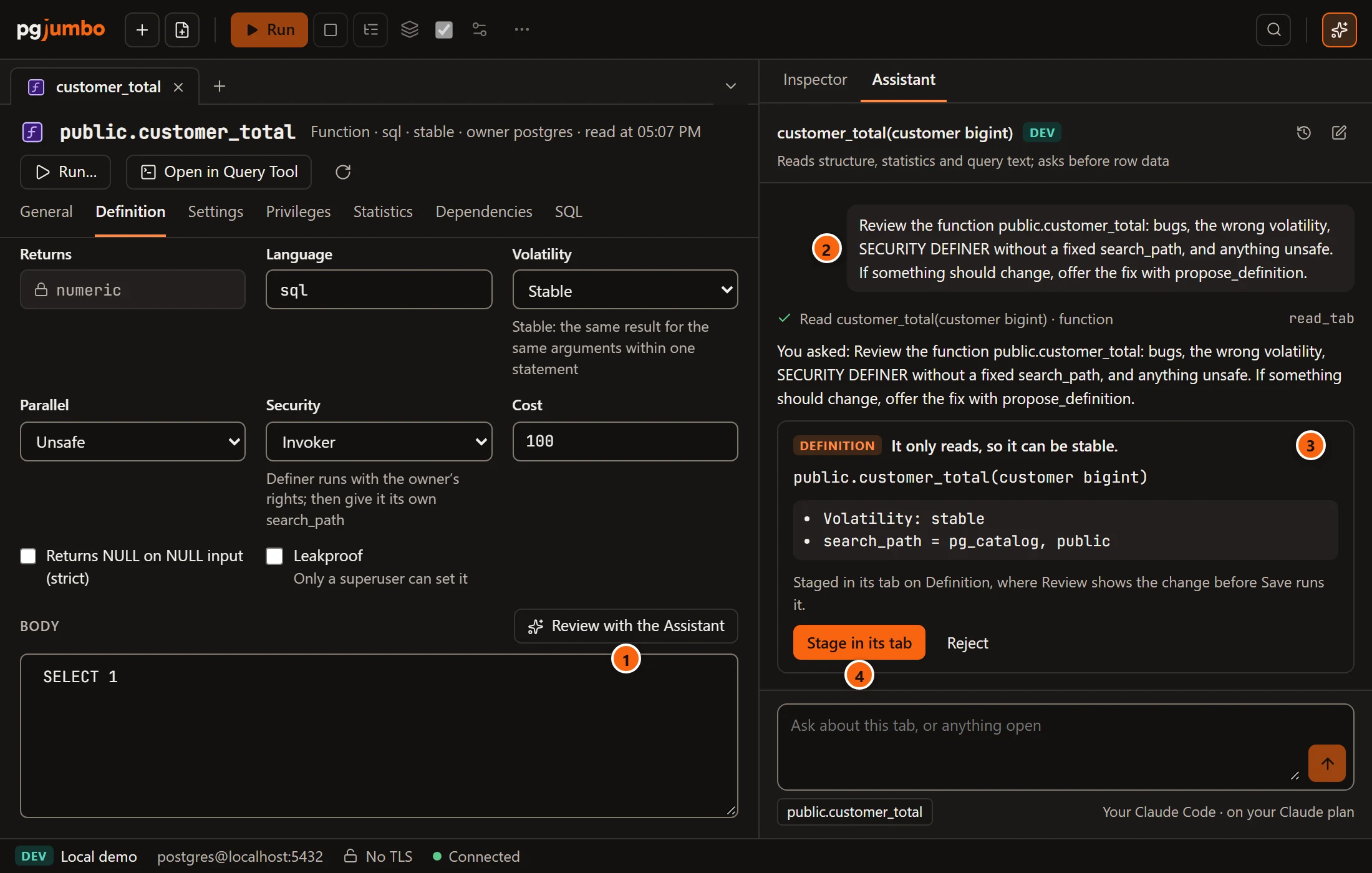
- 1 Review with the Assistant shows the pane and asks.
- 2 The question: review the routine for bugs, the wrong volatility,
SECURITY DEFINERwithout a fixedsearch_path, and anything unsafe, and offer a fix if something should change. - 3 A fix comes as a Definition card: why, the routine’s name, then what it changes (Volatility,
Security definer on or off, the
search_path) and the new body when it has one. - 4 Stage in its tab puts the changes into this tab: the body, volatility and security on Definition,
the
search_pathamong the routine’s settings on Settings. The card then says Staged, and Review… in the tab shows the statements. Nothing runs until you save. When the tab cannot change the body (one PostgreSQL keeps as written, such as a C function’s), the card says so and stages nothing.
| Key | Where | What it does |
|---|---|---|
| ⌘ K (Ctrl+K on Windows and Linux) | A Query Tool tab in front | Opens the prompt under the selection or the cursor’s line. |
| Enter | The prompt’s field | Asks. |
| Esc | The prompt | Closes it. |
| ⌘ ↩︎ (Ctrl+Enter on Windows and Linux) | A change under review | Accepts it. |
| Esc | A change under review | Rejects it. |