
Troubleshooting
Each problem below starts with what you see, then says why it happens and what to do. Most messages come straight from PostgreSQL, libpq or the program pgjumbo ran, so their exact words can differ with the server’s version and language. When nothing here helps, report the problem with the report from HelpCopy Diagnostics….
Where pgjumbo shows what went wrong
Section titled “Where pgjumbo shows what went wrong”| Where | What it shows |
|---|---|
| A dialog’s footer | Why Test connection, Save or the dialog’s main button failed. |
| A server’s row in the Explorer | A red warning sign when connecting failed or the server went away. Point at it for the message. |
| The Explorer itself | The server list could not be loaded: and why, in place of the tree. |
| The server’s page in the middle of the window, while no tab is open | Could not connect: and why, with Connect and Edit. |
| The status bar | Connection failed; point at it for the message. |
| The start page | The engine did not answer: and why, when pgjumbo’s engine is not working. |
| A Query Tool’s Messages tab | Each statement’s error, with its SQLSTATE and position. See Read the Messages tab. |
| A Query Tool’s banner | Why the tab has no connection, with Reconnect or Connect. |
| An object tab’s pending bar | Why a save stopped. |
| The log | Everything else, one file a day, the last seven kept. HelpOpen Log Folder opens the folder. See Logs. |
Connections
Section titled “Connections”pgjumbo cannot connect to a server
Section titled “pgjumbo cannot connect to a server”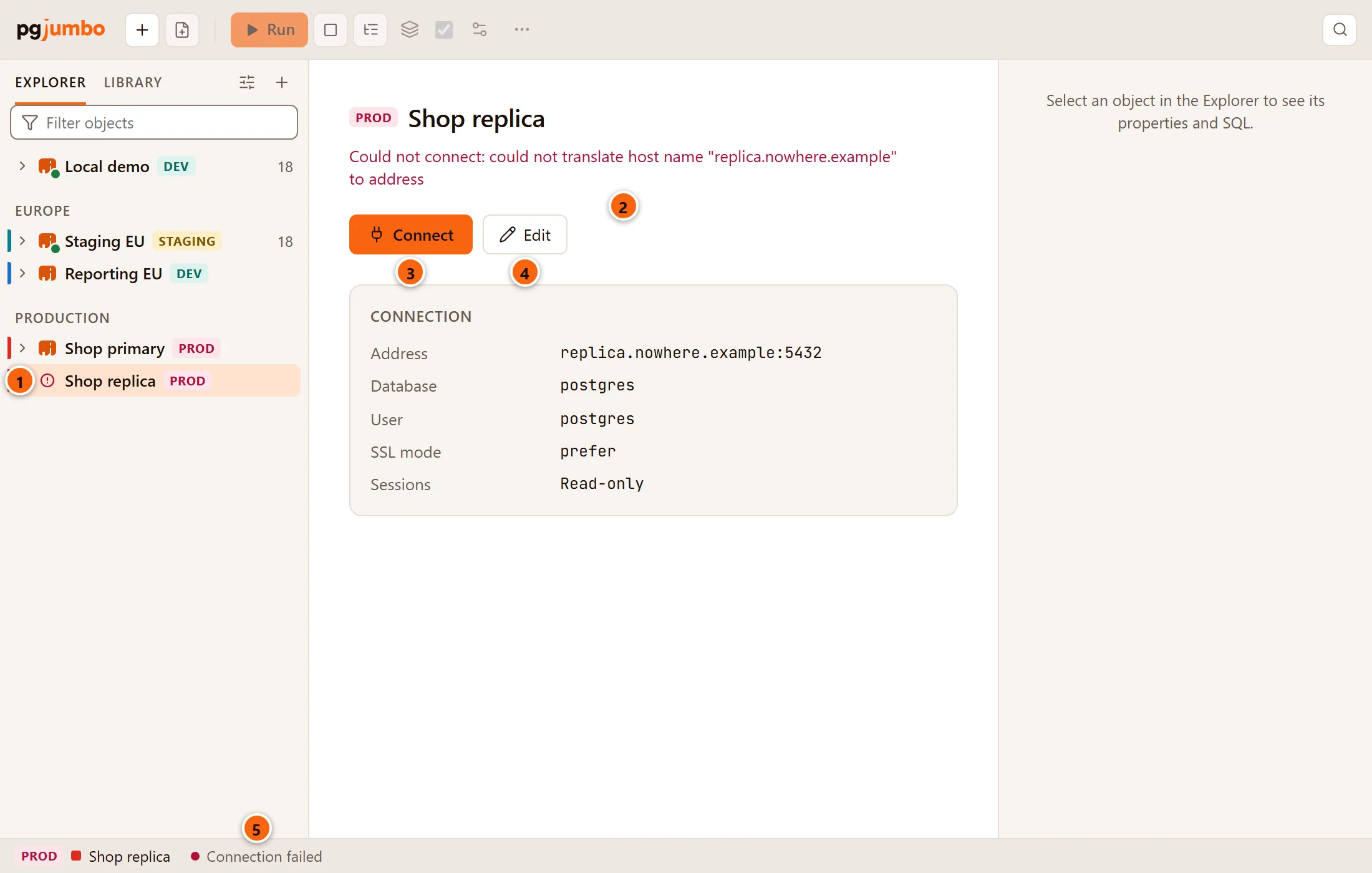
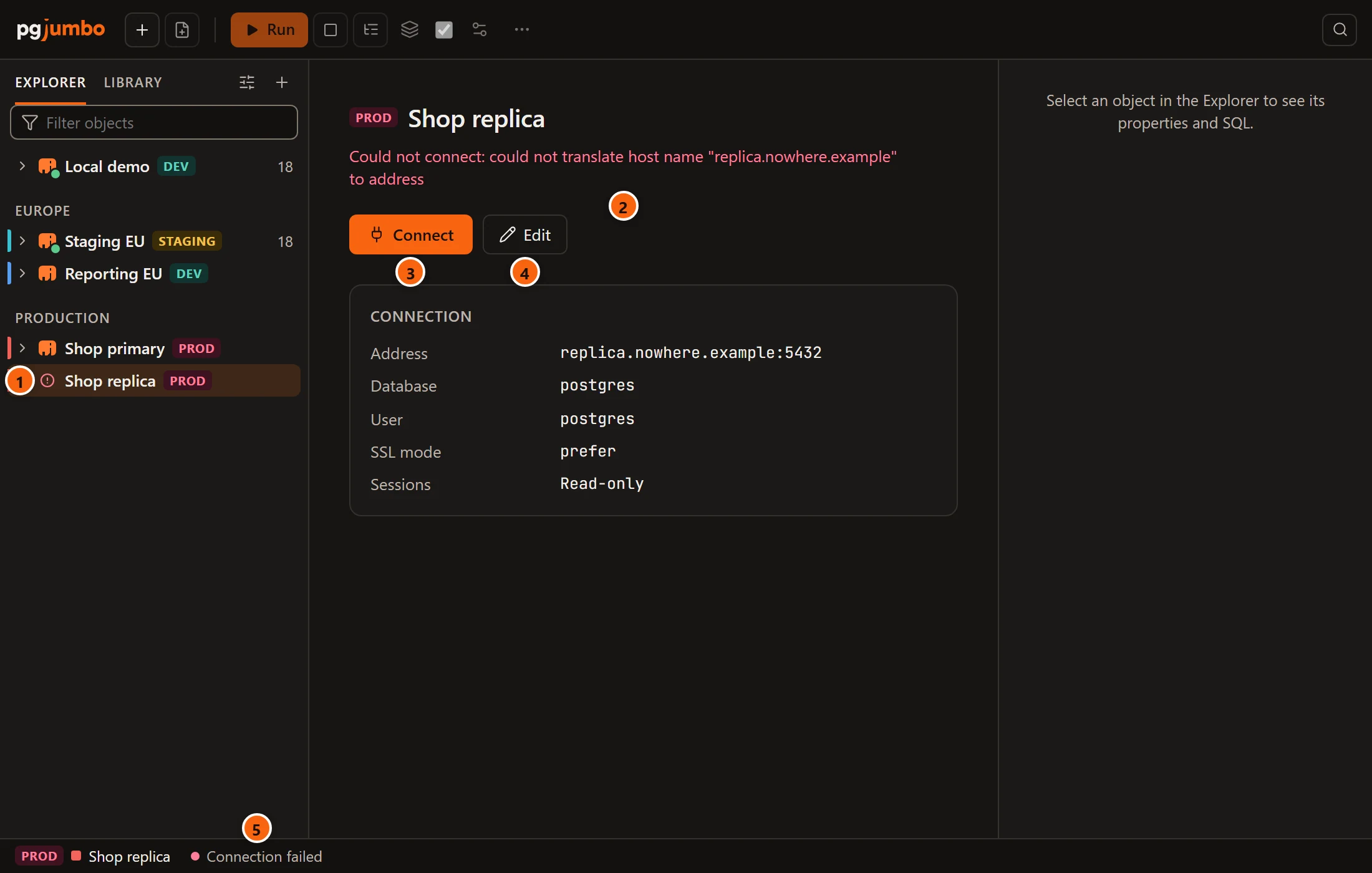
- 1 The server’s row has a red warning sign.
- 2 Its page says Could not connect: and the reason, here a host name that does not resolve.
- 3 Connect tries again.
- 4 Edit opens its connection settings, to correct the host, the port or the password.
- 5 The status bar says Connection failed.
To find out why, open the server’s settings and click Test connection: the footer says what went wrong without saving anything. What a failed test tells you lists the messages. The usual causes:
| The message says | What to do |
|---|---|
| Timed out after 10 s. Is the host reachable, and is the port right? | Nothing answered. Check the host and port, your VPN and firewalls; a cloud database must also let your address in through its own firewall or security group. |
Connection refused |
The host answered, but no PostgreSQL listens on that port: the server is down, the port is wrong, or listen_addresses leaves out this network. |
could not translate host name … to address |
The host name does not resolve. Check its spelling, or your VPN’s DNS. |
password authentication failed for user … |
The user name or password is wrong. A saved password that changed: type the new one in the connection settings and save. |
no pg_hba.conf entry for host … |
The server’s pg_hba.conf does not let this user in from your address. Its administrator changes that. If the entry is hostssl, an SSL mode of require or stronger may be all it needs. The server tab’s Authentication view shows the rules of a server you can reach. |
role "…" does not exist, database "…" does not exist |
Username or Database names something the server does not have. |
With the Assistant on, Explain next to a failed test checks the host and port without signing in and asks your Claude Code to explain the error from those checks and the dialog’s settings, never the password. See Explain a failed test.
An SSL or certificate error
Section titled “An SSL or certificate error”| The message says | What to do |
|---|---|
server does not support SSL, but SSL was required |
SSL mode is require or stronger and the server has no TLS. Choose prefer or disable only for a server on a trusted network; otherwise turn on TLS on the server. |
certificate verify failed, or a root certificate file is missing |
With verify-ca or verify-full, give the certificate authority that signed the server’s certificate as Root certificate. For Amazon RDS and Aurora that is the RDS certificate bundle. |
server certificate for "…" does not match host name "…" |
With verify-full, Host must be the name in the server’s certificate, not an IP address or an alias. |
See Encryption and, for Amazon, Check the server with the RDS certificate bundle.
The connection goes through SSH, or uses AWS IAM
Section titled “The connection goes through SSH, or uses AWS IAM”- A tunnel that fails says so with its own message, such as The SSH server bastion.example.com refused ubuntu’s sign-in. or The SSH agent holds no keys. Add one with ssh-add. Every message, with what to do, is in When the tunnel fails.
- The host key of … changed since it was last seen. pgjumbo refuses to connect, and there is no button to accept the new key. See When a host key changes.
- AWS IAM sign-in problems (no credentials, an SSO profile without a
credential_process,PAM authentication failed) are in When IAM sign-in fails.
A server went away and came back
Section titled “A server went away and came back”When a server restarts or the network drops, its row gets the warning sign. Once the server is back, click Connect on its page or the plug button on its row: pgjumbo tries its old connection first and, if that no longer works, connects afresh. Query Tool tabs never reconnect by themselves; see A tab lost its connection. When a server goes away has the details.
Passwords and the credential store
Section titled “Passwords and the credential store”pgjumbo asks for the password every time
Section titled “pgjumbo asks for the password every time”- Save password in … (followed by your system’s store, such as the macOS Keychain) is not ticked in the server’s connection settings, or you did not tick it in the password prompt. Tick it, and pgjumbo stops asking. A password you do not save is kept only until you disconnect.
- pgjumbo found no credential store when it started. The connection dialog then greys out Save password in … and
says No credential store was found on this computer, so pgjumbo asks for the password when connecting., the
start page of a pgjumbo with no servers yet says it could not reach the store, and Copy Diagnostics says
Credential store: not available. This happens on Linux without a running Secret Service. Install and start one (GNOME Keyring or KWallet, which most desktops start for you), make sure its login keyring is unlocked, and start pgjumbo again: it looks for the store only when it starts.
Where each saved password is kept is in Passwords and the credential store.
macOS asks for your login password to use the Keychain
Section titled “macOS asks for your login password to use the Keychain”macOS asks your permission the first time pgjumbo reads a password saved in your login Keychain, once for each saved password. Type your Mac’s login password and click Always Allow, not Allow, and it does not ask again.
After you install a new version of pgjumbo, macOS may ask once more for each saved password, because the Keychain ties Always Allow to the copy of the app it was given to. Choose Always Allow again.
Query Tool tabs
Section titled “Query Tool tabs”A tab lost its connection
Section titled “A tab lost its connection”pgjumbo never opens a new connection for a tab behind your back and never runs anything again by itself. A tab that has no connection says why in a banner:
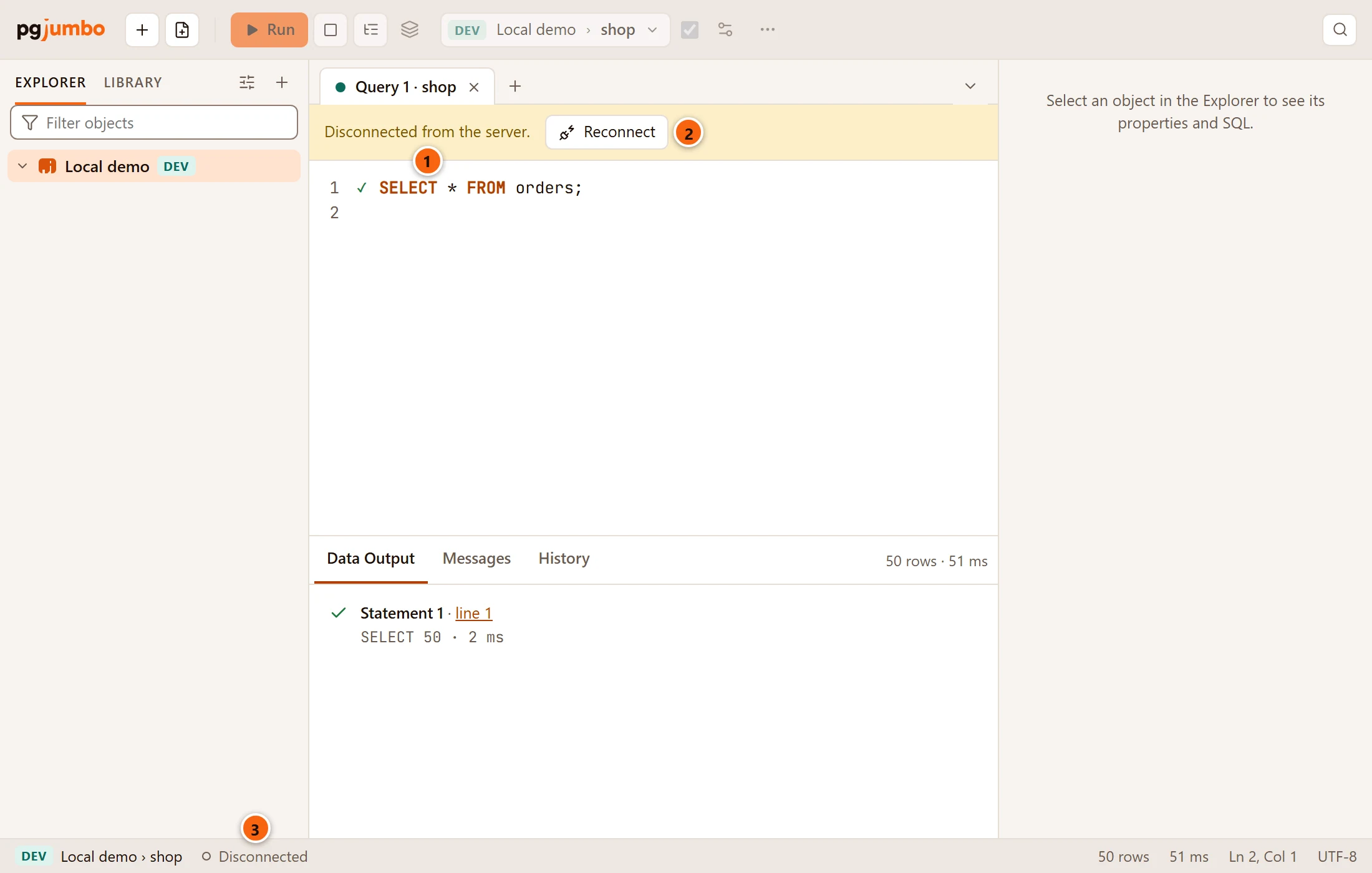
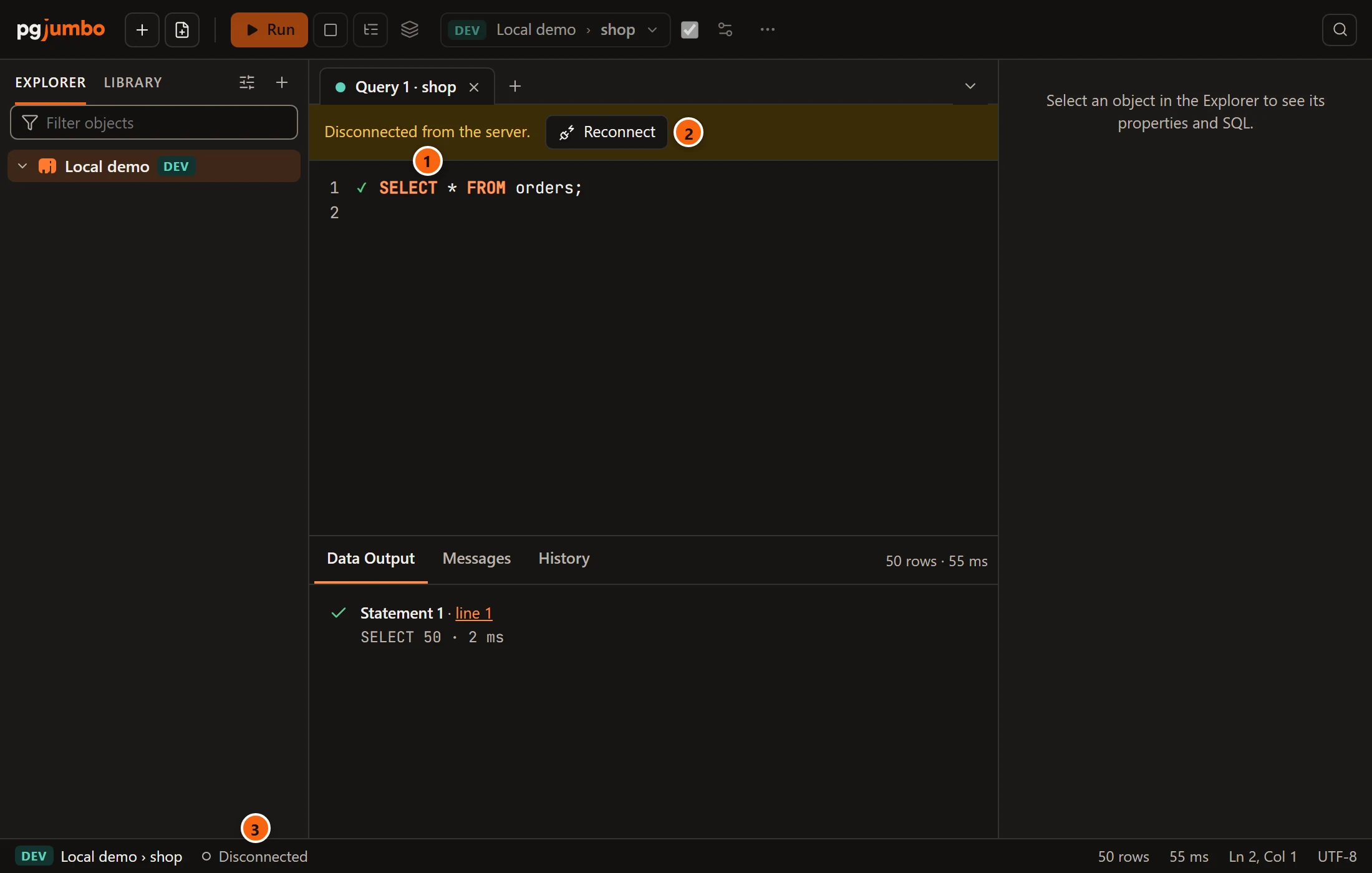
- 1 The banner says why the tab has no connection.
- 2 Reconnect opens a new connection for the tab.
- 3 The status bar says Disconnected.
| Banner | What to do |
|---|---|
Disconnected from the server. |
You disconnected the server, or pgjumbo found it gone. Connect the server again, then click Reconnect in the tab. |
Could not connect: and the reason |
The tab could not open its connection. Fix the reason, then Reconnect. |
This tab's session is closed. |
pgjumbo no longer has the tab’s session. Click Reconnect. |
Connect to … to run queries in this tab. |
A tab brought back at start, or opened on a server that is not connected. Connect connects the server, and the tab opens its connection by itself. |
This tab's server was deleted. Its SQL is still here to copy. |
Copy the SQL into a tab on another server. |
Reconnect gives the tab a new session: anything the old one had not committed was rolled back by the server, and
session settings are back to the server’s defaults. If the server still shows as connected but a statement fails with
server closed the connection unexpectedly, disconnect the server and connect it again; every tab on it then offers
Reconnect. See When the connection closes or is lost.
A statement is refused on a read-only connection
Section titled “A statement is refused on a read-only connection”cannot execute … in a read-only transaction means the server’s connection has Read-only sessions ticked, which
pgjumbo ticks for you when you tag a server Production. Untick it in the server’s connection settings when you mean
to write there. See Read-only connections.
A script waits instead of running
Section titled “A script waits instead of running”On a server tagged Production, and on Staging when Settings say so, a script with a DROP, a TRUNCATE, or an
UPDATE or DELETE without WHERE waits for Run anyway. See
Destructive statements on Production.
A result stops at 100,000 rows
Section titled “A result stops at 100,000 rows”The result bar says Showing 100,000 of 250,000 rows: pgjumbo keeps at most 100,000 rows or 200 MB of a result, and
counts the rest. Narrow the query, or raise Rows kept per result and Memory per result (MB) in
Settings and run it again. Export can write every row; see
Row limits.
A new table does not show up
Section titled “A new table does not show up”The Explorer shows what it read when you opened the row. Select the folder or the schema and press ⌘ R (Ctrl+R on Windows and Linux) or F5 to read it again.
The editor’s suggestions keep a database’s names for five minutes before reading them again, so a table you created with SQL can take that long to be suggested. See Writing SQL.
Saving changes
Section titled “Saving changes”A save is refused because the object changed
Section titled “A save is refused because the object changed”Before it runs a change from an object’s tab, pgjumbo compares the object on the server with the object as the tab read it. If someone changed it meanwhile, nothing runs, and the pending bar says, for example, public.orders changed since it was read: column note was added. Nothing was run.
Click Read again. The tab reads the object as it is now and drops your changes, so note them first if you need them, then make them again and save. See When the object changed meanwhile.
The same check stops other saves:
| Message | Where |
|---|---|
| The role’s privileges in this database changed since they were read. Nothing was run. | A role’s Privileges view |
| The database’s default privileges changed since they were read. Nothing was run. | A database’s Default privileges |
| … changed since the Assistant read it. Nothing was saved; ask again to see it as it is now. | A knowledge card from the Assistant, when the file changed after it was read |
This row is no longer in the table as it was read: it was deleted, or its key changed. Show the rows again. |
Changed rows in a data tab or a Query Tool result; see Edit data |
A change gives up waiting for a lock
Section titled “A change gives up waiting for a lock”canceling statement due to lock timeout (SQLSTATE 55P03) means another session held the table longer than
Wait for a lock at most (seconds) allows. Nothing was changed. Try again when the table is quieter, see who holds
it in the server’s Activity, or raise the wait for this save in the review sheet. See
Wait for a lock.
Backup, restore and copy
Section titled “Backup, restore and copy”A backup or restore cannot find pg_dump
Section titled “A backup or restore cannot find pg_dump”pgjumbo does not come with PostgreSQL’s client programs; backups, restores and database copies run the pg_dump,
pg_dumpall, pg_restore and psql on your computer. When it finds none, the dialog says:
pg_dump was not found on PATH or in the usual install folders. Install PostgreSQL’s client programs, or choose their folder in Settings.
Install them, at least as new as your newest server, in one of these places, or anywhere and then choose their folder in SettingsBackup and restorePostgreSQL client programs:
| System | How to install them | Where pgjumbo looks, besides PATH |
|---|---|---|
| macOS | Postgres.app, Homebrew’s libpq or postgresql@18, or the EDB installer |
/Applications/Postgres.app/Contents/Versions/*/bin, /opt/homebrew/opt/postgresql@*/bin, /usr/local/opt/postgresql@*/bin, /Library/PostgreSQL/*/bin, /opt/homebrew/opt/libpq/bin, /usr/local/opt/libpq/bin |
| Windows | The EDB installer from postgresql.org; its Command Line Tools are enough | C:\Program Files\PostgreSQL\*\bin |
| Linux | Your distribution’s client package (on Debian and Ubuntu postgresql-client, or postgresql-client-18 from the PostgreSQL project’s own packages; on Red Hat and Fedora postgresql, or the project’s postgresql18) |
/usr/lib/postgresql/*/bin (Debian, Ubuntu), /usr/pgsql-*/bin (Red Hat, Fedora) |
pgjumbo takes the newest version it finds. On a Mac, apps do not get the PATH of your terminal, so a folder you added
to your shell’s PATH may not count: choose it in Settings instead. With a folder set in Settings, pgjumbo looks only
there, and says pg_dump was not found in … with that folder.
pg_dump is older than the server
Section titled “pg_dump is older than the server”pg_dump 16.4 cannot work with PostgreSQL 18: it needs version 18 or newer. Install a newer PostgreSQL client, or choose its folder in Settings.
pg_dump and pg_dumpall refuse a server newer than themselves. Install the client programs of the server’s version
or newer. Newer client programs work with older servers. See Back up and restore.
A psql tab cannot find psql
Section titled “A psql tab cannot find psql”The PSQL Tool runs the psql on your computer, from the same places as backups. When it finds none, the tab says:
psql was not found on PATH or in the usual install folders. Install PostgreSQL’s client programs, or choose their folder in Settings.
The fix is the same as for pg_dump: install the client programs, or choose
their folder in SettingsBackup and restorePostgreSQL client programs. Then click
Start again in the tab. Any version of psql works. See
Where psql comes from.
The Assistant
Section titled “The Assistant”The Assistant cannot find or use Claude Code
Section titled “The Assistant cannot find or use Claude Code”With the Assistant on, SettingsAssistant and the Assistant pane say what is wrong; the pane says Claude Code cannot be used yet, with Check again and Settings….
| Message | What to do |
|---|---|
| Claude Code was not found on this computer. Install it, then Check again, or choose the program. | Settings then shows the command that installs Claude Code on your system, with Copy. Run it, run claude once in a terminal to sign in, then click Check again. A Claude Code that comes with the Claude Code extension of VS Code or Cursor, or on a Mac with the Claude desktop app, works too. |
| There is no program at …. | The Claude Code field names a file that is not there. Empty the field, or click Choose… and pick the program. |
| This Claude Code is too old for pgjumbo: update it to 2.1.302 or later (claude update). | Run claude update in a terminal, then Check again. |
| Claude Code is not signed in. Sign in to it (in a terminal run claude, then /login; or in VS Code or the Claude app), then Check again. | Sign in as it says. pgjumbo never sees your Claude sign-in. |
| … did not say its version: … | The program pgjumbo found does not answer claude --version. Choose the right program in Settings. |
pgjumbo looks for claude on your PATH, then in ~/.local/bin and ~/.claude/local, on a Mac also in
/opt/homebrew/bin and /usr/local/bin, then inside the Claude Code extension of VS Code, VS Code Insiders, Cursor,
Windsurf and VSCodium, and on a Mac inside the Claude desktop app. See Set up the Assistant.
There is no Explain or Ask button
Section titled “There is no Explain or Ask button”Explain beside a failed connection test, Ask in Activity and Reports, ⌘ K (Ctrl+K on Windows and Linux) in the editor and the other Assistant buttons show only while the Assistant is on. Tick Use the Assistant in Settings.
A key does nothing, or types nothing
Section titled “A key does nothing, or types nothing”| Why | What to do |
|---|---|
| A dialog is open. | Close it: the menu bar’s shortcuts do nothing until then. |
| The keyboard is somewhere else. | ⇧ ↩︎ (Shift+Enter on Windows and Linux) runs a statement only in the editor, the grid’s keys work only after you click into the grid, and the Explorer’s only in the tree. A cell you are editing keeps every key but ⌘ S (Ctrl+S on Windows and Linux): press Enter or Esc first. |
| The menu item is greyed out. | Its key does nothing either: Run needs a Query Tool with a connection, Restore… a selected database. See Menus. |
| On a Mac, the F key controls the screen or the sound. | Hold fn with it, or change the F keys in your Mac’s keyboard settings. |
| Your system or another program uses the key. | macOS keeps ⌃ ↑ for Mission Control, ⌃ ← ⌃ → for moving between desktops and ⌃ Space to switch input sources unless you change them; Linux desktops have shortcuts of their own. Free the key there, or use the menu. |
| You pressed ⌘ I in the editor on a Mac. | There it selects the syntax around the cursor instead of opening Properties. Use the menu, or press it with the Explorer in front. |
pgjumbo never uses Ctrl and Alt together, so on Windows and Linux AltGr keeps typing [, ], {, }, @, \ and
| everywhere. If such a character still does not appear, another program has taken that Ctrl+Alt combination as a
shortcut of its own. Every key is on Keyboard shortcuts.
Other problems
Section titled “Other problems”No notification when a long query ends
Section titled “No notification when a long query ends”pgjumbo shows the notification only when all of these hold:
- the run took at least as long as Notify when a query ends in Settings (10 seconds by default), and that setting is not Never;
- pgjumbo’s window is not the one in front when the run ends;
- your system lets pgjumbo show notifications: on a Mac in System Settings › Notifications, on Windows in Settings › System › Notifications, and on Linux your desktop must run a notification service.
pgjumbo does not start
Section titled “pgjumbo does not start”| Why | What to do |
|---|---|
| pgjumbo is already running. | Nothing: only one pgjumbo runs at a time, and starting it again brings the open window to the front instead. |
| On Linux, the file is for the other processor. | apt or dpkg refuses a .deb whose architecture does not match the system, dnf refuses an .rpm built for another architecture, and an AppImage for the other processor fails with an Exec format error. Run uname -m: x86_64 needs the x64 files, aarch64 the ARM64 ones. See Pick the file for your processor. |
| You went back to an older pgjumbo. | A newer pgjumbo updates its database, app.db, and an older one then refuses it and closes at once. The newest log file says app.db has schema version …, but this build only knows up to …. Install the newer version again. See Install pgjumbo. |
| Something else. | Look at the newest file in the log folder (see Where pgjumbo keeps your data) for a line that says the engine could not start, and report it. |
The window stays blank on Linux
Section titled “The window stays blank on Linux”With some graphics drivers, often under Wayland, the web view that draws pgjumbo’s window shows nothing. Start
pgjumbo from a terminal with the environment variable WEBKIT_DISABLE_DMABUF_RENDERER set to 1:
WEBKIT_DISABLE_DMABUF_RENDERER=1 pgjumboFor the AppImage, put its path in place of pgjumbo. If that helps, add the variable to the command of pgjumbo’s
launcher so it is set every time.
Copy Diagnostics
Section titled “Copy Diagnostics”HelpCopy Diagnostics… shows a report about this computer and this pgjumbo for a bug report. You read it before anything is copied, and nothing is sent anywhere.
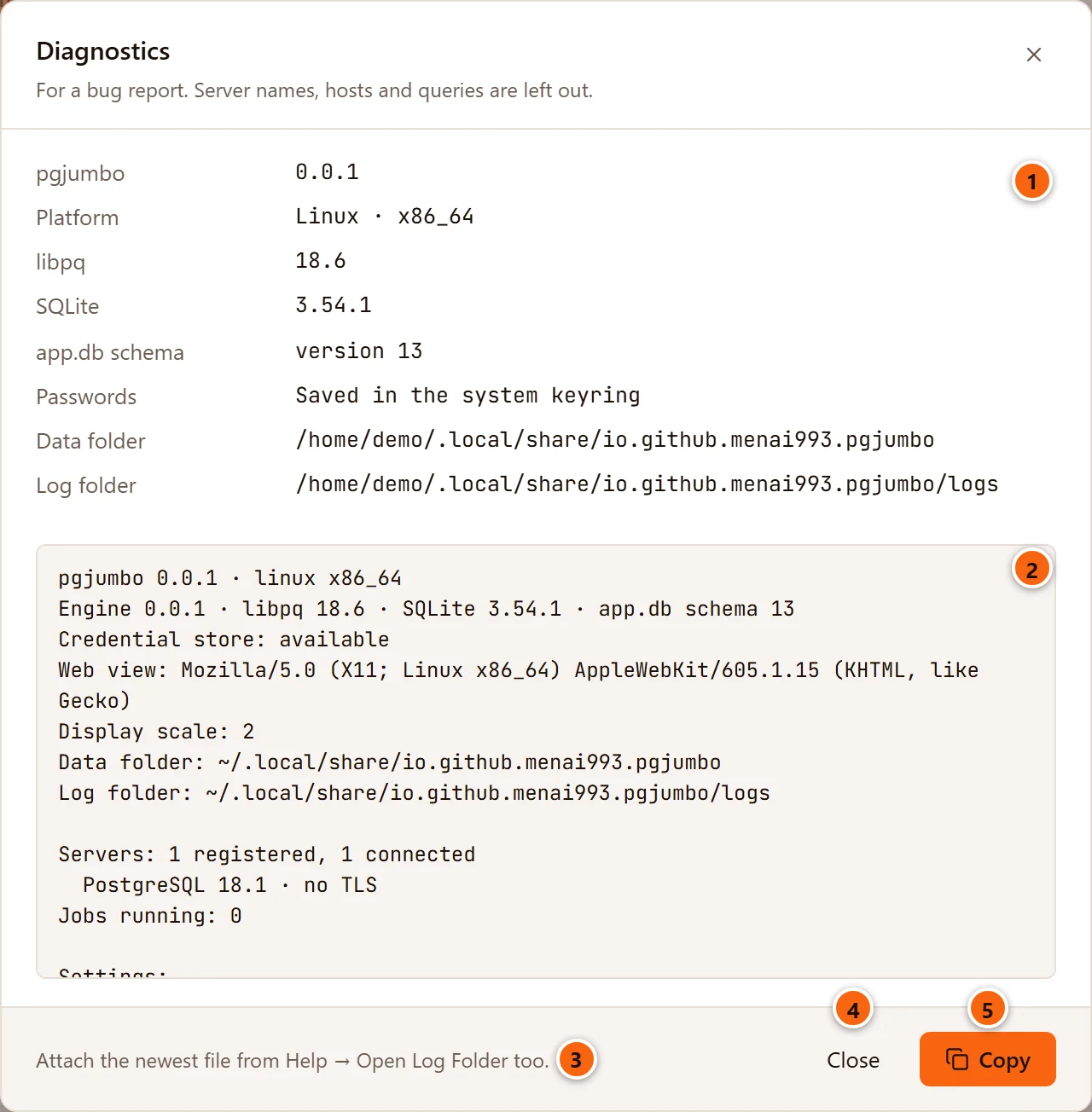
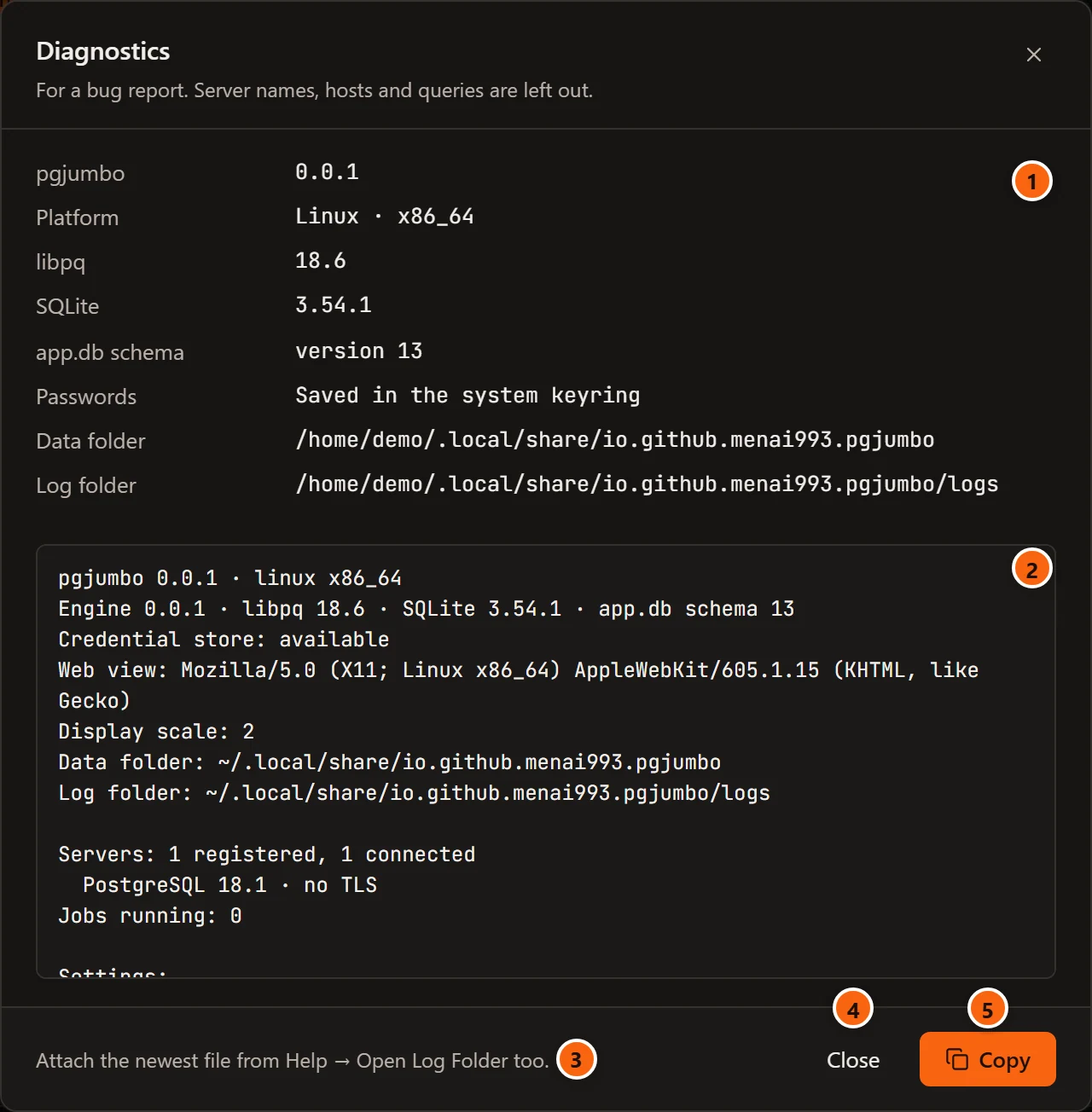
- 1 The build’s facts: the version, the system, the libpq and SQLite versions inside pgjumbo, the version of its database’s layout, where passwords are kept and the full paths of the data and log folders. They are for you to read; Copy does not copy them.
- 2 The report that Copy copies, line by line below. It scrolls.
- 3 A reminder to paste the log’s lines around an error too.
- 4 Close closes the dialog, as Esc and the × do.
- 5 Copy puts the report on the clipboard and turns into Copied. If the clipboard cannot be used, the footer says The clipboard is not available: select the text and copy it.
The menu item is greyed out while another dialog is open.
| The report’s line | What it says |
|---|---|
pgjumbo 0.0.1 · linux x86_64 |
pgjumbo’s version, the system and the processor: x86_64 for an x64 installer, aarch64 for an ARM64 one and on Apple silicon. |
Engine … · libpq … · SQLite … · app.db schema … |
The versions of pgjumbo’s engine and the libraries inside it, and of its database’s layout. |
Credential store: |
available, or not available (passwords are asked for every time). |
Web view: |
The user agent of the web view that draws the window, which names its engine and version: WebKit on macOS and Linux, Edge WebView2 on Windows. |
Display scale: |
The screen’s scale, 2 on a Retina or 200 % display. |
Data folder:, Log folder: |
Where pgjumbo keeps its data and logs, starting with ~ for your home folder so your user name is left out. |
Servers: 3 registered, 1 connected |
How many servers you have, and for each connected one its PostgreSQL version, Aurora or RDS for a server Amazon runs, and its TLS version and cipher, or no TLS. |
Jobs running: |
How many backups, restores and other jobs are running. |
Settings: |
The theme and density, the editor’s font, size and tab width, the result limits, whether Staging servers ask first, whether the splash plays, and whether a client programs folder is set. |
The report never holds server names, hosts, user names, database names, queries or passwords.
Report a problem
Section titled “Report a problem”-
Choose HelpCopy Diagnostics…, read the report and click Copy.
-
Choose HelpReport an Issue…. Your browser opens the contact form on pgjumbo.com with A bug chosen. Fill in your name and email address.
-
In the message, say what you did, what you expected and what happened instead, with the exact message pgjumbo showed. Paste the report below it.
-
If the problem left an error in the log, choose HelpOpen Log Folder, open the newest file,
pgjumbo.<date>.log, and paste the lines around the error into your message too. Logs hold no passwords and no values from your rows, but they can name your servers’ hosts and databases: look through what you paste. -
Click Send message. The answer comes to the email address you gave.
For more detail in the log, quit pgjumbo, start it again with the environment variable PGJUMBO_LOG set to debug,
and make the problem happen again. At that level the log also holds the SQL pgjumbo runs, so look through it before you
paste from it.
| System | How to start pgjumbo with PGJUMBO_LOG=debug |
|---|---|
| macOS | In Terminal: PGJUMBO_LOG=debug /Applications/pgjumbo.app/Contents/MacOS/pgjumbo |
| Linux | In a terminal: PGJUMBO_LOG=debug pgjumbo, or the path of the AppImage in place of pgjumbo |
| Windows | Add PGJUMBO_LOG with the value debug in Edit environment variables for your account, start pgjumbo, and remove it afterwards |
New versions often fix what was reported: Helppgjumbo Website opens pgjumbo.com, whose Download page has the newest version.