
Object tabs and review
Tables, views, functions, roles and most other objects open in a tab of their own, beside your query tabs. You change the object in place, and nothing runs until you save. When a change would hold a lock on a table for long, pgjumbo first shows you each statement, the lock it takes and the work it does, and offers a safer way when there is one.
This page covers what every object tab has in common, with a table as the example. The views of each kind are on its own page: tables and their settings, views, functions, sequences, types, schemas, databases, roles, extensions, tablespaces, publications and subscriptions, foreign data and event triggers, languages and casts. A server has a tab of its own too, described in The server’s tab.
Open an object in its tab
Section titled “Open an object in its tab”The server must be connected. Then use any of these:
- Double-click the object in the Explorer, or select it and press Enter. This works for tables, partitions, views, materialized views, functions, procedures, sequences, types, roles, extensions, tablespaces, publications, subscriptions, foreign-data wrappers, foreign servers, event triggers, languages and casts. A database or a schema opens and closes in the tree instead, because that is how you reach what it holds.
- Right-click the object and choose Properties…, or select it and choose ObjectProperties (⌘ I (Alt+Enter on Windows and Linux)). This opens databases and schemas too. A table or partitioned table opens on its Settings view, every other kind on General.
- Pick it in Open Quickly, or double-click it in Object Details, where a table or view opens on its rows.
- View Data on a table or view opens its tab on Data. See View data.
An object that is open already comes to the front, on the view you asked for. If the server is not connected any more, a message says the object could not be opened. Objects without a tab of their own (columns, constraints, triggers, rules, policies, foreign tables, domains and the rarer kinds in a schema) show in the Inspector when you select them, and Properties… brings the Inspector’s Summary to the front for them. An index keeps a dialog: see Edit an index.
The parts of an object tab
Section titled “The parts of an object tab”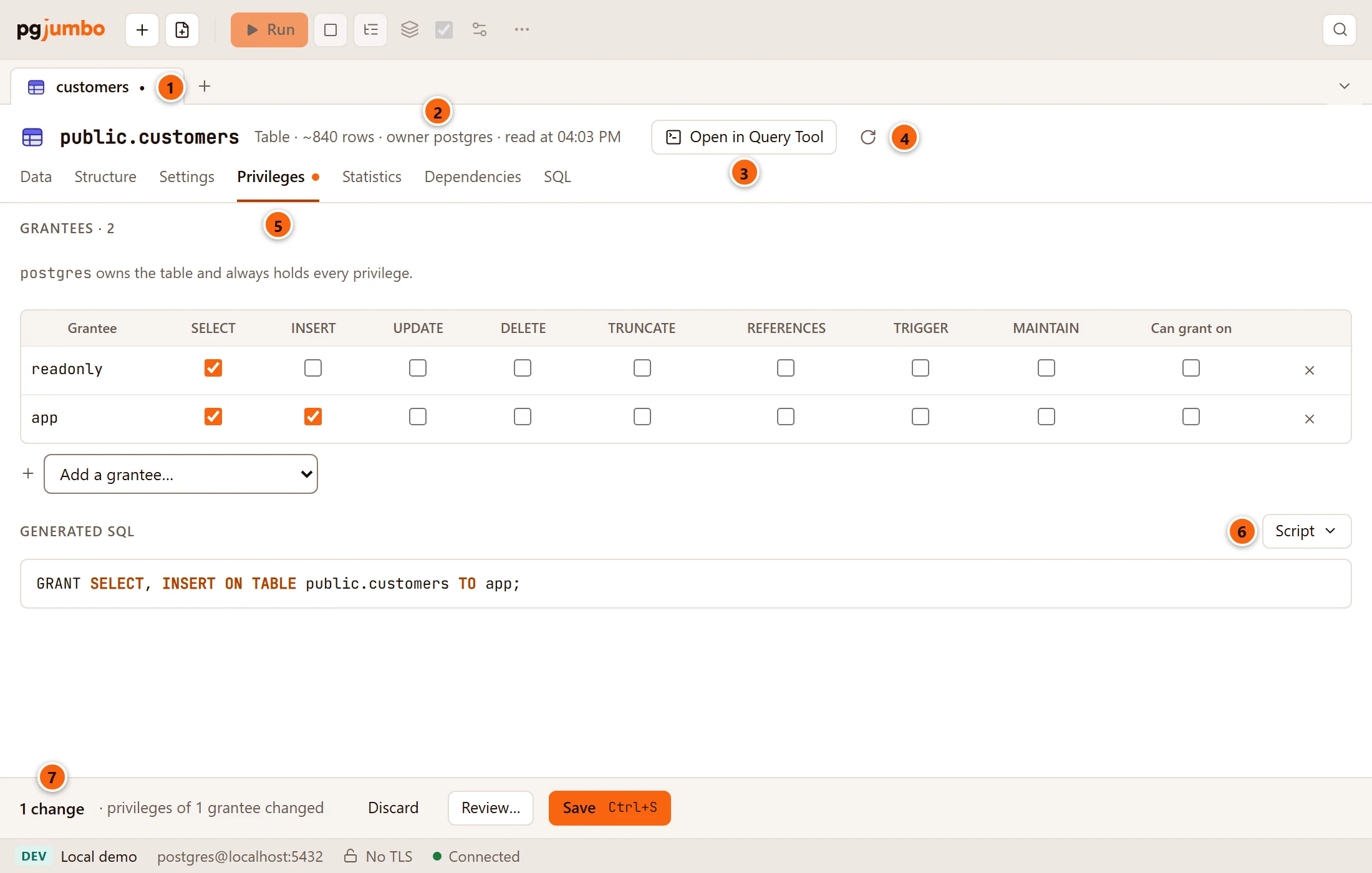
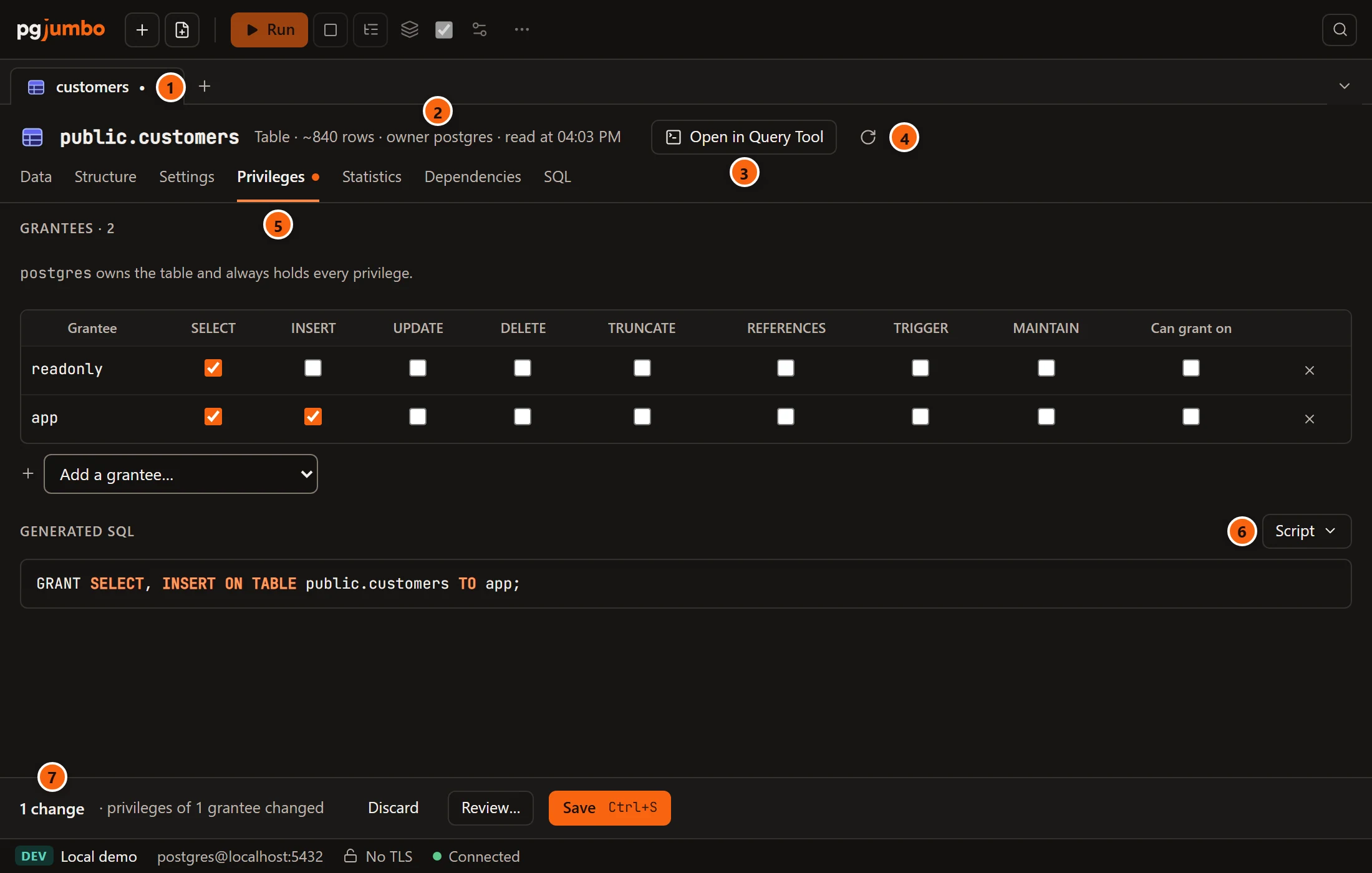
- 1 The tab in the strip, named after the object. A dot after the name means the tab has changes that are not saved, and PROD follows the name on a Production server. Hover over it to see the object’s full name, its database and its server. A new object’s tab is called New table · public, New function · public or New role · and the server’s name, until you create it.
- 2 The header: the object’s full name, then what it is (Table or Partitioned table for a table), a table’s estimated rows, its owner, and the time the tab read it from the server (read at 03:49 PM).
- 3 Open in Query Tool opens the object’s
CREATEscript, the one the SQL view shows, in a new Query Tool on the object’s database. Nothing runs. A table’s Data view has no such button in the header, because the bar above its rows has its own. - 4 Read again (the round arrow) reads the object from the server again. It throws away the changes you have not saved, and the message about the last save, without asking. It is off while a save runs.
- 5 The views, one for each part of the object. A dot after a view’s name means you changed something there, and a field you changed has a dot beside its label. The next table you open starts on the view you used last for tables, and pgjumbo remembers that view after a restart.
- 6 Generated SQL appears under a view once something on it changed. It lists every statement Save would
run for all the tab’s changes, on every view, done the plain way, and follows your typing. When pgjumbo cannot build
a statement yet, the reason shows here in red instead, for example
Two columns are called id.orChoose the columns of the index.The Script menu beside it is described below. - 7 The pending bar counts your changes and says what they are. See The pending bar.
A new object’s tab has neither Open in Query Tool nor Read again until you create it.
Each kind has its own views. A table has Data, Structure, Settings, Privileges, Statistics, Dependencies and SQL; a role has General, Databases, Privileges, Owned objects, Sessions and SQL. Every kind has an SQL view, and every kind you can grant on has Privileges.
While the tab reads the object, its view says so (Reading the table…). If the object cannot be read, the view shows why instead, for example That table is gone. Refresh the Explorer. when someone dropped it.
Close a tab with its ×, or with FileClose Tab (⌘ W (Ctrl+W on Windows and Linux)) when it is in front. A tab with changes asks first: see Close a tab with changes. The tab strip’s right-click menu, pinning and the list of open tabs are in Tabs.
Make changes
Section titled “Make changes”Type in a field, tick a box, add or remove a row: the change waits in the tab. Nothing goes to the server until you open the review or save, and you can move between views while you work. Changes made on several views are saved together.
Rows you edit on a table’s Data view are separate. They are staged in the grid and saved with the grid’s own controls, as described in Edit data. With the Data view in front and rows staged, ⌘ S (Ctrl+S on Windows and Linux) saves those rows; on any other view it saves the object’s changes.
The pending bar
Section titled “The pending bar”The bar under the views appears once the tab has something to say.
| Part | What it does |
|---|---|
| 1 change, 3 changes | How many changes the tab holds. |
| What changed | Each kind of change in a few words, for example 1 column changed, 2 indexes added, 1 constraint dropped, the primary key changed, renamed, 1 setting changed, 1 storage parameter changed, row security changed, replica identity changed, 1 policy added or privileges of 1 grantee changed. A warning follows when a sequence’s new type rewrites a table or an extension’s update runs its scripts. |
| Discard | Puts every field back as the tab read it. It does not ask first. |
| Review… | Opens the review sheet, whatever the changes are. Opening it changes nothing on the server. |
| Save | Saves, or opens the review first when it should (see Save). The key is ⌘ S (Ctrl+S on Windows and Linux), and FileSave does the same while the tab is in front. The button reads Saving… while it works. |
The three buttons are off while a save runs, and the bar goes away once nothing is left to save or report.
After a save, the bar says how it went:


- 1 Saved: 1 statement ran (or 3 statements ran). The tab has read the object again, and the Explorer and the Inspector show it as it is now.
When a save fails, the bar shows the server’s error in red instead; when you saved from the review sheet, the error shows at the bottom of the sheet and the sheet stays open. If it failed inside the transaction, nothing changed and your edits are still in the tab. If a statement that runs after the commit failed, the bar says Statement 4 failed after the others were saved: and the server’s message; see When a step after the commit fails.
When you click Save, pgjumbo first works out what each statement will do, as the review does. Then:
- If every statement takes only a brief lock, and the server does not ask before changes, the statements run at once and the review does not open. A brief lock is one that lets other sessions go on reading and writing the table, or one taken only to change the catalog (a rename, a comment, a dropped default).
- Otherwise the review sheet opens, and nothing runs until you click its save button.
A server asks before changes when its environment is Production, or Staging with Staging servers ask before destructive statements too ticked in Settings.
When Save runs without the review, it uses the defaults the review would show. Each statement waits for its lock as
long as Wait for a lock at most (seconds) in Settings says (5 seconds unless you changed it). On a table at least
as large as Choose the safer way above (MB) (100 MB unless you changed it) it takes every safer way on offer. That is why adding
an index to a large table can save at once: the index is then built CONCURRENTLY, after the rest.
Every save follows the same steps, on a connection pgjumbo opens for it alone:
- It reads the object from the server and checks it is still as the tab read it. If someone changed it meanwhile, nothing runs: see When the object changed meanwhile.
- It sets
lock_timeoutto the wait you chose. - It runs the statements listed under In one transaction between
BEGINandCOMMIT. If any of them fails, or gives up waiting for its lock, none of them stays. - It runs the statements listed under After it commits, on its own one at a time, in order. These are the ones
PostgreSQL will not run inside a transaction (
CREATE INDEX CONCURRENTLY), and the ones that are safer once the change before them has committed (VALIDATE CONSTRAINT). - It reads the object again, and refreshes the Explorer, the Inspector and the database’s autocomplete.
A save runs once. pgjumbo never retries it, on that connection or another.
Review before Save
Section titled “Review before Save”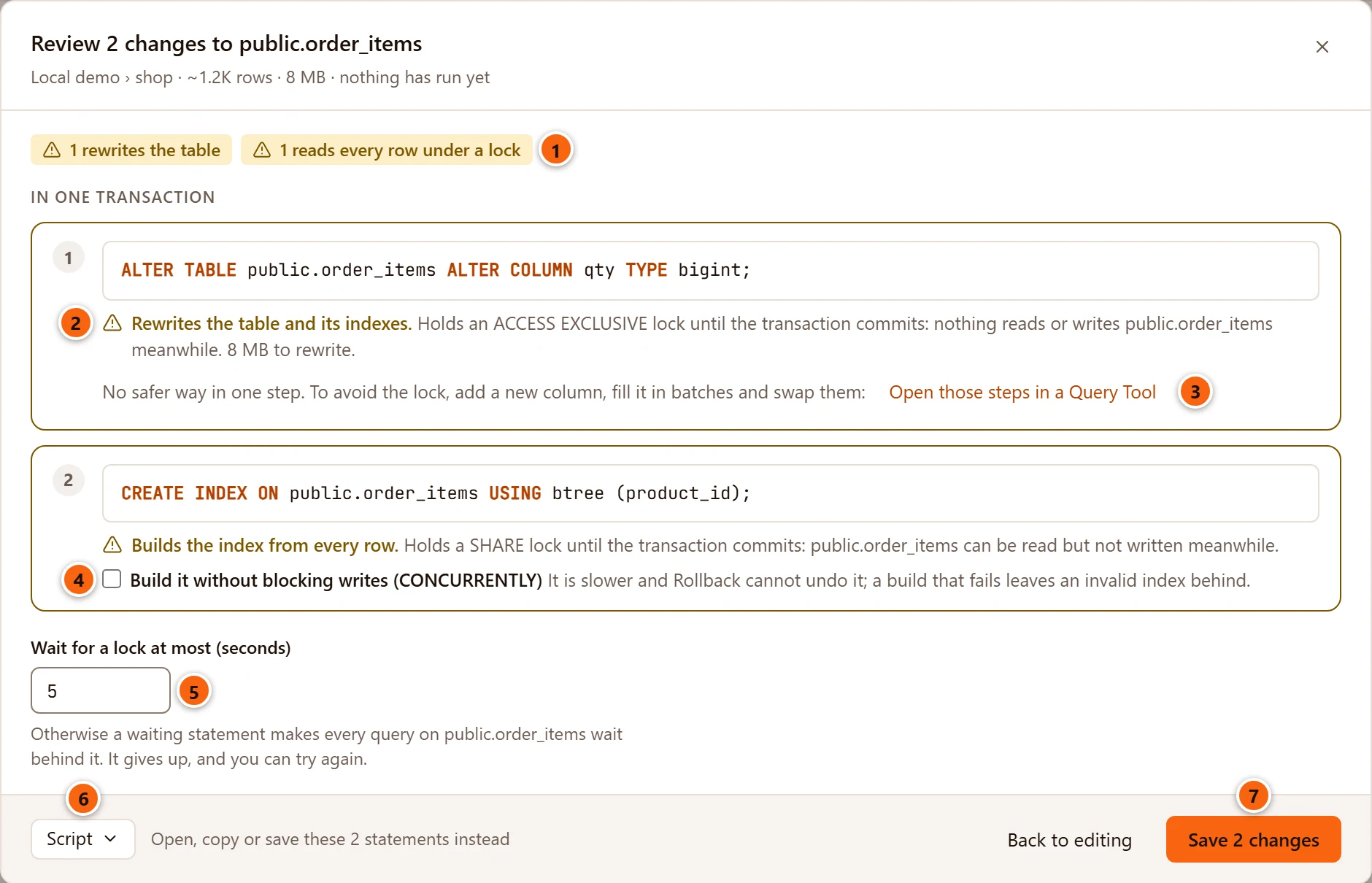
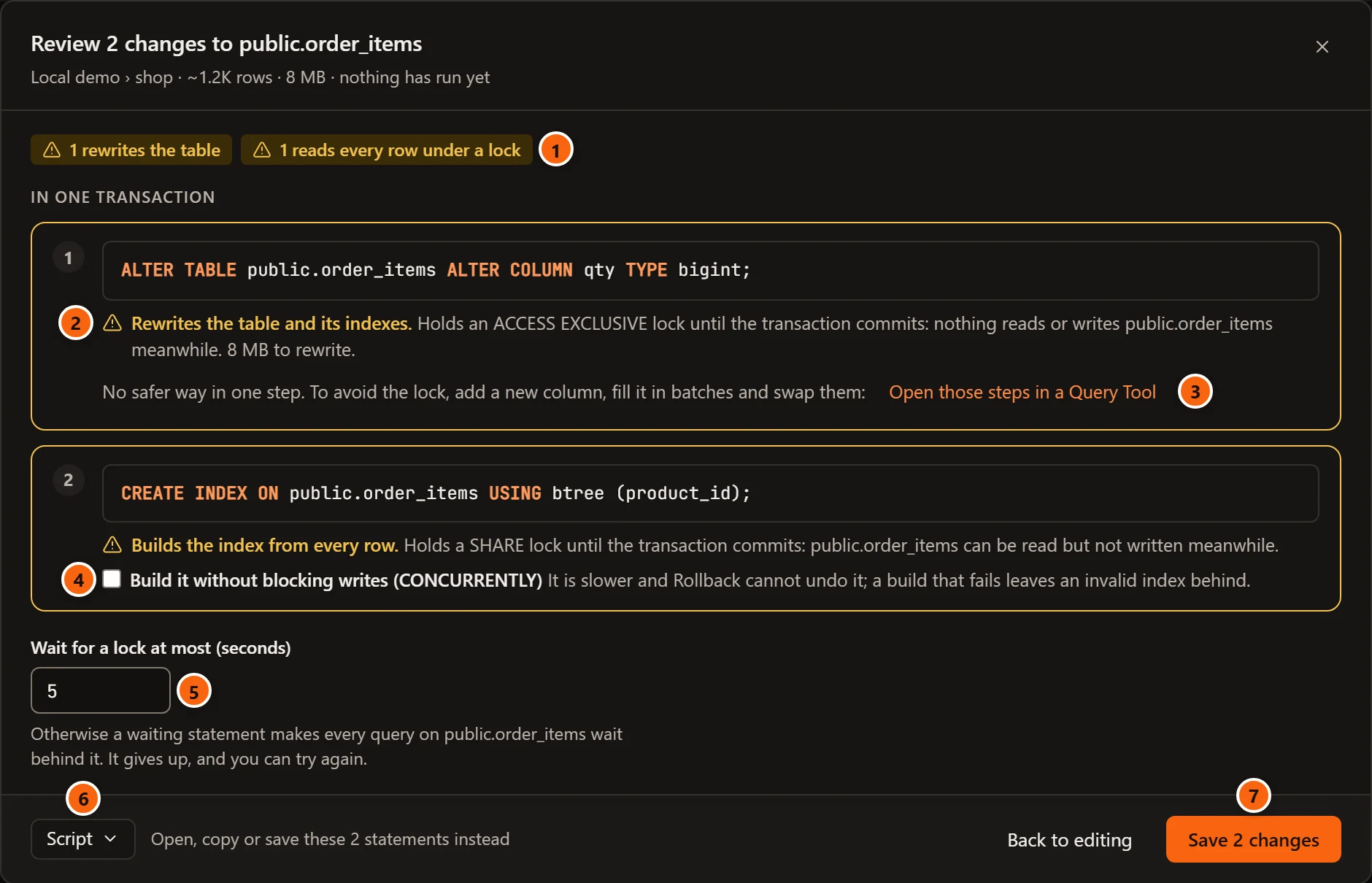
The sheet’s title says how many changes it reviews and on what. Under it are the server and database, the table’s estimated rows, its size with its indexes and TOAST, and nothing has run yet. On a Production or Staging server the line starts with its PROD or STAGING tag. For an object that is not a table (a role, a schema) the line has only the server’s name and nothing has run yet.
- 1 A summary of what needs your attention: 1 rewrites the table (1 rewrites a table on a kind that is not a table), 1 reads every row under a lock, 1 runs the extension’s scripts, 1 made safer and 2 instant, as they apply.
- 2 Under each statement, what it does to the table while it runs: the lock it takes, how long it holds it, and the work it does. A warning sign marks what other sessions will notice; a tick marks the rest. The next section explains every message.
- 3 For a type change that rewrites the table, Open those steps in a Query Tool opens a way to make the same change without the long lock. See The way out of a rewrite.
- 4 A safer way to the same result, when there is one. Tick it to use it. See Safer ways.
- 5 Wait for a lock at most (seconds): how long each statement waits for its lock before it gives up. See Wait for a lock.
- 6 Script opens, copies or saves the statements instead of running them. The text beside it says how many there are.
- 7 Save 2 changes runs them as the sheet shows, and reads Saving… meanwhile. Back to editing, the × or Esc closes the sheet and keeps your changes. While a save runs, the sheet stays open.
The statements are numbered in the order they run and grouped by when they run: In one transaction, then After it commits, on its own. A database’s default privileges add a third group, Then in followed by the database’s name and in one transaction (just In when nothing else changes), because they live in that database and run on a connection to it after the rest commits (see Databases).
If pgjumbo cannot work out a statement, the sheet says why instead of listing them, for example
total cannot change from text to numeric by itself: PostgreSQL does not know how to convert the values. Change it in a Query Tool with ALTER COLUMN … TYPE … USING.
It offers only Back to editing then. While it works, the sheet says Working out what each statement does….
What each statement does
Section titled “What each statement does”pgjumbo takes each statement’s lock from PostgreSQL’s documentation. Whether a type change or a new column’s default rewrites the table depends on your server, so pgjumbo tries it first on an empty temporary table, in a transaction it rolls back at once.
| The sheet says | What it means |
|---|---|
| Instant. Only the catalog changes; the lock lasts a moment. | PostgreSQL changes its catalog and nothing else. The statement still needs its lock, so it waits for queries already using the table. |
| Instant. Only the catalog changes; reads and writes go on. | The same, with a lock that lets reads and writes go on (a comment, a storage parameter, a grant from PostgreSQL 18). |
| Instant. Only the catalog changes; it takes no lock on the table. | Renaming one of the table’s indexes, or a grant before PostgreSQL 18. |
| Instant. Only the catalog changes; no table is locked. | The same on an object that is not a table, such as a role or a schema. |
| Rewrites the table and its indexes. Holds an ACCESS EXCLUSIVE lock until the transaction commits: nothing reads or writes the table meanwhile. 8 MB to rewrite. | PostgreSQL writes the whole table again. Nobody can read or write it until the save commits, which takes as long as writing that many bytes. When the table rewritten is another one (a sequence’s new type changing the column it fills), the sheet names that table and its size. |
| Copies the table to the new tablespace. | Moving the table to another tablespace copies its files under an ACCESS EXCLUSIVE lock. The detail gives the size to copy. |
| Builds the index from every row. | A new index holds a SHARE lock (the table can be read but not written meanwhile); a primary key or unique constraint holds ACCESS EXCLUSIVE. |
| Reads every row to check it. | A new check or foreign key constraint, or SET NOT NULL, is checked against every row while the lock is held. A foreign key takes SHARE ROW EXCLUSIVE on the table it references too, and the sheet names both. |
| Builds the index while reads and writes go on. It takes longer than the plain way. | The CONCURRENTLY way of a safer change. |
| Reads every row while reads and writes go on. It takes longer than the plain way. | The VALIDATE CONSTRAINT of a safer change. |
| Runs the extension’s update scripts. | Only on an extension’s tab. What they lock depends on the extension: read its release notes first. |
A statement that runs after the commit says until it ends instead of until the transaction commits.
This is how each change to a table is made, and what the review says about it:
| Change in the tab | Statement | Lock and work | Safer way offered |
|---|---|---|---|
Rename a column, drop a column, set or drop a default, drop NOT NULL, add, change or drop identity values |
ALTER TABLE … RENAME COLUMN, DROP COLUMN, ALTER COLUMN … |
ACCESS EXCLUSIVE, instant | None needed |
| Change a column’s type | ALTER COLUMN … TYPE |
ACCESS EXCLUSIVE; instant when PostgreSQL needs no rewrite (a longer varchar, say), else a rewrite |
Steps to run by hand when it rewrites |
| Add a column | ADD COLUMN |
ACCESS EXCLUSIVE; instant, unless the column has identity values, a generated value or a default that differs per row (such as clock_timestamp()), which rewrite the table |
None |
Make a column NOT NULL |
SET NOT NULL |
ACCESS EXCLUSIVE, reads every row | A NOT VALID check, validated after the commit (not offered when a new primary key or identity column needs the column NOT NULL at once) |
| Add or change the primary key | ADD PRIMARY KEY, after dropping the old one |
ACCESS EXCLUSIVE, builds its index | None |
| Add a unique constraint | ADD … UNIQUE |
ACCESS EXCLUSIVE, builds its index | None |
| Add a check constraint | ADD … CHECK |
ACCESS EXCLUSIVE, reads every row | NOT VALID, then VALIDATE after the commit |
| Add a foreign key | ADD … FOREIGN KEY |
SHARE ROW EXCLUSIVE on both tables, reads every row | NOT VALID, then VALIDATE after the commit |
| Change a constraint | Drop it, then add it again | As adding it | As adding it |
| Rename a constraint | RENAME CONSTRAINT |
ACCESS EXCLUSIVE, instant | None needed |
| Add an index | CREATE INDEX |
SHARE, builds the index | CREATE INDEX CONCURRENTLY after the commit |
| Drop an index | DROP INDEX |
ACCESS EXCLUSIVE, instant | DROP INDEX CONCURRENTLY after the commit, unless the same save gives its name to another index or constraint |
| Change an index’s columns, method or uniqueness | Drop it, then create it again | As dropping and adding | As dropping and adding |
| Rename an index | ALTER INDEX … RENAME TO |
No lock on the table, instant | None needed |
| Comment on the table or a column | COMMENT ON |
SHARE UPDATE EXCLUSIVE, instant | None needed |
| Storage parameters | ALTER TABLE … SET (…) or RESET (…) |
SHARE UPDATE EXCLUSIVE, instant | None needed |
| Row security, policies, replica identity, owner, schema, name | ALTER TABLE …, CREATE, ALTER or DROP POLICY |
ACCESS EXCLUSIVE, instant | None needed |
| Tablespace | SET TABLESPACE |
ACCESS EXCLUSIVE, copies the table | None |
| Logged or unlogged | SET LOGGED or SET UNLOGGED |
ACCESS EXCLUSIVE, rewrites the table | None |
| Privileges | GRANT and REVOKE |
No lock before PostgreSQL 18, ACCESS SHARE from 18; instant | None needed |
pgjumbo puts the statements in an order that works: policies, constraints and indexes that go are dropped first, then columns are dropped, renamed and changed and new ones added, then come keys, constraints and indexes, comments, policies and settings, then the schema and the table’s name, and last the grants. Statements after the commit, and the grants, name the table by its new schema and name.
Safer ways
Section titled “Safer ways”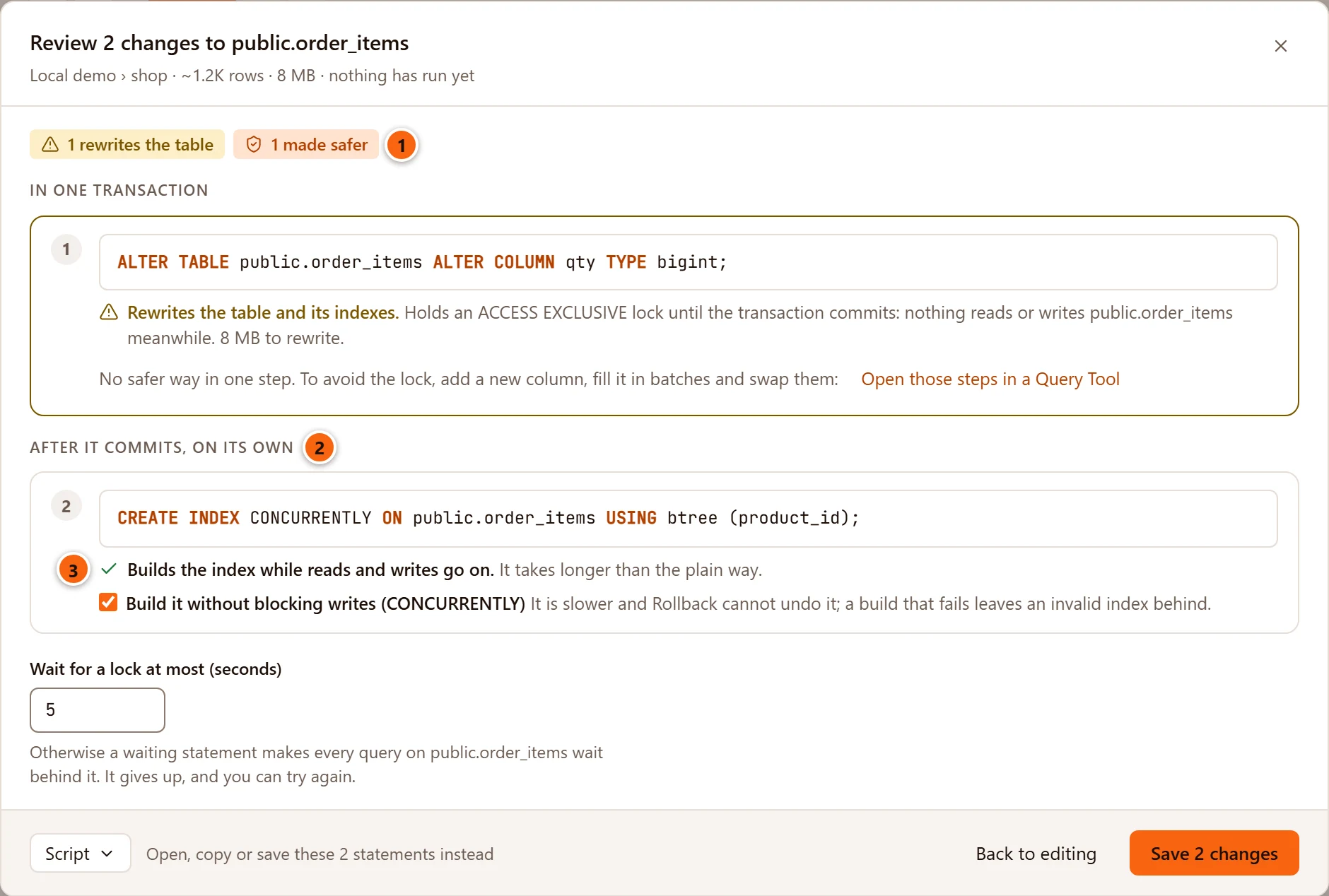
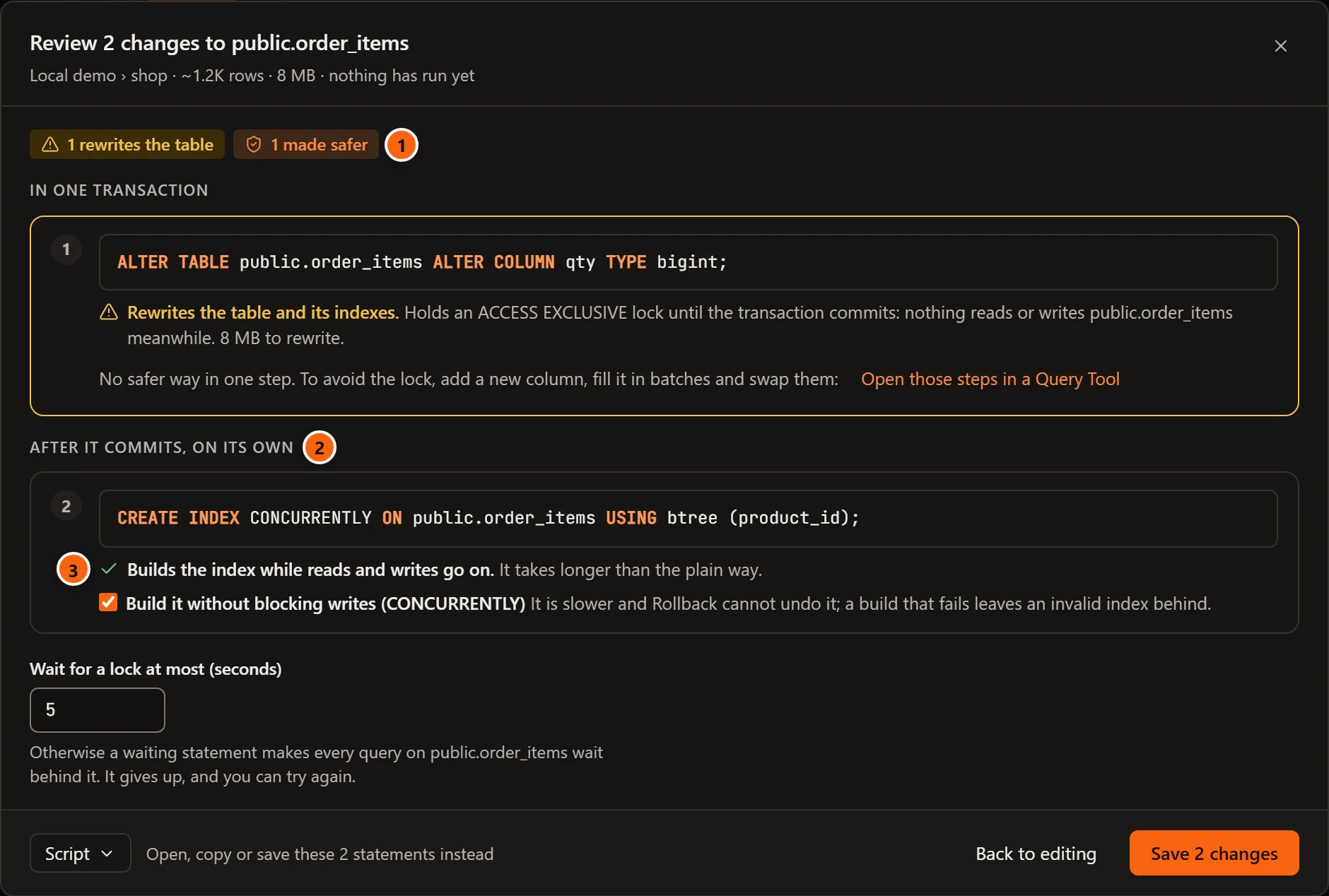
- 1 1 made safer counts the changes you are making the safer way.
- 2 After it commits, on its own: the safer statements leave the transaction and run after it, one at a time.
- 3 Each says what it does instead, here Builds the index while reads and writes go on.
| Checkbox | What it does instead |
|---|---|
| Build it without blocking writes (CONCURRENTLY) | CREATE INDEX CONCURRENTLY after the commit. It is slower, Rollback cannot undo it, and a build that fails leaves an invalid index behind. |
| Drop it without blocking reads and writes (CONCURRENTLY) | DROP INDEX CONCURRENTLY after the commit. It waits for queries on the table to finish. |
| Check the rows after the commit, while writes go on (NOT VALID, then VALIDATE) | The constraint is added NOT VALID in the transaction, so new rows are checked at once, and VALIDATE CONSTRAINT checks the rows already there after the commit. |
| Look for NULLs after the commit, while writes go on, then set NOT NULL | A NOT VALID check that the column is not null is added and validated after the commit. SET NOT NULL then reads nothing, and the check is dropped. |
On a table at least as large as Choose the safer way above (MB) in Settings, the
boxes start ticked and add Chosen for you on a table this size. Set that setting to 0 to have them chosen on
every table. You can still untick them.
The way out of a rewrite
Section titled “The way out of a rewrite”Changing a column’s type often makes PostgreSQL rewrite the table (integer to bigint, for example), and no single
statement avoids that. The review then says No safer way in one step. To avoid the lock, add a new column, fill it
in batches and swap them: and offers Open those steps in a Query Tool.
That closes the sheet and opens a new Query Tool on the table’s database with a script for you to run by hand, one step at a time. Save never runs it. The steps:
- Add a new column of the new type beside the old one (a brief lock, no rewrite).
- Create a trigger, and its function, that copies the old column into the new one for every row written from then on.
- Fill the rows already there, 10,000 at a time, each batch in a transaction of its own. Run it again until it updates 0 rows.
- Make the indexes, constraints, default and
NOT NULLof the old column on the new one, change the views that read it, and check that every row is filled. - Swap the two in one brief transaction: drop the trigger and its function, rename the old column to end in
_oldand give the new one the old name. - Once nothing reads the old column, drop it.
The column ends up last in the table. Take the type change out of the tab (put the old type back, or Discard) before you save anything else there.
Wait for a lock
Section titled “Wait for a lock”Even an instant statement must wait until the queries already using the table finish. While it waits, PostgreSQL makes every new query on the table wait behind it, so a long report can stall an application through one rename. Wait for a lock at most (seconds) prevents that: a statement that cannot get its lock in time gives up, the transaction rolls back, nothing has changed, and you can try again later.
The field starts at the value of the setting with the same name in Settings. It takes 0.1 seconds to an hour; outside that it says Wait 0.1 seconds to an hour. and the save button stays off. It shows only when the object is a table; other kinds wait as long as the setting says.
On a server that asks first
Section titled “On a server that asks first”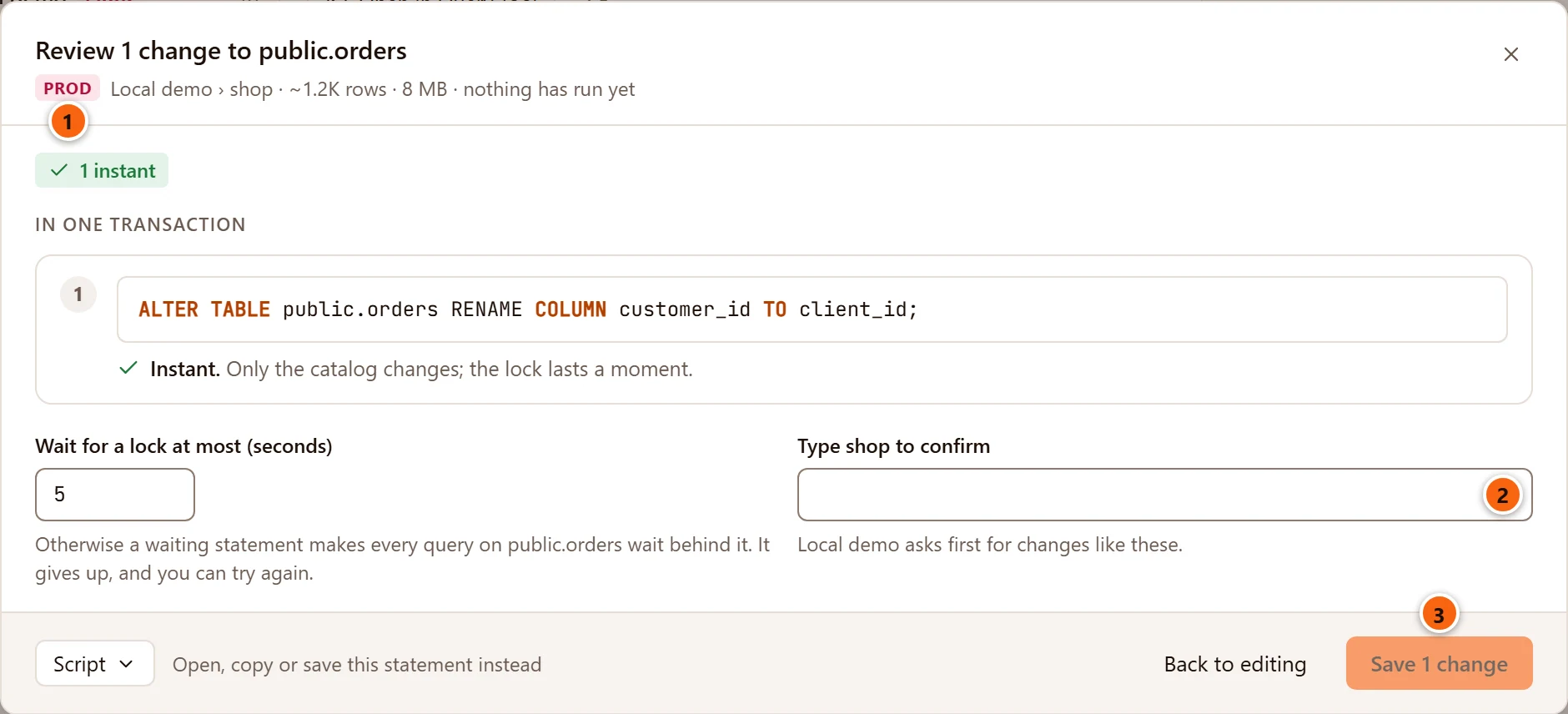
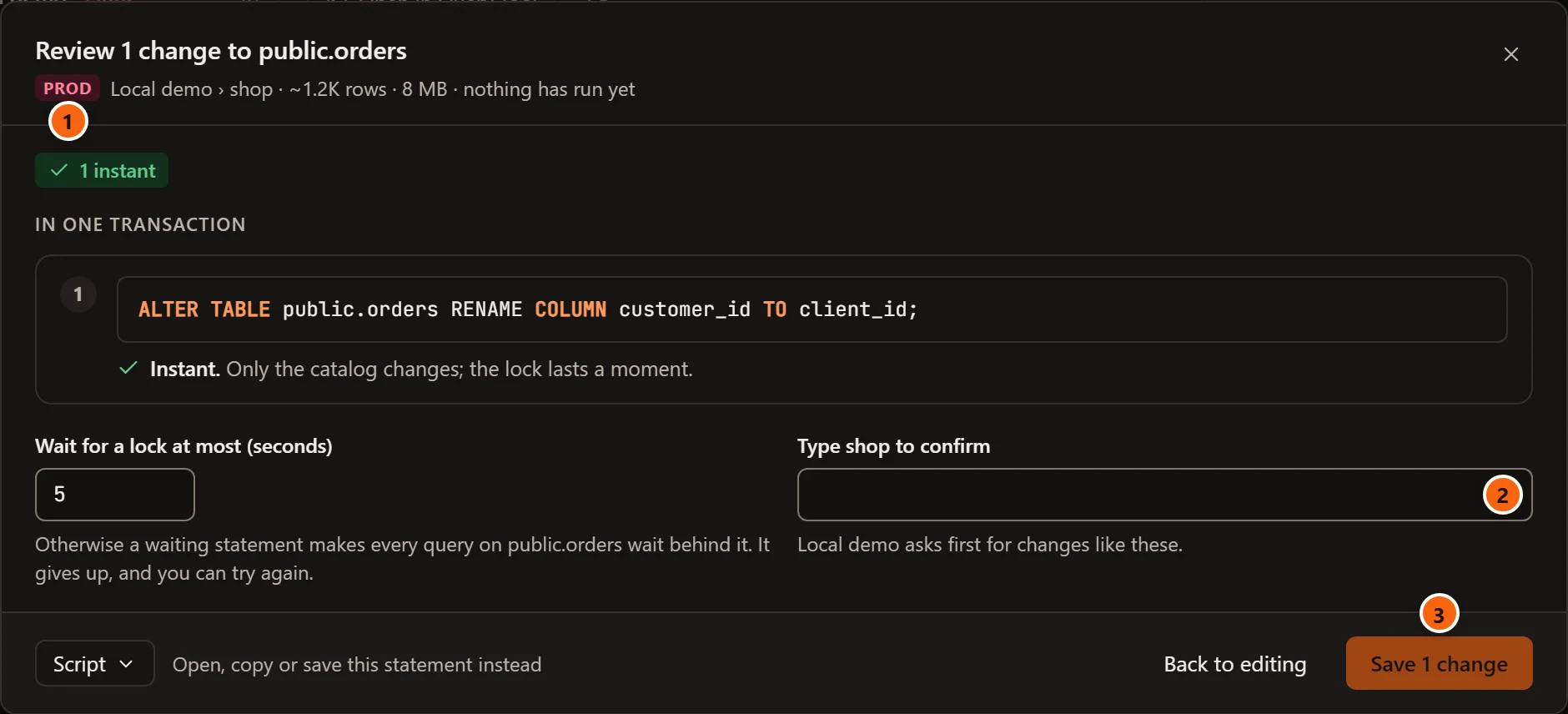
- 1 The server’s environment tag, PROD or STAGING, before its name.
- 2 Type shop to confirm: type the database’s name exactly. The helper under it says the server asks first for changes like these. pgjumbo checks the name again before anything runs.
- 3 The save button stays off until the name matches.
On such a server Save always opens the review, even when every statement is instant.
Script instead of saving
Section titled “Script instead of saving”Script at the bottom of the sheet holds the statements in the order Save would run them, with the safer ways you ticked. Open in Query Tool opens them in a new Query Tool on the table’s database and closes the sheet, for example to run them at a quieter time. Copy and Save to file… work as described in The Script menu. The statements meant for after the commit are in the script too, so run those outside a transaction.
Ask the Assistant about a review
Section titled “Ask the Assistant about a review”With the Assistant turned on (see Set up the Assistant), the sheet has an Explain button before the summary. It asks your Claude Code to explain the review in plain words: what each step does and who notices, whether it is safe to save now or better at a quiet time, and how to undo it. It sends the statements as the sheet shows them, the safer ways you did not tick, the lock wait and the table’s size. The button is off while the Assistant is still answering.
The answer appears on the sheet, in a card titled The Assistant on this review that says Your Claude Code read these steps and the table’s size; nothing has run. It reads Asking Claude… until the first words arrive. Stop ends the answer, and × closes the card. The Assistant pane opens beside the window with the same conversation (see Ask the Assistant). The sheet itself does not change: saving is still up to you.
When the object changed meanwhile
Section titled “When the object changed meanwhile”Before it plans or runs anything, pgjumbo compares the object on the server with the object as your tab read it. If someone renamed a column, added an index or changed the owner in between, nothing runs. The review sheet, if it was open, closes, and the pending bar turns into a warning such as public.orders changed since it was read: column note was added. Nothing was run., with a Read again button.
Read again reads the object as it is now and drops your changes, so note them first if you need them. Then make them again on the fresh copy and save.
When a step after the commit fails
Section titled “When a step after the commit fails”The statements after the commit run one at a time. If one fails, pgjumbo stops there: what ran before it stays saved, and nothing after it runs. The bar says Statement 4 failed after the others were saved: and the server’s message.
A CREATE INDEX CONCURRENTLY or DROP INDEX CONCURRENTLY that fails leaves an invalid index behind. Queries do not use
it, but every write still keeps it up to date. pgjumbo then adds Drop the invalid index… to the bar. It asks
Drop the invalid index followed by the index’s name, explains that it is dropped CONCURRENTLY so writes go on
meanwhile, and on a server that asks first wants the database’s name typed. Drop index runs
DROP INDEX CONCURRENTLY IF EXISTS once it has checked the index is still invalid. If it is valid now, or gone, you are
told there is nothing to drop. The bar then says Dropped the invalid index and its name.
Discard and close
Section titled “Discard and close”Discard in the pending bar puts the tab back as it read the object, at once.
Close a tab with changes
Section titled “Close a tab with changes”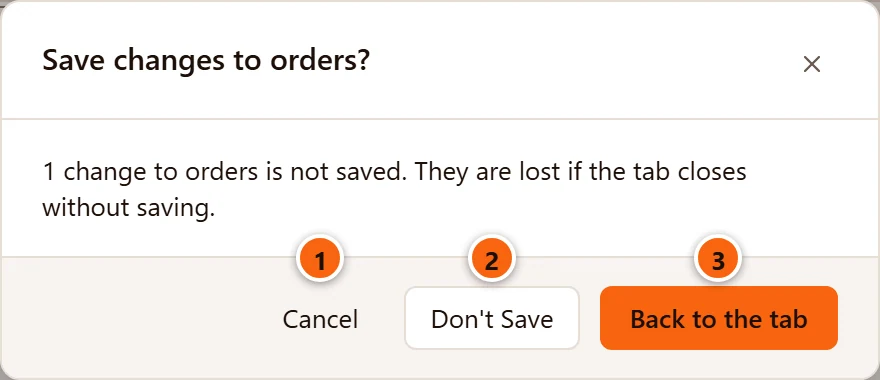
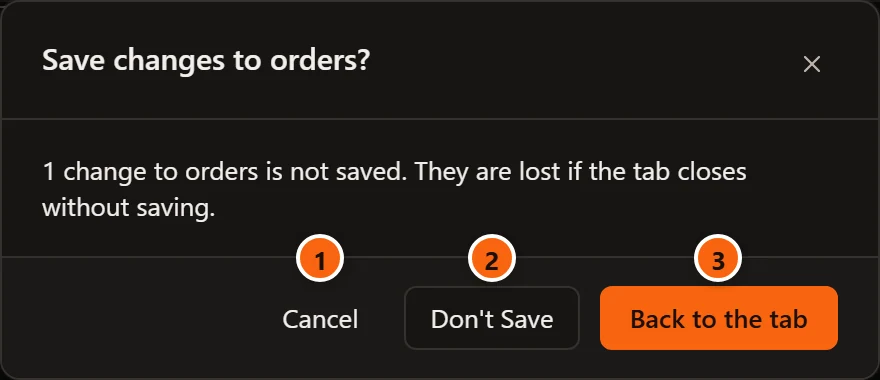
A tab with changes, or with rows staged on its Data view, asks before it closes. It says what is not saved, for example 1 change to orders is not saved. or 2 changes to orders and 3 pending changes to its rows are not saved., and that they are lost if the tab closes without saving.
- 1 Cancel keeps the tab as it is.
- 2 Don’t Save closes the tab and drops the changes.
- 3 Back to the tab brings the tab to the front and, when the object has changes, opens the review.
A new object asks Create the new table? (or role, function, procedure) in the same way once you have given it a name, saying the new table is not saved.; Back to the tab then only brings it to the front. A new object without a name closes without asking.
The SQL view
Section titled “The SQL view”Every object tab has an SQL view with the object’s script as the Inspector shows it:
the CREATE statement and what goes with it, such as the owner, comments, grants and, for a table, its indexes,
triggers, policies and rules. Above it are Script (with Copy and Save to file…) and Open in Query Tool.
It reads Loading… while the script comes, and pgjumbo cannot script this object. for an object it has no
script for. A table’s is shown in Table settings and privileges.
A new table’s SQL view shows instead the CREATE that its create button will run, under Generated SQL. To
script an object as DROP, SELECT, INSERT and the rest, use Script as in its right-click menu, described in
Scripts.
The Script menu
Section titled “The Script menu”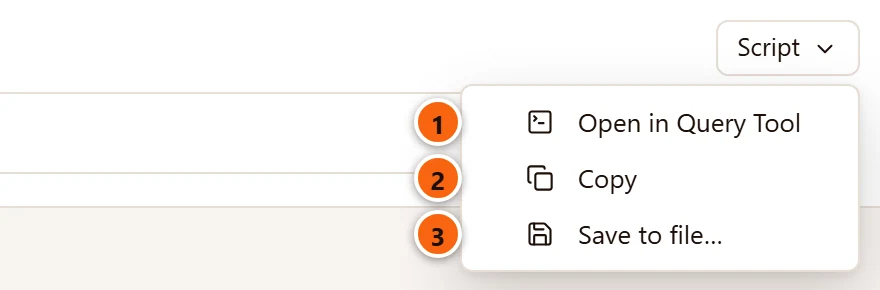
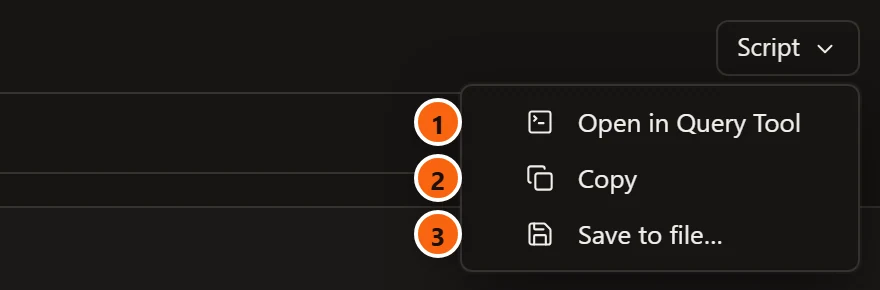
Every script pgjumbo generates for you to look at has a Script menu: Generated SQL in an object tab, the review sheet, the SQL view, the Inspector’s SQL tab and the object dialogs. Nothing runs from it.
- 1 Open in Query Tool opens the script in a new Query Tool on the object’s database. On the review sheet and in an object dialog it also closes the sheet or the dialog, so you see the new tab.
- 2 Copy puts the script on the clipboard. Copied shows beside the button for a moment, or The clipboard is not available when the system refused.
- 3 Save to file… opens your system’s Save dialog with a name such as
orders.sql, and writes the script there. Saved as and the file’s name show beside the button.
The button stays off until there is a script to act on, for example while a new table has no name. Where an Open in Query Tool button sits beside it, as in the SQL view, the menu has only Copy and Save to file….