
Open Quickly
Open Quickly finds an object by name across your connected servers, so you do not have to open folders in the Explorer to reach it. Type part of a name, choose a result and press Enter.
Open it
Section titled “Open it”Any of these opens the Open Quickly window, once at least one server is connected:
- press ⇧ ⌘ O (Ctrl+P on Windows and Linux);
- choose ViewOpen Quickly…;
- click Open Quickly… in the main toolbar, on the right.


- 1 The toolbar’s Open Quickly… shows its keys beside the label. Hovering over it says Find a table, view, function, schema or database by name. In a window narrower than about 1,120 pixels at normal zoom, it gives way to the magnifying glass alone. While no server is connected it is greyed out, like the menu item.
Find an object
Section titled “Find an object”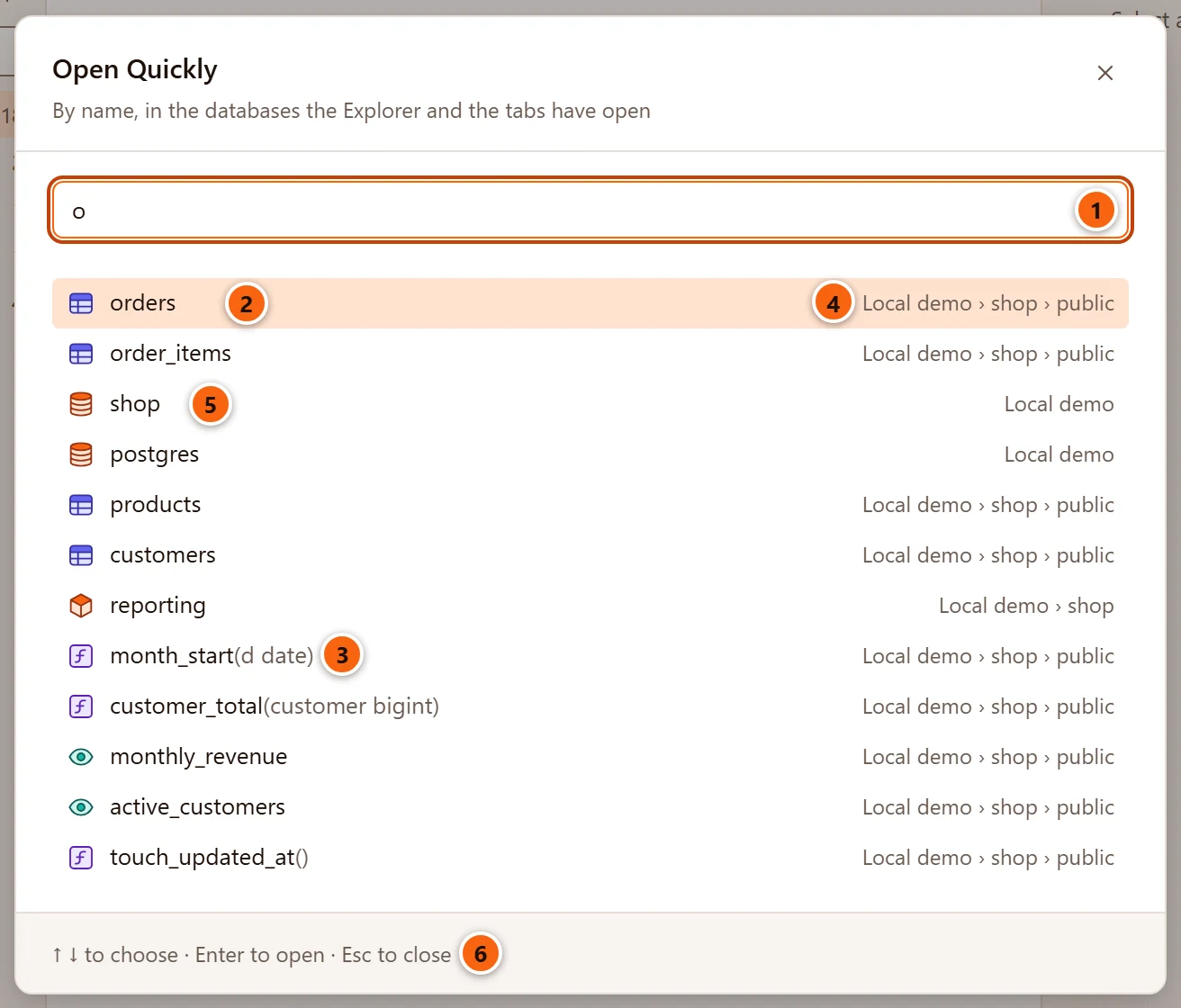
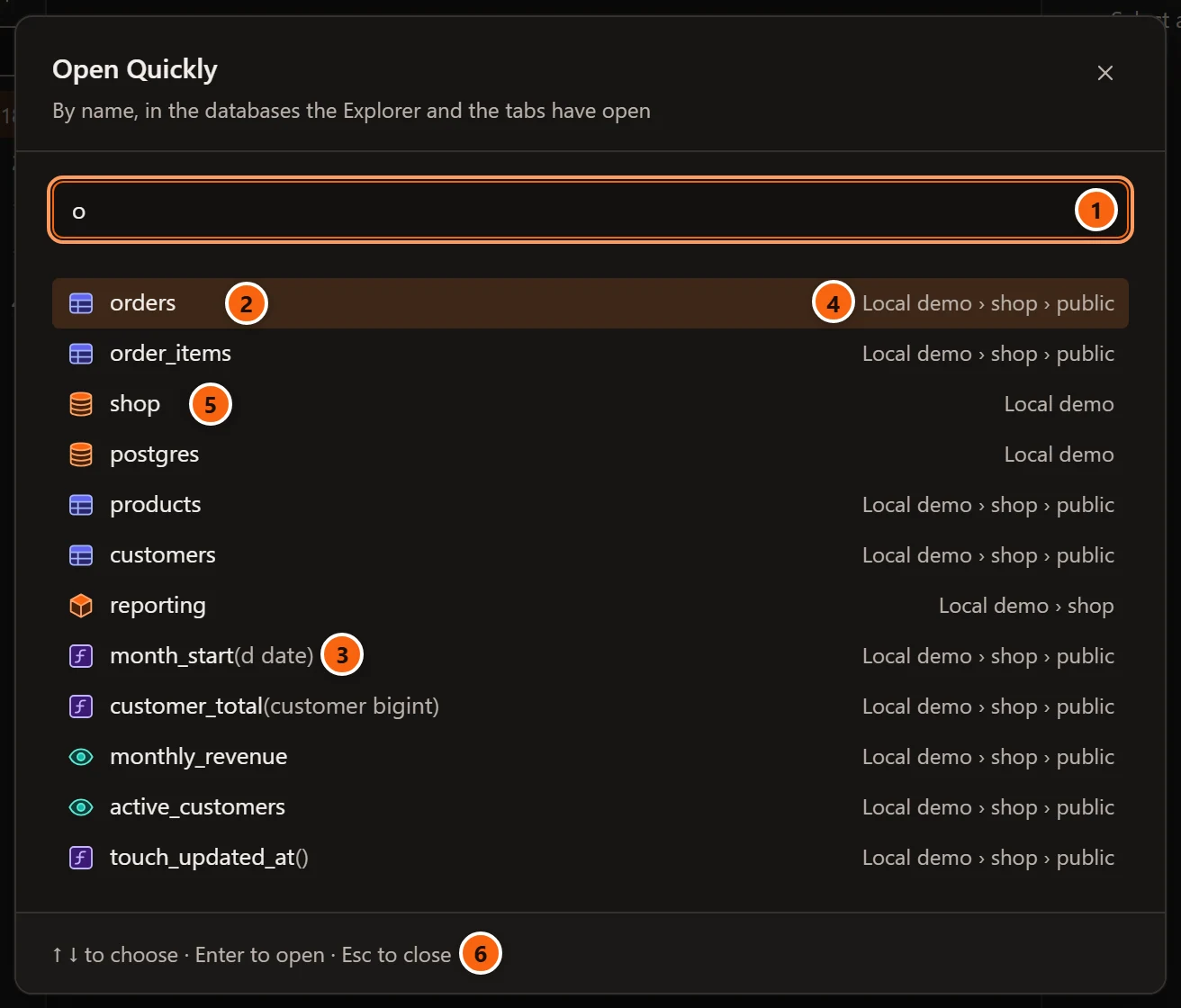
- 1 Type part of a name in the field (it suggests
e.g. orders). Case does not matter, and spaces at either end are ignored. pgjumbo looks as soon as you pause typing. - 2 The chosen result is highlighted. ↓ and ↑ move the choice, and wrap round at the ends; moving the pointer over a result chooses it too.
- 3 A function or procedure shows its arguments, so you can tell overloads apart.
- 4 Where each result is: the server, the database and the schema. A schema shows its server and database.
- 5 A database shows only its server.
- 6 The keys: ↑ ↓ to choose, Enter to open, Esc to close.
The line under the title, By name, in the databases the Explorer and the tabs have open, sums up what is searched. Each result has the Explorer’s icon for its kind. Click a result, or press Enter, to open it. The × in the corner and Esc close the window without opening anything.
What it searches
Section titled “What it searches”Open Quickly finds these kinds of object, by a name that contains what you typed:
| Kind | Where it looks |
|---|---|
| Databases | Every connected server’s databases, once the server’s Databases folder has been listed in the Explorer. Databases whose names start with template are left out. |
| Schemas, tables, partitioned tables, views, materialized views, sequences, functions (window functions too), procedures | Only the databases pgjumbo has open on a connected server: the database named in the server’s connection settings, and those you have opened in the Explorer or in a tab. PostgreSQL’s system schemas (pg_catalog, information_schema, pg_toast and the temporary ones) are left out, and so are partitions, which sit under their table. |
To search a database that is not open yet, open it in the Explorer first: one click on its arrow is enough. Columns, indexes, types, aggregates, roles and other kinds are not searched; find them in the Explorer, or list a folder’s objects in Object Details.
How results are ranked
Section titled “How results are ranked”Results come in this order:
- names that are exactly what you typed;
- names that start with it;
- names that contain it elsewhere.
Within each group, shorter names come first, then names in alphabetical order. Each database gives at most 50 objects (databases themselves are not counted) and the whole list holds at most 100.
What opening a result does
Section titled “What opening a result does”The window closes, then:
| Result | What opens |
|---|---|
| Table, partitioned table, view, materialized view, sequence, function, procedure | The object’s own tab, as a double-click in the Explorer would open it. See Object tabs and review. |
| Database, schema | The Explorer, with the object’s row opened up to, selected and scrolled into view, so you can work from there. If the left pane was hidden or on its Library tab, it comes back on Explorer, and the Explorer’s name filter is cleared. The Inspector then shows the object. |
If the object is gone by the time you open it (someone dropped it), a message titled … could not be opened says
… is no longer in the database.
Messages
Section titled “Messages”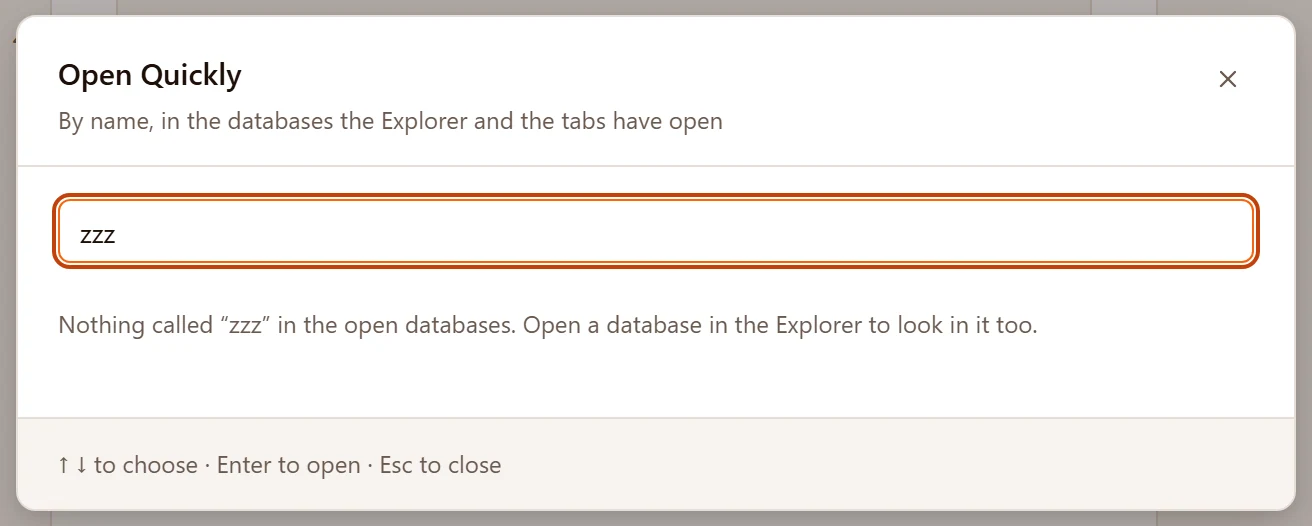
| Message | When |
|---|---|
| Type a name: a table, view, function, schema or database. | The field is empty. |
| Looking… | pgjumbo is asking the servers. |
| Nothing called “…” in the open databases. Open a database in the Explorer to look in it too. | No name matches. |
| The closest names; there are more, so type more to narrow them down. | The list holds 50 results or more, so some names may be missing. |
| The search failed: … | The search itself failed; the reason follows, in red. |
A database that fails to answer is skipped, and the others still give their results.