
What the Assistant proposes
The Assistant never changes a database. When it has a change to suggest, it puts a card in the pane. A card’s first button puts the change where you would make it by hand: SQL in an editor, a column or an index in the table’s tab, settings in the server’s Configuration, a new role in a role tab. There you see the change, and the same review as for your own changes runs before anything is saved. Reject puts the card away.
Every card has a coloured tag that says what it is, a one-line summary (a comment card shows the object’s name instead), the change itself, a grey line that says where it will go, and its buttons. After you act on it, the buttons give way to what you did: In the editor, Staged, Opened, Copied, Saved or Rejected. Cards keep that state in the history, and when you carry a conversation on, the Assistant is told what you did with each card.
A card acts on the server and database its answer read, even after you have moved to another tab. When the change cannot be put in place (the tab cannot be read, a column is no longer there), the card says why in red and keeps its buttons.
| Card | Tag | First button | Where the change lands |
|---|---|---|---|
| SQL | Script | Accept in editor or Open in Query Tool | The editor of the tab you asked from, or a new Query Tool |
| An index | Index | Stage in table | The table’s tab, Structure view |
| A new table | New table | Open as a new table | A new-table tab, filled in |
| Changes to a table | Table | Stage in its tab | The table’s tab, Structure view |
| A definition | Definition | Stage in its tab | The function’s or view’s tab, Definition view |
| A comment | Comment | Stage in its tab | The object’s tab |
| Settings | Settings | Stage in Configuration | The server’s tab, Configuration view |
| A role | Role | Open as a new role | A new role tab, filled in |
| Knowledge base files and notes | Knowledge | Save to knowledge base | Files in your knowledge base folder |
When the Assistant writes a statement for you, for example after Fix with the Assistant on an error, it comes as a Script card.
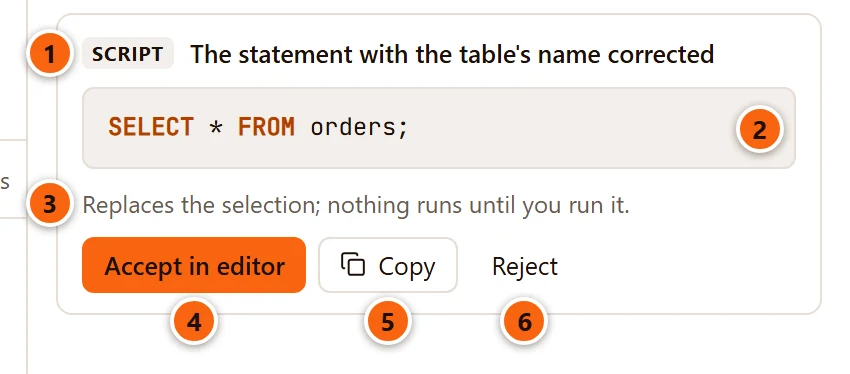
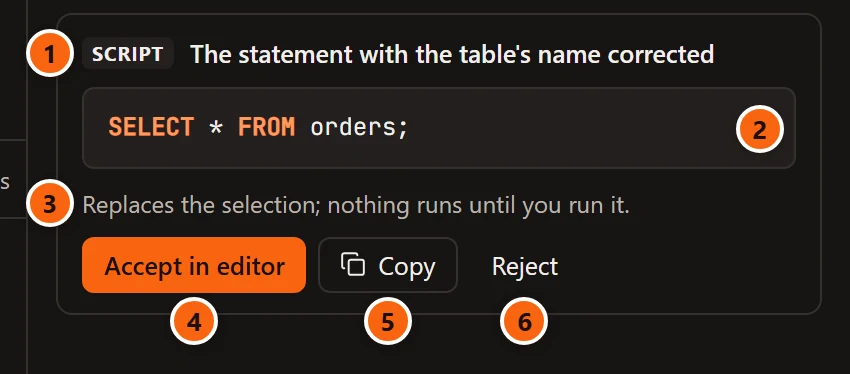
- 1 The tag and what the SQL does.
- 2 The SQL, highlighted.
- 3 Where it will go.
- 4 Accept in editor puts it in the editor.
- 5 Copy copies the SQL; the button then says Copied.
- 6 Reject puts the card away.
Where the SQL goes depends on the card and on the tab you asked from:
| The grey line says | What Accept in editor does |
|---|---|
| Replaces the selection; nothing runs until you run it. | Replaces the text selected in that tab’s editor. With nothing selected, the SQL goes on lines of its own after the cursor’s line. |
| Replaces the editor’s text; nothing runs until you run it. | Replaces everything in the editor. |
| Goes in at the cursor; nothing runs until you run it. | Goes on lines of its own after the cursor’s line. |
| Opens in a new Query Tool; nothing runs until you run it. | The question came from a tab without an editor (an object tab, the server’s tab, a report, a data tab), or that tab is closed. The button says Open in Query Tool and opens a new Query Tool on the same server and database, with the SQL in it. It is greyed when the answer read no server. |
The new text is selected in the editor, so you see what changed, and ⌘ Z (Ctrl+Z on Windows and Linux) takes it back. The card then says In the editor or Opened. Nothing runs: you run it with Run like any SQL, with the Production confirmation where it applies.
A change you ask for with ⌘ K (Ctrl+K on Windows and Linux) is shown in the editor itself, and its card says In the editor, to accept or reject there; see SQL help in the editor.
An index
Section titled “An index”When a query is slow for want of an index, the Assistant is told to propose it as an Index card rather than as
CREATE INDEX SQL, so that the review shows its lock and the table’s size first.
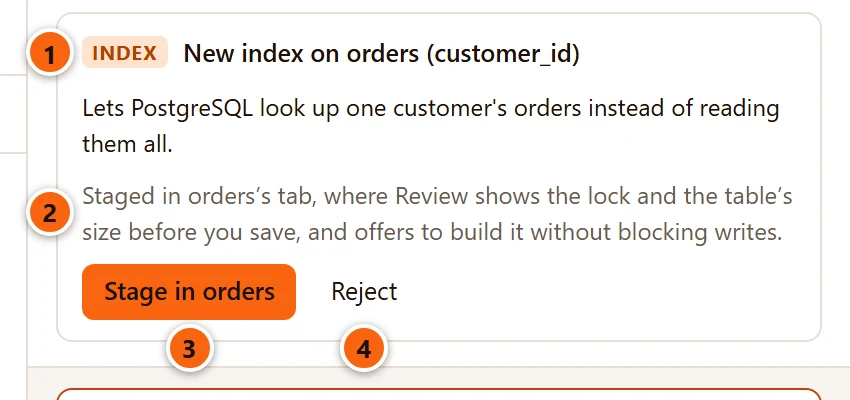
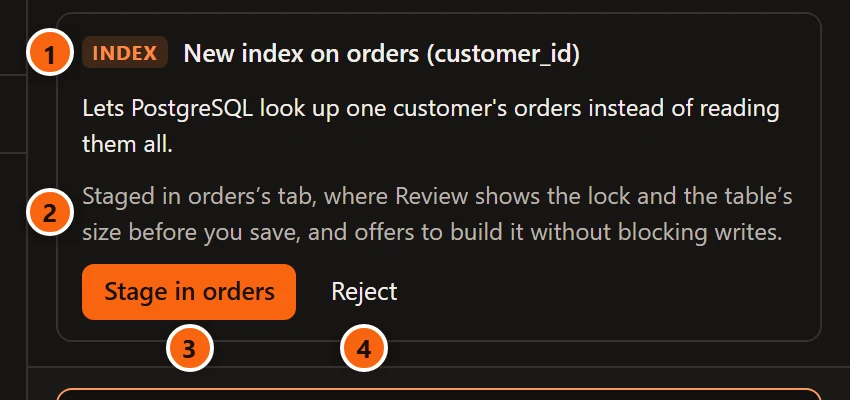
- 1 Index, the table and its columns (New unique index for a unique one), then why.
- 2 Where it goes.
- 3 Stage in orders adds the index to the table’s tab.
- 4 Reject.
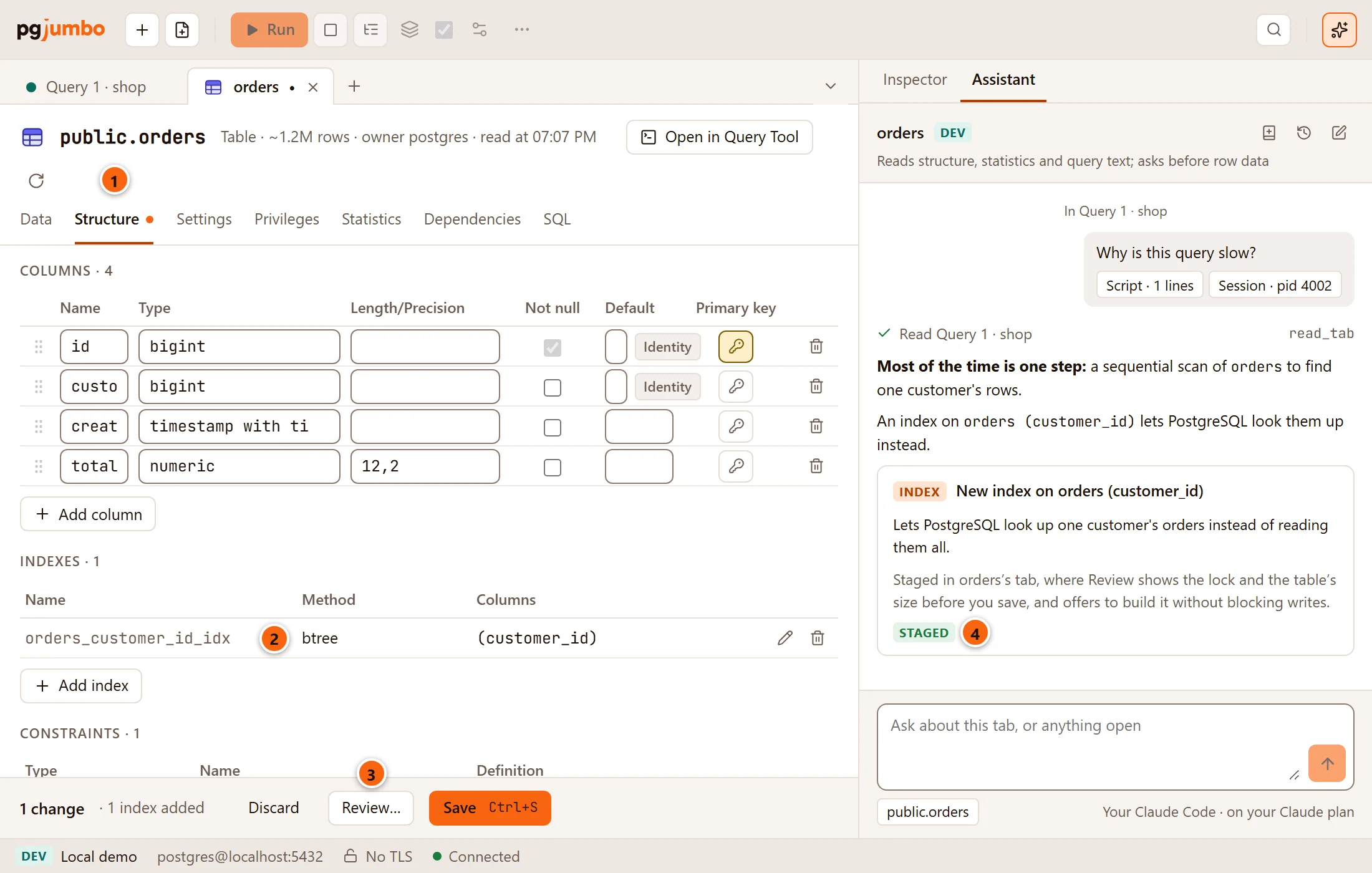

- 1 The table opens in its tab on Structure, marked as changed.
- 2 The index is added to the table’s indexes, as if you had added it with Add index. Change or delete it there.
- 3 Review… shows the
CREATE INDEXwith its lock and the table’s size, and offers to build it withCONCURRENTLYso that writes are not blocked. Save opens the same review first, because building an index takes more than a moment, and runs it from there. - 4 The card says Staged.
The review and saving are described in Object tabs and review and the table’s tab in Tables.
A new table
Section titled “A new table”Describe a table you need and the Assistant drafts it in the style of the tables beside it.
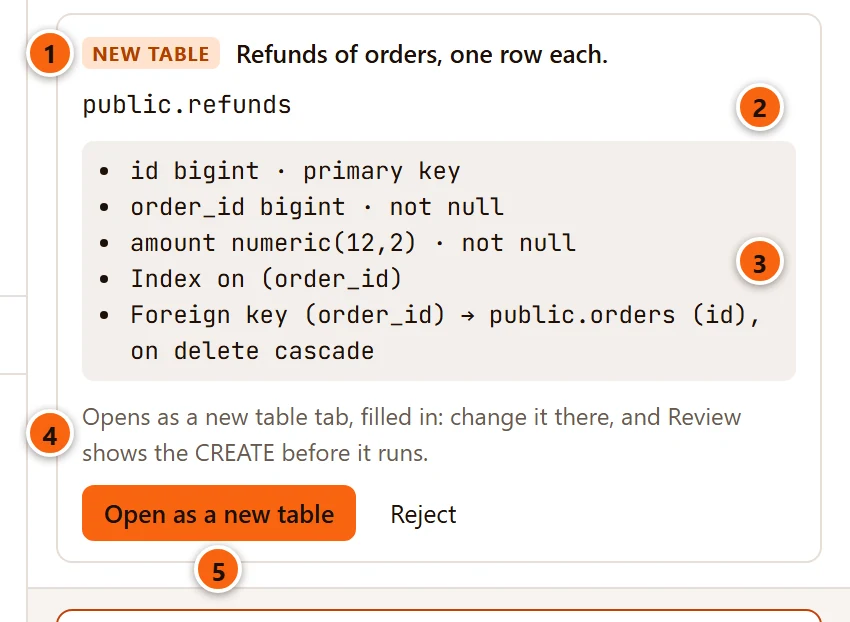
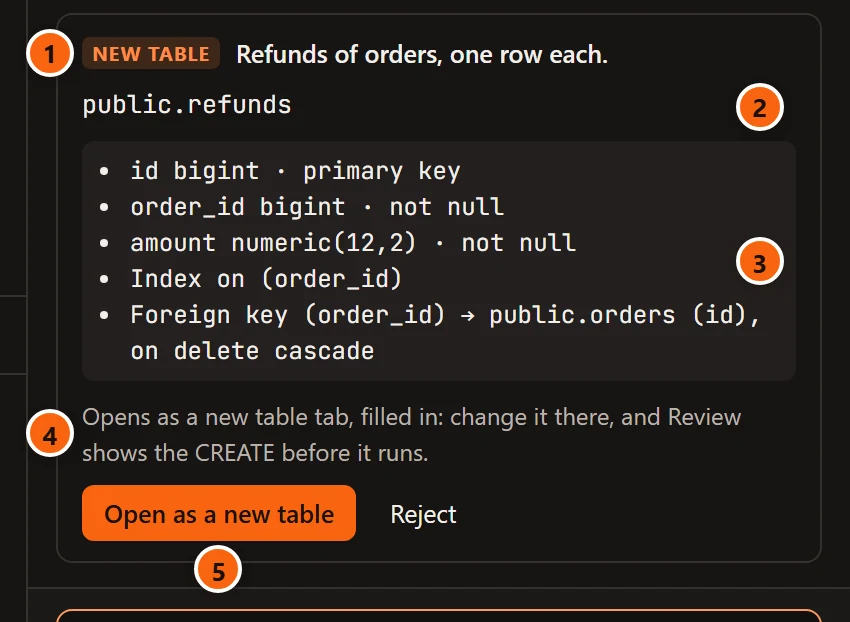
- 1 New table and what the table is for.
- 2 Its schema and name.
- 3 Its columns (with primary key, not null and default where they apply), indexes and constraints: checks, unique and foreign keys with their on delete action.
- 4 Where it goes.
- 5 Open as a new table opens a new-table tab in that schema, filled in. Reject is beside it.
In the new-table tab you can change anything before you save; the review shows the CREATE TABLE before it runs.
Before the card was shown, pgjumbo checked the draft against the catalog: the schema exists, no table has the name
already, every type exists, and every column an index, constraint or foreign key names is there. See
Tables.
Changes to a table
Section titled “Changes to a table”Asked to improve a table, the Assistant proposes columns to add, columns to give another type, indexes and constraints in one Table card.
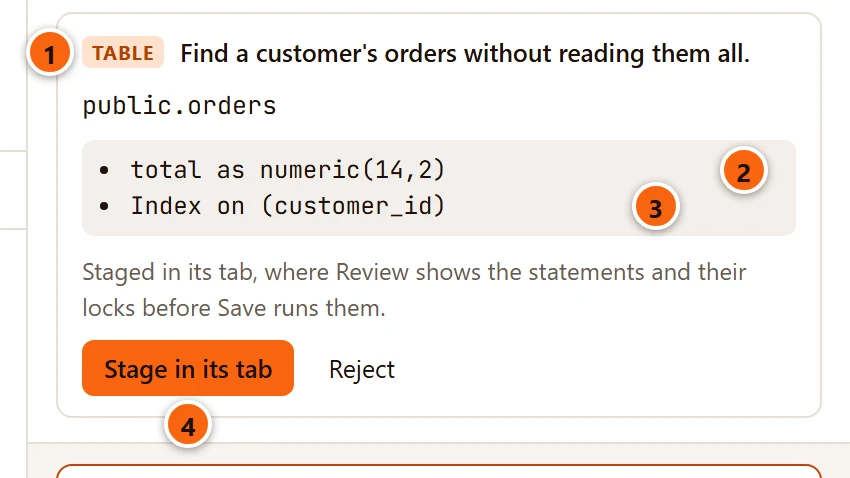
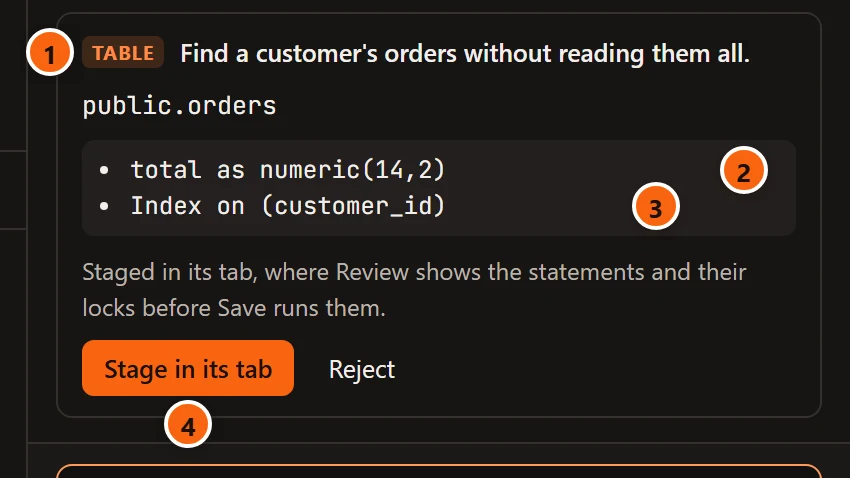
- 1 Table, what the changes do, and the table.
- 2 A column given another type reads total as numeric(14,2); a new column reads Add and its name and type.
- 3 Indexes and constraints to add.
- 4 Stage in its tab adds them to the table’s tab on Structure. Reject is beside it.
The review in the tab shows each statement with its lock, and whether it rewrites the table, before Save runs them. A card with a single index and nothing else is an Index card.
A definition
Section titled “A definition”Review with the Assistant on a function’s Definition view, or a question about a function or a view, can end with a Definition card: what should change and the fixed definition.
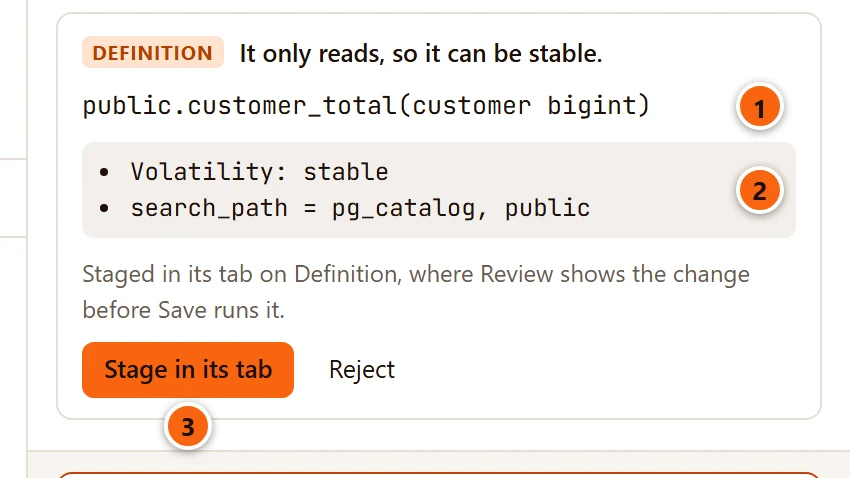
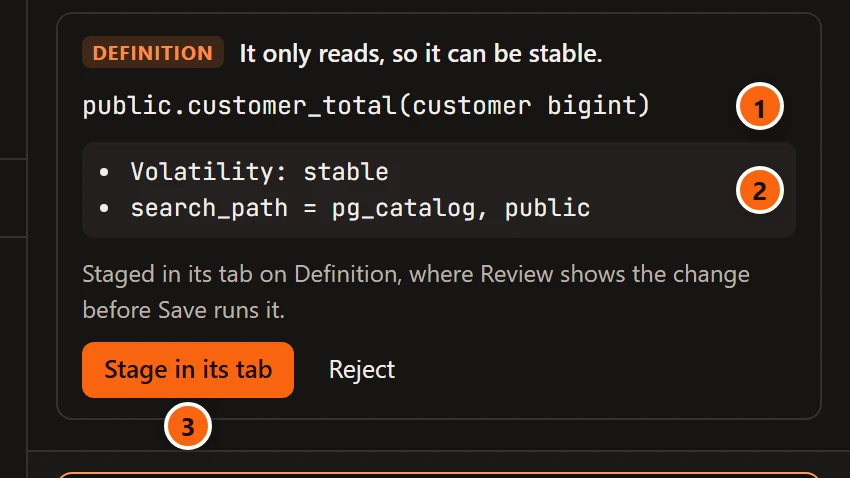
- 1 The function, procedure, view or materialized view.
- 2 What changes: Volatility, Security definer: on or off, the
search_pathit runs with, and the new body or query, shown as SQL when there is one. - 3 Stage in its tab opens the object’s tab on Definition with the changes in place. Reject is beside it.
For a function or procedure, the new body replaces the old one and the search_path goes into its settings; the tab
runs ALTER FUNCTION or CREATE OR REPLACE when you save. A body the tab cannot change (a function in C or
internal, or, from PostgreSQL 14, a SQL-standard BEGIN ATOMIC body) makes the card say The body of … cannot be
changed in its tab. For a view or materialized view, the new query goes into its definition, and the review says
whether the view can be replaced in place or must be dropped and made again. See
Functions and procedures and Views and materialized views.
A comment
Section titled “A comment”Asked to describe a table or a column, or with Describe with the Assistant in Object Details, the Assistant drafts comments as Comment cards.
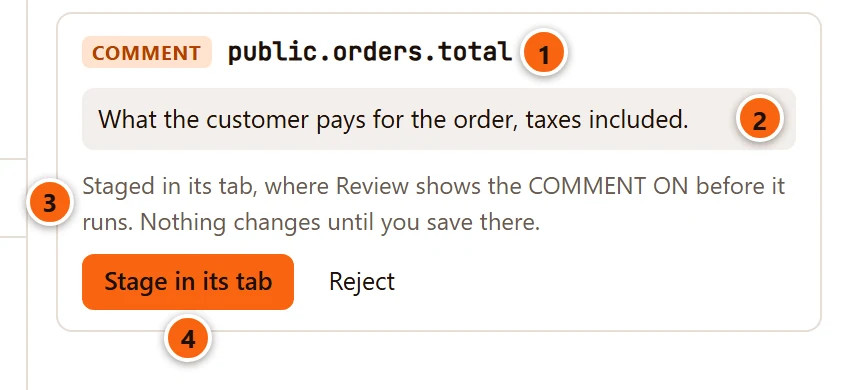
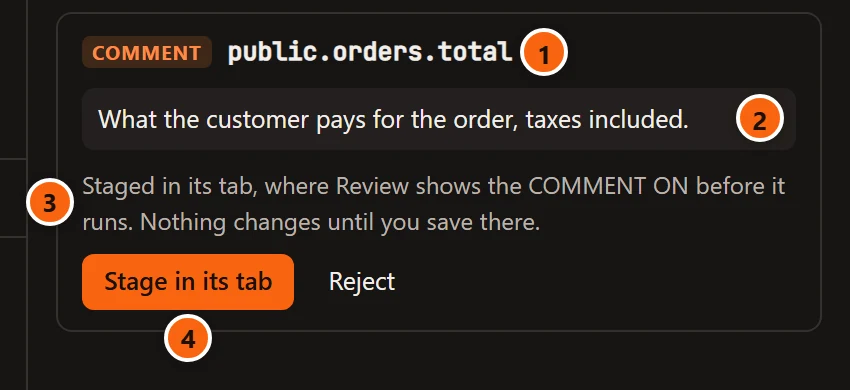
- 1 The object, or the table and column, the comment is for.
- 2 The comment. When the object already has one, a grey line Now: shows it.
- 3 Where it goes: nothing changes until you save in the tab.
- 4 Stage in its tab puts the text in the object’s comment field. Reject is beside it.
A column’s comment goes into the table’s tab on Structure, a table’s on Settings, and the comment of a view,
materialized view, function or procedure on General. Only these kinds and a table’s columns take a comment from a
card. The review shows the COMMENT ON before Save runs it.
A fact that belongs on an object
Section titled “A fact that belongs on an object”When you tell the Assistant something worth remembering about one table, column, view or function, it offers it as
that object’s comment rather than a note: in the database, everyone sees it in any tool and pg_dump keeps it.
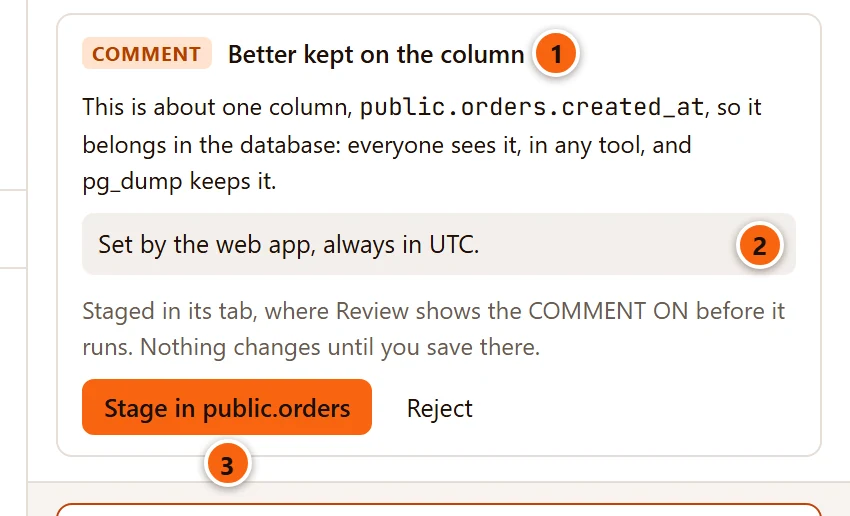
- 1 Better kept on the column (or table, view, function), with why.
- 2 The comment it would get.
- 3 Stage in public.orders stages it in the object’s tab as above.
Settings
Section titled “Settings”Asked about the server’s configuration, the Assistant is told to ask you first about the machine (memory, CPUs,
disks) and the workload rather than guess. It proposes settings as a Settings card, never as ALTER SYSTEM SQL.
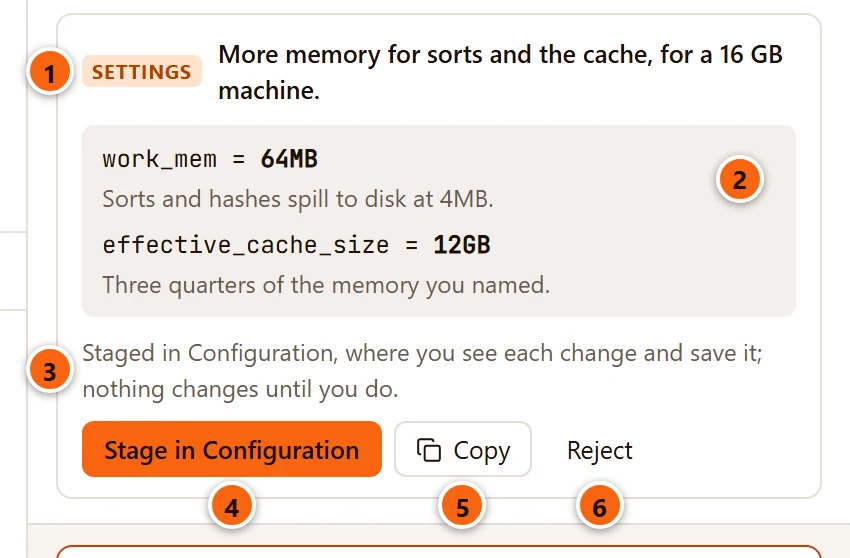
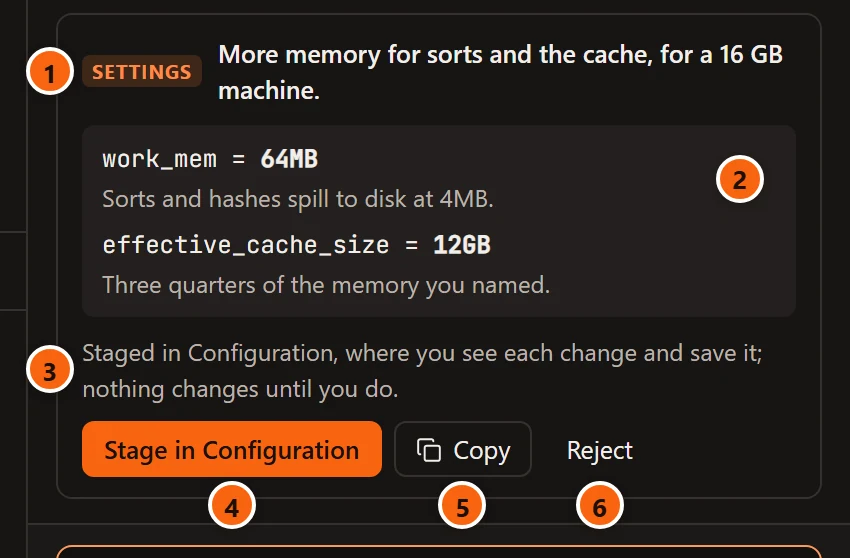
- 1 Settings and what they do together.
- 2 Each setting with its new value and why.
- 3 Where they go: nothing changes until you save.
- 4 Stage in Configuration opens the server’s tab on Configuration and puts the values in its draft, beside any changes already there.
- 5 Copy copies them as
name = valuelines; the card then says Copied. - 6 Reject.
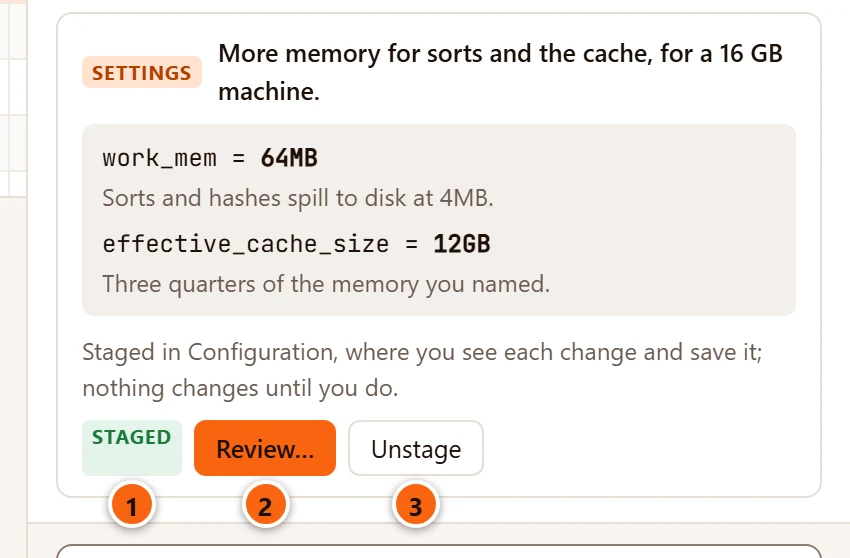
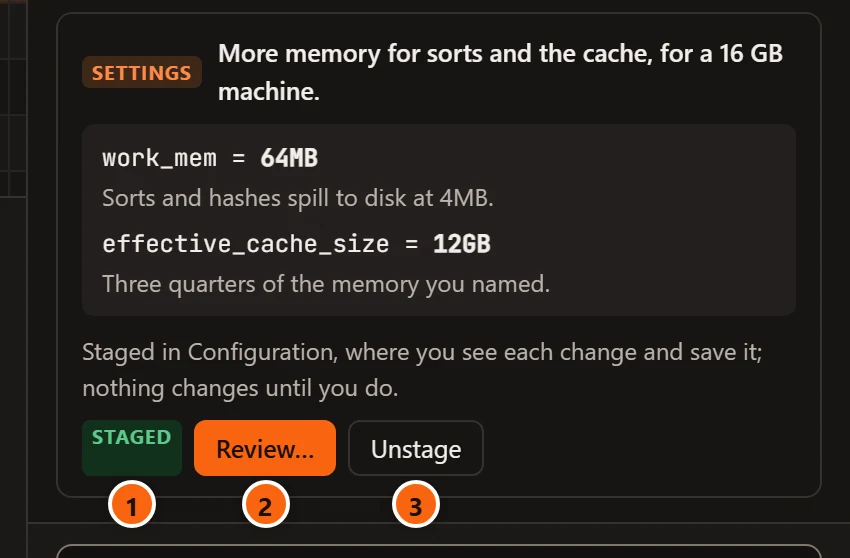
- 1 Staged: the values are in the draft.
- 2 Review… opens the server’s tab on Configuration.
- 3 Unstage takes them out of the draft again, except those you changed since, and the card’s buttons come back.
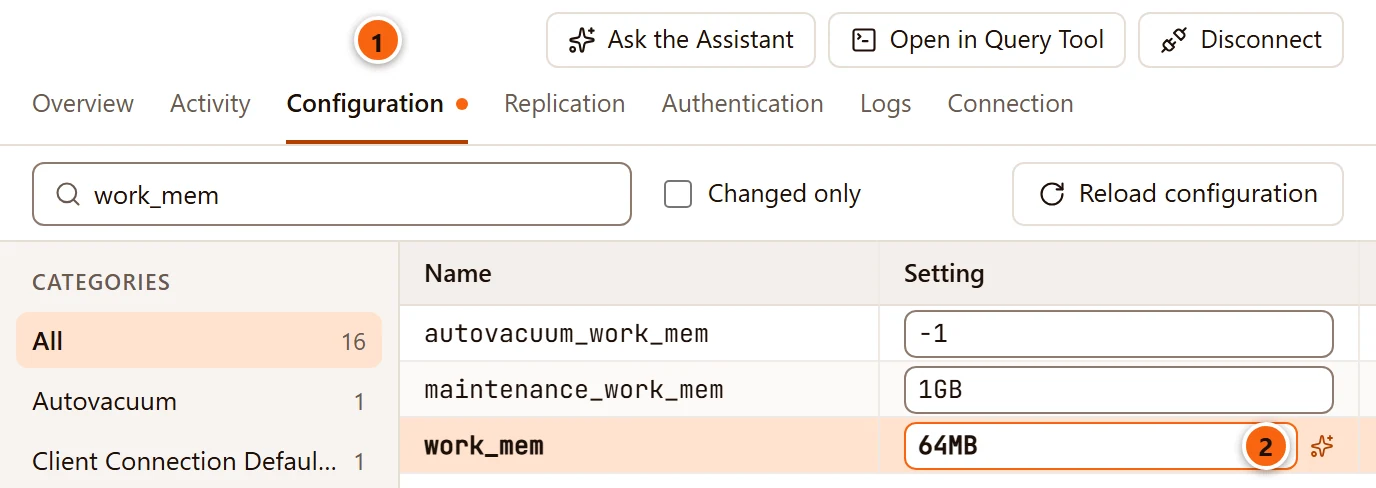
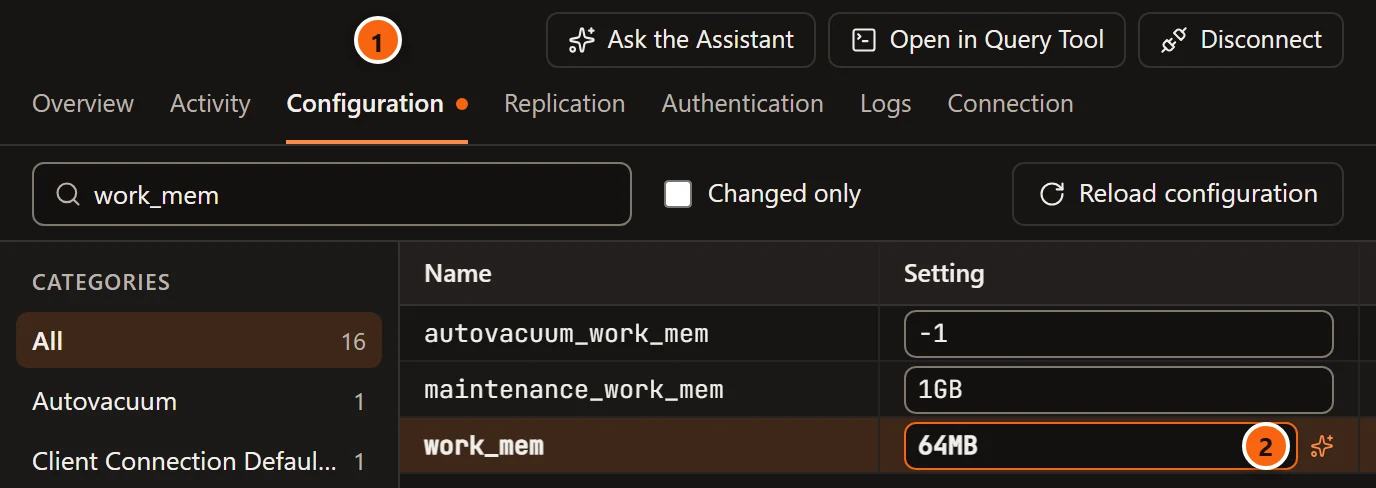
- 1 Configuration is marked as changed.
- 2 A sparkles icon marks each value the Assistant proposed, while the draft still holds it.
Saving there writes each setting with ALTER SYSTEM and reloads the configuration; settings that need a restart say
so. See Server configuration.
On Amazon RDS and Aurora, settings live in the parameter group, not in ALTER SYSTEM. On such a server the card says
Amazon RDS takes settings from its parameter group: copy them there. (or Amazon Aurora …), has no Stage in
Configuration, and its first button is Copy for the parameter group. See
Amazon RDS and Aurora.
A role
Section titled “A role”For an access request, such as “Ana needs to read the orders”, the Assistant reads the roles you already have and is told to propose a new role that joins the group roles you use, rather than granting to a person directly. It never chooses or sees a password.
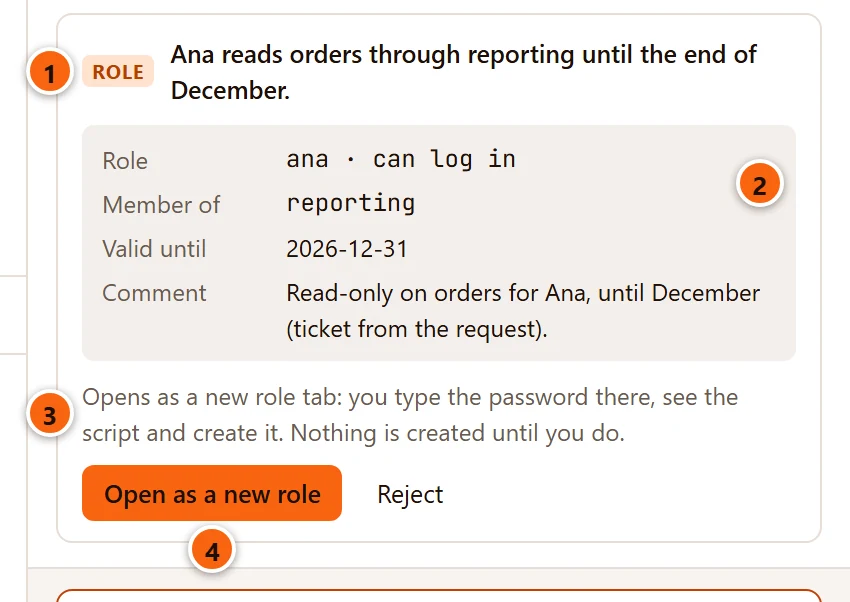

- 1 Role and what the role may do.
- 2 The role: its name and whether it can log in or is a group, no login, the group roles it is
Member of, Valid until, Connections (its connection limit), Connect to (databases it gets
CONNECTon) and Comment, as far as the card uses them. - 3 Where it goes: nothing is created until you create it.
- 4 Open as a new role opens a new role tab, filled in. Reject is beside it.
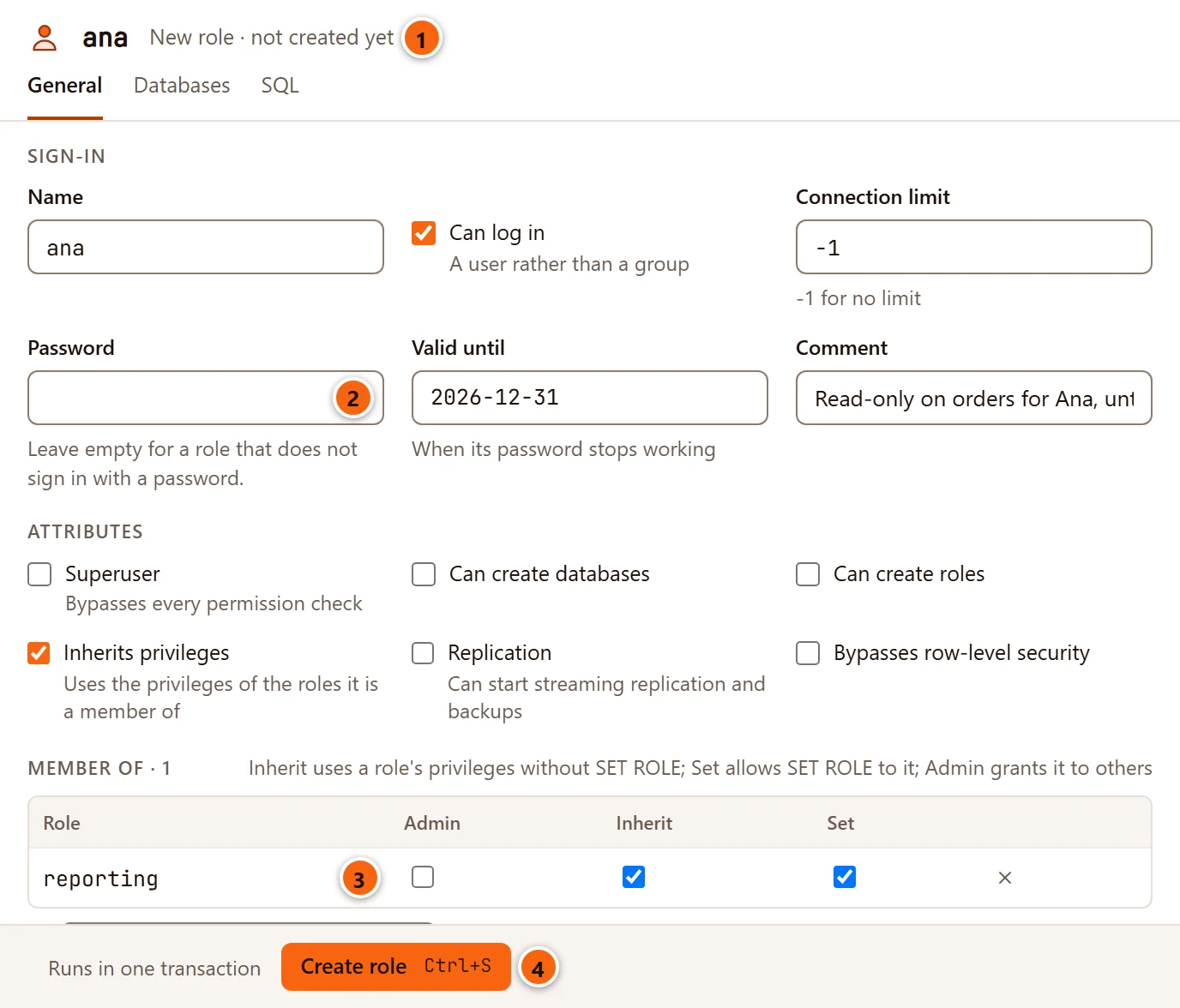
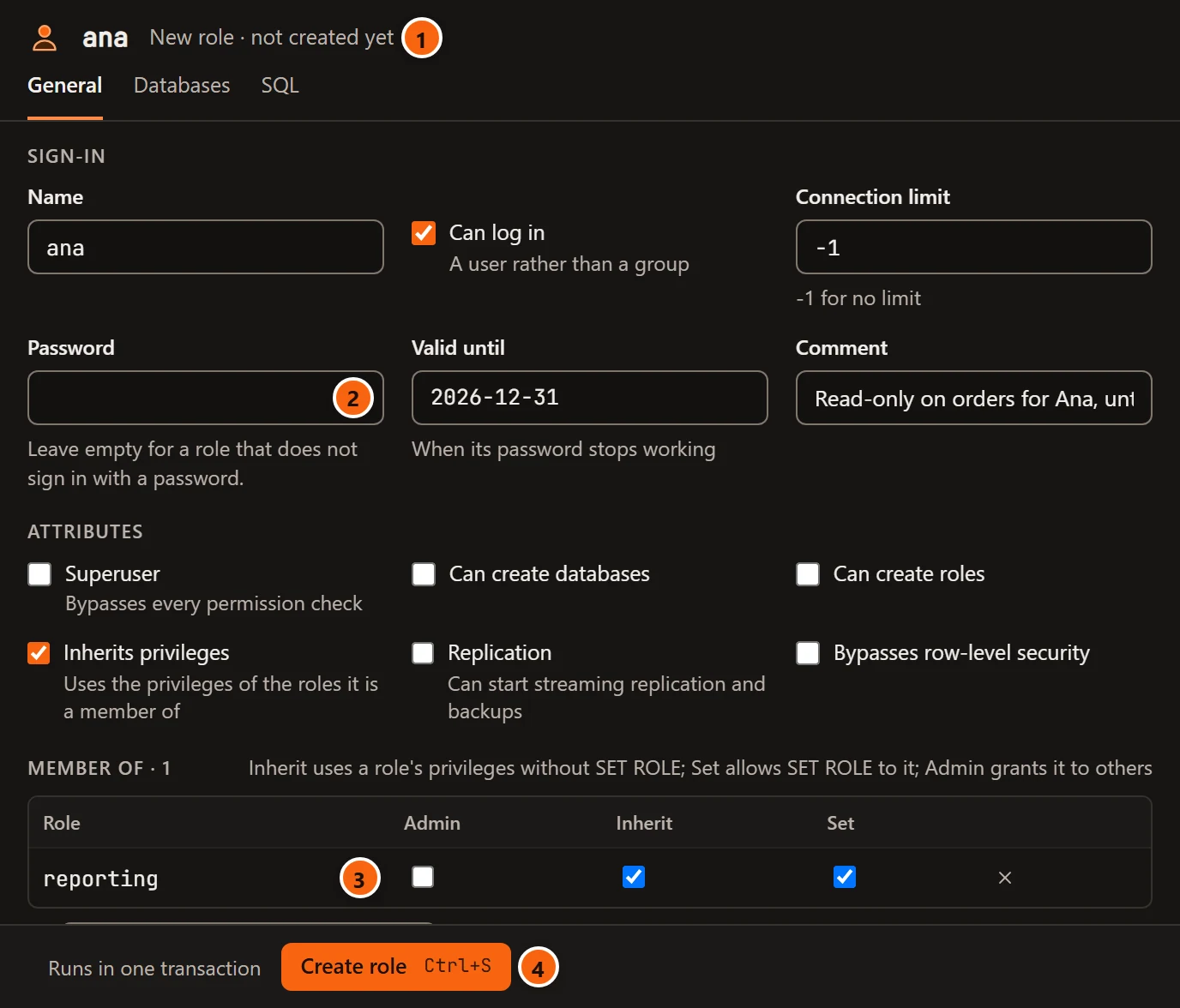
- 1 The role is not created yet.
- 2 Type the password here, if the role signs in with one.
- 3 The group roles it joins, with their Admin option and, on PostgreSQL 16 or later, Inherit and Set.
- 4 Create role (⌘ S (Ctrl+S on Windows and Linux)) creates it. The tab’s SQL view shows the
CREATE ROLEit will run.
The databases the card names under Connect to are ticked under Can connect in the tab’s Databases view. The card then says Opened. The role tab is described in Roles.
Knowledge base files
Section titled “Knowledge base files”At the end of an investigation, or when you ask it to write something up, the Assistant can offer files for your knowledge base: an incident with its cause and fix, a change to the map of your servers, a runbook. They come together in one Knowledge card, and nothing is written until you save. Two buttons ask for one directly: Write up for the knowledge base at the top of the pane, for everything a conversation settled (see Write up a conversation), and Map my environment in the Library, for how your servers connect (see Map your environment).
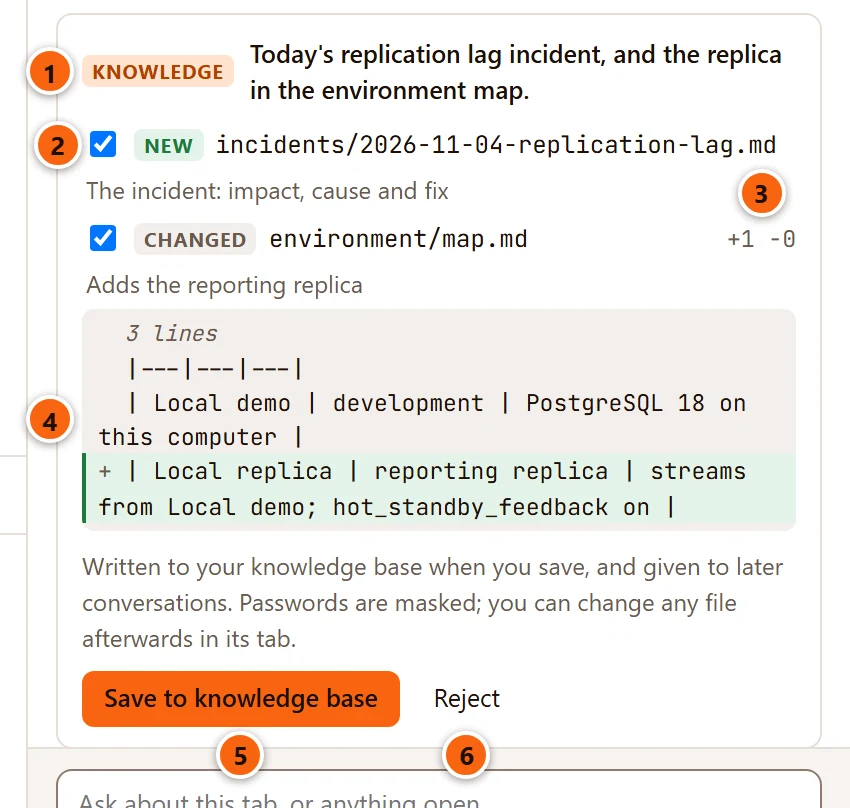
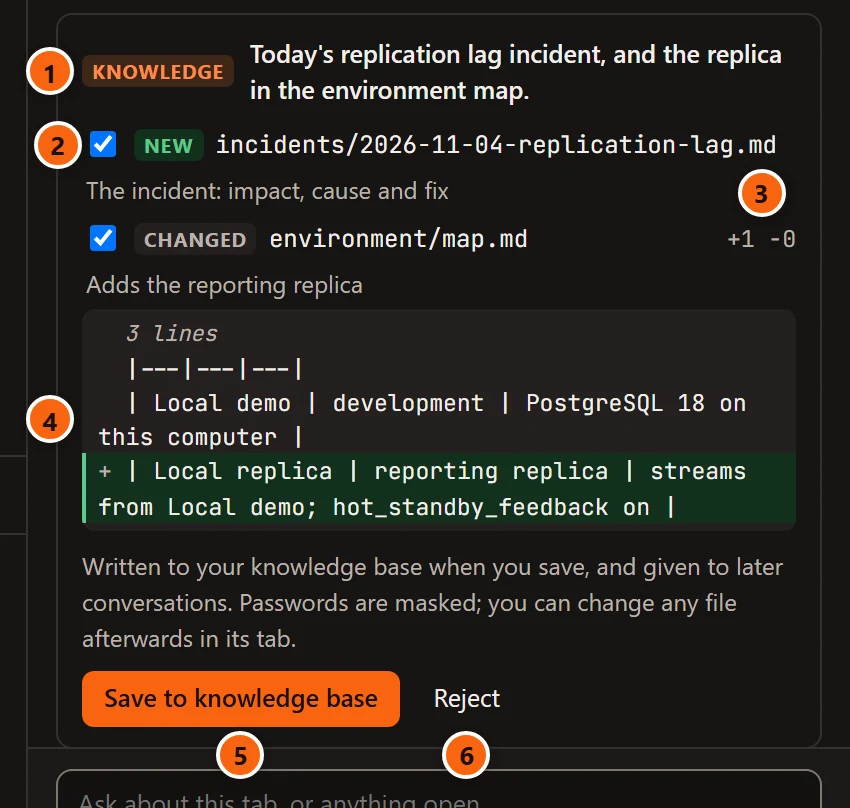
- 1 Knowledge and what the files add.
- 2 Untick a file to leave it out. The first button then says Save 1 of 2, and is greyed with none ticked.
- 3 A changed file shows how many lines are added and removed; New or Changed before its path says which it is.
- 4 Click a path to see the new file, or the change to a file you have: added lines marked + in green, removed ones marked −, unchanged stretches folded as 3 lines. Click it again to hide it.
- 5 Save to knowledge base writes the ticked files.
- 6 Reject writes nothing.
After saving, the card says Saved, files you left out are dimmed, and each saved file has an Open button that opens it in a tab of its own. Passwords in the files are masked.
pgjumbo writes a file only if it still holds what the card showed. If you or another program changed it since, nothing
is saved and the card says … changed since the Assistant read it. Nothing was saved; ask again to see it as it is
now. The Assistant cannot propose changes to your CLAUDE.md, the skills, the documents or the templates: those
stay yours to change.
How the knowledge base is laid out and how conversations use it is in Knowledge base and notes.
When you tell the Assistant a lasting fact that PostgreSQL does not record (the machine and its workload, how your team grants access, when maintenance may run, naming rules), it offers to remember it. The offer is a Knowledge card whose summary begins with Remember: and that adds the fact to one file.
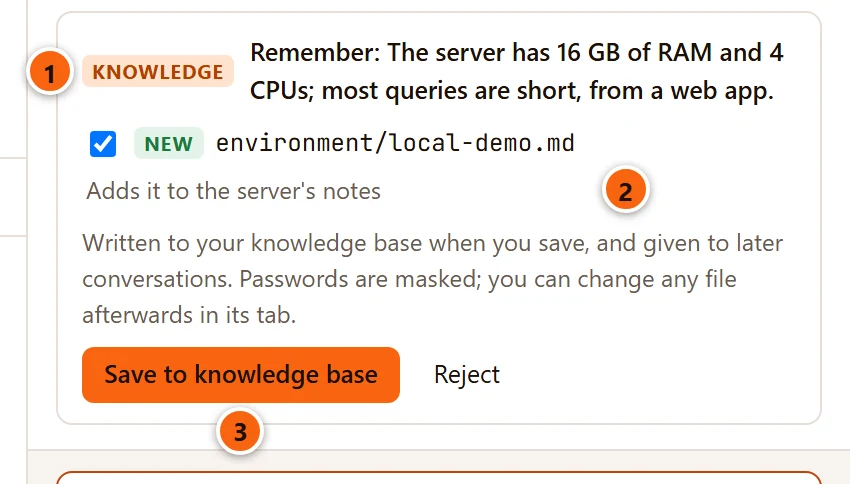
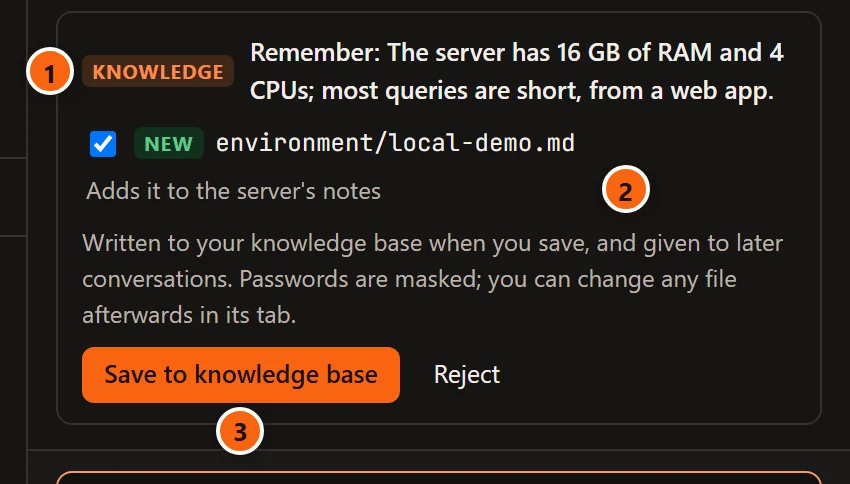
- 1 The fact to remember.
- 2 The file it goes into, new or changed.
- 3 Save to knowledge base adds it; Reject forgets it.
The fact becomes one line at the end of the file’s Notes section, followed by the day, such as
(noted 2026-11-04); a new file gets a heading and that section. The file depends on what the fact is about:
| The fact is about | It goes into |
|---|---|
| Everywhere, such as your team’s conventions | conventions/notes.md |
| One server | environment/<server>.md |
| One database | databases/<server>/<database>.md |
| One table, column, view or function | That object’s comment, as a Comment card |
| Another single object, such as a schema or a type | The database’s file, as a line that starts About and the object’s name |
In those file names, the server and database are written in lower case with - for spaces and other signs: the
server Local demo gives environment/local-demo.md. Later conversations are given the server’s and database’s
files the first time they reach them.
Conversations from before notes moved into the knowledge base show an older Note card titled Remember this?. It has no buttons: it says Saved, Skipped, or Notes are kept in the knowledge base now; ask again to add this one.
Database guides
Section titled “Database guides”Explain this database and Explain this schema do not end with a card. The guide is written into a guide tab, and the conversation shows a grey line such as The guide “How shop works” is written; it is in its tab. Descriptions the guide offers for objects can be staged as comments from that tab. See Database guides.