

A tab's session
Every Query Tool tab has a session of its own: one PostgreSQL connection, opened for that tab and closed with it. Its settings, its role and its transactions belong to that tab alone. This page explains what the session holds, how to see and change it, and what happens when it goes away. How statements commit in it is in Transactions.
Each tab has its own connection
Section titled “Each tab has its own connection”A tab’s connection is separate from the Explorer’s and from every other tab’s. A transaction you open, a SET you
run or a temporary table you create stays in that tab’s session, and other tabs do not see it. Locks are the
exception, as between any two PostgreSQL sessions: rows or a table that the tab’s open transaction has locked make
other sessions, other tabs included, wait until it ends. A data tab and a table tab’s
Data view have a session of their own too.
Two rules hold everywhere on this page:
- pgjumbo never opens a new connection for a tab behind your back, once the tab has had one.
- pgjumbo never runs anything again by itself. A statement that broke off halfway, or a transaction that went with the connection, is for you to judge before you run it again.
Closing the tab ends its session with it; see Drafts, closing and quitting for what a tab asks first.
See the session’s state
Section titled “See the session’s state”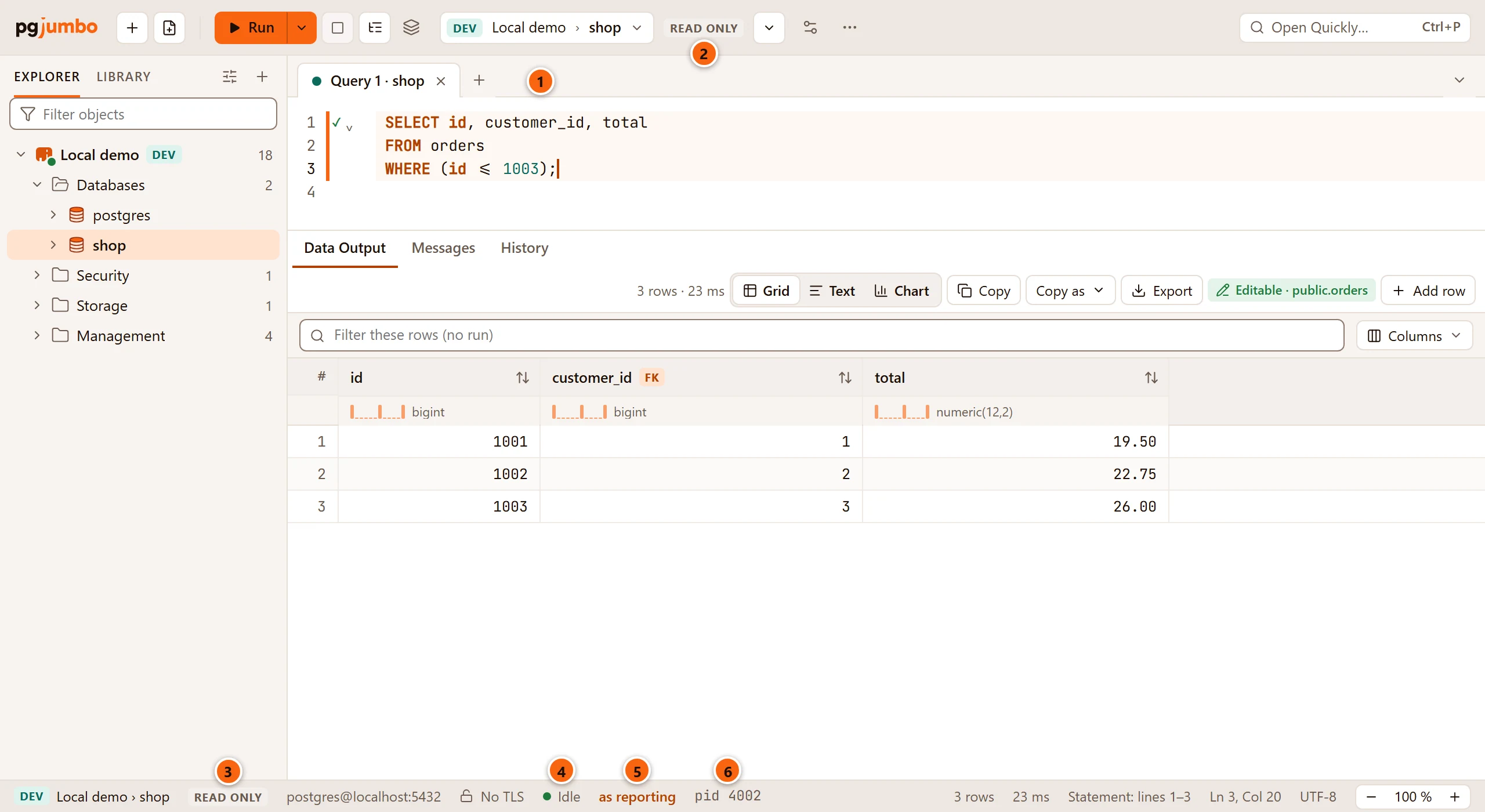
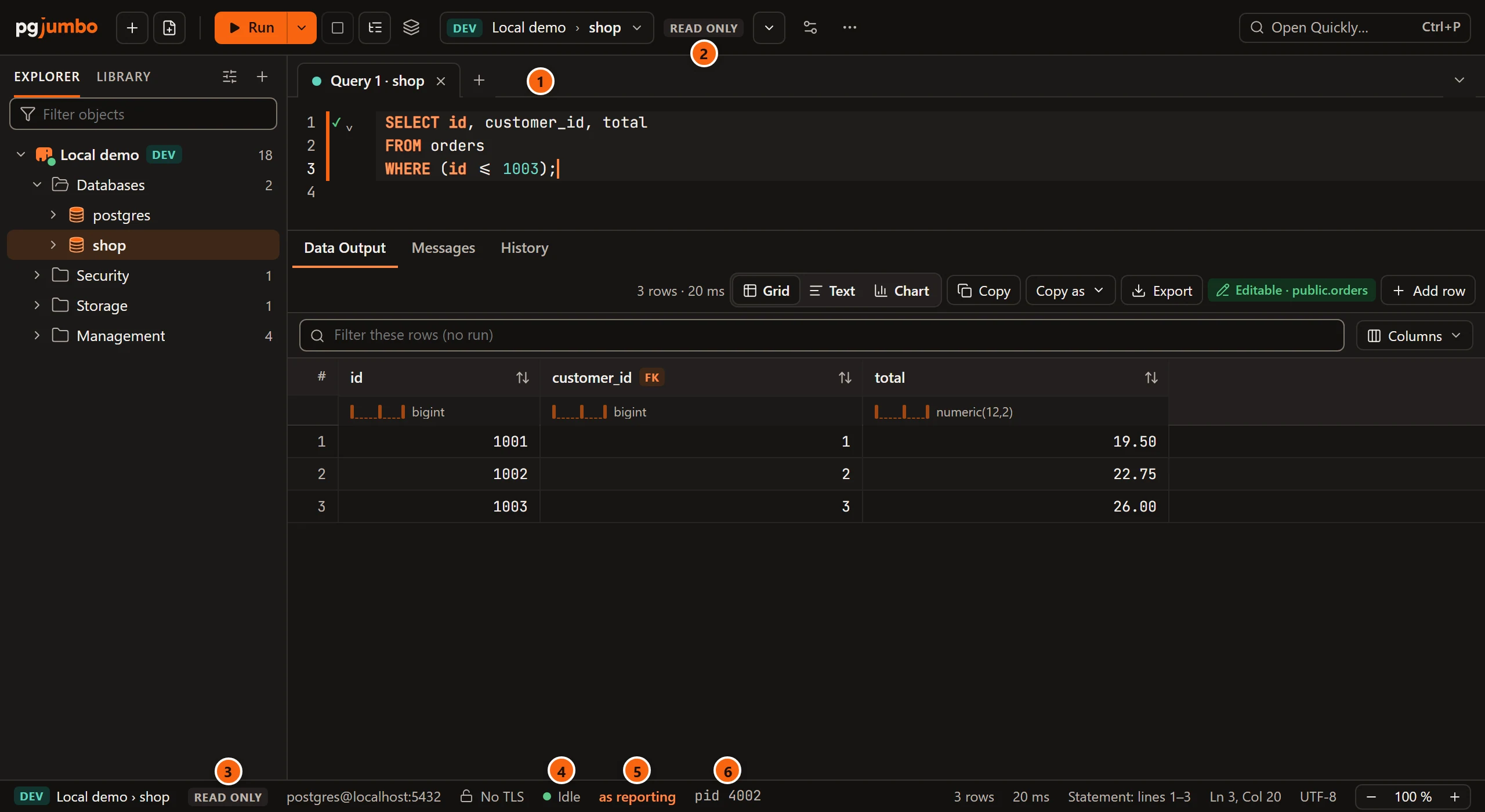
- 1 Hover the tab to read its session in a line, such as
Session pid 4002 · Idle, under the database and the server. - 2 A Read only tag in the toolbar while the tab’s session is read-only. See The Read only tag.
- 3 The same tag in the status bar, after the server and the database.
- 4 The session’s state (see the table below).
- 5 as and a role, while the tab’s statements run as a role other than the one that signed in. See Run as another role.
- 6 The session’s process id on the server, such as
pid 4002. A window 1,100 pixels wide or narrower leaves it out; the tab’s tooltip still has it.
| State | What it means |
|---|---|
| Connecting… | The tab is opening its connection. |
| Idle | Connected, with no transaction open. |
| Active | A statement, an Explain or a save of changed rows is running. |
| In transaction | A transaction is open and waits for a commit or a rollback. A badge beside it counts its statements and its age; see Transactions. |
| Failed, roll back to continue | A statement failed inside the open transaction, which can only be rolled back. |
| Disconnected | The tab had a session and has none now. See When the session is lost. |
A tab that has not had a session yet shows the server’s own state instead, such as Not connected; see A tab without a session.
After a run, the last line of Messages says the same in words, with the tab’s commit mode: for example
Transaction: idle · auto-commit.
The session’s pid and name
Section titled “The session’s pid and name”The process id is the one PostgreSQL shows for the session in pg_stat_activity. Look for it in
Activity to see what the tab’s session holds or waits for, or to find it when another
session is blocked behind it.
In the same views, every Query Tool session has the application name pgjumbo/query. Turn on
SettingsRunning queriesTransactionsName each tab's session and the server sees each session
under its tab’s own name instead, such as pgjumbo/Orders cleanup or pgjumbo/Query 1, so someone looking at the
server’s activity can tell your tabs apart. Renaming the tab renames the session. pgjumbo sends the name as you wrote it; PostgreSQL keeps only plain
ASCII there, so it shows other characters its own way (PostgreSQL 16 and later as \x codes, older versions as
?). The setting is off until you turn it on. See Settings.
Session settings
Section titled “Session settings”Change the role, the search path, the timeouts and work_mem of the tab’s session without typing SET. Click the
Session settings button (the sliders icon) in the toolbar, choose Session Settings… in the toolbar’s ···
menu, or choose QuerySession Settings…. It opens while the tab’s session is open and nothing
runs. On a table tab’s Data view, the same button sets that view’s own session.
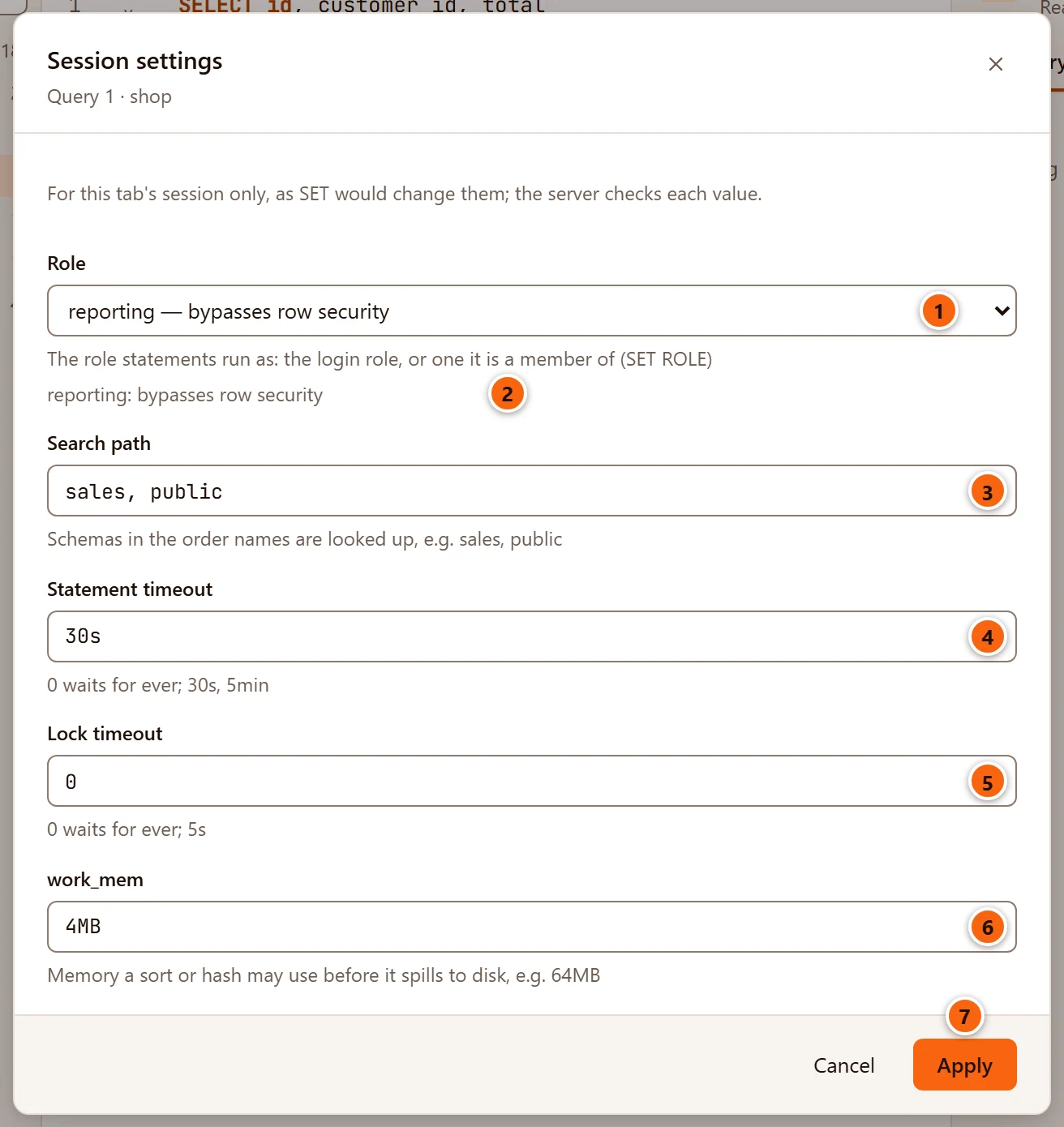
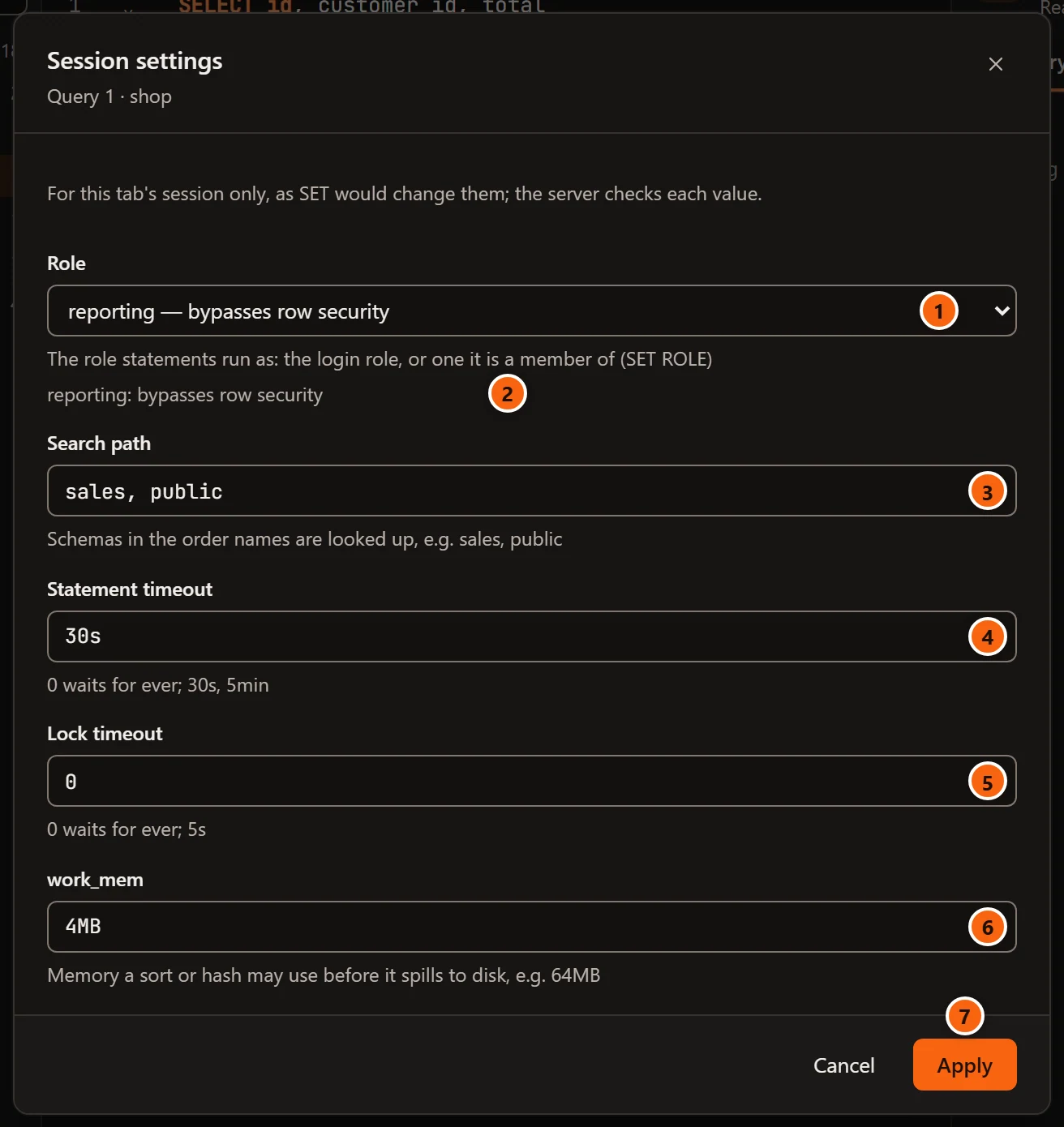
The dialog reads the session’s current values first (Reading the session's settings…) and shows them as SHOW
writes them; if they cannot be read, it says why instead. Its subtitle is the tab’s name, and its first line says
For this tab's session only, as SET would change them; the server checks each value.
- 1 Role: the role statements run as. The list has the login role, marked (the login role), and the
roles it is a member of, directly or through other roles, which it may
SET ROLEto; for a superuser that is every role. Roles whose names start withpg_are not listed. Choosing the login role again goes back to it. - 2 A note under the list when the chosen role sees past row security. The list shows the same note beside each such role. See Run as another role.
- 3 Search path: the schemas names are looked up in, in order, such as
sales, public. - 4 Statement timeout: how long a statement may run before the server cancels it.
0waits for ever;30sand5minare examples. - 5 Lock timeout: how long a statement waits for a lock before it gives up.
0waits for ever. - 6 work_mem: the memory a sort or a hash may use before it spills to disk, such as
64MB. - 7 Apply sets the fields you changed and closes the dialog. It is greyed until you change one, and says Applying… while it works. Cancel, the × and Esc close the dialog and change nothing.
pgjumbo sets each changed value as SET would, and the server checks it. It sets them one at a time, in the order
search path, statement timeout, lock timeout, work_mem, role, and stops at the first value the server refuses: the
server’s message shows at the bottom of the dialog, the dialog stays open, and the values set before it stay set.
Only this tab’s session changes; nothing on the server does.
While a transaction is open, the dialog also says Inside the open transaction, a change lasts only if it commits.
That is how SET behaves too.
What you set here is remembered for the tab: after Reconnect, or a move to another database of the same server,
pgjumbo sets it again on the new session (see What Reconnect restores). What you set by
typing SET in the editor is not. Suggestions and Quick Info keep using your role’s default search path; see
Writing SQL.
On a server tagged Production, pgjumbo itself starts each new tab with a lock timeout, a statement timeout and a limit on idle transactions; see Production servers.
Run as another role
Section titled “Run as another role”A tab’s statements can run as a role the login role is a member of, as after SET ROLE. That is the quick way to
see what an application’s role or a reporting role may read and write.
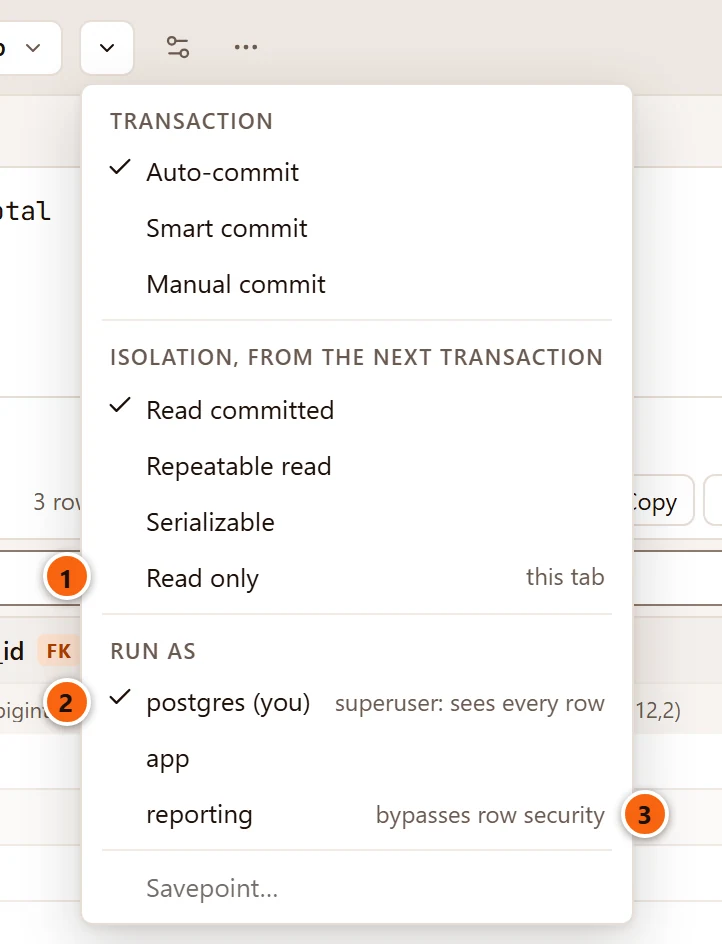
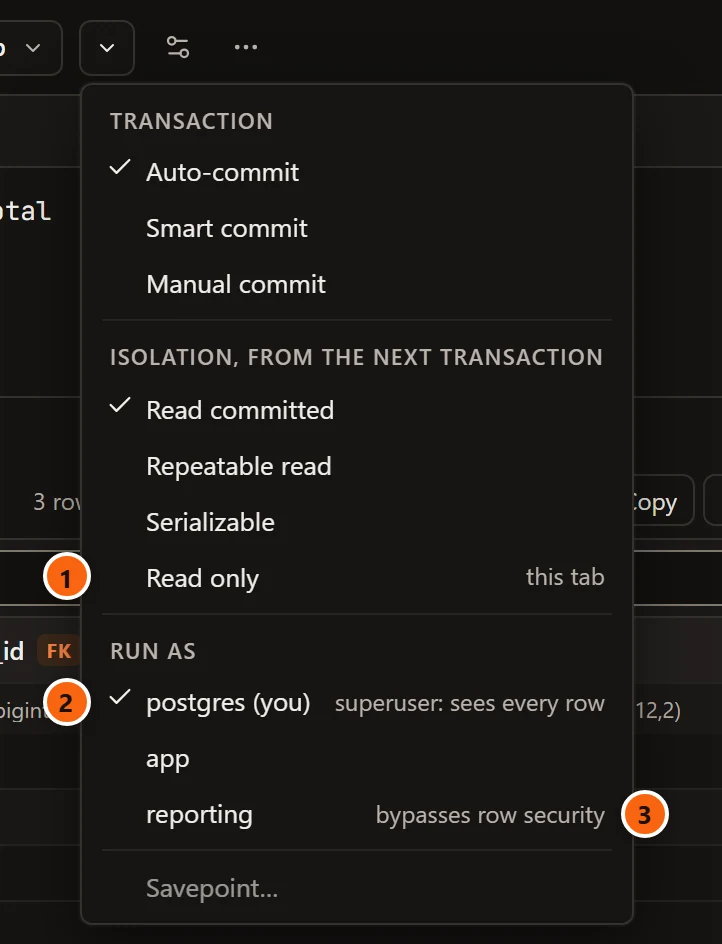
The toolbar’s Transaction menu is the button named after the tab’s commit mode; in a narrow window only its ⌄ shows. Transactions explains the rest of it.
- 1 Read only makes this tab’s session read-only, or lets it write again. See The Read only tag.
- 2 Run as lists the login role first, marked (you), then the roles it may act as. The role in use is ticked. Pick one and the tab’s next statements run as that role.
- 3 A note beside a role that sees past row security, so that a result is not mistaken for what an ordinary role would see.
| The note | What it means |
|---|---|
superuser: sees every row |
Row security never applies to a superuser. |
bypasses row security |
The role has BYPASSRLS. |
owns tables with row security |
The role owns a table in this database whose row security is not forced on its owner, so it sees every row of that table. |
The menu lists up to twelve roles. With more, its last line reads 5 more in Session Settings… (with the count) and opens Session settings, whose Role list has them all. The role in use stays ticked in the menu even when you chose it from the longer list.
While the tab runs as another role, the status bar says as and the role’s name. To go back, pick the login role again. The choice belongs to the tab’s session and comes back after Reconnect.
The Read only tag
Section titled “The Read only tag”A Read only tag beside the Transaction menu, and another in the status bar, mean that the tab’s session starts
its transactions read-only (default_transaction_read_only = on). A statement that writes then fails with
PostgreSQL’s cannot execute … in a read-only transaction (SQLSTATE 25006), and a note under the error says that
pgjumbo’s own setting caused it, with a button for each way out; see Help inside pgjumbo.
A tab is read-only for one of two reasons:
- Its server is saved with Read-only sessions, so every tab on it starts read-only. See Connection settings. Tagging a server Production does not turn this on.
- You ticked Read only in the tab’s Transaction menu, for this tab alone.
Untick Read only in the menu to let the tab write again. On a server saved with Read-only sessions, pgjumbo
asks first: Turn off Read only in Query 1 · shop?, with Turn Off Read Only and Cancel (the default). Turned off,
this tab can write until it closes; the other tabs stay read-only. The tab then says
Read only is off for this tab: its next transaction can write.
When the session is lost
Section titled “When the session is lost”A session ends when you disconnect its server, when the server restarts, when someone ends the session on the server, or when the network drops. The tab says so above the editor and waits for you.
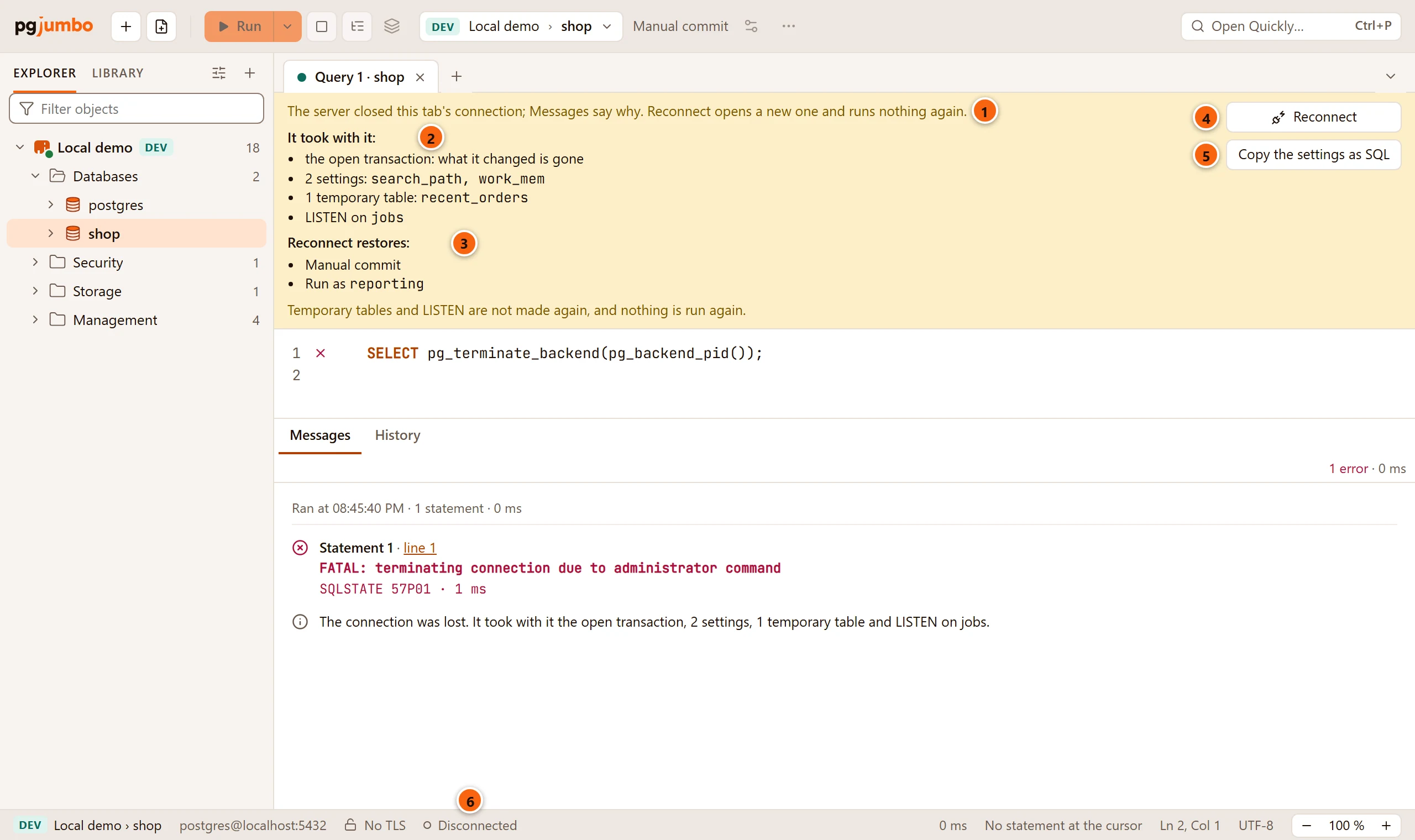
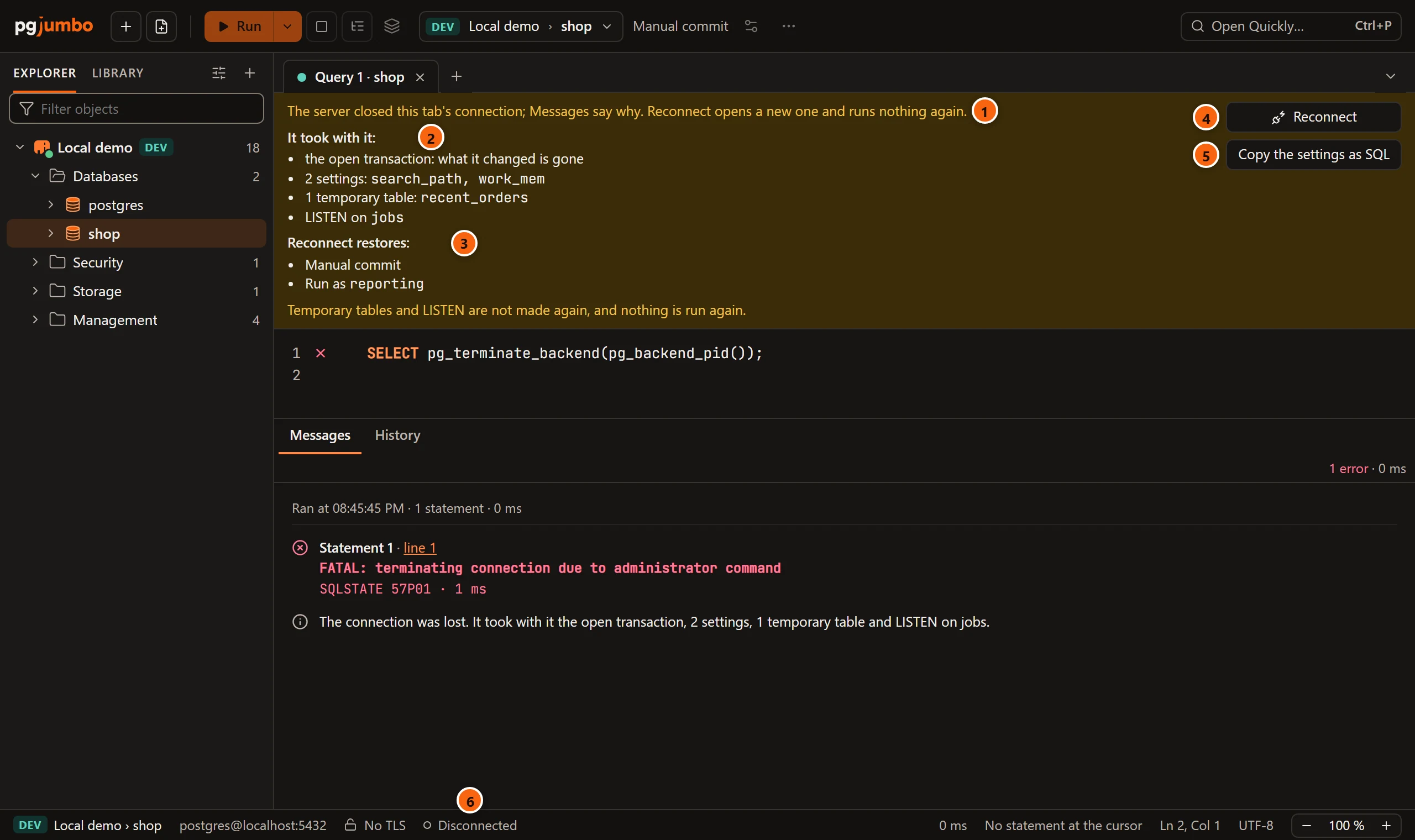
- 1 What happened (see the table below).
- 2 It took with it: what the session held and is gone: the open transaction
(
what it changed is gone), the settings you set in SQL, temporary tables, prepared statements, the channels youLISTENed on, and held cursors, each with its names. Nothing is listed when the session held none of these. - 3 Reconnect restores: what pgjumbo will set again on the new session, then what it will not:
Temporary tables and LISTEN are not made again, and nothing is run again. - 4 Reconnect opens a new session for the tab. When the server itself is not connected, it connects the server first, asking for its password when none is saved.
- 5 Copy the settings as SQL shows when the lost session had settings of its own. It copies them as SQL,
one
set_configcall a line, for you to paste and run in the new session. pgjumbo never runs them again itself. - 6 The status bar says Disconnected, and the toolbar shows the tab’s commit mode as plain words.
The editor keeps its text and Messages its log, which gains a line such as
The connection was lost. It took with it the open transaction, 2 settings, 1 temporary table and LISTEN on jobs.
The rows of the last result went with the session. Results you pinned stay, read-only, and the banner says so
(Your pinned result is kept here, read-only: …); Reconnect hands them on to the new session.
| Banner | When it shows |
|---|---|
Disconnected from the server. |
The server is no longer connected in the Explorer: you disconnected it, or its connection failed and the tab’s session went too. After your own Disconnect, Messages says Disconnected: it took with it …. |
The server closed this tab's connection; Messages say why. Reconnect opens a new one and runs nothing again. |
The server ended the tab’s connection during a run, or while the tab sat in a transaction (see A session the server ended). |
The server closed this tab's connection. Reconnect opens a new one and runs nothing again. |
Explain, Commit, Rollback or Session Settings found the connection closed. |
This tab's session is closed. |
You ran something, and pgjumbo no longer had the tab’s session. |
Could not connect: and the reason |
Reconnect could not open a new session. |
Reconnect could not restore … |
See What Reconnect restores. |
When the server itself can’t be reached, the banner is red and offers Try Again and Use Another Connection…; see A tab whose server can’t be reached.
If you run something on a connection the server has closed before the tab noticed, nothing is sent. The statement
fails with This tab's connection to the server is closed, so nothing was sent. Reconnect to open a new one., and
its detail gives the server’s reason when the server gave one.
What Reconnect restores
Section titled “What Reconnect restores”Reconnect opens a new session, with a new process id. What was not committed has been rolled back by the server. The new session gets what you chose for the tab in pgjumbo’s own controls:
| Restored | Where you chose it |
|---|---|
| Manual commit or Smart commit | The Transaction menu |
| Read only | The Transaction menu |
| The isolation level | The Transaction menu |
| Run as and the role | The Transaction menu, or Role in Session Settings |
The search path, statement timeout, lock timeout and work_mem |
Session Settings |
The banner lists them before you press the button, and Messages says what came back.
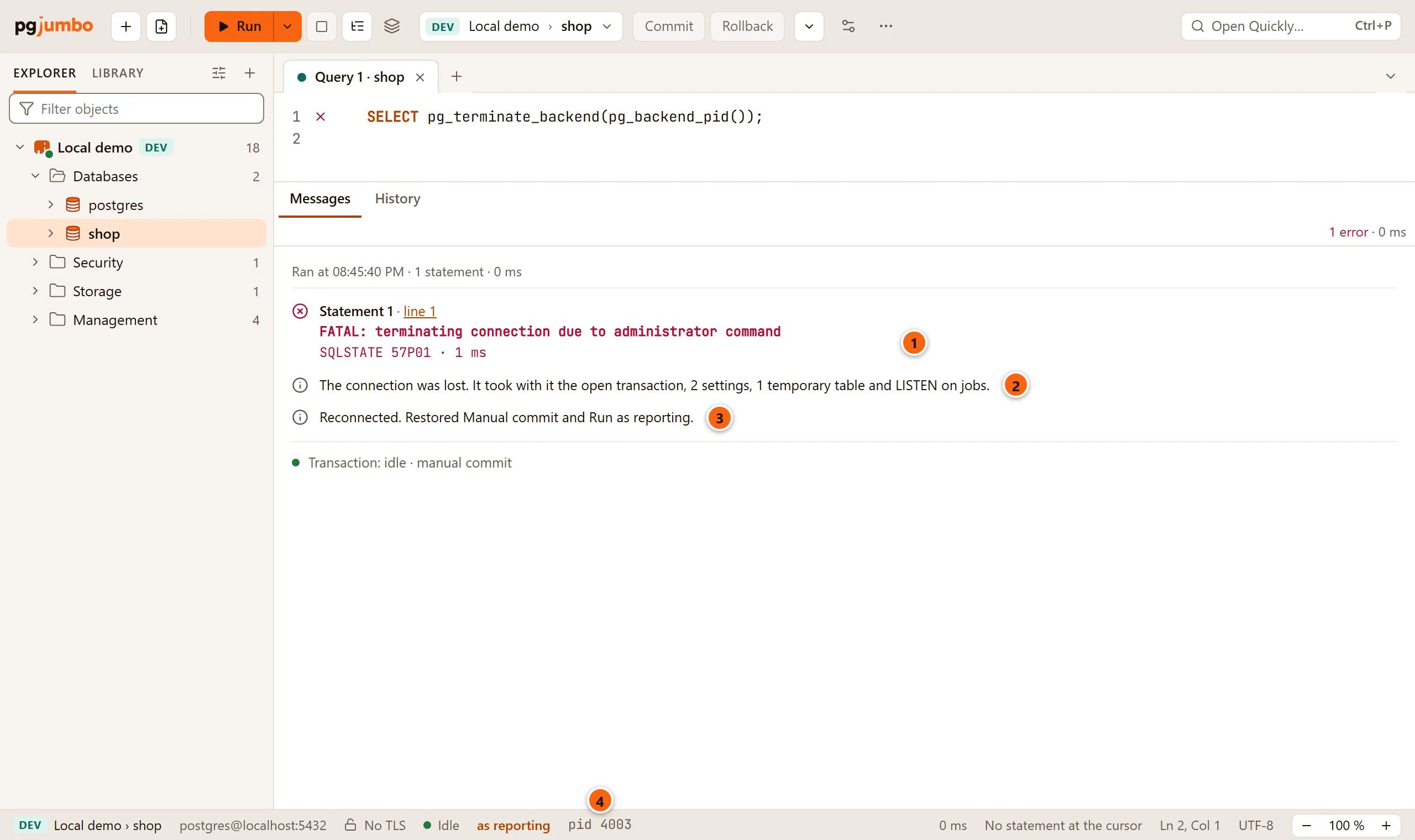
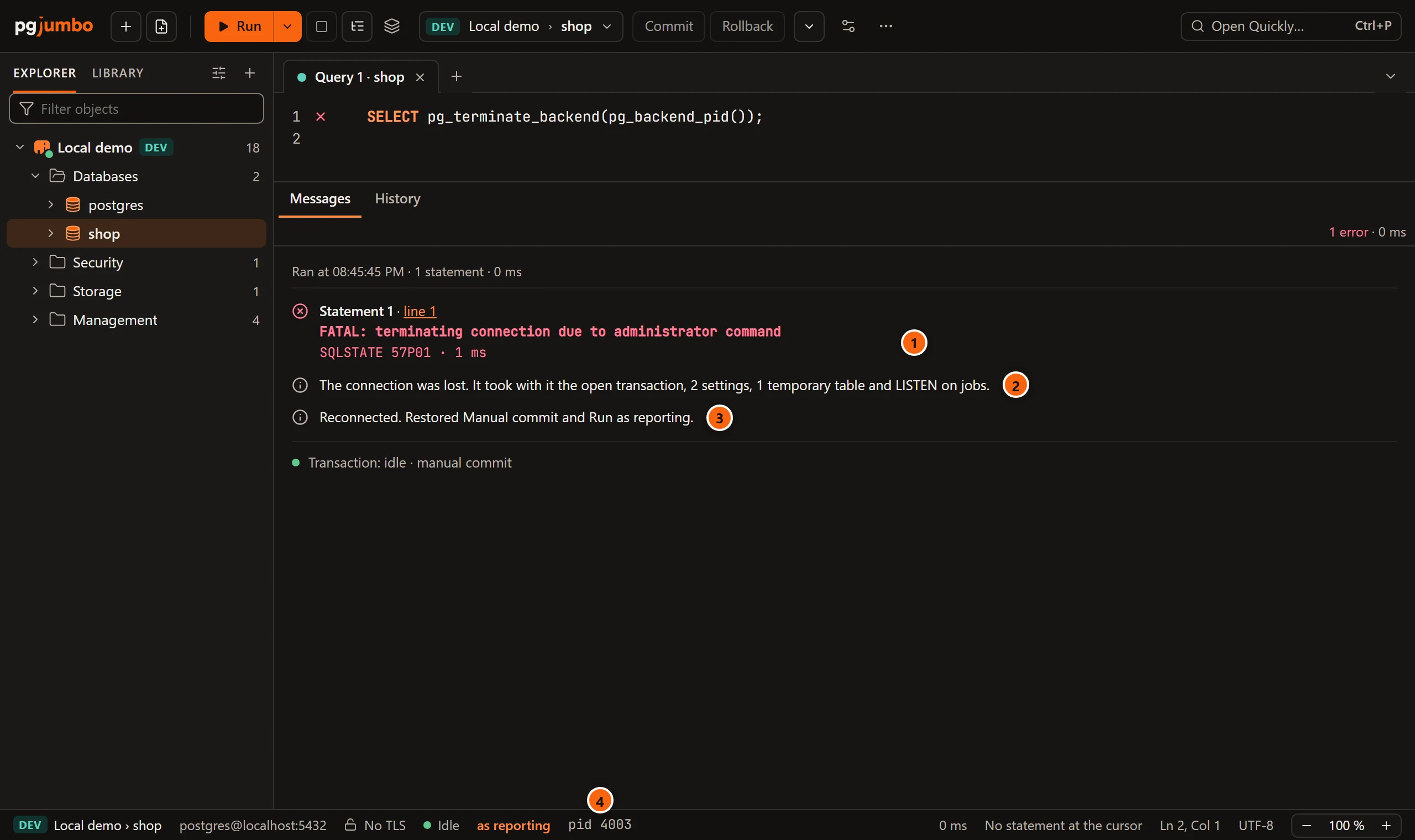
- 1 The server’s last words on the old connection.
- 2 What went with the old session.
- 3 What the new session got back:
Reconnected. Restored Manual commit and Run as reporting. - 4 The new session’s process id.
Settings you set yourself in SQL are never run again, and neither is anything else: temporary tables, prepared
statements and LISTEN are yours to make again.
If one of the choices cannot be set again, a role that is gone say, the tab stays closed and says why:
Reconnect could not restore Run as reporting: … Reconnect again to open the tab without them. A second Reconnect
then opens the session without them, and Messages says what was left out and how the tab runs now, for example
Reconnected without Run as reporting: this tab runs as postgres, read-write, in Auto-commit.
Moving the tab to another database of the same server keeps the same choices; moving it to another server does not. See What a move keeps.
A session the server ended
Section titled “A session the server ended”A server can end a session that sits idle inside a transaction: its idle_in_transaction_session_timeout does that,
and on a server tagged Production pgjumbo sets one for each new tab (10 minutes unless you change it; see
Production servers). An administrator can end a session too.
While a transaction is open, the tab takes a look at its own connection every 2 seconds, without sending anything to the server. So it notices within 2 seconds:
- The transaction’s badge and the session’s pid go, the status bar says Disconnected, and the banner offers Reconnect.
- Messages gets an entry of its own, not under a statement: The server ended this tab’s session and the time
pgjumbo noticed, then the server’s words and their SQLSTATE, such as
FATAL: terminating connection due to idle-in-transaction timeout(25P03). - When pgjumbo’s own limit ended the session, a note under it says so, with its buttons; see Help inside pgjumbo.
- Then
The connection was lost. It took with it the open transaction.What the transaction had done was rolled back by the server.
With no transaction open, the tab does not look, and the next thing you run finds the connection closed.