

Values, the record view and the cell viewer
A grid cell shows one line of a value, written the way you chose in Settings. Two dialogs show more than a cell can: the record view lays out one row as a list of fields, and the cell viewer shows one value in full, laid out for its type.
How values look
Section titled “How values look”SettingsResultsHow values look decides how the grid writes values. Only the look changes: Copy and Export keep the server’s text, every digit. Like every setting, a change applies at once, to the results already on screen too.
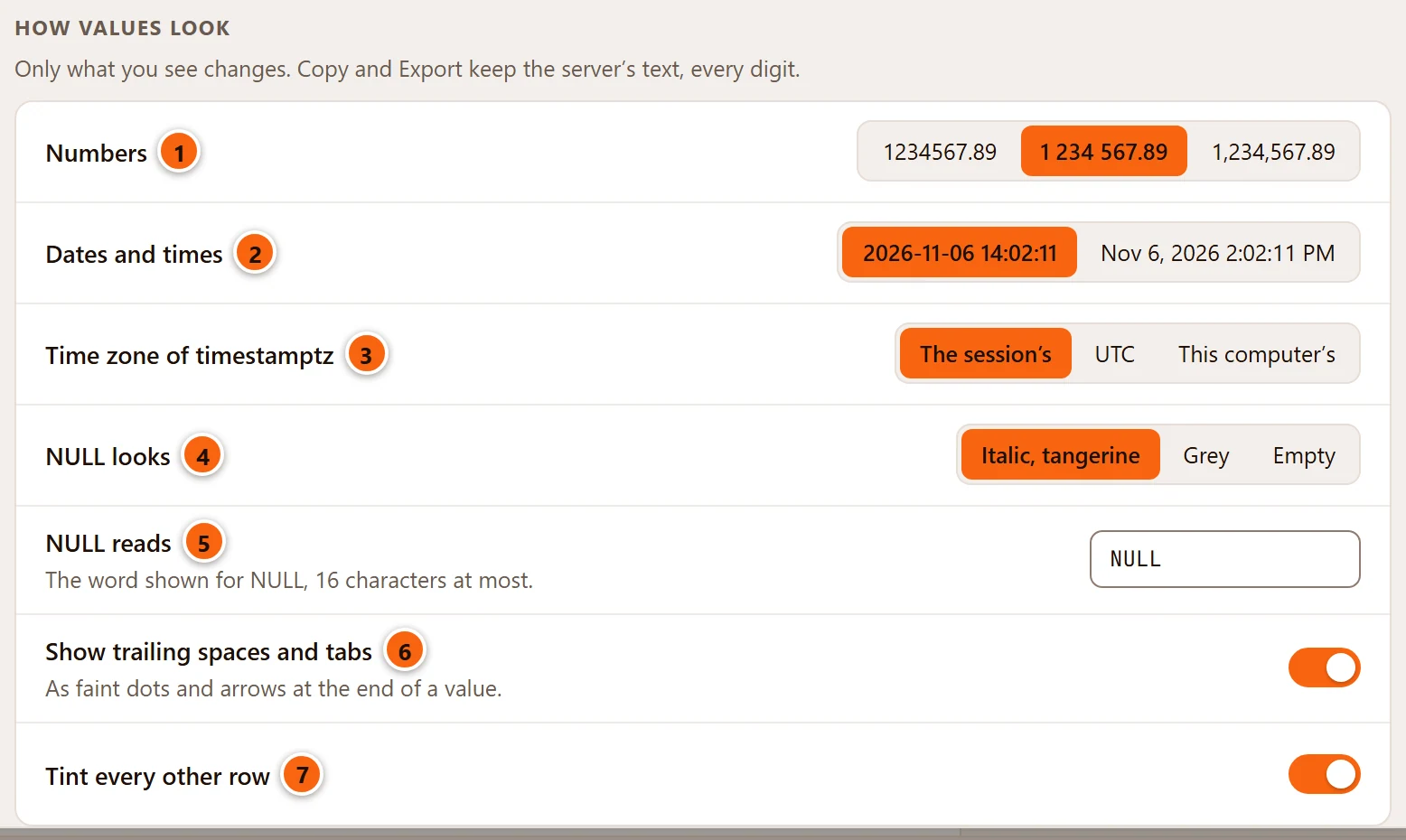
- 1 Numbers. Each choice is a sample written the way the grid would write it:
as the server writes them (
1234567.89), grouped in threes with spaces (1 234 567.89, the default), or in this computer’s regional format (1,234,567.89where the computer is set to US English,1.234.567,89where it is set to German). - 2 Dates and times: ISO (
2026-11-06 14:02:11), the default, or this computer’s regional format, with its 12-hour or 24-hour clock (Nov 6, 2026 2:02:11 PMin US English). - 3 Time zone of timestamptz: The session’s (the default) shows a
timestamp with time zoneas the server sent it, in the time zone of the tab’s session. UTC and This computer’s show the same instant in that zone instead. The offset is always written after the time (+01), so you can see which zone you are reading. - 4 NULL looks: Italic, tangerine (the default), Grey (grey italics) or Empty. With
Empty, a
NULLcell is blank, like an empty string; the other two keep them apart at a glance. - 5 NULL reads: the word shown for
NULL, 1 to 16 characters. It isNULLunless you change it. - 6 Show trailing spaces and tabs: faint dots (spaces) and arrows (tabs) at the end of a value, so
'abc 'does not pass for'abc'. On unless you turn it off. - 7 Tint every other row: a light stripe on every second row. On unless you turn it off.
Settings has each of these with its default.
What the choices do in the grid
Section titled “What the choices do in the grid”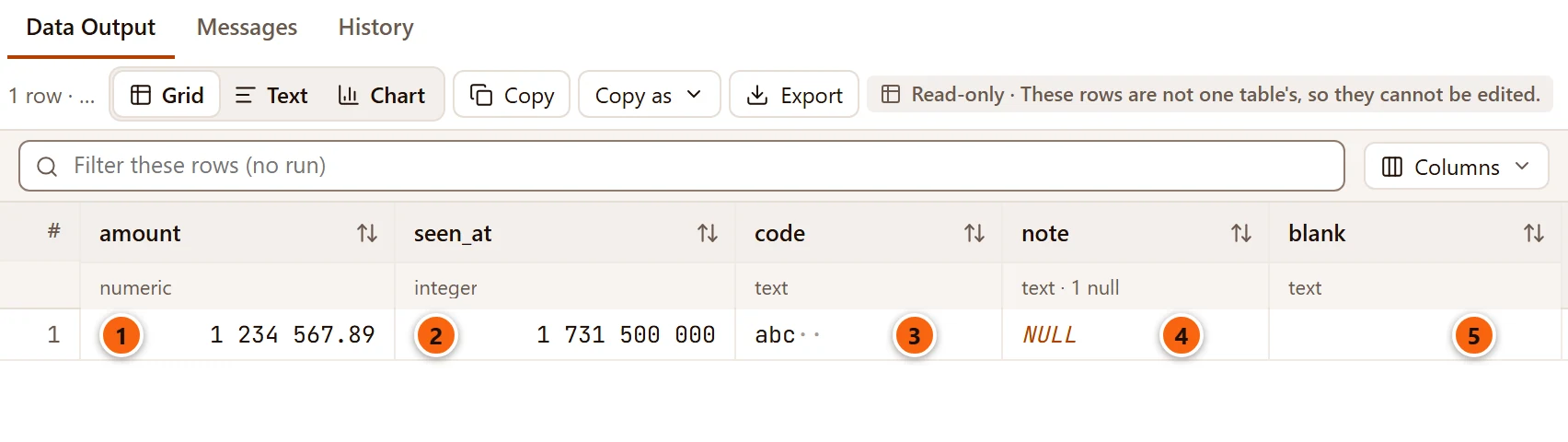
- 1 A number is grouped in threes once its whole part has five digits or more, so
1234567.89reads1 234 567.89and1001stays1001. The spaces are part of the look only: they are not in the value. - 2 An
integerorbigintis grouped the same way. One that reads as a moment in time gets a hint on hover: see Seconds since 1970. - 3 Two trailing spaces show as two faint dots.
- 4
NULL, in tangerine italics. - 5 An empty string is an empty cell.
Details that are easy to miss:
- Numbers applies to
smallint,integer,bigint,real,double precisionandnumeric. Anoidis a name, not an amount, and is never grouped. Values that are not plain digits, such asNaNor1e+20, are shown as the server wrote them. - pgjumbo works on the digits as text and never passes them through a floating-point number, so no digit of a
bigintor a longnumericchanges on the way to the screen. - Dates and times applies to
date,timestampandtimestamp with time zone. Fractions of a second are kept as written. Values it cannot read as a date, such asinfinityor a date markedBC, are shown as the server wrote them. - Numbers always line up on the right, whatever you choose.
- The height of the rows is not here: it follows SettingsGeneralLayoutDensity.
This computer’s regional format
Section titled “This computer’s regional format”The third choice of Numbers and the second of Dates and times follow the regional format set in your operating system: its digit grouping and decimal sign, its order of day, month and year, and its 12-hour or 24-hour clock. The samples on the buttons are written with it, so the button and the grid always agree.
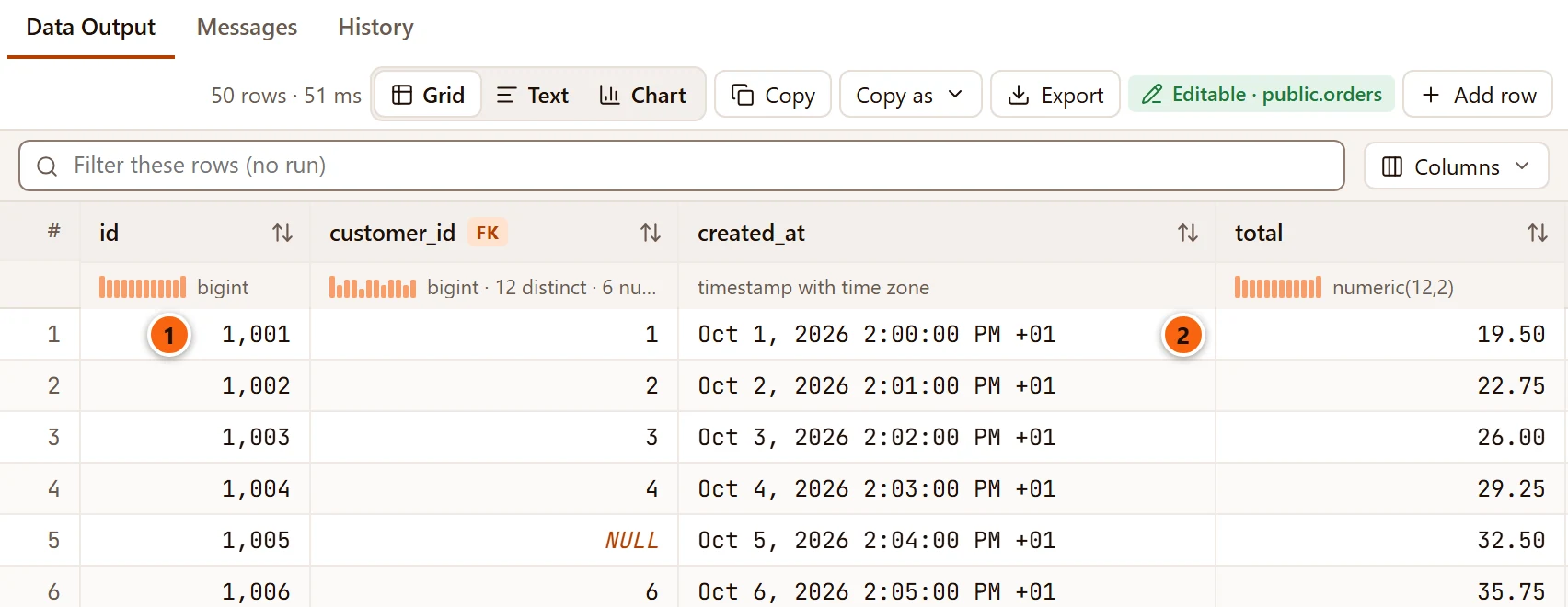
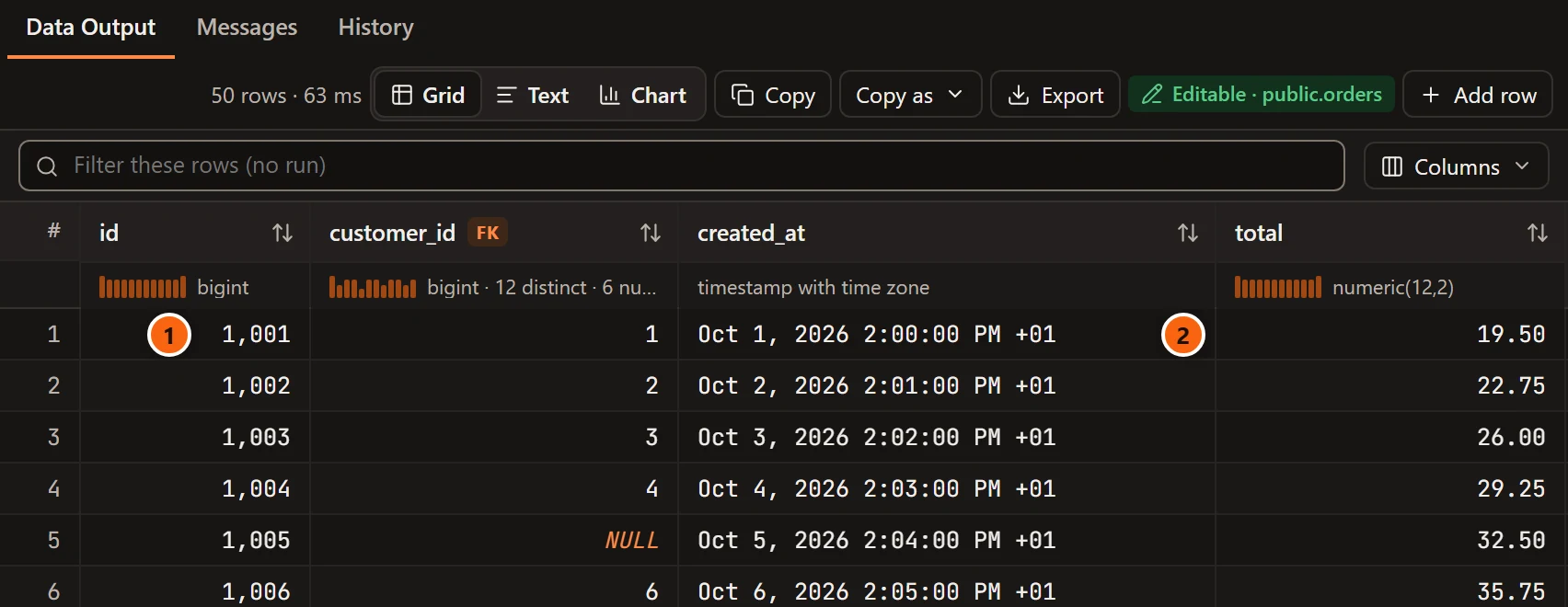
- 1 A number in the regional format. In this format a number is grouped from four digits on:
1,001. - 2 A
timestamp with time zonein the regional format, with its offset after the time.
On Windows, pgjumbo’s window has no data of its own for a few regional formats (Bosnian is one). For those it writes numbers and dates with the separators and the short date and time patterns Windows itself gives.
Where the look applies
Section titled “Where the look applies”| Place | What it shows |
|---|---|
| The grid, the record view, the card of a row on the map | Values as these settings say |
| Results as text | The server’s text; a NULL always reads NULL |
| The cell viewer | The value as the server wrote it, laid out for its type |
| Copy, Copy as, Export | The server’s text, every digit |
| A value you are changing | The text as you typed it, until it is saved |
Seconds since 1970
Section titled “Seconds since 1970”Applications often store a moment as a number. When an integer or bigint value has 10 or 13 digits and reads as
seconds or milliseconds since 1970, somewhere between the years 2000 and 2100, hovering over the cell says what time
it is: “As seconds since 1970: 2024-11-13 12:13:20 UTC, 13:13:20 on this computer”. The value itself is left as it
is.
The record view
Section titled “The record view”The record view shows one row as a list of fields, one under another. It is for tables with more columns than fit across the window.
Open it on the row of the cell with the outline:
- Press Shift+Enter in the grid.
- Or right-click a cell and choose Record view.
It works on every result and in data tabs, whether the rows can be edited or not. With psql’s \x turned on for the
tab, a result opens in the record view by itself: see psql commands in the editor.
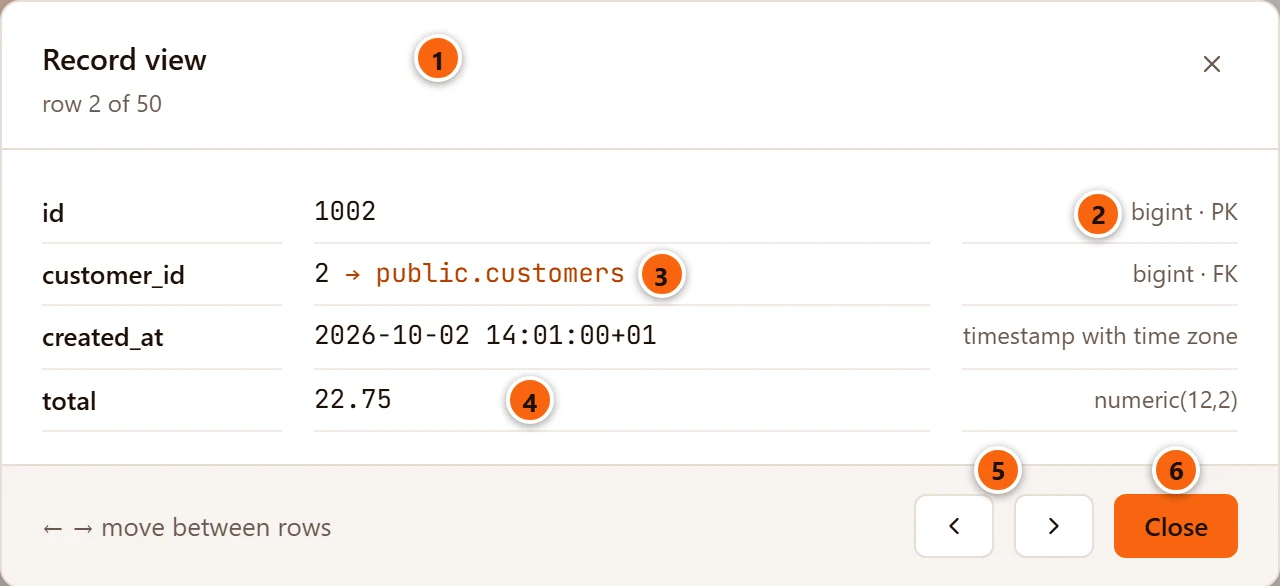
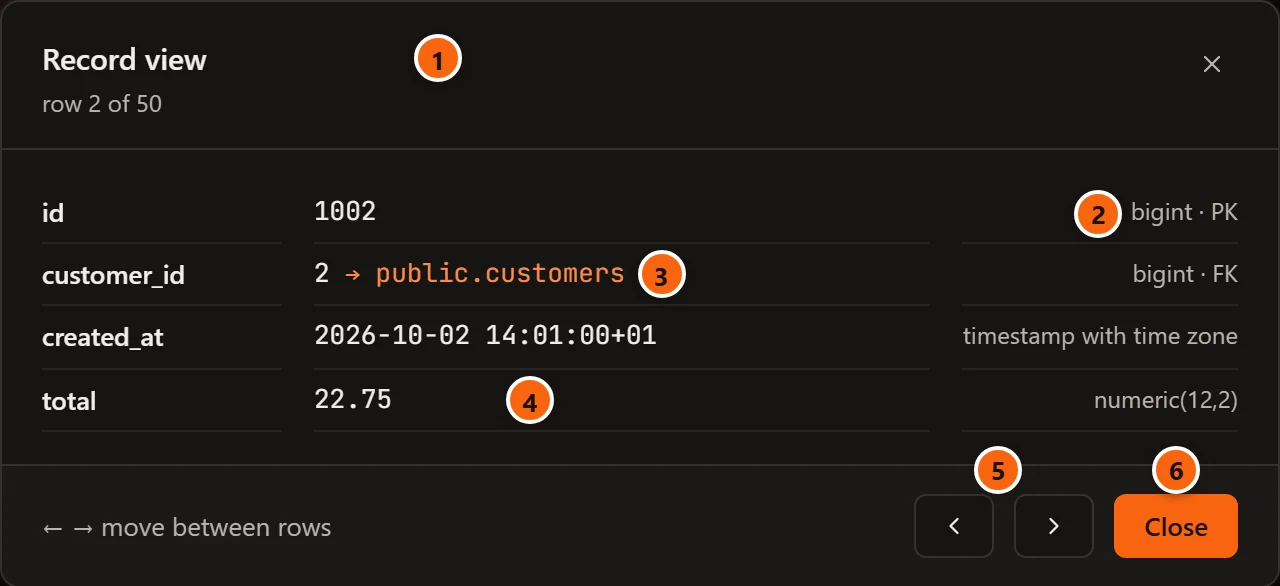
- 1 Which row this is, counted as the grid shows the rows:
row 2 of 50. - 2 Each field has the column’s name, its value and, at the right, its type. PK marks the columns of the table’s primary key, on a result you can edit. FK marks a column that is part of a foreign key.
- 3 → public.customers follows the foreign key: it opens the row this value refers to in a data tab of
its own, and closes the record view. It is not there when the value is
NULL. Following a key is explained on View data. - 4 Values look as SettingsResultsHow values look says,
NULLincluded. - 5 The arrow buttons go to the row before and the row after. So do ← and →. The grid behind follows: its selection moves to the same row.
- 6 Close, Esc or the × closes the record view.
More to know:
- The record view reads the rows as the grid shows them, sorted or filtered. The fields come in the order of the grid’s columns, and columns you hid in the grid follow after them.
- A long value shows its first 64 kB, followed by a note such as “… (first 64 kB of 1,204,331 bytes)”. Open the cell viewer for the whole value.
- The record view is for reading. To change a value, close it and edit the cell in the grid.
The cell viewer
Section titled “The cell viewer”The cell viewer shows one value in full. Open it in one of these ways:
- Right-click a cell and choose View value. This works on every result.
- Double-click a cell, or select it and press Enter, on a result that cannot be edited. On a result that can (the bar shows Editable), a double-click and Enter start editing the value instead.
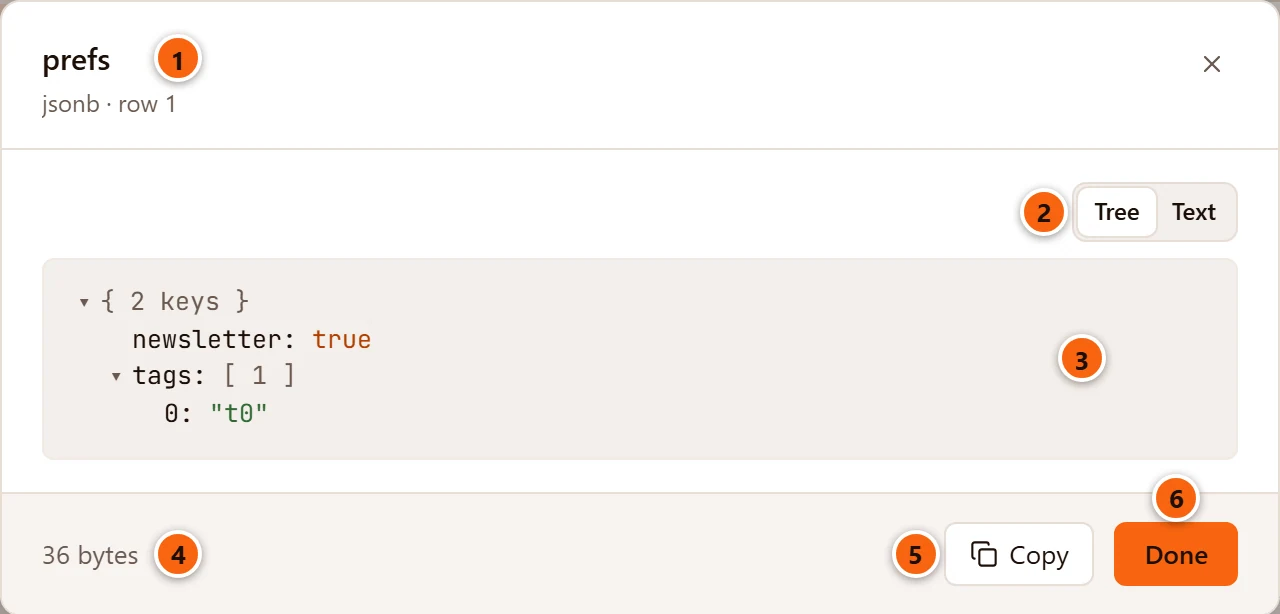
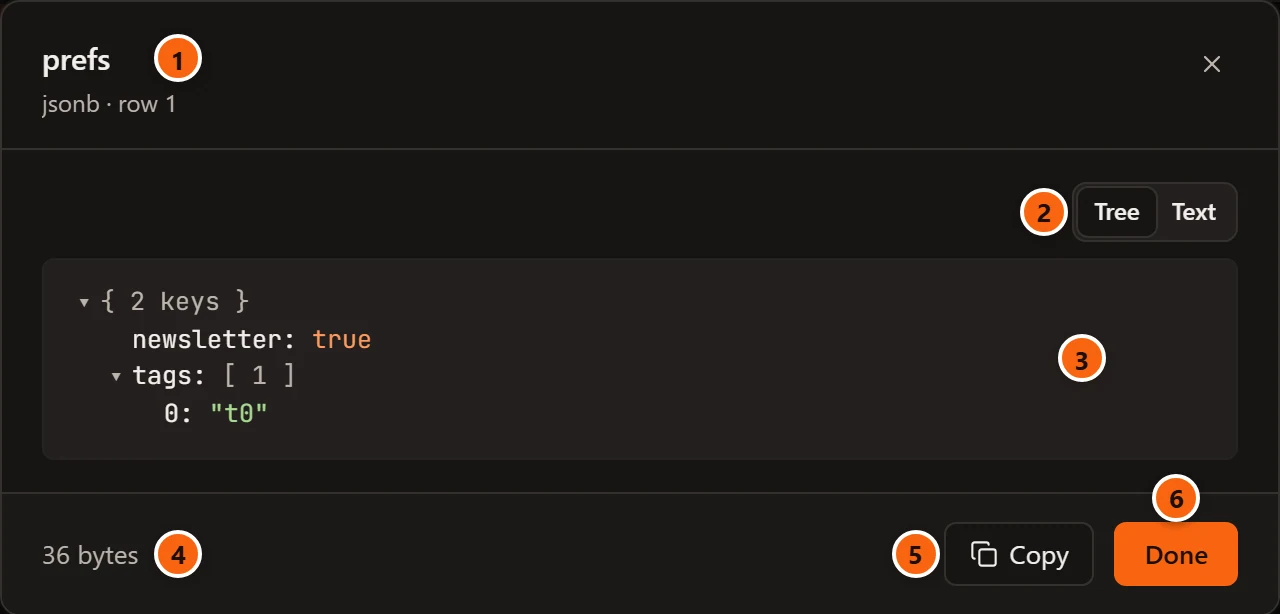
- 1 The column’s name, with its type and the row number under it.
- 2 The ways this type can be shown. The switch is there for the types in the table below; other values have one way, as text.
- 3 The value. Here a
jsonbvalue as a tree: click ▾ or ▸ to close or open an object or an array. The first two levels start open. - 4 The value’s size in bytes. For
bytea, it is the size of the binary data, not of its hex text. The viewer saysLoading…while the value is on its way. - 5 Copy puts the value on the clipboard as text. The button says Copied for a moment. It is greyed
out for a
NULL. - 6 Done, Esc or the × closes the viewer.
What each type gets
Section titled “What each type gets”| Type | Shown as | What you see |
|---|---|---|
bytea |
Image, Hex, Text | Image when the bytes are a PNG, JPEG, GIF or WebP picture, with its kind and its size in pixels under it. Hex lists the bytes sixteen to a line, each line with its offset and the printable characters; it lists the first 4,096 bytes and then says how many more there are. Text reads the bytes as UTF-8. |
json, jsonb |
Tree, Text | Tree opens and closes objects and arrays and says how many keys or elements each holds. Text is the value laid out over several lines with indentation. Both keep the keys in the order the server sent them and every digit of the numbers. |
Arrays (text[], integer[]…) and record |
List, Text | List numbers the elements, or the record’s fields, by their place, with quoting and escapes taken off. A NULL element shows as your NULL reads word. An array inside an array is one element, shown as its own text. |
xml |
Indented, As stored | Indented puts each element on its own line, two spaces deeper per level; an element that holds only text stays on one line. |
interval |
Text | Under the value, the interval in words, for example 1 day, 2 hours, 30 minutes, and its length in hours (26.5 hours in all) when it has no years or months. |
| Everything else | Text | The value as the server wrote it, with its own line breaks. |
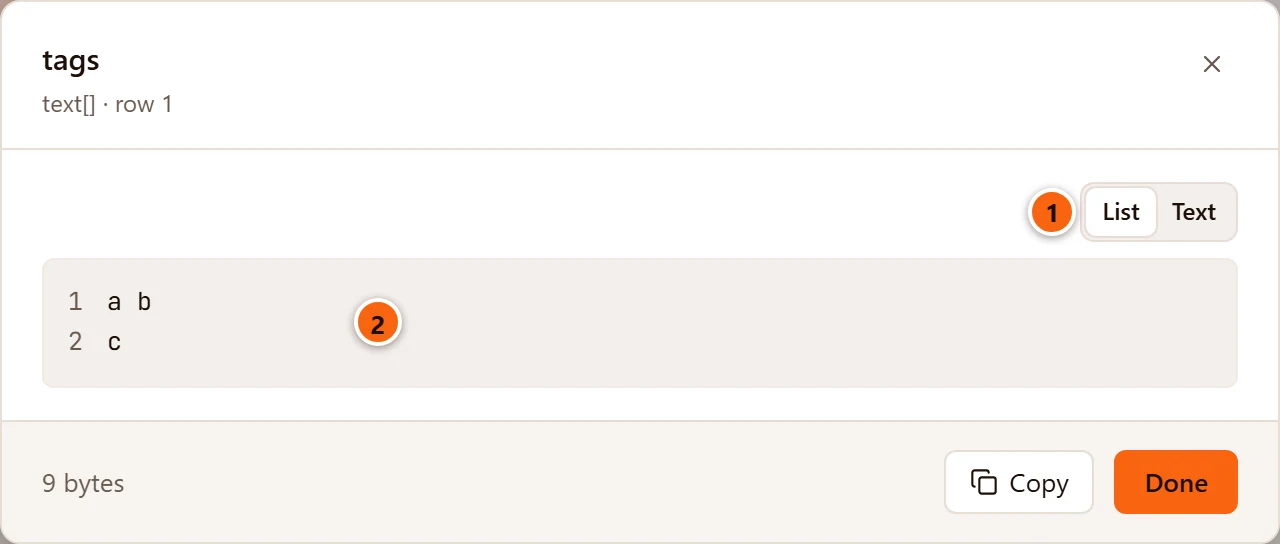
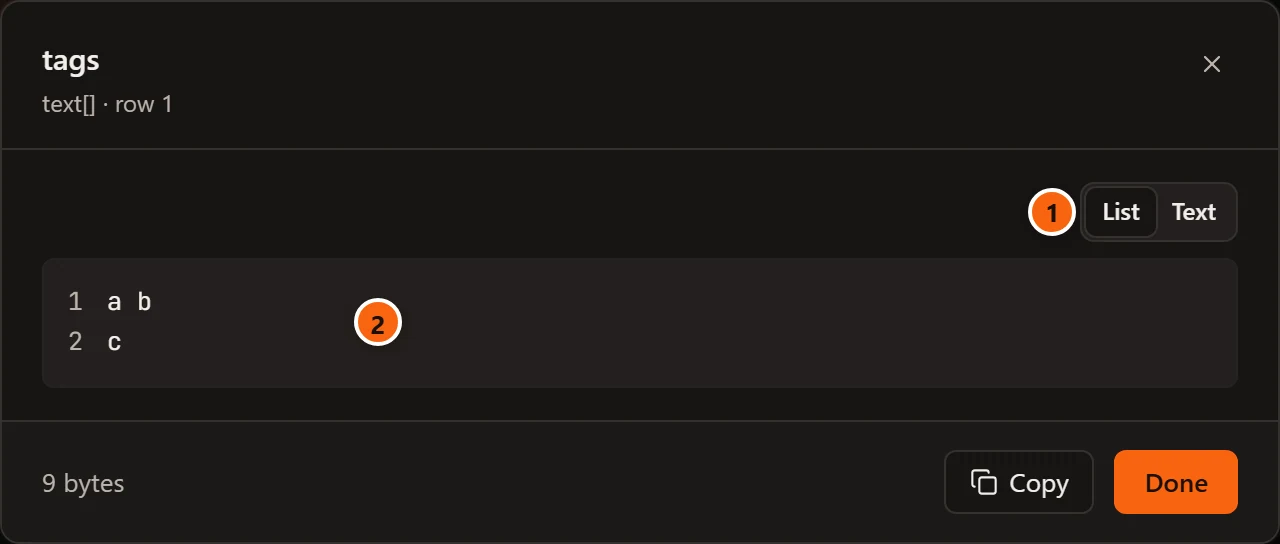
- 1 List and Text for an array.
- 2 The elements by their place. The array is stored as
{"a b",c}; the list showsa bandc.
More to know about the viewer:
- A
NULLshows as your NULL reads word, in grey italics. - A picture is drawn only for PNG, JPEG, GIF and WebP. An SVG is never drawn, because an SVG can carry scripts: it shows as hex and as text. Whatever a value holds, pgjumbo shows it as text or as one of those four kinds of picture, never as a web page.
- A value larger than one megabyte shows its first megabyte, and the size line adds “showing the first megabyte”. Its JSON is then not laid out and its picture is not drawn, and the viewer’s Copy takes that first megabyte. Copying the cell in the grid, and Export, still give you the whole value.
- If the clipboard refuses the copy, a red line beside the size says “Could not copy:” and why.
- The record view and the cell viewer close by themselves when another tab comes to the front, for example after you follow a foreign key.