

The results grid
When a statement returns rows, they appear under the editor in a result tab named Data Output. Everything else the server says (command tags, timings, notices, errors) goes to the Messages tab beside it. This page covers the result tabs, the bar over a result, the grid itself and Messages. The rest of the section goes further:
- Sort, filter and arrange columns: work on the rows you have without running again.
- Values, the record view and the cell viewer: how numbers, dates and
NULLlook, one row as a list, one value in full. - Copy results, and Save results to a file for files.
- Results as text, a chart or a map.
- Keep and compare results: pin, rename, stack, hide and compare.
- Large results: what happens past the row cap.
Changing rows in place is on Edit data. Running is on Run SQL.
The result bar
Section titled “The result bar”The bar between the editor and the results holds the result tabs, a line about the last run, and the buttons that act on the result in front.


- 1 The result tabs. A statement that returns rows gets a Data Output tab. When a script returns several results, each gets its own, Data Output 1, Data Output 2 and so on, in the order the statements ran. Messages is always there, and History lists the queries run on this server (see Query history). A data tab, which shows a table’s rows, has only Data Output and Messages.
- 2 What the last run did: how many rows the result in front holds and how long the run took, for example
50 rows · 23 ms. Hover over it to read the whole line when the bar is short of room. It saysRunning…while a script runs andSaving…while changed rows are being saved. It saysShowing 100,000 of 250,000 rowswhen the result holds only the first rows (see Large results) and, in red, how many statements failed (1 error). - 3 How to show the result: Grid, Text, Chart, and Map when the result has a PostGIS geometry or geography column. The switch shows in a query tab only. See Results as text, a chart or a map.
- 4 Copy puts every row of the result on the clipboard as tab-separated text, with the column names on the first line.
- 5 Copy as copies every row as CSV, JSON, a Markdown table,
INSERTstatements or anIN (…)list. Both buttons are explained on Copy results. - 6 Export writes the result to a CSV or JSON file. It is greyed out while the tab is running something. See Save results to a file.
- 7 Editable · public.orders shows in a query tab when pgjumbo can save changes to these rows: they come
from one table, with its primary key. A result that takes no changes shows a grey Read-only tag with the reason
instead, for example “Show the primary key (id) to edit the rows.” or “The columns come from more than one table, so
the rows cannot be edited.” A data tab says the same beside its
SELECT. Edit data lists every reason. - 8 Add row adds an empty row to that table, saved with your other changes. Editing is explained on Edit data.
With a Prisma project linked to the database, the bar also has a tick box, Prisma names in headings, that puts each column’s Prisma field under its name. See Prisma’s names.
Other tabs you can meet
Section titled “Other tabs you can meet”More tabs join the strip when there is something to show in them. Each has a page of its own:
| Tab | Shows | Explained on |
|---|---|---|
| A tab with a pin, such as Run at 14:02 | A result you pinned, kept from an earlier run | Keep and compare results |
| Compare | What differs between two results | Keep and compare results |
| Explain | The plan of a statement you explained | Explain a query |
| What if | The plan with an index or a setting you try | What if |
| Plans | A plan beside its baseline | Plans in production |
| Profile | What the profiler measured in a function | Run with Profiler |
| Rehearsal | What a rehearsed write would change | Rehearse a write |
| Transaction | The open transaction, statement by statement | The Transaction view |
The buttons described above show while a result is in front. Another tab brings its own buttons, or none. A long result name is cut with “…” in its tab; hover over the tab to read all of it.
Which tab comes to the front
Section titled “Which tab comes to the front”- A run starts on Messages. Its first result comes forward as soon as it starts to arrive; later results wait in their own tabs.
- A run that returns no rows (an
UPDATE, aCREATE TABLE) stays on Messages. - When a statement fails after others returned rows, their results stay on screen. The editor underlines the error and
the bar says
1 error; open Messages to read it. When nothing returned rows, Messages is already in front.
Before anything has run, the pane says “No result set. Ctrl+Enter runs the selection, or the whole tab; Shift+Enter in the editor runs the statement at the cursor.” It names the keys as you have them: ⌘↩ on a Mac, and your own when you changed them in SettingsKeyboard.
Messages in the bar
Section titled “Messages in the bar”After you copy, export or save, and when the grid has something short to tell you, a message shows in the bar for a few
seconds: Copied 3 rows × 2 columns, Exported 50 rows to shop-export.csv, Saved: 1 updated, or why something could
not be done (Could not copy: …). Keep the pointer on the message to hold it. A long message stays longer.
Read the grid
Section titled “Read the grid”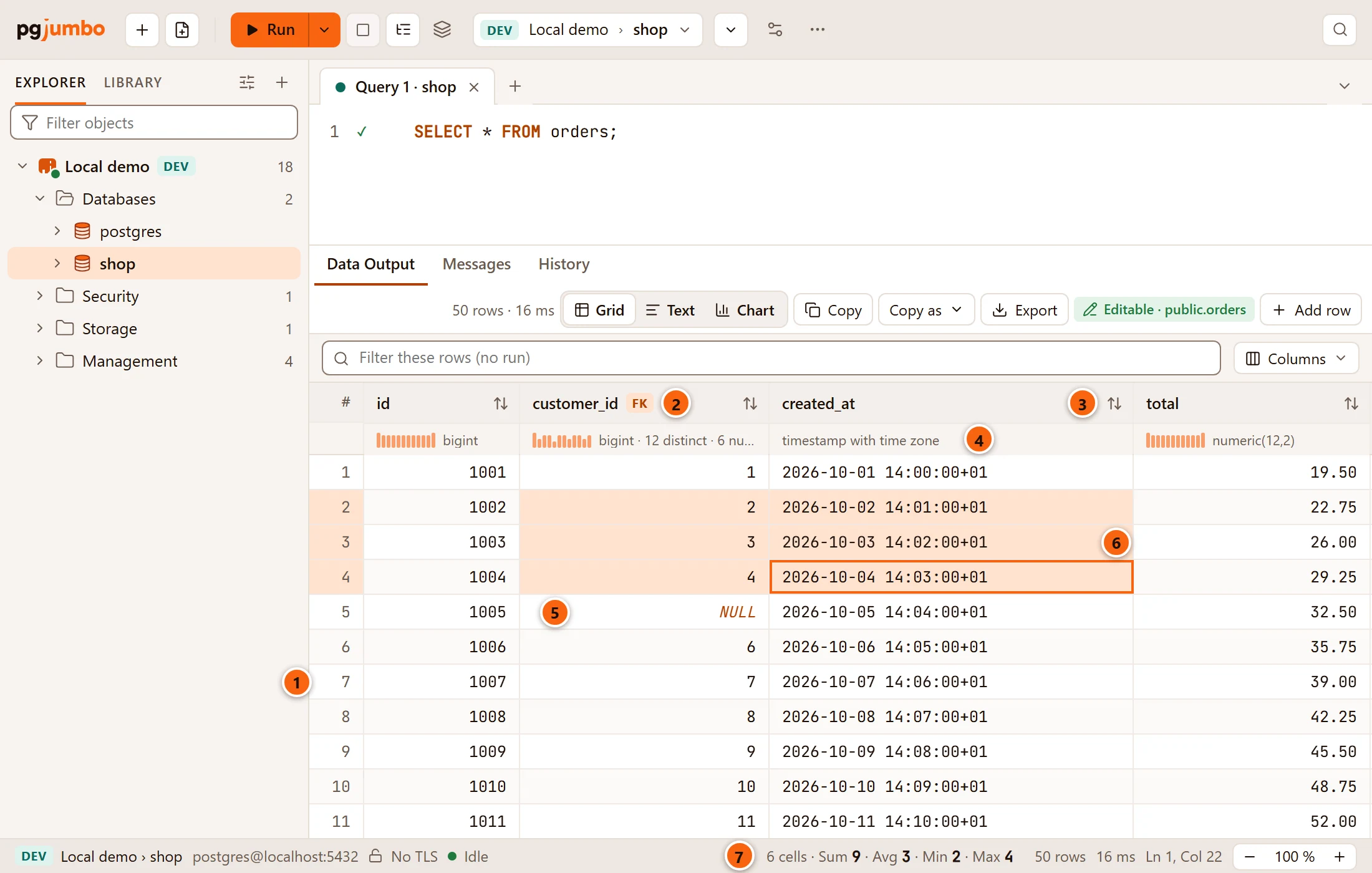
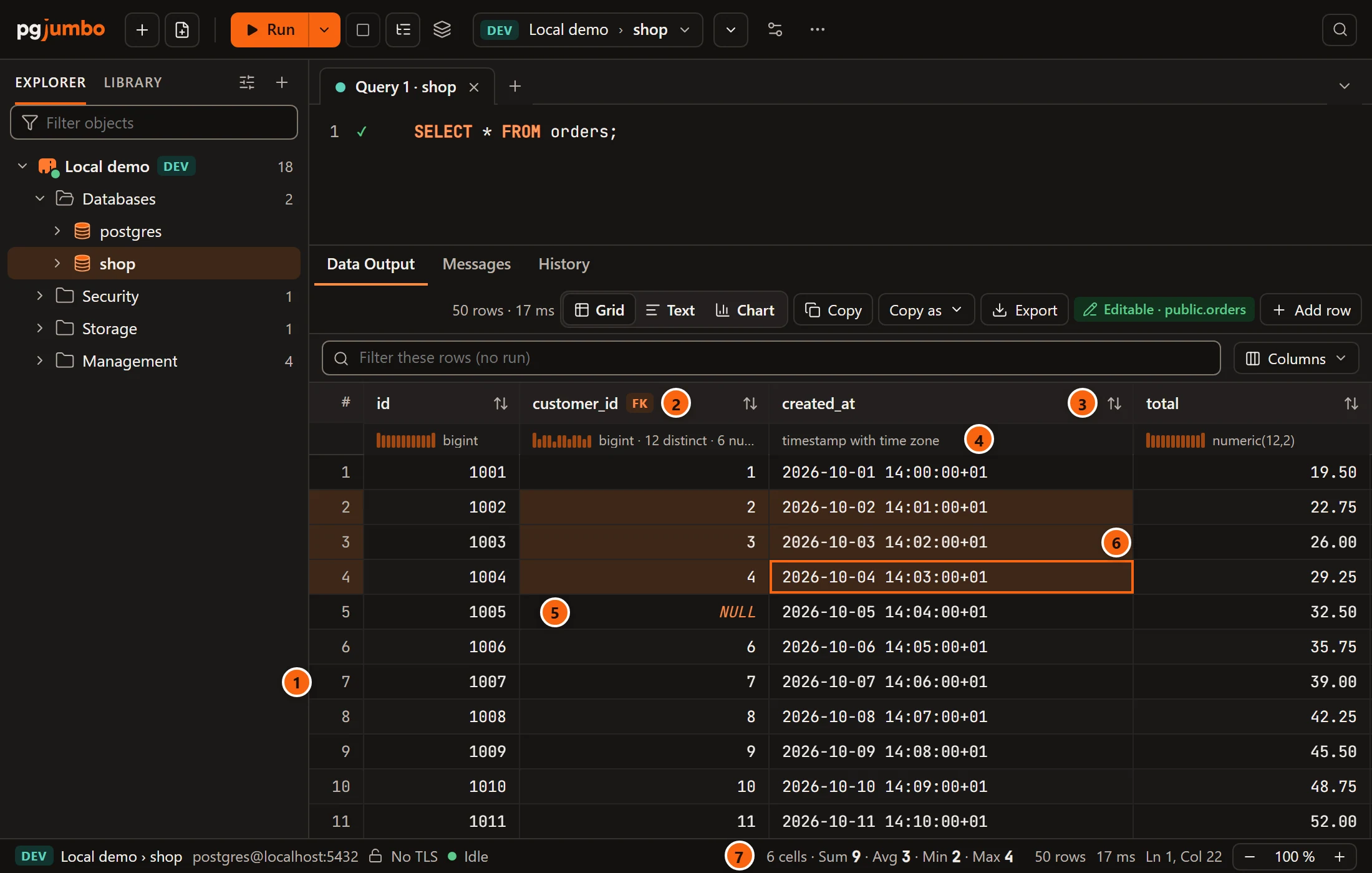
- 1 The # column numbers the rows from 1. Click a number to select its row.
- 2 Each heading shows the column’s name. An FK tag marks a column that is part of a foreign key; hover over the tag to see the table it references (“References public.customers”). Hover over the heading to read the name and the type on one line.
- 3 The sort button sorts the rows you have by that column, without running the query again. See Sort, filter and arrange columns.
- 4 The line under each heading is the profile row. It gives the column’s type as PostgreSQL writes it
(
timestamp with time zone,numeric(12,2)) and, once every row has arrived, how many values differ, how many areNULLand how a number column’s values spread. It is explained with the profile row. - 5
NULLshows in tangerine italics, so you can tell it from the text'NULL'and from an empty string, which is an empty cell. The colour, the word and how numbers and dates are written are your choice: see Values, the record view and the cell viewer. - 6 Selected cells are shaded. The cell with the outline is the one the keyboard moves from.
- 7 While two or more cells are selected, the status bar counts them and sums the numbers among them. See The selection’s sum.
Other things to know about the grid:
- Numbers (
smallint,integer,bigint,oid,real,double precision,numeric) line up on the right; everything else lines up on the left. - A cell shows a value on one line, and the start of a long one: its first 512 bytes, ending in “…”. To read all of it, open the cell viewer or the record view.
- pgjumbo sizes each column from its name, its type and the first 100 rows, between 64 and 360 pixels. When the columns are narrower than the pane, they grow together (each to at most twice its width) to fill it. Drag a heading’s edge to set a width yourself.
- The height of the rows follows SettingsGeneralLayoutDensity (Compact or Comfortable), and the size of the text follows the Query Tool’s text size (see The Query Tool).
- The grid draws only the rows and columns on screen and reads the rows from pgjumbo’s engine as you scroll, so a long result scrolls as readily as a short one. If a page of rows cannot be read, a line over the grid says “Rows could not be read:” with the reason and a Try again button.
- While a result is on screen it keeps room for at least eight rows, taken from the editor, until you drag the splitter between the two yourself.
Select cells, rows and columns
Section titled “Select cells, rows and columns”Click into the grid first, so it has the keyboard.
| To select | Mouse | Keys |
|---|---|---|
| One cell | Click it | The arrow keys move one cell |
| A block of cells | Drag across them, or click one corner and Shift+click the other | Shift with the arrow keys, Page Up, Page Down, Home or End |
| A whole row | Click its number in the # column; Shift+click another number for several rows | |
| A whole column | Click its heading; Shift+click another heading for several columns | |
| Everything | Click the # heading | ⌘ A (Ctrl+A on Windows and Linux) |
To move without selecting more: Page Up and Page Down move a screen of rows, Home and End go to the first and last column of the row, and ⌘ Home (Ctrl+Home on Windows and Linux) and ⌘ End (Ctrl+End on Windows and Linux) go to the first and last cell of the result.
The grid’s other keys:
| Key | What it does |
|---|---|
| Enter | Opens the value in the cell viewer. On a result you can edit, it starts editing the value instead, as a double-click does. |
| Shift+Enter | Opens the row in the record view. |
| ⌘ C (Ctrl+C on Windows and Linux) | Copies the selected cells. |
| ⌘ ⇧ C (Ctrl+Shift+C on Windows and Linux) | Copies them with the column names (Copy with Headers). |
| ⌘ F (Ctrl+F on Windows and Linux) | Opens Find over the grid. |
The keys that change values (F2, Delete and the others) are on Edit data.
In a query tab, selecting one whole column by its heading also lights up in the editor where that column comes from. This is column lineage, explained on Explain a query.
The selection’s sum
Section titled “The selection’s sum”While two or more cells are selected, the status bar shows a line such as
6 cells · Sum 9 · Avg 3 · Min 2 · Max 4: how many cells are selected and, over the numbers among them, their sum,
average, minimum and maximum. Cells that are not numbers, and NULLs, are counted as cells and left out of the sum.
- pgjumbo’s engine works the numbers out, over the rows the result holds, exactly for integers and
numeric: a sum ofbigintornumeric(30,10)values loses no digit. When arealordouble precisionvalue,NaNor an infinity is among them, it works in double precision, as PostgreSQL would. - The numbers follow the grid as it shows the rows: sorted or filtered, the sum is of the rows you see selected.
- With more than 2,000,000 numbers selected, the line says “too many numbers to add up” after the count.
- The status bar has little room. A longer line is cut with “…”: hover over it to read all of it. While it shows, the tab’s process ID, the Statement line and UTF-8 make way for it.
The grid’s right-click menu
Section titled “The grid’s right-click menu”Right-click a cell. If it is outside the selection, pgjumbo selects it first; inside the selection, the selection stays.
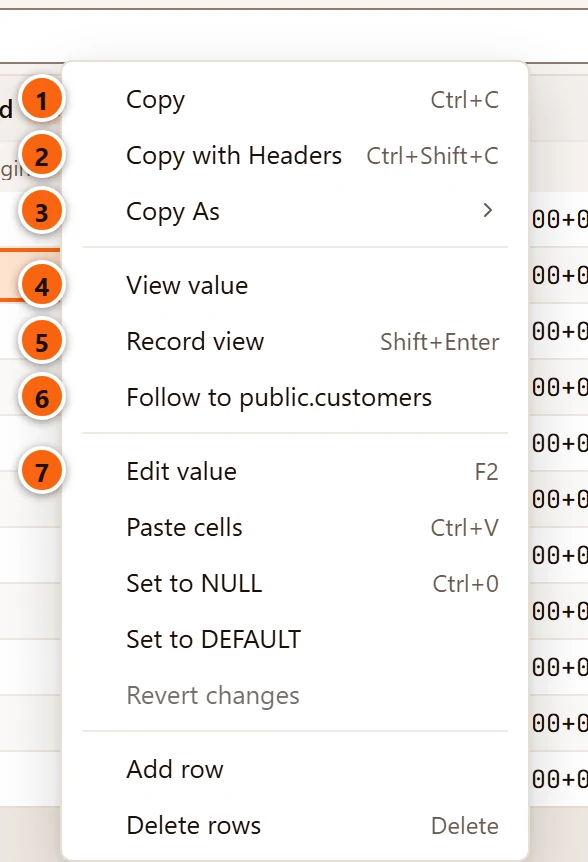
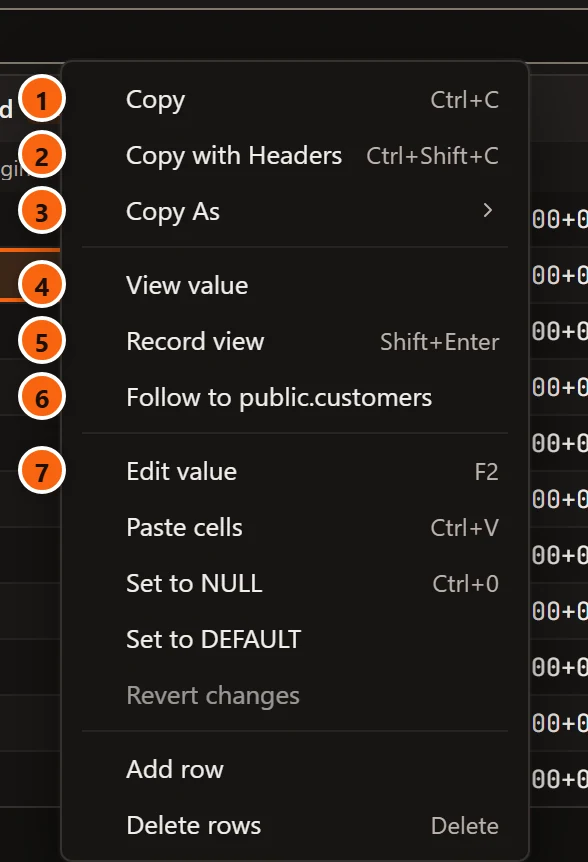
- 1 Copy copies the selection without column names (⌘ C (Ctrl+C on Windows and Linux)).
- 2 Copy with Headers copies it with the column names on the first line (⌘ ⇧ C (Ctrl+Shift+C on Windows and Linux)).
- 3 Copy As copies it as CSV, JSON, a Markdown table,
INSERTstatements or anIN (…)list. All three are explained on Copy results. - 4 View value opens the cell viewer on the cell with the outline. Its key, Enter, shows in the menu when the result cannot be edited.
- 5 Record view opens the whole row as a list of fields (Shift+Enter). Both are on Values, the record view and the cell viewer. They are greyed out on a row you added and have not saved.
- 6 Follow to public.customers opens the row this value refers to, in a data tab of its own. It shows only on a column with an FK tag, once for each foreign key the column belongs to. See View data.
- 7 Edit value, Paste cells, Set to NULL, Set to DEFAULT, Revert changes, Add row and Delete rows show only when the result can be edited. They are explained on Edit data.
A heading has a menu of its own, for the column: see The heading’s menu.
Rows saved since they were read
Section titled “Rows saved since they were read”When you change rows in a query tab’s result and save them (see Edit data), pgjumbo does not run your query again by itself: it never runs anything again in a Query Tool tab without you. The result keeps showing the rows as they were read, and says so.
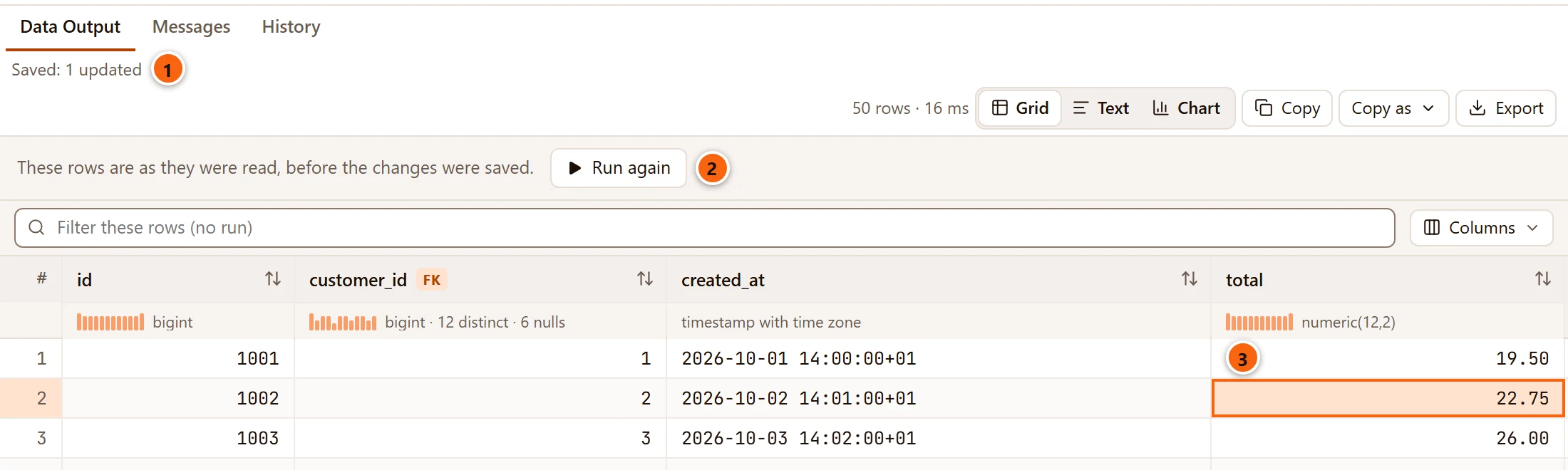
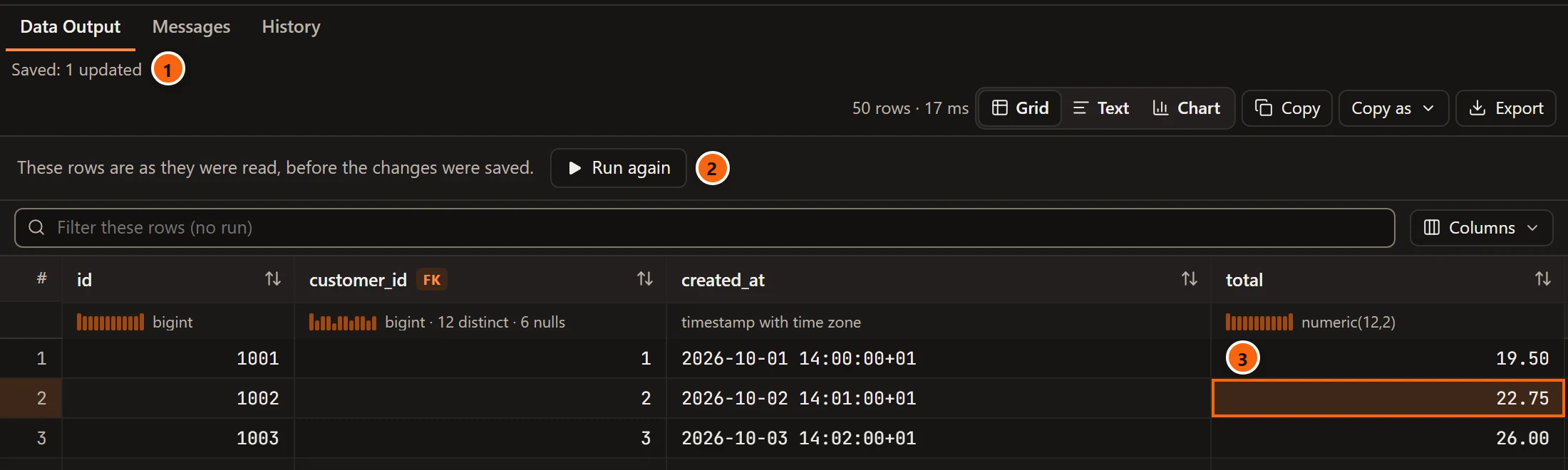
- 1 For a few seconds, the result bar says what was saved, for example
Saved: 1 updated. With a transaction open it adds “in the open transaction. Commit to keep it.” - 2 The banner says “These rows are as they were read, before the changes were saved.” Run again runs the statement that returned this result once more, as it was when it ran, and shows the rows as they are now.
- 3 The grid still shows the old value (here
19.50, saved as21.50).
Until you run it again, the result takes no more changes: the Editable tag and Add row are gone, and trying to edit a value says “These rows were saved since they were read. Run the query again to change them.” You can still sort, filter, copy, export and pin the rows as they were read.
Read the Messages tab
Section titled “Read the Messages tab”Messages lists every statement of the last run, in order, with what the server said about it.
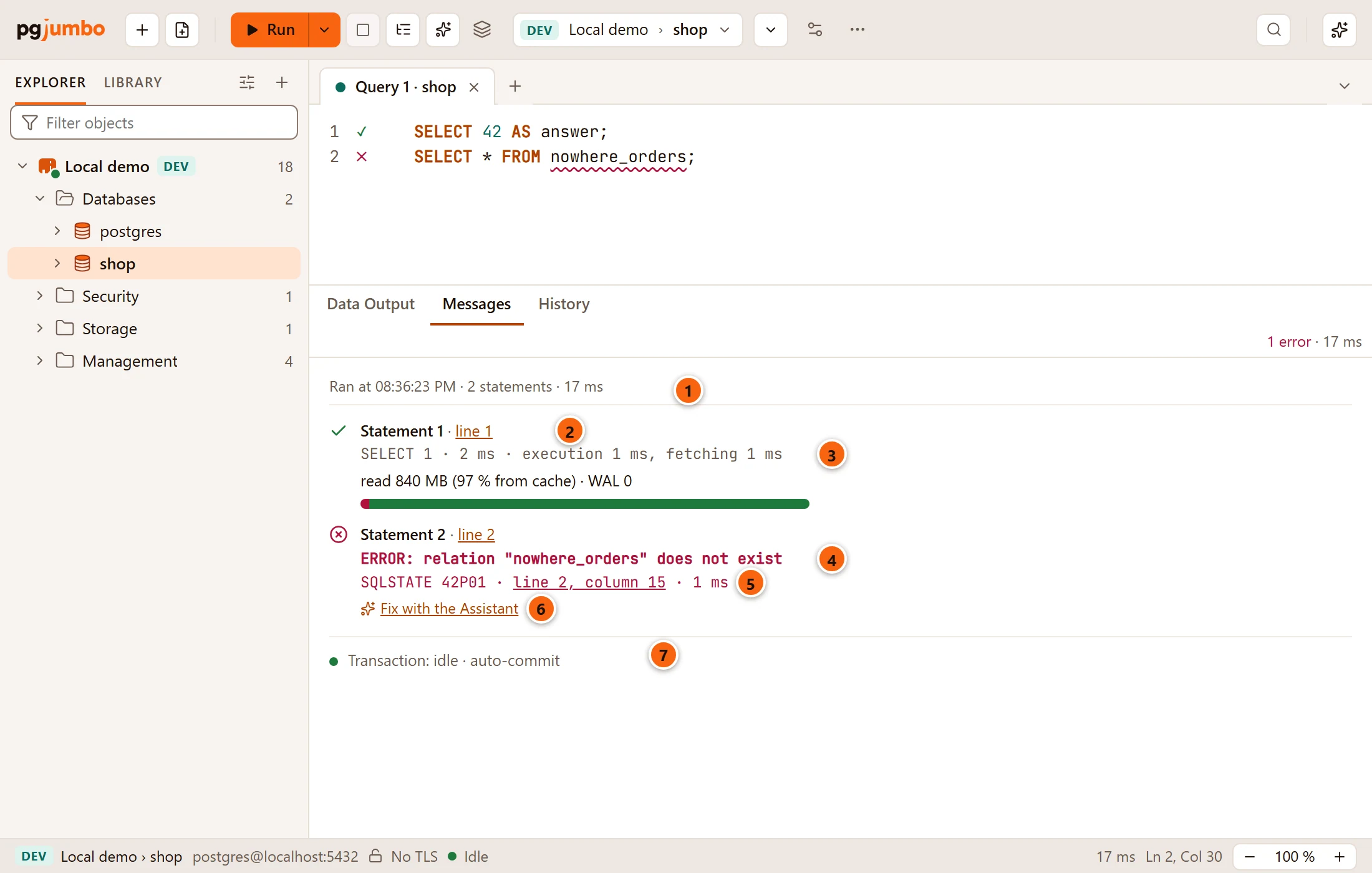
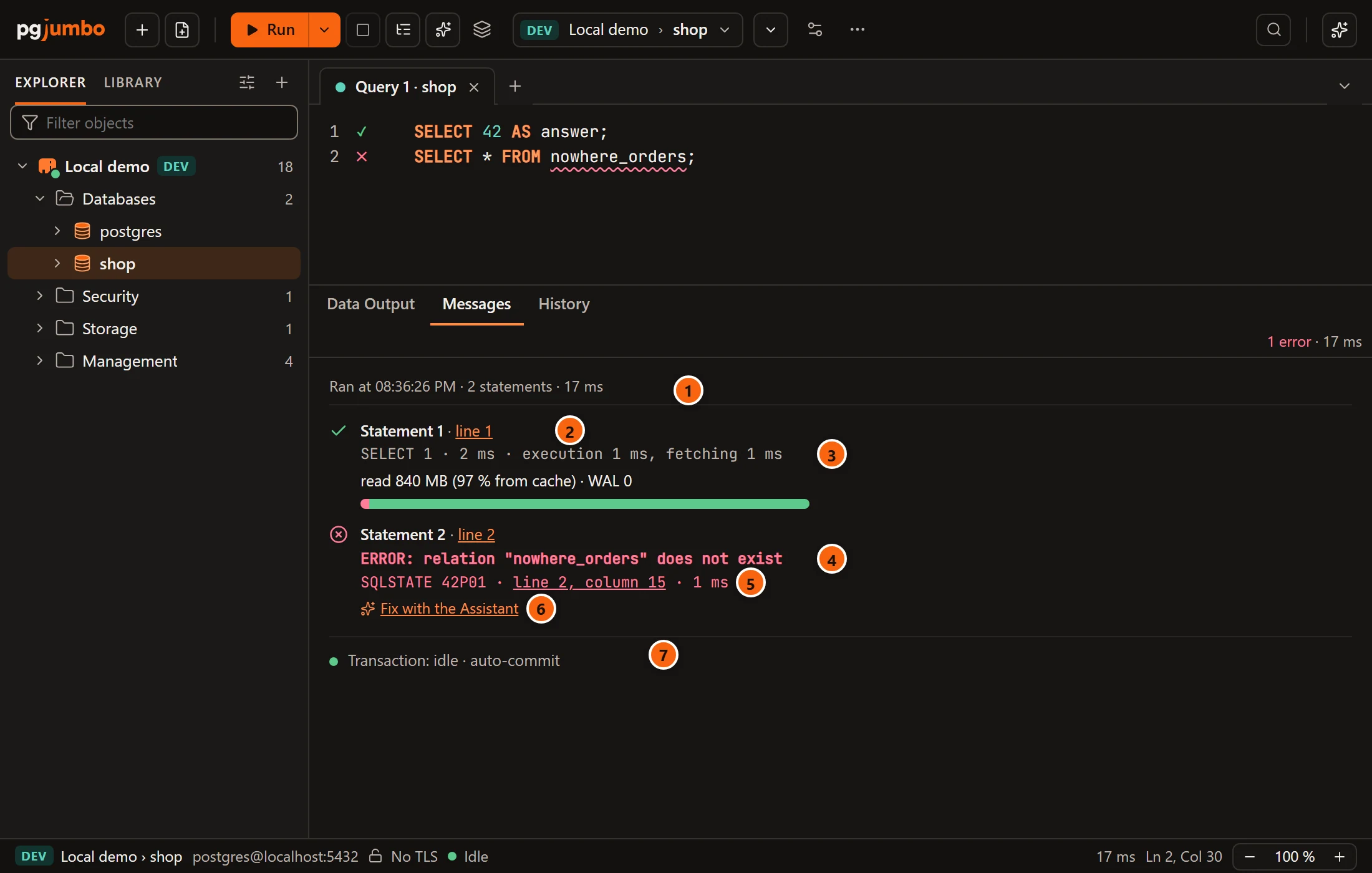
- 1 When the run started and what it was:
Ran at 14:02:31 · 2 statements · 68 ms, with the time as your computer writes times. While the run goes on, the line saysStarted at 14:02:31. - 2 Each statement has an entry of its own: a green check, Statement 1 and a link to its line (line 1, or lines 3–9 for a longer statement). Click the link to put the cursor at the start of the statement in the editor. A data tab has no editor, so there the line is plain text.
- 3 The statement’s command tag and how long it took, such as
INSERT 0 5 · 3 ms. For a statement that returned rows, the time is also split in two:SELECT 412 · 64 ms · execution 12 ms, fetching 52 ms. Execution is the time until the first rows arrived, fetching the time the rest took to come. - 4 A statement that failed: a red cross and the server’s error with its severity,
ERROR: relation "nowhere_orders" does not exist. In the editor, the place is underlined, and a ✕ beside the line numbers marks the statement (a ✓ marks each one that ran). - 5 Under the error: its
SQLSTATEcode (42P01), a link to the exact line and column in the editor (when the server says where), and the time. When the server sends them,DETAIL:,HINT:andCONTEXT:lines follow. - 6 Fix with the Assistant puts a question about the failed statement in the Assistant’s box, for you to send (How an Ask button works). It shows only while the Assistant is turned on and the run has ended; see SQL help in the editor.
- 7 The transaction line: a coloured dot and the state of this tab’s session, then how the tab commits.
More about the entries:
- The line under a statement’s timing that starts with
readis its footprint, what it read and wrote. It is explained on Footprint and tips. - A statement still running shows a spinner and
running…. - Notices and warnings, for example from
RAISE NOTICEin aDOblock or a function, appear in the list where they arrived, with an ⓘ icon, their severity (NOTICE:,WARNING:), and theirDETAIL:andHINT:lines in grey. pgjumbo’s own remarks about a run come the same way, markedINFO:. - When one of pgjumbo’s own settings for the tab caused the error (a read-only tab, a timeout pgjumbo set), a note under the error says which, with buttons to change it. See Help inside pgjumbo.
- Whether the statements after a failed one still run is your choice: see Run SQL.
- After Commit or Rollback, an entry Transaction says
COMMIT · 3 msorROLLBACK · 2 ms, and Messages comes to the front. A savepoint, and going back to one, are listed the same way. - Keep as Temp Table adds an entry that names the table: see Keep and compare results.
- When the script could not start at all, one red line says why.
- A run with nothing to report leaves “No messages.”
The transaction line reads, for example, Transaction: idle · auto-commit. Its states are idle, active
(running), in transaction, failed, roll back to continue (a statement failed inside a transaction) and
disconnected. After the dot comes the tab’s commit mode: auto-commit, smart commit or manual commit.
The line shows only while the tab is connected. What to do in each state is on
Transactions.
Long runs
Section titled “Long runs”Messages keeps what you need from a long run and counts the rest:
- A statement that raises more than a thousand notices, a loop of
RAISE NOTICEsay, keeps its own entry first, with its error if it stopped. Under it a line counts them, for example99,000 of its 100,000 notices are not shown; these are the last 1,000., and its last thousand notices follow. - A script of more than a thousand statements shows its last thousand entries, and every statement that failed. A line over the list says how many are not shown.
In the status bar
Section titled “In the status bar”The status bar repeats the two facts you look for most: the rows of the result in front (50 rows, or
Showing 100,000 of 250,000 rows when the result holds only the first ones) and the run’s time. Hover over the time to
see when it ran and, for the result in front, its execution against its fetching time:
Ran at 14:02:31 · SELECT 412 · 64 ms · execution 12 ms, fetching 52 ms.