

Migrations across environments
ToolsMigrations Across Environments… puts one database’s migrations on several servers side by side: each migration is a row and each server a column. Use it to see what Production lacks before a release, or where a hotfix went.
pgjumbo only reads here. Each server is read on its own connection, and only its history table is read. No migration runs and nothing is deployed.
Open the comparison
Section titled “Open the comparison”-
Connect every server you want to compare, in the Explorer.
-
Select the database on any one of them, or a Migrations row under it.
-
Choose ToolsMigrations Across Environments….
-
A tab named Migrations · your database across environments opens and reads each server.
The comparison takes every connected server that has a database of the same name. The menu item is greyed until a database or a Migrations row is selected on a connected server. It has no key of its own: you can give it one in Settings › Keyboard.
There is one tab for each database name. Choosing the item again for the same name brings that tab to the front. While the tab is in front, the status bar names the database across environments and no server, since the tab reads several.
The comparison needs SettingsMigrationsFinding themFind migration tools in my databases to be on. Turned off, the tab says so and how to turn it on.
The grid
Section titled “The grid”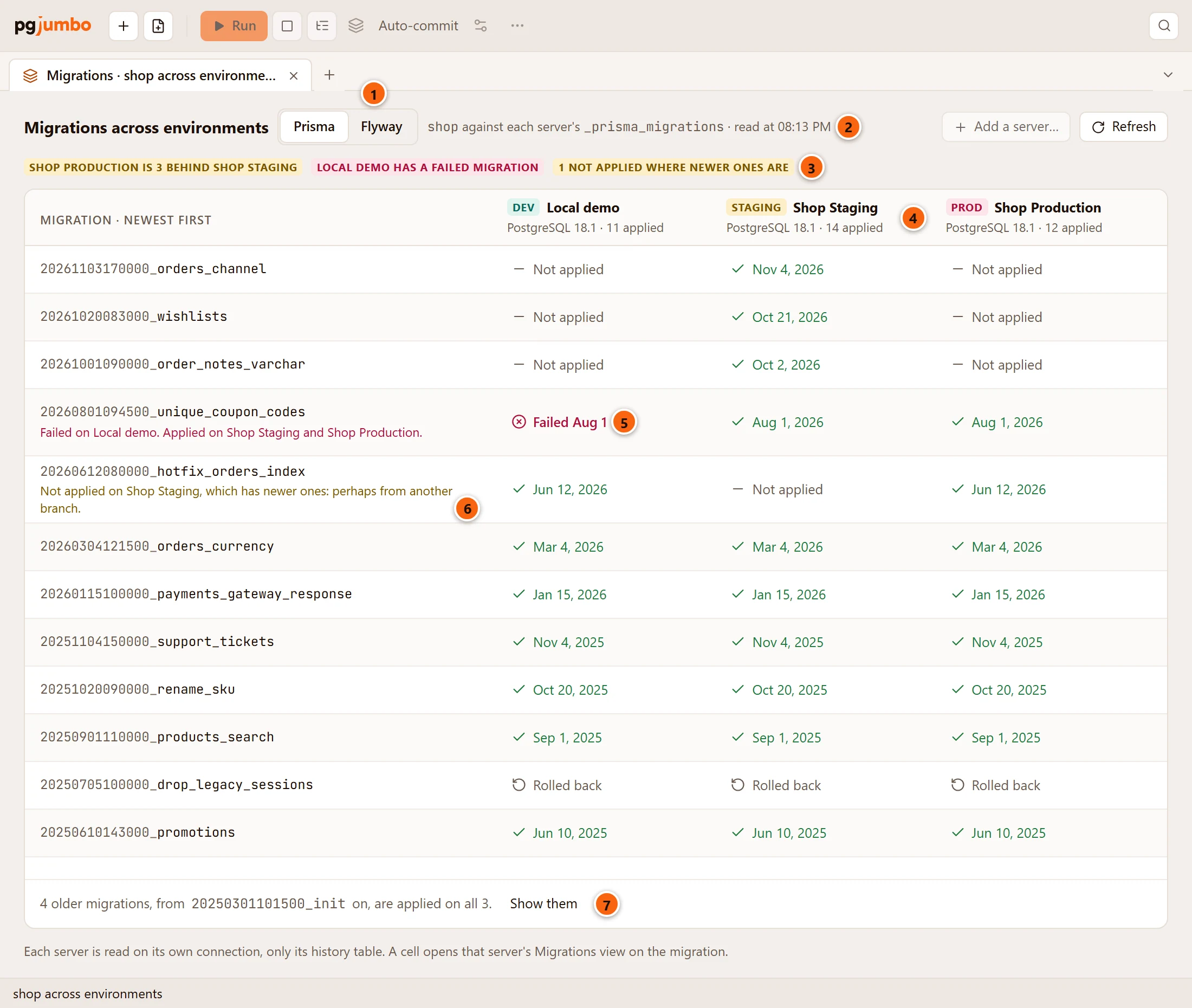
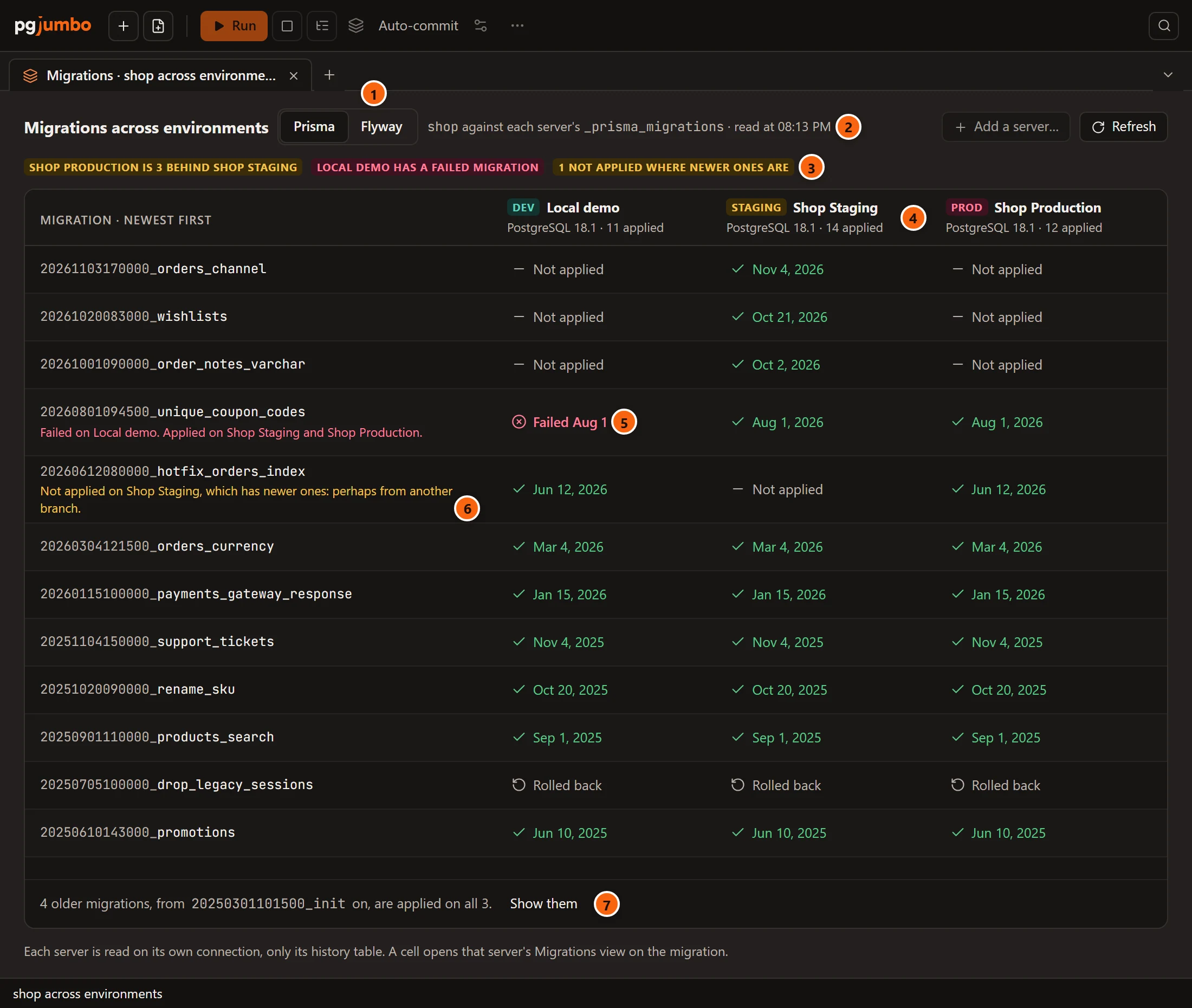
- 1 The tool. With more than one tool in the database, choose it here. The tab opens on the tool with the most migrations.
- 2 What is compared: the database against each server’s history table, and the time it was read.
- 3 The lines above the grid: what is behind what, and which server has a failed migration.
- 4 A server: its environment tag, its name, its PostgreSQL version and how many migrations it has applied.
- 5 A cell: what this server’s history table says of this migration.
- 6 A note under a migration’s name, when the servers disagree about it in a way worth a look.
- 7 Show them unfolds the older migrations every server has.
Servers are ordered Dev, then Staging, then Production, and by name within each. Migrations are ordered newest first, by version.
What a cell says
Section titled “What a cell says”| Cell | What it means |
|---|---|
| Green tick and a date | Applied on that day. A tool that keeps no date says Applied. |
| Failed and a day, in red | The migration failed there. |
| Rolled back | Marked rolled back there. |
| Marked as run | Recorded there without running. |
| Not applied | The server’s history table does not have it. |
| Pending | In the linked folder, and not applied there. See With a repository linked. |
| Edited after | Applied there, and its file has changed since. |
A dash, — |
Not known: the server’s history table cannot be read, or the tool keeps only a version. |
A database’s migrations explains each state.
What a server’s column says
Section titled “What a server’s column says”Under the server’s name is its PostgreSQL version and a count: 11 applied, or how many migrations wait when a folder is linked there. When the server cannot be compared, the column says why.
| The column says | Why |
|---|---|
| No history table of this tool | The database is there, and this tool has no table in it. |
| Its history table cannot be read | Your login may not read it. See What pgjumbo never does. |
| No database of this name here | A server you added that has no such database. |
| Not connected: connect it in the Explorer, then Refresh. | A server of this tab that has been disconnected. |
Notes under a migration
Section titled “Notes under a migration”A row has at most one note, the first of these that fits.
| Note | When |
|---|---|
| Failed on one server. Applied on the others. | The migration failed somewhere. In red. |
| Edited after a server applied it: its checksum differs from the repository. | A linked folder’s file changed after the server applied it. |
| Not in the repository: applied on these servers, perhaps from a hotfix branch. | Applied, and the linked folder does not have it. |
| Not applied on a server, which has newer ones: perhaps from another branch. | A gap: the server skipped it and went on. |
The lines above the grid
Section titled “The lines above the grid”| Line | What it counts |
|---|---|
| Shop Production is 3 behind Shop Staging | Migrations a server has applied that the next server in the grid lacks, newer than anything that next server applied. Each server is compared with the one before it. |
| Local demo has a failed migration | In red. With several, the line gives the number. |
| 1 not applied where newer ones are | Migrations a server skipped. Each has a note on its row. |
| 1 applied on two servers but not in the repository | With a folder linked: applied, and not in the folder. |
| 1 edited after it was applied | With a folder linked: files changed after a server applied them. |
| 1 in the repository, applied nowhere | With a folder linked: migrations that wait on every server. |
With a repository linked
Section titled “With a repository linked”Where your project’s folder is linked to the database on a server, that server’s column is read against the folder.
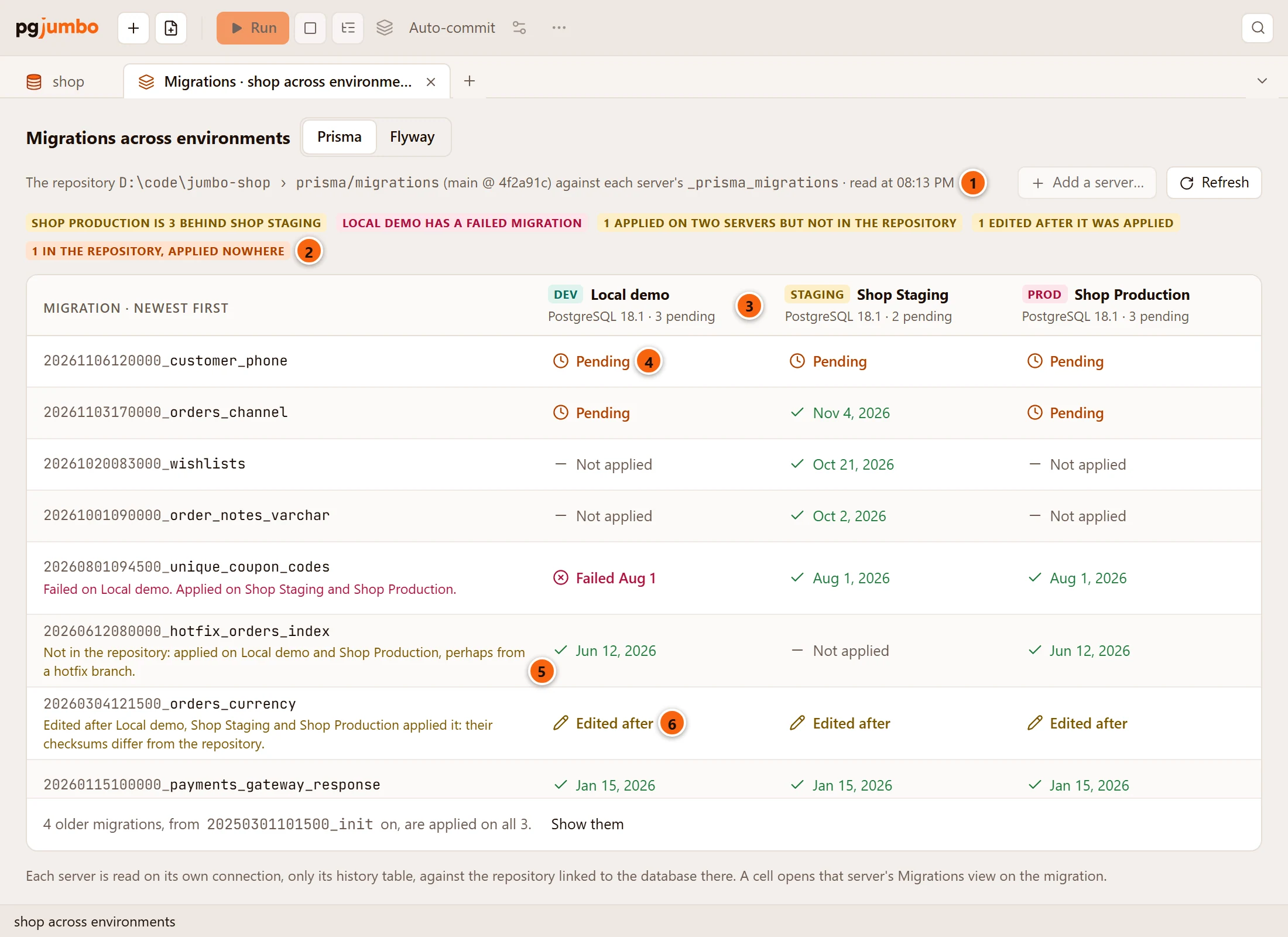
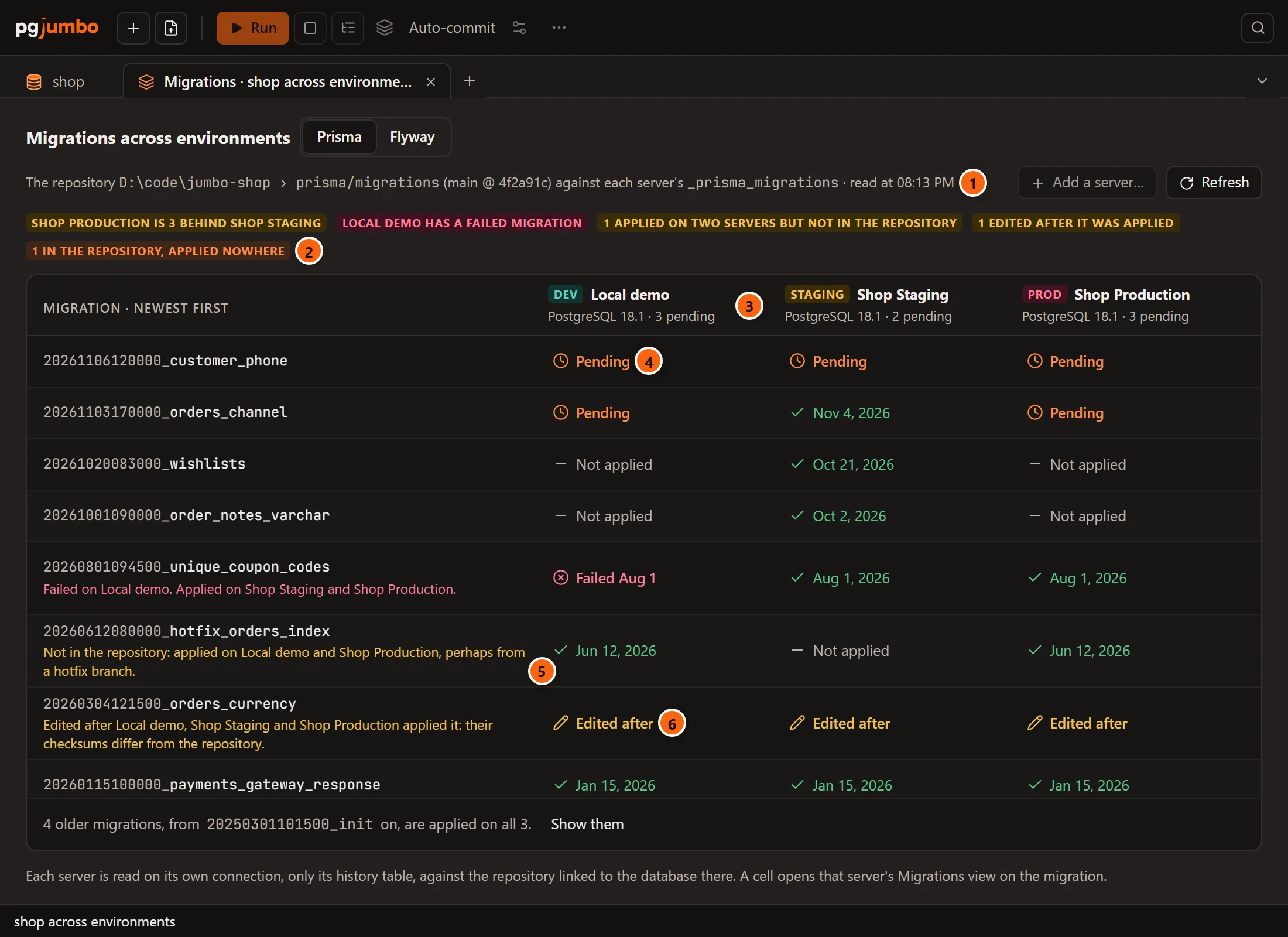
- 1 The folder the servers are read against, the branch it is on and its commit.
- 2 Three more lines: what is applied and not in the folder, what was edited, what is applied nowhere.
- 3 With a folder linked, a server’s count is what waits: 3 pending, or nothing pending.
- 4 Pending: in the folder, and this server has not applied it.
- 5 Applied on two servers, and the folder does not have it.
- 6 Edited after: the file’s checksum is no longer the one this server recorded.
A server whose database has no folder linked keeps Not applied in its column, and its count stays the number applied.
Tools that keep only a version
Section titled “Tools that keep only a version”golang-migrate and Alembic keep only the version each server is at, not a row for every migration. With golang-migrate, a version below a server’s own shows as Applied there, with no date. Anything else that server’s table does not say shows as a dash, never as missing.
Older migrations
Section titled “Older migrations”The grid shows the migrations down to the last one that is not applied on every server, and one more. The older ones, which every server has applied, are folded into a line at the foot: 4 older migrations, from the oldest on, are applied on all 3. Click Show them to list them too. When every server has applied every migration, the grid shows the newest five.
Add a server, and Refresh
Section titled “Add a server, and Refresh”Refresh reads every server again.
A server you connect while the tab is open joins the grid, when it has a database of that name.
Add a server… lists the connected servers that are not in the grid: the ones with no database of that name. Choose one, and it gets a column of its own, which says so. The button is greyed while every connected server is in the grid, and its tooltip says Every connected server is here. Connect another in the Explorer to compare it too.
Once you have added a server, the tab keeps to the servers it shows. A server you connect afterwards is offered under Add a server… and does not join by itself.
Open a cell
Section titled “Open a cell”Click a cell to open that server’s database tab on its Migrations view. The migration is chosen in the list when the server knows it: applied there, failed there, or waiting in its folder. A Not applied cell or a dash opens the view as it usually opens. The cells of a server that has no such database, or is not connected, do nothing.
Messages in place of the grid
Section titled “Messages in place of the grid”| Message | What to do |
|---|---|
| Connect the servers to compare in the Explorer, then Refresh. | No server is connected. |
| Reading each server’s history table… | Wait: the servers are being read. |
| No connected server has a database named this. | Connect a server that has it. |
| No migration tool’s history table is in the database on these servers. | Nothing to compare: no tool manages it there. |
| The migrations could not be read: and a reason | Read the reason, fix it, then Refresh. |