

Help inside pgjumbo
pgjumbo explains itself in three ways. A guide is built into it, with a topic for each feature. Show me opens the place a topic talks about and rings the control. And when a setting of pgjumbo’s own makes a statement fail, a note under the error says so, with a way to change it.
Open the guide
Section titled “Open the guide”Choose Helppgjumbo Guide, or press F1. The guide opens in a tab of its own, named pgjumbo Guide. Each pgjumbo window has at most one such tab: choosing the item again brings it to the front, on the topic it was showing.
The guide is part of the version of pgjumbo you run, so it describes that version and works with no connection to the internet. It is not this website: Helppgjumbo User Guide opens these pages in your browser.
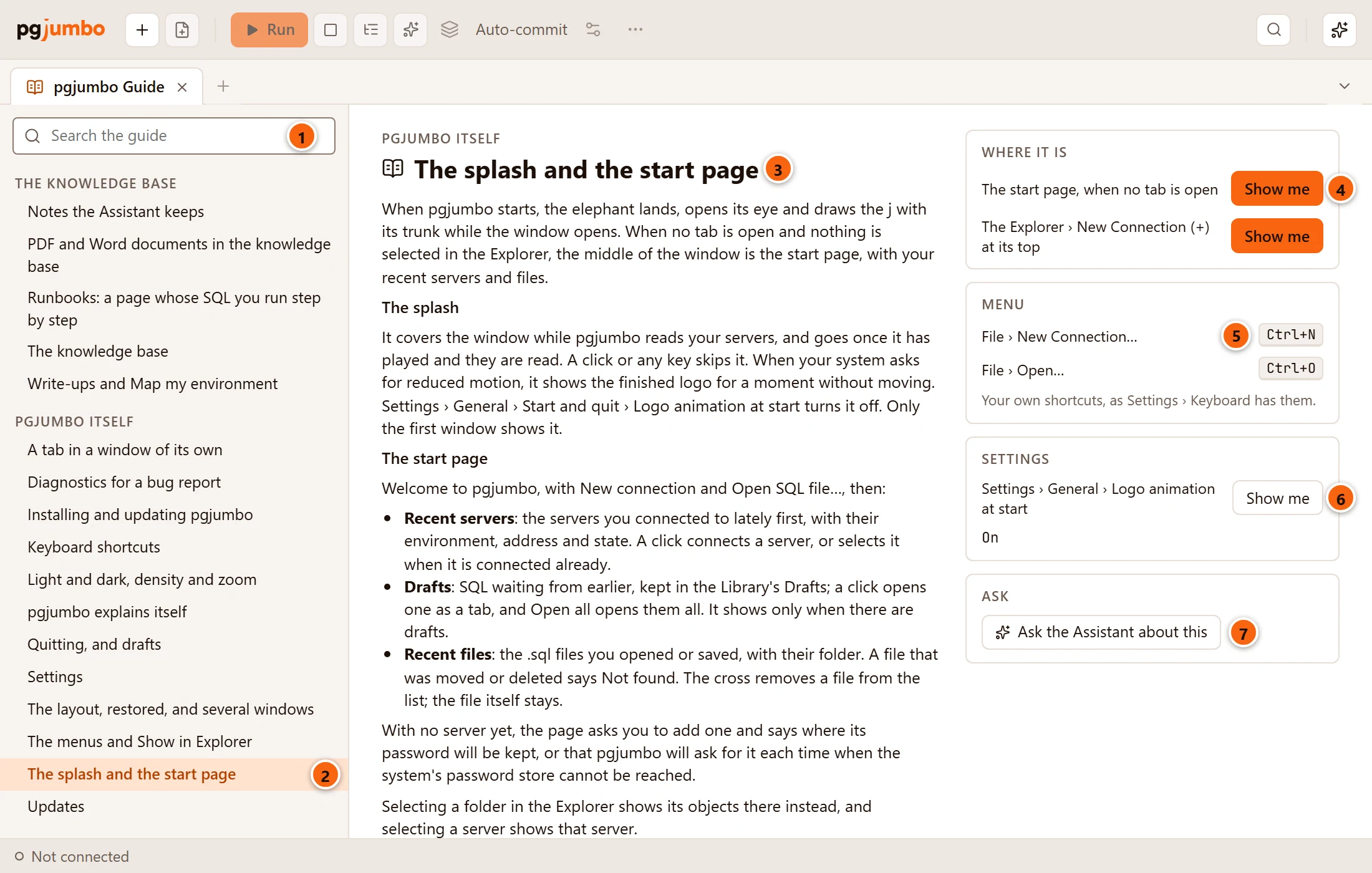
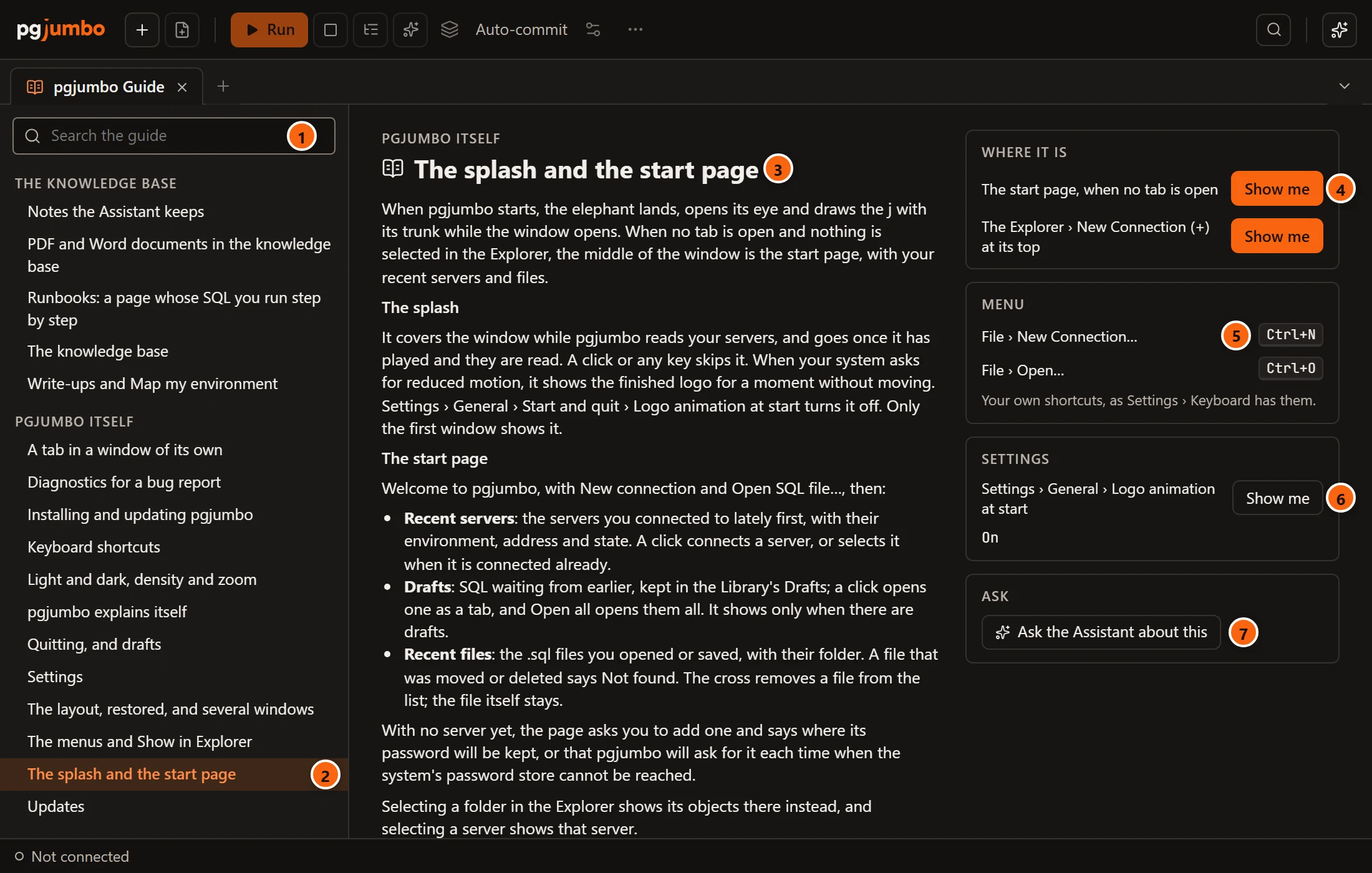
- 1 Search the guide finds topics by any word in them. See Search the guide.
- 2 The topics, grouped by area. Click one to read it; the one you are reading is highlighted.
- 3 The topic: its area above its title, then what the feature does, where it is, and often what it never does and what to check when it goes wrong. See also at its end links to related topics.
- 4 Where it is lists the places in the window the topic is about, each with Show me. See Show me.
- 5 Menu lists the topic’s menu items, each with its menu and its keys, or no shortcut. The keys are yours: when you changed a shortcut in SettingsKeyboard, the guide shows the one you chose. An item with two shortcuts shows both.
- 6 Settings lists the settings the topic names, each with its place in the Settings sheet, its value right now on a line of its own, and a Show me that opens Settings with that setting ringed.
- 7 Ask the Assistant about this puts a question about the topic in the Assistant’s box; you send it with ↩︎ (Enter on Windows and Linux). The Ask box shows only while the Assistant is on. See Ask about pgjumbo.
A topic has only the boxes it has something for: one about a menu command alone has no Settings box.
The areas are Getting started, Servers and connections, The Explorer, The Inspector, The Query Tool, Results, Changing data safely, Plans and performance, Viewing and editing data, Objects and their tabs, Administration, Tools, The Assistant, The knowledge base and pgjumbo itself. The Assistant searches and reads the same topics when you ask it about pgjumbo.
The guide’s tab behaves like any other tab: it can be pinned, moved to the other side or to another window (see Tabs). It is not reopened when pgjumbo starts again.
In a narrow tab
Section titled “In a narrow tab”Beside the Explorer and the right pane the tab has less room, and the guide folds:
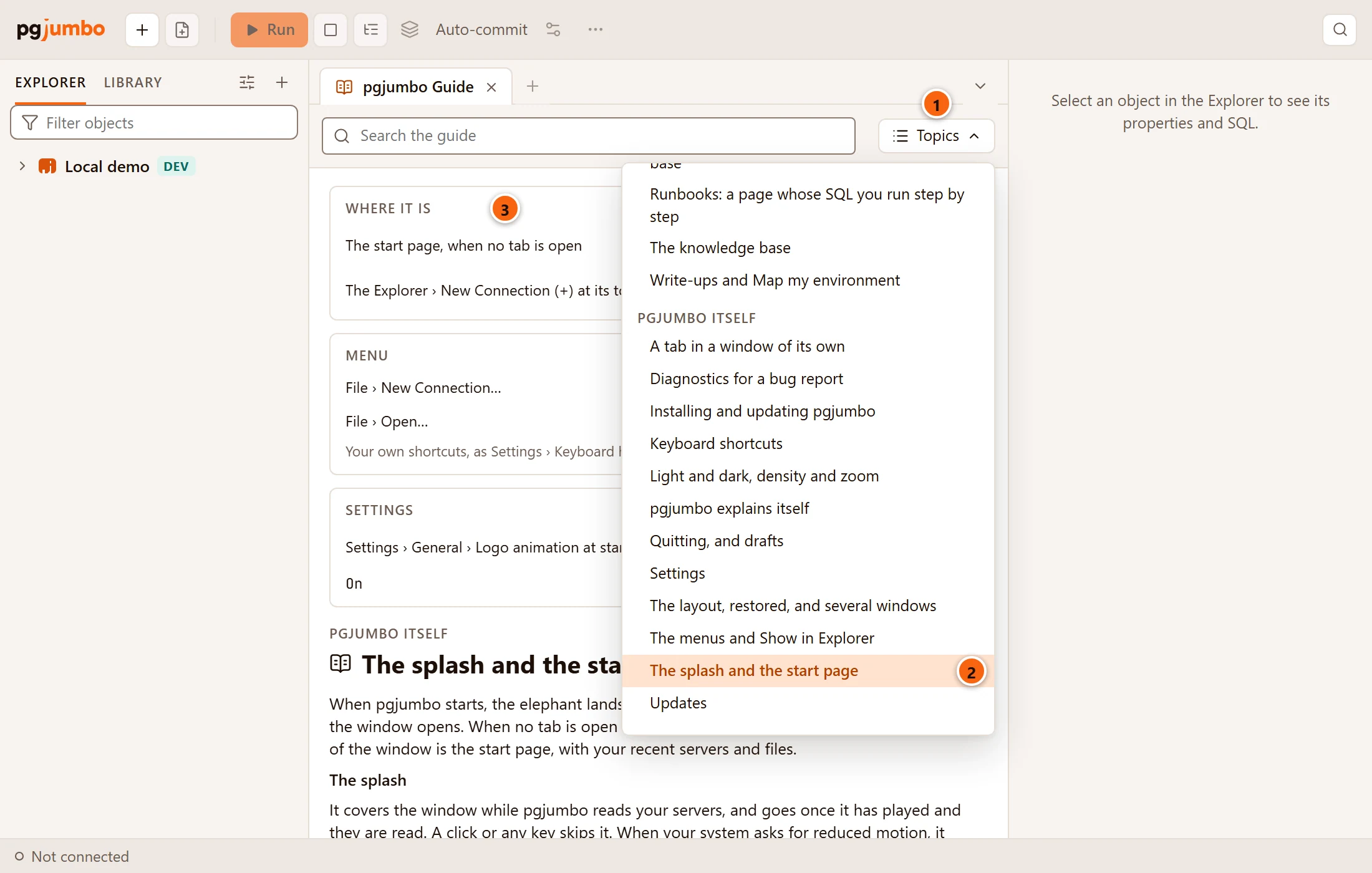
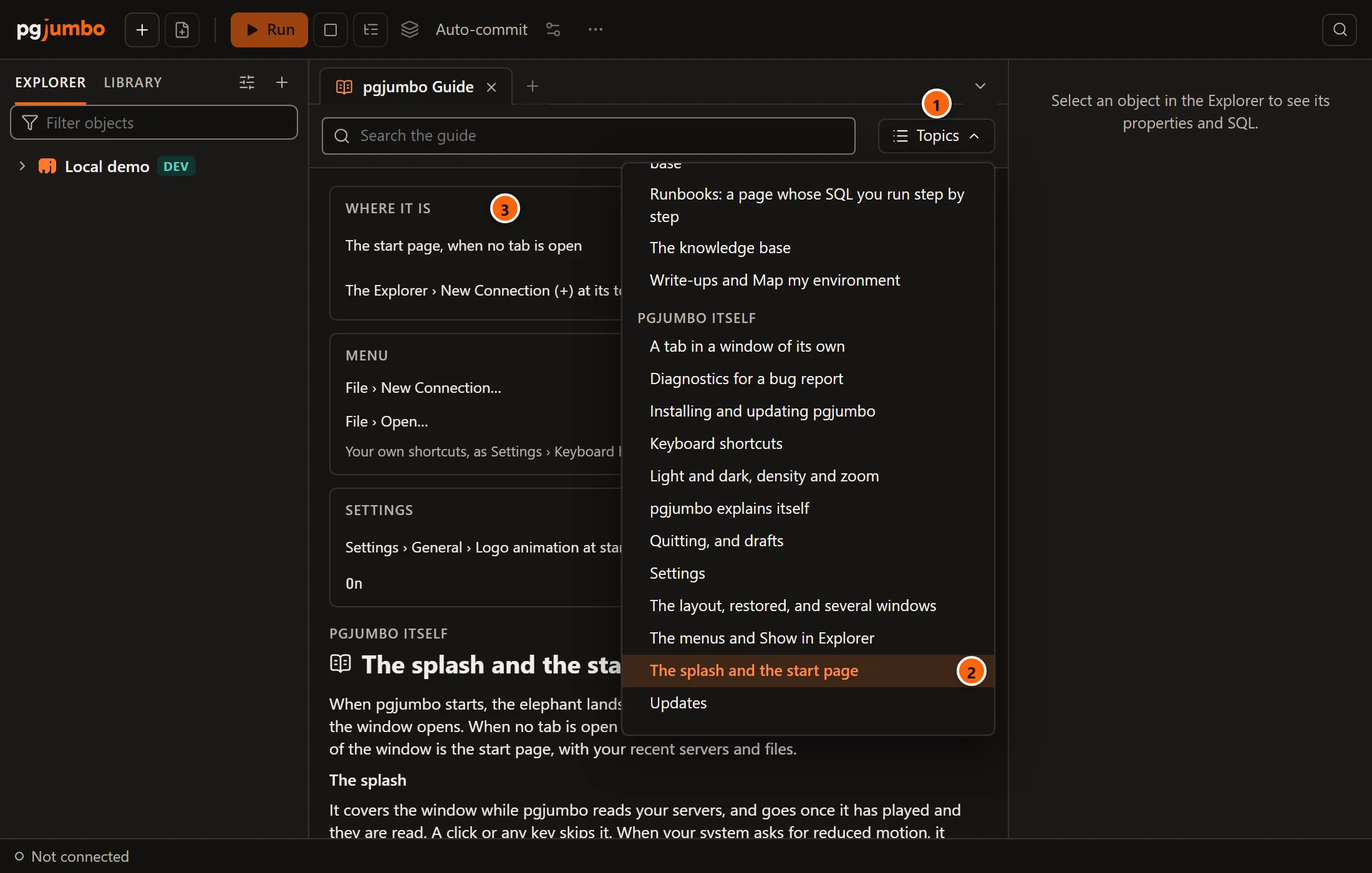
- 1 The list of topics folds into the Topics button beside the search.
- 2 Click Topics for the list, which opens over the page. Choosing a topic closes it, as Esc or a click on the page does.
- 3 The boxes move above the topic’s text, which gets the whole width of the tab.
Hide the Explorer (⌘ 0 (Ctrl+B on Windows and Linux)) or the right pane (⌥ ⌘ 0 (Ctrl+Shift+B on Windows and Linux)) to get the wide layout back.
Search the guide
Section titled “Search the guide”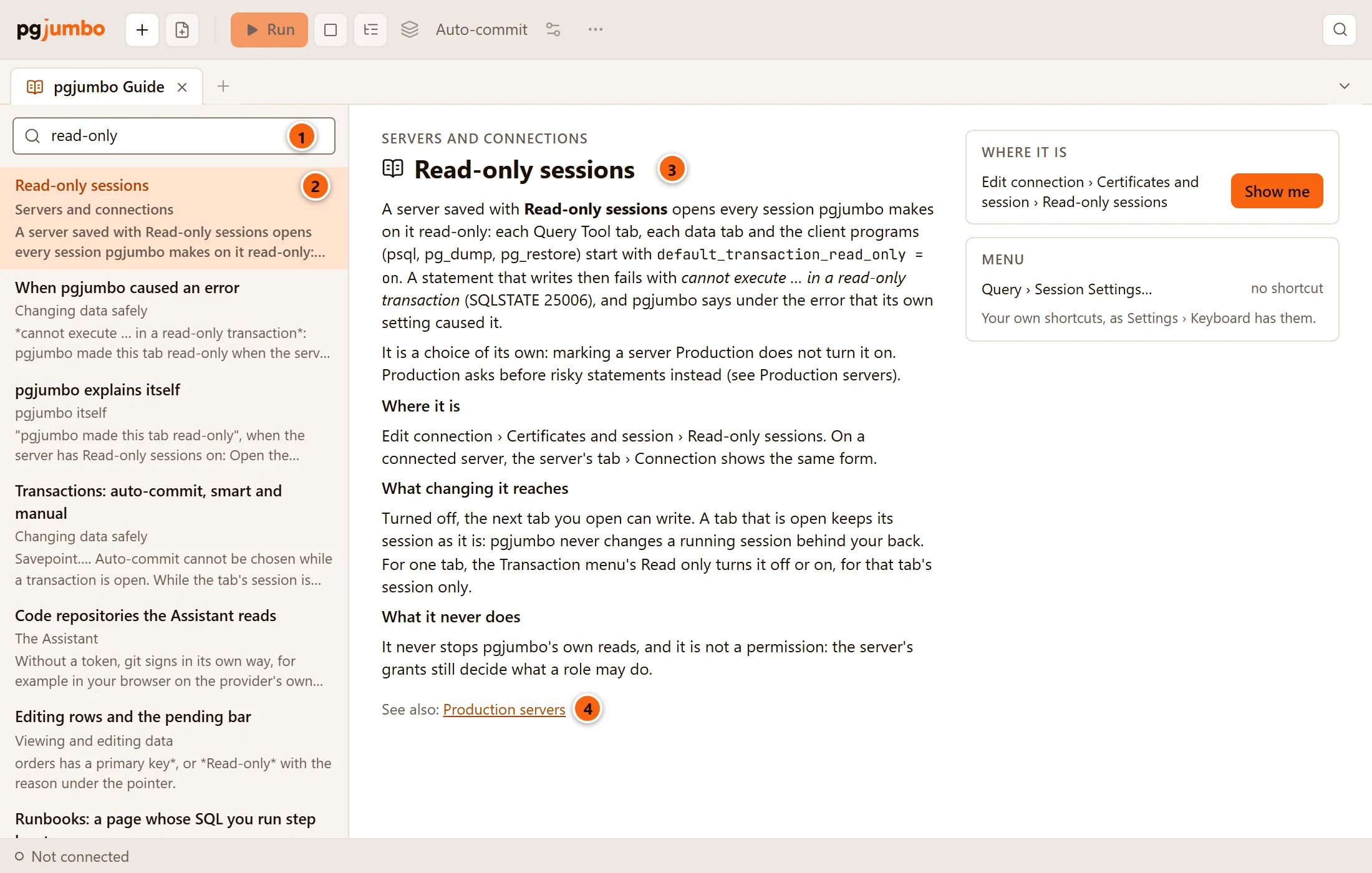
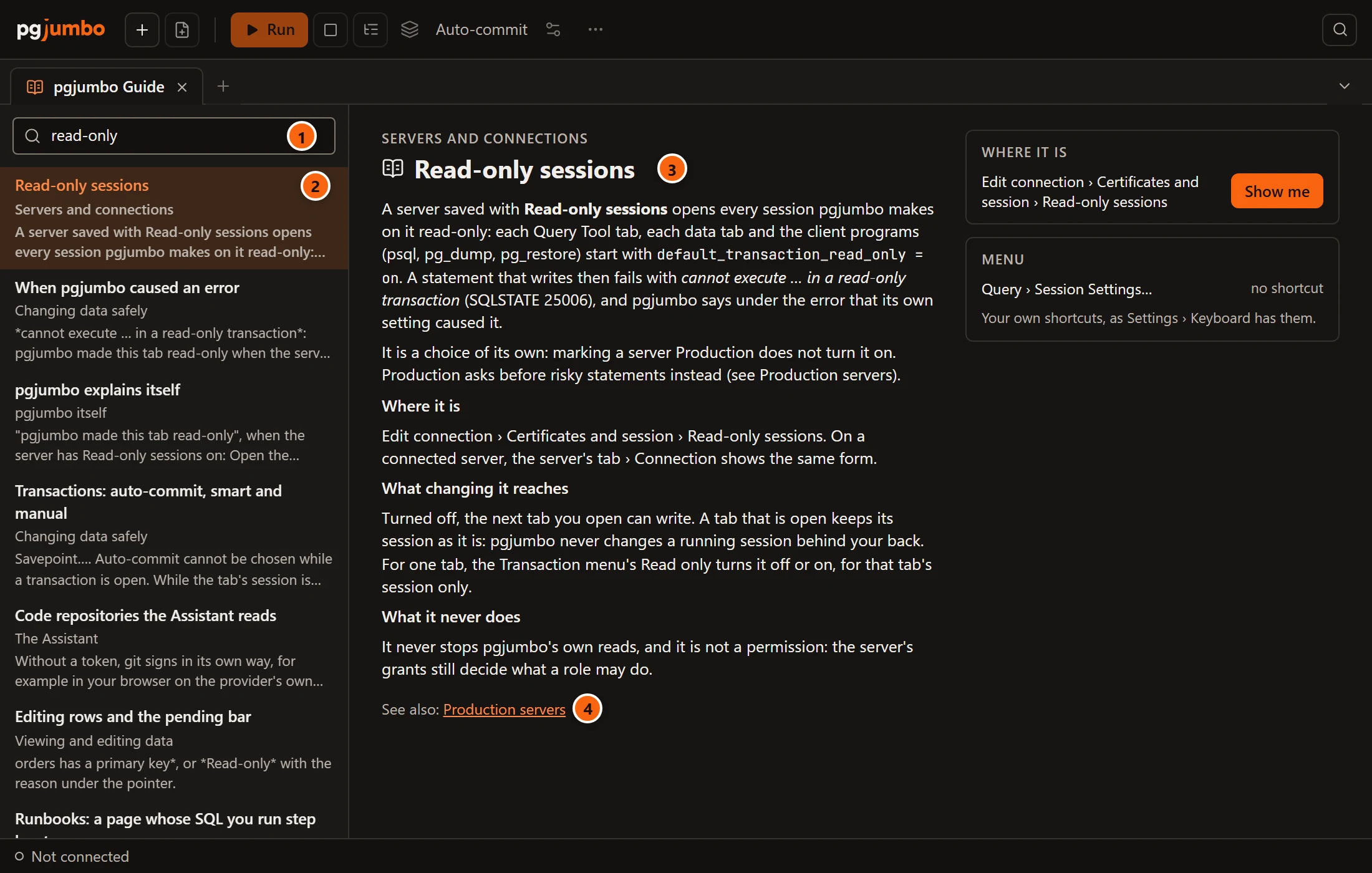
- 1 Type two or more characters. The list changes to the topics that mention them, best match first, twenty at most. Esc in the field empties it and brings the list by area back.
- 2 Each topic found shows its title, its area, and a line of its text that mentions what you typed. Click one to read it.
- 3 The topic you chose. The search stays, so you can try the next one.
- 4 See also opens a related topic.
When nothing matches, the list says No topic mentions and what you typed. In a narrow tab, typing opens the Topics list by itself to show what was found.
Show me
Section titled “Show me”Show me takes you to a control without touching it. pgjumbo opens the place, unfolds the section the control is in, puts an orange ring around it and says in a small callout beside it what it is. You find it in three places: in a guide topic’s Where it is and Settings boxes, at the end of the Assistant’s answers about pgjumbo, and behind some buttons of the notes under an error.
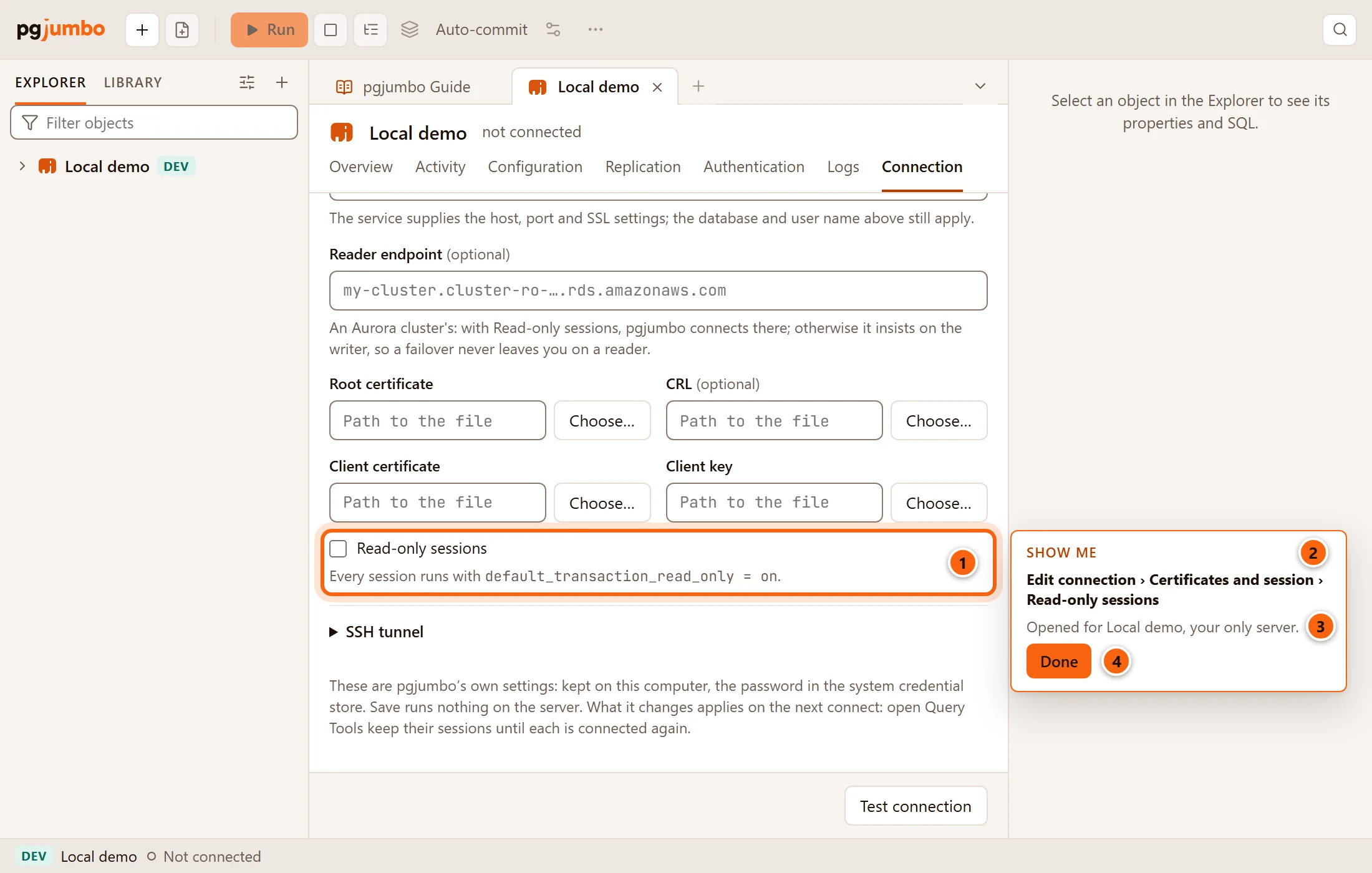
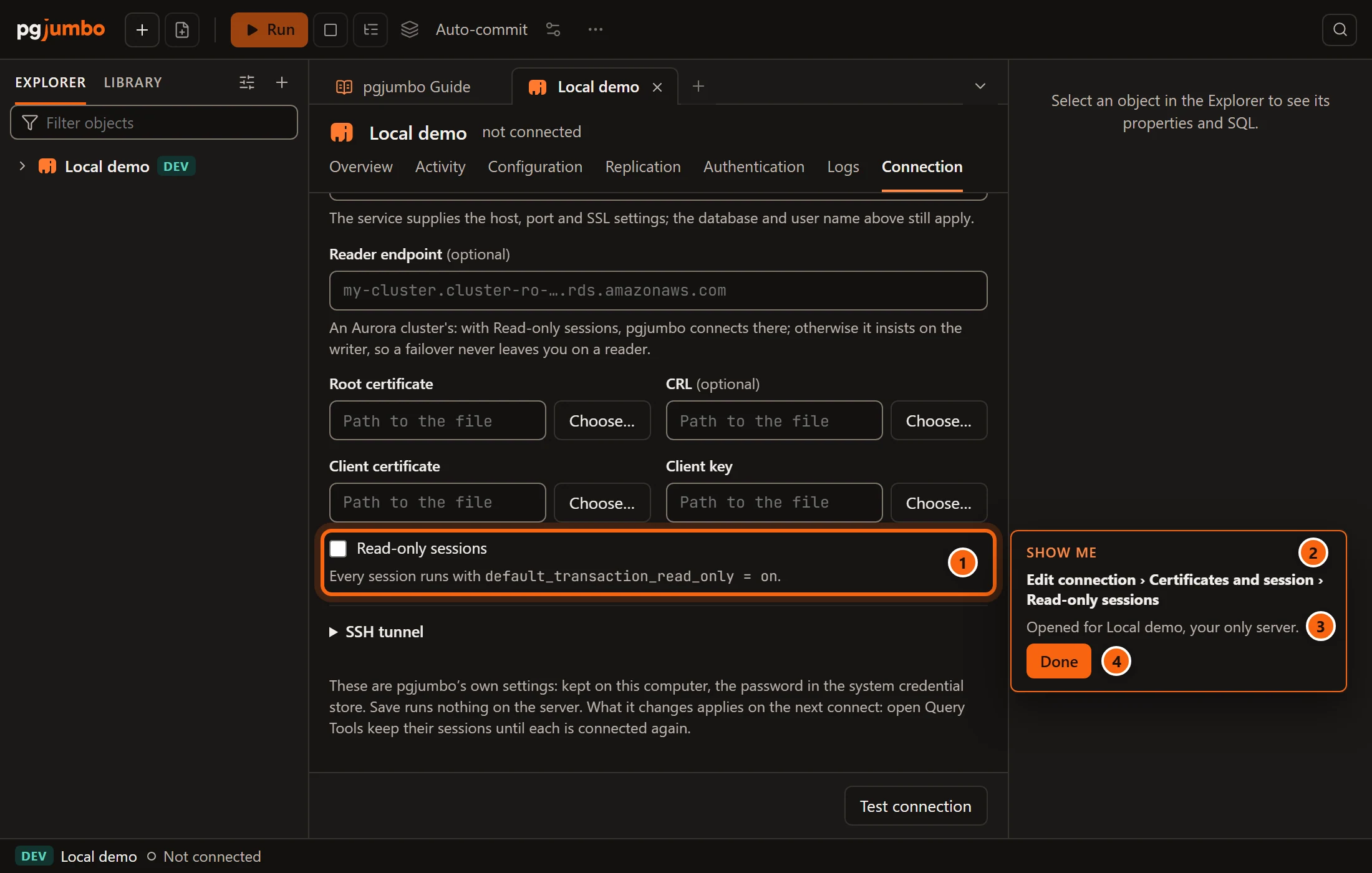
- 1 The ring around the control: here Read-only sessions, in the server’s connection form. The ring follows the control when the window scrolls or changes size.
- 2 The callout. It names the place; when Show me was started with advice, such as Untick Read-only sessions, then Save., the advice is in bold and the place is under it.
- 3 For a control that belongs to a server, which server it opened and why.
- 4 Done ends Show me. So does Esc, or a click anywhere but the control and the callout.
Show me only shows. It ticks nothing, types nothing and saves nothing; a click on the ringed control is yours. Ended inside a dialog, such as Settings, it leaves the dialog open.
| What it shows | What pgjumbo opens |
|---|---|
| A setting | The Settings sheet on the setting’s page, with its row ringed. |
| A server’s saved option, such as Read-only sessions or the SSH tunnel | That server’s tab on its Connection view, with the section unfolded. |
| A view of a server’s tab, such as Activity | That server’s tab on the view. |
| Something in the Explorer, the Library or the Assistant | The pane, shown if it was hidden. |
| A part of the Query Tool, such as its result bar or the status bar’s text size | The Query Tool you used last comes to the front; for the result bar, one that has a result. |
| An item of the menu bar | Nothing: see below. |
Which server
Section titled “Which server”A control of a server opens for one server, and the callout says which and why:
| The callout says | When |
|---|---|
| Opened for the server, the server of this tab. | Show me came from a note under an error in that tab. |
| … the server the Assistant was asked about. | It came from the Assistant’s answer. |
| … your only server. | You have one server. |
| … the server of the tab in front. | The tab in front works on a server. |
| … the server selected in the Explorer. | The tab in front works on none (the guide itself, a knowledge file) and a server is selected. |
| … the server of the tab you used last. | Neither says, but an open tab works on one. |
For another server, select it in the Explorer and press Show me again from the guide. With no server to go by, the callout says Open a tab on that server first, or open Edit connection from its menu in the Explorer.
More than one place
Section titled “More than one place”An answer of the Assistant can show several places in a row. The callout then counts them, Show me · 1 of 3, and has Next beside Done: Next goes on to the following place, Done ends it at any step.
What it cannot ring
Section titled “What it cannot ring”The menu bar belongs to your operating system, so pgjumbo cannot ring an item in it. A topic’s Menu box names each item with its menu and keys instead and has no Show me, and a Show me step on a menu item says where it is: It is in the menu bar under Query › Watch; pgjumbo can’t ring the menu bar’s items. Next still goes on from there.
When a control is not on screen, the callout says where to find it instead, above any dialog that is open:
| The callout says | Why |
|---|---|
| The place, then it shows under a Query Tool’s results. Run a query, then try again. | No Query Tool has a result to show the control under. |
| The place, then it shows while a Query Tool is in front. | The control is in the Query Tool’s toolbar or status bar and no Query Tool is open. |
| pgjumbo could not find it on screen: and the place | The control did not appear within two seconds, for example because its tab could not open. |
When pgjumbo caused an error
Section titled “When pgjumbo caused an error”Some errors come from a limit pgjumbo itself put on a tab’s session: a read-only session, or a timeout. When one of them makes a statement fail, Messages shows a note under the error that says so, why, and where to change it, with a button for each way out.
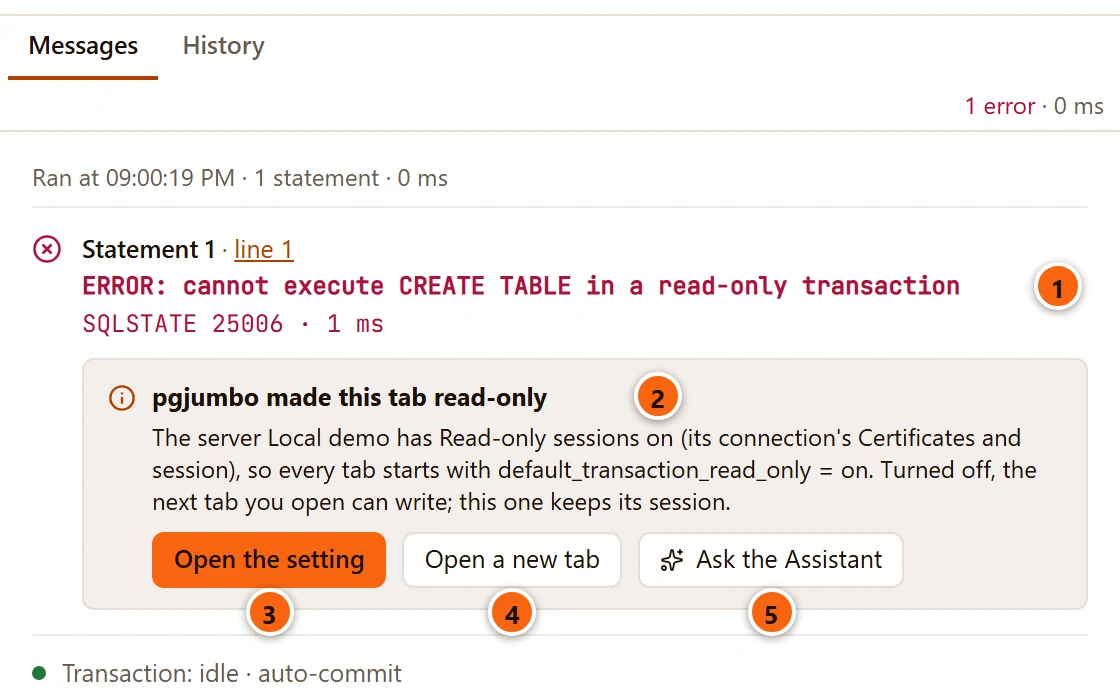
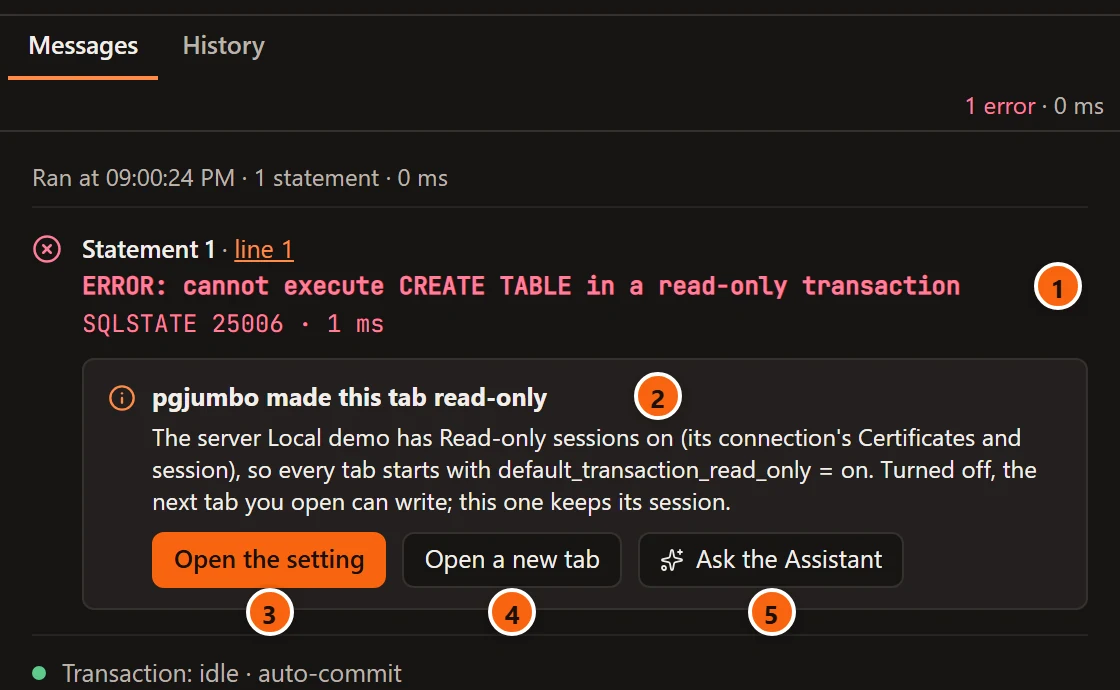
- 1 The server’s own message stays, above the note.
- 2 The note: what pgjumbo did, in bold, then why and what changing it reaches.
- 3 Open the setting is Show me: it opens the server’s tab on Connection and rings Read-only sessions, with the advice to untick it and save. Nothing is changed for you.
- 4 Open a new tab opens a new Query Tool on the same database.
- 5 Ask the Assistant puts a question about the error, and what pgjumbo said of it, in the Assistant’s box. It is there only while the Assistant is on. The rest of the note works with the Assistant off.
Nothing changes until you press a button. The orange button is the note’s main way out.
The errors pgjumbo explains
Section titled “The errors pgjumbo explains”| The server says | The note | Its buttons |
|---|---|---|
cannot execute … in a read-only transaction (SQLSTATE 25006), on a server saved with Read-only sessions |
pgjumbo made this tab read-only. Every tab on that server starts read-only. Turned off, the next tab you open can write; this one keeps its session. | Open the setting, Open a new tab |
| The same error, in a tab whose Transaction menu has Read only ticked | This tab is read-only. Its transactions start read-only; turned off, the next transaction can write. | Turn Read only off |
canceling statement due to statement timeout (57014) |
pgjumbo’s statement timeout stopped this, with the time after which the tab stops a statement. | On a Production server: Open Settings › Safety, Open Session Settings. Elsewhere: Open Session Settings |
canceling statement due to lock timeout (55P03) |
pgjumbo’s lock timeout stopped this, with how long the tab waits for a lock. | The same as for the statement timeout |
terminating connection due to idle-in-transaction timeout (25P03) |
pgjumbo’s idle-in-transaction timeout ended this tab’s session. What the transaction had done was rolled back. | On a Production server: Open Settings › Safety, Open a new tab. Elsewhere: Open a new tab |
What each button does:
| Button | What it does |
|---|---|
| Open the setting | Opens the server’s tab on Connection and rings Read-only sessions. Untick it there and save; Connection settings explains the option. |
| Open a new tab | Opens a new Query Tool on the same server and database. |
| Turn Read only off | Does what unticking Read only in the toolbar’s Transaction menu does, for this tab only. The Read only tags go from the toolbar and the status bar, and the tab says Read only is off for this tab: its next transaction can write. |
| Open Settings › Safety | Opens Settings on Safety, at the Production limit that stopped the statement. A change there reaches the tabs you open next. See Production servers. |
| Open Session Settings | Opens Session Settings for this tab, where the timeout can be changed for the tab alone. See A tab’s session. |
| Ask the Assistant | Puts the question in the Assistant’s box. See Ask the Assistant. |
On a server tagged Production the two timeouts and the idle-in-transaction limit come from SettingsSafetyBy environment; on other servers a tab has them only when you set them in Session Settings. The three timeout notes look like the two notes pictured on this page, each with its own title and buttons.
A tab made read-only from its own menu
Section titled “A tab made read-only from its own menu”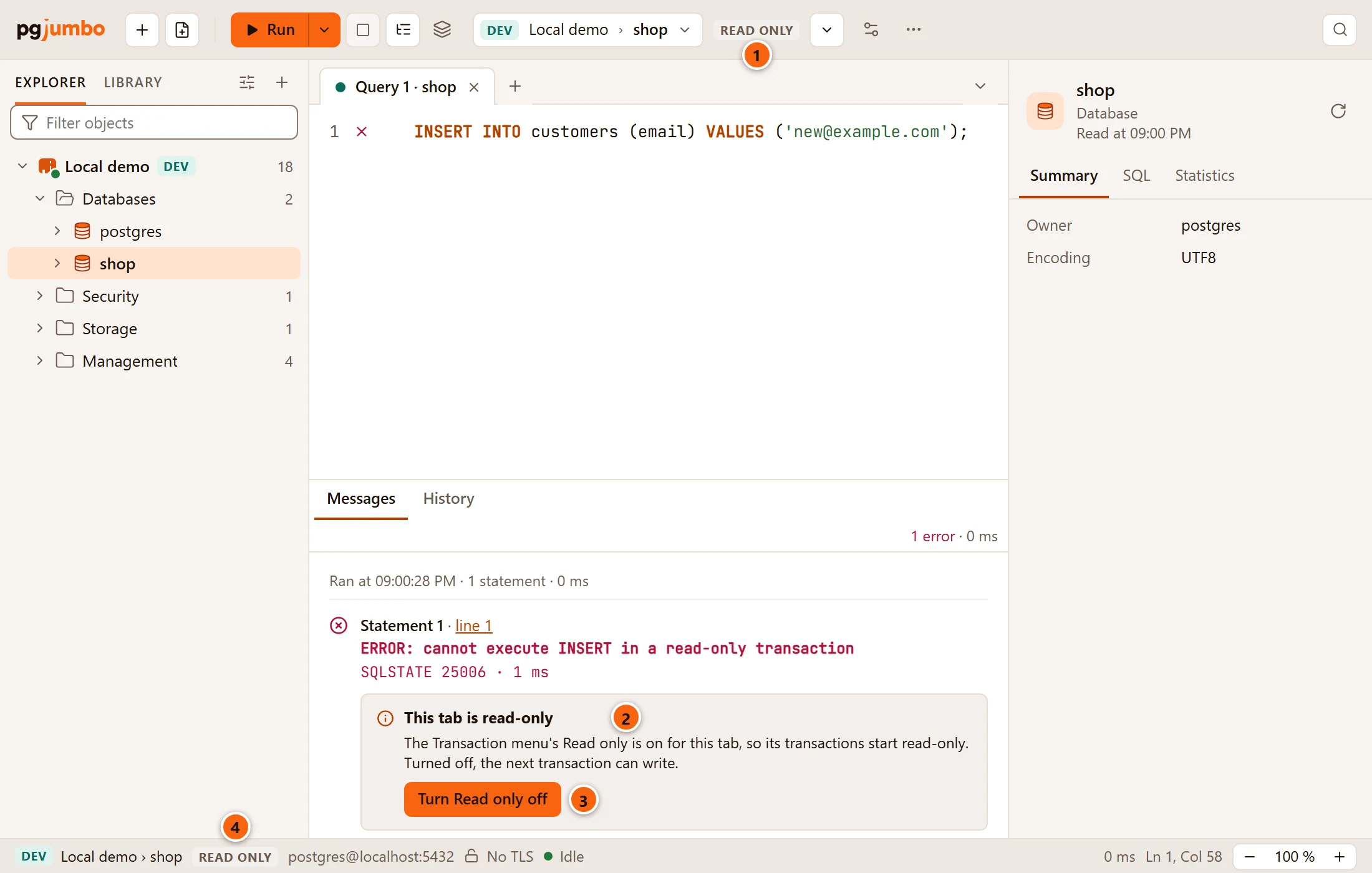
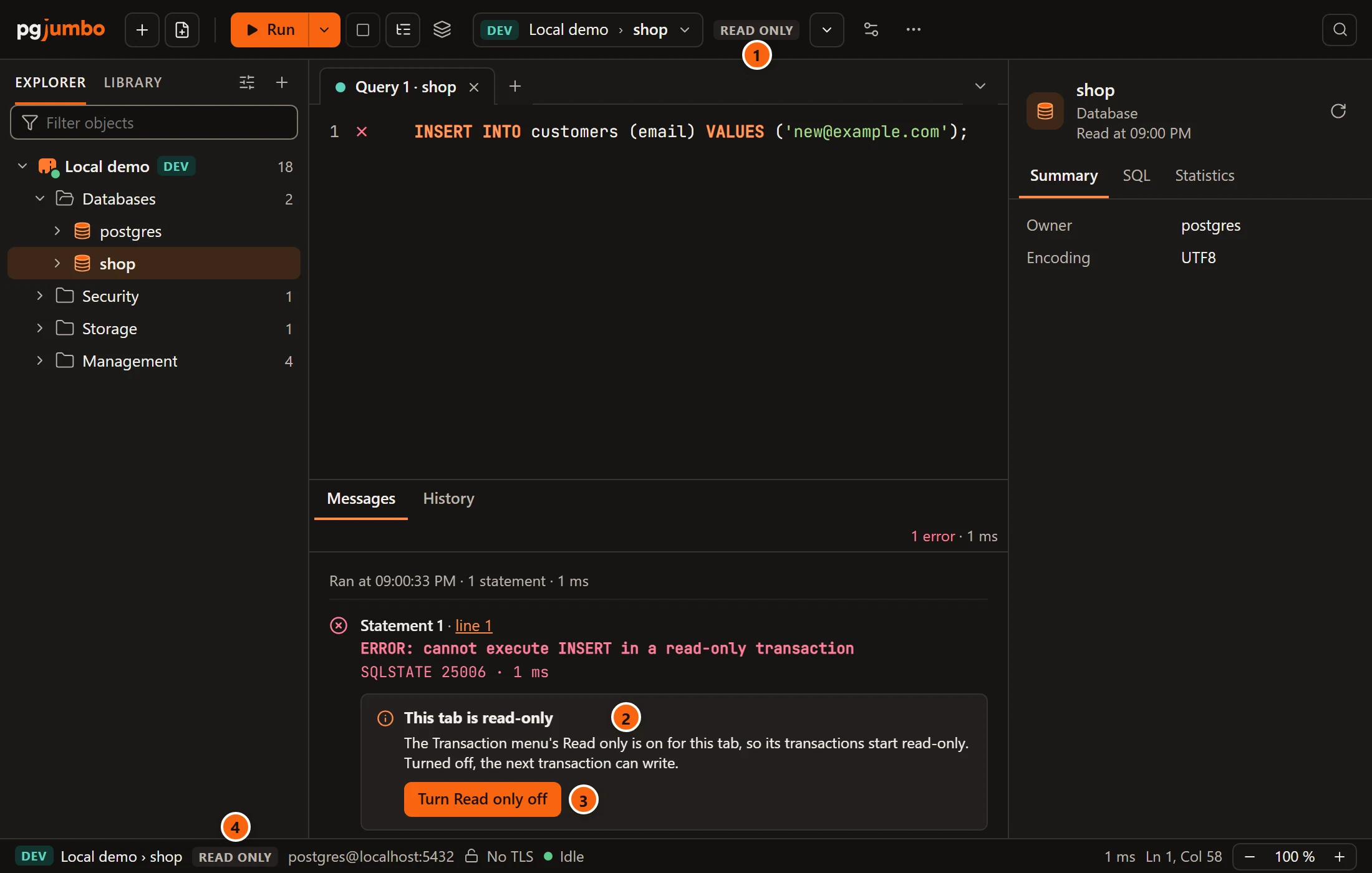
- 1 The toolbar’s Read only tag: this tab’s session is read-only.
- 2 The note says the tab’s own Transaction menu did it, not the server’s connection.
- 3 Turn Read only off makes the tab able to write again from its next transaction.
- 4 The status bar has the same tag.
Transactions explains the Transaction menu, and Connection settings the server’s Read-only sessions. Tagging a server Production does not make its sessions read-only.
When the server ends the session
Section titled “When the server ends the session”The idle-in-transaction timeout is different from the others: the server does not refuse a statement, it ends the tab’s session while the tab sits idle inside a transaction. pgjumbo notices within two seconds, without sending anything to the server. Then:
- the transaction badge and the session’s pid go, and the status bar says Disconnected;
- a banner over the tab offers Reconnect (see A tab’s session);
- Messages gets an entry of its own, not under a statement: The server ended this tab’s session with the time
pgjumbo noticed, the server’s words (
FATAL: terminating connection due to idle-in-transaction timeout) and their SQLSTATE, then the note with its buttons, then The connection was lost. It took with it the open transaction.
If you run something before the tab has noticed, that run finds the connection closed: it says nothing was sent, its DETAIL gives the server’s reason, and the note is under it. Any other fatal error that ends a session with a transaction open, such as an administrator ending it, is noticed and written the same way, with the server’s words and no note.
When there is no note
Section titled “When there is no note”pgjumbo speaks only when it knows the cause is its own: a setting it put on the tab’s session that you have not changed since. The error is the server’s message alone:
- after your own
SET,RESETorDISCARD ALLchanged that setting in the tab; - when the limit is set on the server or for your role, not by pgjumbo;
- when the server is read-only by itself, such as a standby.
For any other error, Messages offers Fix with the Assistant while the Assistant is on (see SQL help in the editor).
The same note in two dialogs
Section titled “The same note in two dialogs”Two dialogs carry a note of the same kind, with a Show me button:
- When a server cannot be reached and a saved option of its connection is the likely cause, the dialog says Where to look in the connection and names the option. Show me closes the dialog and rings it. See Connection settings.
- When Save on an object gave up waiting for a lock, the note says pgjumbo stopped waiting for a lock. Show me rings the setting that says how long Save waits. See Review before Save.