

Insert an object with @
Type @ in the editor and pgjumbo lists the objects of the tab’s database under the cursor.
Pick one and it puts in what fits there: a whole SELECT on an empty line, a table and its ON after JOIN, a call
with its parameters, a column list, an enum’s label. You choose the columns, the WHERE and the values in a panel
first if you want to, and type the values you left out afterwards. Nothing runs: the text goes into the editor and
you run it when you are ready.
Open the list
Section titled “Open the list”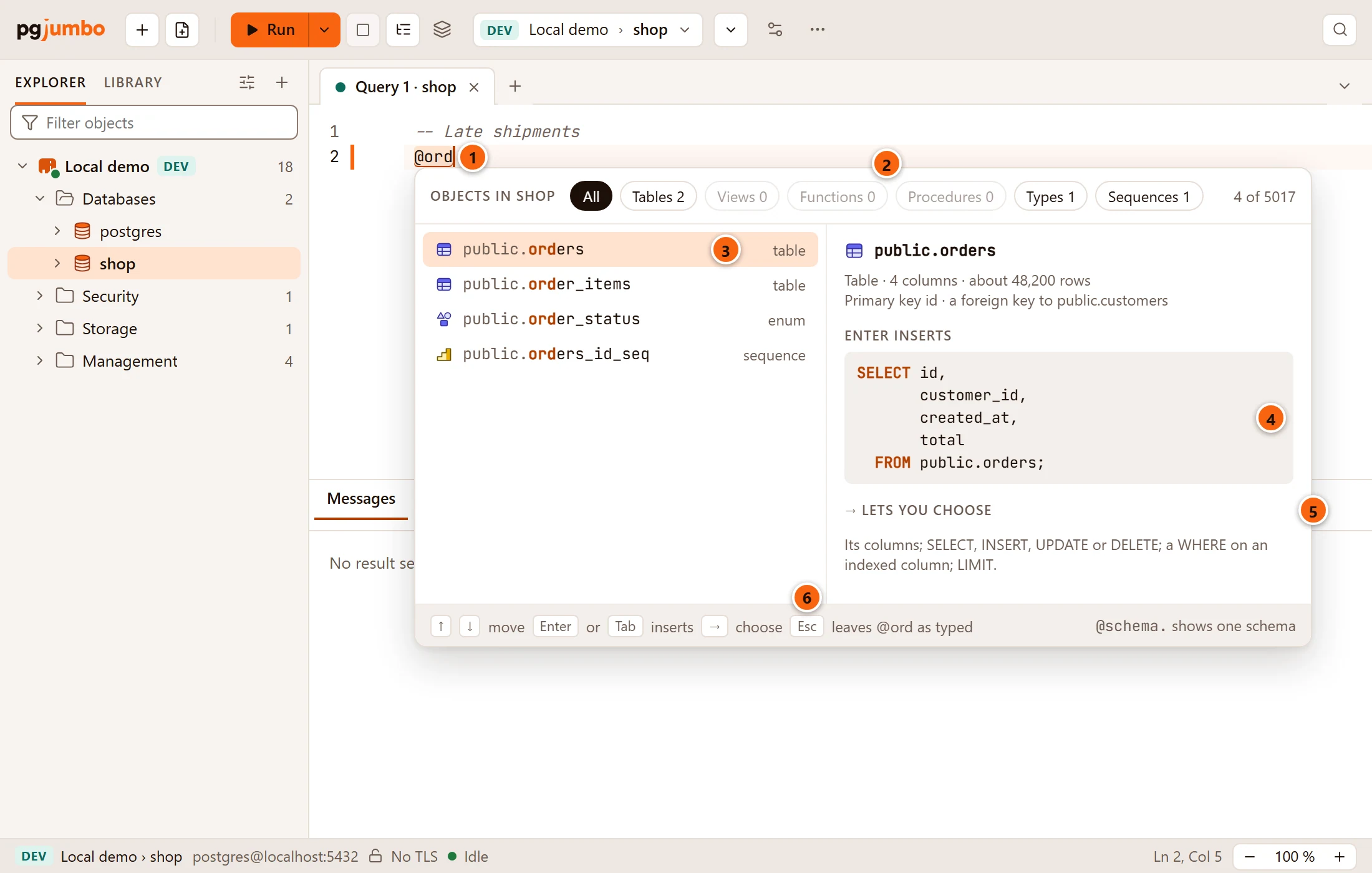
- 1 What you type after
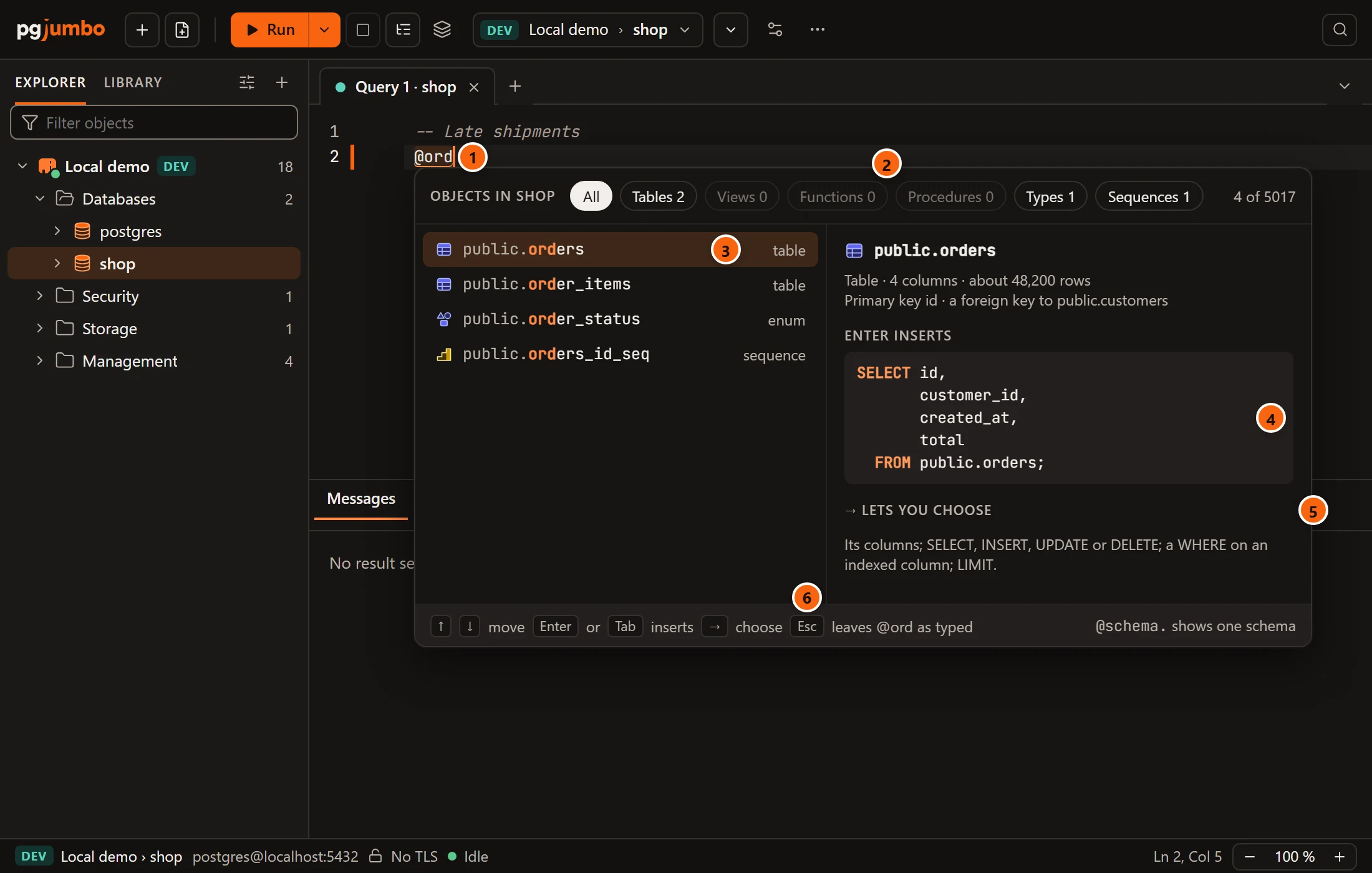
@is marked while the list shows. It narrows the list: here@ordkeeps the names that holdord. - 2 The kinds, each with how many names match: All, Tables, Views, Functions, Procedures, Types (enums) and Sequences. A kind with none is greyed out. At the right, how many rows show of all the objects in the database.
- 3 The row under the keyboard (or the pointer). The letters you typed are in bold; a function or procedure shows its arguments after its name; the kind is at the right.
- 4 Beside the list, the object’s facts (its kind, columns and estimated rows, its keys, or a routine’s parameters, an enum’s labels, a sequence’s owner, and its comment), then Enter inserts and what Enter puts in for that row, as it will look in the editor.
- 5 → lets you choose: what → opens, a table’s or a routine’s panel, when it has one there.
- 6 The keys. Esc closes the list and leaves what you typed as it is. At the right,
@schema.reminds you how to see one schema.
The list opens when you type @ where a name can start: at the start of a line, or after a space, (, ,, = or
;. A name that equals what you typed comes first, then names that start with it, the shorter ones first. At most 100
rows show; type more to narrow them. To see one schema only, type its name and a dot, such as @billing. or
@sales.ord. While the objects are being read the list says Reading the database…; when nothing matches it says
Nothing here is named like ord.
It lists tables (partitioned and foreign ones too), views, materialized views, functions, procedures, enums and
sequences, outside pg_catalog and information_schema. Partitions, the sequences of identity columns, functions and
enums that belong to an extension, and trigger, event trigger and handler functions are left out.
| Key or mouse | What it does |
|---|---|
| ↑ ↓, Page Up Page Down | Move through the list. |
| Enter or Tab | Puts in what the side shows. With nothing typed after @ and before you move through the list, Enter starts a new line and Tab indents, so nothing goes in by surprise. |
| → | Opens the row’s panel, when it has one: see Choose a table’s columns, WHERE and LIMIT and Call a function or procedure. |
| Esc | Closes the list. What you typed stays. |
| Pointing at a row, a click | Moves to the row. A double-click puts it in. |
| A kind at the top, a click | Shows that kind only; All shows every kind again. |
The list also closes when you type a character that cannot be part of a name (a space, >, (), when the cursor
leaves what you typed, or when the keyboard focus leaves the editor. While it shows, the editor’s
suggestions stay closed.
To open the list without typing @, press ⇧ ⌘ I (Ctrl+Shift+I on Windows and Linux), choose
QueryInsert Object…, or choose Insert Object… on the
editor’s right-click menu. It opens at the cursor, and Enter puts in the first row even
before you type. The menu item needs the tab’s server to be connected.
The list reads the database’s objects on the server’s own connection the first time it opens and keeps them for up to five minutes. It reads them again at once after a run in the tab that creates, changes or drops objects, and after Refresh in the Explorer on the server or anything under it, for an object made elsewhere, such as in psql. What a row offers (its columns, its parameters) is read again after half a minute.
What goes in where
Section titled “What goes in where”What Enter puts in depends on where the @ is in the statement around it (the text between the
semicolons around the cursor).
Where @ is |
What the list offers and what goes in |
|---|---|
At the start of a statement: an empty line, or after ; |
Every kind. A table or view: a SELECT of its own, naming its columns one per line (see Settings). A function: SELECT f(…);, or SELECT * FROM f(…); when it returns rows. A procedure: CALL p(…);. A sequence: SELECT nextval('…');. An enum: its name. |
After FROM, JOIN, UPDATE, INTO or TABLE, or after a comma in a FROM list |
Tables and views only. After FROM and JOIN the name and an alias made of its words’ first letters (customers c, order_items oi, with a number added when the statement already uses it). After JOIN, also the ON from a foreign key between it and a table the statement already names, either way round. After UPDATE, INTO and TABLE the name alone. |
In a select list: after SELECT, DISTINCT or a comma, before FROM |
The columns of the tables the statement reads. See Tick several columns. |
After =, <>, !=, <, >, <= or >= on a column of an enum type |
The enum’s labels first, in the type’s own order, each put in as a string such as 'shipped'; then the objects. |
Anywhere else, such as inside VALUES ( or after WHERE |
Everything but procedures. A function: the call alone, f(…). A sequence: nextval('…'). A table, view or enum: its name. |
Every name goes in with its schema, and with double quotes when it needs them. The server quotes them.
A JOIN and its ON
Section titled “A JOIN and its ON”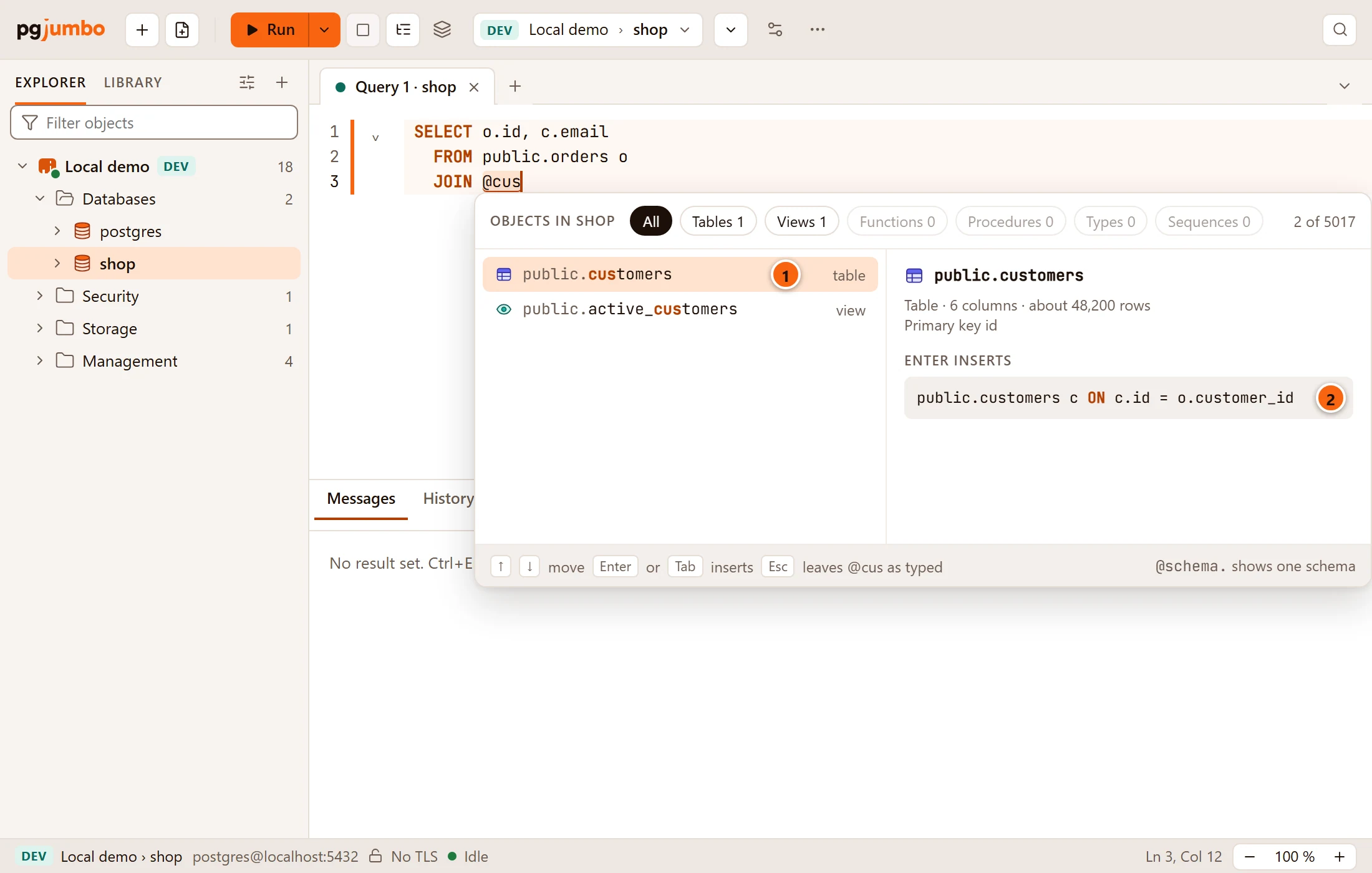
- 1 After
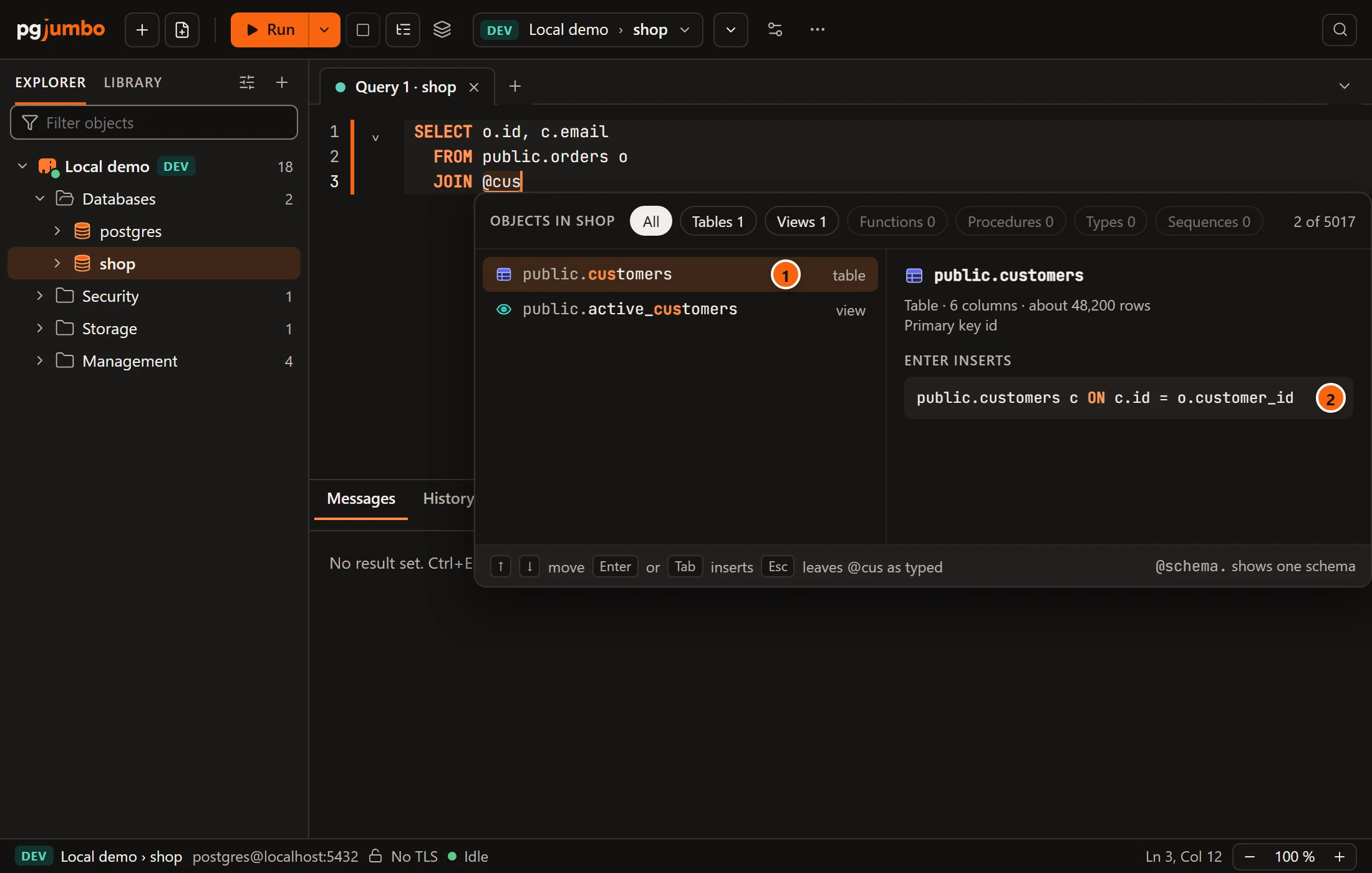
JOINthe list holds tables and views only. - 2
ordershas a foreign key tocustomers, so theONcomes with the name. A key of several columns writes each pair, joined byAND. Without a foreign key between them, only the name and the alias go in.
Tick several columns
Section titled “Tick several columns”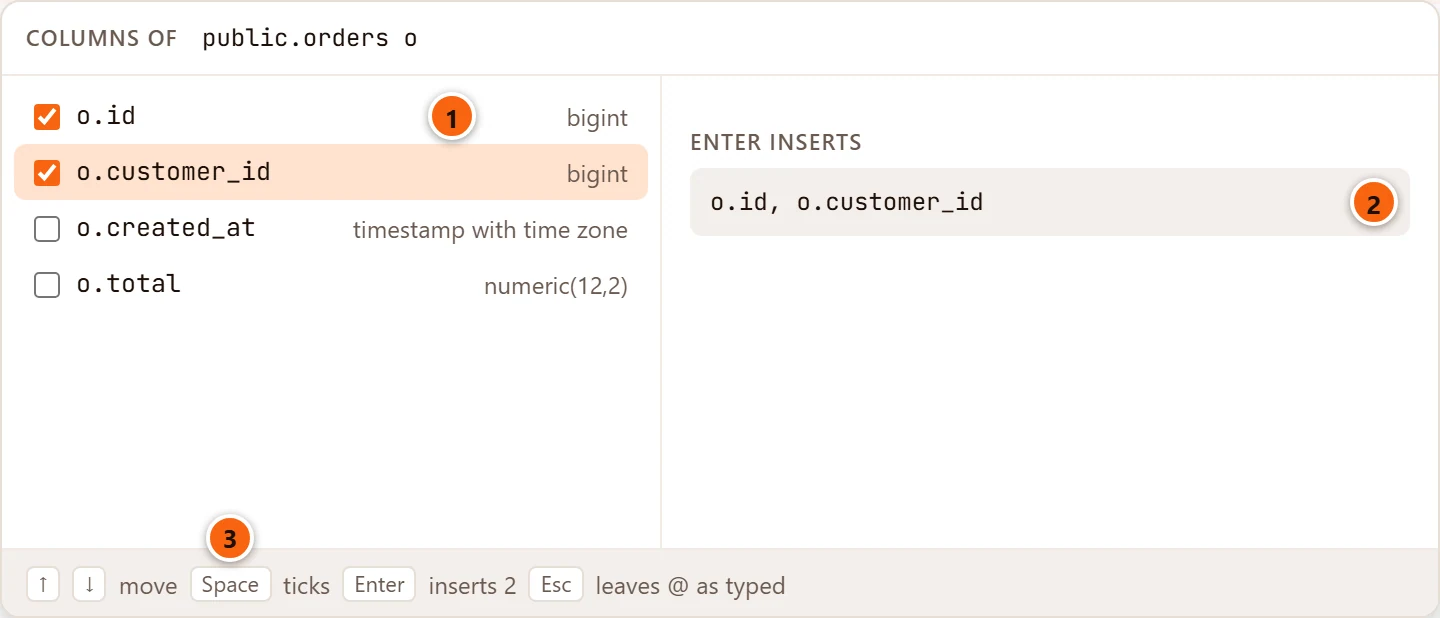
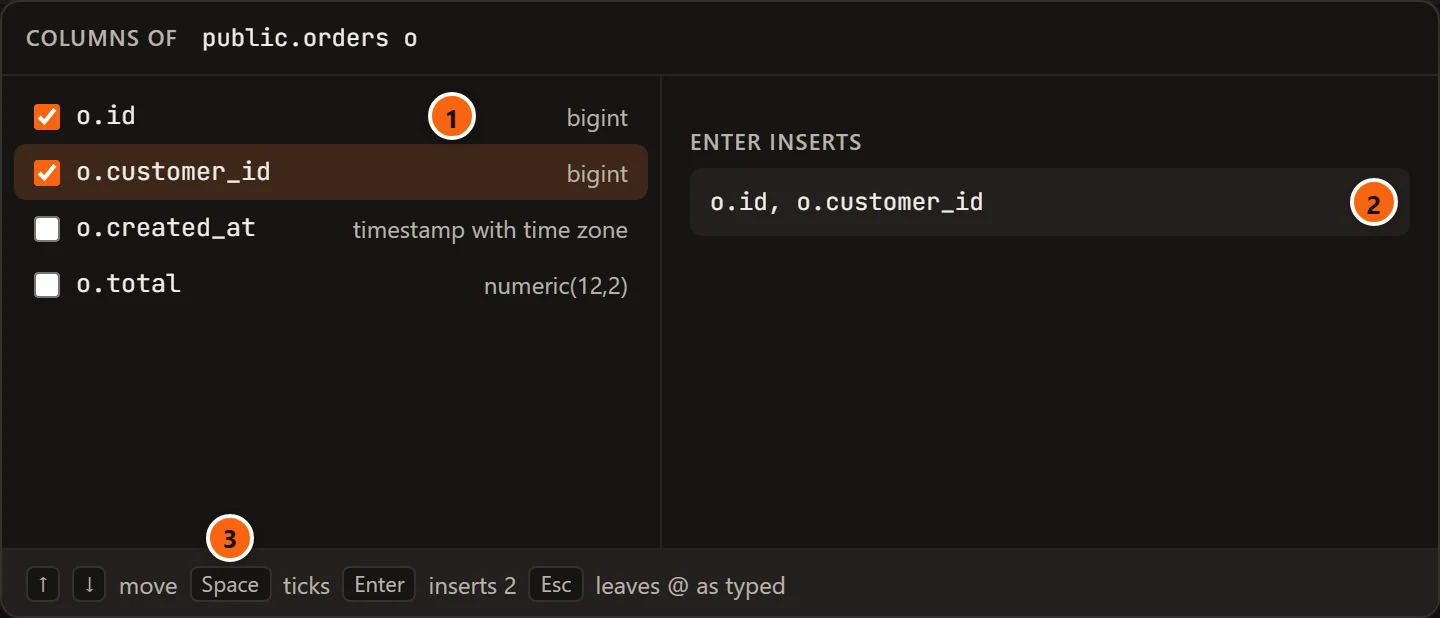
- 1 Space ticks or unticks the column under the keyboard; a click does the same.
- 2 What goes in: the ticked columns, comma-separated, each with its table’s alias in front (or the table’s name, when the statement reads several tables and that one has no alias).
- 3 Enter puts them in (the hint says how many). With none ticked, it puts in the column under the keyboard.
The columns come from the tables after FROM and JOIN in the same statement, so write those first and then go back
to the select list; until then the list says No columns: name the tables in FROM first. Typing after @ narrows the
columns by name.
Choose a table’s columns, WHERE and LIMIT
Section titled “Choose a table’s columns, WHERE and LIMIT”Press → on a table or view at the start of a statement. The list becomes the table’s panel, and the keyboard moves into it.
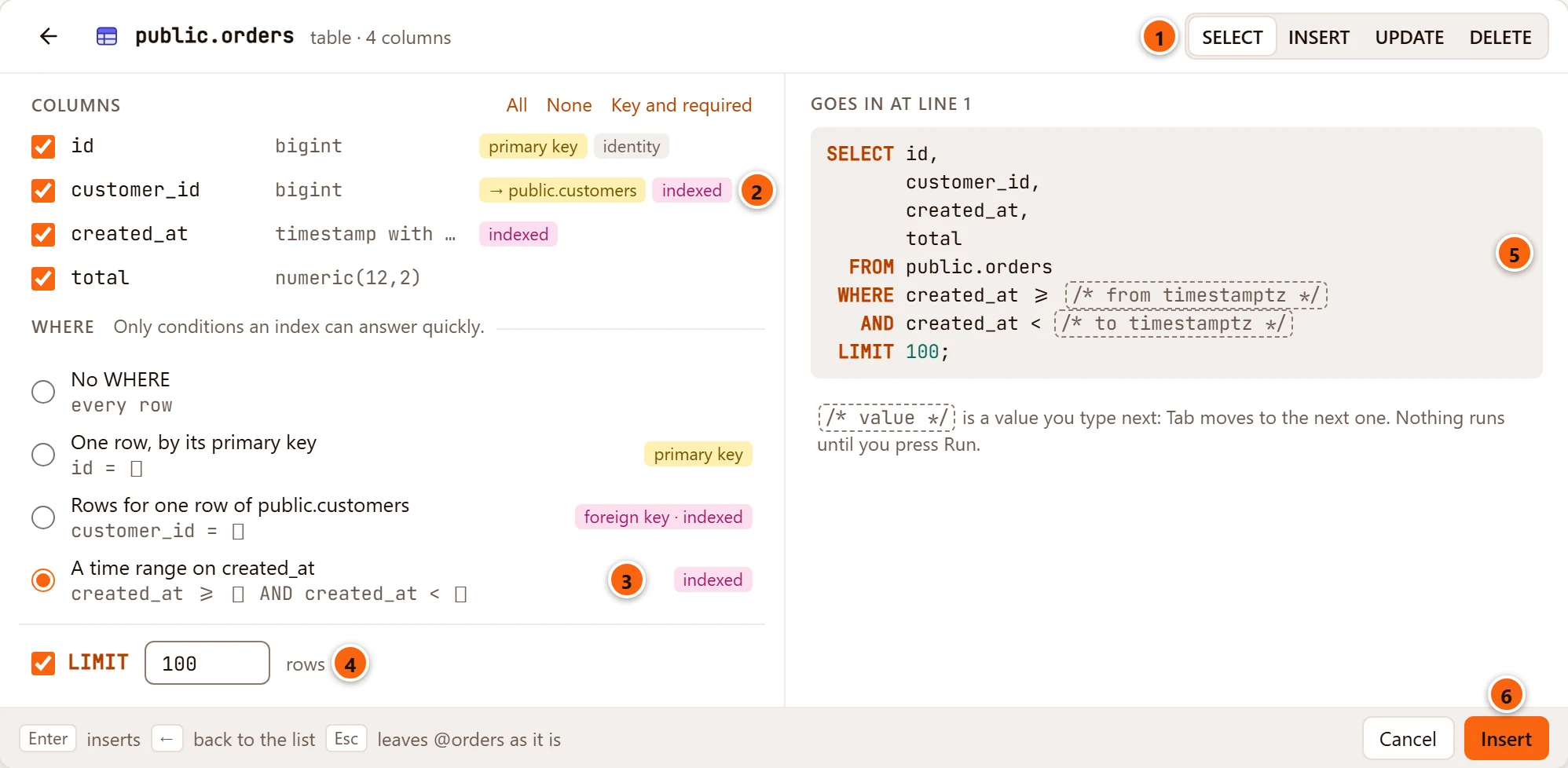
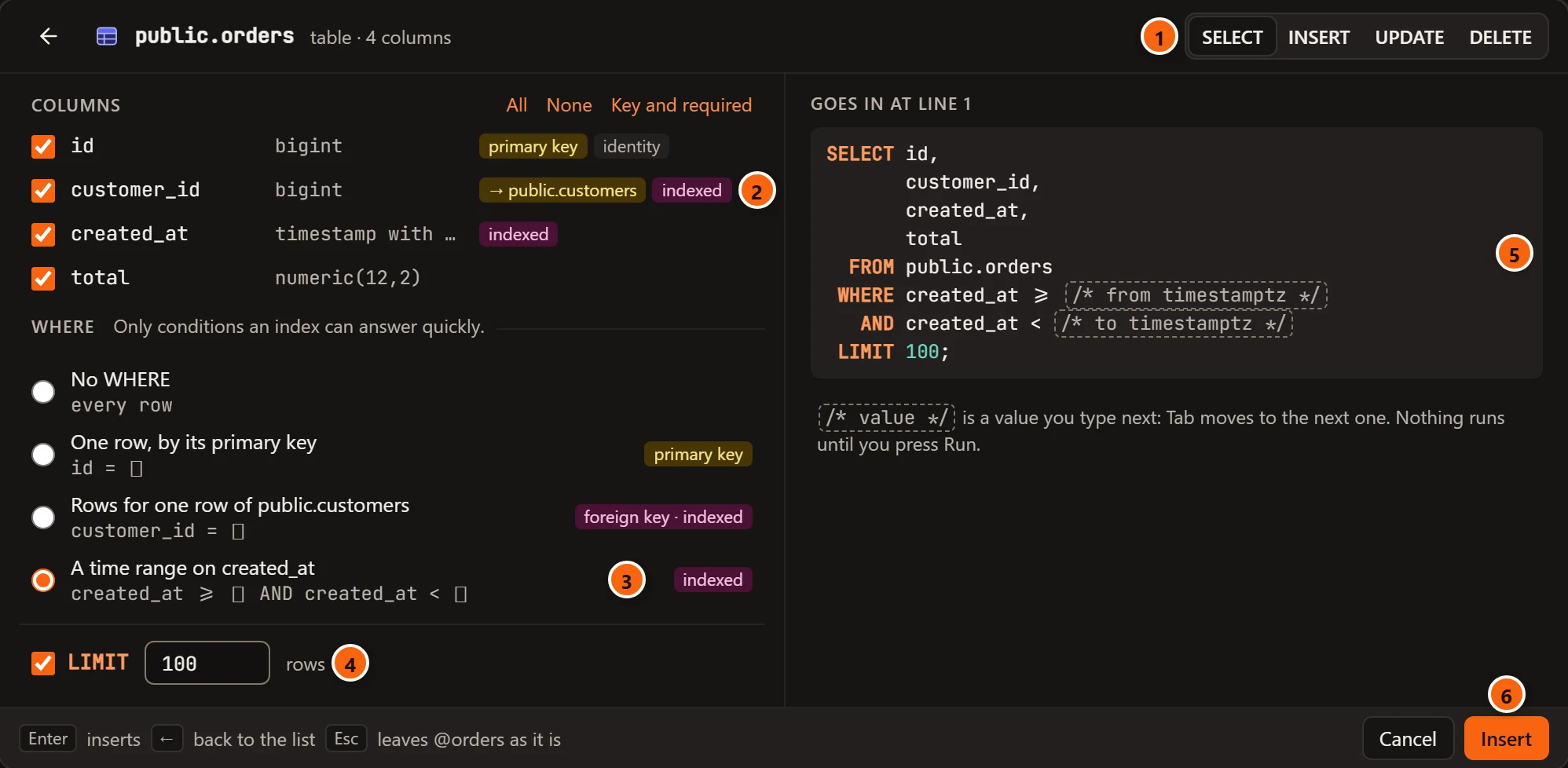
- 1 The statement: SELECT, INSERT, UPDATE or DELETE. Only those the table takes show: a materialized view and a view PostgreSQL cannot update take only SELECT.
- 2 Each column with its type and tags: primary key, → and the table a foreign key on that column
points to, indexed (an index starts with it), identity, generated (PostgreSQL sets it; its tooltip shows
the expression), and default with its default. All, None and Key and required (the primary key and
the
NOT NULLcolumns) tick them in one go. - 3 Where: only conditions an index can answer quickly, so the statement does not read the whole table. Each shows the condition it writes and the index behind it.
- 4 LIMIT and how many rows, for a SELECT.
- 5 Goes in at line 1: what goes in, written as it will be in the editor. A value to type is a comment in
a dashed box; under it,
/* value */ is a value you type next: Tab moves to the next one. Nothing runs until you press Run. - 6 Insert puts it in, as Enter does.
What each statement starts with:
| Statement | Columns | WHERE |
|---|---|---|
| SELECT | As Settings says; with none ticked, SELECT * (None ticked: SELECT *.). |
No WHERE. |
| INSERT | Columns to fill: those without a default that are not identity columns. A value to type for each. | None: INSERT takes no WHERE. |
| UPDATE | Columns to set: none until you tick them (Tick the columns to set.). A value to type for each. |
The primary key’s, or the first one offered. |
| DELETE | None: DELETE names no columns. |
The primary key’s, or the first one offered. |
A generated column, and an identity column that is GENERATED ALWAYS, cannot be ticked for INSERT or UPDATE:
PostgreSQL sets it, and its tooltip says so.
The conditions offered, at most six, best first:
| Condition | When it is offered | What it writes |
|---|---|---|
| One row, by its primary key | The table has a primary key. | id = …, and AND for each further column of the key. |
| Rows for one row of a table | A foreign key whose first column an index starts with. | Its columns = …. |
| A time range on a column | An index starts with a date, timestamp or timestamptz column. |
created_at >= … and AND created_at < …. |
| By a column | Any other column an index starts with. | status = …. |
UPDATE and DELETE always have a WHERE here: for them the first choice reads No WHERE: UPDATE needs one here
(or DELETE), write it yourself to touch every row, and is greyed out. When no index serves the table, the panel says
No index can find the rows: write this DELETE yourself., the right side says
Nothing goes in: no index can find the rows this DELETE would remove. (or this UPDATE would change), and Insert
stays off.
In the panel, Enter inserts, ← (outside a text field) or the arrow at the top left goes back to the list, and Esc or Cancel closes everything and leaves what you typed. The panel also closes when you click anywhere outside the editor.
Call a function or procedure
Section titled “Call a function or procedure”Press → on a function or procedure.
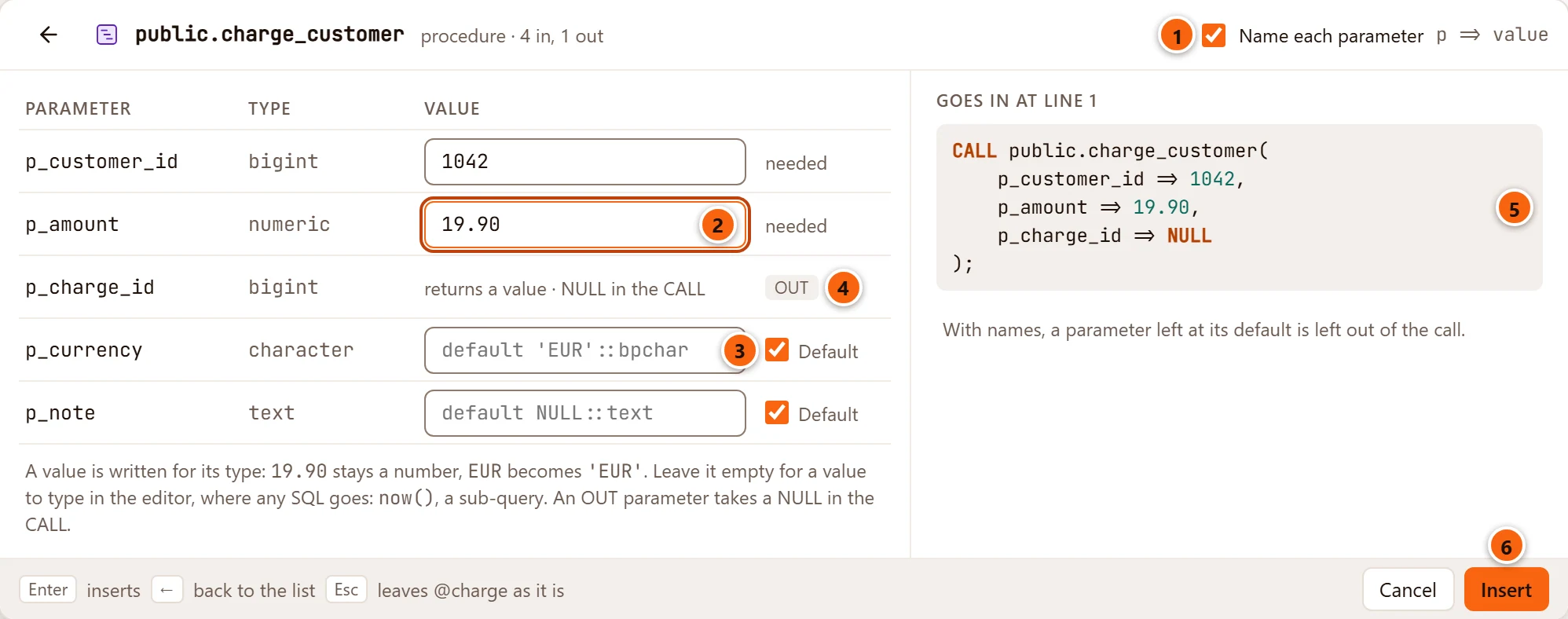
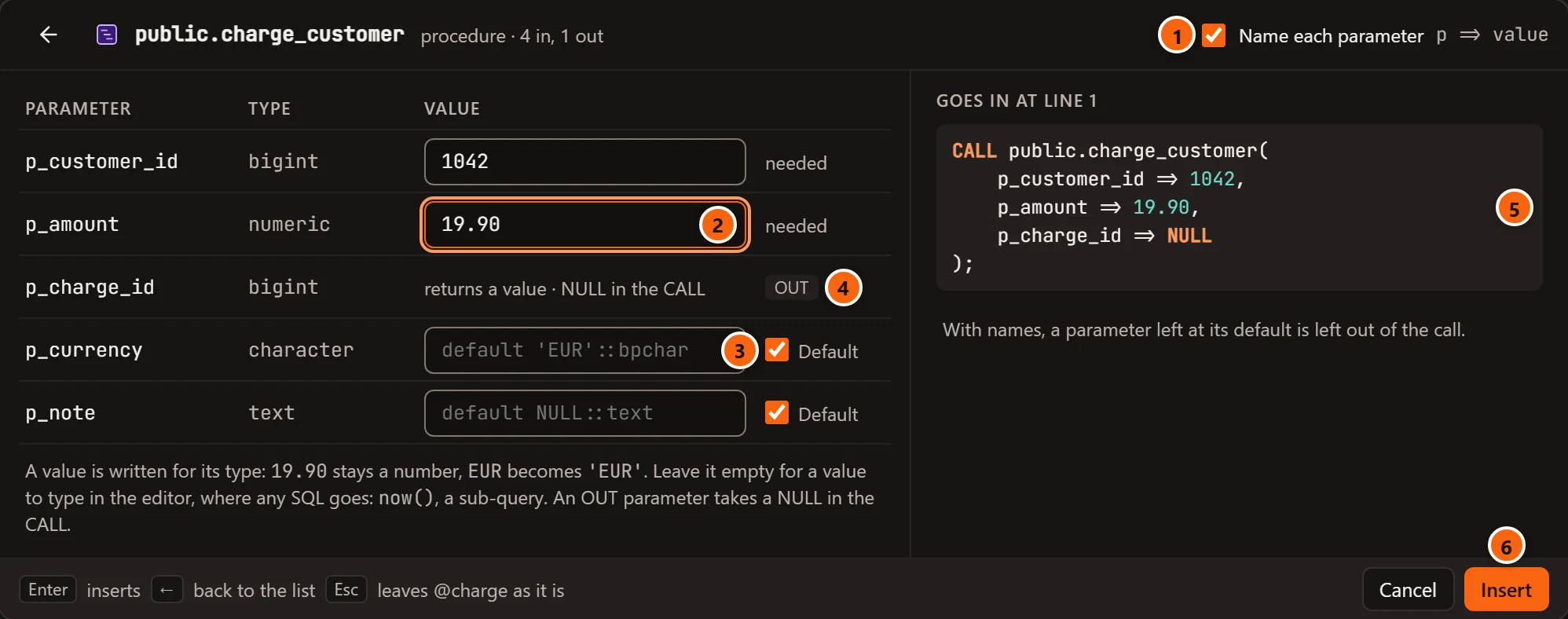
- 1 Name each parameter writes
p_amount => 19.90rather than the values in order. - 2 A value. pgjumbo writes it for the parameter’s type:
19.90stays a number for a numeric type,trueandfalsestay as they are for a boolean, and anything else becomes a quoted string, quoted by the server (EURbecomes'EUR', a quote inside it is doubled). Leave it empty (empty: a value to type) for a value to type in the editor, where any SQL goes:now(), a sub-query, a column. - 3 Default leaves a parameter to its default, which the field shows. Untick it to give a value. A
parameter with no default says
needed, aVARIADIConean array. - 4 An OUT parameter takes no value. A procedure’s says
returns a value · NULL in the CALL: it takesNULLwhere it stands in theCALL(PostgreSQL 14 or later). A function’s saysreturns a value, as a column: it comes back as a column of the result and is not written. - 5 The call as it goes in. With two parameters or more, each is on a line of its own.
- 6 Insert.
Name each parameter is greyed out where names cannot be used, and its tooltip says why:
One parameter needs no name: the call gives it by position, A parameter has no name, or one is VARIADIC, or
It takes no parameters. So a procedure with an OUT parameter that has no name is always called by position.
With names, a parameter left at its default is left out of the call. Without them, every parameter up to the last one
you give is written, a default as PostgreSQL keeps it ('EUR'::bpchar). The line under the call says which. A
VARIADIC parameter takes an array.
A procedure is called with CALL at the start of a statement only; inside a statement the list does not offer it. A
function at the start of a statement is SELECT f(…);, or SELECT * FROM f(…); when it returns rows; elsewhere it
goes in as the call alone. A function has a panel at the start of a statement and inside one; a procedure only at the
start.
Type the values
Section titled “Type the values”What you left out goes into the editor as a comment naming the column or parameter and its type, such as
/* id bigint */. Each one is a field to type over.
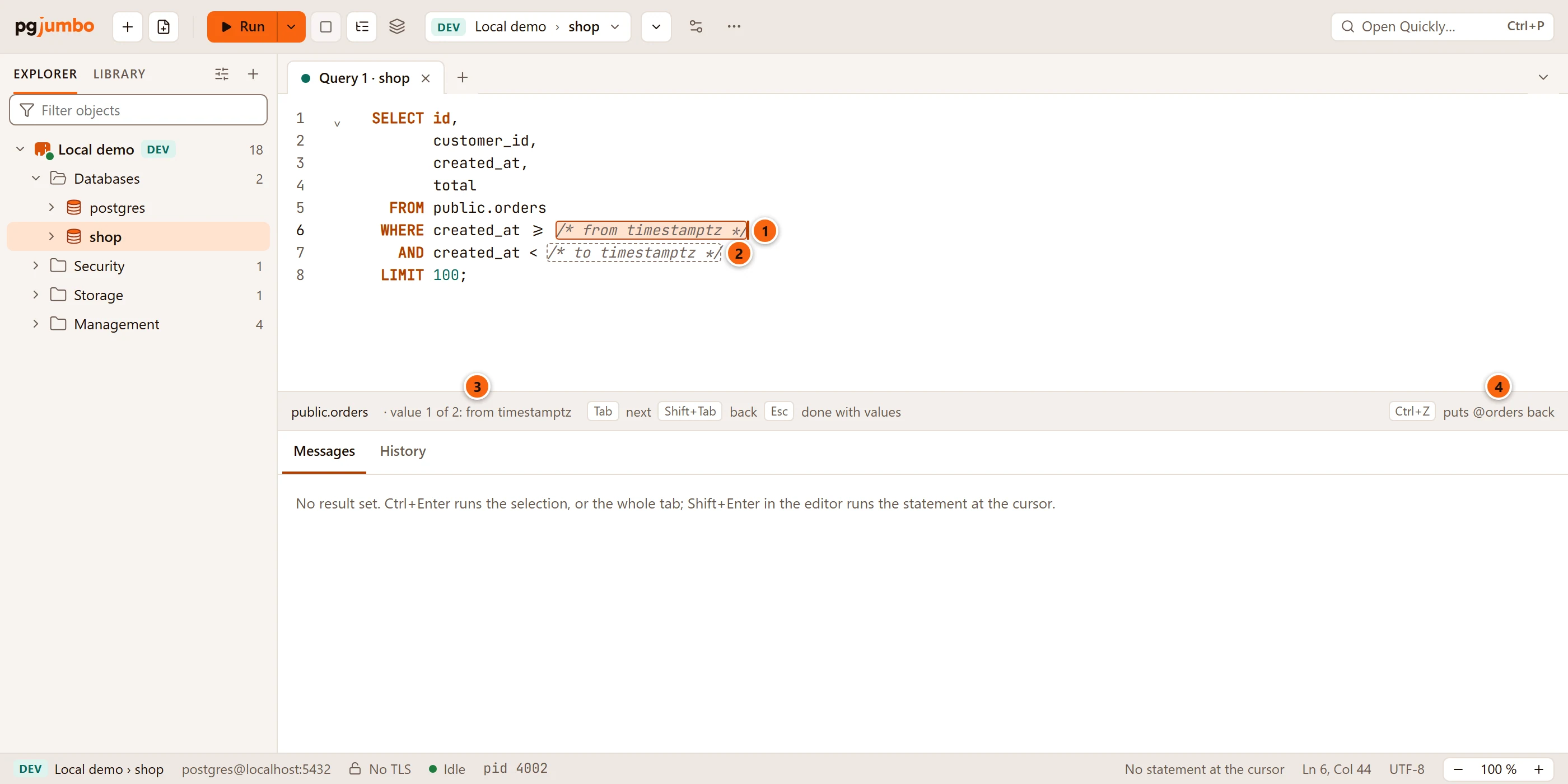
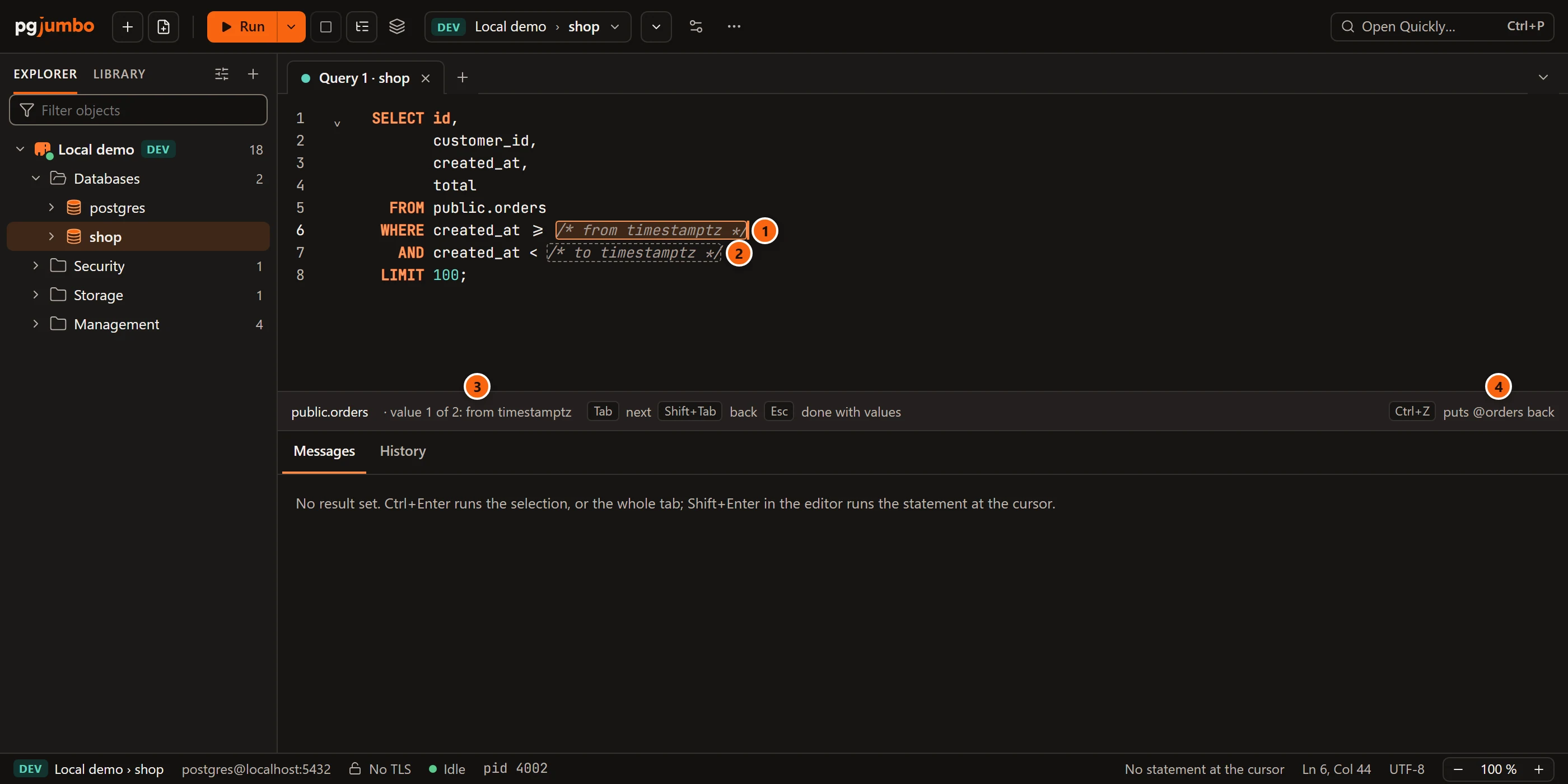
- 1 The first value is selected. Type over it.
- 2 The next value. Tab goes to it, Shift+Tab back.
- 3 The bar under the editor names the object and the value you are in:
public.orders · value 1 of 2: from timestamptz. - 4 ⌘ Z (Ctrl+Z on Windows and Linux) takes out everything that went in and puts back what you typed after
@, in one step.
Tab after the last value moves the cursor to the end of what went in. Esc, or moving the
cursor out of it, ends the values; the comments you did not fill in stay as text. In a narrow editor the bar drops the
keys’ hints first, from the right, so the value’s name and type stay whole; then the object’s name is shortened with
…, and its tooltip shows it whole.
While you type a value, suggestions do not open by themselves, so Tab always goes on to the next value. ⌃ Space (Ctrl+Space on Windows and Linux) shows them, and Tab then takes one. With suggestions open, Esc closes them first, and the next Esc is done with the values.
A value left as its comment keeps the statement from running: PostgreSQL stops where the value should be, and the
editor underlines it as a syntax error before you run anything. Long
type names are shortened in the comments: timestamptz, varchar(40).
PostgreSQL’s own @
Section titled “PostgreSQL’s own @”@ is also part of PostgreSQL’s operators. The list never takes them:
| You type | What happens |
|---|---|
tags @> ARRAY['sale'] |
The list opens at @ and closes at >. The text is what you typed. |
a <@ b, a@b |
Right after a name or <, @ is an operator: no list. |
doc @@ to_tsquery('cat') |
The second @ closes the list. |
SELECT @ -5 |
The space after @ closes the list. |
'ben@example.com', -- ping @ops |
Inside a string, a comment, a quoted name or a $$ body: no list. |
@ then Enter |
A new line; nothing goes in. |
You can also turn the list off for @; see Settings.
Settings
Section titled “Settings”SettingsEditorInsert an object with @ holds four settings. They apply at once. See Settings.
| Setting | What it does | Default |
|---|---|---|
| Open the list when I type @ | Off, @ is a character like any other; QueryInsert Object… (⇧ ⌘ I (Ctrl+Shift+I on Windows and Linux)) still opens the list. |
On |
| A table’s SELECT lists | Every column, The key and required columns (the primary key and NOT NULL columns), or *. |
Every column |
| Add a LIMIT | A LIMIT added to a table’s SELECT, 1 to 1,000,000 rows; empty adds none. The panel’s LIMIT starts from it. |
None |
| Name the arguments of a call | Calls name their parameters, as p_amount => 19.90, when the routine allows it. The panel’s Name each parameter starts from it. |
On |
Nothing runs
Section titled “Nothing runs”The list and the panels read the catalog of the tab’s database on the server’s own connection, and pgjumbo writes the text: the names as the server quotes them, the values as literals the server quotes. What goes in is text in your editor. It runs when you run it, on the tab’s own connection, with the Production confirmation as any statement.