

Change the shortcuts
Every action in pgjumbo’s menu bar can have a shortcut, and SettingsKeyboard decides which. Start from pgjumbo’s own shortcuts or from those of the tool you come from, say what ⌘ ↩︎ (Ctrl+Enter on Windows and Linux) runs, and give any action keys of your own. The menu bar shows the result beside each item.
Keyboard shortcuts lists the keys pgjumbo starts with. This page is about changing them.
The Keyboard page
Section titled “The Keyboard page”Open Settings with ⌘ , (Ctrl+, on Windows and Linux) and click Keyboard in the list of pages.
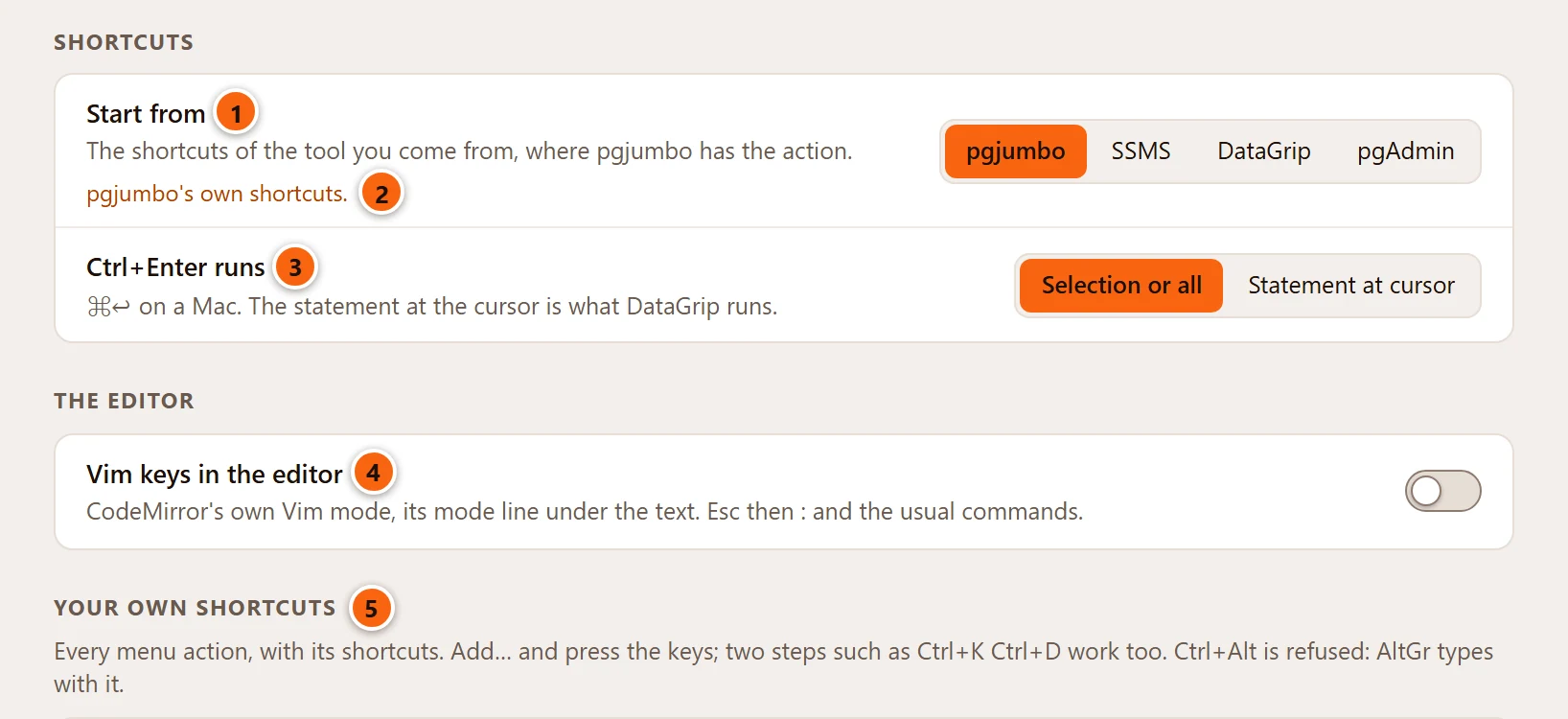
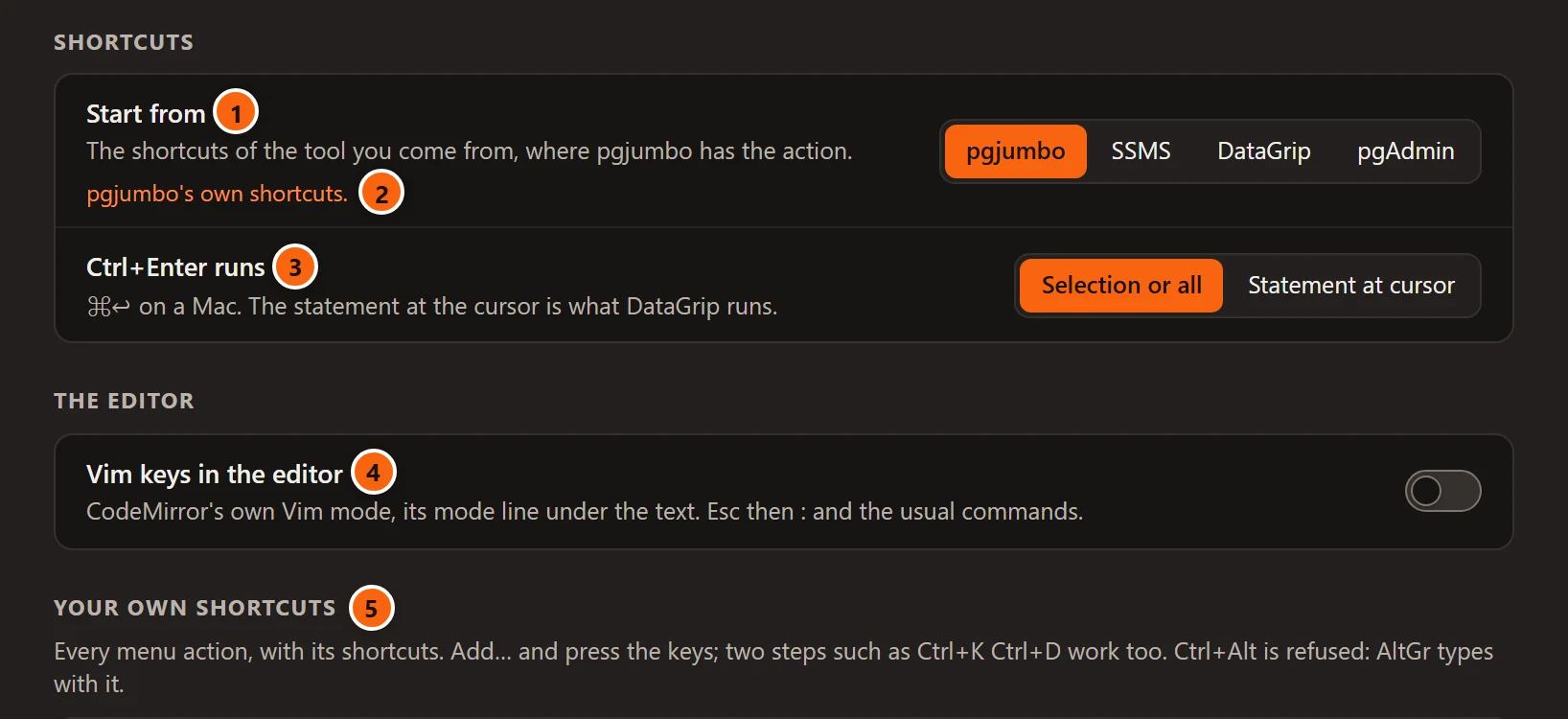
- 1 Start from: the preset everything else builds on. See Start from another tool’s shortcuts.
- 2 The line in tangerine names the main keys of the chosen preset.
- 3 Ctrl+Enter runs: see Choose what Ctrl+Enter runs.
- 4 Vim keys in the editor: see Turn on Vim keys.
- 5 Your own shortcuts: a table of every menu action, under this heading. See Give an action a shortcut of your own.
As everywhere in Settings, a change applies at once: there is no Save. The menu bar’s shortcuts change as you change them here. Settings explains the dot and the reset button of a changed setting, Restore this page’s defaults and Undo.
Start from another tool’s shortcuts
Section titled “Start from another tool’s shortcuts”Start from offers pgjumbo, SSMS, DataGrip and pgAdmin. A preset gives an action the keys that tool uses, where pgjumbo has the action. Every action the preset does not name keeps pgjumbo’s own shortcut.
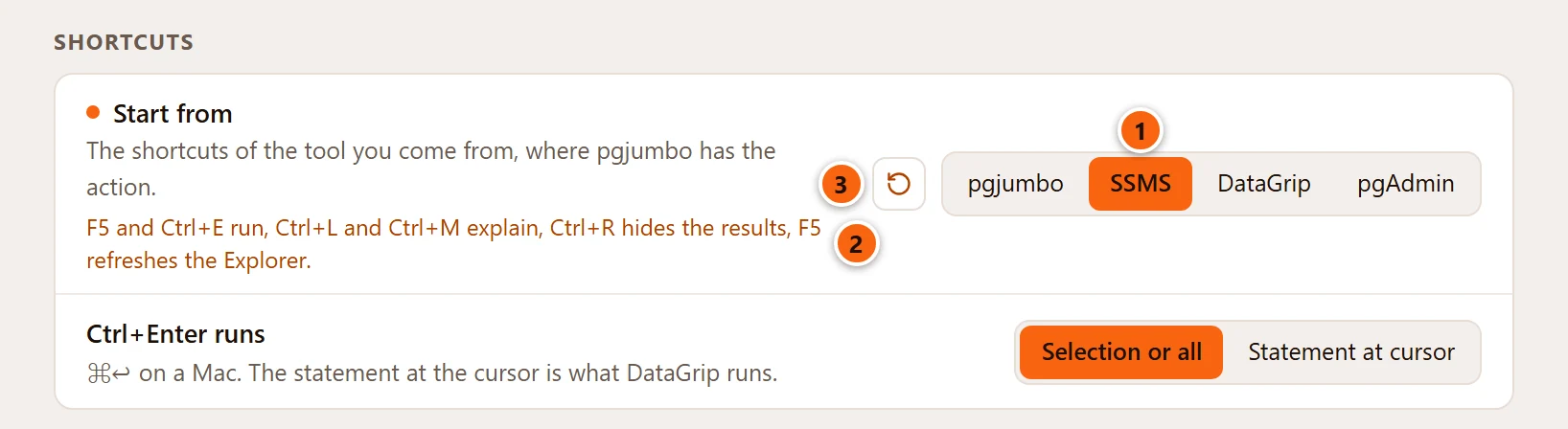
- 1 The chosen preset, here SSMS.
- 2 The line names its main keys.
- 3 The reset button goes back to pgjumbo.
The tables below write the keys for Windows and Linux. On a Mac a preset’s Ctrl is ⌘: SSMS runs with ⌘ E.
| Action | With SSMS | pgjumbo’s own |
|---|---|---|
| Run | Ctrl+E, Ctrl+Enter, and F5 in the editor | Ctrl+Enter |
| Run Script | Ctrl+Shift+Enter | Ctrl+Shift+Enter, and F5 in the editor |
| Stop | Alt+Pause, Ctrl+. | Ctrl+., and Shift+F5 in the editor |
| Explain | Ctrl+L | ⌘ E (F7 on Windows and Linux) |
| Explain Analyze | Ctrl+M | ⌥ ⌘ E (Shift+F7 on Windows and Linux) |
| New Query Tool | Ctrl+N | Ctrl+T |
| New Connection… | No key | Ctrl+N |
| Hide Results Pane | Ctrl+R | No key |
| Refresh | F5 | Ctrl+R |
| Explorer | F8 | ⌘ 0 (Ctrl+B on Windows and Linux) |
| Properties | F4 | ⌘ I (Alt+Enter on Windows and Linux) |
F5 does two things with this preset: in the editor it runs what Run runs, and elsewhere it refreshes the Explorer’s selected row. The menu bar then shows no key beside Refresh, because a key the editor uses for something else is left out of the menus.
DataGrip
Section titled “DataGrip”| Action | With DataGrip | pgjumbo’s own |
|---|---|---|
| Stop | Ctrl+F2, Ctrl+. | Ctrl+., and Shift+F5 in the editor |
| Toggle Bookmark | F11 in the editor | Ctrl+F2 in the editor |
| Go to Definition | Ctrl+B, F12 | F12 |
| Explorer | Alt+1 | ⌘ 0 (Ctrl+B on Windows and Linux) |
| Close Tab | Ctrl+F4, Ctrl+W | Ctrl+W |
| Open Quickly… | Ctrl+Shift+N, Ctrl+P | ⇧ ⌘ O (Ctrl+P on Windows and Linux) |
| New Window | No key | Ctrl+Shift+N |
DataGrip runs the statement at the cursor with Ctrl+Enter. The preset leaves that to Ctrl+Enter runs, the setting under it.
pgAdmin
Section titled “pgAdmin”| Action | With pgAdmin | pgjumbo’s own |
|---|---|---|
| Run | Ctrl+Enter, and F5 in the editor | Ctrl+Enter |
| Run Script | Ctrl+Shift+Enter | Ctrl+Shift+Enter, and F5 in the editor |
So F5 in the editor runs the selection, or the whole tab, as in pgAdmin’s Query Tool. pgAdmin’s F7 and Shift+F7 for Explain and Explain Analyze are pgjumbo’s own keys on Windows and Linux already. On a Mac they stay ⌘ E and ⌥ ⌘ E.
What a preset does to the table
Section titled “What a preset does to the table”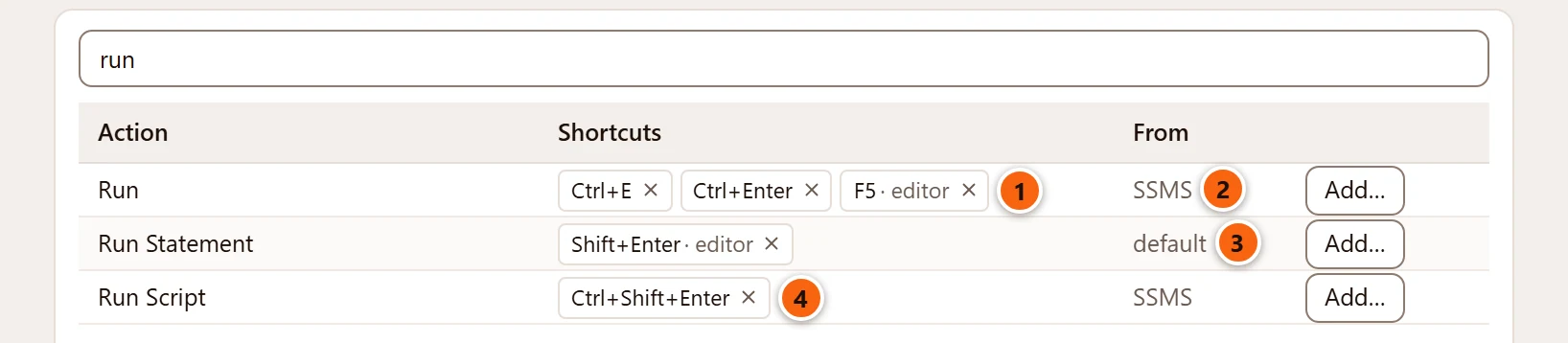
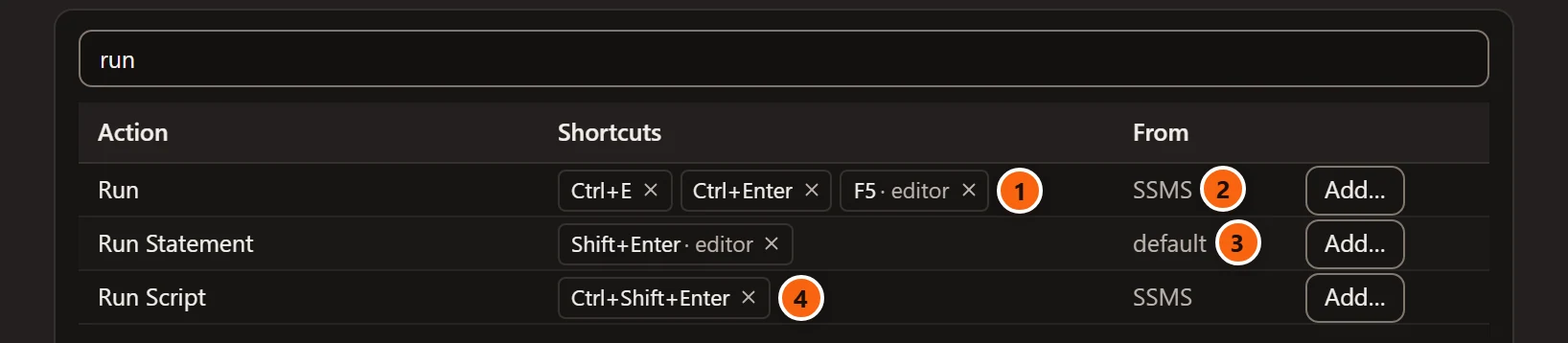
- 1 Run has the preset’s keys.
- 2 From names the preset that gave them.
- 3 An action the preset does not name still reads default.
- 4 Run Script lost F5, which the preset gave to Run. One key does one thing: a key a preset takes for an action leaves the action that had it. That is why New Connection… has no key with SSMS, and New Window none with DataGrip.
Shortcuts of your own stay as they are when you choose another preset: yours come first, then the preset’s, then pgjumbo’s.
Choose what Ctrl+Enter runs
Section titled “Choose what Ctrl+Enter runs”Ctrl+Enter runs is about ⌘ ↩︎ (Ctrl+Enter on Windows and Linux). Its name reads the same on a Mac.
| Choice | The key runs |
|---|---|
| Selection or all (the default) | Run: the selection, or the whole tab when nothing is selected. |
| Statement at cursor | Run Statement: the selection, or the statement the cursor is in, as DataGrip does. |
With Statement at cursor the key moves from Run to Run Statement, in the menu bar too. Run then has no key with pgjumbo’s own shortcuts; it keeps Ctrl+E with SSMS, and F5 in the editor with SSMS and pgAdmin. ⇧ ↩︎ (Shift+Enter on Windows and Linux) in the editor runs the statement at the cursor either way. A Ctrl+Enter you gave to an action yourself is left where you put it.
Run SQL explains what each way of running takes.
Turn on Vim keys
Section titled “Turn on Vim keys”Vim keys in the editor makes the Query Tool’s editor work as Vim does. It is off to begin with, and it applies to the tabs already open.
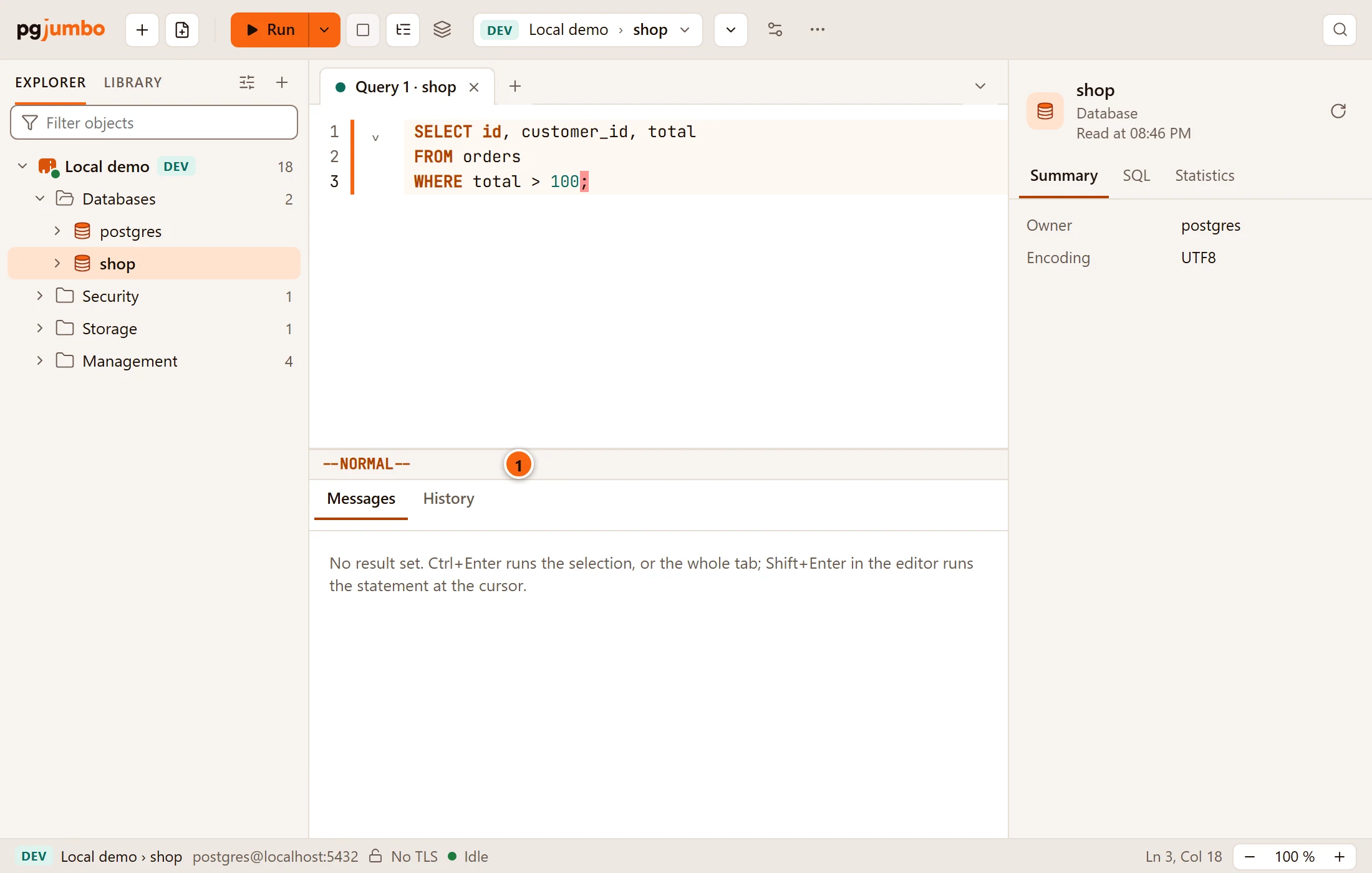
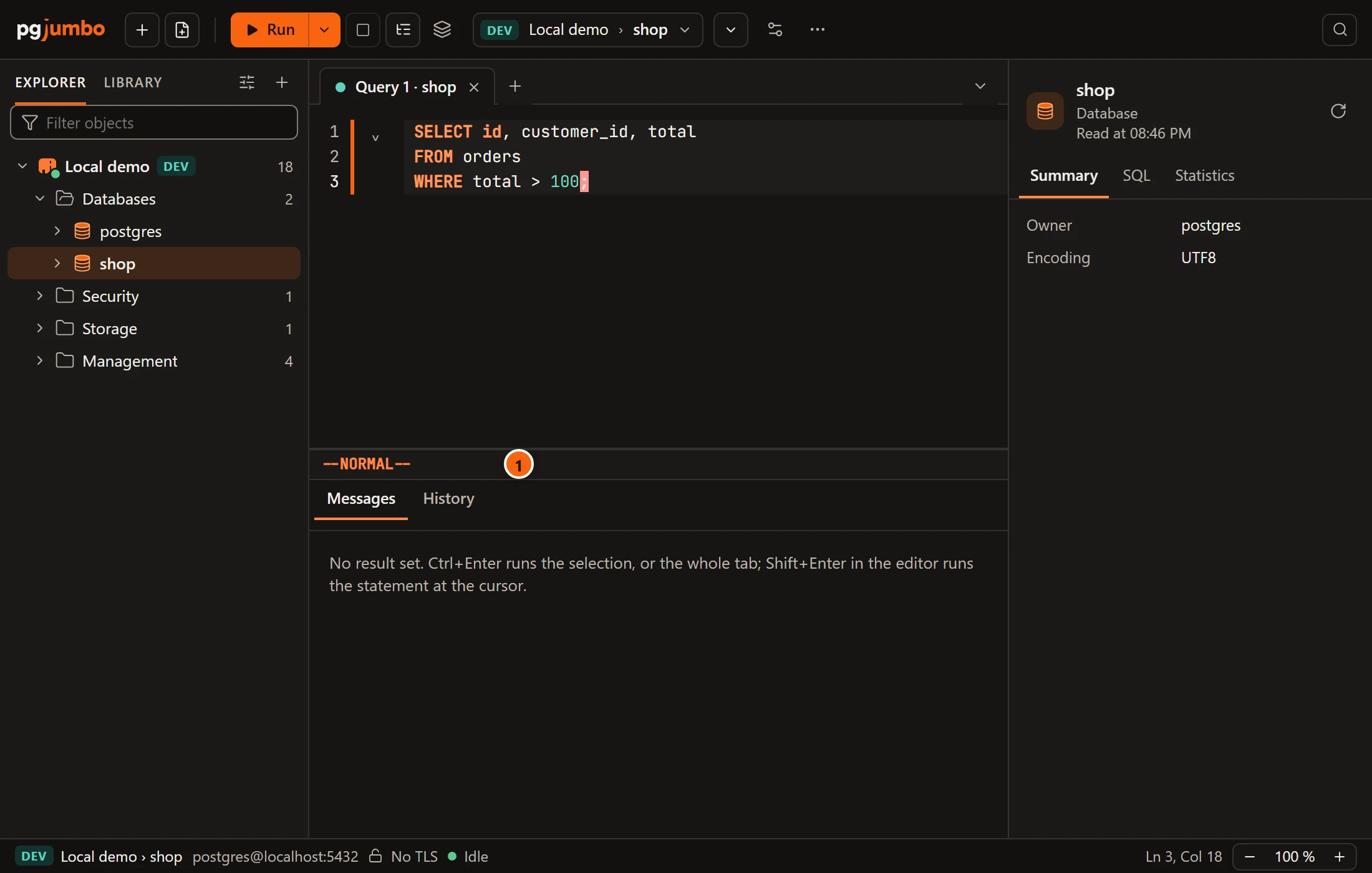
- 1 The mode line under the text says which mode you are in, such as –NORMAL– or –INSERT–, and shows a command as you type it.
The editor starts in normal mode, where keys are commands. i goes to insert mode, where they type; Esc comes back. Esc then : starts a command line.
Vim’s keys come before the editor’s other keys. On Windows a key Vim has a use for, such as Ctrl+W, is Vim’s while the keyboard is in the editor, so it does not close the tab from there. The shortcuts Vim does not use, such as Ctrl+Enter and Ctrl+T, work as before. On a Mac pgjumbo’s shortcuts use ⌘, which Vim does not.
Give an action a shortcut of your own
Section titled “Give an action a shortcut of your own”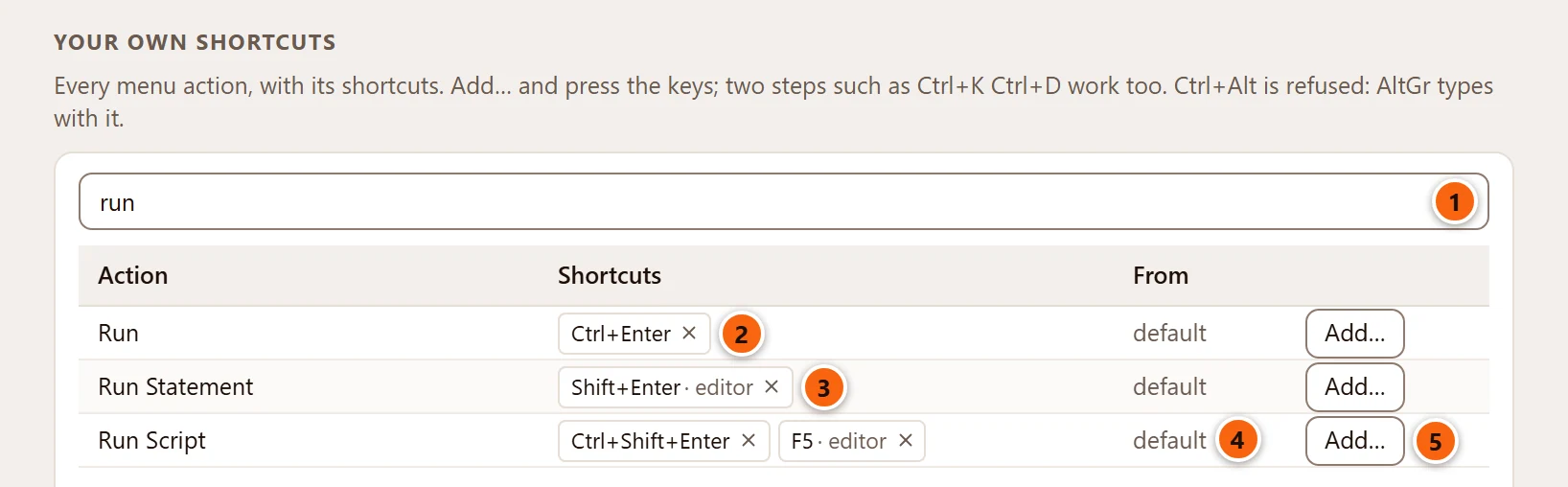
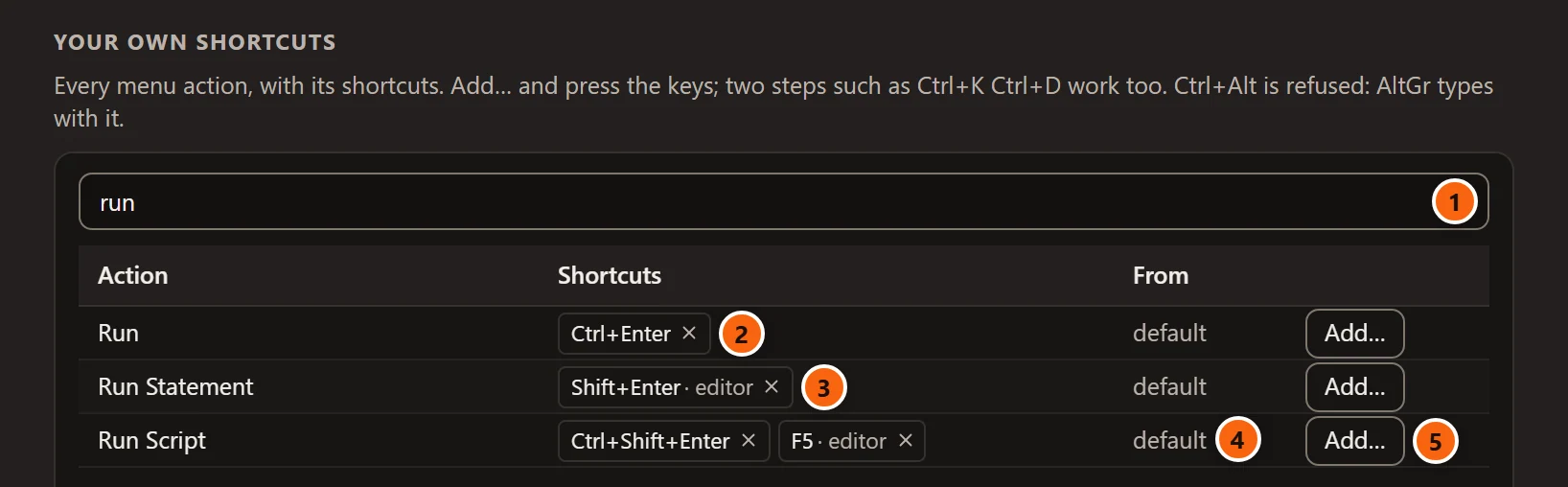
- 1 Find an action or a shortcut: type part of an action’s name, or of a shortcut such as
ctrl+gorf5, and the table keeps the rows that match. - 2 A shortcut of the action. Its × takes it away from the action.
- 3 · editor marks a shortcut that works only while the Query Tool’s editor has the keyboard. Point at it and the tooltip says In the editor only. See Shortcuts that work only in the editor.
- 4 From says where the action’s shortcuts come from: default for pgjumbo’s own, the preset’s name, or yours.
- 5 Add… gives the action another shortcut.
The table lists the actions of the menu bar, each by its item’s name: from New Connection to Check for Updates. An action without a shortcut reads None. The Edit menu’s Undo, Cut, Copy and Paste, and your system’s own items such as Hide or Enter Full Screen, are not actions of pgjumbo and are not in the table.
-
Find the action and click Add… in its row. The row reads Press the keys… (Esc stops), as in the picture under these steps.
-
Press the shortcut: hold Ctrl, Alt or Shift (on a Mac ⌘, ⌥, ⌃ or ⇧) and press a key, or press a function key by itself.
-
The row shows what you pressed and waits about a second for more, as in Ctrl+K … a second key, or wait. Wait, and the one step is the shortcut.
-
Or press a second shortcut within that second for one of two steps, such as Ctrl+K then Ctrl+D.
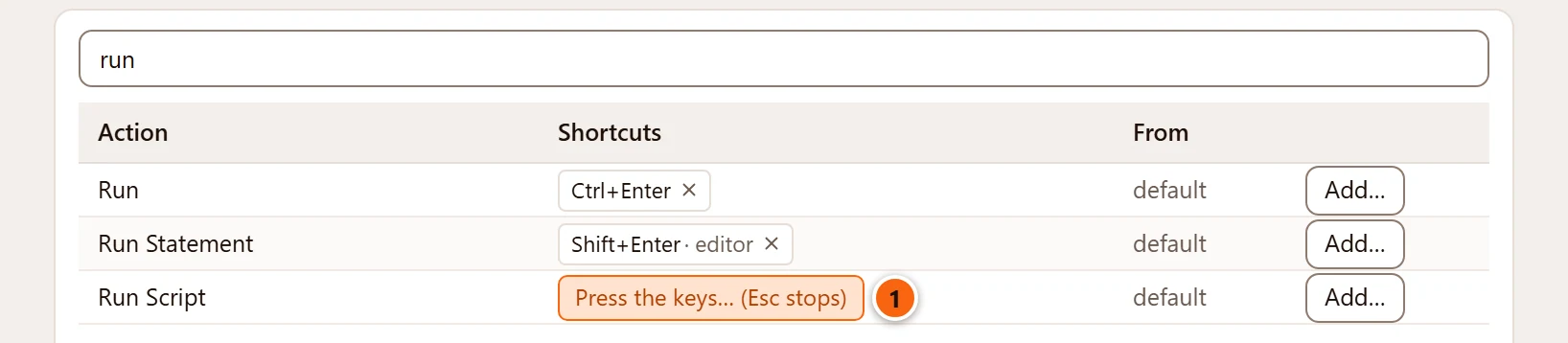
- 1 pgjumbo is waiting for the shortcut. Esc or a click elsewhere stops without a change.
The action then has the new shortcut beside the ones it had, and From reads yours.


- 1 A two-step shortcut is written with a space between its steps. To use it, press the first step, then the second within a second and a half. The menu bar cannot show two steps, so it shows the item’s one-step shortcut, or none.
Three more things to know:
- An action can have up to four shortcuts.
- A shortcut of yours works in the whole window. You cannot add one that works only in the editor.
- Once an action has shortcuts of your own, it has only the ones in its row. The editor-only keys it started with go: add a key to Run Script and its F5 in the editor is gone, as the picture above shows. Going back returns them.
When a key is taken
Section titled “When a key is taken”A key another action already has is named before it is taken.
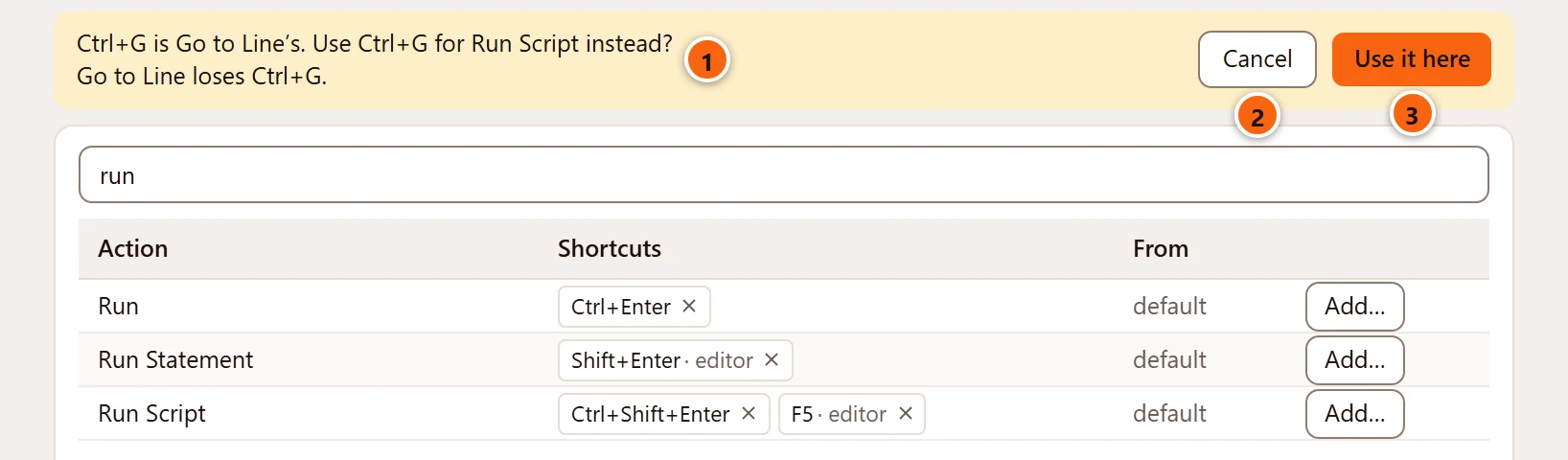
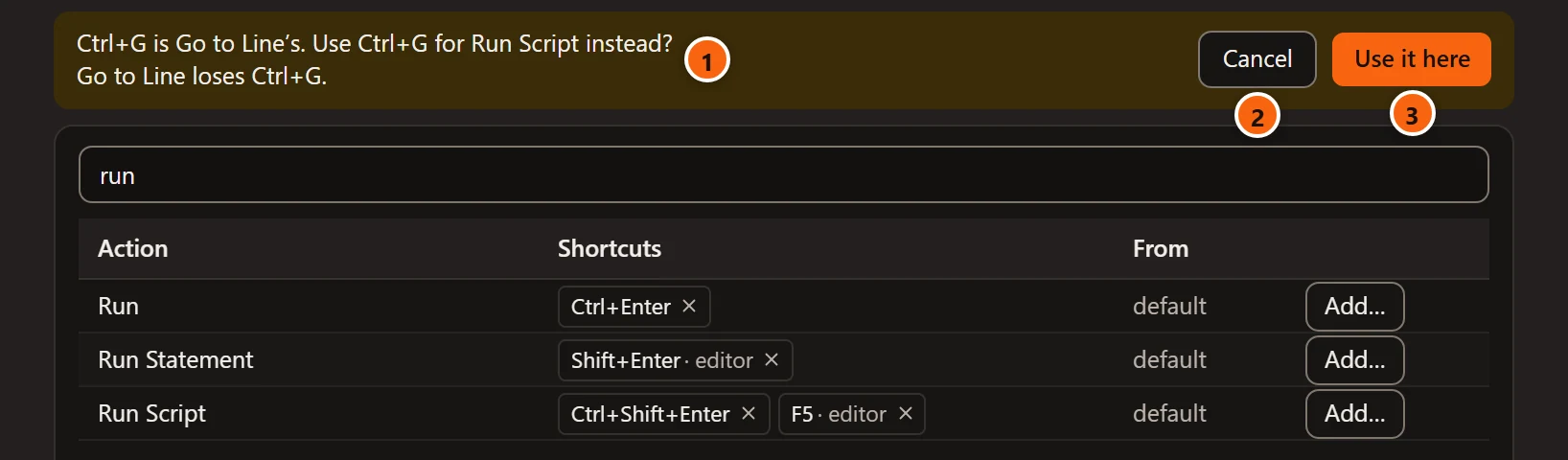
- 1 The question says whose the key is, what you want it for, and what the other action loses.
- 2 Cancel leaves both actions as they were.
- 3 Use it here moves the key.
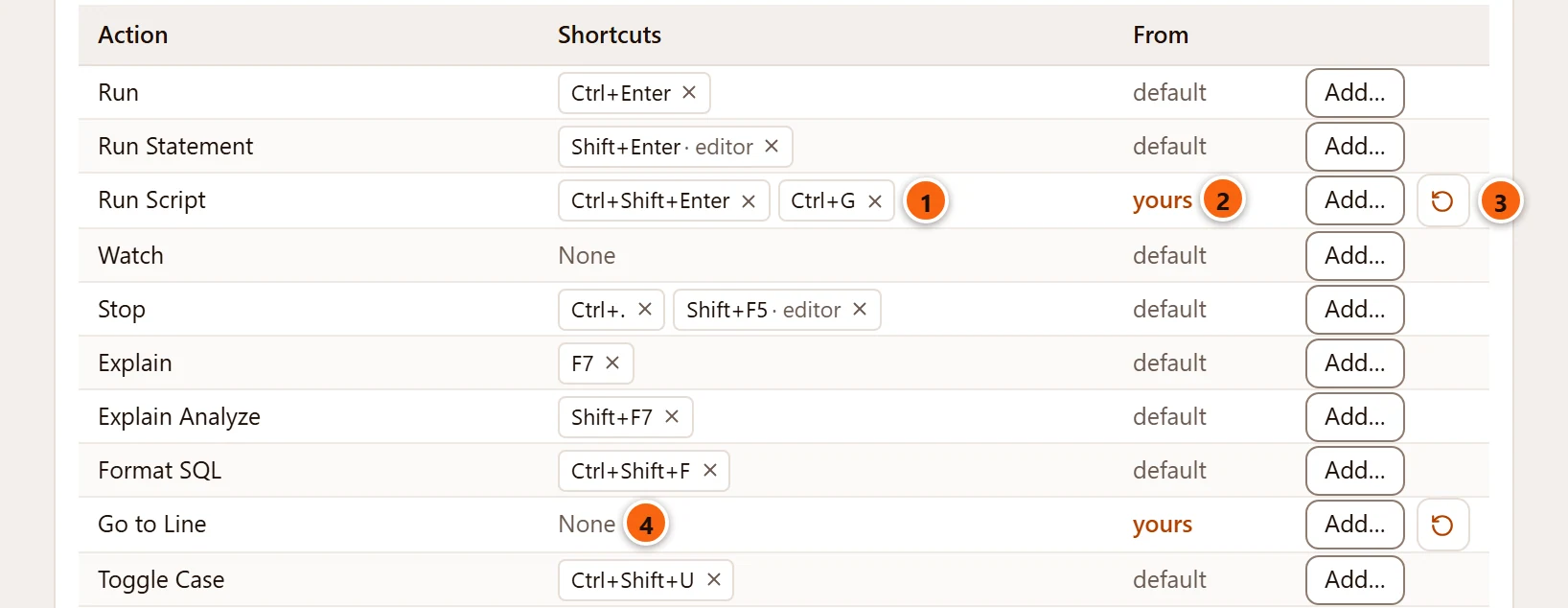
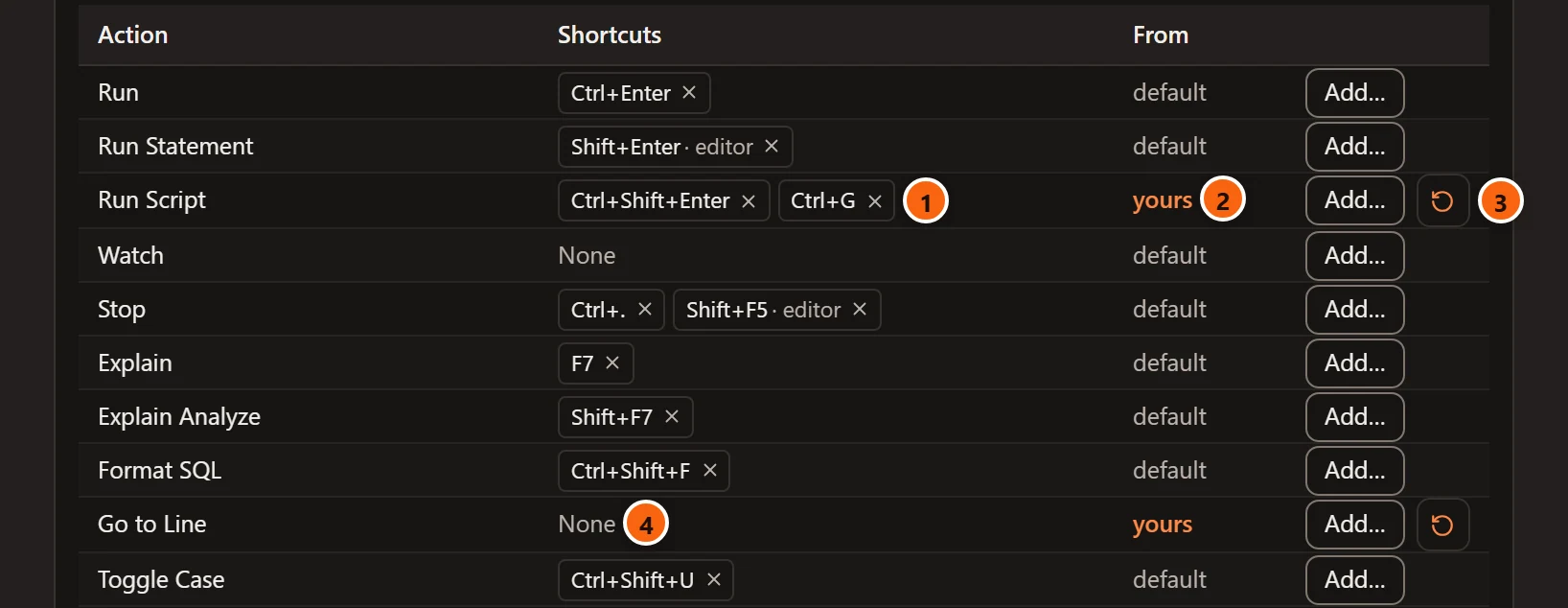
- 1 Run Script has the key now.
- 2 From reads yours.
- 3 The reset button, Back to the preset’s, appears for every action you changed.
- 4 Go to Line is left at None. It reads yours too, since losing a key is a change of yours.
The same question comes for a two-step shortcut whose first step is another action’s key: a shortcut that starts with Ctrl+K takes Ctrl+K from Ask the Assistant, and the question says Ask the Assistant loses Ctrl+K. One key cannot be both a shortcut and the first step of another.
pgjumbo asks only about shortcuts that work in the whole window. An editor-only key, such as F5 for Run Script, is taken without a question, and then does your action in the editor too.
A key given back
Section titled “A key given back”When the shortcut that took a key goes later, by its × or by the reset button, pgjumbo offers the key back to the action it left at None.
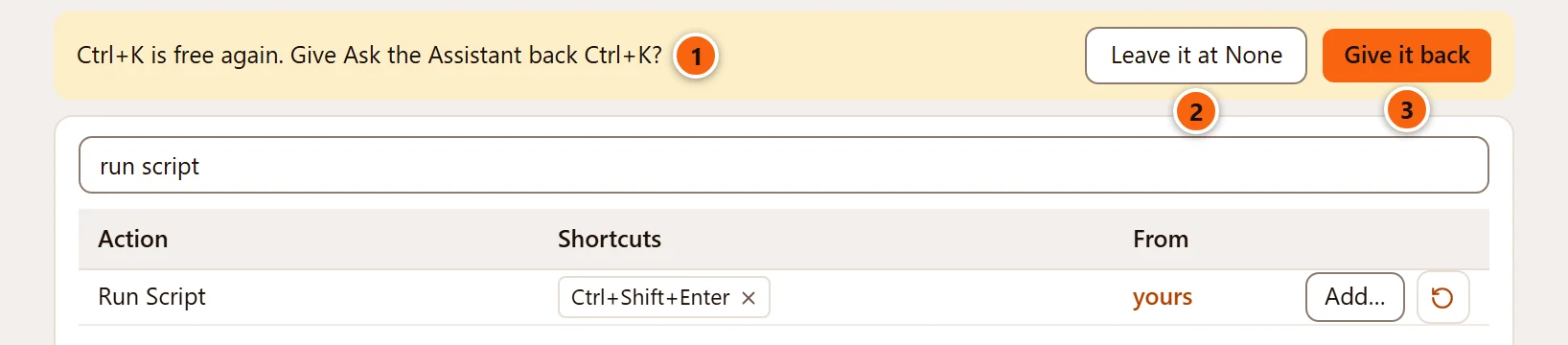
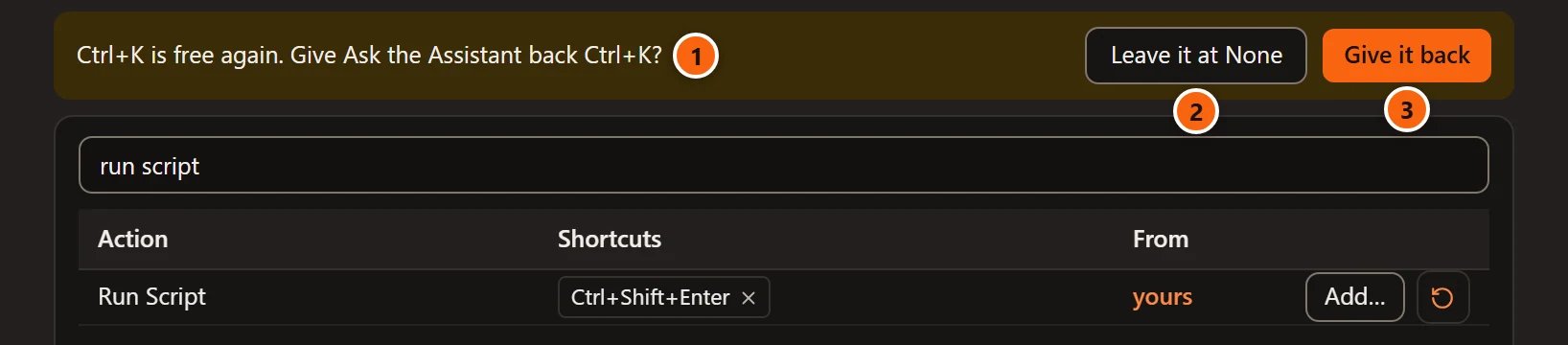
- 1 The key that is free, and the action that lost it.
- 2 Leave it at None keeps that action without a shortcut.
- 3 Give it back returns the key to it.
When a shortcut is refused
Section titled “When a shortcut is refused”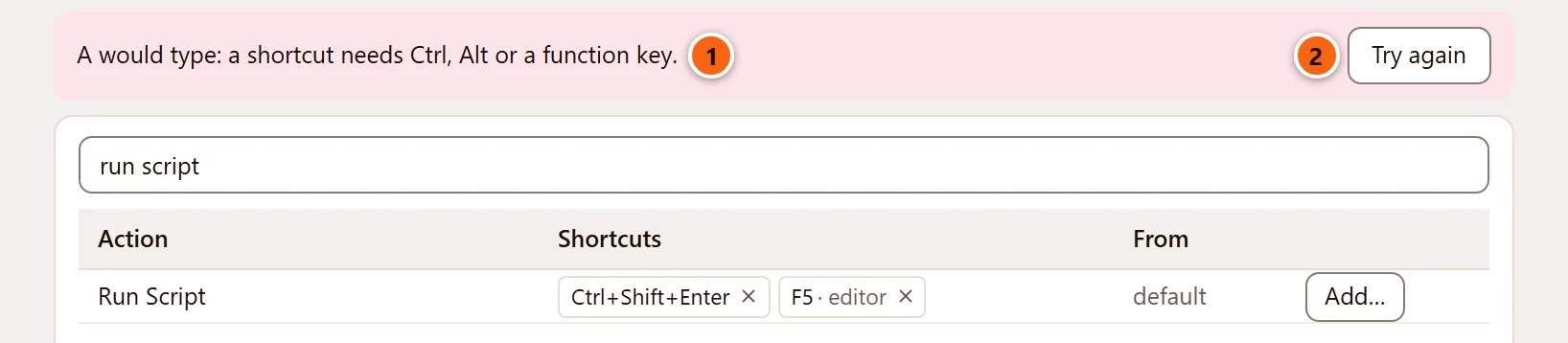
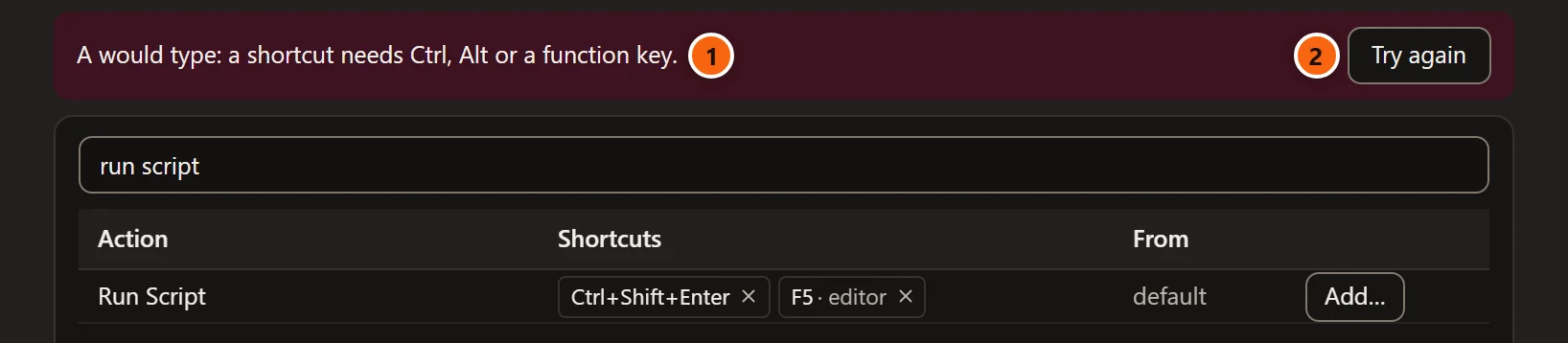
- 1 Why the keys cannot be a shortcut.
- 2 Try again waits for other keys.
| pgjumbo says | When |
|---|---|
| A would type: a shortcut needs Ctrl, Alt or a function key. | The key, alone or with Shift, types a character. A shortcut needs Ctrl or Alt (⌘, ⌃ or ⌥ on a Mac), or is a function key, Pause, Insert, Delete, Home, End, Page Up or Page Down. |
| Ctrl+Alt is AltGr on many keyboards, which types [ ] { } @ with it: choose another shortcut. | On Windows and Linux, the shortcut holds Ctrl and Alt together. Many keyboards type those characters with AltGr, which arrives as Ctrl+Alt, so pgjumbo never uses the pair. A Mac has no such key, and ⌥ ⌘ is allowed there. |
The Windows key is not part of any shortcut: a press with it held is ignored.
Shortcuts that work only in the editor
Section titled “Shortcuts that work only in the editor”Six of pgjumbo’s own shortcuts work only while the Query Tool’s editor has the keyboard, because the same keys mean something else elsewhere: F2 renames a tab, and Shift+Enter starts a new line in other fields.
| Action | In the editor |
|---|---|
| Run Statement | ⇧ ↩︎ (Shift+Enter on Windows and Linux) |
| Run Script | F5 |
| Stop | ⇧ F5 (Shift+F5 on Windows and Linux) |
| Toggle Bookmark | ⌘ F2 (Ctrl+F2 on Windows and Linux) |
| Next Bookmark | F2 |
| Previous Bookmark | ⇧ F2 (Shift+F2 on Windows and Linux) |
The table marks them · editor, and the menu bar does not show them. A preset can move them: with SSMS and pgAdmin, F5 in the editor is Run’s.
The editor’s other keys, such as those that comment a line or move it, are not menu actions. They are not in the table and cannot be changed. Keyboard shortcuts lists them.
Go back
Section titled “Go back”| To undo | Do this |
|---|---|
| One action’s changes | Click the reset button after its Add…. The action gets back the keys of the chosen preset, the editor-only ones too. |
| The preset, Ctrl+Enter runs or Vim keys in the editor | Click the reset button beside the setting. |
| Everything on the page | Restore this page’s defaults: Start from is pgjumbo again, Ctrl+Enter runs Selection or all, Vim keys are off and your own shortcuts are gone. Undo, in the message at the foot of the sheet, brings them back. |
Changed by you lists your own shortcuts as one setting, Your own shortcuts. Its Reset there drops them all. The field beside it holds them the way pgjumbo stores them: change single shortcuts in the table on the Keyboard page instead.
What the menu bar shows
Section titled “What the menu bar shows”Beside each item, the menu bar shows the action’s first one-step shortcut that works in the whole window. It leaves out:
- a two-step shortcut;
- an editor-only shortcut;
- a key the editor uses for another action, such as F5 for Refresh with SSMS;
- a key that is the second step of a two-step shortcut.
Such a shortcut still works; it is only not written in the menu. Menus lists every item.