

The editor's right-click menu
Right-click in a Query Tool’s editor for the things you use under your hand: running and explaining, the Assistant, formatting and comments, finding a table, rewrites of the statement at the cursor, saving to the Library, and the clipboard. Most items are also in the Query menu or have a key; the menu gathers them where you are working.
The menu
Section titled “The menu”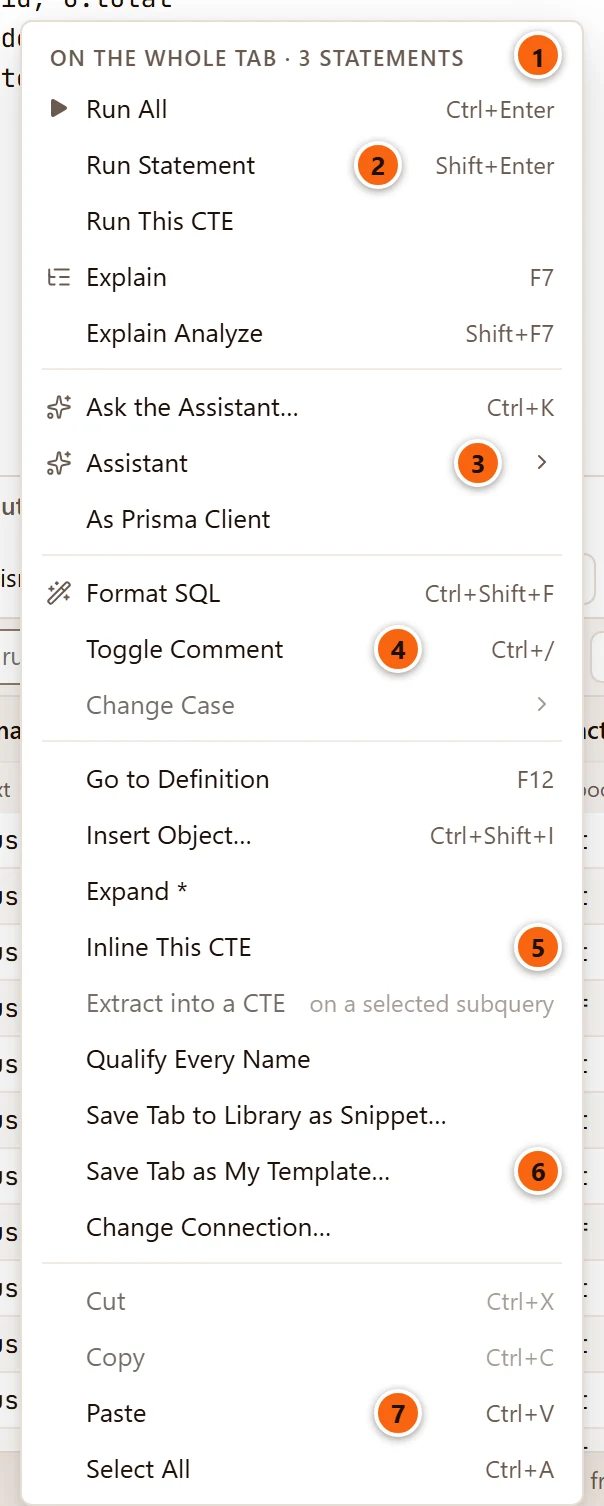
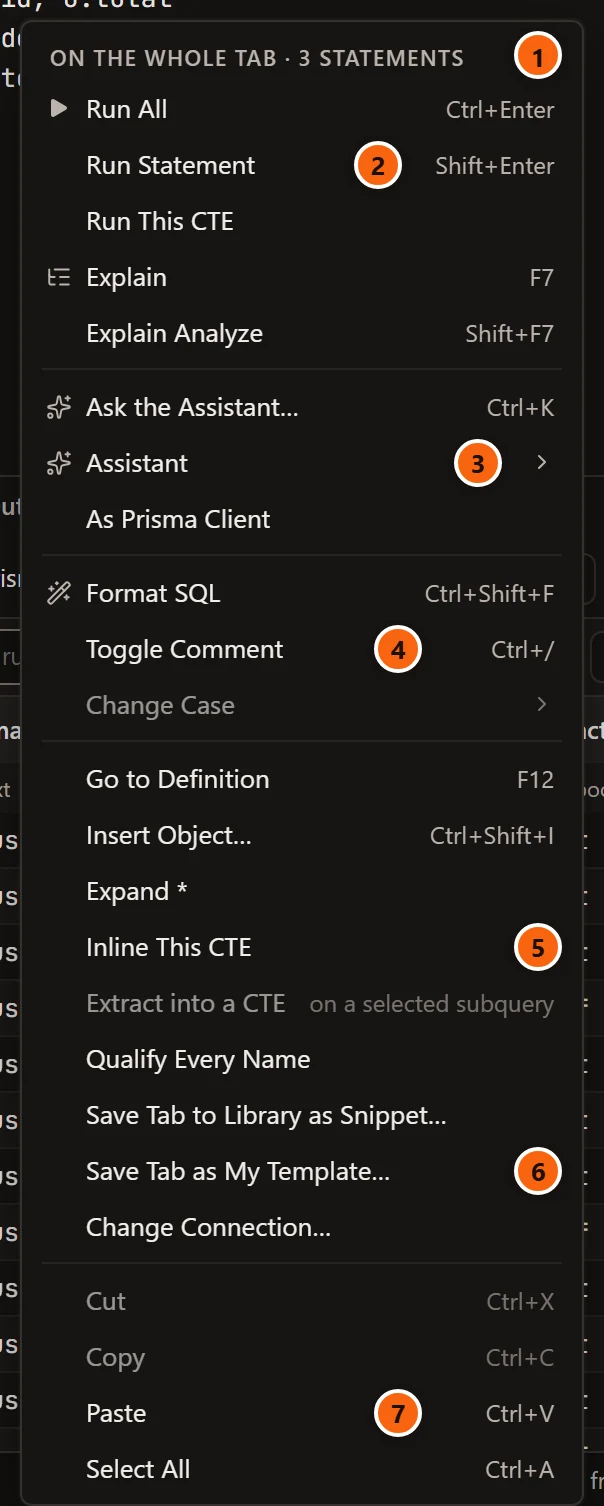
- 1 What the menu acts on:
On the whole tab · 3 statementswith nothing selected (On the whole tabwhile the statements are still being read),On the selection · 3 lineswith text selected. - 2 Running and explaining. See Run and explain.
- 3 The Assistant’s items, while the Assistant is on. See Ask the Assistant.
- 4 Editing the text: Format SQL, comments and case.
- 5 Finding, inserting and rewriting. See Rewrite the statement.
- 6 Saving to the Library, and moving the tab to another database.
- 7 The clipboard.
Each item shows the key it has now. The keys follow Settings › Keyboard, so a preset or a shortcut of your own changes them here too. The menu opens where you right-click; the cursor stays where it was, so click first to put it in the statement you mean.
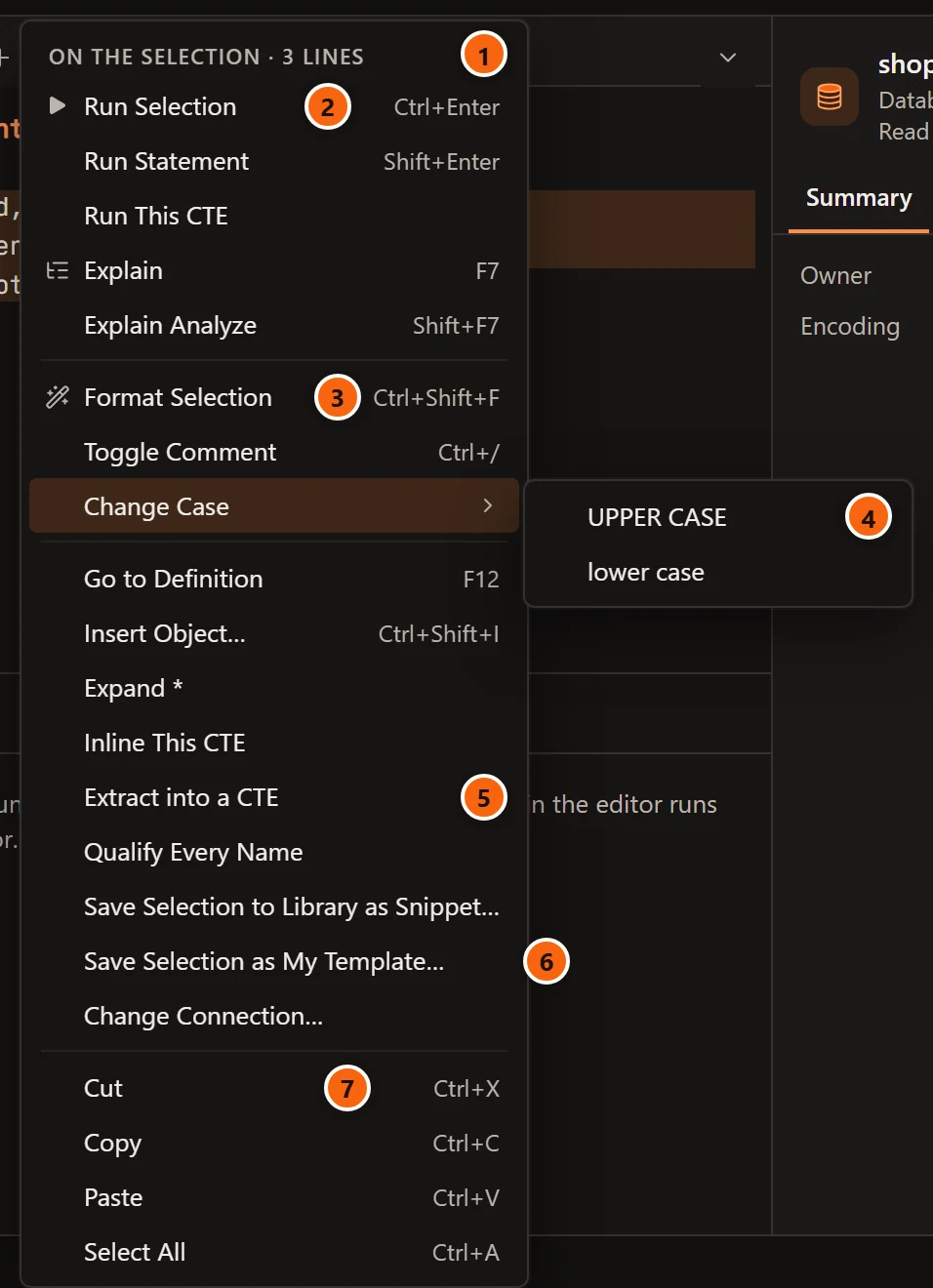
With text selected, the items that act on it say so:
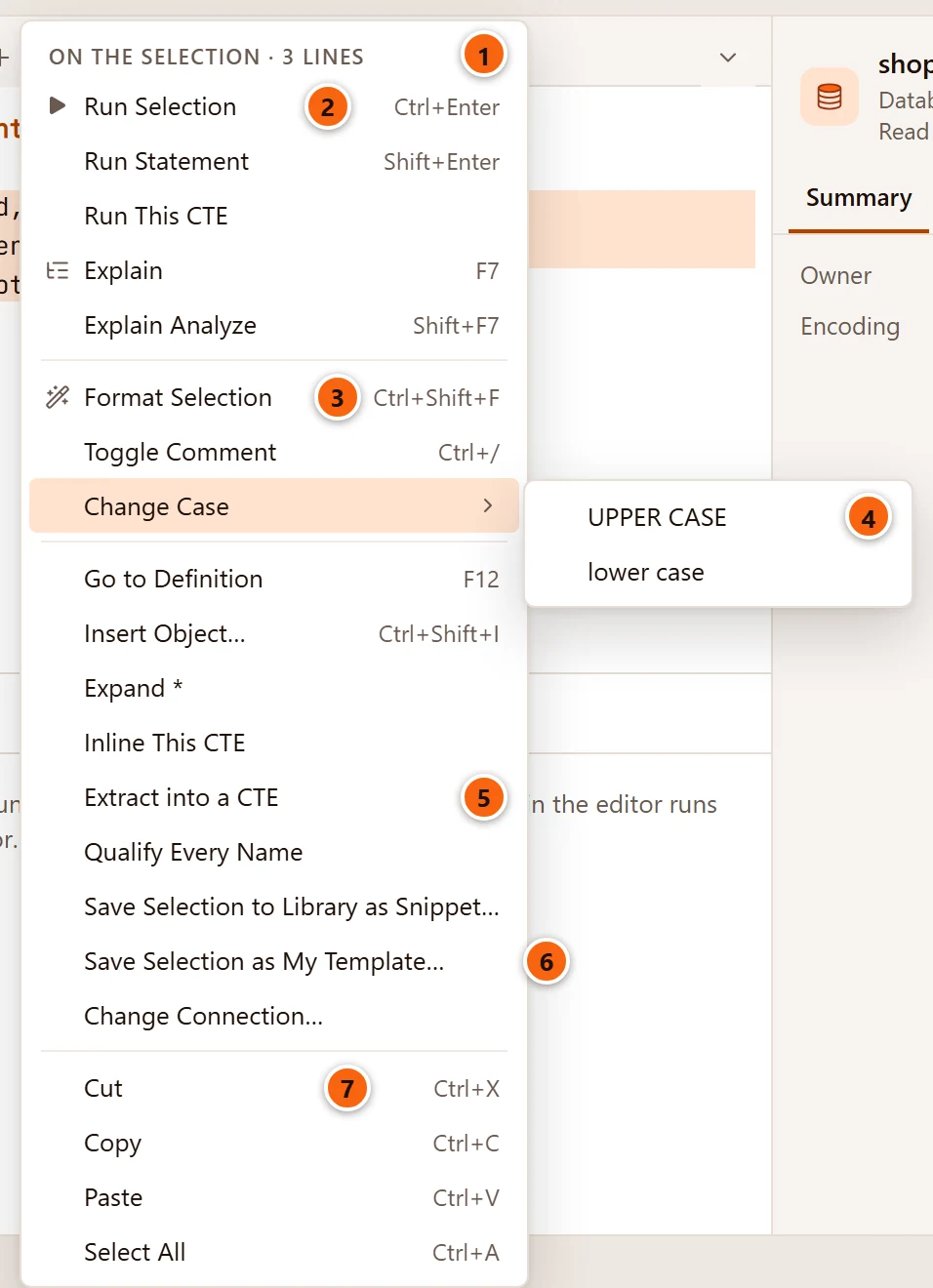
- 1
On the selection · 3 lines. - 2 Run All becomes Run Selection.
- 3 Format SQL becomes Format Selection.
- 4 Change Case opens on UPPER CASE and lower case. It is greyed out with nothing selected.
- 5 Extract into a CTE is greyed out with nothing selected; its grey note says
on a selected subquery. - 6 The two Save items save the selection.
- 7 Cut and Copy are greyed out with nothing selected.
Every item
Section titled “Every item”| Item | Keys | What it does |
|---|---|---|
| Run All, or Run Selection | ⌘ ↩︎ (Ctrl+Enter on Windows and Linux) | Runs the selection, or the whole tab. |
| Run Statement | ⇧ ↩︎ (Shift+Enter on Windows and Linux) | Runs the selection, or the statement at the cursor. |
| Run This CTE | Runs the CTE the cursor is in, with the ones it needs, and shows its rows under the editor. | |
| Explain | ⌘ E (F7 on Windows and Linux) | Shows the plan of the selection, or the statement at the cursor, without running it. |
| Explain Analyze | ⌥ ⌘ E (Shift+F7 on Windows and Linux) | Runs the selection, or the statement at the cursor, and shows its plan with what each step took. |
| Ask the Assistant… | ⌘ K (Ctrl+K on Windows and Linux) | Opens a box under the selection to ask the Assistant for a change. While the Assistant is on. |
| Assistant ▸ | Explain This SQL, Find Problems, Make It Faster, and Fix the Error, which is greyed out until a run has failed (after a failed run). While the Assistant is on. |
|
| As Prisma Client | Asks the Assistant for the Prisma Client call that runs this SQL. While the Assistant is on and the database has a Prisma project linked. | |
| Format SQL, or Format Selection | ⇧ ⌘ F (Ctrl+Shift+F on Windows and Linux) | Lays out the whole tab, or the selection. See Format SQL. |
| Toggle Comment | ⌘ / (Ctrl+/ on Windows and Linux) | Comments the cursor’s line, or the selected lines, with --, or takes the -- away. |
| Change Case ▸ | UPPER CASE or lower case for the selected text. Greyed out with nothing selected. | |
| Go to Definition | F12 | Finds the table or view at the cursor in the Explorer and shows it in the Inspector. See Go to Definition. |
| Insert Object… | ⇧ ⌘ I (Ctrl+Shift+I on Windows and Linux) | Opens the list @ opens, at the cursor. See Insert an object with @. |
| Expand * | Turns the * at the cursor into the columns it stands for. See Expand *. |
|
| Inline This CTE | Puts a CTE’s query where its name is read. See Inline This CTE. | |
| Extract into a CTE | Turns the selected subquery into a CTE. See Extract into a CTE. | |
| Qualify Every Name | Writes each table with its schema and each column with its table. See Qualify Every Name. | |
| Save Tab to Library as Snippet…, or Save Selection to Library as Snippet… | Opens Save to the Library with Snippet chosen. | |
| Save Tab as My Template…, or Save Selection as My Template… | Opens Save to the Library with Template chosen. See Save to the Library. | |
| Change Connection… | Opens the toolbar’s menu of servers and databases, to move the tab. See Move a tab to another database or server. Greyed out in a data tab. | |
| Cut, Copy | ⌘ X (Ctrl+X on Windows and Linux), ⌘ C (Ctrl+C on Windows and Linux) | Put the selected text on the clipboard exactly as it is in the editor; Cut also takes it out. Greyed out with nothing selected. |
| Paste | ⌘ V (Ctrl+V on Windows and Linux) | Puts the clipboard’s text in place of the selection, or at the cursor. If the clipboard cannot be read, the tab says Could not paste: and why. |
| Select All | ⌘ A (Ctrl+A on Windows and Linux) | Selects the whole tab. |
Running is explained in Run SQL: what Run takes, where a statement ends, and Run This CTE. Explain is in Explain a query.
Nothing on the menu runs SQL except the Run items and Explain Analyze; Explain asks the server for a plan only. Format, Change Case, Expand * and the rewrites change the text, and ⌘ Z (Ctrl+Z on Windows and Linux) takes each back in one step.
Run and explain
Section titled “Run and explain”Run All (or Run Selection) runs what Run in the toolbar runs. Run Statement, Explain and
Explain Analyze take the selection, or else the statement at the cursor. With the cursor on a blank line or a line
that holds only a comment, there is no statement at the cursor, and the tab says
No statement at the cursor: put the cursor in one, or select what to run.
Run This CTE needs the cursor inside the parentheses of one of a WITH’s queries; elsewhere the tab says
The cursor is in no CTE: put it inside the parentheses of one of a WITH's queries.
Ask the Assistant
Section titled “Ask the Assistant”While the Assistant is on (SettingsAssistantUse the Assistant), the menu has three more items:
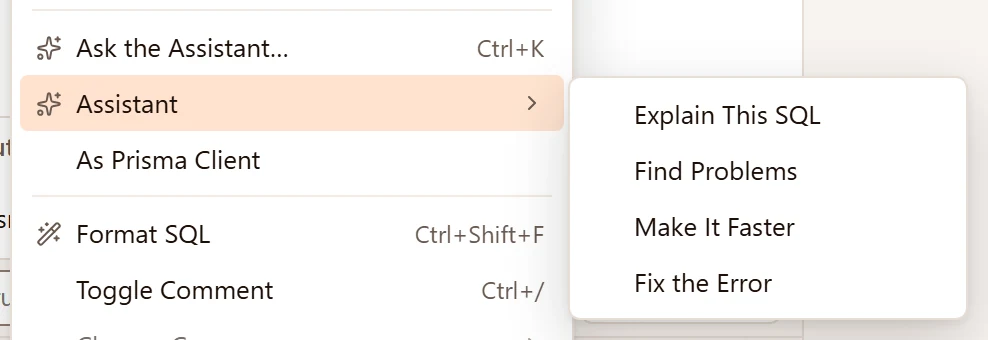
- Ask the Assistant… opens the box in the editor where you ask for a change, as ⌘ K (Ctrl+K on Windows and Linux) does.
- Assistant ▸ Explain This SQL, Find Problems and Make It Faster ask about the selection, or the whole tab. Fix the Error asks about the statement that failed in the last run.
- As Prisma Client shows only when the tab’s database has a Prisma project linked to it.
Each one puts its question in the Assistant’s message box, where Enter sends it. They are explained in SQL help in the editor; As Prisma Client in Prisma Client and SQL.
Expand *
Section titled “Expand *”Put the cursor on the * of a select list and choose Expand *. The * becomes the columns of the tables the
statement names, in their order, separated by commas:
SELECT * FROM orders o JOIN customers c ON c.id = o.customer_id;-- becomesSELECT o.id, o.customer_id, o.created_at, o.total, c.id, c.email, c.segment, c.active, c.since, c.prefs FROM orders o JOIN customers c ON c.id = o.customer_id;- With several tables, each column comes with its table’s alias, or the table’s name when it has none. With one table, the columns come alone.
o.*expands to the columns ofoonly, each writteno.column.- It works on a
*right afterSELECT,SELECT DISTINCTor a comma, followed by a comma orFROM. The*ofcount(*)or a multiplication is left alone. - The columns are read from the tab’s database, so the tab’s server must be connected.
When there is no such * at the cursor, or its tables cannot be found, the tab says
Nothing to expand: put the cursor on a * of a SELECT list whose tables are known.
Rewrite the statement
Section titled “Rewrite the statement”Inline This CTE, Extract into a CTE and Qualify Every Name rewrite the statement at the cursor from PostgreSQL’s own reading of it, not from a guess at the text. pgjumbo reads the statement with PostgreSQL’s parser, built into pgjumbo, makes the change, and reads the new text again before it puts it in. The new statement replaces the old one as one change that ⌘ Z (Ctrl+Z on Windows and Linux) takes back, and the tab says what was done, or why nothing was. Nothing runs.
Each works on one statement: the one the cursor (or the start of the selection) is in. These messages can come from any of them:
| The tab says | Why |
|---|---|
No statement at the cursor: put the cursor in one, or select what to run. |
The cursor is on a blank line or a comment of its own. |
Inline works on one statement PostgreSQL can read. (or Extract, Qualify) |
The statement has a syntax error. |
The statement changed meanwhile; nothing was replaced. |
You typed in the statement while pgjumbo worked on it. |
Inline This CTE
Section titled “Inline This CTE”Put the cursor on a CTE’s name, where it is defined or where it is read, and choose Inline This CTE. Each place
that reads the CTE gets its query in parentheses, under the CTE’s name, and the CTE leaves the WITH (and the WITH
goes when it was the only one):
WITH recent AS (SELECT * FROM orders WHERE created_at > now() - interval '7 days')SELECT count(*) FROM recent;-- becomesSELECT count(*) FROM (SELECT * FROM orders WHERE created_at > now() - interval '7 days') AS recent;A reference with an alias of its own keeps it. The CTE’s column names, recent(id, at), go with each place that reads
it. The tab says recent inlined where it was read., or
recent inlined in the 2 places that read it; each now works it out on its own. when several places read it.
| The tab says | Why nothing changed |
|---|---|
Put the cursor on a CTE's name, where it is defined or where it is read. |
The cursor is elsewhere in the statement. |
This statement has no WITH to inline from. |
The statement has no CTE. |
Inline works on a query with a WITH. |
The statement is not a query. |
A recursive WITH cannot be inlined. |
The WITH is WITH RECURSIVE. |
recent changes rows; inlining it would change what runs. |
The CTE is an INSERT, UPDATE or DELETE. |
recent is not read anywhere; there is nowhere to inline it. |
Nothing reads the CTE. |
Inlining recent would leave a statement PostgreSQL cannot read; nothing changed. |
The result would not parse. |
Extract into a CTE
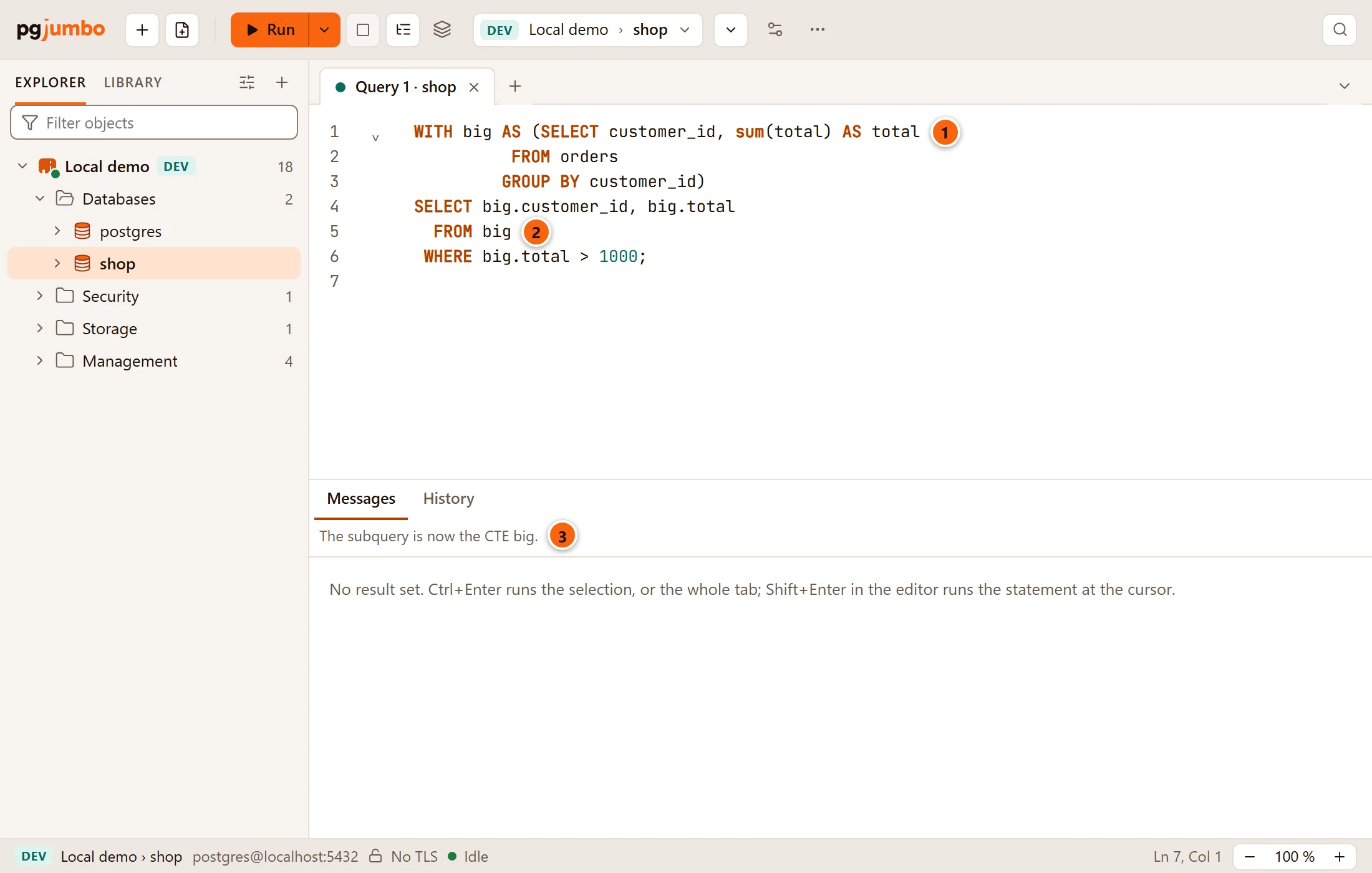
Section titled “Extract into a CTE”Select a subquery in a FROM, its parentheses included, and choose Extract into a CTE (it is greyed out until
something is selected). The subquery becomes a CTE, and its place reads the CTE by name:
-
1 The new CTE, named after the subquery’s alias, here
big. -
2 Where the subquery was, the
FROMnow reads the CTE. -
3 What the tab says:
The subquery is now the CTE big. -
The alias names the CTE, and its column names,
big(id, total), go with it. A subquery with no alias becomesextracted(extracted2when that name is taken). -
The CTE goes before the CTE whose query holds the subquery, else after the statement’s last CTE, else in a new
WITHat the start.
| The tab says | Why nothing changed |
|---|---|
Select a whole subquery in parentheses, ( and ) included. |
The selection is not one bracketed piece. |
The selection is not a SELECT in parentheses. |
The brackets hold something else. |
A LATERAL subquery reads the tables before it; it cannot become a CTE. |
The subquery is LATERAL. |
Extract works on a subquery in FROM; this one is used as a value, so it stays. |
The subquery is in a select list or a WHERE. |
Extract works on a query. |
The statement is not a query. |
Select a subquery in FROM, its parentheses included, then Extract into a CTE. |
The selection reaches past the statement. |
Qualify Every Name
Section titled “Qualify Every Name”Choose Qualify Every Name with the cursor in a SELECT, INSERT, UPDATE, DELETE or MERGE. Each table written
without its schema gets the schema the tab’s search path finds it in, and each column written alone gets its table’s
alias, or the table’s name:
SELECT id, total FROM orders WHERE total > 100;-- becomesSELECT orders.id, orders.total FROM public.orders WHERE orders.total > 100;pgjumbo reads the tables on the tab’s own session, so a SET search_path you ran in the tab counts, and a temporary
table gets no schema. A column is qualified only when exactly one table at its level of the statement has it, looking
outward from a subquery as PostgreSQL does, and every table there is known; the others stay as they are.
| The tab says | What it means |
|---|---|
Qualified 1 table and 3 columns. |
What was written. |
… 1 column left as it was: more than one table has it, or a subquery, function or CTE may. |
Added when a column could not be given its table. |
Nothing to qualify. |
Every name already has its schema or table. |
Qualify works on a SELECT, INSERT, UPDATE, DELETE or MERGE. |
The statement is another kind. |
The tab is busy; qualifying reads the tables on its session. Try again when it is idle. |
A query is running in the tab. |
Where the menu’s messages show
Section titled “Where the menu’s messages show”What an item says (a rewrite done, nothing to expand, no statement at the cursor) shows beside the result tabs for a few seconds: longer for a long message, and as long as the pointer rests on it. When the Query Tool is narrow, the message takes a line of its own between the result tabs and the buttons, so all of it shows, and the grid moves down a line while it is there.