

Ask about pgjumbo
The Assistant answers questions about pgjumbo as well as about your databases: how pgjumbo does something, where a feature is, or why it did what it did. It searches and reads the guide built into the version of pgjumbo you run, the same topics Helppgjumbo Guide shows, so its answers match your version and name your own shortcuts. An answer can end with Show me, which takes you to the place, and with a setting it proposes, which you review before anything changes.
For example:
- “Why did my UPDATE fail with read-only transaction?”
- “Where do I turn off the logo animation?”
- “Can the Run shortcut run only the statement at the cursor?”
The Assistant must be on: see Set up the Assistant.
Type the question in the Assistant’s pane, from any tab: how the pane and its box work is on Ask the Assistant. Ask from the tab the question is about, so that it can read that tab’s state (see What it reads of pgjumbo).
From the guide itself, press F1 or choose Helppgjumbo Guide, open a topic, and click Ask the Assistant about this in its Ask box. The question waits in the Assistant’s box for you to send it with ↩︎ (Enter on Windows and Linux), as with any Ask button (see How an Ask button works).
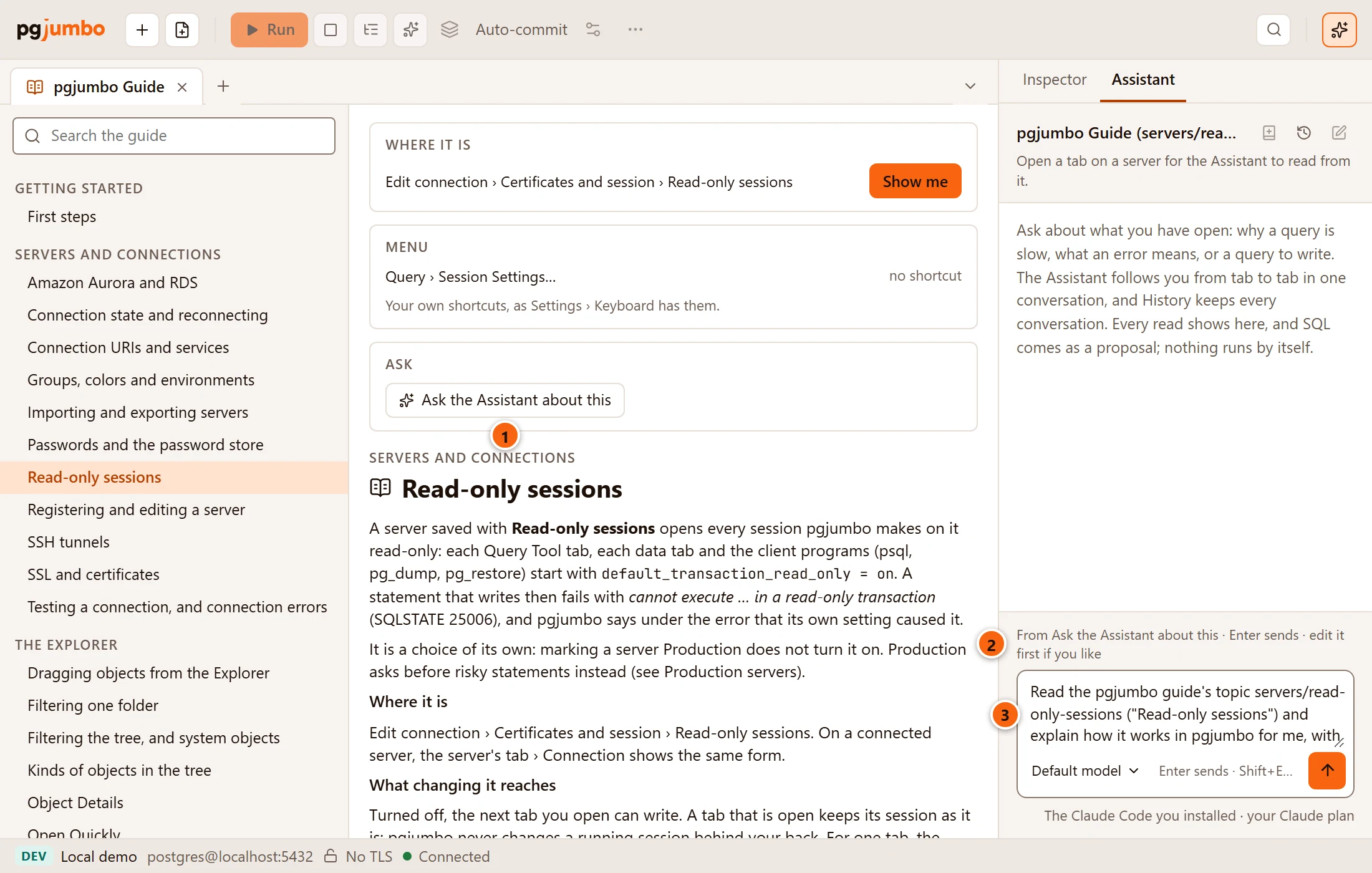
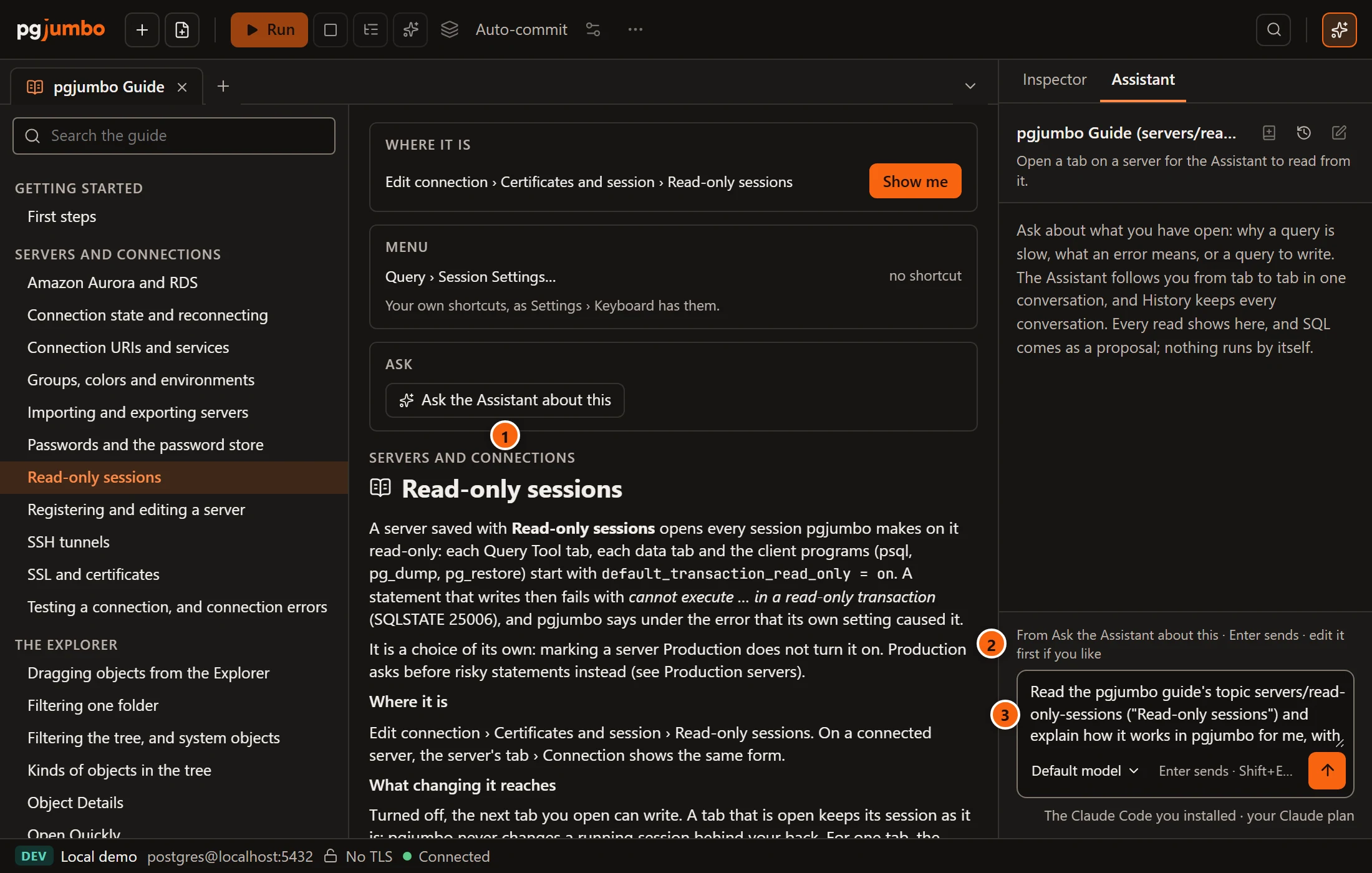
- 1 Ask the Assistant about this, in the topic’s Ask box. The box shows only while the Assistant is on.
- 2 Where the question came from.
- 3 The question: it asks the Assistant to read that topic and explain how it works in pgjumbo, with Show me where it helps. Change it before you send it if you like.
The guide’s own boxes, its search and Show me beside a place are on Help inside pgjumbo.
What it reads of pgjumbo
Section titled “What it reads of pgjumbo”To answer about pgjumbo, the Assistant reads pgjumbo itself. These reads need no access level, because they are pgjumbo’s own facts and not a server’s data; each still shows as a line in the conversation.
| Read | The line says | What the Assistant gets |
|---|---|---|
| A search of the guide | Read the pgjumbo guide for words | The topics that answer, from the guide built into your version. |
| A topic of the guide | Read the pgjumbo guide’s topic | The whole topic: what the feature does, where it is, its settings, its menu items with your own shortcuts, and the places Show me can open. |
| pgjumbo’s state | Read pgjumbo’s state for tab | For the tab you asked from: its server’s saved options (environment, Read-only sessions, SSL mode, SSH, AWS IAM), the server’s address, user and maintenance database, whether it is connected; the tab’s session (its process id, commit mode, the open transaction, what pgjumbo set on the session and why, a query held at the row cap); the tab’s last error; the settings that change how a tab behaves; and the other open tabs. |
It never reads a password or a row this way. A question about what is in your databases still goes through the access levels of SettingsAssistantWhat it may read: see Set up the Assistant.
Read the answer
Section titled “Read the answer”An answer about pgjumbo is text like any other, and may end with a Show me card, a Setting card, or both.
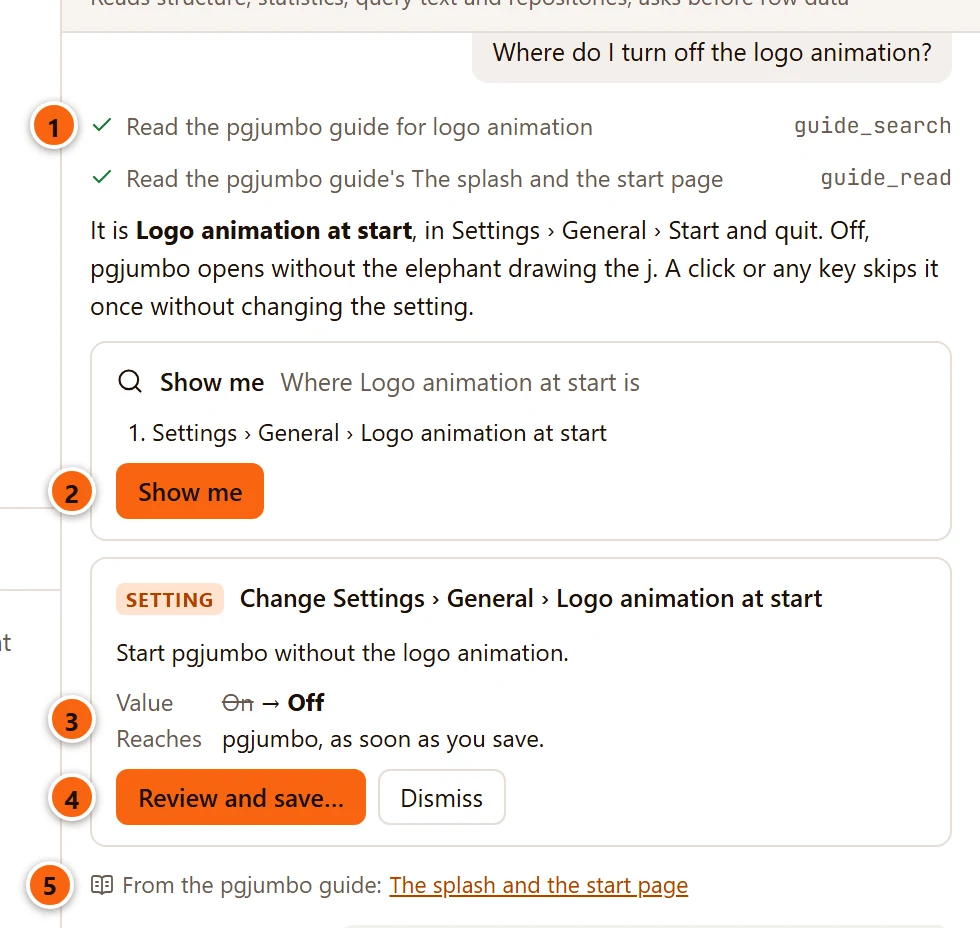
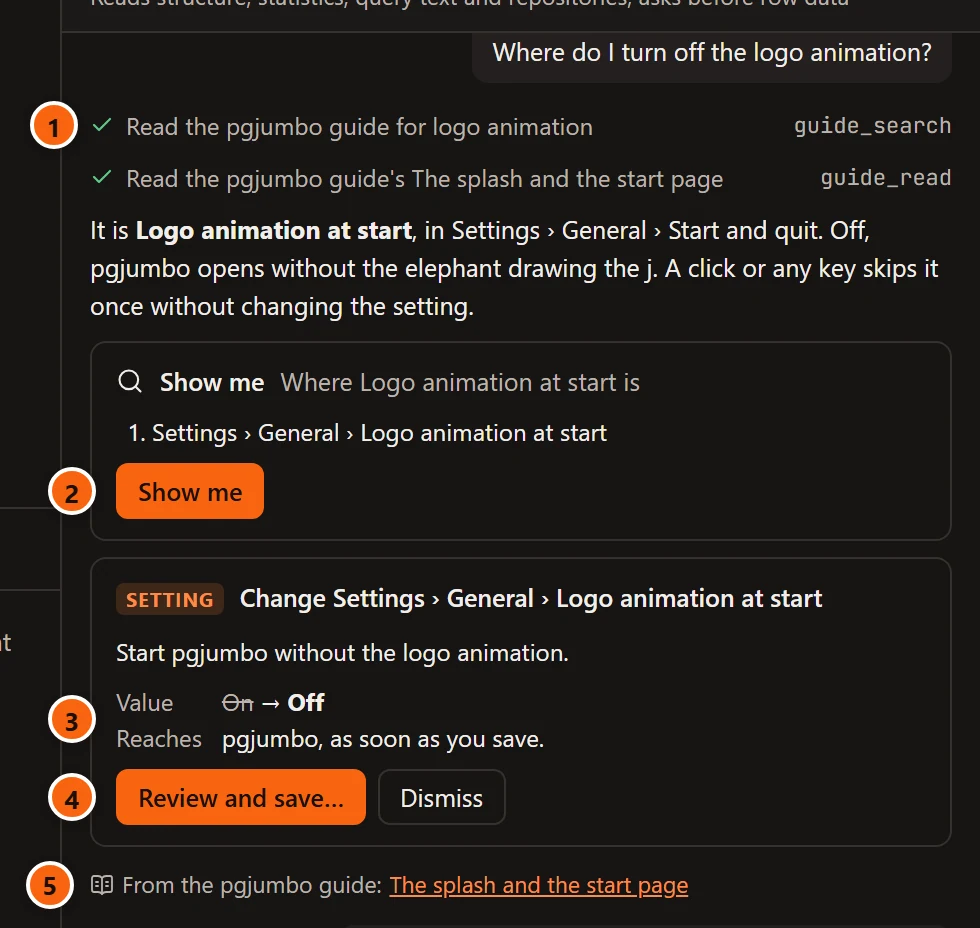
- 1 The reads: here a search of the guide, then the topic it found.
- 2 Show me: see Show me from an answer.
- 3 The setting it proposes, its value now struck through and the new one, and what the change reaches.
- 4 Review and save…: see A setting it proposes.
- 5 From the pgjumbo guide: the topics the answer stood on. Click one to open it in the guide’s tab.
The answer above is an example; what the Assistant writes depends on your question and on what it reads.
Show me from an answer
Section titled “Show me from an answer”A Show me card names what it shows and lists its steps, at most four, each as the place in pgjumbo’s words: a setting by its page and line in Settings, a server’s option by its place in the connection form, a menu item by its menu. A step whose place moved in this version says · this is now here after it.
Show me on the card opens the first place and rings its control, with a callout beside it saying what to do there. With several steps, Next in the callout goes on to the following one. A server’s option opens for the server the Assistant was asked about, and the callout says so. Show me changes nothing: a click on the ringed control is yours.
The menu bar belongs to your operating system, so pgjumbo cannot ring an item in it: a step on a menu item names the menu instead, such as It is in the menu bar under Query › Watch; pgjumbo can’t ring the menu bar’s items., and Next still goes on. The callout, its buttons and what it says when a control is not on screen are on Help inside pgjumbo.
A setting it proposes
Section titled “A setting it proposes”The Assistant can propose a change to one pgjumbo setting, or to one saved option of the server you asked about, as a Setting card. Nothing changes until you save it.
The card’s title names the setting by its place, Change Settings › General › Logo animation at start, or the server’s option, Change Local demo’s Read-only sessions. Under it are why, in a sentence, the value now (struck through) and the new one, and Reaches: what the change will affect once saved.
| A change to | Reaches |
|---|---|
| A Production limit of SettingsSafety, New Query Tool tabs, or Name each tab’s session | Tabs opened after you save; a tab that is open keeps its session as it is. |
| Rows per result, Memory per result, A failed statement undoes only itself, Say what each statement read and wrote, Show what a write or a table change will do, or Ask before a read over | The next run in every tab. |
| Any other setting | pgjumbo, as soon as you save. |
| A server’s Read-only sessions | Tabs opened on server after you save; a tab that is open keeps its session as it is. |
| A server’s Environment | How the server is marked and what it asks before risky statements, at once; for Production, its limits apply to the tabs opened after you save, and otherwise open tabs keep their sessions’ limits. |
| A server’s SSL mode | The next connection to server**; open tabs keep theirs.** |
| A server’s Color | How server is shown, at once. |
Dismiss puts the card away; it then says Dismissed.
A pgjumbo setting
Section titled “A pgjumbo setting”Review and save… on a pgjumbo setting’s card opens the change for review:
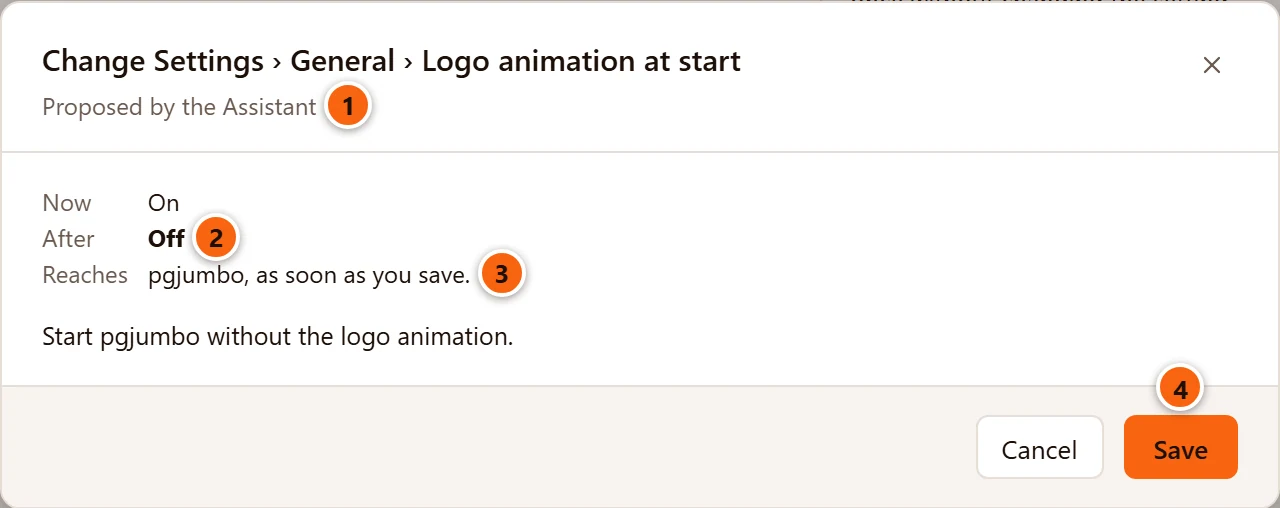
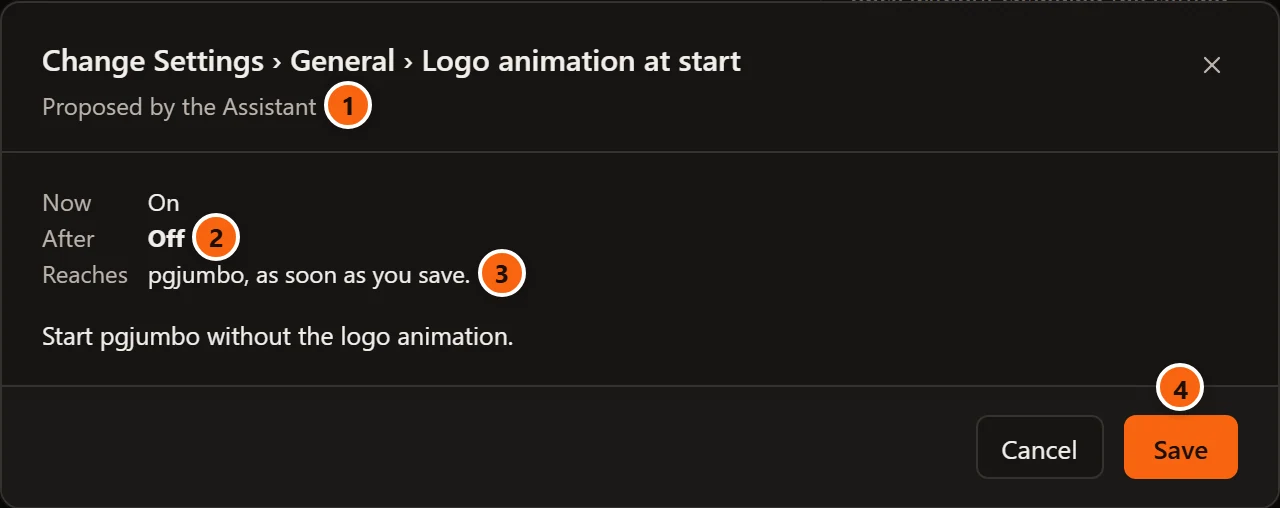
- 1 Proposed by the Assistant, under the setting’s place.
- 2 Now and After: the value today and the one proposed.
- 3 Reaches: what the change will affect.
- 4 Save saves it, as if you had changed it in Settings.
Cancel, × or Esc closes it and changes nothing. After Save, the card says Saved. If the setting cannot be saved, the reason shows in red in the dialog. To change the setting back, open it in Settings: see Settings.
A server’s saved option
Section titled “A server’s saved option”A server’s option is not saved from the card. Review and save… puts the change into the server’s connection form as a change you have not saved, and shows it to you there.
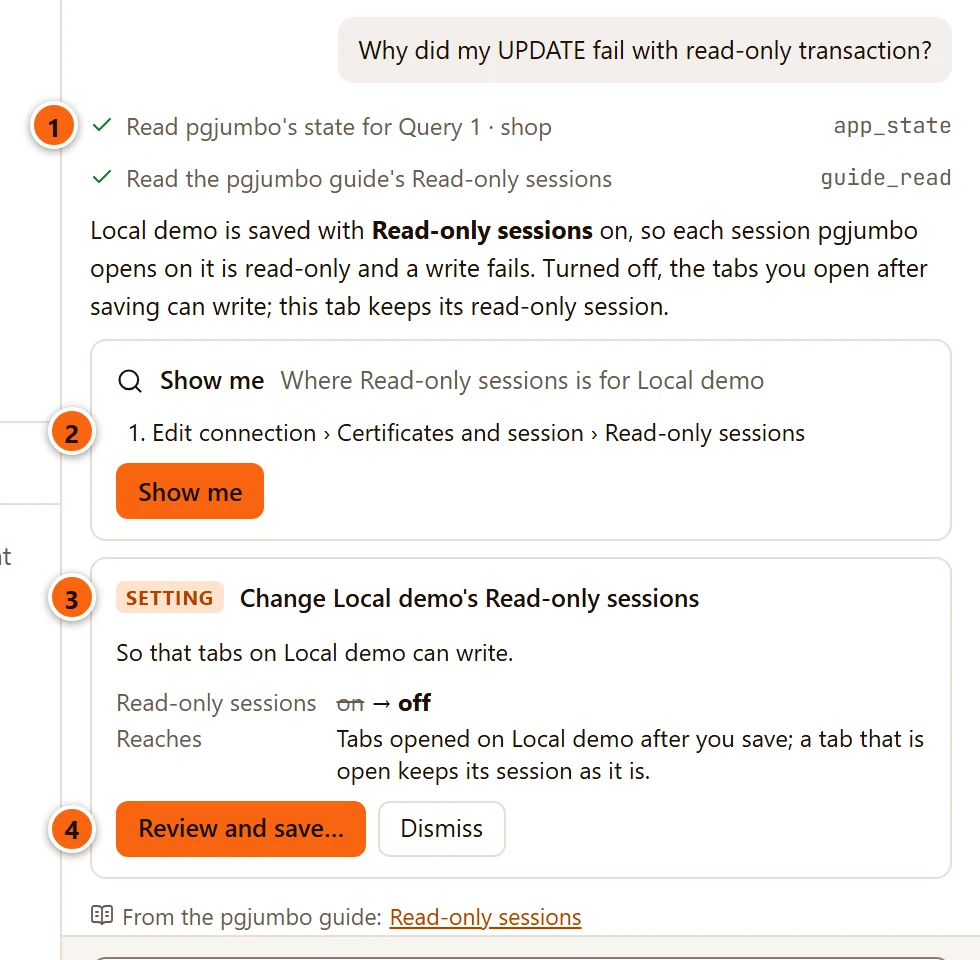
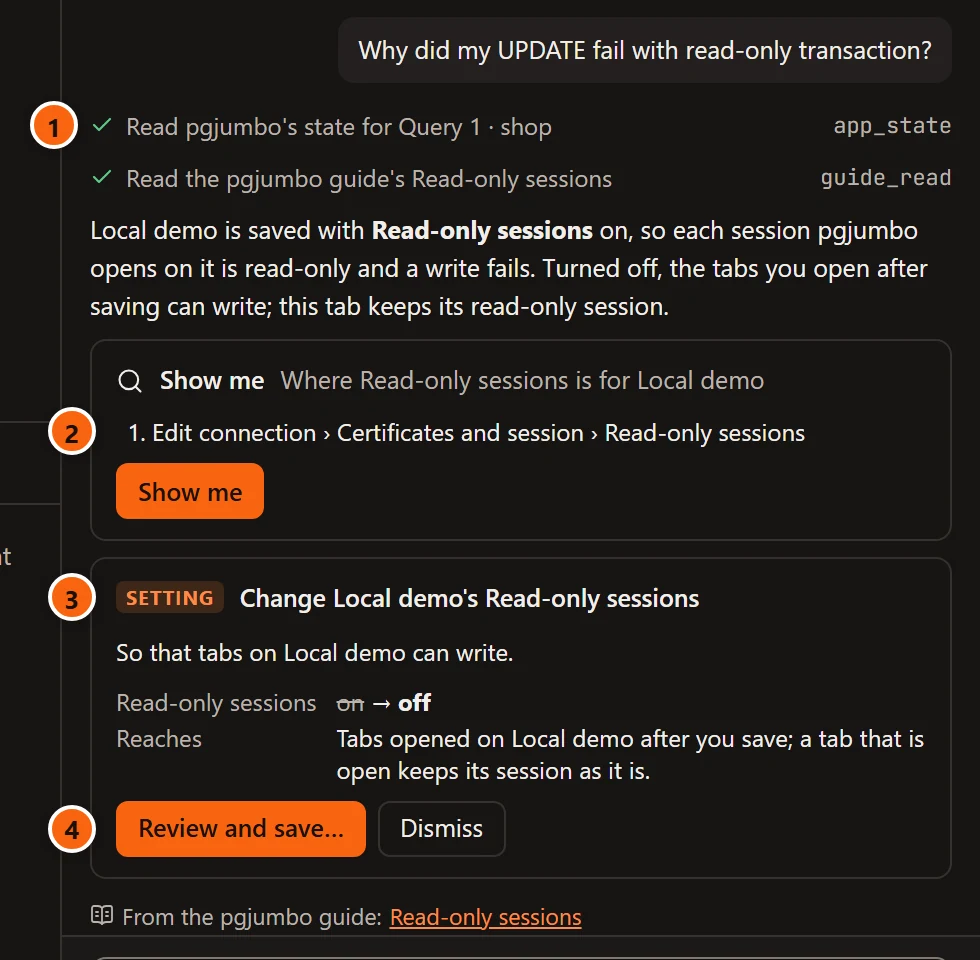
- 1 The Assistant read pgjumbo’s state for the tab you asked from, which says the server has Read-only sessions on.
- 2 The Show me step: where the option is.
- 3 The option it proposes to change, on which server.
- 4 Review and save… stages it in the server’s form.
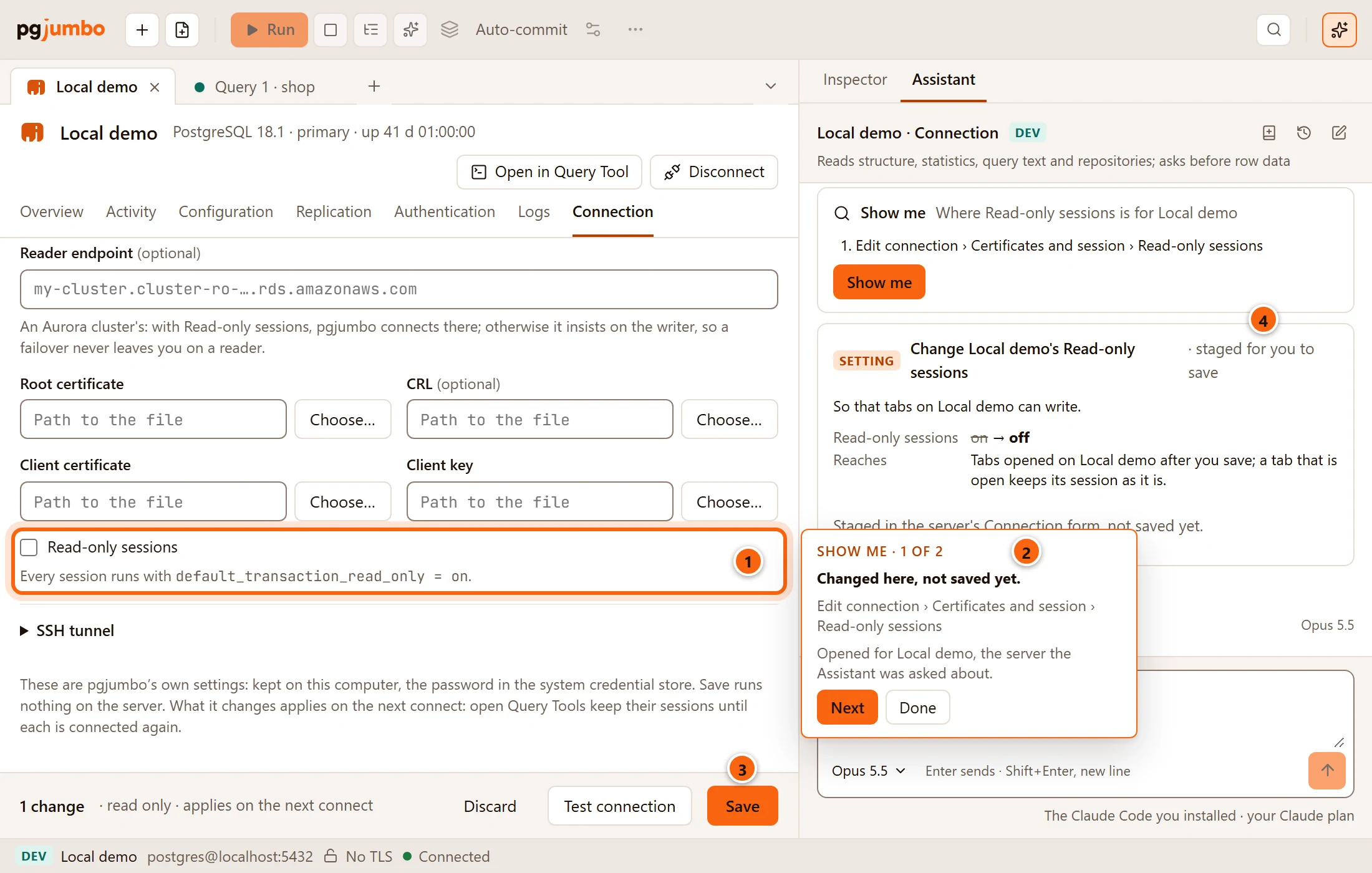
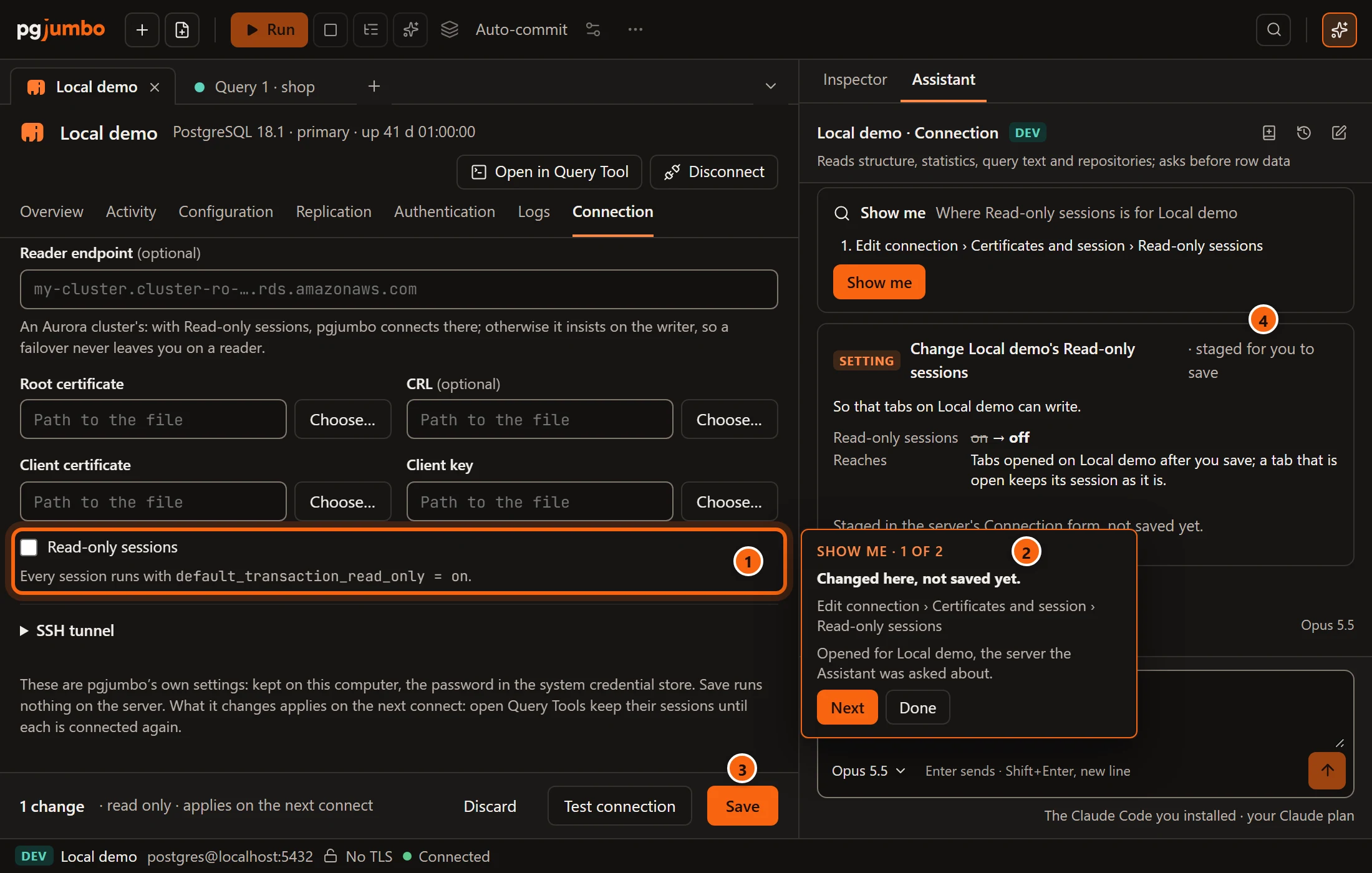
- 1 The server’s tab opens on its Connection view, with the option changed and ringed.
- 2 The callout: Changed here, not saved yet. Next goes on to Save: Save keeps it; Discard drops it.
- 3 Save in the form’s bar saves it; Discard drops it. Until then nothing is saved.
- 4 The card says · staged for you to save, and under it Staged in the server’s Connection form, not saved yet.
The server’s tab and its Connection view are on The server’s tab.
What it never proposes
Section titled “What it never proposes”The Assistant cannot propose a change to:
- the Assistant’s own settings: whether it is on, what it may read, the model and effort, and the Claude Code program it starts;
- the programs and addresses pgjumbo runs or reaches: SettingsToolsPostgreSQL client programsFolder and Map tiles under geometry;
- your own shortcuts in SettingsKeyboard;
- Run a project’s own tool and Scratch databases on in SettingsMigrations, and SettingsGeneralUpdatesCheck for updates;
- a server’s address, user, sign-in or certificates. Of a server, only Read-only sessions, Environment, SSL mode and Color.
For those, it tells you where they are, with Show me.
What it never does
Section titled “What it never does”It never changes a pgjumbo setting or a server’s connection by itself: a change waits on its card until you save it. Show me only shows. And it never reads a password or a row to answer about pgjumbo.