

Keep and compare results
A run replaces the tab’s results. A result you pin stays beside the new ones, to look back at or to compare with. You can also keep a result on the server as a temporary table, show a script’s results one under another, and hide the results pane to give the editor the room.
The result tab’s menu
Section titled “The result tab’s menu”Right-click a result tab, such as Data Output, in a Query Tool tab. A data tab’s result tab has no menu: its rows are the table’s, read again on every run.
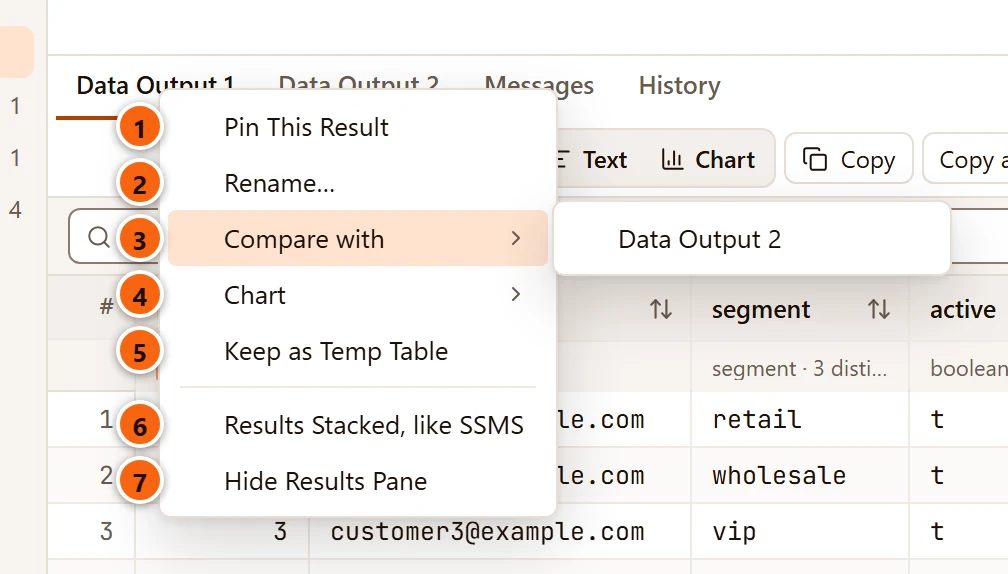
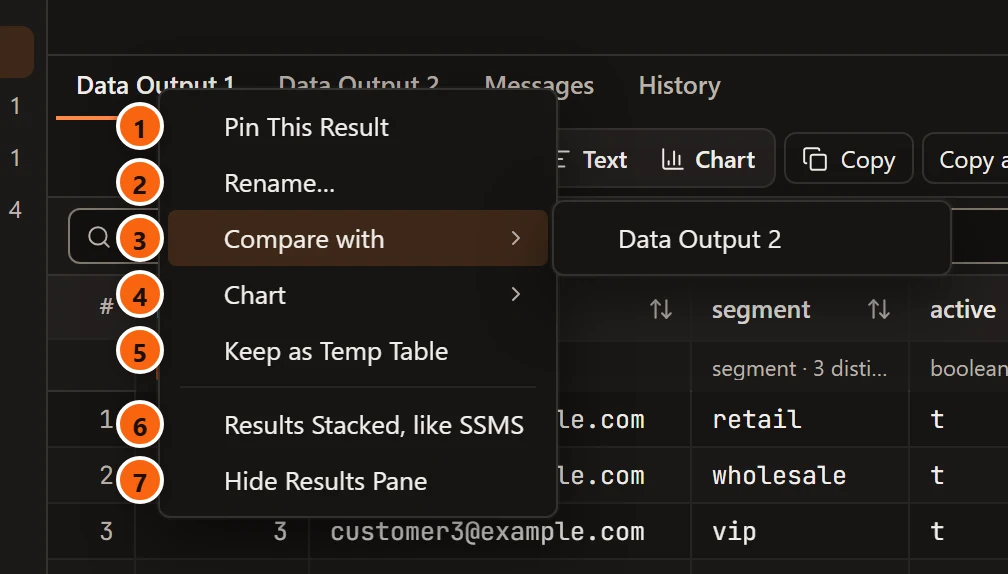
- 1 Pin This Result keeps the result when the tab runs again. On a pinned result the item is Unpin This Result. See Pin a result.
- 2 Rename… gives the result a name of your own. See Rename a result.
- 3 Compare with lists the tab’s other results. It shows when there is another one to compare with. See Compare two results.
- 4 Chart opens the result as Bars, Lines or Points: see A result as a chart.
- 5 Keep as Temp Table copies the rows into a temporary table on the tab’s session. See Keep a result as a temporary table.
- 6 Results Stacked, like SSMS shows every result of a run one under another. It is ticked while it is on. See Stack the results of a script.
- 7 Hide Results Pane gives the editor the whole tab. See Hide the results pane.
Compare with, Chart and Keep as Temp Table show once the result has all its rows. For a result of Run on several databases, the menu also has Compare Databases.
Pin a result
Section titled “Pin a result”Right-click a result tab and choose Pin This Result. The tab gets a pin. When the tab runs again, the pinned result is kept and stands first in the strip, before the results of the new run.


- 1 A result kept from an earlier run: the pin, its name and how many rows it has. Until you rename it, it is named by when it ran, for example Run at 14:02, with the time as your computer writes times.
- 2 The result of the run you made last.
What to know about pinned results:
- A pinned result is a snapshot, and read-only from the moment you pin it. Its tag says “Pinned results are snapshots. Run the query again to edit current rows.” You can read it, copy it, export it, chart it and compare it.
- A tab keeps up to ten. Pinning an eleventh says “Up to 10 results are kept: unpin one first.”
- Unpin This Result lets one go. A result from an earlier run goes at once; a result of the last run goes with the next run.
- The rows stay in pgjumbo’s engine with the tab’s session. Closing the tab, or moving it to another database, lets them go.
- When the tab’s session is lost, its pinned results stay in the strip, and the banner says so (“Your pinned result is kept here, read-only:” and its name). Reconnect brings them along to the new session, so they can still be compared. The banner is explained on A tab’s session.
Rename a result
Section titled “Rename a result”Right-click a result tab and choose Rename…, or double-click the tab. Type the name and press Enter; Esc leaves the name as it was. An empty name gives the result its own name back.
Any result can be renamed, pinned or not. A name helps most on a result you pin: Before says more than Run at 14:02 when you compare later. A long name is cut with “…” in its tab; hover over the tab to read all of it.
Compare two results
Section titled “Compare two results”Compare lists what differs between two results: the rows only in the first, the rows only in the second, and the rows that changed, cell by cell. The usual way to use it:
- Run the query and pin its result. Rename it if you like, for example to Before.
- Change something: the data, or the query itself.
- Run again.
- Right-click the new result’s tab, choose Compare with, and pick the pinned result.
Compare with names the tab’s other results, the pinned ones first. The comparison opens in a Compare tab beside the results. For results from different runs, the older one is “before” and the newer one “now”, whichever tab you start from.
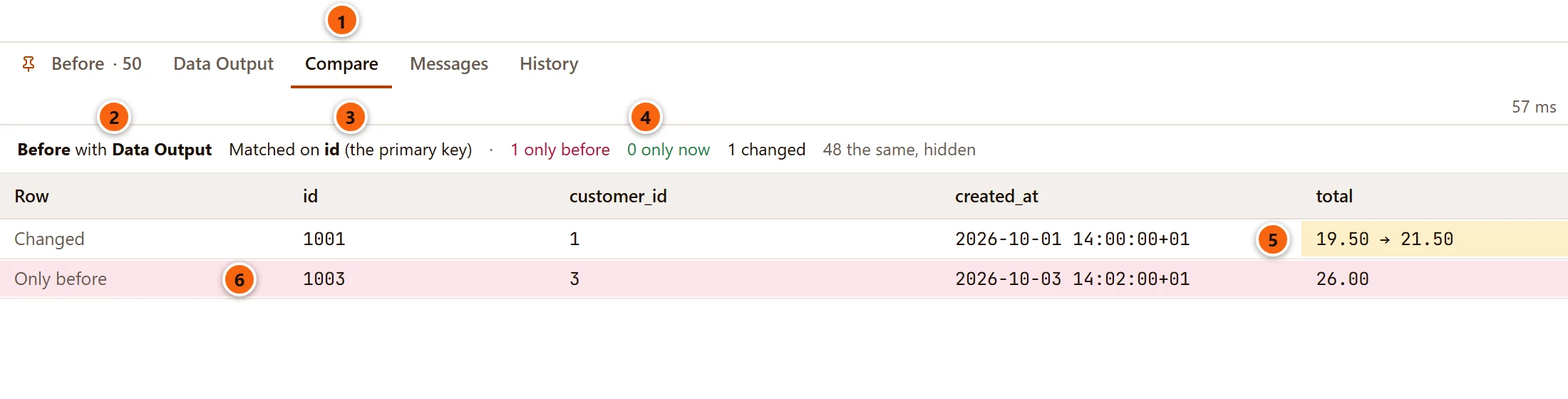
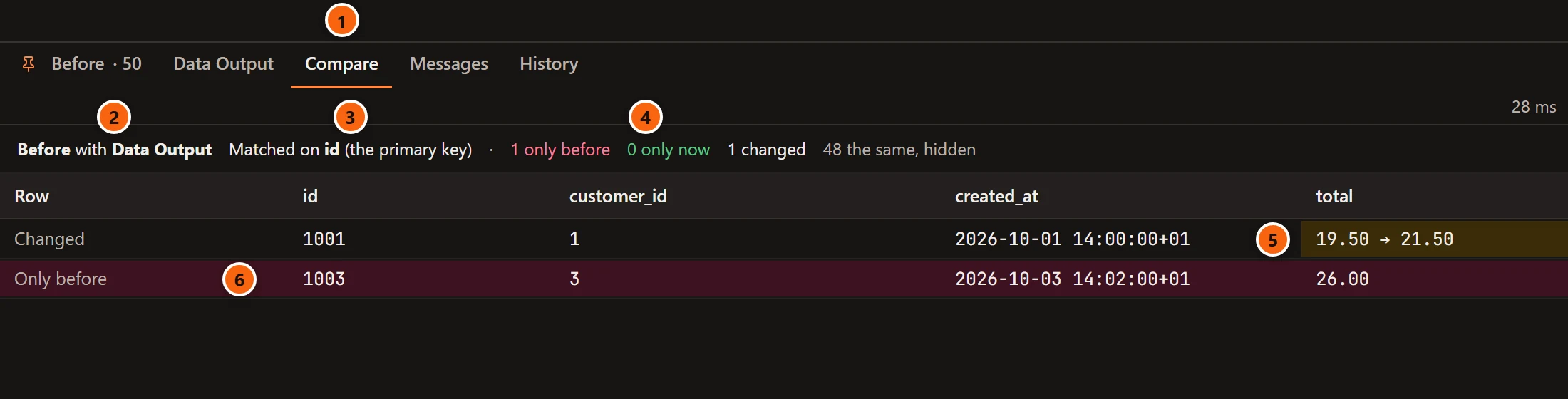
- 1 The Compare tab. It keeps its rows after the results it came from are gone, until you compare again.
- 2 Which two results were compared, the one before first.
- 3 What the rows were matched on: see the table below.
- 4 The counts: rows only before, rows only now, rows that changed, and the rows that are the same, which are counted and not listed.
- 5 A changed cell reads
old → newon a yellow tint. The row is marked Changed, and its other cells show the value both sides have. - 6 A row that is Only before is tinted red; a row that is Only now is tinted green.
How rows are matched:
| The header says | When | What it means for a changed row |
|---|---|---|
| Matched on id (the primary key) | The columns come from one table and the results hold its primary key | The two rows with the same key are compared cell by cell. |
| Matched on … (a unique index) | There is no primary key, but a unique index over NOT NULL columns |
The same, on that index’s columns. |
| Matched on every column | Neither was found | A row matches only a row that is the same in every column, so a changed row shows as one gone and one come. A line under the header says so. |
More to know:
- pgjumbo’s engine works the comparison out over the rows each result holds, as the server sent them. The grid’s sort and filter do not apply.
- Columns only one side has are left out of the comparison, and a line under the header names them
(
Only before, left out: …,Only now, left out: …). - The first 2,000 rows that differ are listed, and a line says so when there are more. The counts are of every row.
- A
NULLshows as your NULL reads word (see How values look). - When nothing differs, the tab says “Every row is the same.” When the comparison cannot be made, it says which results “could not be compared” and why.
Compare databases
Section titled “Compare databases”A result of Run on several databases holds the rows of every database, with the server and the database in its first two columns. Its tab’s menu has Compare Databases, which compares one database’s rows with another’s.
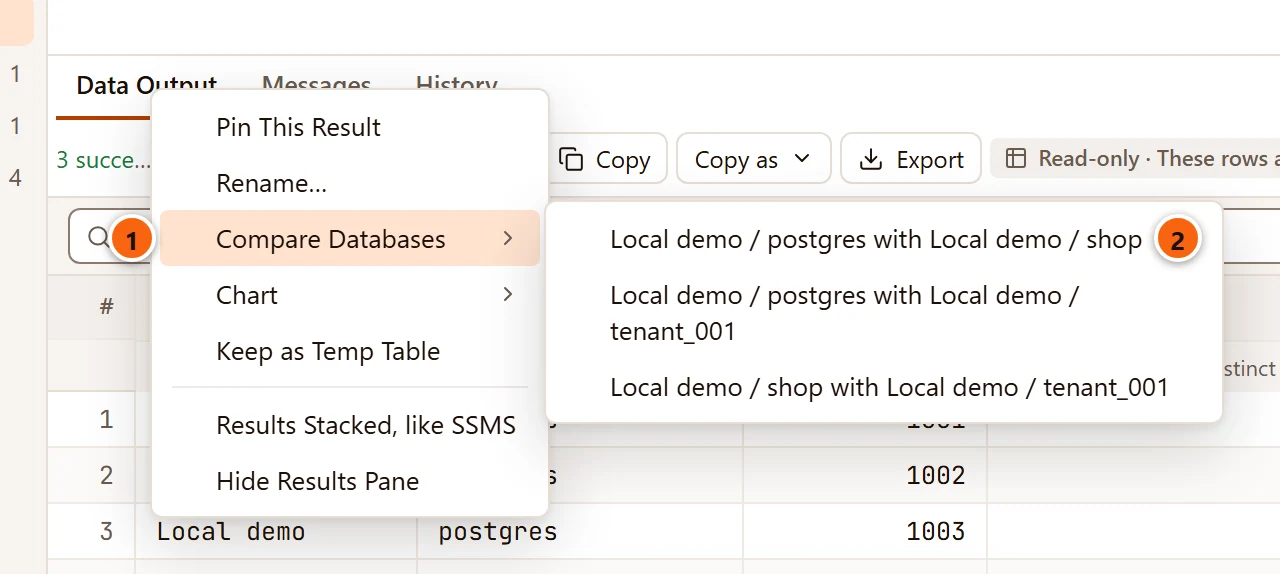
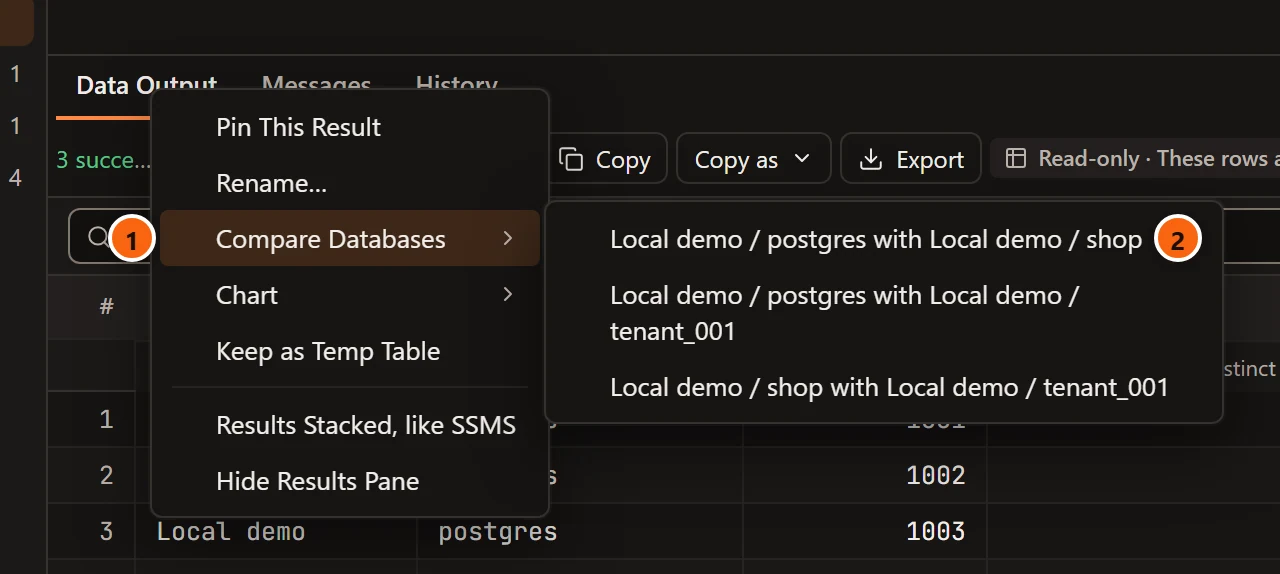
- 1 Compare Databases in the result tab’s menu.
- 2 The databases two by two, each named as server / database. Past ten pairs, the menu offers each database against the first instead.
The comparison opens in the same Compare tab and reads the same way: the first database of the pair is “before”, the second “now”. This is how you compare one query’s rows on Staging and on Production.
Keep a result as a temporary table
Section titled “Keep a result as a temporary table”Right-click a result tab and choose Keep as Temp Table. pgjumbo copies the rows the result holds into a temporary table on the tab’s own session, so your next query in that tab can join it. Nothing runs again.
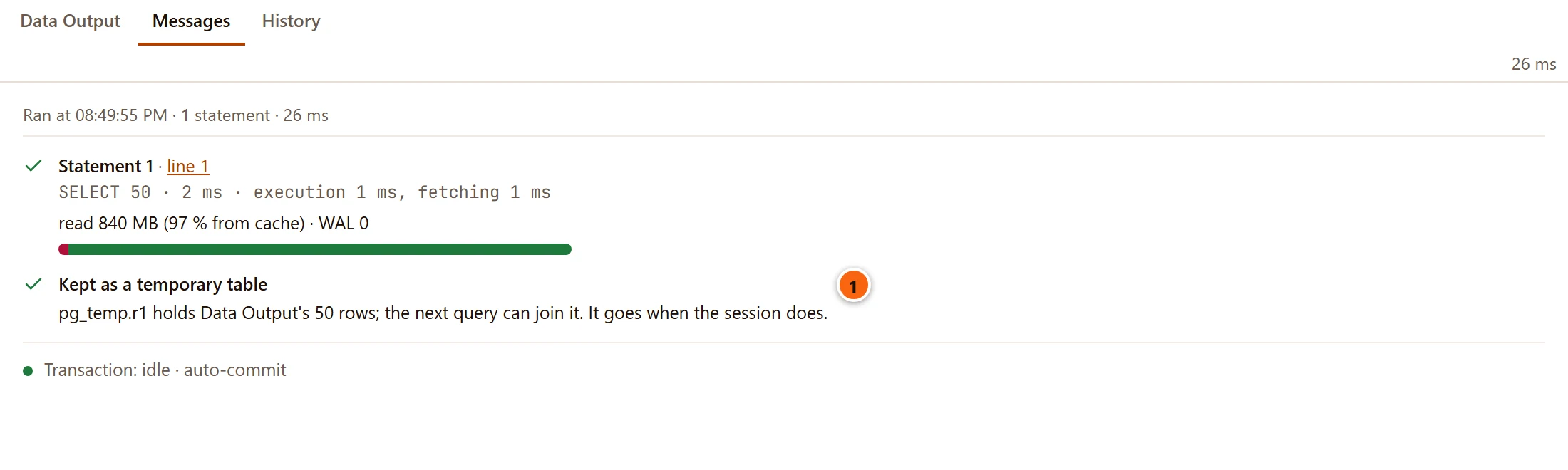
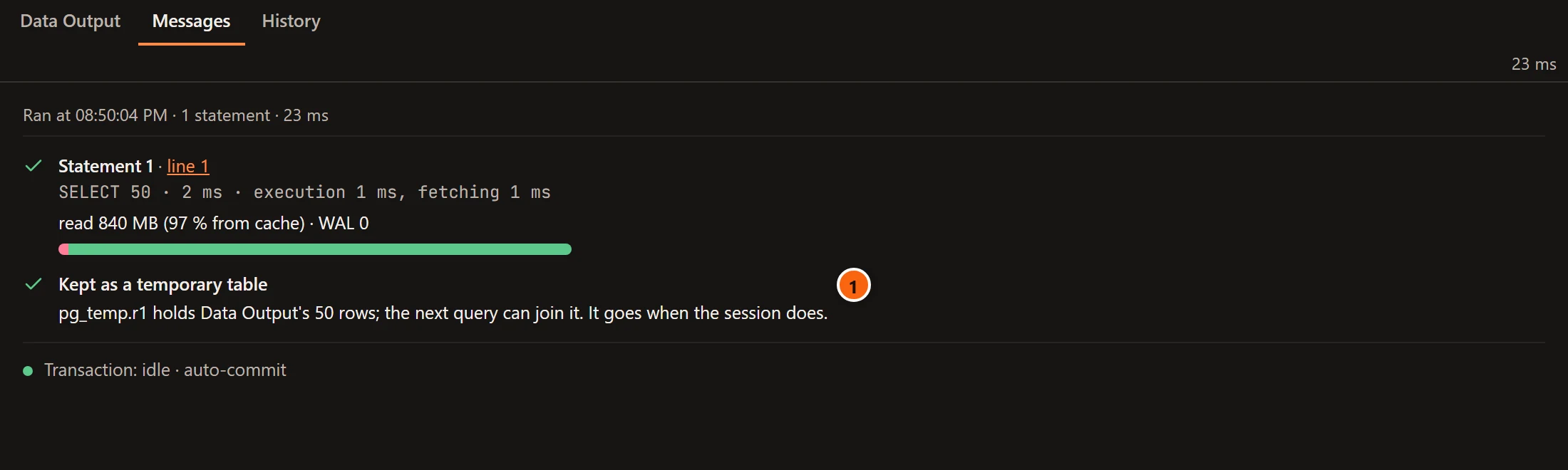
- 1 Messages comes to the front with an entry that names the table and says when it goes. The result bar
says
Kept as pg_temp.r1for a few seconds.
About the table:
- The first is
pg_temp.r1, the nextpg_temp.r2, and so on. Use it by that name:SELECT … FROM orders JOIN pg_temp.r1 USING (id). - Each column keeps its name and its type as the server writes it. A name that comes twice gets
_2, and a column without a name is calledcolumn_3, by its place. - It holds every row the result holds, whatever the grid’s sort and filter show. Rows past the row cap were never read, so they are not in it, and the entry says how many: see Large results.
- It goes when the tab’s session ends: when you close the tab, move it to another database, or lose the connection. Made while a transaction is open, it is part of that transaction: a rollback takes it back.
- Other tabs have their own sessions and cannot see it.
pgjumbo refuses, and says why in the result bar, when the session is read-only (PostgreSQL makes no table in a read-only transaction, not even a temporary one), when the tab’s transaction has failed and must be rolled back first, and while a rehearsal is waiting. Keeping what a rehearsed write would change is on Rehearse a write.
Stack the results of a script
Section titled “Stack the results of a script”A script that returns several results gets a tab for each. To see them all at once, as SQL Server Management Studio shows them, turn stacking on in one of these ways:
- Right-click a result tab and choose Results Stacked, like SSMS.
- Choose QueryResults Stacked.
- Choose Results Stacked in the toolbar’s More (…) menu.
The item is ticked while stacking is on; choose it again to go back to one result at a time.
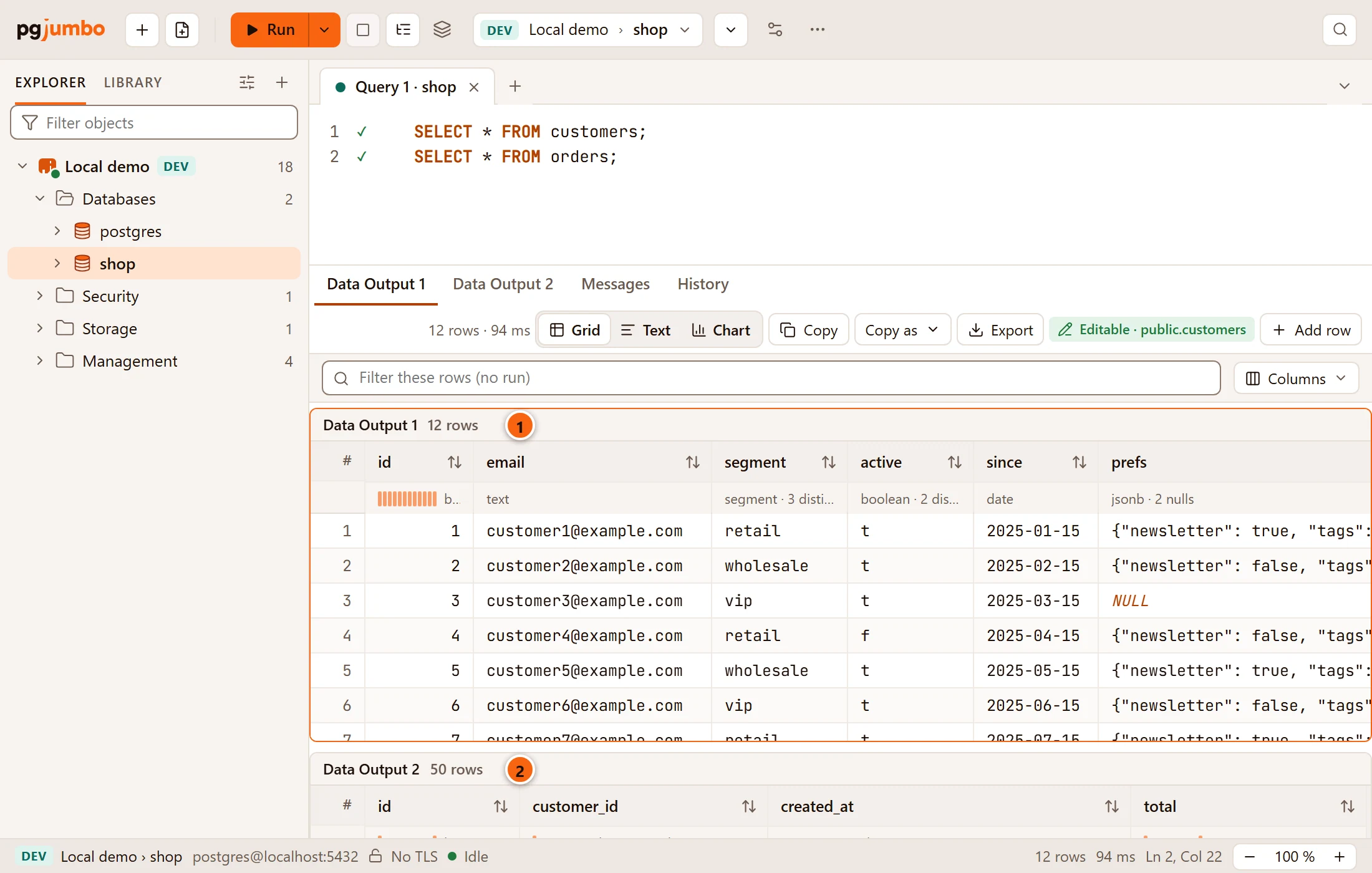
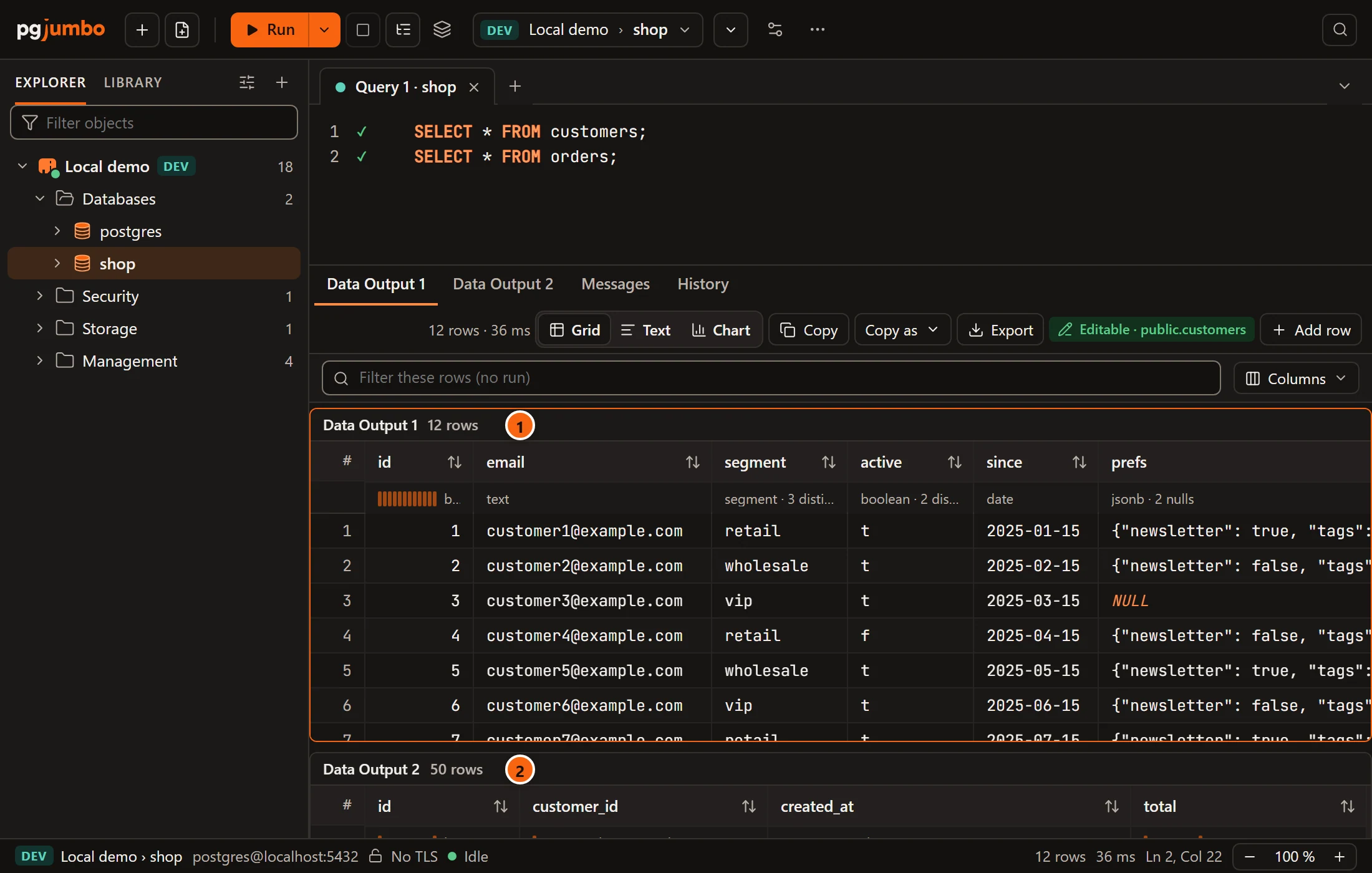
- 1 Each result has a line with its name and its number of rows, and a grid of its own under it. The one with the outline is the result in front: the result bar and the status bar speak of it.
- 2 The next result. Click in a result to bring it to the front. The pane scrolls when the results do not fit.
What to know:
- Stacking is one choice for every Query Tool tab of the window, and it is kept when you restart pgjumbo. It shows whenever a run returned more than one result and a result tab is in front.
- Each stacked grid sorts, sizes and arranges its columns, and copies, like the single grid. Editing rows and following a foreign key need the single grid: turn stacking off for those.
- The item is greyed out while the tab shows its results as text, which shows one result at a time.
Hide the results pane
Section titled “Hide the results pane”To give the editor the whole tab, hide the results:
- Right-click a result tab and choose Hide Results Pane.
- Or choose QueryHide Results Pane, or the same item in the toolbar’s More (…) menu. There it is ticked while the pane is hidden; choose it again to show the pane.
The pane comes back by itself with the next run. Hiding is for the tab in front only.
pgjumbo’s own shortcuts give it no key. The SSMS set of shortcuts does: ⌘ R (Ctrl+R on Windows and Linux). See Change the shortcuts.