

Copy results
You can copy the cells you selected, or a whole result, as plain tab-separated text for a spreadsheet or in one of five
other formats. pgjumbo’s engine writes the text from the rows it holds, so every digit of a bigint or a numeric
arrives as the server sent it. To write a result to a file instead, see
Save results to a file.
Copy the cells you selected
Section titled “Copy the cells you selected”Select cells, rows or columns in the grid (see Select cells, rows and columns), then:
- Press ⌘ C (Ctrl+C on Windows and Linux) to copy them as tab-separated text, without the column names.
- Press ⌘ ⇧ C (Ctrl+Shift+C on Windows and Linux) for Copy with Headers: the same, with the column names on the first line.
- Or right-click the selection and choose from the menu.
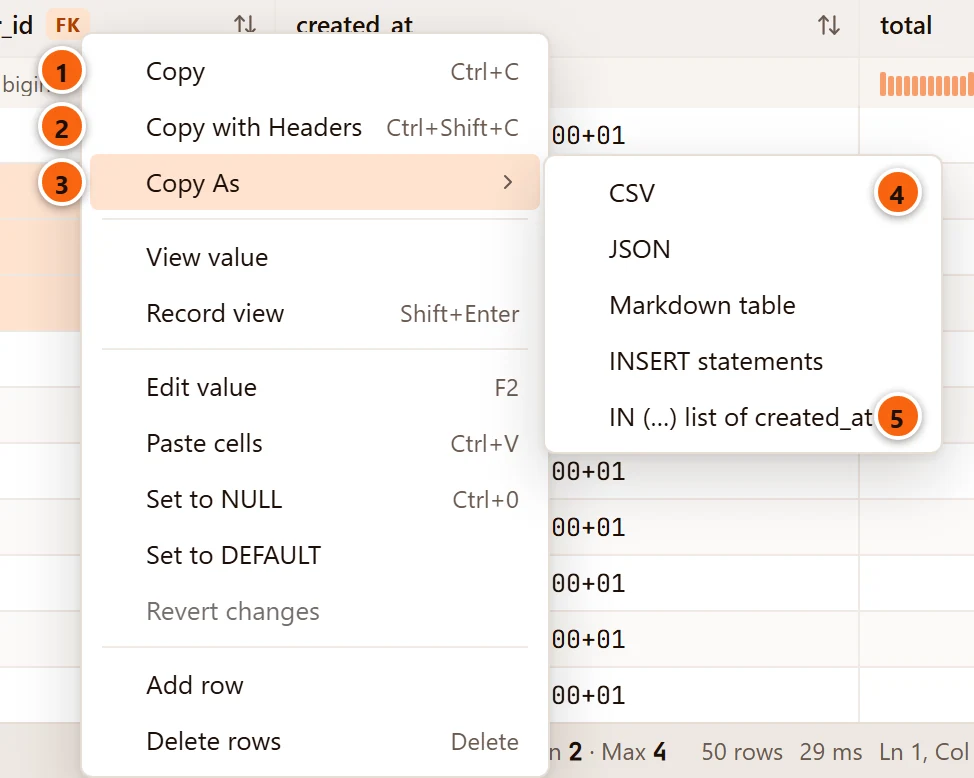
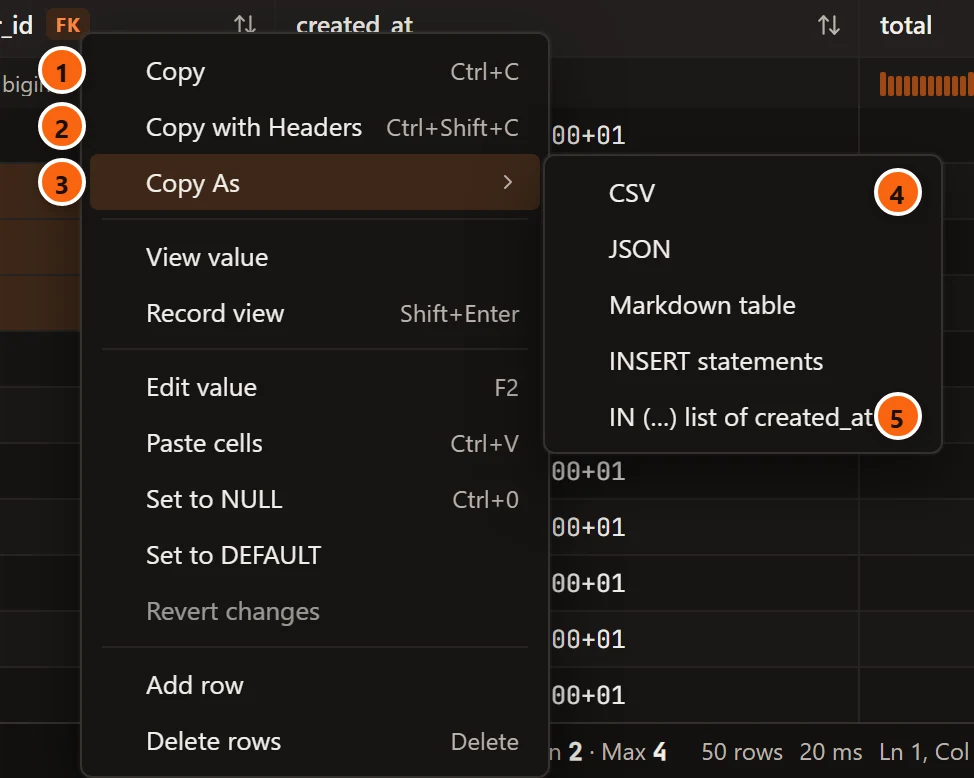
- 1 Copy: the selected cells as tab-separated text.
- 2 Copy with Headers: the same under a line of column names.
- 3 Copy As opens the list of formats.
- 4 CSV, JSON, Markdown table and INSERT statements write the selected rows and columns in that format. See The formats.
- 5 IN (…) list of created_at writes the values of one column: the column of the cell with the outline, which the item names.
The keys work whenever the grid has the keyboard, even while some text elsewhere in the window is highlighted: the grid copies its cells, never the window’s text. A field inside the grid, such as Find or a cell you are editing, copies its own text.
Copy the whole result
Section titled “Copy the whole result”Two buttons in the result bar copy every row of the result in front.
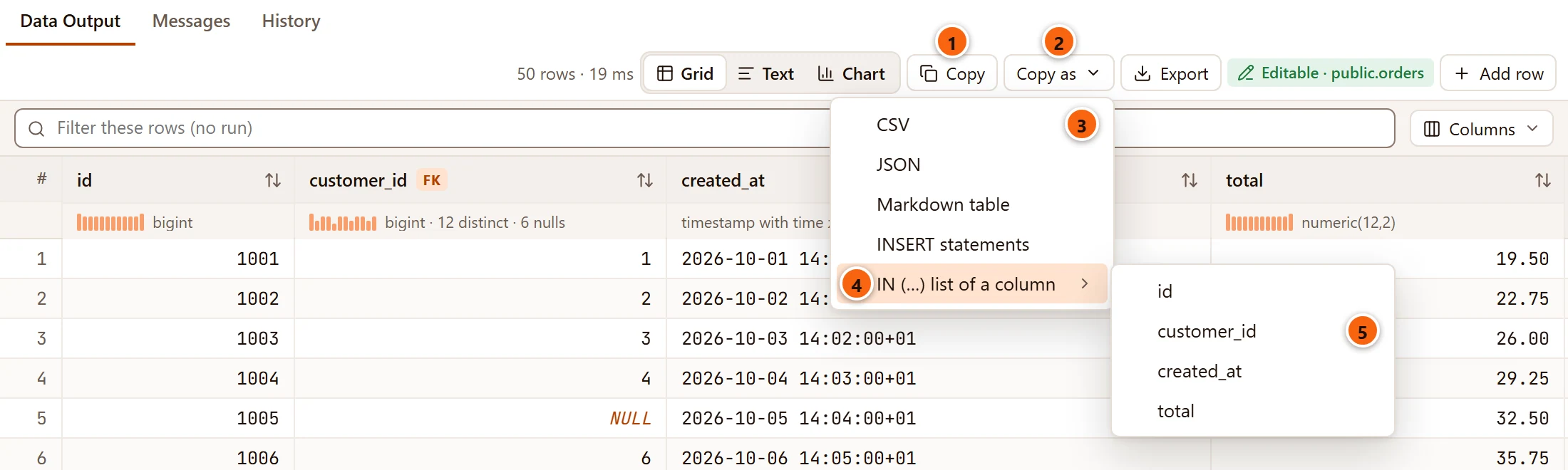
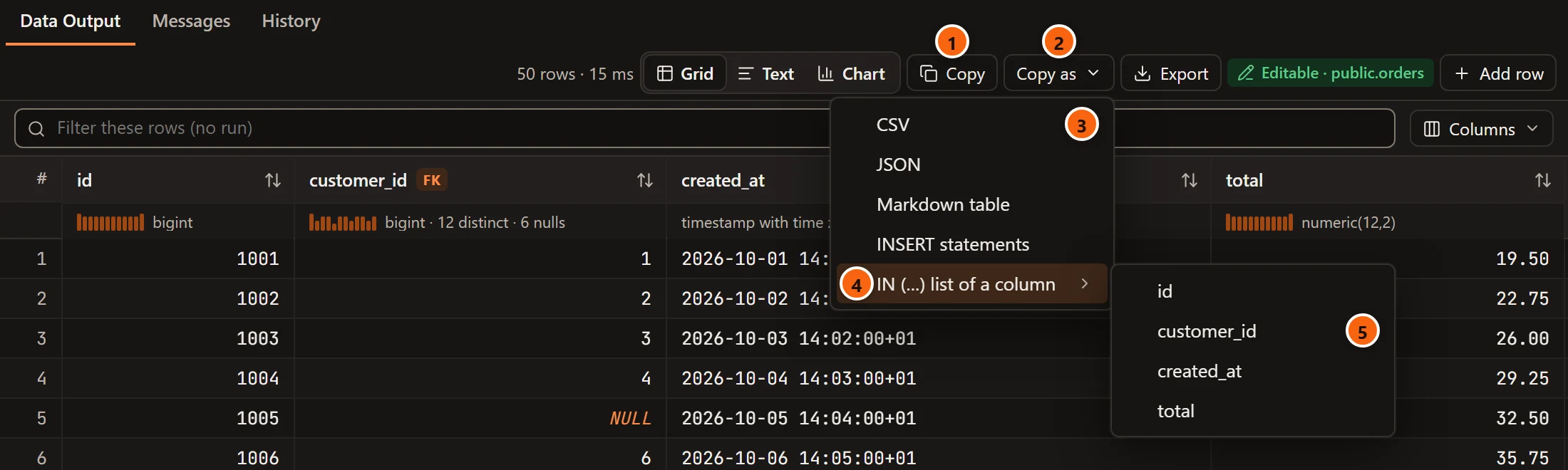
- 1 Copy: every row as tab-separated text, with the column names on the first line.
- 2 Copy as opens the same formats for the whole result.
- 3 CSV, JSON, Markdown table and INSERT statements write every row.
- 4 IN (…) list of a column opens the list of the result’s columns.
- 5 Choose the column whose values you want.
The two buttons take every column of the result, in the order the query returned them, hidden columns too. To copy the columns as you arranged them, select them in the grid (⌘ A (Ctrl+A on Windows and Linux) selects everything shown) and copy the selection.
While the result is shown as text, Copy takes the text as it is laid out, and Copy as is not offered. See Results as text.
What a copy holds
Section titled “What a copy holds”- Values go as the server wrote them, however SettingsResultsHow values look makes them look in
the grid. A number the grid shows as
1 234 567.89is copied as1234567.89. - A copy follows the grid’s sort and filter: the rows go in the order shown, and rows the filter hides are left out. See Sort, filter and arrange columns.
- A copy takes the rows the result holds. Rows a large result has not read from the server are not in it: see Large results.
- Rows you added and have not saved are not copied, and a value you changed is copied as it was read, until you save.
- A long value is copied whole, not the shortened start the cell shows.
- The text reaches the clipboard exactly as pgjumbo wrote it. A line break inside a value stays the line break the database holds, so a value copied here and pasted into a table’s rows comes back the same, byte for byte.
After a copy, the result bar says for a few seconds what went to the clipboard.


- 1
Copied 3 rows × 2 columns as CSV. A plain copy saysCopied 3 rows × 2 columns, the bar’s Copy saysCopied 50 rows, and anINlist names its column:Copied customer_id of 50 rows as an IN list. If the clipboard refuses, the bar saysCould not copy:and why.
The formats
Section titled “The formats”The examples copy two rows and three columns of an orders table. The second row has no customer.
Tab-separated text
Section titled “Tab-separated text”What Copy and Copy with Headers write: one line per row, a tab between values. A spreadsheet pastes it into separate cells.
id customer_id total1004 4 29.251005 32.50- A
NULLis an empty field. An empty string is written"", so the two stay apart, and pasting the text back into a grid gives each cell what it had (see Edit data). - A value that holds a tab, a line break or a double quote is put in double quotes, with its own double quotes doubled, the way spreadsheets read it.
As PostgreSQL’s COPY writes CSV, under a line of column names.
id,customer_id,total1004,4,29.251005,,32.50- A
NULLis an empty field, and an empty string is"". - A field that holds a comma, a double quote or a line break is quoted.
An array with one object per row.
[ {"id": 1004, "customer_id": 4, "total": 29.25}, {"id": 1005, "customer_id": null, "total": 32.50}]- Numbers and booleans are written bare, with every digit the server sent. A value that JSON has no number for, such
as
NaN, is written as a string. jsonandjsonbvalues go in as they are, not as text inside quotes.- A
NULLisnull. - When two columns have the same name, the second is named with
_2, the third with_3, so no value is lost.
Markdown table
Section titled “Markdown table”A table for a ticket, a wiki page or a chat that reads Markdown.
| id | customer_id | total ||---:|---:|---:|| 1004 | 4 | 29.25 || 1005 | | 32.50 |- Number columns line up on the right.
- A
NULLis an empty cell, a|inside a value is escaped, and a line break becomes<br>.
INSERT statements
Section titled “INSERT statements”One INSERT per row.
INSERT INTO public.orders (id, customer_id, total) VALUES (1004, 4, 29.25);INSERT INTO public.orders (id, customer_id, total) VALUES (1005, NULL, 32.50);- When every copied column comes from one table, the statements name that table and its columns, quoted where
PostgreSQL needs it. Otherwise they insert into
table_name, for you to change. - Numbers and booleans are written bare, everything else as a quoted literal, and a
NULLasNULL.
IN (…) list
Section titled “IN (…) list”The different values of one column, in parentheses, ready to put after IN in a WHERE.
(1, 2, 3, 4)- Each value is listed once, in the order it first comes.
NULLs are left out, asINnever matches them.- Text is quoted:
('retail', 'wholesale', 'vip').
A very large copy asks first
Section titled “A very large copy asks first”The clipboard takes a copy as one piece of text. When a copy would hold more than 200,000 rows, pgjumbo asks before it starts, whether you used a key, a menu or the result bar.
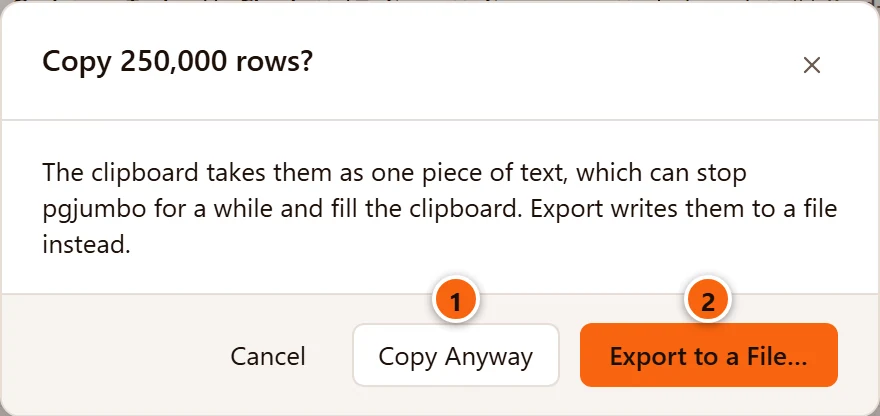
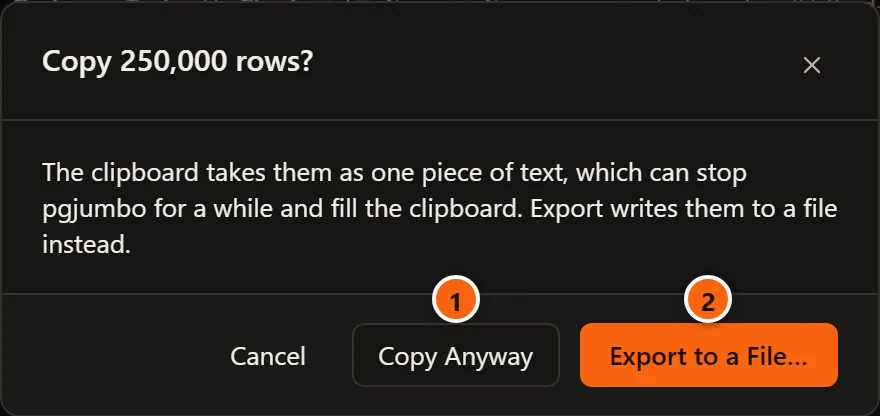
- 1 Copy Anyway copies the rows. pgjumbo can stop answering for a moment while the text goes to the clipboard.
- 2 Export to a File… opens the Export dialog for this result instead. It is the button Enter chooses. See Save results to a file.
Cancel, Esc or the × copies nothing.
Other places that copy
Section titled “Other places that copy”- The cell viewer’s Copy copies one value in full: see The cell viewer.
- A plan’s Copy JSON and Copy text are on Explain a query.