

Sort, filter and arrange columns
Once a query’s rows have arrived, you can sort them, filter them and search them without running the query again: pgjumbo’s engine works on the rows the result already holds. You can also size, move, pin and hide columns, and pgjumbo remembers that arrangement for the query.
All of this is for the results of a Query Tool tab. A data tab, which shows a table’s rows, sorts and filters on the server instead: see View data.
Sort on a heading
Section titled “Sort on a heading”Every heading has a sort button at its right end.
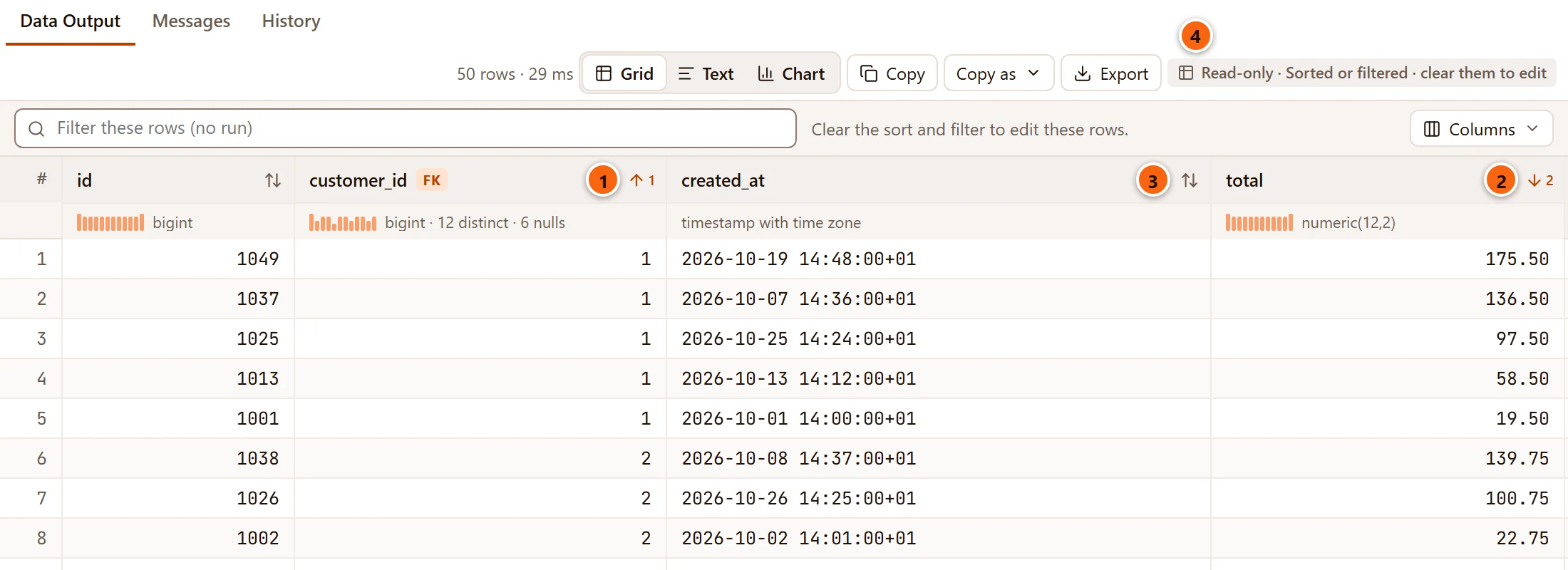
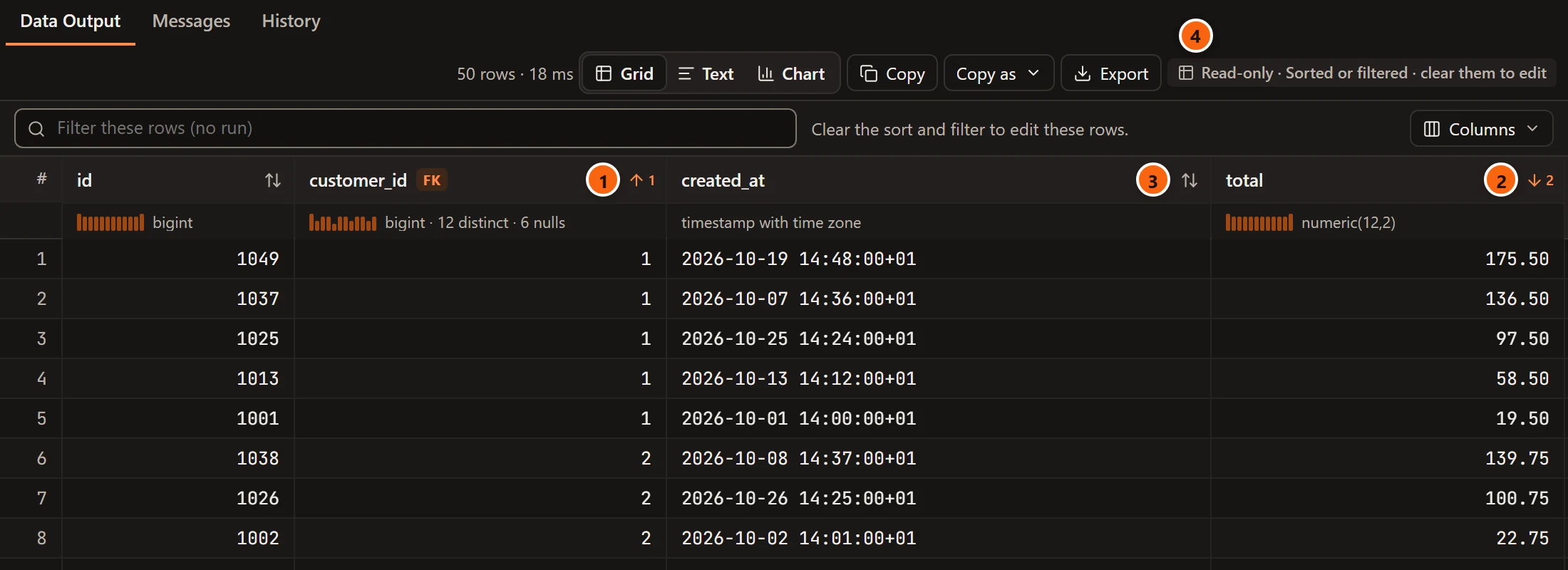
- 1 Click a sort button to sort by that column, smallest first. Click it again for largest first, and a third time to stop sorting by it. The button shows an arrow up or down while it sorts.
- 2 Shift+click a second button to add its column to the sort: rows that tie on the first column are ordered by the second. Each button then shows its place in the sort (1, 2 and so on). Shift+click works through the same three steps for that column and leaves the others as they are.
- 3 A column that takes no part in the sort keeps the double arrow. A click without Shift on any button replaces the whole sort with that one column.
- 4 While a result that could be edited is sorted or filtered, its tag reads Read-only with “Sorted or filtered · clear them to edit”. See Editing waits.
Values compare much as ORDER BY compares them:
| Type of the column | How its values compare |
|---|---|
smallint, integer, bigint, oid, numeric |
By value, exactly, whatever the number of digits |
real, double precision |
By value, as floating-point numbers |
timestamp with time zone |
By the instant, whatever offset each value is written with |
| Everything else | As text, ignoring case first; two values that differ only in case then go by case |
NULLs come last going up and first going down, as PostgreSQL has them. The order is stable: rows that tie stay in the
order they came in.
The sort is of the rows the result holds. When a result stopped at the row cap, the rows the server has not sent yet are
not part of it; see Large results. For those, sort in the query with ORDER BY.
Filter the rows
Section titled “Filter the rows”The field over the grid, Filter these rows (no run), keeps the rows that hold the text you type.
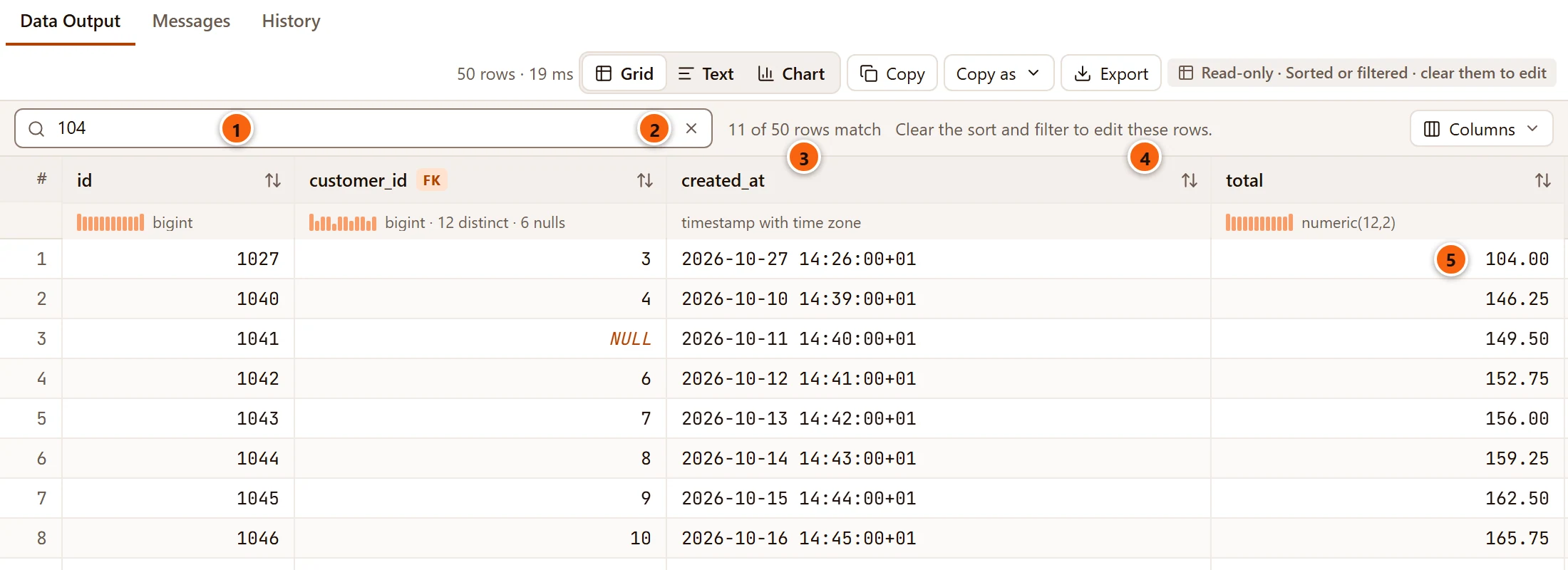
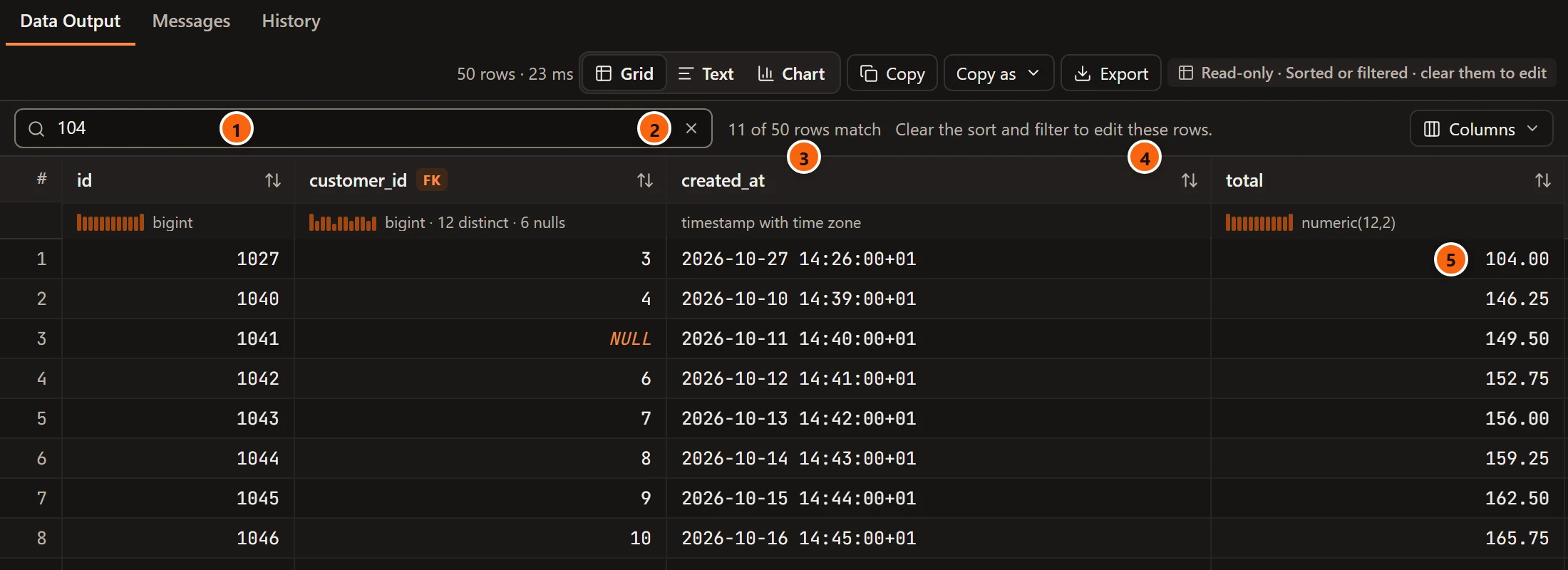
- 1 Type any text. After a short pause the grid keeps the rows that hold it in one of the columns shown, upper and lower case alike. Nothing is sent to the server.
- 2 The × clears the filter, and so does Esc while the cursor is in the field.
- 3 How many rows match, for example
11 of 50 rows match. - 4 On a result that could be edited, a note says “Clear the sort and filter to edit these rows.”
- 5 A row matches when any shown column holds the text: here
104is found in total for the first row and in id for the others.
What the filter looks at:
- The values as the server wrote them, not as the grid dresses them. A number is found by its digits (
1234567), not by the spaces or commas the grid groups it with, and a date by its ISO text (2026-10-27). How values look is on Values, the record view and the cell viewer. - The columns shown. A column you hid is not searched, so every match can be seen.
NULLnever matches, whatever word the grid shows for it.
The filter and the sort work together, and the rest of the result bar follows them: Copy, Copy as, the selection’s sum, Text, Chart and Map all take the rows as the grid shows them, in that order. The row numbers in the # column count the rows shown.
Find a value
Section titled “Find a value”⌘ F (Ctrl+F on Windows and Linux) in the grid opens Find over its top right corner. Find does not hide rows: it moves from one cell that holds the text to the next.
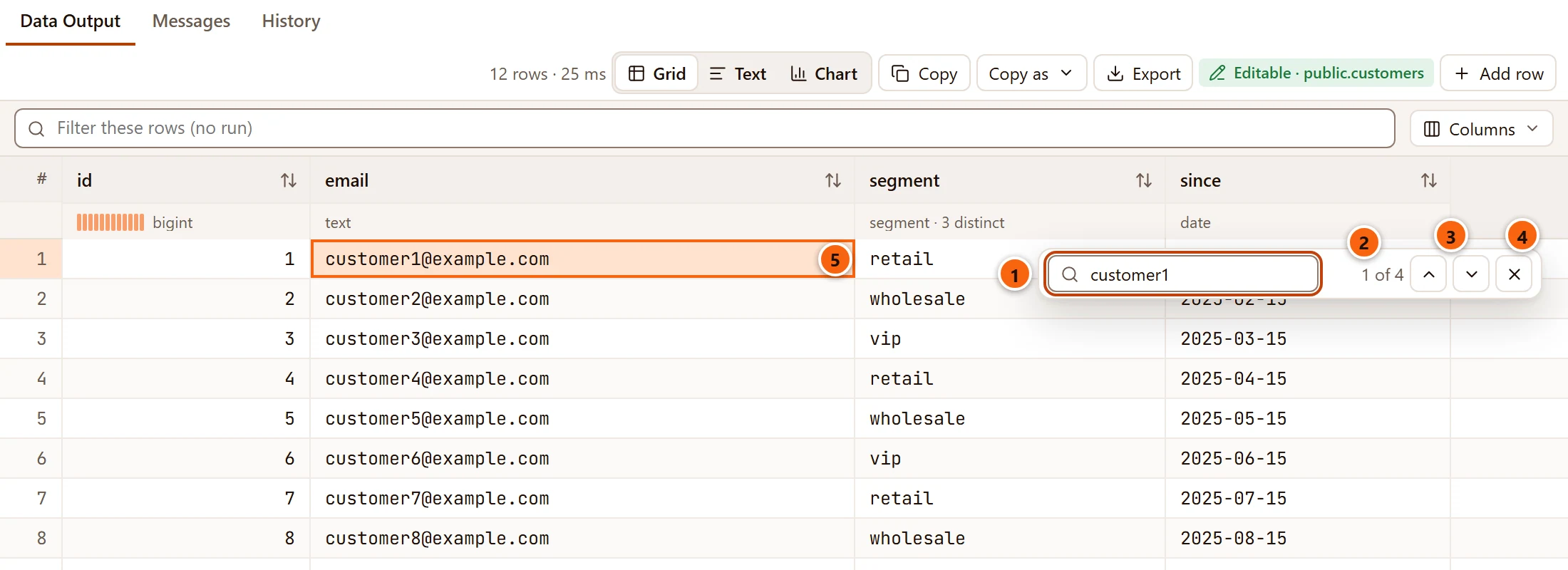
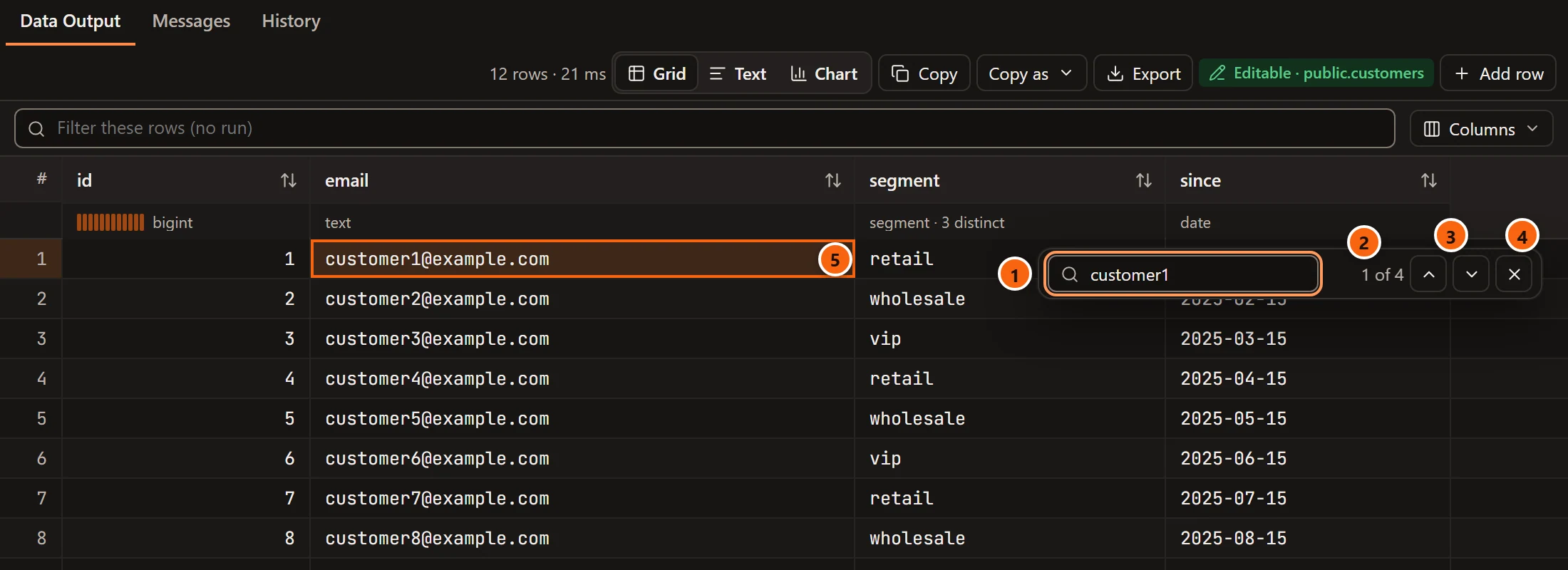
- 1 Type the text to look for. After a short pause pgjumbo goes to the first cell that holds it, from the cell you were on, upper and lower case alike.
- 2 Which match you are on and how many cells match in all, for example
1 of 4. It saysNo matchwhen no cell holds the text. - 3 Next match (Enter) and Previous match (Shift+Enter). Find goes row by row, through the columns in the order they are shown, and carries on from the start when it passes the end.
- 4 Close Find (Esc) puts the keyboard back in the grid, on the cell that was found.
- 5 The cell found gets the outline, and the grid scrolls to it. Other cells on screen that hold the text are outlined more lightly.
Find looks through the rows as the grid shows them, so a filter narrows it. Like the filter, it reads the values as the
server wrote them and skips hidden columns and NULLs.
Editing waits until the rows are as they came
Section titled “Editing waits until the rows are as they came”pgjumbo’s staged changes know a row by its place in the result, so sorting and editing take turns:
- While rows are sorted or filtered, the result takes no changes. Its tag reads Read-only · Sorted or filtered · clear them to edit, Add row is gone, and F2 says the same in the bar. Stop the sort and clear the filter, and the Editable tag is back.
- While changes wait to be saved, the sort buttons and the filter wait: the field is greyed out, and a click on a sort button says “Save or discard the changes first.” in the result bar.
- While rows are still arriving, they say “Wait for the rows to finish coming.”
Editing itself is on Edit data.
Size and move columns
Section titled “Size and move columns”- Drag the right edge of a heading to make its column wider or narrower, from 40 to 2,000 pixels.
- Double-click that edge to fit the column to its heading and the longest value among the rows around the screen.
- Drag a heading sideways to move its column. A line shows where it will land; let go to drop it there. A click without a drag selects the column instead.
Columns you did not size by hand keep sharing the space that is left.
The heading’s menu
Section titled “The heading’s menu”Right-click a heading for the column’s menu.
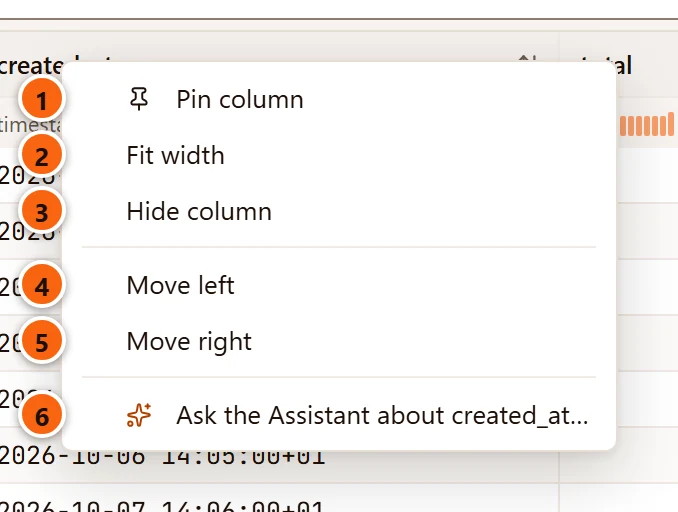
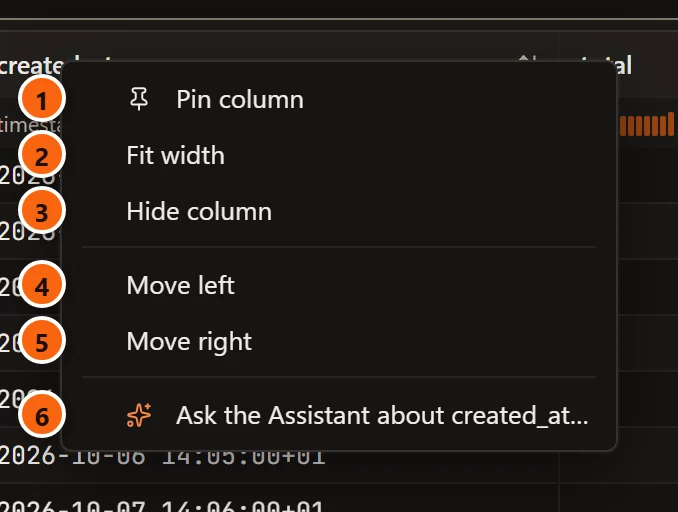
- 1 Pin column keeps the column in view at the left, beside the row numbers, while the others scroll sideways. Its heading gets a pin, and the item becomes Unpin column. Pin several and they stand in the order you pinned them.
- 2 Fit width does what a double-click on the heading’s edge does.
- 3 Hide column takes the column out of the grid. It is greyed out for the last column shown. Bring it back with Columns.
- 4 Move left moves the column one place to the left.
- 5 Move right moves it one place to the right. A pinned column moves among the pinned ones, the others among themselves.
- 6 Ask the Assistant about created_at… shows while the Assistant is turned on. It asks about that
column, for example why its rows are
NULL: see SQL help in the editor.
Moving, pinning or hiding a column clears the selection, as the cells it covered are no longer where they were.
The Columns menu
Section titled “The Columns menu”Columns, at the right of the filter field, lists every column of the result.
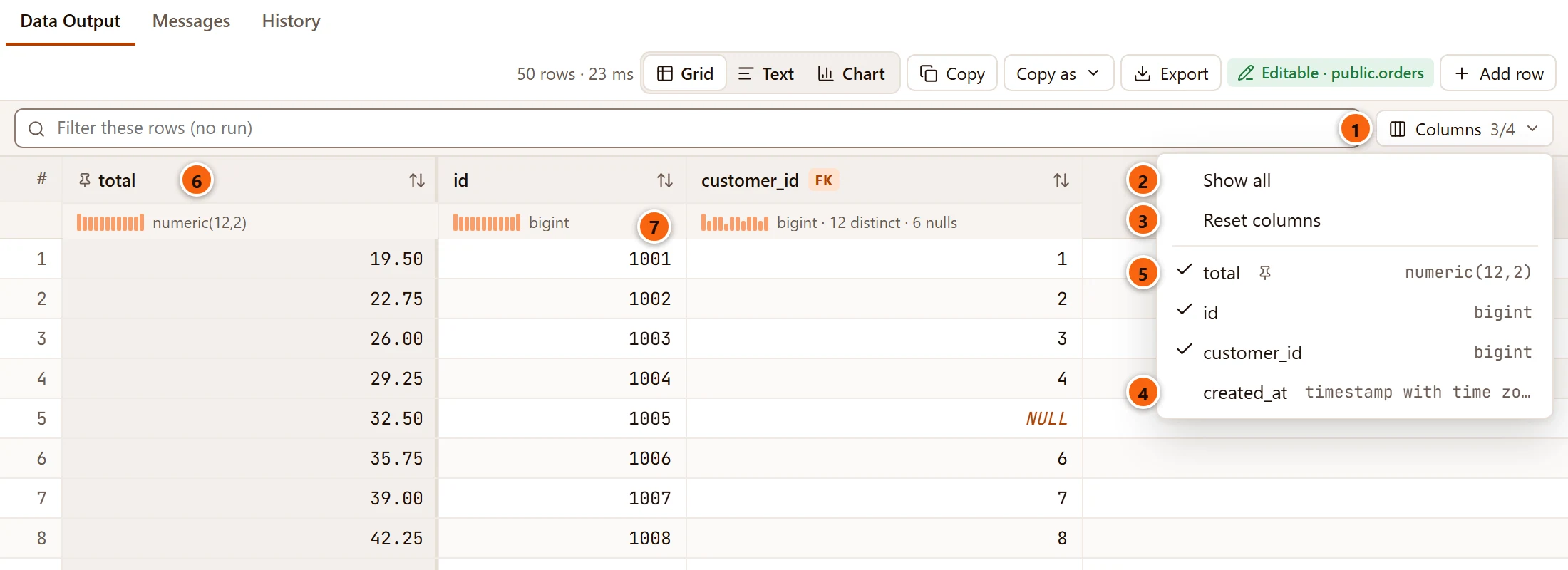
- 1 The button. When some columns are hidden it says how many are shown, for example
3/4. - 2 Show all brings every hidden column back. It is greyed out when none is hidden.
- 3 Reset columns forgets everything you arranged for this query: widths, order, pins and hidden columns. It is greyed out when nothing is arranged.
- 4 A column without a tick is hidden. Tick it to show it again; the menu stays open, so you can tick several.
- 5 A ticked column is shown. A pin after its name marks a pinned one, and its type stands at the right. The shown columns come first, in their order on screen. The last column shown cannot be unticked.
- 6 In the grid, a pinned column has a pin before its name and stays at the left.
- 7 The edge you drag to size a column, here between id and customer_id.
The arrangement is kept for the query
Section titled “The arrangement is kept for the query”pgjumbo keeps the arrangement by the query’s shape, with its constants left out. So SELECT * FROM orders WHERE id = 7
and the same query with id = 8 share one arrangement, in every tab of the window, and it is still there after you
restart pgjumbo. A different query has its own. pgjumbo keeps the arrangements of the 200 queries you used last.
The sort and the filter are not part of it: they belong to one result, and a new run starts without them.
The profile row
Section titled “The profile row”Under each heading, a short line tells you about the column’s values. It appears once every row of the result has arrived, and it is worked out over the rows the result holds, whatever the filter shows.


- 1 A number column gets a sparkline: twelve small bars that show how its values spread between the smallest and the largest. A tall bar means many rows in that part of the range. A column whose numbers are all the same has none.
- 2 After the column’s type: how many different values there are, when some repeat (
12 distinct), and how many areNULL(6 nulls). Past 10,000 different values the line says10,000+ distinct. - 3 A column where every value is different and none is
NULLshows only its type.
Hover over the line to read it in words, for example “bigint: 12 different values, 6 NULL, over the rows held”. When the column is too narrow for the line, it ends in “…” and the hover has the rest.